-
Type
- Dante
- Networking
- Control
-
System Management
- Composer Management Software
- SymVue Screen Authoring
- AV-Ops Center Remote Monitoring
- ARC-WEB Control Interface Signal Processing
- D100 AVoIP DSP Server
- Radius NX AVoIP DSP
- Prism AVoIP DSP
- Edge AVoIP DSP
- DSP I/O Expansion Cards
- Jupiter DSP
- Zone Mix 761 DSP I/O Connectivity
- xIO Bluetooth Endpoints
- xIO XLR Endpoints
- xIO AVoIP DSP Audio Expanders Control Systems
- T-Series Touchscreen Controllers
- W-Series Controllers
- Control Server for Personal Devices
- xControl GPIO Expander
- ARC-Series Controllers
Automix Matrix Apps in Composer
Product:Composer Management Software
Product:Radius NX AVoIP DSP
The Automix Matrix 780 was one of the most popular stand-alone DSPs in the Symetrix line of DSP hardware. Many Integrators relied on the simple and straight forward graphic user interface (GUI) for setting up and controlling the Automix Matrix 780.
The Radius NX 12×8 can be used as an improved, feature-rich, direct successor to the Automix Matrix 780. Simply download the site files for Composer, “push” it to the Radius NX hardware using Composer, and setup the Automix system using the familiar GUI.
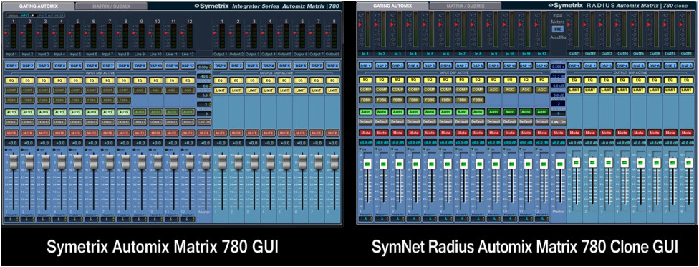
Here is a picture of the original 780 GUI side by side with the new Radius NX 780 GUI control screen. Notice that except for a few small cosmetic differences, the two are for all intents and purposes identical, both in function and operation.
Additionally, all controller number assignments used in the Automix Matrix 780 have also been assigned to the Radius NX Automix files. This means that any third-party control system integrated with the 780 will work instantly with the Radius NX after the automix file has been pushed to the hardware.
Below are the steps and considerations for using the automix files. It is very important that you read this document in its entirety, as some steps are crucial in commissioning and/or servicing the system.
Steps for Using the Automix Files
- Complete Composer Online Training. Since the automix site files use Composer to communicate and setup the Radius hardware, it is imperative to have an understanding of how to use Composer. Before contacting Symetrix Technical Support, plan to complete the Composer Online Training, becoming certified in Compose and earning CTS points in the process.
- Download the automix site files here.
- Open the file in Composer.
- Make a connection to the Radius NX hardware using Composer.
- Push the file to the Radius NX hardware.
- Open the GUI by clicking the green button on the site view entitled “Gain-Sharing” or “Gating” respectively.
- Setup and tune the Radius NX hardware using the GUI.
- Set the file to archive within the Radius NX hardware. On the site view, right click the Radius NX and choose “Properties” and check “Archive Site File When Going Online.” If using SymVue it is extremely import that each object have only one controller number assignment.
Gating vs Gain-Sharing vs Signal Path Only
The automix site file GUI comes in three formats:
- Gain-Sharing Automix Matrix #1 App – the GUI only contains controls specific to Composer’s gain-sharing automixer.
- Gating Automix Matrix #1 App – the GUI only contains controls specific to Composer’s gating automixer.
- Template Automix Matrix #1 App – contains the 780 DSP signal path without the GUI.
All 3 files contain both the Gain-sharing and Gating automixer in the “Automixers” super-module. If needed the automixer type can be switched between the two algorithms with a radio button control module entitled “Automix Type Select” or by triggering Preset 1 (Gating) or Preset 2 (Gain-sharing) respectively. This could be handy in a case where the gates on the Gating automixer are “chattering” due to excessive room noise and it is desired to change to the Gain-Sharing Automixer without losing the settings of all DSP modules in the file. Settings specific to the newly selected automixer such as NOM, NOM Atten, Hold, Off Gain, Slope, Response, etc, will need to be made on the automixer DSP module. The exception is that all controls common to both automixers such as Auto, Mute and Gain will work from the 780 GUI regardless of which algorithm is selected.
Feedback Fighter
The “response presets” buttons on a Feedback Fighter are not exportable to SymVue. In order to make it possible for these controls to be exported to SymVue the response preset settings have been stored to standard Composer presets in the range of 100-174. Preset recall buttons have been used on the feedback fighter GUI for these controls. Be aware that deleting any of these presets (100-174) in the Preset Manager will cause the response preset buttons to become non-functional. It is suggested that these presets are not used, edited, or deleted.
Loudspeaker Manager
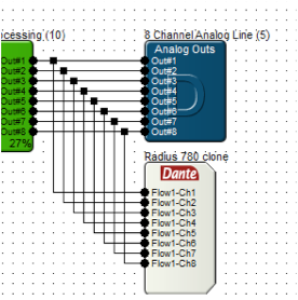
The filter slope (dB/octave) and type (Butterworth, Bessel, Linkwitz Riley) are drop-down selections. In SymVue the action is somewhat tricky. To use them in SymVue simply click in the drop down with the mouse, hit the enter key, then use the arrow keys on the keyboard to move between selections. Submix 1-8 Transmitted Over Dante: Submixes 1-8 can be routed to the outputs in any combination using the Submix Assign portion of the Matrix/ Submix page of the Radius 780 GUI. Additionally the Submix Assign is also routing these same submixes to their respective 8 channels of Dante digital audio, such that audio going to output 1 is transmitted via Dante Flow1-Ch1, output 2 is transmitted via Dante Flow1-Ch2, etc.
Submix 1-8 Transmitted Over Dante
Automix
Submixes 1-8 can be routed to the outputs in any combination using the Submix Assign portion of the Matrix/Submix page of the Radius NX 780 GUI. Additionally the Submix Assign is also routing these same submixes to their respective 8 channels of Dante digital audio, such that audio going to output 1 is transmitted via Dante Flow1-Ch1, output 2 is transmitted via Dante Flow1-Ch2, etc.