











-
Type
- Dante
- Networking
- Control
-
System Management
- Composer Management Software
- SymVue Screen Authoring
- AV-Ops Center Remote Monitoring
- ARC-WEB Control Interface Signal Processing
- D100 AVoIP DSP Server
- Radius NX AVoIP DSP
- Prism AVoIP DSP
- Edge AVoIP DSP
- DSP I/O Expansion Cards
- Jupiter DSP
- Zone Mix 761 DSP I/O Connectivity
- xIO Bluetooth Endpoints
- xIO XLR Endpoints
- xIO AVoIP DSP Audio Expanders Control Systems
- T-Series Touchscreen Controllers
- W-Series Controllers
- Control Server
- xControl GPIO Expander
- ARC-Series Controllers
-
Type
- Dante
- Networking
- Control
-
System Management
- Composer Management Software
- SymVue Screen Authoring
- AV-Ops Center Remote Monitoring
- ARC-WEB Control Interface Signal Processing
- D100 AVoIP DSP Server
- Radius NX AVoIP DSP
- Prism AVoIP DSP
- Edge AVoIP DSP
- DSP I/O Expansion Cards
- Jupiter DSP
- Zone Mix 761 DSP I/O Connectivity
- xIO Bluetooth Endpoints
- xIO XLR Endpoints
- xIO AVoIP DSP Audio Expanders Control Systems
- T-Series Touchscreen Controllers
- W-Series Controllers
- Control Server
- xControl GPIO Expander
- ARC-Series Controllers
Troubleshooting VoIP issues by performing a data packet capture
For VoIP problems that may be experienced when deploying a Symetrix VoIP Interface Card, a useful tool for troubleshooting problems is a network protocol analyzer. Problems are likely taking place on the network or SIP PBX outside of the VoIP Interface Card and a network protocol analyzer allows examination of the communication between the VoIP Interface Card and the VoIP PBX. In most cases, a very short capture of network traffic is enough information for a Symetrix engineer to scrutinize and begin diagnosing a problem. To perform the capture, a computer with a wired Ethernet connection, Wireshark network protocol analyzer software and a managed Ethernet switch with port mirroring are needed.
Installing Wireshark
Start by going to http://www.wireshark.org and clicking on the DOWNLOAD link. Please click the download appropriate for your operating system. Complete the installation process.
Using Wireshark to capture packets
To capture network traffic between the Symetrix VoIP Interface Card and the SIP PBX, a secondary managed Ethernet switch that supports port mirroring will be used. If a secondary managed Ethernet switch is not available, then arrange for a port to be mirrored on the main Ethernet switch that connects back to the SIP PBX.
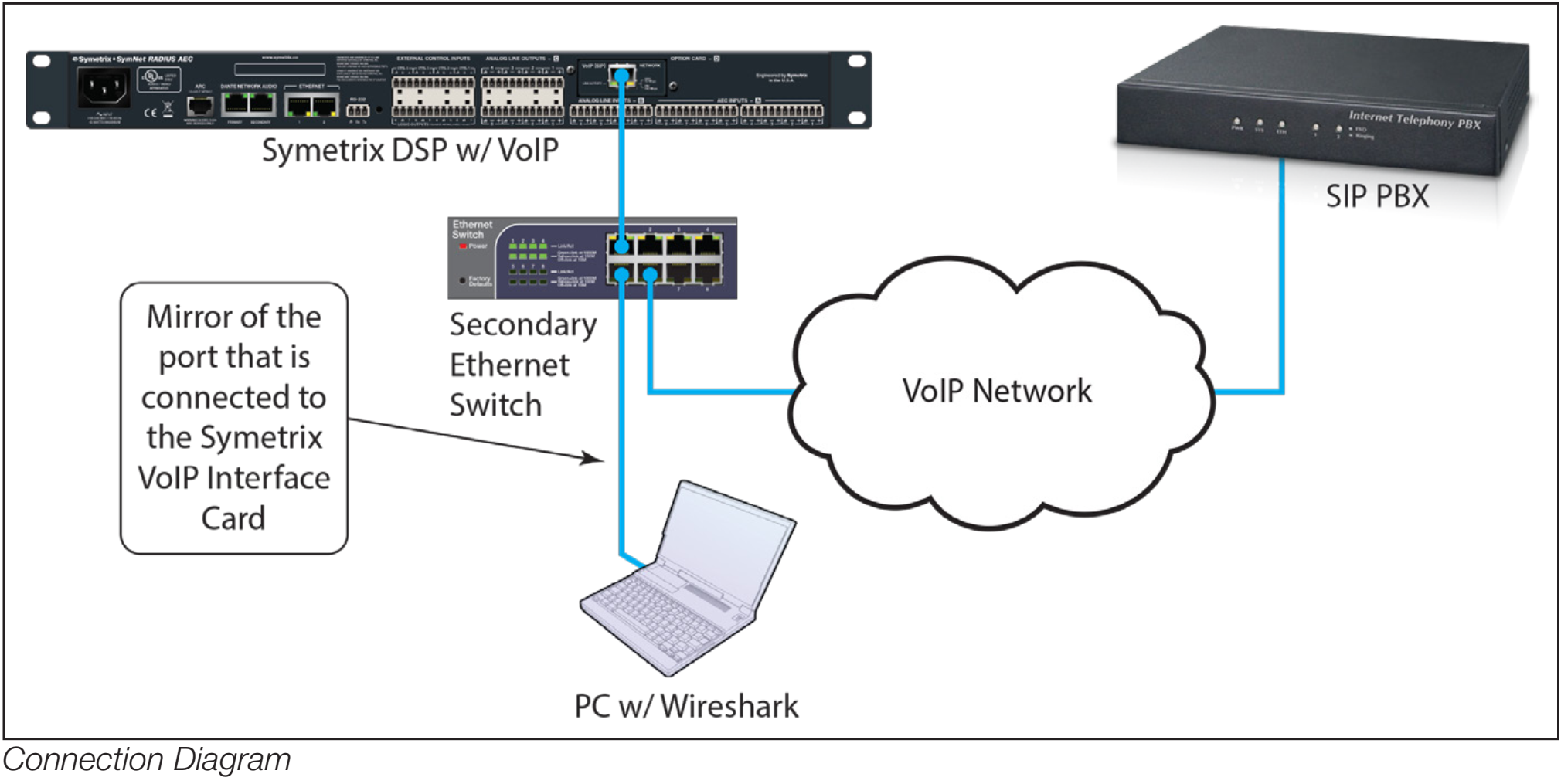
- First setup port mirroring on the managed switch. Port mirroring setup is performed differently for different makes of switches and directions on setting up a mirrored port should be directed to the switch manufacturer
- Connect the computer running Wireshark to the port to which traffic is mirrored.
- Connect the Symetrix VoIP Interface Card to the port of the switch from which traffic is mirrored.
- Connect a port from the main Ethernet switch that connects back to the SIP server to the Ethernet switch being used for the port mirroring.
Proceed to “Capture a Wireshark Trace”
There are just a few more steps to complete before we begin recording network
traffic with Wireshark.
- We recommend closing all other applications at this time, especially any connections to the network. This helps to keep the enormous number of packets recorded to a minimum and makes it simpler to read the traffic.
- Wireshark needs to know where to look for packet traffic. At the main window of the Wireshark Network Analyzer, click Capture on the Menu Bar and select Interfaces from the list of options. (Capture > Options: Interface drop-down, promiscuous mode).
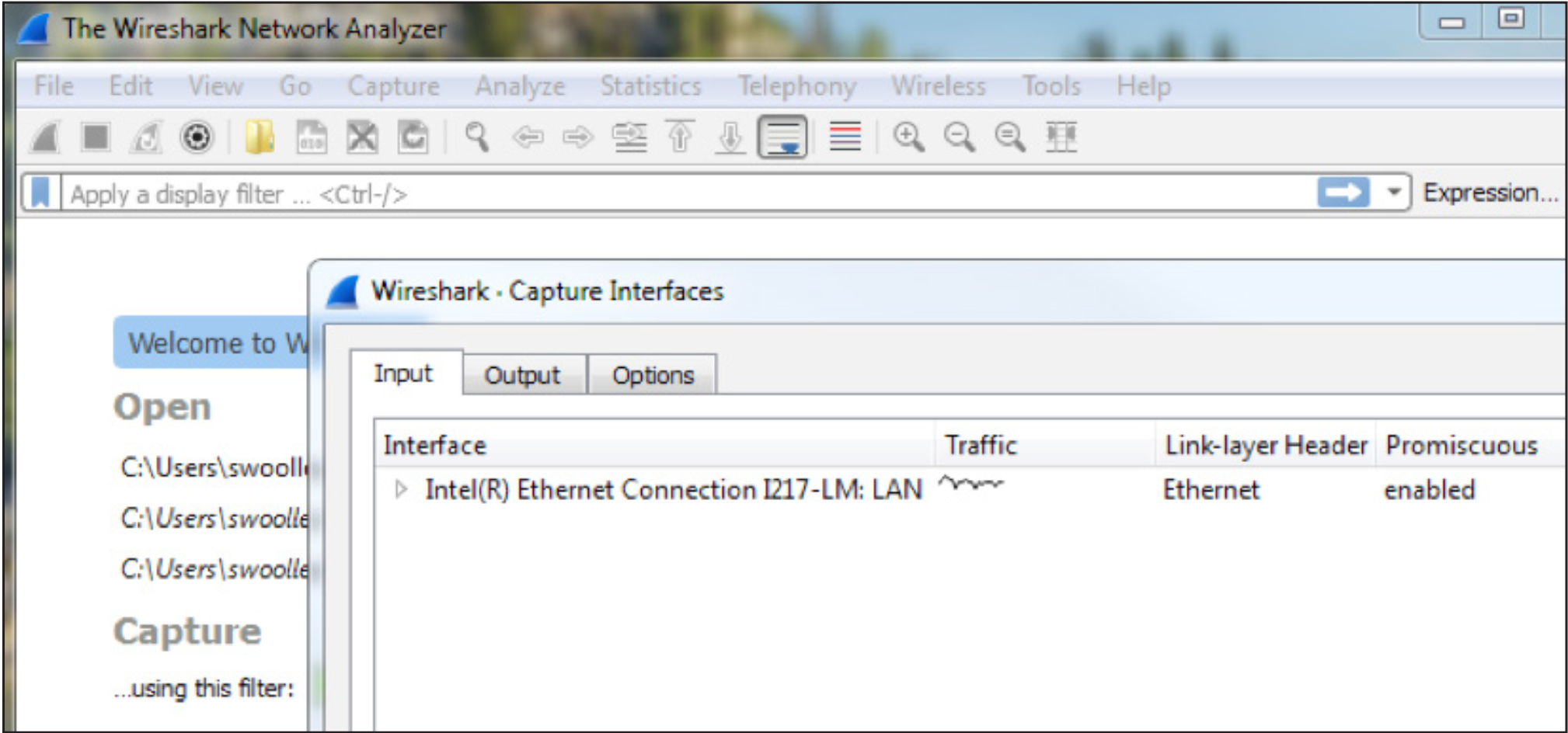
Select the Ethernet card the PC uses as its information access.
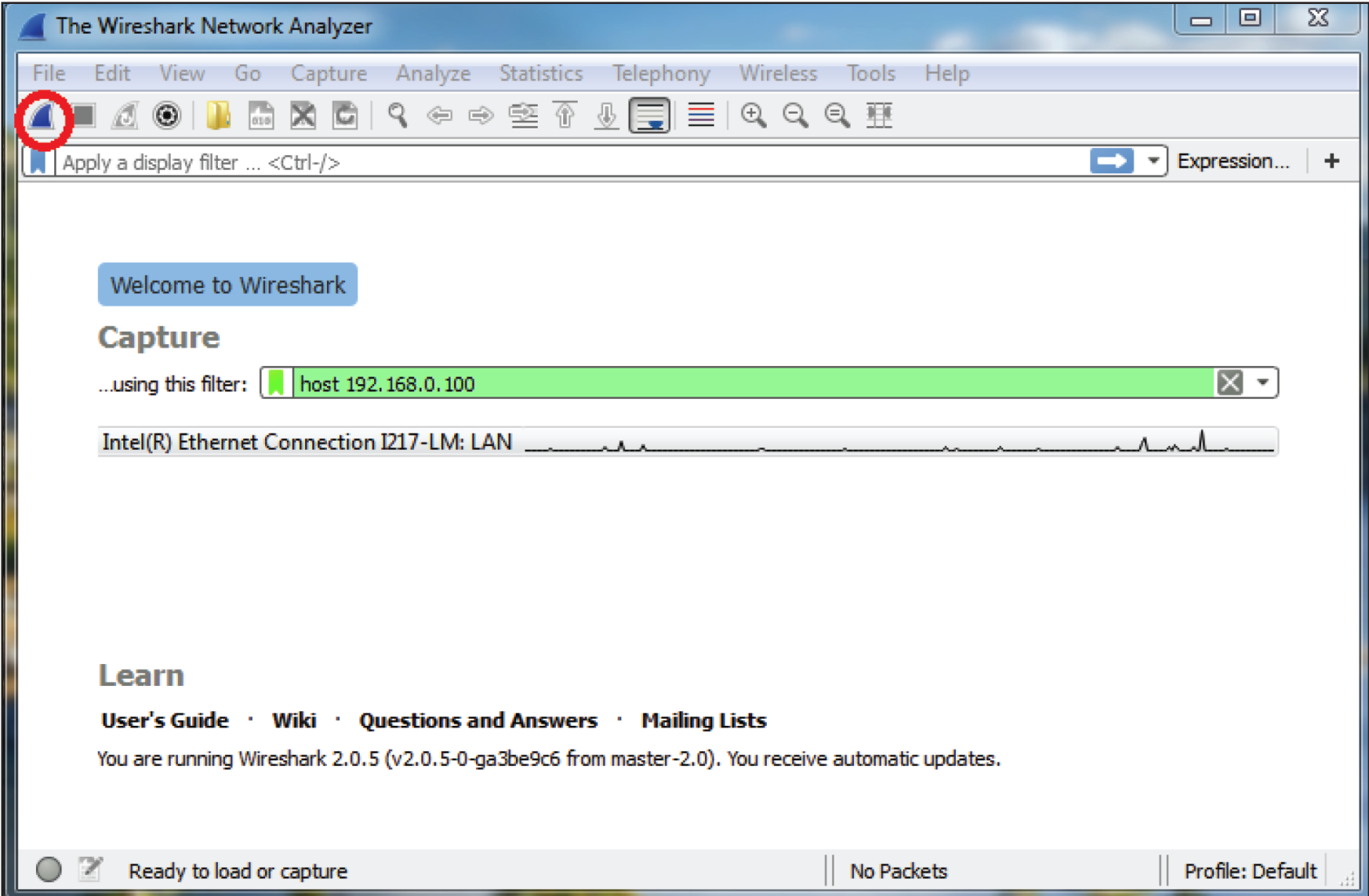
3. Set the capture filter to only capture network traffic to and from the VoIP
Interface Card by typing “host” followed by the IP address of the VoIP Interface
Card in the “Capture …using this filter:” box.
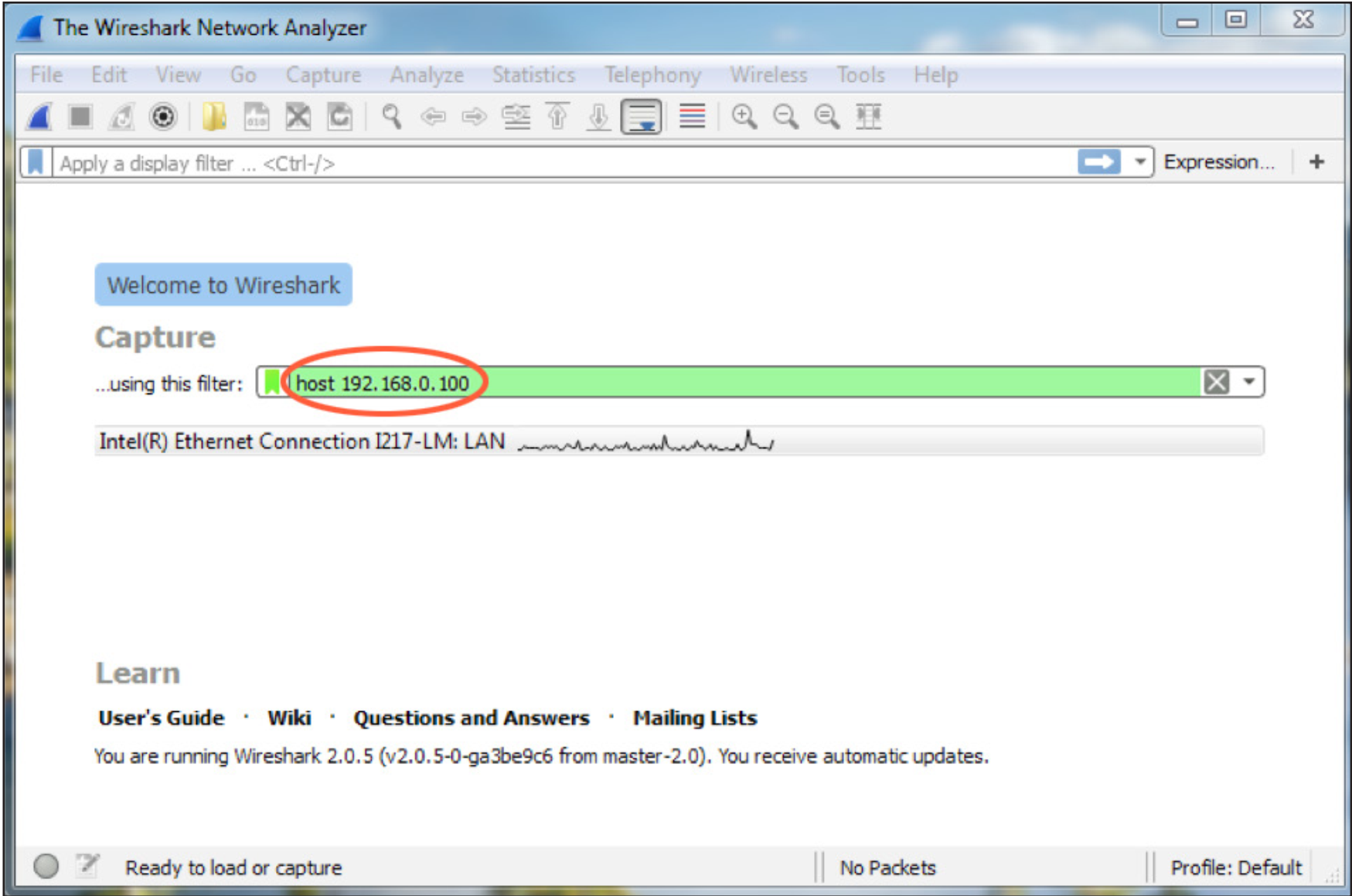
4. Power down the Symetrix DSP which hosts the VoIP Interface Card.
5. Start the Wireshark capture by clicking the Start Capture icon in the Tool Bar
6. Next, power up the DSP and leave the capture running until the DSP has completed boot-up. This will cause the VoIP interface to start the registration process with the SIP PBX.
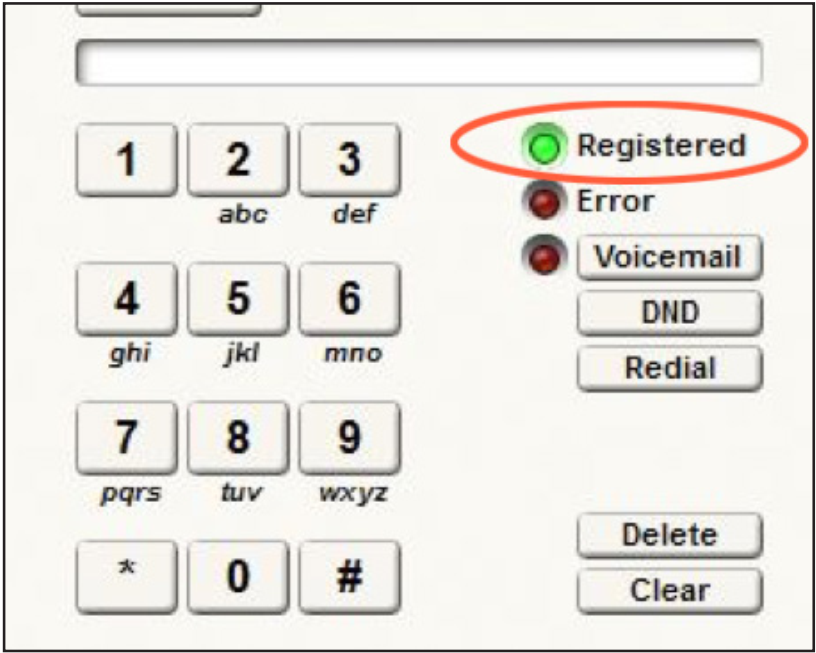
7. Once the DSP has completed booting, check in Composer and verify if the VoIP interface is registered.
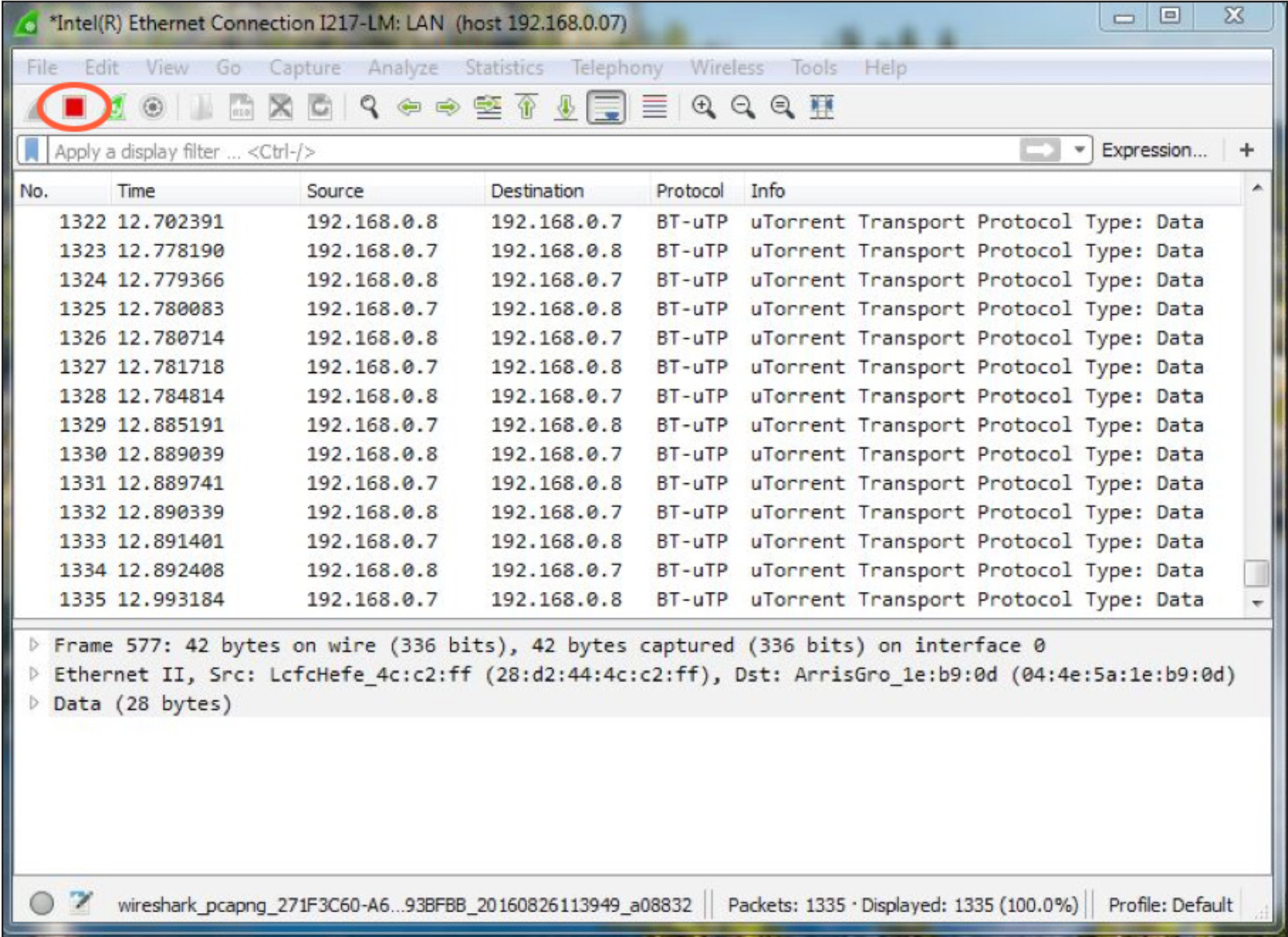
If it is not, stop the capture by clicking the Stop Icon on the Wireshark Tool Bar.
If it is registered, while the capture is still running make a call from the Symetrix DSP to another extension and answer the call at the other extension if it rings. Then hang up the call at the extension. Next, call the Symetrix DSP from another extension and answer the call if it rings. Depending on the problem, additional calls may need to be made for troubleshooting.
8. Once the capture is completed, stop the capture by clicking the Stop Icon on
the Wireshark Tool Bar.
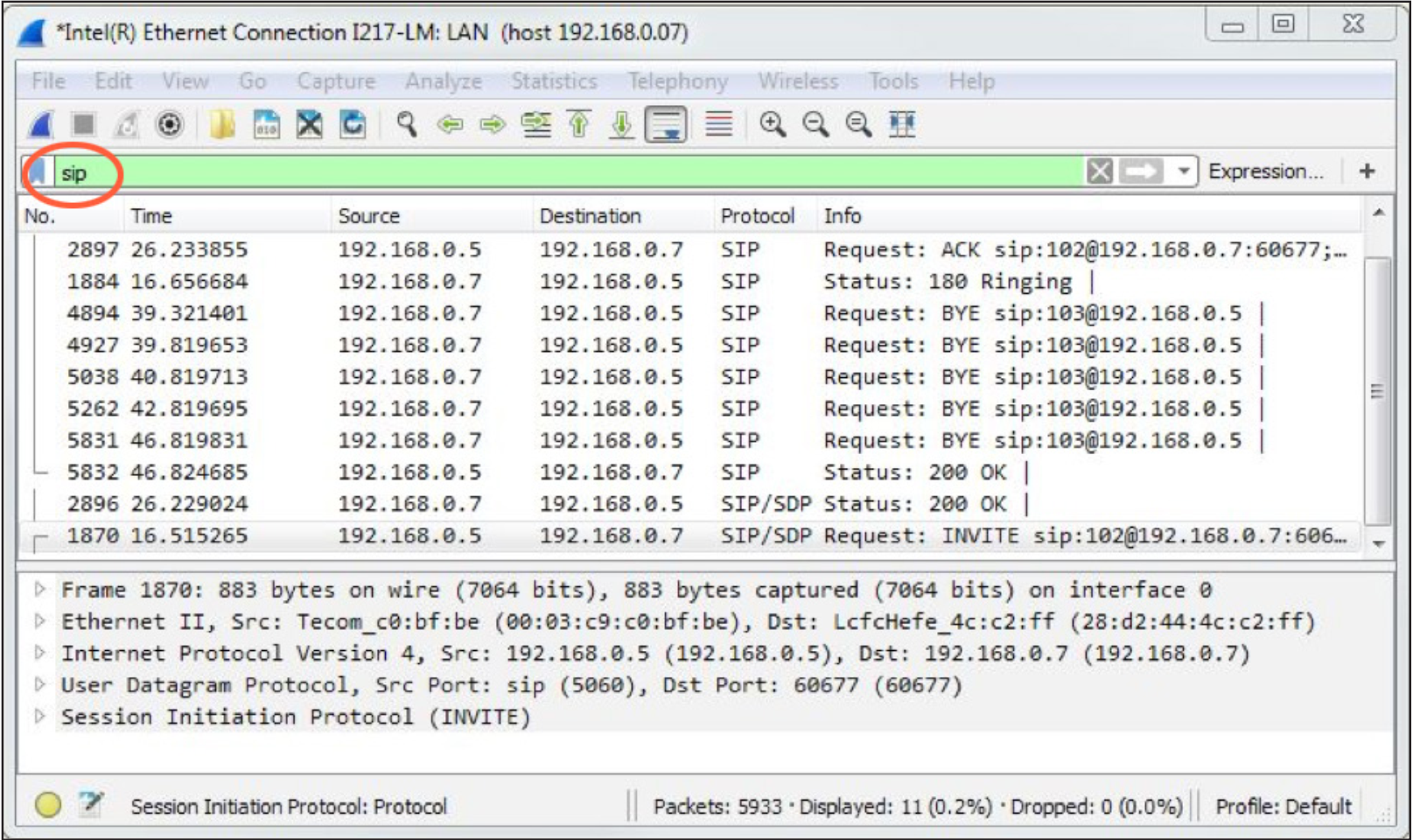
9. Wireshark’s top window should be populating with packet information. Verify
that the data needed has been captured by typing the word “sip” (lowercase) in
the display filter box.
If there are no SIP messages shown, the capture was not correctly performed and will need to be redone once correct capture settings have been set.
10. Once the capture has been stopped, save the information in a file that can be e-mailed to Symetrix. Click on File in the Menu Bar and choose Save from the list of options. When the Save File As dialogue window appears, leave all fields at their default settings (Packet Range information and File Type) and enter a memorable name for the .pcap file. It might be useful to include your company
name or some other unique identifier for association. In addition, make sure you know where this file is being saved so that you can retrieve it for e-mail attachment (the desktop is always easy to find, for example).
That’s it. We are now in a much better position to help you solve any technical difficulties you may be experiencing concerning VoIP troubles related to your Symetrix hardware
Network troubleshooting is an important tool to any technician's skillset. Incorporating basic signal flow into this troubleshooting can decrease time wasted and get the system running quickly. This guide addressed the the most common culprits of location issues on both Control and Dante networks, and relates most notably to the Composer platform of hardware however many of the investigatory techniques can be used for Jupiter and Zone Mix 761.
These are the same techniques our Support and Applications staff use to troubleshoot real systems. Remote Terminal Commands (near bottom of the page) can offer very useful diagnostics about the system.
Dante location information further down page.
CANNOT LOCATE CONTROL DEVICE
Behavior: Unit is not locating in Composer or is showing intermittent location status (green check is coming and going).
Includes: DSPs, W Series remotes, T Series touchscreens, xControl, and Control Server.
INITIAL CHECKS and CONSIDERATIONS
- Is the unit cabled and powered on/fully booted?
- Is the switch turned on and fully booted?
- Are any RJ45 connections loose or undone?
- Is the unit cabled to the correct network switch - if using switches?
- Is the cable being used a known working cable?
- Does it work with another device that is know to be working and locating on the network?
- Is the correct PoE rating being sent to a unit that requires PoE? Note: Control units like Prism 4x4 that require PoE on the control/ethernet port may behave erratically if PoE is also sent to the Dante port. Ensure no power is sent to the Dante port.
- Some units receiving incorrect PoE will not fully booth and as such will not locate on the network.
- Are both network port LEDs (on device and switch) illuminating and showing activity?
- You will expect to see solid amber and blinking green for good connectivity and traffic.
- Does the switch have an management on it such as VLANs?
- This may impede communication depending on how ports are configured.
- If there is trunking between switches is there provable healthy traffic going between them?
- Sometimes very large campus networks will have fiber optic between buildings which can be very sensitive to kinks or abrasions and disrupt traffic.
- Is there any subnet "jumping" happening?
- Symetrix devices are meant to all be on the same subnet for optimal connectivity and communication.
SUBNET/NETWORK MISMATCH
Checking a Device or PC's IP address:
Barring advanced network setups that communicate across subnets (not recommended for Symetrix equipment), an extremely simple, but possible answer is simply that your PC is looking at the incorrect network or is not physically connected to the same network as the device, or vice versa, where the device is accidentally in another subnet. First, ensure that your PC is wired either directly to the device's Control (ethernet) port OR into a port in the same VLAN/switch as the DSP.
Note: Symetrix devices are programmed from the factory to boot in for DHCP mode (no static IP is set in the factory) which will then resolve to a 169.254.x.y (Class B) APIPA IP address if no DHCP server is found. If a static IP was previously set on the DSP, it will hold that same IP address on reboot unless reset manually.
Network Selection
Ensure that you have selected the correct network in Composer and also that your PC is either configured into the correct network/subnet (if static) or set to DHCP (on the same network as the device) and is receiving the same address range.
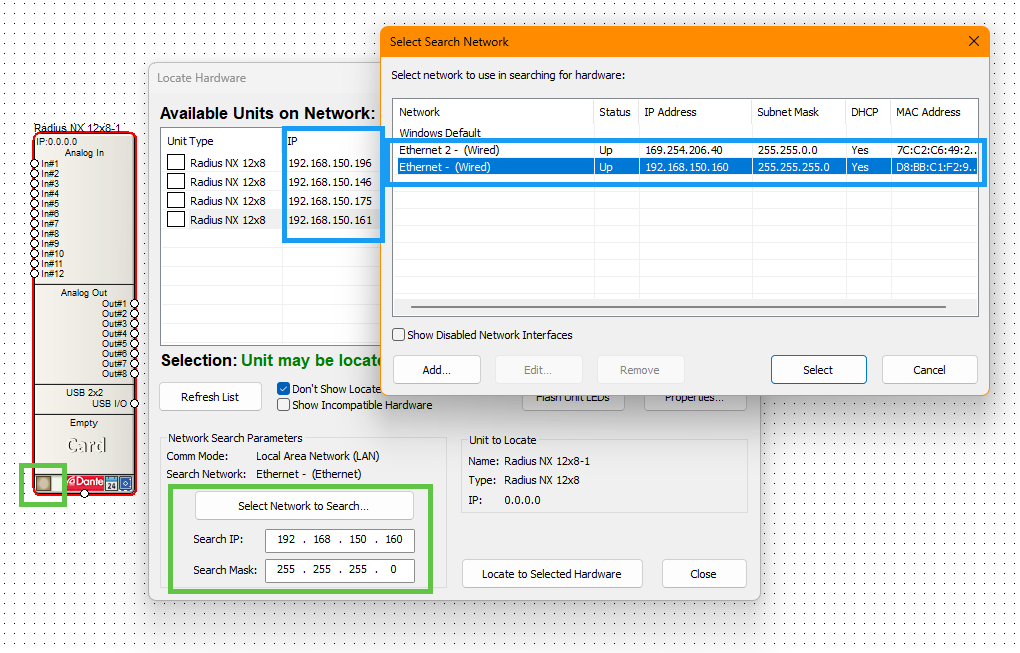
The IP Address and Subnet Mask columns in the ”Select Search Network” dialogue (above) show your PC’s current IP address and subnet. A command prompt “ipconfig” will also show your PC’s current network configuration.
There are different ways to edit your PC’s IP configuration, but one quick way is to click Start and search for "ncpa.cpl". This is a shortcut that will bring you to the Network Connections panel. From here, right click on the applicable wired connection and select Properties. Then open the TCP/IPv4 properties – where your PC’s IP settings can be edited. Select "Use the following IP address" and fill in information that matches the subnet of the device.
Static Addressing your PC
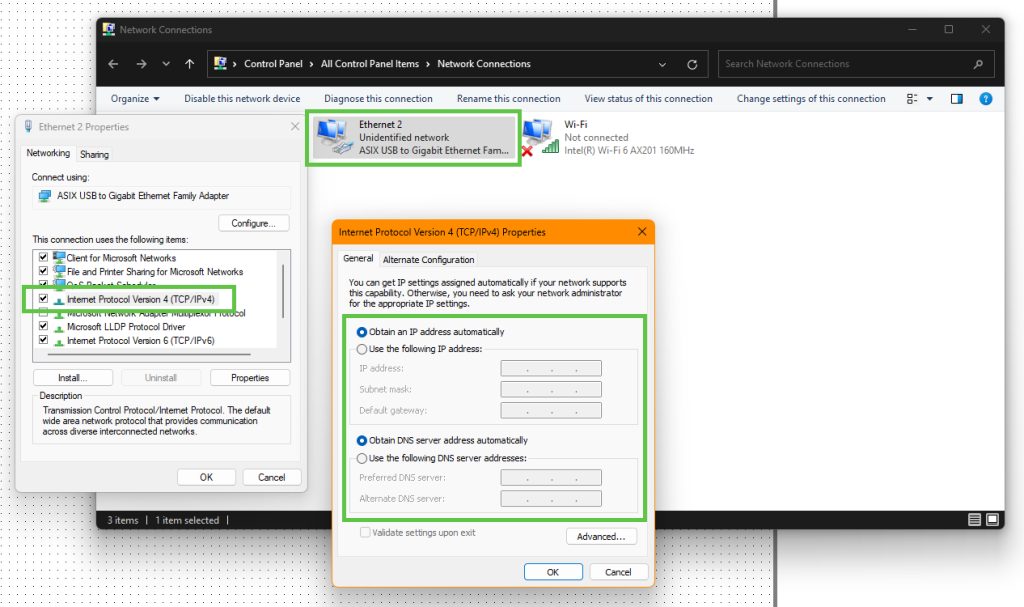
Note: the PC's static IP address cannot match the device or any other device on the network. This will cause an IP conflict and prevent proper communication.
An additional step would be to confirm the IP address of the device itself. The front of the DSP has a main menu that shows the Dante, Ethernet, and ARC status, along with its Control (ethernet) IP address.

If this menu isn’t currently displaying, push the button to the right of the display to cycle through to the correct menu – you may need to push and hold the button to return to the Dashboard menus.
- Non-Composer DSPs like Jupiter, Zone Mix, or some Cognio don't have a screen. Third-party software that can scan for IP addresses can be used to help.
- T-Series and W-Series remotes will only display their IP address if they are not programmed.
- The DHCP reset procedure at the bottom of this article can assist with this situation.
Command Prompt "PING":
The command prompt “ping” is another simple procedure and can provide important information in a few ways, specifically when “-t” is added to the end of the string; for example, “ping 192.168.150.196 -t”.
Note: space between ping and the IP address, and between the IP address and -t.
The “-t” will allow the ping to continue running indefinitely, instead of the default four pings. Press CTRL+C to stop the ping. A constant ping like this can help identify network issues by showing return times over a span of time.
Ping Device IP
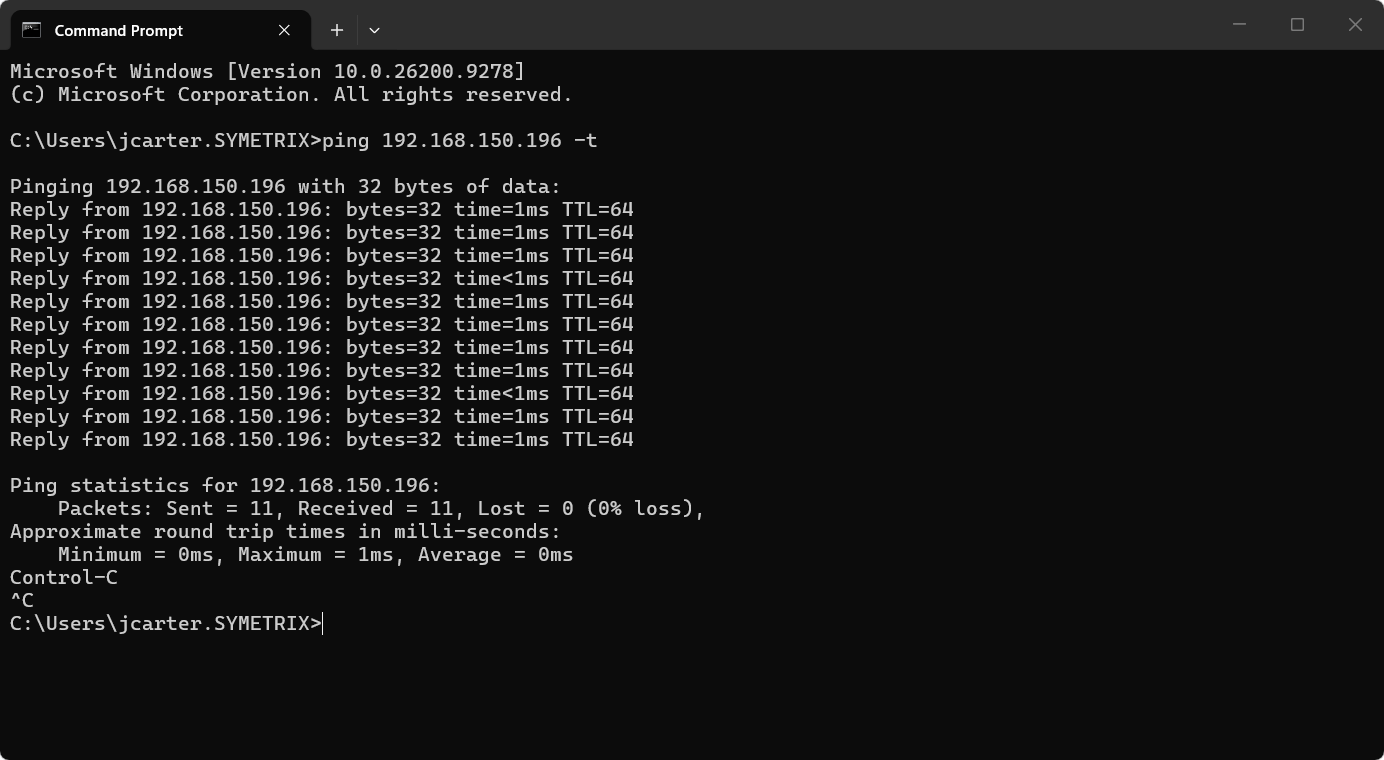
In a healthy network, without too many switch hops, we would expect ping times to be majorly equal to or sub 1 ms (=1ms or <1ms), with only very occasional small spikes, if any at all.
Destination Host Unreachable: A router on the network is explicitly telling your computer that it has no active route to the destination IP address, or local ARP resolution failed.
- Common causes: The local device is on a different subnet, the IP address doesn't exist on the local network, or a gateway router is missing a route to that destination. The failure point is on the network path to the device (routing/configuration issue).
Request Timed Out: Your computer sent the ping echo packet out onto the network, but it never received an echo reply back within the allotted time (usually 4 seconds).
- Common causes: The target device is powered off, disconnected, configured with a local firewall that blocks ICMP (ping) traffic, or asymmetrical routing is dropping the return path. The failure point is at the target device itself or immediately in front of it (the cable or port).
If a ping is responding intermittently or overall not consistently ~1 ms, here are a few scenarios that could be occurring:
- IP conflict: if the unit you’re pinging and some other device have the same IP address and are now fighting for prominence on the network. Unplug the device you intend to ping from the network and send the ping again. If you get a response, there is some other device on the network with that same IP. If you don’t get a response there is likely no IP conflict and some other issue is occurring.
- Physical layer issues: if the switch/router, cabling, or ports are faulty they can interrupt network traffic. Try swapping out any of these components (where possible) one at a time and seeing where communication returns.
- A quick way to test for this would be connecting the PC directly to the device in question, if not already – eliminating any greater network as a variable. If pings clear up with a direct connection, there’s more to investigate with the other components or the network.
- Network Configuration: the configuration of a switch or greater network can unintentionally interrupt the traffic flow. Check for incorrect or unnecessary IGMP snooping configuration (in most cases IGMP snooping is unnecessary), port blocking, security/firewall/anti-virus, Green Ethernet is disengaged, use of STP instead of mSTP in VLAN configs, and QoS is configured properly.
- A quick way to test for this would be connecting the PC directly to the DSP/unit in question, if not already – eliminating any greater network as a variable. If pings clear up with a direct connection, there’s more to investigate with the network configuration. Note: Integrator Support does not preside over on-site network(s) and cannot assist with configuration, which includes advanced networking such as crossing subnets and LANs (which requires Dante Domain Manager).
- NIC in a Bad State: the NIC on either the PC or the DSP can become impaired over time via constant plugging and unplugging to different networks or devices. Rebooting the DSP (waiting about 10 seconds before re-applying power) should clear its NIC while disabling and re-enabling the NIC on the PC should clear it (aside from rebooting the PC altogether).
CANNOT LOCATE DANTE DEVICE
Behavior: Unit is not locating in Composer through DSP or xIO Updater/Configurator or is showing intermittent location status (green check is coming and going).
Includes: Symetrix DSPs, xIO Dante expanders, and third-party Dante devices.
SUBNET/NETWORK MISMATCH
Barring advanced network setups that communicate across subnets, the Dante network is fundamentally the same as the Control network with regards to basic communication. All Dante devices must be in the same subnet to communicate with each other.
Composer is intended to communication via the Control network and thus unable to look at the Dante network directly in the same way that Dante Controller can. It is normally recommended to allow the Dante network to remain in DHCP mode for the simplest set up and maintenance. If any static IP addresses are in play, double-check for IP conflicts, improper VLAN configuration, improper trunk configuration (if using multiple switches), and so on.
To ensure that devices are on the same network/subnet, check the Device View in Dante Controller for the given unit under the Status tab (your PC must be looking at the Dante network).
Device View
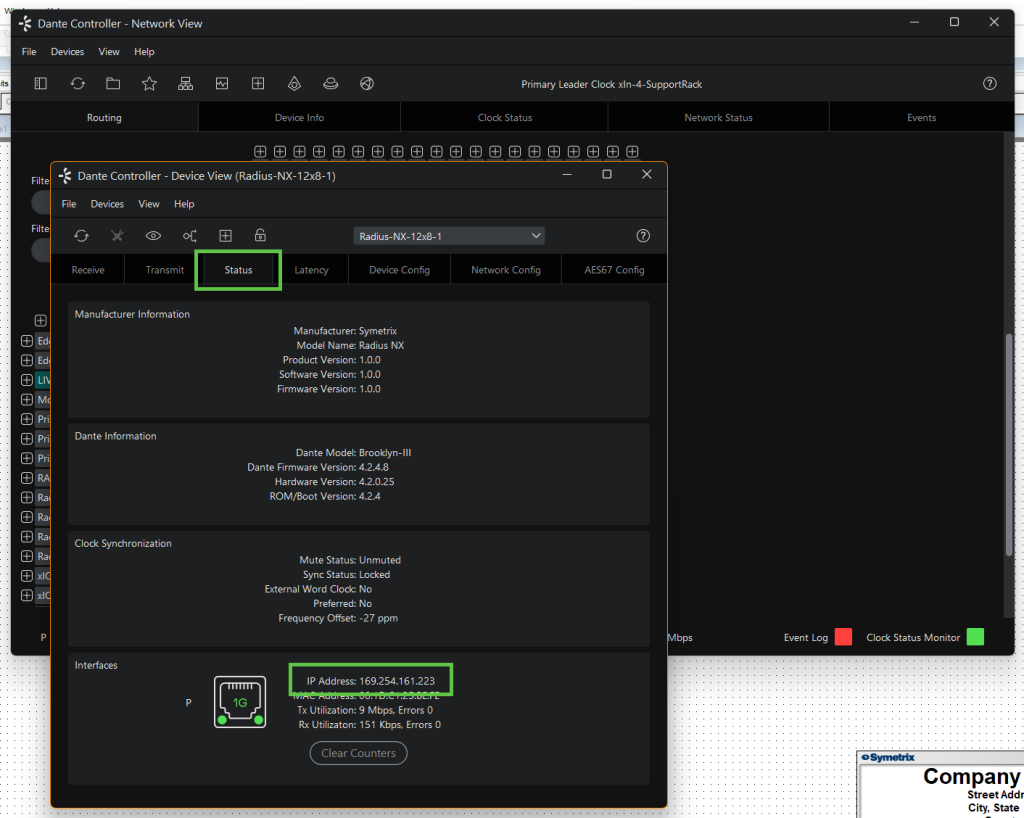
If the Dante network must be set to static IP addresses, do this within the Network Config tab of Device View.
Device Info
Looking at the Device Info tab in Dante Controller will easily show a subnet mismatch. Any device that is in a different subnet will show in red text in the Device Name column.
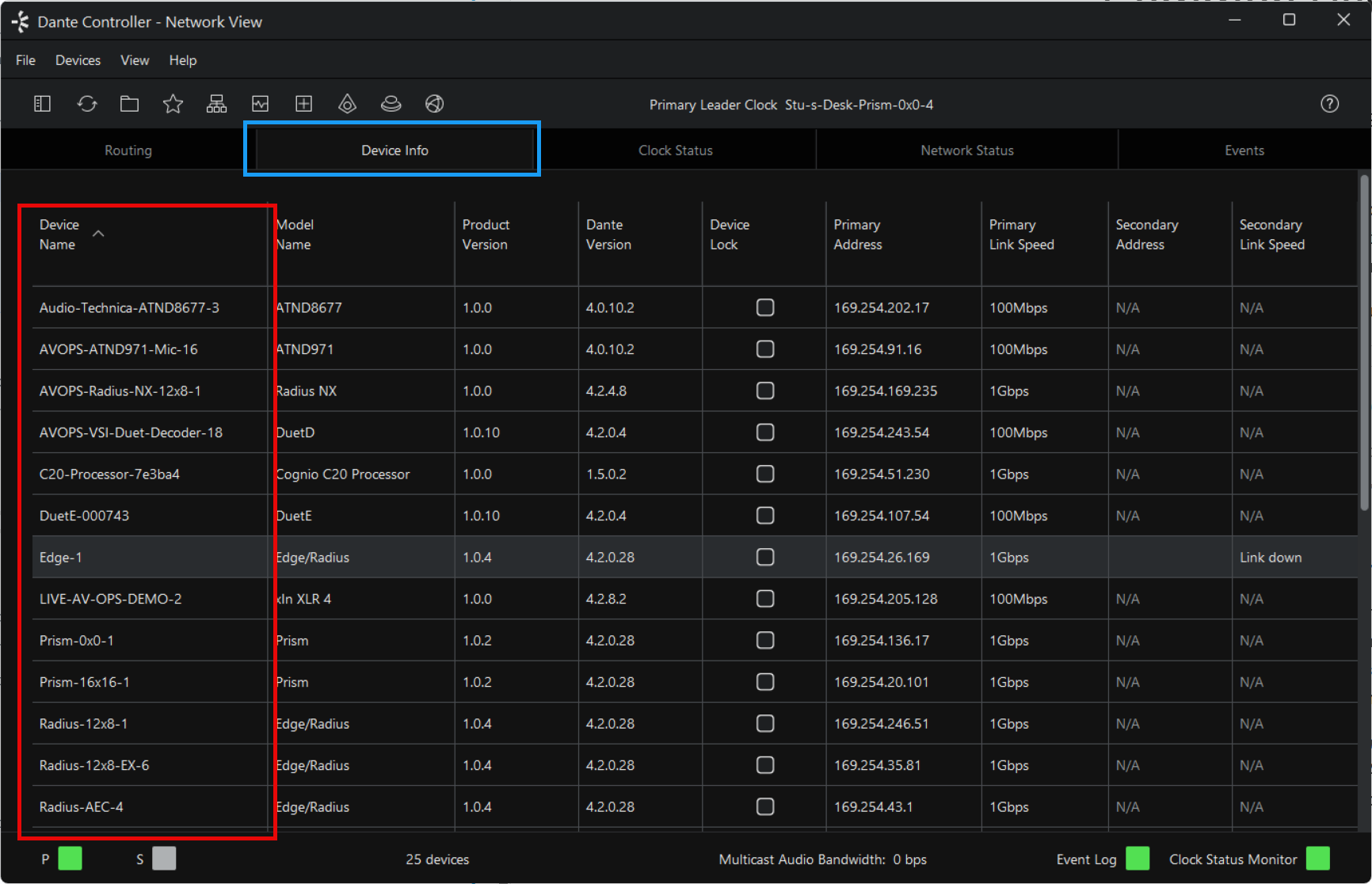
If network configuration seems correct, the same ping techniques from the Control network can still apply, just cabling your PC to the Dante network instead. IGMP snooping and low-quality switches are the largest culprits. Audinate has articles regarding IGMP Snooping that can be of benefit.
https://www.getdante.com/blog/well-intentioned-mishaps-with-igmp-snooping
https://www.getdante.com/support/faq/multiple-leader-clocks
REMOTE TERMINAL COMMANDS
From a Composer perspective, there are some tools available that can help illuminate issues. All of these commands should be done with the intended DSP located and then going to Tools > Launch Remote Terminal, then Options > Debug Mode, and ensure the IP address of said DSP is in the upper left IP address field.
“INFO…” Remote Terminal Command; this command coupled with a target will return different diagnostics about the DSP:
INFO CARDS
- INFO CARDS; returns a list of the installed I/O cards in the DSP. This can be used to confirm that the DSP has and is reporting having a Dante card. It will return “Brooklyn…”, “non-Dante Clock Card”, or “none”.
- Brooklyn means the DSP is accurately reporting its Dante card.
- Non-Dante Clock Card means the DSP does not have a Dante card, but has a clock card instead. This could be due to a purchase error and the Symetrix Sales or Integrator Support departments should be contacted.
- None means the DSP is expecting something in that particular card slot but is unable to recognize it. Please contact our Integrator Support team if this is what the DSP reports.
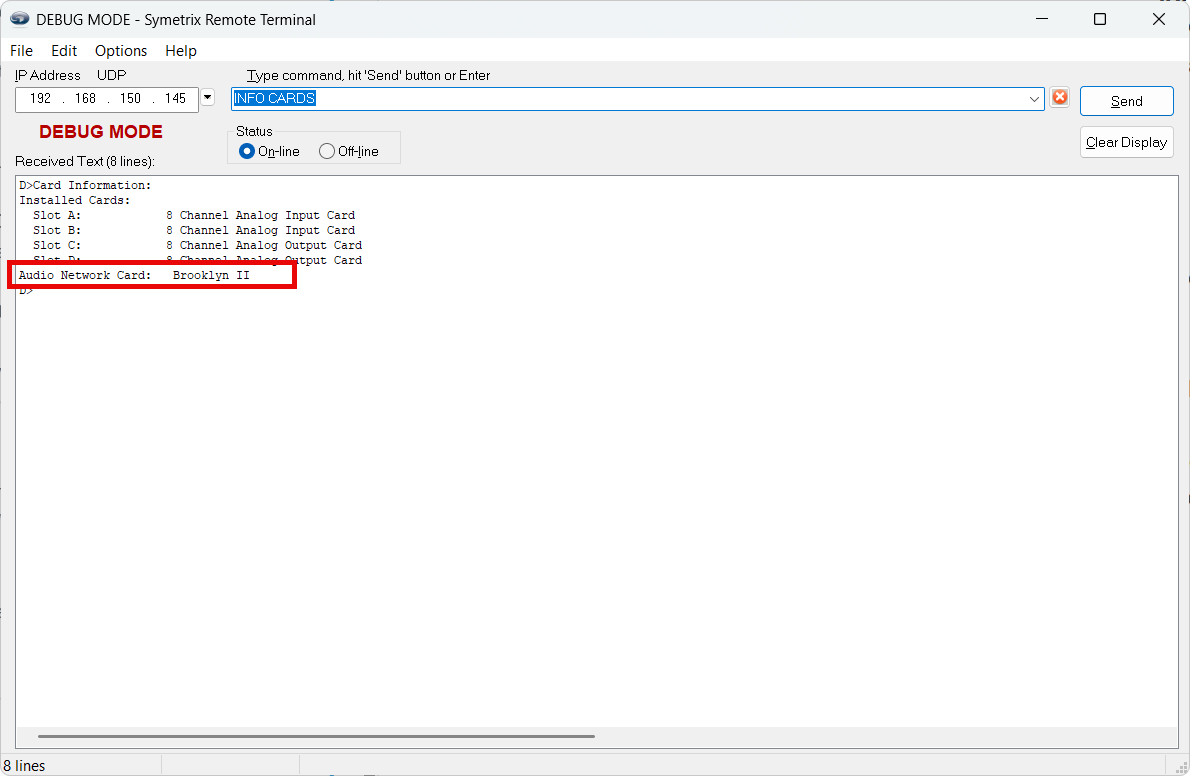
INFO DANTE
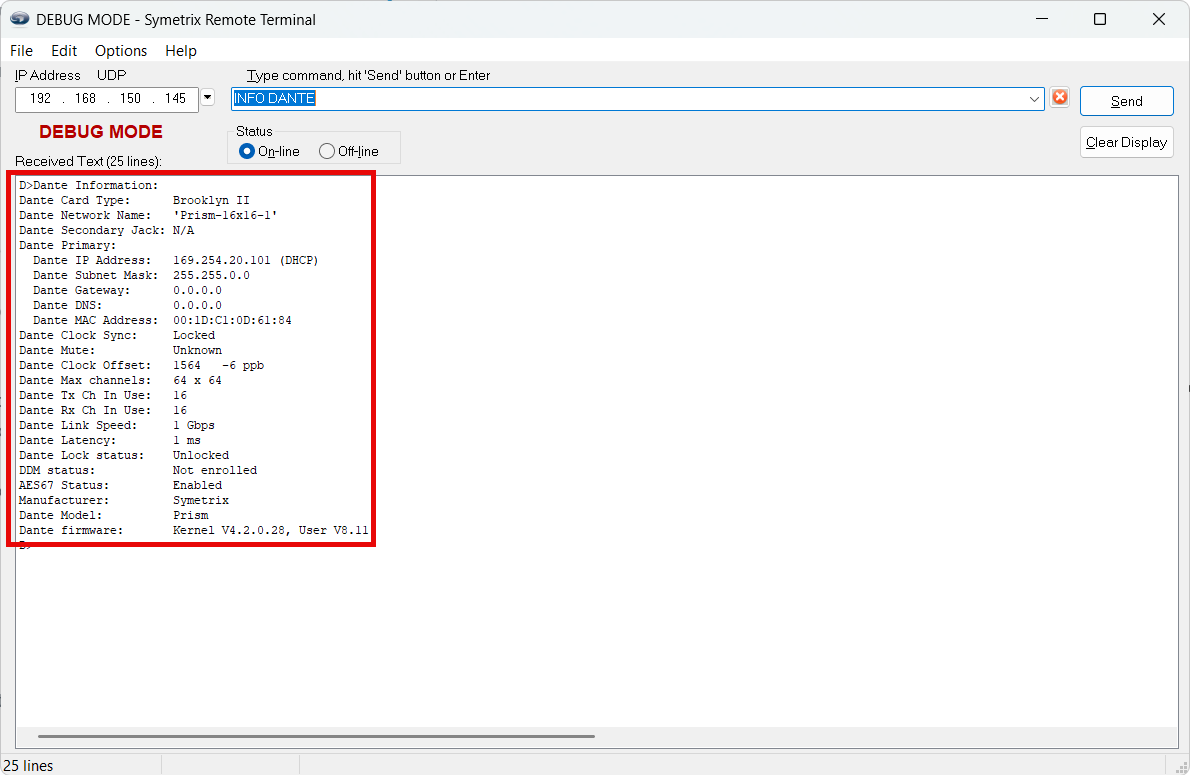
- INFO DANTE
- This will request a report of all Dante information from the DSP including card type, Primary IP address (and secondary if in redundant mode), Dante channel usage, and other diagnostic information.
GDBCV
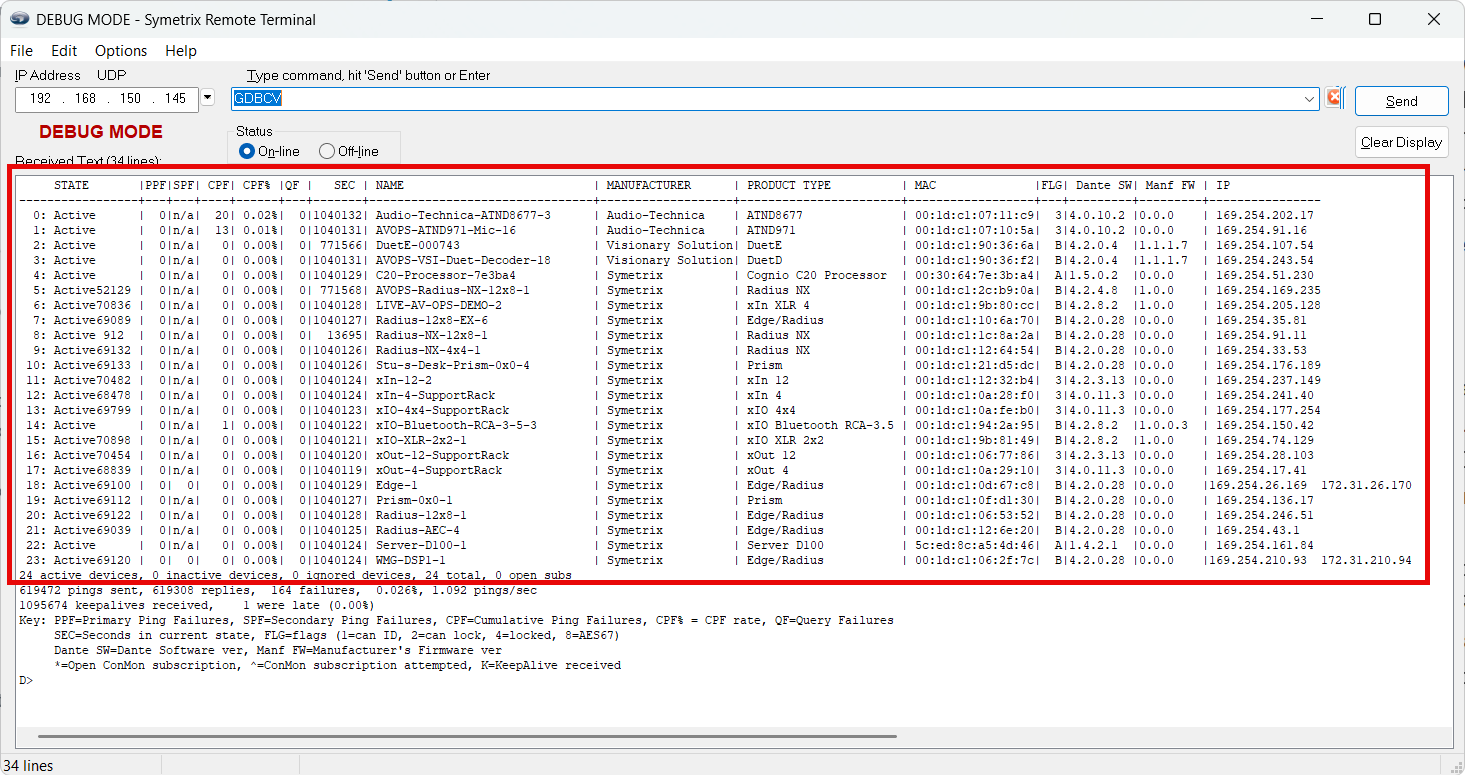
- “GDBCV” Remote Terminal Command; this command requests the Dante browse information from a located DSP – what it can see on the Dante network.
- Send the command “GDBCV” (no quotes) to the DSP. This will return a report of all Dante devices the unit’s Dante card can see, with a bit of extra information describing the communication quality.
- “ACTIVE” or “ACTIVE K” is healthy network communication, and the unit should be locating in Composer. If this is reported and the unit is still not locating in Composer, please contact our Integrator Support team for further assistance.
- “QUERIED”, “UNQUERIABLE”, and “UNPINGABLE” are potential all signs of network miscommunication – the DSP can see the devices but is unable to gather all required information to make a complete handshake. If devices remain in these states for extended periods of time, double-check network configuration, if using a switch, or consider a more direct connection between the Dante device and the DSP’s Dante port (similar to PC and DSP on the Control network from earlier in his document).
- Send the command “GDBCV” (no quotes) to the DSP. This will return a report of all Dante devices the unit’s Dante card can see, with a bit of extra information describing the communication quality.
Restart & Reboot Remote Terminal Commands; these commands offer various ways of restarting either firmware alone or power cycling the unit as a whole along with restarting firmware.
Note: these commands should only be used when the conditions are safe and the system is not in a critically active state. It is also highly recommended that amps be turned off before sending these commands, as a pop may occur which some devices may be sensitive to.
- “R!”; this command reboots the main processor, and power cycles the unit, but doesn’t restart the Dante card.
- “R!!”; this command reboots and reinitializes both the main processor and the Dante card, as well as power cycles the unit – this is the same as a manual power cycle by pulling the cable, just can be done from Remote Terminal instead of physically on the unit.
- “BR”; this command restarts the firmware on the Dante card but doesn’t restart the main processor firmware and doesn’t power cycle the unit.
- “R?”; this command restarts the main processor firmware but doesn’t restart the Dante card firmware and doesn’t power cycle the unit.
Restarting Dante Discovery Service
If Dante Controller isn’t discovering any devices the Dante Discovery Service could be in a bad state.
- Close Dante Controller.
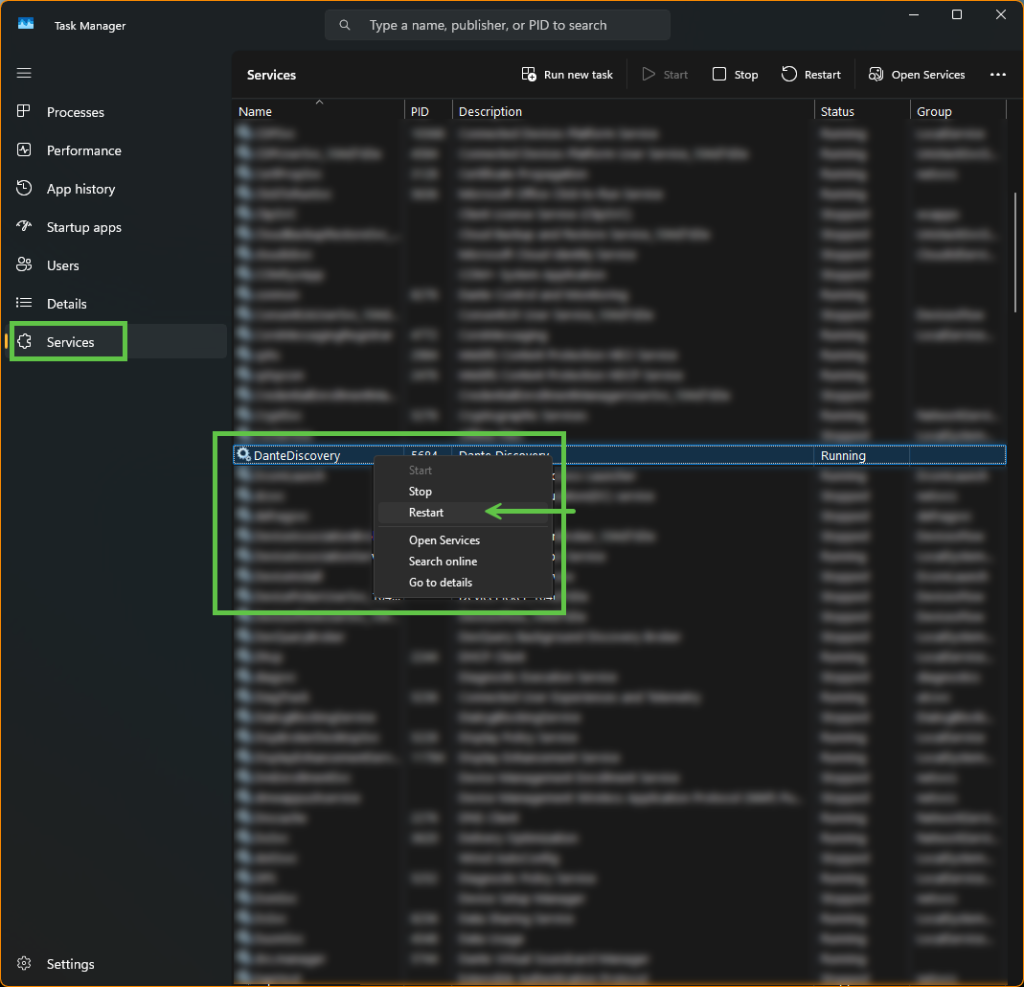
- Open Task Manager and navigate to the Services tab.
- Scroll in the window to find the “Dante Discovery” service.
- Right click on this service and select Restart.
- Give the PC some time to restart the service and re-attempt to locate devices in Controller.
DHCP RESET OF DSP NIC
Most of the time it will be easy to find the IP address of a DSP. As was covered earlier in this document, the front display of Symetrix DSPs can be cycled to show both the Control and Dante IP addresses (Dante IP is in the System Pages). For Symetrix xIO devices that don’t have a screen to display their IP it can be difficult to find this, especially if you’re unable to locate the unit on the network.
Every Symetrix device (except for the ARC series) has a factory reset button. Reference to location of these buttons can be found in another Symetrix Tech Tip document.
If a Symetrix device has previously been set to a static IP address, you can single short press the factory reset button to reset the NIC to DHCP. Once reset and then manually power cycled, the unit should receive a DHCP address if a server is available or resolve back to its 169.254.x.y link local address.
Note: BE AWARE, a long press of the reset button will factory reset the unit. This short press should be a “good solid click”, similar to pushing a mechanical elevator button
In many A/V applications, it may be specified or simply practical to have the DSP recall a particular configuration of saved parameters, such as sources, gains, mutes, and matrix routing at a scheduled time of day or week. These stored settings are known as “presets”. Presets are a digital snapshot of a single parameter or a collection of parameters that can be triggered with one command or button press. Storing and recalling presets in a DSP is analogous to taking a snapshot of a set of parameters in the DSP, and at a later time during operation, showing the DSP the snapshot and requesting that it set the parameters back to the previous configuration exactly as they appear in the snapshot.
All Symetrix DSP hardware has the ability to trigger presets at a particular time and day when the presets are scheduled using the Event Scheduler in the DSP setup and configuration software. Once a preset has been stored, it can be scheduled to trigger on a single date or as a reoccurring event. Exclusions of dates can be made to accommodate a changing schedule.
For example, in a high school at 8am Monday through Friday a bell may be scheduled to sound; however, during spring and summer break this bell would not need to ring while students are not attending school, so these spring and summer dates can be excluded from the schedule. In this example, most of June, and all of July and August (80 dates) have been excluded from triggering the Morning Bell preset.
There is a problem that can arise when presets are scheduled to be triggered at a particular time and day, and this problem is called “clock drift”. In order for the DSP to trigger a scheduled event, the DSP must keep a real-time, internal running clock, so that it knows the current time and day. This clock is generated by an internal oscillating crystal, which over time “drifts” ever so slightly away from the actual time of day. This drift is usually quite small, on the order of 10 ppm (20 ppm worst case) or 6 seconds/week. This means however, that after one year of operation the internal clock could drift by 314 seconds, and as such the Morning Bell preset in the previous example would be triggered 5 minutes early after one year. After 5 years the preset would sound approximately 26 minutes early, which in most cases would be unacceptable.
What can be done to fix or stop clock drift?
The best approach is to synchronize the DSP to an NTP Server.
Synch the DSP to an NTP Server:
Network Time Protocol (NTP) is a networking protocol for clock synchronization between computer systems over packet-switched, variable-latency data networks. In operation since before 1985, NTP is one of the oldest Internet protocols in use.
If the DSP resides on a network that contains a server providing NTP services, the DSPs clock can sync with that server by Enabling NTP Synchronization and entering the NTP server’s IP address. If the DSP has a valid network route to the internet, any publicly available NTP server may be used.
Click this link for a list of public NTP server IP addresses hosted on the Internet: http://tf.nist.gov/tf-cgi/servers.cgi
In the Symetrix Jupiter and Zone Mix 761 software, the NTP server IP field is accessed in the Event Scheduler by clicking the ‘Set Device Clock’ button and then the ‘Advanced’ button.
In Symetrix Solus, the NTP server IP must be entered using Remote Terminal and the “Write NTP” command. Locate Remote Terminal (c:>Program Files>Symetrix>SymNet
Designer 10.0) and then type “WN (Example: WN 192.168.100.23)
In Composer each DSP can be set to a NTP server by accessing the unit properties.
Note: Symetrix Legacy and Express hardware does not support NTP clock sync
Reset Clock using Set Clock:
The DSP clock can be set or reset without downloading or pushing a file to the DSP using either Designer or Composer. Make sure the DSP has been located then select “Set Clock” from the “Hardware” menu.
Designer:
Time, Date and Daylight Saving Time can all be set using the “Set Clock” window. Once the desired setting has been entered click the “Set Clock” button.
Composer:
Sync to PC Clock or a specific date and time can be set using the “Set Clock” window. Daylight Savings Time can also be enabled. Once the desired setting has been entered click the “Set Clock” button.
No audio on an output. Echo in a conference room. A page message playing in the wrong zone.
These three issues are but a handful of situations that can occur during the commissioning phase of a Composer audio system, and of which some troubleshooting steps will need to be taken in order to resolve the problem.
Troubleshooting a complex signal path can be time consuming; however, with the right tool troubleshooting a DSP signal path can be done easily, intuitively, and within a very short amount of time. Composer offers the “Trace Signal Path Forward” tool, which will show the complete path of any input signal with Composer.
To use this feature, simply right click any wire in the Composer signal path and choose “Trace Signal Path Forward”. This will cause the entire signal path for that source or mix to highlight red.
Here are three examples of using Trace Signal Path Forward to troubleshoot the examples problems mentioned in the first paragraph.
1) No audio on a particular output:
In this example, there are 12 mics used for an automix system. Mic input #5 can be heard in a single zone, output #4, when it should be routed to all 8 outputs of a Radius. When Trace Signal Path Forward is used, it becomes obvious that mic #5 is routed to only 1 zone via the Submix Matrix output.
Hint: follow the red wire
Since mic #5 is only present on the Submix Matrix output #4, open the user interface of the Submix Matrix. Notice that mic #5 is only routed to output 4. Click the connect button for mic#5 for all other outputs within the matrix to solve the problem of missing mic#5 audio on the other 7 Radius outputs.
2) Echo in a conference room:
In this conference room example, the far end caller is complaining of hearing echo. Typically echo in a conference room is caused by having an incorrect mix being feed to the REF input for a mic or all mics. The REF input should only ever consist of the far end caller and any local media sources. Echo is when the far end caller hears themselves talking, when their audio plays in the conference and then enters the mic and is sent back to the fall end caller. So, if they are hearing themselves echo back, first check to make sure the far end caller audio is routed to all mic REF inputs.
2) When Trace Signal Path Forward is it is easy to see that the far end caller is not routed to REF 8, so the problem in routed is quickly located. Using this feature is100 times faster than muting all mics except one, then checking for echo, and repeating this procedure until the mic that causes echo is located.
Here is a close up of the problem.
Notice how REF #8 is not receiving the far end audio. When the wires are followed back upstream it is easy to see a wire is missing on the 8th channel, between the compressor and summer, where the far end audio stops passing to the REF #8. Once this wire is placed, then REF #8 will get the far end audio and the echo problem should be solved.
3) A page message playing in the wrong zone:
In this example, the customer has complained that when a certain preset is triggered and a page is made, the page is being routed to a wrong zone. The page is only supposed to go to zones 1,2,4,5,8, however it is also sounding in zone 7. When onsite, first trigger the preset that is causing the issue for the customer, then use Trace Signal Path Forward and follow the page input. Notice the highlighted red line indicates that the page does indeed get routed to output zone 7, as well as the correct zones.
Following the page signal path from the input to the output it becomes clear that the mono distributor is incorrectly routing the page to zone 7 when this preset is triggered.
To fix this routing problem, uncheck button 7 in the mono distributor, then right click the module or button 7 and save it in the off state to the respective preset. Use the preset manager to recall the presets to insure the page will only be routed to the correct zones when this preset is triggered.
Conclusion:
There are a variety of ways in which an incorrect signal path can create a lengthy and difficult troubleshooting session during the commissioning stage; however, with the Trace Signal Path Forward tool that Composer provides, finding and fixing signal path routing errors is easier than ever.
If you are having problems connecting to your Symetrix device, here are some tips to help:
- Network cards.
If you have multiple network adapters installed on your computer, disable all of the adapters that are not being used to connect to the Symetrix device, i.e., if you are connecting via your Local Area Connection, you will want to disable your wireless network adapter. - IP address of PC.
If your PC is directly connected to the Symetrix device without a network switch, ensure your PC is set to a 169.254.x.y IP address base. PC’s generally will default to a 169.254.x.y address if there is no DHCP server present. If your PC already has an IP address because it was on a network with a DHCP server, you may need to release your PC’s IP address once it is unplugged from the network or reboot the PC when not connected to a DHCP server. Unless previously set to a static IP address, the Symetrix device will default to a 169.254.x.y base address when no DHCP server is present. Use 255.255.0.0 for the Subnet Mask. - Firewall.
Disable or add your Symetrix software to the firewall exceptions list if the firewall appears to be blocking the connection. - Anti-virus software.
Temporarily disable or add your Symetrix software to the exceptions list as some settings may prevent connection. - Multiple network interface cards (NICs).
Disable any auxiliary NICs or assign their priority order so that the NIC you are using to connect to your Symetrix device has the highest priority. - Interconnects. Test or swap the CAT5 cable(s).
Test, swap, and/or power-cycle network switch/hub if used. When directly connected, either a straight-through or cross-over cable will work. The front panel Ethernet LED either flashes or has a solid green LED if there is connection to the Symetrix device. Here is a complete description of what the LEDs indicate.
The bi-color LED flashes green briefly when a Symetrix-related packet is received, including communication from the Composer software. If the LED is solid green it indicates constant network communication.
One exception relates to the Access Code (hardware security). If the access code is invalid, the Ethernet LED flashes red instead of green. The Ethernet LED will not flash for other types of network traffic such as ping, FTP, DHCP negotiations, Telnet, etc. The LEDs on the rear-panel surrounding the RJ-45 connector react to every type of network traffic.
In DHCP mode, during boot the Ethernet LED is amber when the device first queries the network for a DHCP IP address. The query can last up to 15 seconds. If the unit is assigned a DHCP IP address, the Ethernet LED will flash green for 1 second, and then enter the normal mode of flashing when a Symetrix packet is received. If the unit is not assigned a DHCP IP address, the Ethernet LED will flash amber for 1 second, then default to a class B IP address of 169.254.x.y before entering the normal mode of flashing when a Symetrix packet is received. The Ethernet LED flashes red for 1 second when the Ethernet cable is removed and flashes green for 1 second when the Ethernet cable is inserted. - Proxy server settings.
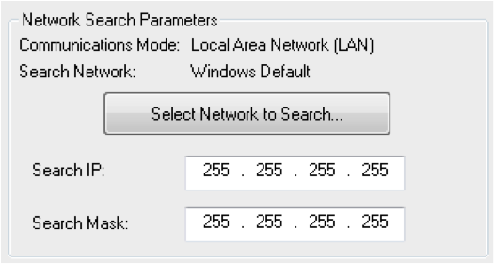
Disable any proxy server settings, or specify the IP address of your Symetrix device as an exception. - Connection Wizard Advanced search is too narrow.
Use 255 for every octet of the IP address and subnet mask for the widest possible search, i.e., 255.255.255.255.
9. VLAN connection.
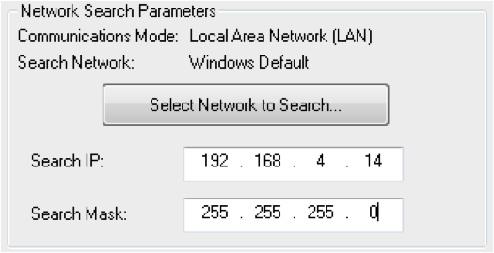
VLAN connections require entering the exact IP address in the Advanced search in the Connection Wizard. For example, to find a device at 192.168.4.14, enter the values in the search fields as shown below.
10. Mac running Virtual Windows.
Ensure that the network adapter for the virtual machine is using ‘bridged’ not ‘NAT’ mode.
Tips: If the front panel of your unit contains an LCD screen, you can access the assigned IP address of the device in System Mode. Use the Left/Right Arrow buttons to show information including the currently assigned IP address of that device. If you are in ARC Mode, you can access System Mode by holding down the Menu button for approximately five seconds.
While the device is powered on, if you momentarily push the reset button on the pack panel (to the left of the Ethernet port) it will reset the unit to DHCP. If you are directly connected from your computer and DHCP is not available, then the unit will then default to its 169.254.x.y IP address.
A device’s default IP address can be calculated from its MAC address. The IP address will be a 169.254 base address. Convert the last 2 groups of numbers in the MAC address from hex to decimal to complete the last 2 groups of numbers for the IP address. For example, if the MAC address is 00:0C:0D:00:D0:7A, convert D0 and 7A from hex to decimal. The result is 208 and 122. So, the full default IP address of the unit is 169.254.208.122.
In the day to day support operations a Symertix tech support agent will most often come across customers that have their PC and Symetrix DSP on a Class C Subnet Mask of 255.255.255.0. However, this document covers what Class C subnets mean when they are further partitioned, such as a subnet mask of 255.255.255.128, and how Symetrix support agents can help to support a PC or Symetrix DSP that is assigned to a subnet such as this.
Subnet Mask 101:
The first thing to understand is where the 255 comes from. Each number in an IP address, subnet mask, or gateway consists of an 8-bit number, which is why these numbers are also referred to as an “octet”. Four octets make a single IP address, subnet mask, or gateway. How 8 bit numbers, octets, work are similar to dip switches on old SymNet Designer boxes. In other words, a bit can either be on or off, it is a power of two based upon its position, and to get the full value of the octet we add up each of the bit’s values to the previous bit’s value. An 8-bit number can be looked at in several ways, which doing so can sometimes help to make sense of the binary math:
11111111= 264 232 216 28 24 22 21 20 = 128 64 32 16 8 4 2 1
So, if the subnet mask was 11111111, we would add up all relevant bits such that 128+64+32+16+8+4+2+1 = 255
When a 255 is used in a mask, this indicates that all IP address numbers that have a mask below them must match for two devices to be in the same subnet. For instance, if the IP address is 192.168.100.5 with a subnet mask of 255.255.255.0, then in order for two devices to be on the same subnet their IPs must both contain 192.168.100.n (where n=node address that can vary between 0 and 255).
When placed vertically we see:
192.168.100.5
255.255.255.0
Every number with a 255 in the same octet must match, so in this case the first three octets of 192.168.100 is masked and must match for devices to be in the same subnet. Only the last octet, 5, is not masked. This is the octet that will vary for all devices in the 192.168.100.n subnet in order for the devices to have unique IP addresses. So, in this instance the subnet consists of all IP addresses between
192.168.100.0 – 192.168.100.255, which is a total of 256 IP addresses within this subnet.
Reserved Addresses within a Subnet:
It is also important to remember that every subnet on a network has two reserved IP addresses, also called host addresses.
(Note: in a point to point network, the reserved addresses are not needed. “Point to point network” meaning a direct connection or simply a few IP capable units on an unmanaged switch, however, reserving these host addresses on a point to point network certainly doesn’t hurt anything, so these host addresses can always be implemented as a rule)
The first reserved IP address in a subnet is the “network” address. This is typically the gateway address, or that of the router that manages the subnet. It is sometimes referred to as the network ID.
The second reserved address is the broadcast address, which is always the last IP address in the subnet. Any data sent to the broadcast address will automatically be routed to all nodes within that particular subnet. Many auto-discovery software features use the broadcast address to send a hello/discovery packet to find units on a network. Symetrix Connection Managers or search features of the System Manager in Composer use the broadcast address for discovery of DSP units.
Looking at the previous example of a 192.168.100.5 IP address with a 255.255.255.0 subnet mask, the network address would be 192.1683.100.0 and the broadcast address would be 192.168.100.255, leaving 192.168.100.1 through 192.168.100.254 as available IP addresses for all devices (also called “nodes”) on this subnet. In other words, if there are 256 IP addresses and two of those addresses are reserved for the network and broadcast address, then a subnet mask of 255.255.255.0 creates 254 possible IP addresses for additional hosts, also known as IP capable devices or nodes, on the defined subnet.
Dividing Up Subnets using the Subnet Mask:
While the previous section covered the most common class C subnet mask of 255.255.255.0 which creates 254 available IP addresses for nodes on the subnet, the class C subnet mask can be further divided up.
As we mentioned above, each octet is an 8-bit number, so a subnet mask of 255.255.255.0 actually looks like this in binary math 11111111.11111111.11111111.00000000.
If on the last octet a 1 is added to the far left bit we get 11111111.11111111.11111111.10000000, which is to say the subnet mask is now 255.255.255.128. Changing the last octet from 0 to 128 effectively divides the IP address ranges into two completely different subnets of 128 addresses each.
However, it important to remember that within each subnet there are two host addresses reserved for the network and broadcast address.
Take a network of 192.168.100.0 with a subnet mask of 255.255.255.128, below are the two defined subnets, their reserved addresses, and available host addresses.
Subnet 1:
network address = 192.168.100.0
Host range = 192.168.100.1 to 192.168.100.126
Broadcast address = 192.168.100.127
Subnet 2:
network address = 192.168.100.128
Host range = 192.168.100.129 to 192.168.100.254
Broadcast address = 192.168.100.255
If a customer had a Symetrix DSP and they could not located it, then support would need to insure the PC running the Symetrix software and the Symetrix DSP is on the same subnet. So, if the Symetrix DSP was at 192.168.100.5 then the customer’s PC would need to be assigned to an open IP address in the range of 192.168.100.1 to 192.168.100.126, excluding of course the DSP’s address of 192.168.100.5 (When looking for an available IP address on the subnet, ping the address before assigning the customer’s PC and only after it is confirmed that no devices respond to the ping request, then assign the customers PC to the available IP address).
How Many Divisions of the Class C Subnet are there?
Now that it is apparent how a subnet mask can create multiple subnets (networks) within a single address base, how many types of divisions are possible and what ranges for hosts are available in each range. First, in the previous example a single bit was added to the last octet of the subnet mask (left side of the 8 bit number) such that 10000000= 128 making the subnet mask 255.255.255.128
This however is not the only possible division. Additional bits can be added to the last octet as follows:
10000000=128
11000000=192
11100000=224
11110000=240
11111000=248
11111100=252
11111110=254
When these divisions are made, subnet mask then creates the following
network topology:
| Subnet Mask | # of Subnets | Total # IP per Subnet | Network & Broadcast | Host IP per Subnet |
| 255.255.255.0 | 1 | 256 | 2 | 254 |
| 255.255.255.128 | 2 | 128 | 2 | 126 |
| 255.255.255.192 | 4 | 64 | 2 | 60 |
| 255.255.255.224 | 8 | 32 | 2 | 30 |
| 255.255.255.240 | 16 | 16 | 2 | 14 |
| 255.255.255.248 | 32 | 8 | 2 | 6 |
| 255.255.255.252 | 64 | 4 | 2 | 2 |
| 255.255.255.254 | 128 | 2 | 2 | 0 |
It is important to note that while a 255.255.255.254 subnet mask may work for a point to point network or direct connection between a DSP and a PC, since in that scenario the subnet mask would provide two IP addresses per subnet, which means this subnet could only support a single Symetrix DSP and a PC. Even more important is that if this subnet mask is used on a managed network, then the two available IP addresses are used for the network and broadcast IP addresses, which does not leave any available host IP addresses for the Symetrix device nor the PC running Composer.
IP Address Ranges per Subnet Mask:
Below is a spreadsheet for each subnet listing the network and broadcast address, as well as the available ranges of available host IP addresses per subnet:
192.168.100.n
255.255.255.0
| Subnet # | Network IP | First Host IP | Last Host IP | Broadcast IP |
| Subnet 1 | 192.168.100.0 | 192.168.100.1 | 192.168.100.254 | 192.168.100.255 |
192.168.100.n
255.255.255.128
| Subnet # | Network IP | First Host IP | Last Host IP | Broadcast IP |
| Subnet 1 | 192.168.100.0 | 192.168.100.1 | 192.168.100.126 | 192.168.100.127 |
| Subnet 2 | 192.168.100.128 | 192.168.100.129 | 192.168.100.254 | 192.168.100.255 |
192.168.100.n
255.255.255.192
| Subnet # | Network IP | First Host IP | Last Host IP | Broadcast IP |
| Subnet 1 | 192.168.100.0 | 192.168.100.1 | 192.168.100.62 | 192.168.100.63 |
| Subnet 2 | 192.168.100.64 | 192.168.100.65 | 192.168.100.126 | 192.168.100.127 |
| Subnet 3 | 192.168.100.128 | 192.168.100.129 | 192.168.100.190 | 192.168.100.191 |
| Subnet 4 | 192.168.100.192 | 192.168.100.193 | 192.168.100.254 | 192.168.100.255 |
192.168.100.n
255.255.255.224
| Subnet # | Network IP | First Host IP | Last Host IP | Broadcast IP |
| Subnet 1 | 192.168.100.0 | 192.168.100.1 | 192.168.100.30 | 192.168.100.31 |
| Subnet 2 | 192.168.100.32 | 192.168.100.33 | 192.168.100.62 | 192.168.100.63 |
| Subnet 3 | 192.168.100.64 | 192.168.100.65 | 192.168.100.94 | 192.168.100.95 |
| Subnet 4 | 192.168.100.96 | 192.168.100.97 | 192.168.100.126 | 192.168.100.127 |
| Subnet 5 | 192.168.100.128 | 192.168.100.129 | 192.168.100.158 | 192.168.100.159 |
| Subnet 6 | 192.168.100.160 | 192.168.100.161 | 192.168.100.190 | 192.168.100.191 |
| Subnet 7 | 192.168.100.192 | 192.168.100.193 | 192.168.100.222 | 192.168.100.223 |
| Subnet 8 | 192.168.100.224 | 192.168.100.225 | 192.168.100.254 | 192.168.100.255 |
192.168.100.n
255.255.255.240
| Subnet # | Network IP | First Host IP | Last Host IP | Broadcast IP |
| Subnet 1 | 192.168.100.0 | 192.168.100.1 | 192.168.100.14 | 192.168.100.15 |
| Subnet 2 | 192.168.100.16 | 192.168.100.17 | 192.168.100.30 | 192.168.100.31 |
| Subnet 3 | 192.168.100.32 | 192.168.100.33 | 192.168.100.46 | 192.168.100.47 |
| Subnet 4 | 192.168.100.48 | 192.168.100.49 | 192.168.100.62 | 192.168.100.63 |
| Subnet 5 | 192.168.100.64 | 192.168.100.65 | 192.168.100.78 | 192.168.100.79 |
| Subnet 6 | 192.168.100.80 | 192.168.100.81 | 192.168.100.94 | 192.168.100.95 |
| Subnet 7 | 192.168.100.96 | 192.168.100.97 | 192.168.100.110 | 192.168.100.111 |
| Subnet 8 | 192.168.100.112 | 192.168.100.113 | 192.168.100.126 | 192.168.100.127 |
| Subnet 9 | 192.168.100.128 | 192.168.100.129 | 192.168.100.142 | 192.168.100.143 |
| Subnet 10 | 192.168.100.144 | 192.168.100.145 | 192.168.100.158 | 192.168.100.159 |
| Subnet 11 | 192.168.100.160 | 192.168.100.161 | 192.168.100.174 | 192.168.100.175 |
| Subnet 12 | 192.168.100.176 | 192.168.100.177 | 192.168.100.190 | 192.168.100.191 |
| Subnet 13 | 192.168.100.192 | 192.168.100.193 | 192.168.100.206 | 192.168.100.207 |
| Subnet 14 | 192.168.100.208 | 192.168.100.209 | 192.168.100.222 | 192.168.100.223 |
| Subnet 15 | 192.168.100.224 | 192.168.100.225 | 192.168.100.238 | 192.168.100.239 |
| Subnet 16 | 192.168.100.240 | 192.168.100.241 | 192.168.100.254 | 192.168.100.255 |
192.168.100.n
255.255.255.248
| Subnet # | Network IP | First Host IP | Last Host IP | Broadcast IP |
| Subnet 1 | 192.168.100.0 | 192.168.100.1 | 192.168.100. | 192.168.100.7 |
| Subnet 2 | 192.168.100.8 | 192.168.100.9 | 192.168.100. | 192.168.100.15 |
| Subnet 3 | 192.168.100.16 | 192.168.100.17 | 192.168.100. | 192.168.100.23 |
| Subnet 4 | 192.168.100.24 | 192.168.100.25 | 192.168.100. | 192.168.100.31 |
| Subnet 5 | 192.168.100.32 | 192.168.100.33 | 192.168.100. | 192.168.100.39 |
| Subnet 6 | 192.168.100.40 | 192.168.100.41 | 192.168.100. | 192.168.100.47 |
| Subnet 7 | 192.168.100.48 | 192.168.100.49 | 192.168.100. | 192.168.100.55 |
| Subnet 8 | 192.168.100.56 | 192.168.100.57 | 192.168.100. | 192.168.100.63 |
| Subnet 9 | 192.168.100.64 | 192.168.100.65 | 192.168.100. | 192.168.100.71 |
| Subnet 10 | 192.168.100.72 | 192.168.100.73 | 192.168.100. | 192.168.100.79 |
| Subnet 11 | 192.168.100.80 | 192.168.100.81 | 192.168.100. | 192.168.100.87 |
| Subnet 12 | 192.168.100.88 | 192.168.100.89 | 192.168.100. | 192.168.100.95 |
| Subnet 13 | 192.168.100.96 | 192.168.100.97 | 192.168.100. | 192.168.100.103 |
| Subnet 14 | 192.168.100.104 | 192.168.100.105 | 192.168.100.110 | 192.168.100.111 |
| Subnet 15 | 192.168.100.112 | 192.168.100.113 | 192.168.100.118 | 192.168.100.119 |
| Subnet 16 | 192.168.100.120 | 192.168.100.121 | 192.168.100.126 | 192.168.100.127 |
| Subnet 17 | 192.168.100.128 | 192.168.100.219 | 192.168.100.134 | 192.168.100.135 |
| Subnet 18 | 192.168.100.136 | 192.168.100.137 | 192.168.100.142 | 192.168.100.143 |
| Subnet 19 | 192.168.100.144 | 192.168.100.145 | 192.168.100.150 | 192.168.100.151 |
| Subnet 20 | 192.168.100.152 | 192.168.100.153 | 192.168.100.158 | 192.168.100.159 |
| Subnet 21 | 192.168.100.160 | 192.168.100.161 | 192.168.100.166 | 192.168.100.167 |
| Subnet 22 | 192.168.100.168 | 192.168.100.169 | 192.168.100.174 | 192.168.100.175 |
| Subnet 23 | 192.168.100.176 | 192.168.100.177 | 192.168.100.182 | 192.168.100.183 |
| Subnet 24 | 192.168.100.184 | 192.168.100.185 | 192.168.100.190 | 192.168.100.191 |
| Subnet 25 | 192.168.100.192 | 192.168.100.193 | 192.168.100.198 | 192.168.100.199 |
| Subnet 26 | 192.168.100.200 | 192.168.100.201 | 192.168.100.206 | 192.168.100.207 |
| Subnet 27 | 192.168.100.208 | 192.168.100.209 | 192.168.100.214 | 192.168.100.215 |
| Subnet 28 | 192.168.100.216 | 192.168.100.217 | 192.168.100.222 | 192.168.100.223 |
| Subnet 29 | 192.168.100.224 | 192.168.100.225 | 192.168.100.230 | 192.168.100.231 |
| Subnet 30 | 192.168.100.232 | 192.168.100.233 | 192.168.100.238 | 192.168.100.239 |
| Subnet 31 | 192.168.100.240 | 192.168.100.241 | 192.168.100.246 | 192.168.100.247 |
| Subnet 32 | 192.168.100.248 | 192.168.100.249 | 192.168.100.254 | 192.168.100.255 |
Because the last two possible subnet masks create 64 and 128 subnets respectively with such a minimal amount of available hosts, these two subnet masks have been omitted from the listed tables. In a practical sense it will be highly unlikely that a Symetrix support agent will come in contact with either of the following subnet mask; however, should a Symetrix support agent encounter either subnet mask in the field, using the above data and understanding the pattern should allow them to figure out the available host IP addresses.
| Subnet Mask | # of Subnets | Total # of IP per Subnet | Network & Broadcast | Host IP per Subnet |
| 255.255.255.252 | 64 | 4 | 2 | 2 |
| 255.255.255.254 | 128 | 2 | 2 | 0 |
Abbreviations:
To conclude this document, one final piece of the puzzle is that sometimes these subnet masks are abbreviated. And abbreviated subnet mask would be displayed in the form of 192.168.100.0/26 where the /26 indicates the subnet mask that is being used. Below is a chart of the abbreviations.
| Subnet Mask | Abbreviation |
| 255.255.255.0 | /24 |
| 255.255.255.128 | /25 |
| 255.255.255.192 | /26 |
| 255.255.255.224 | /27 |
| 255.255.255.240 | /28 |
| 255.255.255.248 | /29 |
| 255.255.255.252 | /30 |
As such, it is apparent that 192.168.100.0/26 indicates that the network is 192.168.100.0 with a subnet mask of 255.255.255.192 so Symetrix support would know this subnet mask creates 4 subnets with 64 total IP addresses of which 2 are reserved for the network and broadcast addresses, so there are 62 available host IP addresses per network.
Overview
Energy-Efficient Ethernet is a set of enhancements to the twisted-pair and backplane Ethernet family of computer networking standards that allow for less power consumption during periods of low data activity. The intention was to reduce power consumption by 50% or more, while retaining full compatibility with existing equipment.
The Institute of Electrical and Electronics Engineers (IEEE), through the IEEE 802.3az task force developed the standard. The first study group had its call for interest in November 2006, and the official standards task force was authorized in May 2007. The IEEE ratified the final standard in September 2010. Some companies introduced technology to reduce the power required for Ethernet before the standard was ratified, using the name Green Ethernet.
The power reduction is accomplished in a few ways. In 100 Mbit/s, 1 gigabit and 10 Gbit/s speed data links, energy is used to keep the physical layer transmitters on all the time. If they could be put into “sleep” mode when no data is being sent that energy could be saved. By sending a low-power-idle (LPI) indication signal for a specified time the transmit chips in the system can be turned off. LPI is sent periodically to refresh the sleep mode. When there is data to transmit a normal idle signal is sent to wake the transmit system up before data is due to be sent. The data link is considered to be always operational, as the receive signal circuit remains active even when the transmit path is in sleep mode.
In addition to the link load power savings of Energy-Efficient Ethernet (EEE), Green Ethernet works in one of two ways. First, it detects link status, allowing each port on the switch to power down into a standby or “sleep” mode when a connected device, such as a computer, is not active. Second, it detects cable length and adjusts the power accordingly. Previous standard switches provide enough power to send a signal up to 100 meters (330 ft).
Be sure to disable Energy Efficient Ethernet (EEE). EEE reduces device power consumption when network traffic is low. Switches that support EEE will automatically adjust their respective power-saving settings so that they match, but some switches do not perform this mutual adjustment properly. It can be said that EEE is incompatible with real time applications, such as audio or video streaming, which can lead to degraded clock synchronization and audio interruption.
Disable any EEE features on any network switch Dante will run on. Dante and EEE are not compatible.
Disabling EEE
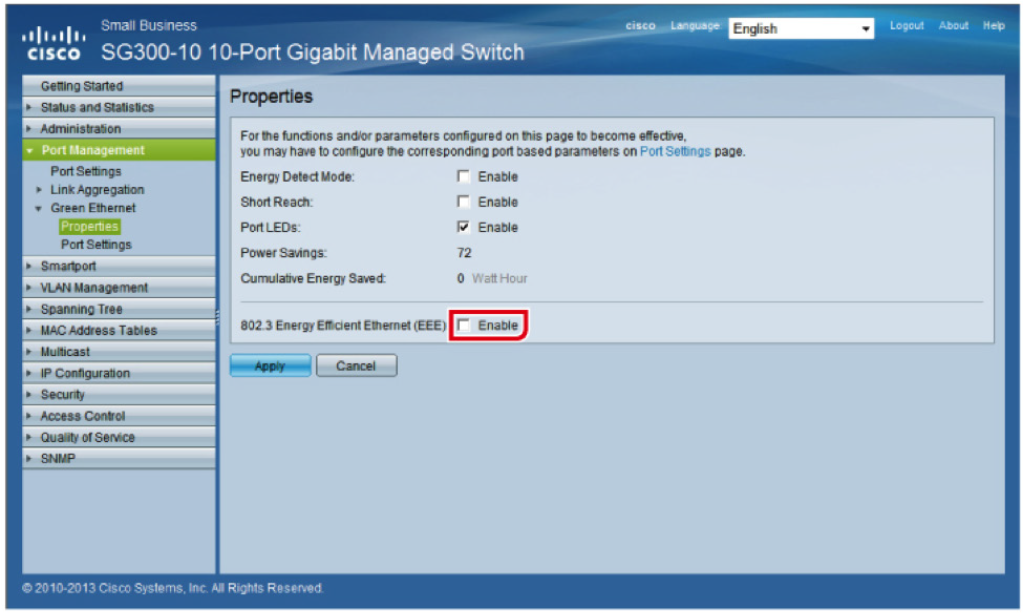
In the example below, a Cisco SG300 is used to demonstrate how to disable the EEE function.
- To access the switch by using the web-based interface, you must know the IP address the switch is using. The switch uses the factory default IP address of 192.168.1.254 by default.
- Enter the default login information:
- Username is cisco
- Default password is cisco (passwords are case sensitive)
- Select “Port Management” from the menu on the left
- Select “Green Ethernet”
- Select “Properties”
- Clear the “802.3 Energy Efficient Ethernet (EEE)” check box
- Click “Apply”.
The purpose of this Tech Tip is to provide information and instruction on using AES67 with Symetrix Dante-enabled DSPs. The AES67 standard provides interoperability between different forms of AoIP (Audio over IP). AES67 is not a networking solution in and of itself, but rather a group of interoperability specifications for connecting media streams. AES67 is supported by various IP-based audio networking systems such as Dante, Ravenna, Livewire and Q-LAN.
Because Dante supports AES67, this allows Symetrix Dante-enabled DSPs to receive and transmit audio with other IP-based audio networking systems, Q-LAN as an example. When using Symetrix Dante enabled DSPs with AES67, there a few key points to keep in mind:
- Symetrix Dante-enabled DSPs are compatible with AES67, but are not AES67 specific hardware.
- AES67 stream assignments are handled by the receiving device
- AES67 streams will only appear as a transmitter in Dante Controller.
- AES67 transmit streams from a Symetrix Dante-enabled DSP will NOT be assignable in Dante controller.
- Here is a link to set up AES67 receive flows with Q-SYS
- AES67 is capable of unicast and multicast communication, however Dante’s implementation of AES67 currently only supports multicast.
- When two Dante-enabled devices are passing audio between each other they will always use Dante for the communication, regardless of AES67 streams.
- Audinate’s Ultimo chipset does not currently support AES67
- Here is a link to the AES67 standard
AES67 Receive Stream
Here are the instructions for creating AES67 receive buses, using the generic Network Receive Modules (This example uses a Radius AEC and QSC Q-SYS Core 250i)
aes 1
1. From the Toolkit, add a Radius AEC to the Site View page.
aes 2
2. Open the Design View page by double-clicking the Radius AEC.
aes 3
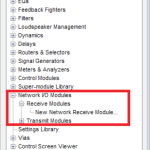
3. From the Toolkit, expand Network I/O Modules, then expand Receive Modules.
aes 4
4. Double-click or drag in a New Network Receive Module.
aes 5
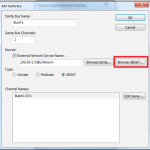
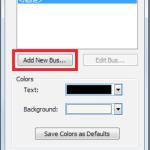
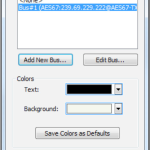
5. The Network Receive Module Properties window will open automatically. Click the button to “Add New Bus.”
aes 6
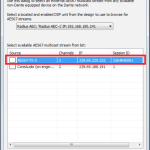
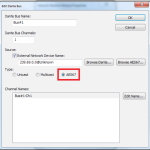
6. Change the type to AES67.
aes 7
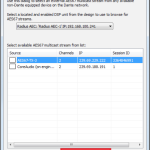
7. Click the “Browse AES67” button.
aes 8
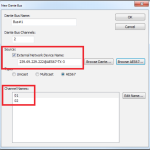
8. Select the desired AES67 multicast stream from the list.
aes 9
9. Click the “Select AES67 Stream” button.
aes 10
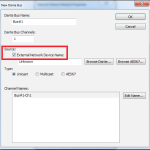
10. The New Bus window is now updated with the AES67 stream information (device network name and channel names).
11. The new AES67 receive bus is available in the Network Receive module Properties window.
12. Click Ok. The new receive bus has now been created.13. Push the site file and Composer will make the AES67 to Dante subscriptions.
13. Push the site file and Composer will make the AES67 to Dante subscriptions.
AES67 Transmit Stream
Here are the steps to create AES67 transmit streams:
aes 11
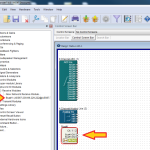
1. Open the site file to the Design View page.
aes 12
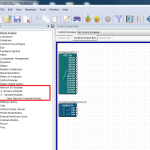
2. From the Toolkit, expand Network I/O Modules, then expand Transmit Modules.
aes 13
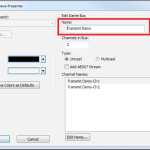
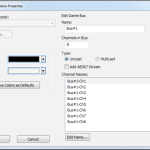
3. Add a New Network Transmit Module. The Network Transmit Module Properties window will open.
aes 14
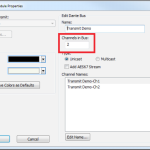
4. Edit the name of the transmit bus. Note: Naming of transmit buses is very important for organization.
aes 15
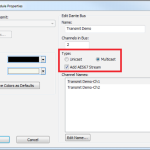
5. Select the number of channels in the transmit stream.
aes 16
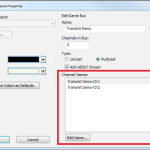
6. Select the transmit bus type.
7. Name the individual transmit channels.
8. Click OK and the transmit bus will be added to the site file.
6. Select the transmit bus type.
7. Name the individual transmit channels.
8. Click OK and the transmit bus will be added to the site file.
While all Symetrix open-architecture DSPs can display their IP address on the front screen, not all of them allow that IP address to be edited right from the front panel. This guide will quickly explain how to do this.
Hold the Menu/Enter button and enter the system pages. Then, using the left and right arrow keys, scroll to the page displaying the DHCP status.
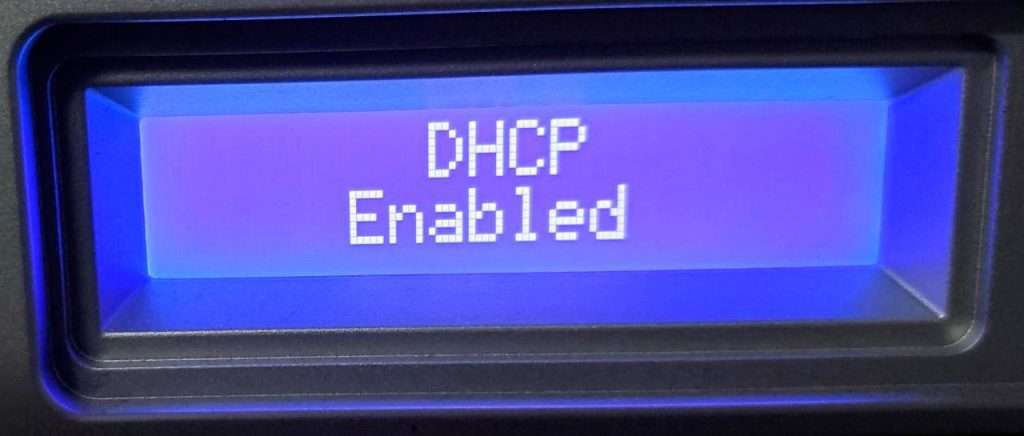
Click the Menu/Enter button, which will enable editing mode of this page, noted by the status moving to the left justification and the underscored character.
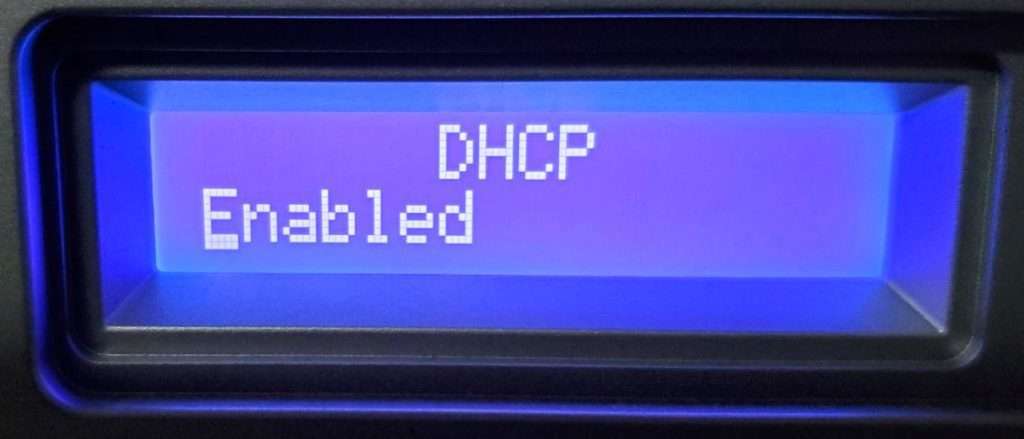
Click the Up or Down arrows to change this status to Disabled.
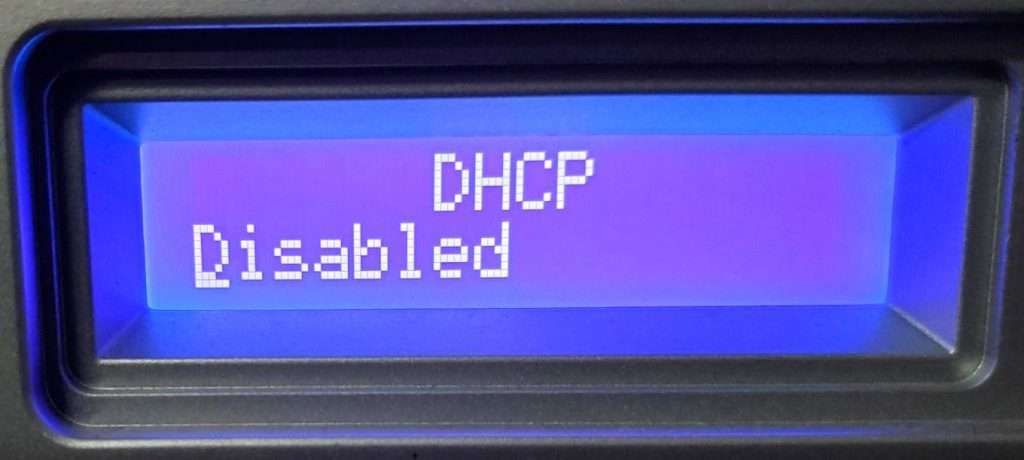
Then click the Menu/Enter button again to confirm the change.
Next, scroll to the page showing the unit’s Control IP address.
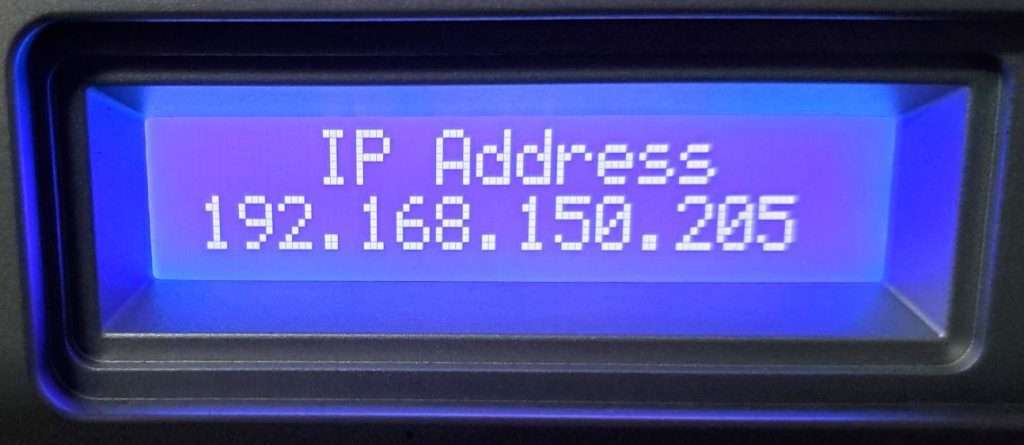
Click the Menu/Enter button to enter edit mode, noted by the underscored character.
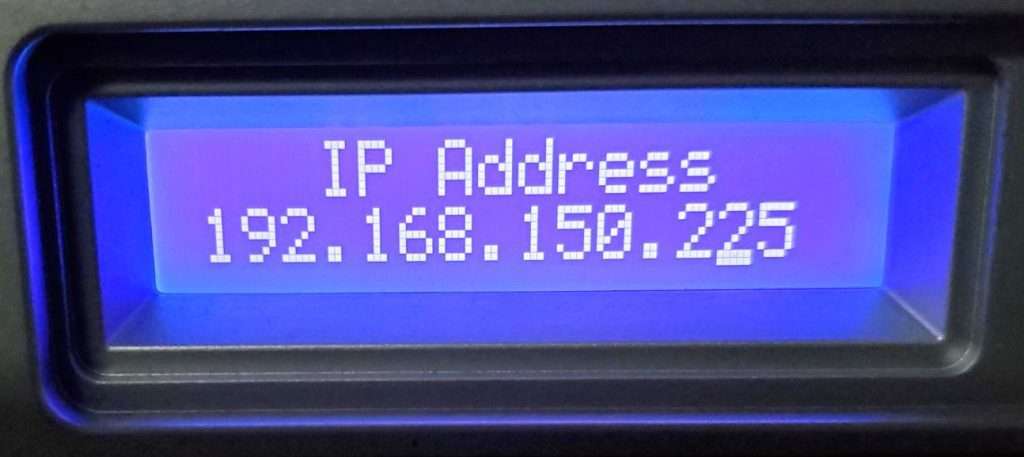
Move the edit cursor/underscore to the desired character and use the up and down arrow keys to edit. Click the Enter/Menu button again to confirm this change.
Selecting the Control Server networking mode is an important step in the device configuration process. Each mode may be the ideal choice for a given circumstance.
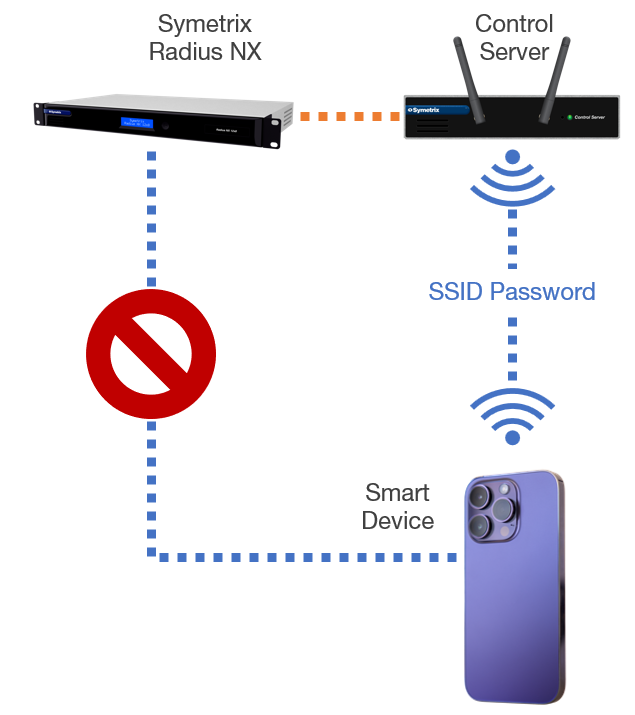
Control Server Networking Mode: Access Point (AP) Mode
In AP mode the Control Server is acting as its own WiFi Access Point “island.” With the Control Server and Radius connected over the network, configure the Control Server in AP Mode through its web interface. Any device with WiFi capability and a web browser can connect to the Control Server’s WiFi network through its SSID and password – just like any other WiFi network. An exported SymVue for Control Server control screen can be accessed from the smart device by visiting the Control Server’s IP address in a web browser. The Smart Device will not be able to connect directly to the DSP wirelessly.
Choose 1
AP Mode Notes:
- The Control Server and DSP can be connected directly or through a switch.
- The smart device must remain on the Control Server’s WiFi network to continue controlling the system.
- Control Server can allow control for any of our open-architecture DSPs.
Control Server Networking Mode: Client Mode
Choose 2
In this mode the Control Server is acting as an extension to an existing WiFi network. Meaning, the controlling device may connect to the existing network and still be able to control the system. With the Control Server and DSP connected over the network, configure the Control Server in Client Mode through the web interface.
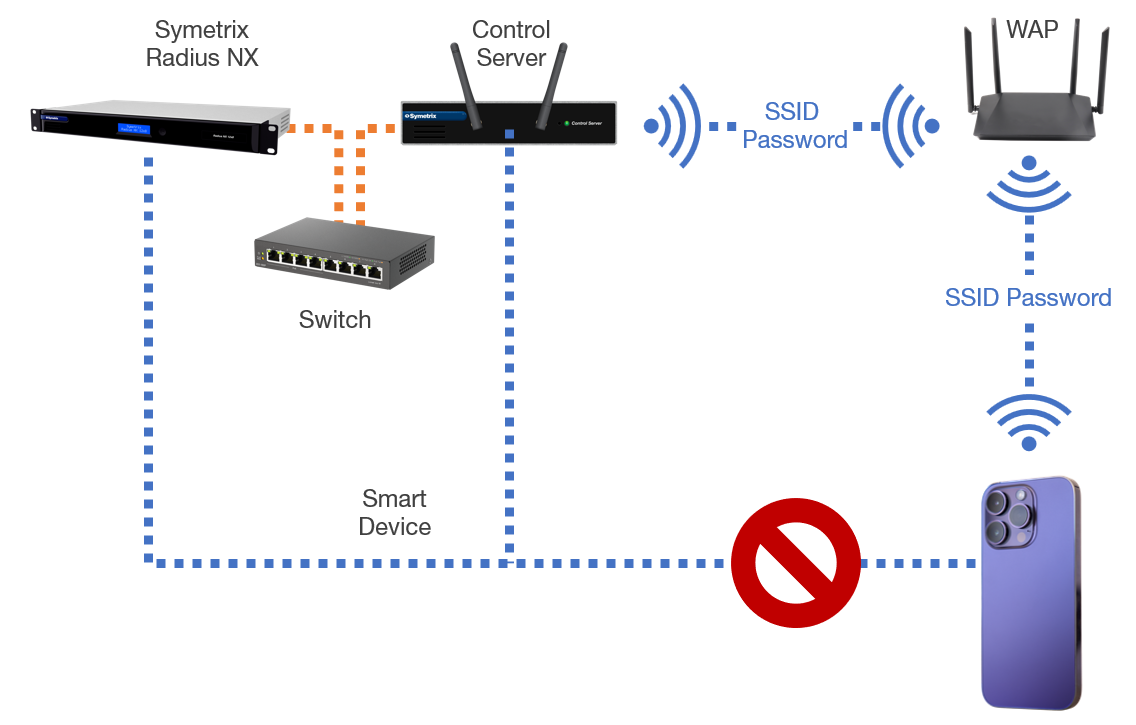
In the Control Server web interface, scan for networks and connect it to the existing WiFi network on site with the SSID and password. Then connect the smart device to the same existing WiFi network. Any device with WiFi capability and a web browser can access an exported SymVue for Control Server control screen by visiting the Control Server’s IP address in a web browser – the IP address given to the Control Server by the existing Router/WAP. The smart device will not be able to connect directly to the DSP wirelessly.
Client Mode Notes:
- The Control Server and DSP can be connected directly or through a switch.
- The Smart Device must remain on the existing WiFi network to continue controlling the system.
- Control Server can allow control for any of our open-architecture DSPs.
Factory Resets
What is a factory reset?
A factory reset clears all programming and settings off of a device. It will also generally return the device to the firmware version it left the factory with. However, some firmware upgrades on certain devices will bring the factory firmware up to a new minimum version.
When should I perform a factory reset?
Important: If possible, be sure to back up the site file to a PC before performing a factory reset, as all programming will be deleted from the unit.
A factory reset is generally advised if a device is experiencing issues that normal troubleshooting does not resolve. Factory resets can also be useful if a device has been purchased from the secondhand market, or if the site file on a device is password-protected and does not need to be retrieved.
How do I perform a factory reset?
The factory reset process is generally the same across all current Symetrix devices.
- Disconnect power from the device.
- While unpowered, push and hold the reset button.
- Re-connect power and continue holding the rest button during boot up.
DSPs should indicate on the front screen that they are performing factory reset. T-Series touchscreens should finish booting with a colored screen with the IP address displayed. Most other devices will be less obvious, but should show signs of reset such as no programming and a return to DHCP network (link local if previously static).
NIC Resets
What is a NIC reset?
Every Symetrix device that communicates over IP or Dante has a built-in network interface card (NIC) that allows for communication between itself and other devices on the network via its RJ-45 ethernet port. A NIC reset clears all network settings stored on this card and returns it to DHCP mode, where it will automatically obtain an IP address. For DSPs, T Series touch panels, W Series wall remotes, and Control Expanders, this will reset the NIC connected to the Control network. For Dante Expanders, this will reset the NIC connected to the Dante network. NIC resets do not apply to ARC-3 wall remotes.
When should I perform a NIC reset?
A NIC reset can be useful if a device has been assigned a static IP address that needs to be removed, or if a device cannot be located on the network even when directly connected to a PC. Keep in mind that the PC’s NIC will likely need to be in DHCP mode in order to connect to a device after performing a NIC reset, since the reset will return the device to DHCP mode.
How do I perform a NIC reset?
While the device is powered on, briefly tap its reset button. There will usually be a confirmation that the reset has been performed on the front LCD or LED. The NIC reset process is generally the same across most current Symetrix devices.
Reset Button Locations
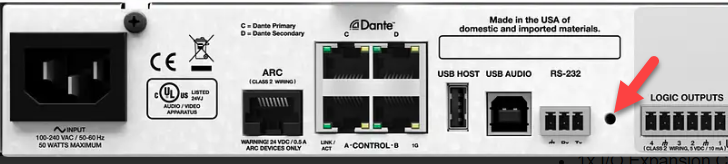
Edge, Prism series, Radius series (NX or not), Solus NX series, xControl, Control Server:
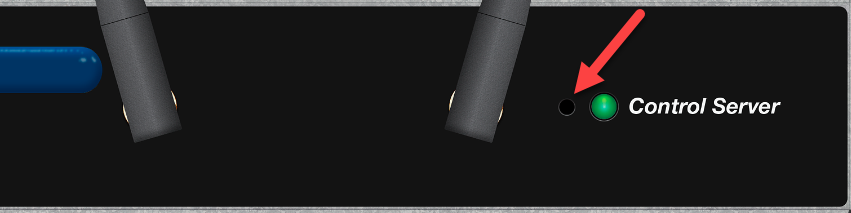
A small hole on the back of the device near either the RJ-45 or RS-232 connectors.. The Control Server reset button perforation is on the front near the status LED.
T Series Touch Panel:
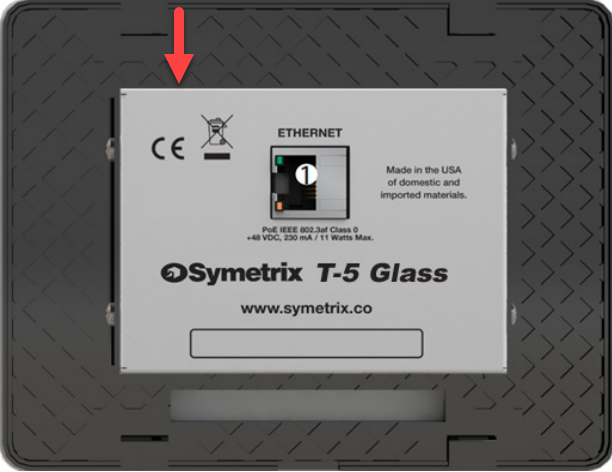
- T-5V1/Glass (identify with RJ45 port on middle of mount)- A circular button behind the metal grille on the top rear of the unit.
- T-7/T-10/T5V2 (Identify with RJ45 port on bottom of mount)- A rectangular button behind the metal grille on the bottom rear of the unit.
W- Series Wall Remotes:
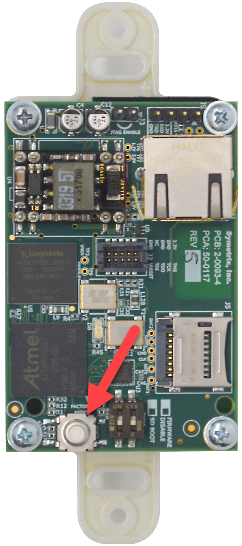
- A circular button near the bottom left of the back of the unit.
Dante Expanders:
- xIO BT / RCA: A circular button on the left side of the back of unit. Newer versions will have a grill with a button type and location similar to the T-Series.
- xIO Stage 4×4: A circular button on the right side of the unit.
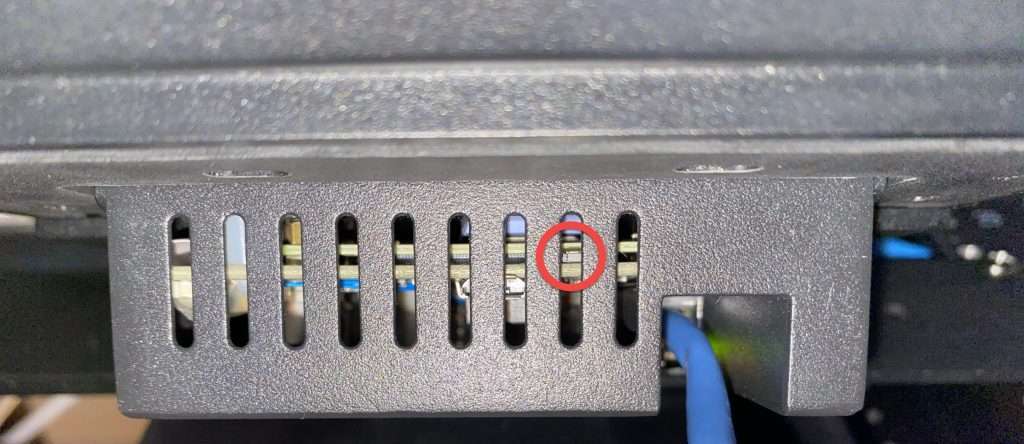
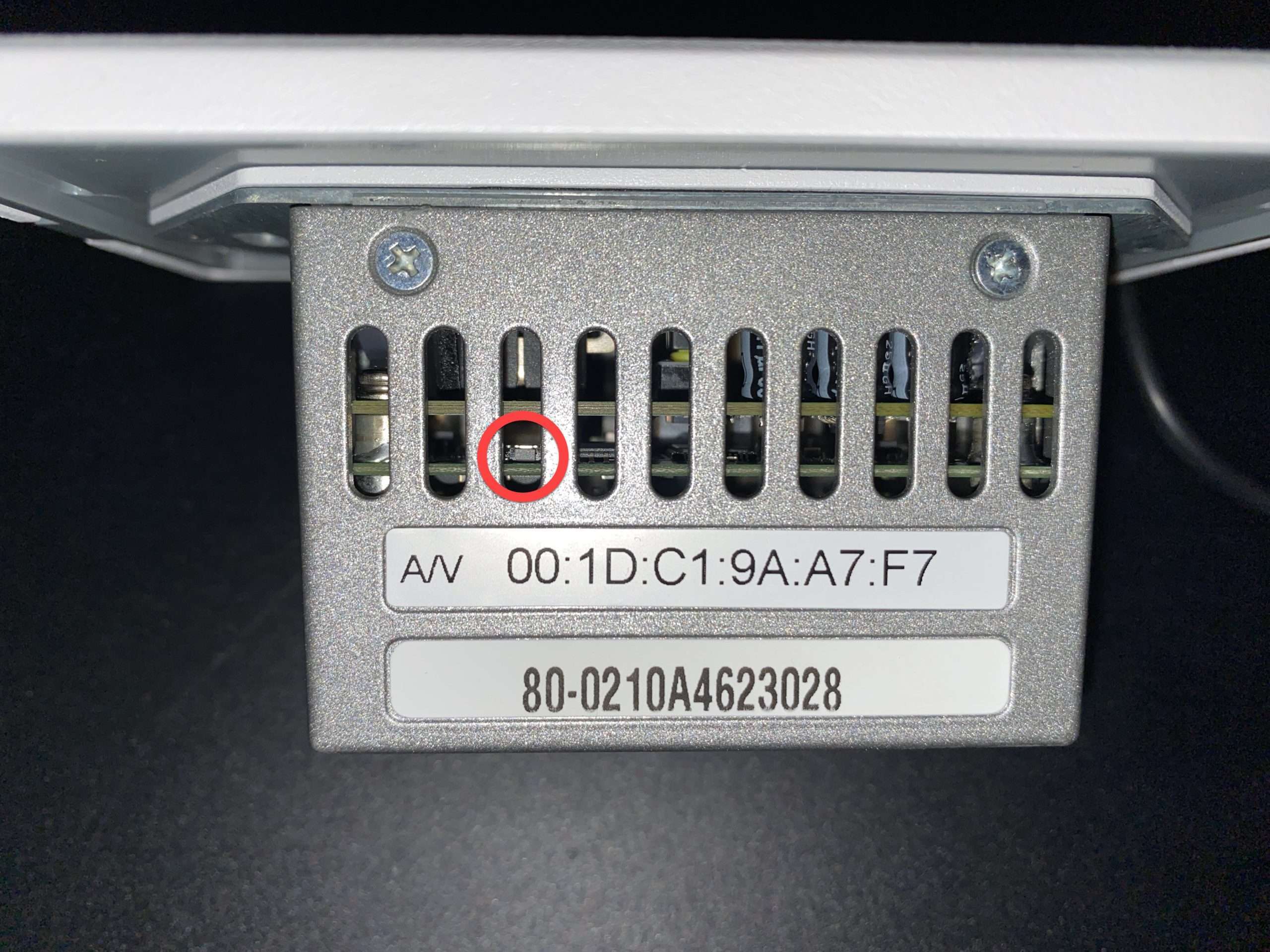
- xIO XLR: A small rectangular button in the third hole from the left above the MAC address sticker. Alternatively, the front panel button may be programmed to function as a reset button. See Unit Properties ->“Button Hold” functions within Composer.
Control Server:
- A reset button on the front of the unit next to the Control Server LED.
ARC Remotes:
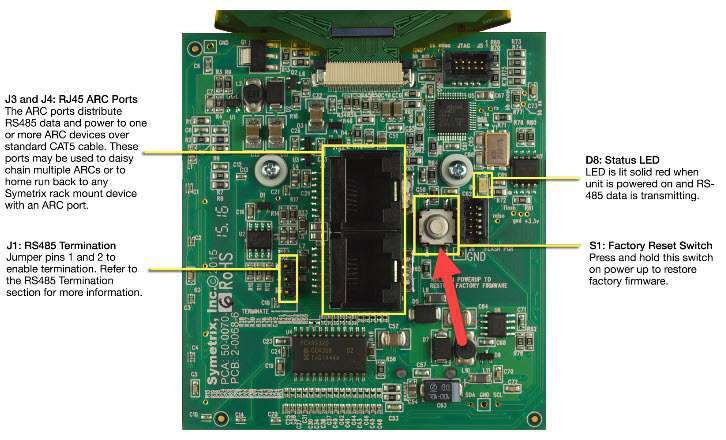
- The ARC-3 is the only ARC remote that can be factory reset. Look for a circular button on the back.
DSP and Control expanders (note Control Server is on the front)
Radius nx
T5
T7 1024x444
W1
xIO Bluetooth & xIO Bluetooth RCA
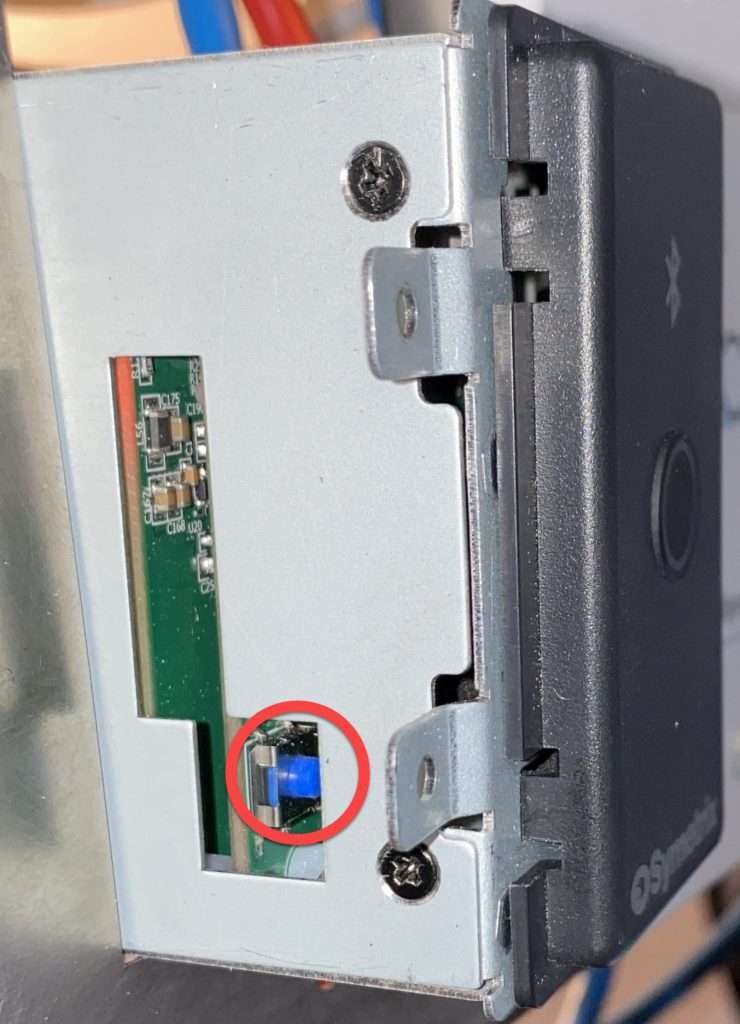
xIO Stage 4x4
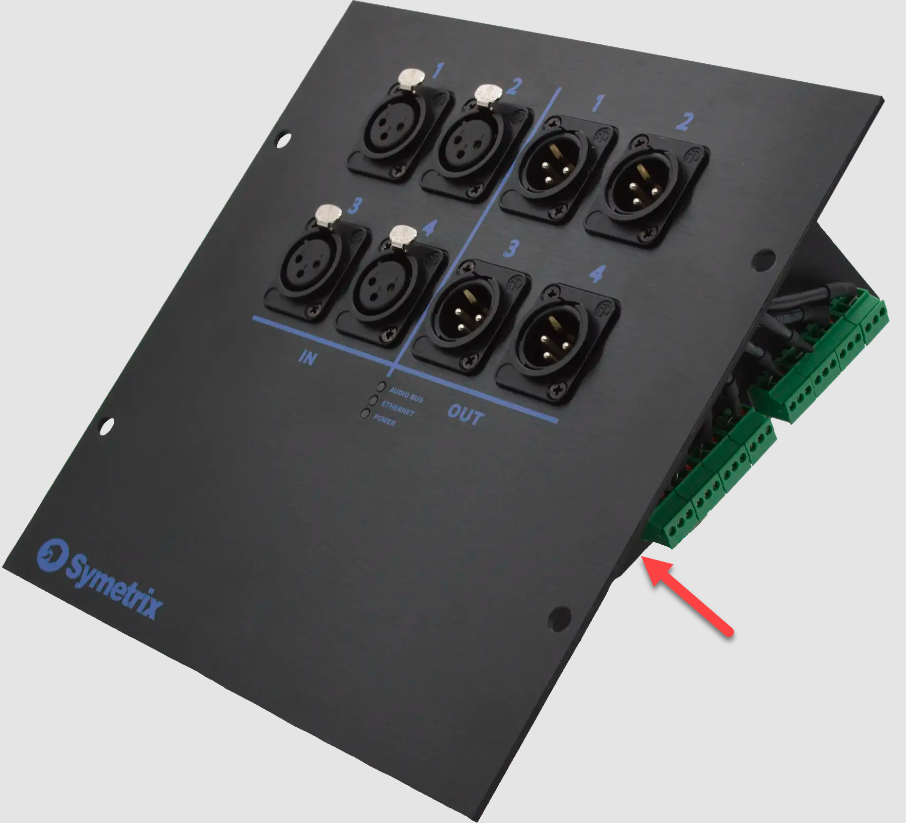
xIO XLR Series
Control Server
ARC-3
This is a general-purpose step-by-step guide for connecting to Symetrix digital signal processors and related hardware with a PC. Please note that Symetrix only recommends using Windows 10 and above. Other operating systems are not officially supported at this time.
Step 1 – Install the right software for the device
Symetrix site design software is used to connect to Symetrix devices and is available to download, install, and run for free. The required software will depend on the devices that needs to be accessed:
Composer:
Current Symetrix open-architecture DSPs all use Composer, which can be downloaded here. These include:
- D100
- Radius
- Prism
- Edge
- Solus NX
Other Symetrix hardware that can be accessed through Composer will include:
- Endpoints and expanders (xIn, xOut, and xIO devices)
- T Series touch panels
- W Series wall remotes
- Control expanders (xControl, Control Server)
Important: To avoid errors when going online with the hardware, please download the version of Composer that matches the DSP’s firmware revision number as closely as possible. This number can be found by cycling through the system pages on the front LCD panel of the DSP.
Integrator Series:
Software for Symetrix’s current Integrator Series (closed-architecture) DSPs can be downloaded here. These include:
- Jupiter
- Zone Mix 761
Legacy Hardware:
Legacy open-architecture DSPs such as 8×8 DSP, Express CobraLink, and original Solus (non-NX) require SymNet Designer. This software has been discontinued and is no longer supported by Symetrix, but the final version (10.7) can be downloaded here. Software for all other legacy products, such as Zone Mix 760, AirTools-series, and Lucid-series, is no longer available for download.
Step 2 – Make sure the PC is on the right network
Once the correct software has been downloaded, the next step is to connect the PC to the device’s control network. If a DSP is Dante-enabled, make sure not to confuse the Dante ethernet port for the control ethernet port. Configuration of these devices through the Symetrix software is always done through the control port.
By default, Symetrix devices will obtain an IP address automatically, either from a DHCP server or, if a DHCP server is not available, by obtaining a link-local (169.254.x.x) IP address. Most Composer-enabled devices will display their IP address on the front LCD panel. Cycling through the system pages on the front LCD will additionally display the subnet mask. If a device has previously been configured with a static IP address, it can be reset to DHCP by briefly pressing the device’s reset button, which is usually recessed in the housing on the back of the device.
ncpa
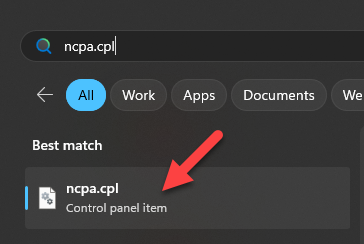
It is important that the PC’s network settings match those of the devices being used in the system. To check this, enter ‘ncpa.cpl’ in the Windows search bar to open the list of network adapters on the PC:
Right click the network adapter that will be used to connect to the device, select ‘Properties.
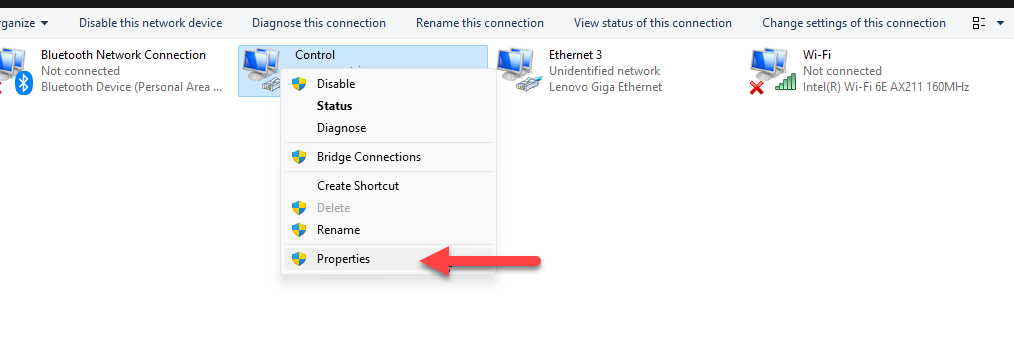
version
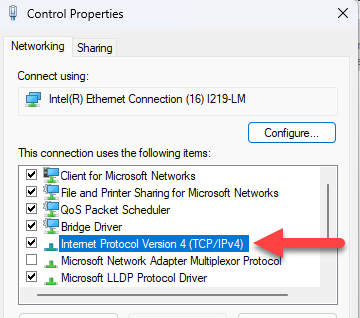
Then double click ‘Internet Protocol Version 4’:
address
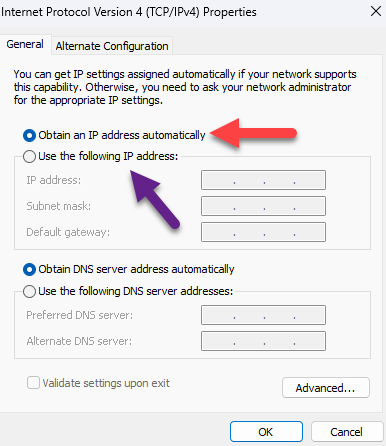
The network settings of the PC’s network adapter will display. If the Symetrix device is set to DHCP, select ‘Obtain an IP address automatically.’ Alternatively, a static IP address and custom subnet mask can be set here:
Important: Ensure that both the IP subnet and subnet mask of the network adapter match that of the device. If setting the PC to a static IP address, it must be a different/unused IP address on the network. If connected directly to the DSP with a static IP address, setting the PC to an address “right next to” the DSP usually safe. Example; if the DSP IP address is 192.168.100.50, set the PC to 192.168.100.51.
Step 3 – Locate the Symetrix hardware on the network
Once the PC is on the correct network, open the appropriate Symetrix software. The next steps will depend on the software being used.
Composer:
site
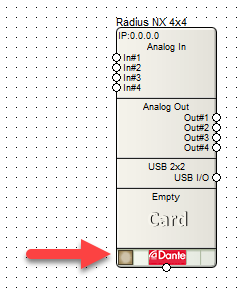
If a copy of the site file is available on the PC: Select the ‘File’ menu > Open and select it from File Explorer. In Site View, all located devices will have a checkmark in the lower left corner. If there is no checkmark present, click the empty box in the lower left corner of the device to open the Locate Hardware menu:
In the Locate Hardware menu, a list of available devices will appear. If necessary, click ‘Select Network to Search…’ to ensure that the correct network adapter is being used to scan for devices. Either double click the device in the list or highlight it and select ‘Locate to Selected Hardware’ to finish locating the device:
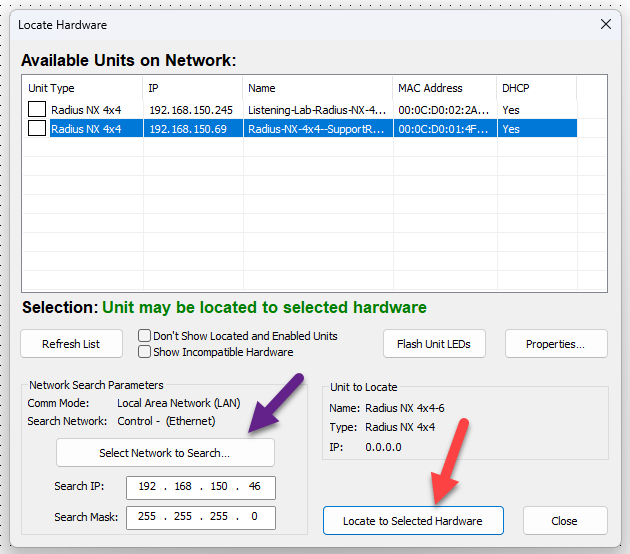
Repeat the above process for all devices in the Site View.
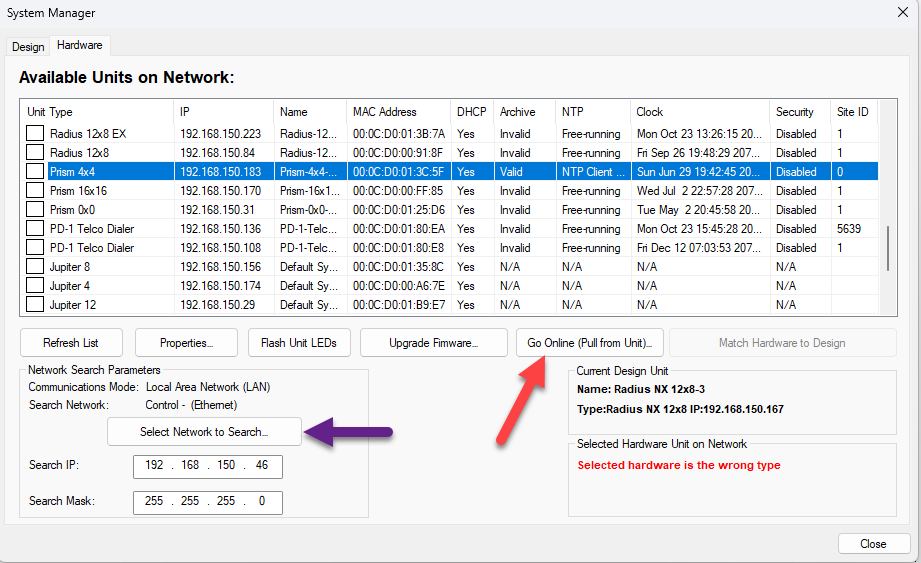
If the site file needs to be pulled from the unit:Go to the ‘Hardware’ menu > ‘System Manager’ > ‘Hardware’ tab. A list of all available units on the network will display. If needed, click “Select Network to Search…” to change the network being scanned for devices. Highlight the desired unit, then select ‘Go Online (Pull from Unit…)’:
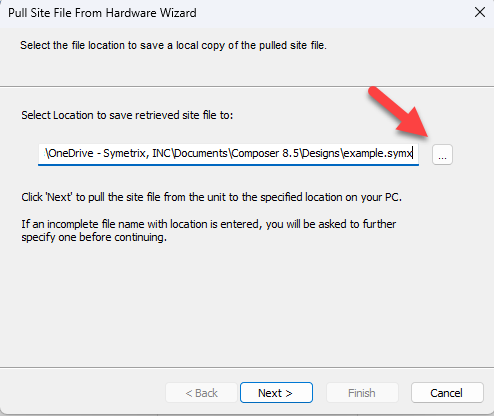
The Pull Site File From Hardware Wizard will appear. Select a location on the PC where the site file will be saved, then click ‘Next’:
Next, select either ‘Yes – Synchronize to All Changes’ to keep any changes made to the configuration while last online with this site file, or ‘No – Abandon Changes’ to revert to the archived version of the site file. ‘Show Advanced Options’ allows for more granular control over which changes are kept when synchronizing:
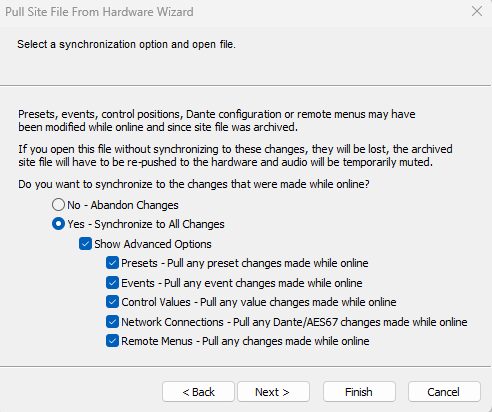
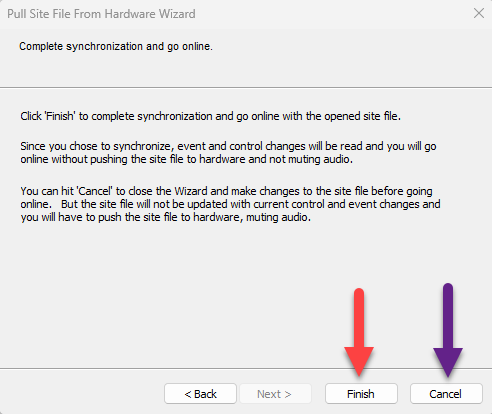
Select ‘Next’, then either select ‘Finish’ to go online with the site file as-is or select ‘Cancel’ to make changes to the site file before going online:
A note about Dante devices– Any Dante devices in the design must be located through a Symetrix DSP that has already been located:
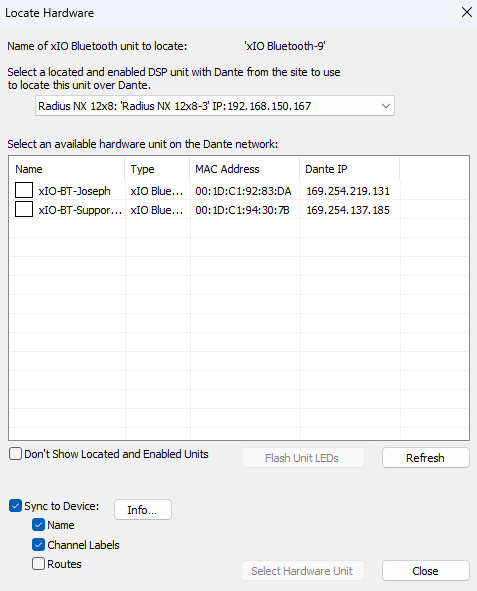
As of Composer 8.5, an xIO Updater/Configurator module may be added to the site view to configure Symetrix xIO Dante devices if a Symetrix DSP is not available. Symetrix recommends using separate networks for Dante and control.
Integrator Series:
Locating an Integrator Series DSP is done in the Connection Wizard of the Jupiter or Zone Mix 761 software. This can be done either by selecting ‘Existing File on Device’ > ‘Open Connection Wizard’ from the startup menu, or by selecting the Connection Wizard icon in the top ribbon:
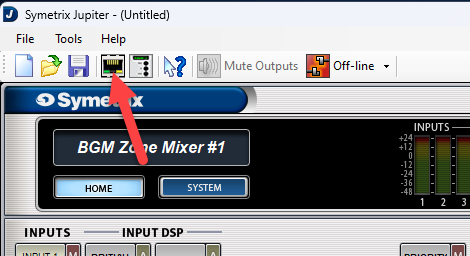
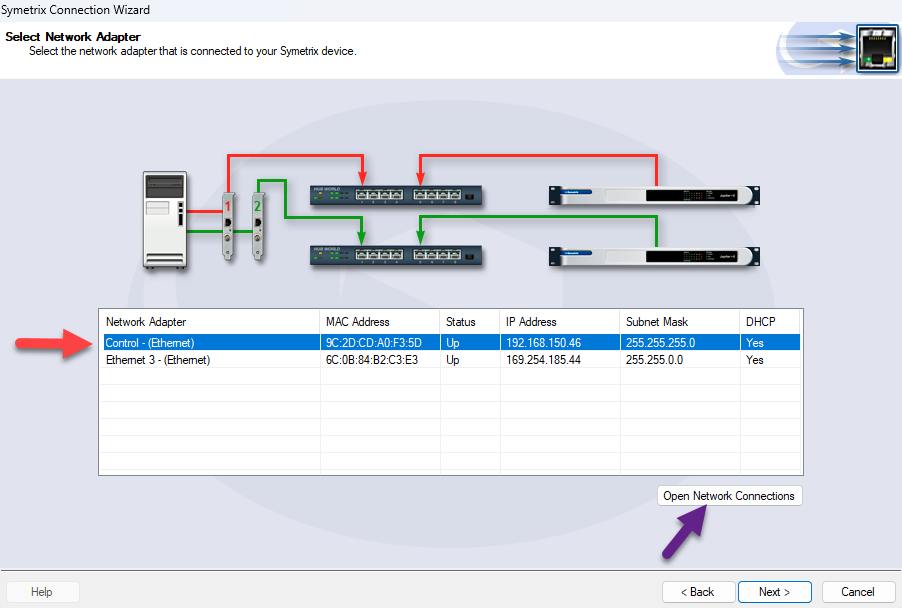
Once the Connection Wizard opens, select the option that best fits the connection type, then select ‘Next’. A list of the PC’s network adapters will appear. Select the one that is connected to the ethernet port of the device, then select ‘Next’. Select ‘Open Network Connections’ to show these network adapters in Windows Control Panel if any settings need to be changed:
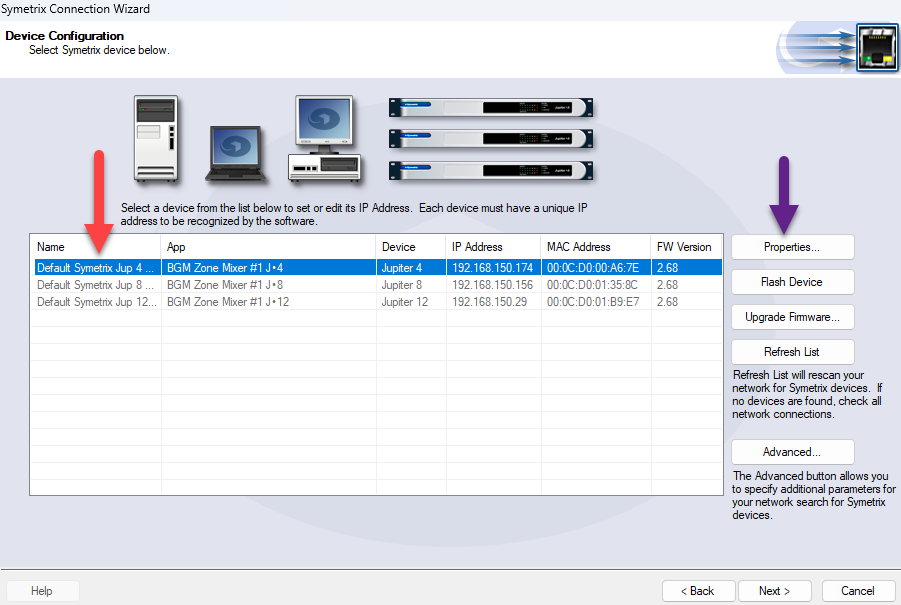
A list of devices will appear. Any devices not compatible with the current site file will be grayed out. Select the device, then select ‘Next’. Selecting the ‘Properties…’ button will allow a static IP address to be set for the device if desired:
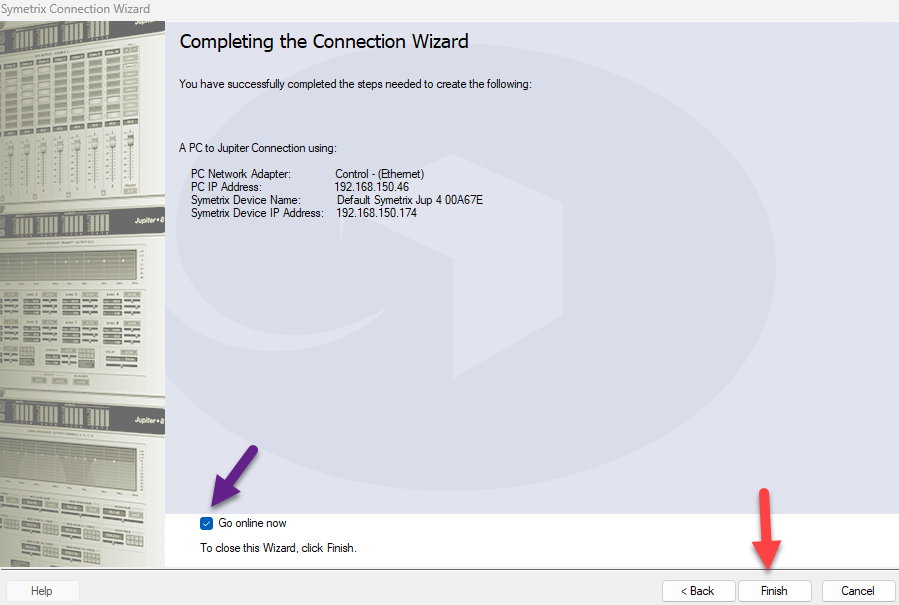
On the final screen, select ‘Finish’ to close the Connection wizard. To go online immediately, ensure the ‘Go online now’ box is checked:
Step 4 – Go online with the system
Composer:
online
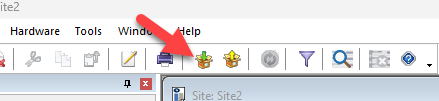
Once all devices in the site file have been located, select ‘Go online (push site file to hardware)’:
Note: The icon with the yellow arrow is for pulling the site file from the located hardware. Please see the passage entitled “If the site file needs to be pulled from the unit” in the previous section for more information on pulling the site file from the hardware.
Next, the Site Preferences window will appear. These are generally advanced options that can be left alone, however if Dante routing is being managed in Dante Controller rather than in Composer, uncheck the box next to ‘Configure Network Audio.’ Click ‘OK’ to proceed:
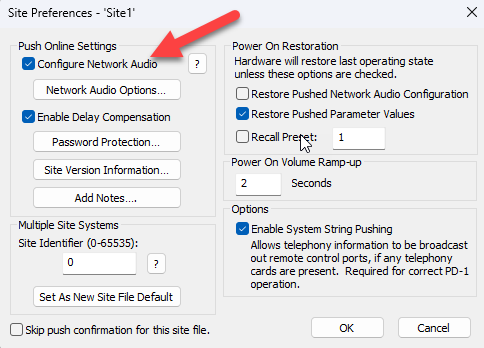
dialogue
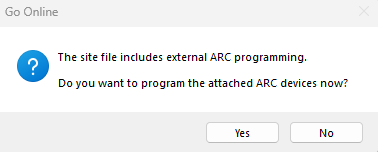
At this point, if the site file has not yet been saved to the PC, the File Explorer will appear and prompt for a filename and location to save the file to. If any ARC remotes are present in the design, a dialogue will appear and ask if all remotes should be programmed now. Regardless of whether ‘Yes’ or ‘No’ is selected here, the system will continue to push and go online:
success
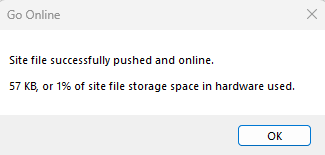
Once the site file has been successfully pushed, a success dialogue will appear. After clicking ‘OK’, the system volume will gradually ramp up unless the system mute is engaged:
Now that the system is online, parameters can be changed in real time, and signal meters will display their data. However, if any modules are moved, added, or deleted, or if any wires are changed, the system will automatically go offline. The site file must be re-pushed in order to go back online.
Important: The firmware versions of all devices in a Composer site file must match the version of Composer being used before going online with the system. If this is not the case, a message will appear prompting a firmware upgrade before the system can go online. Please refer to the Updating Firmware with Composer Tech Tip for further assistance.
Integrator Series:
After finishing the Connection Wizard, select the orange ‘Off-line’ button in the top ribbon. The drop-down arrow can be selected to choose which previously located device to go online with:
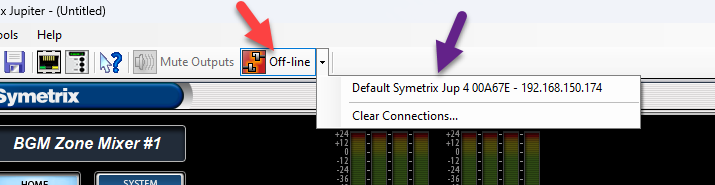
A prompt will then appear allowing the user to select whether to push the currently open configuration file to the device, or to pull the configuration file off of the device and save it to the PC.
Once the system is online, parameters can be changed in real time, and signal meters will display their data.
Integrator Series devices will operate normally with the factory firmware and should not require firmware updates to go online.
FAQs and Troubleshooting
“My device does not appear in the Locate Hardware menu.”
- Double check that the PC’s NIC and the Symetrix device are on the same network.
- Double check that the selected network in the Locate Hardware menu corresponds to the intended NIC.
- Change all octets of the IP address and subnet mask being searched for to ‘255’, uncheck the box next to ‘Don’t show located and enabled units’, and check the box next to ‘Show incompatible hardware’ in order to broaden the search as widely as possible.
- If a USB to ethernet adapter is being used with the PC, connect using a standard ethernet port instead if possible.
- Power cycle both the PC and the device.
- Re-seat the ethernet cable in both the PC and the device.
- Try a different ethernet cable.
- If the device is connected to the PC through a network switch, try a different switch port, or connect directly to the PC instead.
- If all else fails, disconnect the device from the network, reset its network settings by tapping the reset button once, then directly connect it to the PC (ensuring the PC is set to automatically obtain an IP address).
“I’m getting a ‘Failed to go online’ error message.”
- Disable Windows Defender Firewall and any third-party antivirus/firewall programs that may be blocking network traffic.
- Double check that the device firmware versions for all devices in the site file match the version of Composer being used (the first two numbers are most important).
- Power cycle both the PC and the device.
- If the device is connected to the PC through a network switch, try connecting directly instead.
- If a device cannot be located and is not needed in the site file, right click it and select ‘Disable Unit’.
“I can’t locate my Dante device.”
- Double check that the DSP is Dante-enabled by going to the ‘Tools’ menu > ‘Launch Remote Terminal’ > ‘Options’ menu > enable ‘Debug Mode’, then send the command info cards to the IP address of the DSP. If ‘Non-Dante Clock Card’ is displayed in the output under ‘Audio Network Card’, then the device does not have a Dante card installed. Please contact sales@symetrix.co to purchase one. If ‘No Card Present’ is displayed instead, there may be a problem with the Dante card.
- Double check that the Dante device is connected to the Dante port of the DSP.
- Connect the Device directly to the DSP’s Dante port, bypassing any network switches. If it can be located using this method, there may be a problem with the network.
- If all else fails, connect the PC to the Dante network, or directly to the Dante device, and verify that it appears in Dante Controller. If not, then there may be a problem with the Dante device, or it may be set to a static IP address outside of the Dante network.
“What does the yellow checkmark next to a device in Composer mean?”
A yellow checkmark means that the device is muted, while a green checkmark means that the device is unmuted.
An ARC’s current requirements vary depending on the voltage supplied to it. For example, an ARC-2e with a 15 VDC supply uses approximately 115 mA, while with 8 VDC it uses approximately 230 mA. As the voltage varies from 15 VDC to 8 VDC, the current requirement increases accordingly. Note: The voltage range for all ARCs is 8 to 30 VDC. Symetrix units’ ARC ports provide 24 VDC.
The following table provides at-a-glance cable length limitations based on DC power (the table is not relevant if only RS-485 is distributed) and assumes 24 gauge CAT5/6 cabling. The lengths for multiple ARCs on a single chain assume equal distance for each cable segment between ARCs. This table is intended for quick reference only. For more detailed configuration scenarios, Symetrix has made available a Microsoft Excel spreadsheet to help system designers determine power requirements based upon cable length, number of ARCs, and the power supply to be used. This spreadsheet can be downloaded from the Symetrix Technical Support pages here.
Here is a table noting cable segment length limitations for ARC power over CAT-5e cable:
| Number of ARCs on Chain | ARC-3 | ARC-2e | ARC-K1e | ARC-SW4e |
| 1 | 3000 ft | 3000 ft | 3250 ft | 3250 ft |
| 2 | 1100 ft | 1200 ft | 3000 ft | 3000 ft |
| 3 | 550 ft | 700 ft | 1250 ft | 1250 ft |
| 4 | 200 ft | 250 ft | 400 ft | 400 ft |
*Note– These numbers are based on ARCs attached to an Edge, Prism, Radius, or other device supplying 24V and at least 500 mA.
If power is not distributed over CAT5/6, each RS-485 chain is limited to 1000 feet / 304 m in a star network configuration and 4000 feet / 1219 m in a daisy-chain network configuration. Longer distances may be possible using third party RS-485 extender products.
The total number of ARCs that can be daisy chained and fed power from an ARC port may be limited depending on ARC type and cable distances. An ARC-PSe Rack Mount Power Supply may be used to accommodate a larger number of ARC Wall Panels.
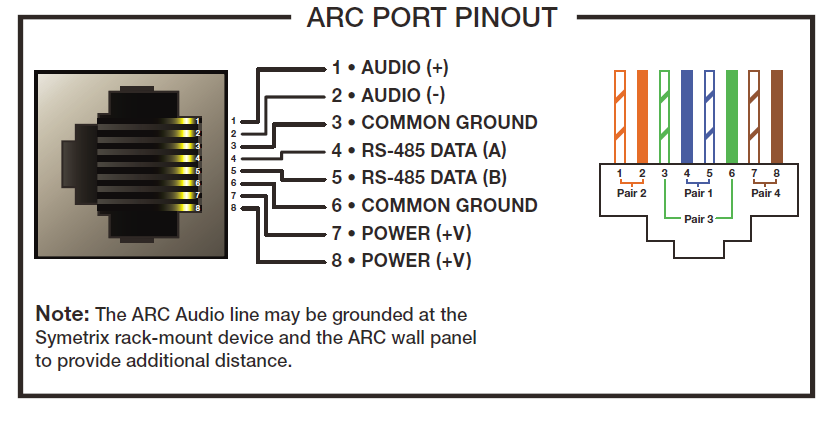
WARNING: When designing an ARC network, one must be careful not to double power any ARCs. If all pins on the CAT5/6 connections are used, power can travel over the CAT5/6 cable and reach any ARC on that particular chain. Power over CAT5/6 could potentially come from the ARC that is powered locally (via a custom wired cable using the pinout above) and then daisy-chained via CAT5/6 to other ARCs, or from a powered ARC port on a Symetrix unit or ARC-PSe (preferred). In general, we recommend only supplying power from the start of a chain (a Symetrix unit or an ARC-PSe).
This article contains information and guidelines related to controlling Symetrix and third-party products using IP, Dante, serial, and other technologies.
IP Control Network Guidelines
- The maximum number of connected IP devices is 128. This includes DSPs, W Series, and T Series controllers.
- Up to six TCP sessions can be active at one time.
- If a seventh TCP/IP connection is initiated, the least recently used session will be automatically closed. Control systems should avoid closing and re-opening TCP connections if possible. Keeping a single TCP session open to send multiple commands through will result in much better performance than opening and closing a session for each command.
- To control Symetrix DSPs with Ethernet:
- Command strings are sent as the payload of a UDP/IP or a TCP packet. The following rules should be observed in sending commands:
- Commands should be sent to UDP or TCP port number 48631 to the unit’s IP address. The IP address may be found using the Connection Wizard or on some units’ front panel displays.
- Commands should be formatted exactly as defined in the Composer help file and include a carriage return that terminates the command.
- Command strings may or may not include a zero-termination character.
- Commands should not be broken up across multiple packets.
- If high-reliability communications are required, responses to commands should be analyzed for success.
- Command strings are sent as the payload of a UDP/IP or a TCP packet. The following rules should be observed in sending commands:
Control of Third-Party Devices via the Dante Control Network
Supported Third-Party Dante Device Limitations
- The number of Dante devices (except Shure – see below) that can be located by or referenced by (switch input and LED output use) from a single DSP unit is limited to 24.
- The number of Shure devices that can be located by or referenced by (switch input and LED output use) a single DSP unit is limited to 4.
Control Methods
TCP/UDP/HTTP Control
Third-party devices that are controlled by TCP or UDP strings or binary code can be controlled from a Symetrix DSP either by using a Network String Module available in the Composer toolkit or by the use of an Intelligent module. If bidirectional communications or control using HTTP is needed, then an Intelligent module is required.
IR Control
Symetrix has tested and verified that the Global Cache IP2IP/IP2IR and their other IR interfaces work with Symetrix products. Communicate using binary Mode to Global Cache units. Text does not work.
Serial Control
Radius and Edge have a single serial port. If using a DSP without a serial port or if additional serial ports are needed, use an xControl or Global Cache IP2LS/IP2SL-P/WF2SL.
Contact Closure or Voltage Control
Included natively in Symetrix DSPs. If more connections are needed than provided with the DSP add xControl Control Expanders. In addition to analog/logic control inputs/logic outputs, the xControl also adds two additional serial ports.
Control Server
The Wi-Fi access point built into the Control Server only passes data to the Symetrix control network. It cannot be used to access another network.
ARC Controls
Power Limitations
The total number of ARCs that can be daisy-chained and fed power from an ARC port may be limited depending on ARC type and cable distances. An ARC-PSe Rack Mount Power Supply may be used to accommodate a larger number of ARC Wall Panels.
| CABLE SEGMENT LENGTH LIMITATIONS FOR ARC POWER OVER CAT5 CABLE | ||||
| ARC TYPE | ||||
| Number of ARCs on chain | ARC-3 | ARC-2e | ARC-K1e | ARC-SW4e |
| 1 | 3000’ | 3000’ | 3250’ | 3250’ |
| 2 | 1100’ | 1200’ | 3000’ | 3000’ |
| 3 | 550’ | 700’ | 1250’ | 1250’ |
| 4 | 200’ | 250’ | 400’ | 400’ |
Connecting ARCs to Jupiter hardware is simple using the (RJ-45) ARC port on either the front or back of the device. These ports not only provide communication (RS-485) data, but also +24 VDC power. If the required number of ARCs exceeds the current limits of the Jupiter ARC port(s), an ARC-PS can be used to power additional ARCs. Connecting a Jupiter ARC port to the RS-485 port on the ARC-PS is easily accomplished by following one of two methods.
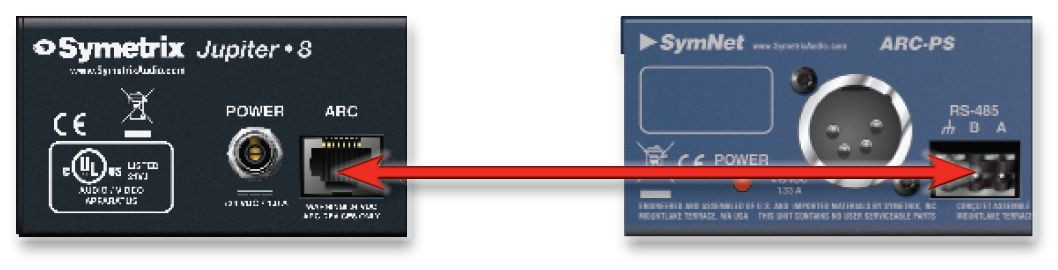
Method 1: Modify an Off-the-Shelf CAT-5 cable
- Cut off one end of the CAT-5 cable.
- Wire three of the wires to a terminal block connector such that:
A = Blue.
B = Blue/White.
Ground = Green.
Note: Blue/White is twisted with Blue, and Green/White is twisted with Green. - Connect the RJ-45 to the ARC port on Jupiter.
- Connect the terminal block connector to the RS-485 port on the ARC-PS.
- Connect your ARCs to the RJ-45 ports on the ARC-PS.
- Program your ARCs with the External Controller Wizard in the Jupiter software.
Method 2: Make Your Own Cable
- Crimp an RJ-45 connector to one end of a CAT-5 cable.
Note: Only pairs 4+5 and 3+6 are necessary, so STP cable could be
substituted by sharing the ground. - Wire three of the wires to a terminal block connector such that:
A = pin 4.
B = pin 5.
Ground = pins 3 and 6. - Connect the RJ-45 to the ARC port on Jupiter.
- Connect the terminal block connector to the RS-485 port on the ARC-PS.
- Connect your ARCs to the RJ-45 ports on the ARC-PS.
- Program your ARCs with the External Controller Wizard in the Jupiter software.
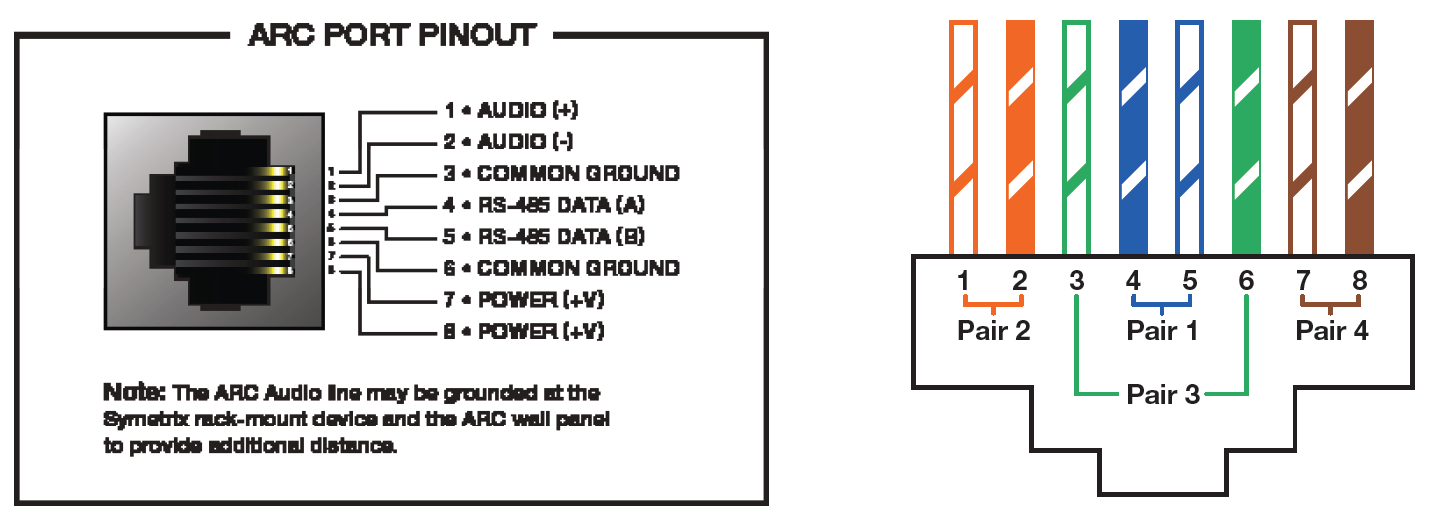
NOTE: Refer to the ARC Network Design topic in the Jupiter help file for more information.
Introduction
The Symetrix xControl serves a similar purpose for Edge, Radius NX, and Prism as the Control I/O did for legacy SymNet SymLink and Express Cobra hardware. Its primary purpose is to bring the overall cost of logic I/O heavy systems down.
xControl Rear Panel
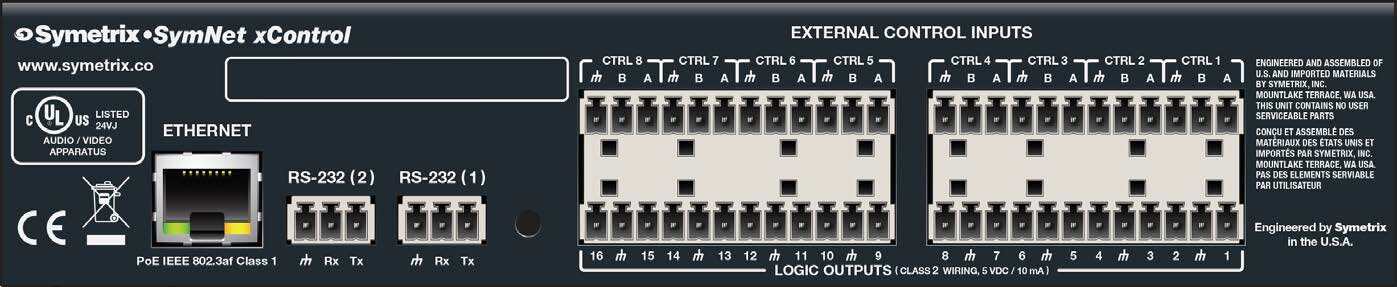
- Ethernet: 10/100 Base-T Ethernet port for network connection to the system over IP. Features auto-crossover sensing for direct device-to-device connections. Accepts PoE IEEE 802.3af Class 1.
- RS-232: Two serial communications interface for sending strings to 3rd party devices or accepting 3rd party control commands. Port Settings: 57.6 kbaud (default), 8 data bits, 1 stop bit, no parity, no flow control.
- External Control Inputs: Eight (8) analog control inputs. Each analog control input can be configured to support 1 potentiometer or 2 closures (+3.3 VDC reference voltage supplied).
- Logic Outputs: Sixteen (16) logic outputs with eight (8) paired common ground pins. Logic Outputs go low (0V) when active, and are internally pulled high (5V) when inactive and can drive external LED indicators directly.
Examples of Common Use Cases
Conferencing Push To Talk and LED Muted/Active Indications
In conferencing applications the logic outputs are typically used to either light LEDs directly or interface with something expecting a control voltage that controls the LEDs itself. Typically, they are following mutes somewhere in the Symetrix design which are linked to push-to-talk (push-to-unmute) logic.
External Relay Trigger
External relays are often driven by logic outputs for the purpose of controlling a power sequencer or controlling a “conference in session” lamp/sign.
Camera Control
Logic outputs are sometimes use to interface with the GPIO inputs of a camera PTZ control unit which essentially expects contact closures to trigger it to preset camera positions. These may be driven in our system by presets, the Gating Automixer channel “ON” LEDs, or the PTT logic detailed above. Most often this type of setup is used during video conferencing or in court room applications.
Projector Control
The dual RS-232 ports on the xControl can be configured to send any custom RS-232 string in ASCII or Binary allowing Symetrix to control 3rd party hardware. Often times a projector is used in a conference room or class room application, and must work in tandem with the audio system. Using an ARC remote or SymVue control screen as the user interface, when prompted by the host DSP the xControl can send 3rd party protocol commands to a projector, controlling common parameters such as On/Off and the selected input source.
Powering and Hookup to the Network
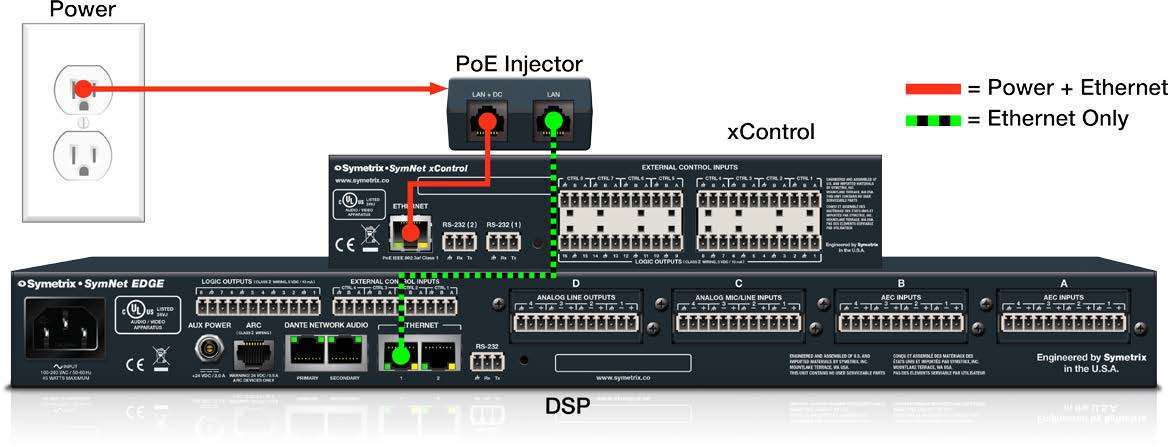
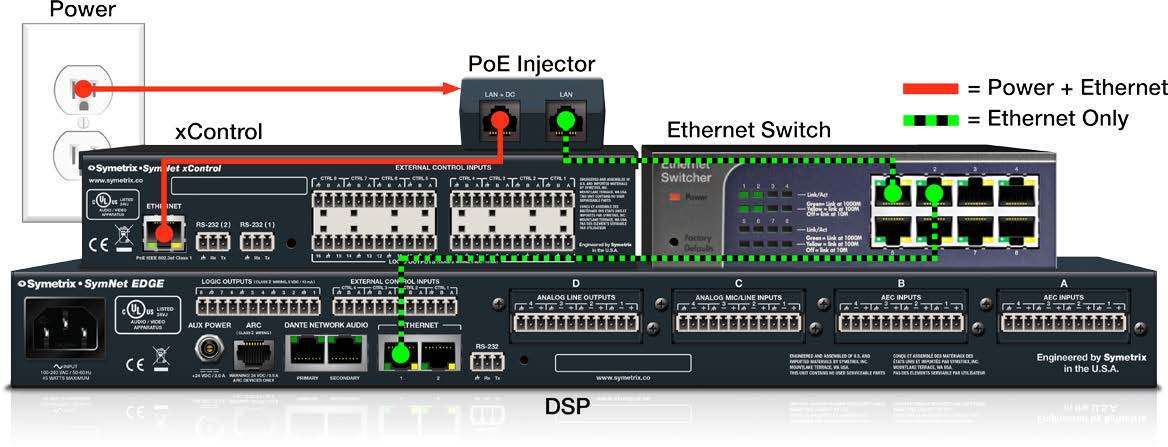
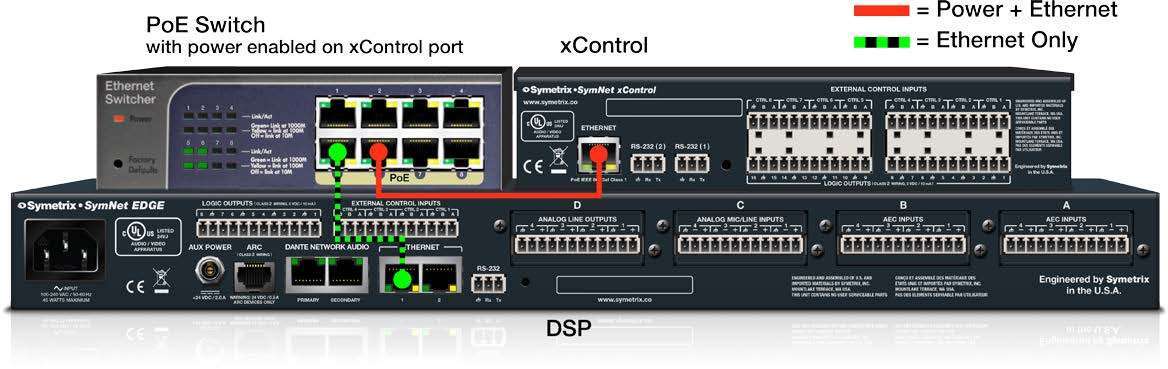
Warning: The xControl is a true PoE (power over Ethernet) device and must be connected to the host DSP through the data network. It is not an ARC network device. Do not under any circumstance plug the xControl Ethernet port into the ARC port on a Edge, Prism, Radius NX, or ARC-PSe. The ARC DC voltage may damage the xControl, which may cause a failure not covered under the manufacturer’s warranty.
Configuring IP Parameters
x 1

Locating Hardware
x 2

OR
x 3
OR
Discovery of, and connection to, xControl hardware is done with the Locate Hardware dialog found under the Hardware menu or by clicking the Connection Status box in the bottom left corner of the xControl icon.
- IP Configuration with Composer
- The Locate Hardware dialog will scan the network and list available units with DHCP IP addresses.
- Select the xControl unit to assign a static IP address and click the Properties button.
- To assign the xControl a static IP address, select “Use the following IP address” and enter the appropriate IP Address, Subnet mask and Gateway.
- Click OK when finished.
- Next, back in the locate hardware dialog, ensure the xControl device is highlighted and click “Select Hardware Unit” to connect the selected xControl on the network to the xControl in the Composer Site File.
- Close the Locate Hardware dialog.
This guide provides the detailed steps required to both create an account on a CUCM v9.x with the bare minimum required/recommended settings, and to register a Symetrix 2 Line VoIP Interface card to the CUCM.
Navigating to the CUCM
- Enter the IP address of the server into a browser’s address bar and press
Enter (example: 10.30.0.50) - Click on Cisco Unified Communications Manager
- Type in your Username and Password and select Login.
Preparing the CUCM
Note: : All fields marked with an ‘*’ in CUCM are required for proper setup, some of these fields are set by default
The steps to create a user account and the related phone information are described next
1) Create a Phone Security Profile
a. Select System>Security>Phone Security Profile
b. Click Add New
c. Under Phone Security Profile Type select Third-party SIP Device v(Advanced) and select Next (Basic – single line device)
i. Enter the Security Profile Name under “Name*” (Symetrix VoIP UDP, in this example)
ii. Select the desired Transport Type (UDP in this example)
iii. Check Enable Digest Authentication (we recommend using authentication credentials)
d. Click Save.
2) Create an End User
a. Select User Management>>End User
b. Click Add
i. Create User ID (Symetrix, in this example)
ii. Last Name (Inc. in this example)
iii. Digest Credentials (used for authentication) (12345 in this example)
c. Click Save
3) Create a Phone
a. Select Device>Phone
b. Click Add New
c. From Phone Type, Select Third-party SIP Device (Advanced) and then click Next
d. Device Information box
i. Enter the MAC Address of the Symetrix 2 Line VoIP Interface card, and description (optional, will default to SEP+MAC Address if left blank)
ii. Device Pool = Default
iii. Phone Button Template = Third-party SIP Device (Advanced)
Note: If only a single line registration is required, we may be able to support the Third-party SIP Device (Basic) option.
e. Protocol Specific Information box
i. Device Security Profile = Name of security profile created in step 1)
ii. SIP Profile = Standard SIP Profile
iii. Digest User = End User Created in step 2)
f. Click Save
4) Setup Directory Numbers (DN) for the device (this is the extension number)
a. Click on Line [1] – Add a new DN link on left of page
b. Directory Number Information box
i. Enter a Directory Number (311 in this example)
ii. Enter an Alerting Name (Note: ASCII Alerting Name field will auto fill when this is entered)
c. Line 1 on Device (description given previously) box (Optional)
i. Enter Display (Caller ID) (Note: ASCII Display (Caller ID) field will auto fill when this is entered)
d. Click Save
e. Click GO next to “Related Links: Configure Device (description given previously) to return to the Phone Configuration page
f. Click on Line [2] – Add a new DN link and follow steps b through e above to register the second line on the Symetrix 2 Line VoIP Interface card.
g. Click Save
Registering the Symetrix 2 Line VoIP Interface
Now that the Cisco CUCM is ready for the Symetrix 2 Line VoIP Interface card, it is time to put the appropriate CUCM credentials into the Symetrix Web Admin tool.
1) Setting up Line 1
a. Identification tab
i. Display Name (any display name you want)
ii. User Name (this will be the Directory Number for one of the lines created in CUCM, 311 in this example)
iii. Domain Name (server IP address, 10.30.0.50 in this example)
iv. Local Phone Number (This is the number which a far end would dial to call the card)
b. Server tab
i. Server Name
ii. Server Address (this is the address of the CUCM)*To set up Line 2 follow the same steps as Line 1, but the User Name will be the Directory Number created for the second line of the device in CUCM
The purpose of this Tech Tip is to show you how to probe, listen to, and meter any signal by using the Selected Wire Audio Module. This is useful for commissioning a Symetrix system or troubleshooting a noise issue while onsite. The second half of this Tech Tip provides detailed instructions to accomplish this.
Selected Wire Audio Module
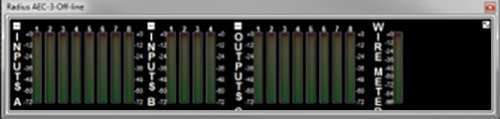
The Meter Bar displays the physical (unit) input and output meters as well as the Selected Wire Meter. The panel may be resized and docked. Its orientation may be switched by clicking on the double-ended arrow button in the upper right corner. Each group of input or output meters may be collapsed or expanded by clicking on the +/- buttons above their labels.
One of the great things about being able to click on any wire in the design is that you can quickly monitor any point in the signal path. When a wire in the design is selected, it will meter audio passing as long as the unit is online. The Selected Wire Audio module can be wired directly to one of the unit outputs to be connected to headphones, near-field monitor speakers, or even a listen cue wedge for live sound applications.
wire 1
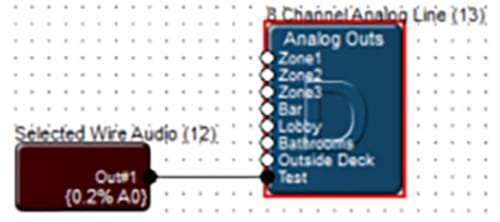
The Selected Wire Audio module can be wired to a Matrix Mixer module, so that it can be routed anywhere in the software or to any of the outputs. This function is available to anyone logged in as a user for a live monitor feed. The end user could matrix it to a monitor feed during a live broadcast.
wire 2
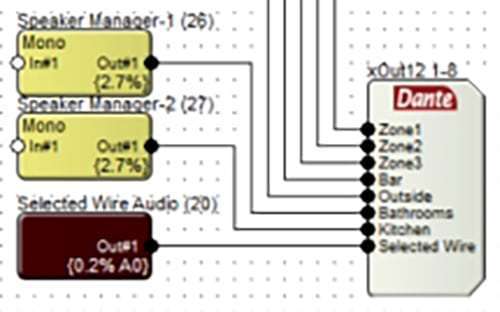
In this example, the Selected Wire Audio module is wired to a Dante flow so that it can be routed to outputs of another Dante enabled device such as the Symetrix xOut 12.
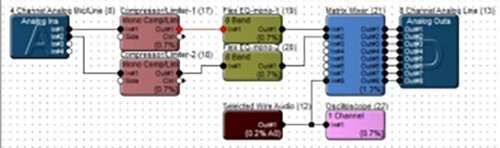
In this example, you can easily compare the sound pre or post Compressor, as well as pre or post EQ.
The Selected Wire Audio module can be wired into an Oscilloscope module, for testing of the signal path.
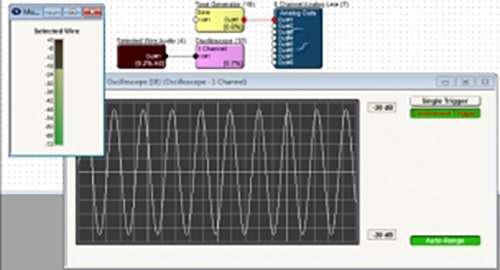
wire 3
You can wire into a Dante channel that can be routed directly to the laptop speakers using Dante Virtual Soundcard (DVS). A full set of instruction can be found in the Tech Tip: Sending Audio with Dante Virtual Soundcard to Composer hardware.
Follow these simple steps to monitor any point in the DSP signal path from the speakers in the host computer running Composer:
Necessary items:
- Composer software installed on the host computer
- Symetrix Radius NX, Prism, or Edge DSP • Dante Virtual Soundcard (DVS) installed on the host computer (www.audinate.com) • Dante Controller installed on the host computer (www.audinate.com)
Step 1:
In order to have the ability to probe the DSP signal path in Composer and have the audio play out on the host computer speakers via Dante, it is necessary to merge the Ethernet control network with the Dante network. Simply use a short CAT5 patch cable to connect one unused Ethernet port on the Symetrix device to a Dante port. Plug the host PC into the other unused Ethernet port. When using Prism, an external switch is required.
WIRING KEY: Dante = GREEN, Ethernet/Control = RED, Dante/Ethernet Control Merger = BLUE
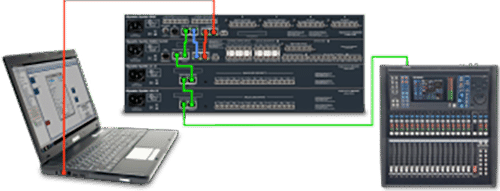
Step 2:
In Composer create a one channel, Dante Transmit Flow and wire its input to the output of the “Selected Wire Audio” module. Also name the Flow and the channel. In the example, the Dante Flow is entitled “Monitor Send” and the channel name is “Dante Laptop Monitor.
wire 4
Note: Both the Selected Wire Audio and Diagnostic modules are located under the ‘Ins’ modules of the DSP.
Step 3:
Open the Dante Virtual Soundcard with Audio Interface set to “WDM” and audio format at 48 KHz.
Step 4:
Configure the host PC/laptop to use the DVS:
- Go to Control Panel->Sound
- On the “Playback” tab make sure the laptop speakers are the default device
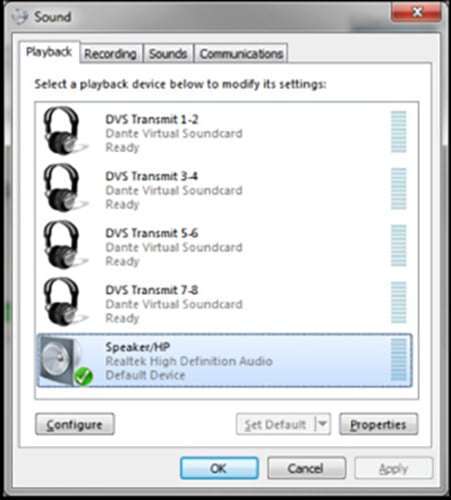
• On the “Recording” tab click on DVS Receive 1-2 and click the Properties button.
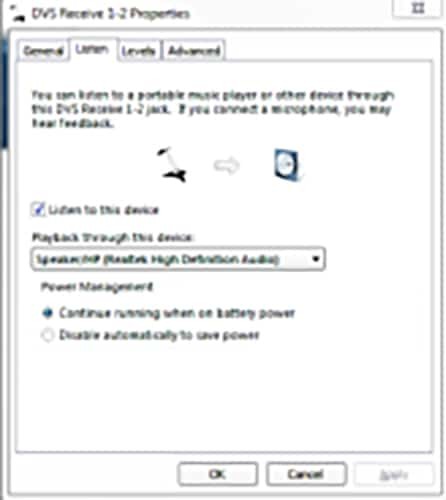
• Click “Listen to this Device” and then click OK
Step 5:
Open Dante Controller
- Expand the “laptop network name” under Dante Receivers.
Example: rcurtright-lt2
- Expand the Radius,Prism, or Edge unit under Dante Transmitters.
- Click the cross points for the laptop DVS channel 01 and 02 so they receive audio from the DSP transmitter’s channel “Dante Laptop Monitor
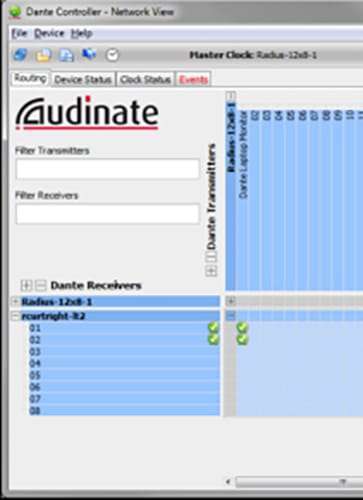
• When the cross points get green checks, the Dante audio should now be received and played from the laptop.
Step 6:
Return to Composer and click on any wire to “select it” so that the wire turns red. Now the output of the “Selected Wire Audio” module will be the audio on the red selected wire, which will enter the Dante Transmit Flow “Monitor Send”. The audio then travels across the Dante network to be received by the DVS where the selected wire audio will play out of the host computer’s laptop speakers. Start testing, click, probe, monitor!
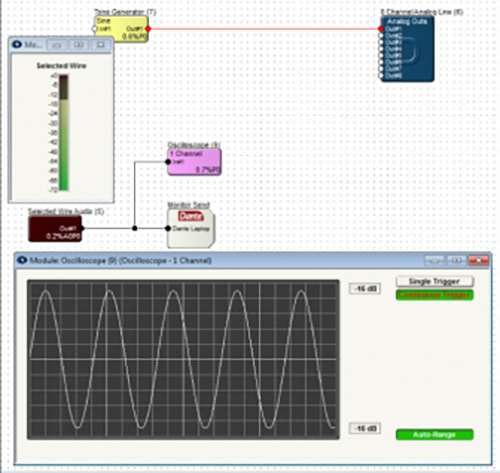
Hint: Place an Oscilloscope, found under “Meters and Analyzers” in Composer, in line with the Dante Transmit Flow. This creates the added benefit of viewing the selected wire audio on a scope while at the same time monitoring with the host computer speakers.
Windows OS uses MTU (Maximum Transmission Unit) which determines the maximum size of the protocol data packet unit (including the size of the transport header) that can be transmitted over the underlying network layer. MTU parameters usually appear in association with a communications interface (NIC, serial port, etc.), and can be configured separately for each network interface.
For optimum network performance and to prevent fragmentation, the MTU should be large enough to hold any IP datagram in a single frame. IP datagrams larger than the MTU are divided into fragments whose size is a multiple of eight octets. The fragments travel separately to the destination, where they are reassembled before the datagram is processed. As a result of this extra reassembly and overhead of transmitting multiple fragments, a low MTU value is not the best choice for optimal network performance.
For communication with Symetrix DSP’s, we recommend a setting of 1500 MTU and a minimum of 1492 if there is some reason to have it smaller than 1500. If the configuration file starts, but then fails part way through, then we suggest you check the MTU.
In this case, the main symptom is that pushing to Symetrix hardware fails part way through, but possibly works with a blank site file and the remote terminal log doesn’t show any errors. The main thing that differentiates this issue from firewall issues is that the ‘push’ starts to work and fails part-way through as
opposed to failing immediately or not locating the device at all.
To find the current MTU setting, use the command line option “netsh int ip show int”. It should be quick and easy enough that it wouldn’t be a burden to try as an early troubleshooting step.
In the figure below, the MTU on the Local Area Connection is set to 1492.
If there is an issue and the MTU is below 1492, change the MTU, reboot, and then verify the change works by running the nets hint ip show int command again.
To change or set a new MTU value, execute the following command: netsh interface ipv4 set subinterface “Local Area Connection” mtu=nnnn store=persistent
Note: “Local Area Connection” (including quotation marks, as there is space in the name) is the name of the network connection on the computer, which is shown in the listing of network interfaces available. nnnn should be replaced with numeric value of the preferred size of MTU.
After the change, reboot and restart the computer for the change to take effect
To verify the change of MTU has been successfully saved, use the following command:
netsh int ip show int
It may be necessary to inquire if the PC is under a corporate policy that is limiting MTU in some way. Sometimes these settings are set at log in by system administrator.
This topic describes how to open a command prompt with full administrator permissions. If your user account is a member of the Administrators group, but is not the Administrator account itself, then, by default, the programs that you run only have standard user permissions. You must explicitly specify that you require the use of your administrative permissions by using one of the two methods described next.
Administrative credentials
To complete these procedures, you must be a member of the Administrators group.
To start a command prompt as an administrator
- Click Start, click All Programs, and then click Accessories.
- Right-click Command prompt, and then click Run as administrator.
- If the User Account Control dialog box appears, confirm that the action it displays is what you want, and then click Continue.
To start a command prompt as an administrator (alternative method)
- Click Start.
- In the Start Search box, type cmd, and then press CTRL+SHIFT+ENTER.
- If the User Account Control dialog box appears, confirm that the action it displays is what you want, and then click Continue.
SNMP (Simple Network Management Protocol) is an application-layer protocol that facilitates the exchange of information between network devices. Third party SNMP software includes programs such as Aprisma Spectrum, CA UniCenter, HP OpenView, and IBM Tivoli.
Using SNMP an IT manager can monitor various pieces of hardware, all from different manufactures, for things such as IP info, network bandwidth and resources used, and even the current health of hardware and its components. Often times, SNMP allows an IT manager to address a problem before it
actually happens, or when hardware fails to be able to pinpoint the exact unit and where it is located within a venue or network.
Currently, Composer hardware does not support SNMP, but there are options that are worthwhile to consider.
First, Composer adds a ‘Diagnostic’ module within the Design View of every DSP in the system. The various features the diagnostic module displays can help with determining the health of a unit before or after a failure, the IP address and DHCP lease info, processor temp, and control indication.
With the release of Composer 1.2 the diagnostic module can be assigned controller numbers to most of the fields related to a units health and operation. Controller numbers can be assigned to individual fields one by one, or all at once by right clicking the diagnostic module and choosing “Assign All Unassigned Controls to Controllers (#-#)”.
Once controller numbers have been assigned to the diagnostic fields, the module will appear like this if ‘Tools->Super-impose Assigned Controller Numbers’ is checked.
These numbered fields can now be monitored for their state with remote controls such as an ARC-2e, SymVue, or with a smart device using ARC-WEB.
Additionally, if SNMP is required, many third party control systems such as Crestron or AMX offer full SNMP monitoring functionality. This means that the control system can monitor the diagnostic fields for all Symetrix DSP hardware across the network, acting as the SNMP intermediary between the SNMP monitoring software and system.
For more info on SNMP monitoring using Crestron, click to following link:
http://www.crestron.com/downloads/pdf/featured_articles/169/Bridging_AV_And_IT.pdf
For more info on SNMP monitoring using AMX, click to following link:
http://www.prnewswire.com/news-releases/amx-extends-netlinxtm-withjavatm-for-industrys-first-dual-language-control-system-72165242.html
This document describes how to control Symetrix Jupiter and Zone Mix 761 products over the Internet or other wide area network (WAN) using port forwarding. It discusses the necessary ports that need to be opened to enable access to Jupiter and Integrator Series devices It also discusses alternative ways of control and gives some general network background information.
Quick Summary of Required Port Forwarding
If you already have a good understanding of firewalls, port forwarding, and NAT and don’t want to read this entire document, refer to the table below for a quick list the ports required to be enabled for remote control of Jupiter or Integrator Series products.
| Usage | Protocol/Port | Notes |
| ControlNet Discovery | UDP 49216 | Broadcast Packet used by Connection Wizard |
| ControlNet Control Data | UDP 49184 | Controller changes, meter data, etc. |
| ControlNet String Data | UDP 49344 | Channel names, etc. |
| SymNet Designer Communications | UDP 8000 | Used for routine polling of device parameters, ARC programming, etc. |
| FTP control stream | TCP 21* | Passive FTP mode is used |
| FTP data stream | dynamic | Most firewalls automatically handle the data port without an explicit rule |
| Remote Terminal | 486300 | Not recommended unless remote troubleshooting or remote control systems are required |
*Most routers and firewalls have a built-in rule for FTP. Whenever possible, this should be used instead of a manual rule for TCP port 21
Step-by-Step Instructions
Below are step-by-step directions for enabling and using port forwarding for a Jupiter or Integrator Series device.
- Obtain the public/external IP address of the Symetrix device using a web site such as http://www.whatismyip.com or by contacting the ISP of the site.
- Obtain the private/internal IP address of the Symetrix device by running the Connection Wizard with an on-site computer. The PC running the wizard must be on the same LAN as the Symetrix device.
- If the Symetrix device is using DHCP to obtain its IP address, we recommend changing to a static IP address. This will ensure that its address remains the same, which is necessary for the port forwarding rules to work properly. Alternatively, most DHCP servers can be configured to permanently assign the same IP address to a given device using “reservations”.
- On the site’s router or firewall, set up port forwarding rules from the public IP address to the private IP address. Create the rules for all ports listed above.
- From off-site:
SymNet Designer- Run the Connection Wizard (SymNet Designer) to find the device. On the Device Configuration page, click the Advanced button. Enter the Symetrix device’s public IP address in the Search IP Address Base. Enter 255.255.255.255 for the Search subnet mask.
Press OK.
SymNet Composer- Open the Locate Hardware. Enter the Symetrix device’s public IP address in the Search IP Address Base. Enter 255.255.255.255 for the Search subnet mask. Click Refresh List. Select unit and press Select Hardware Unit. - At this point, the Connection Wizard should be able to see the remote device. If so, select it and Finish the wizard.
- You can now go on-line with the device just as if you were connected locally.
Ports and Protocols
Jupiter and Integrator Series products use a variety of Ethernet ports and protocols for communication and control. All communications are Ethernet-based using the IP protocol. Both TCP/IP and UDP/IP connections are used. For a successful remote connection, all of the required ports must be available. The following sections describe each of the communication types used.
ControlNet
ControlNet is a suite of protocols designed by Symetrix for efficient low overhead communication. It allows controlling and monitoring audio parameters and metering signals in real time. ControlNet also allows keeping string data such as channel names in sync between software applications and devices. There are 3 separate UDP-based protocols that make up the ControlNet suite: Discovery, Control Data, and String Data.
ControlNet Discovery
ControlNet Discovery is used to find or “discover” devices without knowing their IP addresses. It uses broadcast UDP packets. All connected devices respond to Discovery request and inform the requester of their name and IP address. Discovery is used in the Connection Wizard. In this case, the Connection Wizard running on the PC sends out the Discovery request, and the hardware devices respond. Discovery uses UDP port 49216 on the devices.
ControlNet Control Data
Control Data packets are the workhorses of ControlNet. They are used to send and receive parameter changes and meter updates. When you move a fader or push a button in a Jupiter or Integrator Series GUI, the Control Data protocol makes the changes. Control Data uses UDP port 49152 on the
devices.
ControlNet String Data
String Data packets are used to send text strings between devices and the GUI. They are used on the Automix Matrix 780 and other products to keep channel names, etc. in sync between the hardware and software. String Data uses UDP port 49344 on the devices.
FTP
FTP or File Transfer Protocol is a standard method used to transfer files between two devices. In the Jupiter and Integrator Series software, FTP is used primarily when transitioning between on- and off-line and upgrading firmware. For example, FTP is used to send your device file to the actual device for storage. Later, it can be retrieved from the device again using FTP. FTP uses TCP port 21 on the device for control. It also opens a second TCP port for data streaming. However, the second port is usually handled transparently by firewalls and routers.
Remote Terminal
This protocol is typically used by AMX, Crestron, or other third-party control systems. These controllers are almost always local to the device, so making them available over the Internet isn’t required. However, this protocol can also be used for troubleshooting, typically under the direction of tech support.
Making this protocol available can allow this should the need arise. However, this is the least secure protocol, so caution is advised.
Port Forwarding
Port forwarding is the process of forwarding network traffic on specific ports destined for a public IP address to a private IP address. This allows certain types of traffic to be directed to the Jupiter or Integrator Series device, while other types can be sent to other equipment (for example, HTTP traffic to a web server). All the determination of which device receives each inbound network packet is based on the TCP/IP or UDP/IP destination port of the packet, hence the term “port forwarding”. To control a Symetrix device, all the ports used by the Jupiter or Integrator Series software must be forwarded to the device.
The tables below show which ports need to be forwarded. There are three different versions with trade-offs between simplicity, security, and future compatibility.
Table 1: Minimal Port Forwarding, maximum security
This port list opens the fewest number of ports. This is the recommended setting for most users.
| Usage | Protocol | Port |
| ControlNet Discovery | UDP | 49216 |
| ControlNet Control Data | UDP | 49184 |
| ControlNet String Data | UDP | 49344 |
| FTP | TCP | 21* |
Table 2: Future-proof Port Forwarding
This port list opens additional ports that may be used in future versions of Symetrix devices.
| Usage | Protocol | Port |
| ControlNet Discovery | UDP | 49216-49247 |
| ControlNet Control Data | UDP | 49184-49215 |
| ControlNet String Data | UDP | 49344-49375 |
| FTP | TCP | 21* |
| Remote Terminal | UDP | 48630 |
Table 3: Future-proof Port Forwarding
This port list opens additional ports that may be used in future versions of SymNet Composer devices.
| Usage | Protocol | Port |
| ControlNet Discovery | UDP | 49216-49247 |
| ControlNet Control Data | UDP | 49184-49215 |
| ControlNet String Data | UDP | 49344-49375 |
| FTP | TCP | 21* |
| Remote Terminal | UDP | 48631 |
Table 4: Future-proof Port Forwarding
This port list opens additional ports that aren’t needed, but requires the fewest rules, so is easiest to set-up.
| Usage | Protocol | Port |
| ControlNet Suite | UDP | 49184-49375 |
| ControlNet Control Data | UDP | 8000 49472 |
| FTP | TCP | 21* |
*Most routers and firewalls have a built-in rule for FTP. Whenever possible, this should be used instead of a manual rule for TCP port 21
Active vs. Passive FTP
To make an FTP connection, the server needs to know on which port to talk to. In active FTP, which was designed before firewalls were common, client tells the server “this is the port you should talk to me on,” and the server attempts to connect to that port. This is like client giving the server a phone number to
call your computer at. The firewall blocks incoming calls, so you get an error when trying to open a connection because client never hears from the server.
The client connects from a random unprivileged port (N > 1023) to the FTP server’s command port, port 21. Then, the client starts listening to port N+1 and sends the FTP command PORT N+1 to the FTP server. The server will then connect back to the client’s specified data port from its local data port, which is port 20. From the server-side firewall’s standpoint, to support active mode FTP the following communication channels need to be opened:
- FTP server’s port 21 from anywhere (Client initiates connection)
- FTP server’s port 21 to ports > 1023 (Server responds to client’s control port)
- FTP server’s port 20 to ports > 1023 (Server initiates data connection to client’s data port)
- FTP server’s port 20 from ports > 1023 (Client sends ACKs to server’s data port)
In passive FTP, client asks the server to pick a port, and then connects to the server on that port. This is like client asking at what phone number it can call the server. Since client makes the call, the firewall allows it, and you are all set to transfer files.
The client initiates both connections to the server, solving the problem of firewalls filtering the incoming data port connection to the client from the server. When opening an FTP connection, the client opens two random unprivileged ports locally (N > 1023 and N+1). The first port contacts the server on port 21, but instead of then issuing a PORT command and allowing the server to connect back to its data port, the client will issue the PASV command. The result of this is that the server then opens a random unprivileged port (P > 1023) and sends P back to the client in response to the PASV command. The client then initiates the connection from port N+1 to port P on the server to transfer data.
From the server-side firewall’s standpoint, to support passive mode FTP, the following communication channels need to be opened:
- FTP server’s port 21 from anywhere (Client initiates connection)
- FTP server’s port 21 to ports > 1023 (Server responds to client’s control port)
- FTP server’s ports > 1023 from anywhere (Client initiates data connection to random port specified by server)
- FTP server’s ports > 1023 to remote ports > 1023 (Server sends ACKs (and data) to client’s data port)
SymNet software operates in Passive Mode.
Security Considerations
By setting up port forwarding for a Symetrix device, you are making it visible on the global Internet, opening up potential security issues. However, you do have one measure of security, the so-called “security by obscurity”. Unless someone else knows the IP address and listening ports of your device, it can’t connect to it. This isn’t foolproof but does reduce the risk of hacking.
Another aspect of security by obscurity is that the Symetrix-specific protocols described here aren’t well known. Hackers tend to concentrate on familiar protocols such as HTTP, FTP, and Telnet. Of course if you were paying attention above, you noticed that Jupiter and Integrator Series devices use FTP. This is probably the biggest security risk. The FTP connection does require a valid user-name/password combination, so this provides some protection.
To further minimize security risks, you can set up your port forwarding rules to allow only connection from a specific IP address. For example, if you always access the device from a corporate PC which has a static IP address, you can limit connection to just that (public) IP address. Keep in mind that this would prevent you from accessing the device from home, or a WiFi hotspot on the road.
Symetrix offers hardware-based security, which covers the ability to connect and control a device with the Symetrix software. This should definitely be turned on for a device visible on the Internet. However, even though this prevents connection from the Symetrix software by securing the SymNet Designer protocol, it doesn’t protect other protocols such as ControlNet and Remote Terminal. In particular Remote Terminal is unsecured and has the power to do serious damage to a device. Probably the best way to ensure security is to use a VPN connection, as described below.
Testing and Trouble-shooting
After setting up port forwarding for remote access, use these guidelines to test and trouble-shoot the connection. The primary tool for testing is the Connection Wizard. Ideally there should be someone on site to make any required changes.
- Run the Connection Wizard and try to locate your device. If it appears, ControlNet Discovery is working properly. If not, verify you are using the correct external IP address (in the Advanced dialog box) and that the port forwarding rule for Discovery is properly configured and enabled.
- If you can discover your device, push the Flash Device button. If someone locally can verify the front panel LEDs are flashing, communications are working properly. If not, verify a port forwarding rule
for UDP port 8000 to the private IP address of the Symetrix device is properly configured and enabled. If no one is available locally to visually verify the flashing LEDs, it is possible to determine if this works from the application. After pressing the Flash Device button, note how long it takes before you can click on other buttons. If control returns within 1-2 seconds, it is working. If it takes 10 seconds or more, it isn’t working. Some versions of the Wizard will indicate success of the command directly with a pop-up “balloon” message. - Press the Properties button. This will use FTP to read the device properties. If the Device Properties dialog comes up within a few seconds, FTP is working properly.
- Try going on-line with the device. If the above three steps work, you should be able to go on-line. If you aren’t able to, see the discussion of latency below.
Latency Issues
When controlling a Jupiter or Integrator Series device over a local area network, packets typically travel between the PC and the device in a few milliseconds. However, over the Internet the latency is much larger, often hundreds of milliseconds. Most of the protocols used in Symetrix devices are relatively insensitive to increased latency, with the only affect being slower response to changes. However, the SymNet protocol requires a response to every command and assumes a low latency connection. If there is a problem with latency, you may find you can connect to a device initially, but it drops off-line shortly thereafter.
To fix this, there is a registry setting available to tell the software to “wait longer” before giving up on SymNet commands. The setting is called “ConnTimeout” and is located in HKEY_CURRENT_USER\Software\ Symetrix\\Connection (note that are specific the software you are using, e.g. “ZoneMix 760 2.5”. The default value is 50 (milliseconds). If you are having trouble staying on-line or know your latency is significantly longer than 50 ms, increase this value. Be sure to make all changes while the Jupiter or Integrator Series software is not running.
To measure the latency between your PC and the Symetrix device, you can use the “ping” command from a command prompt. The command “ping ” will tell you the round-trip delay. We recommend using a value slightly larger than the reported maximum round-trip time.
Note that the actual bandwidth of the connection (megabits per second) is less important than the latency for the responsiveness of a remote connection. As long as the latency is low (i.e. < 30 ms), the responsiveness can be very good even with a relatively slow 1 Mbit/second connection.
Special Cases
Controlling Multiple Jupiter or Integrator Series Devices at the Same Site
Jupiter and Integrator Series devices don’t support controlling multiple units with the same public IP address via port forwarding. It is possible to discover multiple units behind the same public address, but connecting requires a dedicated public IP address for each device. If multiple public IP addresses are used, you should set up duplicate port-forwarding rules for each device/public IP address pair. Each set of rules would map a single public IP address to a single private IP address for a Symetrix device. Another option is to use a VPN connection, as described in Other Control Methods.
Site Contains an Externally Accessible FTP Server
If a site contains an FTP server accessible from the outside world, the firewall may already have a rule set-up to forward FTP traffic to the FTP server. This presents a problem in that FTP traffic from Jupiter or Integrator Series software will be sent to the FTP server instead of the device. To resolve this, you can either a) use multiple public IP addresses or b) use multiple port numbers for FTP.
In the first option, the FTP server and the Symetrix devices would each have their own public IP address. Then the firewall would have two separate rules for FTP and forward FTP traffic appropriately based on the public IP address. This is the most straight-forward solution, but may require contacting the site’s ISP
to arrange for the additional public IP address(es).
The second option is to change the port number used for FTP for one of the devices. FTP typically uses TCP port 21, but most FTP servers can be configured to listen on other port numbers. Jupiter and Integrator Series devices currently don’t support ports other than 21 for FTP, so the change must be made to the FTP server. After this is done, FTP users will need to specify this new port number for their connection, typically done by adding “:” after the URL. For example, if the previous URL for FTP was ftp.mysite.com and the new port number was 10021, the new URL would be ftp.mysite.com:10021.
Other Control Methods
In addition to the port forwarding method described above, there are a few other options for remote control of Jupiter or Integrator Series products.
Virtual Private Network (VPN)
If you can establish a VPN connection to the remote site, you should be able to connect to and control a Jupiter or Integrator Series device without any other set-up. As long as the VPN allows the network traffic listed above (which is generally the case by default), it should work just as if you were local. After establishing the VPN connection, run the Connection Wizard. On the “Select Network Adapter” screen, you should see an option for your VPN under Network Adapters. Select this and continue. The main advantages of this method are simpler set-up and configuration, improved security, and ability to access multiple Symetrix devices at the same site. The main disadvantage is the overhead of creating the VPN account, and potential security risks of a site giving an outside contractor VPN access to their internal network.
Static NAT
Also called “one-to-one NAT”, this method sets up a simple one-to-one mapping of a public and private IP address. Basically, any traffic destined for a particular public IP address is sent to a particular private IP address regardless of port. Using this method has the advantage of being easier to set-up since individual ports need not be configured. The disadvantage is increased security risks since all traffic will now be sent to the device. It also likely requires a dedicated static public IP address for the device, as opposed to port forwarding which allows sharing a public IP address with other equipment on site.
Remote Control of a Local PC
An entirely different approach is to maintain a PC on site with the Jupiter or Integrator Series device and then simply access and control that PC remotely (aka remote desktop). This reduces the problem to establishing a remote control connection, which is a very common task. This method is outside the scope of this discussion. But in brief, there are a variety of methods for establishing remote connections including web-based tools such as LogMeIn.com, GoToMyPC.com, the built-in Windows Remote Desktop, free tools such as VNC, and commercial products such as PC Anywhere. Some web conferencing solutions also include remote control features. An obvious disadvantage of this method is that a PC must be accessible on site. If it is not feasible to dedicate a PC for this purpose, it may be possible to pre-arrange this for specific incidents.
Appendix A: Private (Internal) vs. Public (External) IP addresses
Each computer running on a local area network will have a unique IP address. This consists of 4 numbers between 0-255 separated by dots, e.g. 192.168.100.1. In addition, other Ethernet devices such as routers, printers, servers, and Symetrix hardware also have IP addresses. This is the private IP address, also sometimes referred to as the internal IP address. It is the address on the local area network. However, often many or all computers on a LAN share the same connection to the internet. Therefore, to the outside world, all the computers on the LAN may appear to have the same IP address. This is their public IP address, also sometimes referred to as the external IP address. To determine your private IP address, open a command prompt (Start->Run, then type cmd and hit OK.). Then type IPCONFIG. Alternatively, in Windows XP, go to Start->Settings->Network Connections. Double-click on Local Area Connection and click the Support tab. The private IP address usually begins with 192.168, 172.16-31, or 10.
An easy way to determine your public IP address is to use a web site such as http://www.whatismyip.com. You will most likely find that the private and public IP addresses differ. A public IP address will never begin with 192.168, 172.16-31, 169.254, or 10. When connecting to a device over the internet, you will need to use its public IP address for all communications. A properly configured router or firewall will then forward the data to the appropriate private IP address. This port mapping is typically done via a web browser interface to the router. The specific settings differ by router, so consult the router documentation.
Appendix B: More on Ports – Source vs. Destination and UDP vs. TCP
This section provides a little more background information on the topic of ports in IP communications.
Source Port vs. Destination Port
In the above discussion, we’ve only discussed a single port value. In reality, every packet contains two different port numbers, a source port and a destination port. Just as a packet is sent from a source IP address to a destination IP address, it is also sent from a source port number to a destination port number. All the ports listed in the tables above are the destination ports for communications flowing from the software to the Symetrix device. Keep in mind that when the device responds, the source and destination ports are reversed, just as the source and destination IP addresses are reversed.
We have discussed only destination ports since typically that is all that is required when setting up firewall/router rules. Generally the firewall/router doesn’t care what is source port is for inbound traffic, it is just looking for a specific destination port in order to decide what to do with the packet.
UDP vs. TCP
UDP stands for User Datagram Protocol and TCP stands for Transport Control Protocol. They are both protocols that sit above IP (Internet Protocol), so either can be routed over the Internet. Because of this, you may sometimes see them referred to as UDP/IP and TCP/IP, making it more explicit that they are based on IP. UDP is a simpler, lower overhead protocol that can send “one off” messages. In contrast, TCP is a more complicated protocol that first establishes a connection, and then sends data, maintaining the connection until it is no longer needed. One is not better or worse than the other, they are just different tools for different jobs. Integrator Series devices use a combination of UDP and TCP communications, as do many other applications.
Both UDP and TCP use a port numbers in the range of 0-65535. But these port numbers are completely separate between UDP and TCP, which can be a point of confusion. The key point for Integrator Series application is to make sure you select UDP or TCP as indicated when setting up firewall/router rules. If you get this wrong, it won’t work! Everything is IDP except for FTP, which uses TCP. As mentioned above, firewall/routers often have pre-defined rules specifically for FTP since this is such a common protocol. In this case, a predefined rule should always be used instead of a manual rule for TCP port 21.
Managing digital audio on a network may seem like a daunting task, particularly when the network is not a dedicated network switch, or series of switches used only for audio, but instead is shared amongst a variety of network devices, such as printers, PCs, control equipment, and servers, all sharing network bandwidth with the networked digital audio.
Understanding how to manage networked audio becomes extremely important when commissioning a system in which an existing corporate network is intended to provide the network infrastructure between two or more Dante capable; devices, third party consoles, or I/O end points. In such a scenario, managing the Dante audio becomes a necessary consideration; however, Dante has made the job of managing the unicast and multicast audio simple and straight forward.
First, it is best to understand the basics of unicast and multicast network traffic and how it relates to Dante networked audio, then cover the method for managing these two protocols.
Within Composer there are two types of Dante flows that can be defined; unicast and multicast.
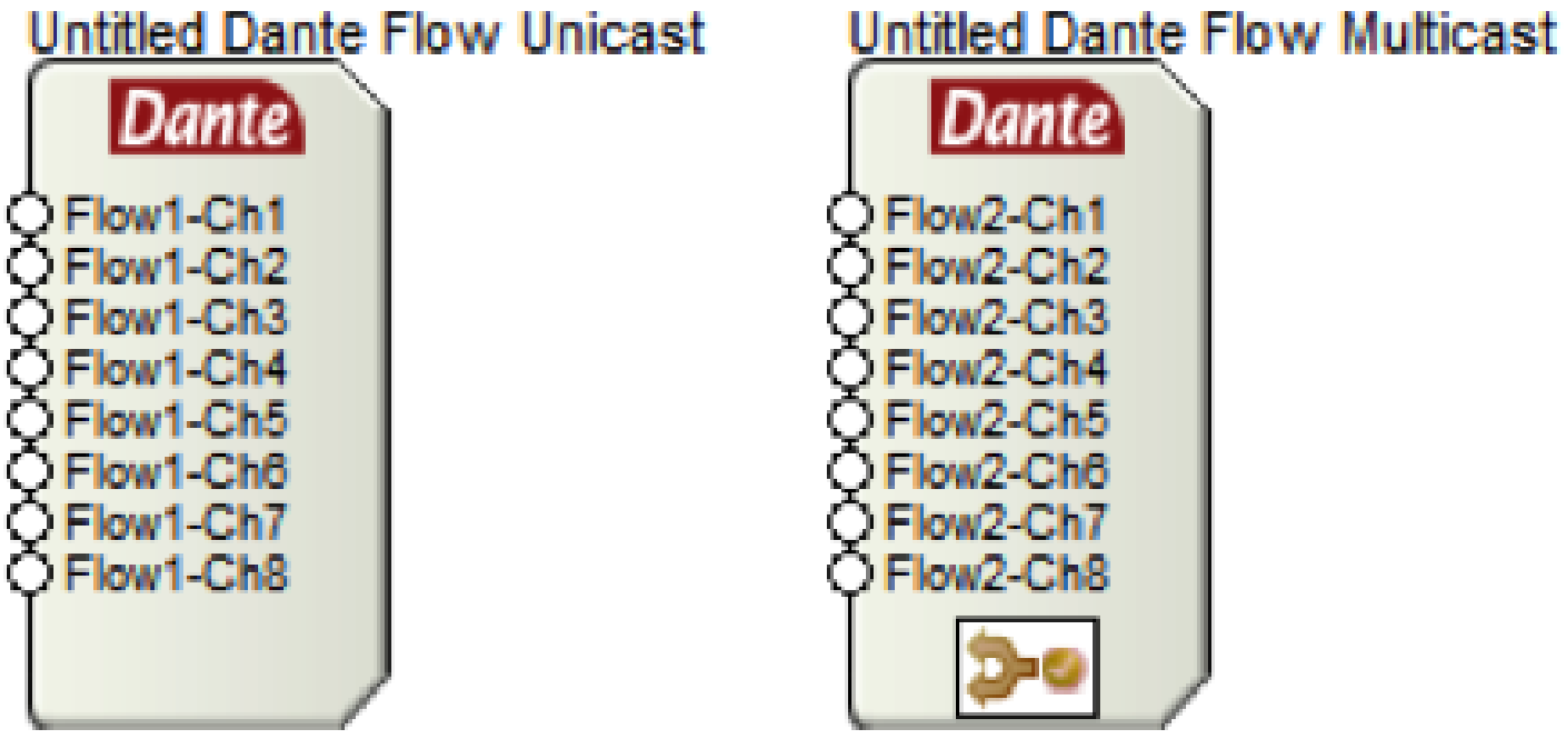
Unicast: A unicast flow is transmitted from one Dante device and is routed to exactly one other receiving Dante device. A unicast flow is routed across the network via a destination IP address embedded within the header of the Dante network packet.
Multicast: A multicast flow is transmitted from one Dante device and is typically routed to multiple receiving Dante devices. A multicast flow, when not managed, will be transmitted to every device connected to the network.
It is recommended to use unicast Dante flows whenever possible, especially when Dante is on a shared data network. This eliminates unnecessary network traffic by ensuring the Dante audio travels directly from one IP address to another, rather than proliferating across the entire network. That being said, when a Dante channel is routed to three or more devices, it is a more efficient use of the network bandwidth to use multicast flows.
The fact that multicast Dante, when not managed, will be transmitted to every device connected to the network means that each network device must analyze the multicast packet of data, determine if the packet must be received, and then either receive the packet or disregard it and continue operation. For devices without Dante capabilities, receiving large amounts of multicast data can lead to slower processing speeds, sluggish network response, and other performance related issues. In fact, a type of denial-of-service-attack utilizes this exact method for sabotaging network service.
The question then becomes, is it possible to manage multicast Dante flows on the network such that these multicast flows are only routed to the LAN ports of the Dante receiving devices? The answer is “yes”, and in fact, this management is very easy to implement. This management process is called “IGMP snooping”.
IGMP snooping is a feature of a managed network switch that allows it to listen in on conversations between the multicast source, receivers, hosts, and routers. By listening in to these conversations, the switch builds and maintains a map of which links need which IP multicast streams, such that multicast streams may be filtered from the links which do not need them, and thus ports receive only specific multicast traffic they have subscribed to.
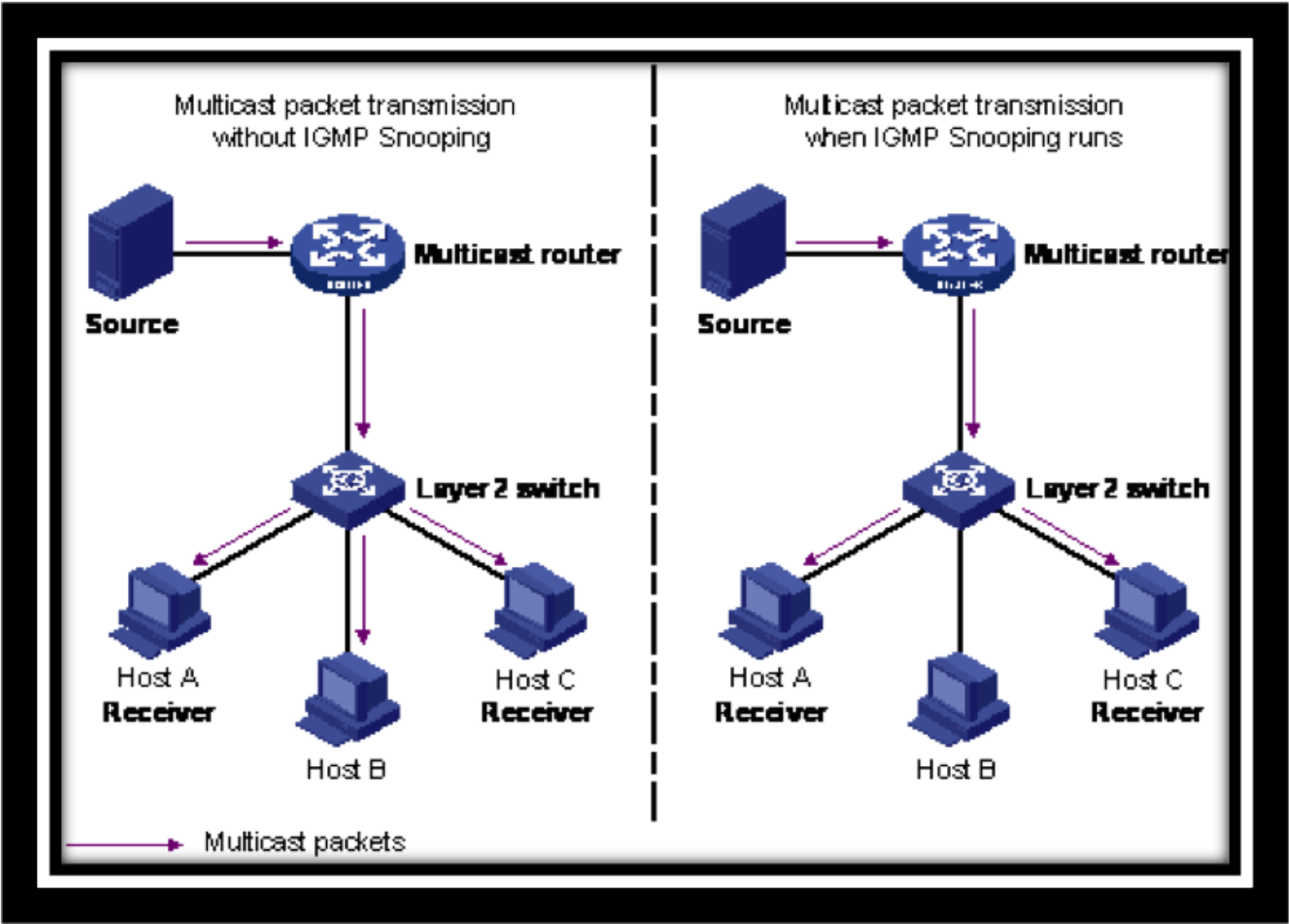
From the diagram above, it should be clear that as a standard practice IGMP Snooping should be enabled on all shared networks with multicast Dante flows.
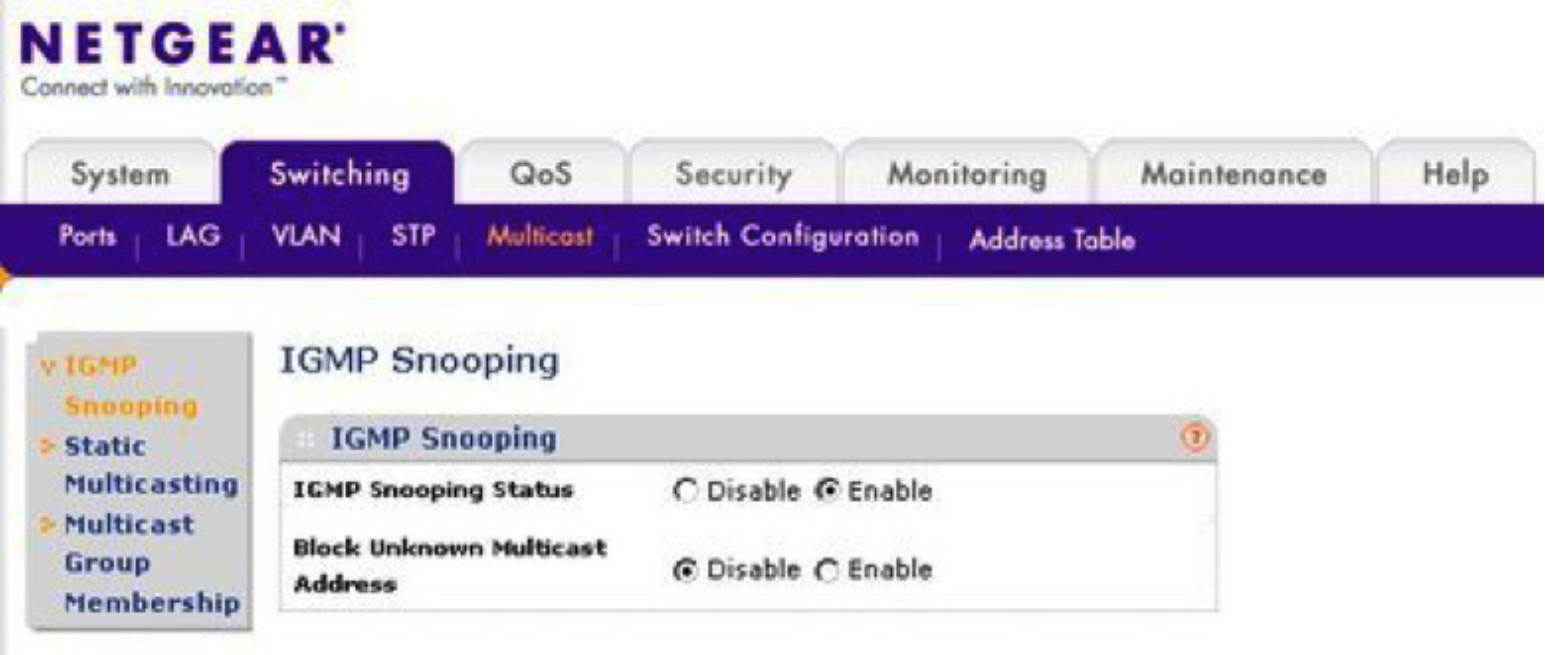
Simply enabling the IGMP Snooping feature is all that is required, and from that point on, Dante multicast traffic will be filtered, kept from broadcasting to all devices on the network, and routed only to links containing Dante devices subscribed to the multicast flow.
Composer hardware utilizes Dante as the digital audio bus for routing audio between hardware and 3rd party Dante enabled hardware. Setting up a Dante network is made simple, quick, and easy with Dante’s ability to receive an IP address using DHCP and then auto-resolve connections between units. That being said, there are times when it will be specified or ideal for the Dante ports to have specific and unique, static IP addresses. Composer hardware allows for assigning static IP addresses to the Dante ports using Dante Controller.
Follow these easy steps to assign a static IP address to a Dante port on a device:
Step 1: Download Dante Controller from the Audinate website:
http://www.audinate.com/index.php?option=com_content&view=article&id=305
Step 2: Plug the PC’s LAN port into the Dante network.
Note: If it is desired to stay online with the system using Composer while simultaneously monitoring or assigning static IP addresses to the Dante network, use a CAT5 or CAT6 jumper cable to merge the control port with the Dante network.
See the blue wire below:
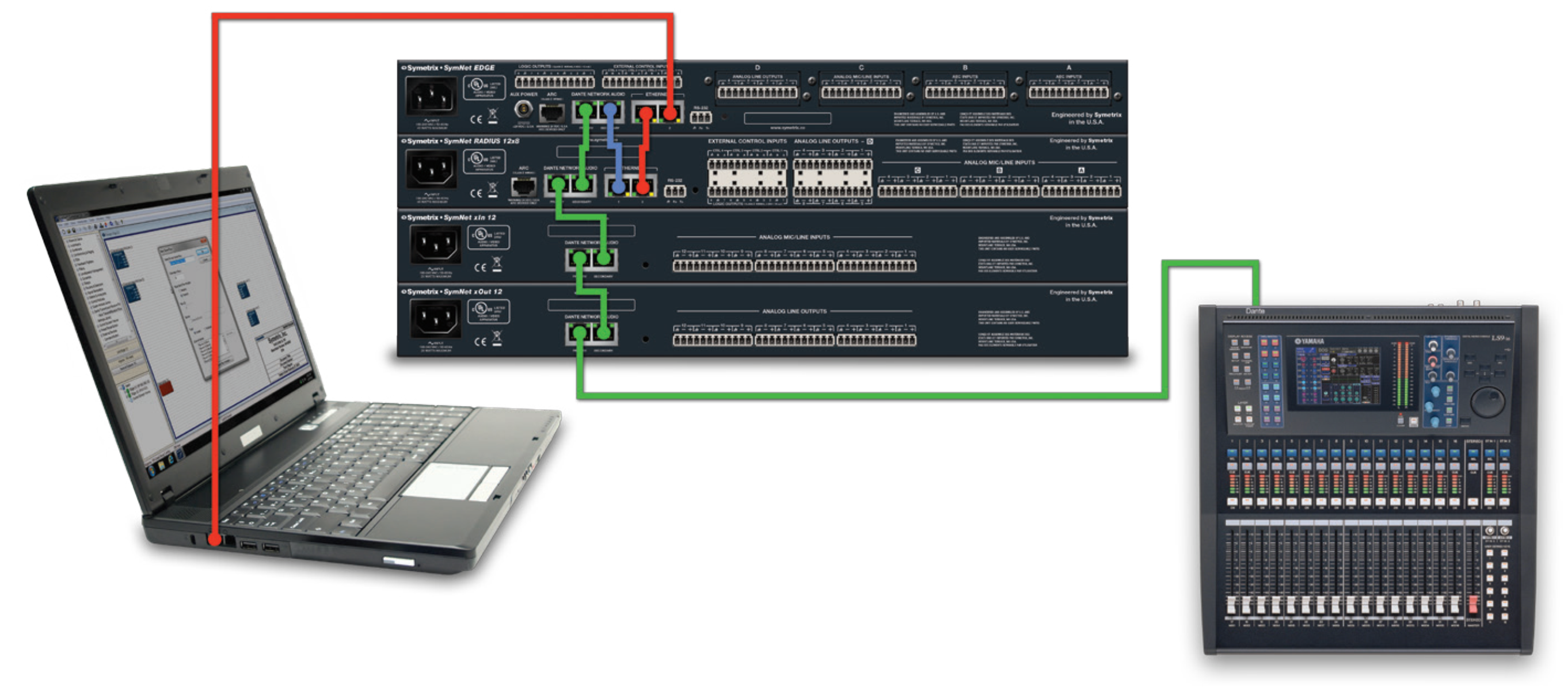
Step 3: Launch Dante Controller and verify that it locates the Dante devices on the Device Status Tab.
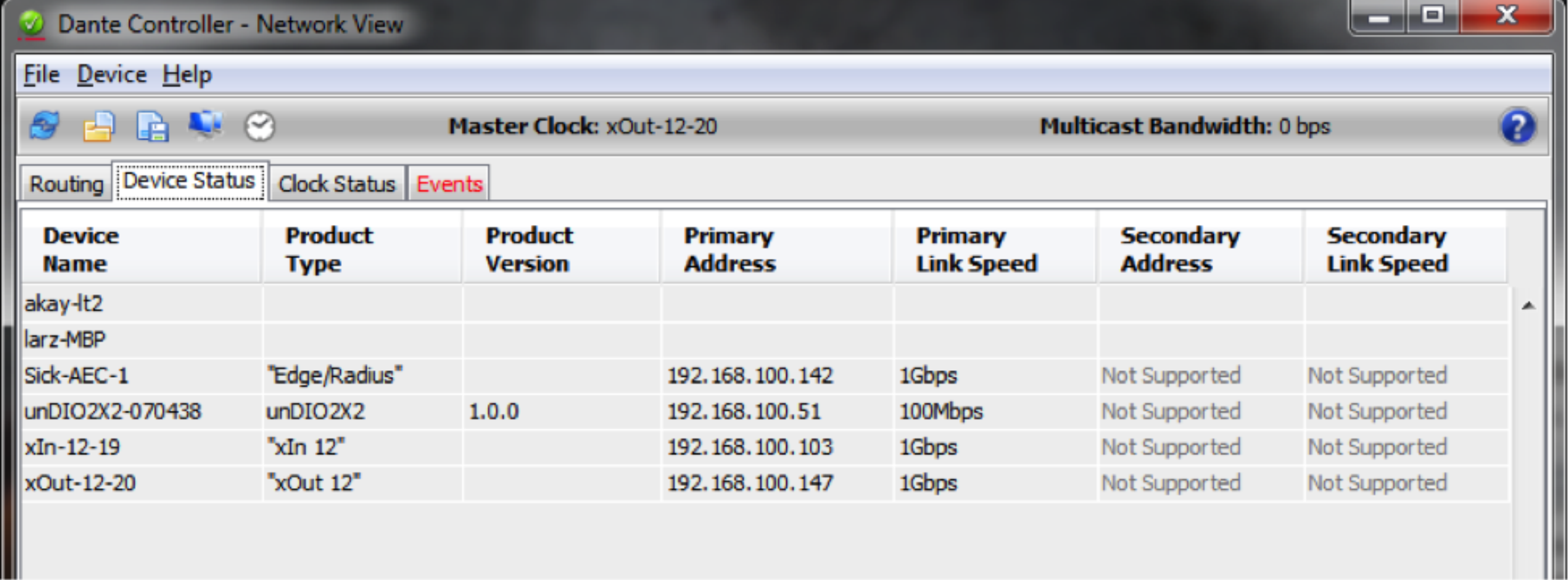
Step 4: Double Click on the “Device Name” of the Composer unit to open the “Device View”.
Step 5: Go to the Network Config tab and select “Manually configure an IP Address”.
Step 6: Enter the static IP Address, Netmask, and Gateway.
Note: Be sure to use unique IP settings.
Step 7: Hit “Apply” to write the new static IP information to the Dante port of the Composer hardware.
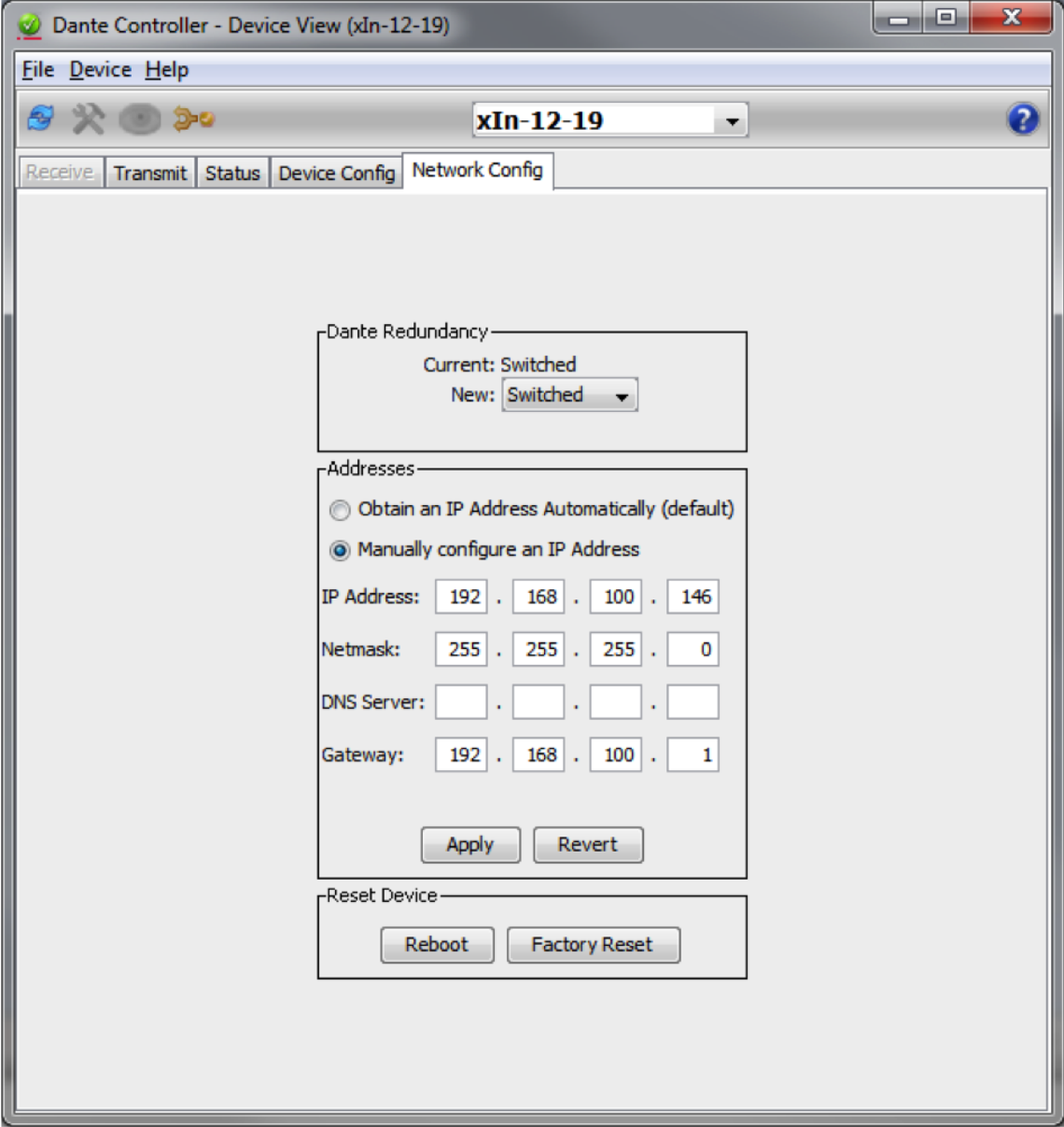
Step 8: Use the drop down at the top of the Device View page to select the next Composer unit and repeat Steps 5, 6 and 7.
Composer is intuitive, open architecture, drag-n-drop DSP software for any and all commercial or live sound applications using Symetrix Dante enabled DSP hardware. Additionally, Audinate’s Dante has arrived in full force and is quickly becoming the industry standard, cross platform, network audio buss of choice in the commercial A/V and live sound market.
This tech tip provides a clear and concise set of instructions for both initial setup of Composer to Dante enabled hardware and/or troubleshooting a Dante network in roughly 5 minutes. Simply put, when setting up or troubleshooting any complex system “Less is more”. It is easier to get to the root of any problem when all moving parts have been minimized. Start small and build up to something bigger, that way any issue becomes apparent immediately rather than being buried in a slew of variables, making it much harder to identify.
When setting up a Dante network with Composer hardware the different units may be specified to be installed in different locations across a 3rd party network. Furthermore, Dante may be specified to be in “redundant” mode. However, for initial setup and troubleshooting of a Composer / Dante network of 10 Dante enabled devices or less, it is advised to first daisy chain the units together with Dante in “switched” mode, which is the factory default.
Once audio is successfully passing between the daisy chained units, proving that all Dante devices are communicating normally and that there are no hardware failures, then and only then (if specified) configure the Dante ports to redundant mode and move the hardware to their respective locations across the 3rd party network.
Steps for initial setup of Dante enabled devices (10 or fewer Composer devices):
1) Direct connect all Composer / Dante enabled units together by daisy chaining them:
• Start by connecting the primary Dante port of the first unit to the secondary Dante port of the second unit and continue until all units are daisy chained together.
2) Connect the PC to the DSP’s Ethernet port:
• The PC which has Composer and Dante Controller installed should connect to the right Ethernet port on the first DSP in the daisy chain, such as an Edge or Radius, which has dual Ethernet ports.
3) Link the Ethernet control network and the Dante network together temporarily for setup:
• On the top unit in Step 2, connect the left Ethernet port to the secondary Dante port.
4) Connect any 3rd party Dante device to the primary Dante port on the bottom unit in the daisy chain:
• If there is more than one 3rd party Dante enabled device, connect them to a common switch, and plug the primary Dante port of the bottom unit in the daisy chain into the same switch.
5) Open up Composer and connect to all units:
• The steps for connecting DSPs in Composer software to their respective hardware units is outlined in depth in the Composer certification online training.
• It is advised to leave all units and the PC in DHCP for initial setup
6) Push a site file into the system and check to confirm Dante passes between all units:
• If Dante passes between all units as it should, you can now:
o Switch to Redundant mode if necessary.
o Move the units to their respective distributed locations.
o Disconnect the Ethernet and Dante networks.
o Assign static IP addresses to hardware if needed.
• If Dante does not pass between all units, proceed to Step 7:
7) If Dante is not passing audio or a unit is not seen by Composer, open Dante Controller.
• Since the Ethernet port and Dante secondary port are connected together in Step 3, the PC can run Composer and Dante Controller simultaneously.
• Check Dante Controller to see if all of the Dante enabled units are recognized.
8) If Dante Controller cannot recognize a particular unit:
• Check CAT-5 cable connections
• Hard reset units with the hard reset button next to the Ethernet port, and then upgrade firmware being careful not to interrupt the upgrade process.
• Reconnect the units in Composer software and check Dante Controller to see if all units are present and accounted for.
9) If you’re still having issues, contact Symetrix support at support@symetrix.co
• Also check these additional Symetrix Dante resources:
o Know-it-Use-It-Troubleshoot-it-Dante.pdf
o Record-Audio-Dante.pdf
o DVS.pdf
Setting up a large Dante network can be time consuming and confusing, especially when networking issues occur and troubleshooting the network becomes necessary. To streamline the process and help minimize networking issues, the following recommendations have been provided by Symetrix. It should be noted that there may not be a “one size fits all” approach to Dante network design, however the following information will help in creating an approach to solve issues if they arise.
Network Topology
Certainly having all Dante connections to a single, managed, gigabit, network switch simplifies Dante networking by reducing network variables. However, it should come as no surprise that not all Dante networks will accommodate the routing needs with a single network switch. Installing Dante hardware to an existing corporate network is a prime example of just such a case.
Symetrix recommends running Dante on a flat network. A flat network is defined as a network in which all stations can reach others without going through any intermediary hardware devices, such as a bridge or router. A flat network is one network segment, also known as one subnet. In many environments, this isn’t possible as large networks are typically broken into segments for security purposes as well as to improve traffic within departments and workgroups.
The advantage of using a flat network is that it helps to ensure broadcast clocking packets and audio reach all Dante devices reliably.
When setting up a Dante network, here are some additional considerations:
EEE Settings
EEE (Energy Efficient Ethernet) is a set of enhancements to the twisted-pair and backplane Ethernet family of computer networking standards that allow for less power consumption during periods of low data activity.
Disable any EEE features on any network switch Dante will run on. Dante and EEE are not compatible.
QoS
QoS stands for “Quality of Service” and in simplest of terms it is a feature that allows a network switch to prioritize data based upon its type and purpose. QoS standards were created to ensure reliability of audio on a data network in applications such as telephony, conferencing, and VOIP. Dante uses these
same standards to prioritize audio, clocking info, etc.
Symetrix recommends QoS be enabled in all Dante networks. Will Dante work without QoS enabled? Many times the answer is yes, but if there are Dante related issues, the first thing that should be checked is whether QoS is enabled. Dante uses standard Voice over IP (VoIP) Quality of Service (QoS) switch
features to prioritize clock sync and audio traffic over other network traffic. QoS is available in both inexpensive and enterprise Ethernet switches. Any switch that supports Diffserv (DSCP) QoS with strict priority and 4 queues, and has Gigabit ports for inter-switch connections should be appropriate for use with Dante.
The QoS feature must have a trust mode option, which needs to be set to DSCP (diff serve) for Dante. Trust mode refers to the type of QoS tagging of the packets which allows the network to properly prioritize the different types of packets. DSCP (Diffserv) is the layer 3 QoS tagging which Dante uses. CoS is a layer 2 Trust mode that is not compatible with Dante.
Switches prioritize packets using what are called DSCP/Diffserv values. Although Dante packet priority values have been chosen to make it simple to configure QoS with many switches, some switches require special configuration to recognize and prioritize specific DSCP values.
The table below shows how Dante uses various Diffserv Code Points (DSCP) packet priority values
| Priority | Usage | DSCP Label | Hex | Decimal | Binary |
| High | Time Critical PTP events | CS7 | 0x38 | 56 | 111000 |
| Medium | Audio, PTP | EF | 0x2E | 46 | 101110 |
| Low | (reserved) | CS1 | 0x08 | 8 | 001000 |
| None | Other traffic | BestEffort | 0x00 | 0 | 000000 |
PTP (Precession Time Protocol) is a protocol used to synchronize clocks throughout a computer network.
VLAN Setup
In larger networks or when Dante is to be integrated onto an existing network, it may be necessary to implement a separate VLAN for Dante audio. Symetrix does not recommend using a VLAN topology for Dante due to the additional complexities and potential pitfalls associated with VLANs, nonetheless here are some Symetrix recommendations for setting up VLANs.
First, ensure QoS is defined correctly on the VLAN as described in the previous section of this document.
Secondly, and most importantly, explicitly forbid all VLAN traffic between the different VLANs. Why?
Dante uses multicast PTP clocking packets at the rate of 4Hz (4 packets per second). Any Dante unit in the system can be master clock, providing clock synch to all other Dante devices. Each system will only have one master clock and the best, most reliable clock, will be chosen as the master, although a preferred master can be specified.
Cisco, HP Enterprise, and many other switches have a known tendency to “leak” multicast traffic between VLANs. Yes, many of these network switch models state they have a feature that eliminates this VLAN leakage…in theory, but in a practical sense and based upon our experience, this feature has been shown to not always work. Explicitly forbidding VLAN traffic from each other is truly the only way to solve this issue.
Symptoms of VLAN leakage would be when Dante Controller reports multiple Dante master clocks. This typically means PTP clock packets have leaked back and forth until there are more than 4 clock packets per second.
It should be noted that a virtual loop in the multicast traffic between VLANs will have the same symptoms as a physical loop in the system, so be sure to check the network for a physical wiring error in the network as well as ensure that VLANs are explicitly forbidden from communicating to one another.
IGMP Snooping
IGMP Snooping allows a network switch to listen in on the IGMP (Internet Group Management Protocol) conversation between hosts and routers. By listening to these conversations the switch maintains a map of which links need which IP multicast streams. Multicast traffic may be removed from the links
that do not need them and thus IGMP controls which ports receive specific multicast traffic.
Dante doesn’t need special multicast features from switches and is designed to work efficiently with advanced multicast features like IGMP Snooping.
It should be noted that many Dante partners, including Yamaha, recommend turning on IGMP Snooping for all Dante networks. That being said, Symetrix has seen some instances where IGMP Snooping did cause problems with Dante traffic. This may be a feature that is worth trying, but if problems with Dante are occurring, disable IGMP Snooping.
Example Switch Setup with VLANs
Below is the switch configuration for a HP Enterprise switch utilizing the above Dante network recommendations. Use this as an example of optimized switch settings for Dante when using VLANs.
hostname “A-RM1001”
snmp-server contact “Ryan Curtright”
snmp-server location “A-RM1001”
max-vlans 20
time timezone -480
console inactivity-timer 30
qos dscp-map 001000 priority 3
qos dscp-map 101110 priority 5
qos dscp-map 111000 priority 7
sntp server 10.200.1.254
timesync sntp
sntp unicast
snmp-server community “public” Operator
snmp-server community “itSym” Unrestricted
snmp-server host 10.20.1.254 “public”
snmp-server host 10.20.1.252 “public”
snmp-server host 10.11.4.9 “public”
snmp-server host 169.254.118.153 “public”
vlan 1
name “Management”
forbid 3-9
untagged 1
ip address 10.25.1.82 255.0.0.0
tagged 21-24
no untagged 2-20
exit
vlan 4001
name “Dante Audio”
forbid 1-2,10-20
untagged 3-9
ip address 192.168.153.82 255.255.255.0
tagged 21-24
ip igmp
exit
vlan 4002
name “DanteControl”
forbid 3-9
untagged 2,10-14
ip address 192.168.154.82 255.255.255.0
tagged 21-24
ip igmp
exit
vlan 4003
name “COBRANET”
forbid 3-9
untagged 15-20
no ip address
tagged 21-24
ip igmp
exit
vlan 4004
name “Audio 4”
tagged 21-24
exit
vlan 4005
name “Audio 5”
tagged 21-24
exit
no fault-finder bad-driver
no fault-finder bad-transceiver
no fault-finder bad-cable
no fault-finder too-long-cable
no fault-finder over-bandwidth
no fault-finder broadcast-storm
no fault-finder loss-of-link
no fault-finder duplex-mismatch-HDx
no fault-finder duplex-mismatch-FDx
qos type-of-service diff-services
qos type-of-service diff-services 001000 dscp 001000
qos type-of-service diff-services 101110 dscp 101110
qos type-of-service diff-services 111000 dscp 111000
Among the hundreds of manufacturers that have adopted Dante as their networked audio bus of choice, Yamaha and Symetrix stand out as early adopters and trendsetters for developing and standardizing products based around the Dante protocol.
As such, both Symetrix and Yamaha have come up with some recommendations for integrating Dante when commissioning or setting up a Dante network. This tech tip will cover recommendations from both manufacturers, their differences when applicable, and a brief troubleshooting guide should problems arise.
Yamaha Recommendations:
Setup:
The Yamaha and SymNet factory default Dante mode is “daisy chain” or Switched mode as it is called in SymNet. This means all Dante ports, Yamaha and SymNet, can be daisy chained together for the initial setup and no 3rd party network switch need be used.
If a 3rd party network switch will be used for Dante, connect the primary port of each Yamaha and SymNet unit into the 3rd party network switch. Once the DSP and Yamaha have been programmed correctly, all Dante subscriptions should connect automatically after a site file push or power cycle, which can be verified with Dante Controller. If for some reason the subscriptions do not reconnect, then 1) the subscriptions may not have been created correctly, or 2) the 3rd party network switch may be at fault and its settings should be confirmed as optimized for Dante. If problems persist, troubleshooting steps should be taken.
Troubleshooting subscriptions:
https://www.symetrix.co/wp-content/uploads/2013/08/SymNet-Specifics-for-Dante-Subscriptions-3rd-Party-Dante-Sources-and-Real-time-Dante-Matrixing.pdf
Troubleshooting Network Switch Settings:
https://www.symetrix.co/wp-content/uploads/2013/01/2012-11-Know-it-Use-It-Troubleshoot-it-Dante.pdf
Also like Symetrix, Yamaha recommends switching to Redundant mode only after verifying all units in the system pass Dante via the Primary port and that all units are reporting their current Dante mode as “Redundant”. Symetrix makes the same Dante setup recommendations in the following tech tip:
https://www.symetrix.co/wp-content/uploads/2013/04/2013-2-02-Setup-Dante-in-5-Minutes-Time-or-Less.pdf
Yamaha CL and QL Series:
The Yamaha CL Series consoles (e.g., CL3) can be setup to two available options for how Dante patching/routing is controlled. There is a “Dante patch by console” and a “Dante patch by Dante controller”.
If Dante patch by console is selected, then the Yamaha runs many processes that normally are handled by Dante Controller to allow the Yamaha console to control the Dante routing for devices that are mounted in the console’s I/O Rack. Do not mount Symetrix devices into the console’s I/O Rack because it
will result in unwanted Dante Patch changes to Symetrix devices when “Dante patch by console” is selected.
To be safe, Symetrix recommends the Yamaha Dante setup should be set to “Dante patch by controller”.
To do this, on the Yamaha CL Series console go to:
Setup / Dante setup /
And select: Dante patch by controller.
Then use Composer and, when applicable, Dante Controller for all routing changes in the Dante network.
Be aware that Dante Patching and Dante Patch Recall through the CL console will not be available.
Note 1: This White Paper on Dante subscriptions should be consulted before using Dante Controller to change Symetrix Dante routing:
https://www.symetrix.co/wp-content/uploads/2013/08/SymNet-Specifics-for-Dante-Subscriptions-3rd-Party-Dante-Sources-and-Real-time-Dante-Matrixing.pdf
Network Switch:
As of the writing of this tech tip, Yamaha does not officially recommend any particular brand or model of network switch for Dante. That being said, Yamaha has successfully used the Cisco SG300 is a variety of Dante applications and provides detailed instructions for setting up the SG300 to use with Dante here
on their website:
http://www.yamahaproaudio.com/global/en/training_support/selftraining/dante_guide/index.jsp
The Yamaha SG300 setup guide covers the following topics:
- Preparing to Configure a Network Switch
- Disabling Energy Efficient Ethernet (EEE)
- Constructing a Virtual Local Area Network (VLAN)
- QoS Settings (Prioritizing the clock synchronization)
- Multicast Settings
- Setting Multiple Switches (Copying settings)
Note 2: Symetrix agrees with Yamaha that setting up a network switch correctly for Dante is necessary for reliable Dante operation and also does not recommend a particular brand or model of switch, nor does Symetrix provide setup instructions for a particular model. Symetrix follows Audinate’s lead by stating that any network switch can work with Dante, but some features on some switches will allow for larger and more reliable Dante operation.
Dante makes use of standard Voice over IP (VoIP) Quality of Service (QoS) switch features, to prioritize clock sync and audio traffic over other network traffic. VoIP QoS features are available in a variety of inexpensive and enterprise Ethernet switches. Any switches with the following features should be appropriate for use with Dante:- Gigabit ports for inter-switch connections
- Quality of Service (QoS) with 4 queues
- Diffserv (DSCP) QoS, with strict priority
- A managed switch is also recommended, to provide detailed information about the operation of each network link: port speed, error counters, bandwidth used, etc.
Additionally, both Yamaha and Symetrix recommend turning off all EEE features of the network switch to prevent low power operation from impacting audio performance.
Troubleshooting a Yamaha / Symetrix Dante connection:
If experiencing Dante failures between a Yamaha console and a Symetrix DSP, check the following:
1) Ensure that Symetrix Dante subscriptions (those channels Symetrix is to receive from the Yamaha) are setup using Composer. See Note 1 for clarification. Composer has a “Dante
Browse” feature to make creating the Dante receive flows easily from 3rd party hardware simple, quickly, and intuitive. If Dante Controller is used to patch Dante audio into a Symetrix DSP, these subscriptions
will be temporary and will be lost after a site file is pushed or the Symetrix DSP is power cycled.
2) If the Yamaha is a CL Series console, ensure that the Yamaha Dante Setup is set to “Dante patch by controller”. Be aware that Dante Patching and Dante Patch Recall through the CL console will not be
available in this mode.
3) Yamaha SG300 Setup Guide recommends turning on IGMP Snooping when multicast Dante is being used. Typically Dante will not be affected negatively by this switch feature. However, Symetrix has seen a case or two in which the IGMP Snooping caused instability. So, if multiple Symetrix units are showing as “clock master” and IGMP Snooping is enabled in the 3rd party network switch, turn off IGMP Snooping on the network switch and power cycle all Symetrix units and the network switch. If turning off this feature solves the problem, then leave it turned off, otherwise IGMP Snooping can be left enabled as per the Yamaha recommendation.
The purpose of this tech tip is to provide information when troubleshooting Dante connection and subscription problems between two PHY Dante devices.
Symptom:
The system works correctly when it is initially connected and installed. Subsequently, the system suffers frequent dropouts of random Dante channels. The dropouts manifest as a couple of seconds of silence. When the devices are connected via a switch, the system functions normally without dropouts.
What is a PHY Dante Device?
A Dante device that does not have an internal switch. The Ethernet jack is connected directly to the Dante PHY (Ethernet physical transceiver), as opposed to through a switch. This includes many Ultimo-based devices on the market as well as the specific Symetrix hardware listed below.
Affected Symetrix Hardware:
- Prism (4×4, 8×8, 12×12, and 16×16)
- xIn 4
- xOut 4
- xIO 4×4
Dante devices on the market with two Dante ports (Primary and Secondary) have internal switches and will not be affected. This includes Symetrix Radius and Edge DSPs.
Why do you get dropouts when two PHY devices are direct connected?
When a PHY device is directly connected to another PHY device, audio glitches occur due to PTP (Precision Time Protocol – the Dante clock protocol) sync loss. If both devices use PHY-based Ethernet, there will be insufficient delay on the transmitted packet to properly calculate the 1588 time. Adding a switch, creates sufficient packet delay to allow the calculation to be significant. This is a fundamental operational/mathematics issue. It is not something that can be adjusted. As such, it cannot be accounted for or fixed by firmware.
Dante networks require a switch to be compliant. Typically, there are one or more Brooklyn II-based products in a system which include an internal switch, particularly if they support daisy-chaining or redundancy. However, if the Brooklyn II-based product is only using PHY-based Ethernet, it is subject to this limitation.
Solution:
For this situation, the only resolution is a switch. A PoE injector is a pass through device and will not resolve the problem. When connecting Symetrix hardware with single Dante ports to each other, an external switch will always be needed. Example: Prism 4×4 to xIn 4. When connecting Symetrix hardware with a single Dante port to a device with dual Dante ports an external switch is not needed. Example: Radius 12×8 EX to xIn 4.
This Tech Tip explains the purpose for Dante redundancy. This Tech Tip also provides step-by-step instructions to properly change a Composer-based system from “Switched mode” to “Redundant mode,” or, from “Redundant mode” to “Switched mode.”
Dante offers a full-time redundancy option with permanent primary and secondary audio transmission. Redundancy requires a second network, either using a second physical switch (recommended) or via a VLAN isolating the network traffic.
Audio data is transmitted on both the primary and secondary networks simultaneously. In the event of a failure on one network, audio will still continue to be transmitted via the other network.
All Symetrix Dante devices ship with Dante in the default “Switched mode.” This allows units to be daisy chained, eliminating the need for third-party networking hardware. When in “Switched mode” if the Dante hardware is setup physically in a redundant network configuration, traffic from the Primary Dante port will flow out the Secondary Dante port, and the Dante traffic from the Secondary Dante port will flow out the Primary Dante port. This creates a data feedback loop on the Dante network that will crash the Dante cards in the Symetrix units. Symetrix units with only Dante connections, such as the xIn 12 and the xOut 12, may become unresponsive until they are power cycled and the redundant Dante network switch is turned off or the redundant ports are unplugged from the secondary Dante network.
The diagram below illustrates Dante setup physically in a redundant network configuration.
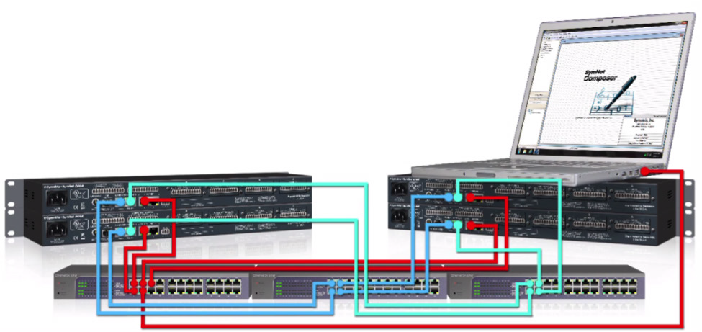
The red wires are for Ethernet/Control. The blue wires are for Primary Dante. The green wires are for Secondary Dante. Notice that each set of wires has its own network switch.
Changing from Switched Mode to Redundant Mode
To switch the Symetrix system to run Dante in “Redundant mode” when already in the default “Switched mode,” use the procedure below.
1 Cable the Dante network as if it were in “Switched mode,” not “Redundant mode.” In other words, if using an external switch or a direct connection between two units, make connections only to the primary jack. If more than two devices are used without an external switch, daisy chain from one unit’s primary to the next unit’s secondary. Do not complete the loop from the last unit back to the first unit.
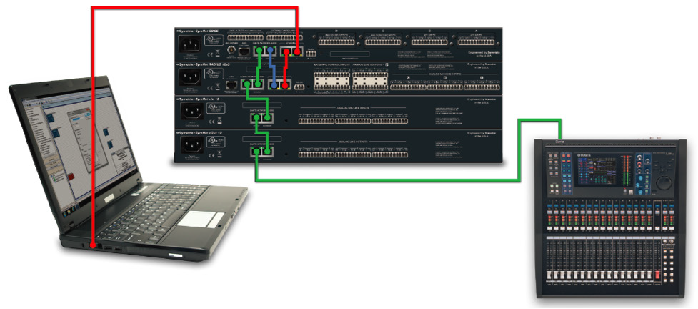
2. In Composer, go to Tools > Dante Flow Manager > Configure Dante. Select “Redundant Network.”
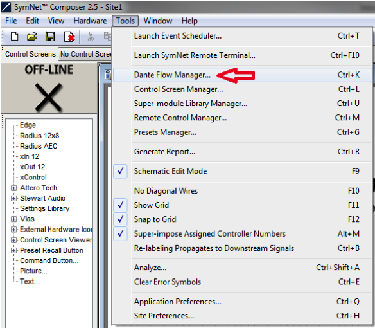
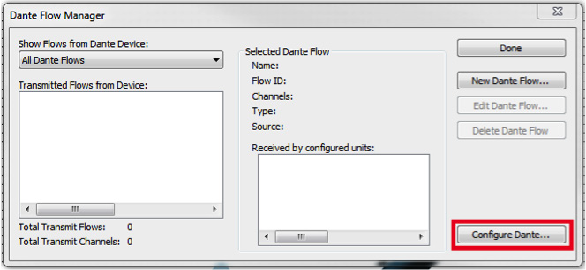
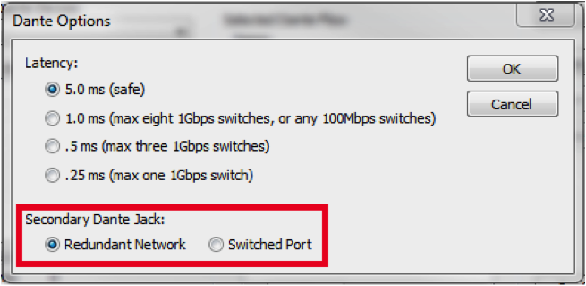
- Push the file and go on-line with the units. This will take slightly longer than usual as the Dante units change their mode.
- Power down the units.
- Cable the Dante network as appropriate for “Redundant mode.” Connect the primary and secondary the separate switches like the above diagram shows.
- Power on the units.
- Push the file and go on-line.
Note: Dante devices that do not support redundancy must be connected to the primary network only.
Changing Redundant Mode to Switched Mode
To switch a Composer-based system to run Dante in “Switched mode” when already in “Redundant mode,” use the procedure below.
- Power down the secondary Dante network.
- In Composer, go to Tools > Dante Flow Manager (or Tools > Network I/O Manager > Configure Dante. Select “Switched Port”.
- Push the file and go on-line with the units. This will take slightly longer than usual as the Dante units change their mode.
- Power down the units.
- Cable the Dante network as appropriate for “Switched mode.”
- Power on the units.
- Push the file and go on-line.
Dante Controller is a free software application that enables you to route audio and configure devices on a Dante network. With automatic device discovery, one-click signal routing and user-editable device and channel labels, setting up a Dante network couldn’t be easier.
Dante Controller is much more than just a configuration and routing matrix. It provides essential device status information and powerful real-time network monitoring, including device-level latency and clock stability stats, multicast bandwidth usage, and customized event logging, enabling you to quickly identify and resolve any potential network issues.
If a Composer-based Dante system is experiencing audio drop outs, appears to have disappearing units, or any other Dante audio related anomaly, using Dante Controller to gather info about the problem, network conditions, and logging of the Dante clock and network is the single most helpful tool in determining the cause and solving the issue.
In most cases, by providing Symetrix Technical Support with screen shots of the Dante Controller tabs at the time of a failure, as well as an exported log file, Symetrix support can narrow down the problem by themselves and when necessary enlist the help of Audinate engineers.
As such, it is imperative that Dante Controller be installed on a field tech’s computer. Be sure to install the latest version of Dante Controller found on Audinate’s website here:
https://www.audinate.com/products/software/dante-controller
As new releases of Dante Controller become available, Symetrix recommends upgrading to them. All methods for gathering info and logging info should be applicable regardless of the software version above Dante Controller 3.5.3.1.
How to Prepare Dante Controller to Log Events and Clock
Dante Controller is easily setup for logging of events such as warning, errors, and information. In fact, much of this is done automatically when Dante Controller is simply opened and allowed to run on the same network as the Dante hardware. A LAN port on the computer running Dante Controller must be used to connect to the Dante network due to the fact that wireless network connections are not supported.
Once Dante Controller is opened, it will show the Dante hardware routing matrix and will indicate subscriptions between units on the network using green checks. If icons other than green checks are showing at the cross-points, then the icons should be investigated as they typically indicate a problem with the Dante network or device.
DC 1
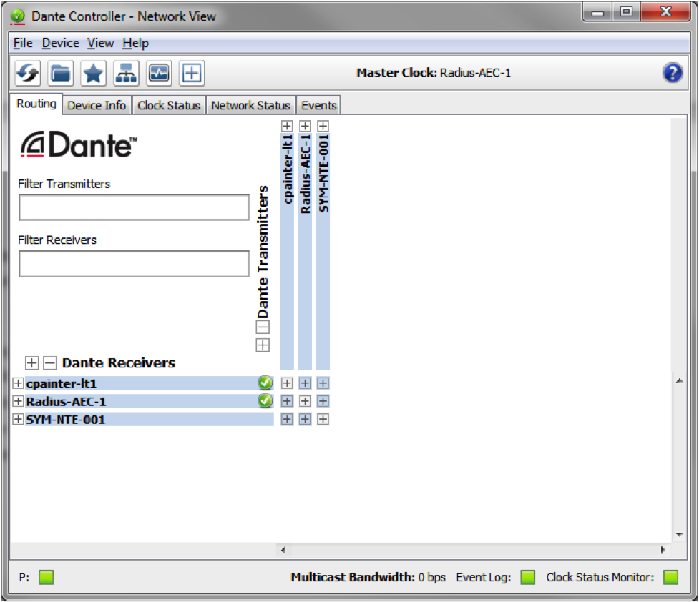
However a mouse over the cross-point should cause a tooltip window to open with a message about the error or subscription status.
DC 2

In order to turn on Clock Monitoring, engage the quick button icon at the top of the software that looks like a heart monitor. Here is the actual icon for reference:
DC 3

Once Clock Monitoring is engaged the button should indicate it is active with a green heart monitor icon:
DC 4
When clock monitoring is enabled the top tool icons will look like this:
Now Dante Controller is ready to wait for the problem or audio anomaly to happen. Once the problem has resurfaced, open Dante Controller. Take screen shots of all of the 4 following tabs and email them to Symetrix support a support@symetrix.co.
Use “Alt + Prt Scr” keys to take a screen shot of the Dante Controller software. The following 4 tabs should be sent to Symetrix:
1. Routing Tab
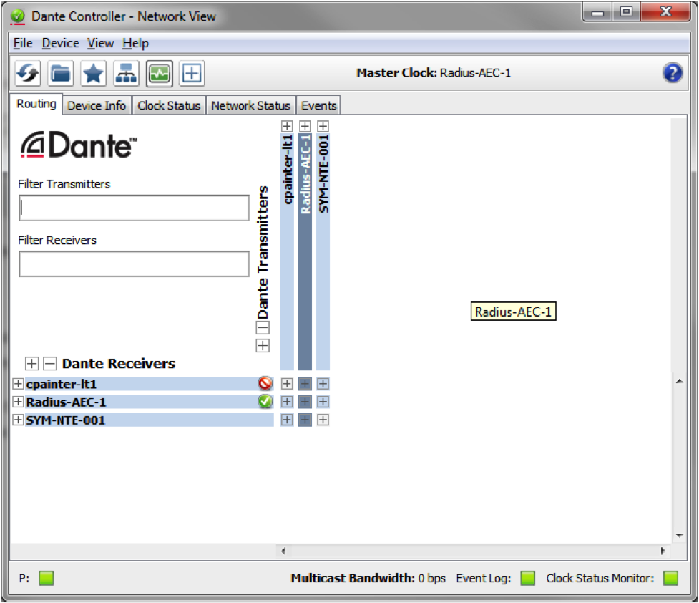
2. Device Info Tab
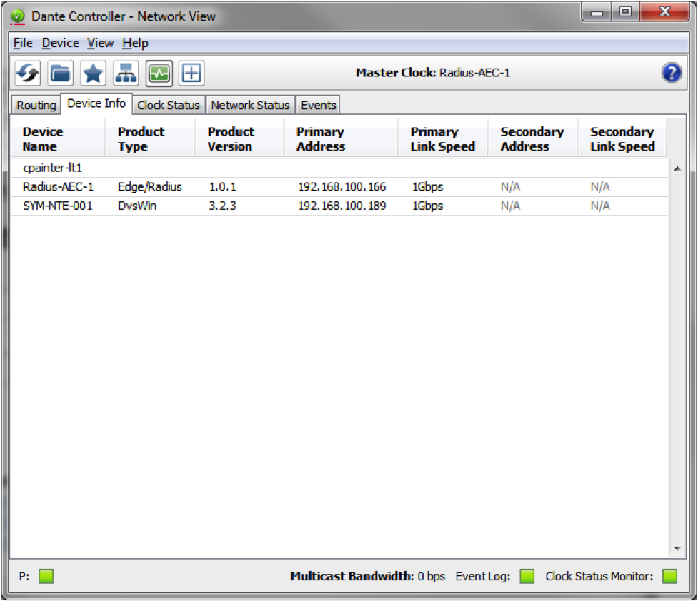
3. Clock Status Tab
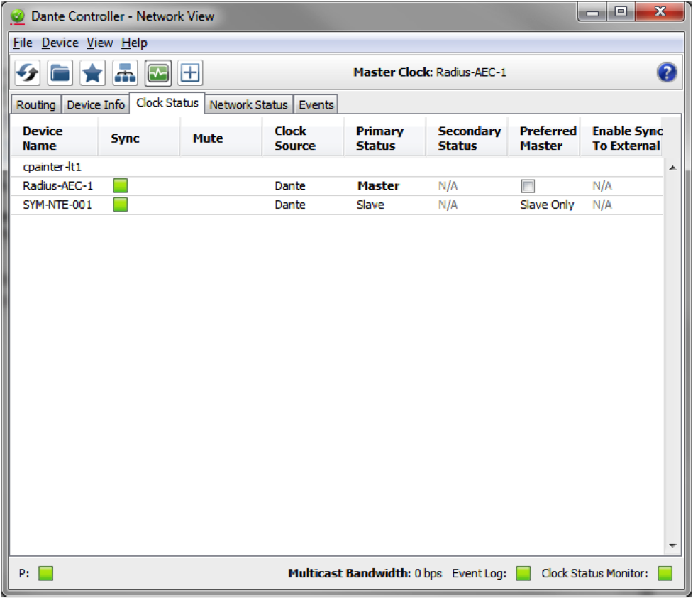
4. Network Status Tab
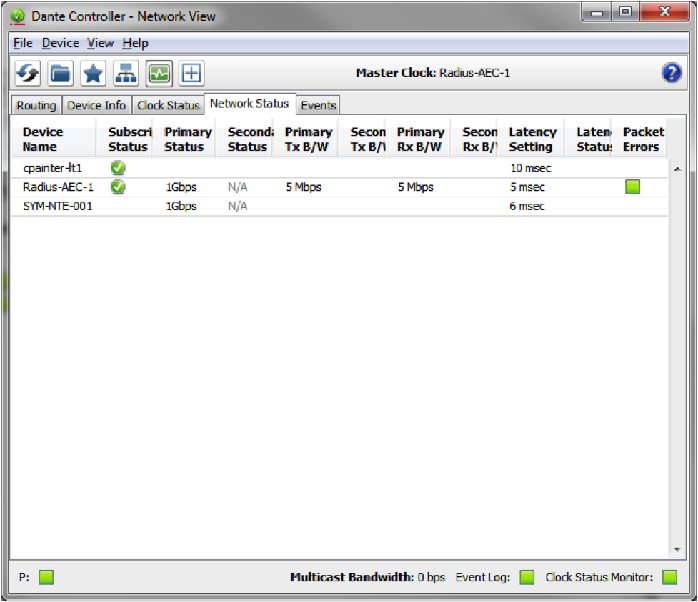
Lastly, Symetrix will require a copy of the log file. Open the Events tab.
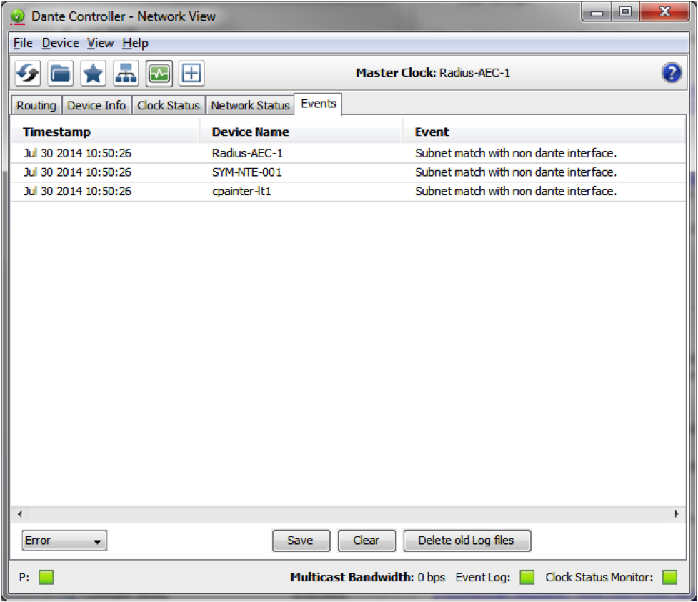
Hit the “Save” button at the bottom of the window and save the file to the computer’s desktop.
Attach the log file and all four screen shots to an email. Send them to support@symetrix.co for an evaluation of the Dante network, current state of hardware, and the log file information.
Some Symetrix equipment has the capability of taking advantage of Dante redundancy, allowing audio to continue flowing through a secondary Dante network if the primary should fail. For Symetrix systems that don’t have this redundancy capability or for systems that prefer having a fail-over to analog audio if the Dante source should fail, there is some simple logic programming that can help.
- Open up the site file and note this example has a single channel of Dante audio and a single channel of analog audio. The intention is that Dante is the primary audio source and the analog is the fail-over, or secondary source.
- From the toolkit, drag in a mono input selector from the routers and selectors, mono input selectors folder.
- Then drag in an audio peak detector from the control modules, control accessories folder.
- Next, drag in a dual preset trigger also from the control accessories folder.
- Last, pull in an inverter from the control processes folder. Wire everything as shown.
- Open up the mono input selector and name the inputs for analog and Dante.
- Then open up the audio peak detector and set the threshold to negative sixty dee-bee, and choose RMS. RMS will average out the input audio and make the detection more consistent than peak.
- Open up each preset trigger module. In the top one, make sure preset 1 is entered. Set the bottom one, involving the inverter module inline, to preset 2.
- Now, back in the mono input selector module, select input two for Dante. Right click on the slider and select “store input selector setting in preset”, and choose preset one.
- Move the slider back to the analog input, right click on the slider and store it to preset two.
And that’s all the programming needed for this.
When audio is flowing from the Dante bus, it is detected by the peak detector. If the input meets or exceeds the threshold, the peak detector outputs 100% control signal which triggers preset 1, telling the input selector to select the Dante input.
When audio is not flowing from the Dante bus, that is also detected by the peak detector. If the input drops below the threshold, the peak detector outputs 0% control signal which is then inverted to 100% control signal, triggering preset 2, telling the input selector to select the analog input.
Introduction
This guide covers usage of Composer and Dante Domain Manager (DDM), exploring crucial do’s and don’ts. This resource aims to optimize your experience with these powerful tools for managing your audio network. While DDM is supported in past Composer releases, it is highly suggested that when using DDM with Composer, to always use the most recent version of Composer. At the time of this writing the most recent DDM compatible version is Composer 8.5.1.
Dante Domain Manager Operation
- Pushing Site Files: When planning to utilize DDM, it should be ensured that the system is working properly before enrolling the devices in DDM. This includes ensuring device firmware is up to date. All Dante routing and utilization of Intelligent Module controls on SymVue screens be completed and pushed before enrollment. After enrolling devices into DDM, changes to Intelligent Modules and Dante routing will not be accessible without removing devices from the Domain and rebooting the DSP. This is due to some of the limitations on Dante Device locating under DDM.
- Device Enrollment: After ensuring the system is in working order and Dante routes are as planned, enroll the devices into DDM using the same process as any other system. All devices in a Site File should be in the same domain. See Known Issues in 8.5.1 (8).
- Enrollment Sequence: If devices are enrolled prior to initiating the ‘Push Site File’ operation, the ‘push’ functionality will fail as the Dante devices are no longer located in Composer. To correct this, un-enroll the devices from the domain, reboot the DSPs, push the completed Site File, and re-enroll the devices.
- Adjustments to Site Files: If modifications to the Site File or DSP firmware are needed, it is essential to un-enroll devices before proceeding and if needed, reboot the DSP to locate non-DSP Dante devices. This step ensures smooth incorporation of changes without disruptions to Composer-Dante communications. Then, make the changes, push to ensure correct functionality, and re-enroll the devices into the Domain.
Dante Director
Similar operation has been observed while using Composer with Dante Director. Any steps taken to use Composer with DDM can and should be applied when enrolling devices into Dante Director.
Operational Notes Using Composer 8.5.1 or Later
- Clock Leader in Dante Controller: When combining Brooklyn 2 and Brooklyn 3 cards in the same domain, a Brooklyn 2 card will show as Primary v1 Multicast Leader and a Brooklyn 3 card will show as Primary v2 Multicast Leader in Dante Controller. This issue can be corrected by selecting a Brooklyn 2 card device as the preferred leader.
- Clock Leader in DDM: When combining Brooklyn 2 and Brooklyn 3 cards in the same domain, Dante Domain Manager will report “There are multiple (2) grandmaster devices.”
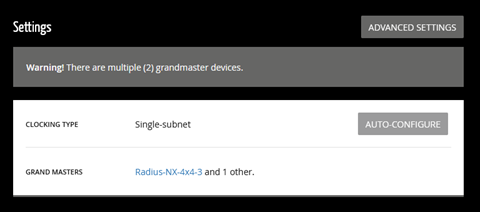
This issue can be corrected by enabling unicast clocking in the domain showing the error, once enabled, you can disable unicast clocking and the error should go away.
Both solutions (1) and (2) must be performed after the system is rebooted and each subsequent time the system is rebooted. It should be noted that although these errors are reported, there has been no reported loss of audio or control because of these errors.
- Firmware: It is not recommended to upgrade or downgrade firmware while devices are in a domain. If a firmware change happens while devices are enrolled into a domain and there are communication errors between Composer and devices, removing the device from the domain and rebooting the device should fix the communication issues. If there are still issues, attempt the firmware upgrade again.
- Stopping DDM Service: It is not recommended to stop the DDM service while devices are enrolled in a domain, stopping the DDM service can result in communication issues between Composer and the devices in the domain.
- AES-67: AES-67 is not supported when in a domain. It creates issues when a device is enrolled/unenrolled.
- Locking: Monitoring Dante device lock state from Composer is not supported for device enrolled in a domain.
Pushing: Pushing a Composer Site File is not supported while devices are enrolled into a domain.
If attempting to push you will be presented with this error. Unenroll devices prior to pushing and re-enroll the devices after pushing is completed.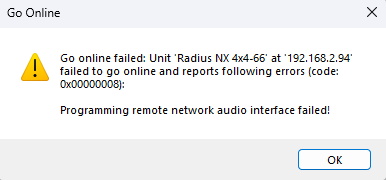
- Locating in Composer: Enrolling Devices into a domain will cause non-DSP Dante devices to fail to locate. Note, after enrolling devices into a domain, non-DSP Dante devices will not locate in the Composer site view. Audio will still pass through the network but if needed, rebooting the locating DSP will show that the devices are in fact located.
Operational Notes Using Versions of Composer Prior to 8.5.1:
- Dante Device Location: Instances have been observed where Dante devices, initially located within Composer, fail to maintain their location after enrollment into a designated domain.
- Upgrading Challenges: Migrating from Composer 8.3 to either Composer 8.4 or Composer 8.5 could potentially lead to a situation where the DSP fails to acknowledge the presence of its Brooklyn card.
- DDM Service Impact: Stopping the Dante Domain Manager service can trigger a scenario wherein the DSP ceases to identify its associated Brooklyn card, a pivotal component of the system’s functionality.
All three issues can result in the DSP not recognizing its Brooklyn card. If this is the case for you, isolating the device on the Dante network and clearing the Dante Domain Credentials can help re-establish communication with the Brooklyn card..
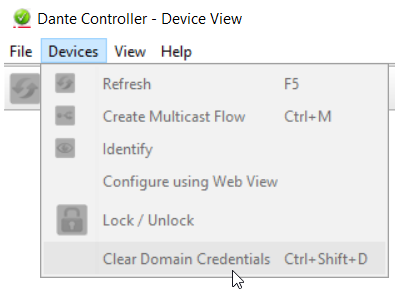
Composer Configuration for Sharing Audio Between Domains
It is possible, should the situation arise, to route audio from one domain to another. Follow Audinate’s suggested steps to configure shared audio groups.
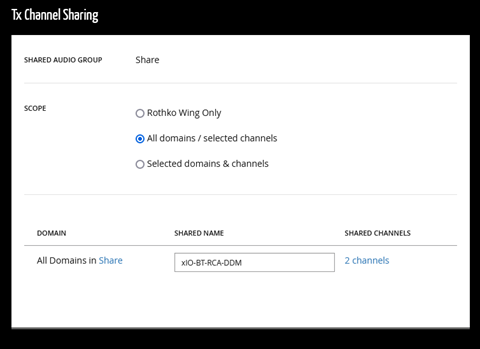
In Composer, route audio and push the Site File before adding the devices to a domain, as discussed earlier in this document. Take note of the TX and RX channels that are being used prior to push.
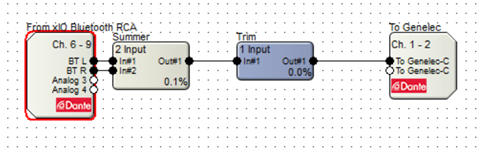
Note that the Dante “From xIO Bluetooth RCA” is using the DSP’s RX Dante channels 6-9 (Named BT L, BT R, Analog 3, and Analog 4) and that the “To Genelec” Dante bus is using the DSP’s TX Dante channels 1-2 (Named To Genelec-C and To Genelec-C).
After configuring shared audio groups in DDM, the shared Dante channels will appear in the configured Dante domains, highlighted in green in Dante Controller. You may need to reroute the audio in Dante Controller.
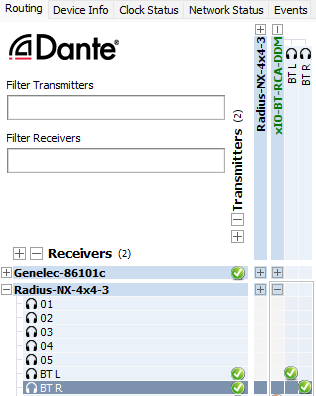
Overview
This tech tip will explain how to integrate the Visionary Solutions Duet Encoders/ Decoders into your Symetrix installation. The Visionary Solutions devices allow for moving 4K video over IP, bypassing the need for more traditional video matrix switching or video wall creation. The encoders and decoders come in two flavors: the Dante-enabled Duet devices (DuetE/D), and the non-Dante devices (E4100/D4100)
Using Symetrix DSPs along with Visionary Solutions’ Dante-enabled devices allows for total control of both the Dante audio and the video routing from one central device. For the non-Dante-enabled devices, Symetrix DSPs are able to control video source selection at the decoder, along with whatever audio is riding along with the AV Stream.
Before we go into working with controlling these devices from Composer, it is of paramount importance to look into the networking requirements and connections. In fact, it is highly recommended that you not connect any encoders or decoders to a switch until the below switch settings have been enabled.
Networking Requirements Switches Capabilities:
- Managed, with PoE (Visionary Solutions devices require full 15.4W PoE per port).
- Non-blocking.
- Minimum 1GbE bandwidth.
- Capable of IGMP (with IMGP Snooping).
- 8K or better Jumbo Packet capability.
Switch Settings:
- 2 VLANs – One for Video and Control traffic, the other for Dante traffic.
- Multicast must be allowed on all network ports through which video passes. DSP Ethernet ports will also need to be on this VLAN – multicast is not necessary on these ports.
- Flow Control must be removed on any network ports used for video streams.
- IGMP (Internet Group Membership Protocol): Video traffic from these devices is multicast, meaning it is broadcast across the network from a single device to all devices on the network – whether those devices want it or not. This can lead to wasted network bandwidth, as well as the potential for certain devices to be flooded. Enabling IGMP ensures that the multicast packets will only be received by those devices that are intentionally a part of that Group Membership.
- IGMP Snooping and Querier must be enabled (set Querier Version to V2 if possible).
- Enable IGMP Snooping Fast Leave: If your switch supports IGMP Snooping Fast Leave, turn it on. This lessens the amount of time it takes for a device to leave a multicast group and join another – thus speeding up the video switching time.
- Enable Jumbo Frames.
- Disable Energy Efficient Ethernet (Green Ethernet).
Cisco SG300 Example:
Two VLANs will need to be created – one for Video and Control traffic, and another for Dante traffic:
Tie the appropriate physical ports to each VLAN. In this case the first 5 physical ports will be assigned VLAN 2 (Video and Control), and the following 4 will be assigned to
VLAN 3 (Dante traffic).
For IGMP Snooping to function on the SG300, Bridge Multicast Filtering must be enabled:
Edit the Video+Control VLAN and enable IGMP Snooping Status, Immediate Leave, and IGMP Querier Status. Set Querier Version to V2.
Enable IGMP Snooping and Querier:
Enable Jumbo Frames:
Finally, disable Energy Efficient Ethernet (Green Ethernet):
VLAN 2: (Dante traffic):
- Multicast should be allowed to pass on all Dante network ports in order to allow
multicast clock packets to pass unimpeded. - IGMP is only needed if there is multicast Dante audio.
- Note that QoS is not needed on a Dante-only network
- Energy Efficient Ethernet (Green Ethernet) should be disabled.
Now that the switch has been configured properly, here is a basic connection
diagram, showing 2 encoders and 1 decoder, along with a Radius NX 12×8 DSP. The
Visionary Solutions devices’ PoE LAN ports connect to VLAN 1, and their Dante ports
to VLAN 2. The Radius NX 12×8’s Ethernet port is connected to VLAN 1, and one of
its Dante ports connects to VLAN 2.
A video source is connected to a Visionary Solutions Encoder with HDMI. The encoder converts this into an IP stream that is transmitted across the Video/Control VLAN to one or more Decoders. This stream is then converted back to HDMI at the decoder, and sent out to the connected display.
A note on bandwidth:
If you take a look at this table provided by Visionary Solutions, note that a resolution of 1080p60 can take up 200 Mbps of bandwidth.
So if for some reason you have a Gigabit switch that can’t do IGMP properly (or otherwise know there may be an issue with multicast bandwidth management on the network), there could be an issue with having the Ethernet control port of a Symetrix DSP on the same VLAN as the video traffic. Why? On all Symetrix DSPs (aside from Radius NX), the control port is a 10/100 port. Without adequate multicast bandwidth management in the above scenario, the control port of the DSP would be flooded by multicast data, which will cause communication issues with the DSPs. It is therefore recommended that in a situation where there is questionable bandwidth management capabilities, the Radius NX DSP should be used as the preferred solution. This is due to its built-in Gigabit control ports, which will handle much more traffic.
Visionary Solutions Web Admin:
Configuring Encoder/Decoder IP Addresses:
- Access the web interface for the encoder and decoder units. (log in with
admin/admin) - Select the Network tab.
- Set the IP.MODE to Static
- Set the IP.ADDRESS. (e.g. 192.168.1.45)
- Set the IP.NETMASK. (e.g. 255.255.255.0)
- Set the IP.GATEWAY. (e.g. 192.168.1.1)
- Click save.
Configuring the Encoder/Decoder Stream Addresses:
Visionary Solutions recommends setting the first octet to 225. Although not required, it’s helpful to set the last 3 octets to match the IP address as set above in the Network tab (e.g. 225.168.1.45).
- Access the web interface as above.
- Select the Configuration tab.
- Set STREAM.MODE to Multicast.
- For the encoder:
a. Set STREAM.ADDRESS to a multicast IP address, such as 225.168.1.45 (to match the control IP in the above example).
b. Click STREAM.ENABLE = True
c. Save - For the decoder:
a. The STREAM.HOST IP should be set to the IP of the encoder that the decoder should be receiving from.
b. The STREAM.ADDRESS should also be set to the STREAM.ADDRESS of that same encoder (as set in step 4).
Note these fields in the decoder will update while the decoder is being controlled by Symetrix Composer software. If a different encoder is selected from Composer, the Configuration tab will be updated to reflect the different encoder’s IP info.
Working with the DuetE Encoder and DuetD Decoder (Dante-enabled)
Composer Set Up:
A basic classroom design with audio being received into a Radius NX from two decoders, as well as two channels of audio being transmitted to the single decoder:
- Locate DSP: In Composer, first drag in a Dante-based DSP (e.g. Radius NX 12×8). With your PC on the same subnet as the DSP, locate the hardware by clicking the lower-left corner of the block. Select the DSP from Available Units on Network list, and click “Select Hardware Unit”. The lower-left corner will show a green checkmark when the unit is properly located.
- Drag in Encoder and Decoder modules: Now that communication has been established with a DSP, it’s possible to locate Dante devices through it. From the Third-party Dante Devices section in the Toolkit, drag in the Visionary Solutions encoders and decoders as needed. Do note that the maximum number of third-party Dante devices locatable by a single DSP is 24.
- Locate Encoders and Decoders: As in step 1, locate each encoder and decoder by clicking the square in the lower left corner of each. This will open the Locate Hardware window, which shows the available units on the network. Highlight the relevant device, and click “Select Hardware Unit”:
Click “OK” on the Sync Confirm screen:
A green check mark will appear as each unit is successfully located:
- Right-click either encoder to open the Encoder Unit Properties Window:
a. Now that the decoder is located, the Host Control Interface IP should be auto-populated. This can be verified by clicking “Verify Host IP”.
b. The Dante Audio Reception section allows the encoder to receive up to four channels of Dante audio from any source on the Dante network. These received Dante channels can be selected to transmit over the A/V stream (see step 5c below). But first, click “Edit Source” to choose the Dante source.
c. The Dante Audio Transmission section shows the four channels of Dante audio the encoder transmits onto the Dante network. These channels contain the audio from the video source that is plugged into the encoder
- Double-click either encoder to access the Encoder Settings window. This view provides:
a. Various diagnostic and networking information.
b. A video stream preview that updates approximately every second (which can be copied to a SymVue control screen for end user previewing).
c. The “Audio” selector, which determines which audio source the encoder packages up and sends over the AV Stream to the decoder. This selector can be right-clicked and set up to be remotely controlled by any control system.
d. Note that the Video Wall Wizard can be accessed here as well (this function is covered later
- To receive and process the Dante audio directly from the Encoders, double-click the DSP to enter the Design View of the DSP. Expand Network I/O Modules à Receive Modules in the Toolkit, and find the Dante Receive Buses that are tied to the Encoders. Drag those in, and place them in the site file.
- Back on Site View, right-click the decoder to open the Decoder Unit Properties window:
a. Again, now that the decoder is located, the Host Control Interface IP should be auto-populated:
b. Use the “Dante Audio Reception” section to program the decoder to receive up to four Dante audio channels, such as the two Dante transmit channels shown below . Once this is set, it is then possible to select between these Dante channels, or the audio stream coming from the encoder (see step 8a below).
c. “Dante Audio Transmission” shows the four Dante audio channels the decoder is transmitting onto the Dante network. These names can be edited.
d. The ”Video Selector” area allows for up to 64 different encoders to be set up as video sources. Highlight a channel in the Video Selector table, and click “Edit Source”. You can then either manually enter the Host IP and Stream IP of an encoder, or click “Browse Dante Network” to pick an encoder. The IP info will then auto-populate. (Note this info can also be manually entered in the Video Source Selector area in Step 8 below).
- Double-click the decoder to open the Decoder Settings window. This view also provides various networking info and diagnostic information for the decoder, as well as:
a. A/V Settings:
i. The Host IP and Stream IP fields show the encoder from which the decoder is currently receiving video. This info can be manually filled in, but it is recommended to instead enter the info into the Video Selector area as mentioned in Step 7. The Host IP and Stream IP fields under A/V Settings will then update automatically based on the video source selected in the Video Source Selector.
ii. The “Audio” selector is used to select which audio source is played out of the decoder’s HDMI output. Choose “stream” to select the audio coming across from the selected encoder. Choose “Dante” to select the Dante audio the decoder has been programmed to receive in the decoder’s Unit Properties (Step 7b).
b. Video Source Selector:
i. The Video Source Selector allows the user to choose which of the available encoder streams gets picked up by the decoder. It is also possible to copy the Video Source Selector buttons to a SymVue control screen, for end-user control of video source selection. A single control number may also be assigned to the horizontal source selector fader for ARC or third-party control.
ii. The video stream preview window updates approximately every second, and can be copied to a SymVue control screen for end-user viewing.
Creating a Video Wall:
The Video Wall Wizard can be used to lay out multiple decoders into an array of up to 4×4 decoders. There is a max of 64 possible video wall configurations, with up to 64 presets created for each.
- Access the Video Wall Wizard from either a located encoder or decoder’s Settings window, or by going to the Tools menu in Composer and clicking “Wall Wizard (VSI Video)”.
- Create a new video wall by clicking the Add button. Specify the name of the configuration, as well as the number of rows/columns according to the number of decoders you’d like to have as part of the video wall. Click OK.
- The array of decoders will now appear in the center of the screen. Click on an
Unassigned Decoder, and select the “Assign Decoder” button. This will open the
Select Video Decoder window – click “Browse Dante Network” to select one of
the decoders from the Dante network. Do the same for the remaining decoders.
- To control which source is currently playing on the wall of decoders, it is
necessary to create a preset for each encoder source. Click “Add…” to open the
Add Video Wall Preset window. Select the Preset number, then click “Browse
Dante Network” to open the Locate Hardware window.
5. Locate the encoder on the Dante network, then click “Sync to Hardware”
The Host IP and Stream IP should now be automatically populated for you. Click “OK”, then repeat the process for additional encoder sources.
- Presets can be triggered and previewed from within the Video Wall Wizard by clicking “Test”. To view a preview of the selected encoder source, be sure “Show Thumbnails” is checked. Also be aware that each decoder in the array will still show the full-picture from the encoder chosen as the source…in reality, Visionary Solutions will indeed break up the single encoder’s source evenly across the
multiple decoders. These presets are simply part of the 1000 presets available in Composer,
meaning they can be triggered by ARCs, the T-5, and any other controller
Working with the E4100 Encoder and D4100 Decoder (Non-Dante)
Despite the E4100 and D4100 units not having Dante capability, Symetrix is still able to control certain aspects of these devices – namely source select for each decoder, as well as the creation of video walls. Both options are controllable via the Wall Wizard option in the Tools menu of Composer. But first – a small bit about switch settings. Switch Requirements and Settings:
The same switch requirements and settings mentioned above apply. Do note that the second Dante-only VLAN is only necessary if there are other devices utilizing Dante audio. Otherwise, if the install doesn’t require Dante, a single VLAN that has the video and control on it will suffice. Visionary Solutions Web Admin: Follow the same steps as above for the Dante-enabled units. Make note of the Host IPs of all encoders and decoders that will be part of this set up. These will need to be manually entered in the next couple of steps. Composer Setup – Creating Source Selection for Single Decoders:
- To set up source select for a single D4100 Decoder, first drag any Composer-based DSP into the Site View. Then click the Tools menu and select “Wall Wizard
(VSI Video)”.
- Click the “Add” button create a new Video Wall. As this is a single decoder, be sure to make it a 1×1 video wall. Give the video wall a specific name (e.g. the location of the encoder). Hit OK.
- With the new video wall selected on the left, click on “Assign Decoder…”. Manually enter the Host IP of this specific decoder from the Web Admin. Click OK.
- Now to set up source select! We will need to create a unique preset for each encoder that will be available to this decoder. First click the “Add…” button, and choose a unique preset (one that is un-used in the site file). Then manually enter the Host IP and Stream IP from the encoder’s Web Admin. Click OK. Repeat this step for additional encoders, making sure to choose a unique preset for each new encoder.
- As with the Dante-enabled units, Presets can be triggered and previewed fromwithin the Video Wall Wizard. Click the “Show Thumbnails” checkbox to preview, then highlight a preset and click the “Test” button to see that encoder route to the decoder.
Again, these presets are part of the 1000 presets available in Composer, and can be triggered by type of remote control.
- Once all presets have been created and tested for one decoder, either add a new decoder by starting over at step 2, or click OK in the lower right to exit the Wall Wizard.
Composer Setup – Creating Source Selection for a Video Wall:
Creating a Video Wall build with non-Dante decoders is, for the most part, the same as the processes we’ve seen above.
- First open the Video Wall Wizard from the Tools menu. Click the “Add…” button
in the lower left of the Video Wall Wizard. Create a name for the video wall, and
select the desired size. Click OK.
- Highlight one of the Unassigned decoders, and click “Assign Decoder…”. Manually type in the Host IP of the decoder from the unit’s Web Admin, then click OK.
Repeat for the rest of the Unassigned decoders.
- Now to set up the source select. As before, you will need to create a unique preset for each encoder that will be available to this video wall. First click the “Add…” button, and choose a unique preset (one that is un-used in the site file). Then manually enter the Host IP and Stream IP from the encoder’s Web Admin. Click OK.
Repeat this step for additional encoders, making sure to choose a unique preset for each new encoder.
- As with the Dante-enabled units, Presets can be triggered and previewed from within the Video Wall Wizard. Click the “Show Thumbnails” checkbox to preview, then highlight a preset and click the “Test” button to see that encoder route to the decoder.
Again, these presets are part of the 1000 presets available in Composer, and can be triggered by type of remote control.
Additional Features for non-Dante Encoders/Decoders:
As you now know, with the Dante versions, there are modules with built-in GUI elements to work with in Site View. This makes it very easy to simply copy over the Decoder’s source select buttons, and the encoder/decoder video stream preview windows to a SymVue control screen. With the non-Dante versions it is still possible to get these controls over on SymVue control screens. But first, let’s build a convenient way to open the Web Admin of each Visionary Solutions device from within Composer.
Adding Command Buttons to Access Web Admin:
- From the Toolkit, drag in a Command Button. This will open up the Command
Button Properties window. - Enter a Label – this will be the name that shows up on the button, so be specific,
e.g. Encoder 1. - Select the Web Page option.
- Type in the Host IP of the encoder or decoder.
- Hit OK.
The Command Button will now be in your site file. Simply double-click the button to launch the Web Admin in your default browser.
Repeat this process for each encoder or decoder you want to access the settings of. Note, this is best used only within Composer to assist with system integration – you probably won’t want to give the end-user access to these settings
Adding Video Stream Previews to SymVue:
- To add a video stream preview window to a SymVue control screen, first navigate
to the “Device” page of the Web Admin. Click the “Monitor Button” to show the
preview image. This image updates every second with a frame showing the video
currently playing on the device.
2. Right-click the preview image and select “Copy Image Location”.
- Back in Composer, create (or open) a control screen. From the Toolkit, hold down the Control key on your keyboard while clicking on “Picture” and dragging it into your control screen. Holding the Control key creates a different sort of image than the typical – this type can be linked to a web URL.
At this point, the new image you’ve dragged in should say “Offline”.
- Double-click the image to open the Properties tab. In the URL field, paste in the Image Location you copied back in step 2. Hit Enter and the image should now update to show the preview. Also note that you can manually enter the Host IP address of the Visionary Solutions device appended with “/thumb.jpg” as well. (E.g. 192.168.1.121/thumb.jpg)
5. Repeat the process for more encoders and decoders as necessary:
Adding Video Source Select controls to SymVue:
By following one of the two “Creating Source Selection” processes above, you should have some presets created that will handle the source selection for either single decoders or video walls. In order to trigger these presets from a SymVue screen it’s a matter of using Preset Recall Buttons. In fact, we can take these preset recall buttons, make them invisible, and layer them on top of the encoder video stream preview – that way the end-user can simply press the video source they want to see, and it will trigger the preset to show that source on the decoder.
- Make sure there are some presets created for source select as done in the above steps:
- Open the Control Screen in Composer. From the Toolkit, expand the “Preset Recall Button” option, then drag the preset buttons into the control screen. Place each preset button on top of its corresponding video stream preview.
- Control-click both Preset Trigger Buttons so they’re both highlighted in red. Resize them to completely cover the video stream previews by holding the Shift key and using the arrow keys on your keyboard. Alternatively, highlight both, and manually enter the Width and Height in the Properties sheet.
- Again highlighting both buttons, change “Use Name of Preset” to “False” in the Properties sheet. This will remove the text from the Preset Recall Buttons
- Finally, change the “Transparent” field in the Properties sheet to “True”. This will make the Preset Recall Buttons 100% transparent so the video stream preview can be seen below the button. However the button is still active on the top layer, therefore if the end-user touches the preview, the preset will be triggered and the video source will change.
The purpose of this Tech Tip is to provide instruction on assigning multiple different sources to a single Network I/O Receive Module.
Composer versions prior to 6.0 used Dante ‘Receive Flows’ to receive audio from the Dante network, which were limited to a single source of up to 8 channels. Composer 6.0 and later versions now utilize Network I/O Modules. These modules allow the configuration of busses up to 64 channels from multiple sources, as well as supporting AES67.
Here are the steps for creating a receive module with multiple sources:
- From the Toolkit, add a Symetrix Dante-enabled DSP to the Site View page.
- Open the Design View page by double-clicking the DSP.
- From the Toolkit, expand Network I/O Modules, then expand Receive Modules.
- Double-click or drag in a New Network Receive Module.
The Network Receive Module Properties window will open automatically.
- Select “Multiple Sources”.
The Network Receive Module Properties window will expand to show the channels and sources available.
- Expand the DSP in the Available Sources section.
- Next, expand Browse Network Devices. This will list all the available sources this DSP can receive audio from.
- To add all channels of a source that is broadcasting, select the source and either double-click or click the “<<” button.
Individual channels are also assignable.
- Select the next channel to be assigned.
10. Expanded the source to display the list of available channels.
11. Add the desired channels to the receive module.
12. Repeat these steps until all desired channels are assigned.
13. Click OK and the receive module will be added to the site file.
This tech tip will provide instructions for recording audio from your Dante bus in Composer to your computer via the Dante Virtual Sound Card or Dante Via with ASIO or WDM supported recording software.
Potential Applications:
- House of Worship – Recording sermons and choirs
- Theatre/Live Audio – Recording live shows and performances
- Courtrooms – Recording court proceedings
- Conference Room – Recording conference or troubleshooting AEC
What you will need:
- Symetrix Composer
- Symetrix Dante enabled DSP (Prism, Radius and/or Edge)
- Dante Controller (www.audinate.com)
- Dante Virtual Soundcard (DVS) or Dante Via (www.audinate.com)
- An ASIO or WDM capable program such as Cubase, Logic, Sound Forge, ProTools, Reaper or Audacity
Creating your Dante Bus:
1) Connect your computer to your Symetrix Dante enabled DSP via the Ethernet port.
2) Open Composer.
3) From the Toolkit add the DSP to the site view page.
4) Double click the DSP and open the design view page.
5) Create a Dante transmit flow. Toolkit>Dante Transmit and Receive Flows>New Transmit/Receive Flow…
6) Enter your Dante Flow name, select the amount of channels you need, make sure Transmit is selected and label the channels.
7) Select OK.
8) Wire your audio source into your Dante Bus.
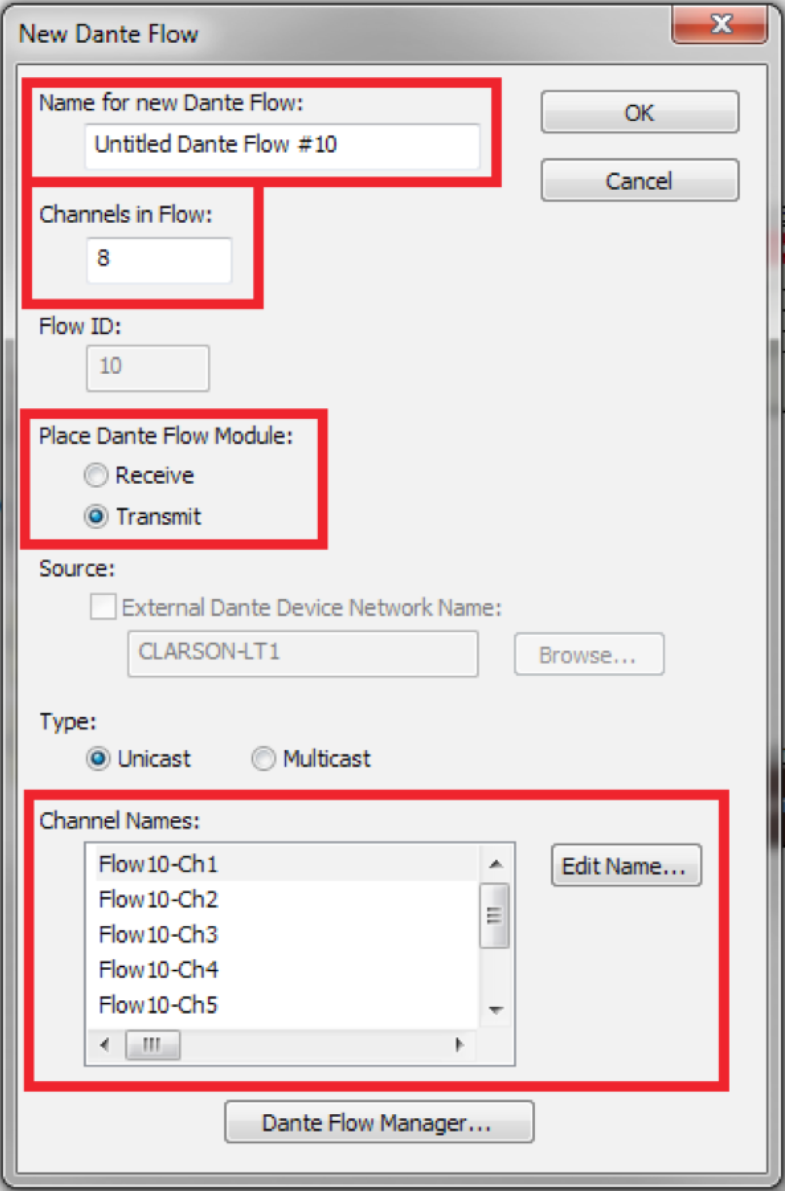
Creating your Dante Bus:
1) Connect your computer to your Symetrix Dante enabled DSP via the Ethernet port.
2) Open Composer.
3) From the Toolkit add the DSP to the site view page.
4) Double click the DSP and open the design view page.
5) Create a Dante transmit flow. Toolkit>Dante Transmit and Receive Flows>New Transmit/Receive Flow…
6) Enter your Dante Flow name, select the amount of channels you need, make sure Transmit is selected and label the channels.
7) Select OK.
8) Wire your audio source into your Dante Bus.
9) Go on-line with your DSP
Now that you have the site file archived in your DSP, we can connect your computer to your Dante network.
1) Connect your computer to the Dante Network.
2) Open and enable your Dante Virtual Sound Card or Dante Via.
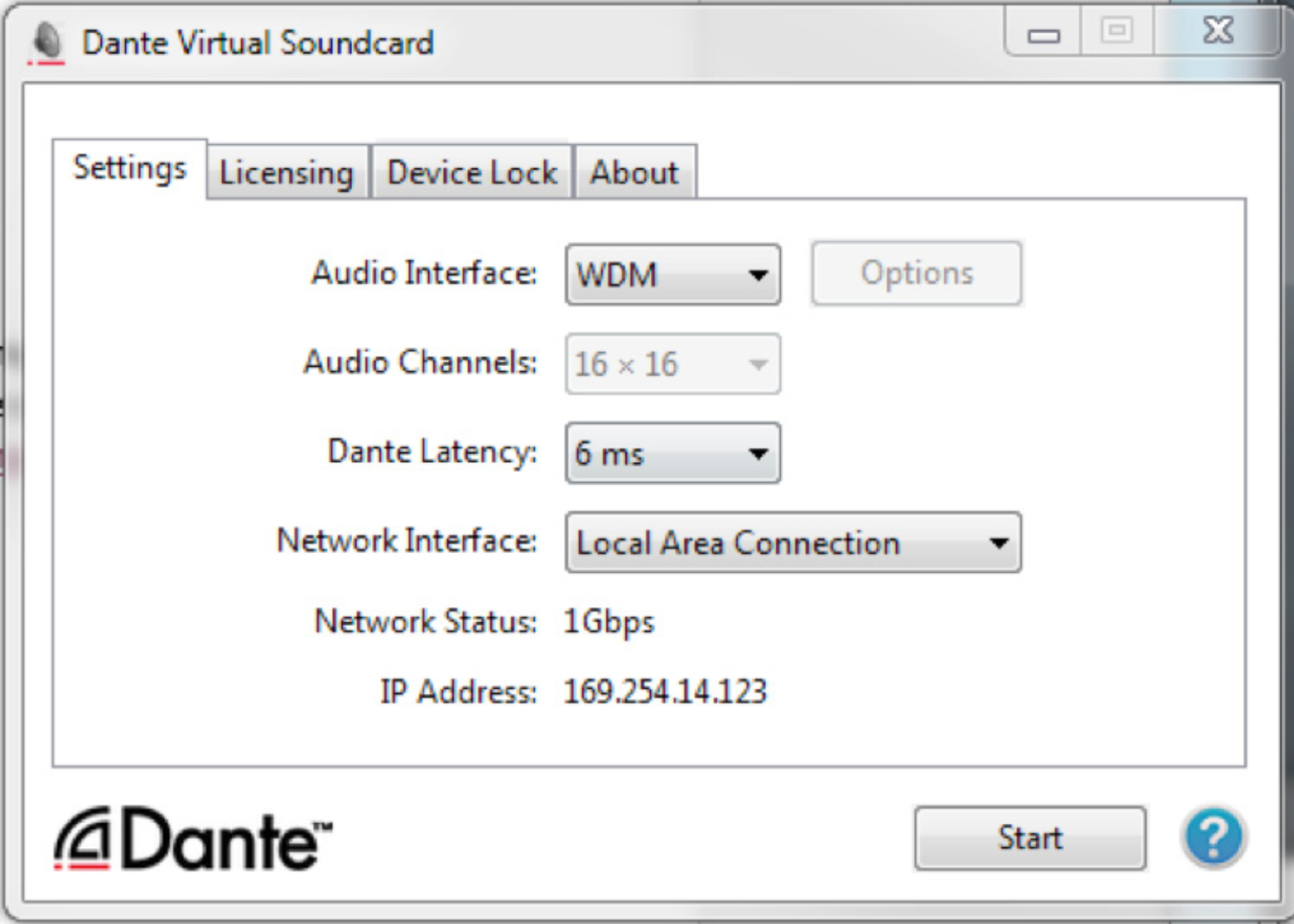
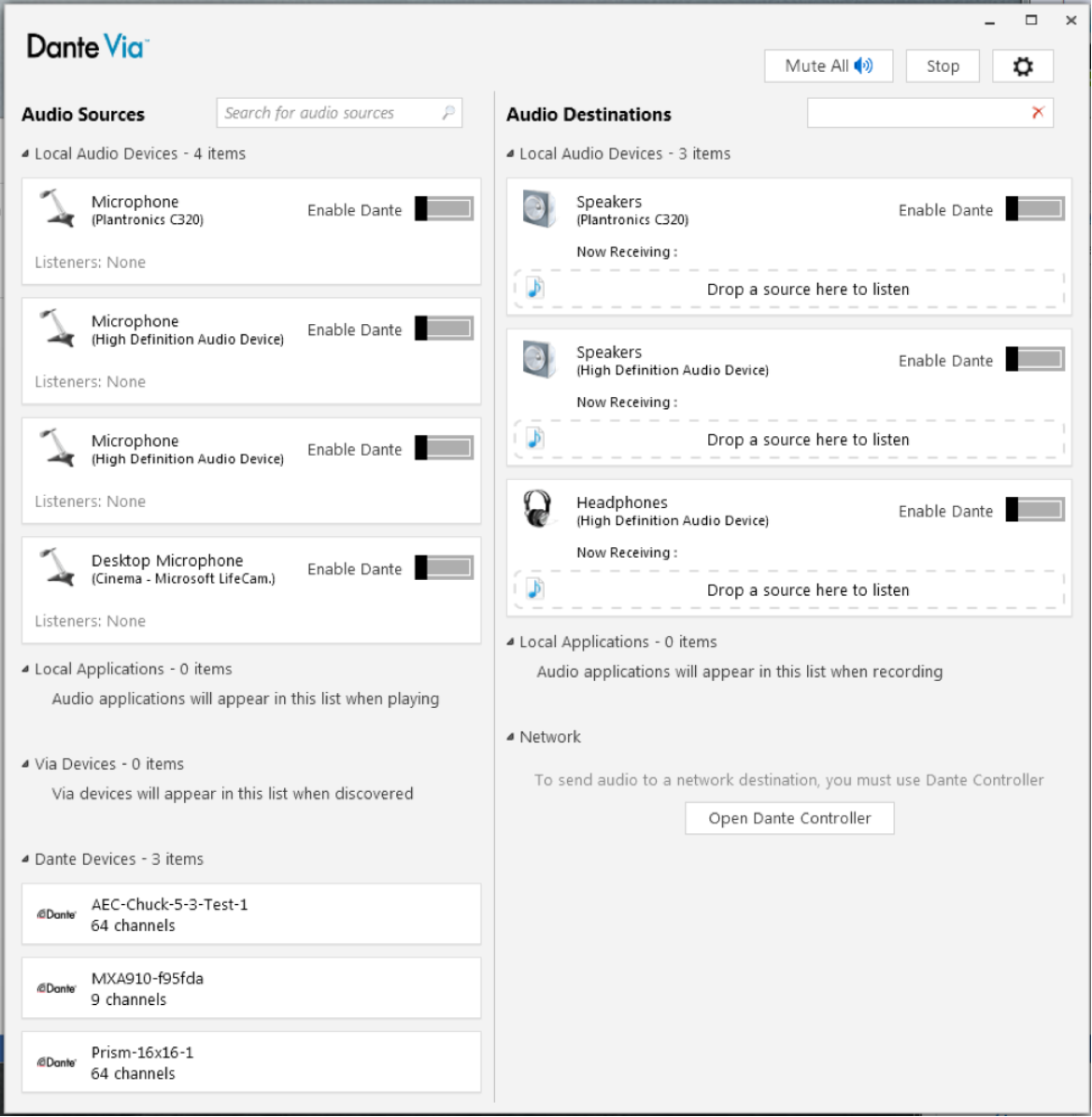
3) Open Dante Controller and create the subscriptions between the DSP and your computer.
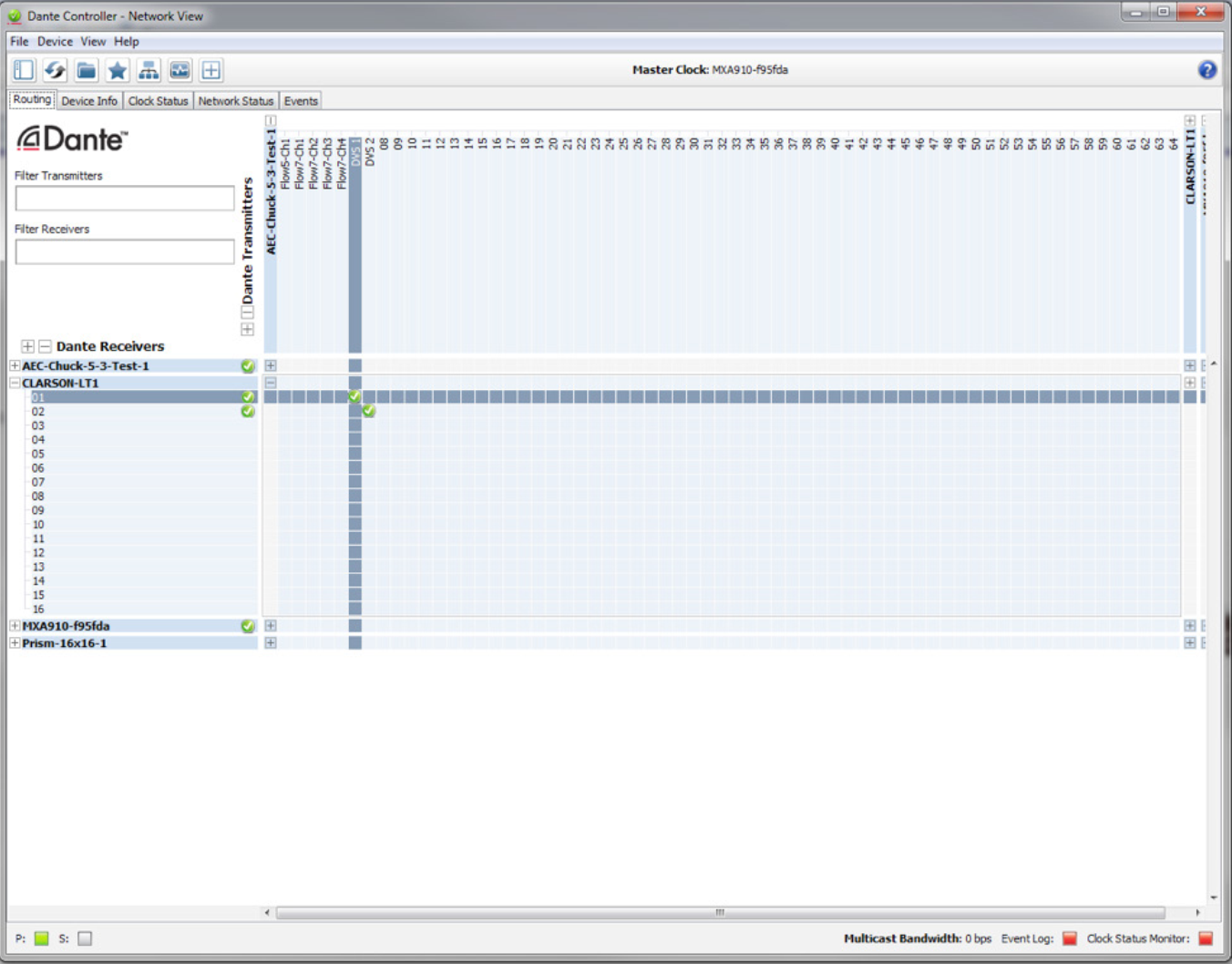
We can now open your ASIO or WDM capable program.
This example will be utilizing Reaper:
1) Open Reaper.
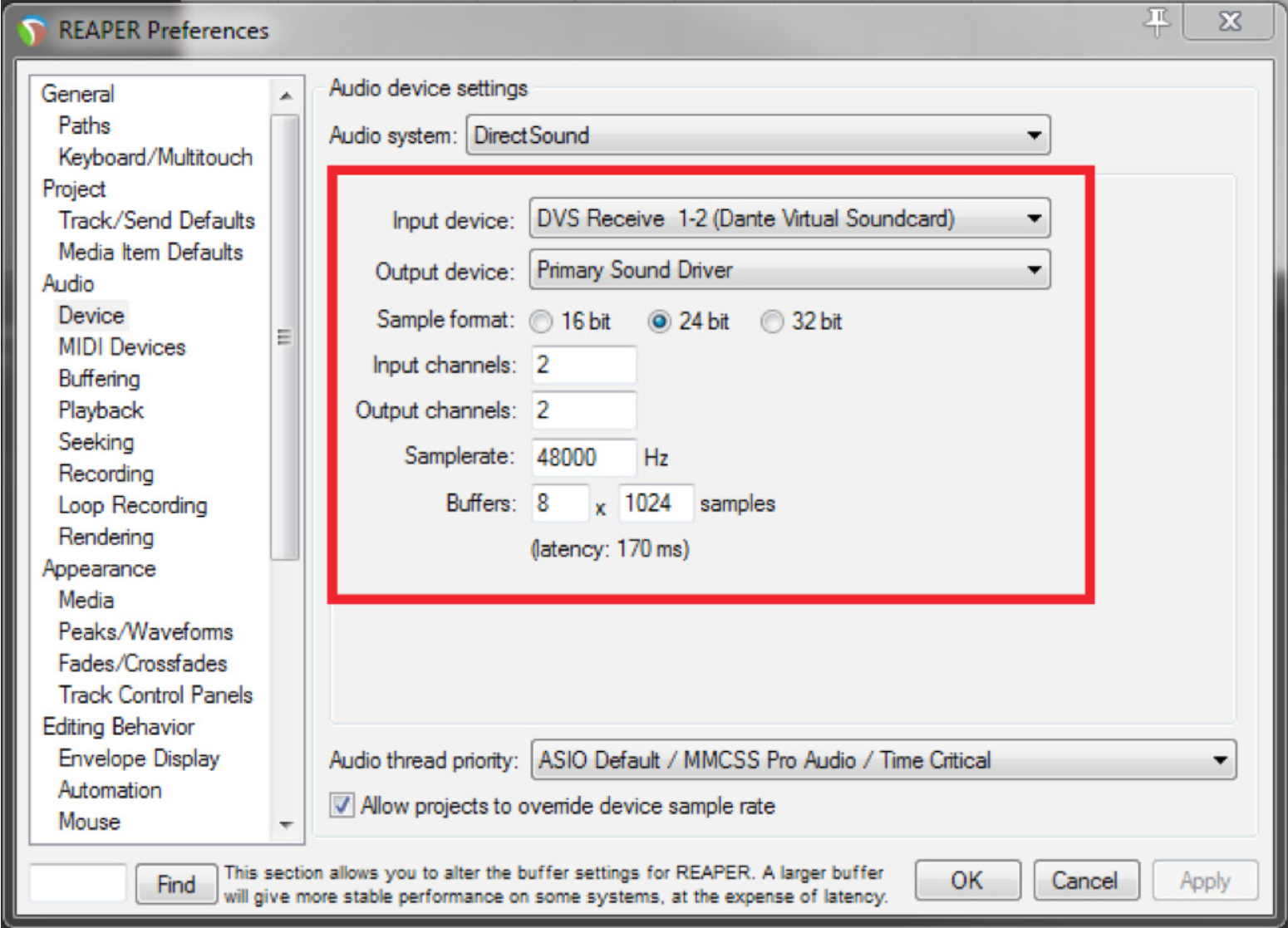
2) Select Options>Preferences.
3) Select Devices in the Audio menu.
4) Select DVS Receive 1-2 (Dante Virtual Soundcard) for the input device.
5) Select your Sample Rate (48000), Bit Depth (24 bit), and Channels and then Select OK.
6) Select Track>Insert New Track.
7) Select input source. Assign Input:Mono>Left to this track
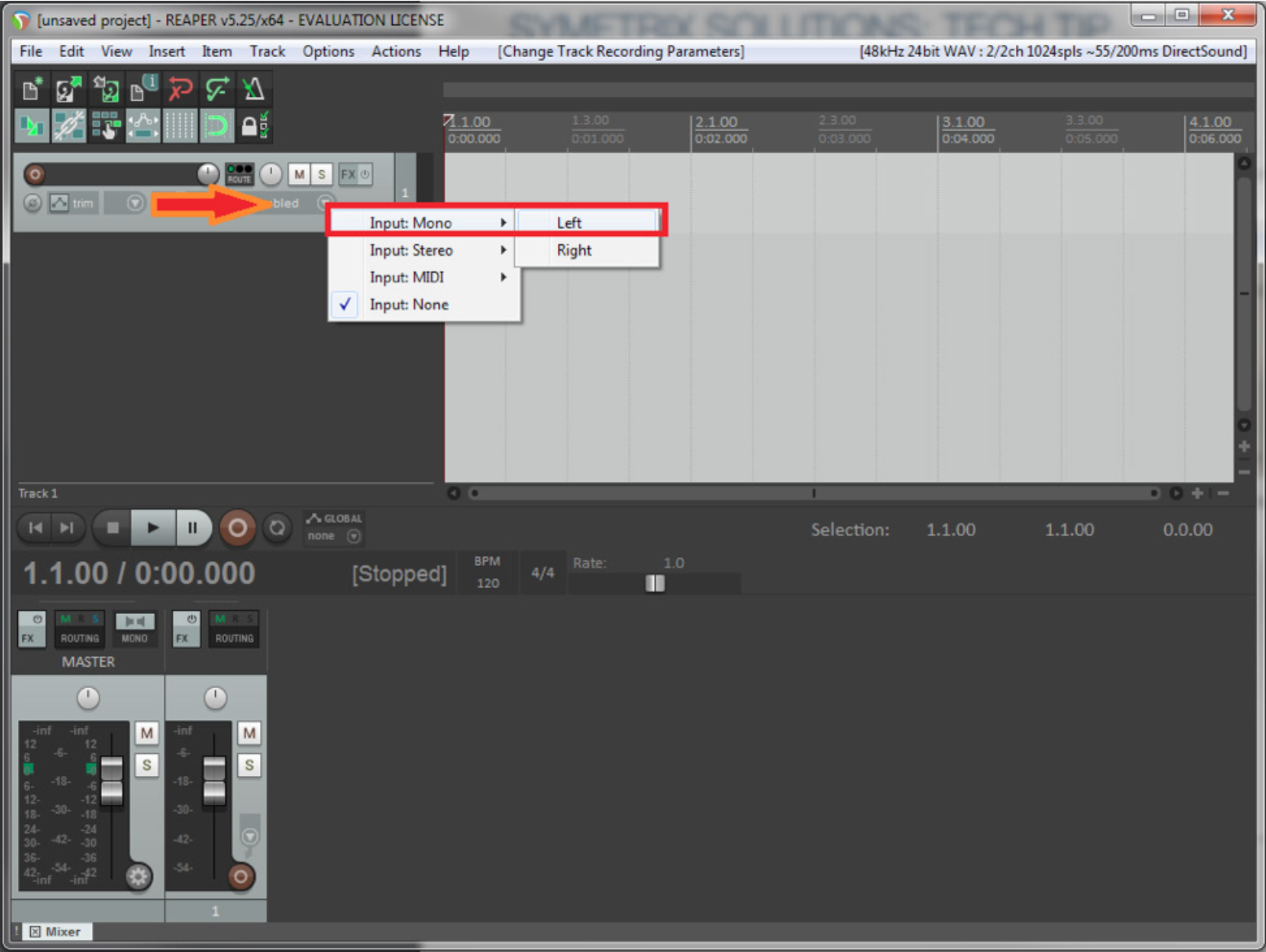
8) Insert another track. Track>Insert New Track
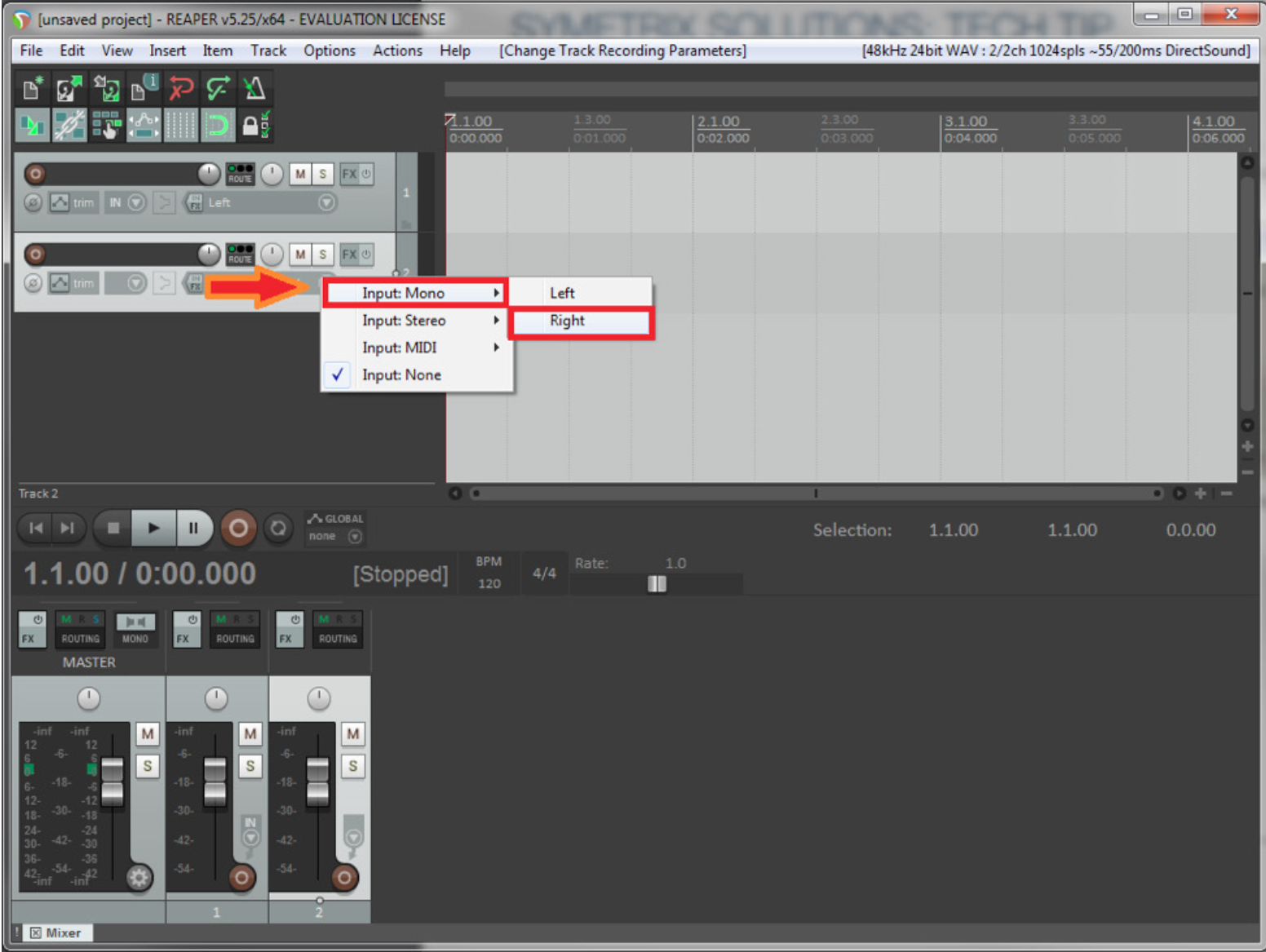
9) Select input source. Assign Input:Mono>Right to this track.
10) Select and Arm each track. You should now see your audio metering in the Record window.
11) Select Record.
12) You can now record the audio from the Dante Bus to your recording software.
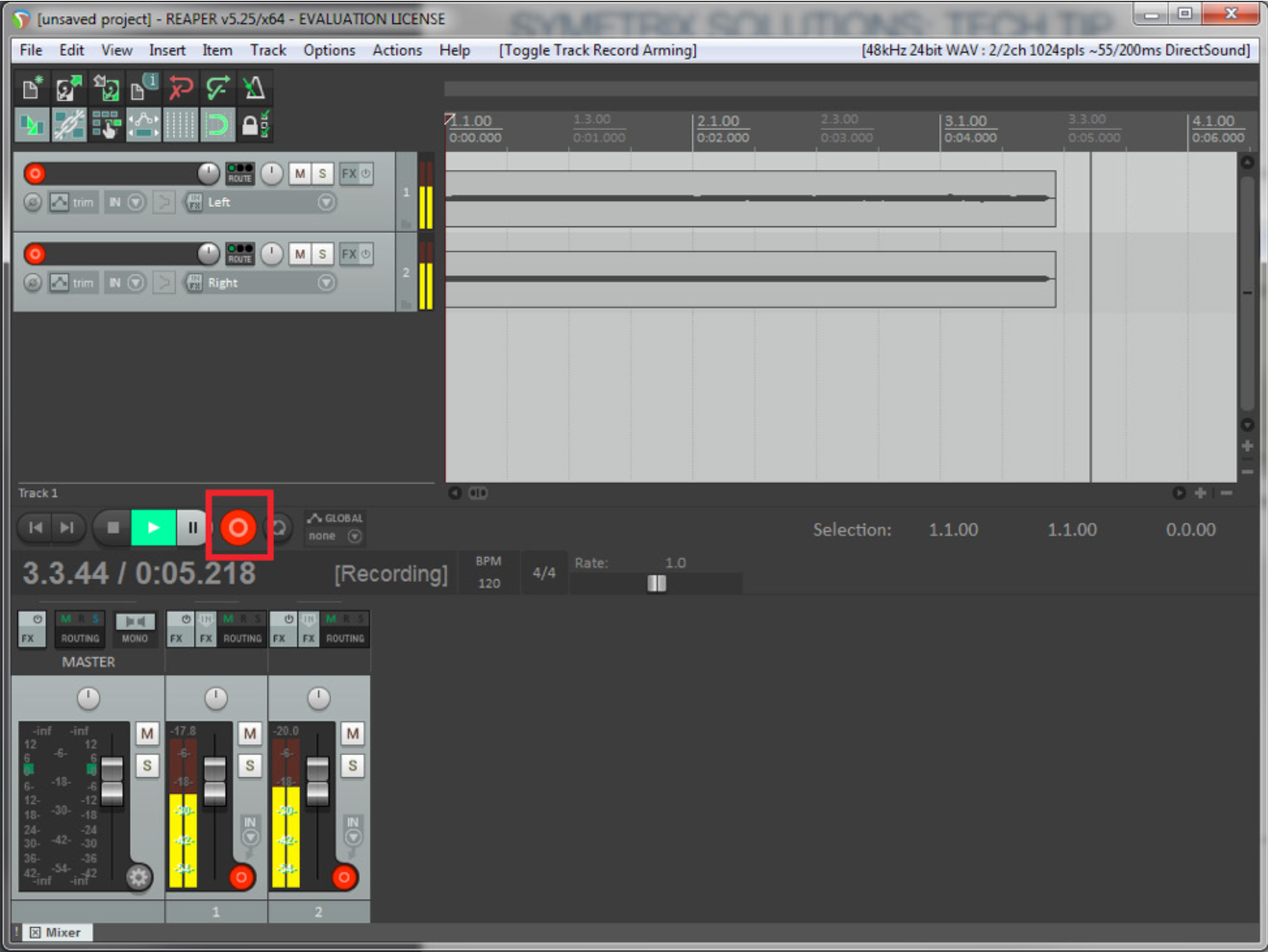
Note: Most recording software use WDM for 2 channels/tracks only (left and right), while ASIO is used for multi-channel/track recording. So, if you only need to record in stereo or 2 channels/tracks WDM will be fine. If you need to record 3 or more channels/tracks use ASIO.
This tech tip will walk through the necessary steps required to receive audio in an Edge, Prism, or Radius NX DSP from the Dante Virtual Soundcard running on a PC or MAC laptop.
The Dante Virtual Soundcard software allows a PC or Mac to connect to a Dante audio network. Dante Virtual Soundcard uses the Ethernet port on the computer to communicate with a network of other Dante enabled devices. No special hardware is required other than installing Dante Virtual Soundcard on a conventional PC or laptop. Audio applications use the Dante Virtual Soundcard as they would any standard ASIO or Core Audio sound card. Sending audio from your laptop to the DSP using Dante has many benefits including but not limited to: testing the Dante network, sending test tones or pink noise to the DSP outputs, and tuning the speakers with known audio content. Another application might be to play recorded content in an audio installation, such as intermission messages or sound effect playback in theaters. There are certainly many other useful applications so be creative.
What you will need:
- Composer
- Edge, Prism, or Radius NX
- Dante Controller (www.audinate.com)
- Dante Virtual Soundcard (DVSC) (www.audinate.com)
- An ASIO capable program such as Cubase, Logic, Sound Forge, Winamp
In this example Winamp will be utilized as it is a free download available on the web. From the Winamp website the ASIO Output Plugin will also need to be downloaded.
1) Open Winamp and go to Options->Preferences (Ctrl + P).
2) Next, click on Output section of “Plug-ins” and choose the “ASIO Output Plugin [out_asio.dll]” to select the ASIO driver for Winamp.
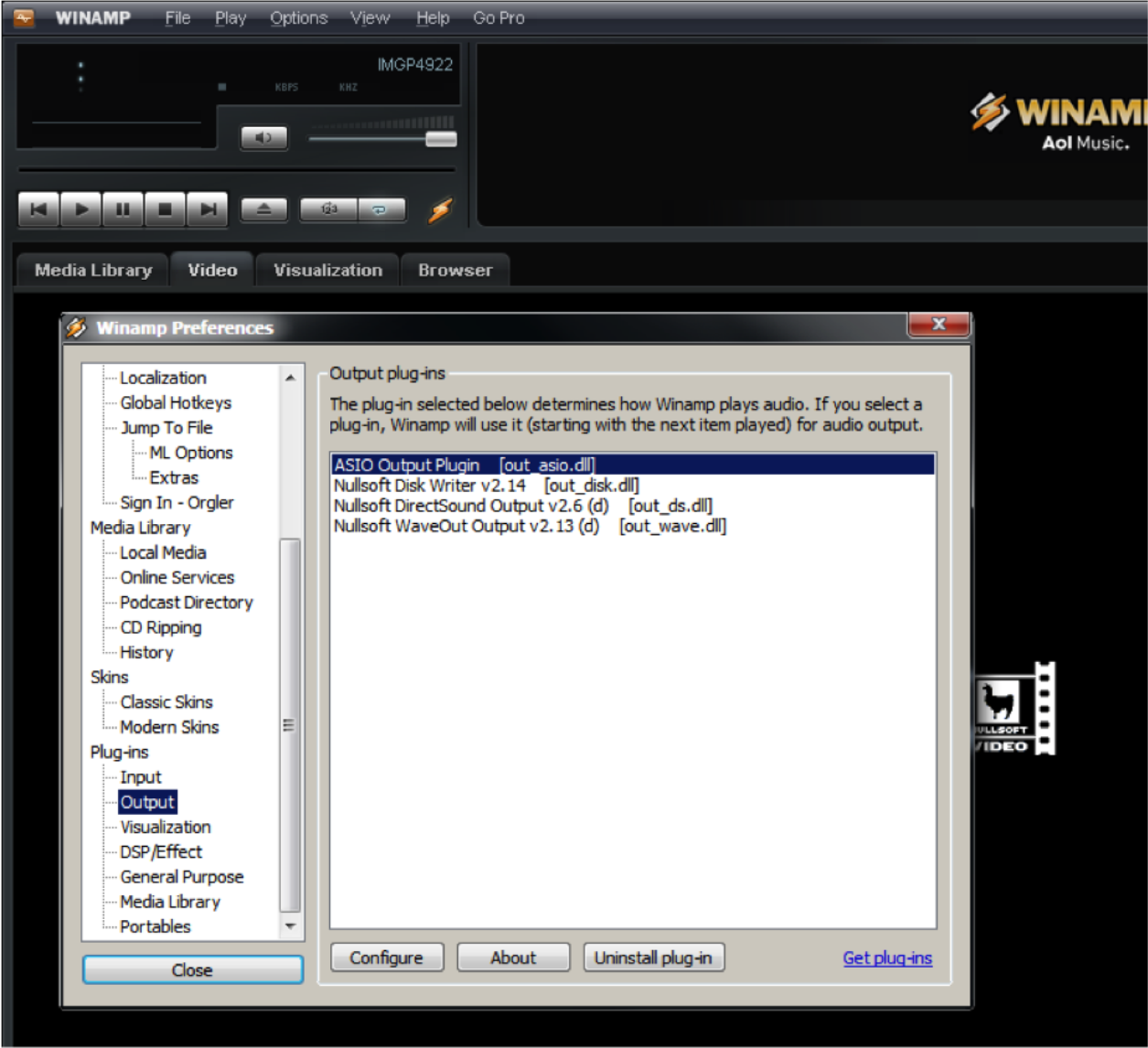
3) The Config ASIO dialog will pop up, and the Dante Virtual Soundcard will need to be selected.
ra 1
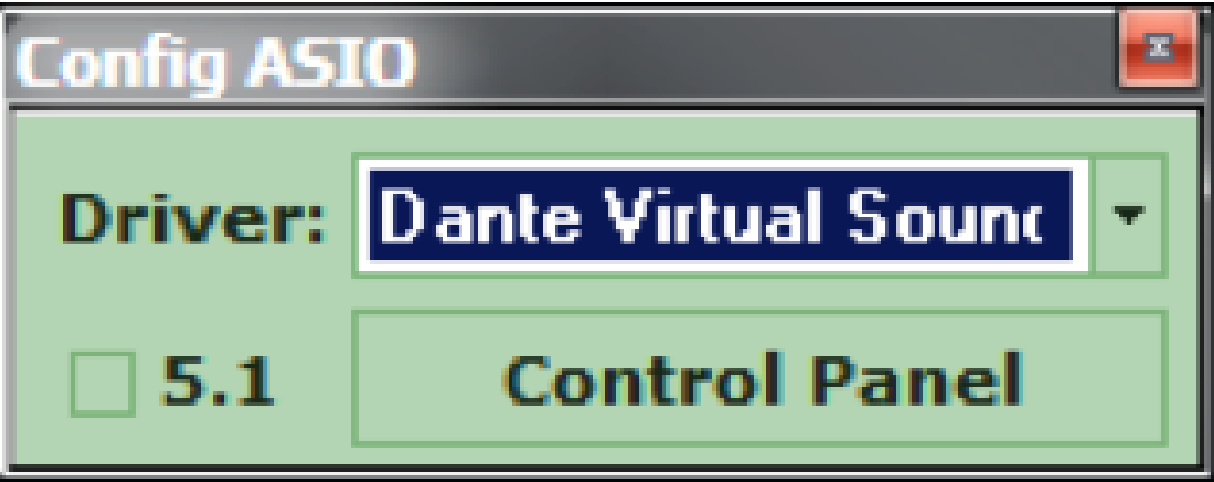
3) The Config ASIO dialog will pop up, and the Dante Virtual Soundcard will need to be selected.
4) Launch the Dante Virtual Soundcard by clicking the Control Panel button.
5) Turn on the Dante Virtual Soundcard by clicking the Power button. It will turn green when active.
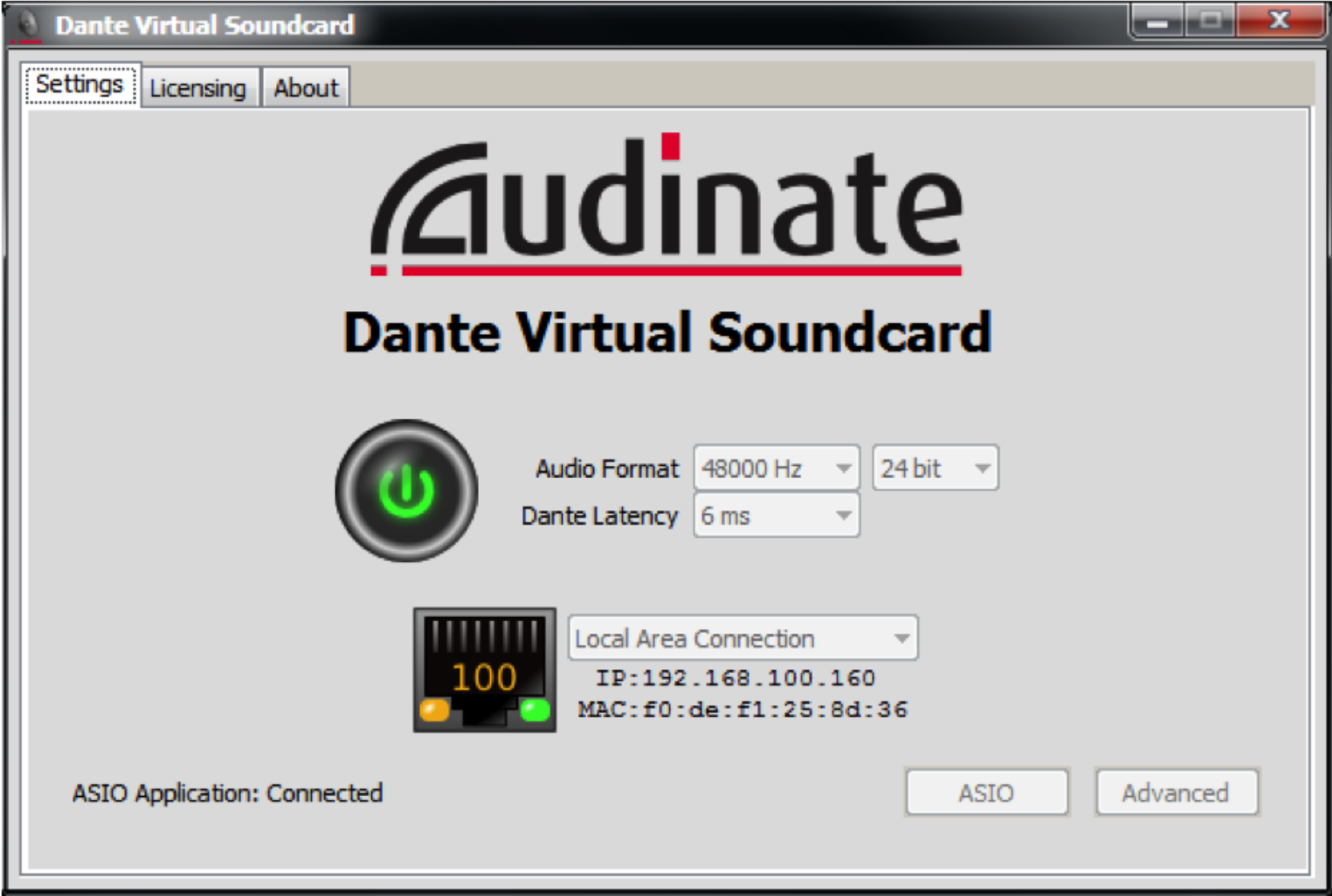
6) Open Dante Controller located at Start->All Programs->Audinate->Dante C controller.
7) The Dante Device Network Name of the PC or MAC running the Dante Virtual Soundcard (DVSC) should be visible on the Routing page. In this example the name of the Dante network device is rcurtright-lap1. Write this name down for a later step.
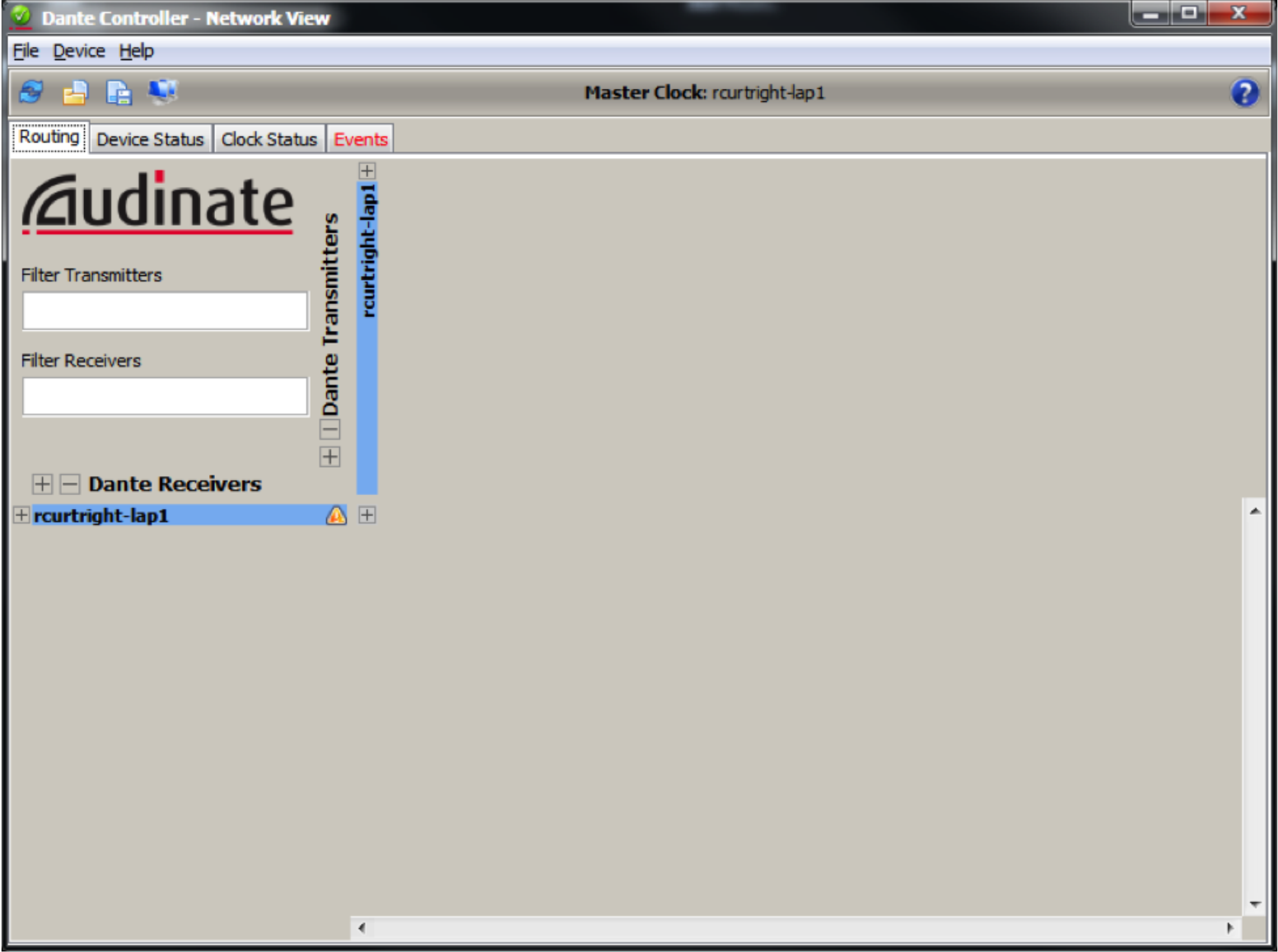
8) Next, click on the Device Status tab, and then double click on the device name. In this case it is rcurtright-lap1. This will launch the Dante Controller Device View.
9) Click on the Transmit tab and then label all channels which you would like to receive in the Edge or Radius.
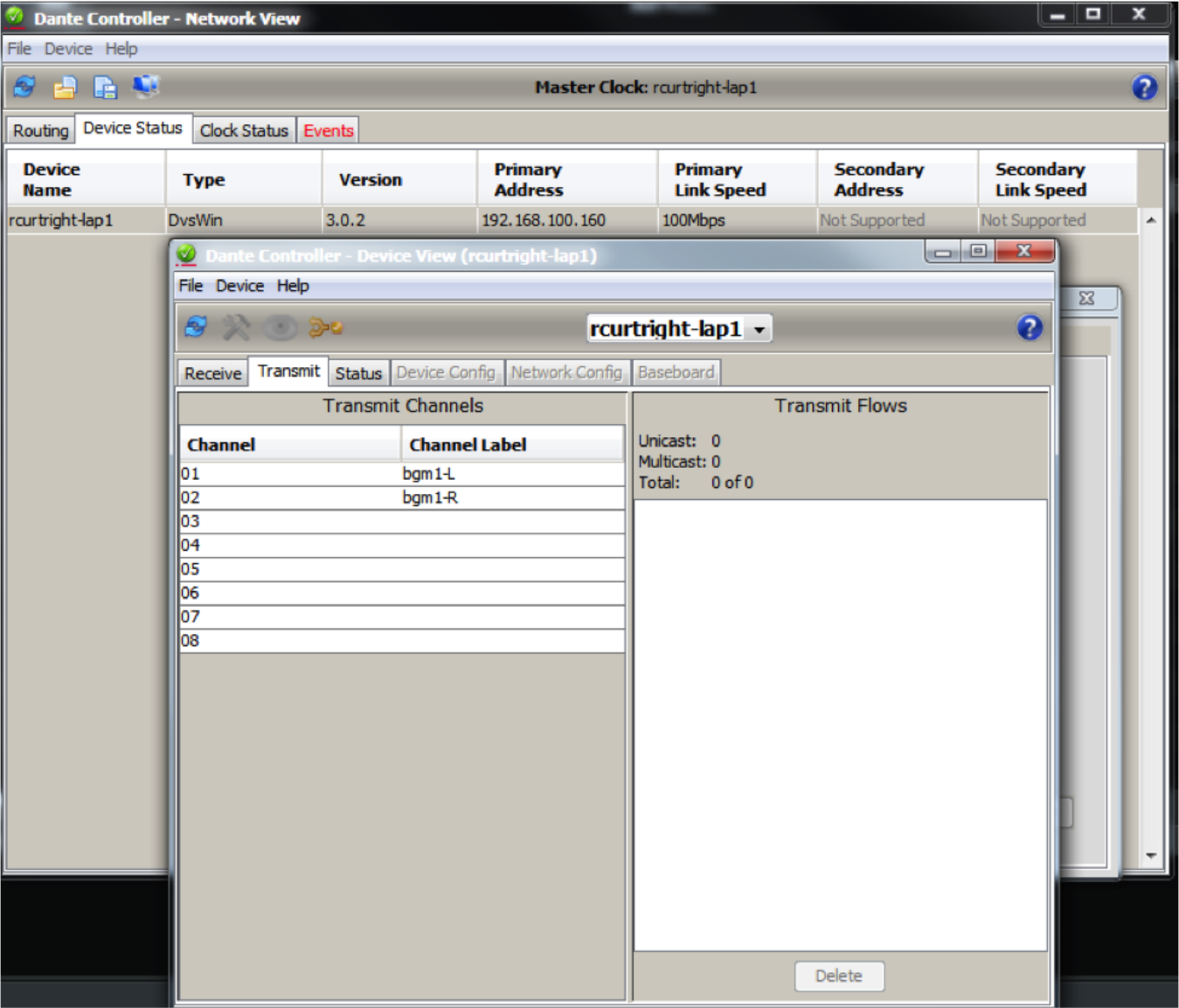
Since Winamp is being used, only 2 channels are needed to carry a stereo signal which has been named bgm1-L and bgm1-R in this example.
10) Now, on the Routing tab, expand the device in the upper area of Dante Transmitters and confirm that the two named channels are now listed.
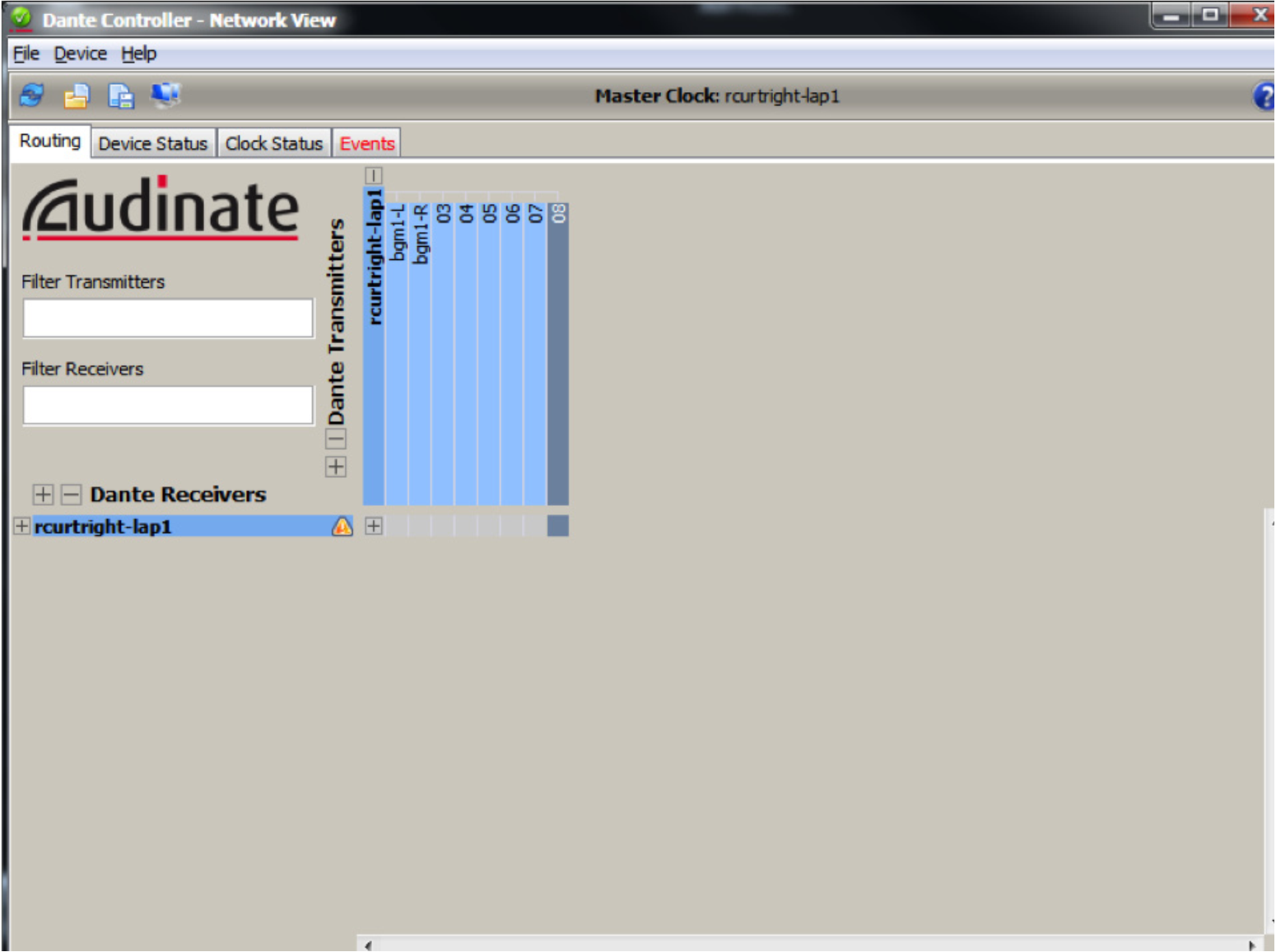
11) Next, open Composer, locate hardware (Ctrl+Shift+L), and then enter the design view by double clicking on the Edge or Radius DSP icon.
12) In the Toolkit expand “Dante Transmit and Receive Flows” and drag a New Transmit/Receive Flow into the design.
13) A new Dante flow will be created and Dante Flow Module Properties will pop-up.
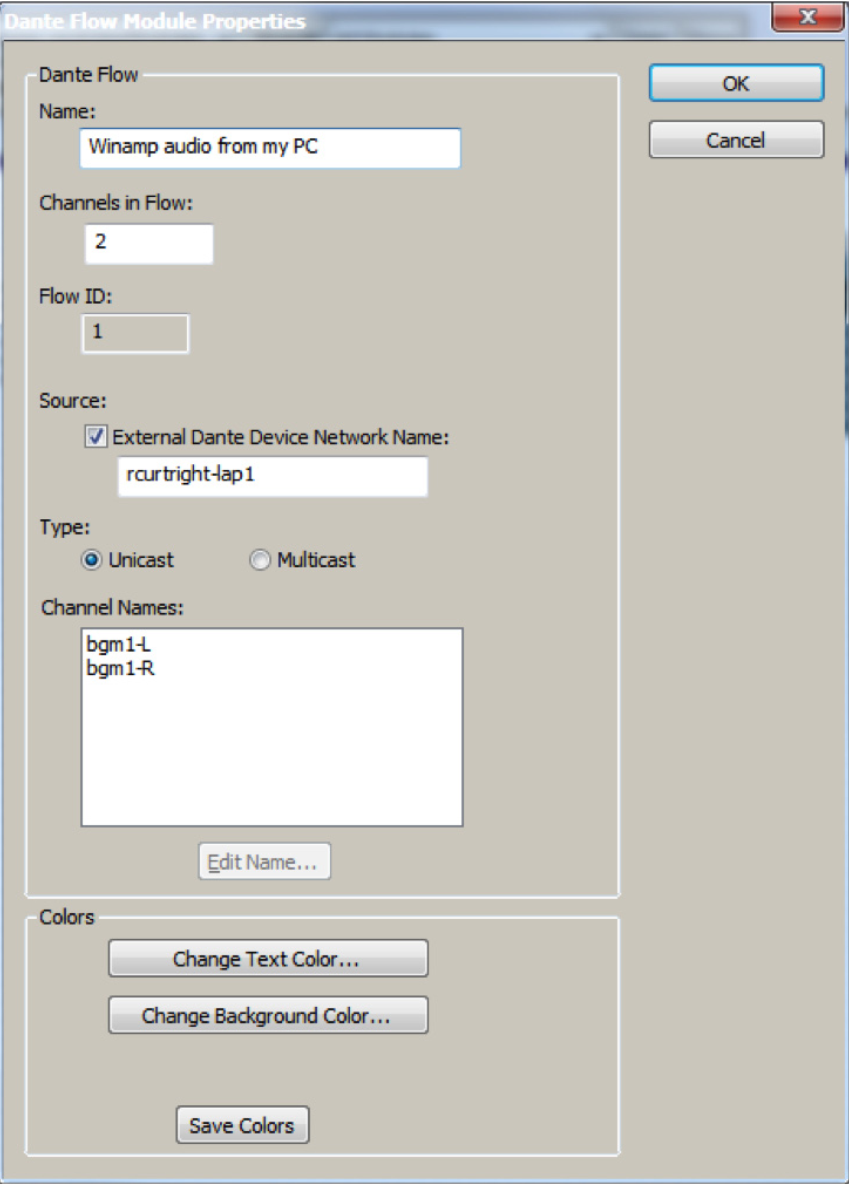
- Name for new Dante Flow: can be anything and is only for organization in C composer.
- Channels in Flow: can be 1-8 channels, although this examples uses 2 for stereo content from Winamp.
- Place Dante Flow Module: set to receive.
- Source: check the box for External Dante Device Network Name and enter the network device name from step 7. It must be typed exactly as displayed including any special characters or spaces in the name.
- Type: unicast.
- Channel names: name both channels with exactly the same names given in step 9 using Dante Controller.
14)Wire the Dante modules outputs into any module input or analog output. In this example Dante is wired into a stereo matrix mixer.
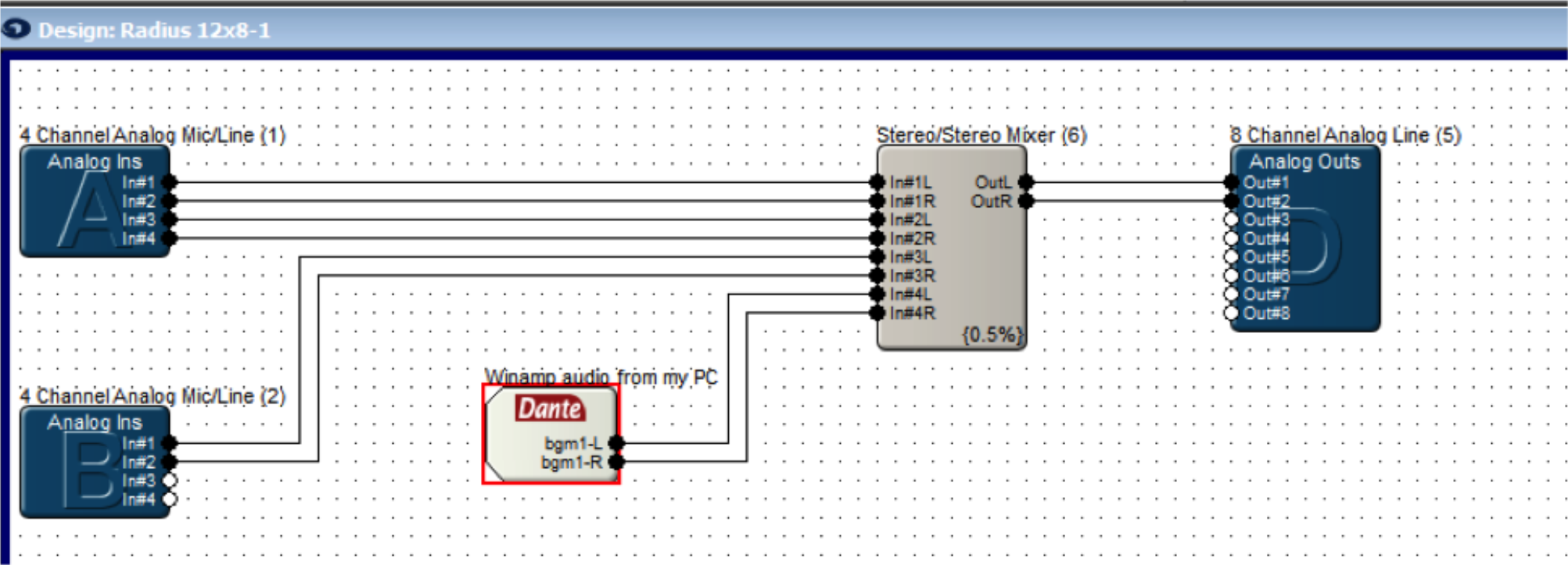
15) Push the site file to hardware.
16) In Dante Controller on the Routing Tab with Dante Receives and Dante Transmitters expanded the Edge, Prism, or Radius NX DSP should now show a connection between the DVSC channels.
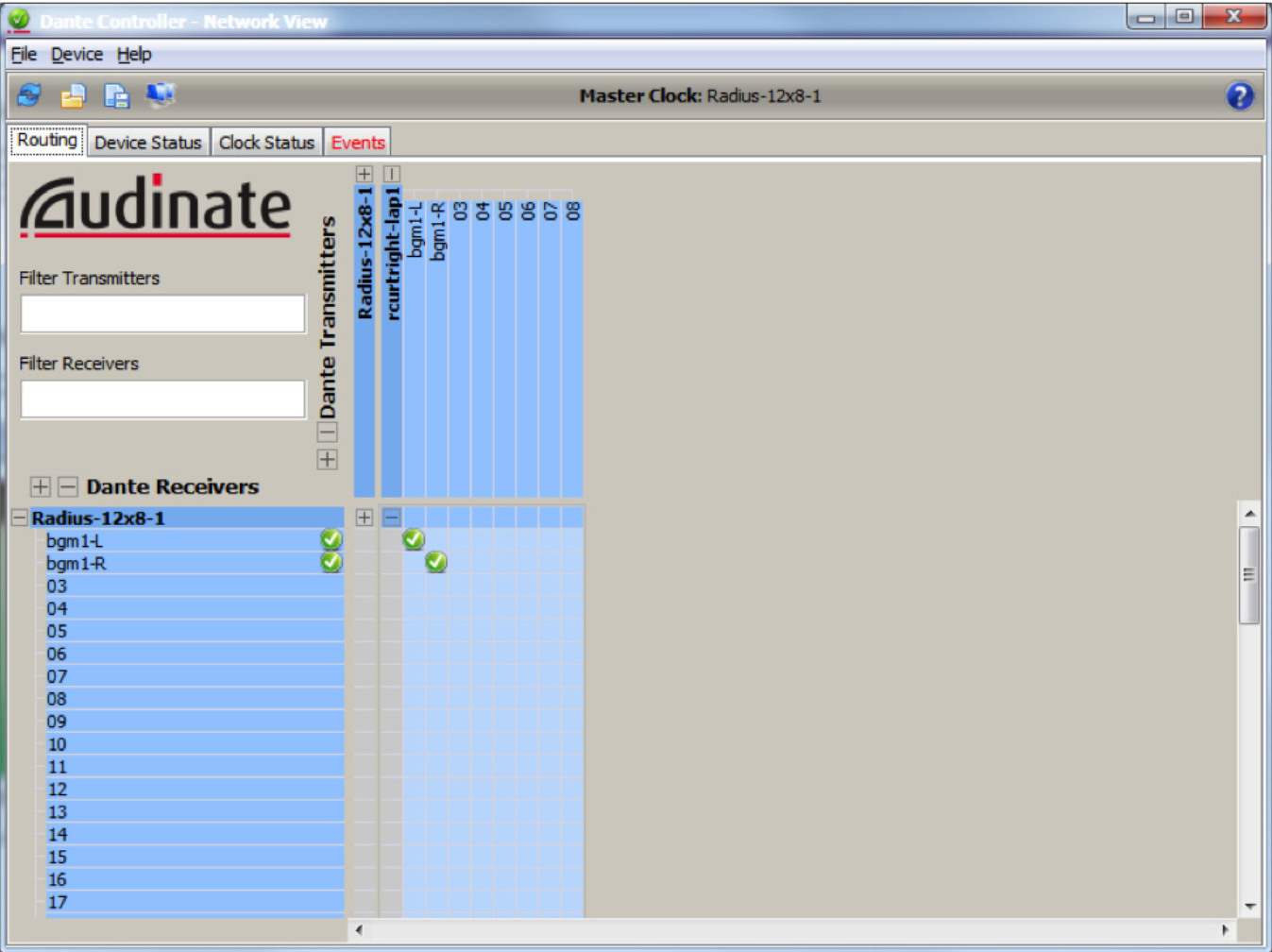
17) In Composer opening the GUI for the Dante Flow should show audio on the meters, as long as a song is currently playing in Winamp.
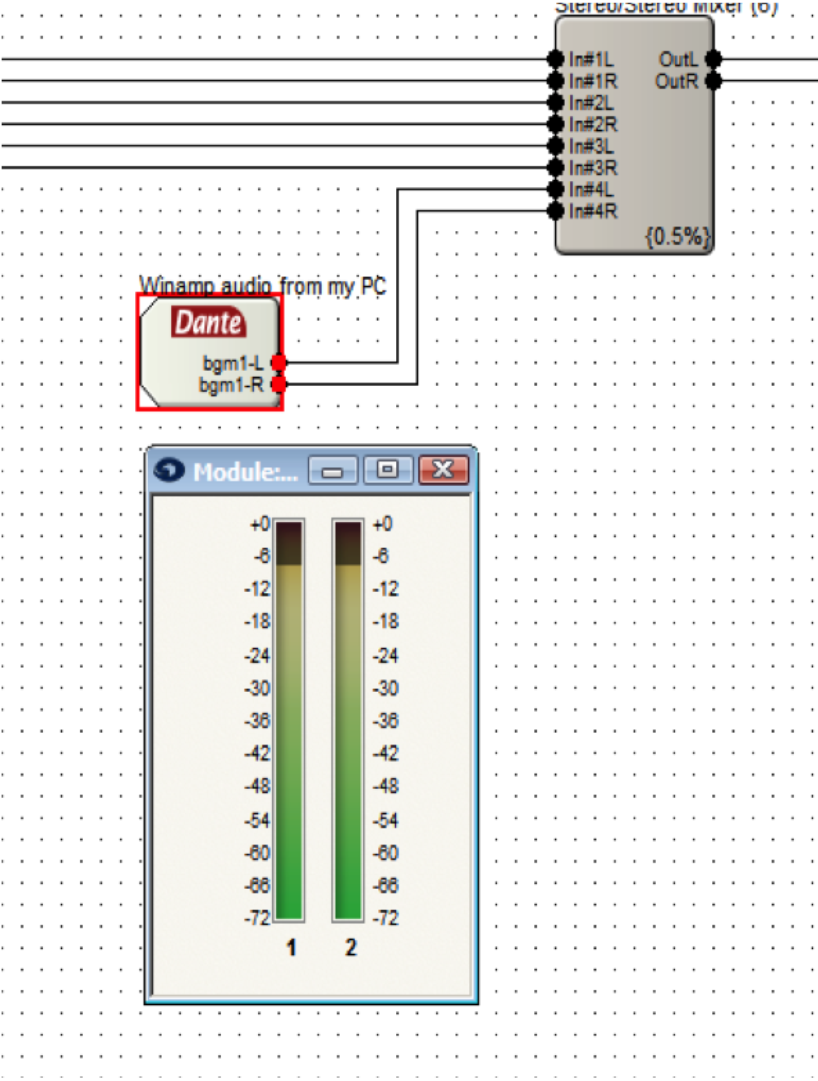
Note: setting Winamp to repeat a song or to playlist is suggested for continuous audio.
Note: Dante network audio is 24bit / 48khz audio. This means that playing a mp3 in Winamp which is 16bit / 44.1khz audio will cause it to be pitch shifted due to the 44.1khz audio being played at 48khz by the device. For true testing purposes use software that can play 24bit / 48khz audio, a common example being Sound Forge.
Composer, Symetrix next generation DSP platform, has arrived and is in full effect. Composer software manages all aspects of Dante DSP devices including audio, control, and security with an intuitive drag and drop CAD-style interface that previous users of SymNet Designer will feel right at home working with.
That being said, a Symetrix guru might feel a little out of water designing, commissioning, and/or troubleshooting the new Dante digital audio buss used by all audio devices in the Composer platform. Currently both Edge and Radius units are the two DSP frames implementing Dante as the network audio buss, and yes, more Dante hardware will be forthcoming in the Composer family. Both Edge and Radius units have the ability to transmit and receive 64 x 64 channels of Dante audio thanks to the installed Dante Brooklyn II card.
The good news is that the method for adding Dante flows to the design in Composer is exactly the same as adding SymLink or CobraNet in SymNet Designer. However, if you are reading this document, then it is time to understand Dante and be comfortable designing, using, and troubleshooting a Dante network, because in the not so far away future SymLink and CobraNet will be a thing of the past.
First, let’s get to know Dante a bit better and understand why Symetrix chose to use Dante as its digital audio buss in Composer hardware.
What is Dante?
Audinate’s patent pending Dante™ technology is a flexible Internet Protocol (IP) and Ethernet based digital AV network technology that eliminates the many bulky cables needed to provide point-to-point wiring for analog AV installations.
With Dante, existing infrastructures can be used for high performance audio as well as for ordinary control, monitoring or business data traffic. Digital networks utilize standard Ethernet over IP offering high bandwidth capable of transporting hundreds of high quality channels over 100MBs or 1 Gigabit Ethernet.
Set-up and configuring the system is made easy as well, saving enormous installation costs and long term cost of ownership on a digital network. The physical connecting point is irrelevant: audio signals can be made available anywhere and everywhere. Patching and routing now become logical functions configured in software, not via physical wired links.
Benefits of Using Dante Digital Networks:
- Cost savings for audio distribution system – no need for heavy, expensive copper analog cable
- Separates logical and physical connections
- Any number of I/Os can connect to the network without bulky cables
- Actual connections managed by software
- Large bandwidth capability over a single cable
- Improved audio quality- Does not suffer from hum, ground loops, or audio quality degradation experienced with conventional with long cable runs
- Integrated media and control- Control signals can be included on the network without additional cabling
- Leverage off the shelf IT equipment to take full advantage of IT industry developments in functionality, reliability, availability and cost savings.
- Any Dante capable device can share audio with any other Dante capable device regardless of the brand or manufacturer.
Network Considerations:
Dante is based upon universally accepted networking standards and does not require special networking infrastructure. Dante enabled devices can be connected using inexpensive off-the-shelf Ethernet switches and cabling. In the ideal situation, the Dante network switches will be:
- Gigabit ports for inter-switch connections
- Quality of Service (QoS) with 4 queues
- Diffserv (DSCP) QoS, with strict priority
- A managed switch to provide detailed information about the operation of each network link: port speed, error counters, bandwidth used, etc. A managed switch can also be used to filter unicast from multicast Dante flows.
While Dante can theoretically work on any network switch to some capacity, the above criteria should be the norm when designing your Dante network infrastructure. Of course, these considerations are not needed if Edge or Radius units are set to “Switch Mode” and the Dante ports are daisy chained between devices.
Gigabit vs.100Mbps network switch topology:
While Gigabit switches are recommended, 100Mbps switches may be used in limited scenarios.
- For low channel count (< 32 channels) applications, a 100Mbps switch may be used as long as it supports proper QoS, and QoS is active. The use of 100Mbps switches without QoS is not recommended or supported.
- For higher channel count (32 – 1,024 channels) applications, Gigabit switches are essential. QoS is recommended for Gigabit switches on networks that share data with services other than Dante.
Unicast vs. Multicast:
Symetrix Dante DSP devices have the option of sending Dante audio as either unicast (point-to-point) or multicast (network-wide broadcast) flows. Unicast flows are point-to-point and use roughly 1 Mbps of network bandwidth per channel making it is possible to have 1,024 channels of unicast Dante audio on a Gigabit switch. Multicast Dante audio uses significantly more network bandwidth than unicast Dante, so how do we know when to use multicast flows?
When particular audio channel or group of audio channels are being sent to multiple receivers (typically three or more) it is more efficient to use available network bandwidth to send a single multicast packet to many receivers than to send individual packets with identical payloads to each receiver.
All Ethernet switches support multicast. Dante doesn’t need special multicast features from network switches but at the same time it is designed to work efficiently with advanced multicast features like IGMP Snooping.
Troubleshooting Dante:
“Dante just works” is Audinate’s slogan and catch phrase for Dante, and for the most part it is true. That being said, our customers want to know what to check and what steps should be taken if Dante does not “just work”.
Dante Resources:
Before going onsite to setup, test, or troubleshoot a Dante network, it is advised that you download the listed resources and read the following sections on network configuration and troubleshooting steps.
Tech Tip: How to Receive Audio in Edge/Radius From DVS (Dante Virtual Soundcard)
https://www.symetrix.co/wp-content/uploads/2012/09/2012-09-DVS.pdf
Tech Tip: Recording Audio with Dante
https://www.symetrix.co/wp-content/uploads/2012/09/2012-10-Record-Audio-Dante.pdf
Dante Controller: Like Composer, this is software you absolutely must have before going onsite!
http://www.audinate.com/index.php?option=com content&view=article&id=305
Dante Virtual Soundcard (DVS): While not necessary, is an awesome tool to add to your arsenal for setting up, testing, or troubleshooting Dante networks. (Free 14 day trial)
http://www.audinate.com/index.php?option=com_content&view=article&id=238
Dante FAQ: Audinate has a great FAQ for Dante. It may be helpful to bookmark this page for later reference.
http://dev.audinate.com/kb/webhelp/home.htm
Network switch topology and configuration questions and answers:
(questions are numbered, answers are alphabetical following each question or questions)
- What mode is the Symetrix Dante device set to; Switch or Redundant mode?
a. In all Dante testing scenarios, troubleshooting scenarios, or during initial setup of the Dante network, all units should be in “Switched mode” with only the primary port of each unit connected to the network switch or daisy-chained from Primary to Secondary port of the Symetrix devices.
b. If a redundant Dante network is needed, first get audio passing between hardware in Switched mode, and once successful use Composer to change the Dante Mode to Redundant in the Dante Flow Manager. Lastly connect the secondary Dante ports to the redundant network switch. - Is the switch Gigabit?
- Is this a dedicated Dante network?
a. If the answer to either question 2 or 3 is “NO”, then we must make sure that QoS is configured.
In other words, if the network is 100Mbps or it has shared data other than Dante on the network, then QoS is not an option, it is a necessity.
Qos (Quality of Service) is a feature of managed switches, which ensures that certain types of network packets (e.g. clock sync and audio packets) get preferential treatment and are “moved to the front of the line” ahead of other traffic. This is achieved by attaching a priority number to each packet, which is then used by the switches to ensure that high priority packets get processed before lower priority packets.
QoS settings:
1. QoS mode: Basic
2. Trust Mode: DSCP
Most problems related to QoS arise when the Trust Mode is set to COS (class of service”) instead of DSCP. COS is often the initial QoS trust mode setting and does not work with Dante.
Troubleshooting steps:
The following steps assume that Dante flows have been set up in Composer and pushed to hardware, and yet Dante audio is not passing between devices.
- M make sure all Dante flows were created correctly in Composer. Open the Dante Flow Manager. Click on each Dante flow and insure that all flows are transmitted from a unit, as well as received in at least one other unit. An exception to this is when transmitting or receiving audio to or from a 3rd party Dante enabled device.
Note: transmit device in Red, receiving devices in Green.
- U use the front panel to verify that all devices are on the same Dante Mode. Remember, it is advised by Symetrix to keep all units in Switched Mode with only a primary port connected to the network until Dante is passing.
- If the Dante devices are distributed across a network with multiple switch hops, minimize the network hops. Certainly if Dante will not pass from one port to another on a single network switch, it obviously won’t make it through 10 switch hops across a network.
a. Direct connect two or more Edge, Prism, or Radius unit’s Dante ports together without a network switch.
Does Dante pass?
i. If Dante passes with a dir
ect connect, the Dante ports are functioning. Go to b.
ii. If Dante does not pass with a dir
ect connect, contact Symetrix support.
b. C connect the Dante port of each unit to a LAN port on the same network switch.
i. If Dante passes through one switch, check to make sure all network switches are the same model and are configured to the same settings. If different models of network switches are being used, perform this test on each network switch individually.
ii. If Dante does not pass from one LAN port to another on the same switch, check to make sure QoS is active and set to DSCP . Then connect a PC to a LAN port on the same switch and launch Dante Controller.
c. U use Dante Controller to check the routing and network configuration.
i. Routing page:
ii. Does DanteController show the units connected to the switch?
1. If Dante Controller does not show both units, direct connect the PC s LAN port to the Dante primary port and check if Dante Controller can see the device.
iii. Does Dante Controller show green checks between flows.
1. If yes and audio is not passing, check the network switch QoS settings.
2. If there is no check or Red Xs, is it possible to create the link with Dante Controller by clicking the cross point?
3. Make sure that the names of the channels match, if they do not match, check the flow in Composer and name the channels.
d. Clock Status: Dante Controller will show which device is a master and which is a slave. Only one Dante device should be the master. If there is more than one master, check network switch settings and make sure both units are on the same subnet.
e. Are the units on a Gigabit or 100Mbps network? Dante Controller can report the link speed.
The number of channels that can traverse one link in a network is proportional to the link speed. A link will always slow down to the lowest speed connector on that link; for example if a Gigabit port on switch A is connected to a 100Mbps port on switch B, the link speed will be 100Mbps. This is good, because it allows you to mix link speeds in a network without having to do anything complicated.
Naturally the faster the links in your network, the higher the performance, and for this reason we recommend that you use gigabit Ethernet as much as possible, especially when switches are being linked together. Many Dante enabled devices use Gigabit Ethernet interfaces, including Edge and Radius, for this reason it is a good idea to use gigabit switches throughout your Dante network.
If Dante Controller reports 100Mbps link speed:
- There must be less than 32 Dante channels on the network switch.
- QoS must be active and trust mode set to DSCP.
In order to conclude this Tech Tip on Dante, it is useful to discuss one aspect of Dante and how it relates to other digital audio protocols, namely VOIP.
Dante makes use of standard Voice over IP (VOIP) Quality of Service (QoS) switch features, to prioritize clock sync and audio traffic over other network traffic. VOIP QoS features are available in a variety of inexpensive and enterprise Ethernet switches.
The first thing to note is that VOIP does not equal Dante.
It may be tempting to draw a correlation between Dante and VOIP due to the fact that QoS, which was designed to prioritize data on a network, is most often associated with VOIP systems. However, there are many VOIP networks that do not use QoS. This makes it very tempting to say, “VOIP is working fine on this network without QoS, so Dante should be able to work on this same network without QoS.”
This is simply not true. Correlation does not equal causation. VOIP and Dante only share some similarities, however Dante uses much more complicated communications which monitors and synchs the audio latency across all Dante enabled units, as well as supplying clock to all Dante units. VOIP does nothing of the sort.
Further, remember networks with shared data other than Dante must have QoS turned on.