


-
Type
- Dante
- Networking
- Control
-
System Management
- Composer Management Software
- SymVue Screen Authoring
- AV-Ops Center Remote Monitoring
- ARC-WEB Control Interface Signal Processing
- D100 AVoIP DSP Server
- Radius NX AVoIP DSP
- Prism AVoIP DSP
- Edge AVoIP DSP
- DSP I/O Expansion Cards
- Jupiter DSP
- Zone Mix 761 DSP I/O Connectivity
- xIO Bluetooth Endpoints
- xIO XLR Endpoints
- xIO AVoIP DSP Audio Expanders Control Systems
- T-Series Touchscreen Controllers
- W-Series Controllers
- Control Server
- xControl GPIO Expander
- ARC-Series Controllers
-
Type
- Dante
- Networking
- Control
-
System Management
- Composer Management Software
- SymVue Screen Authoring
- AV-Ops Center Remote Monitoring
- ARC-WEB Control Interface Signal Processing
- D100 AVoIP DSP Server
- Radius NX AVoIP DSP
- Prism AVoIP DSP
- Edge AVoIP DSP
- DSP I/O Expansion Cards
- Jupiter DSP
- Zone Mix 761 DSP I/O Connectivity
- xIO Bluetooth Endpoints
- xIO XLR Endpoints
- xIO AVoIP DSP Audio Expanders Control Systems
- T-Series Touchscreen Controllers
- W-Series Controllers
- Control Server
- xControl GPIO Expander
- ARC-Series Controllers
Certain environments have a requirement for network-based IR control. This tech tip provides step-by-step instructions for connecting Global Cache IP2IR to Symetrix Composer.
Tools and Resources:
- Symetrix Composer Software: Download and install the latest version of Composer from the Symetrix website: https://www.symetrixinc.com/download-composer/
- Global Cache IP2IR Intelligent Module (IM): Download and extract the IP2IR Intelligent Module from the Symetrix website: https://www.symetrix.co/wp-content/uploads/sym-software/intelligent_modules/Symetrix_MODULE_GlobalCache-IP2IR_v1-0.zip
- Global Cache iHelp: This tool helps you discover and configure your Global Cache IP2IR device on the network. Download it from the Global Cache website: https://www.globalcache.com/downloads.html#collapse1_17
- Global Cache iTest: Use iTest to send IR commands and verify that your IP2IR device is working correctly. Download it from the Global Cache website: https://www.globalcache.com/downloads.html#collapse4_17
- Control Tower IR Database: This online database provides a vast collection of IR codes for various devices. Access it at: https://irdb.globalcache.com/Home/Database
- Network Connection: Ensure your computer is running Composer and the Global Cache IP2IR device are on the same network.
- Target Device: Have the device you want to control (e.g., TV, projector, receiver) powered on and ready.
Connecting the Global Cache IP2IR to Symetrix Composer:
Obtain IR Codes for Your Device:
- Visit the Global Cache Control Tower IR Database: https://irdb.globalcache.com/Home/Database
- Search for your device by brand and model number.
- Download the IR specific function code, or the full code set for your device. (Complete code sets are available to Global Cache verified users only).
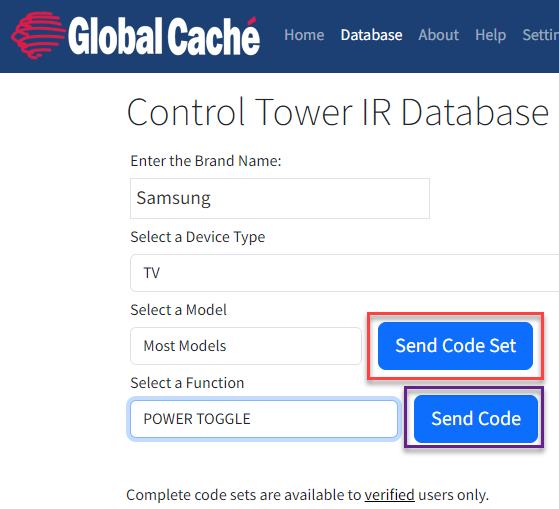
- Codes and code sets will be email from Global Cache
- Power Toggle Function Code example:
function: POWER TOGGLE
code1: sendir,1:1,1,38000,1,1,170,170,20,63,20,63,20,63,20,20,20,20,20,20,20,20,20,20,20,63,20,63,20,63,20,20,20,20,20,20,20,20,20,20,20,20,20,63,20,20,20,20,20,20,20,20,20,20,20,20,20,63,20,20,20,63,20,63,20,63,20,63,20,63,20,63,20,1798
hex code1: 0000 006D 0000 0022 00AA 00AA 0014 003F 0014 003F 0014 003F 0014 0014 0014 0014 0014 0014 0014 0014 0014 0014 0014 003F 0014 003F 0014 003F 0014 0014 0014 0014 0014 0014 0014 0014 0014 0014 0014 0014 0014 003F 0014 0014 0014 0014 0014 0014 0014 0014 0014 0014 0014 0014 0014 003F 0014 0014 0014 003F 0014 003F 0014 003F 0014 003F 0014 003F 0014 003F 0014 0706
- Discover Your IP2IR Device:
- Use Global Cache iHelp to locate your IP2IR device on the network and note its IP address.
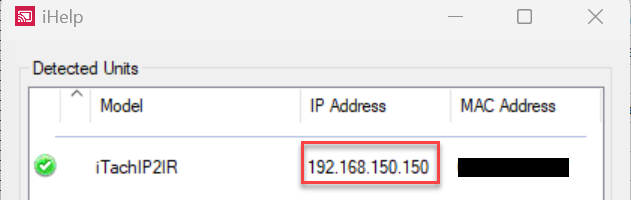
- Add the IP2IR Module to Composer:
- Open your Symetrix Composer site file.
- Select the DSP the IP2IR module will be added to, and open Design view.
- In the Toolkit tab:
- Intelligent Modules > Create or Open Existing > browser to the location the IP2IR Intelligent Module was extracted.
- Open Symetrix_MODULE_GlobalCache-IP2IR_v1-0.mod.
- The module will automatically be added to the Design view
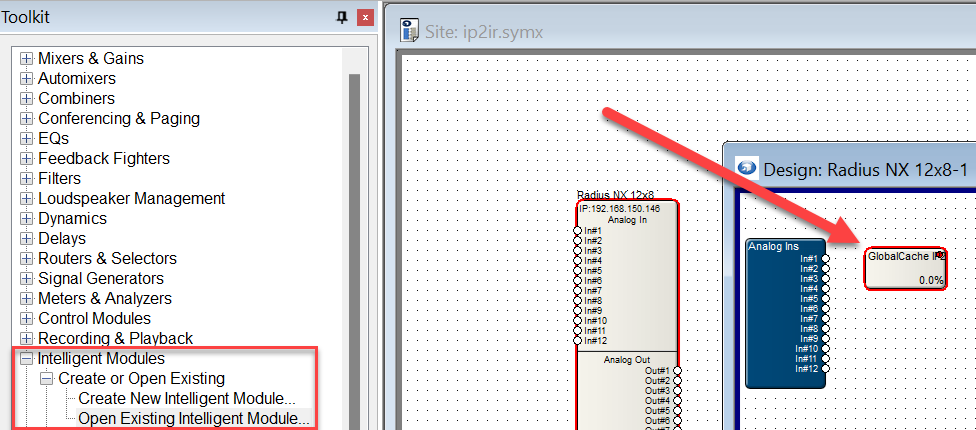
- Configure the IP2IR Module Connection:
- Enter the IP Address found when the IP2IR was discovered in the iHelp app.
- Go online with the site to verify the IP2IR is connected.
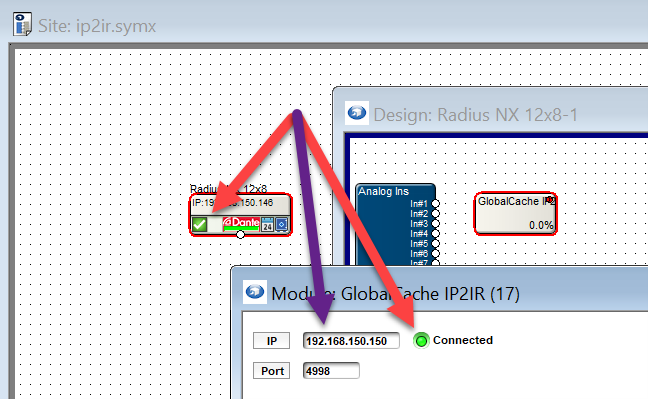
- Add the IR function codes:
- In the command text boxes enter a specific function code, one function per text box.
- Ex. sendir,1:1,1,38000,1,1,170,170,20,63,20,63,20,63,20,20,20,20,20,20,20,20,20,20,20,63,20,63,20,63,20,20,20,20,20,20,20,20,20,20,20,20,20,63,20,20,20,20,20,20,20,20,20,20,20,20,20,63,20,20,20,63,20,63,20,63,20,63,20,63,20,63,20,1798
- In the command text boxes enter a specific function code, one function per text box.
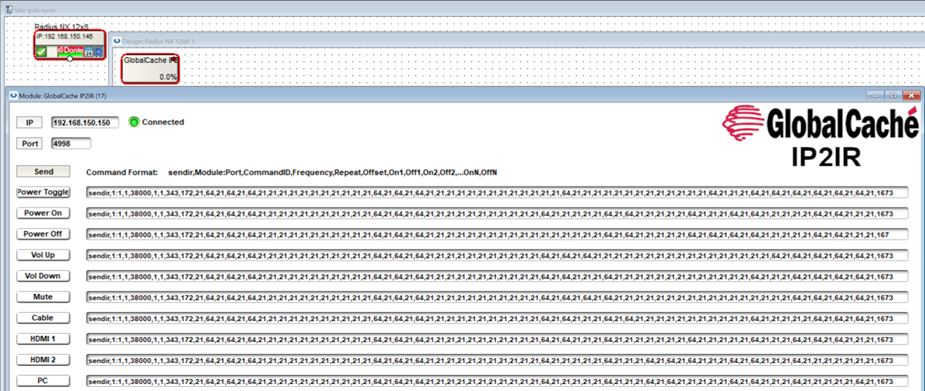
- Test the Connection:
- Click the send button next to the Function command to send that command to the IP2IR device which will then send the command to the TV.
- Digit A is the port on the back of the IP2IR device which the IR transmitter is plugged into. There are 3 options.
- Digit B is the number of times the command will be triggered.
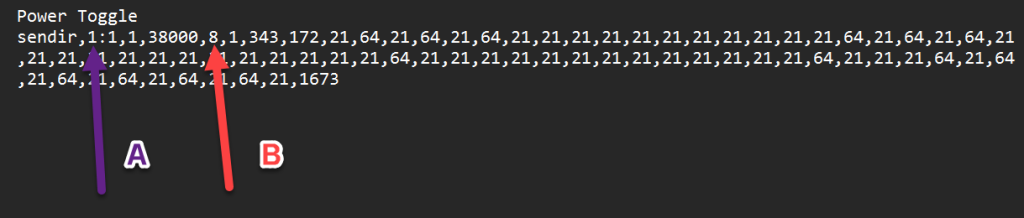
A SPL (Sound Pressure Level) Computer adjusts the level of program material based upon a measurement of the ambient noise. It is typically applied where background, or foreground music must be slightly louder than a variable level crowd noise. Composer has (2) different types of SPL computer
modules available; Gap Sensing and Continuous. The term ‘program material’ will be used to refer to whatever audio signal is sent through the audio path of these modules. Depending on the application, this could be background/foreground music, paging signals, or a mixture of page and music, possibly with ducking. The ambient noise measurement is taken by the SPL Computer through its “Sense In” audio input. In most applications Symetrix recommends using any omni-directional microphone for the sense input.
Gap-Sensing SPL Computer
The Gap-sensing SPL Computer module only listens to the ambient sense microphone during program material gaps, i.e. when the program level is below a certain threshold. This prevents the module from hearing its own output which avoids run-away feedback problems.
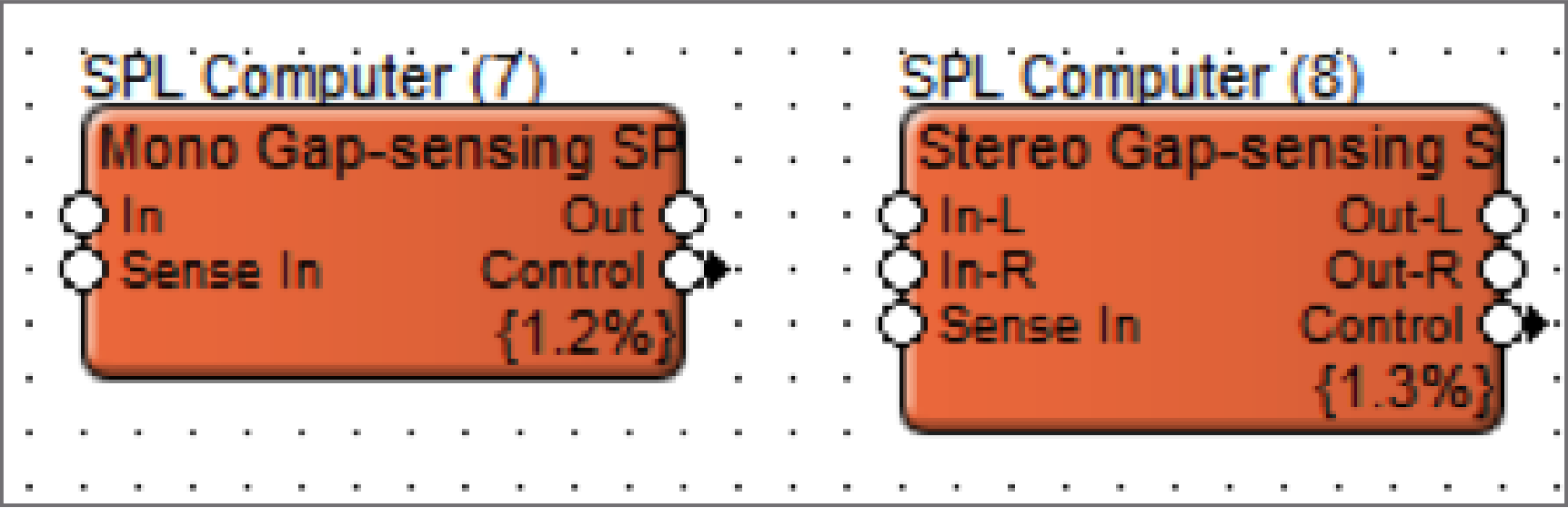
Mono and stereo versions have the same controls. The only difference is that with stereo versions, stereo program material is adjusted. The same gain is applied equally to both channels.
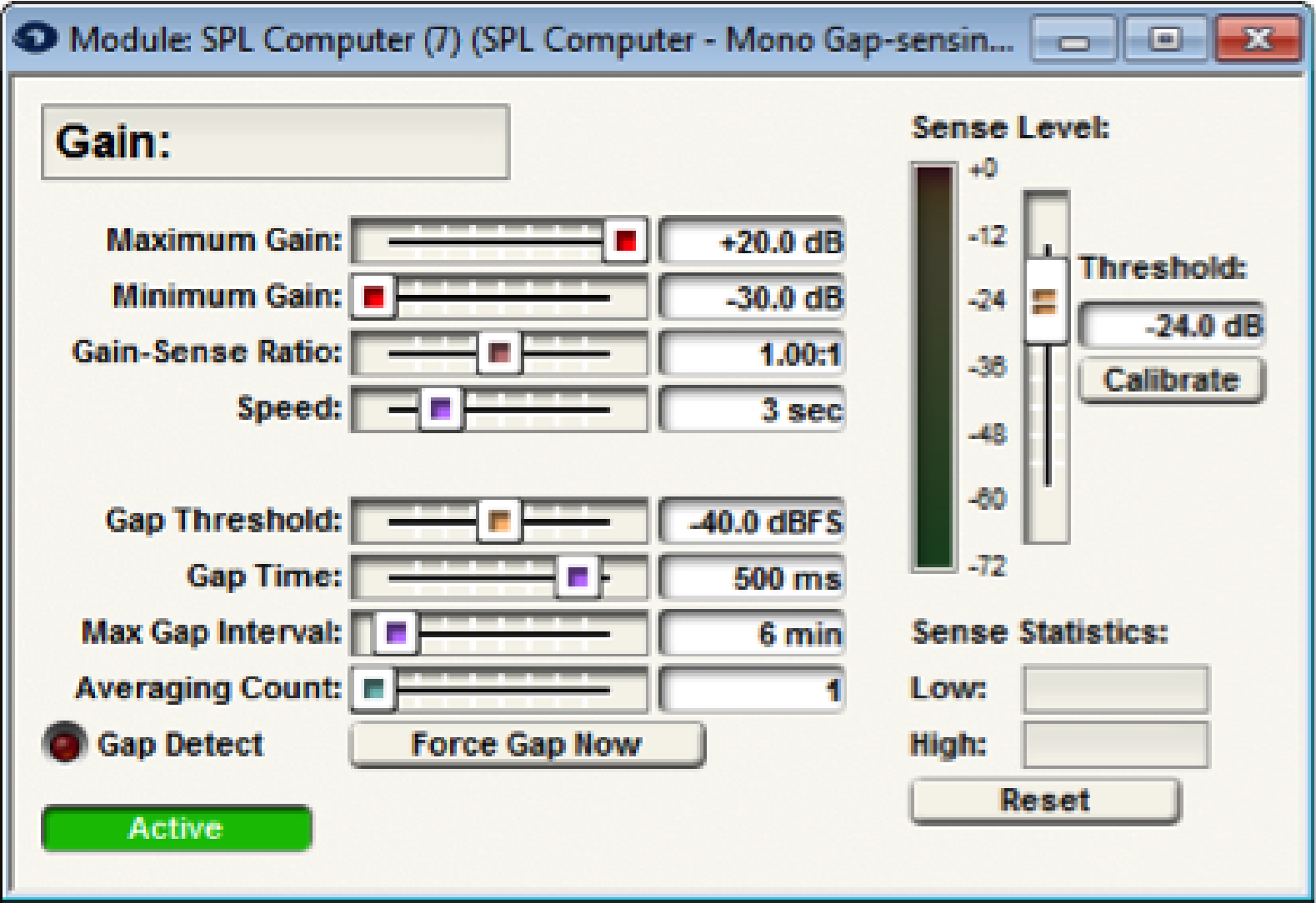
Inputs: In or In-L and In-R. Program material inputs. Connect the mono or stereo program material to these inputs.
Sense In. Sense microphone input. Connect a signal from your sensing microphone to this input.
Outputs: Out, or Out-L and Out-R. Program material outputs with SPL volume applied. Connect these to your main outputs.
Note: Any equalization, dynamics processing, or level changes to the program material must be done before it is sent to the SPL computer. The SPL module should be the last thing in the signal processing chain. The gain stage from the SPL computer to the speakers must remain constant after calibration. This includes analog output block gain settings, power amplifier levels, speaker attenuators, etc… User-controlled loudspeaker attenuators should not be used when a continuous SPL computer is present.
Control: This module has a control signal output. The control signal reflects the dynamic gain change being applied by the module and changes in real time. This control signal can be used to easily create linked multi-channel dynamics modules.
Note: The control signal is scaled so that 1.0 represents the maximum gain that can be applied by the SPL computer
Controls & Indicators:
Gain: The current gain being applied by the module (assuming it is “Active”) is displayed at the top of the window.
Maximum Gain: dB that the SPL computer is allowed to apply to the signal. Use this control to put a limit on how loud the output can get with very loud ambient levels. Adjust using the slider or click in the text entry box to specify a numerical value.
Note: The Maximum Gain cannot be set to a value less than the Minimum Gain.
Minimum Gain: dB that the SPL computer is allowed to apply to the signal. Use this to put a limit on how soft the input can get with very quiet ambient levels. Adjust using the slider or click in the text entry box to specify a numerical value.
Note: the Minimum Gain cannot be set to a greater than the Maximum Gain.
Gain-Sense Ratio: Controls the change in gain versus the change in ambient level. Setting this to 1.0:1 means that for every 1dB increase/decrease in the ambient level, the SPLs gain is increased/decreased by 1dB. Higher values such as 2.0:1 mean that the gain is increased by more than the ambient increase, which allows out-shouting the crowd. A setting of 0.5:1 means that the gain is only changed by 0.5dB for every 1dB ambient change giving a more subtle effect.
Speed: Controls the rate in which the module changes the gain, specified in seconds. Longer times can cause a very gradual fade up or down in response to changing ambient levels.
Gap Threshold: Controls the level under which the program material must be in order for it to be considered a gap. When the program material is less than this level for at least the Gap Time, the Gap Detect LED will light and the SPL will respond to the ambient level. When the program material is above this level, the SPL will not make adjustments based on the ambient level. This level should be set so that the Gap Detect LED lights whenever the program material is soft enough that the ambient sense microphone does not pick up a significant amount of program material, i.e. the ambient noise dominates the program pick-up. By positioning the sense microphone in order to minimize pick-up of the program material, a higher gap threshold can be set and then take sense measurements more often, e.g. in softer musical passages. If the program material has regular gaps (e.g. a paging signal or background music with clear breaks between songs) set this threshold quite low to just above the noise floor of the program material. In doing so, it will only be sensing during actual gaps in the music/paging signal.
Gap Time: Controls the length of time in milliseconds that the program material must be silent (below the gap threshold) to be considered a gap. This setting can be used to compensate for the reverberation time of a live room. It can prevent the algorithm from responding to the reverberation tail of a page or other program material. Settings in the 100-200ms range are good for most environments, though very live rooms may require settings of 1 second or more.
Max Gap Interval: If no gaps occur in the program material in this amount of time, the module forces a gap by momentarily muting the audio. Averaging Count: Averages the number of designated sense readings before calculating a gain change. The Max Gap Interval is used as the sampling rate for the moving average.
Gap Detect LED: This LED lights when a gap is detected and the module is responding to the sense input.
Force Gap Now button: Pushing this button forces a gap a sense immediately by momentarily muting the audio.
Active button: When engaged, this button activates the module so that the gain adjustments are applied to the audio in the signal path. When inactive, SPL calculations are inhibited.
Sense controls:
Threshold: The threshold sets the sense input level at which the module applies unity gain. This should be set to the average or typical ambient level of the room during calibration. The meter displays the average level of the sense input as a reference. Use the fader, or numerical entry to adjust the threshold.
Calibrate button: Forces the threshold to be set to the current meter reading. Ideally, calibration should be done with an average ambient level and no program material playing.
Sense Statistics: Shows the highest and lowest sense values logged since the last reset. Sense values are only logged during gaps.
Reset button: Clears statistic values. Use this feature to monitor the ambient noise levels in a room over time.
Gap-Sensing SPL Composer Calibration Procedure:
When calibrating the Gap-Sensing SPL make sure no program material is playing. Use the Sense Level meter and Threshold fader to select and apply unity gain. Press the Calibration button to force the threshold to be set to the current meter reading. Once unity gain is set, adjust the faders for Maximum Gain (how much louder from unity gain should the SPL Computer be allowed to raise the program material gain), Minimum Gain (how much quieter should the SPL Computer be allowed to lower the program material gain), Gain-Sense Ratio, Speed, Gap Time, Max Gap Interval, and Averaging Count to achieve the desired performance of the SPL computer.
Note: Maximum Gain will put a limit on how loud the output can get with very loud ambient levels, and Minimum Gain will put a limit on how soft the input can get with very quiet ambient levels. Maximum Gain cannot be set to a value less than the Minimum Gain, and Minimum Gain cannot be set to a greater than the Maximum Gain.
Continuous SPL Computer
Continuous SPL Computer listens to the ambient noise level and makes adjustments continuously. The Continuous SPL Computer can therefore be used in environments where there are no gaps in the program material. The module can also be used with program material that contains gaps, but it is recommended that the gap-sensing module be used instead. The gap sensing module is easier to calibrate, can make more appropriate adjustments according to crowd noise, and uses fewer DSP resources. Mono and stereo versions have the same controls. The only difference is that with stereo versions, stereo program material is adjusted. The gain is applied equally to both channels.
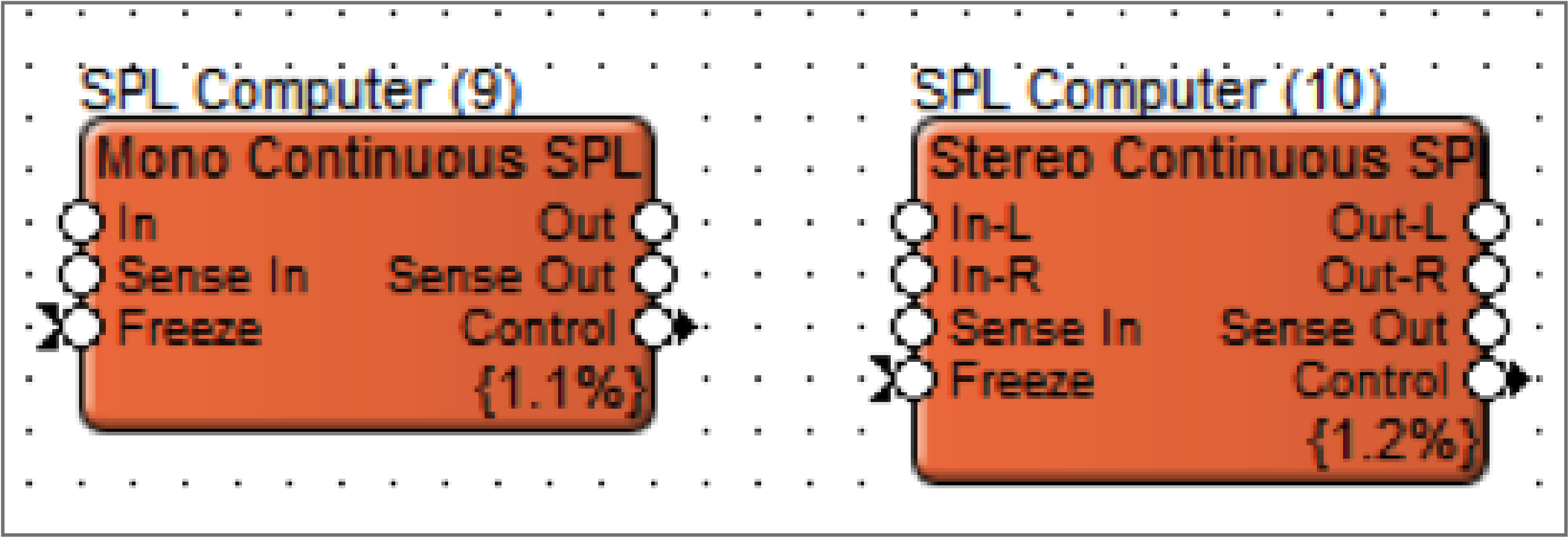
Inputs: In or In-L and In-R. Program material inputs. Connect your mono or stereo program material (foreground/background music or page) to these inputs.
Sense In: Sense microphone input. Connect a signal from your sensing microphone to this input.
Freeze control signal input: This control signal input that can be used to inhibit SPL calculations and hence freeze the SPL gain at the current level. When the Freeze input is at or above 50%, the SPL gain will be frozen (though changes to the Output Trim will still take effect). This feature may be useful for
example in some paging applications to prevent gain changes during a page. If this feature is not required, this input may be left open.
Outputs: Out or Out-L and Out-R. Program material outputs with SPL volume applied. Connect these to your main outputs.
Note: Any equalization, dynamics processing, or level changes to the program material must be done before it is sent to the SPL computer. The SPL module should be the last thing in the signal processing chain. The gain stage from the SPL computer to the speakers must remain constant after calibration. This includes analog output block gain settings, power amplifier levels, speaker attenuators, etc… User-controlled loudspeaker attenuators should not be used when a continuous SPL computer is present.
Sense Out: This is the signal that the module is using to sense ambient level changes. It is the same signal as Sense In except filtered by a voice-band (300Hz – 4kHz band-pass) filter. This signal may be used as a diagnostic to hear what the module is hearing.
Control: The control signal reflects the dynamic gain change being applied by the module and changes in real time. This control signal can be used to easily create linked multi-channel dynamics modules.
Note: The control signal is scaled so that 100% represents the maximum gain that can be applied by the SPL Computer.
Controls & Indicators:
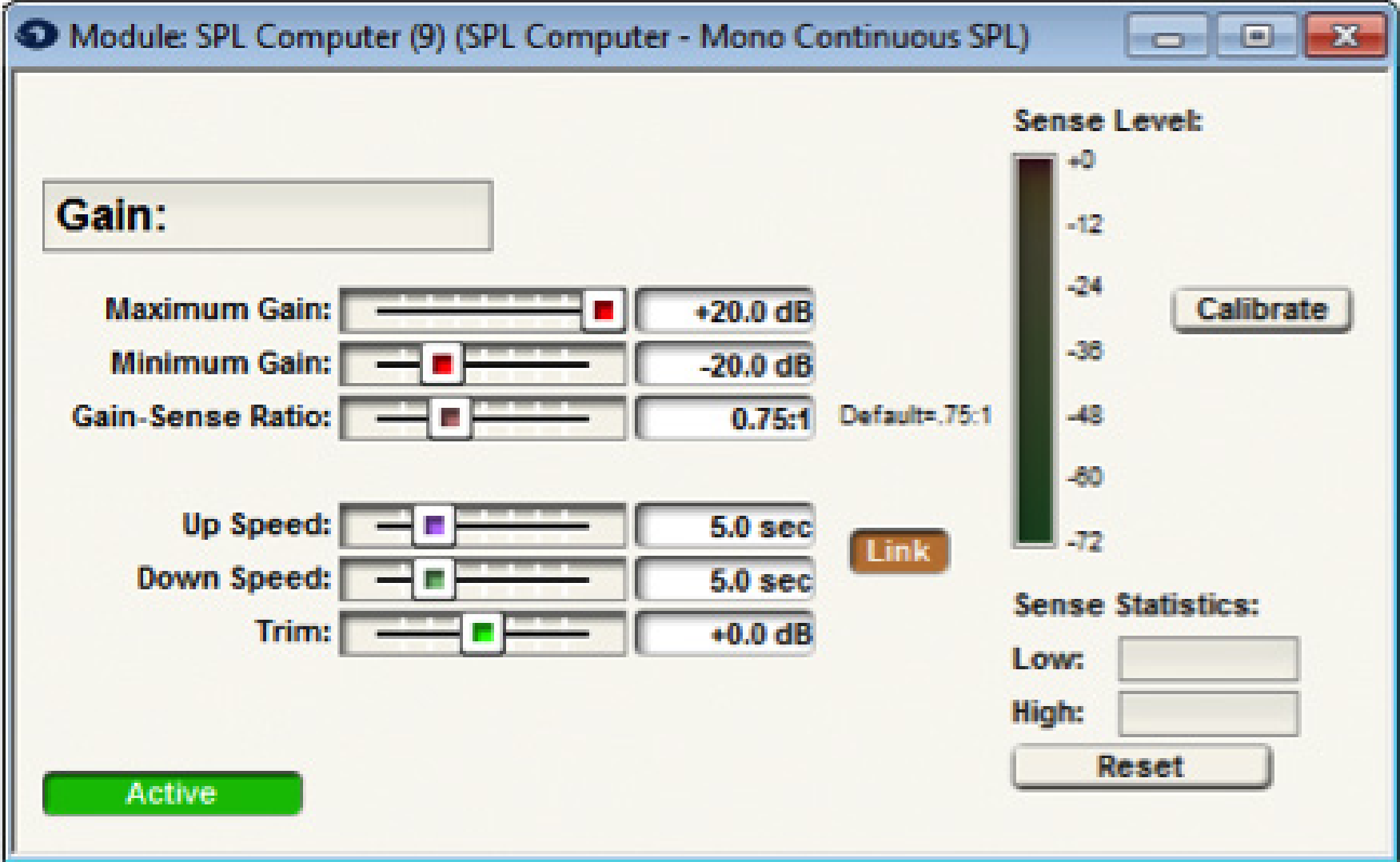
Gain: The current gain being applied by the module (assuming it is Active) including the output trim is displayed at the top of the window.
Note: Before calibration, the display shows Gain: Not calibrated.
Maximum Gain: dB that the SPL computer is allowed to apply to the signal. Use this to put a limit on how loud the output can get with very loud ambient levels. Adjust using the slider or click in the text entry box to specify a numerical value.
Note: the Maximum Gain cannot be set to a value less than the Minimum Gain.
Minimum Gain: dB that the SPL computer is allowed to apply to the signal. Use this to put a limit on how soft the input can get with very quiet ambient levels. Adjust using the slider or click in the text entry box to specify a numerical value.
Note: the Minimum Gain cannot be set to a value greater than the Maximum Gain.
Gain-Sense Ratio: Controls the change in gain versus the change in the ambient level. Setting this to 1.0:1 means that for every 1dB increase/decrease in the ambient noise level, the SPL’s gain is increased/decreased by 1dB. Higher values such as 1.5:1 mean that the gain is increased by more than the ambient increase, which allows “out-shouting the crowd.” A setting of 0.5:1 means that the gain is only changed by 0.5dB for every 1dB ambient change giving a more subtle effect. Use the lowest setting that works for your application, and use caution with gain: sense ratios above 1:1, since these are more likely to be unstable.
Up Speed: Controls the rate at which the module increases the gain, specified in seconds. Longer times can cause a very gradual fade up in response to increasing ambient levels. Technically, the time indicates how long it takes for the gain to change by 10dB, e.g. a setting of one second means a 10dB/ second gain change.
Down Speed: Controls the rate at which the module decreases the gain, specified in seconds. Longer times can cause a very gradual fade down in response to decreasing ambient levels. Technically, the time indicates how long it takes for the gain to change by 10dB, e.g. setting of one second means a 10dB/second gain change.
Note: The settings of Up and Down Speed also have an effect the averaging time of the module. The lesser of the two speed settings is used to control the averaging time.
Link button: When depressed, this button links the up and down speeds so that they can be moved together. This button only applies to changes made from Composer, not from external control. In many installations the up and down speeds will be the same. Separate controls are provided for situations where the noise level changes asymmetrically, e.g. a train terminal that fills slowly, but empties quickly.
Trim: This parameter allows for manual gain adjustments. This output trim is applied on top of the gain that the SPL algorithm dictates, i.e. the actual gain applied is the SPL calculated gain plus the output trim, limited by the maximum and minimum gain applied is the SPL calculated gain, plus the output trim,
limited by the maximum and minimum gain settings. The effect of the output trim is indicated in the Gain display. Before and during calibration, this setting is ignored and treated as if it were set to zero. When the SPL calculations are frozen, changes to output trim will still take effect. If you need to give an end
user some control over volume with an SPL computer module in use, this is the place to do it.
Active button: When engaged, this button activates the module so that the gain adjustments are applied to the audio in the signal path. When inactive, SPL calculations are inhibited, just as if the Freeze control input was on.
Sense controls:
Sense Level Meter: This meter displays the current RMS level of the sense input as a reference.
Calibrate button: Press this button to initiate the calibration process. The SPL Calibration Wizard opens and steps you through calibration.
Sense Statistics: shows the highest and lowest sense values logged since the last reset. Sense values are logged continuously, and this value represents the raw sense input consisting of both ambient noise and program material pickup.
Reset button: Clears these values. Use this feature to monitor the ambient noise levels in a room over time.
How the Continuous SPL Computer Works:
Since a continuous SPL computer makes adjustments while the program material is playing, it must be able to distinguish what is program material and what is ambient noise. In an ideal world, the SPL sense input would be a signal that contains nothing but ambient noise.. However, in the real world, physical
constraints make this impossible. To determine how much of the signal at the sense inputs ambient noise vs. program material a calibration procedure is used. The calibration procedure makes a known change in the program level and measures the corresponding change in the sense input level. By comparing these values it determines the feedback gain, that is, the gain between the SPL outputs and the sense input. (For this reason, the gain between the SPL module outputs and the sense input should remain constant during and after calibration. Remember, a trim control on the Continuous SPL Computer allows for end
user/integrator program material gain changes that will not negatively affect the calibrated operation) During normal operation, the SPL computer algorithm monitors its own output signal, and knowing the feedback gain, it knows how much of its own signal it is receiving back at the sense input. After accounting for that, the remaining signal at the sense input is the ambient noise component.
Sense Input Considerations:
The sense input is typically generated by one or more microphones. If multiple microphones are used, mix them together before sending to the sense input. The microphones and speakers should be configured so that the microphones hear a maximum of ambient noise and a minimum of program material. Directional microphones with the speakers in their rejection axis may be useful. While the
algorithm can discriminate between noise and program material within reason, the less program material pickup there is, the more accurate and stable operation will be. In the perfect situation with 100% ambient noise and 0% program material, gain adjustments will be perfectly accurate and stable. If the program material becomes louder than the ambient noise, the module’s operation is degraded. It is
recommended that the program material level be equal to the ambient noise level, or at worst be no more than 6dB louder than the ambient noise level for proper operation. In an extreme case where the sense microphone picks up nearly 100% music/page (0% ambient noise), the module will not be able to extract enough information to use for gain control and calibration will fail.
Continuous SPL Composer Calibration Procedure:
Composer steps you through calibrating the SPL Computer module. Calibration needs to be performed before the module will function. Before calibration, the module applies unity gain and the gain display shows “Gain: Not calibrated”. (Gain: Not calibrated displayed on the Continuous version only.)
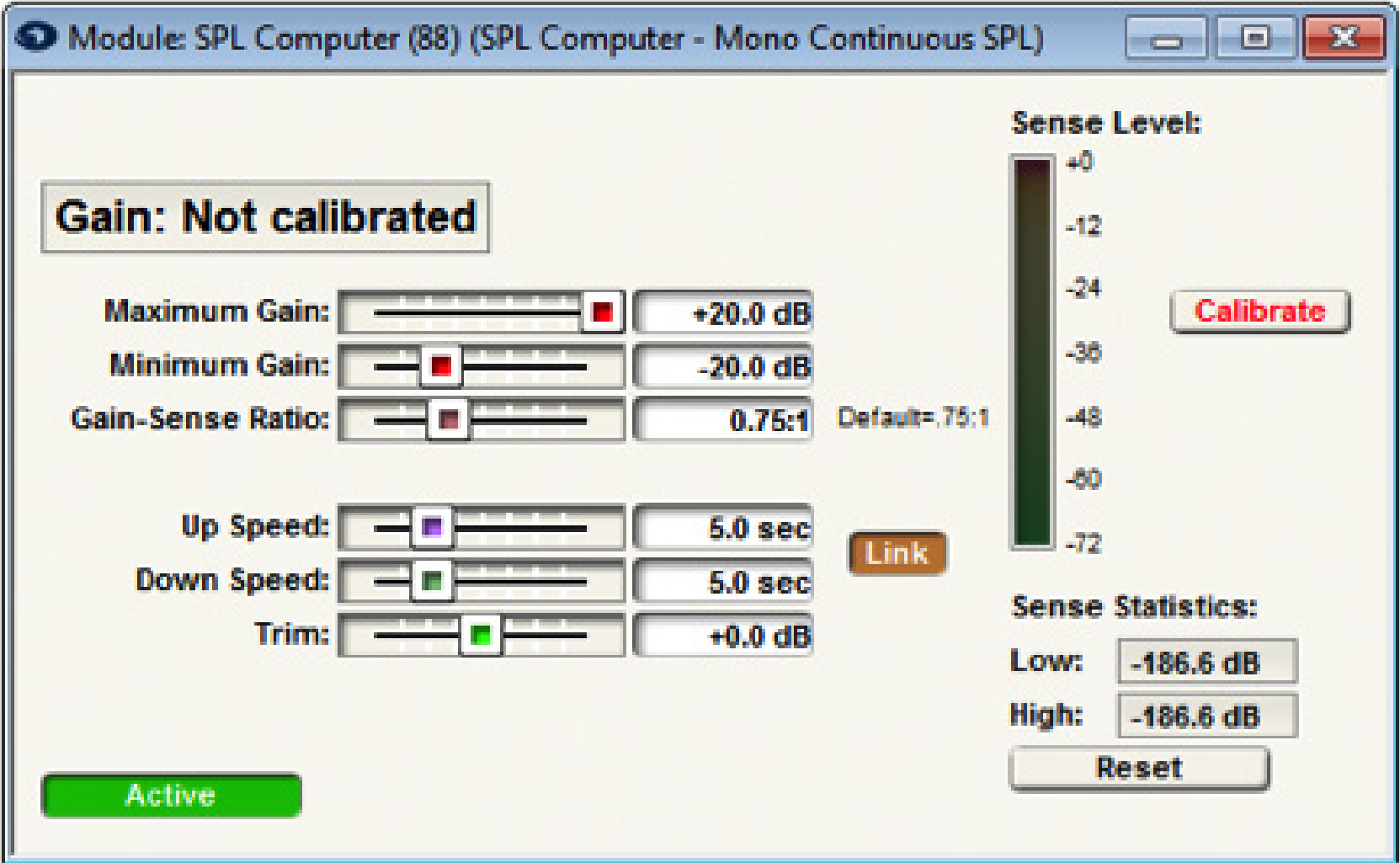
Calibration should be performed when the ambient noise level is at a typical volume. This noise level will become the unity gain point, i.e. the ambient noise level at calibration corresponds to unity gain by the module. Also, must have valid signals at both the “In” and “Sense In” inputs to calibrate. Make sure the
microphone is working and generating a reasonable level, which can be verified using the Sense Level meter. Also make sure that there is typical program material preset as well. If program material is not available, use a pink noise generator as the program material. (In fact pink noise is a very good signal to
calibrate with since it contains a broad range of frequencies and is at a constant level.) The program material should remain at a relatively constant level during the calibration procedure. To initiate calibration, press the Calibrate button. The SPL Calibration Wizard opens, then walks through the calibration process. The first screen allows canceling out of the process if calibration was started accidentally. Hitting the Start button begins the calibration in earnest. The first thing that happens is
that the gain is set to unity and measurements of the program and ambient noise levels are made. After this, adjust the Maximum Gain slider to the desired setting. You will hear the program audio increasing as you increase this setting. You should set the value to at least +6dB for the calibration procedure to work.
(This maximum gain can be adjusted later if necessary.) After the maximum gain setting, hit the Next button. If calibration succeeds, a success message will be presented. If it fails, the reason for the failure will be listed. Some common examples are insufficient level at either the program or ambient inputs.
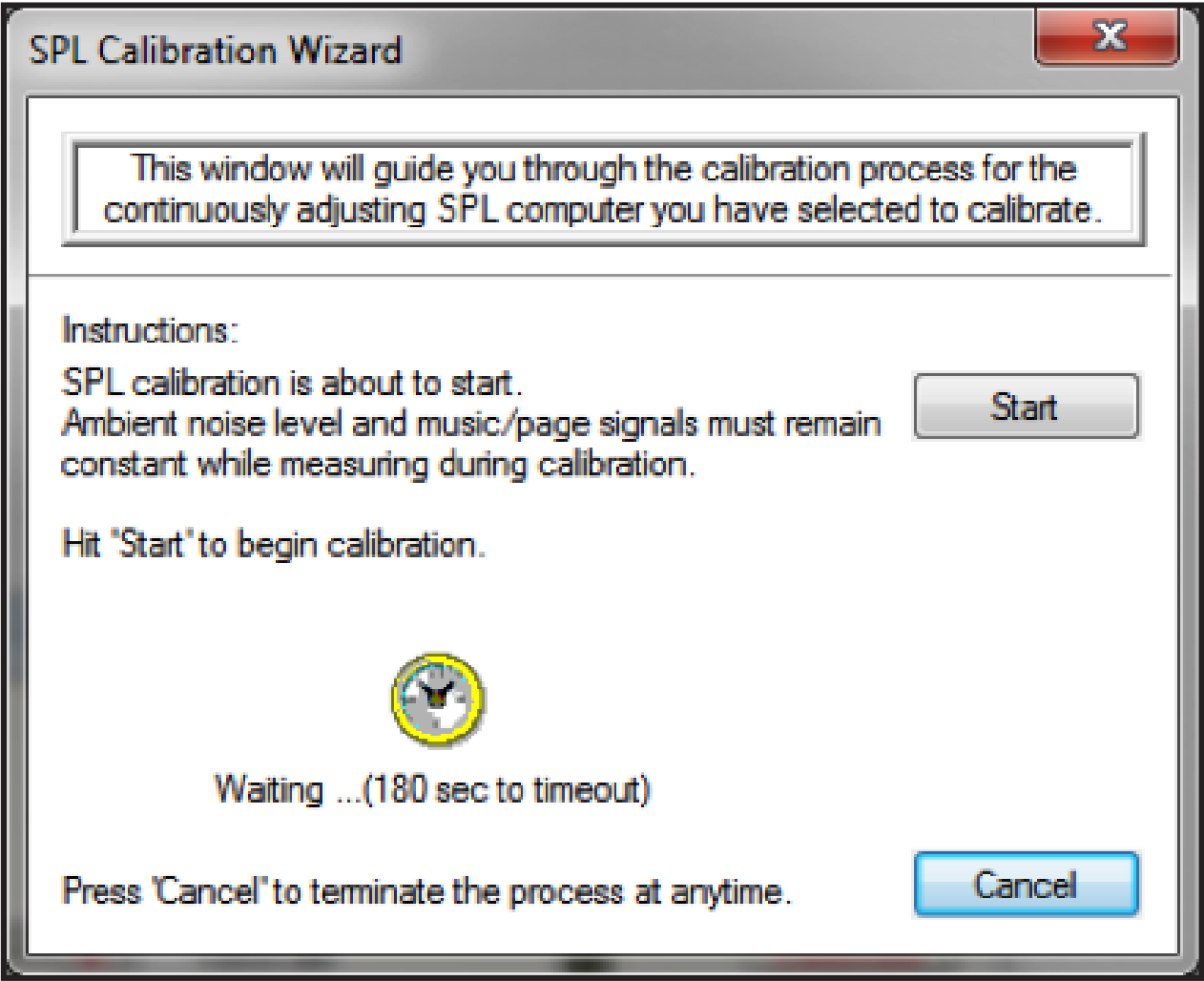
Calibration Step 1
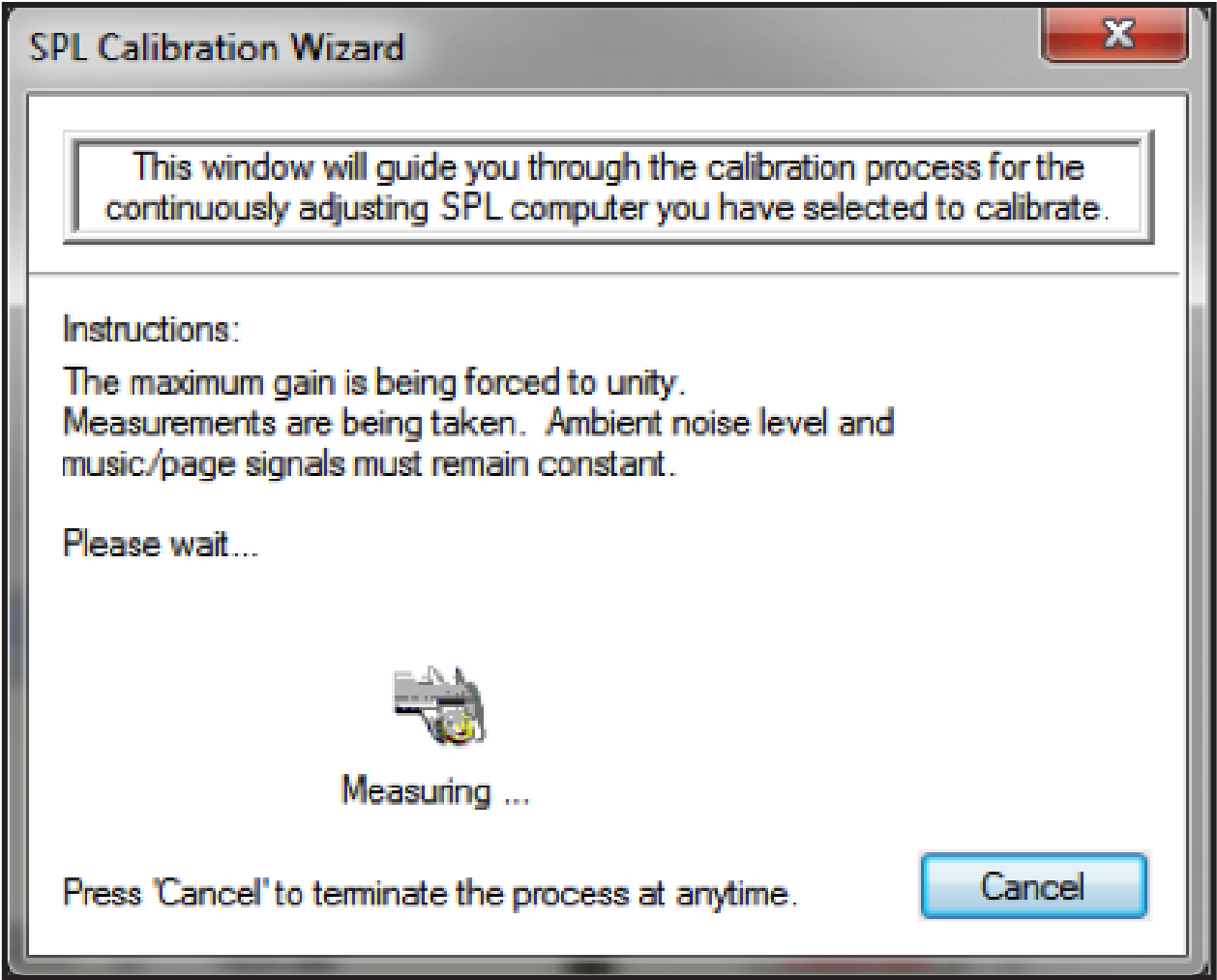
Calibration Step 2
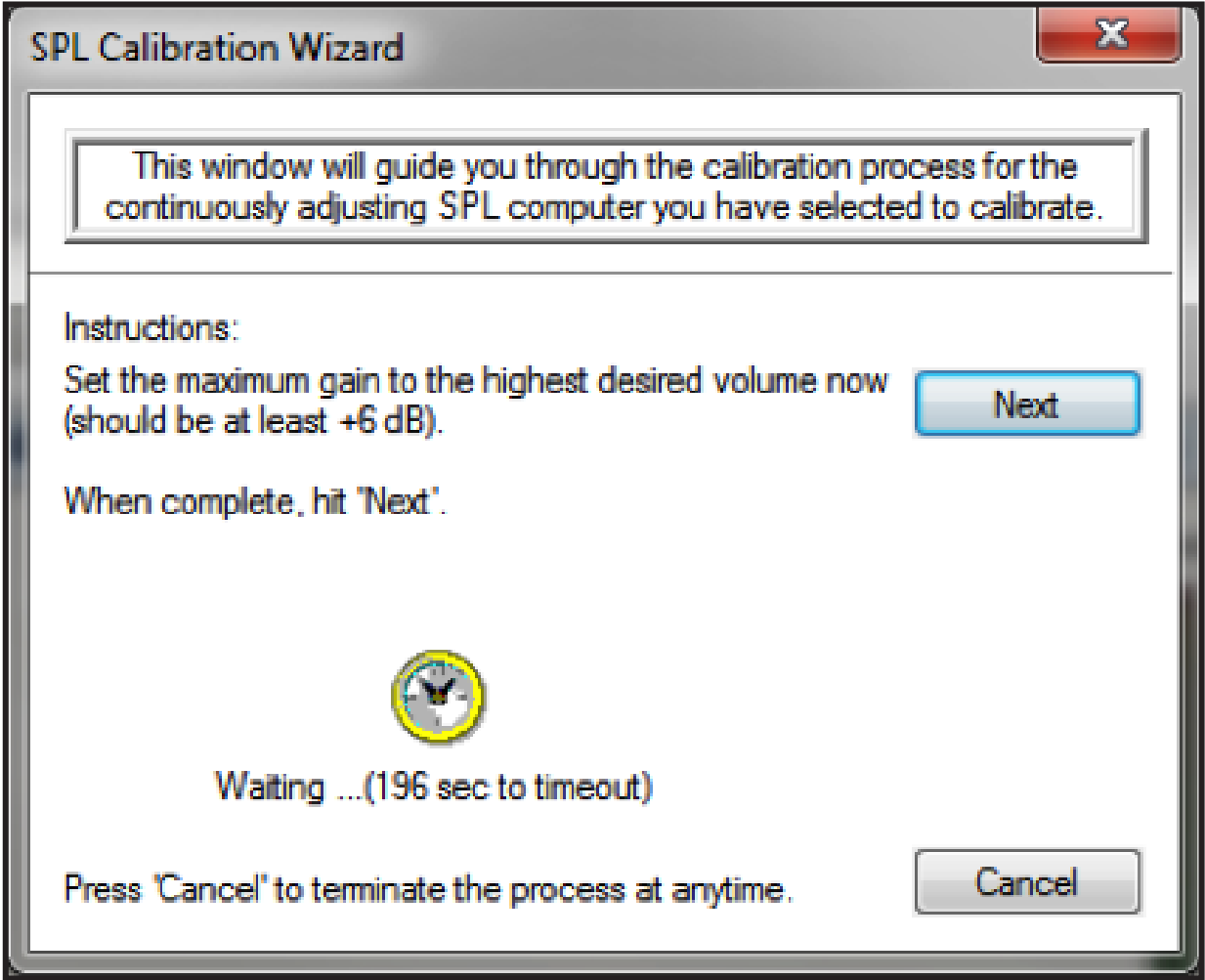
Calibration Step 3
The ambient noise level should remain constant during calibration so that the change due to the increased program material can be clearly heard. If during calibration, the crowd starts yelling or someone drops a platter of dishes, recalibrate! Once calibration is performed, the calibration data will be retained even through re-downloading to the hardware. If the unit is due to be power cycled, be sure to check the “Last Known Operating State” bubble under Power On Control States in the Tools/Site Preferences dialogue of Designer, in order to retain the calibration settings through the power cycle. In Composer go to Tools->Site Preferences and check the “Last Known Operating State” option for the Power On Control States section.
Tips for Difficult Situations:
Great efforts have been made to ensure that the Continuous SPL Computer module does not run-away, that is hear its own signal, increase the gain, leading to hearing more of its own signal, etc. until the gain becomes stuck at maximum. However, in difficult situations where the sense input contains a very large portion of program material, some instability may result. If the gain changes unpredictably or tends to get dramatically too loud or soft, try these tips.
- Re-calibrate. If anything in the sound system has changed since calibration, this may be throwing off the algorithm. Re-calibrating with normal ambient and program material levels will often fix the problem.
- Adjust the microphone/loudspeaker placement to minimize program material pickup. Fixing things acoustically is usually the best remedy. Switching to a directional microphone or adding sound-absorbing material may help. Get a rough idea of what the sense input is hearing just by listening to the Sense Out of the module. If there is a lot of program material and very little else, that is a sign of trouble. Also, at the end of calibration, some statistics are presented that give a more exact indication of noise vs. program material pickup.
- Use a lower Gain-Sense ratio. Lower ratios mean less potential for wild gain changes. Ratios above 1:1 should especially be used with caution. The default of 0.75:1 is good for many applications. Use the lowest ratio you can get away with.
- Use slower speeds. Using larger times for the up and down speeds causes the module to average out level changes over a longer period of time. The slower the speed, the more stable the module will be. Use the slowest speeds that can get away with. Also, if the module is tending to increase gain too much, try making the Down Time shorter than the Up time.
Continuous SPL Technical Notes:
If the calibration procedure succeeds, some statistics are presented showing parameters measured during calibration. These are intended to be diagnostics to help tech support solve problems, but a brief description is given here for the curious. The Music/page level and Noise level values tell how much of the sense signal was calculated to be program material (music/page) vs. ambient noise during the unity gain portion of calibration. Ideally, the noise should be louder than the music page, and the greater the difference the better the module will work. This number can give an indication of how well the microphones are placed to hear the ambient noise and reject the program material. A feedback gain parameter in dB is also presented. This shows the overall “loop gain” from the SPL module output, through the loudspeakers, through the sense microphones, and back to the SPL module sense input.
If the calibration procedure succeeds, some statistics are presented showing parameters measured during calibration. These are intended to be diagnostics to help tech support solve problems, but a brief description is given here for the curious. The Music/page level and Noise level values tell how much of the sense signal was calculated to be program material (music/page) vs. ambient noise during the unity gain portion of calibration. Ideally, the noise should be louder than the music page, and the greater the difference the better the module will work. This number can give an indication of how well the microphones are placed to hear the ambient noise and reject the program material. A feedback gain parameter in dB is also presented. This shows the overall “loop gain” from the SPL module output, through the loudspeakers, through the sense microphones, and back to the SPL module sense input.
What You Should Not Do After Continuous SPL Calibration
Do not adjust the level of any volume controls in the sound system signal path following (downstream from) the Continuous SPL Computer module. Doing so will cause the module to yield erroneous results. This includes controls both inside the unit and those outside of it such as equalizer settings, amplifier input level controls, wall-mounted L-Pad style speaker attenuators, etc. Also, do not insert compressors into the signal path after the Continuous SPL Computer module. If adjustment is needed for amplifier input levels or equalizer settings, re-calibrate the module afterward so the module can adjust to the new levels. If trim is needed for the overall system level up or down after the calibration, the preferred method is to adjust the module’s Output Trim control, through adjusting the signal level upstream from preferred method is to adjust the module’s Output Trim control, though adjusting the signal level upstream from the Continuous SPL Computer module works as well. Do not adjust the gain downstream from the SPL module! Obviously, user-controlled speaker attenuators should not be used with a Continuous SPL computer. Similarly, equalizers after the SPL module should remain fixed after calibration. If adjustable equalization is needed, e.g. treble/bass controls, place the filter modules prior to (upstream from) the SPL computer so it knows about them.
Things to Consider for Both Gap-sensing and Continuous SPL Computer Operation:
Location of Microphone:
Much more important than the type of microphone is its location. The sensing microphone needs to “hear’ the ambient sound within the controlled space. It is vital that the microphone is placed where it primarily picks up a majority of noise rather than the paging or music that is going through the system. Do not locate the sensing microphone near a localized noise source that is not typical of the ambient noise level of the controlled zone. For example, the noise from a large machine of some sort, a kids play area, or a video game, may cause the module to think that the zone is noisier than it really is. The best sense mic placement ensures that the majority of the signal picked up by the sensing microphone is ambient noise. As mentioned above, some programs material pickup is acceptable, but the less there is, the better the module will work.
Signal Path Considerations:
The best place to put the SPL Computer module in the module signal chain is that the very end, right before the output. If this is not possible for some reason, make sure the signal path after the SPL computer is fixed after calibration. For example, if a graphic EQ is used to flatten room response,
complete the EQ tuning procedure before calibrating the SPL computer module and then leave the EQ controls fixed afterward. Speaker protection limiters are OK as well, as long as they are set up so they are rarely reducing the gain (i.e. they are not consistently being driven to the point of limiting).
When to choose Gap-sensing vs Continuous SPL Computers:
Gap-sensing SPL Computer modules only listens to the ambient sense microphone during program material gaps and is best suited for a restaurant or bar type environments. The SPL Computer module will use the ambient noise level of the room between program material and then increase or decrease the
overall program level. Since an averaging count can be set to determine the gain change applied by the SPL Computer, the program material gain changes can be set to change with the trending ambient noise SPL levels rather than adjusting to a specific ambient noise measurement. For instance, the averaging
count could be set to 5 to insure a honking horn next to a restaurant in NYC does not cause the SPL computer to raise the program material gain to it upper limit just because the Gap-sensing SPL Computer took a sample of ambient noise at the time of the honking car.
Continuous SPL Computer modules make adjustments while the program material is playing and is best suited for a stadium type environment where ambient noise level is constantly changing while the program material is playing.
This document describes an easy method for controlling select Juice Goose iP-series power management devices from any Symetrix Composer-based DSP. Using the Super-modules included in Composer 5.6 and later, it is possible to control each outlet individually, all at once, and sequence each up or down. In addition, any standard Composer control can be used to trigger the power conditioner, such as:
- ARC remote wall panels
- ARC-WEB
- SymVue
- Control Server
- Preset recall
- Event Scheduler
- External Control Inputs (GPIO)
This Tech Tip is relevant to the following Juice Goose models:
- IP 1500 Series
- IP 1
- IP PD1-4
The Super-modules can be found in the \\Documents\Composer x.x\Super-modules\examples\3rd Party Control:
Juice Goose iP 1.smfx
Juice Goose iP 1500 Series.smfx
Juice Goose iP PD1-4.smfx
This example uses the IP 1520 model.
- First, enable TCP control on the Juice Goose Management interface.
- Make note of the Juice Goose IP address, as this will be needed in a later step. You may wish to configure a static IP for longevity in permanent installations.
- Import the appropriate Super-module into a Composer Site File.
4. Add the appropriate Super-module to a Symetrix DSP’s Design:
- Double-click on the Super-module to view its user interface, and copy/paste the Juice Goose IP address into all fields (up to 24x):
6. Push your Site File to the system.
This tech tip will explain how to properly integrate the External Control Inputs of Symetrix DSP units (Radius NX, Prism, Edge, xControl, Jupiter, Zone Mix 761). Both the physical hardware connections and programming setup will be covered.
Each External Control Input, also known as an Analog Control Input or GPIO, can be configured in one of two modes; as a dual switch closure or a potentiometer.
Dual Switch Closure mode is most commonly used with PTT/PTM (Push To Talk/Push To Mute) buttons on microphones, for an Emergency System/fire alarm relay connection that will mute or override the audio system, and for Room Combining that use switches on moveable wall partitions. The potentiometer mode is typically used to create an inexpensive, volume control for an input, source, zone, or output.
Zone Mix 761
Note: The Jupiter or the Zone Mix 761 supports a combination of up to 2 potentiometers or 4 switch closures.
Radius NX/Prism/Edge, xControl
Note: Edge, Prism, Radius NX, supports a combination of up to 4 potentiometers or 8 switch closures. xControl supports a combination of up to 8 potentiometers or 16 contact closures.
Using standard shielded twisted pair terminated with a terminal block on one end, External Control Inputs may be freely assigned to parameters in the Symetrix DSP hardware. The operational mode (switch closure vs. potentiometer) must first be configured while on-line or off-line using the Configure External Control Inputs dialog. While on-line with the DSP using the Symetrix software, a potentiometer can be calibrated for maximum travel or scaled as described later in this document.
Typical Control Switch Wiring
Note: +V(OUT)=A, INPUT=B
Typical Control Potentiometer Wiring
Configuring External Control Inputs in a Jupiter or Zone Mix 761:
Example 1: Switch Closure
This example will step through the setup of an Emergency System fire alarm mute in the Zone Mix 761 where the fire alarm relay connects to External Control Input 1A. The process is virtually identical for the Jupiter software/hardware.
First, make the physical connections using the above picture as a guide. Then, once the Zone Mix 761 software is online with the hardware, launch the External Controller Wizard. It should be noted that configuring the External Control Inputs on a Jupiter or Zone Mix 761 is straight forward since the External Controller Wizard simplifies the process.
Choose Add New External Controller, select Switch or Control Voltage and then click Next.
Now give the switch a descriptive name based on where in the venue it is located or based on what function it will provide. For example, the name could be as simple as “Switch” or as descriptive as “Fire Alarm relay”. Select the “Emergency” option for the Switch Function and click Next.
On the next page choose the desired function that will trigger based on the state of the input connection provided by the emergency fire alarm system. The two options are: Mute All Outputs or Route Input 3 to Specified Outputs at a Pre-Determined Volume Level. Select the appropriate function and click Next.
For an Emergency Fire Alarm Mute select the “Mute All Outputs” option and click Next.
On the next page, remember to select the correct physical External Control Input that the emergency system relay will connect to. This example uses Switch Closure 1A.
Once the correct input is selected, click Next.
Now, select the emergency route logic based upon how the Emergency relay functions. For reference, the software presents a few practical examples: Normally Open/Active Low and Normally Closed/Active High. Click Finish to close the External Controller Wizard or Next to return to the first page and setup another ARC remote.
Example 2: Potentiometer
This example will step through the setup of a potentiometer in the Zone Mix 761 where the RC-3 connects to the External Control Input 1. The process is virtually identical for the Jupiter software/hardware. Once connected, you can launch the External Controller Wizard and add it to your configuration.
Choose Add New External Controller, select Potentiometer (RC-3) and then click Next.
The RC-3 can control any of the twelve input volumes, the two program volumes per zone, the six zone volumes, the six output volumes, or sets of linked volumes. The particular gain stage the RC-3 will control is selected with the Parameter drop-down menu.
It may be a good idea to give the RC-3 a descriptive name based on where in the venue it is located or based on what function it will provide, especially if both External Control Inputs have a potentiometer or RC-3 connected. Click Next when done.
Select the appropriate External Control Input and click Next.
On the calibrate page, the range of the controller fader can be restricted or scaled by typing the value in Upper and Lower Limits. When finished, click Next.
In this step, calibrate the potentiometer to the 761’s External Control Input to ensure the full travel of the pot is utilized. The Zone Mix 761 software must be on-line for the calibration function to work. Rotate the pot fully counterclockwise (CCW) and click the Set Minimum Position button. Now, rotate the pot fully clockwise (CW) and click the Set Maximum Position button. Once completed, click Next and the software will return to the External Controller Wizard’s opening screen. Continue to add controllers or edit existing
ones if needed. If finished, click the Finish button to exit the External Controller Wizard.
Configuring External Control Inputs in Radius/Prism/Edge, or xControl:
Example 1: Switch Closure
This example will step through the setup of an Emergency System fire alarm
mute for a system using Composer software, where the fire alarm relay output connects to External Control Input 1A on an xControl. The process is identical for setup and assigning External Control Inputs on an Edge, Radius or Radius AEC.
After making the physical connections, while in Schematic Edit Mode, configure the External Control Inputs by right-clicking on the unit in Design View and select “Configure External Control Inputs…”:
Remember to select “Dual Switch Closure for the input the Fire Alarm relay connects to.
Now that the External Control Inputs are configured, here is one example of control logic programming for an emergency mute/unmute function in Composer 2.0 software.
Note: Alternative logic programming examples are located at the end of this section.
Double click the “1 Button Latched” module to open its user interface. Then assign the selected Analog Control Input to the “On’ button by right-clicking directly on the “On” button and selecting “Set Up Remote Control.”
Click the drop down arrow under Remote control device and select “Remote Analog Input – ‘xControl’” to assign an External Control Input from the xControl. For assigning an External Control Input from an Edge or Radius choose the “Local Analog Input –“Radius12x8-9” or whatever “Remote Analog Input” is appropriate.
Click the drop down arrow under Select Analog Control and choose the switch input that matches the physical wiring on the External Control Input. This example uses Switch 1A. Select OK when finished.
Once the External Control Input is assigned to a fader or button an A1 “Highlighted Assigned Control Indicator” appears super imposed on the “On” button.
Note 1: Alt+M or Tools->Super Impose Assigned Controllers must be checked.
Note 2: If the system mute performance is inverted set the Off Level to 100% and On Level to 0.0%.
Double click the “2 Input Logic” module and select “OR”. When the button is triggered, it will set the output signal to True or False when the button is On or Off, respectively.
Double click the “Preset Trigger 1” module and assign Preset #999. Composer 2.0 automatically creates Preset#999 to mute the hardware without affecting the individual output mute states. This will mute all hardware when the latched button is triggered by the fire alarm relay.
Double click the “Preset Trigger 2” module and assign Preset #1000. Composer 2.0 automatically creates Preset#1000 to unmute the hardware without affecting the individual output mutes states. This will unmute all hardware when the fire alarm relay is reset.
Note: In the Preset Manager for Composer 2.0 Preset #999 and #1000 are pre-configured for the emergency mute/unmute function, equivalent to the F2 button in Composer. 999 = Mute All Hardware. #1000 = Unmute All Hardware.
Alternative Methods:
In this example an “Inverter” module is used in place of the “2 Input Logic” module and will perform the same function as the “False” output of the 2 Input Logic (11) module from the previous example.
Here, a Super Module from Tools->Super-Module Library Manager is used for the Emergency System Mute.
Once completed, Push the file to the system.
Example 2: Potentiometer
This example will step through the setup of a potentiometer in the system using Composer 2.0 software, where the RC-3 connects to the External Control Input 1on an xControl. The process is identical for setup and assigning External Control Inputs on an Edge, Prism, or Radius.
Note: In potentiometer mode, A is the +V output and B is the voltage input.
After making the physical connection, configure the External Control Inputs by right-clicking on the unit in Design View and select “Configure External Control Inputs…”:
To configure the input for use with a potentiometer, select the appropriate input tab, and then select the “Pot – Connect a variable voltage input (0-5V)” radio button. Select “OK” when finished.
Pot Calibration:
Note: SymNet Composer must be connected to the DSP hardware with the input configured as a “Pot” in order to calibrate the input. The potentiometer must be physically wired to the External Control Input as well.
Calibrating the External Control Input determines the way the 0-5V potentiometer affects Composer parameters. There are two separate areas that can be altered:
- Compensation for pots that don’t get all the way down to 0V or all the way up to 5V. This could happen because of characteristics of the pot itself, or resistance in the connection between the pot and the unit, especially with long wire runs. This is referred to as Calibrating Pot
Range below. - Limiting the range of parameters controlled by an analog input. This is referred to as Calibrating Control Range or scaling the range.
This setting should match the control input of the pot being calibrated. If a pot is connected and the settings are correct, turning the pot should move the small indicator along the Current input position line. The value of the pot (0-255) is also updated to show the current level generated by the pot. Zero represents GND or 0V, 255 represents 5V, and the range is linear.
Calibrating Pot Range:
To compensate for a pot that does not cause its assigned fader in software to travel the entire range when the physical pot is turned to is lowest and highest position, make sure the pot is connected to the one of the 8 External Control Inputs and the correct input tab is selected in the Config External Control Inputs Window of Composer 2.0. Turn the pot to its minimum value (usually all the way counterclockwise). Click the “Set Minimum Position” button. Next, turn the pot to its maximum value (usually all the way clockwise). Click the “Set Maximum Position” button.
Note: These settings can be used to compensate for a reverse-wired pot. To reset the calibration, click the Reset Min/Max Positions and they will be returned to their defaults.
Calibrating Control Range:
It may be desirable to limit the end user range of a potentiometer connected to an External Control Input and its effect on a gain stage. For example, if a pot is controlling a volume fader, it may be preferred to limit the fader range the end user can access from -30dB to 0dB rather than the full -72dB to +12dB range allowed in the software.
To limit the upper range of a control, enter a value less than 100% for the maximum level. To limit the lower range of a control, enter a value greater than 0% for the minimum level. When set to 100% and 0%, the control is allowed to travel the entire range shown in the Composer GUI. Other values reduce this range accordingly. Some experimentation may be required to find the percentage values that limit a range appropriate the current application. As an example, for a fader with ranges -72db to +12db, 84% is equal to 0dB.
Important Notes:
By setting the minimum value to a number larger than the maximum value, it is possible to reverse the operation of the pot or compensate for a reverse-wired pot. To reset the calibration, enter 100% for the maximum level and 0% for the minimum level.
If it is desired to reset all analog calibration data for a unit, use the Erase Memory command found under Hardware->Upgrade Firmware. Select only Analog Calibration Settings and hit ERASE.
All settings made using this dialog box are stored in the hardware, not in the site file. Changes made take effect immediately without the need to download the entire site.
Assigning a Parameter:
Right-click directly on the parameter and select “Set Up Remote Control.”
Click the drop down arrow under Remote control device and select “Remote Analog Input – ‘xControl’” to assign an External Control Input from the xControl. For assigning an External Control Input from an Edge or Radius choose the “Local Analog Input –“Radius12x8-9” or whatever “Remote Analog Input” is
appropriate.
Click the drop down arrow under Select Analog Control and choose the pot that matches the physical wiring on the External Control Input. Select OK when finished.
Once the External Control Input is assigned to a fader a P1 “Highlighted Assigned Control Indicator” appears super imposed on the GUI. Note: Alt+M or Tools->Super Impose Assigned Controllers must be checked.
Once completed, Push the file to the system.
The purpose of this Tech Tip is to provide information on creating SymVue Dialer Control Screens for both the 2 Line Analog Telephone Interface Card and 2 Line VoIP Interface Card. Step by step instructions will be given on how to create the Control Screens and export them to SymVue.
SymVue is a real-time user control panel application that displays Control Screens exported from Composer functioning as a multiuser, multi-point control environment for Symetrix systems.
SymVue runs on any Windows XP or newer compatible device, including touch screen enabled PCs and tablets. The computer communicates directly with Symetrix hardware over a network connection. The desired user control interface is created in Composer as a Control Screen then exported to one or many Windows devices for tailored operation of the Symetrix system.
The Input Modules for both the 2 Line Analog Telephone Interface Card (ATI) and 2 Line VoIP Interface Cards can be exported to Control Screens. These Control Screens can be used to provide remote control interfaces (Dialers) for the ATI and/ or VoIP cards without the need or use of complicated 3rd party control systems. SymVue Dialers can be custom tailored to perform any or all of the functionality of the ATI and VoIP modules. These functions can include, but are limited to:
- Detect and answer incoming calls
- DTMF tone dialing
- Speed-dialing (edit and recall)
- Redial
- Do not disturb
- Caller ID
- Call transfer
- Call hold
- Call reject
- Local three-way audio conferencing
- Conferencing and splitting of call appearances
Here are some examples of the different styles of Dialers that can be created:
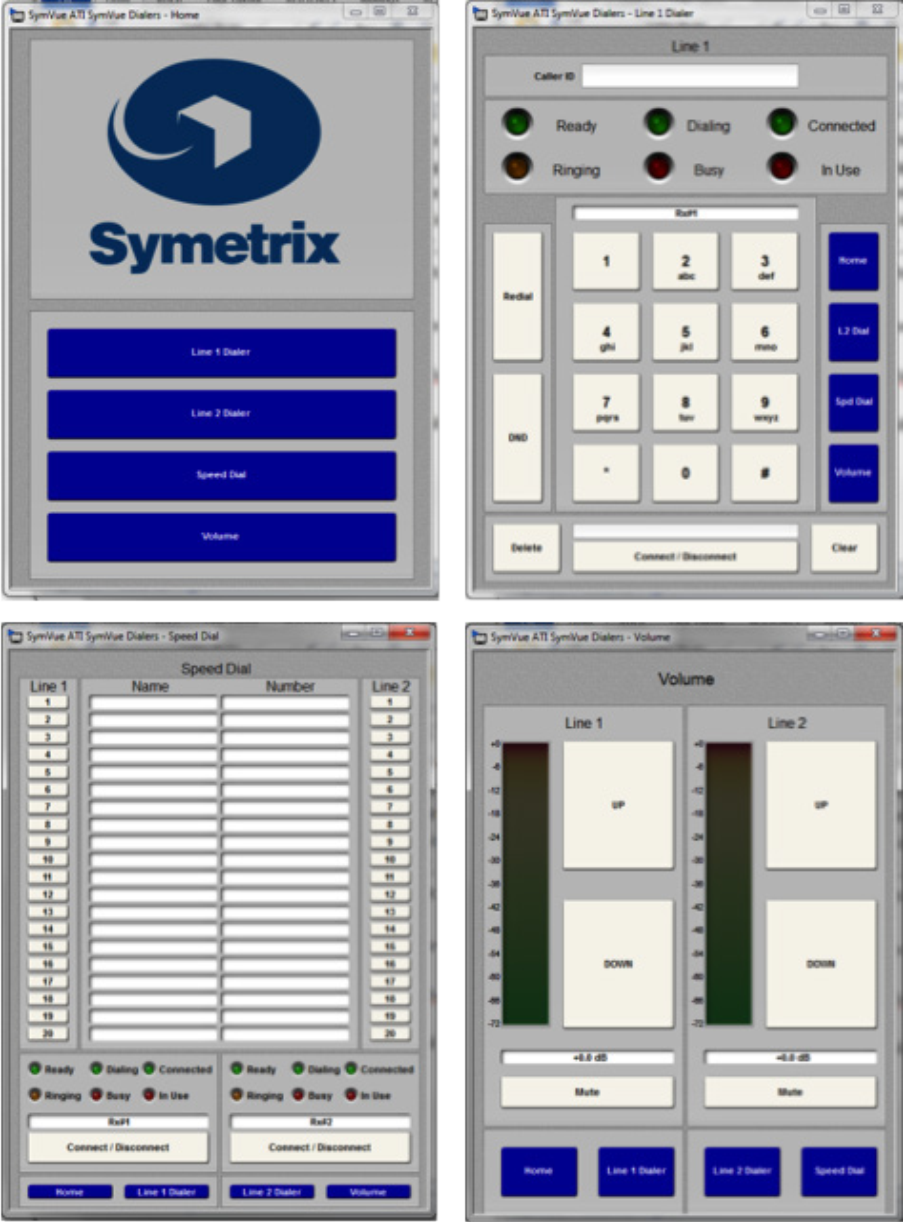
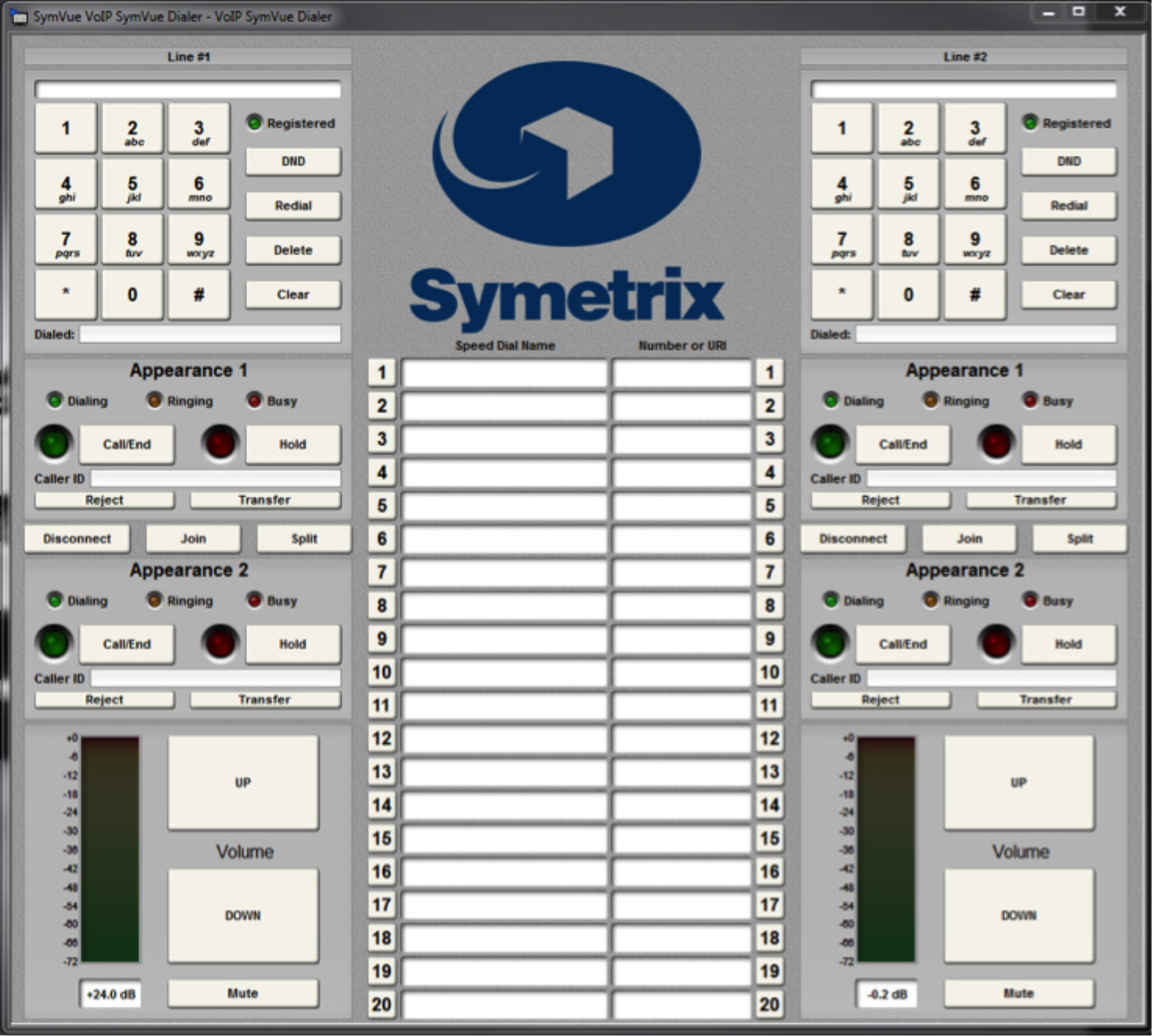
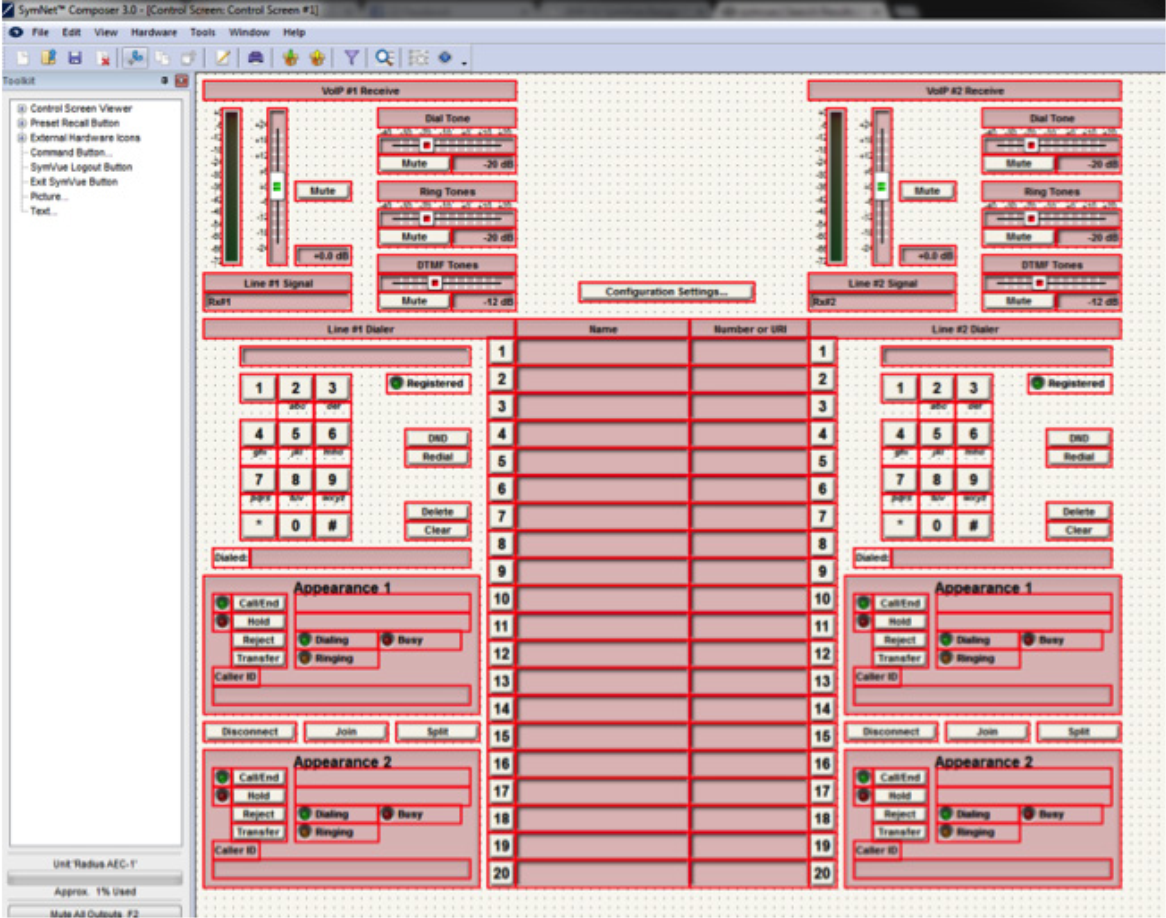
Instructions
1 Make sure the ATI or VoIP Interface Card has been properly installed into the Radius AEC or Edge Hardware.
install
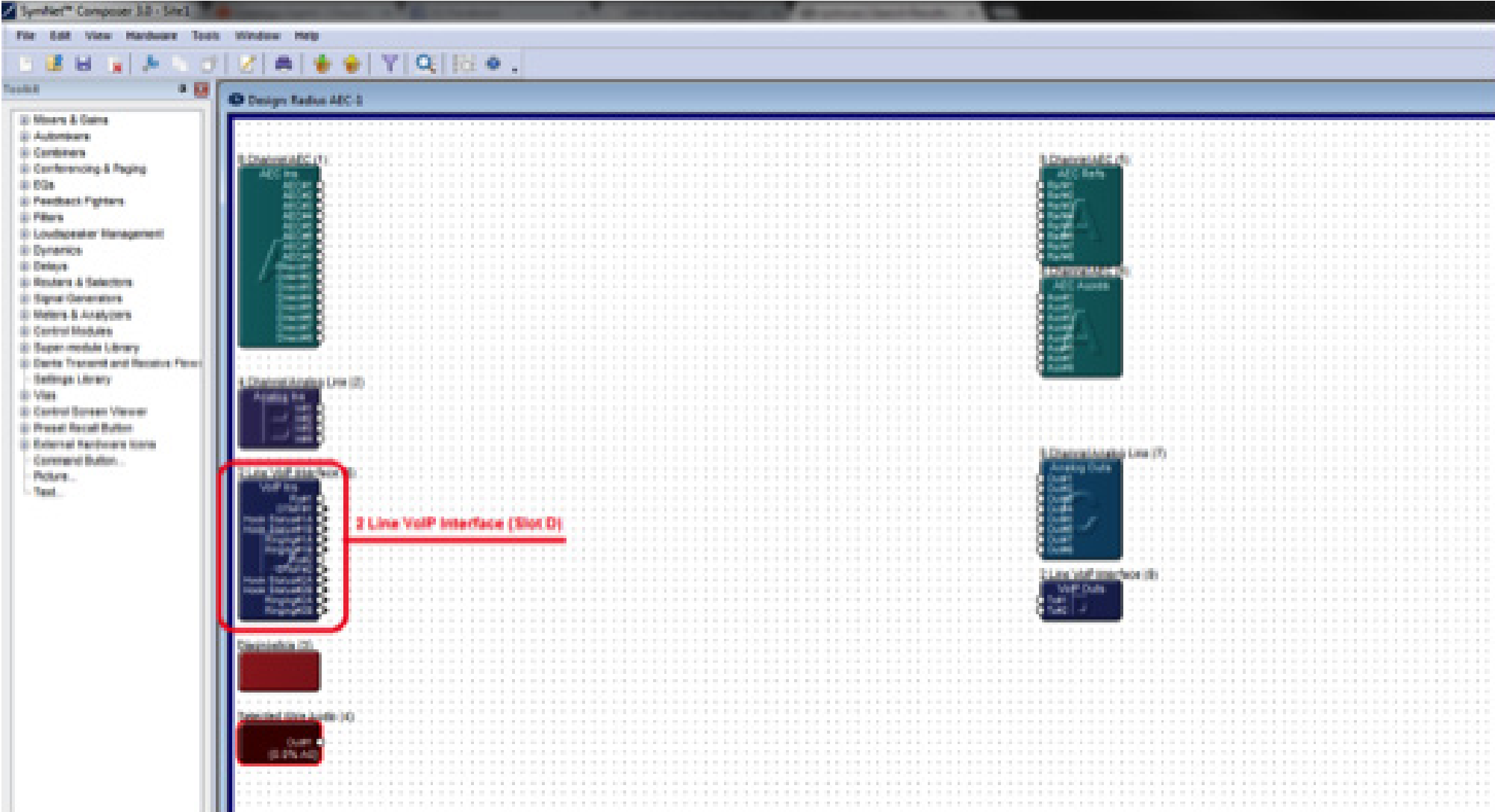
Once the card has been properly installed, the Input Modules will appear on the Design View screen of the site file.
Note: The Input Module will reflect the card slot location (A, B, C, or D). The SymVue Dialer being created will be linked to that specific card slot.
Note: SymVue Dialers can be created without having the ATI or VoIP card installed. Simply right-click the Radius or Edge in the Site View screen of the site file and select “Configure I/O Cards”. Then select the correct card for the specific card slot.
2, Double click and open the Input Module for the ATI or VoIP Interface.
3. Right-click on an open section of the module and select “Copy Entire Layout to Control Screen”.
4. Select “New Control Screen”, unless a Control Screen has already been created and it is being added onto.
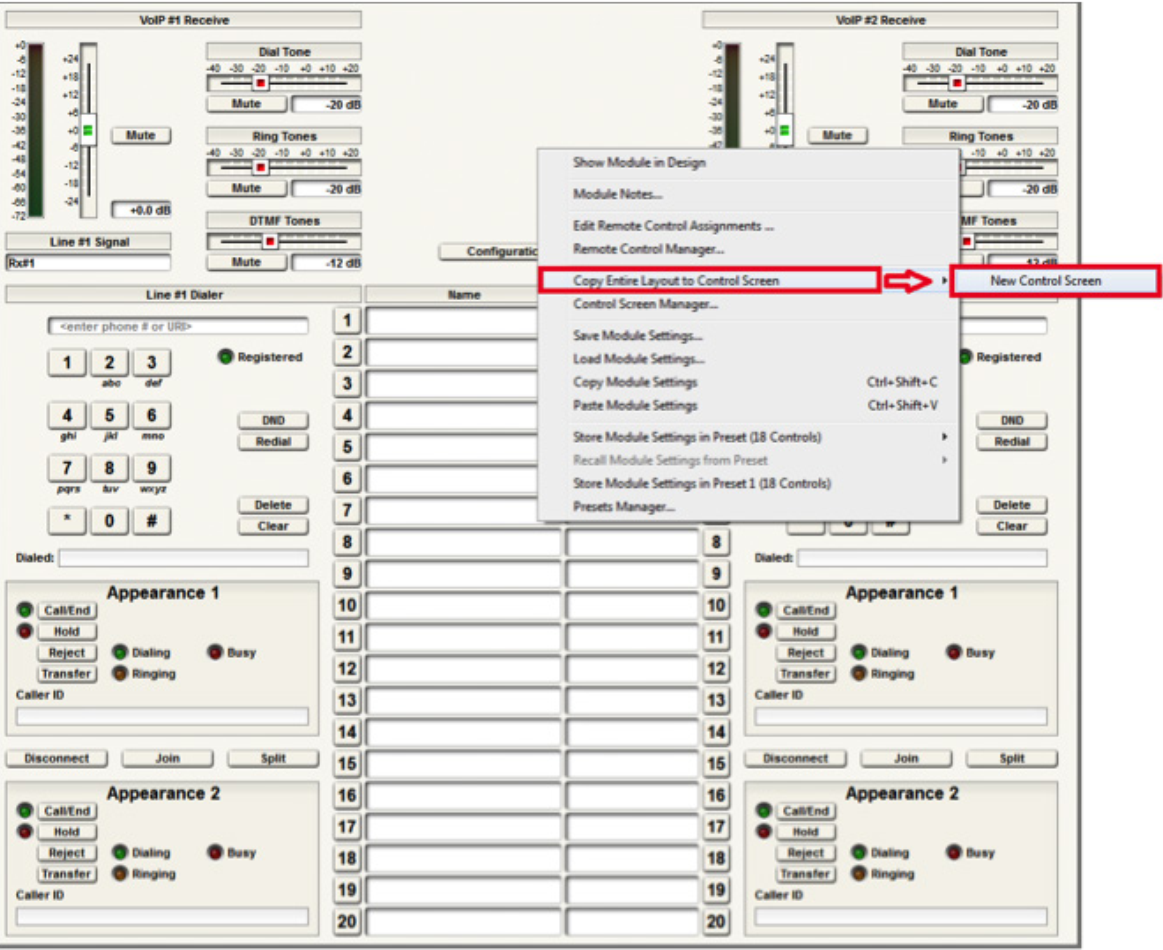
Note: individual pieces can be selected by right-clicking on the desired piece (i.e. button or fader)
The pre-built example SymVue Dialer has been tailored to use buttons instead of faders for volume control. A “2 Button Momentary” module is used connected to a “Button Ramp” Super Module (available in Super Module Tools folder). The Super Module is then connected to “Output Control Number” modules. The control numbers used by the “Output Control Number” modules are assigned to the volume fader. The “On” buttons for the “2 Button Momentary” module are copied to the control screen.
5. The functions of the Input Module have now been copied to the Control Screen and can now be tailored for specific look and operation.
export
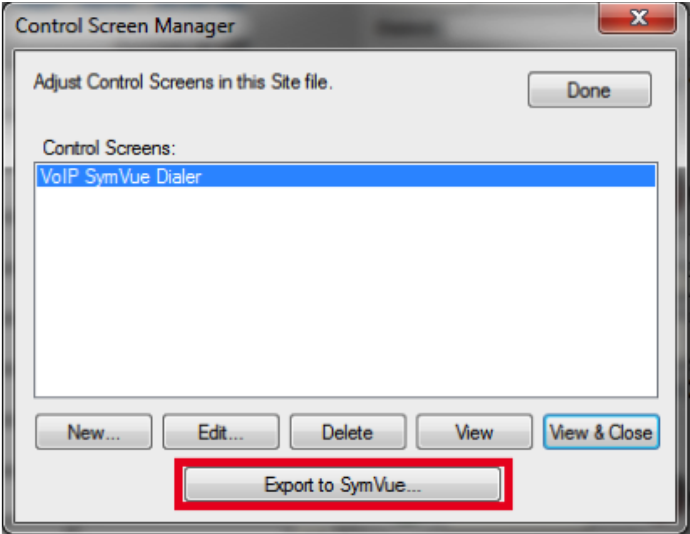
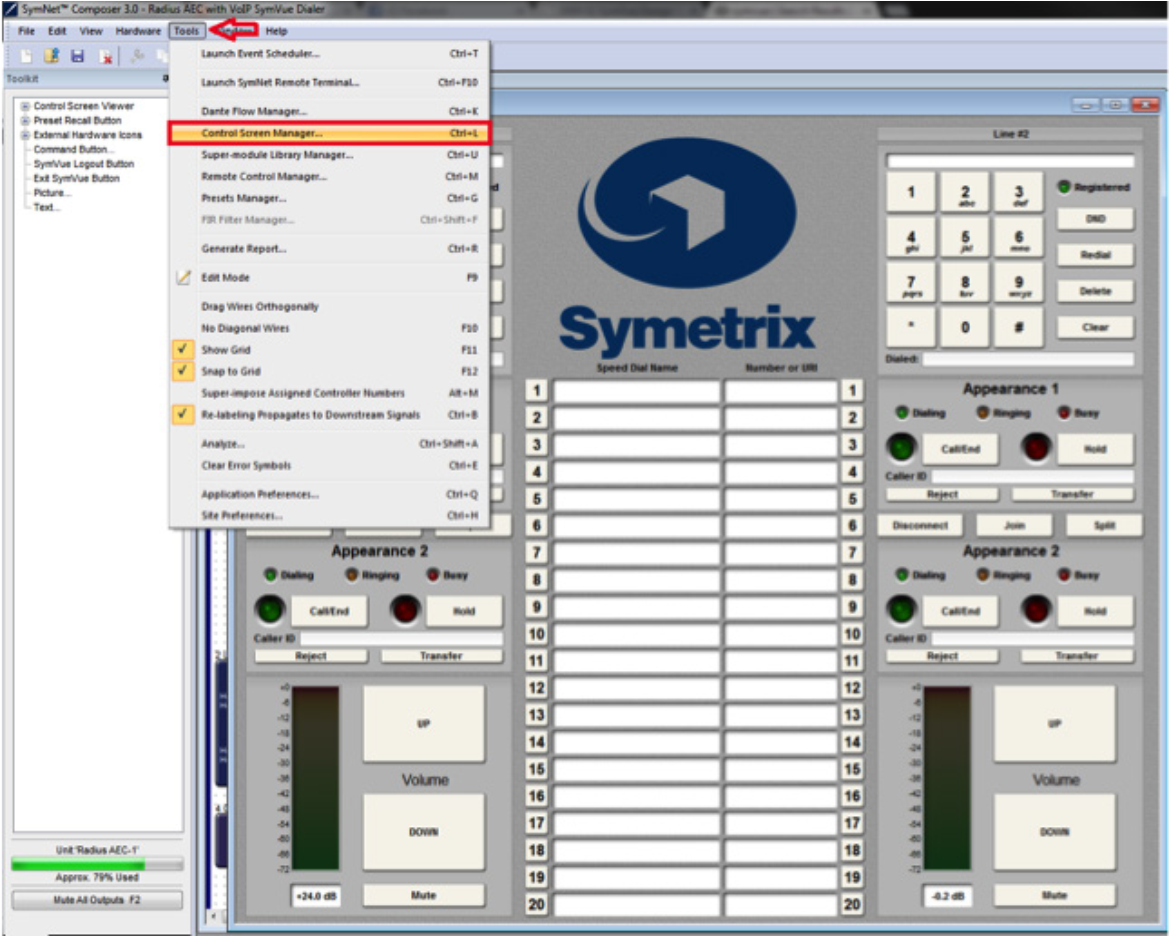
6. Once the Control Screens have been created go to Tools>Control Screen
Manager and export the Control Screens to SymVue.
For additional information on creating SymVue Control Screens click here.
Inspired by the ‘apps’ paradigm of smart phones, Jupiter is a turn-key audio DSP solution utilizing pre-designed apps – each optimized for a specific venue or application. A powerful component of Jupiter is the ability to create Custom Presets. This Tech Tip will take you through this process step-by-step using a
Mix Matrix for an example.
The Custom Preset allows Jupiter users to narrow and capture any parameter or combination of parameters to a recallable preset. (A Global Preset is also available. This captures the current state of the entire app.) Custom Presets are commonly used in mix matrices so that routing changes (source select,
output assignments, etc.) can be made without affecting other real-time controlled parameters like volume.
Step-by-Step
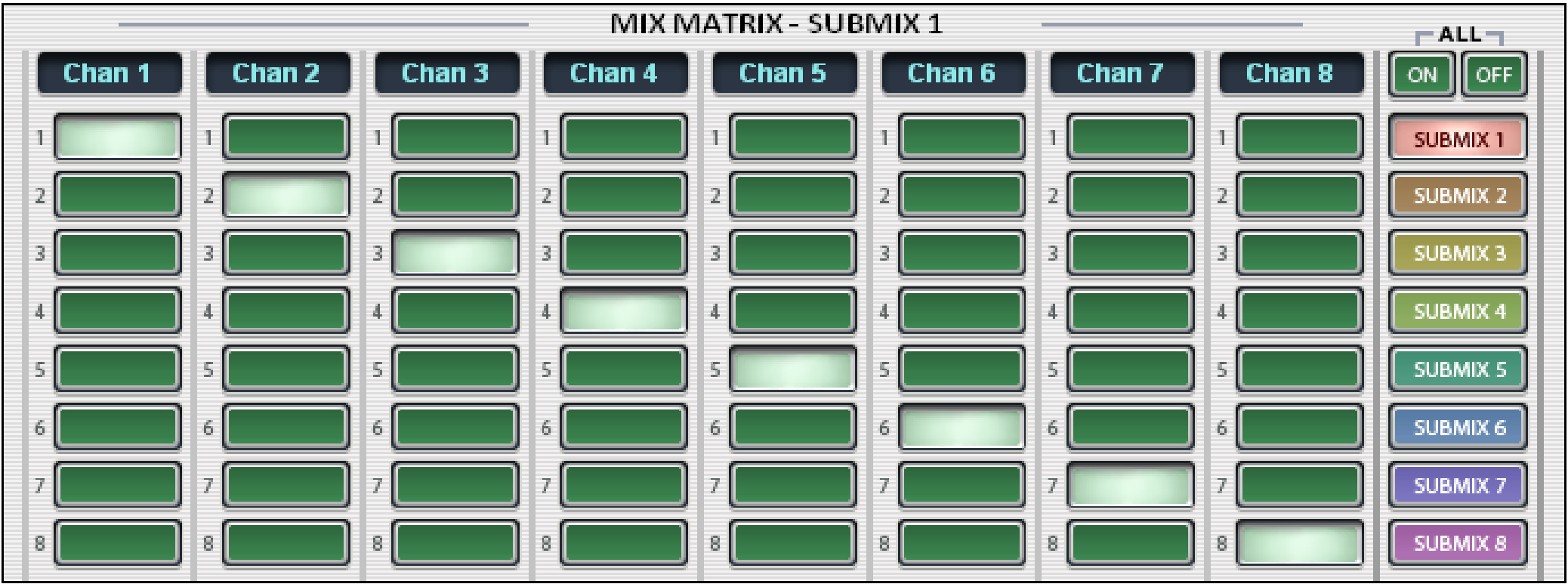
1 Set up the Mix Matrix in the exact configuration that needs to be recalled by the preset.
2. Go to the Tools menu and choose Store Preset.
3. Name the preset and select a location (50 available). Select Custom Preset and click Choose Parameters.
4. Use the browser categories to narrow the parameters to only those you wish to capture in the app, in this example the Matrix. Take careful note of which Matrix buttons to select as you may need to include ones that aren’t currently connected to ensure that the intended channels are ‘on’ or ‘off’.
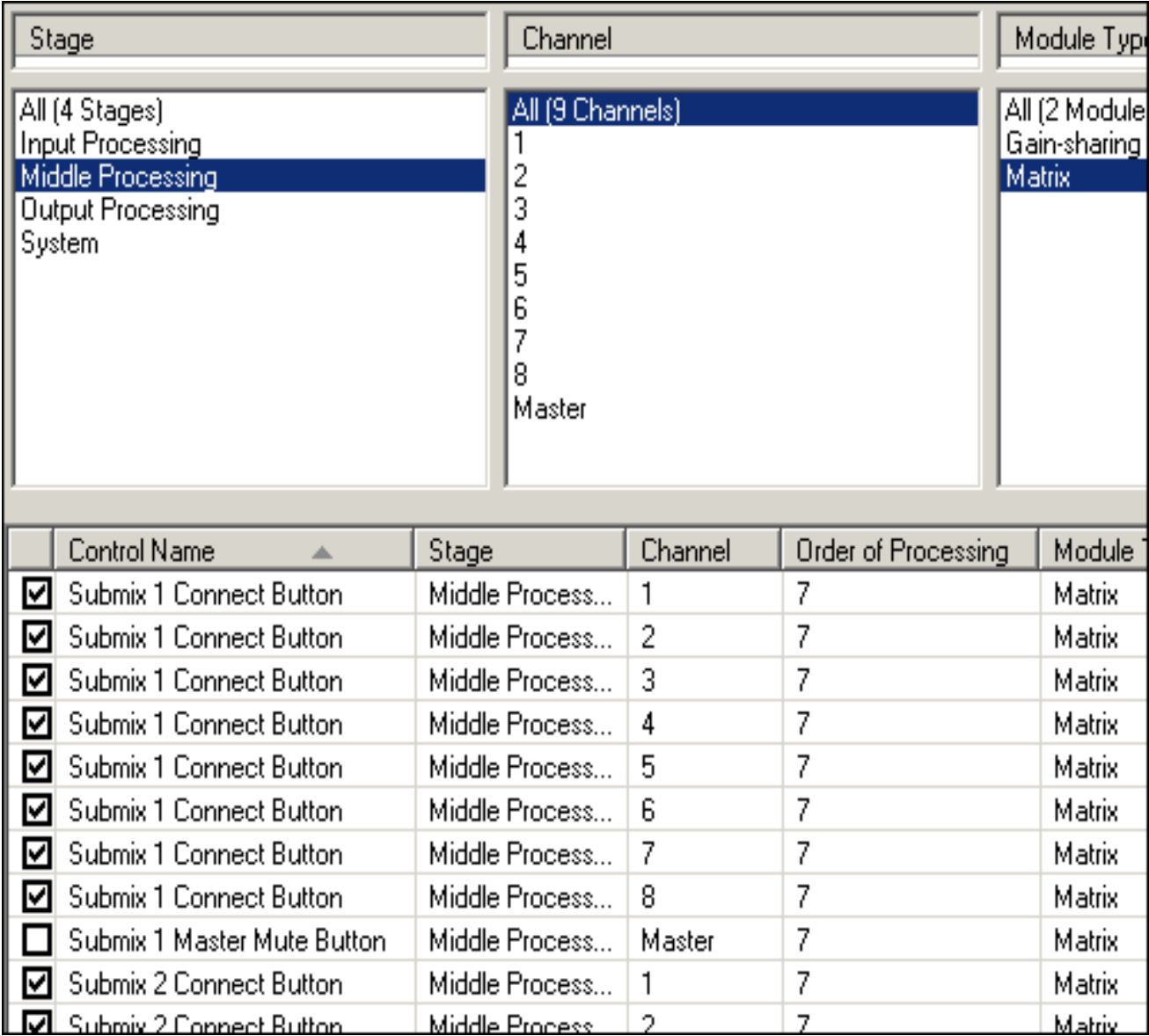
5. Click ‘OK’ to confirm your parameter selections. Then click ‘OK’ again to confirm preset name and location.
This process is the same for any other configurations (mute, volume, EQ, etc.) in the app that you wish to isolate and capture for later recall. These stored presets are also available for triggering from your Symetrix ARC wall panels or 3rd party controllers.
Summary
Jupiter’s Custom Preset feature allows you to store the current state of any combination of parameters into a recallable preset for flexibility in real-time configuration changes. For more information contact support@symetrix.co
Due to the inherent nature of touchscreens, the use of momentary buttons on control screens in SymVue may result in some unexpected behavior – when the user touches a button on the screen, the “on” action isn’t sent to the DSP until the user actually releases their finger from the button. This can make the use of momentary buttons somewhat confusing for the end-user, in that a swiping action is required to trigger them on touchscreens. For some users, simply letting them know that a “swiping action” is required is good enough. For others, a workaround may be needed to give them expected touch functionality. Fortunately, this default touchscreen behavior does play nicely with latching buttons.
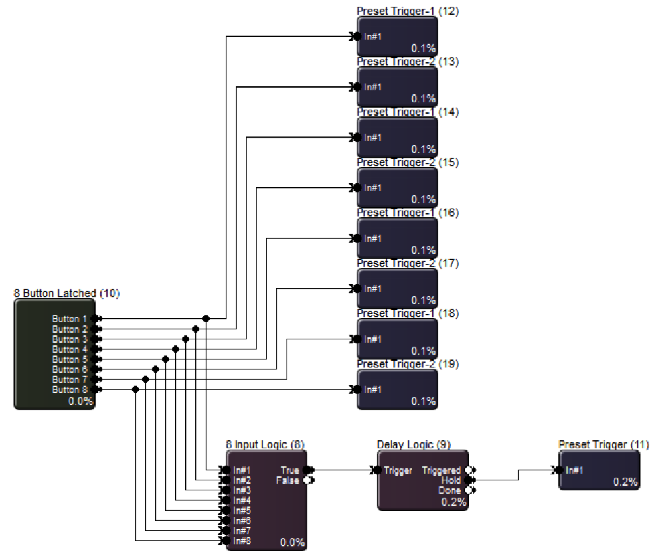
We’ve outlined a procedure that uses latching buttons in the place of momentary buttons as triggers – these latching buttons ultimately will act as if they are momentary buttons. This is accomplished by the use of a single Preset Trigger module which is triggered every time a latched button is pressed. It fires a “button off” preset to reset the state of the latching buttons to their off state. The preset is fired so quickly after the touch that the latched button appears to act as a momentary button.
For most applications, this workaround will do the trick nicely. The only drawback to creating a momentary button in this fashion is that you cannot hold it down. Therefore, this process is best used for controlling modules that are triggered via an impulse, such as preset triggers.
1. Drag the following modules into the design from the Toolkit (all are found
under the Control Modules heading):
a. 8 button Latched
b. 8 Input Logic
c. Delay Logic
d. Preset Trigger
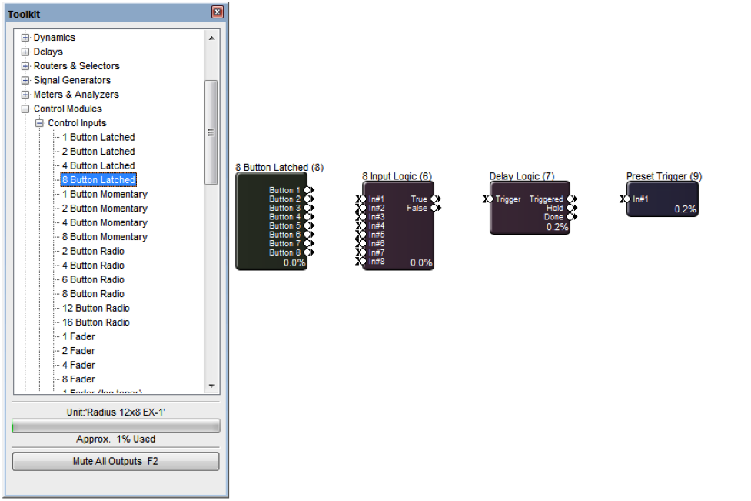
2. Wire them up as below:
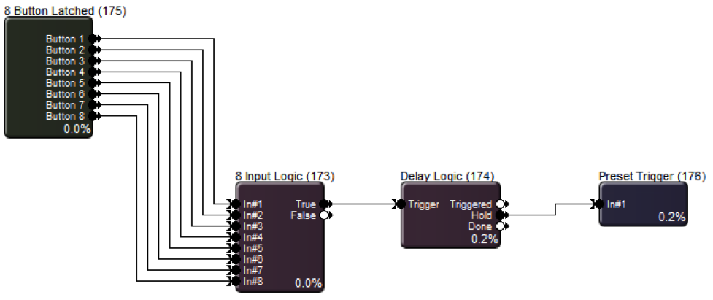
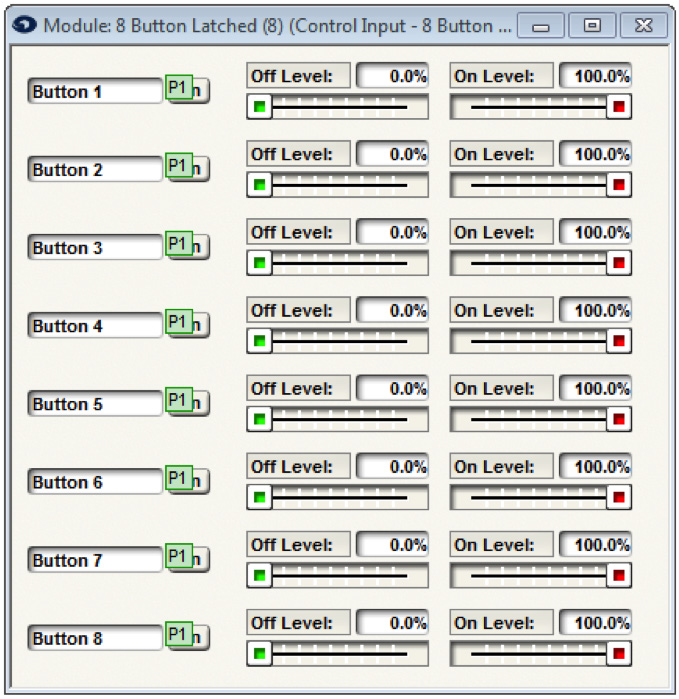
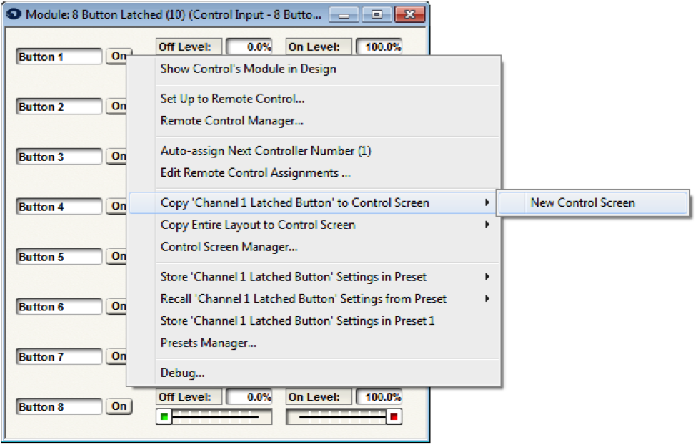
3. Next, take a snapshot of the latched buttons in their off states. Double-click the 8 button Latched module to bring up its GUI. Making sure the button is in its off state, right-click directly on the first button and store it to an un-used preset of your choice. Repeat for the rest of the buttons, making sure to use the same preset number for each.
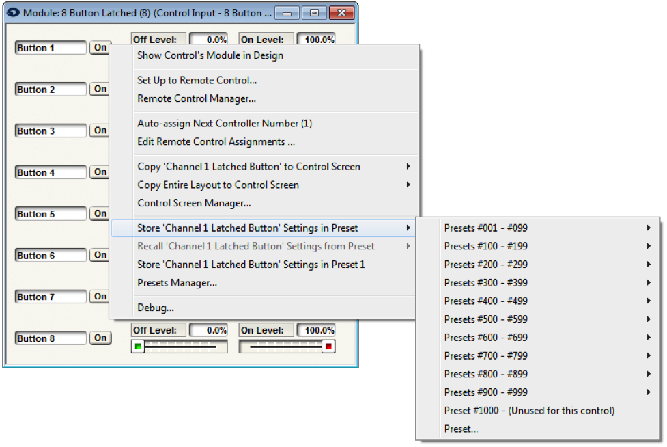
4. All buttons should appear as below (with whichever preset number you chose). If the green indicators are not appearing over the buttons, go to the Tools menu in Composer and be sure “Super-impose Assigned Controller Numbers” is checked.
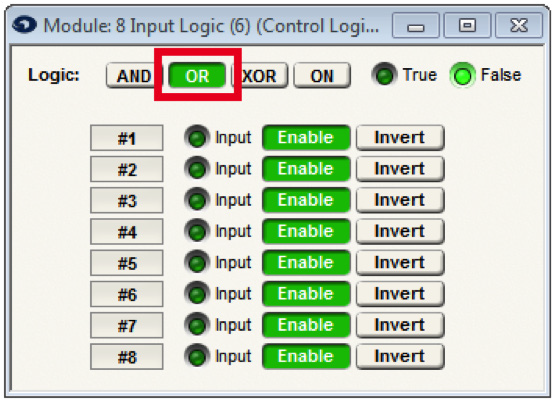
5. Open the 8 Input Logic module and set the logic operation to OR.
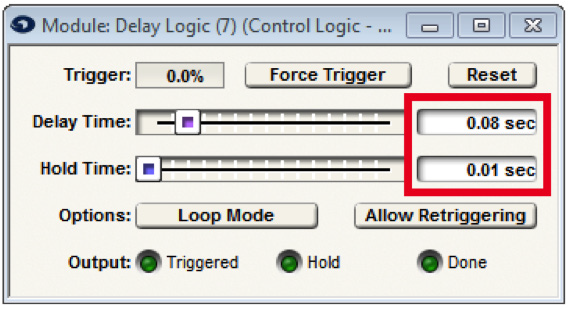
6. Next, double-click the Delay Logic Module. Set its delay time to .08 seconds and its hold time to .01 seconds.
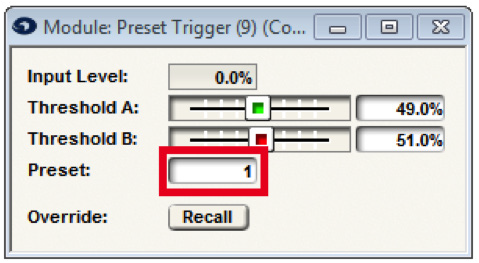
7. In the Preset Trigger module, enter the preset number from step 3.
8. Wire in some modules to be controlled. In this example, Preset Triggers are used.
9. The 8 Button Latched module contains the buttons to be controlled from SymVue. Re-open this module in Composer and copy the “On” buttons over to a new or existing control screen. These buttons will now function without the need for a “swipe” motion to engage them.
The title of the tech tip says it all. Simply put, having all the DSP in the world is no substitute for proper gain structuring in an audio installation. This is because the gain structure is single handedly responsible for maximizing the dynamic range between the program audio and the noise floor. When the gain structure is set incorrectly, even the best audio equipment with unlimited DSP resources will have audible noise ranging from annoying to unacceptable by the end user. If the gain structure is set correctly, the noise floor should be completely inaudible to the human ear.
The gain structure could be defined as the relationship between various gain stages in the audio system. In a Symetrix DSP system the gain structure is composed of various gain stages within the DSP, the output level of the sources feeding the DSP inputs, as well as the analog input trim on the amplifier. As such, it is important to have a clear understanding of how to correctly adjust each gain stage in the DSP as well as the input trim of the amplifier in order to maximize the dynamic range between the program audio and the noise floor.
When properly adjusting the gain structure, it is important to step through each gain stage, starting at the beginning of the signal path and working to the end.
This is important to note because an older line of thinking, which is responsible for noise in many audio systems, was to start by turning the input trim of the amp to 100% and working backwards through the various gain stages turning them down to compensate for the amp. This method kept unwanted hands from adjusting the amp after the system was tuned, but it also maximized the noise in the system by increasing the noise floor at the amplifier.
Typically there are 3 digital gain stages in the DSP software: input gain, end user gain control, and output gain. Additionally, there may be 2 analog stages outside of the DSP; source gain and amp input trim (depends of the brand of amp), which may need adjusting. Prior to following this step by step tutorial, all gain stages should be left at 0db, which also known as “unity” as this setting does not attenuate the audio up or down.
This tech tip will step you through 9 simple steps to proper set the gain structure in your next audio installation.
Step 1:
Turn off the amp, as it is not necessary to hear the audio when adjusting the first few gain stages.
Step 2:
If needed, set the analog gain of the device feeding the Symetrix DSP input. In most cases the level may not be adjustable; it may be statically set as a mic or line level output. (See the unit’s documentation) For instance, a CD player is a line level output that often has an unbalanced (RCA) connection to the DSP. In the case of a device such as an external mic pre, there may be some gain adjustments that need to be made. In such a case turn the gain up as high as possible without the audio clipping during use. (more on clipping in step 3).
Step 3:
Determine whether the source feeding the DSP input has a line level or mic level signal and make the corresponding selection at the input section of the appropriate software. With the Zone Mix 761, Jupiter, and Solus hardware only mic or line is selected at the input stage. In most SymNet Designer and all Symetrix Composer hardware, 5 selections are available at each input. Line level signals can be balanced (+4dBu) or unbalanced (-10dBV) and have respective settings. Mic level can be -20dBu, 40dBu, and -50dBu. Phantom power should also be turned on when a condenser microphone is used. Radius
units are set to “Switch Mode” and the Dante ports are daisy chained between devices.
gain 1
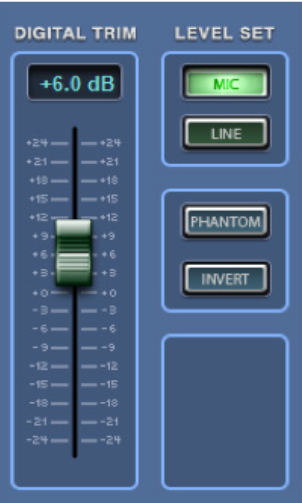
Zone Mix 761
gain 2
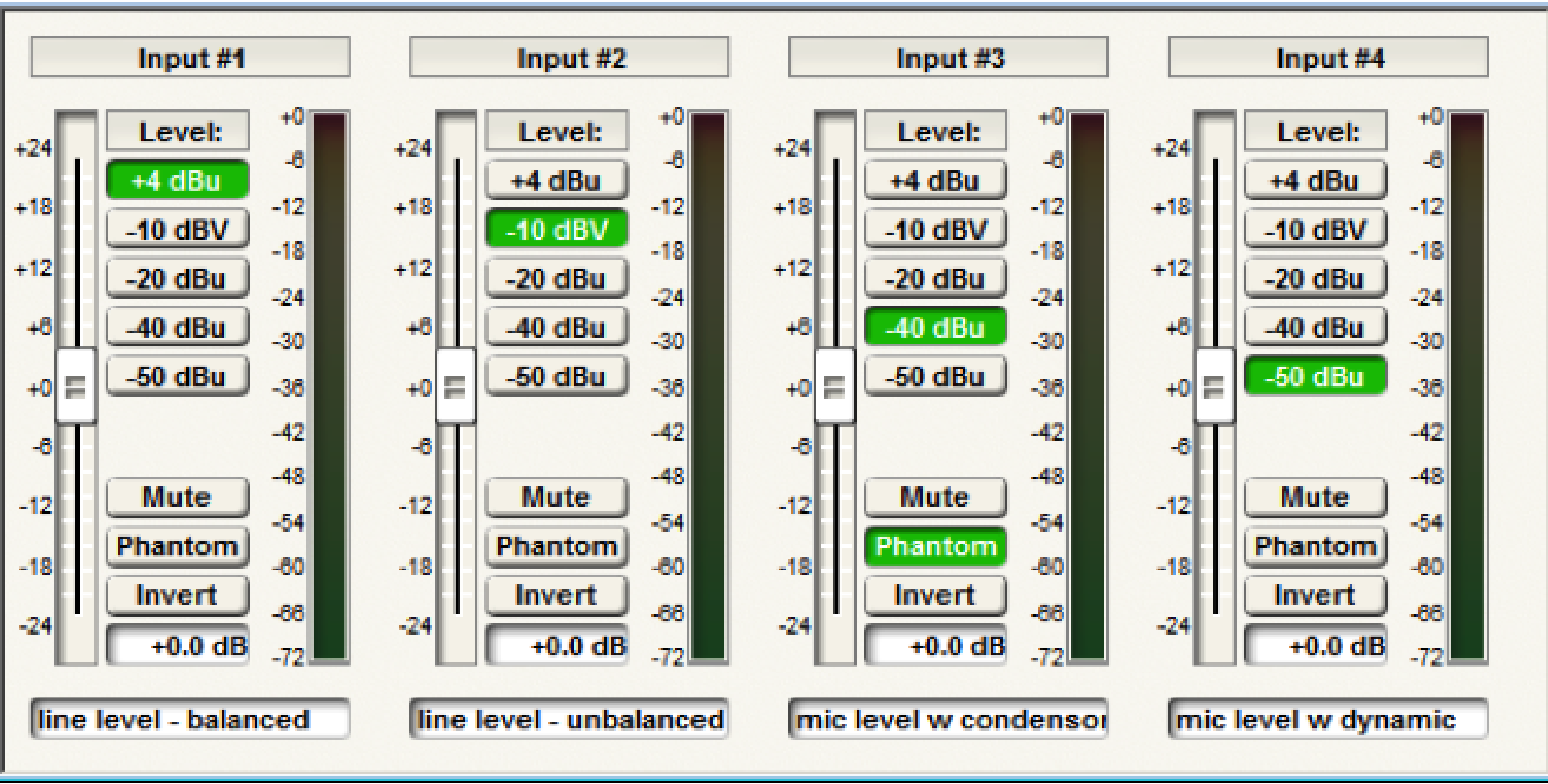
Composer
Step 4:
Adjust the input trim in order to maximize gain at the input. Rule #1 is that the input should never clip, which is indicated by the red in the meter. Some audio meters, such as those in the Jupiter software have a range of -48dBu to +24dBu. In SymNet Designer and Symetrix Composer the audio meters are in DBFS and range from -72dbfs to 0dbfs. Clipping is at +24dBu and 0dbfs respectively. When the audio is clipping the signal will be distorted and will almost certainly sound bad. Even worse, clipping audio has the potential to damage hardware including the amps and speakers.
A general rule is that the program audio RMS level, or average level, should reside in the amber portion of the meter while at the same time not clipping. Depending on the meter style, this is somewhere around unity, which is +4dBu or -20dbfs. This setting usually leaves sufficient headroom between the
program audio and the point of clipping so that louder portions of the program audio do not clip, even when the user has the system turned up loud. If clipping does occur, then the input trim should be turned down until the audio stops clipping.
gain 3
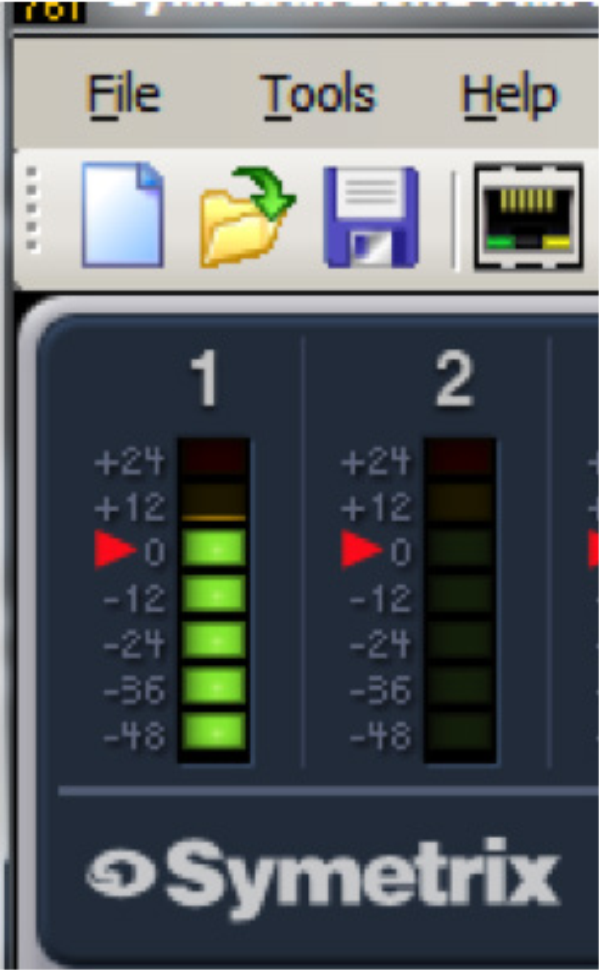
Zone Mix 761 Input meter
gain 4
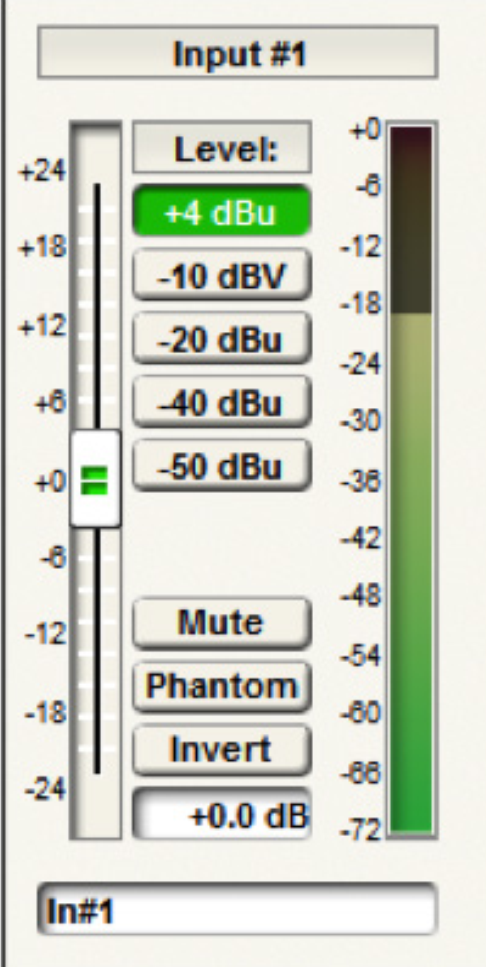
Composer Input meter
Step 5:
Determine which gain control will be given to the end user. Most often this gain control will be in the “middle processing”. Gain adjustments before the input processing can negate or skew processing such as, but not limited to; Compression, AGC, Limiting, and Feedback Elimination. Gain adjustments
after the output processing are not protected by processing such as the Hard Limiter. As such, end user gain control should typically be located between the input and output processing in modules such as a Mixer, Automixer, Room Combiner, or a Matrix.
Once this gain stage has been located, turn it up to +12dB. This will be the “loudest” setting possible that the end user will be able to set the system to. By tuning the system to this “loudest” gain setting, the end user will never be able to turn up the system to the point it causing clipping or damages the amp or speakers.
gain 5
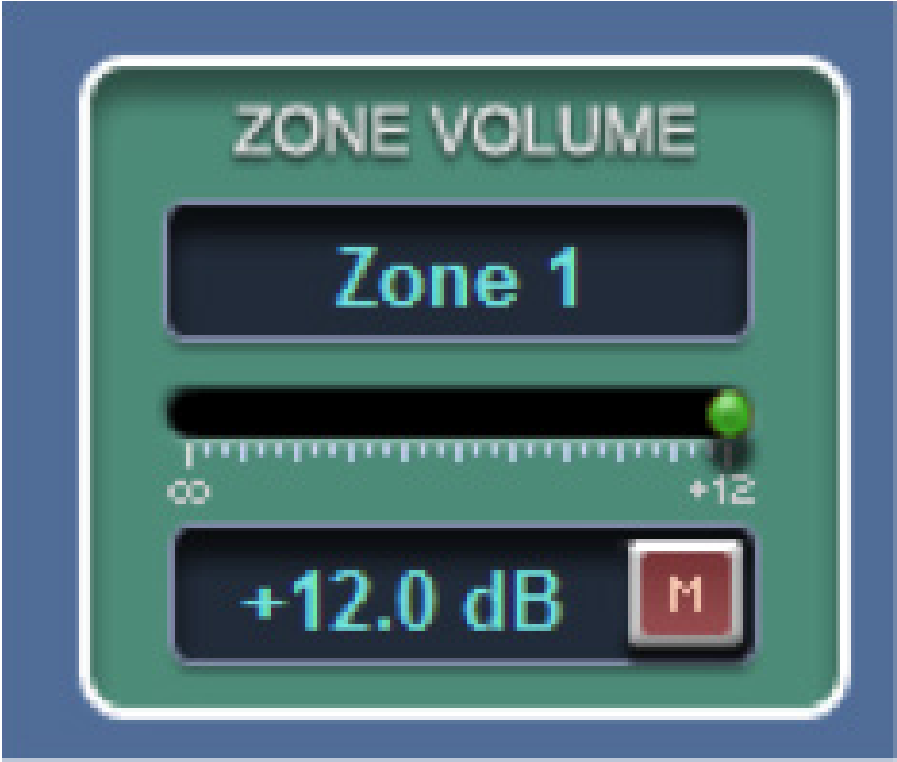
Zone Mix 761 zone volume
gain 6
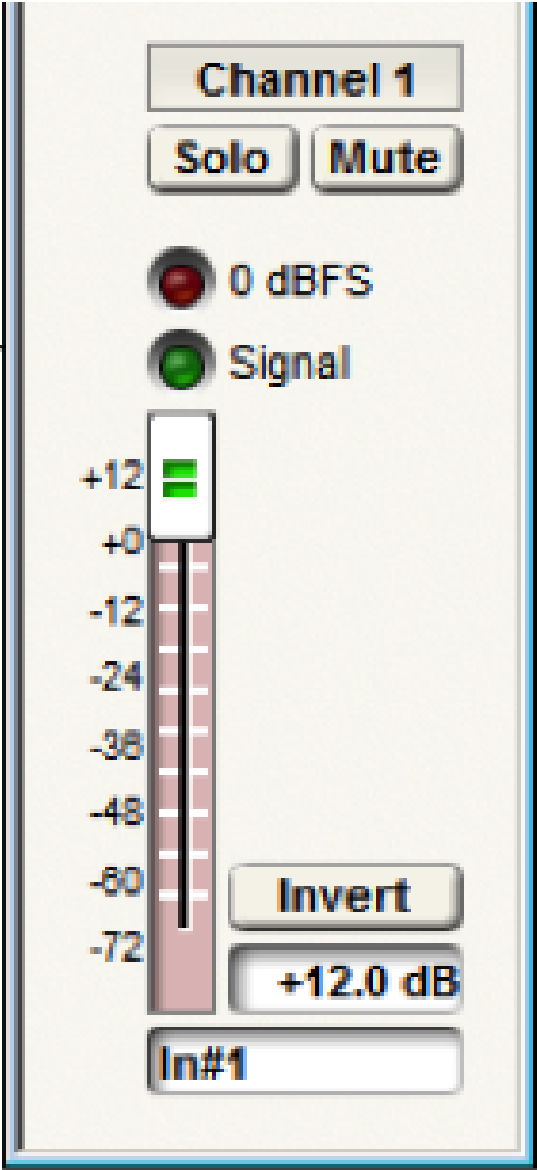
Composer gain module
Step 6:
Go to the analog output section and set the “output level” to +4dBu for balanced connections or
-10dBV for unbalanced connections based upon the input type of the downstream device. These downstream devices vary depending on application but can included hardware such as an amplifier, assisted listening system, or media recorder.
Step 7:
It is almost time to turn on the amp, however, before doing this we want to do one of two things;
1) turn the amp’s input trim to the lowest setting or off
2) if there is no input trim on the amp, use the output gain in the DSP to turn the audio extremely low or completely off.
This will prevent the speakers from being damaged with audio, which is at its loudest setting due to the end user gain control being set to +12dB, from suddenly playing when the amp is turn on.
Step 8: (amp does not have an input trim)
Turn on the amp and using the output gain fader, turn up the system until the audio is audibly the loudest it should ever be.
Step 8: (amp has an input trim)
First, optimize the DSP output by adjusting the output gain fader if needed, similar to how the input was tuned in Step 4. In other words, turn the output gain up so that the audio is as loud as possible on the meters without clipping, such that the RMS level of the audio resides in the amber. If the output meter indicates clipping, use the output gain to attenuate the level down until the audio stops clipping. Finally, turn on the amp and using the amp’s input trim, turn up the input trim until the audio is audibly the loudest it should ever be.
Step 9:
Now return to the end user gain control in the middle processing and adjust it to the appropriate level for the current conditions. If the above 9 steps were followed, the system should have the maximum dynamic range between the program audio and the noise floor, not to mention that even without audio playing the noise floor should be inaudible. Additionally, the customer can be given access to the end user gain control without the possibility that the gain can be turned up any louder than the loudest setting that was determined in Step 8. This means the customer cannot accidentally damage the system by turning it up too loud.
The purpose of this document is to provide updated information on the Push, Pull, and Dante Device Sync features for Composer 6.0 and later.
When pushing a Site File to a system with versions of Composer prior to 6.0, Composer would configure the Dante routing and naming of all the devices in the Site File. When pulling a Site File, there were two options; Synchronize to Changes or Abandon Changes. These were all the run-time changes made since the last time that the Site File was archived. Choosing “Yes” would bring those changes into Composer. Choosing “No” would bring the archived Site File into Composer as it was last archived.
Each section below explains how the features are currently handled.
Push
When pushing, Composer can either configure the network audio (Dante) or let Dante Controller manage it.
Composer’s Site Preferences window contains a check box to Configure Network Audio. When the box is checked, Composer will configure the network audio routing and naming. If the box is unchecked, all network audio routing and naming is managed with Dante Controller.
Push
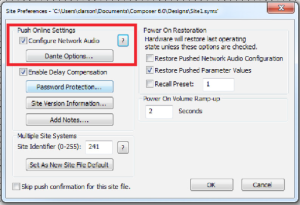
By default, the Site Preferences window will automatically open for push confirmation. Site Preferences are also located in the Tools menu.
Pull
When pulling a Site File from an existing system into Composer, there are two options; Synchronize to Changes or Abandon Changes.
It is common to modify events and/or control positions while the system is online and since the Site File was last archived (pushed). If the file is open without choosing to synchronize to these changes, the file pulled will not reflect the exact state of the online system. The pulled file will be a copy of what was last archived.
Here is a list of all the options that may be selected when synchronizing changes. All options are selected by default.
Pull
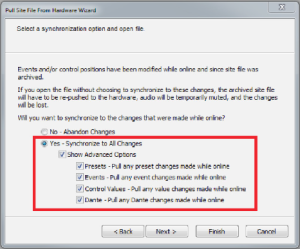
- Presets
- Events
- Control Values
- Dante routing and naming
Dante Device Sync
When locating a Dante device in Composer, there is an option to synchronize the design to the device’s Dante configuration. This sync is performed separately and is not affected by the Configure Network Audio setting in the Site Preferences.
Here is a list of all the options that may be selected when synchronizing changes. Device name and channel labels are selected by default.
sync
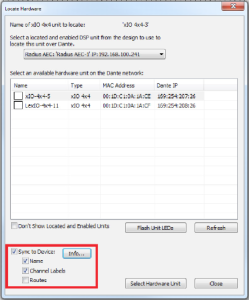
- Device Name
- Channel Labels
- Routing/Subscriptions
confirm
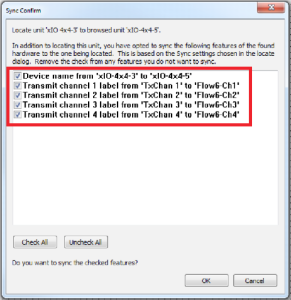
Once the Dante hardware has been selected, the Sync Confirm window will open. From this window you may choose which specific features of the located hardware are synced with Composer. All features are selected by default. Remove checks from any unwanted sync features.
Overview
This Tech Tip provides information and instructions pertaining to the combined Analog and Remote Mic Switch Super-Module that can be located in the Tools folder of the Super-Module Library within Symetrix Composer software. Composer is an award winning CAD program used to create site file designs perfectly suited to each and every application.
This Super-Module can be used to combine the mic switch operation from an analog input and remote control device (ie, ARC remote, ARC-WEB, or third-Party control). Normally when using the external analog control inputs, the analog control values will supersede and override software control.
com 1
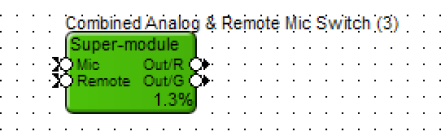
This Super-Module will allow a single mic switch to be controlled from the analog input and software. The Super-Module also will allow for the switch or mute state to be viewed by the remote control device and drive an external control output (ie, LED).
Implementing this Super-Module
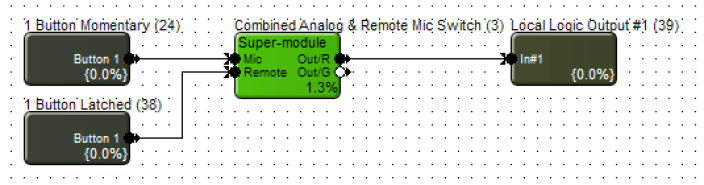
1. Wire a 1 Button Momentary module to the Mic input of the Super-module.
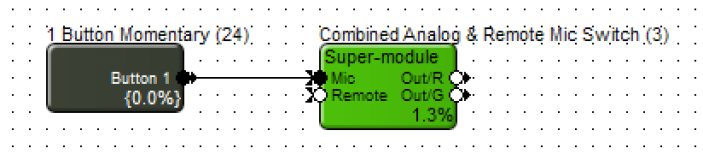
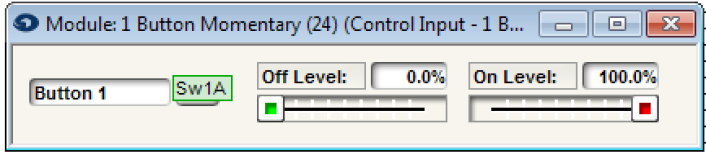
2. Assign the “On” button of the momentary button module to the analog mic switch.
3. Wire a 1 Button Latched module to the Remote input of the Super-module.
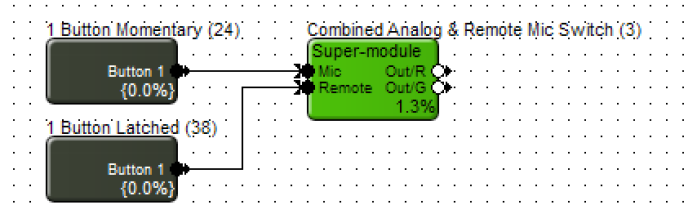
4. Assign control number to the “On” button of the 1 Button Latched module. This control assignment will be used for the remote control assignment of the remote controller (ie, ARC remote, ARC-WEB, or third-party control).
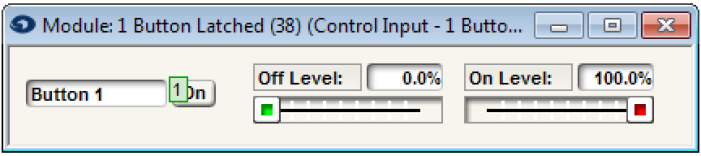
5. Click the “On” button of the 1 Button Latched module so the button is on and save the on state to a preset. Label this preset as Mute. This example used preset #1.
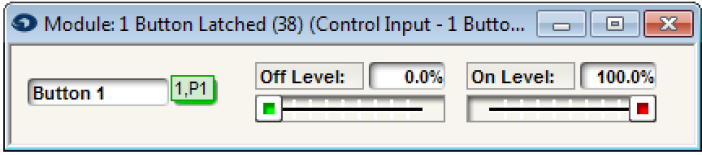
6. Click the “On” button of the 1 Button Latched module again so the button is off and save the off state to a preset. Label this preset as Unmute. This example used preset #2.
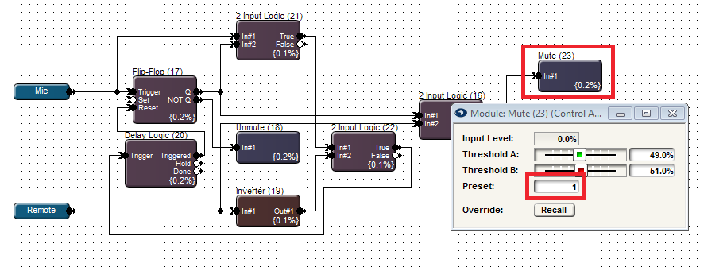
7. Open the Super-module design and make sure the Mute preset trigger matches the preset that was assigned to the 1 Button Latched module. This example uses Preset #1 for Mute.
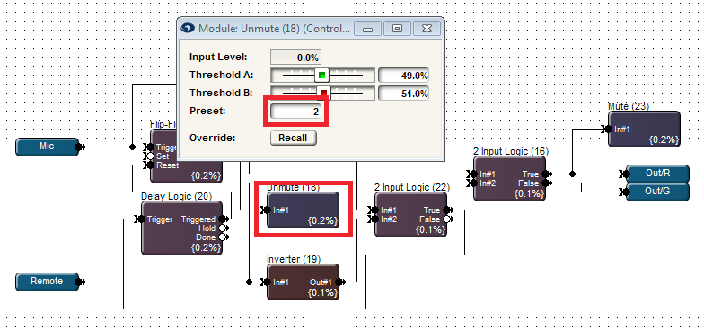
8. Make sure the Unmute preset trigger matches the preset that was assigned to the 1 Button Latched module. This example uses Preset #2 for Unmute.
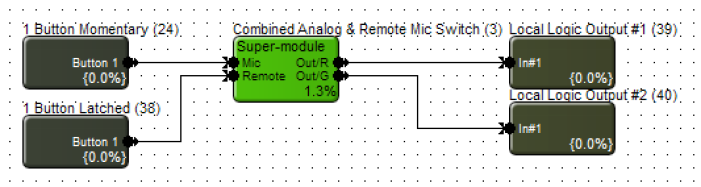
9. Wire a Logic Output module to the Out/R of Super-module. The Logic Output could be a Local Logic Output or Remote Logic Output. This output will be used to drive the red LED of the analog mic switch. This example uses Local Logic Output #1 for the red LED.
10. Wire a Logic Output module to the Out/G of Super-module. The Logic Output could be a Local Logic Output or Remote Logic Output. This output will be used to drive the green LED of the analog mic switch. This example uses Local Logic Output #2 for the green LED.
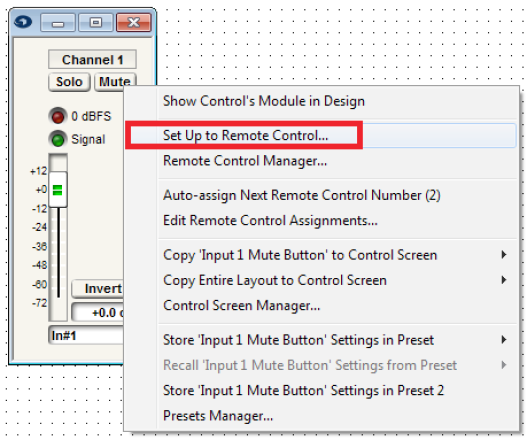
11. Open either a Gain Module or Automixer used in the signal processing and routing of the microphones.
12. Right-click on the channel Mute button.
13. Select “Set Up Remote Control.”
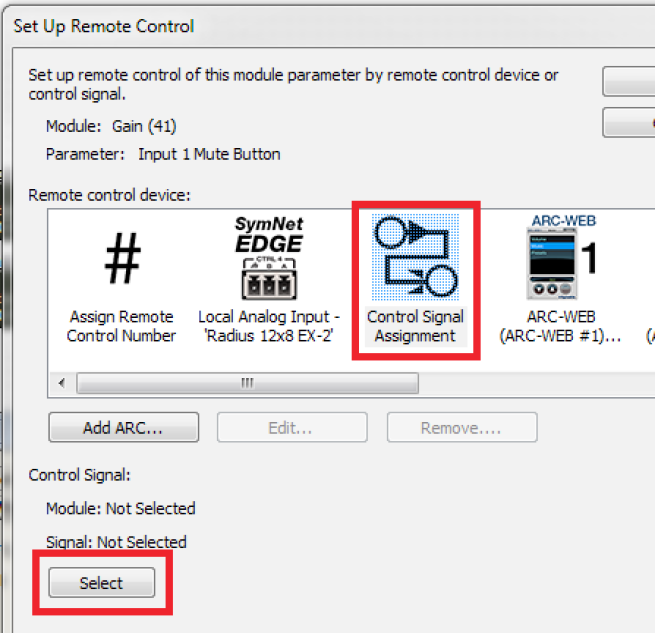
14. Select “Control Signal Assignment” for the Remote Control Device. Then click “Select.”
15. Expand Combined Analog & Remote Mic Switch.
16. Select Out/R and click OK.
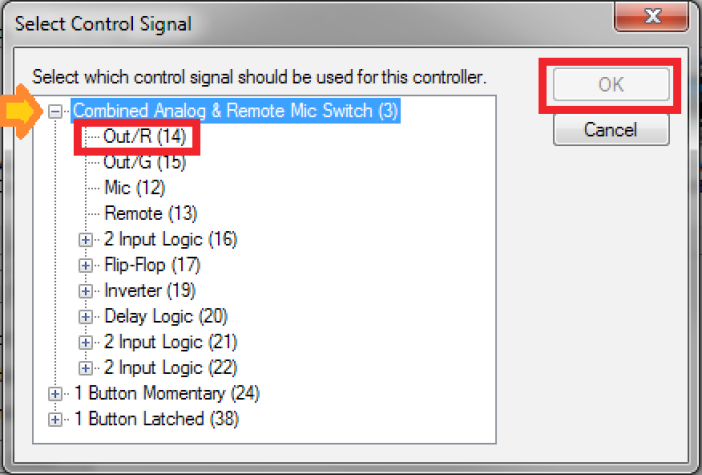
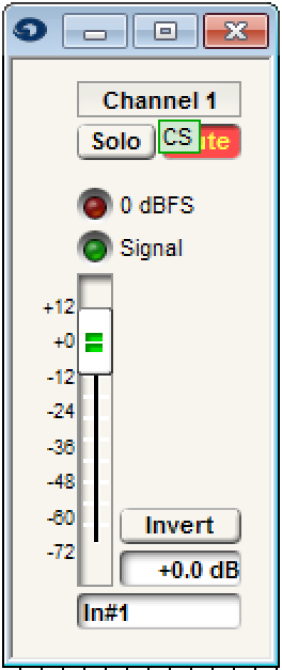
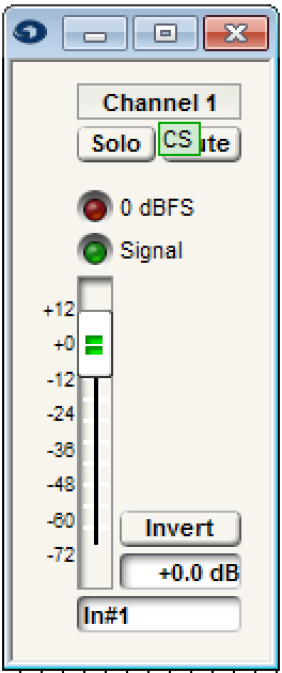
17. The mute button of the Gain or Automixer will now be controlled by the state of the red LED of the Super-Module. When the red LED is active, that channel will be muted. When the red LED is inactive, the channel will be unmuted.
Mute
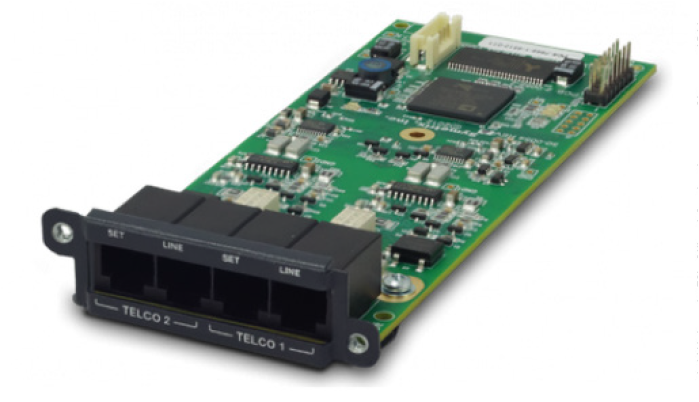
The 2 Line Analog Telephone Interface Card integrates a complete set of PSTN telephony functions into Symetrix conferencing systems. This card provides two analog telephone interface inputs to an EDGE or Radius NX with standard PSTN telephony functions. Up to four of these cards may be installed in a single EDGE for up to eight channels of local input, or one card may be installed into a single Radius NX for up to two channels of local input. Levels, mutes, inversions and formats are controllable via Composer software.
ATI 1
Audio inputs are accessed via rear panel RJ11 (6P6C) connectors. A variety of control options including PSTN telephones, SymVue, and third-party control devices allow intuitive end-user operation and design management. The 2 Line Analog Telephone Interface Card is suitable for a multitude of applications including conferencing, paging, remote monitoring, and broadcast.
Features
- Integrates analog telephone lines into Symetrix conferencing systems. Use up to four cards per Edge, one per Radius NX.
- Standard PSTN telephony functions include:
- Detect and answer incoming calls
- DTMF tone dialing
- Speed-dialing
- Redial
- Do not disturb
- DTMF decoding
- Caller ID reception
- Call progress detection
- Continuous line status and fault monitoring
- Standard RJ11 ports with parallel “set” connections per line for a physical handset, dialer, or ADA compliant visual or audible device connection.
- Field swappable by certified technicians.
- Also suitable for typical audio applications such as paging, broadcast feeds, and remote system monitoring.
Dialers
Standalone dialers can be used in conjunction with the “Set” port on the ATI card for an extremely cost effective solution for end user control. These dialers can be used to provide telephony features such as dialing, redial, onhook / offhook, etc. Listed are a few examples of standalone dialers.
- Accutone T3 Professional Telephone Dialer
- Luminous LH-8001D – Phone Dialer
- Revolabs Tabletop Dialer for Fusion Wireless Microphone System
External controllers (ie, Crestron Pro2) can also be used to control the telephony interface over network (TCP/IP and UDP/IP) control; it does also support serial (RS-232) control. For more information on programming, refer to the Tech Tip for “Crestron Symetrix Dialer Example.”
Connecting to the ATI card
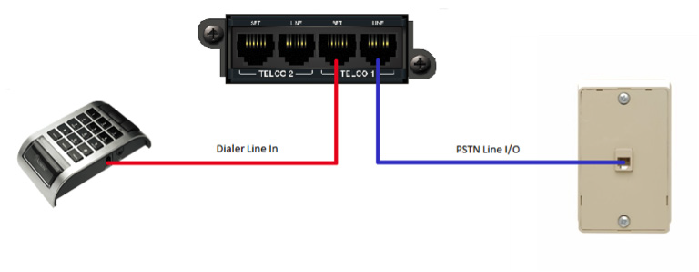
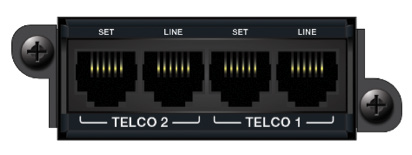
- Connect the “Telco 1 – Line” port to the local PSTN wall jack using a standard telephone cord terminated with RJ11 connectors. Optionally, connect a standard analog telephone, dialer, audible and/or visual ringing device, to the “Telco 1 – Set” port of the ATI card. Repeat instructions for “Telco 2” port use.
ATI 2
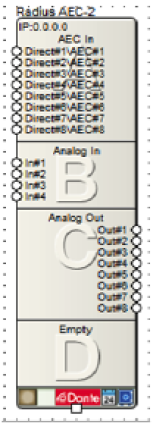
2. Open Composer and drag an Edge or Radius NX into the configuration. For this example, a Radius NX was used.
ATI 3
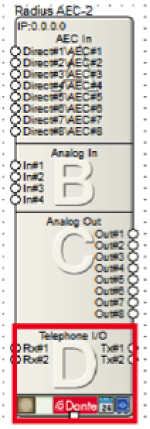
3. Make sure that the bottom box shows “Telephone I/O” with “Rx#1”, “Rx#2” and “Tx#1”, “Tx#2.”
ATI 4
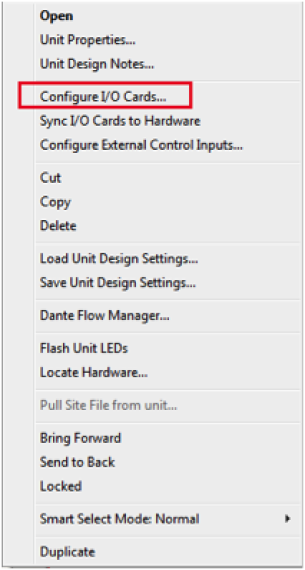
4. If the box does not show “Telephone I/O”, right click and select “Configure I/O Cards…”
5. Select “2 Line Analog Telephone Interface” for Card Slot D, and then click OK.
Note: When setting up an Edge make sure each card slot matches the cards installed into the unit. Each card slot has the following options: No Card Installed, 2 Channel Analog Mic / Line Inputs, 4 Channel Analog Line Outputs, 4 Channel Digital Inputs, 4 Channel Digital Outputs, 4 Channel AEC Inputs, and 2 Line Analog Telephone Interface.
ATI 5
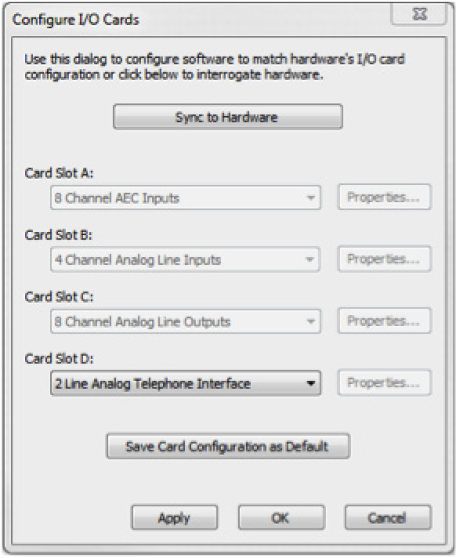
Once the I/O card is added, open the Site File and begin the design.
Overview
With the Two-Line Analog Telephone Interface Card, Symetrix offers a complete conferencing solution within the Composer architecture. The Two-Line Analog Telephone Interface Card (ATI card) is compatible with both the Edge and Radius NX. The Edge is a card-based DSP with four card slots available, allowing it to support up to four ATI cards per unit. Radius NX has one optional card slot available, allowing it to support one ATI card per unit.
Conferencing applications are the most common designs in which the ATI card will be specified; however, there are several other applications that may benefit from the addition of the ATI card and the functionality it provides.
These additional ATI card applications include, but are not limited to:
- Telephone Paging
- Remote System Monitoring
- System Soft Reset
All three of these applications are accomplished by using the ATI card in conjunction with the DTMF Decoder module provided in the Composer Toolkit under ‘Conferencing & Paging’. The DTMF Decoder Module provides a way to trigger logic events in a system using custom DTMF tone sequences from a telephone. Most often the DTMF Decoder will be used to trigger a preset, but it can also be used to trigger any logic function, such as a bell, message player, logic output, etc. In Composer there are 1, 2, 4, 8, and 12 output versions of the DTMF Decoder. When more than 12 DTMF sequences are needed, multiple DTMF Decoders can be used in parallel.
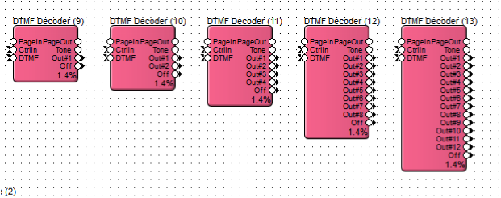
Telephone Paging
line 1
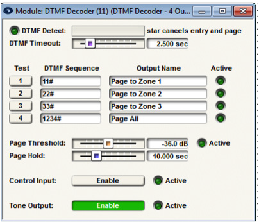
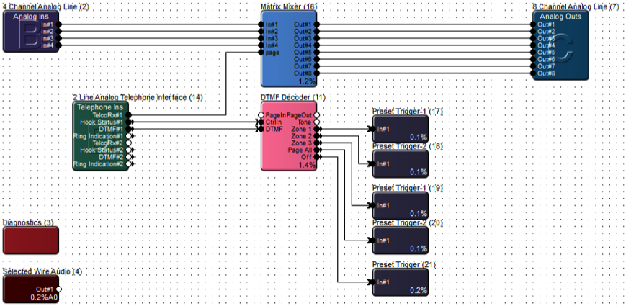
In a paging application, the DTMF Decoder can trigger routing presets based upon DTMF sequences. In the provided example, the DTMF Decoder is set to trigger individual zone paging to zones 1 through 3, with a “Page All” preset also included on the DTMF Decoder output #4. The ATI card Telephone Ins module DTMF output connects to the DTMF input on the DTMF Decoder.
The Hook Status output of the ATI card connects to the CtrlIn (control input) of the DTMF Decoder, which will monitor when the call is ended and then trigger the Off output of the DTMF Decoder. The Off output triggers a preset that will reset the routing matrix so that no zone selections are active between each page.
Remote System Monitoring
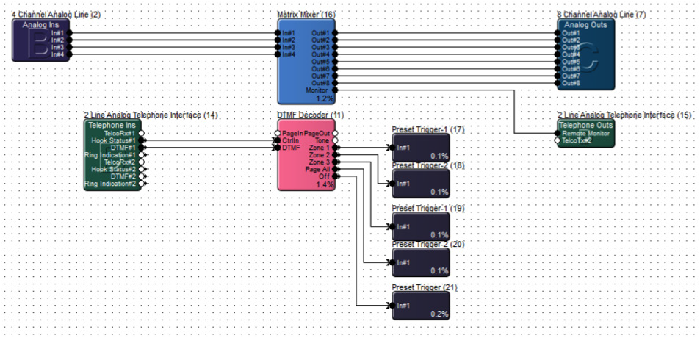
Similar to triggering a routing preset for paging applications, a routing preset could be triggered to allow remote monitoring of a system by an event manager, concierge, or integrator under a service contract. This would allow for remotely calling a venue and actively listening in on a current meeting or event. Additionally this solution could be used by a technician for hearing a problem first hand, such as noise or distortion from a speaker or mic that an end user is experiencing, potentially eliminating a long drive to a venue when a problem is related to user error.
System Soft Reset
Many times an audio system is tuned by an integrator or acoustician and the end result is an amazing sounding system. While ideally these tuned parameters would be static so that the audio system will always sounds its best, the end user will need to be able to reconfigure routing, control gains, and mutes, not to mention any other esoteric control functions the end user requires.
As such, sometimes a system ends up in a state, after weeks or months of end user adjustments, in which the end user perceives that the audio system “no longer sounds as good as it once did.” With an ATI card included with the system, some very basic logic can be used to set the entire system back to the tuned “default state” of all parameters without power cycling the hardware. This is known as a “soft reset.”
The programming is simple. In a Composer Site File, an ATI Telephone Ins DTMF output connects to a DTMF Decoder. The DTMF Decoder module output connects to a UDP/IP String Output Module or RS-232 String Output module that is used to send a “soft reset” command back to itself. With the UDP/IP String Output Module the command is simply sent to the DSP’s IP address on port 48630. When using a RS-232 String Output module, simply connect the RS-232 phoenix connecter Tx to Rx, such that the command is sent by a DSP to itself. The command to be sent to the DSP for a soft reset is “LC 1” which stands for Load Configuration 1 and will cause the DSP to load the archived Site File. The archived site file is the state of all parameters exactly where they were when the last “Push” was performed from Composer.
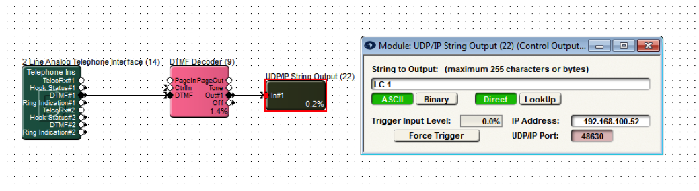
Indication of a microphone’s status can be accomplished in just a few quick steps by employing simple logic and control signal assignments. This programming can be used in courtrooms or public speaking venues to indicate, on a control screen for example, when certain microphones are active or un-muted.
In this example, all we’ll need is the microphone channel, represented by a gain module, a one button momentary module, and a two input logic module.
First, open up the gain and momentary button modules and place them to clearly view both.
Next, right click on the mute button in the gain module and select set up to remote control.
Select control signal assignment. The intention is for the gain module’s mute button to take its queue from the momentary button’s “ON” button.
This could also be accomplished by assigning both buttons the same control number. However, then either button could affect each other. Doing it this way only allows the mute button to follow the “ON” button.
From control signal assignment, click the select button. Now expand the one button momentary folder and select Button 1. Click ok.
Now whenever the “ON” button is active, the gain module’s mute button will be active. Click ok in the remote control wizard.
Open up the 2 input logic module and move into a place to be seen. Change the logic mode to “OR”. This will allow either input to make the module True.
Right click on the False LED and choose copy false LED to control screen, either one already built or a new one.
With the LED selected, change the display type in the properties panel to symbol and then resize the LED boundary box to fit just the light.
Because the mute button takes its queue from the “ON” button, when the “ON” button is active it makes the logic module true. If we wanted to use the True state LED for the indicator, we would need to change the logic inputs to “INVERT”.
We could be finished here if we put this LED next to a fader control or only needed a light indication. We can, however, go a step further and offer some label indication as well.
Right click on the momentary “ON” button and copy it to the control screen. Resize it to fit the words “mic active” and “mic inactive”, or whatever verbiage makes the most sense for your installation.
Now, in the properties panel, change the transparent parameter to True in the background color area. Then in the Text area, change the “ON” text to “Mic Inactive” and the “OFF” text to “Mic Active”. Finally, change the text color to black.
Now, when the “ON” button is in the disengaged state it will display “Mic Active” because the channel will be un-muted. When the button is in the engaged state it will display “Mic Inactive” because the channel will be muted.
Logic programming doesn’t work when not online. Push to go online and test this programming.
This programming would work the same way when incorporating any of the button processor super modules.
Be careful to assign the control signal from the correct module using the enumerator label.
Note the super module also has an input logic module with a false LED.
Many systems include an emergency mute function so external emergency sirens are easier to hear. These control systems tend to be hard-wired with a physical switch. Some systems may also include a paging system that can require hardware “and” software control.
In Composer-based systems, analog, or hardware control will always take priority over software control which can make things difficult when trying to combine an analog microphone switch along with a button on a control screen. However, using some simple logic we can combine both hardware and software control.
The purpose is to have the master mute always active unless the microphone analog switch or a control screen button are engaged, essentially creating a push to talk control. Open up your site file and drag in a one button momentary and a one button latched from the toolkit under control modules, control inputs.
Then drag in a two input logic module from the control logics folder. Finally, drag in a one output remote control number module from the control outputs folder, and wire all modules as shown.
Open up the two input logic module and change the logic mode to OR. Now, open up the remote control number output module and the master gain-sharing auto-mixer modules.
Right click on the master channel mute button and select set up to remote control. Assign the mute button an unused control number and click ok. Then enter that same control number into the remote control number output module. This examples simply uses control number one, but yours should reflect a currently unused number.
Next, open up the two button modules. Right click on the on button in the one button momentary and select set up to remote control. Choose local analog input, then choose an available analog switch input. This example uses switch two-a because one-a is already used by the emergency system mute. Click ok to save the assignment.
Right-click the on button in the one button latched and choose copy channel one latched button to control screen. This example will place this button on the control screen for zone one. Re-size and label the button as necessary, and that’s it.
To summarize what is happening. The microphone analog switch is connected to the momentary button so while it’s active, the momentary button in Composer is active. The latched button is copied to the control screen and is a direct copy of the latched button in the programming, they are active at the same time. The two input logic being in the “or” state means that if “either” the latched “or” momentary buttons are active, the logic is true.
Currently the logic button is sending 100% control signal out of the False node, which activates the master mute button in the auto-mixer. So, activating either the microphone or control screen button will change the logic to true, which then changes the false output to 0%, de-activating the master mute button.
Logic function does not work in Composer while not online. Push to go online and test your programming.
There are two types of presets available in both Symetrix integrator series DSP’s, Jupiter and Zone Mix 761. These preset types include global and custom presets. When setting up presets for recall it is important to understand the differences between the two options to best serve the intended purpose.
Global presets mean just that; global. Every parameter in the program file will be saved. This means no matter what changes might have been made after the program was last updated to tune the speakers, set input gain, etc. a global preset may return multiple parameters back to a prior state. Global presets are most useful in situations where a “system default” state is necessary. For example, this can be used by an end-user for easy troubleshooting, returning the system back to what should be a known good state.
Custom presets on the other hand allow us to select only the specific parameters we want to include in the preset. Custom presets are useful in situations like a restaurant or multi-purpose venue where certain times of day require different routing or base audio levels, or even to mute certain outputs.
This example will show the process of setting up two different custom presets for a location that is a coffee shop in the morning and a small performance venue at night. And quickly, will cover adding these presets to the Event Scheduler so that they will automatically trigger at a given time of day. The intended purpose is that the volume levels will be lower and certain output channels will not be active in the morning. Meanwhile, in the evening, some volumes will be higher and those speakers not used in the morning will be active.
We will also first set up a global preset that will be the known working state that can be recalled at any time. This example will not cover setting up remote control for preset recall. Refer to the Help File under Help, Contents, and searching for presets for more information.
First, let’s review the current state of a few parameters, remembering that global means everything. Input levels are set as they are, given the source devices and material. Output levels are set as they are as well, given the sources and material.
The matrix and sub-mix matrix are both set accordingly that music and TV are not routed to the front of house speakers via sub-mix two, but all mic and line inputs are routed to all outputs via sub-mix one.
Let’s begin setting up the default state preset by going to tools, store preset. Global preset is selected by default and we can change the name to default and ensure the location is set to location one. Click OK to save the preset. Now to set the two custom presets for morning and evening, we need to place the parameters we want to affect into the state that we want them. We’ll then store a new custom preset, only selecting those parameters to include.
Opening the sub-mix matrix we can see columns for the sub-mixes that then rout to the analog outputs. For organization and clarity, we can rename these two sub-mixes to mic line and BGM. The morning preset should make it so that the overall volume is lower. We can either use the sub-mix faders or the output master faders, but in this scenario we’ll use the master faders. Lower the fader from 0 dB down to -20 dB. Then lower the output two master to -20 dB, and then three and four. Even though the BGM inputs won’t be routed to outputs five and six, we can still lower the master faders to -20 dB as well, for good measure.
Now we need to activate some mute buttons for the front of house channels, outputs five and six, because these speakers don’t need to be active in the morning. We could simply mute these output channels at the analog output, however these mutes are post-limiter. This can potentially put the downstream sound system at risk of being overloaded with too much signal if the mute is suddenly disengaged. Engage the master mute button on channels five and six in the sub-mix matrix. Now that we have all desired parameters in the state the we want them, let’s review and begin building presets.
Go to tools, store preset. Edit the name to morning and select custom preset. Then select choose parameters. We need to include the sub-mix master gain faders for channels one through six as well as the mute buttons for channels five and six of the sub-mix matrix.
We can narrow down our available results by the filters at the top. The sub-mix matrix is middle processing. We are only considering channels one through six, but all channels won’t get in our way. Select sub-mix matrix from the module type.
Now we’ve filtered out hundreds of parameters, but still have quite a number of them left. Initially, let’s grab the master faders. Select fader from the control type. The control name we’re looking for is sub-mix one master gain fader. Check the box for this control and then for sub-mix two gain fader, and three. And then four, five, and six.
Now that we have the faders included in the preset we can add the two master mute buttons. From the filter area, click button. Similar to the fader, the control name we want is sub-mix master mute button. For this preset we only need to mute channels five and six. Check the boxes to include them in the preset.
To double-check our work, we can click All in the control type filter and then select “included in preset”. There should be eight parameters; six master faders and two master mute buttons. When all required faders and mute buttons are included, click OK to save this parameter selection. Then click ok again to save this preset.
Now, to save the evening preset we need to move the master faders and mute buttons into the desired position.
Move the faders of channels one through six to -10 dB and disengage the master mute buttons for channels five and six. Now go again to tools, store preset. Name this preset evening, select custom preset, and click choose parameters. Filter the results as we did before. Middle processing, sub-mix matrix, button and fader accordingly.
When all required controls are included, click ok, and then ok again to save the preset. Now that we have all three presets saved we can test them to make sure we’ve included the correct parameters and that they move to correct position.
Looking at the sub-mix matrix, go to tools, recall preset. Then select preset one for the default state and click ok. All sub-mix master faders should be now set to 0 dB and mute buttons disengaged. Once all presets have been confirmed we can set up the event scheduler for the morning and evening presets.
Go to tools, event scheduler. Here we can select a particular day and click add event. Name the event morning, select preset two for morning, then set the time this preset should be triggered. This example will leave the time at 8 am.
Now select recurring event. Choose daily and select all days of the week except Sunday. Then click ok. Now the morning preset will trigger every morning Monday through Saturday at 8 am. Click add event again. Name the event evening and select the evening preset. Change the time to 5 pm. Then choose recurring event and daily. This time only choose Thursday, Friday, and Saturday. Click ok to save this event trigger.
Now click ok in the event scheduler to save these triggers.
That’s it! You can now create your own custom preset as well as set them up to automatically trigger.
This Tech Tip features the Ducker Module in Composer. It also covers the differences between how it was used in SymNet Designer versus Composer.
A ducker is used in a scenario where one source (the side-chain) needs to “duck,” or lower, the volume of second source (program audio). Most often a ducker is used in paging applications to lower background music when a paging mic is used. However, a ducker can be used anytime sources need to be prioritized.
When the “side-chain” input senses audio, the Ducker will lower the program audio by a user-defined amount, known as the “depth” (20 dB in this example). After the side-chain input no longer senses audio above the threshold, the program audio will come back up to its previous level after a specified amount of time (Hold and Release settings). The ducker depth can be set to lower the program audio partially or completely depending on the application.
Occasionally, in SymNet Designer, there was confusion due to the fact that the side-chain input only triggered ducking of the program audio, but did not mix the side-chain back into the program audio. In other words, a page would cause the BGM to lower, but the page was not heard over the top of the BGM. In order to hear the page over the top of the BGM, the page/side-chain input needed to be mixed or summed to the output of the Ducker. Additionally, to control the level of the page/side-chain relative to the BGM/program audio, a gain stage needed to be added to the side-chain signal path.
Here is a programming example of a Ducker being used in SymNet Designer.
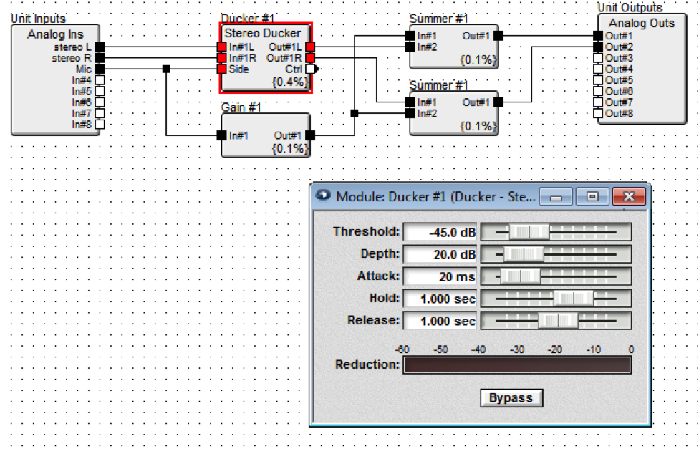
In Composer, using a ducker has been greatly simplified. The Ducker module has built in side-chain mix controls. By default, the sidechain input is muted. To mix the side-chain signal back into the program audio, simply turn off the mute and adjust the level for which the side-chain should be mixed into the program audio.
Here is a programming example of a Ducker being used in SymNet Composer. Notice the “Side Chain Mix” control which includes a volume fader and mute button. Additionally, the Ducker GUI now has a graphical representation of the parameters, useful for setup.
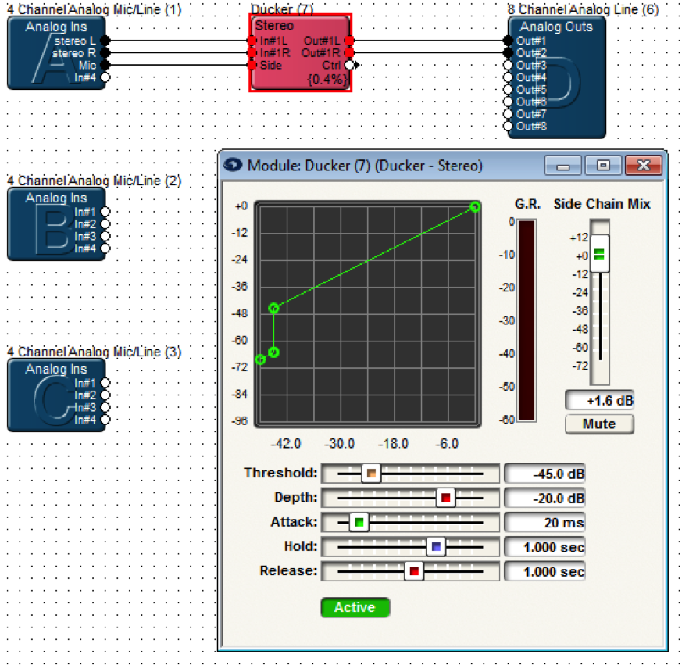
From the two examples, you can see how simple and intuitive it is to utilize the Ducker Module in Composer.
Applies to Radius NX, Edge, Prism xControl, Jupiter, and Zone Mix 761
This tech tip will explain how to properly integrate the Logic Outputs of the above DSP units into your installation. Typically these outputs would be utilized in a couple of ways – driving LEDs in order to give visual feedback to an end user, or controlling an external relay for switching other equipment, such as a projector screen or rack of other equipment. In order to do this is as seamlessly as possible, it is first necessary to know some basic facts.
First, each of these logic outputs is the open collector of a switching transistor that has its emitter tied to ground. What does this mean to you? These are not dry contacts that are simply open or closed. When the transistor is inactive, 5V is present at the logic output. When the transistor is activated, the 5V is shunted to ground through the transistor’s emitter, which results in 0V at the logic output.
Here are the specs for the logic outputs that we’ll be referring to in this tech tip:
- The logic output is pulled high (5V) when inactive.
- The logic output goes low (0V) when active.
- The maximum logic output source current is 10mA.
- The maximum external power supply voltage is 24 VDC.
- The maximum external power supply current sinking is 50mA.
How to Drive an LED
With a max output current of 10mA, it is possible to drive an LED directly from the logic output without needing a current-limiting resistor (there is an internal 500 ohm resistor). This of course depends on the forward voltage and forward current of the LED you choose (check the datasheet for your LED). In this case, simply connect as below:
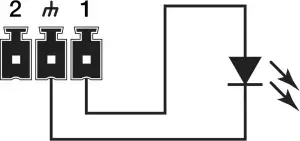
If you have an LED that requires a higher voltage/current demand, an external power supply will be needed. As stated above, the max external power supply voltage is 24 VDC with 50 mA sinking current. Hook it up as below:
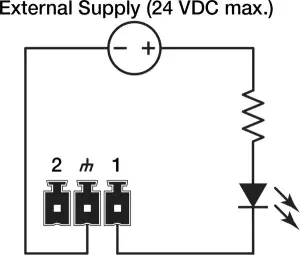
You can calculate the resistor’s value by using Ohm’s law:
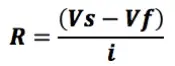
Vs = Supply Voltage
Vf = LED forward voltage drop
I = LED forward current (in Amps)
Round up your value to the nearest standard resistor value.
Note: Various styles of LEDs (from standard through-hole to panel-mounted) in a seemingly endless variety of values are readily available. The best approach would be to identify your needs in terms of LED type, then use the extensive search functions of sites like Digikey.com or Mouser.com to see what is available.
Driving Relays
There are two types of relays we’ll work with to control external devices, the most common being a non latching mechanical relay. Taking into consideration the 10 mA output current of the logic outputs, this type of relay will typically need to have its coil driven by an external power supply. As noted earlier, the external supply should not exceed 24 VDC, while the relay coil current should not exceed 50 mA. A relay such as the Omron G5LE-1A4 DC12 should do nicely.
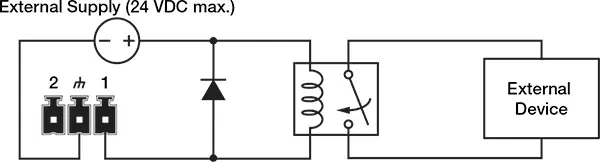
Take note of the flyback diode placed in parallel across the relay coil. This provides a path for discharge current to flow when the coil is switched off. Without this diode, there is the risk of damaging or destroying the internal transistor of the Symetrix device. Think of a flyback diode as the cheapest equipment insurance policy you’ll find anywhere. Use a 1N4004 or equivalent.
Another relay option would be to use a Solid State Relay (SSR), which typically has a lower current requirement for activation. Most installers use mechanical relays, but some of the advantages of SSRs are worth noting:
- Low turn-on requirements. There is no inductive coil to drive in an SSR. Instead there is an internal LED that toggles the relay, which typically requires very little current to turn on. If you choose one that requires less than 10 mA to activate, there is no need for the external power supply that you might need to power a mechanical relay coil.
- No mechanical wear-and-tear, arcing, or contact bouncing.
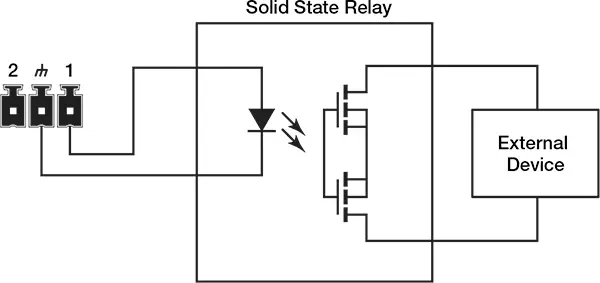
For a general use SSR, try a Panasonic AQV252G (max load voltage 60 VDC/VAC, max current of 2.5 A).
Triggering the Logic Outputs in SymNet Composer (Radius, Edge and xControl)
As a basic example, we’ll set up a logic output to be toggled on and off by an external device such as a Crestron or AMX controller.
1 In Composer’s Design View, drag in a single Latched Button from the Toolkit.
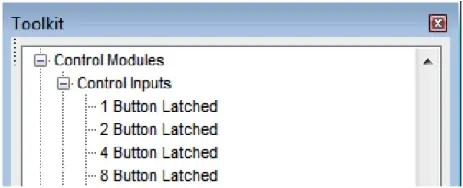
2. Drag in a “Local Logic Output #1” Module from the Toolkit. To use an xControl’s logic outputs, select the “Remote Logic Output” module instead.
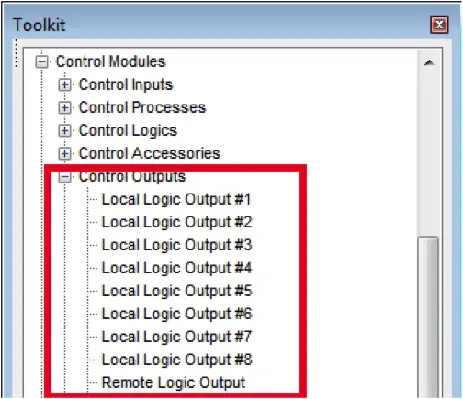
3. Wire the output of the latched button module to the input of the logic output module.
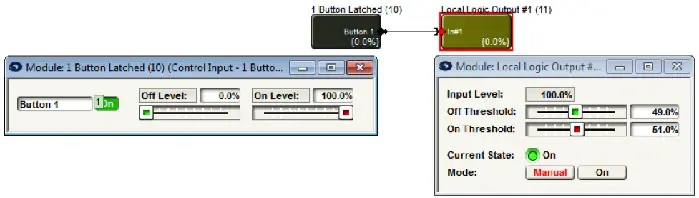
4. Right-click the “On” Button in the latched button module and click “Set Up to Remote Control.”
5. Select “Generic Controller Number Assignment” from the drop-down menu. Either keep the “Auto-assign controller number” checkbox selected, or un-check to type in your own controller number. Click OK, then push the site file to hardware.
6. You will now be able to control the button with your external controller.
- To enable the button, send this command to the DSP: CS <CONTROLLER NUMBER> 65535 <CR>
- To disable the button: CS <CONTROLLER NUMBER> 0 <CR>
Be sure to download the Composer Control Protocol from our website for full command details.
Triggering Logic Outputs for Jupiter and Zone Mix 761
Use the “External Controller Wizard” in the software to walk through programming your logic outputs.
- Setting up analog volume knobs and switches.
- LED clipping indicators for visual feedback.
- Triggering a power sequencer at 6AM every day.
These are just a few of the many things that can be accomplished with Symetrix hardware. All of our DSP units provide some degree of General-Purpose Input/Output (GPIO) via the External Control Inputs and Logic Outputs.
This document provides a side-by-side comparison of the GPIO counts for each piece of current Symetrix hardware, so you can spec the right gear for the job. Keep in mind that each individual External Control Input can either be configured to use a 10K potentiometer as its input, or two switches.
| Hardware | External Control Inputs | Logic Outputs |
| D100 | 0 | 0 |
| Edge | 8 switches / 4 pots | 8 |
| Radius NX 12×8 | 8 switches / 4 pots | 8 |
| Radius NX 4×4 | 4 switches / 2 pots | 4 |
| Prism | ||
| xControl | 16 switches / 8 pots | 16 |
| Jupiter | 4 switches / 2 pots | 4 |
| Zone Mix 761 | 4 switches / 2 pots | 4 |
For full details and walkthroughs on integrating GPIO, see the below Tech Tips:
Introduction
The purpose of this document is to provide a technical understanding of the Symetrix Control Protocol for Jupiter DSPs. It will define and illustrate the protocol used to communicate with the Jupiter products via a third-party interface.
Jupiter devices can be controlled by third-party controllers such as certain AMX or Crestron models, or any Ethernet equipped device that can be adapted to this protocol. The protocol consists of humanly readable text commands and responses. It is based on the Symetrix Control Protocol (described in a separate document) and inherits many of the features from that system.
Control is achieved by using a scheme of pre-assigned controller numbers. Nearly anything that can be adjusted from the Jupiter software can be controlled externally by referencing the appropriate controller number. The controller numbers for each Jupiter App may be browsed in the Custom Preset Parameter Browser. Refer to the Jupiter software help file for more information.
Conventions Used in this Document
- A dollar sign ($) preceding a set of alphanumeric characters denotes a hex value. All other number values should be considered decimal values. Example: “$A0” represents the decimal value of “160.”
- Values enclosed in [square brackets] are optional parameters and do not need to be include. If omitted, default values will be used as described for each command.
- The term “control application” is used to refer to the Windows-based graphical user interface software provided by Symetrix to configure Jupiter devices.
General Notes
Connections
All Jupiter products are equipped with Ethernet ports. The same port is used for host control (Jupiter software) and third-party control (with this control protocol).
Ethernet Port Configuration
Generally, no special configuration is required for the Ethernet port. The single Ethernet port on the device may be used for both the control application and for external control. Take note of the device’s IP address (listed in the Connection Wizard), as you will need to send all commands to this address. The commands Set Quiet Mode and Set Echo affect the Ethernet port. The device’s default settings (Quiet Mode ON, Echo OFF) are typical for most applications, so most users will not need to know about these commands. However, they are also documented for reference.
Ethernet Control
The Ethernet protocol allows the use of the existing human-readable command language over an Ethernet network. The protocol is similar to Telnet in use. However, instead of using TCP as Telnet does, it uses UDP. And, it does not use any of the options or escape sequence found in Telnet. To use this feature, command strings following the command language can be sent as the payload of a UDP packet. The following rules should be observed in sending commands:
- Commands should be sent to UDP port number 48630 of the proper Symetrix device’s IP address. The IP address may be found using the Connection Wizard.
- Commands should be formatted exactly as defined in this document.
- Command strings may or may not include a zero termination character.
- Commands should not be broken up across multiple packets
- If high reliability communications are required, responses to commands should be analyzed for success.
Responses to commands will exhibit the following behavior:
- Responses to each command issued are returned in a single packet unless the response is larger than a single packet can hold. Responses will not have any single carriage return-terminated line broken up across packets unless there is no carriage return in the response.
- Responses are returned to the IP address and source port number that sent the packet.
- Responses follow the configuration of the port (echo mode, quite mode and deaf mode).
- Responses do not include a zero-termination character.
- All transmissions originating from Symetrix devices will either be responses to commands or pushed data.
Each command sent to a Symetrix device contains information in the Ethernet packet header as to who sent the command, and hence, where a response will be sent. This source information is saved when a packet is received by a Symetrix device. All responses go to the last received IP address and port and this IP address and port number are saved in non-volatile memory across power cycles.
Until the first command is received, responses will not to know where they are supposed to be sent. This normally not an issue as communication from the Symetrix device is generally a response to a command. However, if the Symetrix device is set up to push control data, it will also be pushed out this UDP port. If no valid packets have ever been received by a Symetrix device, pushed data will not be sent out the Ethernet port.
RS-485 Control
RS485 control is generally done using one or more of the Symetrix ARC (Adaptive Remote Controller) devices. Further discussion of RS485 and the ARCs can be found on the Symetrix web site.
Parameter Notes
Faders
Faders can be controlled to the limits of their minimum and maximum values shown in the control application screens. A controller position of zero (0) will cause the minimum fader position to be realized. A controller position of 65535 will cause the maximum fader position to be realized. Increasing positions will move the fader linearly in dB.
Most volume faders have a range of -72 dB to +12 dB. In these cases, the following formula can be used to convert from controller position to dB:
Volume dB = -72 + 84*(CONTROLLER POSITION/65535)
If CONTROLLER POSITION = 0, Volume dB = OFF
Note that some faders have a different range than –72 to +12 dB. In this case, the formula will depend upon the actual fader range. The more general formula is shown below:
Volume dB = MINIMUM VALUE + (MAXIMUM VALUE – MINIMUM VALUE)*(CONTROLLER POSITION/65535)
Where MINIMUM VALUE is the fader’s lower limit in dB and MAXIMUM VALUE is the fader’s upper limit in dB.
Buttons
Buttons such as a mute or bypass can be controlled similarly with controller positions by sending the minimum value (0) to turn the switch off (button not pushed) and sending the maximum value (65535) to turn the switch on (button pushed). In some cases, the buttons use negative logic, i.e. 0 turns it on. These exceptions are noted in the Appendix for each product.
Input Selectors
A value of zero (0) will select the first input or output and a value of (65535) will select the last input or output. Other values are selected by sending evenly spaced (linear) values as shown by the formula below:
Controller Value = (INPUT NUMBER – 1)*65535/(NUMBER OF INPUTS – 1)
Meters
Meters can be read via Ethernet. The read back value will be linear in dB with 65535 representing +24 dBu (0 dBFS) and 0 representing -48 dBu (-72 dBFS) (or less). The formula below can be used to calculate a dB reading from a controller value:
Level dBu = 72*(CONTROLLER VALUE/65535) – 48
If CONTROLLER VALUE = 0, Level dBu <= -48 dBU
Input and output meters in some other modules such as Compressors, and AGCs can also be read via Ethernet. In this case, the read back value will be linear in dB with 65535 representing the maximum value shown on the meter and 0 representing the minimum value shown on the meter (or less). The formula below can be used to calculate a dB reading from a controller value:
Level dB = (MAXIMUM VALUE – MINIMUM VALUE)*(CONTROLLER VALUE/65535) + MINIMUM VALUE
If CONTROLLER VALUE = 0, Level dB <= MINIMUM VALUE
Note: Meters are a “read-only” parameter. Attempting to change the meter value will have no effect.
Other Parameters
Many other parameters such as compression ratios, delay times, EQ settings, and pans can also be controlled externally. For other parameter types, as in the above examples, sending a value of zero (0) will set the parameter to its minimum value and sending a value of (65535) will set it to its maximum value. Ratios, frequencies, width/Q, and attack/release/hold times all use a logarithmic scale. Pans and delay times use a linear scale. Quantities expressed in dB such as gains, volumes, thresholds, and depths are linear in dB. When in doubt, experiment by changing a value from the control application and reading it back via Ethernet.
Getting Started
Protocol
The Control Protocol is a text-based (ASCII string) protocol. Commands are sent with simple character strings with terms separated by spaces and completed with a carriage return character (ASCII code decimal 13 or hex $0D). The general form for commands is:
<COMMAND> <PARAMETER> <PARAMETER> … <CR>
A white space character (space, tab, etc.) must be included between the command and each parameter. Extra white space characters can be sent for readability if desired. In this document a single space will be used. If a command is accepted, the device will respond to each command with an acknowledgement string whose syntax varies with each command.
Control Commands
(CS) Controller Set
Use this command to move a controller position to a new absolute value. The command must specify the controller number and the new controller position. The syntax of the command is:
CS <CONTROLLER NUMBER> <CONTROLLER POSITION> <CR>
Where <CONTROLLER NUMBER> is the decimal controller number (1-10000) listed in the Appendix for each product, and <CONTROLLER POSITION> is a 16-bit number in decimal (0-65535).
If the command is accepted, the device will respond with the string: ACK <CR>
If the command is interpreted but fails for any reason the device will respond with the string: NAK <CR>
A typical reason for failure is that the specified controller number does not exist.
(CC) Change Controller
Use this command to move a controller to a new relative value. This command will increment or decrement a controller by a specified amount. The command must specify the controller number, whether it should be incremented or decremented, and the amount to change by. The syntax of the command is:
CC <CONTROLLER NUMBER> <DEC/INC> <AMOUNT> <CR>
Where <CONTROLLER NUMBER> is the decimal controller number (1-10000) listed in the Appendix for each product, <DEC/INC> is 0 to decrement and 1 to increment, and <AMOUNT> is the amount to increment or decrement (a decimal number, 0-65535). If the amount to be decremented or incremented causes the parameter to exceed its minimum or maximum value, the value will be limited to its minimum or maximum value. For example, if you increment a parameter by 10 and its current value is 65530, the new value will be limited to 65535.
If the command is accepted, the device will respond with the string: ACK <CR>
If the command is interpreted but fails for any reason the device will respond with the string: NAK <CR>
A typical reason for failure is that the specified controller number does not exist.
(GS) Get Controller
This command will return the controller position (value) associated with a specific controller number. The command must specify the controller number. The syntax of the command is:
GS <CONTROLLER NUMBER> <CR>
Where <CONTROLLER NUMBER> is the decimal controller number (1-10000) listed in the Appendix for each product.
If the command is accepted, the device will respond with the string: <CONTROLLER NUMBER> <CR>
Where controller position is a 16-bit number in decimal (0-65535).
If the command is interpreted but fails for any reason the device will respond with the string: NAK <CR>
A typical reason for failure is that the specified controller number does not exist.
If the value being requested is a button that only has two states, the returned values will be either 0 or 65535, regardless of the actual value sent to the controller. For example, assume controller number 1 controls a mute button. If you send CS <1> <754>, and then GS <1>, it will return 0, not 754. More generally, if the parameter you are controlling has granularity coarser than the 16-bit values used, the returned values will be quantized to the granularity of the parameter. Controls where you might observe this effect are buttons as mentioned above and input selectors.
(GS2) Get Controller with Controller Number
This command will return the controller number with controller position (value) associated with it together in the same string. This command is provided at the request of AMX/Crestron programmers to make it easier to interpret and parse returned controller positions. The command must specify the controller number. The syntax of the command is:
GS2 <CONTROLLER NUMBER><CR>
Where <CONTROLLER NUMBER> is the decimal controller number (1-10000) listed in the Appendix for each product.
If the command is accepted, the device will respond with the string: <CONTROLLER NUMBER><CONTROLLER POSITION> <CR>
Where <CONTROLLER POSITION>is a 16-bit number in decimal (0-65535)
If the command is interpreted but fails for any reason the device will respond with the string: NAK <CR>
A typical reason for failure is that the specified controller number does not exist.
(GSB) Get Controller Block
This command will return the controller position (value) of a specific range of consecutive controller numbers. The command must specify the starting controller number and the number of consecutive controllers to return. The syntax of the command is:
GSB <CONTROLLER NUMBER> <BLOCK SIZE> <CR>
Where <CONTROLLER NUMBER> is the decimal controller number (1-10000) listed in the Appendix for each product and <BLOCK SIZE> is the number of consecutive controllers. Note that <BLOCK SIZE> can be at most 256.
If the command is accepted, the device will respond with the string:
<CONTROLLER POSITION1> <CR>
<CONTROLLER POSITION2> <CR>
<CONTROLLER POSITION3> <CR>
…
<CONTROLLER POSITIONn> <CR>
Where <CONTROLLER POSITIONn> is a 16-bit number in decimal (0-65535), or -1 if a controller does not exist. The values will always be five digits, with leading zeros added as necessary (e.g. 7 would be returned as 00007 <CR> and -1 would be returned as -0001 <CR>.)
If the command is interpreted but fails for any reason the device will respond with the string: NAK <CR>
A typical reason for failure is that the requested block size is larger than 256. For more information and tips on reading back controller numbers, see the GS command.
Example command sent:
GSB 9 3 <CR>
Example Response:
32321 <CR>
00256 <CR>
00003 <CR>
(GSB2) Get Controller Block with Controller Number
This command will return the controller number with controller position (value) associated with it for a specific range of consecutive controller numbers. The command is very similar to GSB described above, but the return string may be easier to process in some systems. The command must specify the starting controller number and the number of consecutive controllers to return. The syntax of the command is:
GSB2 <CONTROLLER NUMBER> <BLOCK SIZE> <CR>
Where <CONTROLLER NUMBER> is the decimal controller number (1-10000) listed in the Appendix for each product and <BLOCK SIZE> is the number of consecutive controllers. Note that <BLOCK SIZE> can be at most 256.
If the command is accepted, the device will respond with the string:
#<CONTROLLER NUMBER1>=<CONTROLLER POSITION1> <CR>
#<CONTROLLER NUMBER2>=<CONTROLLER POSITION2> <CR>
#<CONTROLLER NUMBER3>=<CONTROLLER POSITION3> <CR>
…
#<CONTROLLER NUMBERn>=<CONTROLLER POSITIONn> <CR>
Where <CONTROLLER NUMBERn> is the decimal controller number (1-10000) listed in the Appendix for each product and <CONTROLLER POSITIONn> is a 16-bit number in decimal (0-65535), or -1 if a controller does not exist. The values for the controller number and position will always be five digits, with leading zeros added as necessary (e.g. 7 would be returned as 00007 and -1 would be returned as -0001).
If the command is interpreted but fails for any reason the device will respond with the string: NAK <CR>
A typical reason for failure is that the requested block size is larger than 256. For more information and tips on reading back controller numbers, see the GS command.
Example command sent:
GSB2 9 3
Example Response:
#00009=32321 <CR>
#00010=00256 <CR>
#00011=00003 <CR>
(GPR) Get Preset
This command will return the last preset that was loaded. The syntax of the command is:
GPR D <CR>
If the command is accepted, the device will respond with the string: PrstD=<PRESET NUMBER> <CR>
The <PRESET NUMBER> return value will be 0-50. A return value of 0 indicates that no preset has been recalled. The value for the preset number will always be 4 digits, with leading zeros added as necessary (e.g. 7 would be returned as 0007).
If the command is interpreted but fails for any reason, the device will respond with the string: NAK <CR>
(LP) Load Preset
This command will load the specified preset (1-50). The syntax of the command is:
LP <PRESET NUMBER> <CR>
Where <PRESET NUMBER> = 1-50 as defined in the control application.
If the command is accepted, the device will respond with the string: ACK <CR>
If the command is interpreted but fails for any reason the device will respond with the string: NAK <CR>
A typical reason for failure is that the specified preset has not been defined.
(FU) Flash Unit
This command momentarily flashes the front panel LEDs of the device. This command can be used as a quick test to verify communications. The syntax of the command is:
FU <CR>
If the command is accepted, the LEDs will flash and the device will respond with the string: ACK <CR>
If the command is interpreted but fails for any reason the device will respond with the string: NAK <CR>
LEDs on devices other than the one to which you are physically connected can be flashed by using the Set Device command.
Push Commands
Symetrix devices can send out unsolicited Ethernet data. All parameters that can be externally controlled can be set up to automatically send out their values whenever they change. This method, referred to as pushing data, can be used instead of or in addition to polling (asking for data). When using this feature, take care that your system can handle the volume of data you set up and that it can differentiate between responses to commands and unsolicited data. Commands used to control the push feature are described below. Also, the following questions and answers provide a detailed discussion of this feature, including real world problems and solutions.
When is data pushed?
For data to be pushed 1) the push feature must be globally enabled and 2) individual parameters must be enabled to push using the Push Enable command. Then, the controller value will be sent out 1) whenever the control’s underlying parameter changes or 2) when a refresh command is issued. Regardless of if the parameter change is made via the control application, RS-485, preset recall, analog control, or any other method, the data will be pushed. This means for example that if your control system changes a controller value set up for push, you will immediately receive notification of that change.
Where is the data pushed?
The data is sent out the Ethernet port of the Symetrix device.
What does the pushed data look like?
The format for unsolicited or “push” data is the same as the GSB2 command. Strings consist of the controller number and its value in the following format:
#<CONTROLLER NUMBER>=<CONTROLLER POSITION> <CR>
Where <CONTROLLER NUMBER> is the decimal controller number (1-10000) listed in the Appendix for each product and <CONTROLLER POSITION> is a 16-bit number in decimal (0-65535). The values for the controller number and position will always be five digits, with leading zeros added as necessary (e.g. 7 would be returned as 00007).
Up to 64 strings, separated with a as shown, may be sent out together. Example:
#00007=12321 <CR>
#00324=00128 <CR>
#10000=65535 <CR>
Should I use the push feature or poll for parameter changes?
The decision is up to you. Use whichever method makes more sense for your application and control system. In fact, some “control-only” applications may not need to use either. For example if the only thing controlling the device is your control system, then you know when anything changes. Manual polling is often simpler to implement initially because all data from the device is a direct response to command you send it, simplifying parsing. However, in situations where a large number of parameters that change infrequently need to be monitored, pushing may make more sense. You may also prefer the convenience of not needing to set up a timer to continually poll parameters for changes. Use whatever method is appropriate for your situation.
How often is data pushed?
If there is data to be pushed, it is normally sent out every 100 milliseconds. This is called the push interval. While 100 ms is the default, the push interval can be changed via a Set Push Interval command.
Can I push meter data?
Yes, meters can be enabled for push. Keep in mind that with normal audio signals connected to a meter, the meter value will most likely be changing constantly, so you will typically see the meter data being pushed at every 100 ms interval. However, a Set Push Threshold command can be used to prevent pushes until the data differs by a specified amount (by default, this amount is 1).
How can I control the amount of data pushed?
There are several methods for controlling pushed data. First, since pushed data is enabled on a per-control basis, your first line of defense is to limit it to only certain controls. Second, pushing can be globally turned on and off using a command. Third, pushing can be enabled for just a range of controller numbers. Fourth, the Set Push Threshold command can be used to prevent pushes until the data changes by a specified amount. Fifth, the Set Push Interval command controls how often the data is pushed, useful for meters and other data that changes frequently. Finally, the Push Refresh and Push Clear commands provide additional methods of control.
I want to refresh everything to make sure my control system is synchronized to the hardware. How can I receive all data even if it hasn’t changed?
Use the Push Refresh command. Alternatively, you could use the Get Controller commands to manually ask for the controls you are concerned with.
Sometimes my control system turns off push for an extended period of time. When I turn it on, will I be notified of all changes that occurred while push was turned off?
Yes, by default, all changes made while push was off will be immediately reported as soon as it is turned on. This applies to both turning push off globally or for individual controllers via the Push Disable command. Take care that your system can handle the potentially large amount of data that can be generated. It may be helpful to “gradually” turn on the push feature, enabling a small range of controller numbers at once. You can also use the Push Clear command to deal with this scenario. It allows you to effectively ignore all previous unreported changes.
What is the difference between the Global Push Enable/Disable (PU) command and the Push Enable (PUE) and Push Disable (PUD) commands? Why are there 2 different ways to specify a range of controllers?
The Global Push Enable/Disable command can be used to completely turn off push, or turn on push for all or a single contiguous range of controller numbers. In contrast, the Push Enable/Disable command allows much finer control. Individual (non-contiguous) controllers can be turned on and off, hence multiple ranges are supported.
The reason both methods are provided is for backwards compatibility. The less flexible “single range” global PU command was added first. Later, the more flexible PUE and PUD commands were added as an enhancement. The older global method was left in so existing programs wouldn’t need to be modified. We recommend that you use either one system or the other exclusively. Do not combine them. New designs should use the PUE and PUD commands and never use the PU command with a range specified.
How does push work at power-up?
When a device is first powered up, push is globally turned on but all controllers are individually disabled. All controller numbers are assumed to have changed. This means that after power-up, the first time you enable a controller to push, you will immediately receive its current value. This can be prevented by issuing a Push Clear command before issuing the Push Enable command.
I’m not receiving unsolicited data. Any suggestions for troubleshooting?
First of all, make sure that general communication is working between your control system and the Symetrix Ethernet port. Make sure you can send commands and receive ACK messages. Try the Flash Unit command.
For Ethernet, make sure the Ethernet port is connected to the same network as the control system. Verify the connection LED on the Ethernet jack and/or switch is lit. Verify you can “ping” the device using its IP address.
Make sure the push feature has been globally enabled using the Global Push Enable/Disable command. Push is globally enabled on power-up, but may be turned off via Ethernet. Power cycling the device is a quick way to verify this.
Make sure the individual controllers have been enabled using the Push Enable command. Push is disabled for all controllers on power-up, and must be turned on via Ethernet. Sending a PUE command is a quick way to enable all controllers.
Make sure the parameter to be pushed is changing. Change the parameter via the control application, a Controller Set command, or other method. You can also use the Push Refresh command to force the data to be sent. If you have changed the push threshold, make sure the parameter is changing by an amount larger than the threshold.
For Ethernet, the device needs to know the proper IP address to send the data. Make sure at least one command has been sent from the control system to the device. If the control system ever changes IP addresses, another command must be sent to establish the new address.
What are the limitations of this feature?
If multiple parameters change at the same time, up to 64 controller numbers will be sent out during each push interval (default 100 ms) until all have been sent out. If a large amount of data is being pushed, we recommend you verify your system can support the amount of data being pushed.
Commands Related to Push
(PU) Global Push Enable/Disable
This command enables or disables the push feature. When enabling, a range of controllers can be specified to allow pushing only certain values. Disabling is always global and prevents any unsolicited data from being pushed. The syntax of the command is:
PU <ON/OFF> [<LOW> [<HIGH>]] <CR>
Where <ON/OFF> is 0=OFF and 1=ON. <LOW> is the optional lowest controller number to push (only valid when enabling) and <HIGH> is the optional highest controller number to push (only valid when enabling). <LOW> and <HIGH> are both decimal controller numbers (1-10000) listed in the Appendix for each product. If no controller numbers are specified, the entire range of 1-10000 will be enabled for push. If only one controller number is specified, it is assumed to be the <LOW> value and the range from that number up to 10000 will be pushed. If two controller numbers are specified, the range formed by those values (including the values themselves) will be enabled for push. <LOW> must be less than or equal to <HIGH>. When enabling, the range specified overrides any previous ranges, i.e. it replaces the range, rather than adding to it.
If the command is accepted, the device will respond with the string: ACK <CR>
If the command is interpreted but fails for any reason the device will respond with the string: NAK <CR>
At power-on, push is always enabled. Remember that individual controller numbers must be enabled using the Push Enable command as well. Data is pushed whenever a change in that controller occurs or if forced to refresh using the Push Refresh command.
Note: Global Push Enable with a range specified, e.g. PU 1 100 200<CR> is not recommended. Instead, we recommend always globally enabling the entire range using PU 1<CR> and using the Push Enable command for individual control.
(PUE) Push Enable
This command enables the push feature for an individual controller or range of controllers. The syntax of the command is:
PUE [<LOW> [<HIGH>]] <CR>
Where <LOW> is the optional lowest controller number to push and <HIGH> is the optional highest controller number to push. <LOW> and <HIGH> are both decimal controller numbers (1-10000) listed in the Appendix for each product. If no controller numbers are specified, the entire range of 1-10000 will be enabled for push. If only one controller number is specified, only that controller number is enabled. If two controller numbers are specified, the range formed by those values (including the values themselves) will be enabled for push. <LOW> must be less than or equal to <HIGH>. Multiple PUE commands can be used to enable non-contiguous controller numbers since changes are additive.
If the command is accepted, the device will respond with the string: ACK <CR>
If the command is interpreted but fails for any reason the device will respond with the string: NAK <CR>
At power-on, push is disabled for all controllers in Jupiter devices. Data is pushed whenever a change in an enabled controller occurs or if forced to refresh using the Push Refresh command. Changes that happen while a control is disabled will be pushed immediately upon enabling that control. The Push Disable command is the inverse of this command and provides a way to turn off controllers for push.
(PUD) Push Disable
This command enables the push feature for an individual controller or range of controllers. The syntax of the command is:
PUD [<LOW> [<HIGH>]] <CR>
Where <LOW> is the optional lowest controller number to stop pushing and <HIGH> is the optional highest controller number to stop pushing. <LOW> and <HIGH> are both decimal controller numbers (1-10000) listed in the Appendix for each product. If no controller numbers are specified, the entire range of 1-10000 will be disabled for push. If only one controller number is specified, only that controller number is disabled. If two controller numbers are specified, the range formed by those values (including the values themselves) will be disabled for push. <LOW> must be less than or equal to <HIGH>. Multiple PUD commands can be used to disable non-contiguous controller numbers since changes are subtractive.
If the command is accepted, the device will respond with the string: ACK <CR>
If the command is interpreted but fails for any reason the device will respond with the string: NAK <CR>
At power-on, push is disabled for all controllers in Jupiter devices. The Push Enable command is the inverse of this command and provides a way to turn on controllers for push.
(GPU) Get Push-enabled Controllers
This command returns a list of all controllers currently enabled for push. A range may optionally be specified to limit the display to controllers enabled for push within that range. The syntax of the command is:
GPU [<LOW> [<HIGH>]] <CR>
Where <LOW> is the optional lowest controller number to inquire about and <HIGH> is the optional highest controller number to inquire about. <LOW> and <HIGH> are both decimal controller numbers (1-10000) listed in the Appendix for each product. If no controller numbers are specified, the entire range of 1-10000 will be inquired about. If only one controller number is specified, it is assumed to be the <LOW> value and the range from that number up to 10000 will be inquired about. If two controller numbers are specified, the range formed by those values (including the values themselves) will be inquired about. <LOW> must be less than or equal to <HIGH>.
If the command is accepted, the device will respond with a list of enabled controller numbers separated by <CR>.
If no controllers are enabled, it returns the string: ACK <CR>
If the command is interpreted but fails for any reason the device will respond with the string: NAK <CR>
Special case: Entering GPU 0<CR> will return a list settings related to push. It begins with Global=<0/1> to show if push is globally enabled (1) or disabled (0). This is followed by five 5-digit values showing the settings of 1) the global lower limit, 2) the global upper limit, 3) the threshold for parameters, 4) the threshold for meters, and 5) the push interval in milliseconds. The default printout would look like this:
Global=1 <CR>
00001 10000 00001 00001 00100 <CR>
(PUR) Push Refresh
This command causes data to be pushed immediately even if it hasn’t changed (assuming push is enabled). This may be useful when trying to synchronize a control system to the device. A range of controllers can be specified to refresh only certain values. The syntax of the command is:
PUR [<LOW> [<HIGH>]] <CR>
Where <LOW> is the optional lowest controller number to refresh and <HIGH> is the optional highest controller number to refresh. <LOW> and <HIGH> are both decimal controller numbers (1-10000) listed in the Appendix for each product. If no controller numbers are specified, the entire range of 1-10000 will be refreshed. If only one controller number is specified, it is assumed to be the <LOW> value and the range from that number up to 10000 will be refreshed. If two controller numbers are specified, the range formed by those values (including the values themselves) will be refreshed. <LOW> must be less than or equal to <HIGH>.
If the command is accepted, the device will respond with the string: ACK <CR>
If the command is interpreted but fails for any reason the device will respond with the string: NAK <CR>
At power-on, all controller values are assumed to have changed, so it acts as if a full refresh was performed. In addition, push must be enabled for the range of controllers you are refreshing (see Push Enable). Controller numbers that don’t meet this criterion will not be affected by the Push Refresh command. In other words, if a controller is not enabled for push, refreshing it won’t cause the value to be pushed even if that controller is later enabled. The controller must be enabled for push at the time the Push Refresh command is issued.
(PUC) Push Clear
This command causes previous changes in data to be ignored and not pushed. It may be desirable to issue this command when first enabling push to prevent being swamped by the flood of incoming data. A range of controllers can be specified to clear only certain values. The syntax of the command is:
PUC [<LOW> [<HIGH>]] <CR>
Where <LOW> is the optional lowest controller number to clear and <HIGH> is the optional highest controller number to clear. <LOW> and <HIGH> are both decimal controller numbers (1-10000) listed in the Appendix for each product. If no controller numbers are specified, the entire range of 1-10000 will be cleared. If only one controller number is specified, it is assumed to be the <LOW> value and the range from that number up to 10000 will be cleared. If two controller numbers are specified, the range formed by those values (including the values themselves) will be cleared. <LOW> must be less than or equal to <HIGH>.
If the command is accepted, the device will respond with the string: ACK <CR>
If the command is interpreted but fails for any reason the device will respond with the string: NAK <CR>
It may be useful to issue this command if push has been disabled for a long time and then is about to be re-enabled. Otherwise, you will immediately receive notification for all changes that occurred during the disabled time.
(PUI) Set Push Interval
This command changes the minimum length of time between consecutive pushes of data. (See “How often is data pushed?” above for more information.) At power-up, this value defaults to 100 milliseconds. The syntax of the command is:
PUI <MILLISECONDS> <CR>
<MILLISECONDS> is the push interval in milliseconds, between 20 ms and 30,000 ms (30 seconds).
If the command is accepted, the device will respond with the string: ACK <CR>
If the command is interpreted but fails for any reason the device will respond with the string: NAK <CR>
While setting a short interval can speed up the push response, it may have a negative impact on overall system performance. The shorter the interval, the more time will be spent looking for push data. This can slow down responses to other commands and the control application. Therefore, we recommend using the longest interval that is practical, especially if data is being pushed while the control application is on-line. The default value of 100 milliseconds usually provides a good compromise between prompt reports of changing data and overall system performance.
(PUT) Set Push Threshold
This command changes the push threshold value. Recall that data is only pushed when it changes. The threshold is the amount a value must change from the previous push before it is pushed again. For example, if a controller value was 10,000 and the threshold was 1,000, the data would not be pushed again until the value rose to at least 11,000 or fell to 9,000 or below.
The device actually maintains two different thresholds: one for parameter data such as faders and buttons, and another for meters (including LEDs). These two thresholds can be set to the same value or be different. It may be desirable to use a fairly large threshold for meters to avoid constant pushing of values. The power-on default for both of these values is 1.
The syntax of the command is:
PUT [<PARAMETER THRESH>] [<METER THRESH>]] <CR>
Where <PARAMETER THRESH> is the optional threshold for parameters other than meters (e.g. faders and buttons) and <METER THRESH> is the optional threshold for meters. Both values must be between 0 and 65535. If neither threshold is specified, both thresholds are set to the default of 1. If only one threshold is specified, that value is used for both the parameter and meter thresholds.
If the command is accepted, the device will respond with the string: ACK <CR>
If the command is interpreted but fails for any reason the device will respond with the string: NAK <CR>
Technical Note: The threshold is a “greater than or equal to” type parameter, meaning it must be met (or exceeded) to trigger a push. For example: if the threshold is 1 and the last value pushed was 10,000, then a new value of 10,001 or 9,999 would cause a push to occur. Note that it is possible to set the threshold to zero. In this case, the value will be pushed if there is any change at all to the underlying DSP variable – even if the change is so small that the pushed controller value is identical (which may happen due to the limited resolution of the 16-bit controller value scheme).
Setup Commands
Note: If you ever find yourself in a situation where you are not sure of the accessory controller port settings, you can use the control application to change the settings with the Accessory Port Settings dialog under the Tools menu. Alternatively, the rear panel reset button can be used to return the settings to factory defaults. However, that should be only used as a last resort since it also resets many other things.
(SQ) Set Quiet Mode
The Set Quiet Mode command controls the text output of the control port during responses. When quiet mode is turned on, it restricts the output to just ACK, NAK or simple values. All command descriptions above assume that quiet mode is turned ON. Quiet mode ON should generally be used for normal operation.
When quiet mode is set to OFF, lengthy strings intended to be read by humans are sent in response to commands. This mode is useful when using a terminal program for testing or debugging. The syntax of the command is:
SQ <ON/OFF> <CR>
Where <ON/OFF> is 0 = OFF, 1 = ON.
If the “SQ 0” command is accepted, the device will respond with the string: Setting Quiet Mode to false.<CR>
If the command is interpreted but fails for any reason the device will respond with the string: NAK <CR>
The quiet mode state is saved in non-volatile memory. It does not need to be continually set. It will not hurt the device to be repeatedly set with the same value as it is only written if a different value is set. Note: New devices default to quiet mode ON.
(EH) Set Echo Mode
The Set Echo Mode command controls the text output of the control port during commands. When echo mode is turned on, all characters that are received on the Ethernet port are sent or “echoed” back. This mode is useful when using a terminal program for testing or debugging. When echo mode is turned off, the characters received are not echoed back. All command descriptions above assume that echo mode is turned off. Echo mode OFF should generally be used for normal operation. The syntax of the command is:
EH <ON/OFF> <CR>
Where <ON/OFF> is 0 = OFF, 1 = ON.
If the command is accepted, the device will respond with the string: ACK <CR>
If the command is interpreted but fails for any reason the device will respond with the string: NAK <CR>
The echo mode state is saved in non-volatile memory. It does not need to be continually set. It will not hurt the device to be repeatedly set with the same value as it is only written if a different value is set.
Jupiter App Controller Numbers
In the initial release of Jupiter software, the best method for retrieving Controller Numbers for use with third-party control systems is with the Custom Preset Parameter Browser. The Controller Numbers addressable within each Jupiter App are displayed in the far right column of the lower section.
Limiting a fader to a specific dB range is easy within the Composer environment, whether using a Symetrix T-Series touchscreen, ARC-Series remote, or W-series remote. Third-party control, however, can be a bit more difficult if the third party doesn’t have their own inherent way to accomplish this task. Thankfully, with a small bit of logic circuitry we can emulate this range control. In this example, we are trying to limit the control of this gain module’s fader.
- First, drag in a control fader from the Control Inputs folder in the toolkit.
- Then, drag in a scaler from the control processes folder. Finally, drag in a one output remote control number module from the control outputs folder.
- Open each module, including the gain, and set the windows to be able to view all.
- In the one output remote control module, choose and enter an available remote control number. Then assign that same control number to the actual fader needing to be controlled.
- Now right-click on the logic fader and set it up to remote control, choosing another available remote control number. Note the chosen control number cannot be the same as the gain fader.
- We can’t see logic activity live while offline. If we push online we will see as we move the control fader from zero to 100% the gain fader moves as well. The point is to limit the effective movement of the gain fader in relation to the full scale movement of the logic fader.
- We can allow the control fader to fully scale on the scaler’s input. But if we adjust the output to a desired degree, we can limit the movement of the gain fader. In this case we’ll set the low output to 50% and the high output to 85.7%. This will give us a range of 0 to -30 dB. The scaler out values can be adjusted to match your system requirements
The control fader is what would be set up for the end user to control in the programming. It in turn controls the gain fader where the actual audio is passing through. Be aware that the representation will be in percentage, not dB.
While the dB level box from the gain module can be set up to remote control, the third-party controller should be consulted about how it will represent this value.
Limiting a fader to a specific dB range is easy within the Composer environment, whether using a Symetrix T-Series touchscreen, ARC series remote, or W-series remote. Third-party control, however, can be a bit more difficult-if the third party doesn’t have their own inherent way to accomplish this task.
Thankfully, with a small bit of logic circuitry we can emulate this range control. In this example, we are trying to limit the control of a gain module’s fader.
First, drag in a control fader from the Control Inputs folder in the toolkit. Then, drag in a scaler from the control processes folder. Finally, drag in a one output remote control number module from the control outputs folder.
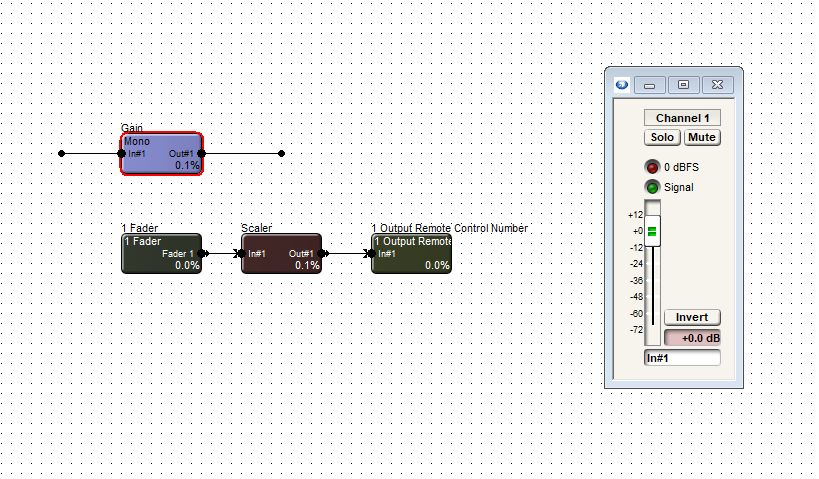
Open each module, including the gain, and set the windows to be able to view all.
In the one output remote control module, choose and enter an available remote control number. Then assign that same control number to the actual fader needing to be controlled.
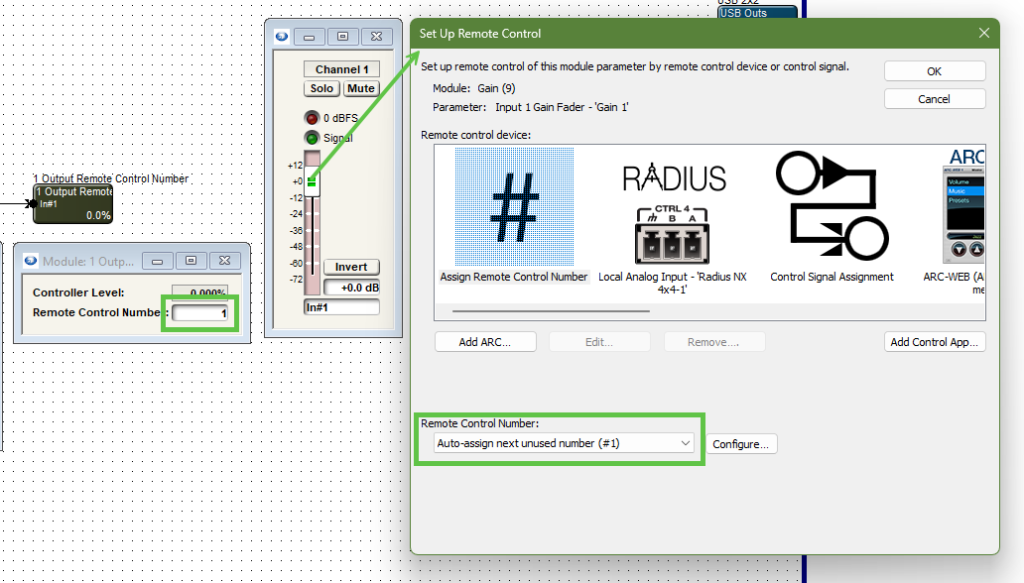
Note the control number output and the gain module fader are the same control number.
Now right-click on the logic fader and set it up to remote control, choosing another available remote control number. Note the chosen control number cannot be the same as the gain fader.
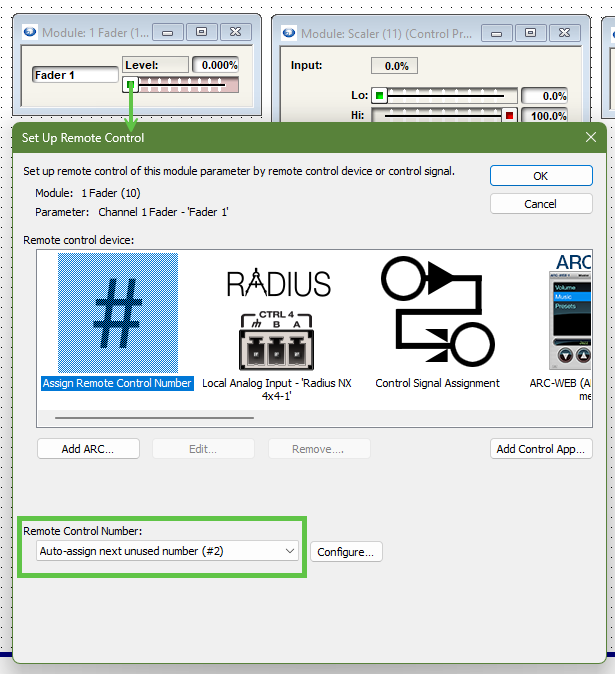
Note the control fader has a different remote control number assignment than the gain module fader.
We can’t see logic activity live while offline. If we push online we will see as we move the control fader from zero to 100% the gain fader moves as well. The point is to limit the effective movement of the gain fader in relation to the full scale movement of the logic fader.
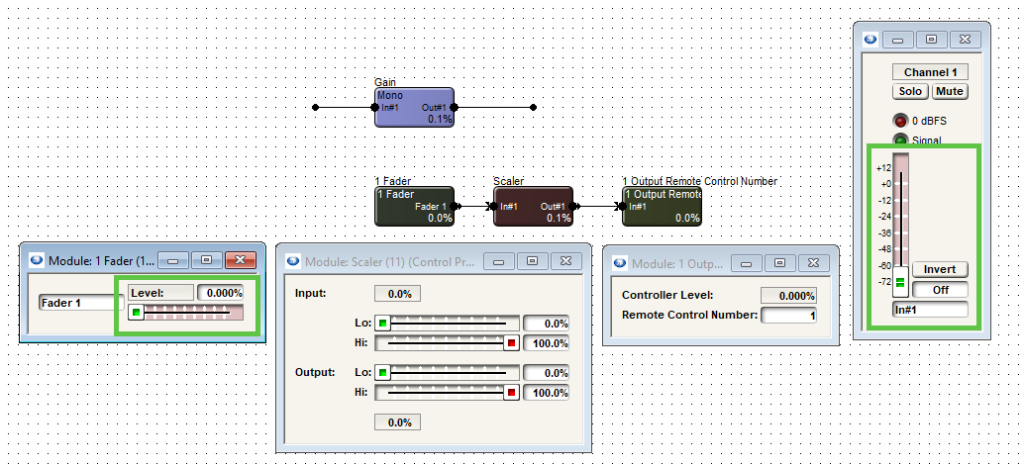
Note when the control fader is at 0% the gain fader is also at the lowest position, “off”.
We can allow the control fader to fully scale on the scaler’s input. But if we adjust the output to a desired degree, we can limit the movement of the gain fader.
limit 1
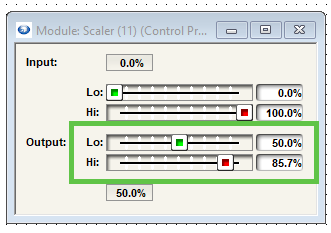
In this case we’ll set the low output to 50% and the high output to 85.7%. This will give us a range of 0 to negative 30 dB.
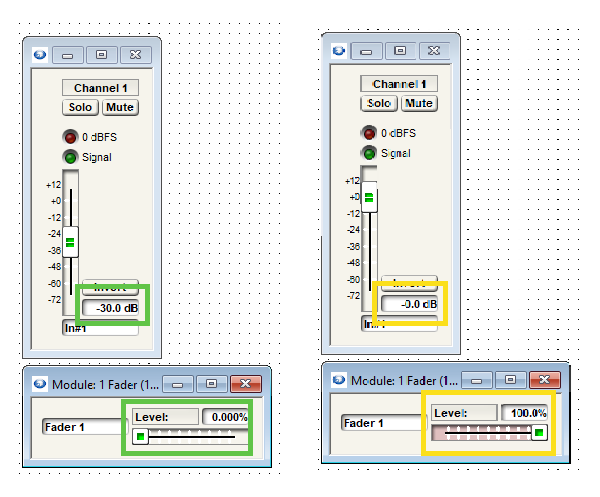
The scaler output values can be adjusted to match requirements of dB range(s).
The control fader is what would be set up for the end user to control in the programming. It in turn controls the gain fader where the actual audio is passing through. Be aware that the representation will be in percentage, not dB.
While the dB level box from the gain module can be set up to remote control for push value, the third-party controller should be consulted about how it will represent this value.
In Symetrix DSPs, the word “active” isn’t quite accurate to describe how presets work. Presets are simply snapshots of a given set of parameters in a given state and more recalled than they are active. This means that if a preset is recalled and one of those parameters is adjusted independently, the dropdown text box will still show the last preset recalled.
This Tech Tip will assume you already have some presets set up. In this example, there is a 6 channel gain module controlling zone volumes and a Matrix Mixer controlling source routing.
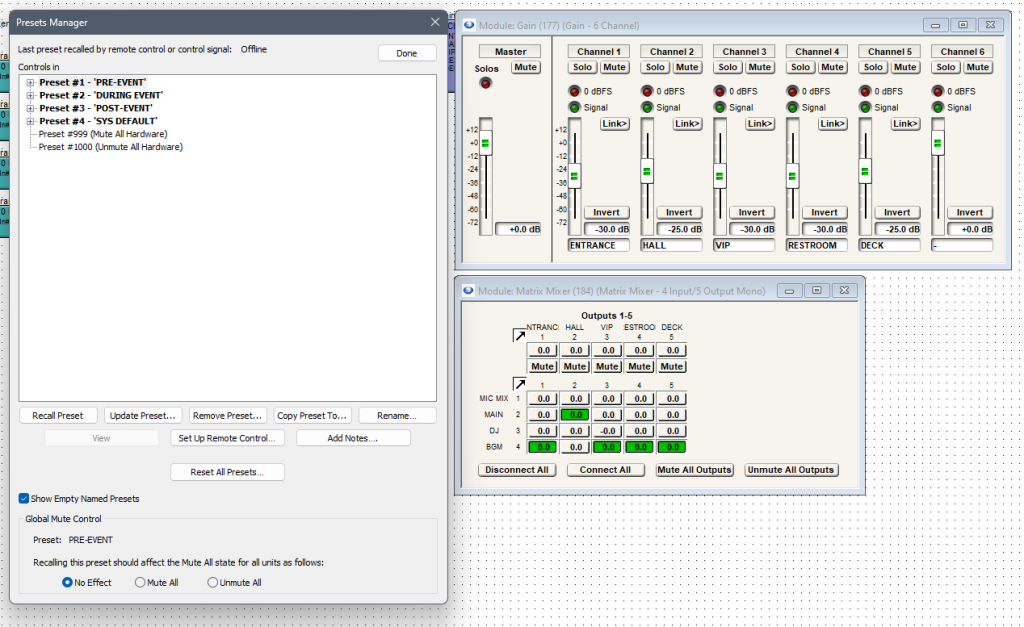
Then, drag in a Radio button from the toolkit in Control Modules > Control Inputs > # Button Radio. Label the selections accordingly. This example will not offer Preset 4 to the end-user as it would be intended for system admin use only.
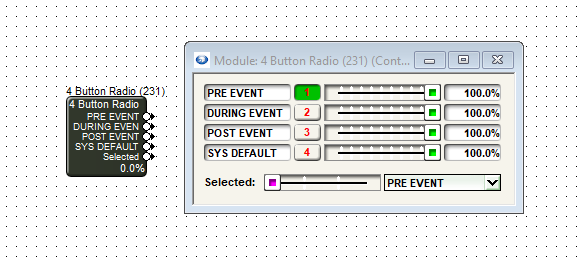
Add the selections on the Radio Button to the appropriate presets.
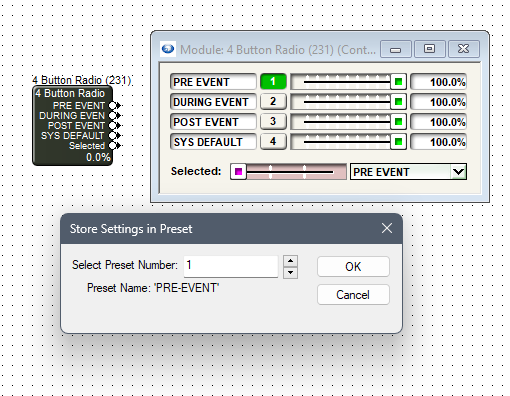
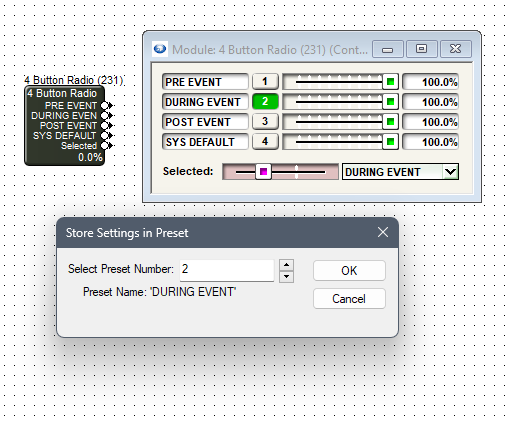
Now that these radio button selections are included in the presets, copy the drop down box to the control screen.
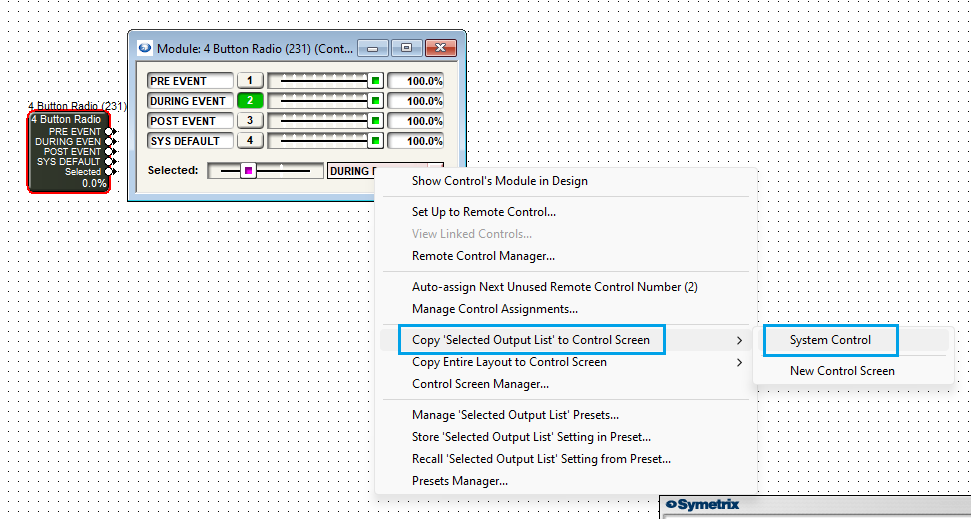
Open the control screen and move preset trigger buttons onto the screen, placing them appropriately.
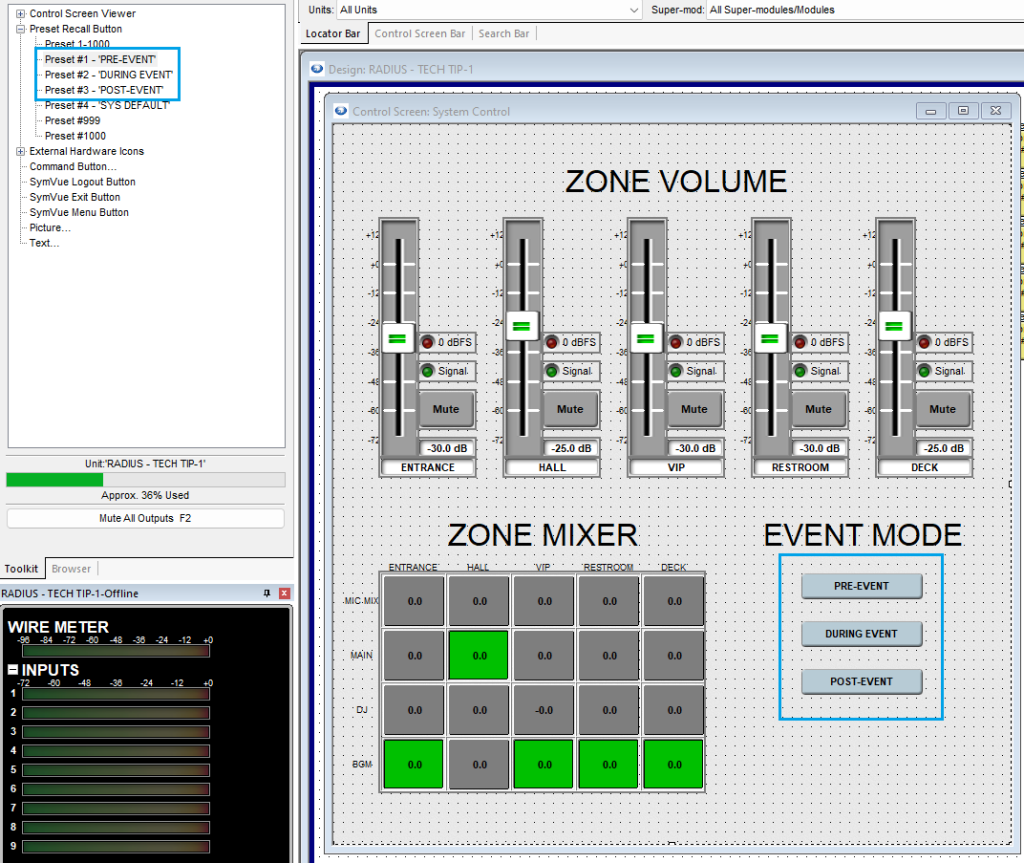
Now, copy the dropdown box to the control screen and resize it appropriately.
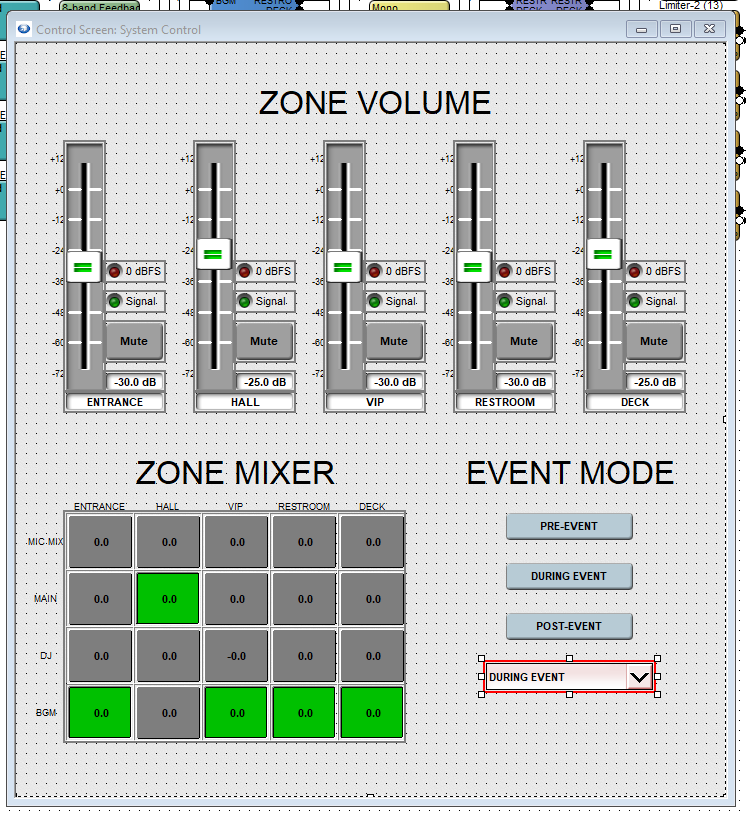
In the dropdown properties panel, set the Font, Horizontal Alignment, User Adjustable, Show Button, and Show Item List settings to match these.
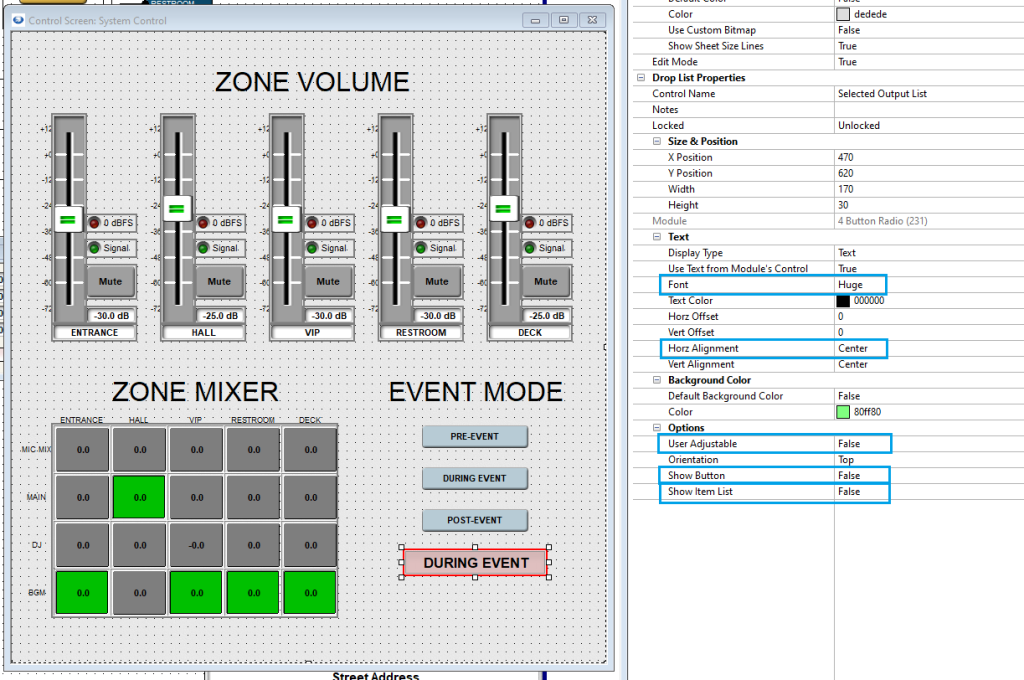
Now, take the control screen out of edit mode and test the preset trigger buttons. Not only should parameters change according to the preset, but the drop down display should also change accordingly.
Remember, presets are simply snapshots of a given set of parameters and not “active”. If a preset is recalled and one of those parameters is adjusted independently, the dropdown text box will still show the last preset recalled.
Mute buttons in Composer are essentially latched buttons, toggling on and off active and inactive states. However, a client or end-user may request the use of a momentary style, physical button to toggle a mute. This can be programmed in Composer using some simple logic modules.
Drag in a 1-Button Momentary from the Control Inputs folder, a Flip-flop module from the Control Logics folder, and a 2-Output Remote Control Number module from the Control Outputs folder and wire them as shown.
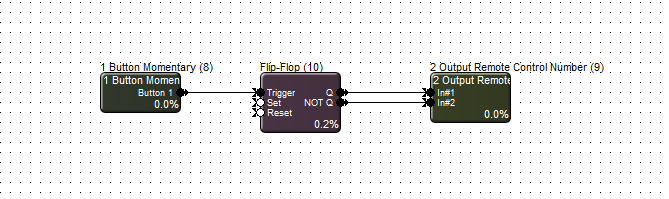
This Tech Tip will exhibit how to set up this control for the unit analog output mute, but this can be used for any latched style button.
Set up the mute button to remote control – in this case remote control number 1.
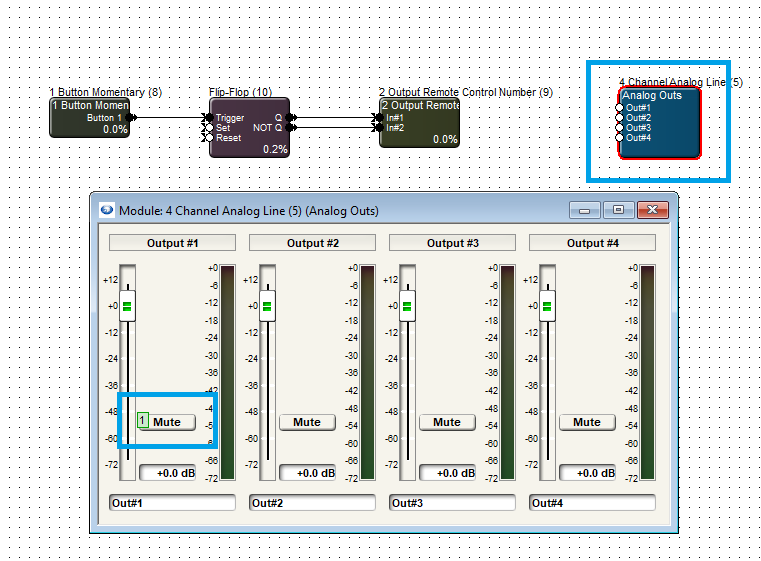
Next, edit the remote control number outputs to both have the same number that was assigned to the mute button.
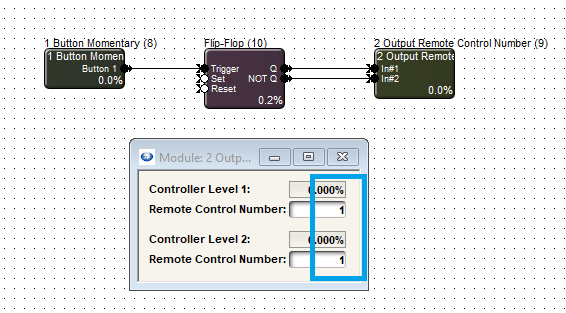
Now, assign the 1-Button Momentary ON button to analog remote control.
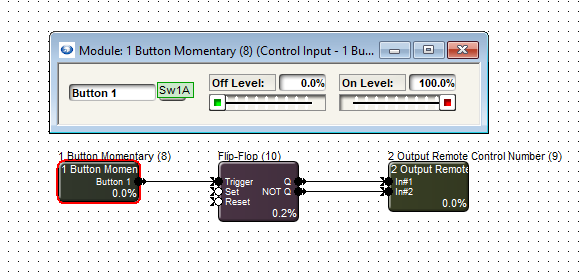
Logic programming is only functionally viewable when Composer is online. Push and go online and test the logic programming.
Every time the momentary button activates, it triggers the flip-flop module to toggle back and forth between Q and NOT Q, which in turn triggers the remote control numbers. Because the same remote control number is in both outputs, it effectively toggles the mute button off and on.
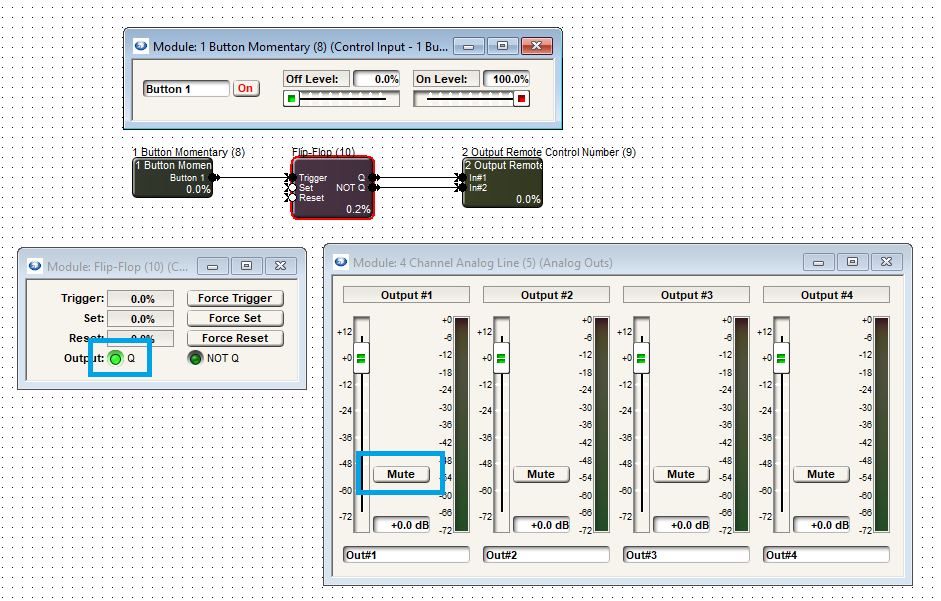
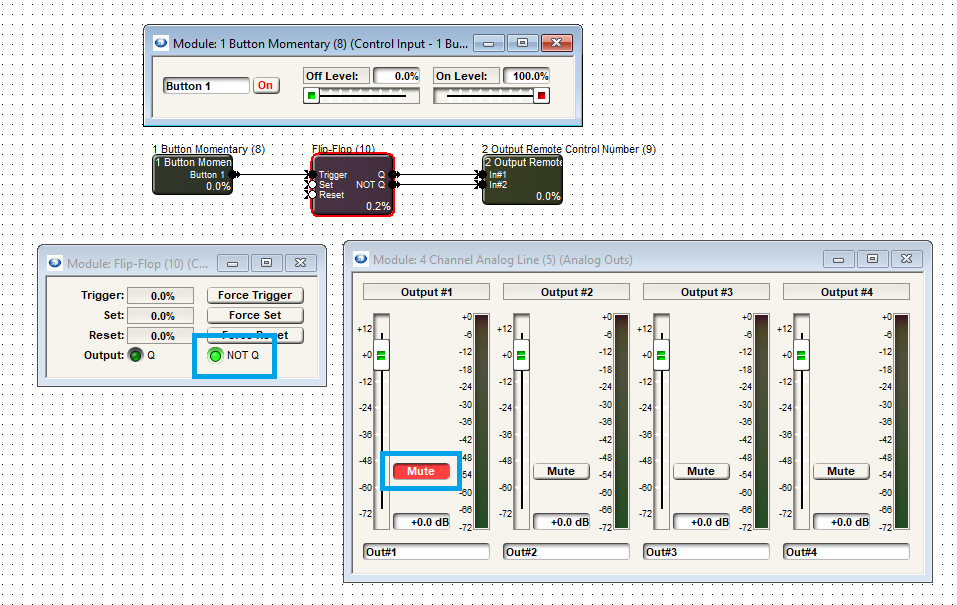
This article will demonstrate Composer control logic for automatically hanging up a call if no DTMF signal is received within a period of time. The logic is designed to function with both VoIP and ATI option cards for Radius NX and Edge.
Logic Demonstration
How It Works
There are five key modules used in this design. This section will go through them one by one:
- The Flip-Flop module keeps track of whether or not a DTMF signal has been received from the far end. Normally, the “Set” input would be wired to the “DTMF#1” output of the 2 Line VoIP Interface module, but here it is simulated by a 1 Button Momentary module. The “Reset” input is wired to the “Hook Status#1A” output of the 2 Line VoIP Interface module, with an inverter in between. This will reset the Flip-Flop after the call ends.
- The 2 Input Logic module outputs “True” when the call is active and a DTMF signal has not been received from the caller. Otherwise, the module outputs “False”. The “In#1” input is wired to the “NOT Q” output of the Flip-Flop. The “In#2” input is wired to the “Hook Status#1A” output of the 2 Line VoIP Interface module. The logic type of this module should be set to “AND”.
- The Ramp Processor module takes in the control signal from the “True” output of the 2 Input Logic module and outputs a control signal that ramps up over a specified period of time. Here, it is set to 10 seconds, but this can be set to any desired value. This represents the amount of time the caller will have to enter a DTMF signal before the call automatically hangs up.
- The Threshold Detector module takes in the ramping control signal from the Ramp Processor module, but only outputs a control signal once the ramping control signal reaches 100%. In order to do this, the “Threshold A” value must be set to “100%”.
- The 1 Output Remote Control Number module takes in the control signal from the “True” output of the Threshold Detector module and outputs a high (100%) control signal to Remote Control Number 1. Note that the “Call/End” button in the 2 Line VoIP Interface module has been set up to Remote Control Number 1. This button will be activated when the 1 Output Remote Control Number sends its control signal, ending the call.
In some situations, you may need to avoid unintentional button presses on a control screen or external controller. This could be to trigger a preset, power down a system, or a myriad of other cases.
This could translate into the user needing to hold a button for a given amount of time before a control will activate. We can achieve this with a ramp processor and threshold detector.
Drag in these modules and wire them as shown below.
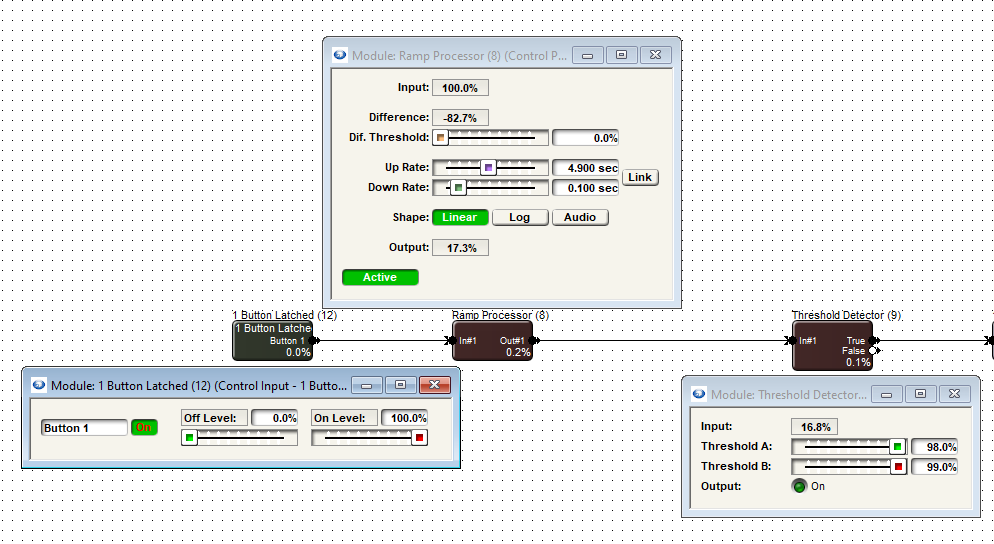
This functionality can be used with either a momentary button or latched button. The control meter at the end of this example simply shows the 100% signal flowing through the TRUE output of the threshold detector. This could be a remote control number output, preset trigger, network string output, etc.
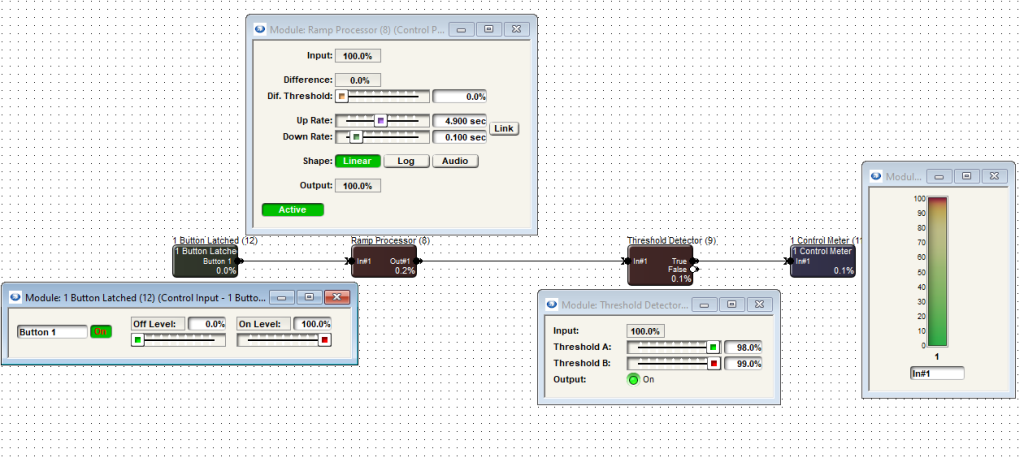
When the ON button is pressed and held, we can see 100% control signal inputting into the ramp processor which slowly raises its output level from 0% to 100% over the span of time set by the UP rate. We see the ramp processor output then inputting into the threshold detector’s input.
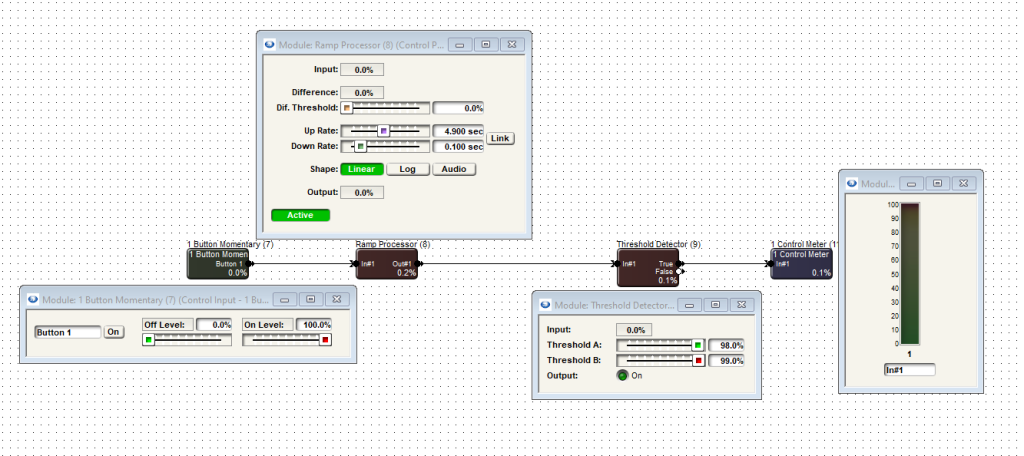
Once the ramp processors output has reached 98% or higher (as set by the Threshold A slider), the threshold detector allows the signal to pass through its TRUE pin, causing the control meter to reflect 100% input.
The threshold detector could also have its FALSE pin connected to something that would trigger something else when the button is in the off state.
Additional note: logic functionality doesn’t work live in Composer unless it is online with the system.
This article will demonstrate how to download and install Symetrix plugins for implementing xIO Bluetooth endpoints in systems that use Q-SYS DSPs.
Note: This article was written with Q-SYS Designer 9.10 installed. The latest version of Q-SYS Designer can be found here.
Step 1: Visit the Symetrix Control Library
- The Control Library can be found under the “Software” drop-down menu at the top of the page:
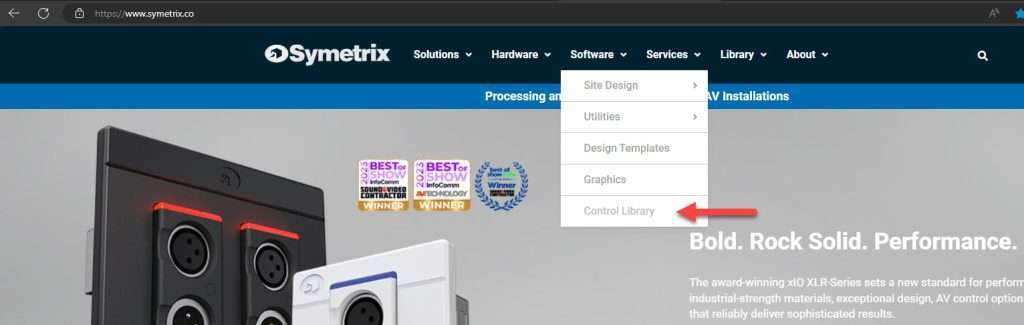
Step 2: Navigate to the “Type” section on the left-hand side of the Control Library page, check the box next to “Q-SYS Plug-Ins”, and select “Apply”:
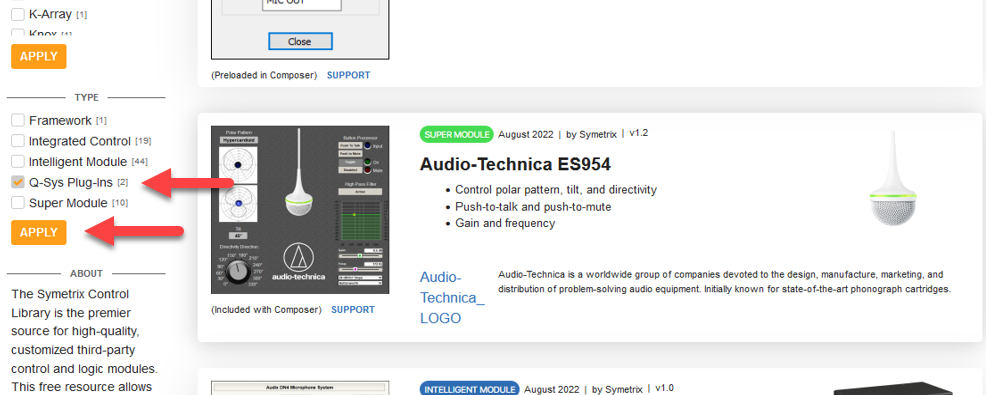
Step 3:The xIO Bluetooth Q-SYS plugins should now be displayed. Click the download button for the desired device type:
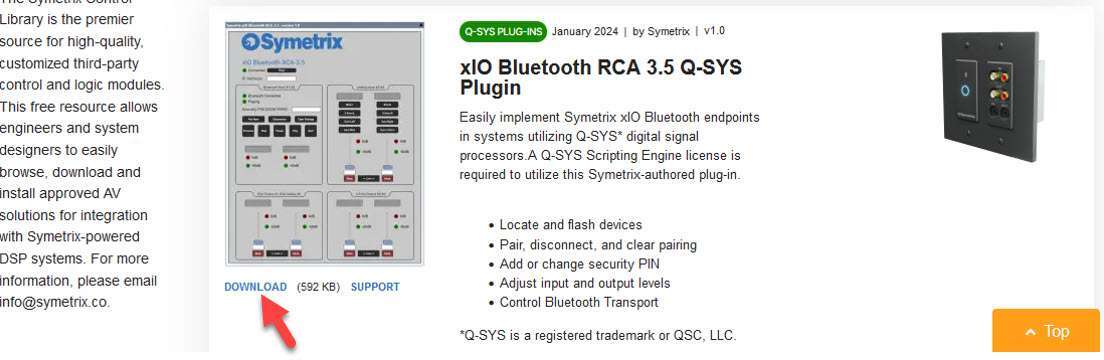
Step 4: Once downloaded, open the “.zip” file. Double click on the “.qplugx” file and select “Yes” when prompted. This will automatically install the plugin into the “User Plugins” folder of the Q-SYS installation:
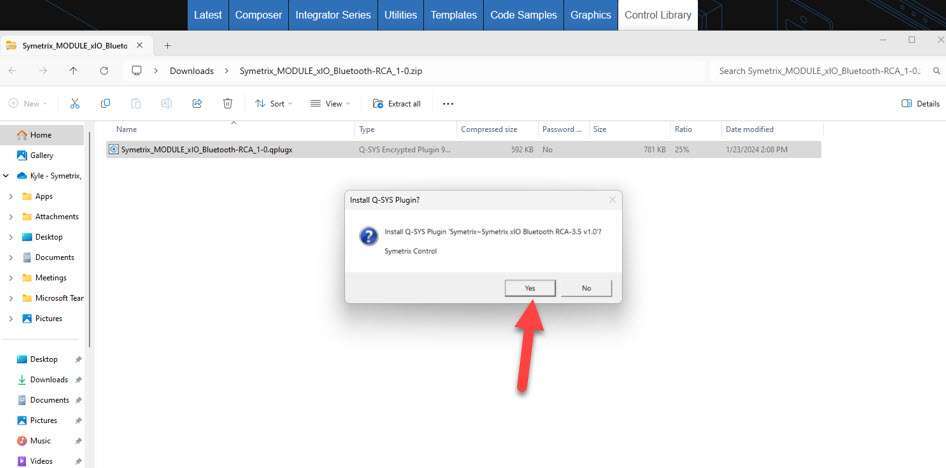
- The default directory path will likely be “Documents > QSC > Q-Sys Designer > Plugins”
Step 5: Open Q-SYS Designer. In the right-hand panel, the plugins can be found under the “Schematic Elements” tab under Plugins > User > Symetrix. Bring the plugins into your design by clicking on the name of the device and dragging into the design panel:
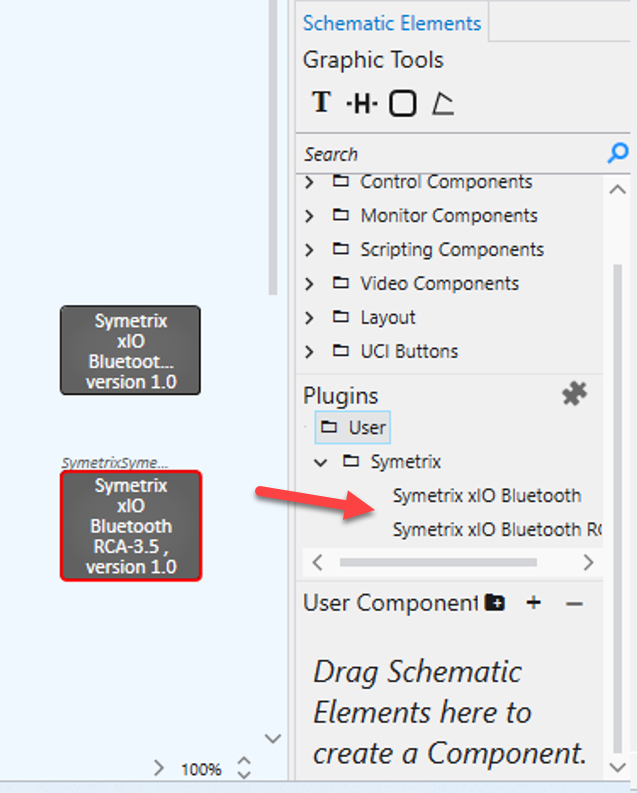
ARC remotes are a powerful and intuitive form of control for systems using Symetrix DSPs. This Tech Tip will walk through setting up stereo Source Select and Volume control for the Jupiter on an ARC-WEB for the BGM Zone Mixer app. The process is nearly identical for ARC-2e.
Note: this set up assumes stereo output as well.
Looking at the home page for the BGM Zone Mixer we will be focusing on two major sections.
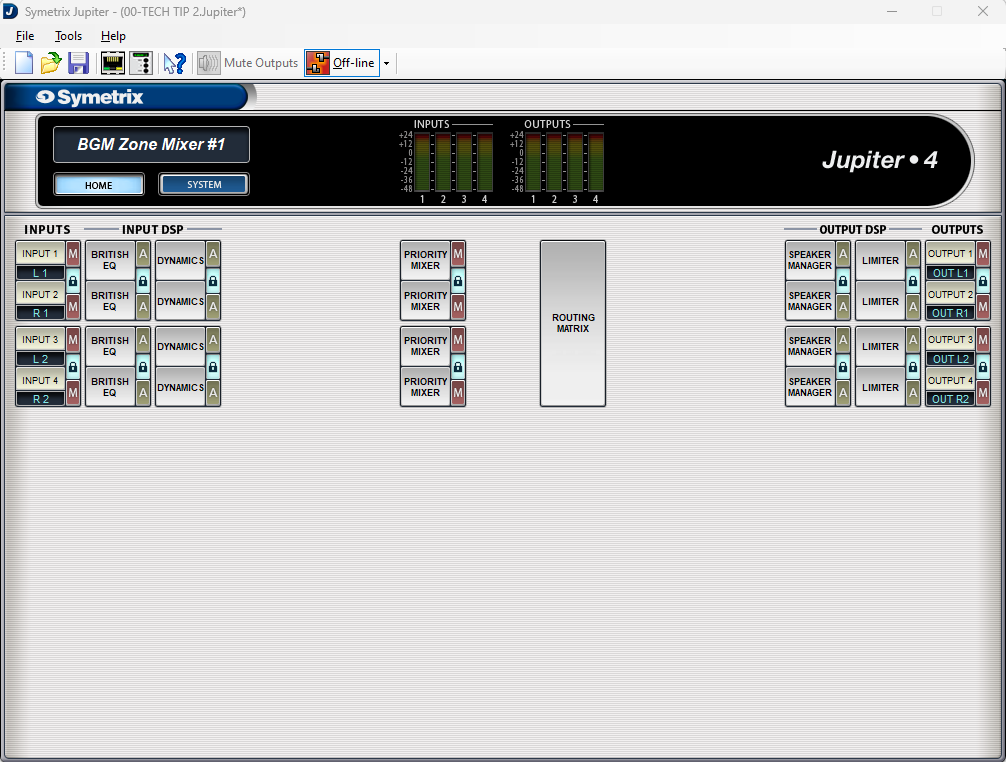
The Routing Matrix:
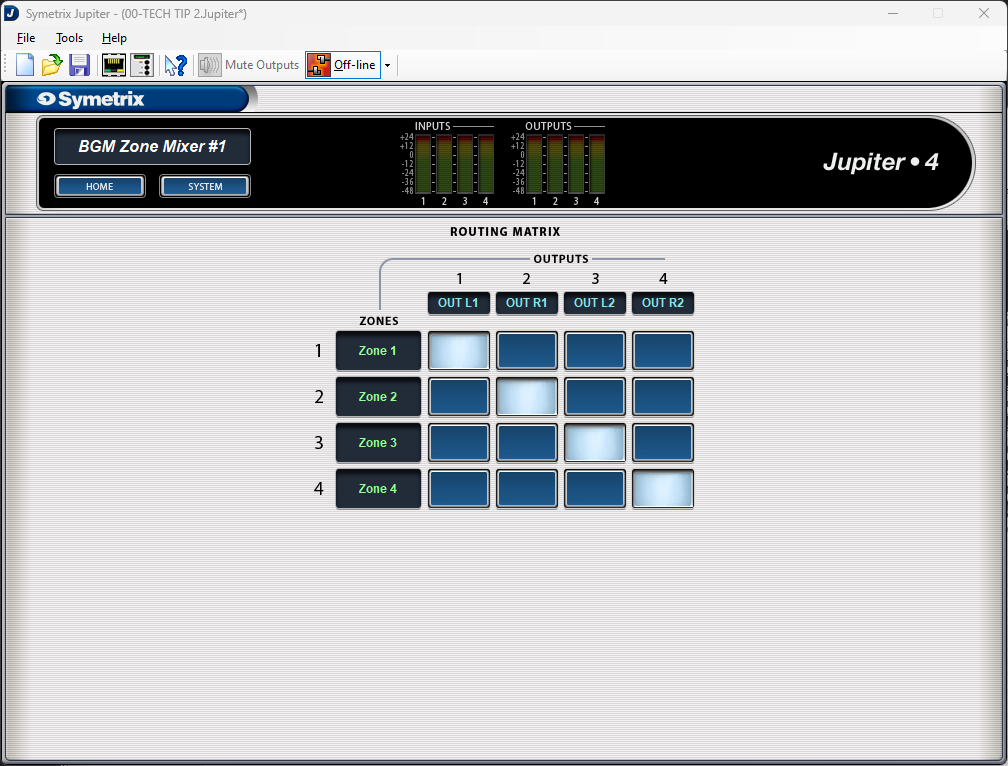
And the Priority Mixers:
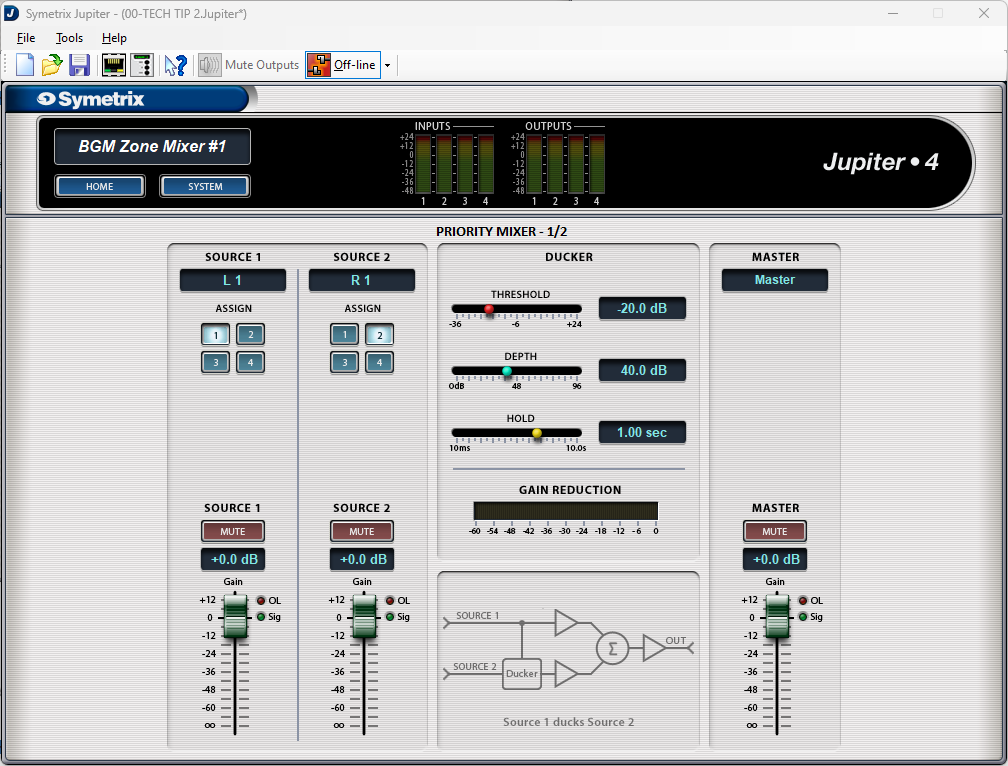
The channels have already been labeled for this tech tip and we can see that there are two stereo inputs and two stereo outputs; noted as L/R 1, L/R 2, as well as Out L/R 1 and Out L/R 2 respectively.
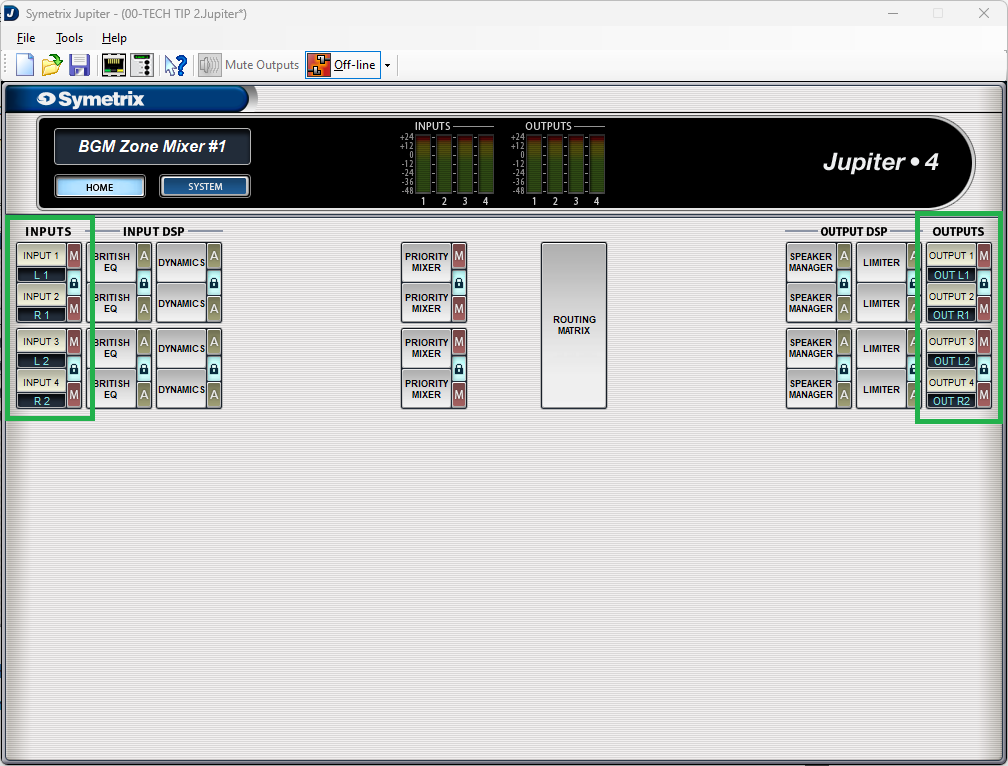
Also notice that all of the “lock” buttons have been engaged, locking channels 1 and 2, and 3 and 4. This is key to getting the proper control for stereo source select and volume control.
Open up Priority Mixer 1. Notice that the title of this page says “Priority Mixer 1/2”. This is noting that Priority Mixers 1 and 2 are linked, so actions in one affect the other.
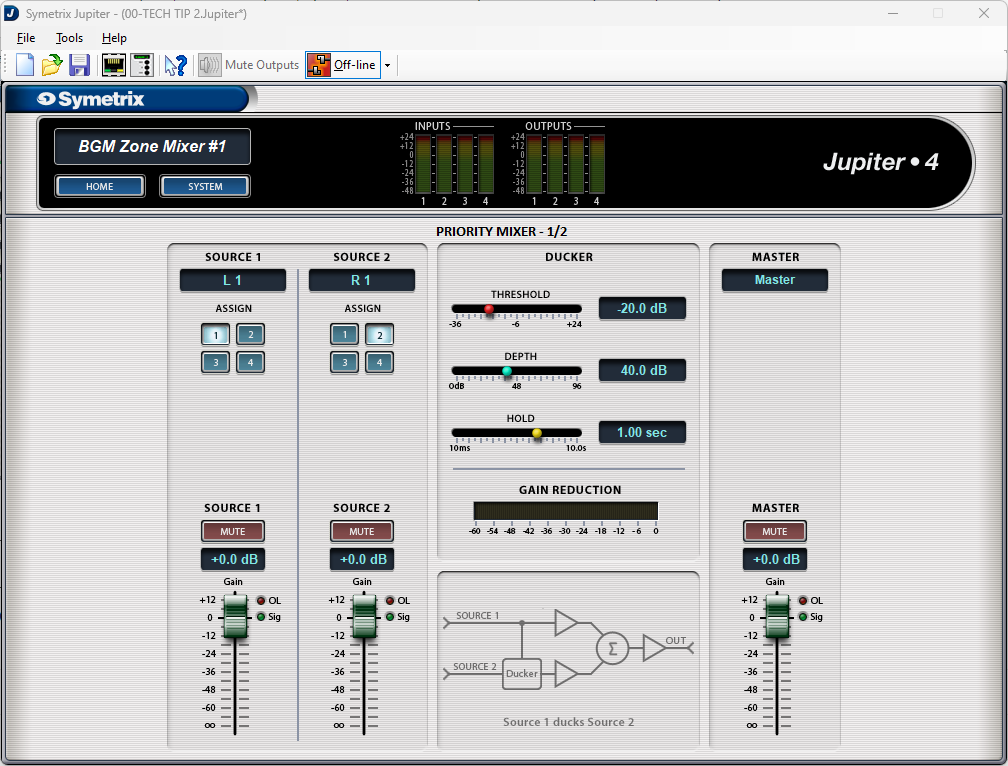
Note that Source 1 assign button has input 1 (L1) selected and its fader is at 0dB (we won’t be focusing on Source 2 in this Tech Tip). Now open up Priority Mixer 2.
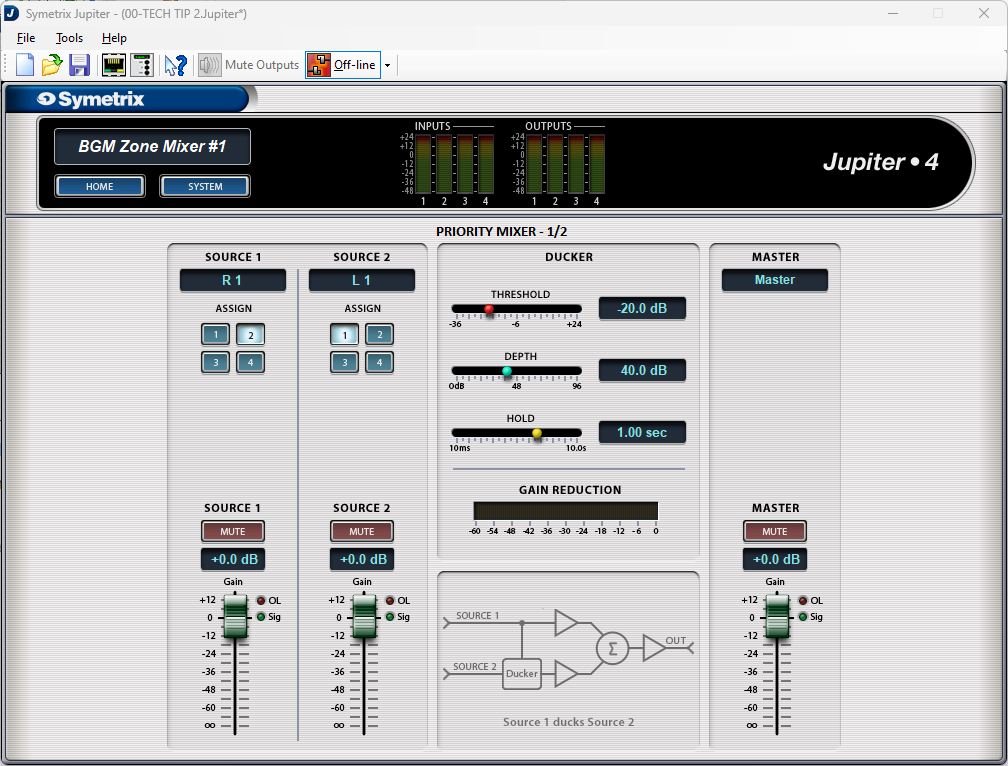
We see that it has the same page name, Priority Mixer 1/2, and that the fader position is the same at 0dB, but the assign button is set to input 2 (R1). This represents that Priority Mixer 1 has input 1 (left) selected and Priority Mixer 2 has input 2 (right) selected. Change the assign button to input 4 and move the fader to the Off position. Now go back and look at Priority Mixer 1.
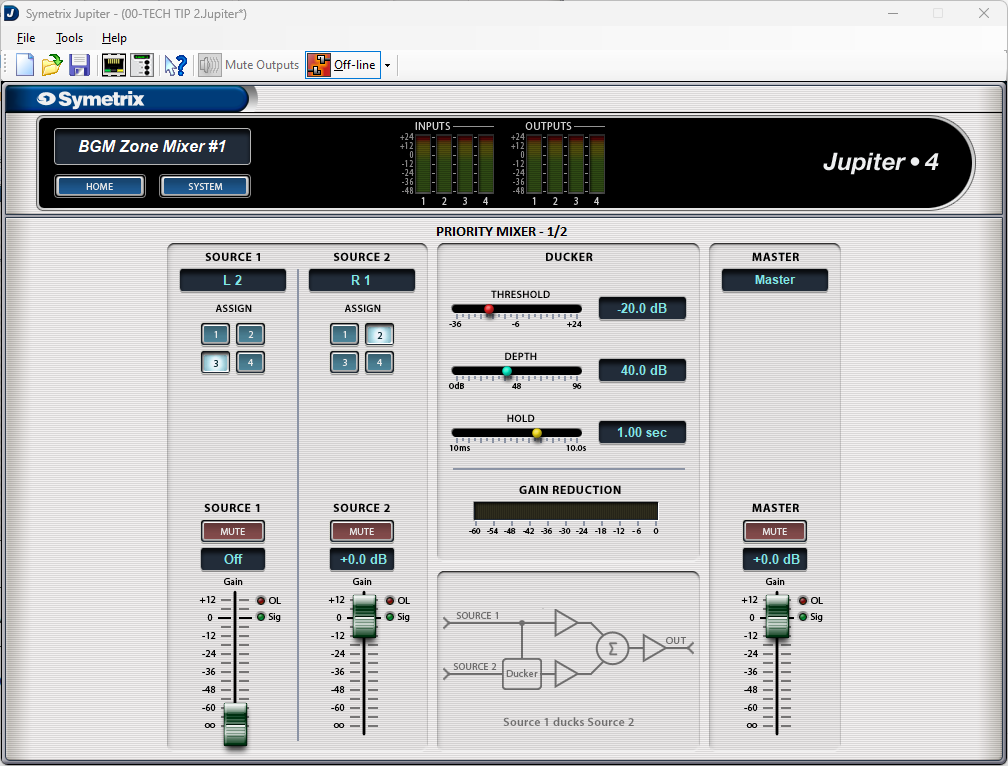
We see that the assign button has changed to input 3 (L2) and the fader has moved from 0dB down to the off position. This is what linking the two channels does.
Note: Odd number priority mixers should only select odd numbered assign buttons, while even numbered priority mixers should only select even numbered assign buttons. Reversing these will technically work, but the other locked priority mixer will do the opposite. For example, if priority mixer 1 selected input 2, then priority mixer 2 would select input 1.
Now that we have an understanding of how the source selection works within the priority mixers, go back to the home page and open the Routing Matrix.
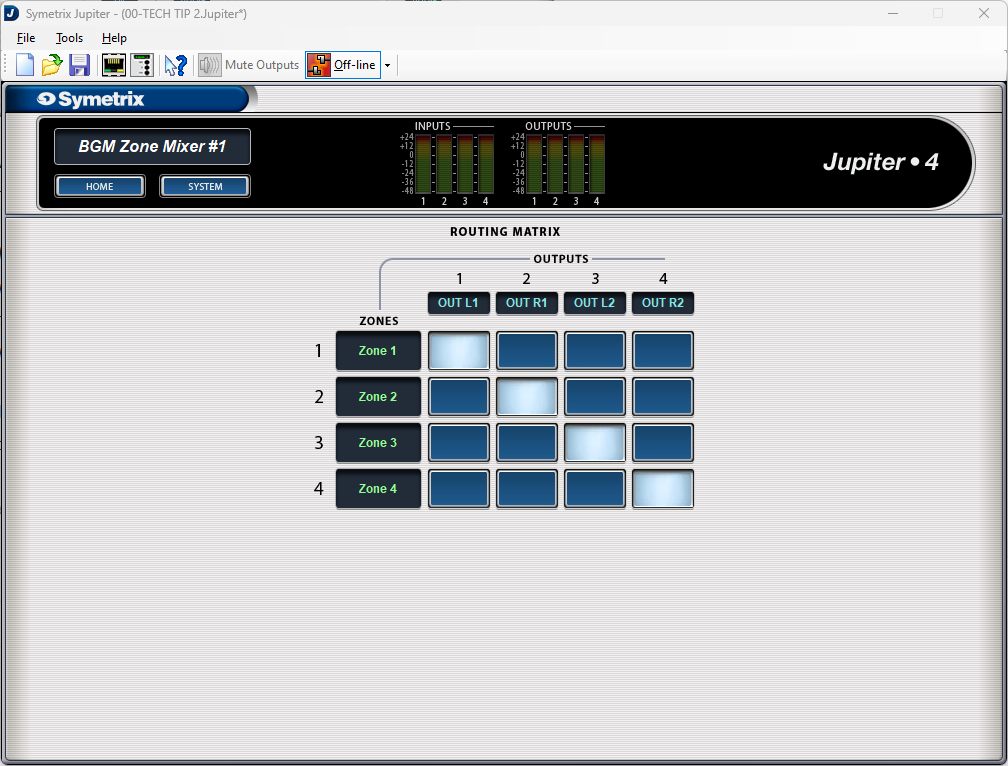
Notice that there are Zones labeled that connect to outputs through cross-points. These zones relate directly to the priority mixers; zone 1 is priority mixer 1, zone 2 is priority mixer 2, and so on. With the stair-step pattern of the cross-points, we can then say that Priority Mixer 1 is Zone 1 which is Output 1. The same for Priority Mixer 2, Zone 2, and Output 2, and the rest. For ease, you are welcome to relabel the zones to Priority 1, 2, and so on.
Now let’s set up the source select control. Go back to the home page and open up the External Controller Wizard.
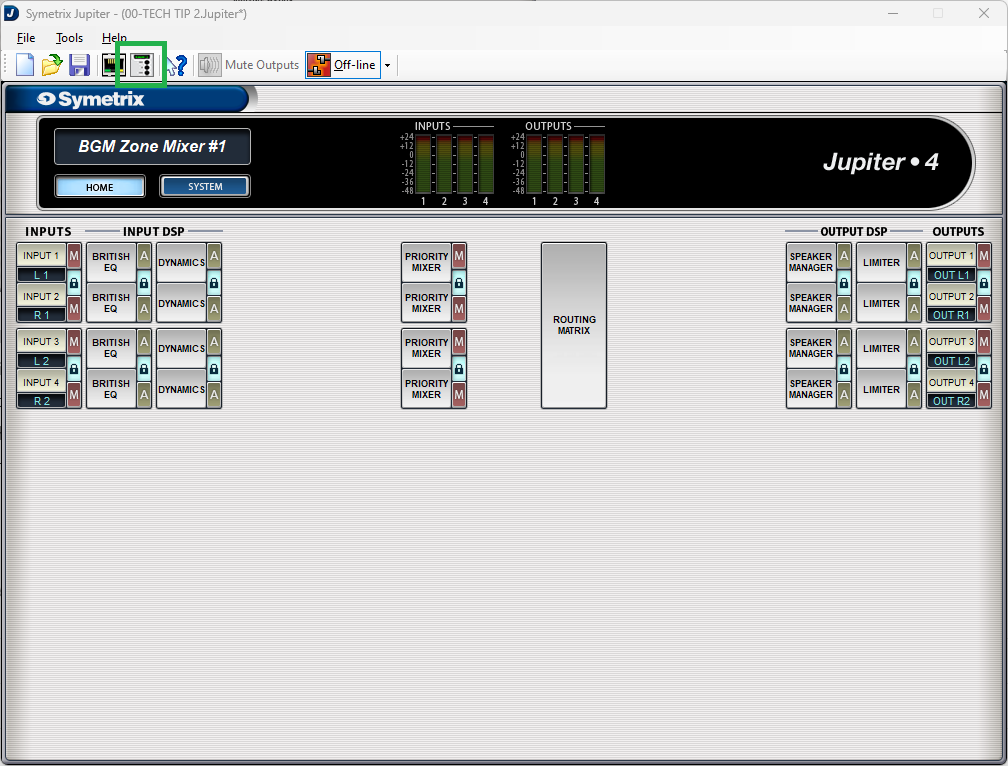
Select Edit Existing Controller, highlight an available ARC-WEB and click Next.
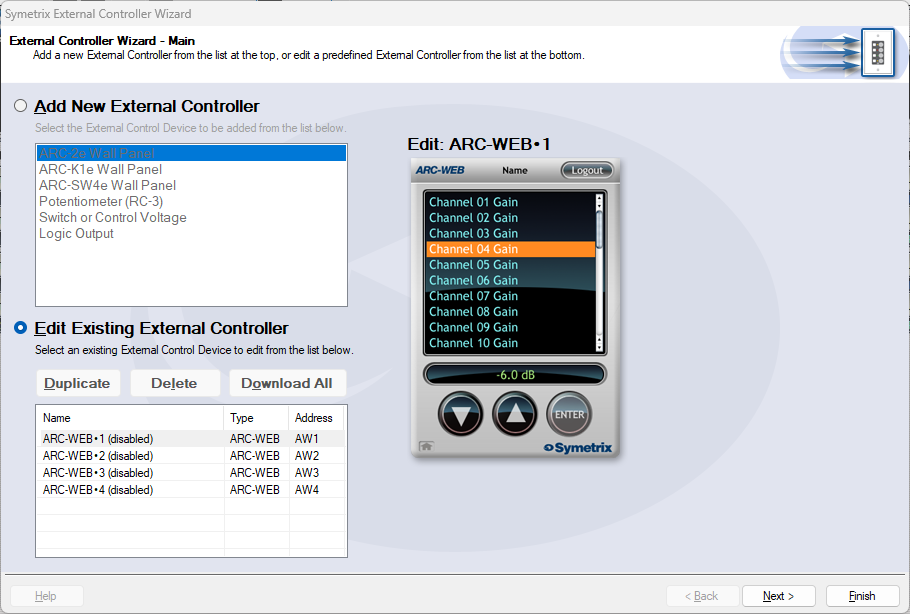
Enable the ARC-WEB at the top, rename the menu if necessary, and click Add Menu.
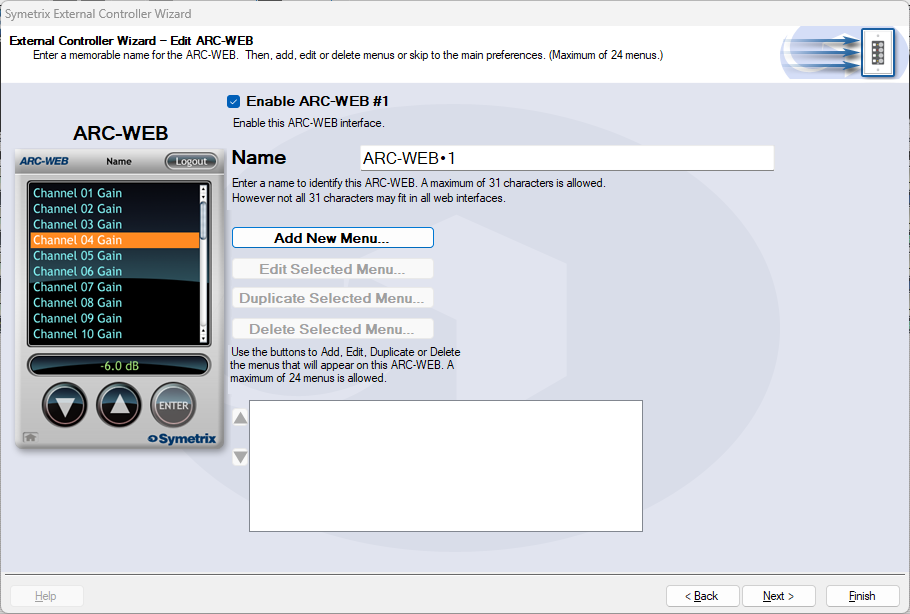
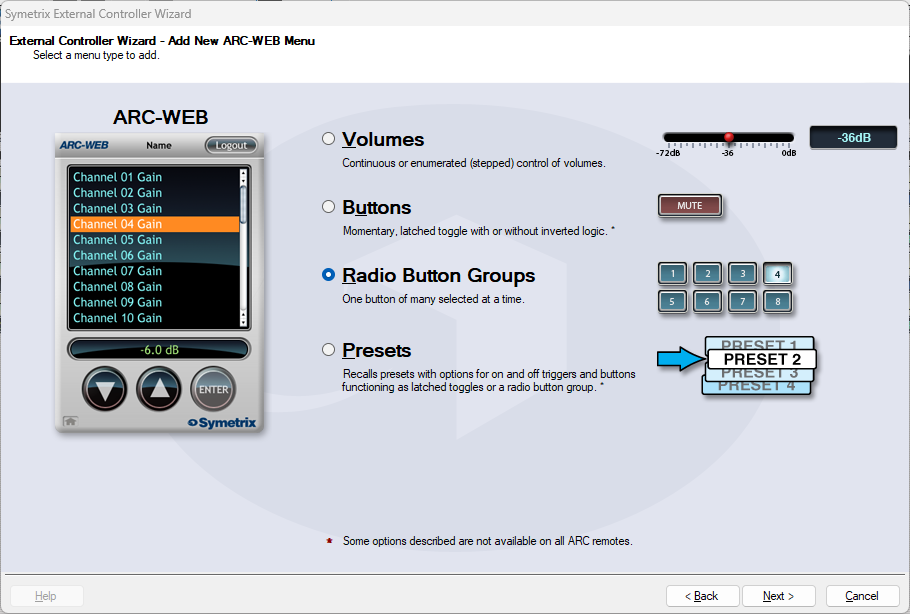
Select Radio Button Groups and click next.
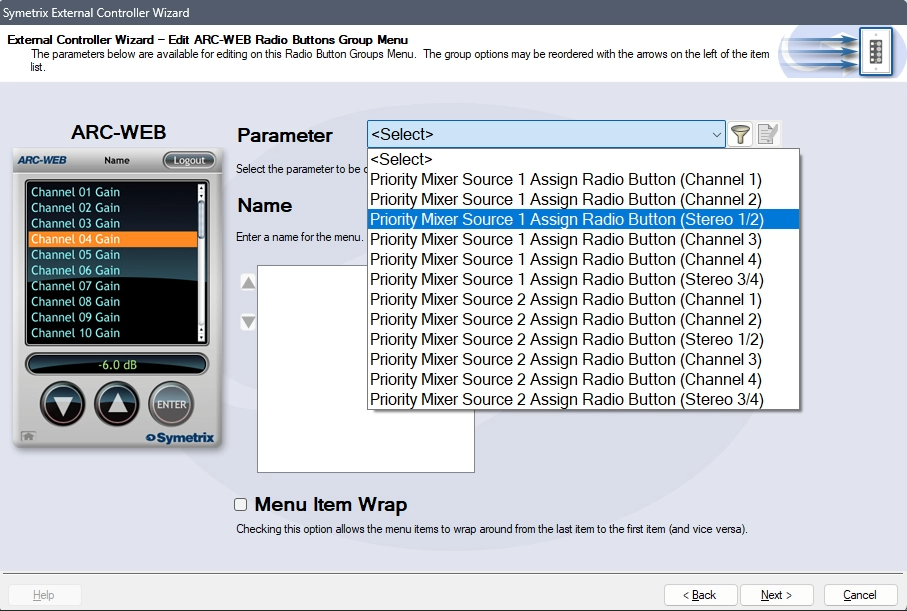
In the Parameter drop-down, select Priority Mixer Source 1 Assign Radio Button (Stereo 1/2). This will tell the Jupiter software that the source select will act in unison between Priority Mixers 1 and 2.
Name the menu appropriately. Remove options 2 and 4 from the channel list. This will prevent someone from accidentally reversing some inputs. In effect, there wouldn’t likely be a critical failure if this happened, however it is redundant and unnecessary to allow the Left audio channel to be in the Right output channel, and vice versa.
Re-name Chan 1 and 3 appropriately. In this case we’ll just use L/R 1 and L/R 2, but this could be a bluetooth source, third-party media player, or other stereo source. Since the Priority Mixers are acting together, Chan 2 and 4 are not necessary. Then click next.
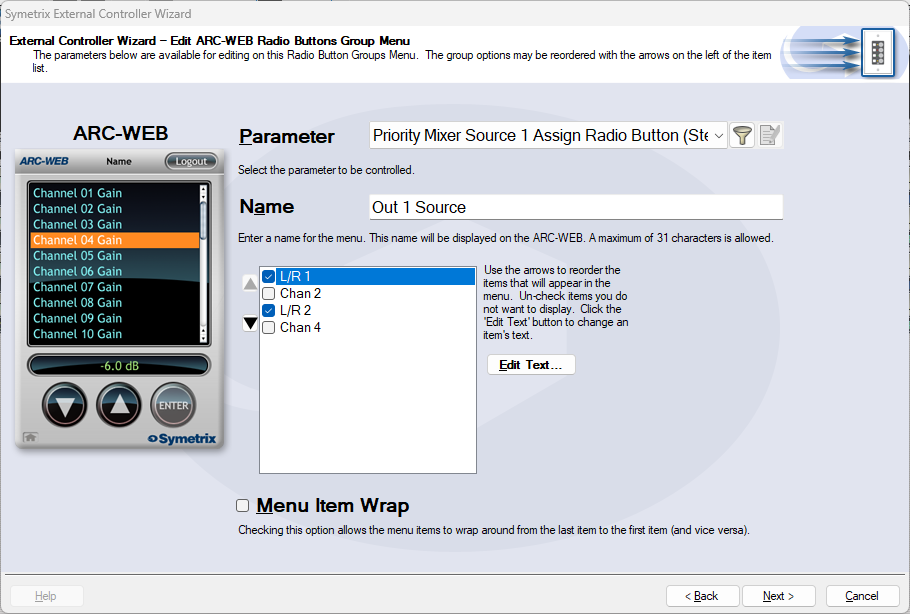
We are brought back to the menu home page. Click Add New Menu to add a Volume Control. This time, choose volumes and click next.
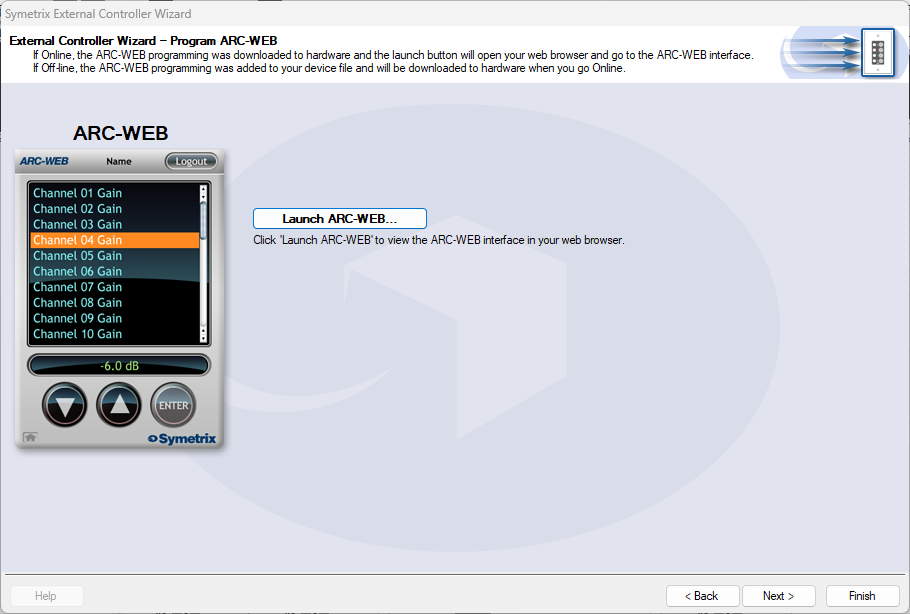
Select Continuous or Enumerated appropriately and click next.
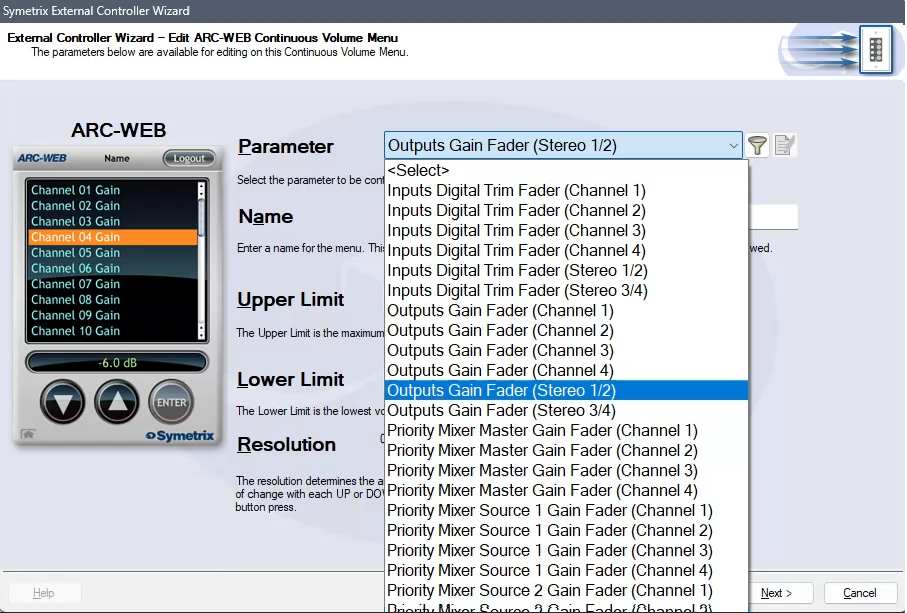
In the Parameter drop-down, select Outputs Gain Fader (Stereo 1/2). This will control the two gain faders for analog Outputs 1 and 2.
Note: While this is not the recommended parameter to control zone volume (as it is post-limiter and can put the sound system at risk of being overdriven with signal), there is not currently a way to control the faders from two Priority Mixers with ARC-WEB or ARC-2e by selecting one of them above. Consider setting the upper limit to the output fader control to prevent the overdriving of the amps/speakers downstream.
Name the menu and set the limit parameters appropriately and click next.
We are again brought back to the menu home page with two menus listed for source and volume control. Now we can test our work by clicking next and setting parameters along the way, until we arrive at the page that allows us to Launch ARC-WEB.
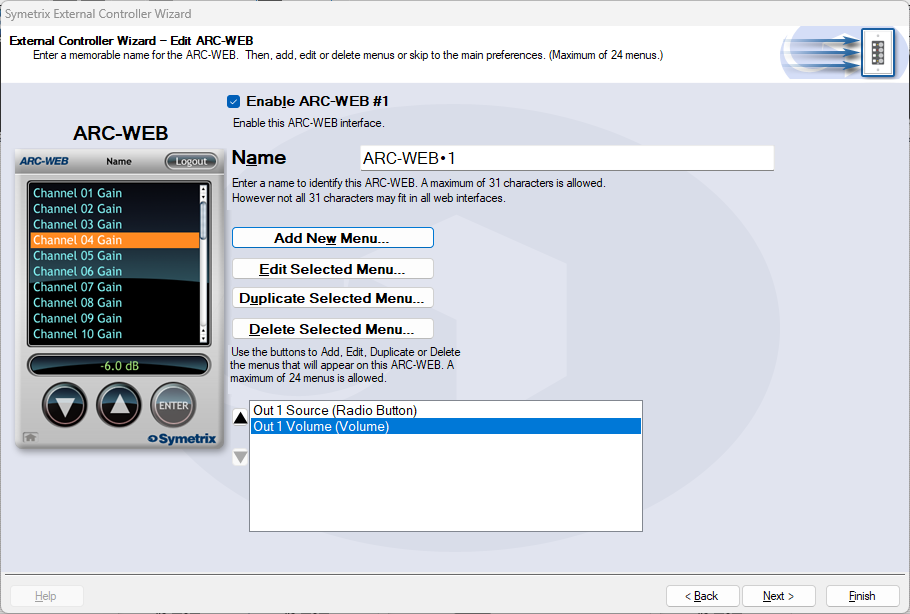
Click launch and a Browser window should open with your ARC-WEB where you can test the source selection and volume control. You must be online with the Jupiter DSP to test this programming. Programming for ARC-2e will allow for a simulator interface that can be tested with.
This article explains the differences between the selectable modes for the encoder, encoder button, and individual buttons for W-Series wall remotes.
Where do I find the different encoder button modes for my W-Series remote?
The available encoder button modes for each W-Series remote are found by right clicking the device in Site View, selecting “Unit Properties…”, and selecting “Edit Remote Settings…”.
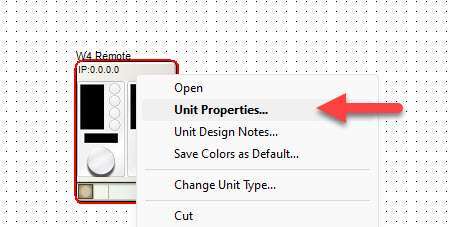
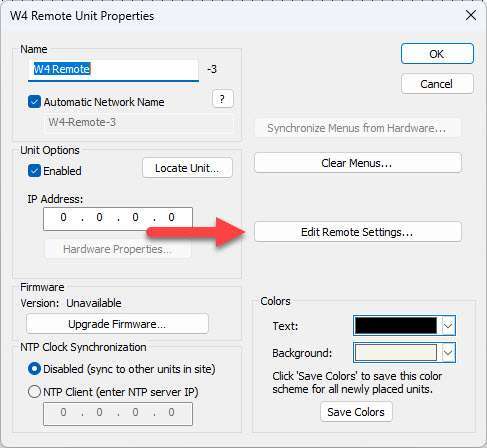
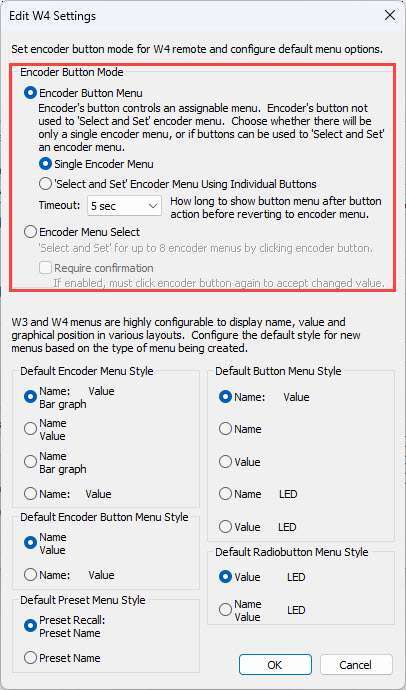
Important: Not all encoder button modes are available on all W-Series remote models. This will be further explained below.
Breakdown of Encoder Button Modes
Encoder Button Menu: Single Encoder Menu
The “Single Encoder Menu” mode is the simplest of all the modes. It allows for control of a single menu with a turn of the encoder dial and a single button with a press of the encoder button.
Compatible models: W1, W3, W4
Encoder Button Menu: ‘Select and Set’ Encoder Menu Using Individual Buttons
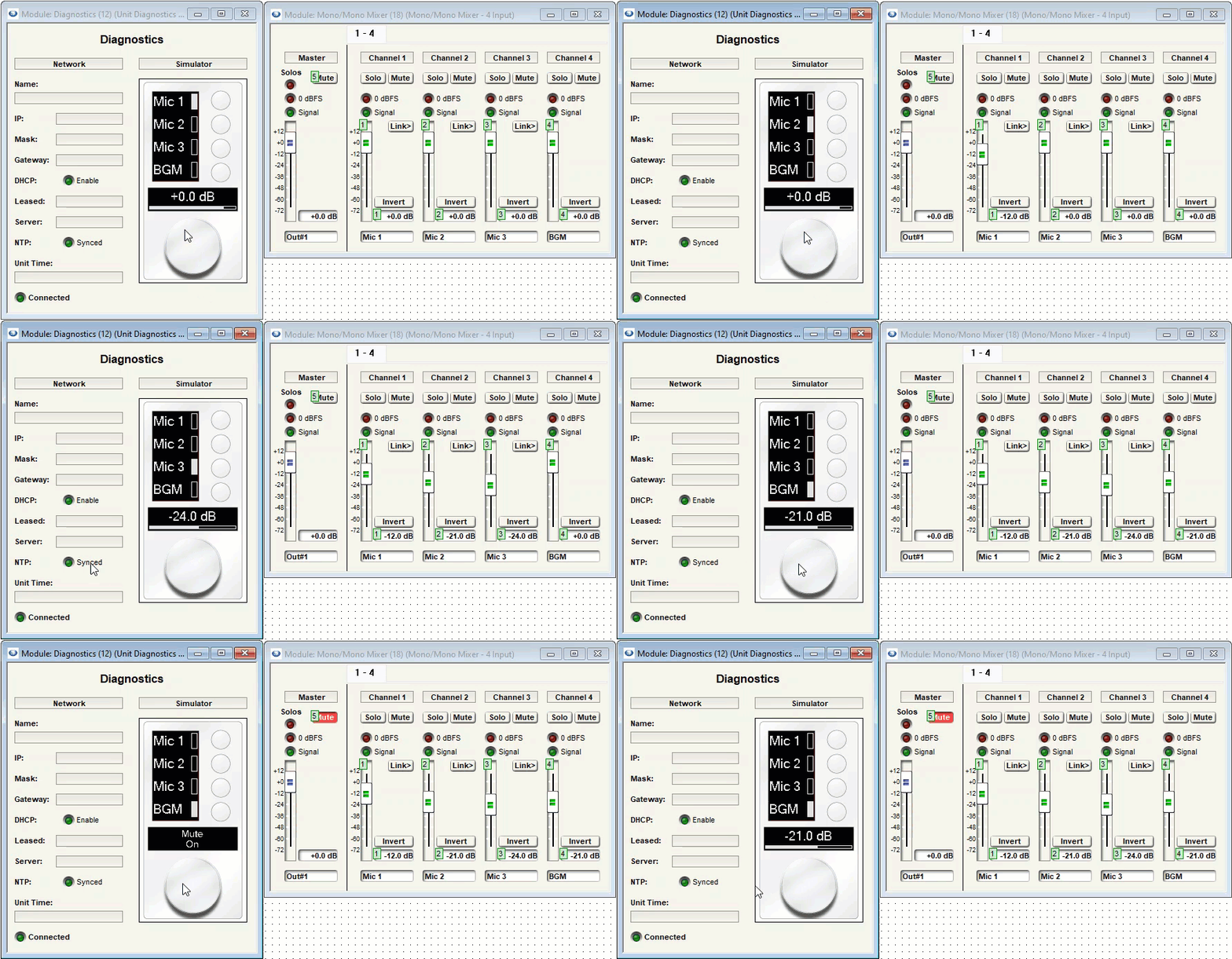
The “‘Select and Set’ Encoder Menu Using Individual Buttons” mode allows for control of up to 4 menus with W3, and up to 8 menus with W4, by pressing a push-button switch to select a menu, then turning the encoder dial to adjust the value of the selected menu. The encoder button can also be used to control a single button in the design.
Compatible models: W3, W4
Encoder Menu Select
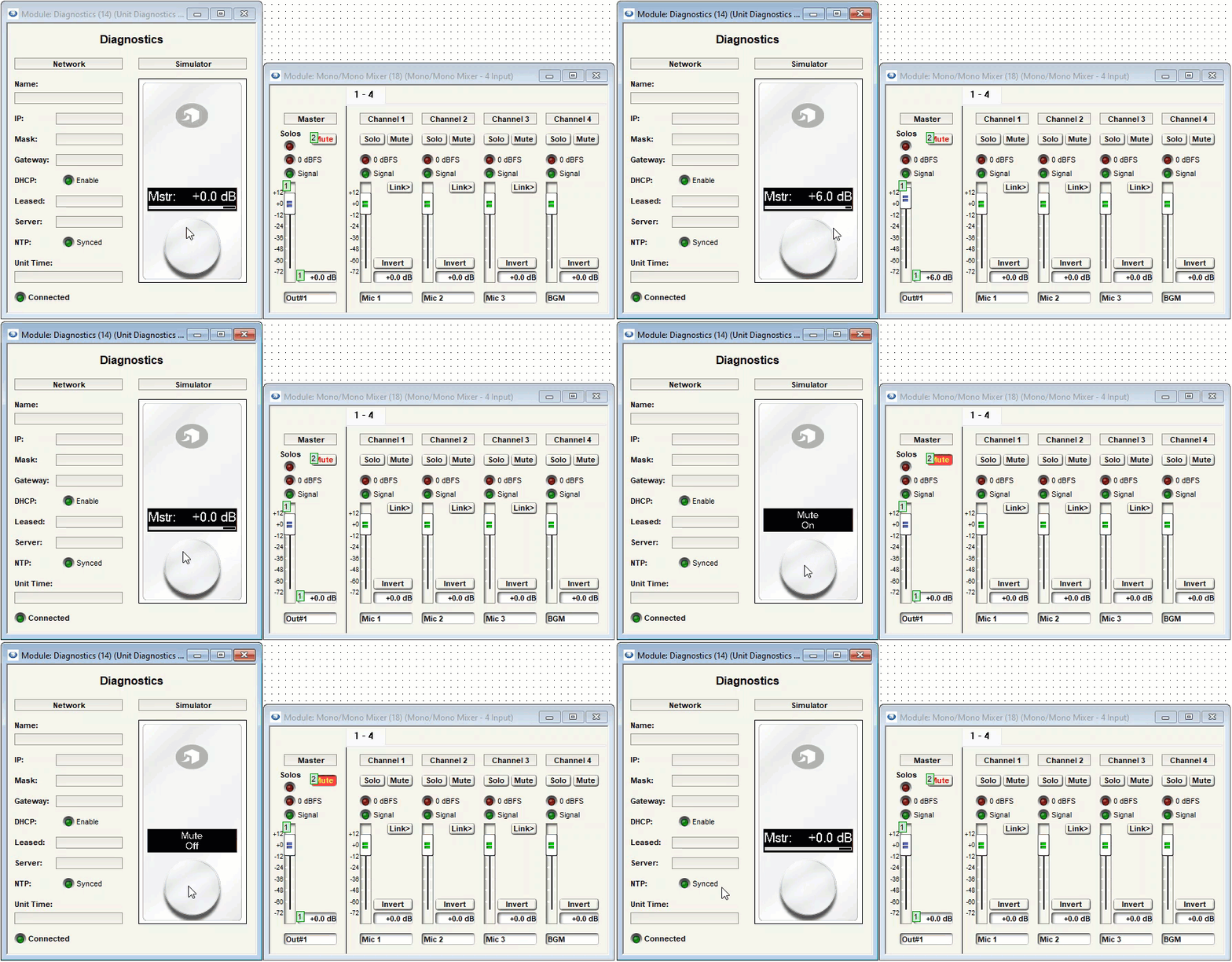
The “Encoder Menu Select” mode allows the user to cycle through up to 8 menus by pressing the encoder button. The value of the selected menu is then adjusted by rotating the encoder dial. This mode allows for control of multiple menus with W1. It also frees up the push-button switches on W3 and W4 to be used for other functions, as demonstrated in the above example.
Compatible models: W1, W3, W4
Note: None of the Encoder Button modes apply to W2 since it does not have an encoder.
The xIO XLR series has a button on the front panel that makes this device versatile and useful for many different cases. In this Tech Tip, we’ll cover how to set the button up to be used as a paging toggle to mute/unmute a microphone.
In this site file, we can see there are five zones (Lounge, Patio, VIP, Restroom, and Kitchen). This site will be incorporating an xIO XLR 1×1 and it will be used to page to all zones in case of emergency or other site wide announcements are required.
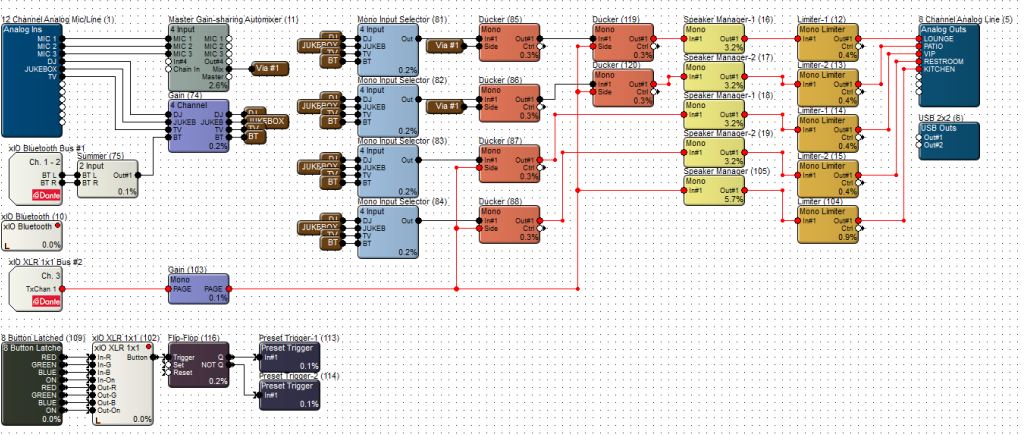
You can see above that the red highlighted wire is where the xIO XLR signal will be going. Note that the kitchen does not have any BGM or microphone audio from the rest of the system. Also note this programming has a single gain module handling the audio level for the xIO XLR, this is where the MUTE will come in to play.
First, set the xIO XLR Button Press Function to Control Pins.
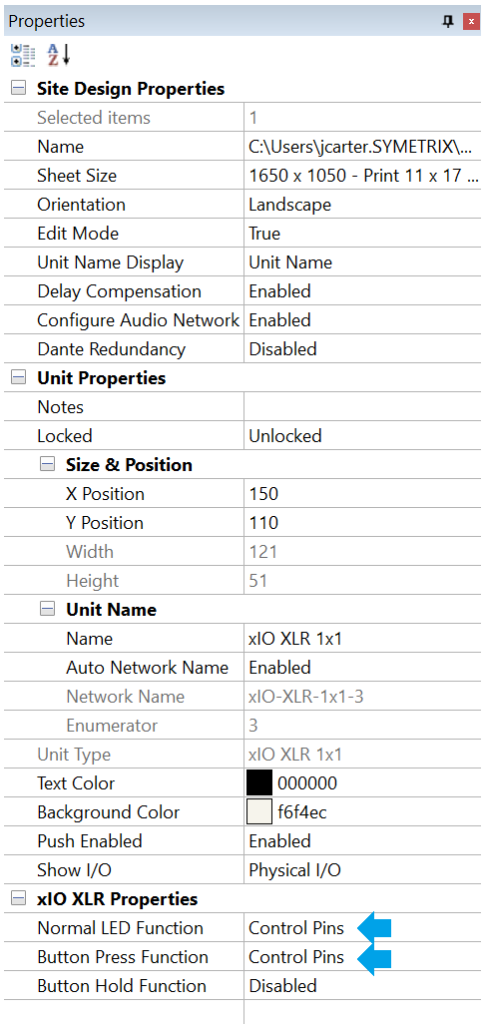
Now, enter into the Design View of the site and drag in the Intelligent Module and the shown logic modules; 8-button latched, Flip-flop, and Dual Preset Trigger, and wire them accordingly. If you like, rename the 8-button latched to reflect the LED controls. This can help stay organized when programming.
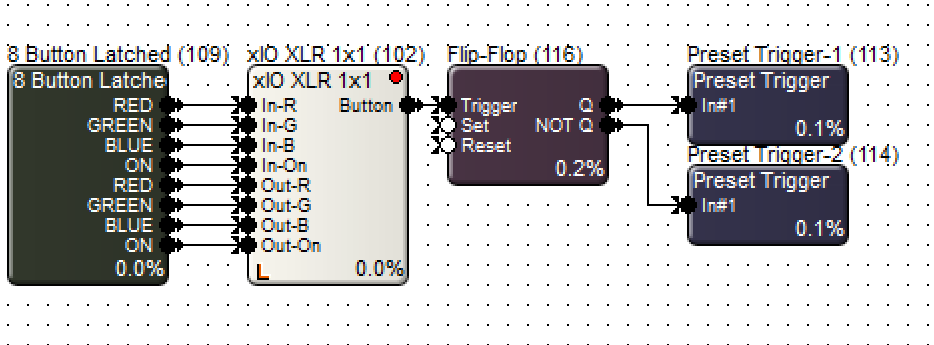
In this case, we’ll only really need the RED, GREEN, and ON controls for the IN side of the xIO XLR, however all 8 wires are connected.
Open up the 8-button latched as well as the Dual Preset Triggers. Engage the ON and RED buttons, and ensure their ON LEVEL is set to 100%. Then give the Dual Preset Triggers presets 1 and 2.
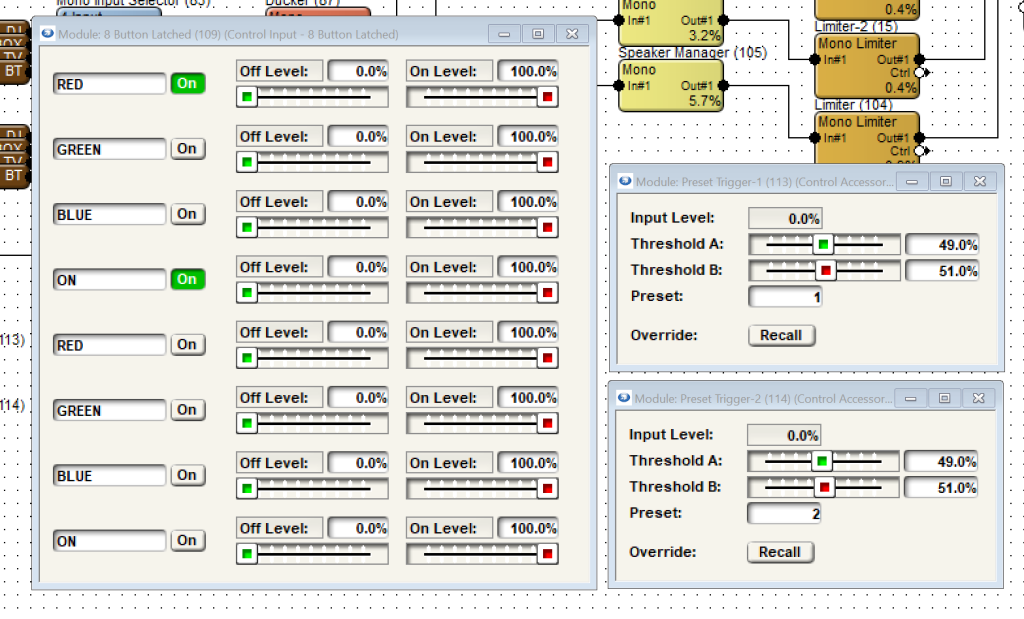
Decide which preset you would like the MUTED state to be. This programming uses Preset 2 for this. Right click in the outer area of the 8-button latched and Store Module Settings in Preset 2.
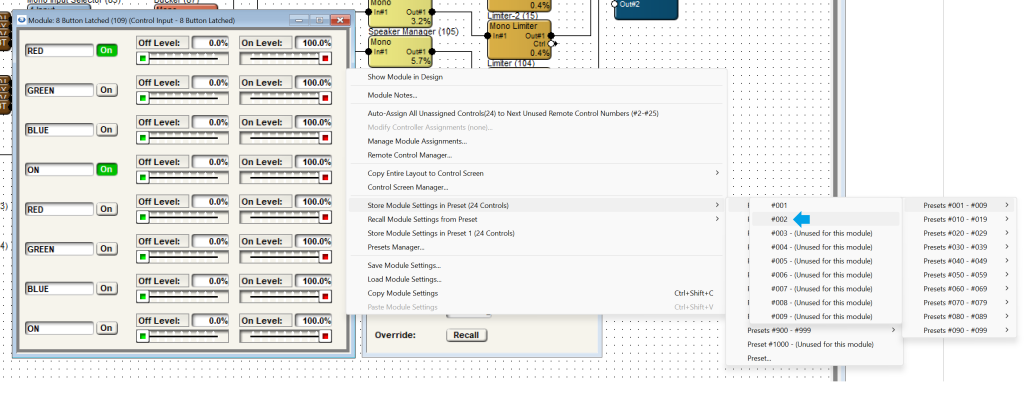
Now, open up the Gain module for the xIO XLR and right click on the mute to set it to Preset 2 as well.
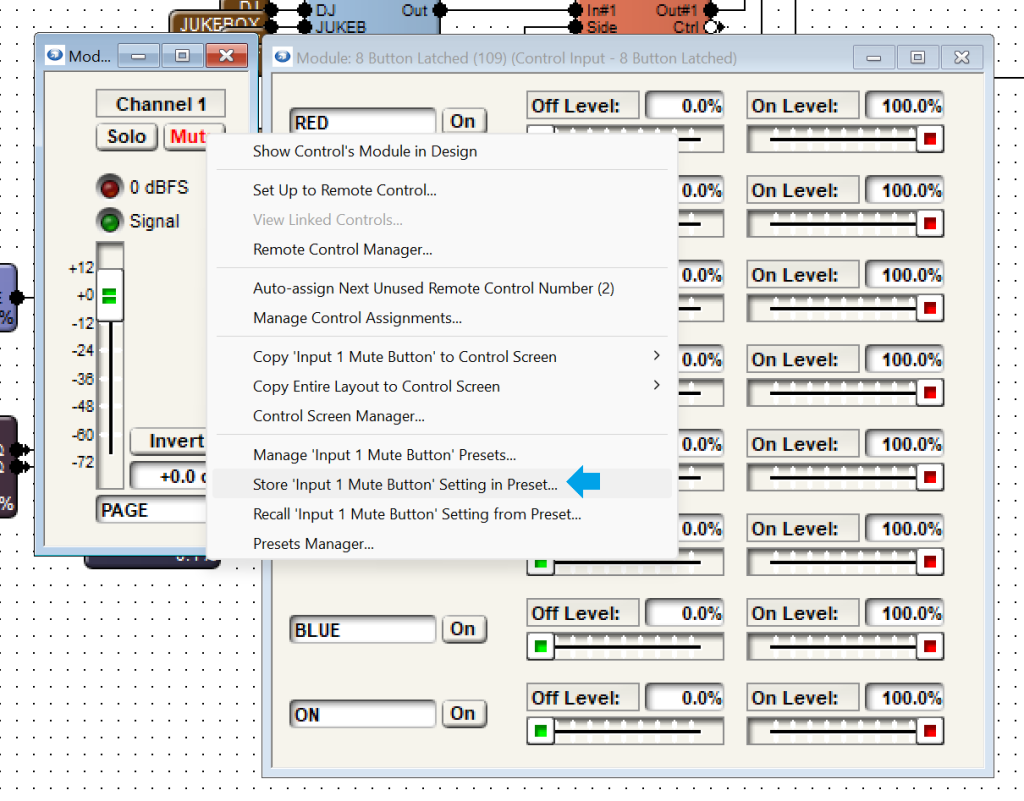
Next, reset the 8-button latched so that the RED button is off and the GREEN button is on, leaving the ON button engaged. Right click and Store Modules Settings in Preset 1.
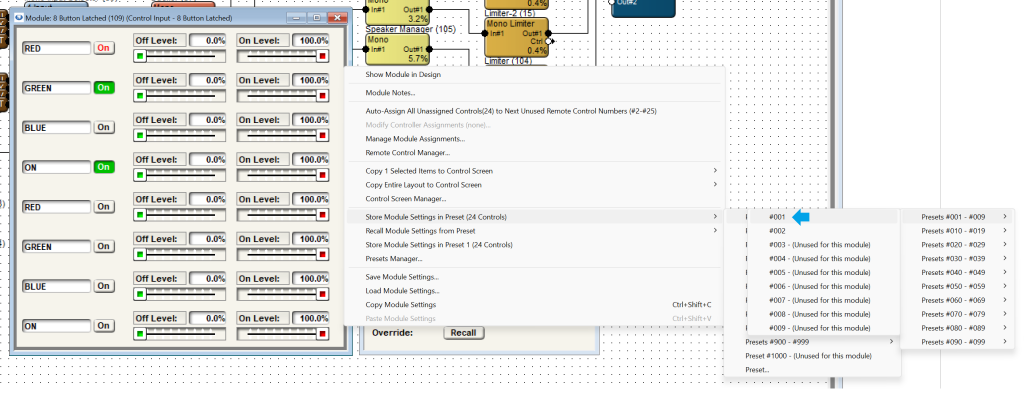
Just the same, add the xIO XLR Gain module’s MUTE button to Preset 1.
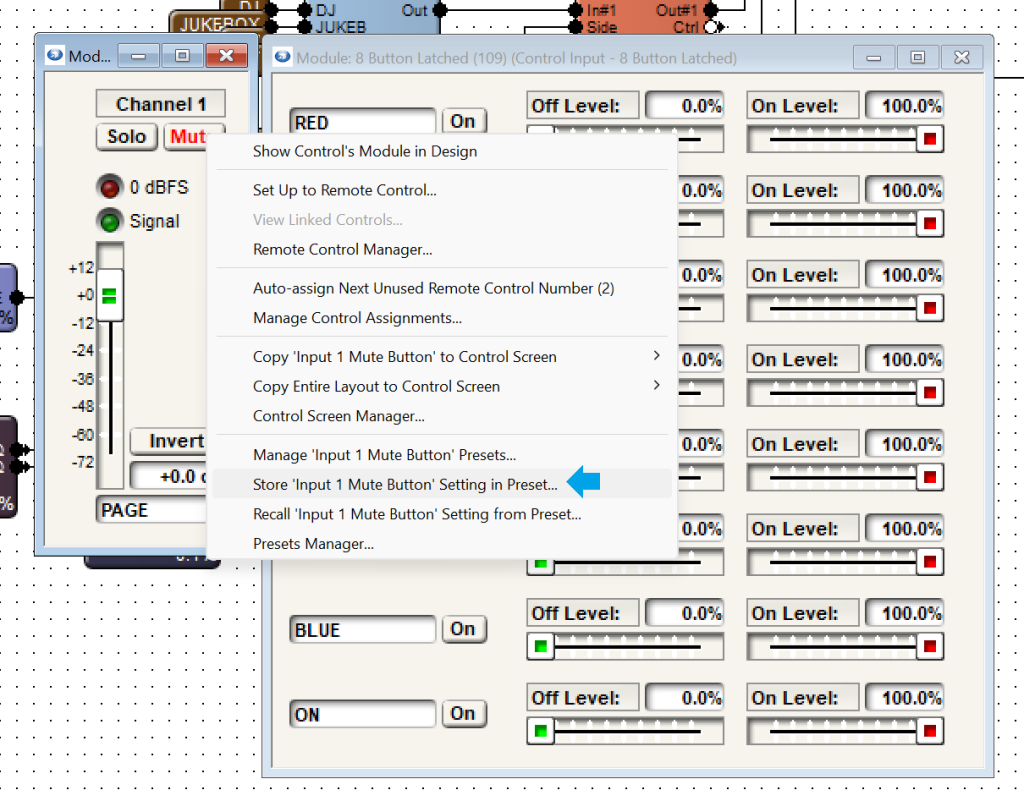
At this point, test your presets from Preset Manager (Tools > Preset Manager or CTRL + G) to ensure they are working as they should.
– PRESET 1 should recall the UN-MUTED state with the GREEN LED on.
– PRESET 2 should recall the MUTED state with the RED LED on.
Composer must be online to view logic programming working, so push the site design and go online. The xIO XLR LED should update to the current state of the logic programming (likely the muted state as the flip-flop default state is Not Q). Test the programming with the xIO XLR panel button to ensure the preset states are acting as they should.
The xIO XLR-Series sets a new standard for performance IO with pristine audio, industrial-strength materials, exceptional design, AV control options, and a complete line of models that reliably deliver sophisticated results. Getting started is quick and easy.
PoE Injector:
- Connect the xIOXLR to the LAN port on the PoE injector and confirm network port link lights.
- Connect the xIO XLR to the LAN + DC port on the PoE injector and confirm that the unit boots up.
- The unit should run through a “light show” boot cycle and then the LEDs may go dark. This is normal behavior as there will not currently be any programming telling the LEDs to do anything if the unit is brand new. If unit is not brand new, the programming could be set to have the LEDs off.
- Note: the default Normal LED Function state of the xIO XLR is “Control Pins”. If the Control Pins in the Design View are not engaged and set, and the xIO XLR has not been programmed, the LEDs will not show activity. Other default functions like “Flashlight” by pressing the front button will function.
- The unit should run through a “light show” boot cycle and then the LEDs may go dark. This is normal behavior as there will not currently be any programming telling the LEDs to do anything if the unit is brand new. If unit is not brand new, the programming could be set to have the LEDs off.
PoE Switch:
- Connect the xIO XLR to a PoE port on the PoE switch and confirm port link lights and that the unit boots up.
- The unit should run through a “light show” boot cycle and then the LEDs may go dark. This is normal behavior as there will not currently be any programming telling the LEDs to do anything if the unit is brand new. If unit is not brand new, the programming could be set to have the LEDs off.
- Note: the default Normal LED Function state of the xIO XLR is “Control Pins”. If the Control Pins in the Design View are not engaged and set, and the xIO XLR has not been programmed, the LEDs will not show activity. Other default functions like “Flashlight” by pressing the front button will function.
- The unit should run through a “light show” boot cycle and then the LEDs may go dark. This is normal behavior as there will not currently be any programming telling the LEDs to do anything if the unit is brand new. If unit is not brand new, the programming could be set to have the LEDs off.
After Connectivity is Established:
- Once the xIO XLR is located in Composer, review the Properties panel and ensure all settings are appropriate for the installation.
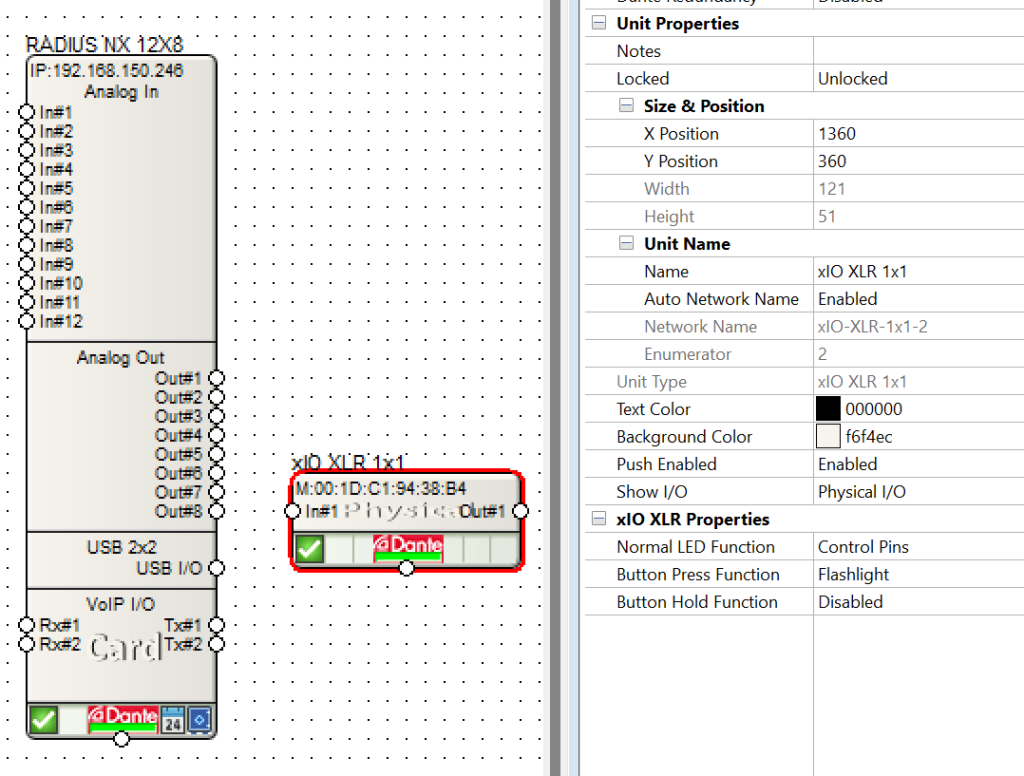
- Open up the DSP, entering the Design View, and drag in the xIO XLR module from the Intelligent Modules > Dante Device Modules folder.
- Drag in a Latched button module from the Control Modules > Control Inputs folder and wire it to the xIO XLR input pins. This will get basic control of the LEDs and help develop familiarity with how the LEDs function.
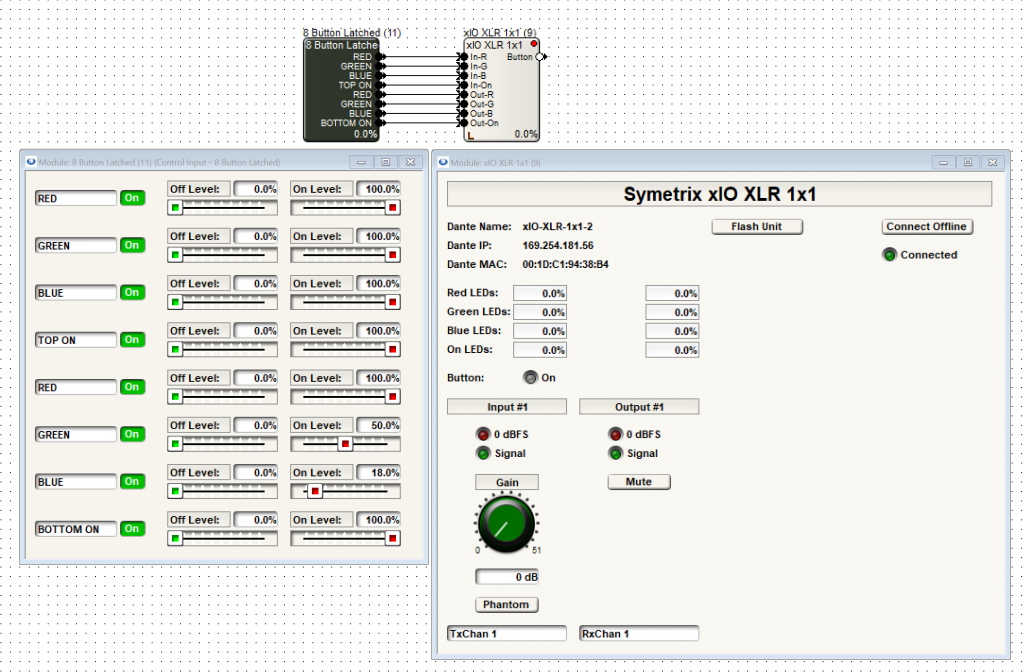
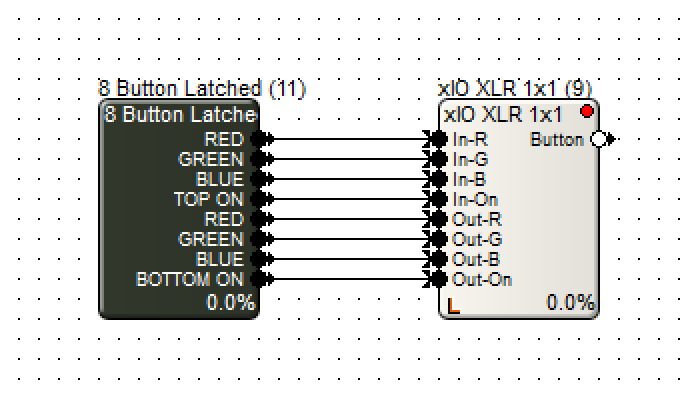
- Note the input pins on the xIO XLR Intelligent Module, these are for the RGB and ON states:
- In-R; RED input pin, this sets the RED value of the LED
- In-G; GREEN input pin, this sets the GREEN value of the LED
- In-B; BLUE input pin, this sets the BLUE value of the LED
- In-On; ON input pin, this sets the ON value of the LED. Consider this like a “dimming” setting from min (fully off) and max (fully on). If this input pin is not receiving any signal, the LED will remain dark.
- OUT-R/B/G/On are the same as IN, just relating to the Output side of the xIO XLR.
- Button; the front panel button output pin. This allows physical button pushes to also send a control signal inside Composer which can trigger things like presets or toggle a mute.
- Please note; setting LED and RGB parameters will not function if Composer is not online with the DSP and xIO XLR. The LEDs may still be lit according to their last known programming or the programming that is currently running.
Finding/Setting Colors:
- If all input pins are receiving 100% control signal, the LEDs will be fully white. If the input pins aren’t receiving any signal, the LEDs will be fully dark.
- 100% of any individual color (red, green, or blue) will be full saturation of that color at maximum brightness.
- The input level can range from 0-100%, which can determine how bright the LED is as well as what particular tone and hue it is.
- For example; Red at 0%, Green at 100%, and Blue at 25% produces a turquoise/teal color at full luminosity. Green and Blue at 0% and Red at 50% will be full saturation of Red, but dimmer than at 100%.
- Side note; setting the “OFF LEVEL” to higher than 0% can create a state where when there is no signal going to the RGB control pins, they will still be lit up (the ON input must still be getting signal).
Here is a cheat sheet of basic color percentages that can help quickly program the xIO XLR LEDs:
| COLOR | RED ON % LEVEL | GREEN ON % LEVEL | BLUEON % LEVEL |
| RED | 100 | 0 | 0 |
| ORANGE | 100 | 20 | 0 |
| YELLOW | 100 | 50 | 0 |
| GREEN | 0 | 100 | 0 |
| BLUE | 0 | 0 | 100 |
| INDIGO/VIOLET | 40 | 0 | 100 |
| HOT PINK | 100 | 0 | 30 |
| SOFT PINK | 100 | 30 | 100 |
| TEAL | 0 | 100 | 20 |
| AQUA/TURQUOISE | 0 | 100 | 45 |
| LIME | 50 | 100 | 0 |
| TAN | 100 | 50 | 25 |
video
ARC remotes are a powerful and intuitive form of system control for systems using Symetrix DSPs. This Tech Tip will walk through setting up zone Source Select and Volume control for the Zone Mix 761 on an ARC-2e. The process is nearly identical for ARC-WEB.
Starting at the Zone Mix 761 software homepage, there are two main areas to focus on.
- Zones; these are where control parameters are located for source select and volume.
- Output RTE; this is where we connect signal flow from Zones to the analog outputs, effectively making each Zone a direct control for an analog output.
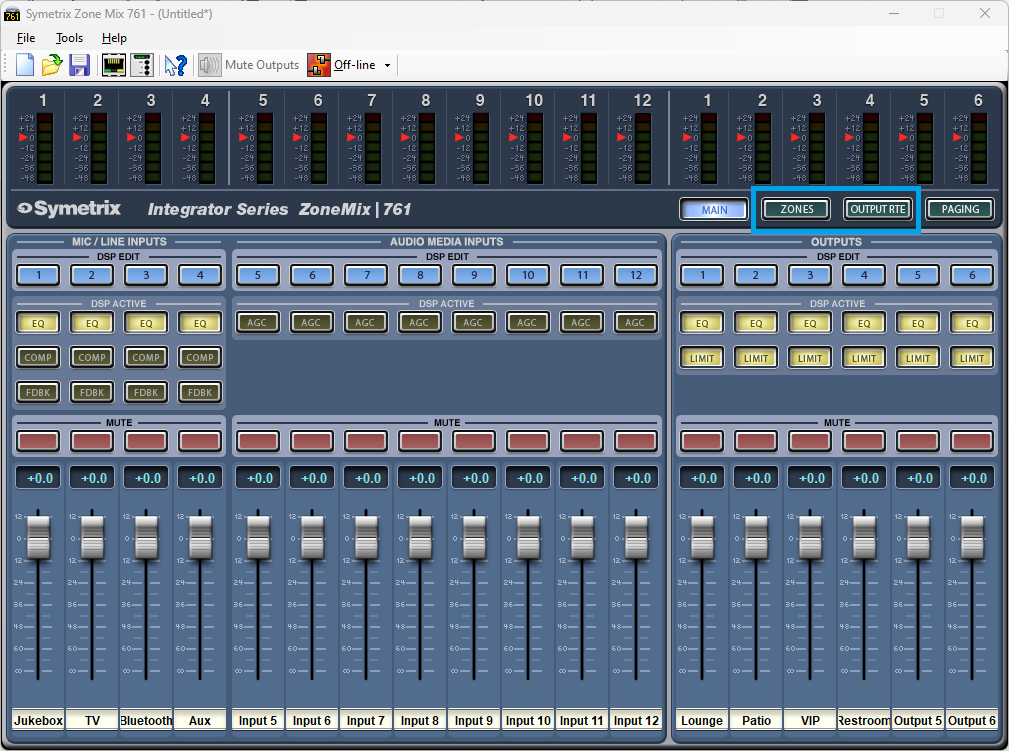
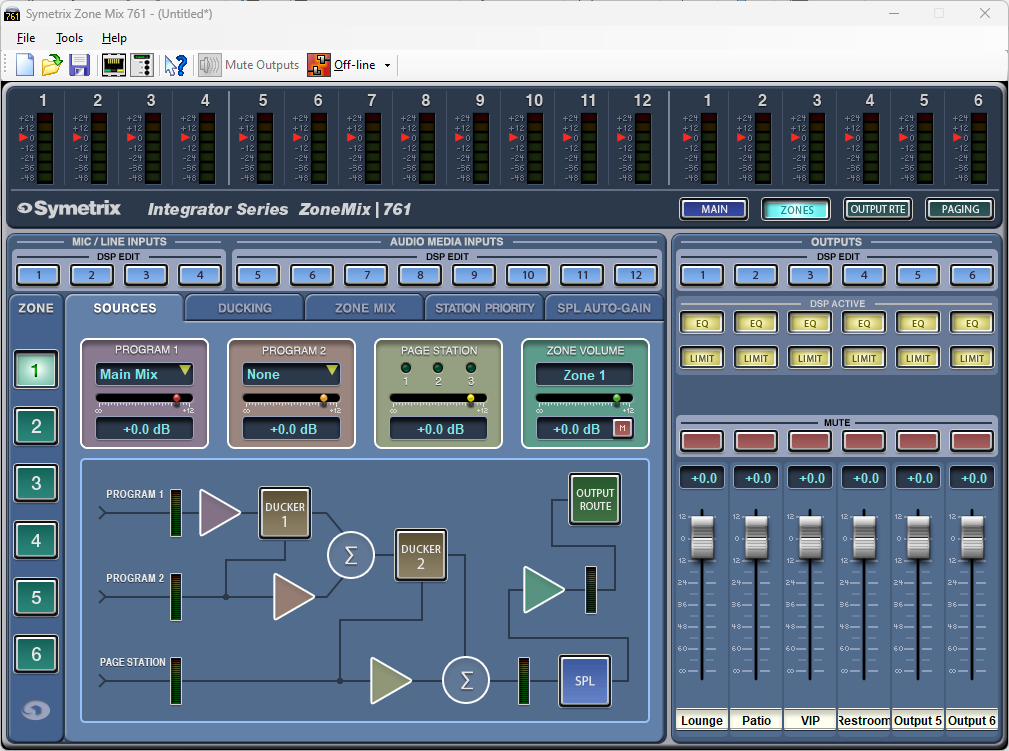
In the Zones area, under the Sources tab there are two source selections, Program 1 and Program 2. Program 2 ducks Program 1, and Page Station ducks both Program 1 and 2 as shown in the signal flow diagram.
Either Program 1 or Program 2 can be used for the zone source select depending on what the system needs. This example assumes there is no ducking/priority paging involved and will use Program 1 for the zone source. Program 2 can be set to None.
Effectively, the zone volume can be controlled by either the Program 1 slider or the Zone Volume slider. There may be a reason later to add a paging microphone or something similar, so it programmatically makes sense to use the Zone Volume slider.
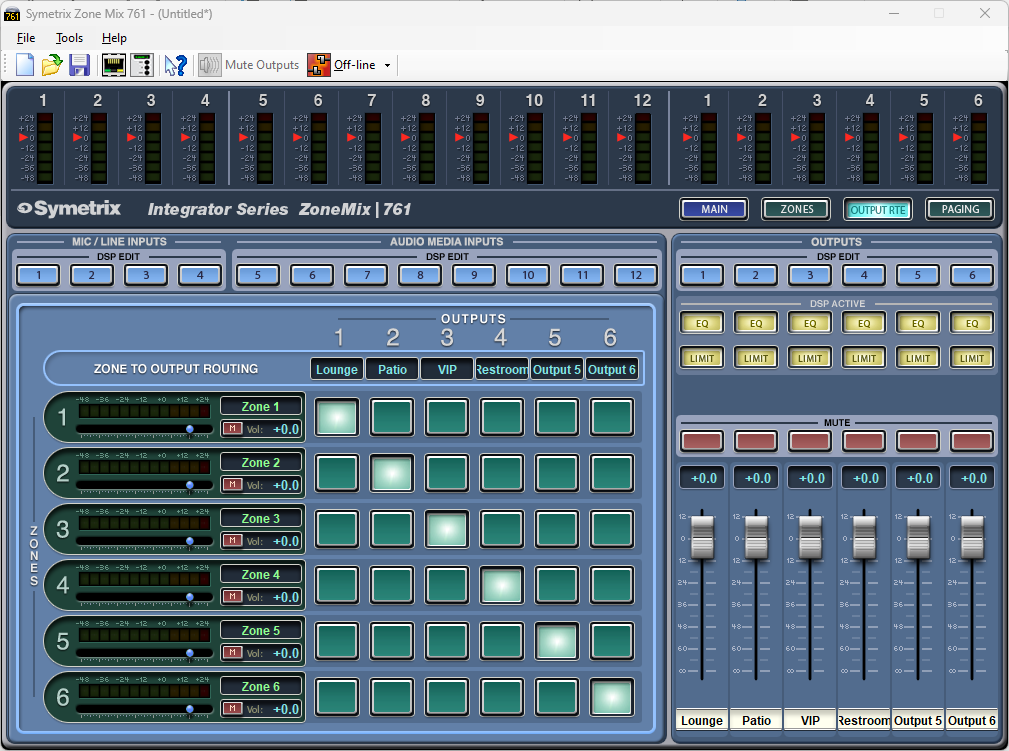
Looking in the Output RTE area, notice the stair step pattern to the cross-points. This is how we connect Zone 1 to Output 1, Zone 2 to Output 2, and so on. This way each Zone represents actual Output areas in the venue. In this configuration, we can consider Zone 1 that Lounge, Zone 2 the Patio, and so on.
The volume slider on each zone channel is the same control as the Zone Volume slider in the Zones Sources tab.
Open the External Controller Wizard.
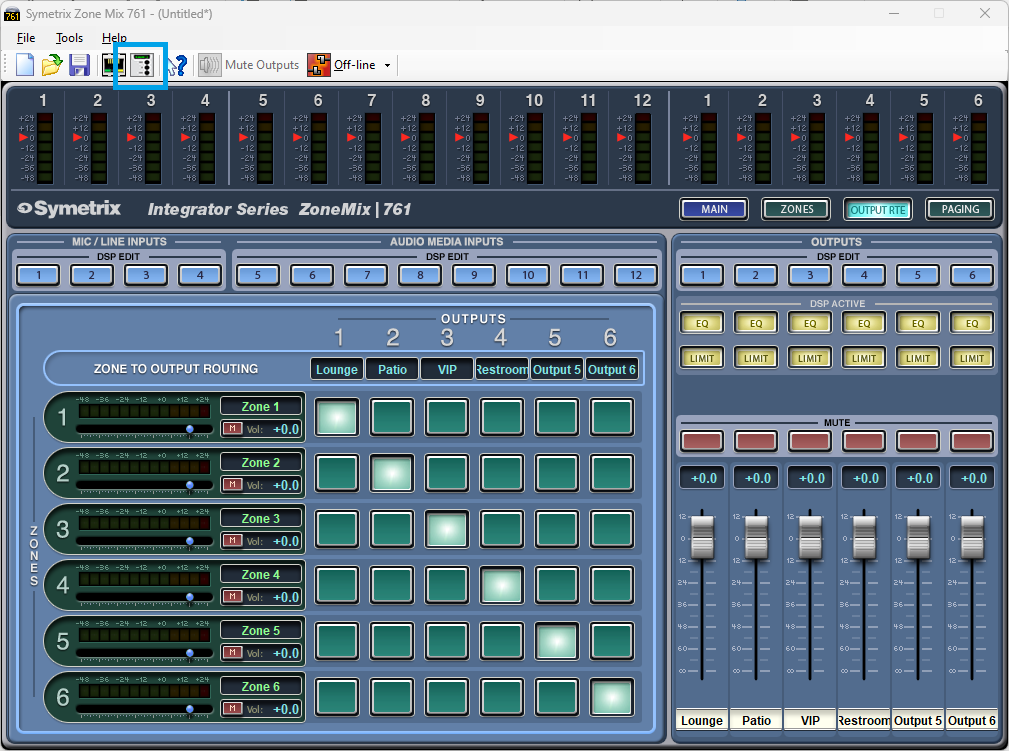
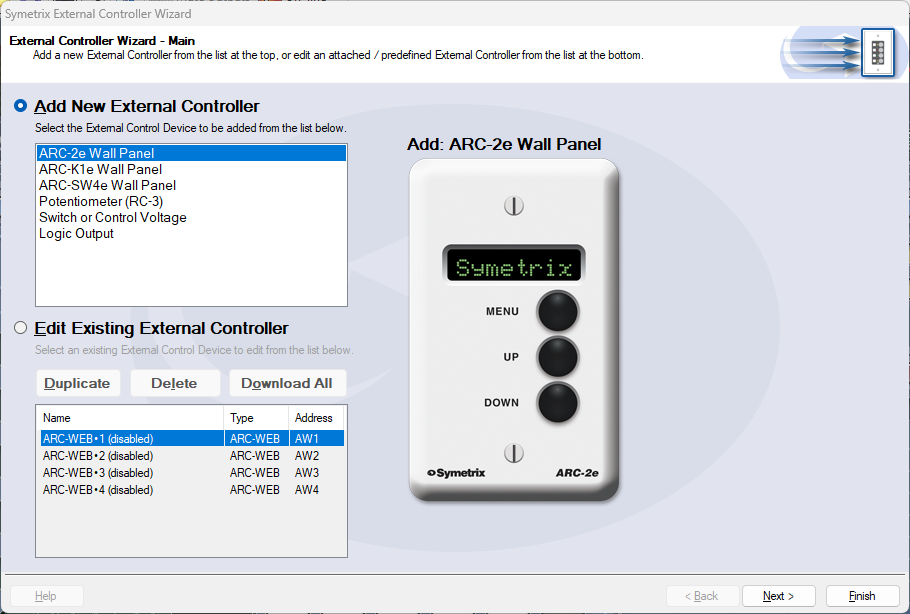
There are two lists here. This Tech Tip will be programming a new ARC-2e. With Add External Controller selected, highlight the ARC-2e and click Next.
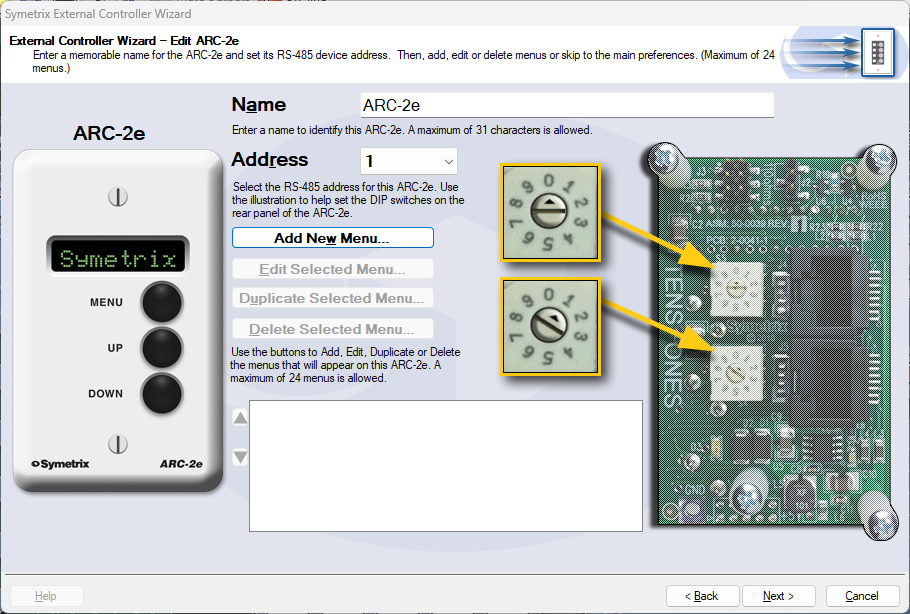
The name of the ARC-2e can be edited here, which we will call System Control in this example. Ensure that the ARC-2e is addressed correctly according to the dials on the back of the unit. When ready, click Add New Menu.
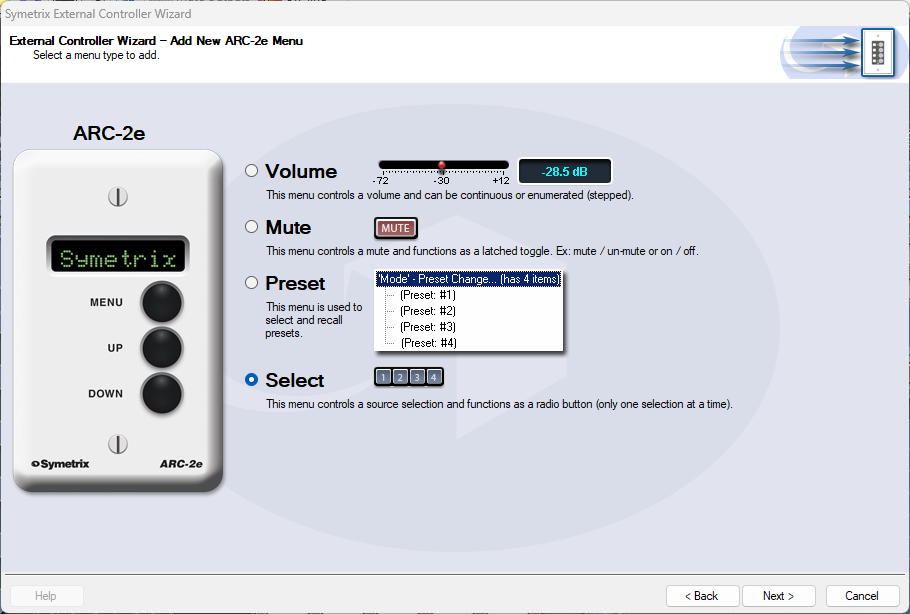
First, we’ll set up source select for Zone 1 (Lounge). Choose the “Select” option and click Next.
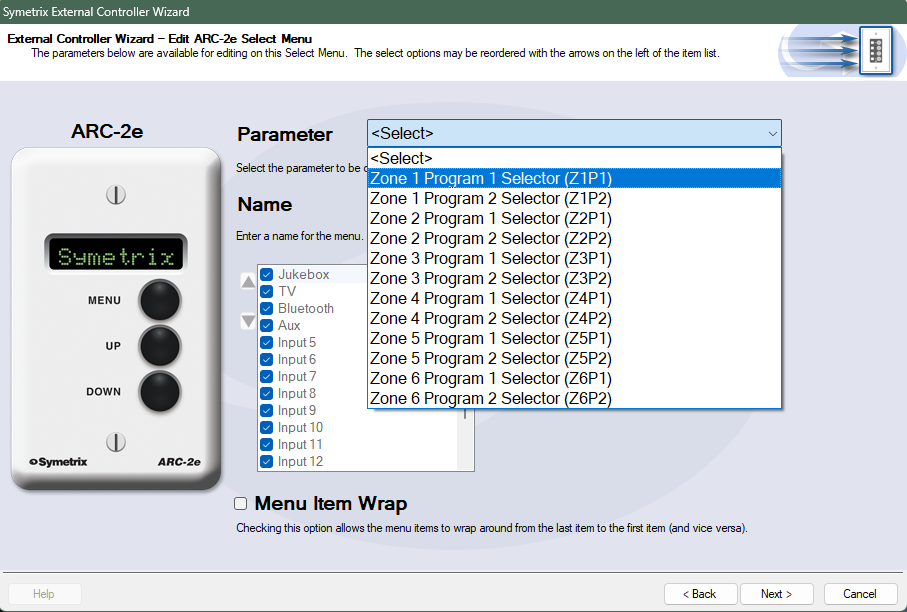
The Parameter selection is where we define the parameter for source selection in Zone 1. Choose Zone 1 Program 1 Selector. The Name can also be edited, which will be Lounge Source here.
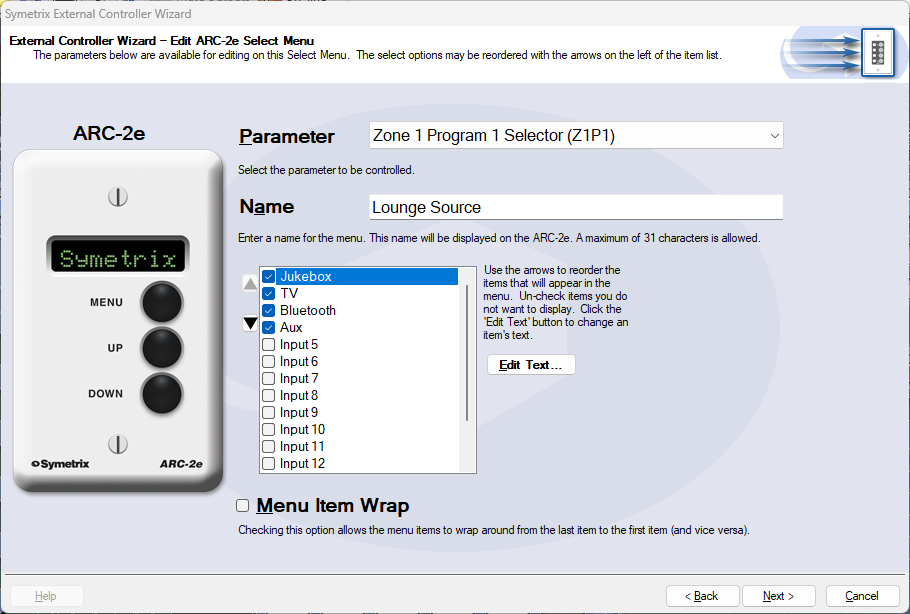
The checkbox list below Name is where we decide which analog input sources should be included as options for the Lounge Source. Uncheck any sources that should not be included and click Next. We are returned to the ARC-2e home menu where we can see the Lounge Source menu listed.
Next, we’ll set up a Zone Volume control. Click Add New Menu.
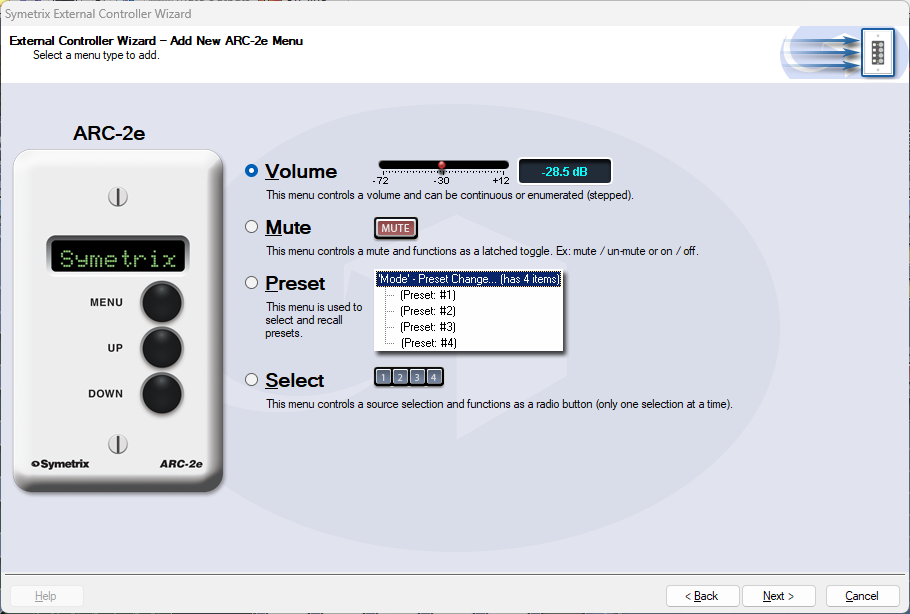
Select the Volume option and click Next.
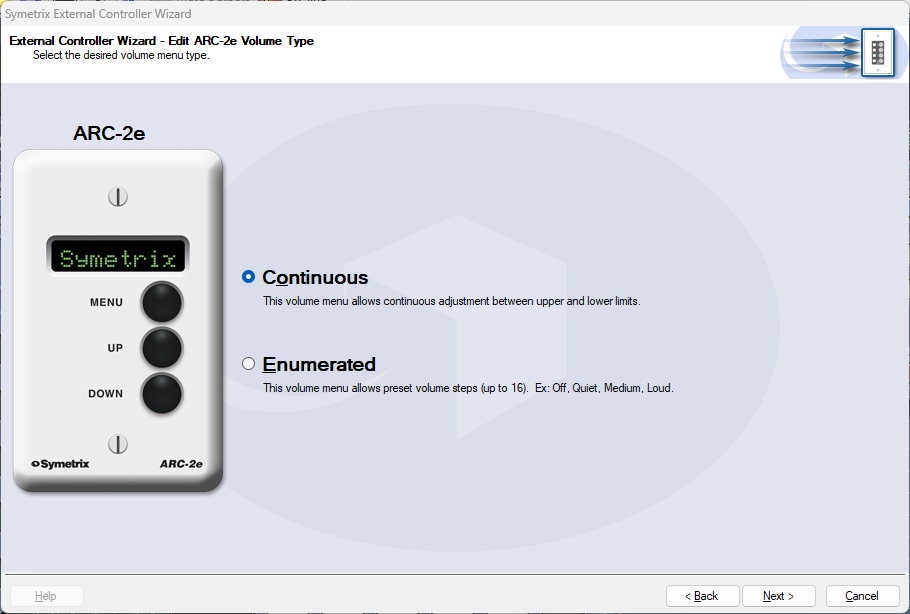
In most cases Continuous will be the better option for more precise control. However, Enumerated may be a more intuitive option for user control. In this example, we’ll select Continuous and click Next.
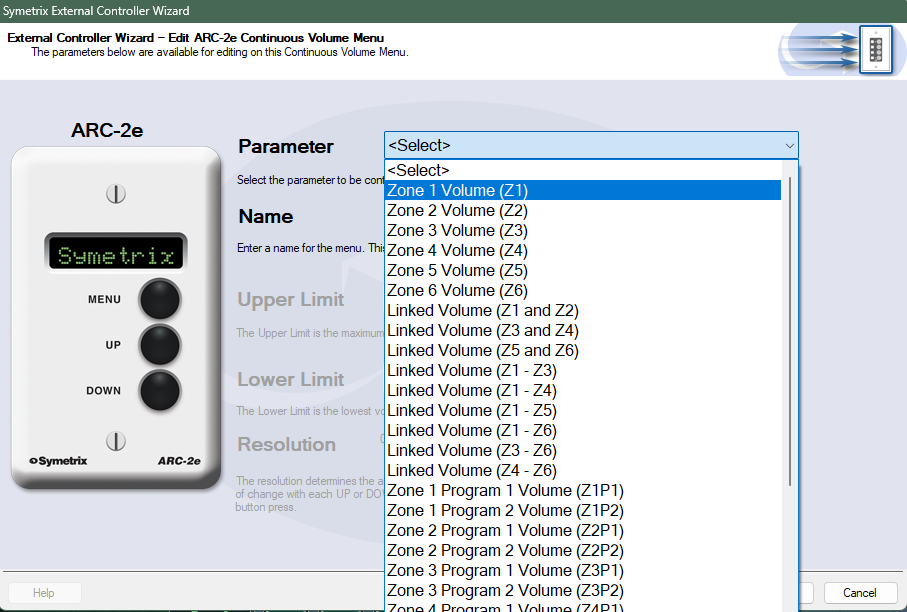
Select Zone 1 Volume to connect this control to the Zone Volume slider in Zone 1. The control Name and upper/lower limits can also be edited, which will be Lounge Volume and leave as default respectively in this example. Click Next.
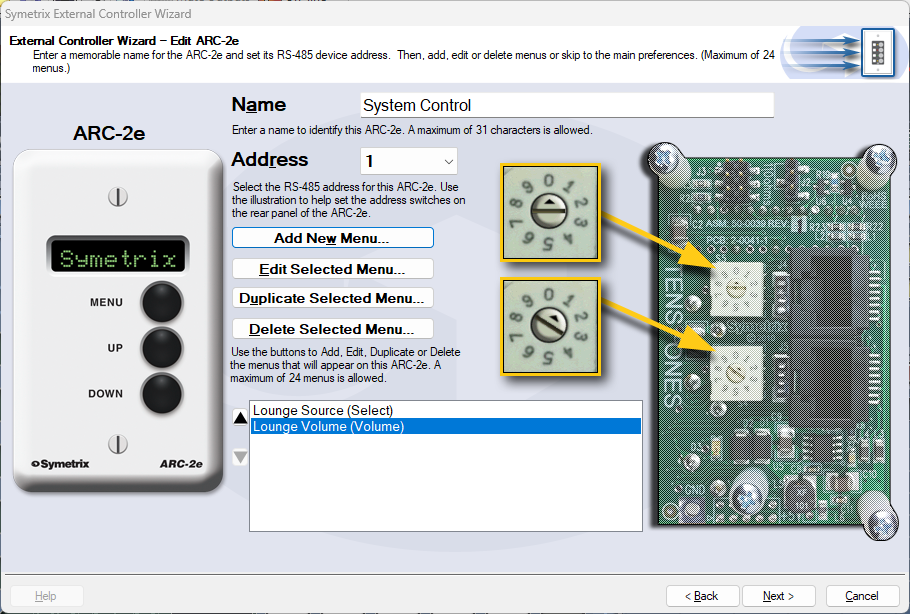
We are returned back to the ARC-2e home menu where we can see both Lounge Source and Lounge Volume listed.
Click Next for more options related to the ARC-2e unit itself, and Next again for a section that offers the ability to Simulate the ARC-2e, to test your work.
Note: Some parameters may act oddly in simulation mode. This is a known issue.
When finished programming all other relevant zone controls, click Finish to save.
ARC remotes are a powerful and intuitive form of system control for systems using Symetrix DSPs. This Tech Tip will walk through setting up zone Source Select and Volume control for the Zone Mix 761 on an ARC-2e. The process is nearly identical for ARC-WEB.
Starting at the Zone Mix 761 software homepage, there are two main areas to focus on.
- Zones; these are where control parameters are located for source select and volume.
- Output RTE; this is where we connect signal flow from Zones to the analog outputs, effectively making each Zone a direct control for an analog output.
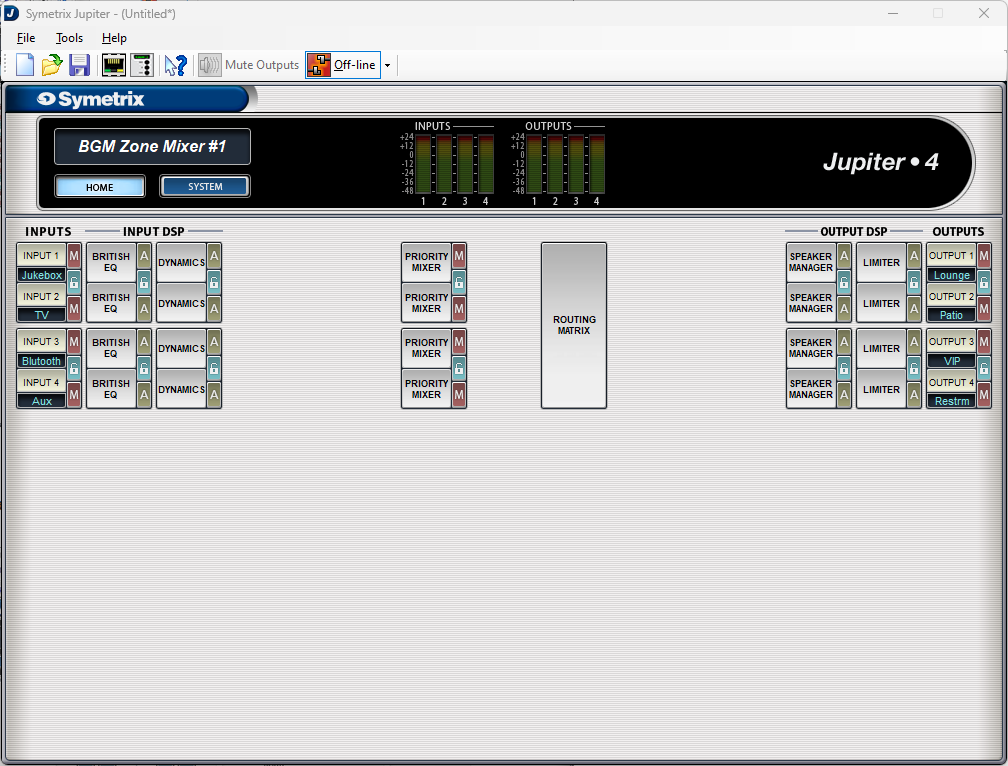
Open up Priority Mixer 1. Notice there are two Sources in this Priority Mixer, in fact every Priority Mixer will have two Sources.
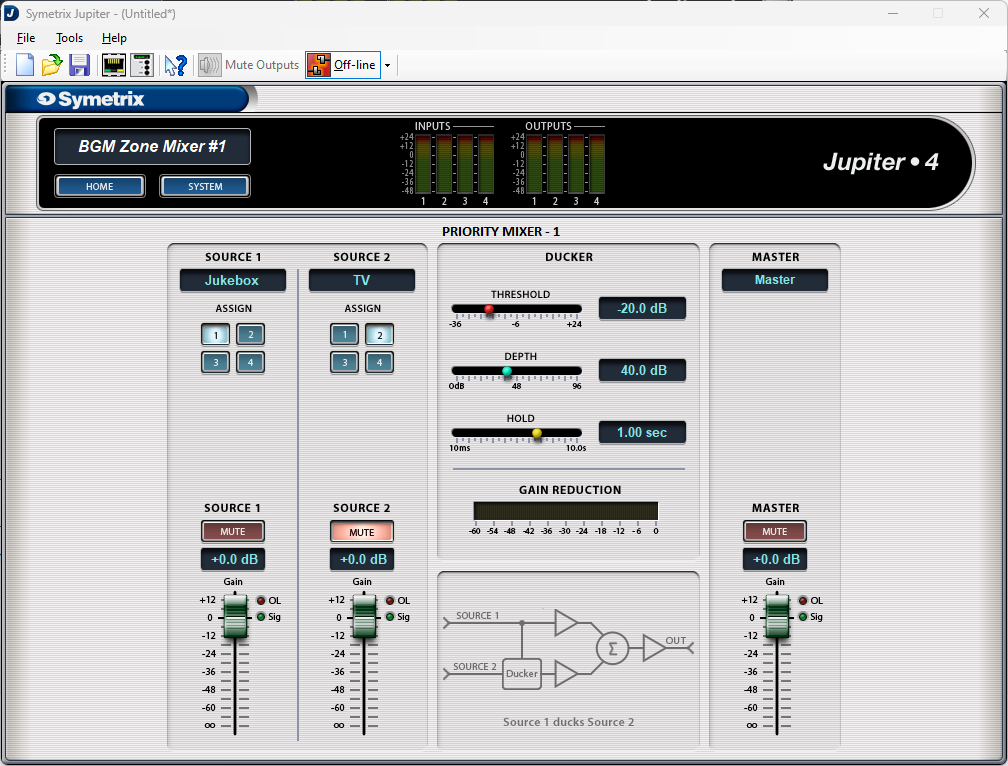
For a mono source select function, Source 2 channel can be muted as it is not needed. Source 1’s Assign buttons will be the parameter we use to select the source input. The Ducker settings won’t come in to play here as we are not using Source 2. If the venue required a paging microphone or some other ducking purpose, the source with priority (microphone) would always be selected in Source 1 and we would control background music selection with Source 2.
The zone volume control can be assigned to either the Source 1 fader or the Priority Mixer Master fader. If the system has the chance of adding ducking at some point, the Master Fader maybe the better option for zone volume control.
Go back to Home and open up the Routing Matrix. Notice the default stair-step pattern.
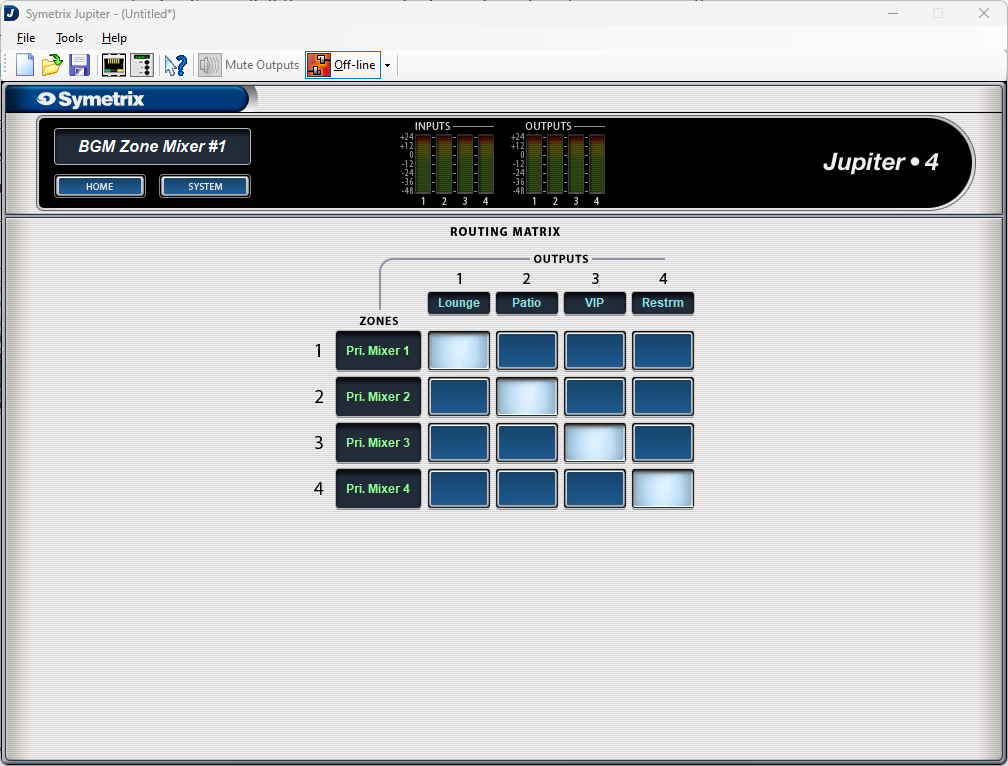
If the output channels are named, the routing matrix will automatically fill those in along the top row. The Zones column will be labeled “Zone 1, Zone 2, etc” by default. They have been relabeled here for explanatory purposes of this Tech Tip.
The Priority Mixer we just looked at feeds into what is labeled as Zone 1 by default, relabeled here as “Pri. Mixer 1”. Whatever is playing in Priority Mixer 1 then gets sent out analog Output 1. Priority Mixer 2 is sent to Output 2 and so on. These cross-points can be edited as necessary, but keep signal flow in mind. In this current state analog Input 1 (Jukebox) is selected in Priority Mixer 1 (Zone 1) which then gets fed to analog Output 1 (Lounge).
Open the External Control Wizard.
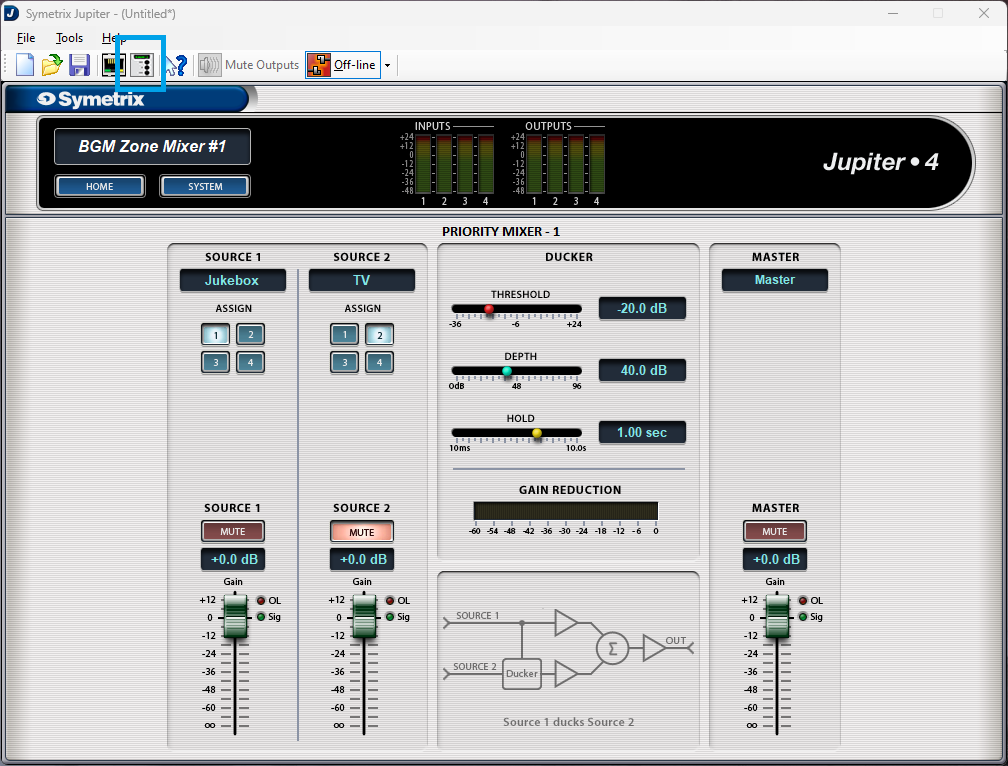
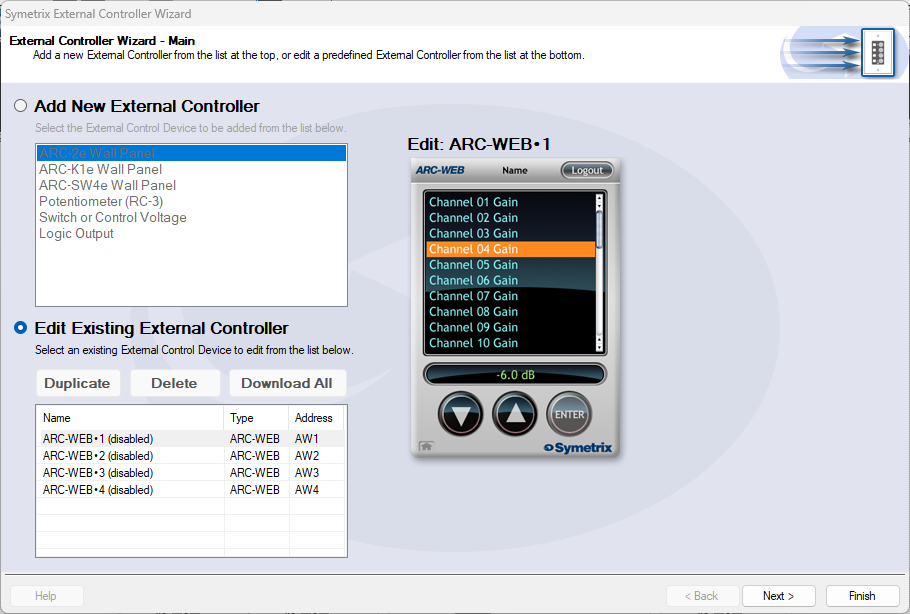
This example will program control for an ARC-WEB interface, but the process is nearly identical for the ARC-2e. Select Edit Existing External Controller, then select ARC-WEB 1, and click next.
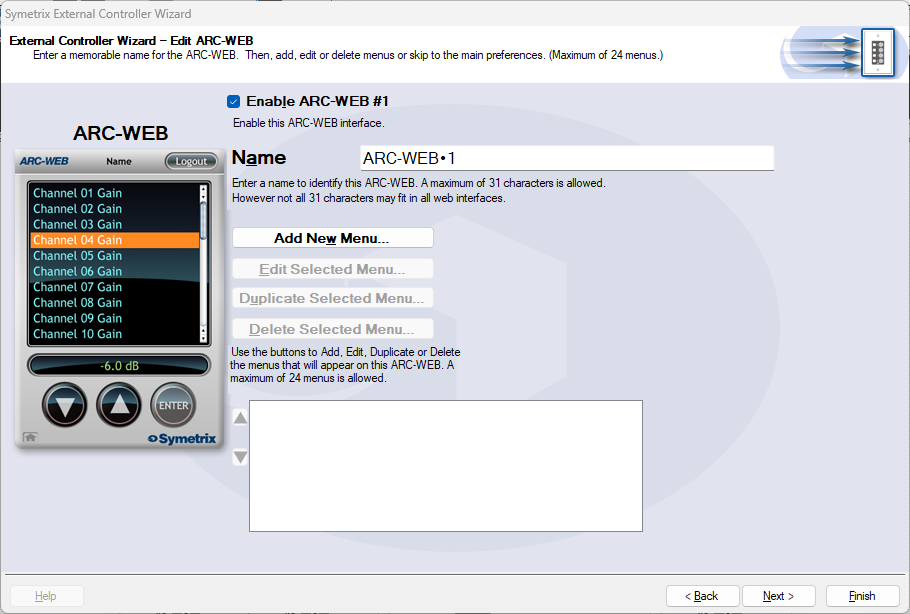
Check the Enable ARC-WEB #1 box at the top. The Name field is the default remote name, but can be edited appropriately. In this example, it will be named System Control.
Click on Add New Menu.
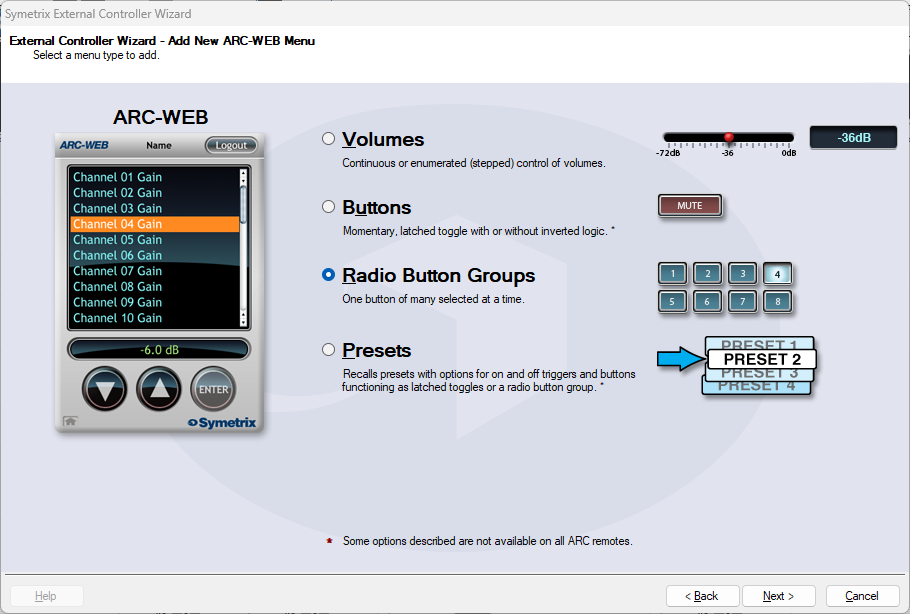
Select Radio Button Groups. Notice the graphic on the right looks like the Priority Mixer assign buttons. Click next.

The Parameter drop-down is where the control will be assigned. Select Priority Mixer Source 1 Assign Radio Button (Channel 1).
- Channel 1 in this use case means analog Priority Mixer 1, Channel 2 means analog Priority Mixer 2, and so on.
- We are selecting the Source 1 Assign radio button group from Priority Mixer 1.
The Name setting can be customized accordingly. Here, it will be named Lounge Source.
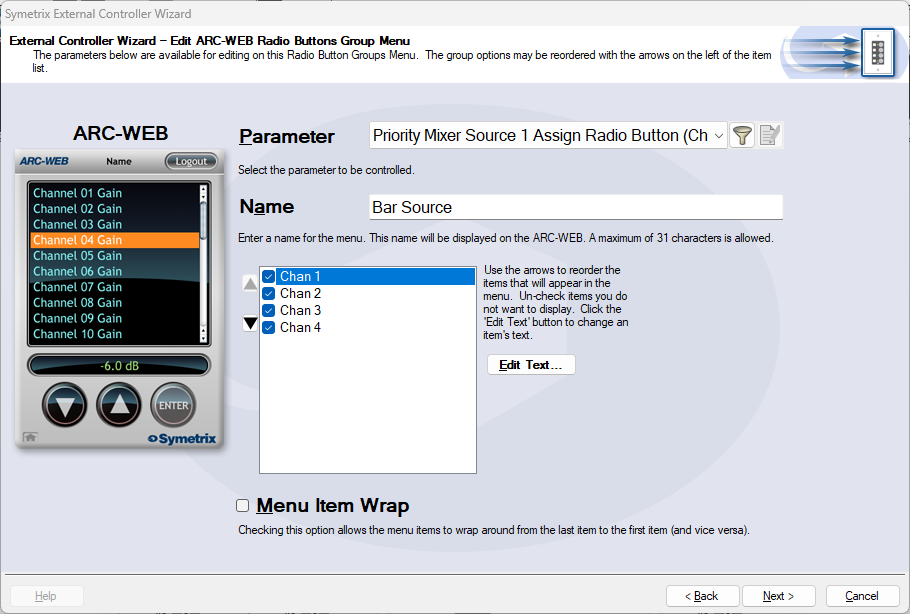
The channel list below the Name setting are all of the analog Input sources available. This is where input sources are included or not from Priority Mixer 1’s radio button control; in effect, which sources the Lounge is allowed to choose from.
These are labeled Chan 1-4, but are related directly to Inputs 1-4. In this case Chan 1 is Jukebox, Chan 2 is TV, and so on. Click Edit Text on the right to edit the channel names that will appear on the ARC-2e or ARC-WEB. You can also re-order the channels by clicking the up and down arrows.
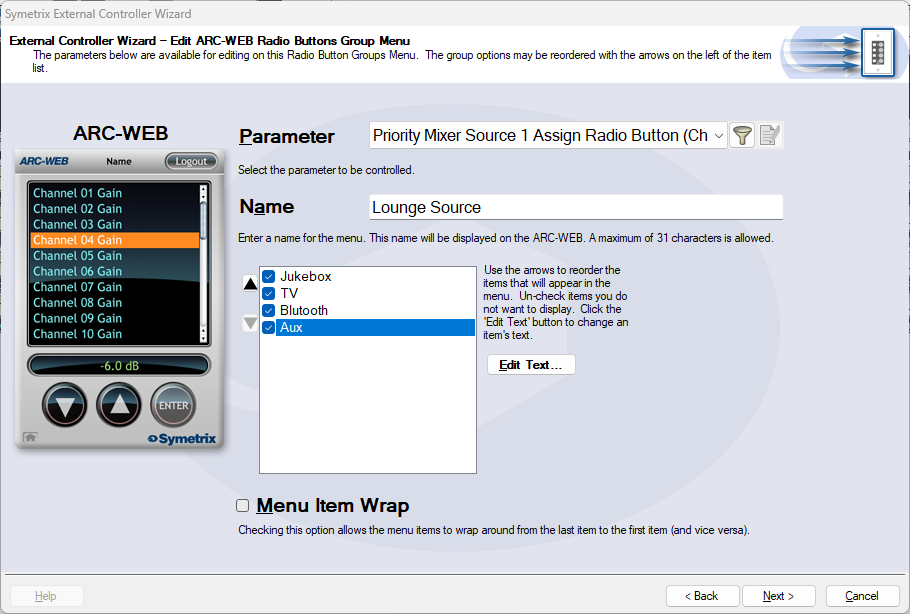
IMPORTANT NOTE: Even numbered Priority Mixer channel names will be opposite for every two in relation to this step of the External Control Wizard. This is the case to allow for programming stereo inputs source selection. This table helps explain how to match channels to actual inputs, and mitigate which channels need to be re-ordered to keep selections correct.
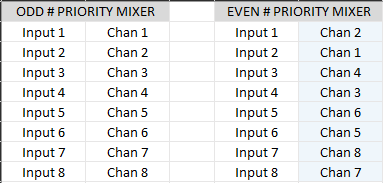
Notice that odd numbered Priority Mixer channels and inputs match up as expected. Even numbered Priority Mixers are reversed every two channels/inputs. In this case Chan 1 is Input 2, and thus Chan 2 would be named “Jukebox” and Chan 1 would be named “TV”. Re-order Channels according to the blue highlighted column above, then label according to the Input column just left. If this isn’t done, source selection will skip around seemingly randomly.
When finished labeling, click next.
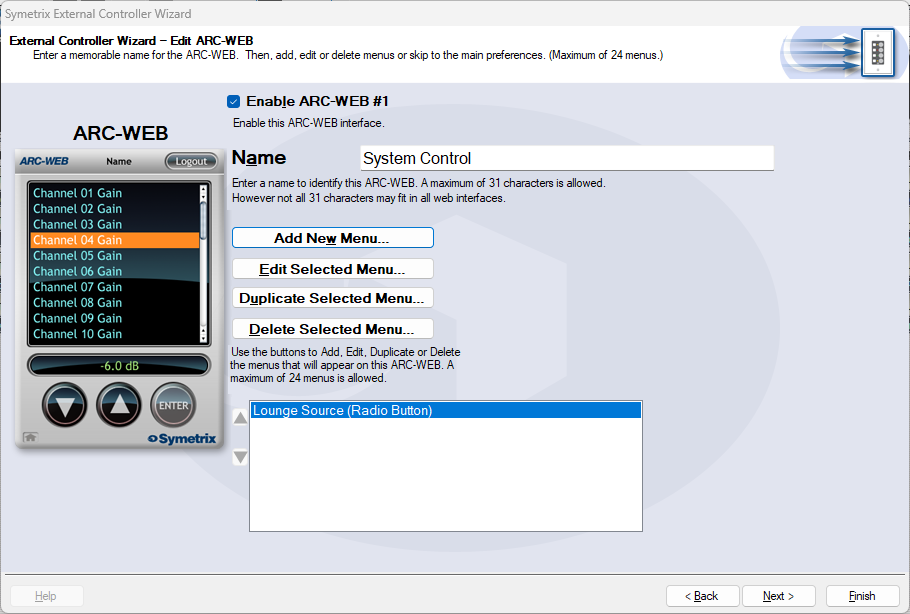
We are now back at the home screen of ARC-WEB #1 where we can see the Lounge Source menu listed. We can now create a Volume control for Lounge. Click Add New Menu.
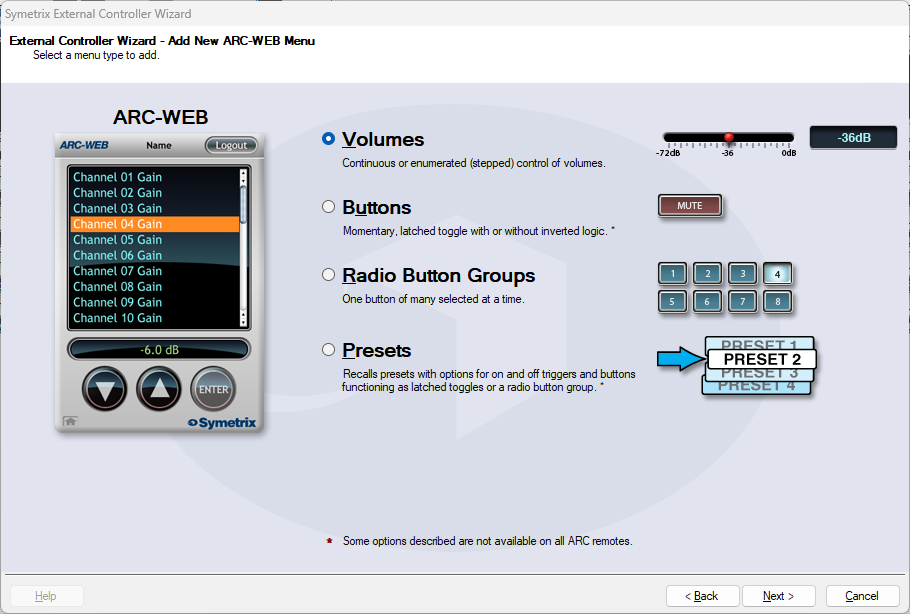
Choose Volumes and click Next.
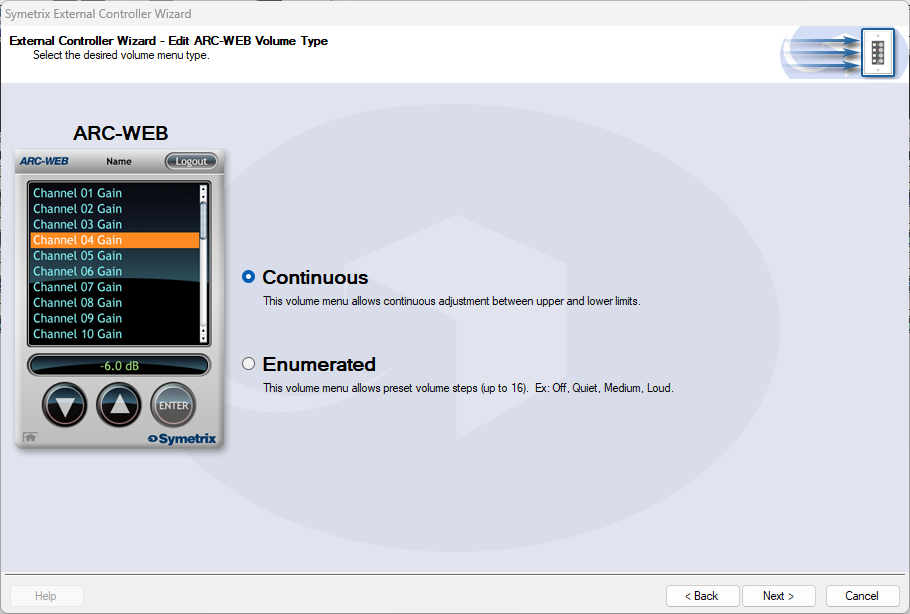
There are two options here for how the control will act. In most cases Continuous will be selected for more precise control, but Enumerated is another way to offer simple intuitive control over volume. Click Next.
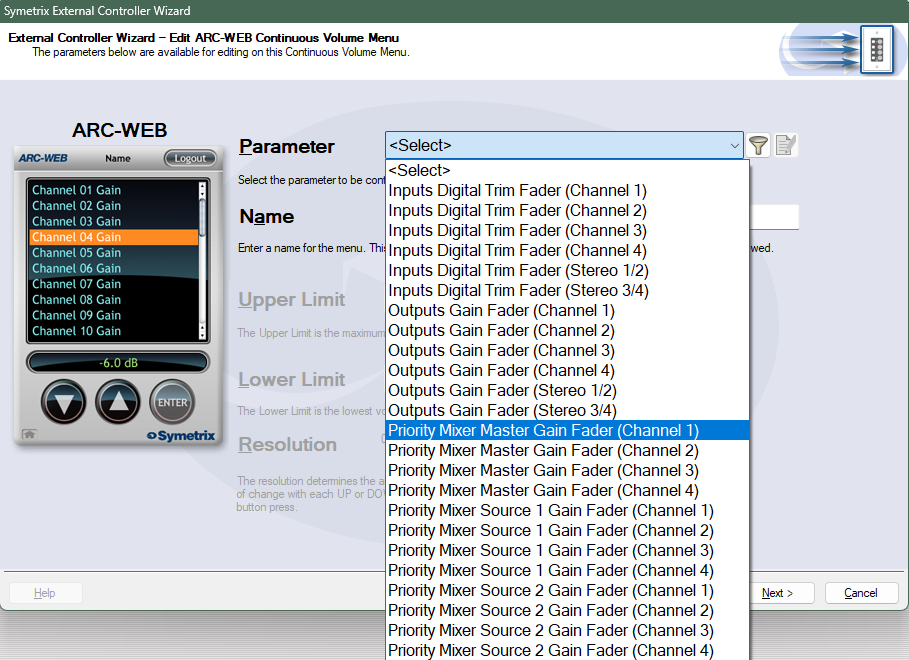
Select Priority Mixer Master Gain Fader (Channel 1). In this case Channel 1 means Priority Mixer 1, Channel 2 means Priority Mixer 2, and so on. This Tech Tip chooses the Master Gain Fader for the possibility of needing to take advantage of the ducking talked about earlier. If you prefer to control the Source fader itself, choose Priority Mixer Source 1 Gain Fader (Channel 1) – this would mean the Source 1 gain fader of Priority Mixer 1.
The control Name can be edited. In this example, it will be named Lounge Volume. The upper and lower limits will be left as default here, but you can edit them accordingly if desired. Click Next.
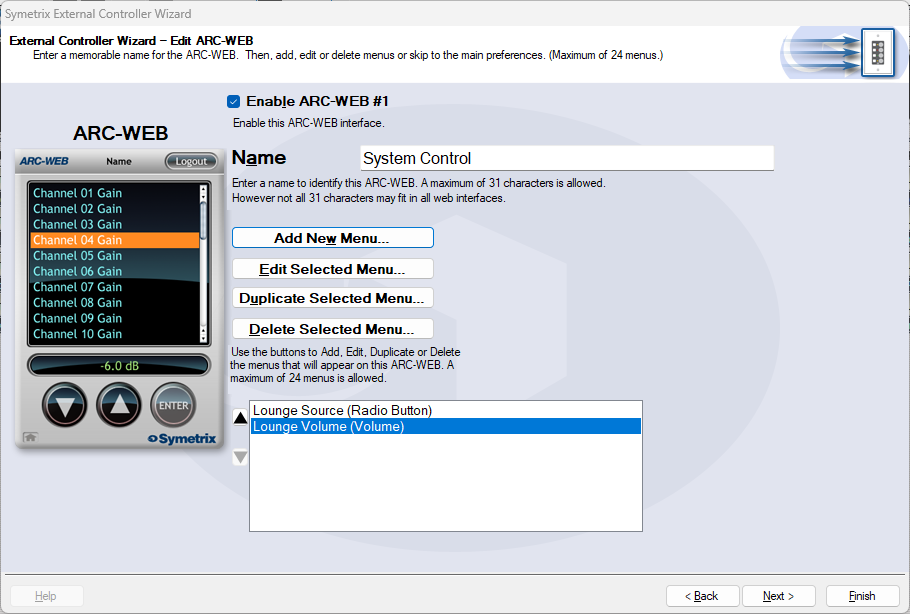
We now see Lounge Volume listed below Lounge Source on the ARC-WEB #1 home screen. Continue through to add controls for each other zone as desired, keeping in mind the Channel/Input order for even numbered Priority Mixers.
Once all menus have been created click Next through the available option(s). ARC-WEB will only offer access security while ARC-2e will offer other options related to the panel itself. The ARC-WEB will allow you to launch the ARC-WEB and view/test your work (must be online with Jupiter). The ARC-2e (and other ARCs) will eventually show a button option for “Simulate…”, which brings up a graphic representation of an ARC-2e, to view/test your work.
Note: Some parameters may not respond when in simulation mode. This is a known issue.
The ARC-K1e is a simple, intuitive ARC remote that can be used for many parameters. However, the large majority of use cases are likely volume control. In this example we will couple an ARC-K1e with an ARC-EX4e that will act together as volume control and input selection.
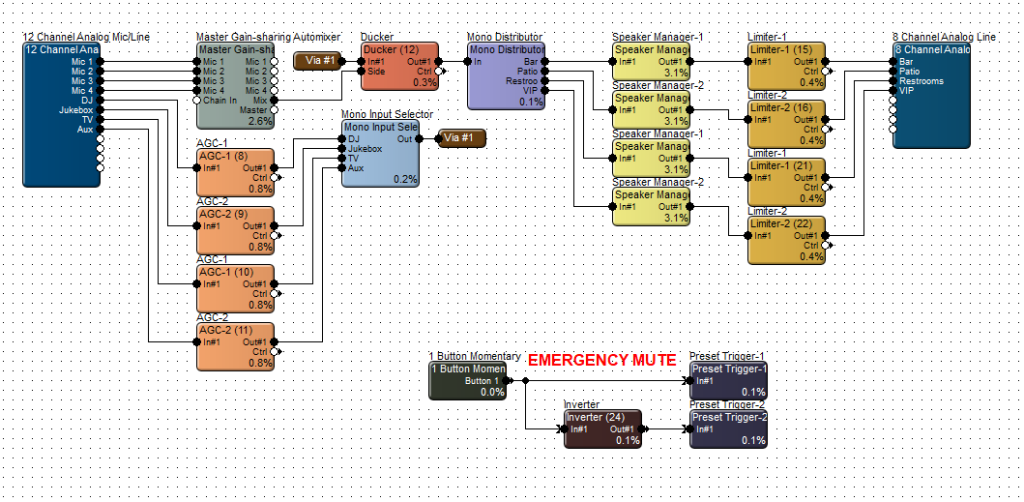
This site file has four speaker zones; Bar, Patio, Restrooms, and VIP. Open up the first Speaker Manager that flows to the Bar zone. Right-click on the module gain fader and select Set Up Remote Control.
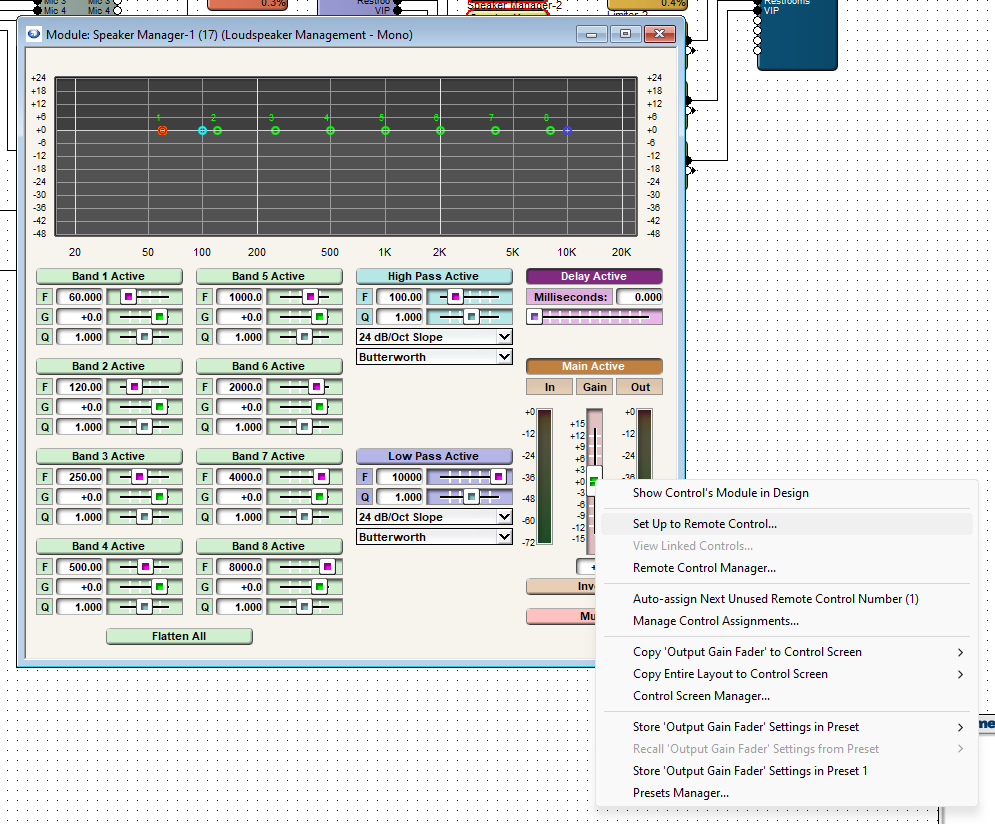
Scroll to the right in the Remote Control Devices area and select Add New ARC. If you already have an ARC-K1e or ARC-K1e + EX4e added, it should be displayed in this list.
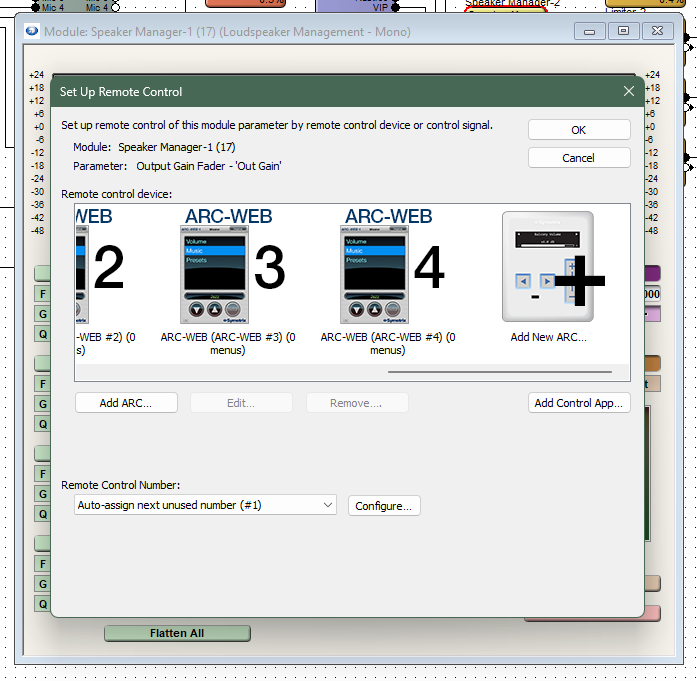
Select the ARC-K1e + one ARC-EX4e from the drop-down list.

Now select Encoder #1 A. This will assign the first Speaker Manager gain fader to the A side of the K1e knob control. Do the same for the second Speaker Manager gain fader, but select Encoder #1 B to set it to the B side of the K1e knob control.
Note: the other two zones would require a second ARC-K1e. If two or more zones are to be controlled together, set the gain faders to the same control number. These faders will control in unison.
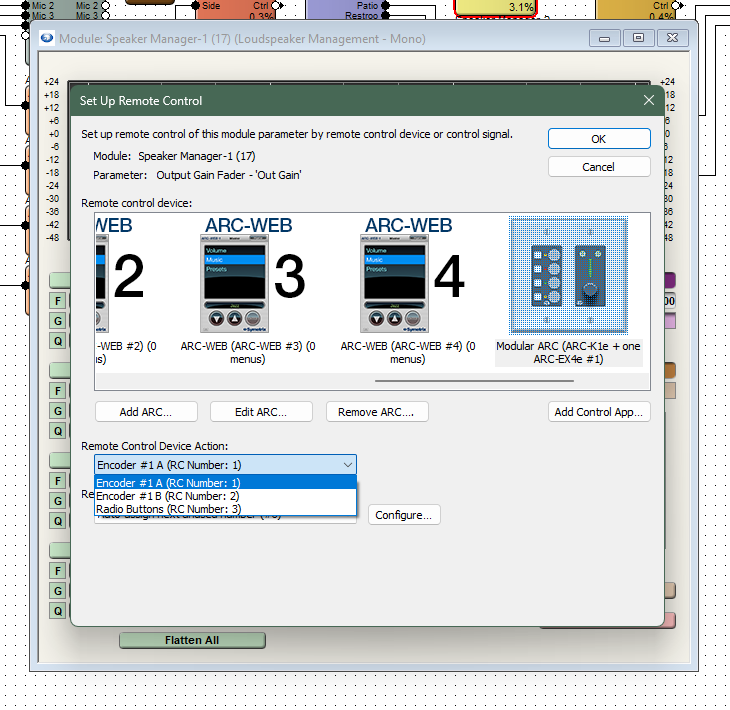
Now, open up the Mono Input Selector module, right-click on the slider at the bottom, and then choose Set Up to Remote Control.
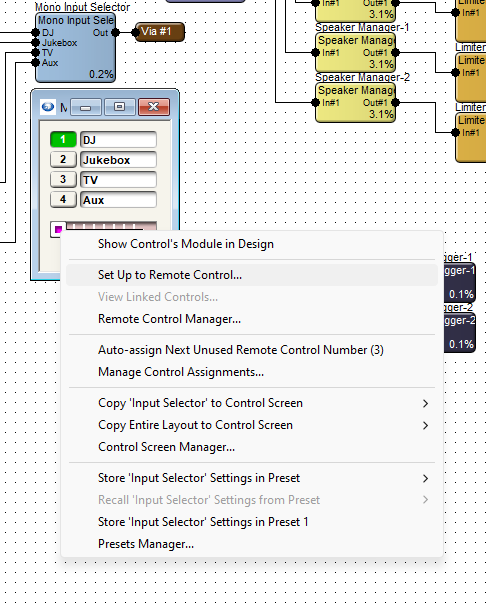
Choose the Modular ARC from the list and assign the Input Selector slider to the Radio Buttons option. This will allow the four input selections to relate to the four buttons on the EX4e, in the same order that they appear in the module.
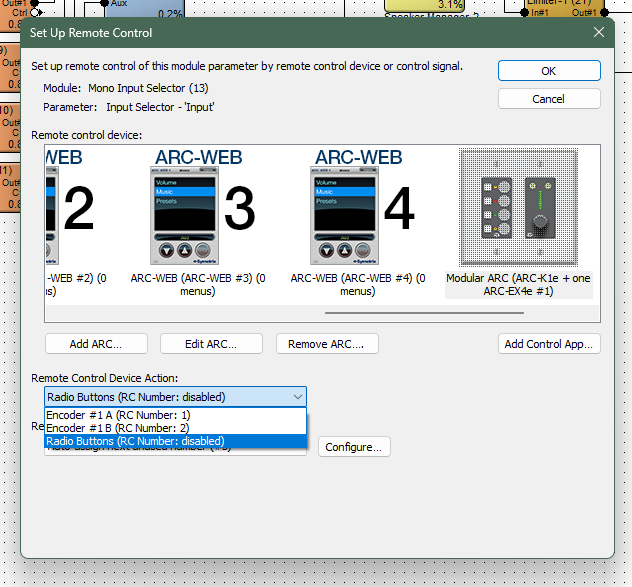
Push the design and program the ARC remote, and go online to test the control.
ADDITIONAL NOTE:
There are may more ways to take advantage of the ARC-K1e in combination with EX4e or SW4e. This Tech Tip is a basic example of setting up these remotes. Refer to the Help File > Module ARC Programming for more information.
Many installations include power sequencers that power down most of the greater system while a Symetrix DSP remains powered for system control. In this example, there is a SymVue control screen with system on/off momentary buttons that need to indicate the current state of the system.
In Composer, drag in a 2-Button Momentary module, two Local Logic Output modules, and a Flip-flop module, and wire them as shown below.
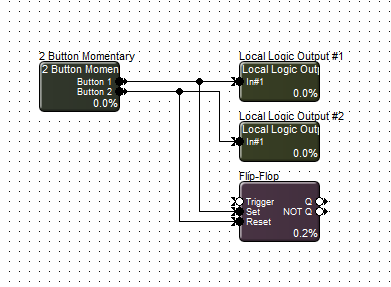
Local Logic Output #1 is intended to trigger the system ON and Local Logic Output #2 is intended to trigger the system OFF. Be sure not to connect either wire to the TRIGGER input of the Flip-flop as this will force the Q state to flip back and forth between Q and Not Q with every button press. While this doesn’t affect the power sequencer, it does affect how the LEDs display on the control screen. The SET input will set the module state to Q and the RESET input will set the state to Not Q, and either state will remain active until the other has been triggered.
Copy the two ON buttons from the 2-Button Momentary as well as the Q and Not Q LEDs from the Flip-flop module to the control screen. Resize the ON and OFF buttons and rename them appropriately. If you wish to edit the text of the LED label or remove the text entirely, the properties window allows you to change the display type to Symbol or simply delete the Text.
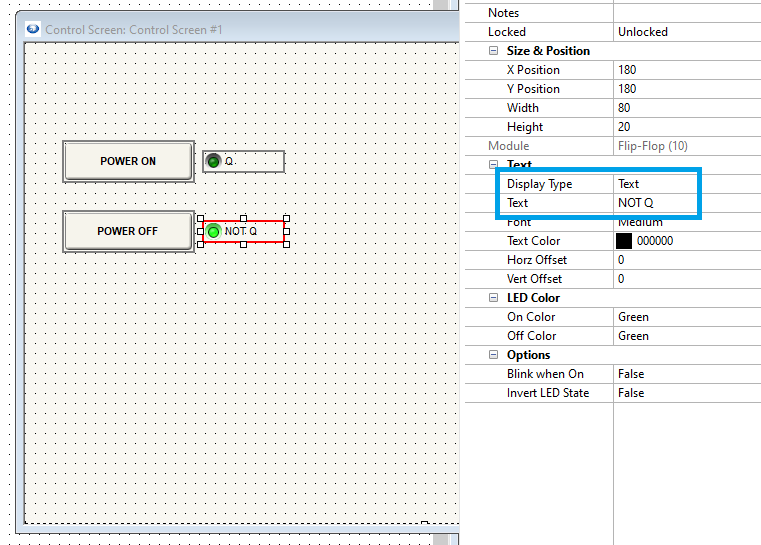
Push and go online to test this functionality – logic doesn’t work in Composer when offline.
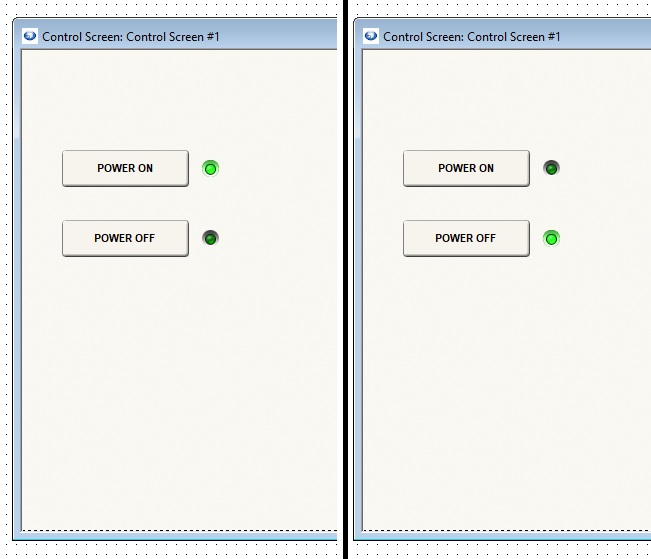
ADDITIONAL NOTE:
Similar to using LEDs to indicate presets, momentary buttons don’t stay in a constant state unless held there and any change downstream from this logic will not reflect that state. In essence; the LED state is taking its cue directly from the inputs, coming from the momentary button pushes and this method does not take feedback from the power sequencer directly.
Occasionally, third party devices may need a control signal to last longer than a momentary button’s “press” to activate, but not as long as a press and hold situation. This Tech Tip explains how to get a latched button to act like a momentary button.
First, drag in a 1 Button Latched (can be multi-button), Delay Logic, and a Preset Trigger, and wire them as shown.
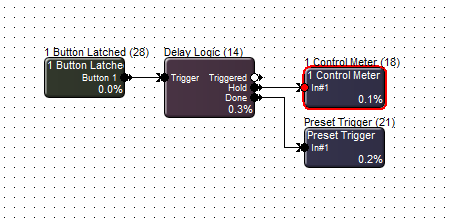
Set the latched button, in its OFF state, to a preset. In this example, we’ll use Preset #1.
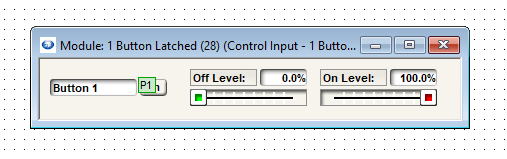
Next, set the Delay Logic’s delay time to 0.01 sec and the hold time to an appropriate time for your system. This example leaves the hold time at the default 1 sec.
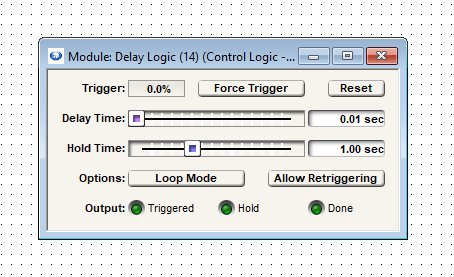
In the Preset Trigger module, the default number will be 1, but change this to the preset used for the latched button in its OFF state.
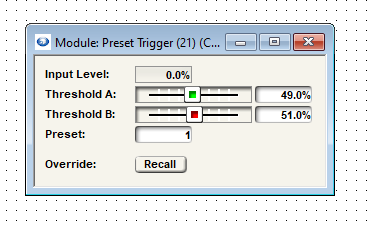
Push and go online, and test the latched button by pressing it. It should return to the OFF state after the Delay Logic hold time has elapsed, firing through the Done stage output.
SymVue Control Screens are a powerful and flexible option for system control. This Tech Tip explains how to export a control screen to a T-5 touchscreen, Control Server, and Windows PC.
This example is for a three-zone venue with six inputs. User controls should include microphone level control, background music selection and level control, zone volume control, and an indicator if the emergency system mute is engaged.
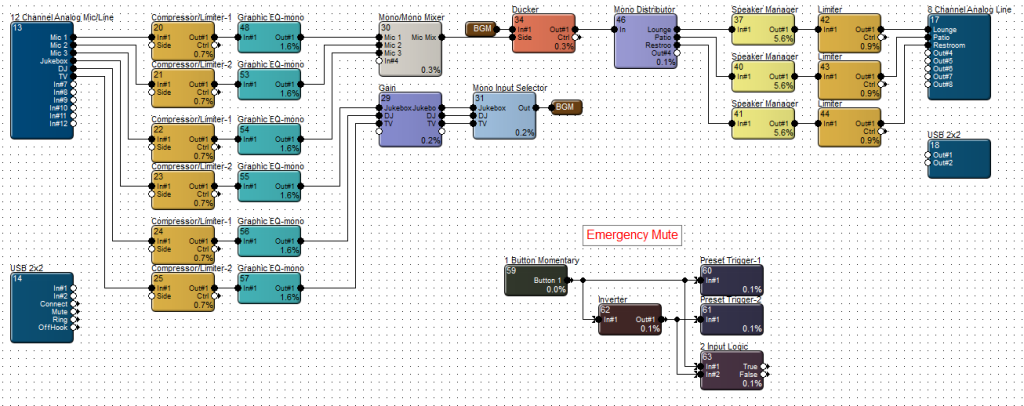
In this example, we will only need to create two control screens; one for the T-5 touchscreen and one that can be used for both Control Server and Windows PC. Once both control screens have been populated with controls and designed according to the available space, open the touchscreen control screen.
T-Series Export:
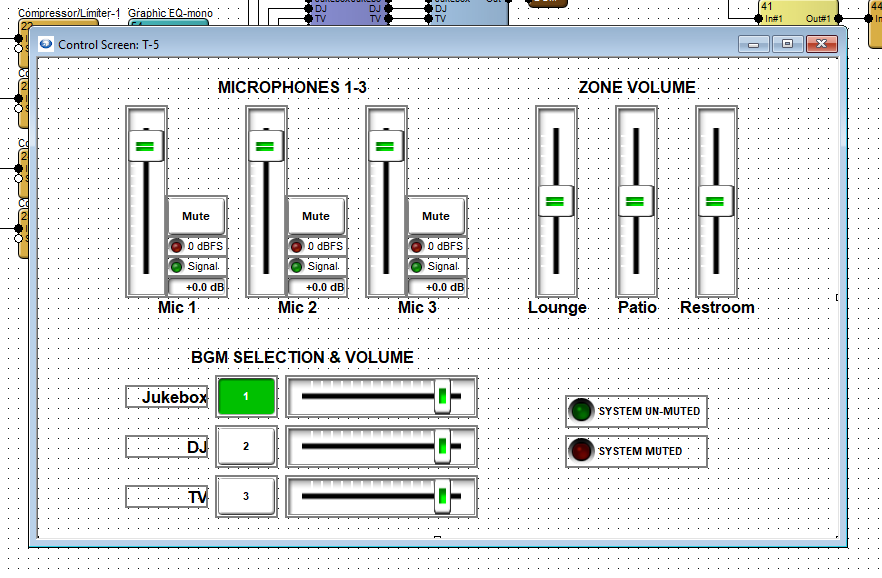
Right click in the background area and select Export to SymVue. Then select Touchscreens and click Next.
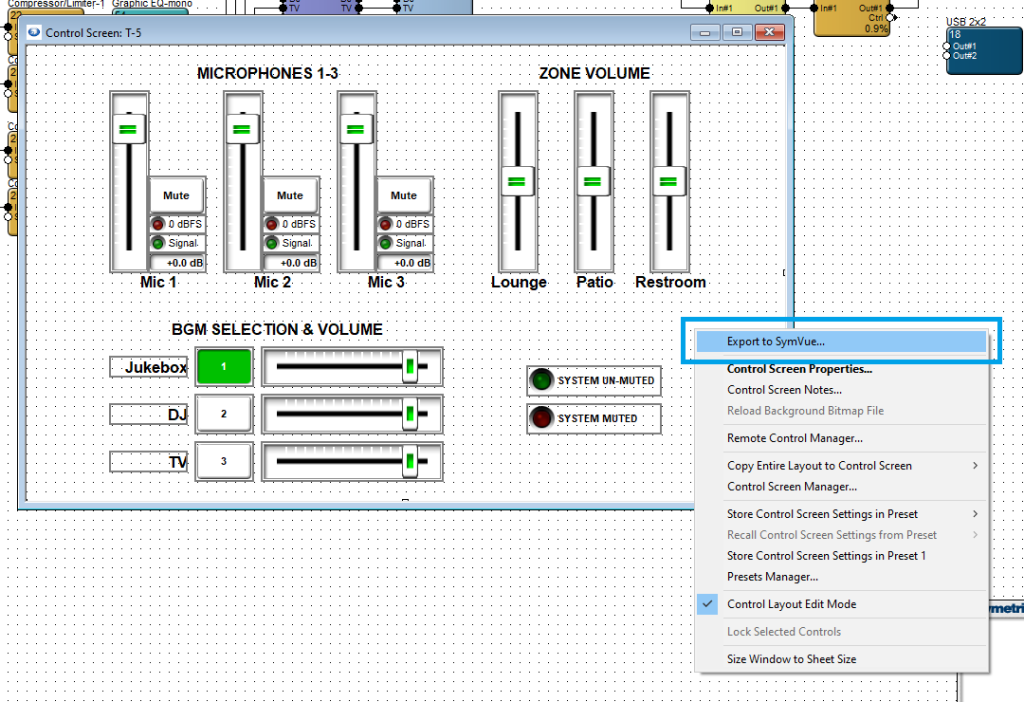
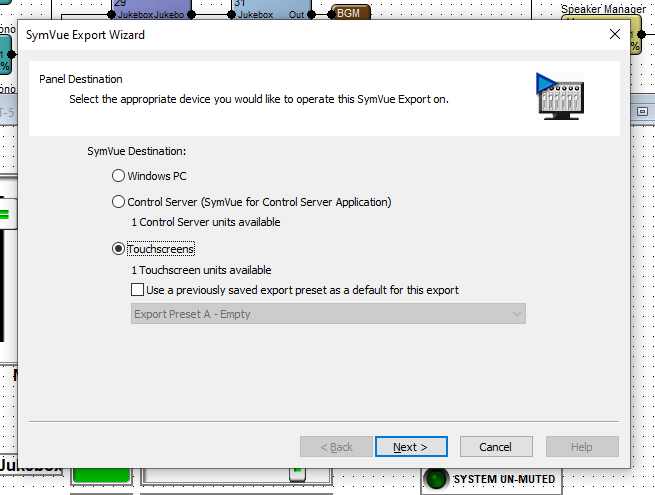
If there are more than one control screen intended for this configuration, this Panel Selection dialogue will allow you to select which screens should be included and referenced by this screen. When preferred selections are made (or if no other control screens are included), click Next.
Note: the “Home” control screen of a configuration is the one that is first exported through right-click > Export to SymVue.
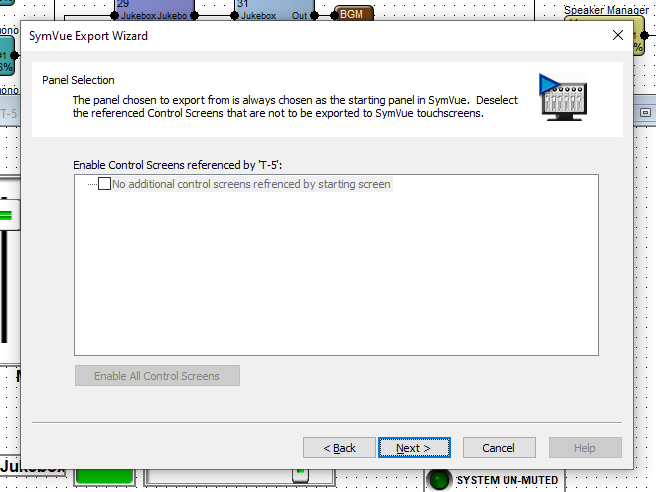
Panel Security allows you to set a PIN code for the desired control screens. This PIN will be used for all selected control screens. Control screens in a given configuration may not have varying PINs.
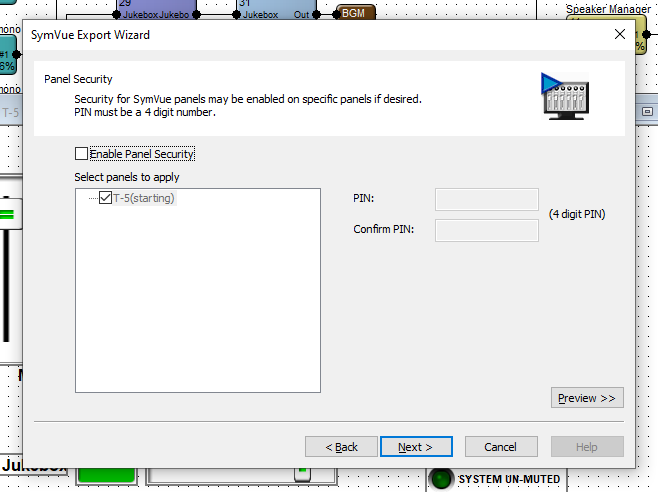
Hardware Connection allows for two options of locating the T-5 touchscreen. Select which is most appropriate for the installation – in the vast majority of cases, Typical is the appropriate selection.
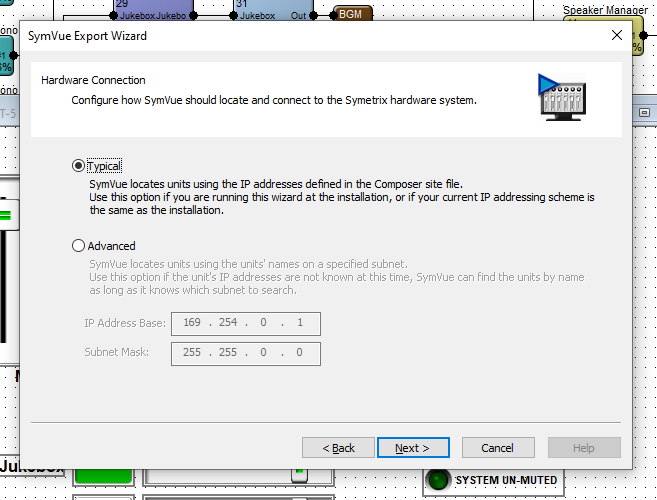
Export Options is the last step. Export to Touchscreens should automatically be checked. The drop down provides options to export this configuration to a specific T-5 or a group of touchscreens.
Note: We strongly suggest selecting “Go Online with Composer site file” to avoid control subscription errors which can be caused by the touchscreen and Composer/DSP not sync’ing parameters.
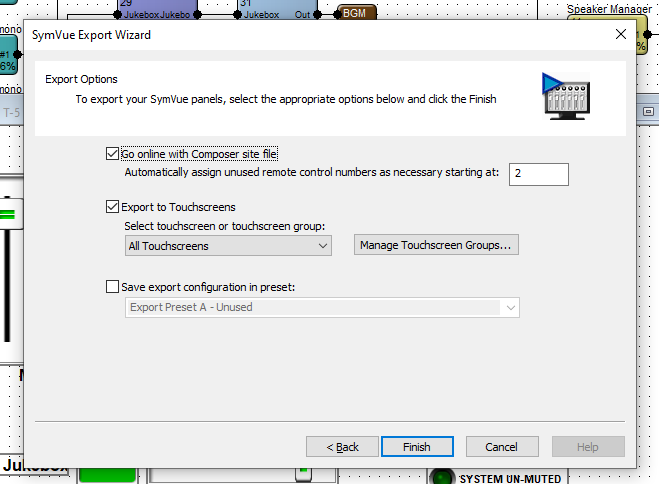
When ready, click Finish. This will export the configuration to the T-5 and push/update the archive on the DSP and go online.
Control Server / Windows PC Export:
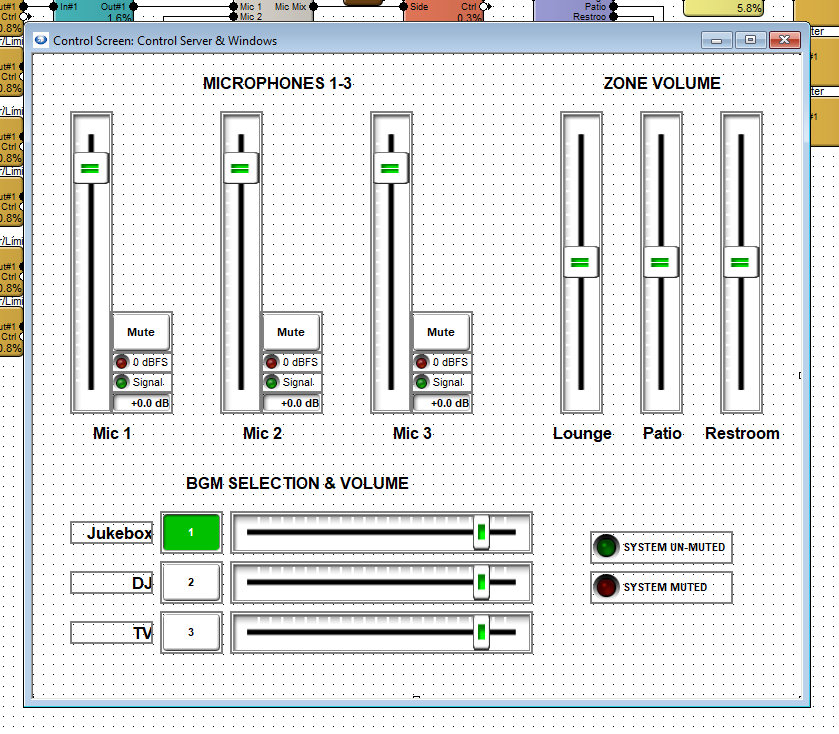
Open the control screen for Control Server and Windows PC. Repeat the steps for T-5 touchscreen, making the appropriate selections for either.
Once the configuration has been exported to Control Server, open up the Control Server’s WEB GUI and log into the Admin account.
Double-click on the Control Server or right-click > open in Site View.
Once viewing the Status page, in the top right corner, go to Menu > Management > Applications and select SymVue from the App list. This will expand the available configurations list.
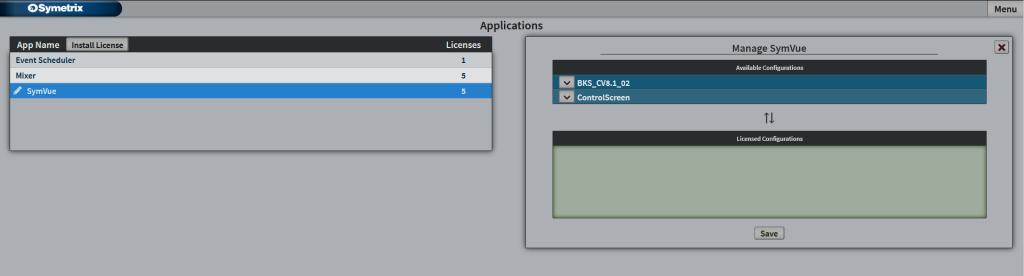
Click the down Arrow (or click and drag) on your control screen – this example “ControlScreen” – and click Save.
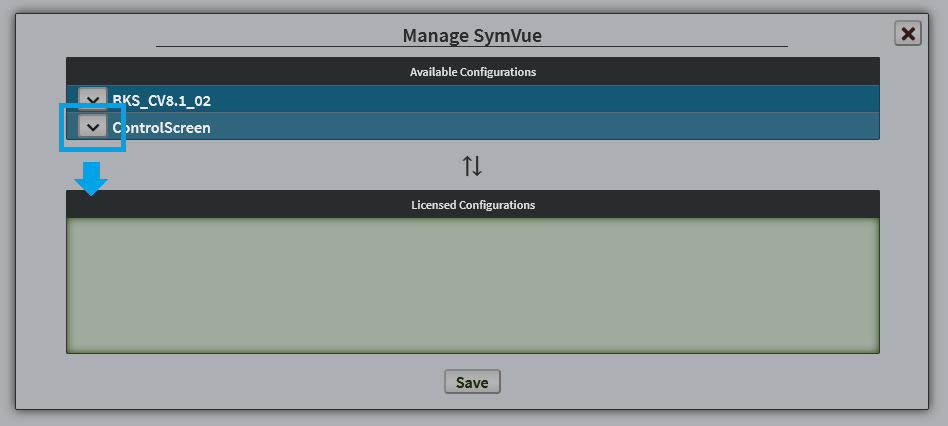
Then go to Menu > Management > Users. If you haven’t created a user account for the Control Server, you can do so here. Click on the user that will be accessing the exported configuration.
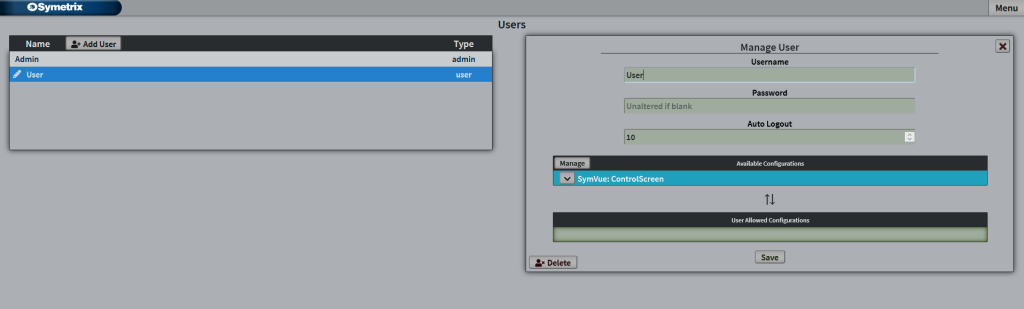
Click on the down arrow for the configuration that this user will access to place it into the User Allows Configurations and click Save.
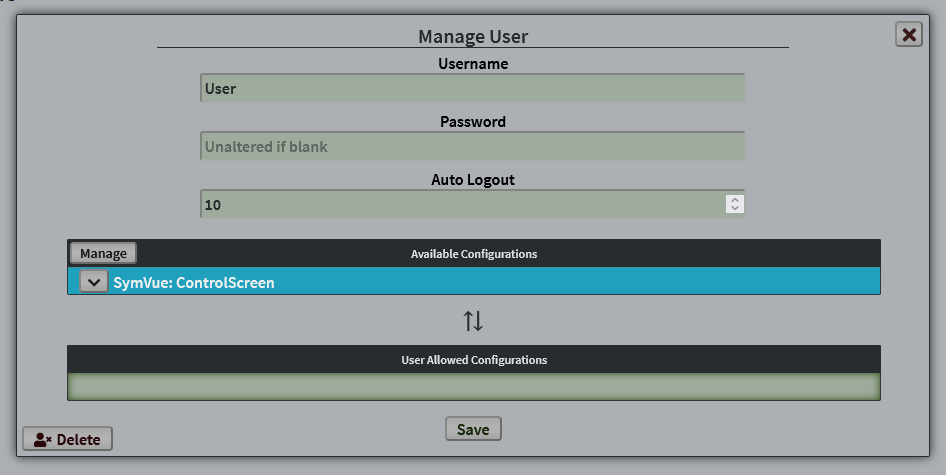
This user now has access to this control screen.
Additional note; Configurations, Licenses, and Applications:
A configuration is any number of single control screens grouped/exported together that act as one “set” of pages or screens. You can have any number of available configurations (sets of control screens) loaded into the Control Server. The number of licensesavailable determines how many of those configurations are allowed to be available to users. You can have any number of users with varying access to any number of the available licensed configurations. Every Control Server comes with 5 licenses, but more can be purchased if necessary.
These control screens are used through the SymVue Application, which is the same medium we use for our export to touchscreen or Windows PC. The Event Scheduler and Mixer apps you may see in Control Server or on export are not related to these control screen configurations.
In Symetrix DSPs, the word “active” isn’t quite the right term to describe presets. Presets are simply a snapshot of one or more parameters in a particular state, and are more so recalled than they are “active”.
However, when using a SymVue Control Screen, there is a way to offer what looks like an “active preset” indicator using the LEDs from an Input Logic module.
Let’s say, for example, that we want three volume presets that can be recalled depending on the time of day for an entertainment venue – low, medium, high – which could correspond to before, during, and after a performance.
In this example, we’ll use a 4 Channel Gain module that would control 4 zone volumes within the venue. Set the gain faders (and any other desired parameters) to the desired position for “Before” the performance.
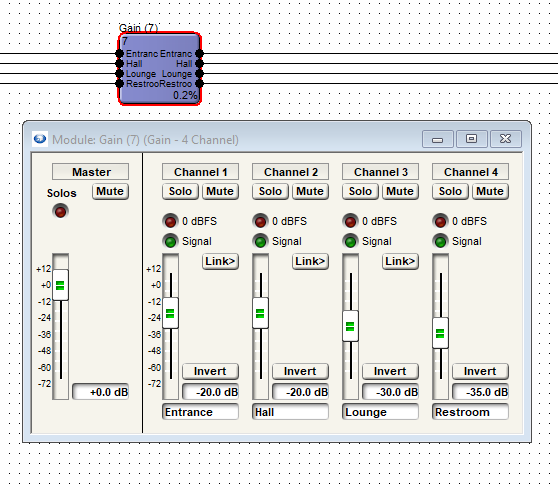
Next, set the gain faders to the other two desired levels for “After” and “During” performance.
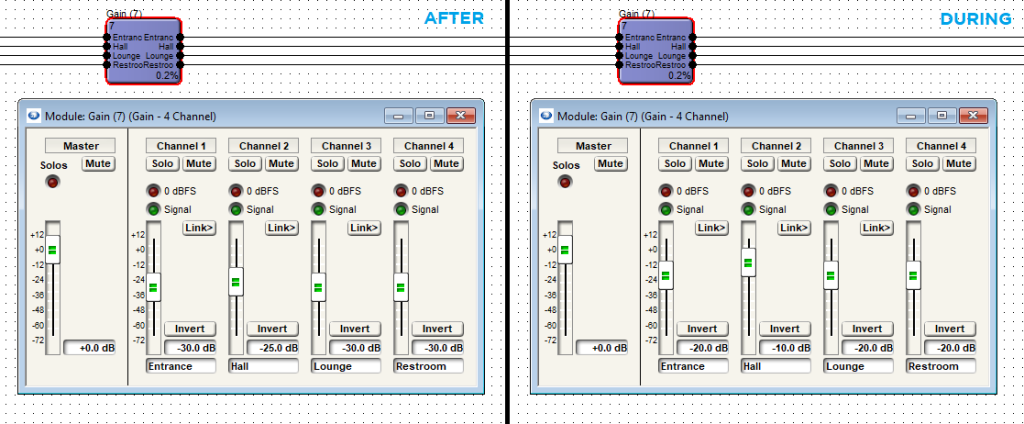
We can now see, with Super-impose Assigned Control Numbers engaged, that all faders have been assigned to Presets 1, 2, and 3.
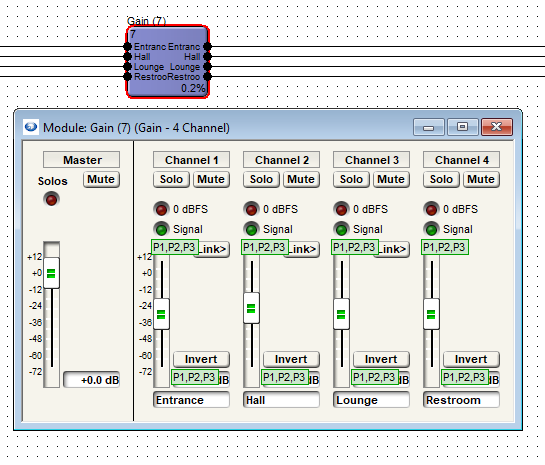
Now, we will rename these presets for easier identification later.
Tools > Presets Manager or Ctrl+G. Highlight the preset and click “Rename…” near the bottom.
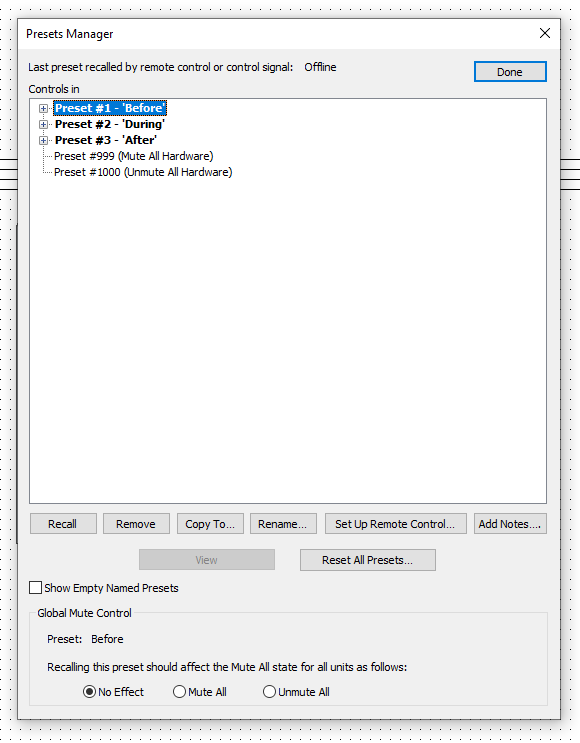
Next, drag in a 4-Button Radio and a 4 Input Logic module, and wire them together. We only need the first three outputs to inputs as we only have three presets. We won’t be using the fourth output on the 4-Button Radio or the fourth input on the 4 Input Logic.
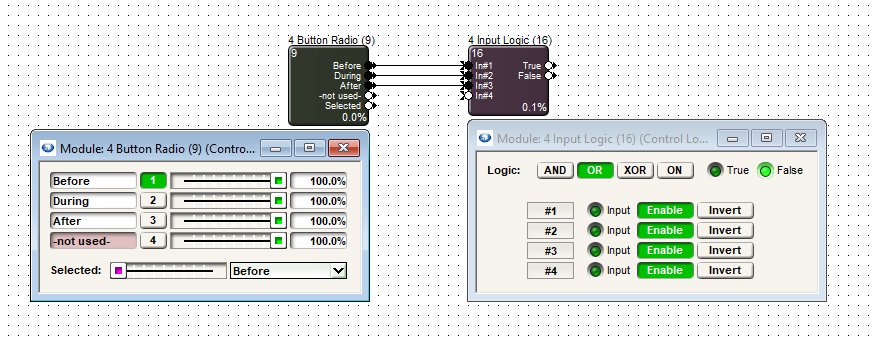
Set the 4 Input Logic module to the “OR” mode and then 4-Button Radio module slider to settings 1, 2, and 3, and add it to Presets 1-3 accordingly. The image below shows the module in the Preset 3 position.
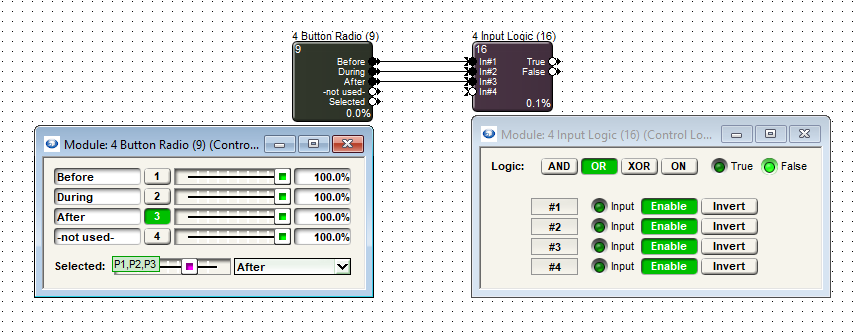
Now, when a given preset has been triggered there will be a 100% control signal sent from the 4-Button Radio to the 4 Input Logic which will light up the LED for that given input.
In your Control Screen, place Preset Recall buttons for all three of the created presets.
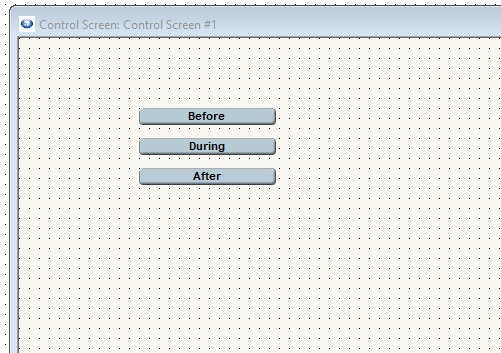
Next, copy each LED from Inputs 1, 2, and 3 in the 4 Input Logic module.
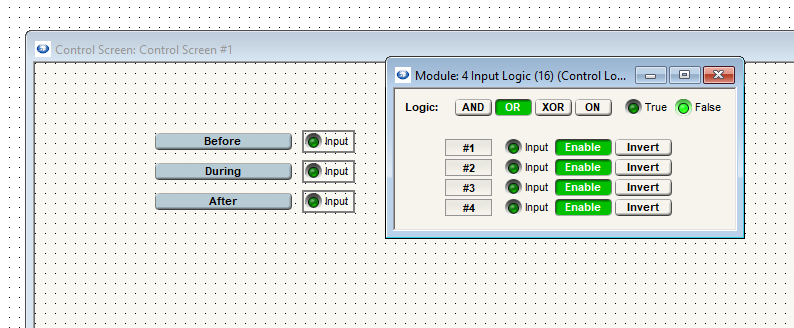
The “Input” text is still showing here. We can remove that in the parameter properties window and then resize the right margin to fit to the LED size. We can also resize the LED to the desired size.
Display type can be changed to “Symbol” or we can remove the text “Input”.
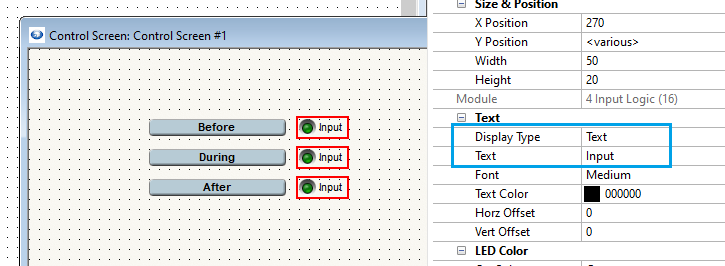
Now that we have the basic functional elements in place, we can Push and Go Online to test – Logic functions (these LEDs) don’t actively show while Offline in Composer.
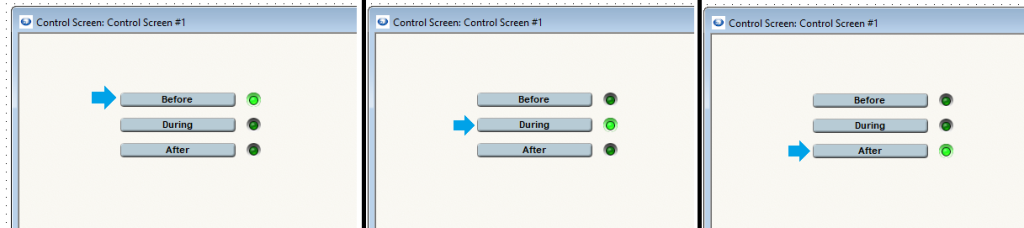
Additional note: While this method offers a way to indicate what looks like an “active” preset, it only shows the last recalled preset of these three that we have LEDs for. If a preset is recalled and any adjustments are made to any parameters included in these presets, the LEDs will not indicate this and will remain in the current state until the same or another Preset Recall button is pushed.
Unlike ARC Series remotes, W Series remotes do not have a built-in method for setting upper and lower boundaries for fader control. Fortunately, there is a way to do this in Composer using Control Screens.
1. Right click the desired fader and select “Copy to control screen”. Create a new control screen if necessary:
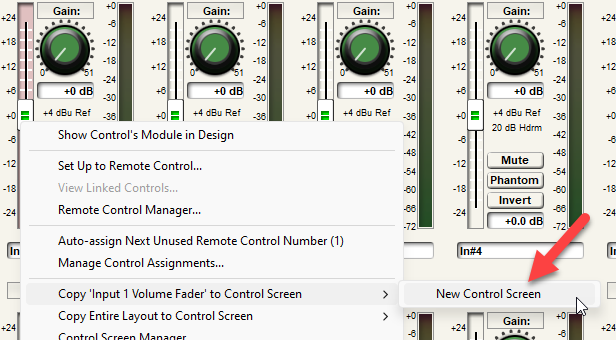
2. Go to Tools > Control Screen Manager:
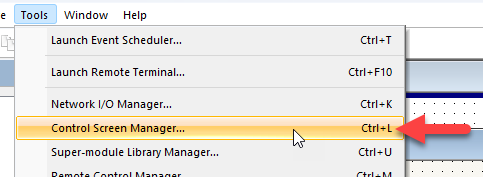
3. Highlight the control screen created in the first step and select “View & Close”:
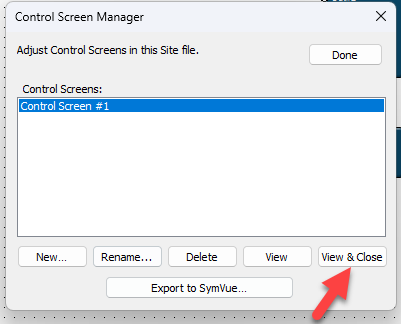
4. The fader in question will appear. Left click it to select it:
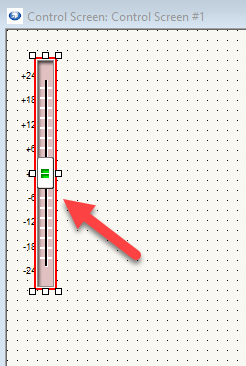
5. On the right side of the screen under “Properties”, locate “Control Range & Taper”:
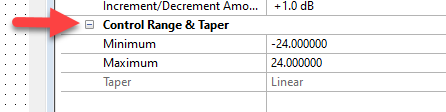
6. Under “Minimum” and “Maximum”, set the minimum and maximum values for the fader:
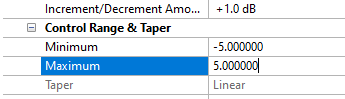
7. From here, right click the fader, select “Set Up to Remote Control”, and set it up to the W remote as normal:
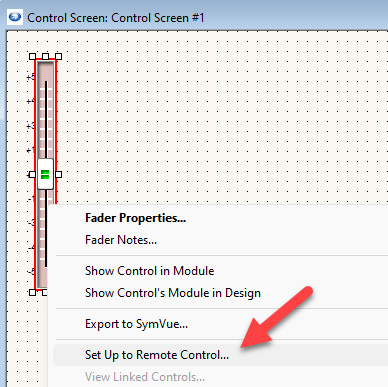
The purpose of this document is to provide an understanding of operation and configuration of the two different String Output modules available within Composer. The two different types or modules are the String Output and Network String Output.
These control modules send out an ASCII (text) or hexadecimal (binary) string every time its control input changes from low (less than 49%) to high (greater than 51%). These modules can be used to send commands to control a variety of third party devices, e.g. turn on a projector, change projector source, change a camera position, change channel of a media device, etc.
Note: The string is only sent from the communication port of the device where the DSP module resides. Strings may be up to 63 characters or bytes long.
Enter the string exactly as it should be sent out. To obtain an exact list of sting commands or control protocol for the third party device, refer to the device user’s guide or contact the manufacturer.
In ASCII mode, in addition to standard text characters, the following special characters are supported:
| Name | Hex Code | Displayed or Typed |
| Carriage Return | 0x0D | \r |
| New Line | 0x0A | \n |
| Tab | 0x09 | \t |
| Bell | 0x07 | \a |
| Backspace | 0x08 | \b |
| Backslash | 0x5C | \\ |
| Any Hex Character | 0xnn | \xn |
Where nn is the ASCII hex character code, e.g. \x0D for carriage return
Note: In binary mode, data is entered as sequences of bytes in hexadecimal separated by commas. For example, to send out an incrementing sequence of 12 values starting at 7, enter; 7,8,9,A,B,C,D,E,F,10,11,12.
String Output Module:
The String Output Module can be used to send control commands over the following ports:
RS-232
Supports baud rates between 1200 – 230400
On SymNet devices, the RS-232 baud rate is stored in non-volatile memory in each
device. It can be set differently for different devices.
To edit the baud rate from SymNet Composer use the following steps:
- Right-click on the unit in Design View
- Select Unit Properties
3. Select Configure Remote Control Ports…
4. Select the RS-232 Port tab
- Then select the radio button for the desired baud rate (1200-230400)
Note: The default baud rate is 57600. The baud rate should be set to match what is expected by the connected device.
UDP:
Uses UDP port 48631; only 1 controller can communicate with this port at a time
TCP:
Uses TCP port 48631; up to 4 controllers can communicate with this port simultaneously
These are the steps to add a String Output module to your design:
- From the Toolkit drag in a String Output module (Control Modules>Control Outputs)
- The Sting Output Properties windows will open automatically
- First select the unit that will be transmitting the sting command
- Next select the remote control port the string will be sent out (RS-232, UDP, or TCP)
- Click OK
- Double click the String Output module
- Select the string to output mode (ASCII or Binary)
- Then add the string command to the module
Here is an example using multiple String Output modules to change camera positions. This example uses 4 PPT (Push to Talk) microphone and 4 cameras. When a particular microphone is being used, the camera assigned to that microphone needs to be active. A 4 button processor Super-Module is used to set the function of the microphone to PTT.
This is an example using an ASCII command:
When the microphone button is pressed it will trigger the green or On LED. The String Output module is wired to the green LED.
Whenever the greed LED is lit for a particular microphone it will tell the camera assigned to that microphone to activate.
This is an example using a Binary command:
Network String Output Module:
The Network String Output module can be used to send control command to any device connected to the same network. This includes but is not limited to other DSPs. Commands can be sent over UDP or TCP ports.
UDP:
Uses UDP port 48631; only 1 controller can communicate with this port at a time.
TCP:
Uses TCP port 48631; up to 4 controllers can communicate with this port simultaneously
These are the steps to add a Network String Output module to your design:
- From the Toolkit drag in a Network String Output module (Control Modules>Control Outputs)
- Double click the Network String Output module
- Select the string to output mode (ASCII or Binary)
- Select the communication port (UDP or TCP)
- Next enter in the IP address and network port of the device receiving the sting command from the DSP
- Then add the string command to the module
Here is an example that uses multiple Network String Output modules to send a load configuration command to multiple DSPs in the system.
For this example a control screen was created to give the end user easy operation of this procedure
When the “ON” button is pressed the control signal goes high and sends out the string command.
A delay module is also wired to the latched button. The delay logic module sends a control signal to the preset trigger to reset the “ON” button
This is an example using an ASCII command
This is an example using a Binary command:
In a large convention center or conference room, microphones may be routed to different speaker zones in a mix-minus configuration in order to reinforce microphones from one zone to another zone while minimizing the potential of acoustic feedback. When in a “mix-minus” configuration, microphones are routed to all zones except the zone in which the microphone resides, so the microphone level can be quite loud without creating acoustic feedback with the speakers directly overhead.
In most applications the mix-minus setup is straight forward and easily accomplished using a Matrix Mixer module. However, when the convention center or conference room using mix-minus routing is part of a larger divisible venue, where two or more rooms can be combined and uncombined, then the logic for combining/uncombining the audio, the automixers, and control parameters (such as mute and volume) must be taken into consideration.
When no mix-minus routing is necessary, room combining is simple using Room Combiner modules. These modules will combine and uncombine the audio, automixers, and control parameters (gain, mute, sources selection) of 2 to 16 rooms with the push of a combine button.
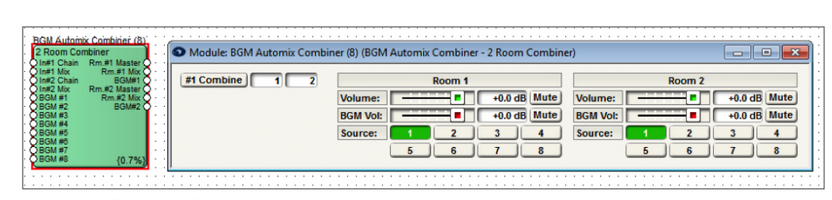
Above: 2 Room BGM Automix Combiner
In the example above, when #1 Combine Button on the BGM Automix Combiner module is turned “on”, the audio, the automix, and the control parameters are shared between room 1 and 2. Any change to the room controls, such as BGM selection, volume, or mute, will affect both room’s controls. When the #1 Combine button is turned off, both rooms operate in a standalone fashion. This functionality is especially helpful when using a 3rd party control system, as no combine or uncombined logic needs to be added to the control system programming since Symetrix control will do all combine and uncombined logic automatically.
The limitation with the Combiner module in a mix-minus application is that each room has only a single room input and output for the local sources, whereas in a mix-minus configuration each room would have multiple speaker zones, each with their own unique mix of the microphones.
The solution is to use a Matrix Mixer and BGM Automix Combiner module in tandem, using linked controller assignments, to create a mix-minus, room combine system where audio, automixers, and control parameters combine and uncombine.
The following example will create a two room system with combining/ uncombining capabilities and mix-minus matrixing of the mics. There are 12 microphones in room 1 and 8 microphones in room 2. Each room has 4 amp channels. For simplicity sake, this example includes only the processing associated with automixing, combining/uncombining capabilities, and mix-minus matrixing of the microphones. A real world design would also include dynamics processing and filtering/equalization at the input and output stages. Follow these simple steps to program a mix-minus, room combine, site file:
Step 1:
Build the site file such that Slave Gain-Sharing Automixers are used for all mics in the system. Separate Slave Gain-Sharing Automixers should be used for the mics located in each room.
Step 2:
The Automixer discrete outputs should feed the inputs of a matrix mixer module instead of using the Mix output.
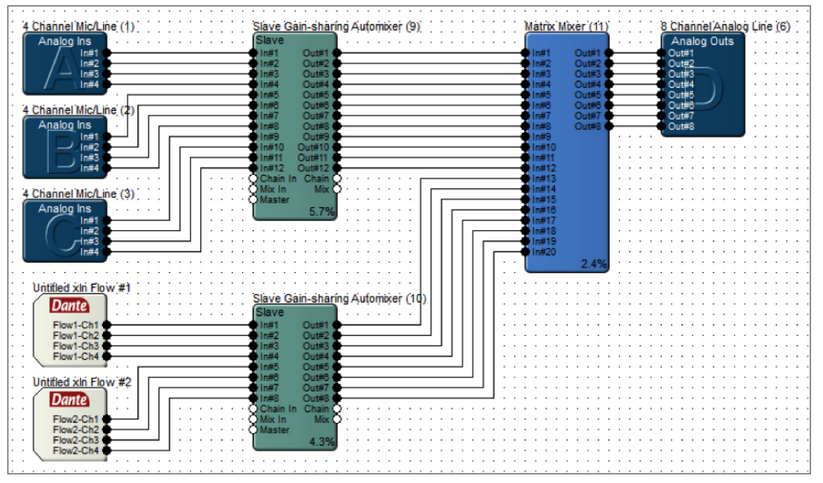
Step 3:
Add a BGM Automix Combiner to the site file that can accommodate the number of combinable rooms in the venue – two rooms in this example. Wire the Chain output of the Automixers to their respective Chain input on the Combiner (blue wire). Wire up the Master out of the Combiner to the respective Master input of the Automixer.
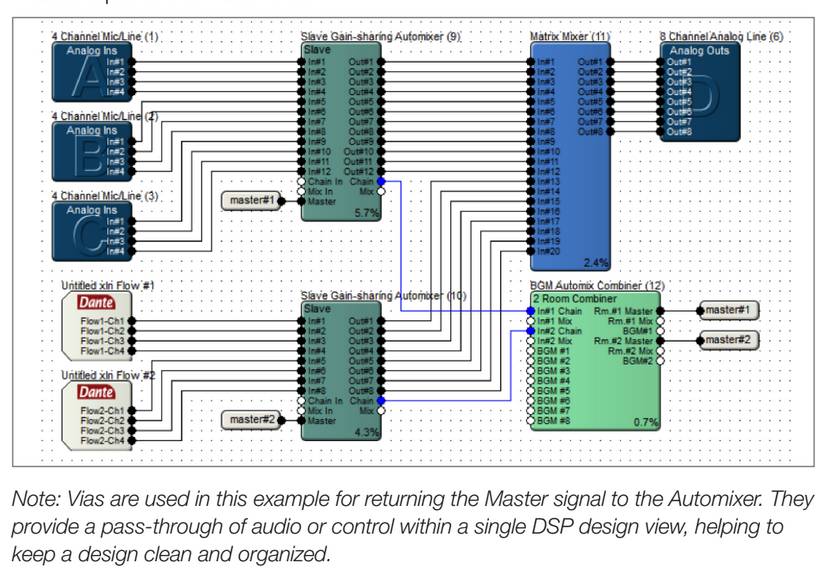
Step 4:
Create the mix-minus configuration of the microphones using the Matrix Mixer user interface for the rooms when in the uncombined state Once the routing and crosspoint gains are configured for the individual uncombined rooms, right click the Connect Matrix and select Store “Connect Matrix” in Preset to store the matrix settings to a preset. This example uses preset 1 for the “uncombined/standalone” preset.
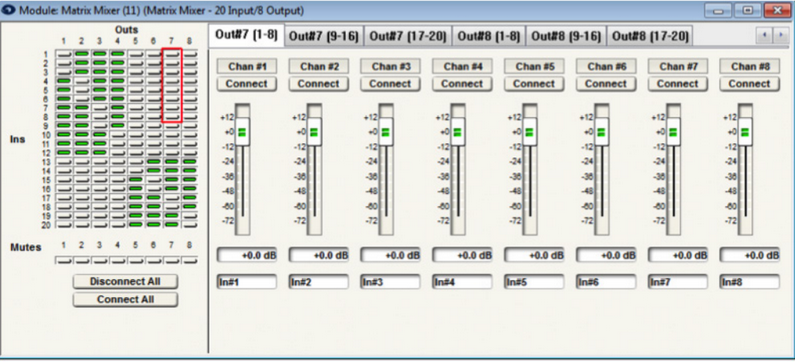
Step 5:
Create the mix-minus configuration of the microphones using the Matrix Mixer user interface for the rooms when in the combined state. Right click the Connect Matrix and store to a preset. This example uses preset 2 for the “combined” preset.
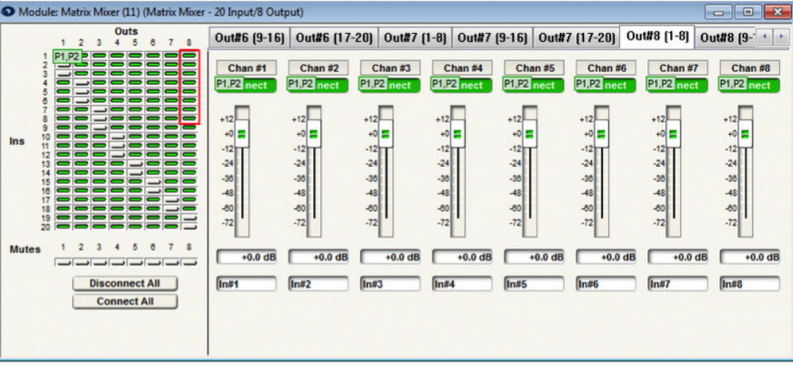
Step 6:
To stay organized, open the Preset Manager and rename the combine and uncombined presets accordingly. Then recall both presets, checking the matrix each time, to ensure they are correctly changing the matrix.
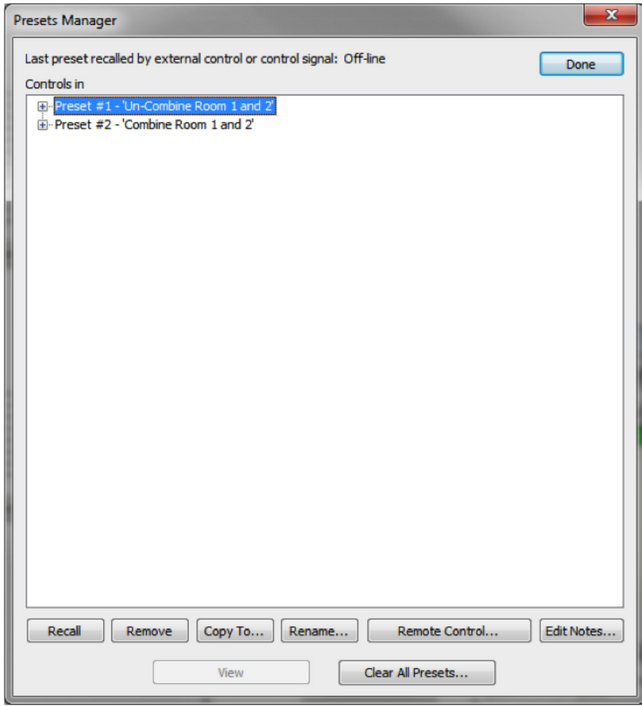
Step 7:
Add the following logic circuit using control modules: 1 button latched, 1 inverter, 1 dual preset trigger. The top Preset Trigger-1 should use the “combine” preset, the bottom Preset Trigger-2 should us the “uncombine” preset.
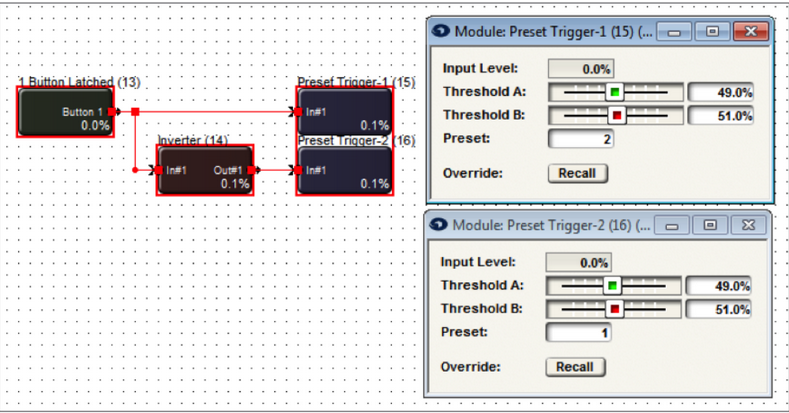
Step 8:
Open the 1 Button Latch and the BGM Automix Combiner and assign the same controller number to Button 1 and #1 Combine. This example uses controller #1.
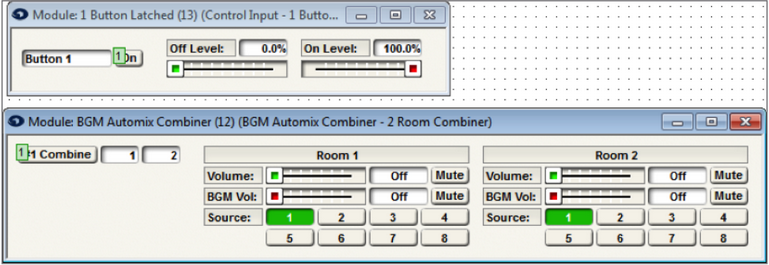
Step 9:
On the BGM Automix Combiner assign the Volume fader for Room 1 and Room 2 each a unique controller number. This example uses 10 and 20.
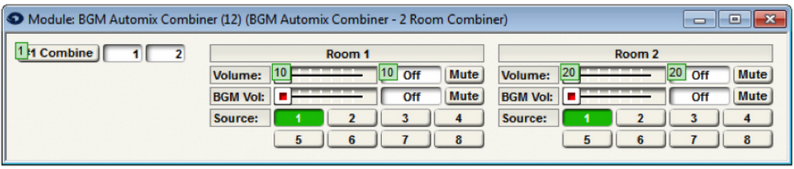
Command Buttons in Composer can be used to launch 3rd party applications. The purpose of this Tech Tip is to illustrate how to set up the Control Screen Command Buttons to launch and control parameters in these applications. By making use of a script language named AutoIt and an associated script editor
named SciTE, functions such as mouse clicks, cursor movement and key strokes in 3rd party applications can be executed by Command Buttons. The 3rd party application could be virtually any Windows program. Windows Sound Recorder is being controlled by Composer in the following example:
- First, set up a Control Screen in Composer.
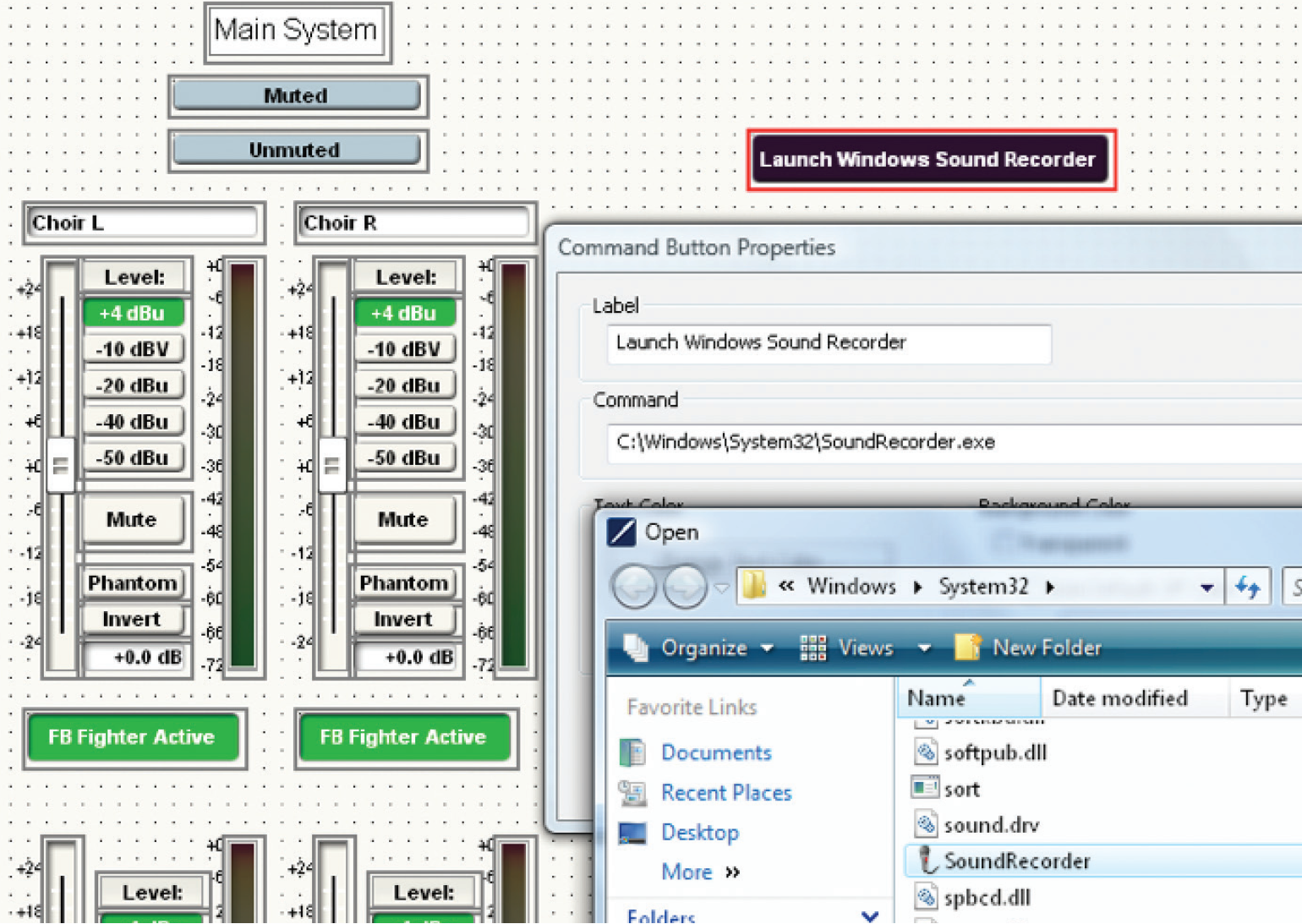
- Place a Command Button on the Control Screen. The “Command Button Properties” automatically opens after placement, in order to label the button. Choose “Browse” in order to direct the command button to the location where the desired program’s executable lives.
C:\Windows\System32\SoundRecorder.exe
By using the recommended script editor, SciTE, AutoIt is able to produce an .exe file which can execute a mouse click among many other functions. If one associates a Command Button with the executable file created in SciTE, the user can control the 3rd party application with the Command Buttons
- AutoIt and the recommended script Editor SciTE can be downloaded
from the following links:
http://www.autoitscript.com/site/autoit/downloads/
http://www.autoitscript.com/site/autoit-script-editor/downloads/ - Start SciTE from your Start Menu/All Programs/AutoItv3/SciTE Script Editor. Check the AutoIt Help File for the language’s syntax rules. Check the SciTE Help File for tips regarding the editor’s capabilities.
Open the program named AutoIt Window Info. Click and drag the order, or any button parameter in your chosen application. Make a note of the information on the line labeled “Advanced Mode,” which can be found on the Control tab.
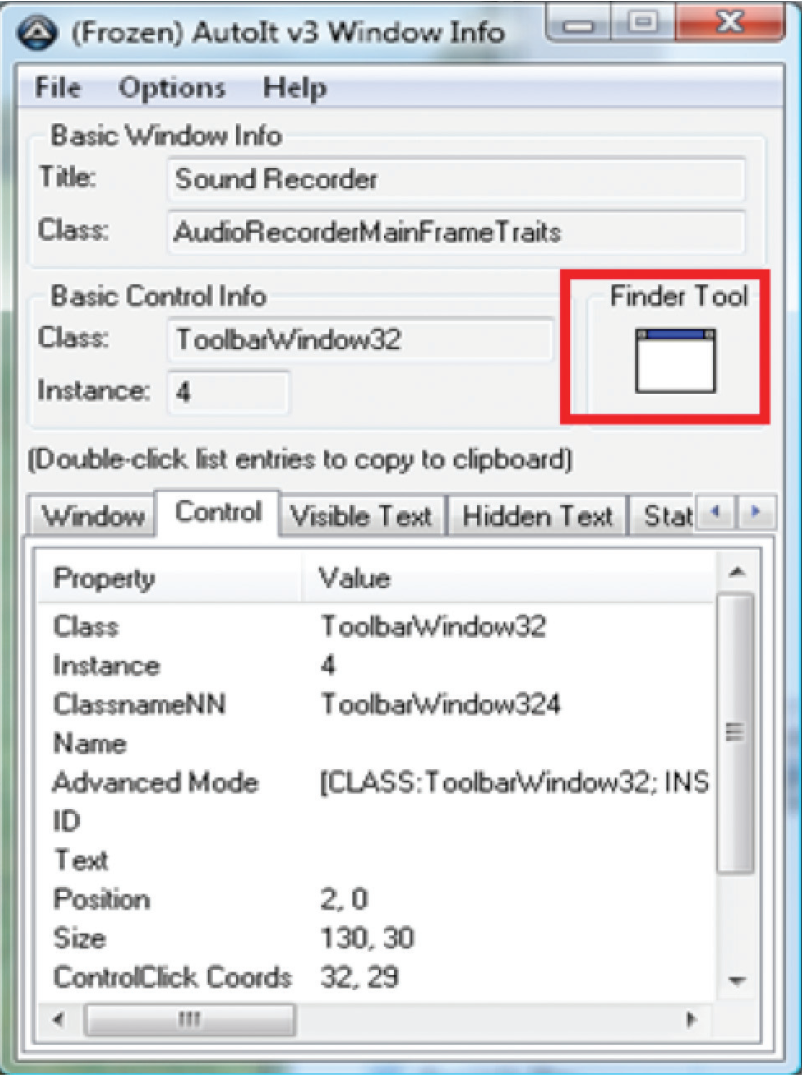
- The first line of code entered into the SciTE editor in this example is an optional title line: Opt(“WinTitleMatchMode”, 2)
- The information required in order to activate the “Start Recording” Button can be gathered from the “Advanced Mode” line of the Control tab in the program AutoIt Windows Info, after the Finder Tool’s target has been dropped on the parameter to be controlled.
Below is the line of code to be entered into the script editor to activate the record button with a function:
ControlClick (“Sound Recorder”, “”, “[CLASS:ToolbarWindow32; INSTANCE:2]”)
ControlClick is an AutoIt script command to execute a mouse click.
http://www.autoitscript.com/autoit3/docs/functions/ControlClick.htm
- Convert the .au3 script document which you created in SciTE into an executable in the same directory by hitting F7 while the SciTE file is open. An .exe with an identical file name will be created in the existing directory, next to the .au3 file.
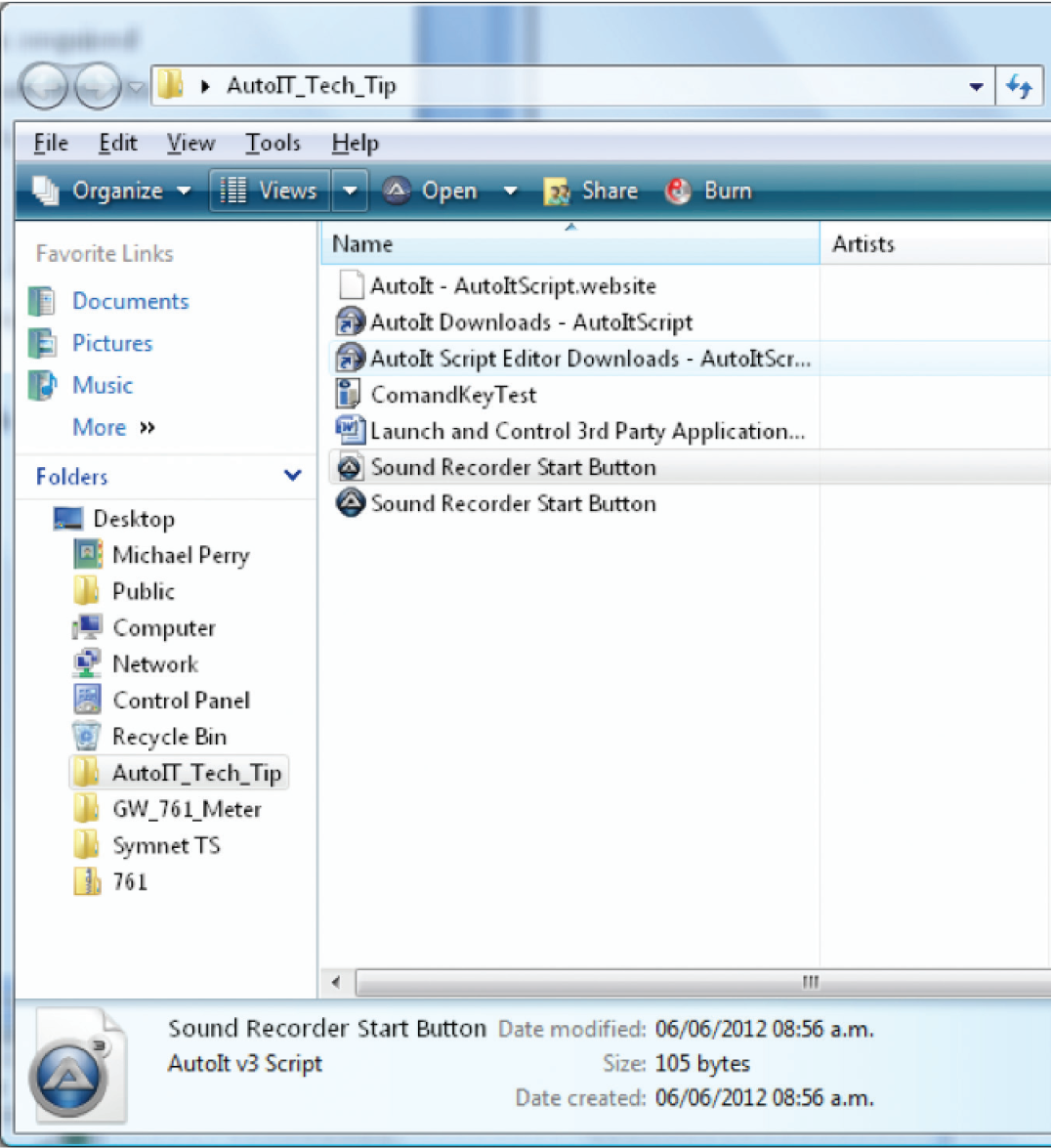
- Create another Command Button on your control screen in Composer which will be the “Start Recording” button execution.
- Right click on this new Command Button and choose “Command Button Properties”. Direct the browser for this button to the AutoIt executable file which you just created in SciTE.
- Once this is complete, save the Composer file. You may also export the control screen to SymVue at this time.
When the “Launch Windows Sound Recorder” button is clicked, it will initiate the Sound Recorder. When the “Record” button is activated, Windows Sound Recorder will begin recording.
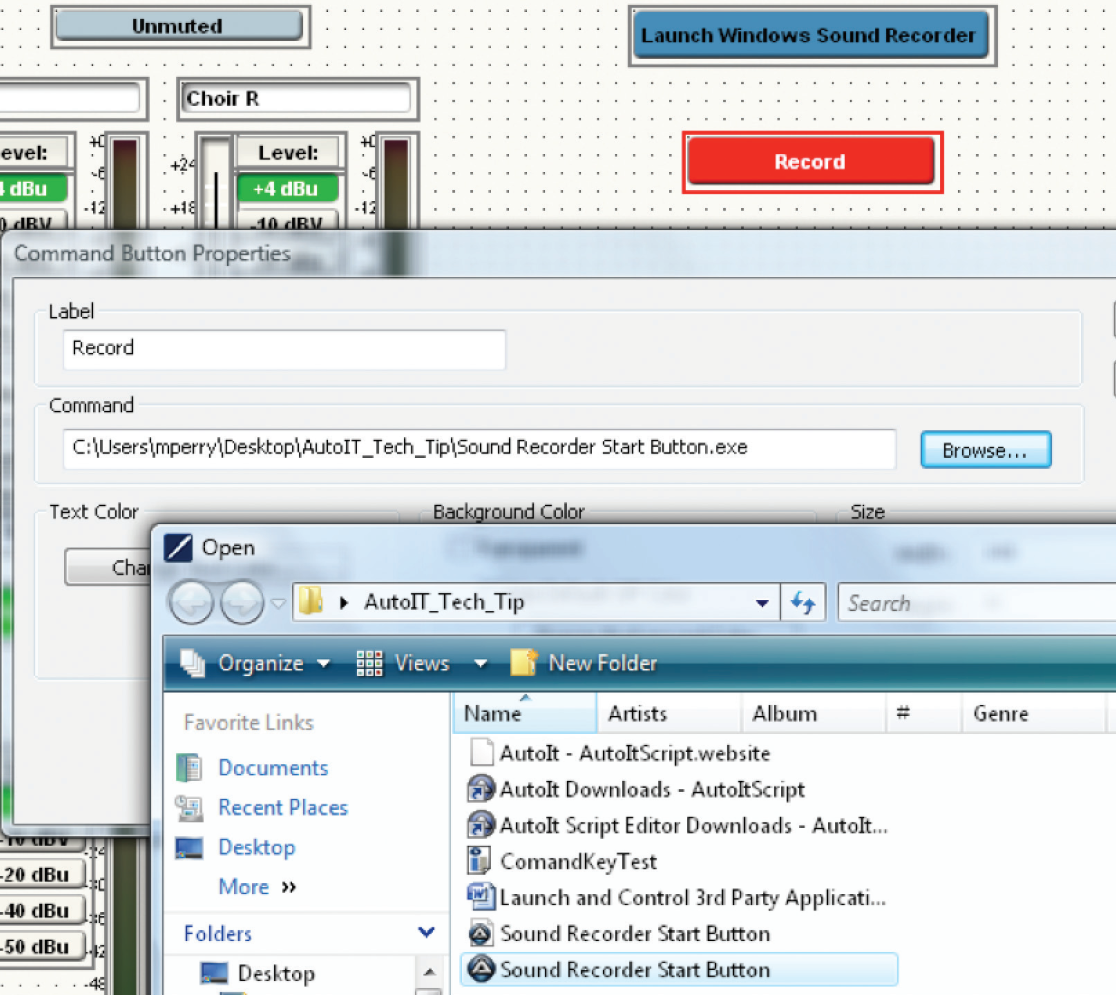
This Tech Tip describes the steps necessary to locate and use the Dante audio, program the touch-sensitive mute buttons, and control the LED’s on the Shure MXA310 from Composer.
The Microflex Advance Table Array is a networked array microphone ideal for AV Conferencing applications where premium audio and a low profile appearance are paramount. Shure IntelliMix® DSP Suite Steerable Coverage™ technology deploys four discrete zones of table coverage for best-in-class audio capture, configuring all parameters seamlessly through a browser-based graphical user interface. Here are the steps to create the Dante audio flow for the MXA310 within Composer.
1 Make sure the Symetrix DSP being used to locate the MXA310 is running
matching Composer firmware (must be Composer version 5.3 or newer).
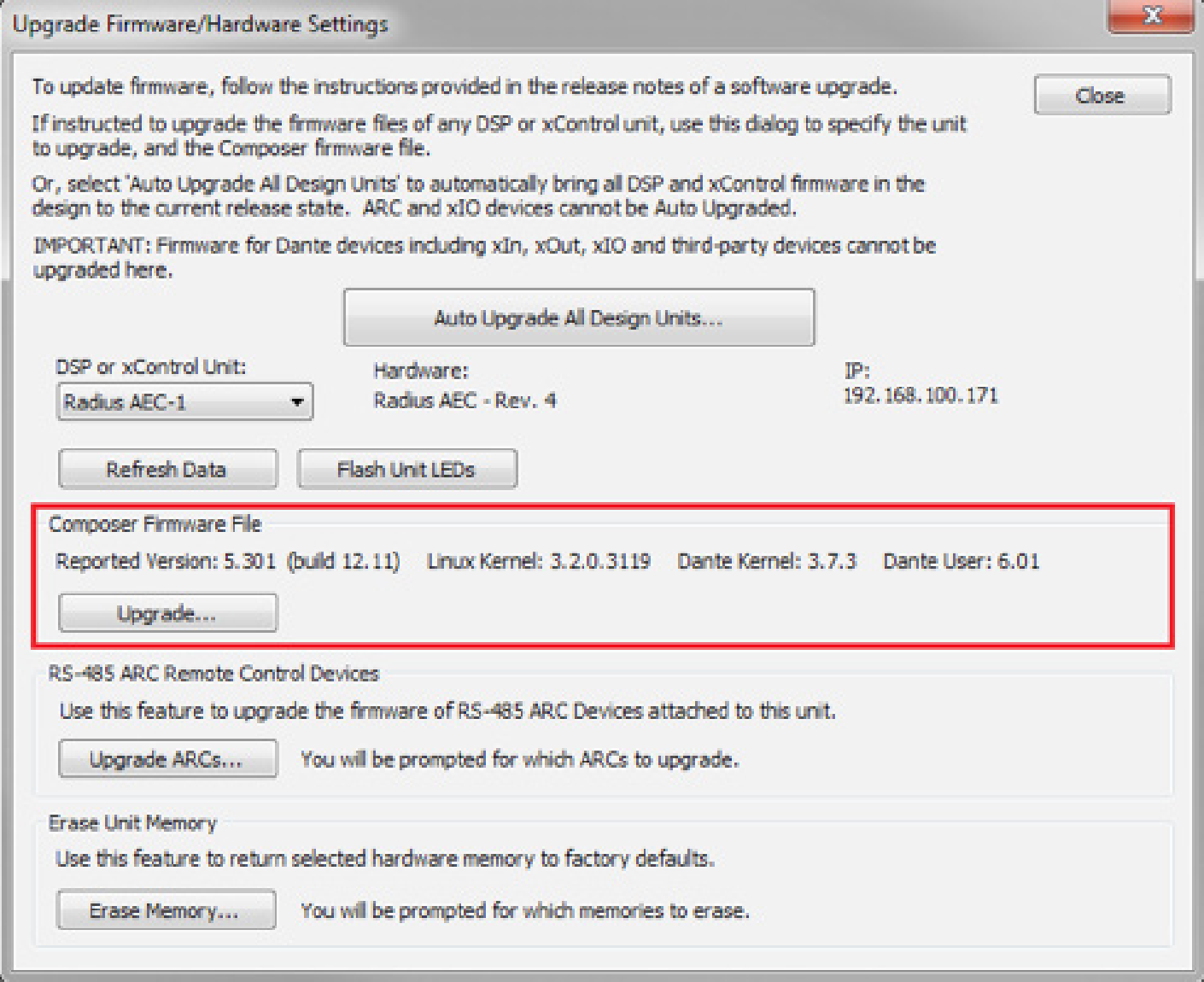
2. In the Toolkit, open up Third-party Dante Devices, Shure. Drag an MXA310 into the Site files Design view.
sm 1
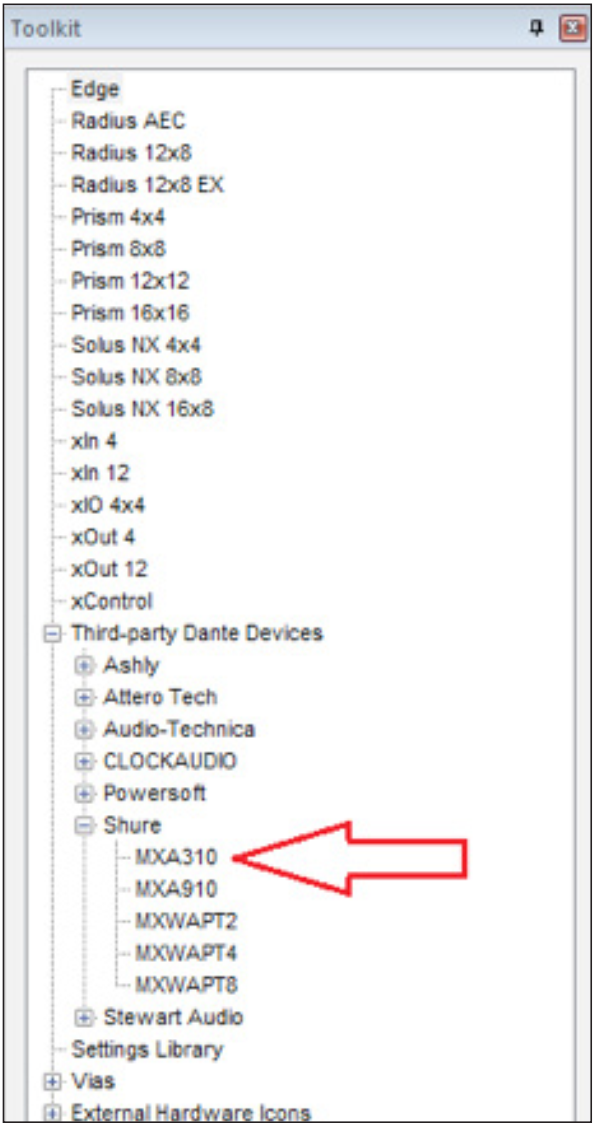
2. In the Toolkit, open up Third-party Dante Devices, Shure. Drag an MXA310 into the Site files Design view.
3. Locate the DSP, and then the MXA310.
4. Right click on the MXA310 and select MXA310 Unit Properties.
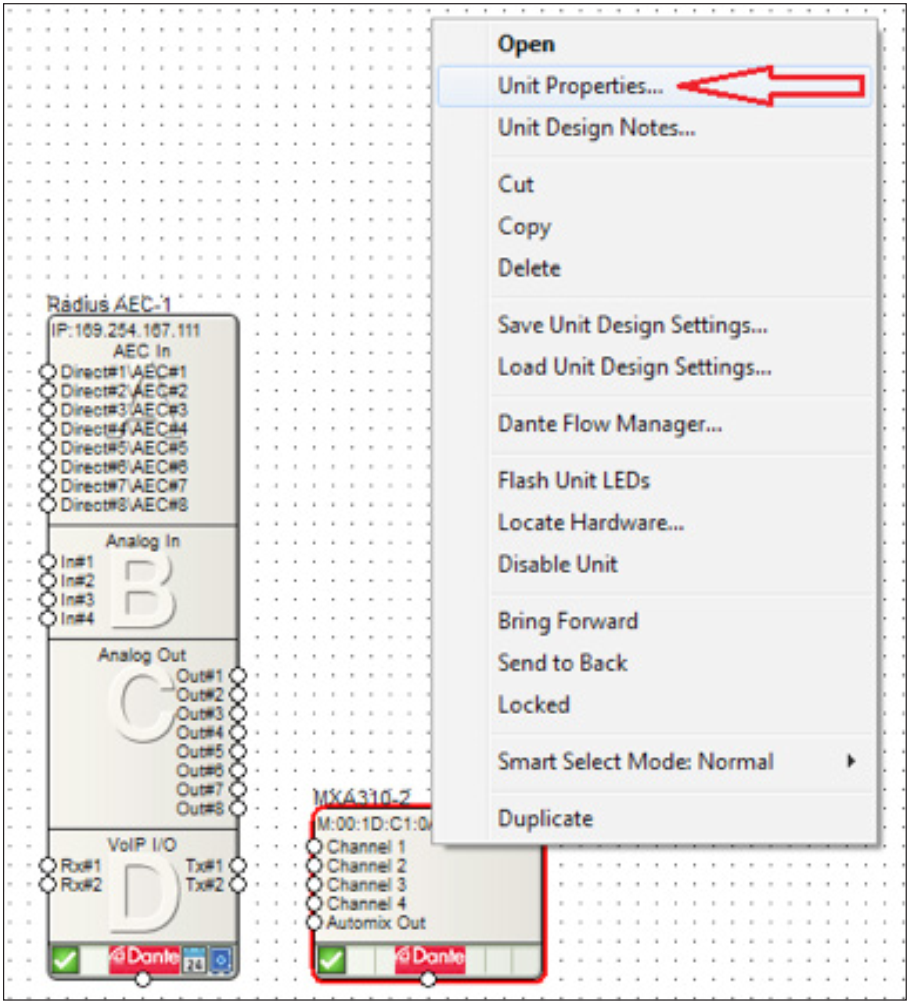
5. Enter the Control Interface IP for the MXA310, and then click Verify Control IP. Click OK.
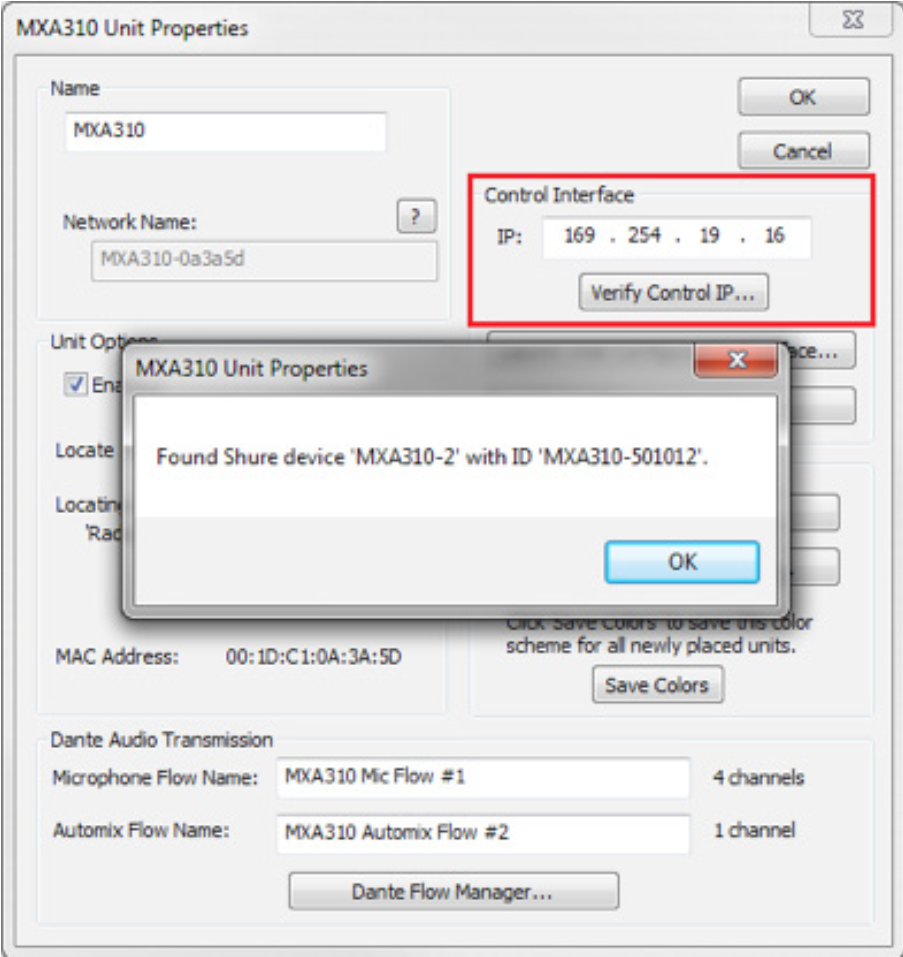
Note: The Control Interface IP for the MXA310 can be obtained from the Shure Web Device Discovery software available from the Shure website: http://www.shure.com/americas/products/software/utilities/shure-web-devicediscovery-application
6. Double-click on the DSP to open the site files Design view.
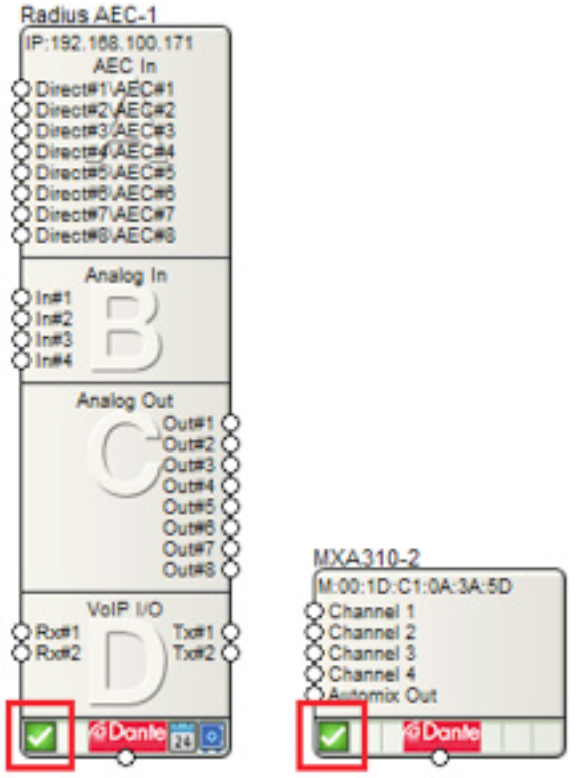
sm 2
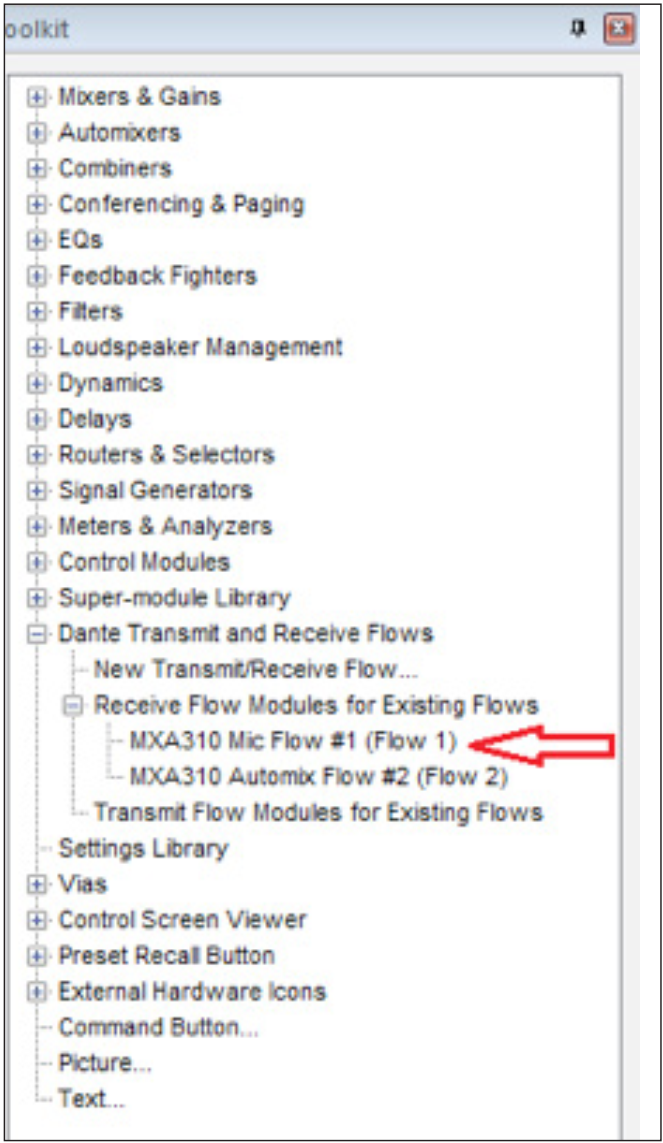
7. In the Toolkit, open Dante Transmit and Receive flows, Receive Flow Modules for Existing Flows. Drag in the MXA310 Mic Flow.
8. Wire the MXA310 Mic Flow into the design.
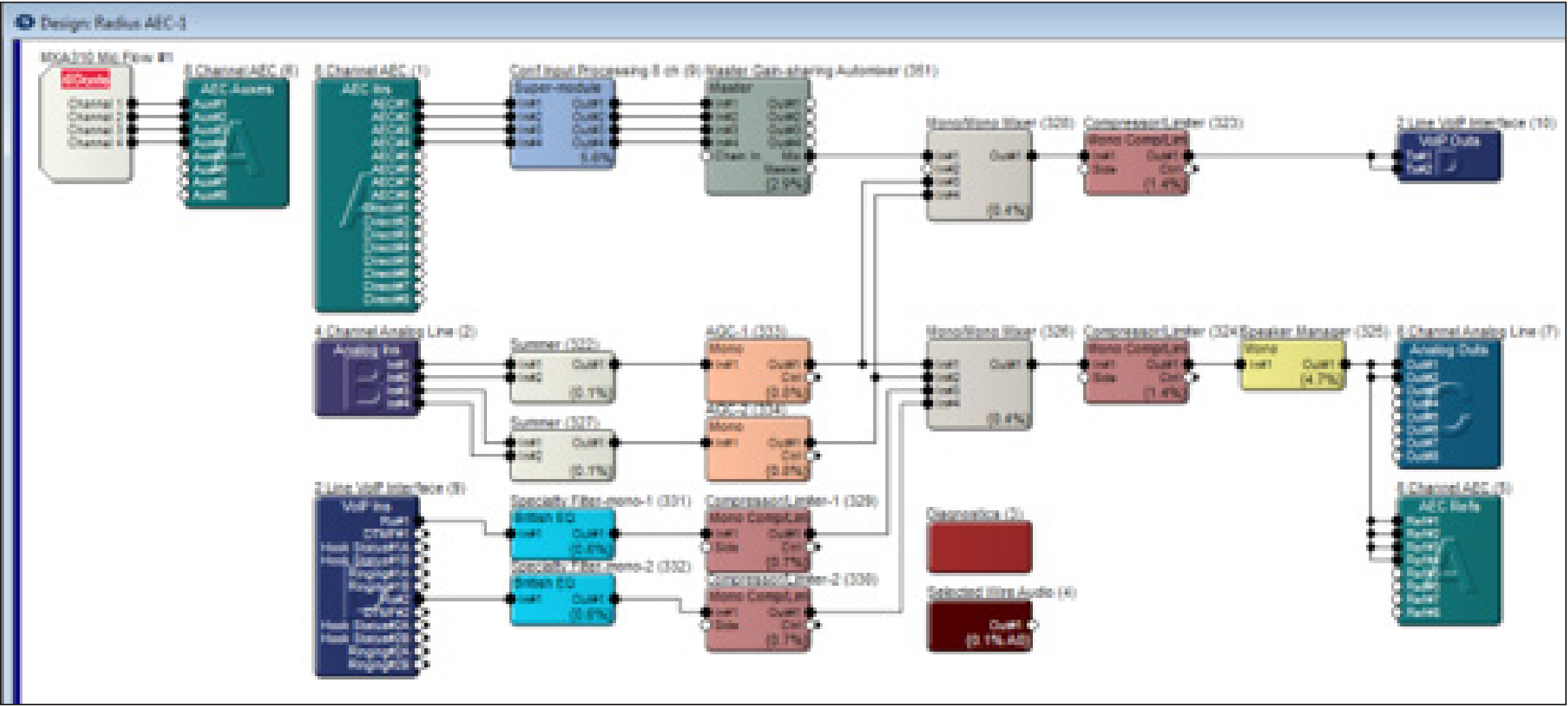
Program the touch-sensitive mute button for toggle, push-to-mute, push-to-talk or disable settings or to send controls to external devices. Here are the steps to utilize the button on the MXA310 from Composer.
sm 3
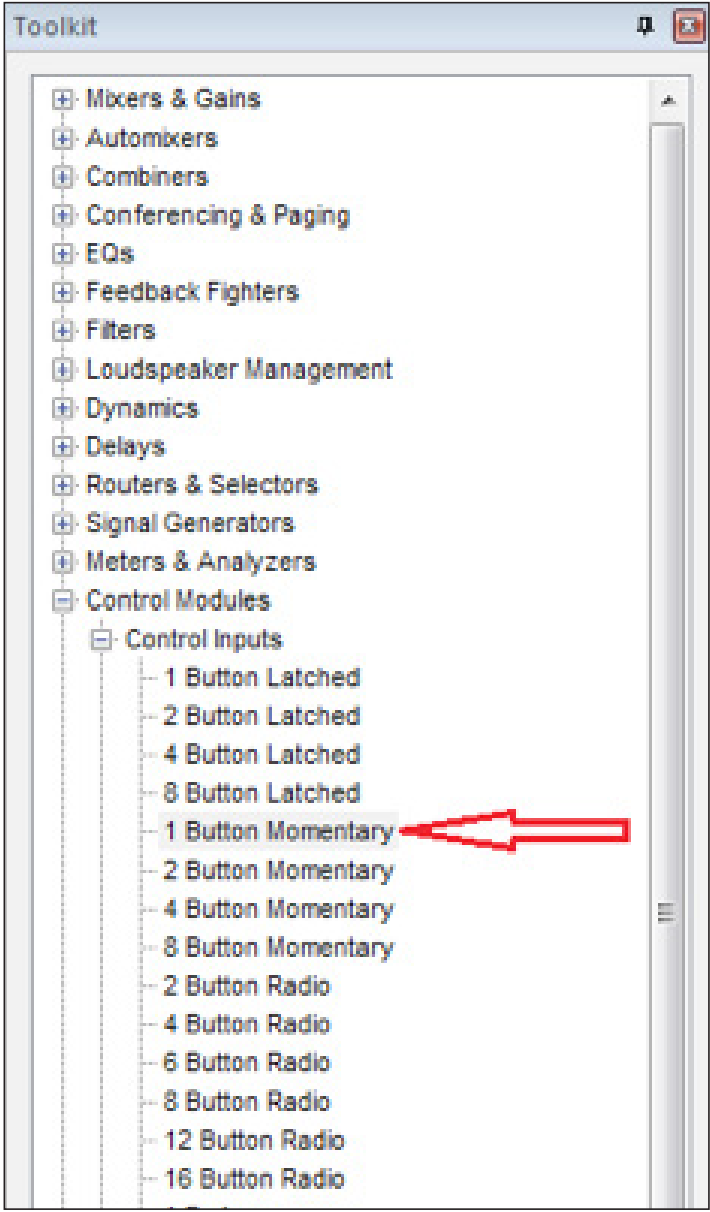
8. In the Toolkit, open Control Modules, Control Inputs. Drag in a 1 Button Momentary module.
9. Double-click and open the 1-Button Momentary module to open it.
10. Right-click the “On” button.
11. Select Set Up to Remote Control.
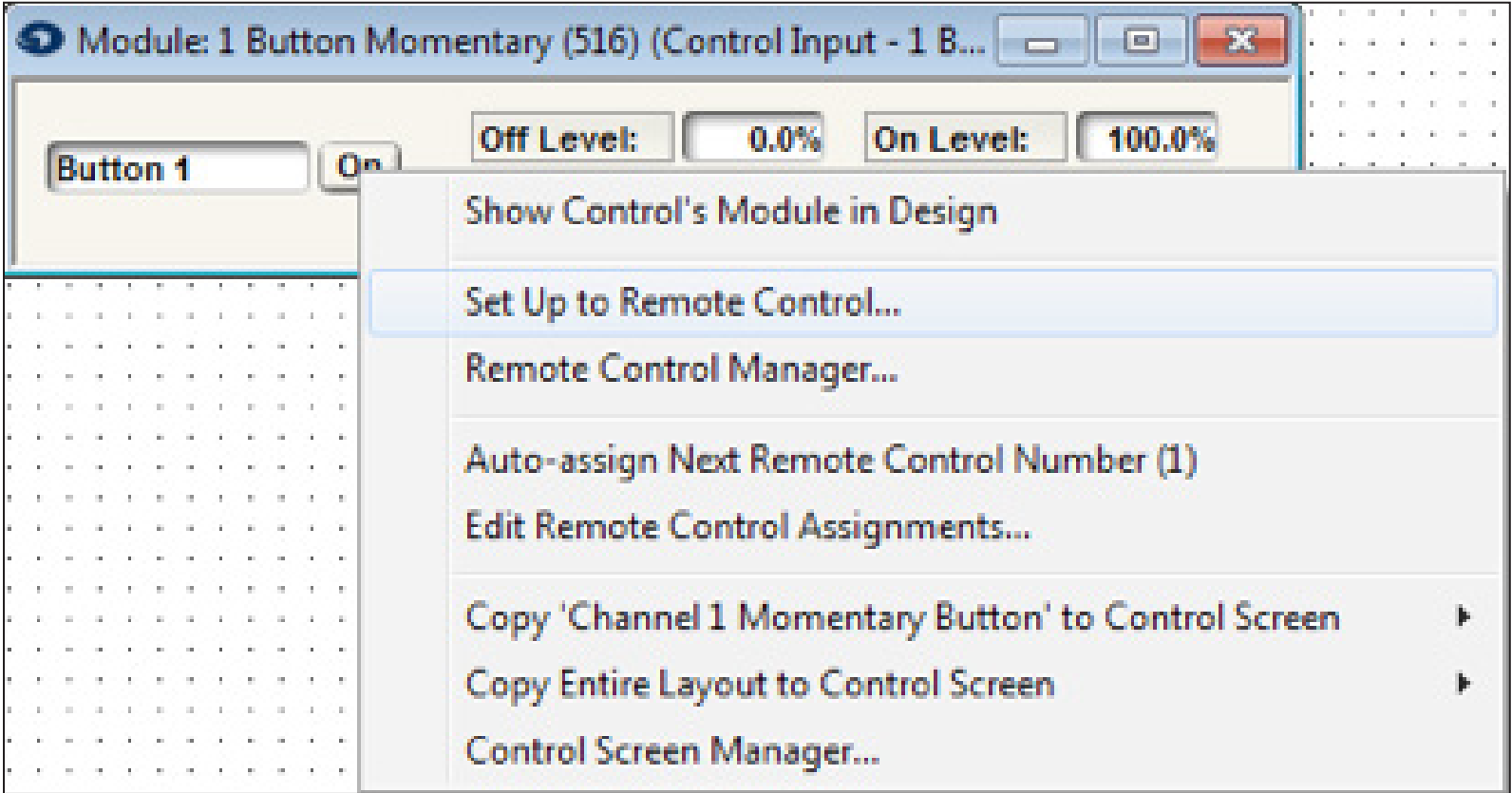
12. In the Set Up Remote Control window, select 3rd Party Remote Analog Input – ‘MXA310’. Click OK.
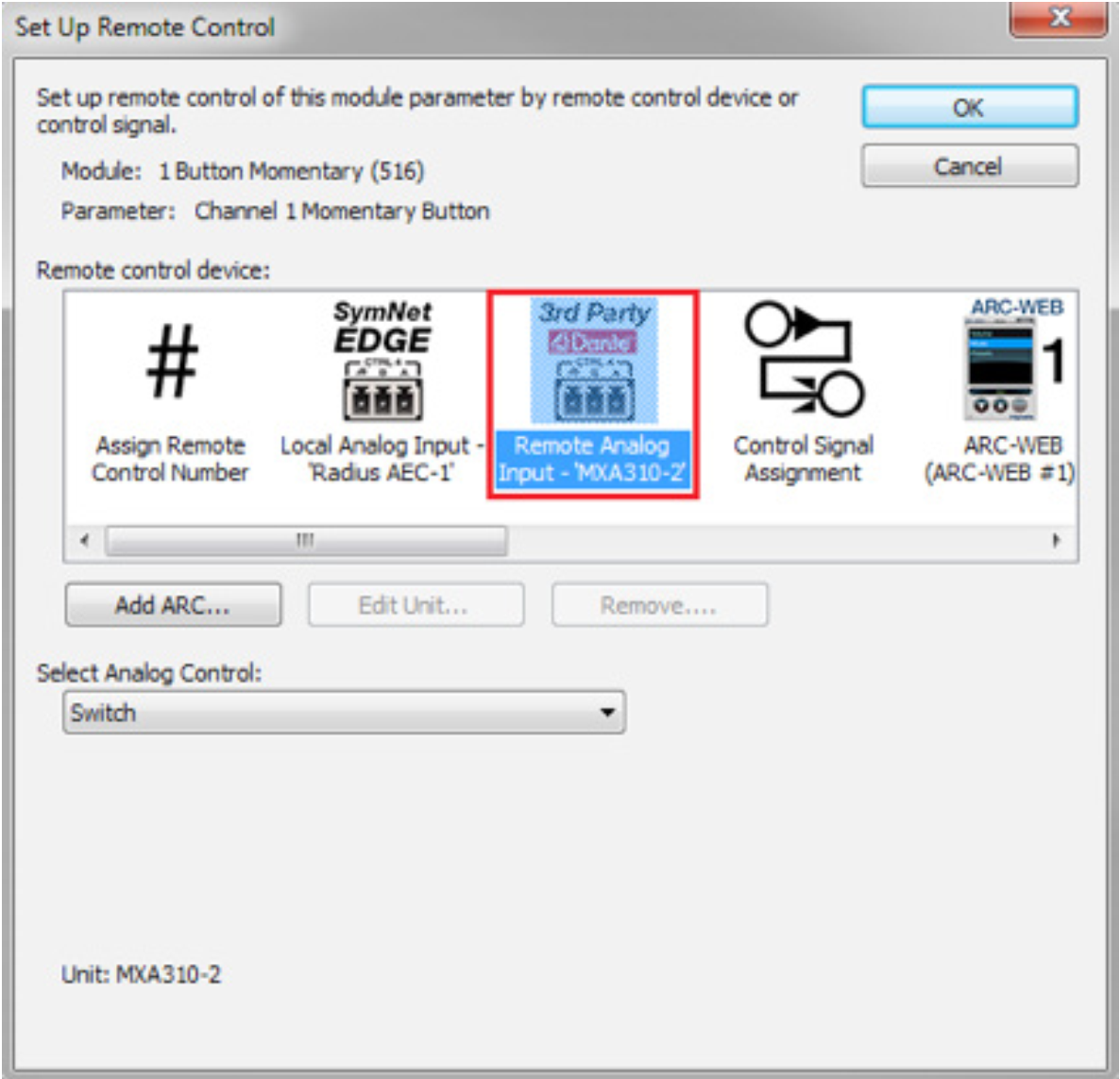
13. In the Toolkit, open the Super-module Library, Import super-module. In the Super-modules folder, Examples, Tools, select the 1-Button Processor.
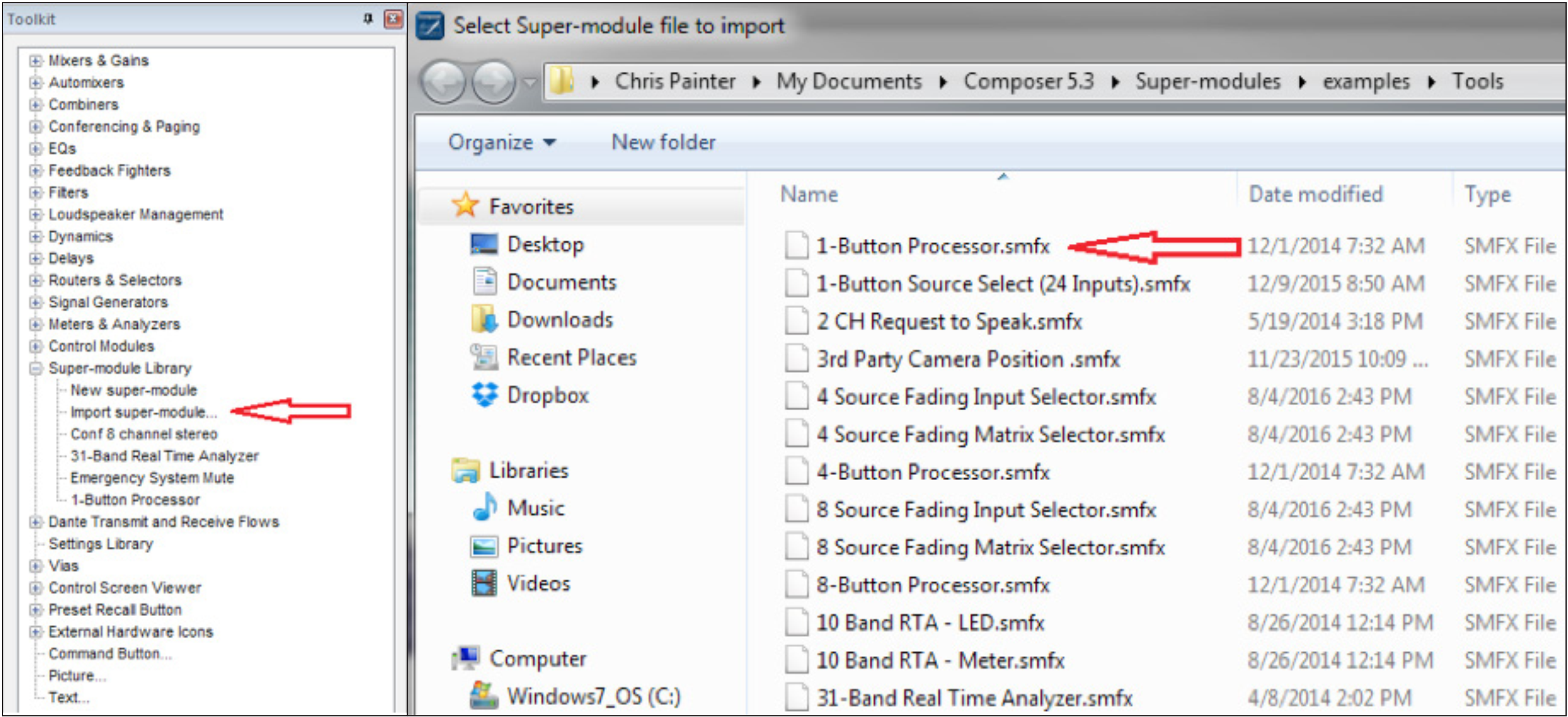
sm 4
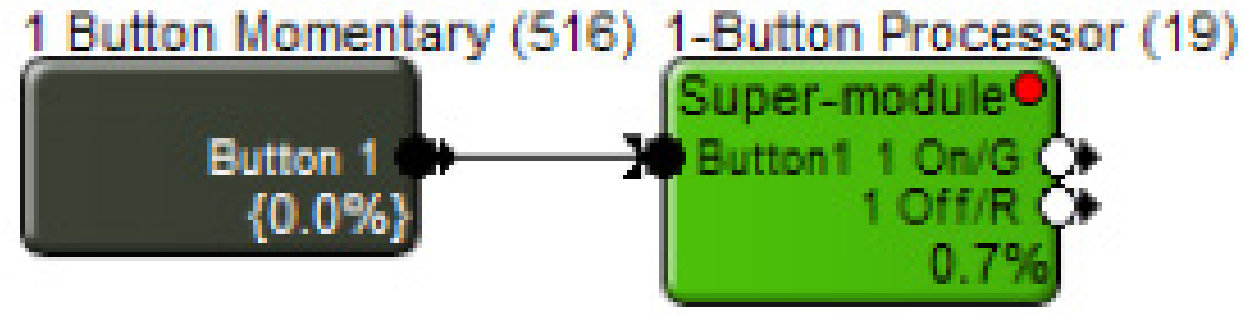
14. Wire the 1 Button Momentary module into the 1-Button Processor Super module.
15. Double click the 1-Button Processor to open the Super-module control screen.
sm 5
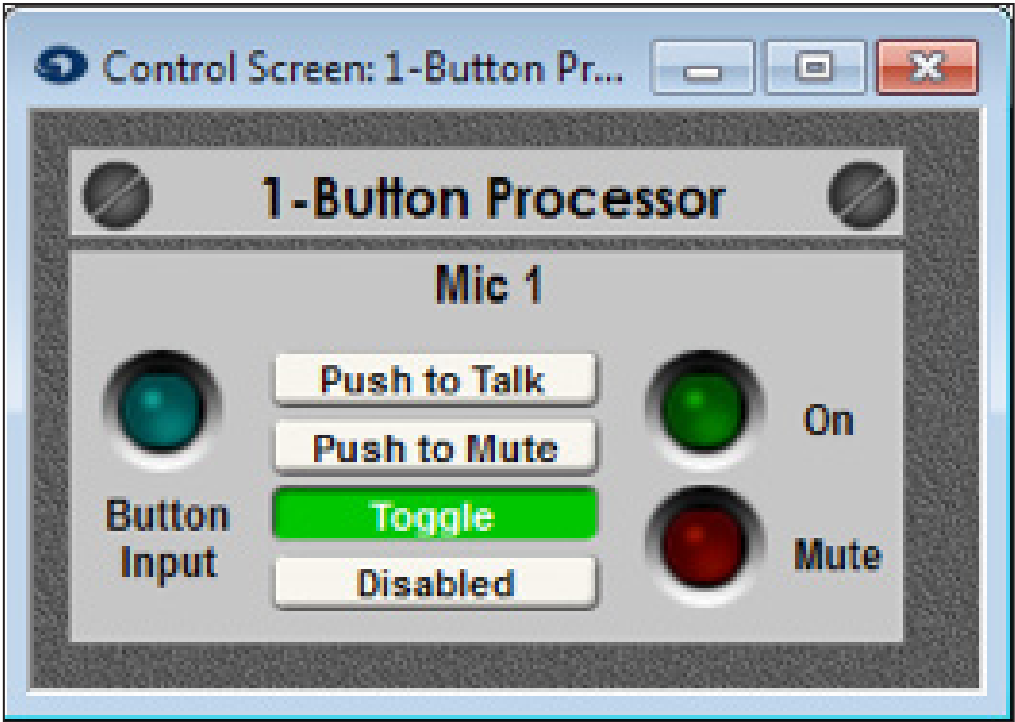
16. Select the desired microphone switch operation (Push to Talk, Push to Mute, Toggle, or Disabled).
17. Double click and open either a Gain Module or Automixer used in the signal processing and routing of the MXA310. In this example, a Gain-sharing Automixer is used.
18 Right-click on the Master Mute button, select Set Up to Remote Control.
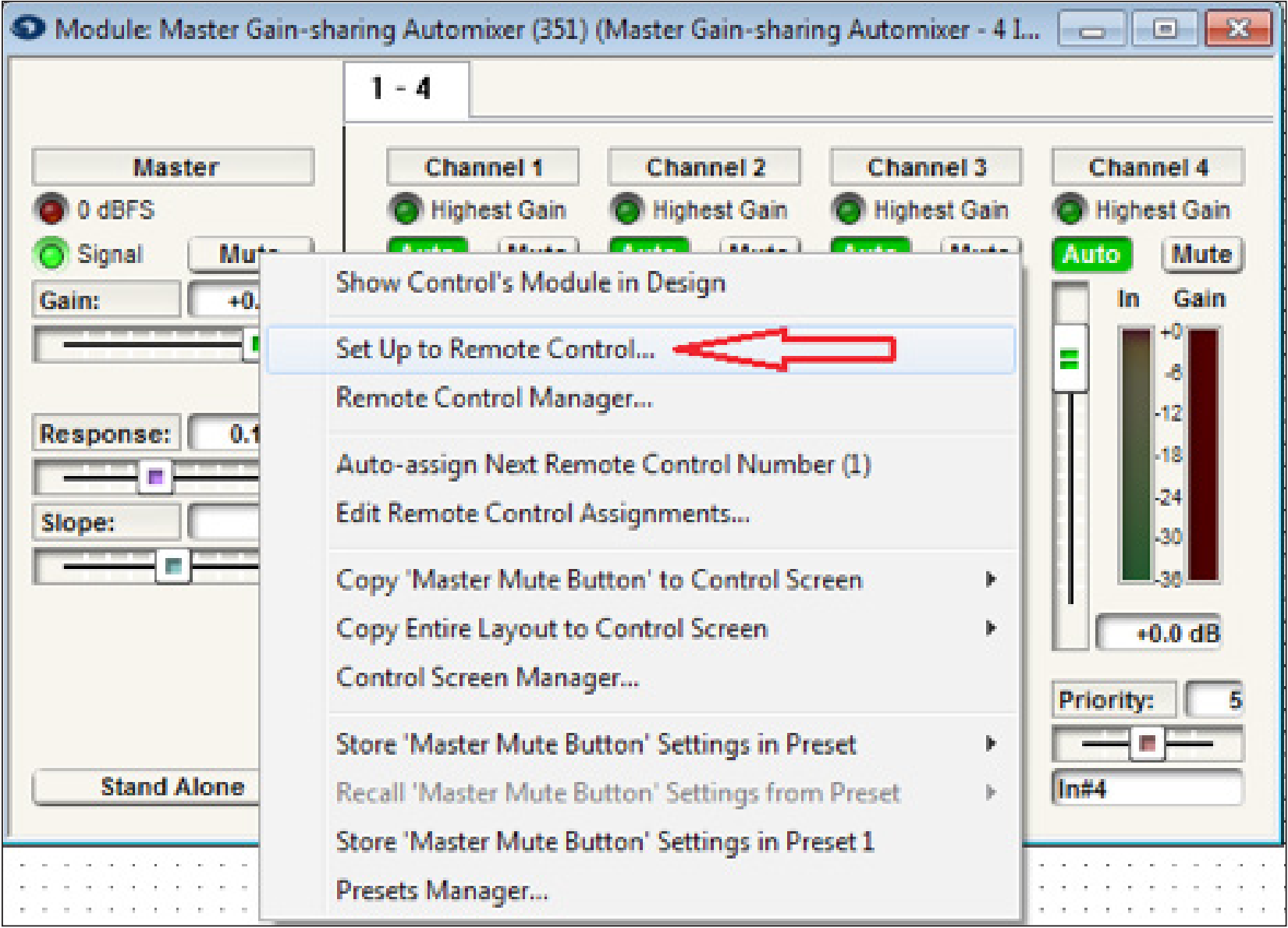
19. Select “Control Signal Assignment” for the Remote Control Device.
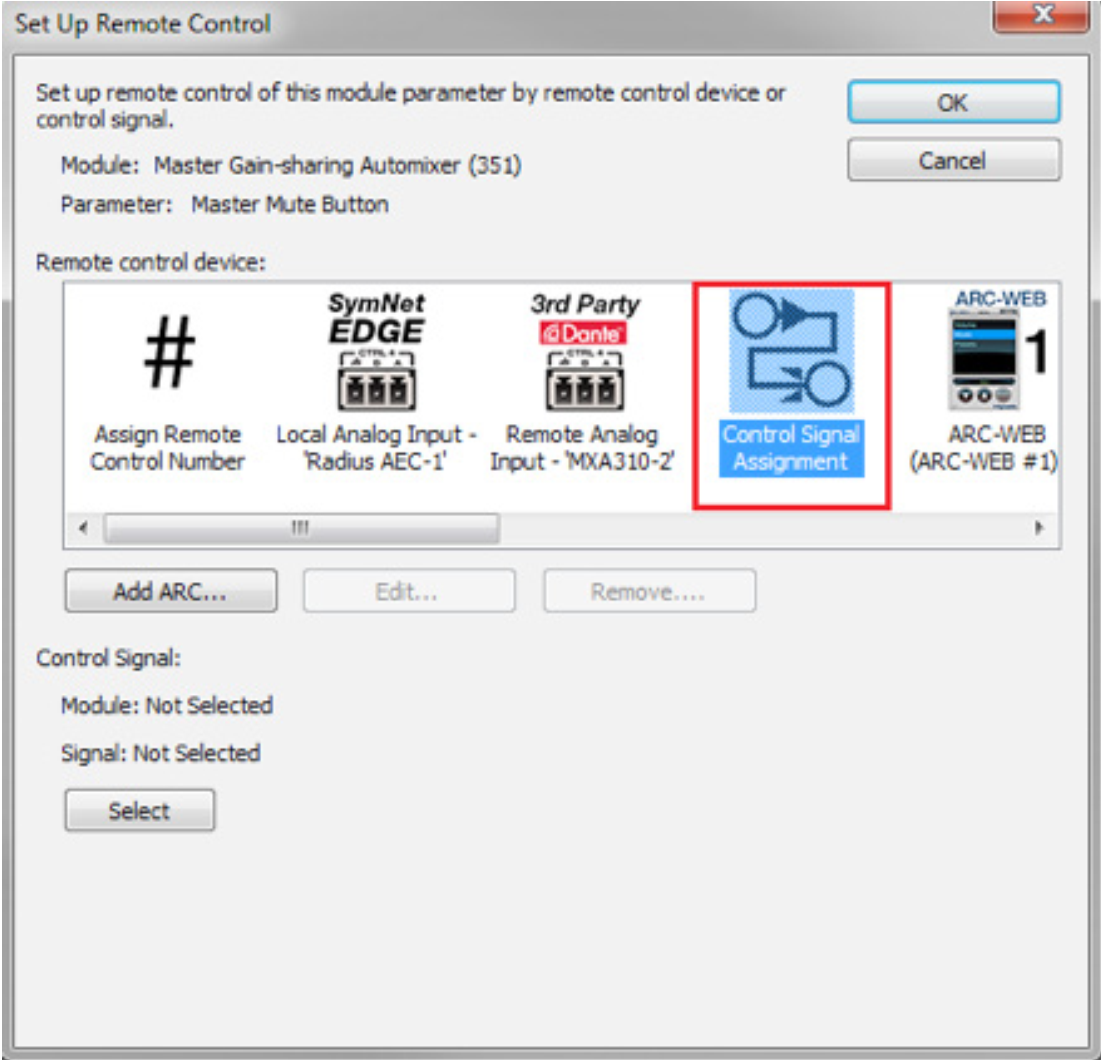
20. Then Click “Select”.
21. Expand 1-Button Processor, select 1 Off/R. Click OK.
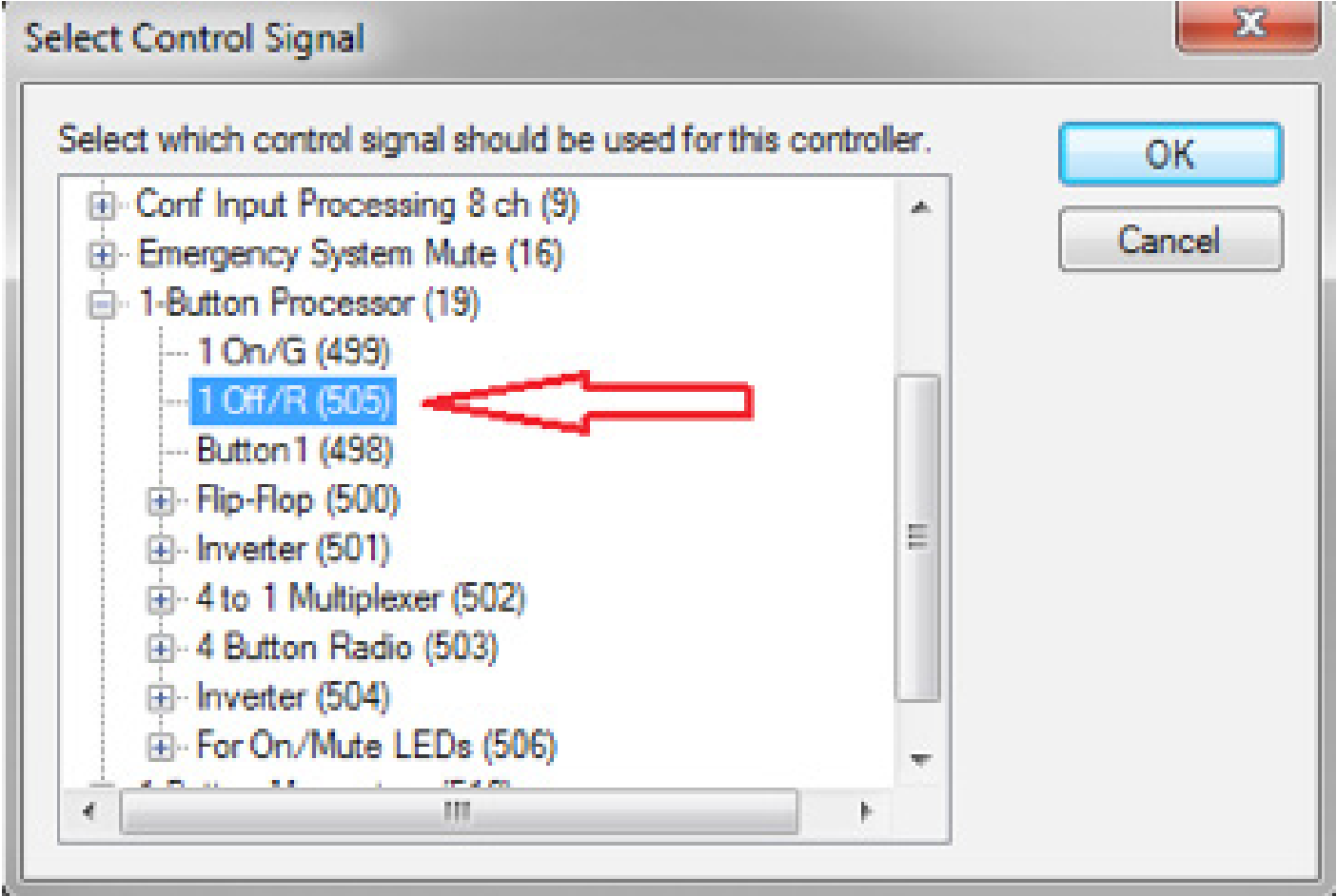
Note: The Master Mute button of the Gain-sharing Automixer will now be controlled by the state of the red LED of the super-module. When the red LED is active, that mic will be muted. When the red LED is inactive, the mic will be unmuted.
22. In the Toolkit, open up Control Modules, Control Outputs. Drag in a Remote Logic Output module.
sm 6
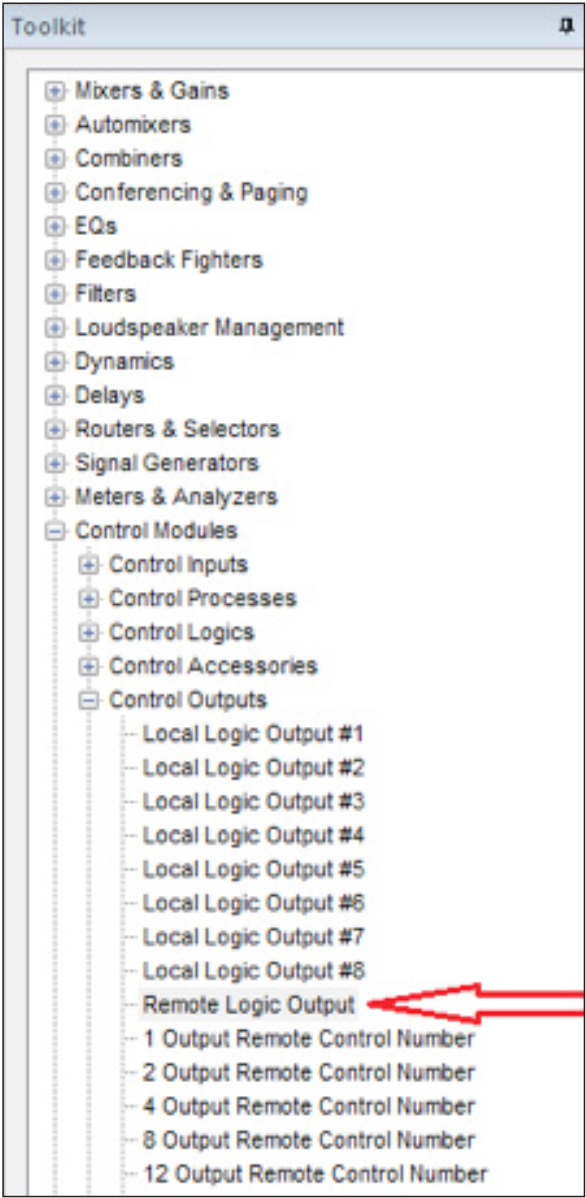
22. In the Toolkit, open up Control Modules, Control Outputs. Drag in a Remote Logic Output module.
23. The Remote Logic Output Properties window will open. For Remote Unit, select MXA310. For Logic Output, select Light Ring – Ring. Click OK.
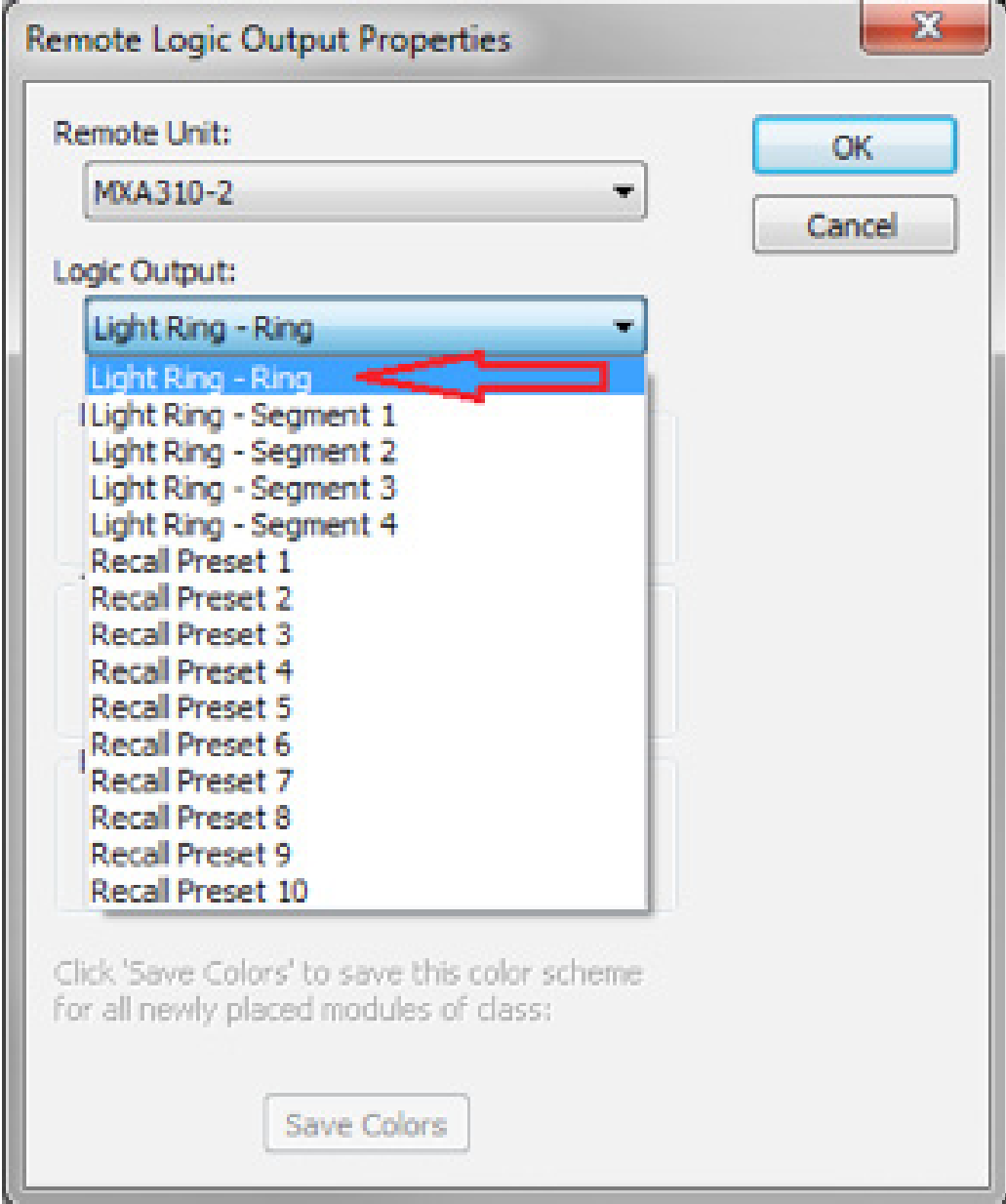
24. Wire the On/G output from the 1-Button Processor Super-module into the Remote Logic Output.

25. Return to the Site files main Site View and push the Site file to Go-Online.
Composer can control the MXA310 LEDs separately or as 4 individual sections. However, the setup in the Shure web GUI has to be setup correctly first, to allow this. The default MXA310 setup won’t allow LED control from Composer. Here are the steps to control the MXA310’s LED’s from Composer.
26. Right click on the MXA310, and select Unit Properties
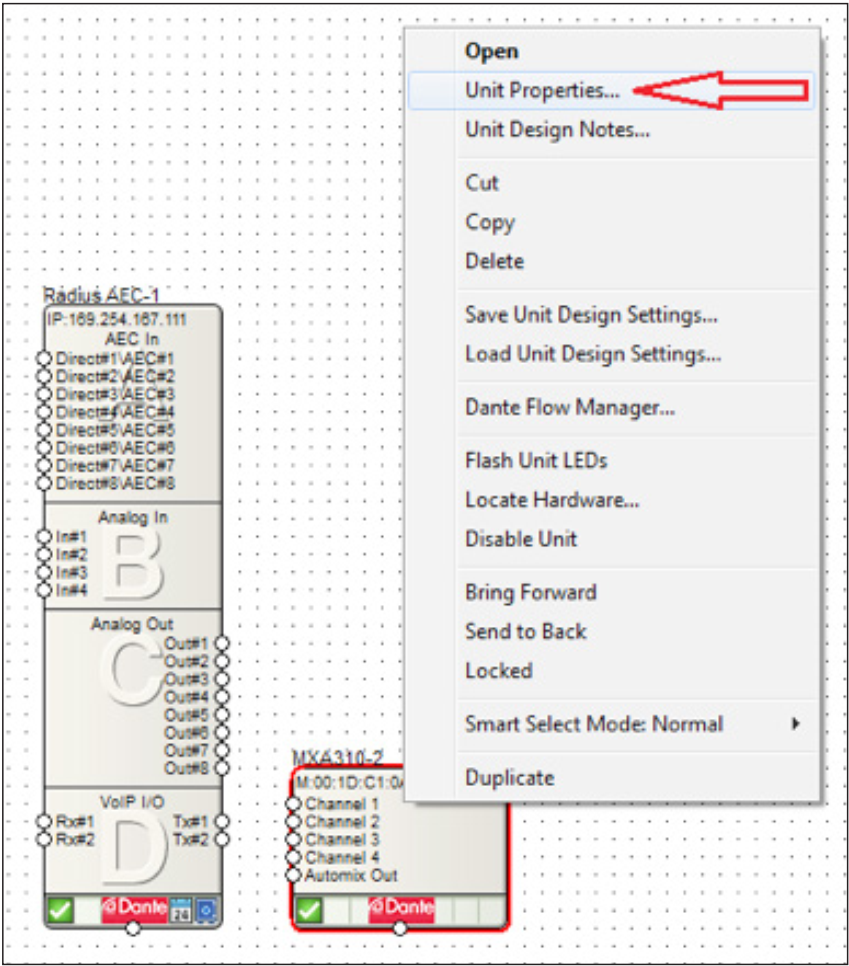
27. Click the “Launch Web Configuration Interface” button.
28. To control the LEDs from Composer, turn off “Display Automix Gating” and select “Ring” for Lighting Style, on the Light Ring tab.
Note: If the option for “Display Automix Gating” is not visible, select the Button Control tab and temporarily select “Local” for the Mute Control Function. Then select the Light Ring tab to uncheck the box for “Display Automix Gating”.
29. On the Button Control tab, set the Mute Control Function to “Logic Out”.
30. Set the Mute Control Mode to “Push to talk”. Push to talk should always be the selection regardless of which microphone switch operation is selected in the 1-Button Processor Super-module in the Composer site file.
By using SymNet Designer, the entire line of Symetrix Modular ARC panels can be made to control any parameter within your Jupiter device beyond those already available in the External Controller Wizard. You can also utilize expansion ARCs such as the EX4 and EXK giving you even more possibilities. Here’s
how:
1) Connect the ARC and host PC to your Jupiter device.
2) Launch the latest version of the Jupiter software and discover the device on your network using the Connection Wizard. After completing the Connection Wizard, take note of the IP address of the Jupiter device. Perform a firmware upgrade if necessary.
3) Ensure you can communicate with the ARC using the External Controller Wizard. Upgrade the ARC firmware if necessary.
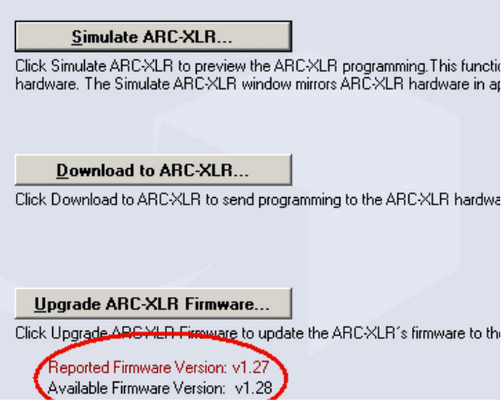
4) Go to the Tools menu and choose Store Preset. Click Custom Preset and Choose parameters. From within this dialog browse to the control(s) you wish to access from the ARC and write down the controller number (far right column).
5) Launch the latest version of SymNet Designer. Go to the File menu and choose Preferences. Under Communications Mode choose Use LAN (Local Area Network) and then click OK
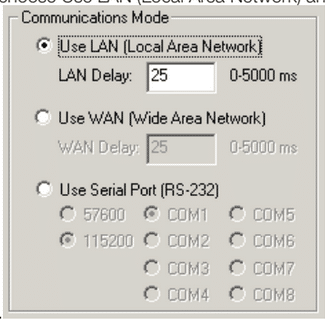
6) Go to the Edit menu and choose Site Ethernet Preferences. Click on Ring #1 and then click Edit Unit Settings. Enter the IP information of the Jupiter device. Then click OK, then Done.
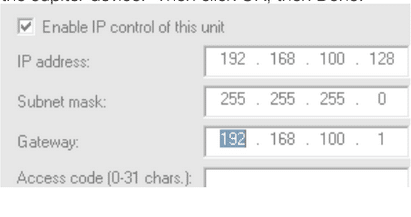
7) To ensure that SymNet Designer is communicating with the Jupiter device over IP go to the Hardware menu and choose Upgrade Firmware/Hardware Settings. Look for the name of the Jupiter device listed under Hardware. If it shows Not Present, then double check the IP address of the Jupiter and return to step 6. *Note, do not upgrade firmware or take any action from this dialog.
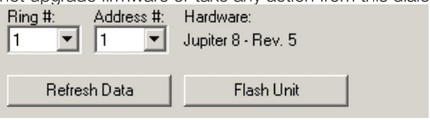
8) To ensure that SymNet Designer is communicating with the Jupiter device over IP go to the Hardware menu and choose Upgrade Firmware/Hardware Settings. Look for the name of the Jupiter device listed under Hardware. If it shows Not Present, then double check the IP address of the Jupiter and return to step 6. *Note, do not upgrade firmware or take any action from this dialog.
9) Now that we’ve established communication, let’s program the ARC. Go to the Tools menu and choose Controller Manager. Click New RS-485 Device and choose the appropriate ARC.
10) Edit the newly created ARC and enter the controller numbers (noted from step 7) in the appropriate sections of the Edit Modular ARC menu, i.e., Switches, Knobs, etc. When all controller numbers have been added to your ARC, download to the ARC from within the Controller Manager. This will send the programming to the remote. If it will not download, double check that the RS-485 address shown on the rotary dipswitches on the back of the ARC match the address in the Edit Modular ARC menu.
11) Finally, with the Jupiter software in focus, test the controls on the ARC and watch for the Jupiter GUI to follow those control changes. Note, custom programmed ARCs will not appear in the Jupiter External Controller Wizard and you must ensure that all ARCs on the network have unique RS-485 addresses regardless of how they were programmed.
In many A/V applications, it may be specified or simply practical to have the DSP recall a particular configuration of saved parameters, such as sources, gains, mutes, and matrix routing at a scheduled time of day or week. These stored settings are known as “presets”. Presets are a digital snapshot of a single parameter or a collection of parameters that can be triggered with one command or button press. Storing and recalling presets in a DSP is analogous to taking a snapshot of a set of parameters in the DSP, and at a later time during operation, showing the DSP the snapshot and requesting that it set the parameters back to the previous configuration exactly as they appear in the snapshot.
All Symetrix DSP hardware has the ability to trigger presets at a particular time and day when the presets are scheduled using the Event Scheduler in the DSP setup and configuration software. Once a preset has been stored, it can be scheduled to trigger on a single date or as a reoccurring event. Exclusions of dates can be made to accommodate a changing schedule.
For example, in a high school at 8am Monday through Friday a bell may be scheduled to sound; however, during spring and summer break this bell would not need to ring while students are not attending school, so these spring and summer dates can be excluded from the schedule. In this example, most of June, and all of July and August (80 dates) have been excluded from triggering the Morning Bell preset.
There is a problem that can arise when presets are scheduled to be triggered at a particular time and day, and this problem is called “clock drift”. In order for the DSP to trigger a scheduled event, the DSP must keep a real-time, internal running clock, so that it knows the current time and day. This clock is generated by an internal oscillating crystal, which over time “drifts” ever so slightly away from the actual time of day. This drift is usually quite small, on the order of 10 ppm (20 ppm worst case) or 6 seconds/week. This means however, that after one year of operation the internal clock could drift by 314 seconds, and as such the Morning Bell preset in the previous example would be triggered 5 minutes early after one year. After 5 years the preset would sound approximately 26 minutes early, which in most cases would be unacceptable.
What can be done to fix or stop clock drift?
The best approach is to synchronize the DSP to an NTP Server.
Synch the DSP to an NTP Server:
Network Time Protocol (NTP) is a networking protocol for clock synchronization between computer systems over packet-switched, variable-latency data networks. In operation since before 1985, NTP is one of the oldest Internet protocols in use.
If the DSP resides on a network that contains a server providing NTP services, the DSPs clock can sync with that server by Enabling NTP Synchronization and entering the NTP server’s IP address. If the DSP has a valid network route to the internet, any publicly available NTP server may be used.
Click this link for a list of public NTP server IP addresses hosted on the Internet: http://tf.nist.gov/tf-cgi/servers.cgi
In the Symetrix Jupiter and Zone Mix 761 software, the NTP server IP field is accessed in the Event Scheduler by clicking the ‘Set Device Clock’ button and then the ‘Advanced’ button.
In Symetrix Solus, the NTP server IP must be entered using Remote Terminal and the “Write NTP” command. Locate Remote Terminal (c:>Program Files>Symetrix>SymNet
Designer 10.0) and then type “WN (Example: WN 192.168.100.23)
In Composer each DSP can be set to a NTP server by accessing the unit properties.
Note: Symetrix Legacy and Express hardware does not support NTP clock sync
Reset Clock using Set Clock:
The DSP clock can be set or reset without downloading or pushing a file to the DSP using either Designer or Composer. Make sure the DSP has been located then select “Set Clock” from the “Hardware” menu.
Designer:
Time, Date and Daylight Saving Time can all be set using the “Set Clock” window. Once the desired setting has been entered click the “Set Clock” button.
Composer:
Sync to PC Clock or a specific date and time can be set using the “Set Clock” window. Daylight Savings Time can also be enabled. Once the desired setting has been entered click the “Set Clock” button.
This article contains information and guidelines related to controlling Symetrix and third-party products using IP, Dante, serial, and other technologies.
IP Control Network Guidelines
- The maximum number of connected IP devices is 128. This includes DSPs, W Series, and T Series controllers.
- Up to six TCP sessions can be active at one time.
- If a seventh TCP/IP connection is initiated, the least recently used session will be automatically closed. Control systems should avoid closing and re-opening TCP connections if possible. Keeping a single TCP session open to send multiple commands through will result in much better performance than opening and closing a session for each command.
- To control Symetrix DSPs with Ethernet:
- Command strings are sent as the payload of a UDP/IP or a TCP packet. The following rules should be observed in sending commands:
- Commands should be sent to UDP or TCP port number 48631 to the unit’s IP address. The IP address may be found using the Connection Wizard or on some units’ front panel displays.
- Commands should be formatted exactly as defined in the Composer help file and include a carriage return that terminates the command.
- Command strings may or may not include a zero-termination character.
- Commands should not be broken up across multiple packets.
- If high-reliability communications are required, responses to commands should be analyzed for success.
- Command strings are sent as the payload of a UDP/IP or a TCP packet. The following rules should be observed in sending commands:
Control of Third-Party Devices via the Dante Control Network
Supported Third-Party Dante Device Limitations
- The number of Dante devices (except Shure – see below) that can be located by or referenced by (switch input and LED output use) from a single DSP unit is limited to 24.
- The number of Shure devices that can be located by or referenced by (switch input and LED output use) a single DSP unit is limited to 4.
Control Methods
TCP/UDP/HTTP Control
Third-party devices that are controlled by TCP or UDP strings or binary code can be controlled from a Symetrix DSP either by using a Network String Module available in the Composer toolkit or by the use of an Intelligent module. If bidirectional communications or control using HTTP is needed, then an Intelligent module is required.
IR Control
Symetrix has tested and verified that the Global Cache IP2IP/IP2IR and their other IR interfaces work with Symetrix products. Communicate using binary Mode to Global Cache units. Text does not work.
Serial Control
Radius and Edge have a single serial port. If using a DSP without a serial port or if additional serial ports are needed, use an xControl or Global Cache IP2LS/IP2SL-P/WF2SL.
Contact Closure or Voltage Control
Included natively in Symetrix DSPs. If more connections are needed than provided with the DSP add xControl Control Expanders. In addition to analog/logic control inputs/logic outputs, the xControl also adds two additional serial ports.
Control Server
The Wi-Fi access point built into the Control Server only passes data to the Symetrix control network. It cannot be used to access another network.
ARC Controls
Power Limitations
The total number of ARCs that can be daisy-chained and fed power from an ARC port may be limited depending on ARC type and cable distances. An ARC-PSe Rack Mount Power Supply may be used to accommodate a larger number of ARC Wall Panels.
| CABLE SEGMENT LENGTH LIMITATIONS FOR ARC POWER OVER CAT5 CABLE | ||||
| ARC TYPE | ||||
| Number of ARCs on chain | ARC-3 | ARC-2e | ARC-K1e | ARC-SW4e |
| 1 | 3000’ | 3000’ | 3250’ | 3250’ |
| 2 | 1100’ | 1200’ | 3000’ | 3000’ |
| 3 | 550’ | 700’ | 1250’ | 1250’ |
| 4 | 200’ | 250’ | 400’ | 400’ |
Connecting ARCs to Jupiter hardware is simple using the (RJ-45) ARC port on either the front or back of the device. These ports not only provide communication (RS-485) data, but also +24 VDC power. If the required number of ARCs exceeds the current limits of the Jupiter ARC port(s), an ARC-PS can be used to power additional ARCs. Connecting a Jupiter ARC port to the RS-485 port on the ARC-PS is easily accomplished by following one of two methods.
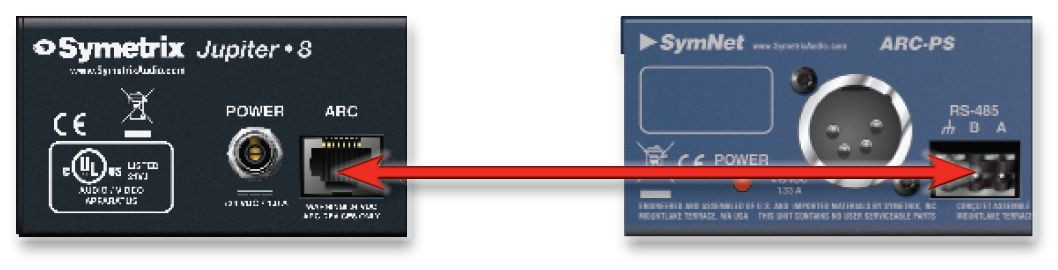
Method 1: Modify an Off-the-Shelf CAT-5 cable
- Cut off one end of the CAT-5 cable.
- Wire three of the wires to a terminal block connector such that:
A = Blue.
B = Blue/White.
Ground = Green.
Note: Blue/White is twisted with Blue, and Green/White is twisted with Green. - Connect the RJ-45 to the ARC port on Jupiter.
- Connect the terminal block connector to the RS-485 port on the ARC-PS.
- Connect your ARCs to the RJ-45 ports on the ARC-PS.
- Program your ARCs with the External Controller Wizard in the Jupiter software.
Method 2: Make Your Own Cable
- Crimp an RJ-45 connector to one end of a CAT-5 cable.
Note: Only pairs 4+5 and 3+6 are necessary, so STP cable could be
substituted by sharing the ground. - Wire three of the wires to a terminal block connector such that:
A = pin 4.
B = pin 5.
Ground = pins 3 and 6. - Connect the RJ-45 to the ARC port on Jupiter.
- Connect the terminal block connector to the RS-485 port on the ARC-PS.
- Connect your ARCs to the RJ-45 ports on the ARC-PS.
- Program your ARCs with the External Controller Wizard in the Jupiter software.
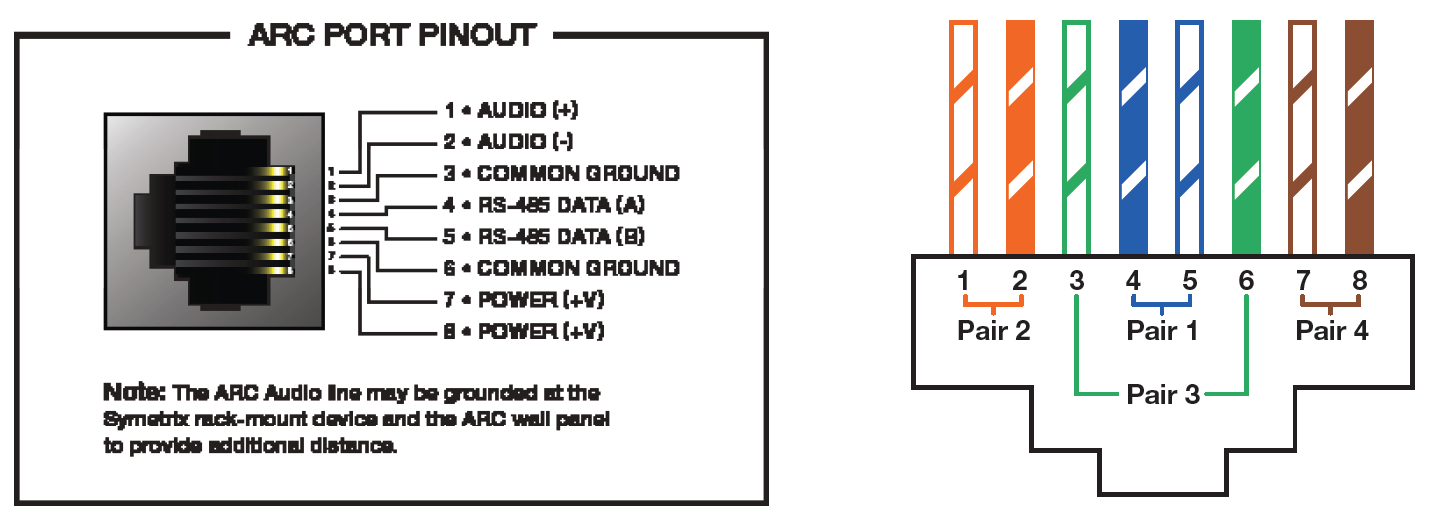
NOTE: Refer to the ARC Network Design topic in the Jupiter help file for more information.
Overview
This Tech Tip will explain how to integrate the Clockaudio TS005 illuminated Halo LED touchpad and a cardioid desktop microphone with a Symetrix DSP. It should be noted that any future Clockaudio products utilizing a RGB status indicator and switch will be standardized, using the same color code and connection method. At present, this tech tip is valid for the TS005, TS003, SWP2, CRM5 series, and CSS Series (CS1S-CS4S).
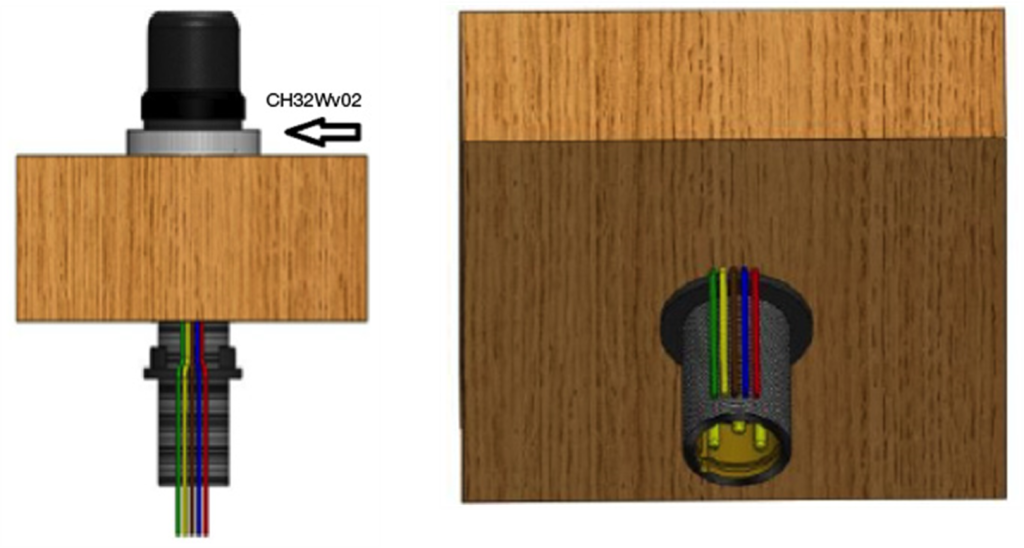
Requirements and Limitations
The integration of Clockaudio conference systems can be performed with any Symetrix DSP that has analog control inputs, however this tech tip uses a Symetrix Edge specifically in all examples.
The TS005 is a translucent white, RGB Halo Ring which includes a touch pad switch. There are 6 RGB LEDs in the ring.
The logic outputs on the Edge unit can power single LEDs, but cannot provide the 60mA @ 12 VDC required to power the entire Halo Ring.
It is necessary to employ an external 12 VDC regulated power supply, in order to operate the TS005.
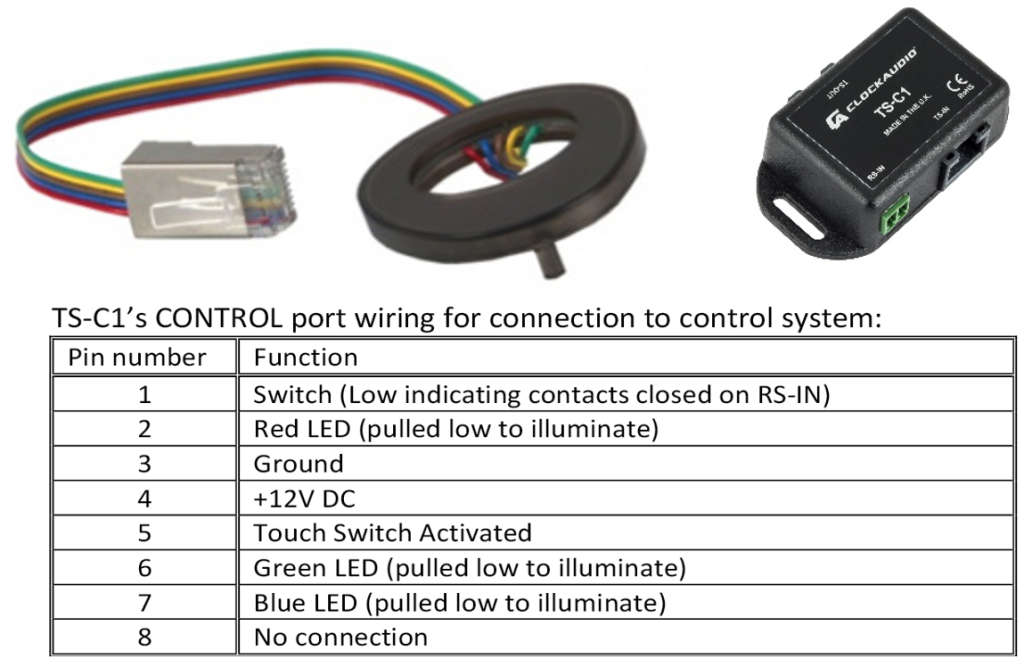
Connections
The TS005 has a wire pigtail with an RJ45 connector crimped on one end. The product comes with an RJ45 straight-through TS-C1 to facilitate the connection to a permanently installed CAT5/5e/6 cable.
Please be aware that the wiring scheme may vary on your specific model of TS005. Always double check the manufacturer’s documentation for the exact wire coloring of your model TS005.
There are (3) important connections which need to be made between the TS005 and Edge.
- The Ground, Red, Green, and Blue LED wires from the TS005 should be connected to the Edge’s Logic Outputs. For this example, use Logic Output #1 for the Red LEDs, Logic Output #2 for the Green LEDs, and Logic Output #3 for the Blue LEDs.
- The Ground and Switch Control Logic wires should be connected to Edge’s External Control Inputs. For this example, use External Control Input #1 for the Switch Control Logic.
- Plus, minus, and ground of the audio line from the microphone should be connected to an Analog Mic/Line Input channel on Edge.
The final important connection is to an external power supply. In this example, a 12 VDC external power supply is connected across +V and –V/Ground. When the Red, Green, or Blue LED wire is grounded by Edge’s Logic Outputs, the associated set of LEDs light up. The Switch Logic Control wire will be open, or closed with respect to ground. The circuit’s state is determined by toggle logic and should be connected to the Edge External Control Input.
Configuration
It is the integrator’s responsibility to configure (2) functions within the Edge unit:
- Touching the TS005 triggers a logic function on the Switch Logic Control wire. This contact closure must be connected to an External Control Input on the Edge unit and assigned to a parameter in software such as a Latched Button, then wired into a control process such as a Flip-Flop, in order to trigger a set of presets that mute and un-mute the microphone associated with the TS005.
- The presets triggered by the contact closure after touching the TS005 should also include a parameter that pulls either the Green LEDs wire, the Red LEDs wire, or the Blue LEDs wire to ground on Edge’s Logic Outputs connectors.
The integrator must decide whether it is desirable for the customer to have Red LEDs lit when the conference microphone is muted, or when it is open and in use.
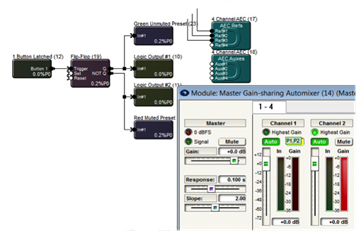
Then, the presets in the Edge should be configured so the proper wire is pulled to ground according to the lighting scheme the customer wishes to have. Please refer to the diagram below as an example of wiring a TS005 to Edge’s Logic Outputs, External Control Inputs, and Analog Mic/Line Inputs:
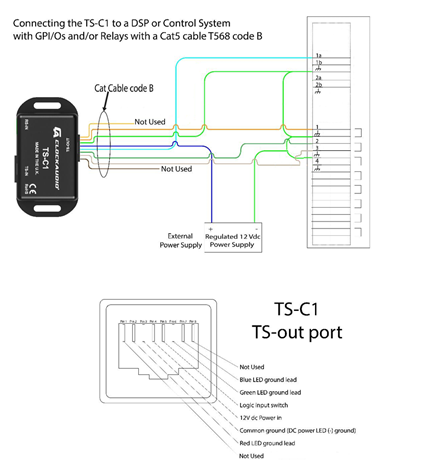
Pins 2 thru 7 coming of TS-C1 will be utilized while pins 1 and 8 are unnecessary. Pins 2, 6, and 7 should go in three different General-Purpose (Logic) Outputs for the RGB LEDs to work. Pin 3 should go to ground and pin 5 should go to an External Control Input.
The power supply’s positive pin should be wired to pin 4 of the TS-C1 and the negative pin should be going to the same ground as pin 3 in both general-purpose inputs and outputs.
It is safe to have your pin 3 and negative pin of your power supply go to both the input and output ground.
Introduction
The Symetrix xControl serves a similar purpose for Edge, Radius NX, and Prism as the Control I/O did for legacy SymNet SymLink and Express Cobra hardware. Its primary purpose is to bring the overall cost of logic I/O heavy systems down.
xControl Rear Panel
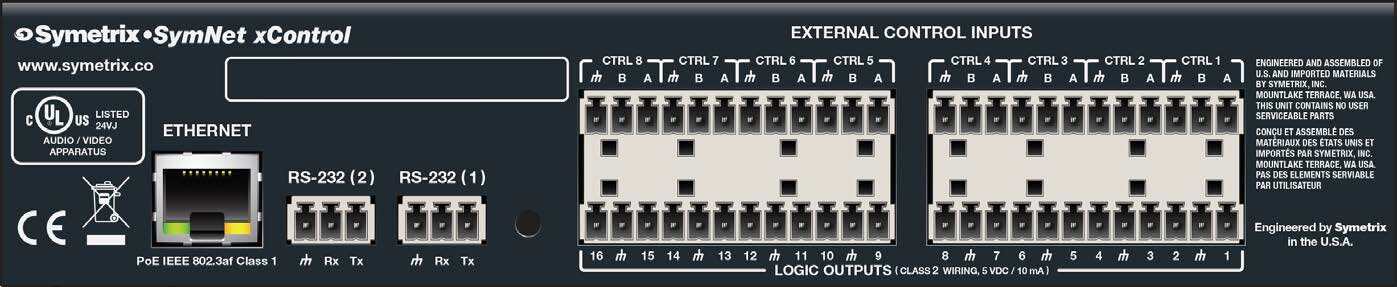
- Ethernet: 10/100 Base-T Ethernet port for network connection to the system over IP. Features auto-crossover sensing for direct device-to-device connections. Accepts PoE IEEE 802.3af Class 1.
- RS-232: Two serial communications interface for sending strings to 3rd party devices or accepting 3rd party control commands. Port Settings: 57.6 kbaud (default), 8 data bits, 1 stop bit, no parity, no flow control.
- External Control Inputs: Eight (8) analog control inputs. Each analog control input can be configured to support 1 potentiometer or 2 closures (+3.3 VDC reference voltage supplied).
- Logic Outputs: Sixteen (16) logic outputs with eight (8) paired common ground pins. Logic Outputs go low (0V) when active, and are internally pulled high (5V) when inactive and can drive external LED indicators directly.
Examples of Common Use Cases
Conferencing Push To Talk and LED Muted/Active Indications
In conferencing applications the logic outputs are typically used to either light LEDs directly or interface with something expecting a control voltage that controls the LEDs itself. Typically, they are following mutes somewhere in the Symetrix design which are linked to push-to-talk (push-to-unmute) logic.
External Relay Trigger
External relays are often driven by logic outputs for the purpose of controlling a power sequencer or controlling a “conference in session” lamp/sign.
Camera Control
Logic outputs are sometimes use to interface with the GPIO inputs of a camera PTZ control unit which essentially expects contact closures to trigger it to preset camera positions. These may be driven in our system by presets, the Gating Automixer channel “ON” LEDs, or the PTT logic detailed above. Most often this type of setup is used during video conferencing or in court room applications.
Projector Control
The dual RS-232 ports on the xControl can be configured to send any custom RS-232 string in ASCII or Binary allowing Symetrix to control 3rd party hardware. Often times a projector is used in a conference room or class room application, and must work in tandem with the audio system. Using an ARC remote or SymVue control screen as the user interface, when prompted by the host DSP the xControl can send 3rd party protocol commands to a projector, controlling common parameters such as On/Off and the selected input source.
Powering and Hookup to the Network
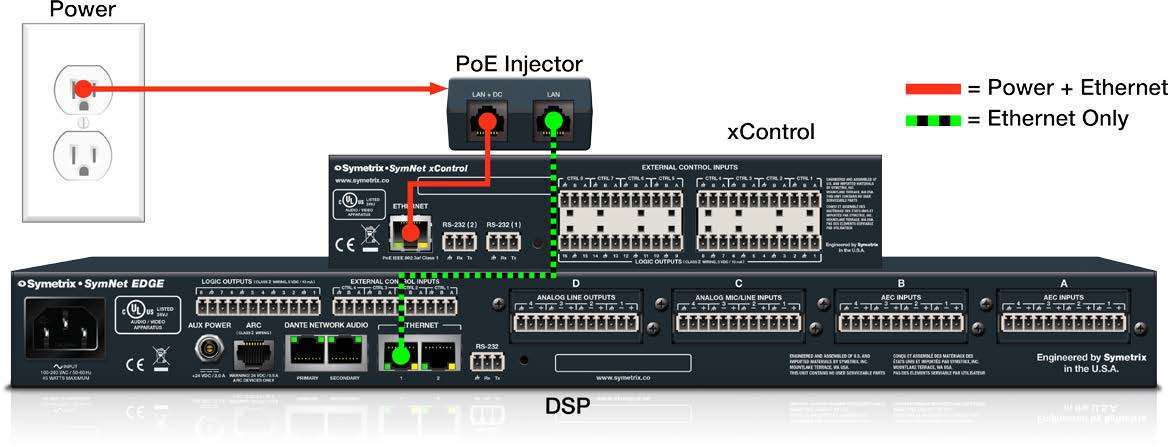
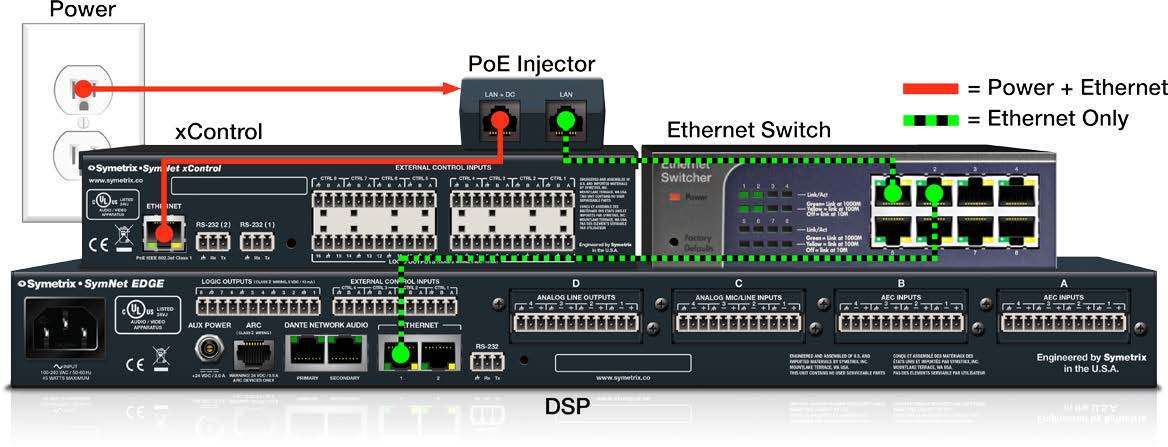
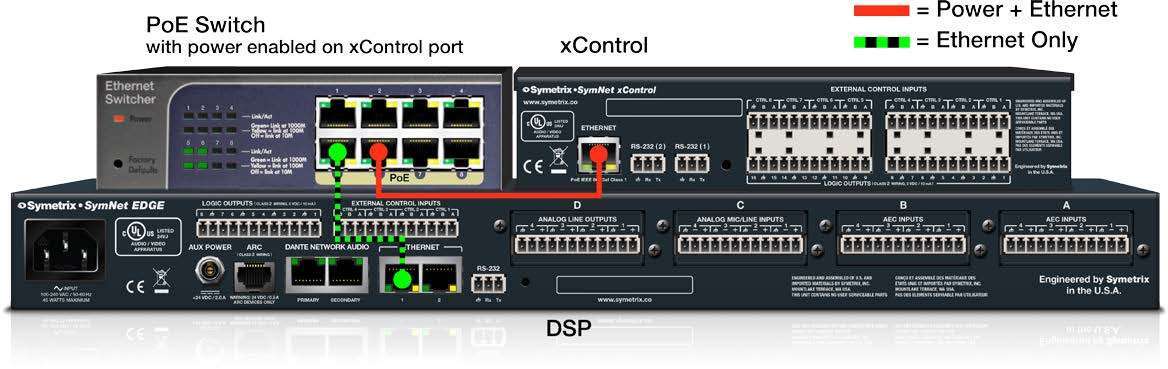
Warning: The xControl is a true PoE (power over Ethernet) device and must be connected to the host DSP through the data network. It is not an ARC network device. Do not under any circumstance plug the xControl Ethernet port into the ARC port on a Edge, Prism, Radius NX, or ARC-PSe. The ARC DC voltage may damage the xControl, which may cause a failure not covered under the manufacturer’s warranty.
Configuring IP Parameters
x 1

Locating Hardware
x 2

OR
x 3
OR
Discovery of, and connection to, xControl hardware is done with the Locate Hardware dialog found under the Hardware menu or by clicking the Connection Status box in the bottom left corner of the xControl icon.
- IP Configuration with Composer
- The Locate Hardware dialog will scan the network and list available units with DHCP IP addresses.
- Select the xControl unit to assign a static IP address and click the Properties button.
- To assign the xControl a static IP address, select “Use the following IP address” and enter the appropriate IP Address, Subnet mask and Gateway.
- Click OK when finished.
- Next, back in the locate hardware dialog, ensure the xControl device is highlighted and click “Select Hardware Unit” to connect the selected xControl on the network to the xControl in the Composer Site File.
- Close the Locate Hardware dialog.
Among the hundreds of manufacturers that have adopted Dante as their networked audio bus of choice, Yamaha and Symetrix stand out as early adopters and trendsetters for developing and standardizing products based around the Dante protocol.
As such, both Symetrix and Yamaha have come up with some recommendations for integrating Dante when commissioning or setting up a Dante network. This tech tip will cover recommendations from both manufacturers, their differences when applicable, and a brief troubleshooting guide should problems arise.
Yamaha Recommendations:
Setup:
The Yamaha and SymNet factory default Dante mode is “daisy chain” or Switched mode as it is called in SymNet. This means all Dante ports, Yamaha and SymNet, can be daisy chained together for the initial setup and no 3rd party network switch need be used.
If a 3rd party network switch will be used for Dante, connect the primary port of each Yamaha and SymNet unit into the 3rd party network switch. Once the DSP and Yamaha have been programmed correctly, all Dante subscriptions should connect automatically after a site file push or power cycle, which can be verified with Dante Controller. If for some reason the subscriptions do not reconnect, then 1) the subscriptions may not have been created correctly, or 2) the 3rd party network switch may be at fault and its settings should be confirmed as optimized for Dante. If problems persist, troubleshooting steps should be taken.
Troubleshooting subscriptions:
https://www.symetrix.co/wp-content/uploads/2013/08/SymNet-Specifics-for-Dante-Subscriptions-3rd-Party-Dante-Sources-and-Real-time-Dante-Matrixing.pdf
Troubleshooting Network Switch Settings:
https://www.symetrix.co/wp-content/uploads/2013/01/2012-11-Know-it-Use-It-Troubleshoot-it-Dante.pdf
Also like Symetrix, Yamaha recommends switching to Redundant mode only after verifying all units in the system pass Dante via the Primary port and that all units are reporting their current Dante mode as “Redundant”. Symetrix makes the same Dante setup recommendations in the following tech tip:
https://www.symetrix.co/wp-content/uploads/2013/04/2013-2-02-Setup-Dante-in-5-Minutes-Time-or-Less.pdf
Yamaha CL and QL Series:
The Yamaha CL Series consoles (e.g., CL3) can be setup to two available options for how Dante patching/routing is controlled. There is a “Dante patch by console” and a “Dante patch by Dante controller”.
If Dante patch by console is selected, then the Yamaha runs many processes that normally are handled by Dante Controller to allow the Yamaha console to control the Dante routing for devices that are mounted in the console’s I/O Rack. Do not mount Symetrix devices into the console’s I/O Rack because it
will result in unwanted Dante Patch changes to Symetrix devices when “Dante patch by console” is selected.
To be safe, Symetrix recommends the Yamaha Dante setup should be set to “Dante patch by controller”.
To do this, on the Yamaha CL Series console go to:
Setup / Dante setup /
And select: Dante patch by controller.
Then use Composer and, when applicable, Dante Controller for all routing changes in the Dante network.
Be aware that Dante Patching and Dante Patch Recall through the CL console will not be available.
Note 1: This White Paper on Dante subscriptions should be consulted before using Dante Controller to change Symetrix Dante routing:
https://www.symetrix.co/wp-content/uploads/2013/08/SymNet-Specifics-for-Dante-Subscriptions-3rd-Party-Dante-Sources-and-Real-time-Dante-Matrixing.pdf
Network Switch:
As of the writing of this tech tip, Yamaha does not officially recommend any particular brand or model of network switch for Dante. That being said, Yamaha has successfully used the Cisco SG300 is a variety of Dante applications and provides detailed instructions for setting up the SG300 to use with Dante here
on their website:
http://www.yamahaproaudio.com/global/en/training_support/selftraining/dante_guide/index.jsp
The Yamaha SG300 setup guide covers the following topics:
- Preparing to Configure a Network Switch
- Disabling Energy Efficient Ethernet (EEE)
- Constructing a Virtual Local Area Network (VLAN)
- QoS Settings (Prioritizing the clock synchronization)
- Multicast Settings
- Setting Multiple Switches (Copying settings)
Note 2: Symetrix agrees with Yamaha that setting up a network switch correctly for Dante is necessary for reliable Dante operation and also does not recommend a particular brand or model of switch, nor does Symetrix provide setup instructions for a particular model. Symetrix follows Audinate’s lead by stating that any network switch can work with Dante, but some features on some switches will allow for larger and more reliable Dante operation.
Dante makes use of standard Voice over IP (VoIP) Quality of Service (QoS) switch features, to prioritize clock sync and audio traffic over other network traffic. VoIP QoS features are available in a variety of inexpensive and enterprise Ethernet switches. Any switches with the following features should be appropriate for use with Dante:- Gigabit ports for inter-switch connections
- Quality of Service (QoS) with 4 queues
- Diffserv (DSCP) QoS, with strict priority
- A managed switch is also recommended, to provide detailed information about the operation of each network link: port speed, error counters, bandwidth used, etc.
Additionally, both Yamaha and Symetrix recommend turning off all EEE features of the network switch to prevent low power operation from impacting audio performance.
Troubleshooting a Yamaha / Symetrix Dante connection:
If experiencing Dante failures between a Yamaha console and a Symetrix DSP, check the following:
1) Ensure that Symetrix Dante subscriptions (those channels Symetrix is to receive from the Yamaha) are setup using Composer. See Note 1 for clarification. Composer has a “Dante
Browse” feature to make creating the Dante receive flows easily from 3rd party hardware simple, quickly, and intuitive. If Dante Controller is used to patch Dante audio into a Symetrix DSP, these subscriptions
will be temporary and will be lost after a site file is pushed or the Symetrix DSP is power cycled.
2) If the Yamaha is a CL Series console, ensure that the Yamaha Dante Setup is set to “Dante patch by controller”. Be aware that Dante Patching and Dante Patch Recall through the CL console will not be
available in this mode.
3) Yamaha SG300 Setup Guide recommends turning on IGMP Snooping when multicast Dante is being used. Typically Dante will not be affected negatively by this switch feature. However, Symetrix has seen a case or two in which the IGMP Snooping caused instability. So, if multiple Symetrix units are showing as “clock master” and IGMP Snooping is enabled in the 3rd party network switch, turn off IGMP Snooping on the network switch and power cycle all Symetrix units and the network switch. If turning off this feature solves the problem, then leave it turned off, otherwise IGMP Snooping can be left enabled as per the Yamaha recommendation.
This tech tip provides a step-by-step guide on how to configure a microphone’s mute button with LED functionality using the Composer software. The instructions are applicable to microphones that have a physical mute button and an LED light to indicate whether the microphone is muted (red light) or unmuted (green light).
The process involves preparing the workspace, opening the DSP in design view, incorporating the “1-Button Processor” Super Module, adding control elements, configuring the mic button, programming the mute function, and finally activating and testing the setup.
By following these steps, you can configure the microphone’s mute button to toggle mute on/off and use the LED light to visually indicate the current status. This setup enhances the usability of the microphone, providing clear visual feedback to the user.
1 Firstly, prepare the Workspace:
- To start with, launch Composer software.
- Create a new site file or load an existing one.
- Add the DSP (e.g., Radius NX 12×8) and microphone (e.g., ATND8677a) into the site view.
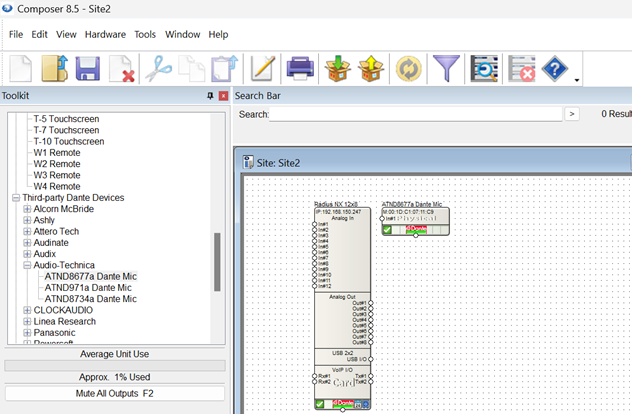
2. Next, open the DSP in design view.
- Insert the Mic Network I/O Receive Module:
- Navigate to Toolkit -> Network I/O Modules -> Receive Modules.
- Choose your mic (e.g., ATND8677a Dante Mic Bus #1) from the list.
- Link the Receive module to the desired output (e.g., Analog out 1).
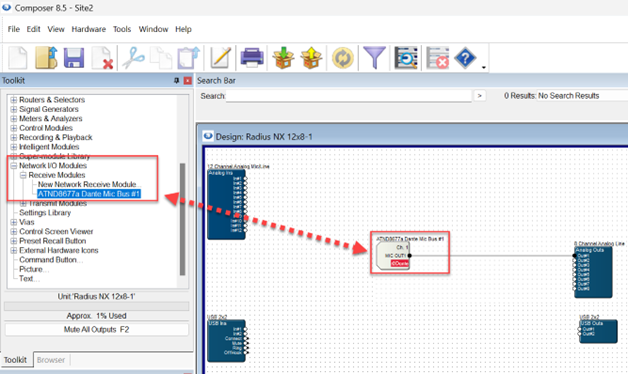
3. After that, incorporate the “1-Button Processor” Super Module:
- Go to Toolkit -> Super-module Library -> Import Super-module…
- Browse to Documents\Composer 8.5\Super-modules\examples\Tools.
- Select and add “1-Button Processor” to your design.
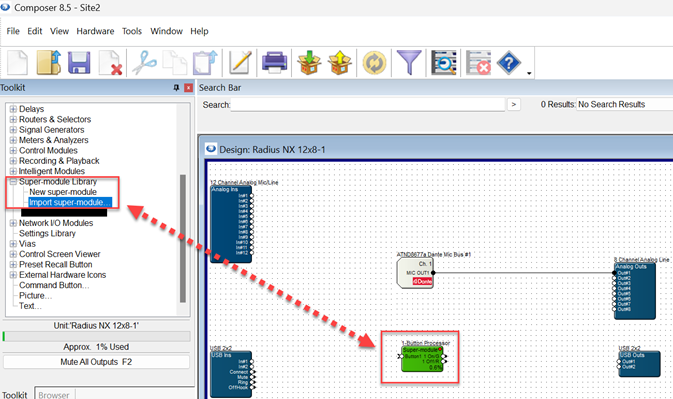
4. Subsequently, add Control Elements:
- Include a 1 Button Momentary” module:
- Find it under Toolkit -> Control Modules -> Control Inputs -> 1 Button Momentary.
- Connect this button to the 1-Button Processor” Super Module.
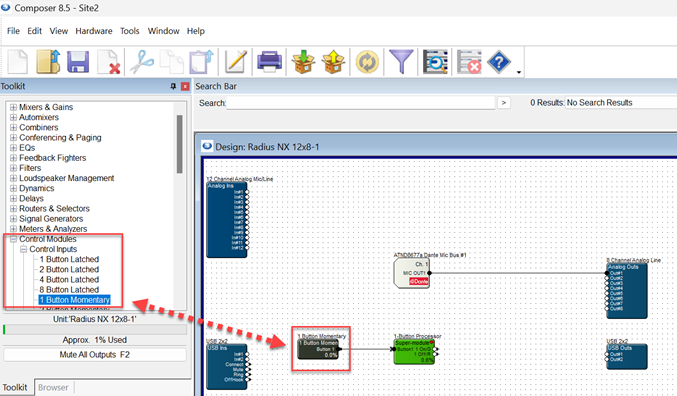
- Insert two “Remote Logic Output” modules:
- Locate them in Toolkit -> Control Modules -> Control Outputs -> Remote Logic Output.
- Connect the 1 Button Processor” to both of these modules.
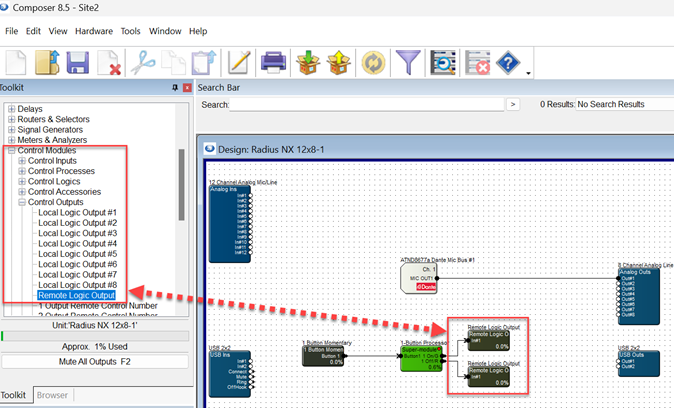
5. Once done, configure the Mic Button:
- Double-click the “1 Button Momentary” module to access its settings.
- Right-click the “On” button and choose “Set Up to Remote Control…”
- In the Remote-Control Device section, select your microphone (e.g., “ATND8677a Dante…”). Click OK.
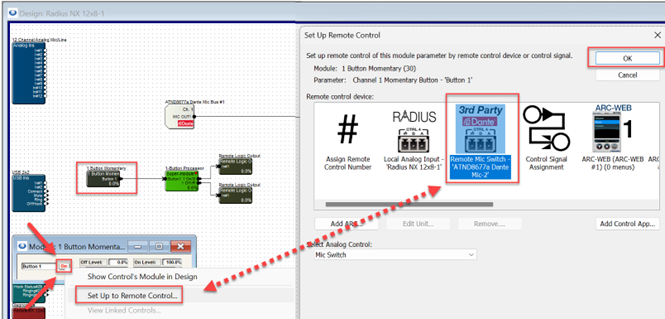
6. Afterwards, program the Mute Function:
- Double-click the “1 Button Processor” module.
- Choose the desired mute function (e.g., Toggle, Push to Talk, Push to Mute, Disabled). For this example, select “Toggle.”
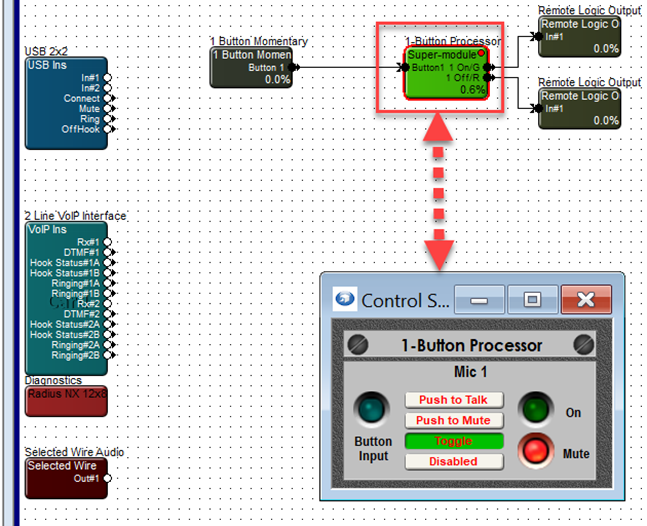
7. In the end, activate and Test:
- Upload the site file to your system.
- The mic’s mute button should now function as configured, toggling mute on/off and indicating the status with red/green colors.
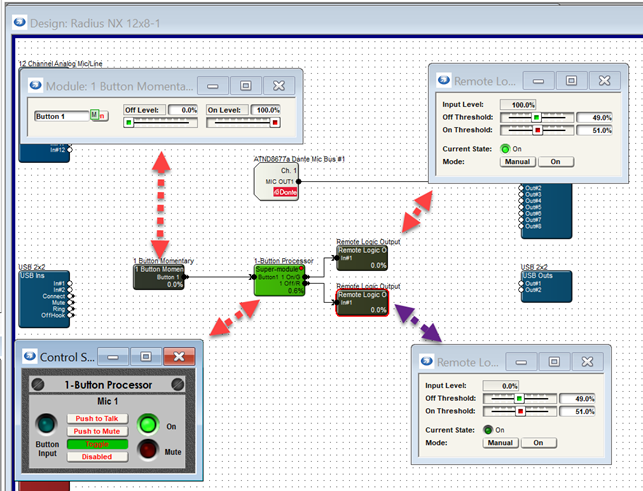
The purpose of this Tech Tip is to provide instructions on using Dante’s Device Lock feature with Symetrix Dante-enabled hardware in Composer 6.0 or later. Device Lock allows you to lock and unlock supported Dante devices using a 4-digit PIN (Personal Identification Number) in Dante Controller. Audinate’s Dante Controller software must be used to lock and unlock Symetrix Dante-enabled hardware. They CANNOT be locked or unlocked using Composer. When a device is locked, audio will continue to flow according to its existing subscriptions, and it may be monitored, but it cannot be controlled or configured. Its subscriptions and configuration settings become read-only.
Dante Controller: https://audinate.com/products/software/dante-controller
Lock Status Indication
Symetrix Composer
In Composer, Site View will show the lock state of all Dante equipped units via the Dante Logo at the bottom center of the unit’s icon. That icon will be one of three
colors indicating ‘Dante Locked’, ‘Dante Unlocked’, and ‘Dante Lock Feature Unavailable’.
lock 1
Locked: Yellow
lock 2
Unlocked: Green
lock 3

Feature Unavailable: Red
Dante Controller
There are multiple locations within Dante Controller where the lock status of a device may be found.
• A small gray lock icon against the device name in the Network View > Routing tab.
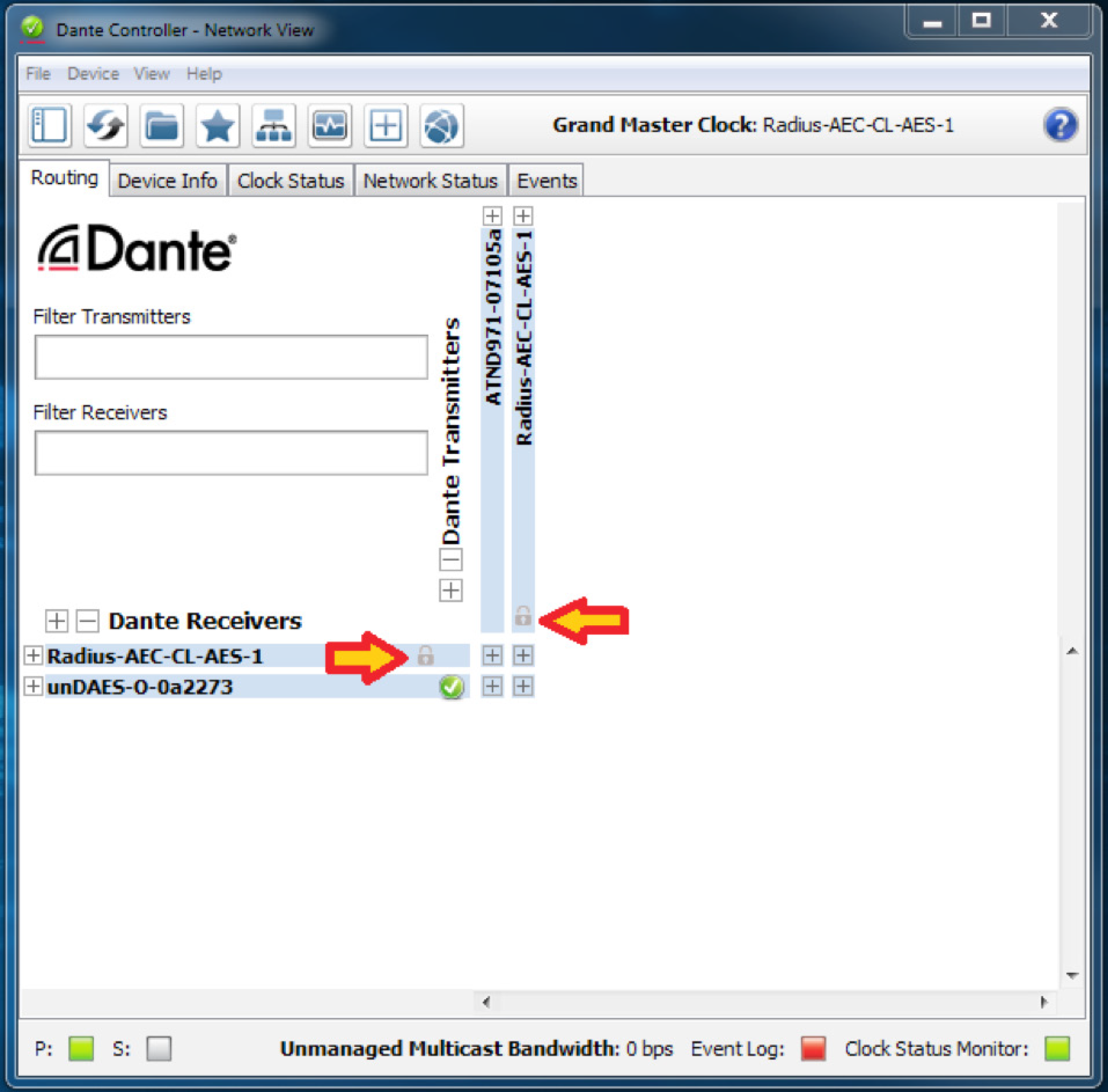
• Red background when the device is hovered over in the Network View > Routing tab.
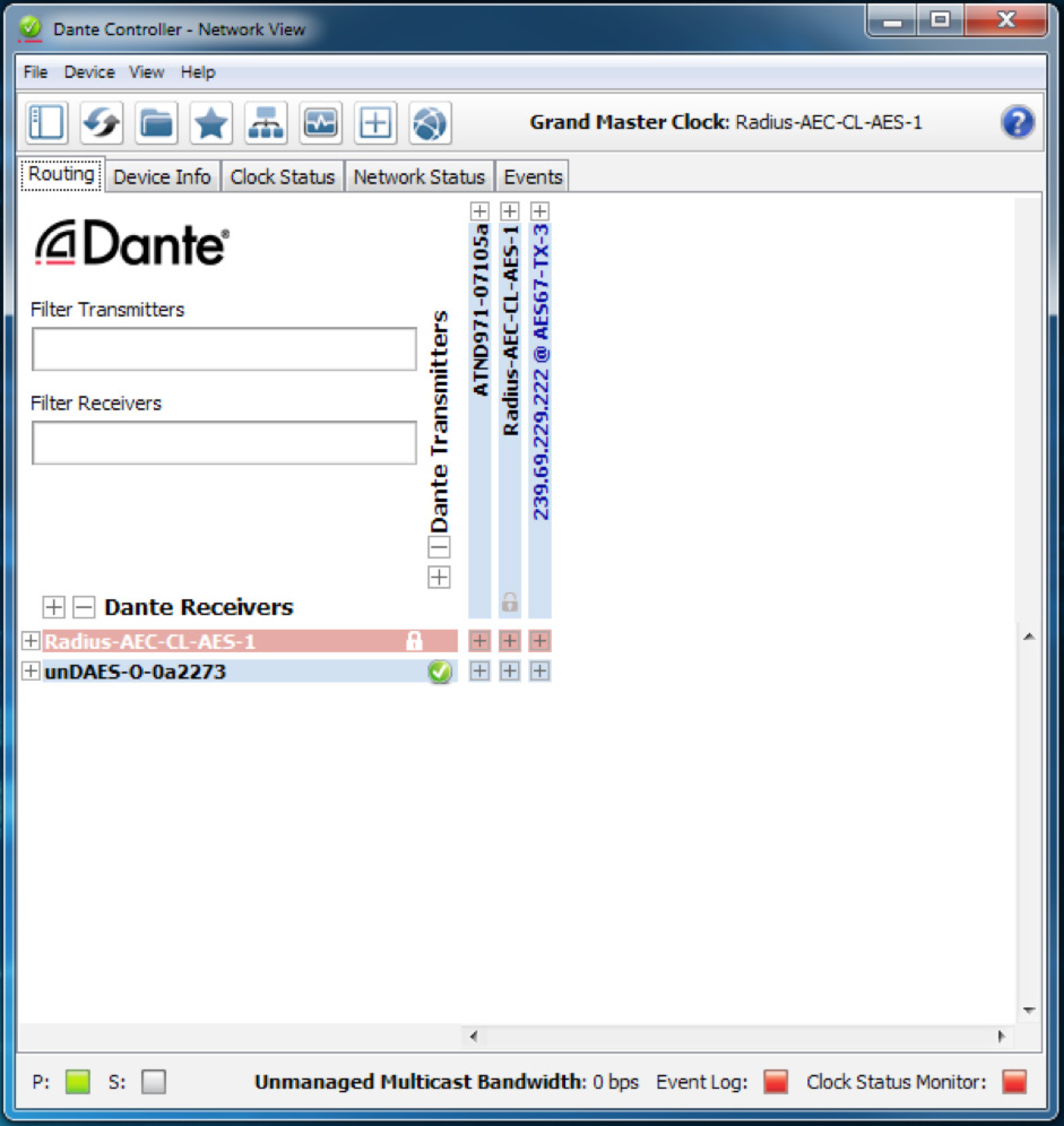
• A check in the Device Lock column in the Network View > Device Info tab.
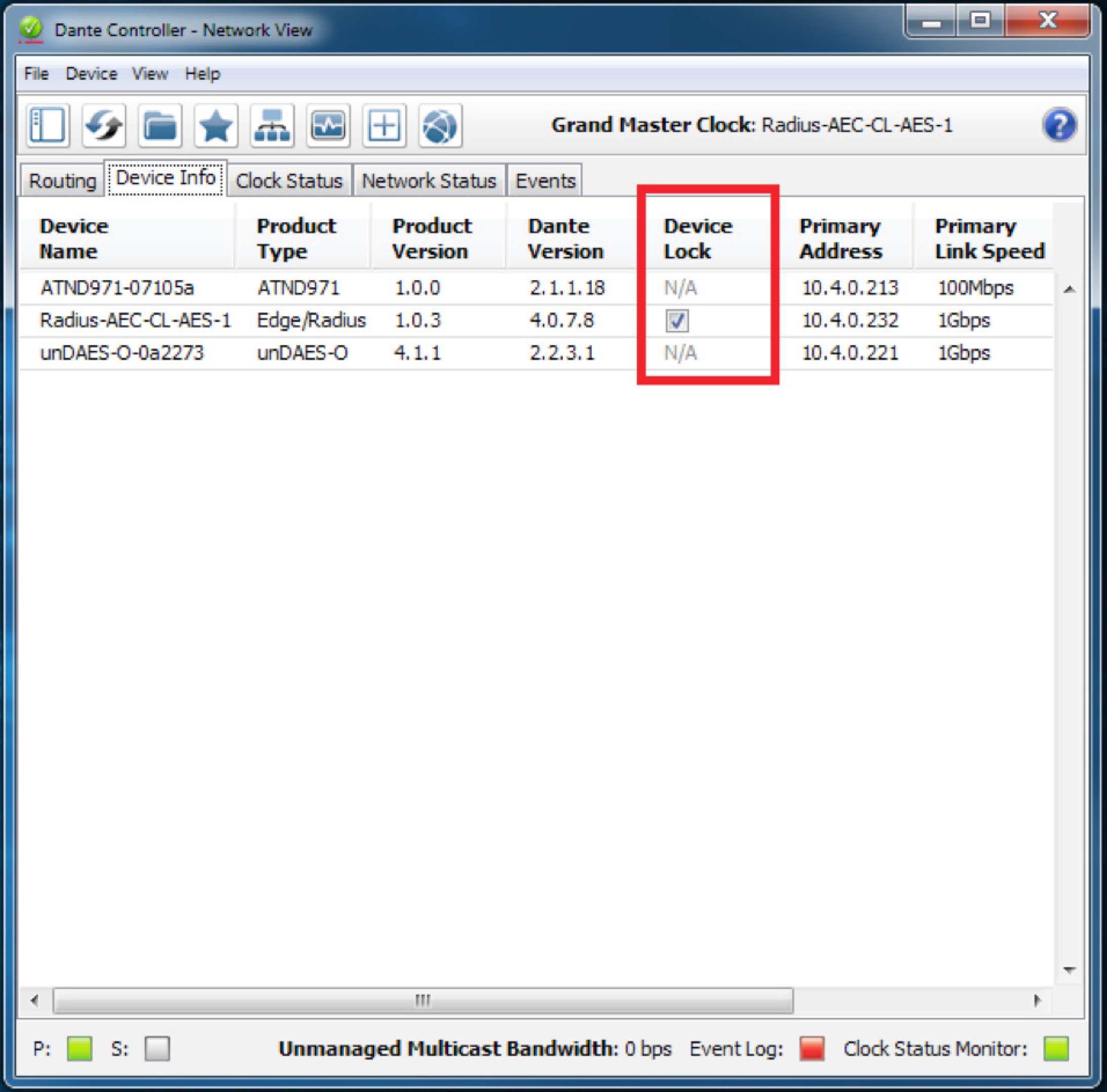
• A red lock icon in the Device View toolbar.
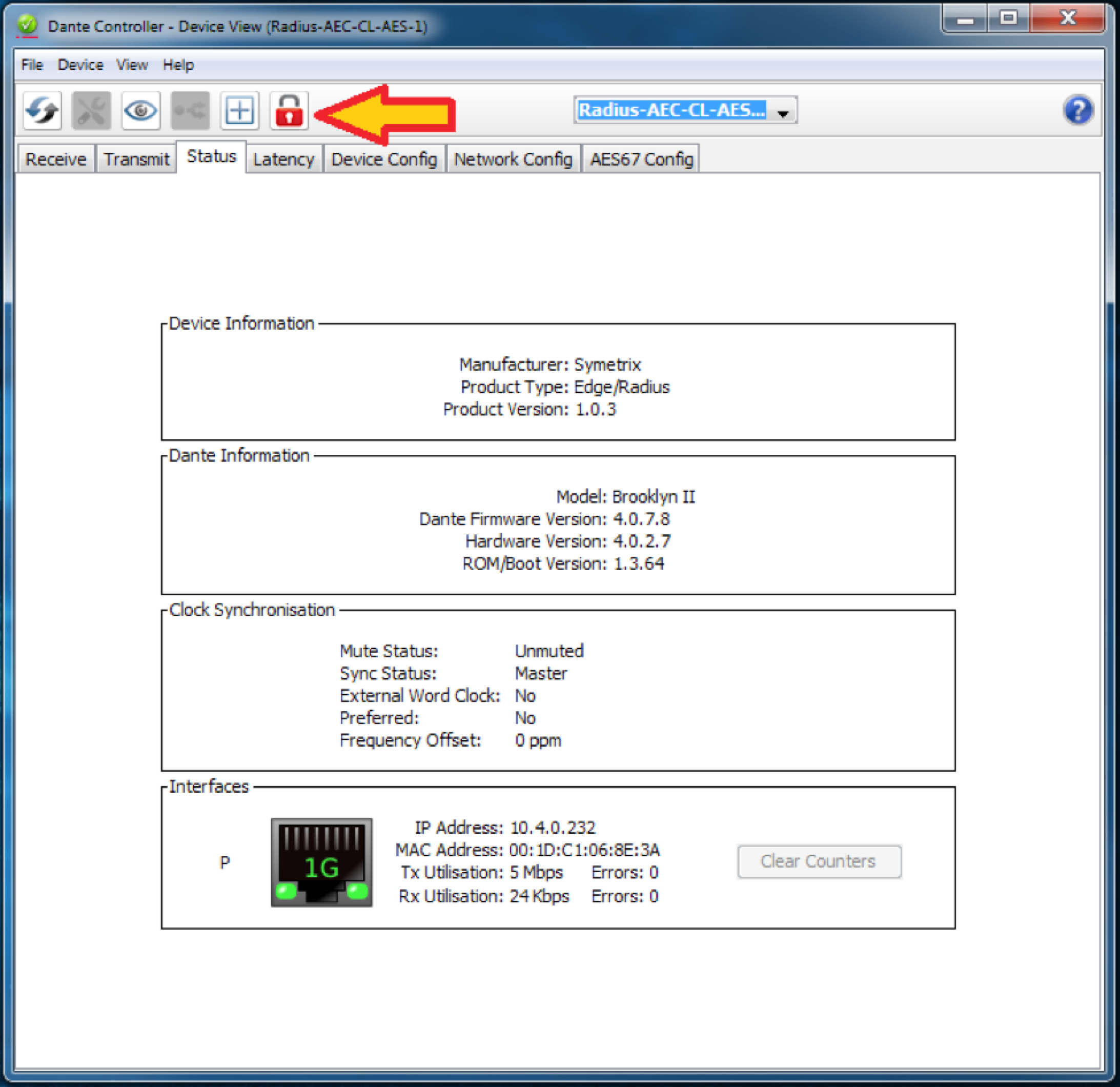
Lock Symetrix Dante-enabled Hardware
There are two different locations (Network View and Device View) to lock a Dante device in Dante Controller.
Network View
1. Open Dante Controller.
Note: Dante Controller opens to the Routing tab of the Network View page.

2. Click on the Device Info tab.
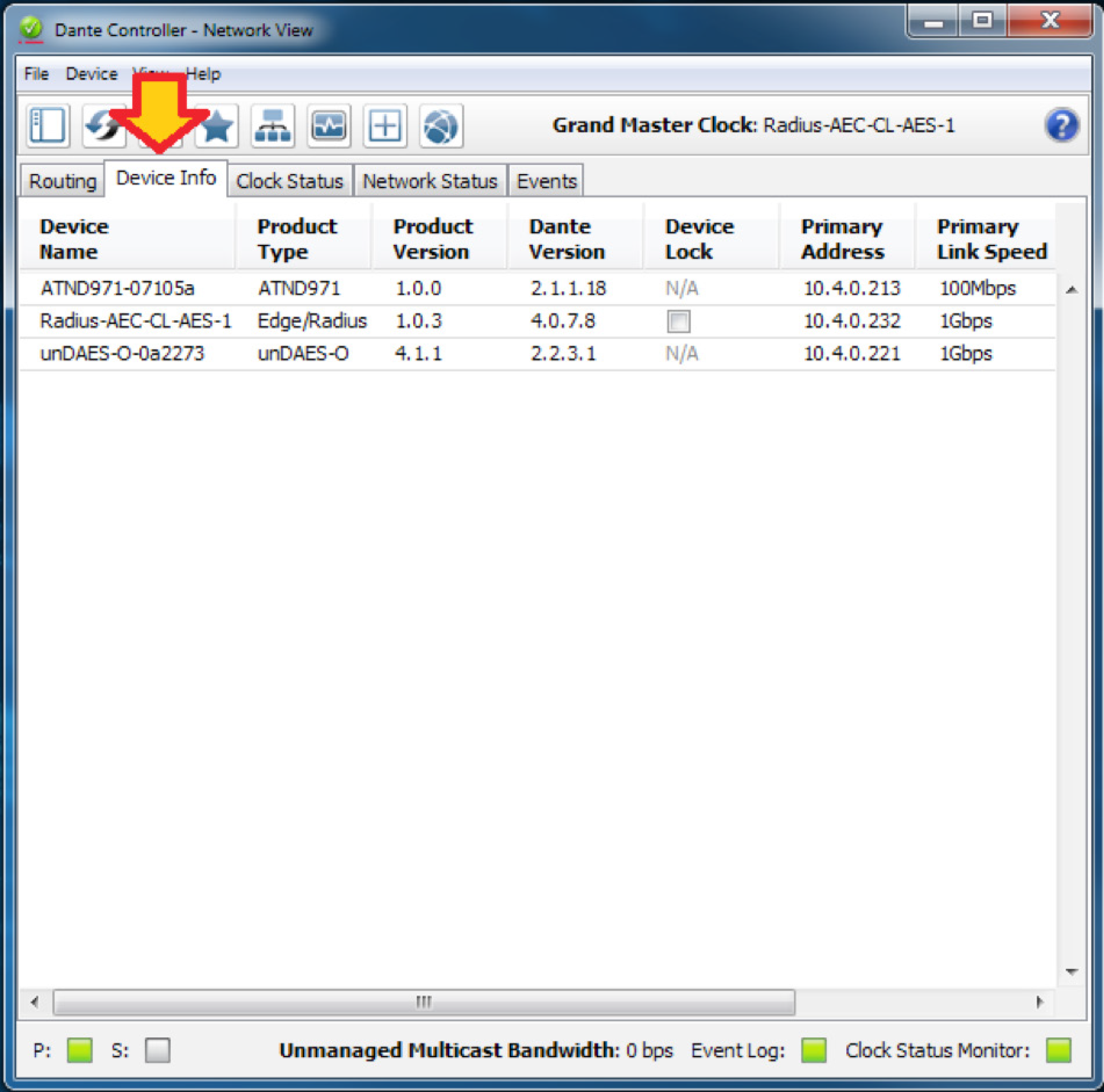
3. Click the box in the Device Lock column.
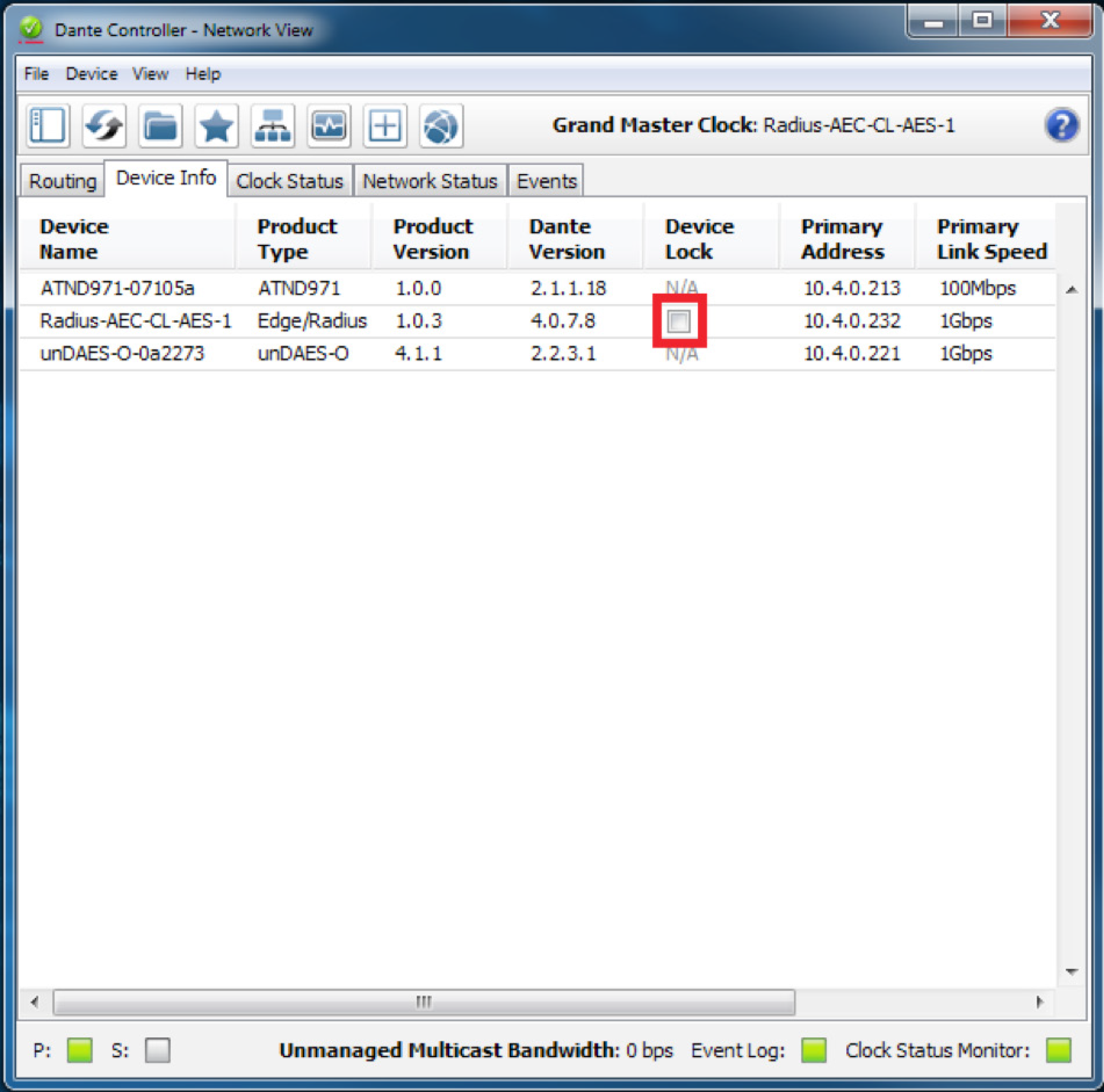
4. Enter and confirm a 4-digit PIN.
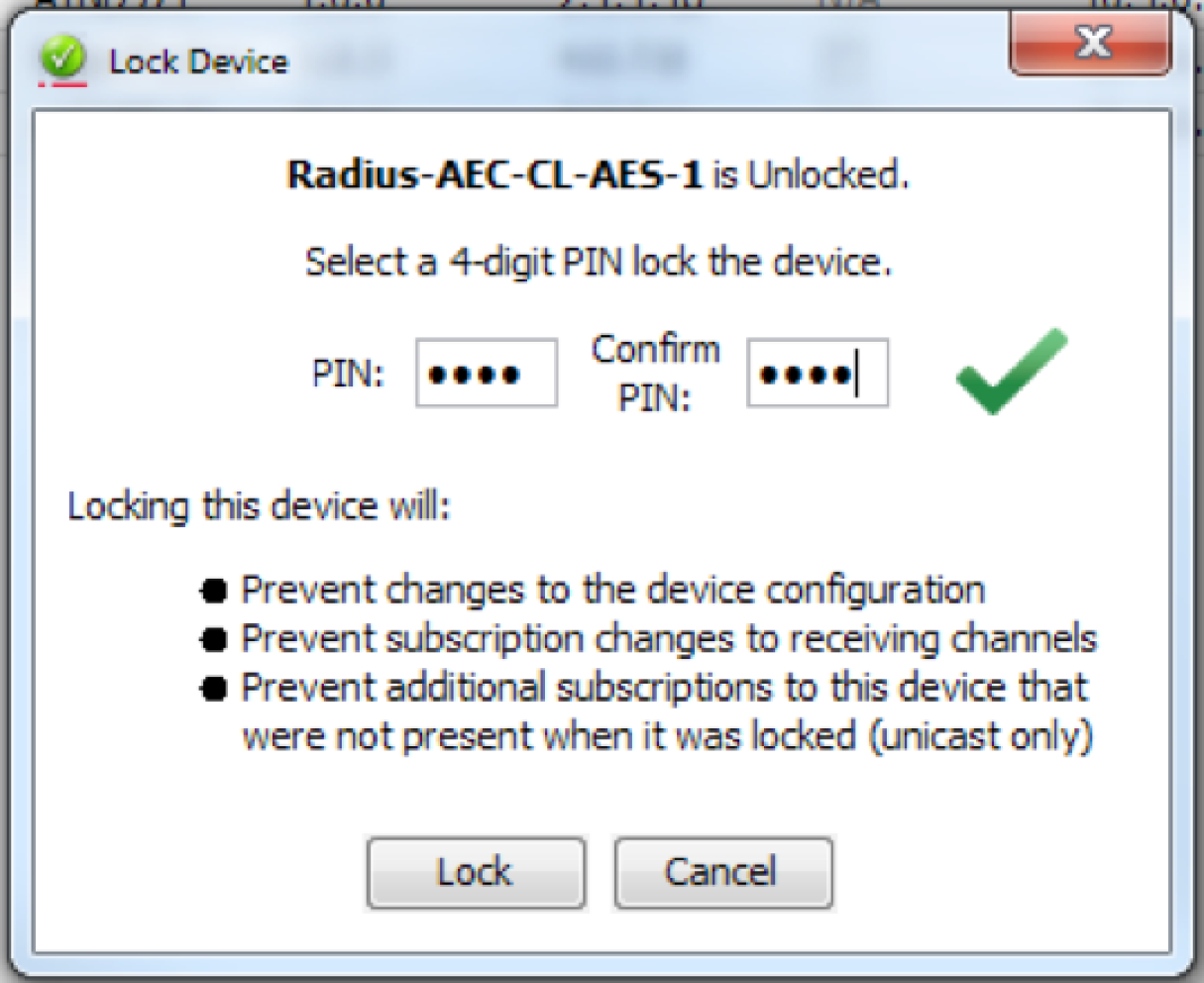
5. Click the “Lock” button. The check appears in the box to confirm the device in now locked.

Device View
1. Open Dante Controller.
Note: Dante Controller opens to the Routing tab of the Network View page.
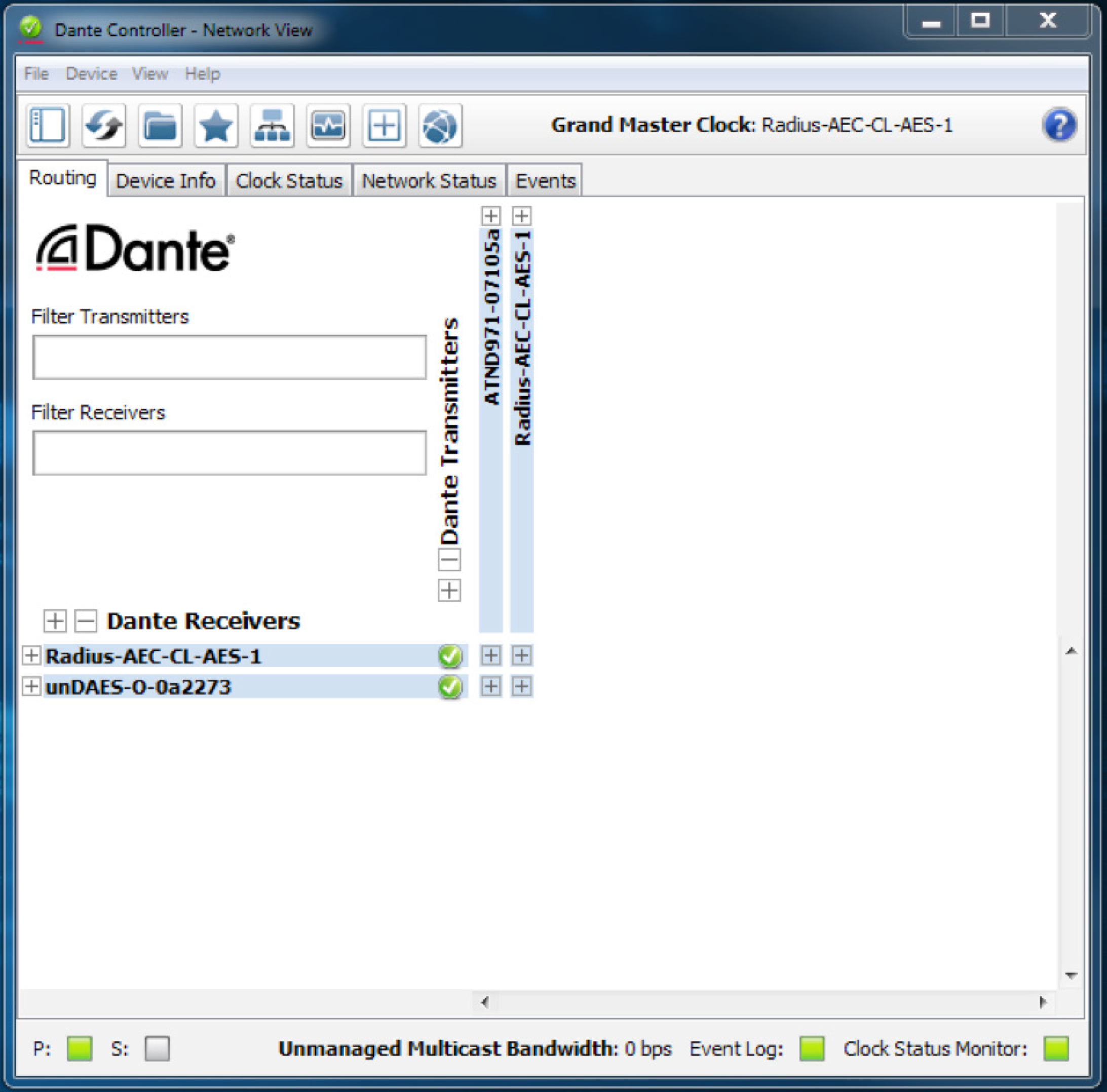
2. Double-click the device name of the device to be locked

3. Click the lock icon.
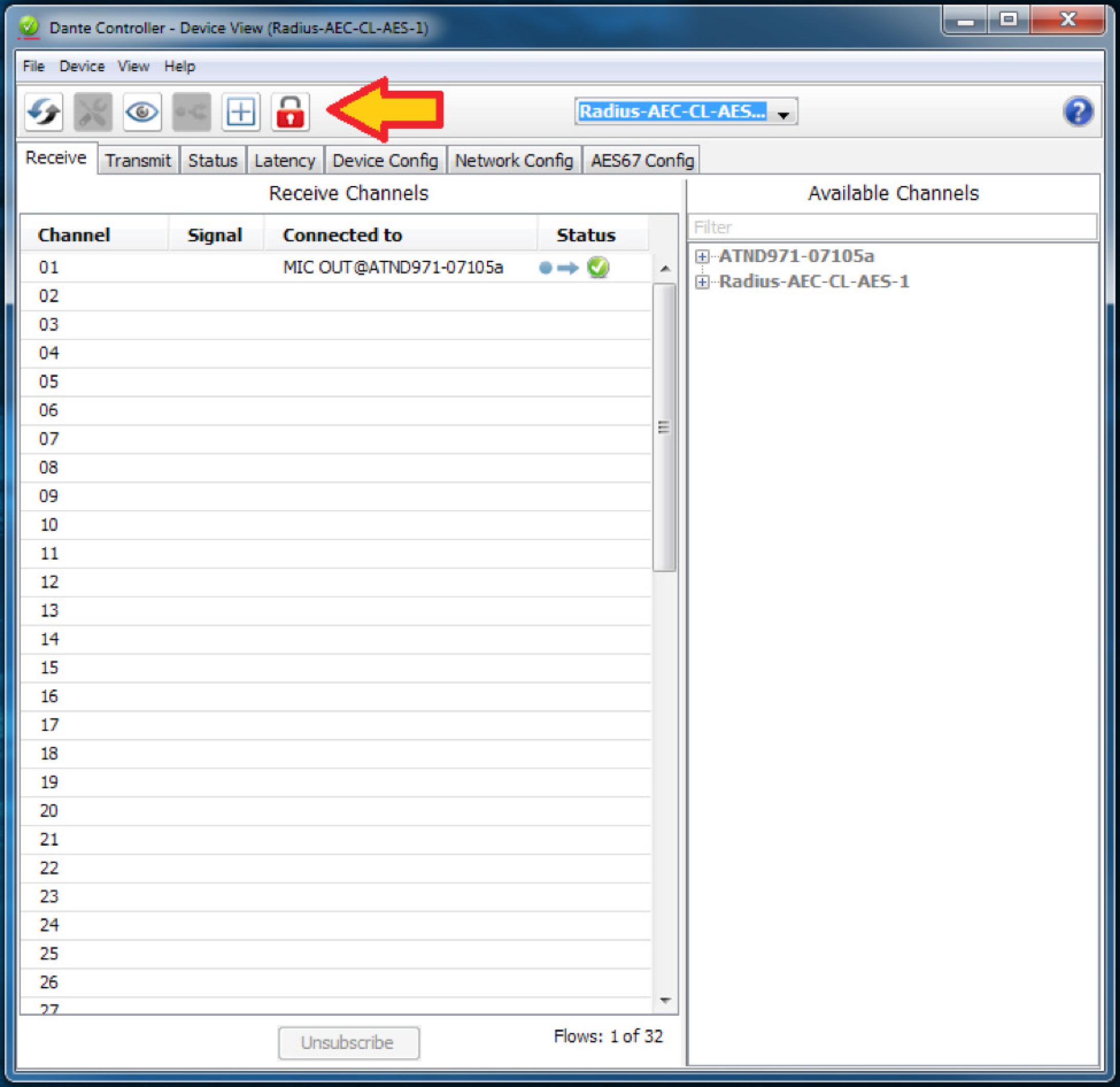
4. Enter and confirm a 4-digit PIN, then click the “Lock” button.
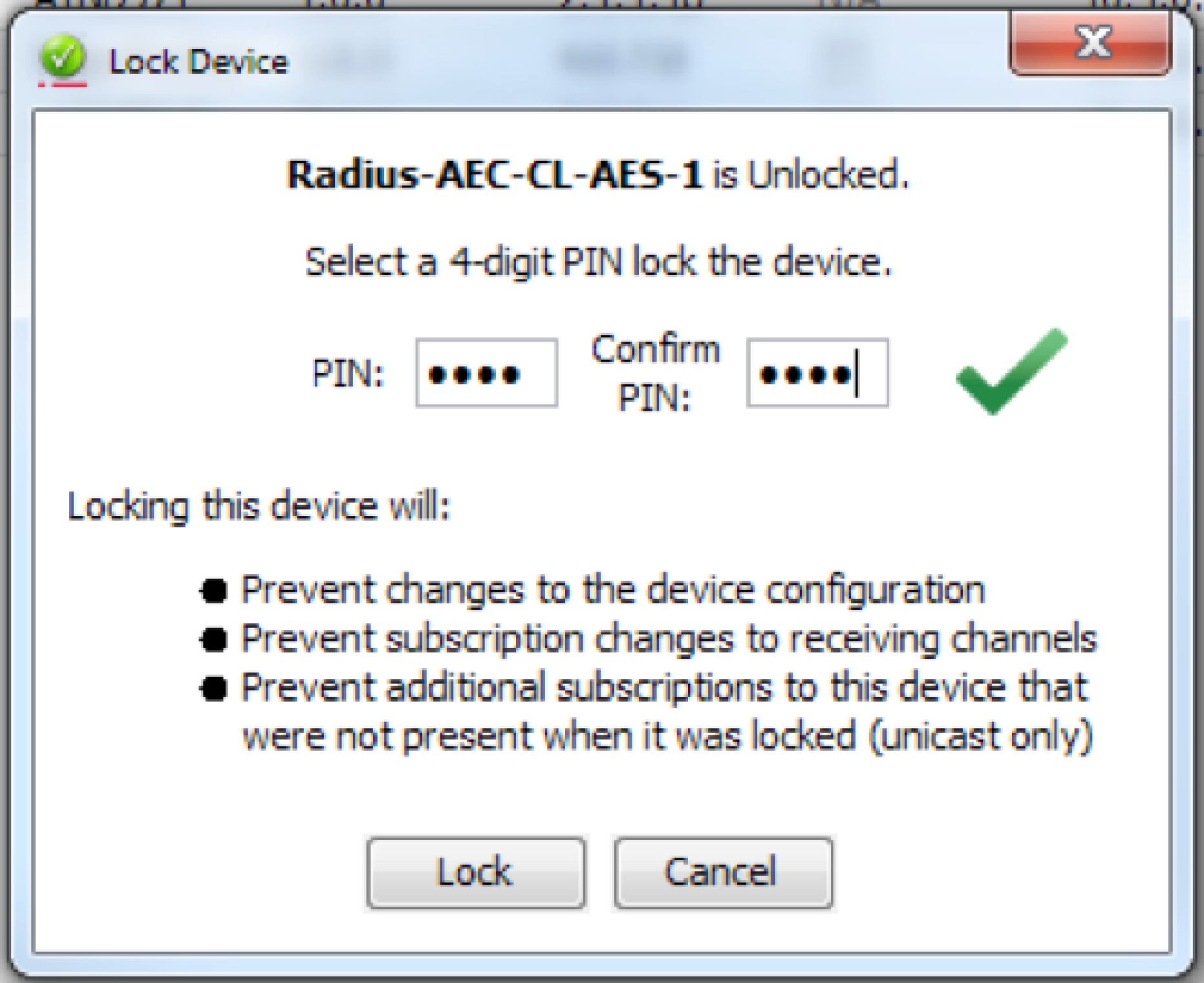
5. The lock icon will turn red to indicate the device is locked.

Unlock Symetrix Dante-enabled Hardware
There are two different locations (Network View and Device View) to unlock a device in Dante Controller.
Network View
1. Open Dante Controller.
Note: Dante Controller opens to the Routing tab of the Network View page.
2. Click on the Device Info tab.

3. Click the check box in the Device Lock column.

4. Enter the 4-digit PIN, then click the “Unlock” button.
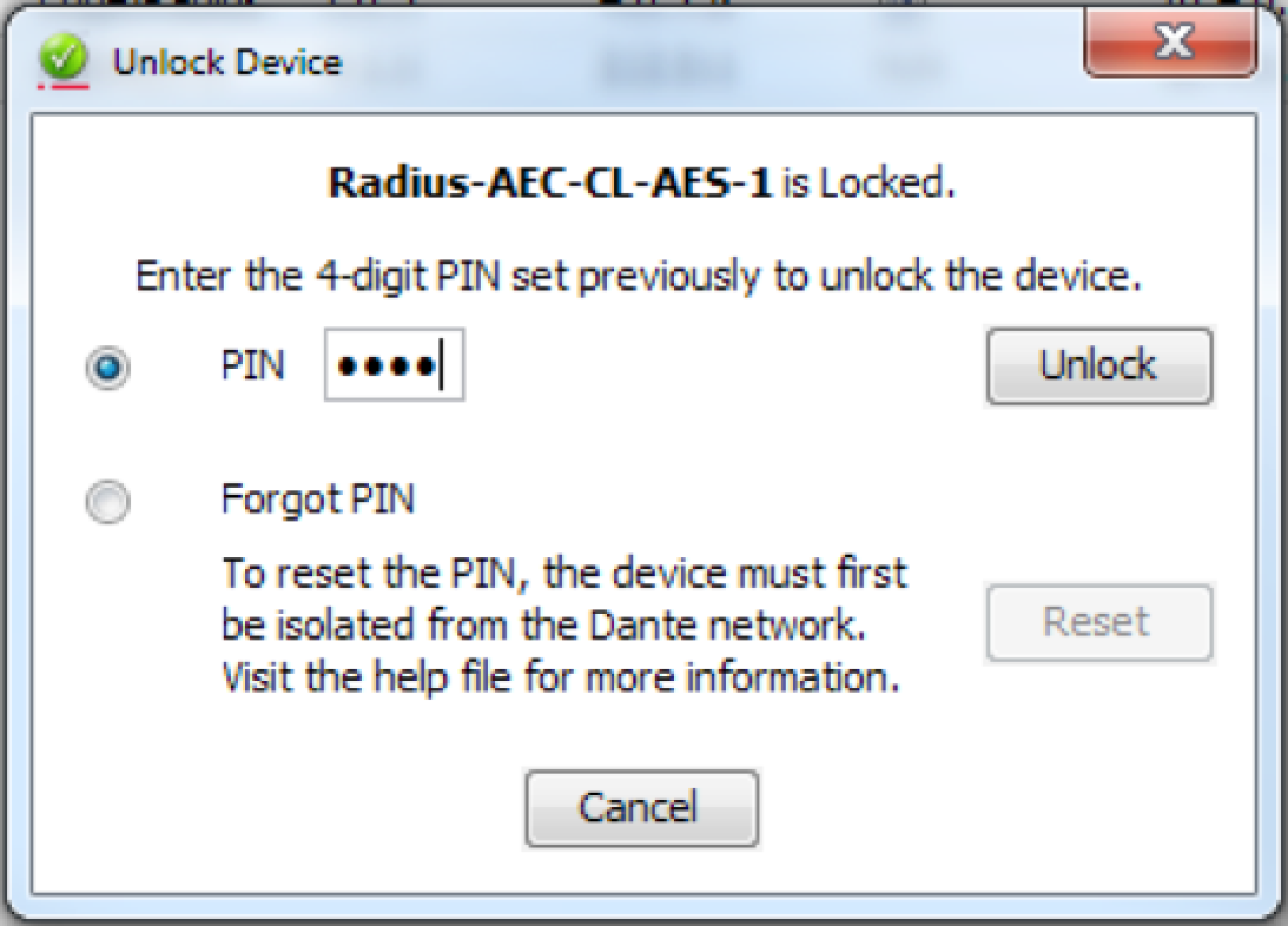
5. The check has been removed from the box to confirm the device in now unlocked.

Device View
1. Open Dante Controller.
Note: Dante Controller opens to the Routing tab of the Network View page.
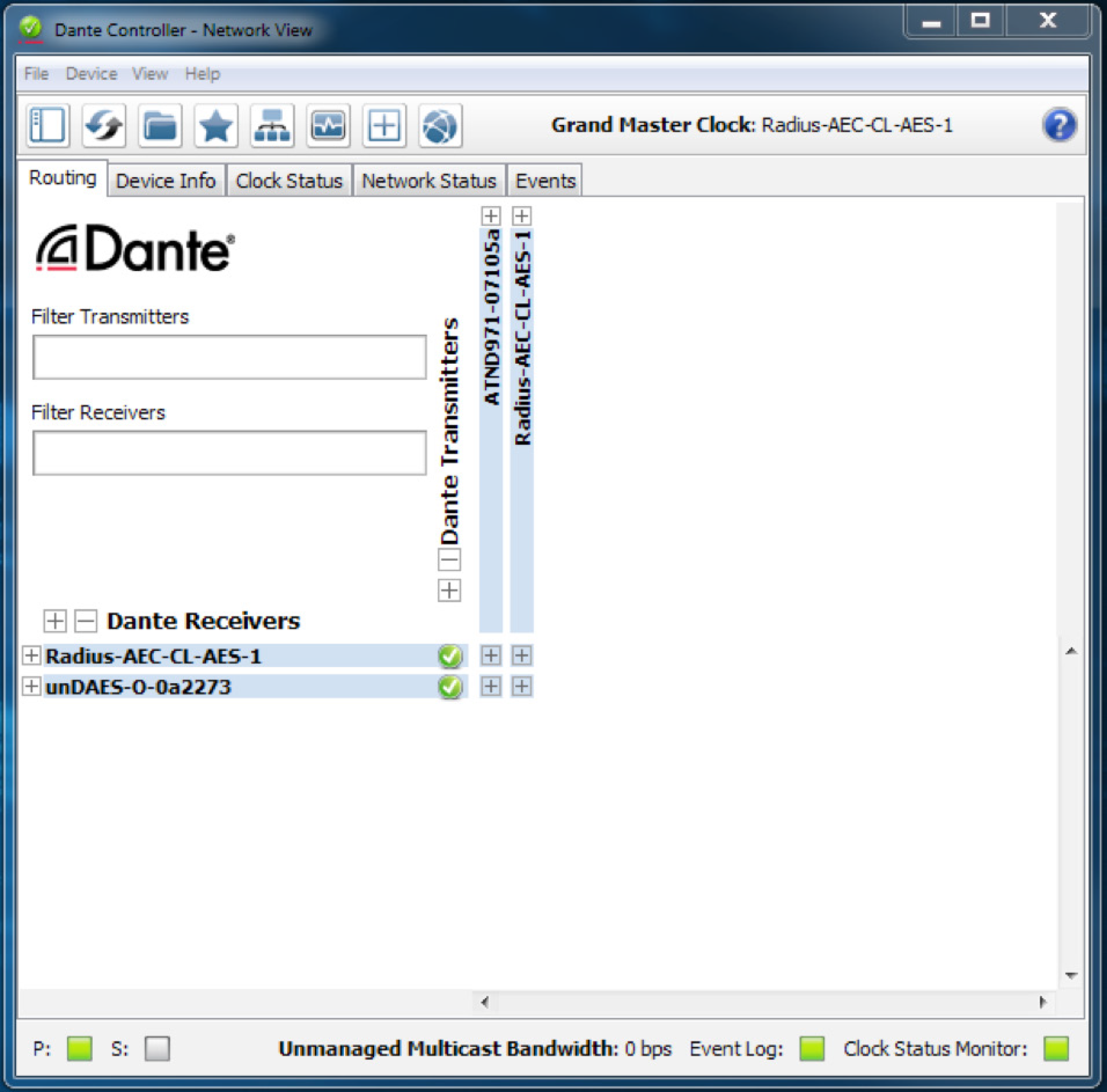
2. Double-click the device name of the device to be unlocked.
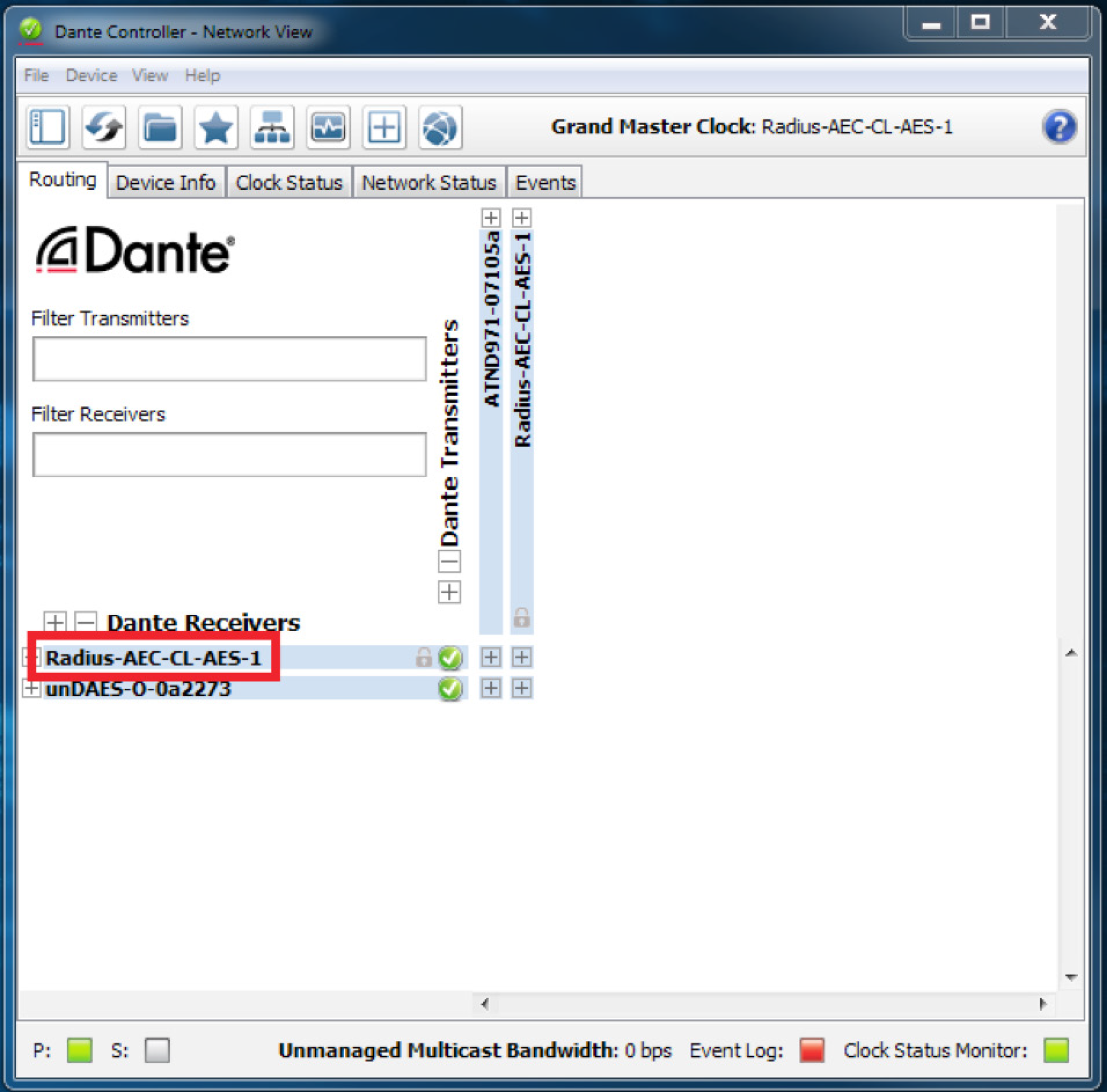
3. Click the lock icon.

4. Enter the 4-digit PIN, then click the “Unlock” button.

5. The lock icon is no longer red, indicating that the device is unlocked.
Forgot PIN
A forgotten PIN may be reset in order to access a locked device. The instructions must be followed very carefully, or the process will fail.
1. Isolate the device from the rest of the Dante network.
2. Disconnect and reconnect the device.
3. Wait for at least 2 minutes, then open the Unlock Device window.
4. Use the ‘Forgot PIN’ option in the Unlock Device window.
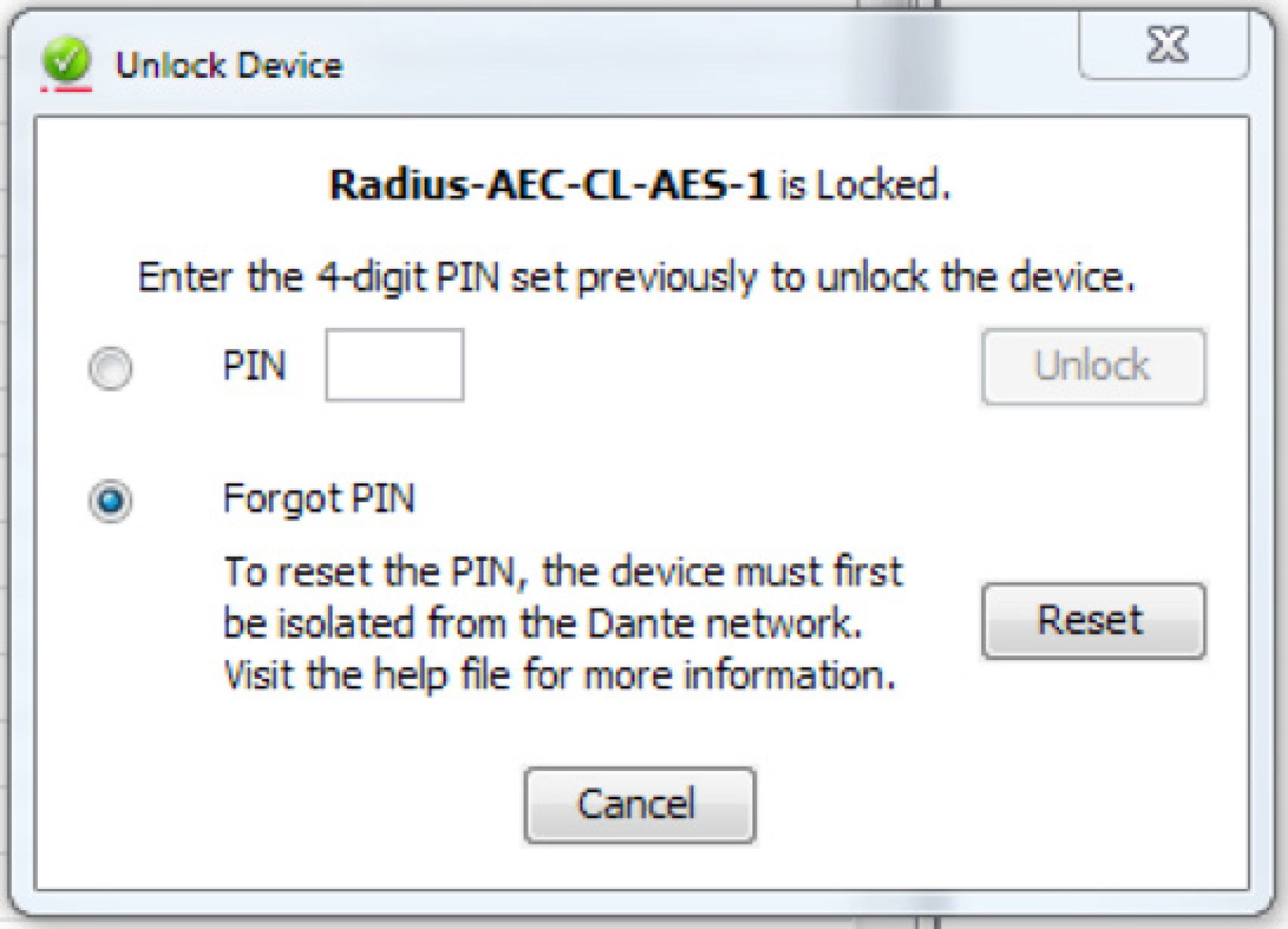
Overview
This tech tip will explain how to integrate the Visionary Solutions Duet Encoders/ Decoders into your Symetrix installation. The Visionary Solutions devices allow for moving 4K video over IP, bypassing the need for more traditional video matrix switching or video wall creation. The encoders and decoders come in two flavors: the Dante-enabled Duet devices (DuetE/D), and the non-Dante devices (E4100/D4100)
Using Symetrix DSPs along with Visionary Solutions’ Dante-enabled devices allows for total control of both the Dante audio and the video routing from one central device. For the non-Dante-enabled devices, Symetrix DSPs are able to control video source selection at the decoder, along with whatever audio is riding along with the AV Stream.
Before we go into working with controlling these devices from Composer, it is of paramount importance to look into the networking requirements and connections. In fact, it is highly recommended that you not connect any encoders or decoders to a switch until the below switch settings have been enabled.
Networking Requirements Switches Capabilities:
- Managed, with PoE (Visionary Solutions devices require full 15.4W PoE per port).
- Non-blocking.
- Minimum 1GbE bandwidth.
- Capable of IGMP (with IMGP Snooping).
- 8K or better Jumbo Packet capability.
Switch Settings:
- 2 VLANs – One for Video and Control traffic, the other for Dante traffic.
- Multicast must be allowed on all network ports through which video passes. DSP Ethernet ports will also need to be on this VLAN – multicast is not necessary on these ports.
- Flow Control must be removed on any network ports used for video streams.
- IGMP (Internet Group Membership Protocol): Video traffic from these devices is multicast, meaning it is broadcast across the network from a single device to all devices on the network – whether those devices want it or not. This can lead to wasted network bandwidth, as well as the potential for certain devices to be flooded. Enabling IGMP ensures that the multicast packets will only be received by those devices that are intentionally a part of that Group Membership.
- IGMP Snooping and Querier must be enabled (set Querier Version to V2 if possible).
- Enable IGMP Snooping Fast Leave: If your switch supports IGMP Snooping Fast Leave, turn it on. This lessens the amount of time it takes for a device to leave a multicast group and join another – thus speeding up the video switching time.
- Enable Jumbo Frames.
- Disable Energy Efficient Ethernet (Green Ethernet).
Cisco SG300 Example:
Two VLANs will need to be created – one for Video and Control traffic, and another for Dante traffic:
Tie the appropriate physical ports to each VLAN. In this case the first 5 physical ports will be assigned VLAN 2 (Video and Control), and the following 4 will be assigned to
VLAN 3 (Dante traffic).
For IGMP Snooping to function on the SG300, Bridge Multicast Filtering must be enabled:
Edit the Video+Control VLAN and enable IGMP Snooping Status, Immediate Leave, and IGMP Querier Status. Set Querier Version to V2.
Enable IGMP Snooping and Querier:
Enable Jumbo Frames:
Finally, disable Energy Efficient Ethernet (Green Ethernet):
VLAN 2: (Dante traffic):
- Multicast should be allowed to pass on all Dante network ports in order to allow
multicast clock packets to pass unimpeded. - IGMP is only needed if there is multicast Dante audio.
- Note that QoS is not needed on a Dante-only network
- Energy Efficient Ethernet (Green Ethernet) should be disabled.
Now that the switch has been configured properly, here is a basic connection
diagram, showing 2 encoders and 1 decoder, along with a Radius NX 12×8 DSP. The
Visionary Solutions devices’ PoE LAN ports connect to VLAN 1, and their Dante ports
to VLAN 2. The Radius NX 12×8’s Ethernet port is connected to VLAN 1, and one of
its Dante ports connects to VLAN 2.
A video source is connected to a Visionary Solutions Encoder with HDMI. The encoder converts this into an IP stream that is transmitted across the Video/Control VLAN to one or more Decoders. This stream is then converted back to HDMI at the decoder, and sent out to the connected display.
A note on bandwidth:
If you take a look at this table provided by Visionary Solutions, note that a resolution of 1080p60 can take up 200 Mbps of bandwidth.
So if for some reason you have a Gigabit switch that can’t do IGMP properly (or otherwise know there may be an issue with multicast bandwidth management on the network), there could be an issue with having the Ethernet control port of a Symetrix DSP on the same VLAN as the video traffic. Why? On all Symetrix DSPs (aside from Radius NX), the control port is a 10/100 port. Without adequate multicast bandwidth management in the above scenario, the control port of the DSP would be flooded by multicast data, which will cause communication issues with the DSPs. It is therefore recommended that in a situation where there is questionable bandwidth management capabilities, the Radius NX DSP should be used as the preferred solution. This is due to its built-in Gigabit control ports, which will handle much more traffic.
Visionary Solutions Web Admin:
Configuring Encoder/Decoder IP Addresses:
- Access the web interface for the encoder and decoder units. (log in with
admin/admin) - Select the Network tab.
- Set the IP.MODE to Static
- Set the IP.ADDRESS. (e.g. 192.168.1.45)
- Set the IP.NETMASK. (e.g. 255.255.255.0)
- Set the IP.GATEWAY. (e.g. 192.168.1.1)
- Click save.
Configuring the Encoder/Decoder Stream Addresses:
Visionary Solutions recommends setting the first octet to 225. Although not required, it’s helpful to set the last 3 octets to match the IP address as set above in the Network tab (e.g. 225.168.1.45).
- Access the web interface as above.
- Select the Configuration tab.
- Set STREAM.MODE to Multicast.
- For the encoder:
a. Set STREAM.ADDRESS to a multicast IP address, such as 225.168.1.45 (to match the control IP in the above example).
b. Click STREAM.ENABLE = True
c. Save - For the decoder:
a. The STREAM.HOST IP should be set to the IP of the encoder that the decoder should be receiving from.
b. The STREAM.ADDRESS should also be set to the STREAM.ADDRESS of that same encoder (as set in step 4).
Note these fields in the decoder will update while the decoder is being controlled by Symetrix Composer software. If a different encoder is selected from Composer, the Configuration tab will be updated to reflect the different encoder’s IP info.
Working with the DuetE Encoder and DuetD Decoder (Dante-enabled)
Composer Set Up:
A basic classroom design with audio being received into a Radius NX from two decoders, as well as two channels of audio being transmitted to the single decoder:
- Locate DSP: In Composer, first drag in a Dante-based DSP (e.g. Radius NX 12×8). With your PC on the same subnet as the DSP, locate the hardware by clicking the lower-left corner of the block. Select the DSP from Available Units on Network list, and click “Select Hardware Unit”. The lower-left corner will show a green checkmark when the unit is properly located.
- Drag in Encoder and Decoder modules: Now that communication has been established with a DSP, it’s possible to locate Dante devices through it. From the Third-party Dante Devices section in the Toolkit, drag in the Visionary Solutions encoders and decoders as needed. Do note that the maximum number of third-party Dante devices locatable by a single DSP is 24.
- Locate Encoders and Decoders: As in step 1, locate each encoder and decoder by clicking the square in the lower left corner of each. This will open the Locate Hardware window, which shows the available units on the network. Highlight the relevant device, and click “Select Hardware Unit”:
Click “OK” on the Sync Confirm screen:
A green check mark will appear as each unit is successfully located:
- Right-click either encoder to open the Encoder Unit Properties Window:
a. Now that the decoder is located, the Host Control Interface IP should be auto-populated. This can be verified by clicking “Verify Host IP”.
b. The Dante Audio Reception section allows the encoder to receive up to four channels of Dante audio from any source on the Dante network. These received Dante channels can be selected to transmit over the A/V stream (see step 5c below). But first, click “Edit Source” to choose the Dante source.
c. The Dante Audio Transmission section shows the four channels of Dante audio the encoder transmits onto the Dante network. These channels contain the audio from the video source that is plugged into the encoder
- Double-click either encoder to access the Encoder Settings window. This view provides:
a. Various diagnostic and networking information.
b. A video stream preview that updates approximately every second (which can be copied to a SymVue control screen for end user previewing).
c. The “Audio” selector, which determines which audio source the encoder packages up and sends over the AV Stream to the decoder. This selector can be right-clicked and set up to be remotely controlled by any control system.
d. Note that the Video Wall Wizard can be accessed here as well (this function is covered later
- To receive and process the Dante audio directly from the Encoders, double-click the DSP to enter the Design View of the DSP. Expand Network I/O Modules à Receive Modules in the Toolkit, and find the Dante Receive Buses that are tied to the Encoders. Drag those in, and place them in the site file.
- Back on Site View, right-click the decoder to open the Decoder Unit Properties window:
a. Again, now that the decoder is located, the Host Control Interface IP should be auto-populated:
b. Use the “Dante Audio Reception” section to program the decoder to receive up to four Dante audio channels, such as the two Dante transmit channels shown below . Once this is set, it is then possible to select between these Dante channels, or the audio stream coming from the encoder (see step 8a below).
c. “Dante Audio Transmission” shows the four Dante audio channels the decoder is transmitting onto the Dante network. These names can be edited.
d. The ”Video Selector” area allows for up to 64 different encoders to be set up as video sources. Highlight a channel in the Video Selector table, and click “Edit Source”. You can then either manually enter the Host IP and Stream IP of an encoder, or click “Browse Dante Network” to pick an encoder. The IP info will then auto-populate. (Note this info can also be manually entered in the Video Source Selector area in Step 8 below).
- Double-click the decoder to open the Decoder Settings window. This view also provides various networking info and diagnostic information for the decoder, as well as:
a. A/V Settings:
i. The Host IP and Stream IP fields show the encoder from which the decoder is currently receiving video. This info can be manually filled in, but it is recommended to instead enter the info into the Video Selector area as mentioned in Step 7. The Host IP and Stream IP fields under A/V Settings will then update automatically based on the video source selected in the Video Source Selector.
ii. The “Audio” selector is used to select which audio source is played out of the decoder’s HDMI output. Choose “stream” to select the audio coming across from the selected encoder. Choose “Dante” to select the Dante audio the decoder has been programmed to receive in the decoder’s Unit Properties (Step 7b).
b. Video Source Selector:
i. The Video Source Selector allows the user to choose which of the available encoder streams gets picked up by the decoder. It is also possible to copy the Video Source Selector buttons to a SymVue control screen, for end-user control of video source selection. A single control number may also be assigned to the horizontal source selector fader for ARC or third-party control.
ii. The video stream preview window updates approximately every second, and can be copied to a SymVue control screen for end-user viewing.
Creating a Video Wall:
The Video Wall Wizard can be used to lay out multiple decoders into an array of up to 4×4 decoders. There is a max of 64 possible video wall configurations, with up to 64 presets created for each.
- Access the Video Wall Wizard from either a located encoder or decoder’s Settings window, or by going to the Tools menu in Composer and clicking “Wall Wizard (VSI Video)”.
- Create a new video wall by clicking the Add button. Specify the name of the configuration, as well as the number of rows/columns according to the number of decoders you’d like to have as part of the video wall. Click OK.
- The array of decoders will now appear in the center of the screen. Click on an
Unassigned Decoder, and select the “Assign Decoder” button. This will open the
Select Video Decoder window – click “Browse Dante Network” to select one of
the decoders from the Dante network. Do the same for the remaining decoders.
- To control which source is currently playing on the wall of decoders, it is
necessary to create a preset for each encoder source. Click “Add…” to open the
Add Video Wall Preset window. Select the Preset number, then click “Browse
Dante Network” to open the Locate Hardware window.
5. Locate the encoder on the Dante network, then click “Sync to Hardware”
The Host IP and Stream IP should now be automatically populated for you. Click “OK”, then repeat the process for additional encoder sources.
- Presets can be triggered and previewed from within the Video Wall Wizard by clicking “Test”. To view a preview of the selected encoder source, be sure “Show Thumbnails” is checked. Also be aware that each decoder in the array will still show the full-picture from the encoder chosen as the source…in reality, Visionary Solutions will indeed break up the single encoder’s source evenly across the
multiple decoders. These presets are simply part of the 1000 presets available in Composer,
meaning they can be triggered by ARCs, the T-5, and any other controller
Working with the E4100 Encoder and D4100 Decoder (Non-Dante)
Despite the E4100 and D4100 units not having Dante capability, Symetrix is still able to control certain aspects of these devices – namely source select for each decoder, as well as the creation of video walls. Both options are controllable via the Wall Wizard option in the Tools menu of Composer. But first – a small bit about switch settings. Switch Requirements and Settings:
The same switch requirements and settings mentioned above apply. Do note that the second Dante-only VLAN is only necessary if there are other devices utilizing Dante audio. Otherwise, if the install doesn’t require Dante, a single VLAN that has the video and control on it will suffice. Visionary Solutions Web Admin: Follow the same steps as above for the Dante-enabled units. Make note of the Host IPs of all encoders and decoders that will be part of this set up. These will need to be manually entered in the next couple of steps. Composer Setup – Creating Source Selection for Single Decoders:
- To set up source select for a single D4100 Decoder, first drag any Composer-based DSP into the Site View. Then click the Tools menu and select “Wall Wizard
(VSI Video)”.
- Click the “Add” button create a new Video Wall. As this is a single decoder, be sure to make it a 1×1 video wall. Give the video wall a specific name (e.g. the location of the encoder). Hit OK.
- With the new video wall selected on the left, click on “Assign Decoder…”. Manually enter the Host IP of this specific decoder from the Web Admin. Click OK.
- Now to set up source select! We will need to create a unique preset for each encoder that will be available to this decoder. First click the “Add…” button, and choose a unique preset (one that is un-used in the site file). Then manually enter the Host IP and Stream IP from the encoder’s Web Admin. Click OK. Repeat this step for additional encoders, making sure to choose a unique preset for each new encoder.
- As with the Dante-enabled units, Presets can be triggered and previewed fromwithin the Video Wall Wizard. Click the “Show Thumbnails” checkbox to preview, then highlight a preset and click the “Test” button to see that encoder route to the decoder.
Again, these presets are part of the 1000 presets available in Composer, and can be triggered by type of remote control.
- Once all presets have been created and tested for one decoder, either add a new decoder by starting over at step 2, or click OK in the lower right to exit the Wall Wizard.
Composer Setup – Creating Source Selection for a Video Wall:
Creating a Video Wall build with non-Dante decoders is, for the most part, the same as the processes we’ve seen above.
- First open the Video Wall Wizard from the Tools menu. Click the “Add…” button
in the lower left of the Video Wall Wizard. Create a name for the video wall, and
select the desired size. Click OK.
- Highlight one of the Unassigned decoders, and click “Assign Decoder…”. Manually type in the Host IP of the decoder from the unit’s Web Admin, then click OK.
Repeat for the rest of the Unassigned decoders.
- Now to set up the source select. As before, you will need to create a unique preset for each encoder that will be available to this video wall. First click the “Add…” button, and choose a unique preset (one that is un-used in the site file). Then manually enter the Host IP and Stream IP from the encoder’s Web Admin. Click OK.
Repeat this step for additional encoders, making sure to choose a unique preset for each new encoder.
- As with the Dante-enabled units, Presets can be triggered and previewed from within the Video Wall Wizard. Click the “Show Thumbnails” checkbox to preview, then highlight a preset and click the “Test” button to see that encoder route to the decoder.
Again, these presets are part of the 1000 presets available in Composer, and can be triggered by type of remote control.
Additional Features for non-Dante Encoders/Decoders:
As you now know, with the Dante versions, there are modules with built-in GUI elements to work with in Site View. This makes it very easy to simply copy over the Decoder’s source select buttons, and the encoder/decoder video stream preview windows to a SymVue control screen. With the non-Dante versions it is still possible to get these controls over on SymVue control screens. But first, let’s build a convenient way to open the Web Admin of each Visionary Solutions device from within Composer.
Adding Command Buttons to Access Web Admin:
- From the Toolkit, drag in a Command Button. This will open up the Command
Button Properties window. - Enter a Label – this will be the name that shows up on the button, so be specific,
e.g. Encoder 1. - Select the Web Page option.
- Type in the Host IP of the encoder or decoder.
- Hit OK.
The Command Button will now be in your site file. Simply double-click the button to launch the Web Admin in your default browser.
Repeat this process for each encoder or decoder you want to access the settings of. Note, this is best used only within Composer to assist with system integration – you probably won’t want to give the end-user access to these settings
Adding Video Stream Previews to SymVue:
- To add a video stream preview window to a SymVue control screen, first navigate
to the “Device” page of the Web Admin. Click the “Monitor Button” to show the
preview image. This image updates every second with a frame showing the video
currently playing on the device.
2. Right-click the preview image and select “Copy Image Location”.
- Back in Composer, create (or open) a control screen. From the Toolkit, hold down the Control key on your keyboard while clicking on “Picture” and dragging it into your control screen. Holding the Control key creates a different sort of image than the typical – this type can be linked to a web URL.
At this point, the new image you’ve dragged in should say “Offline”.
- Double-click the image to open the Properties tab. In the URL field, paste in the Image Location you copied back in step 2. Hit Enter and the image should now update to show the preview. Also note that you can manually enter the Host IP address of the Visionary Solutions device appended with “/thumb.jpg” as well. (E.g. 192.168.1.121/thumb.jpg)
5. Repeat the process for more encoders and decoders as necessary:
Adding Video Source Select controls to SymVue:
By following one of the two “Creating Source Selection” processes above, you should have some presets created that will handle the source selection for either single decoders or video walls. In order to trigger these presets from a SymVue screen it’s a matter of using Preset Recall Buttons. In fact, we can take these preset recall buttons, make them invisible, and layer them on top of the encoder video stream preview – that way the end-user can simply press the video source they want to see, and it will trigger the preset to show that source on the decoder.
- Make sure there are some presets created for source select as done in the above steps:
- Open the Control Screen in Composer. From the Toolkit, expand the “Preset Recall Button” option, then drag the preset buttons into the control screen. Place each preset button on top of its corresponding video stream preview.
- Control-click both Preset Trigger Buttons so they’re both highlighted in red. Resize them to completely cover the video stream previews by holding the Shift key and using the arrow keys on your keyboard. Alternatively, highlight both, and manually enter the Width and Height in the Properties sheet.
- Again highlighting both buttons, change “Use Name of Preset” to “False” in the Properties sheet. This will remove the text from the Preset Recall Buttons
- Finally, change the “Transparent” field in the Properties sheet to “True”. This will make the Preset Recall Buttons 100% transparent so the video stream preview can be seen below the button. However the button is still active on the top layer, therefore if the end-user touches the preview, the preset will be triggered and the video source will change.
An exciting feature of Composer is the native support of both Shure and Audio-Technica Dante-enabled microphones. One new tool we have created here at Symetrix is a new super-module called the Button Processor.
This tool makes it extremely easy to integrate these microphone’s push-to-talk switches into your DSP. Four different modes are available per mic switch; Push to talk, Push to Mute, Toggle, and Disabled. This super-module can also be used with standard momentary (non-latching) analog switches as well. 1-button, 4-button and 8-button versions are included in Composer 3.0’s super-module library.
Begin by importing a 1-Button Processor super-module into the design:
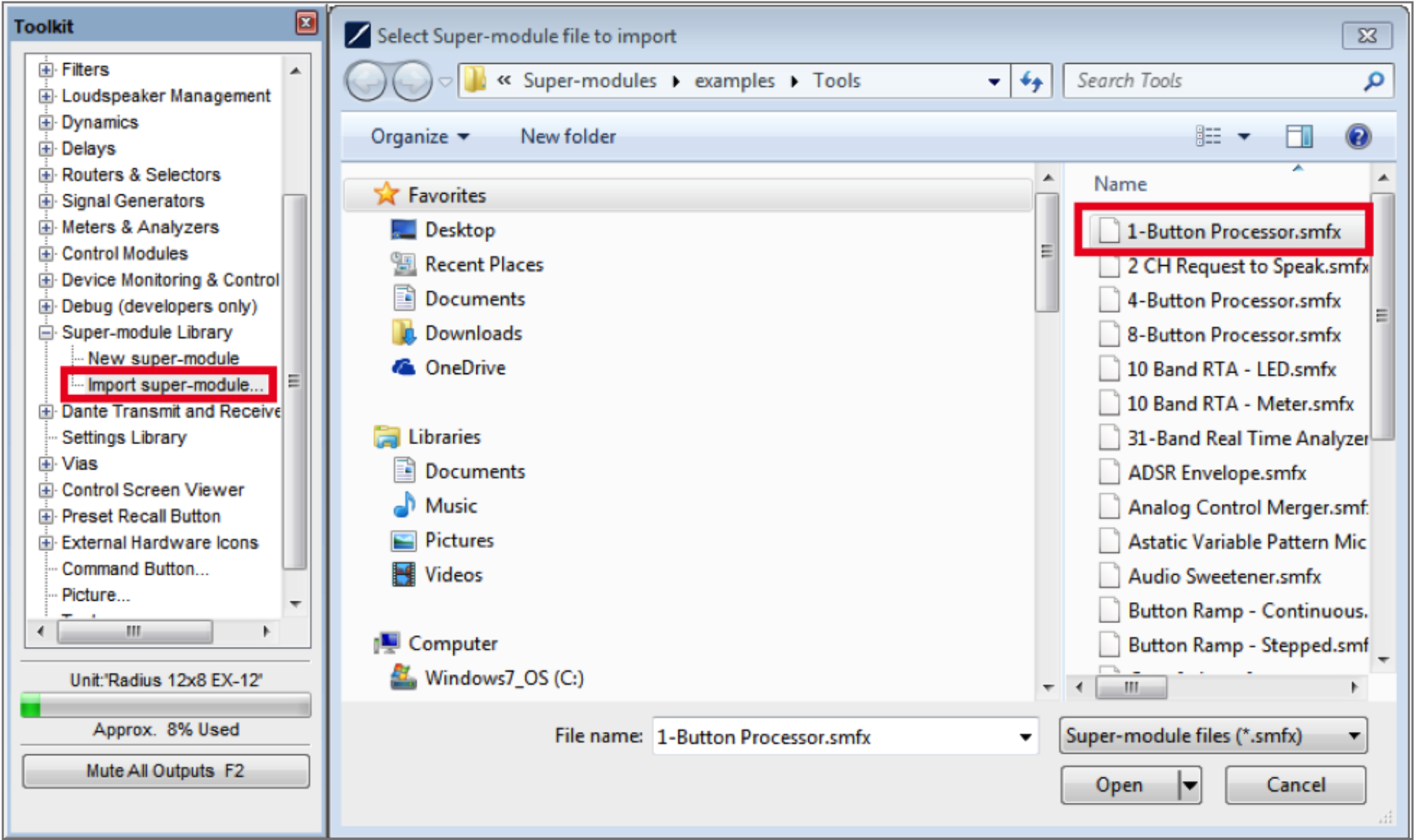
Dante-enabled Audio-Technica and Shure Mics:
The process for both Audio-Technica and Shure microphones is the same unless otherwise noted.
1 Drag in a 1-Button Momentary module from the toolkit, and wire to the
“Button 1” input on the super-module.
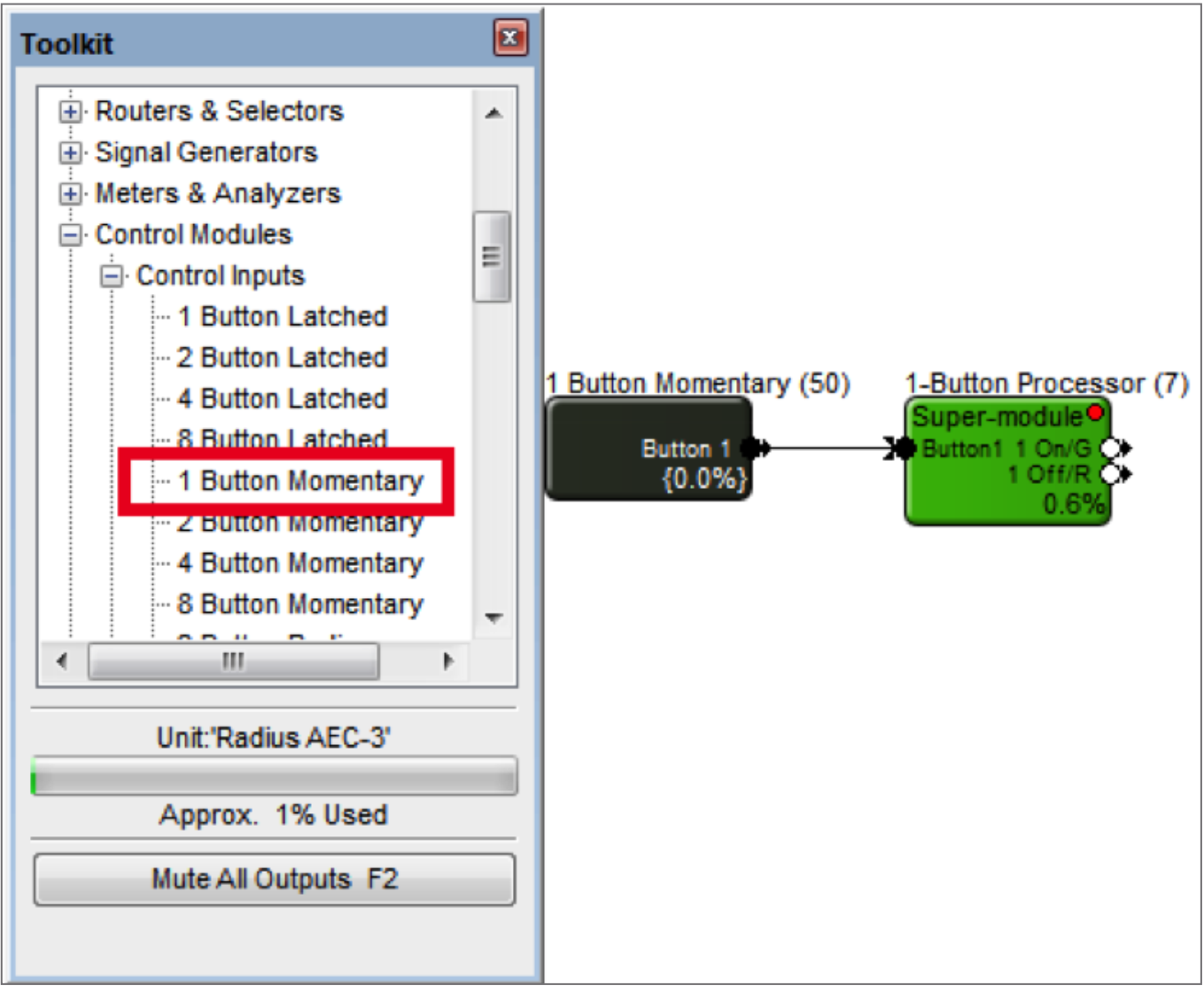
2. Double-click the 1-Button Momentary module to bring up its GUI. Right click
directly on the “On” button, then click “Set Up to Remote Control” and select the relevant Audio-Technica or Shure device from the “Remote Control Device” dropdown menu.
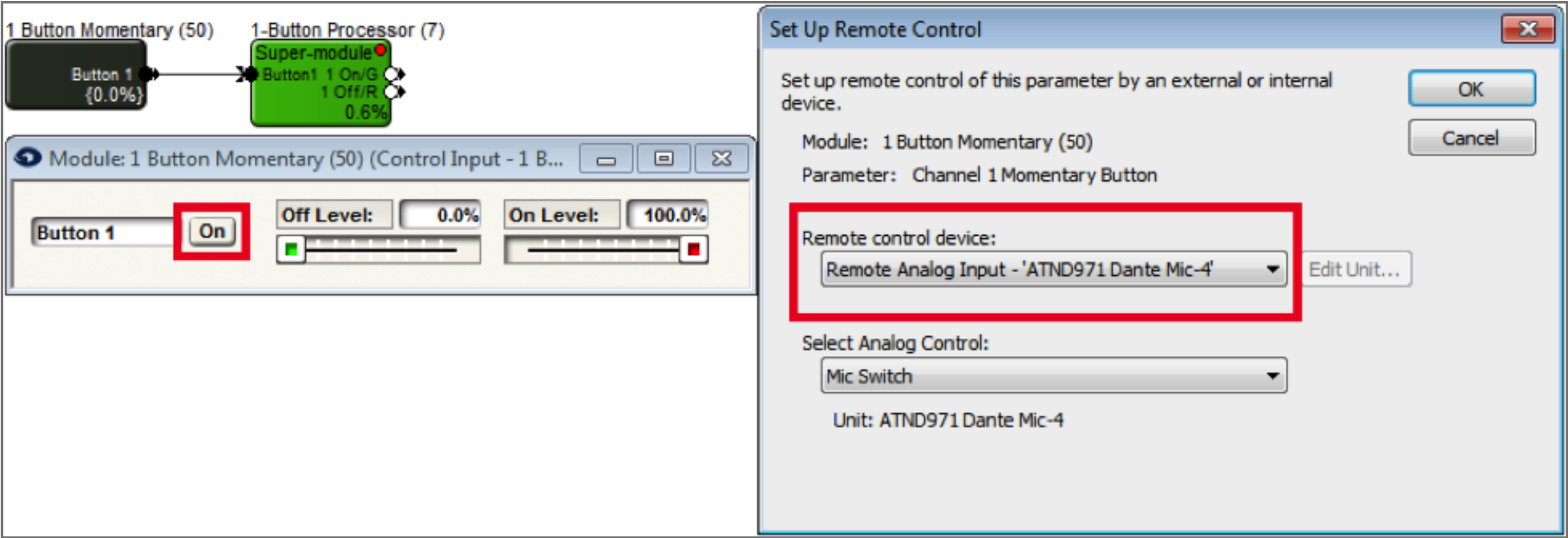
3. From Control Modules->Control Outputs, drag in a “Remote Logic Output” module. In the Remote Logic Output Properties window, choose the Audio-Technica or Shure device, as well as the Green LED option.
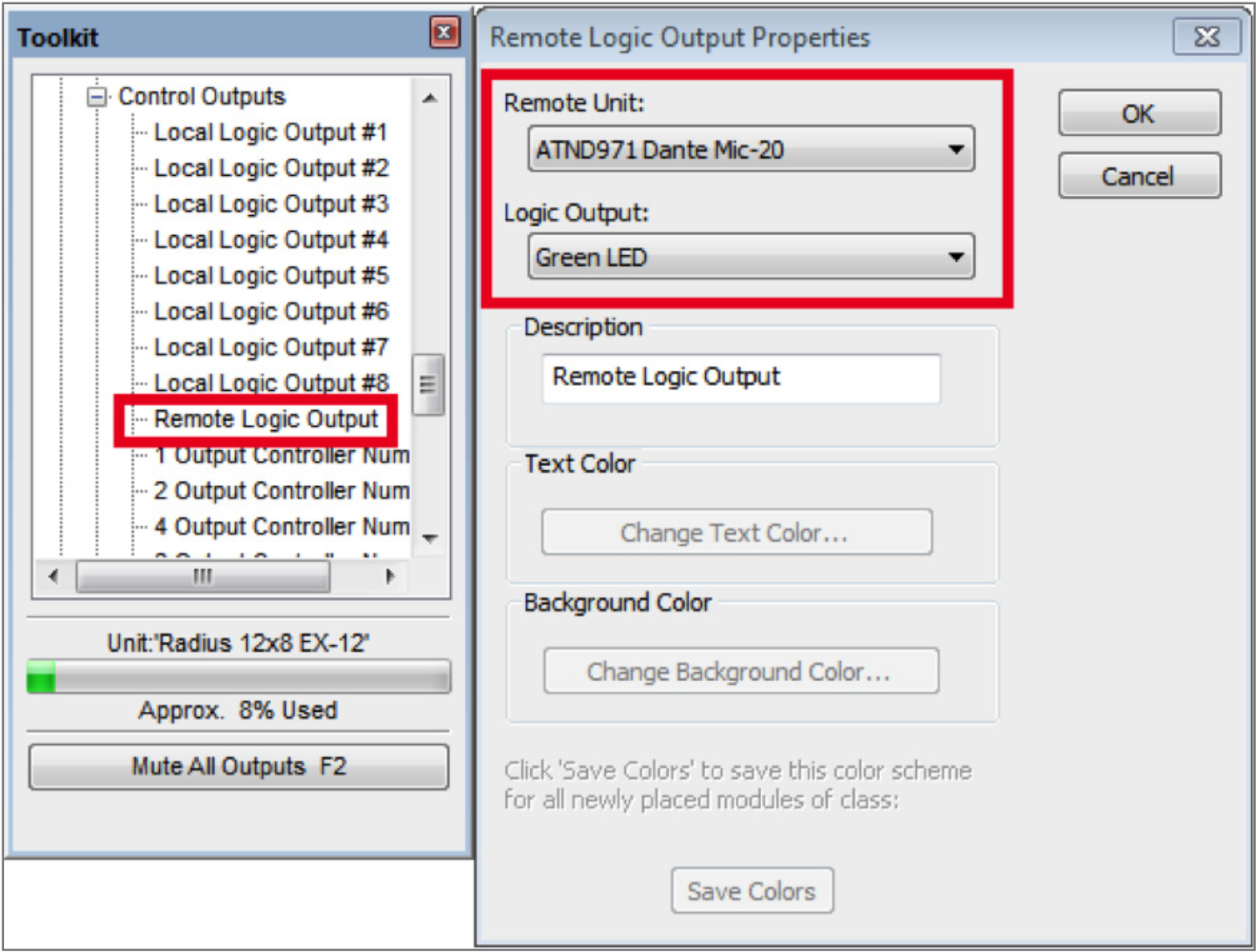
4. Wire the super-module output labeled “1 On/G” to the input of the Remote Logic Output from step

5. From Control Modules->Control Outputs, drag in a second “Remote Logic Output” module. In the Remote Logic Output Properties window, choose the Audio-Technica or Shure device, and the Red LED option.
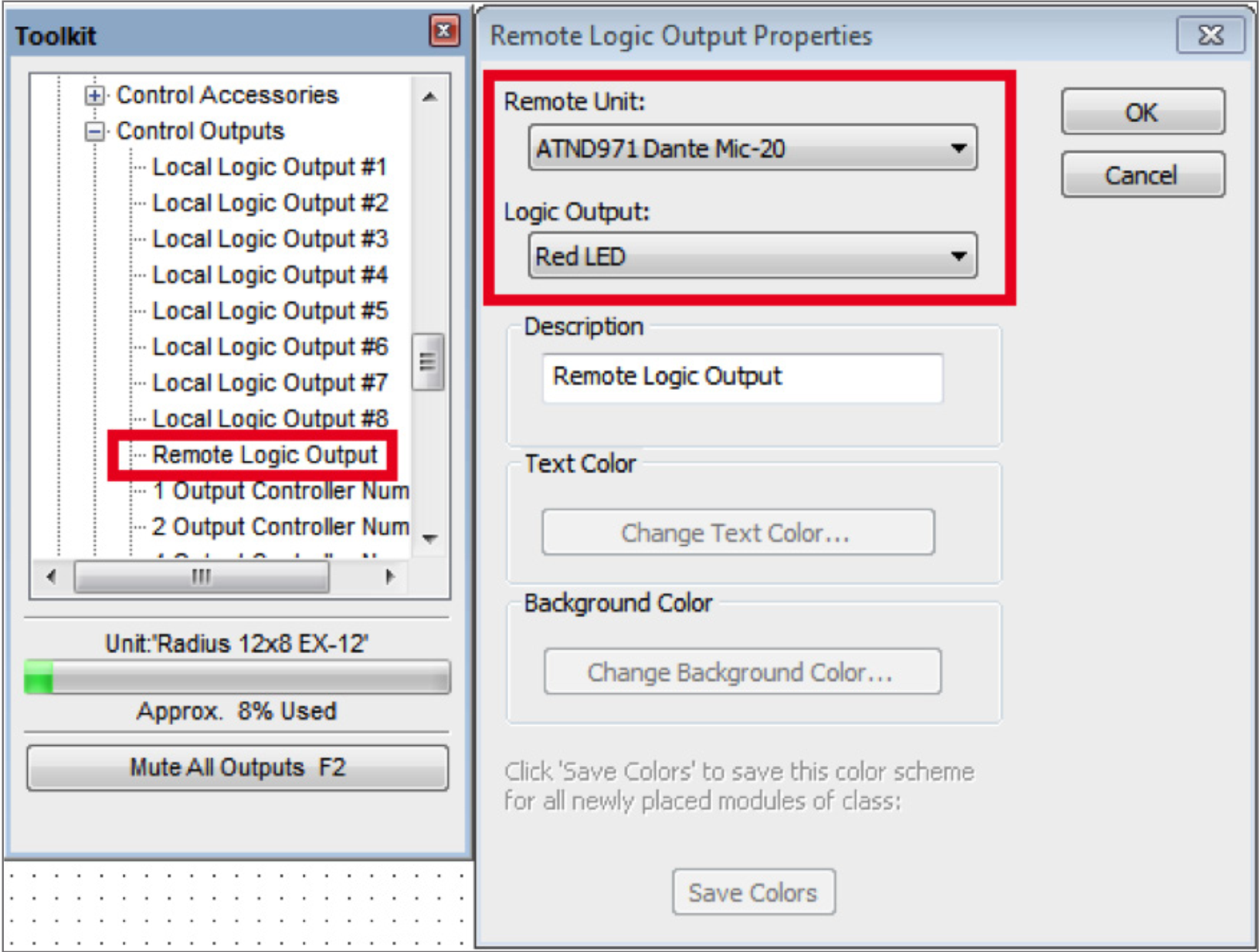
6. Wire the super-module output labeled “1 Off/R” to the input of the second Remote Logic Output from step 7. Assuming you’ve set up the receive flow to bring the Dante mic’s audio into the DSP, your site file should now look something like this
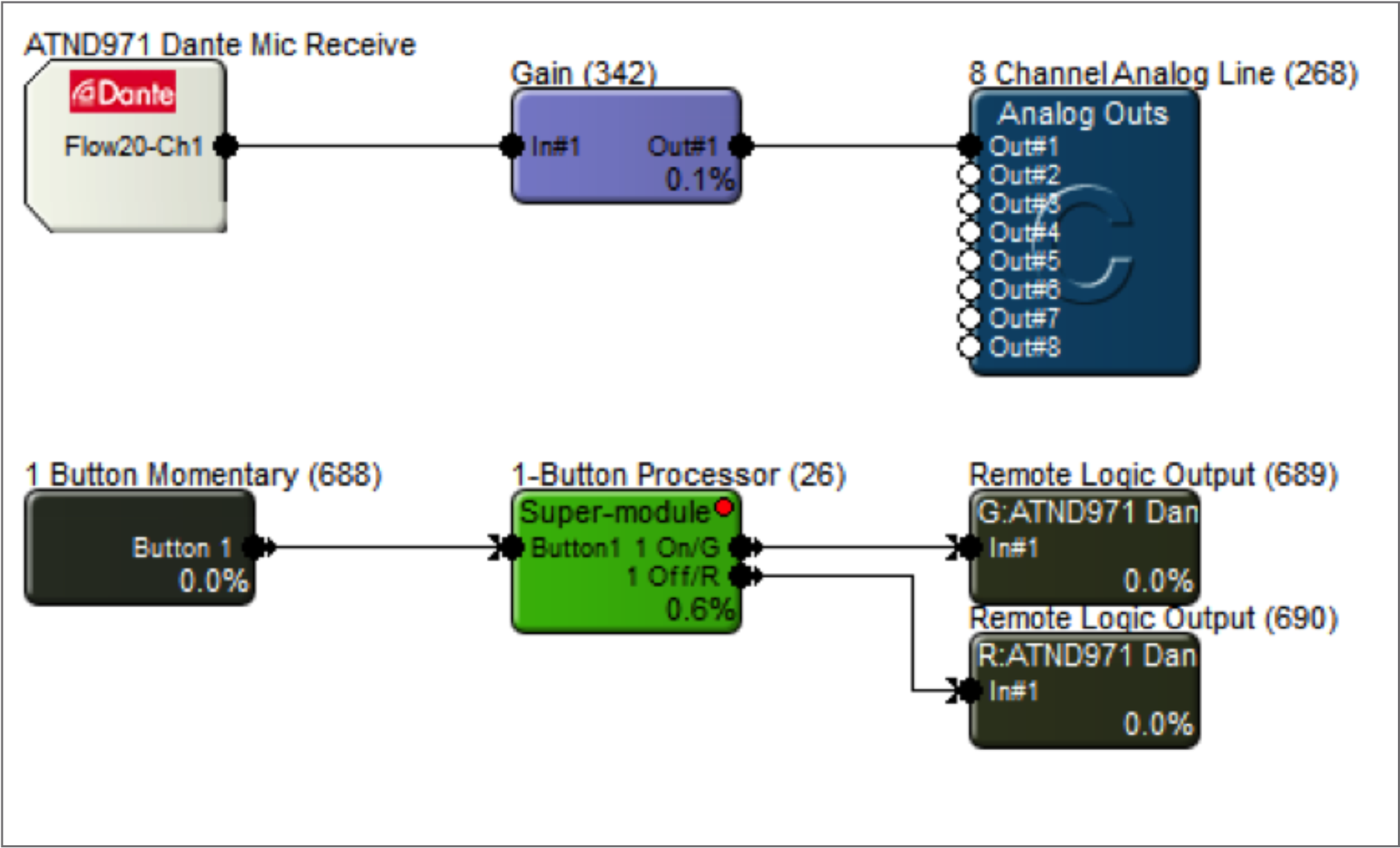
7. Navigate to the Mute button for the mic channel you’re planning to control. Right-click it, select “Set Up Remote Control” and choose “Control Signal Assignment”. Click the “Select” button, and click the plus sign next to “1-Button Processor”. Highlight “1 Off/R”, then click OK.
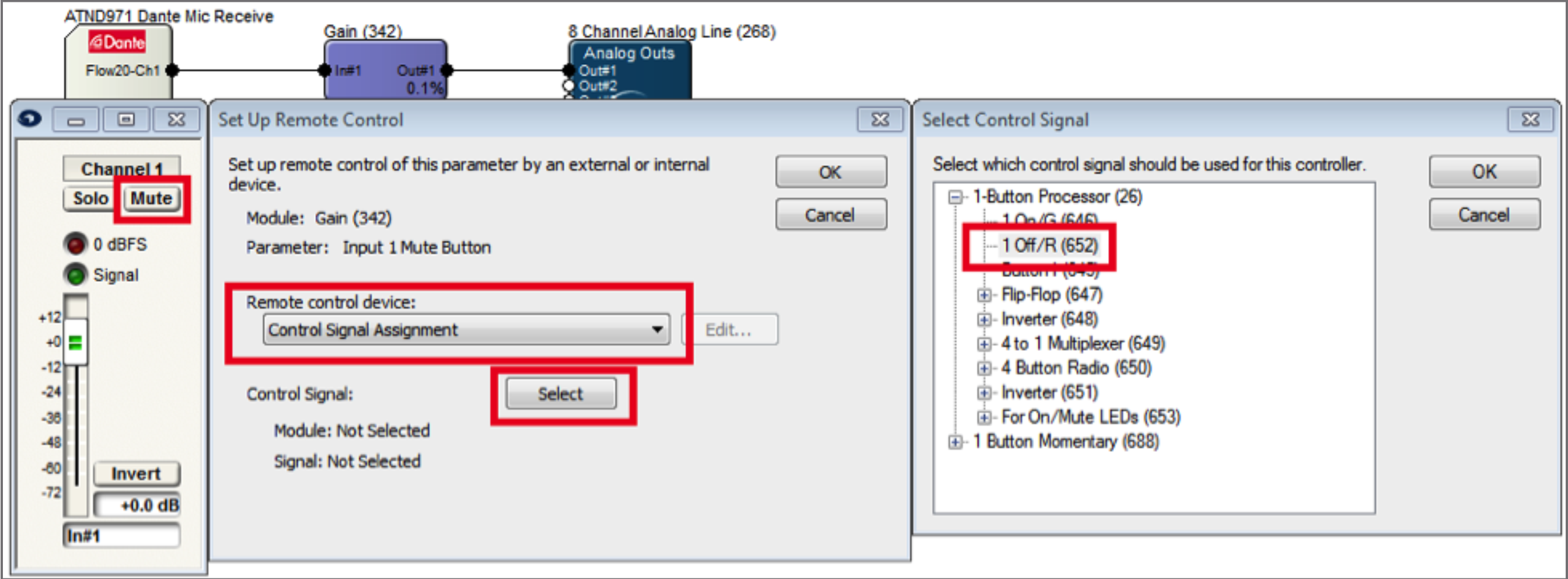
8. Open the super-module user interface and select the preferred switch mode. Go online and test the switch while watching the super-module GUI. The Input LED will light when the switch is closed, and the On/Mute LEDs will respond accordingly.
For momentary analog switches (connected to an External Control Input on the DSP):
9. Drag in a 1-Button Momentary module from the toolkit, and wire to the “Button 1” input on the super-module.
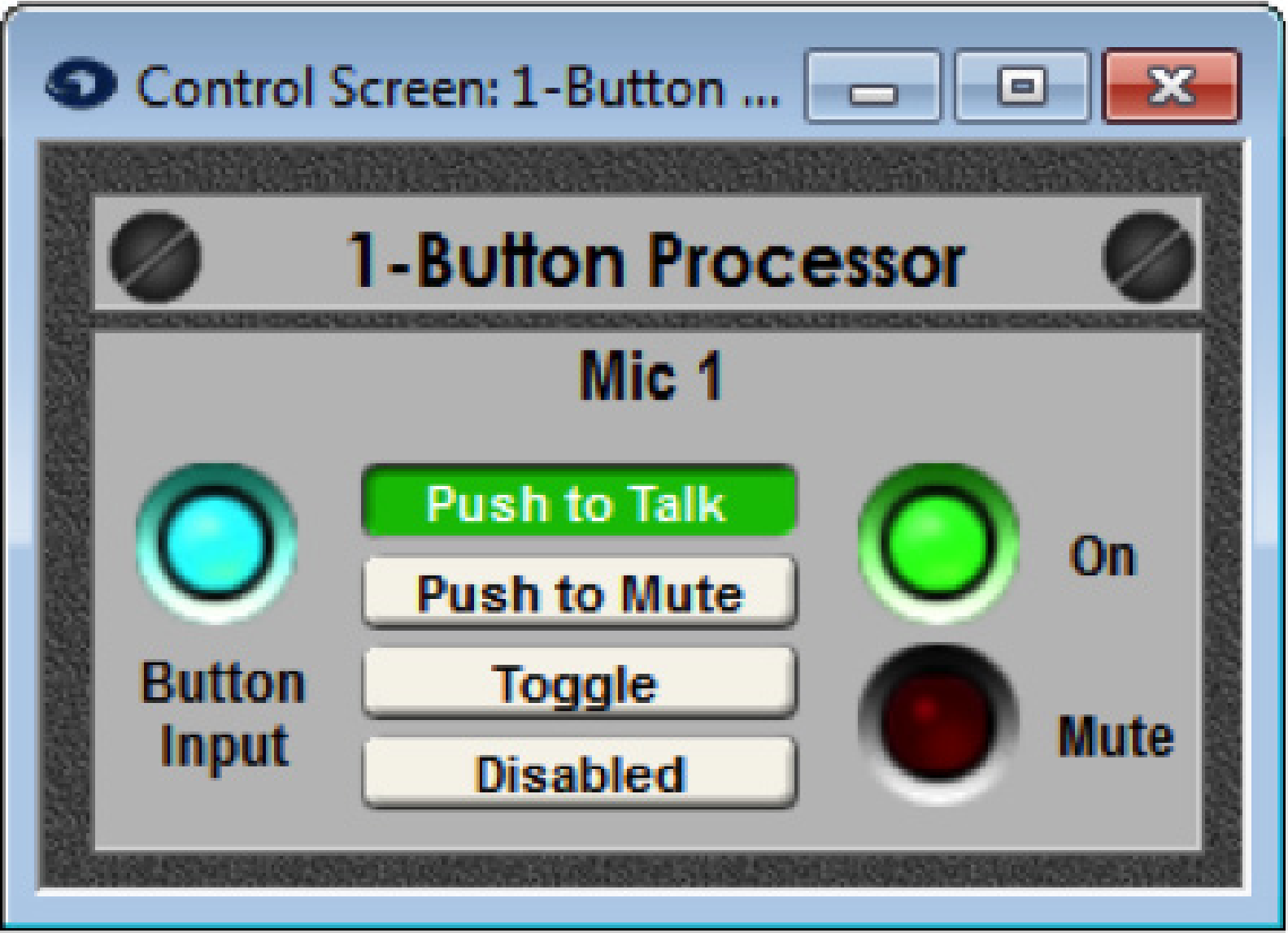
10. Double-click the 1-Button Momentary module to bring up its GUI. Right-click directly on the “On” button, then click “Set Up to Remote Control”. Choose “Local Analog Input”, then select the physical External Control Input number the analog switch is wired into.
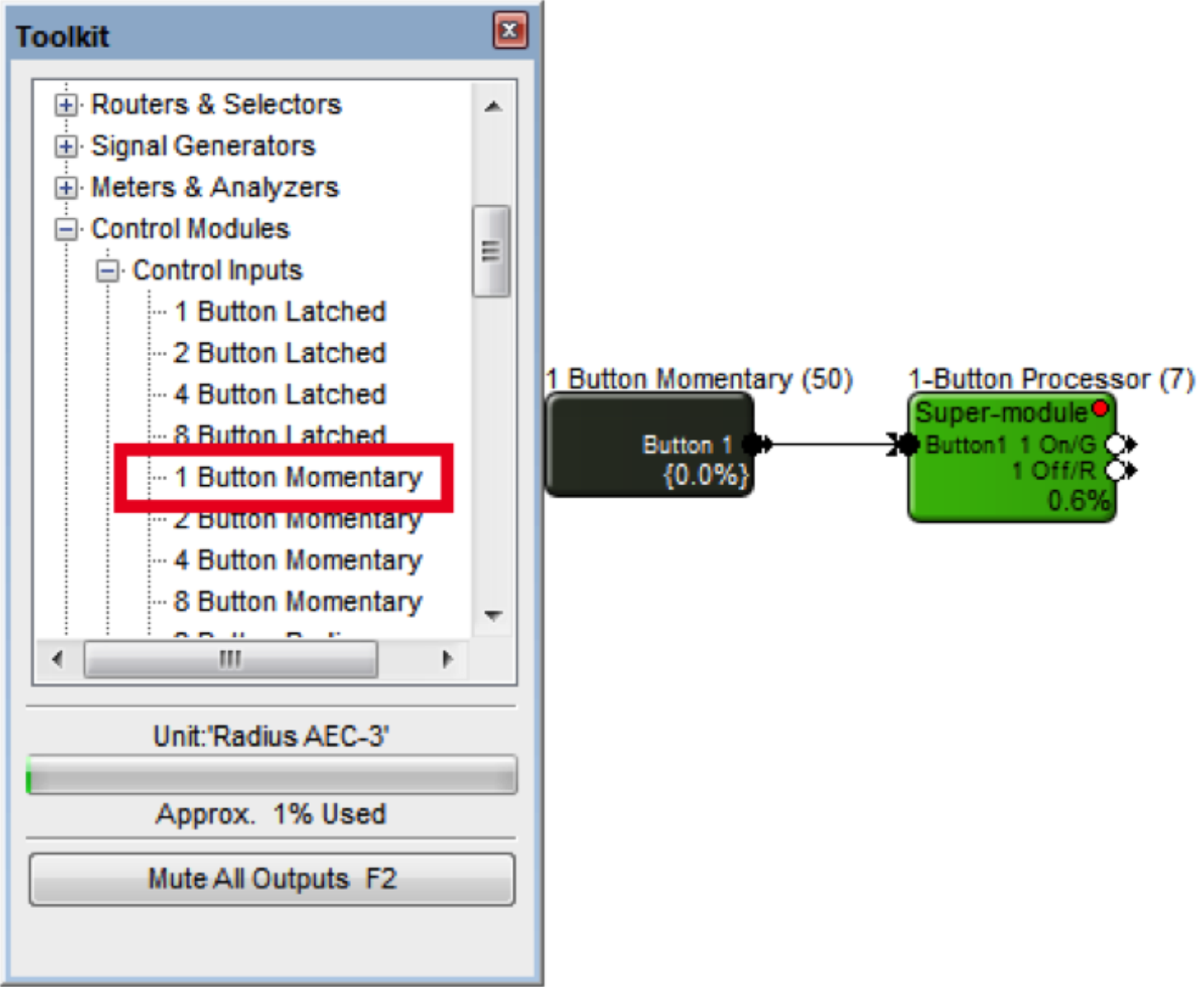
11. Go to the Mute button that is to be controlled by the switch. Right-click it, select “Set Up Remote Control” and choose “Control Signal Assignment”. Click the “Select” button, and click the plus sign next to “4-button Processor”. Highlight “1 Off/R”, then click OK.
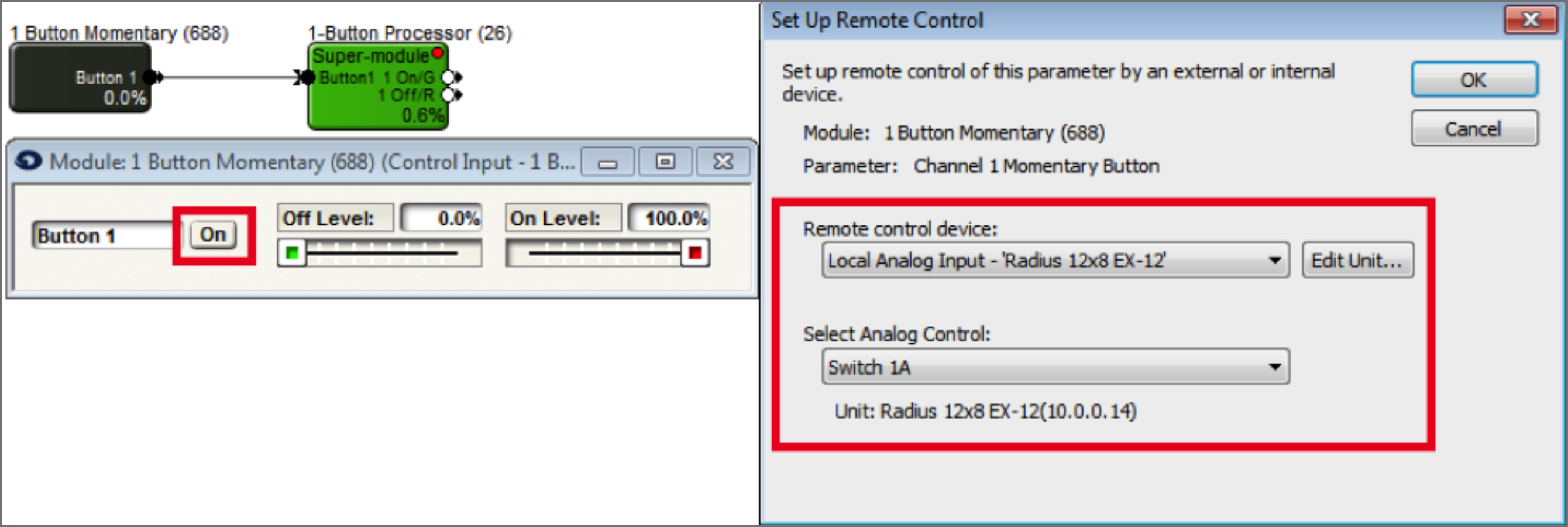
12. Open the super-module user interface and select the preferred switch mode. Go online and test the switch while watching the super-module GUI. The Input LED will light when the switch is closed, and the On/Mute LEDs will respond accordingly.
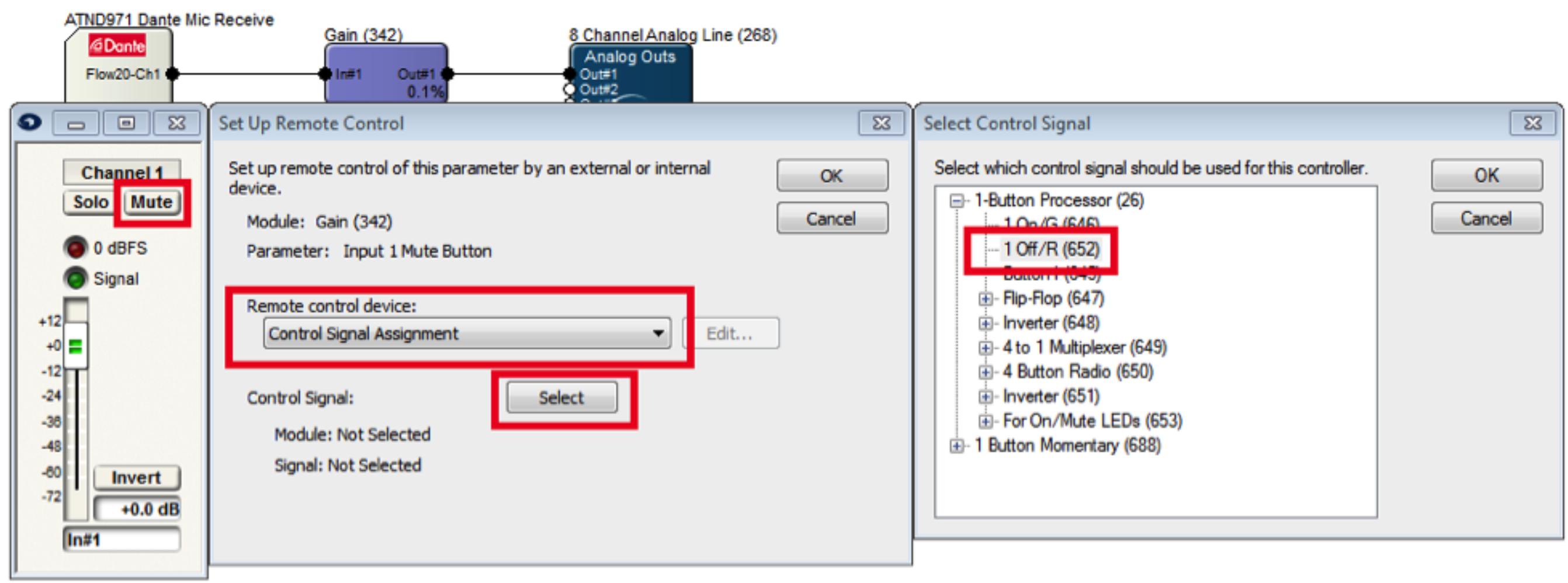
13. Repeat the process for more momentary switches.
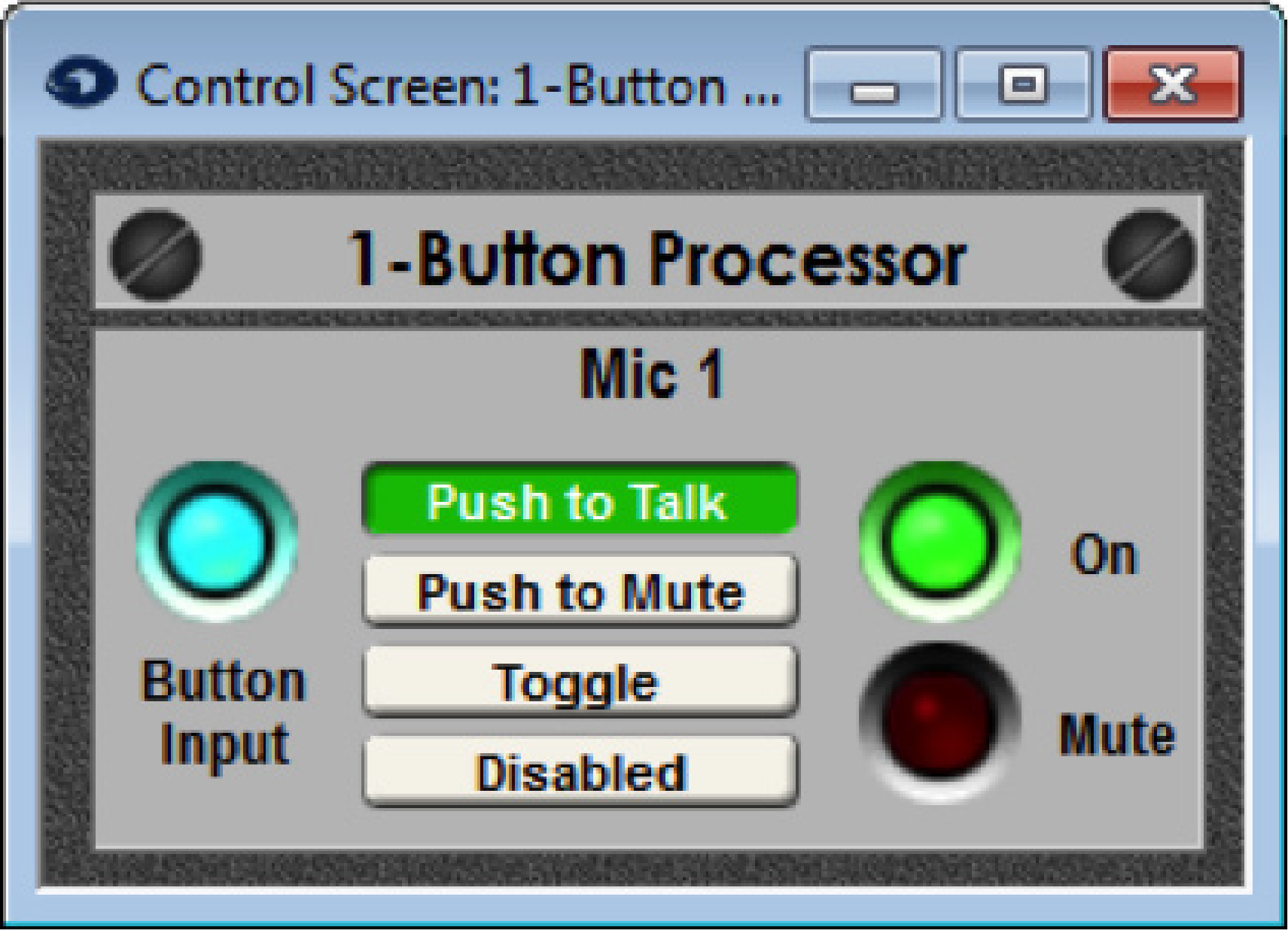
1) Open Composer to a blank site file or a site file in progress. Connecting to Dante capable Stewart Audio hardware requires a DSP such as the Edge, Radius NX, or Prism.
2) Locate a DSP by clicking the brown box in the lower left hand corner of the DSP icon.
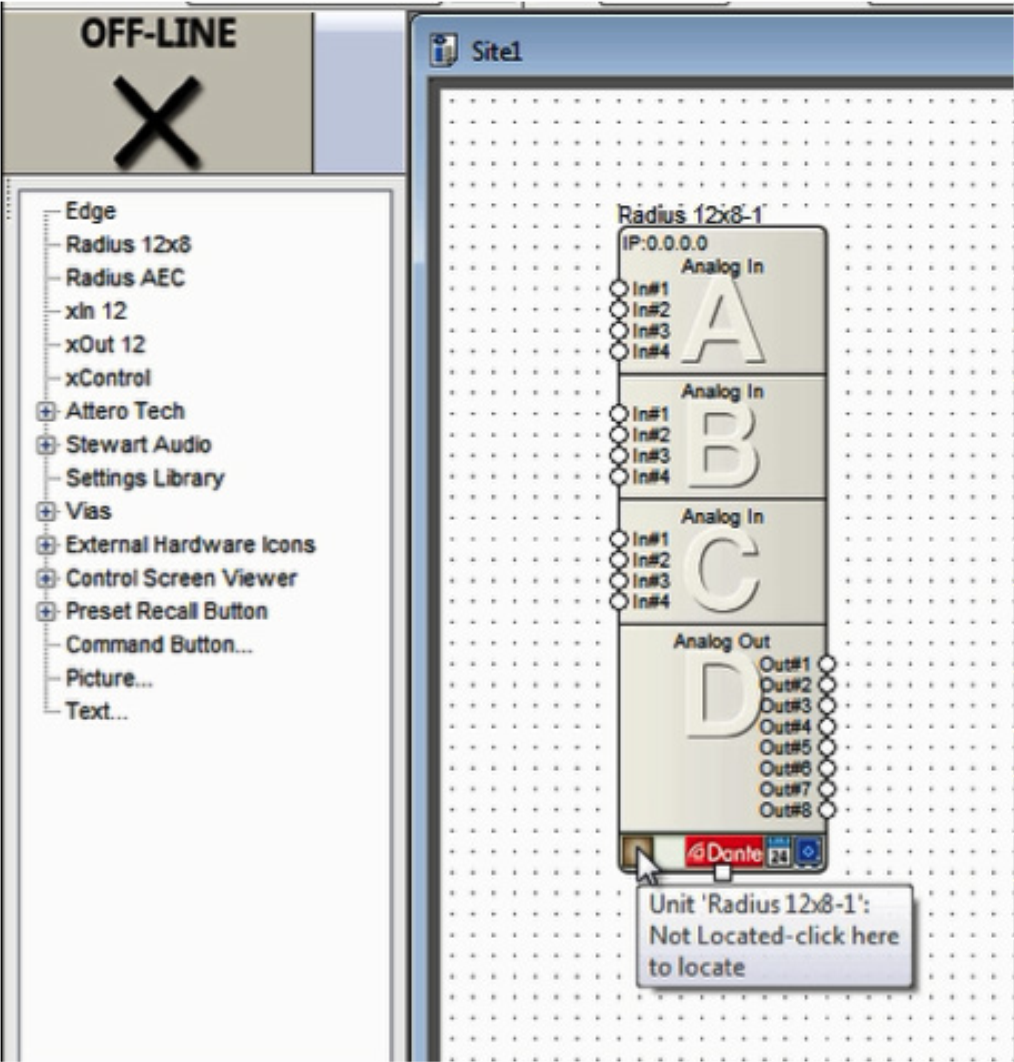
3) Select the DSP in the list of “Available Units on Network” by double clicking it. A green check indicates the DSP has been located and can now be used to connect to a Stewart Audio Dante endpoint.
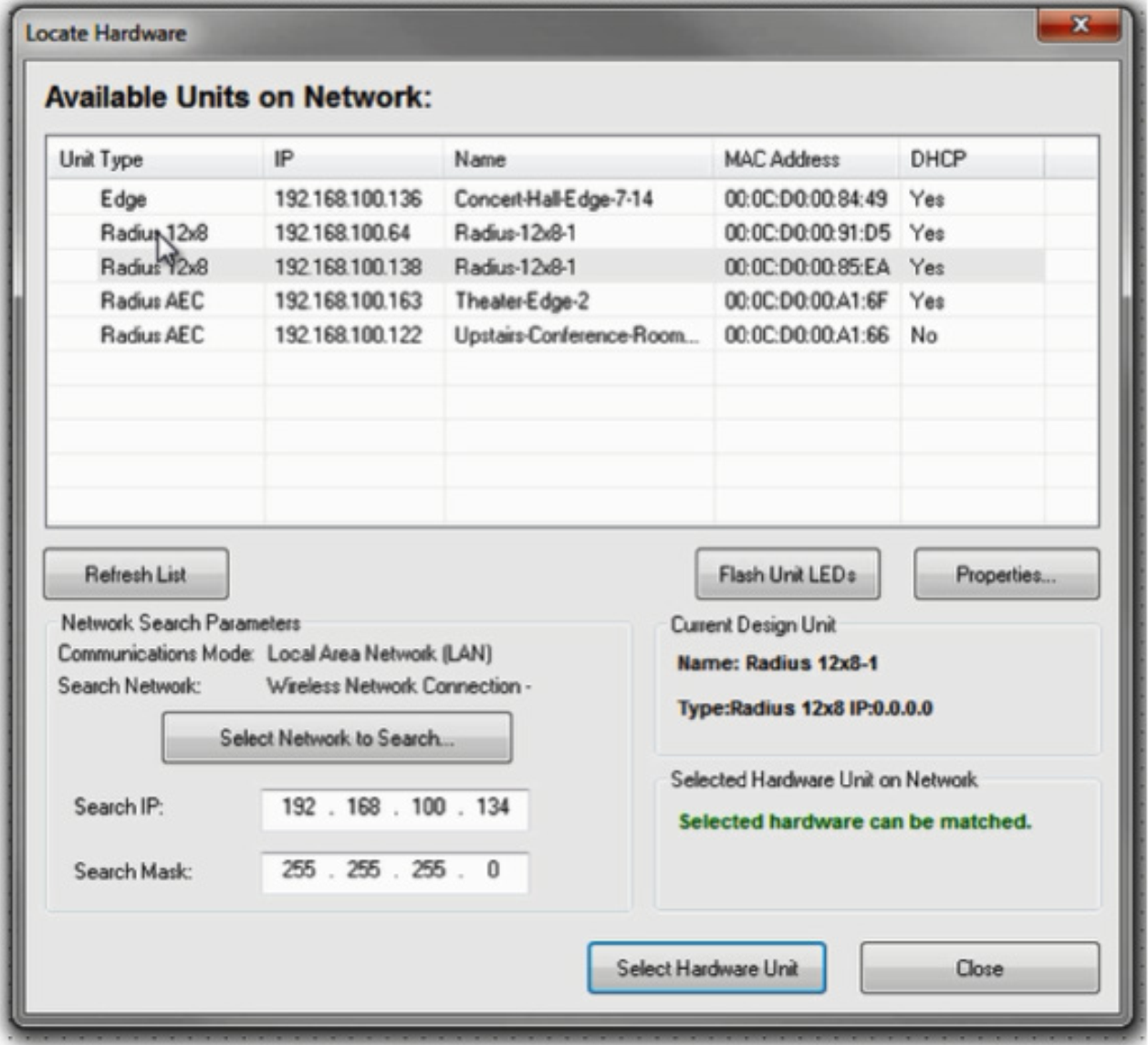
4) To receive Dante audio in a supported Stewart Audio end point (shown in yellow), drag the supported unit into the design and then click the brown box in the lower left hand corner to locate it.
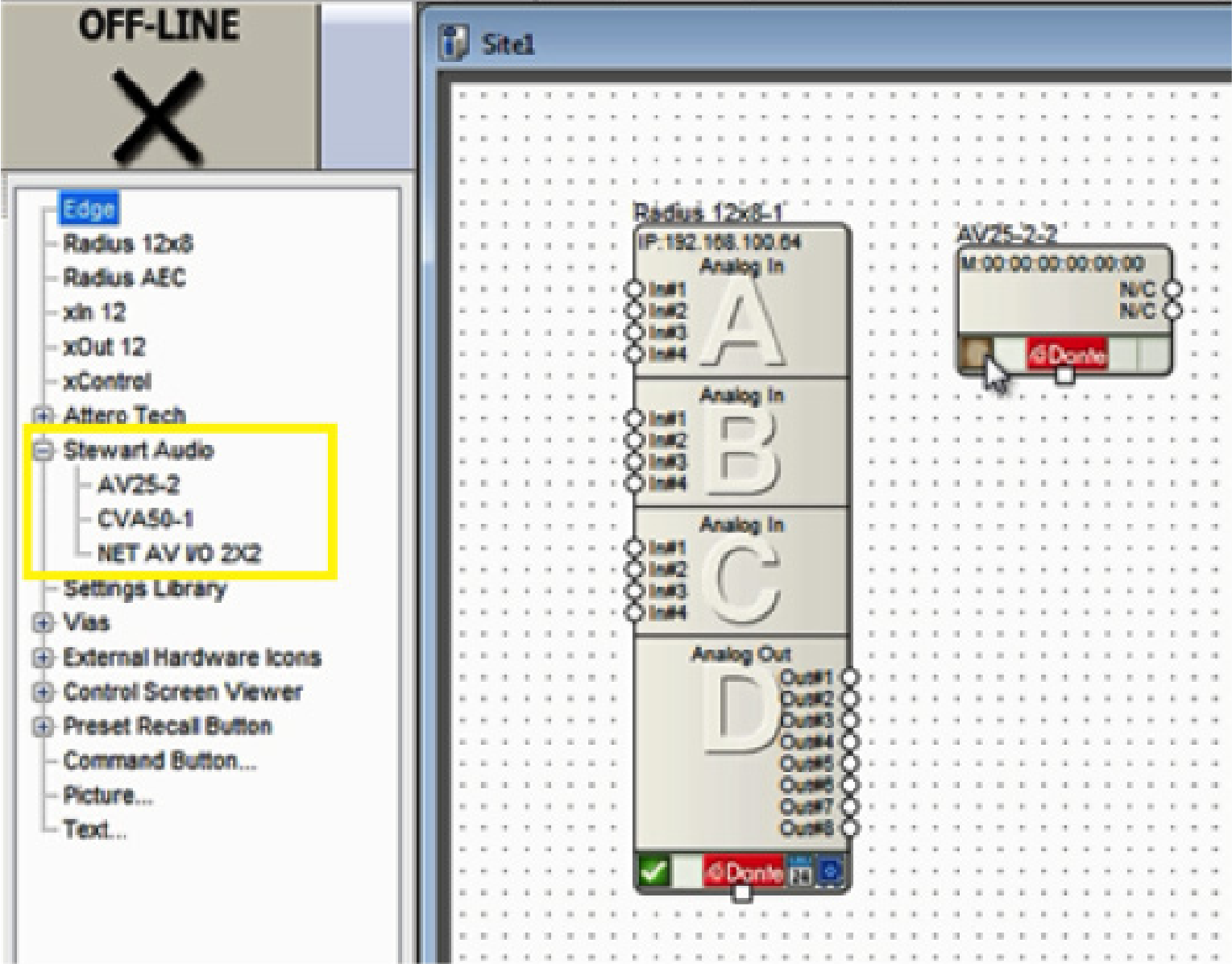
5) Composer will search the currently located DSP’s Dante network for the Stewart Audio device. Double click on its Name field to select it. A green check will indicate if the unit is connected successfully.
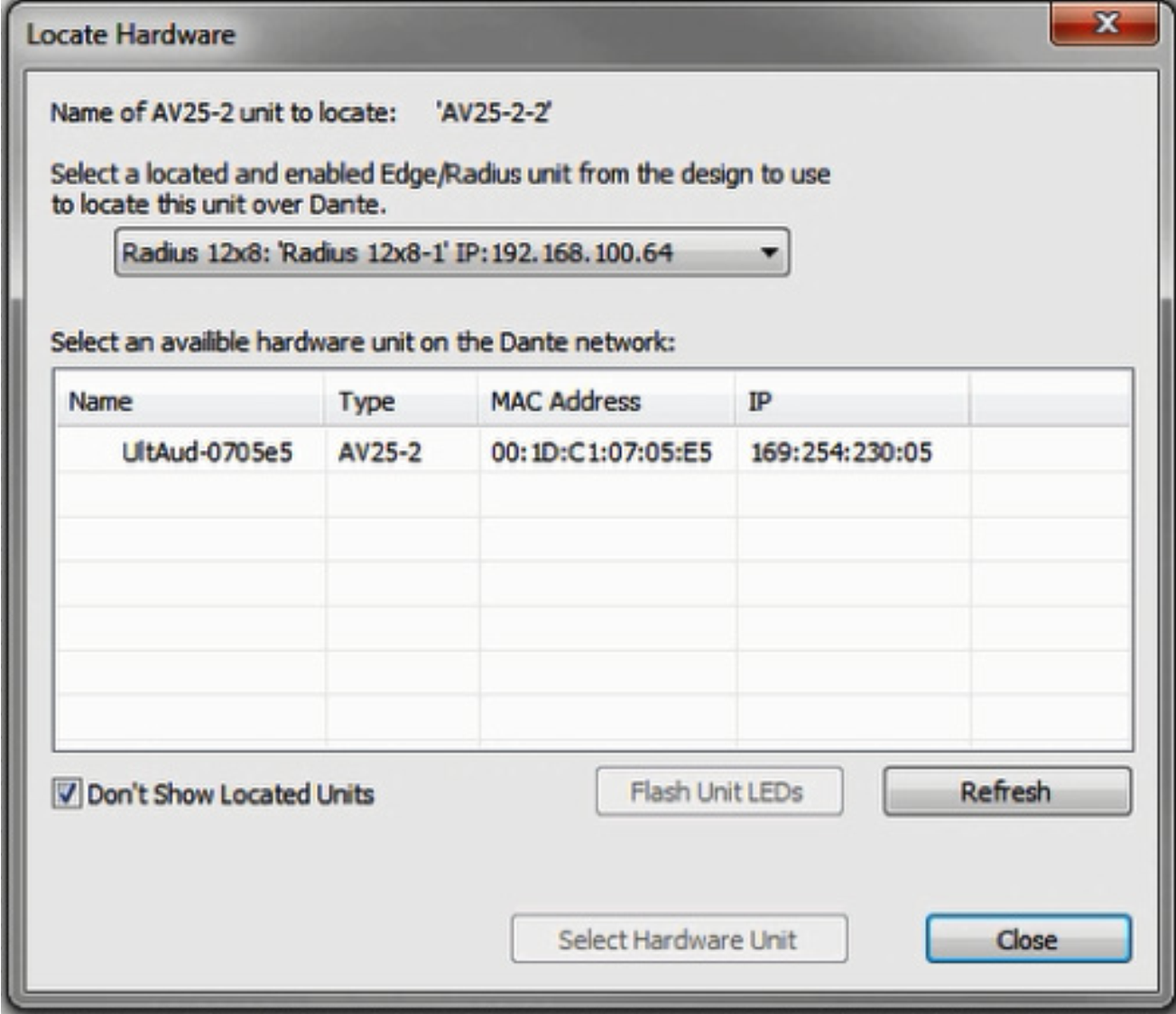
6) Enter the selected DSP’s design and be sure a Dante transmit flow already exists or create a new one to send audio to the Stewart Audio device. If a transmit flow already exists, skip to step 10.
7) To create a new transmit flow, from the Toolkit under Dante Transmit and Receive Flows, drag out New Transmit and Receive flow.
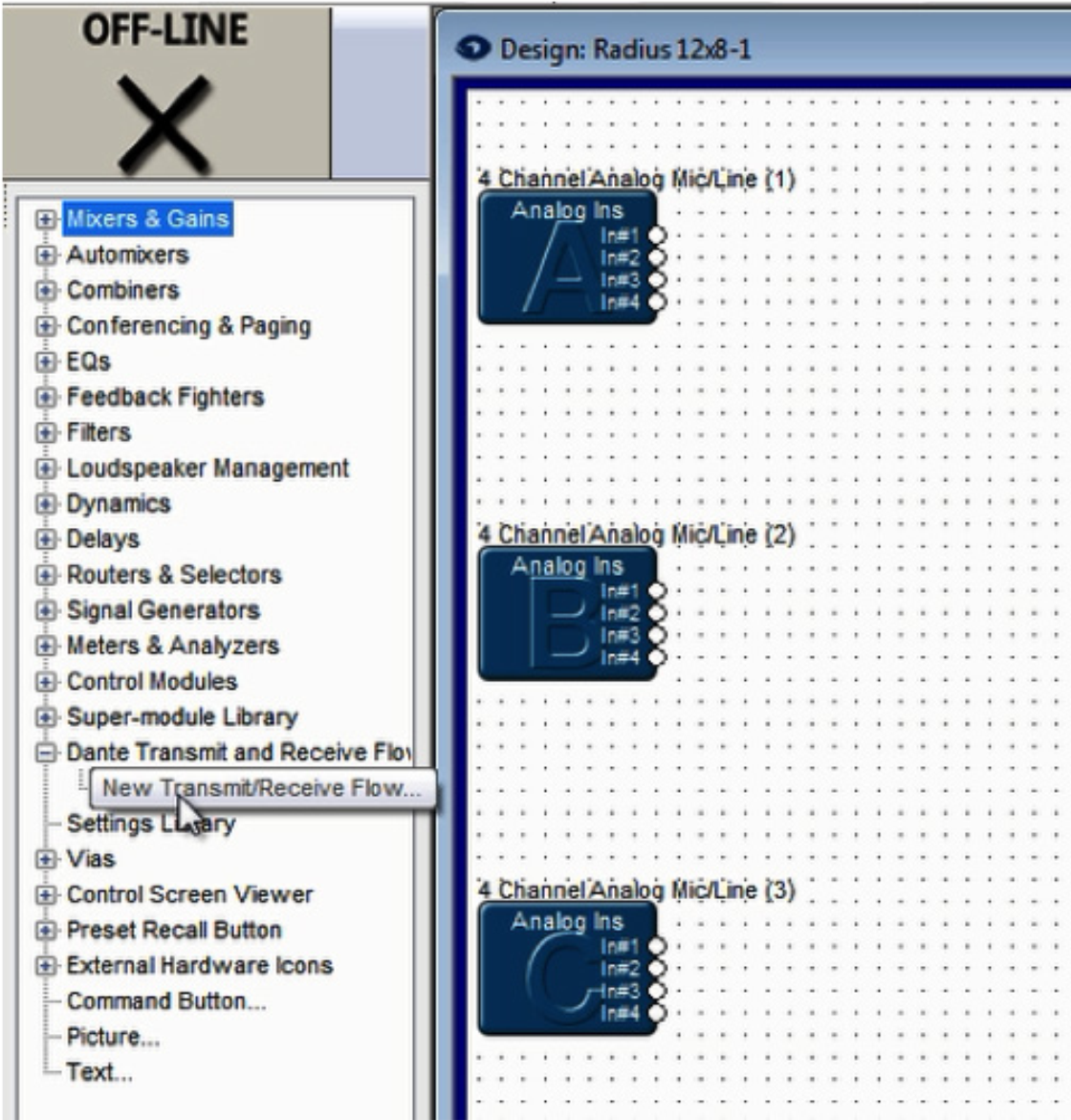
8) Name it, set its channel count to 2, set it to transmit, label the channels if desired, and click OK.
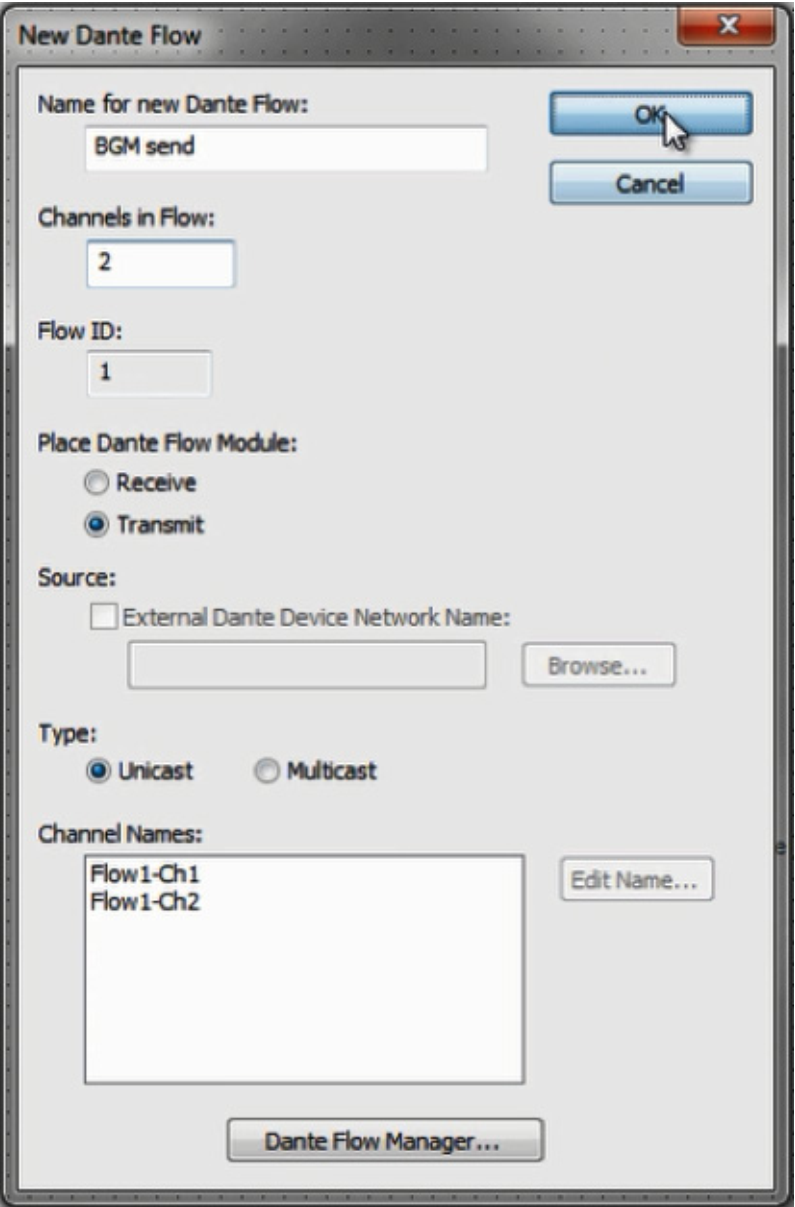
9) Wire the Dante transmit flow into the signal path as desired, then close the DSPs design screen to return to the site view.
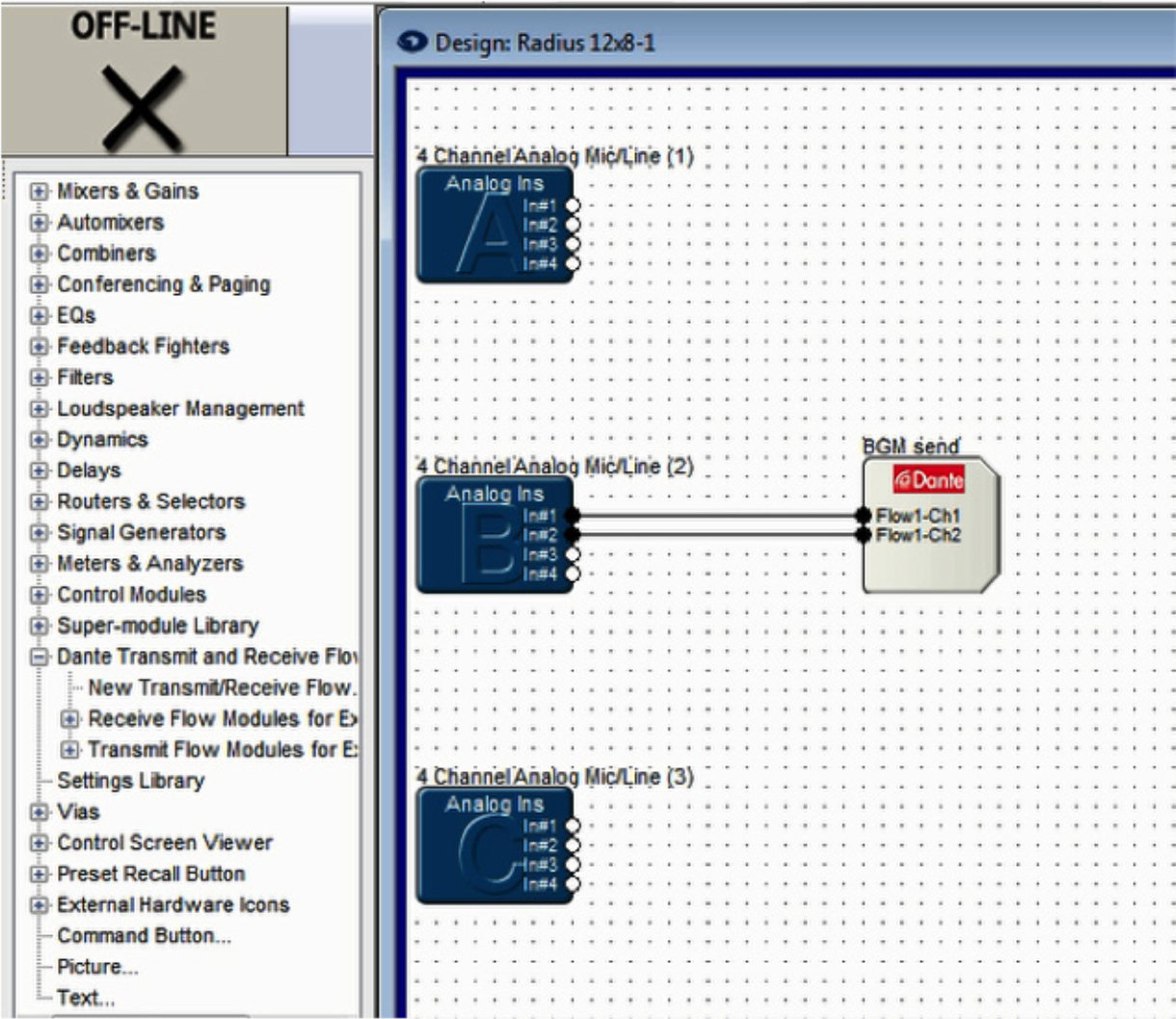
10) Double click on the Stewart Audio device to access its properties window. Under the Dante Audio Reception window, double click on channel 1 or 2.
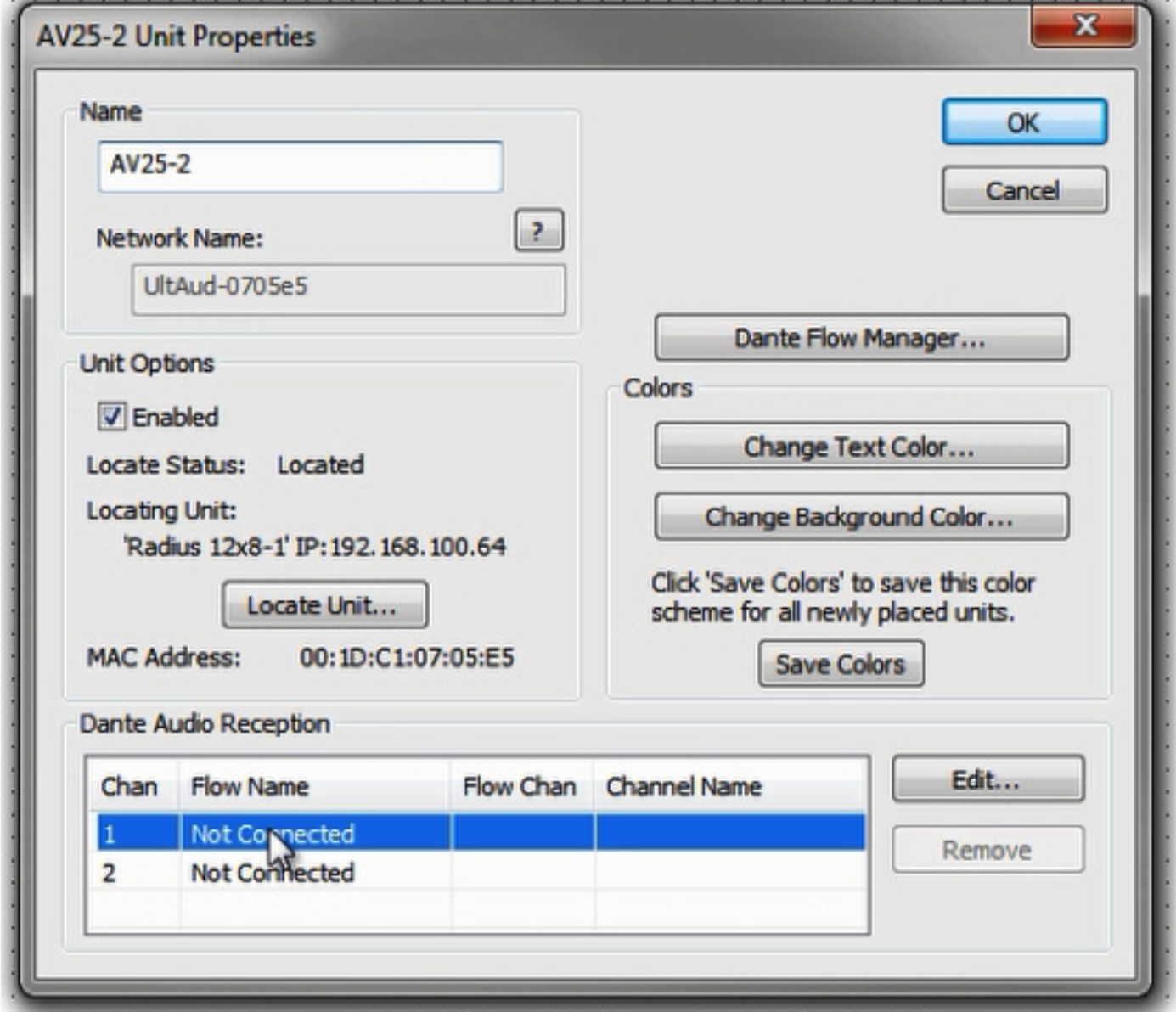
11) Select the appropriate Dante flow and the starting channel. Click OK.
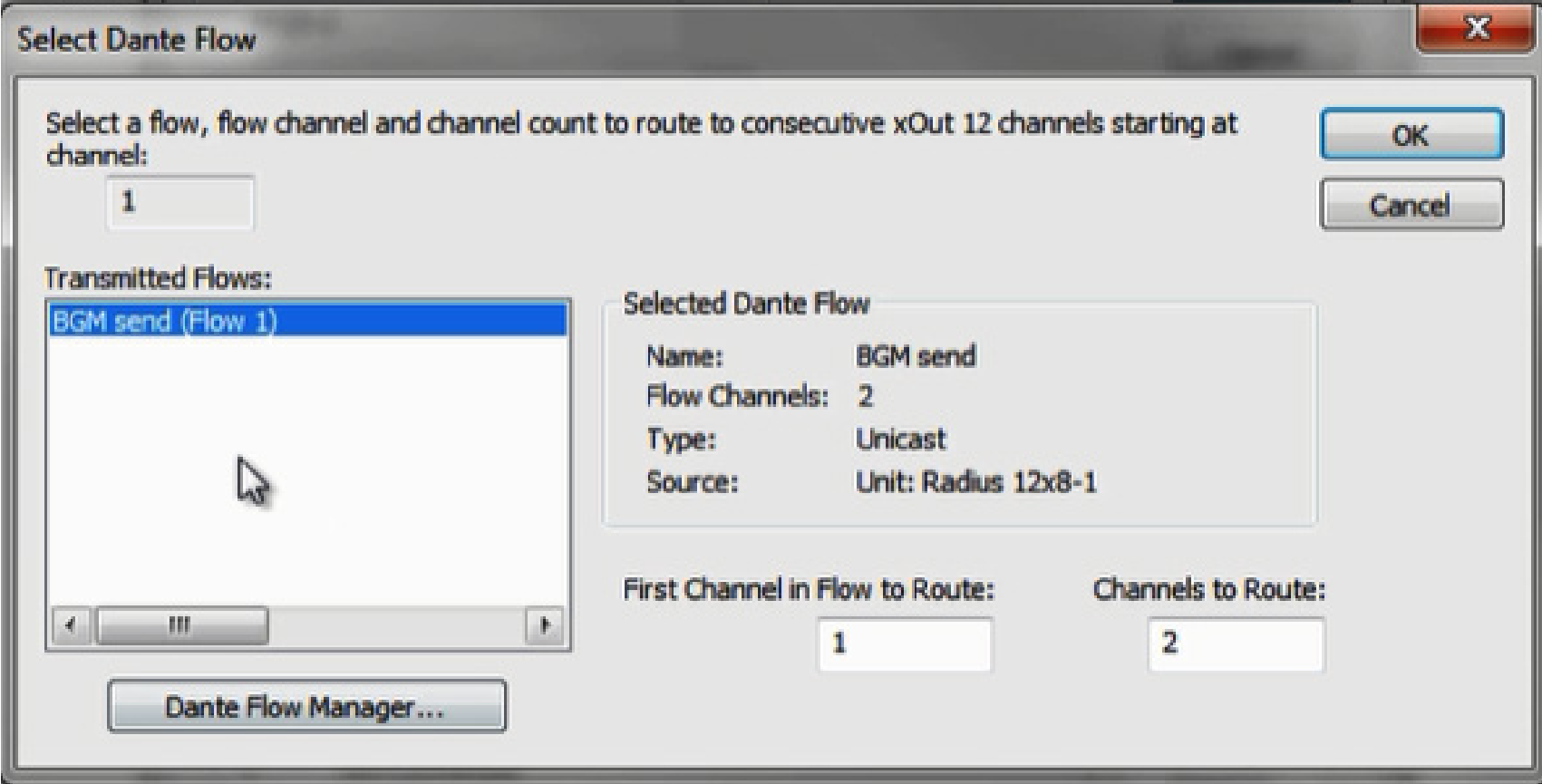
12) Dante Audio Reception should now indicate subscriptions to the transmit flows channels (shown in red). Click OK to close the Stewart Audio unit properties screen.
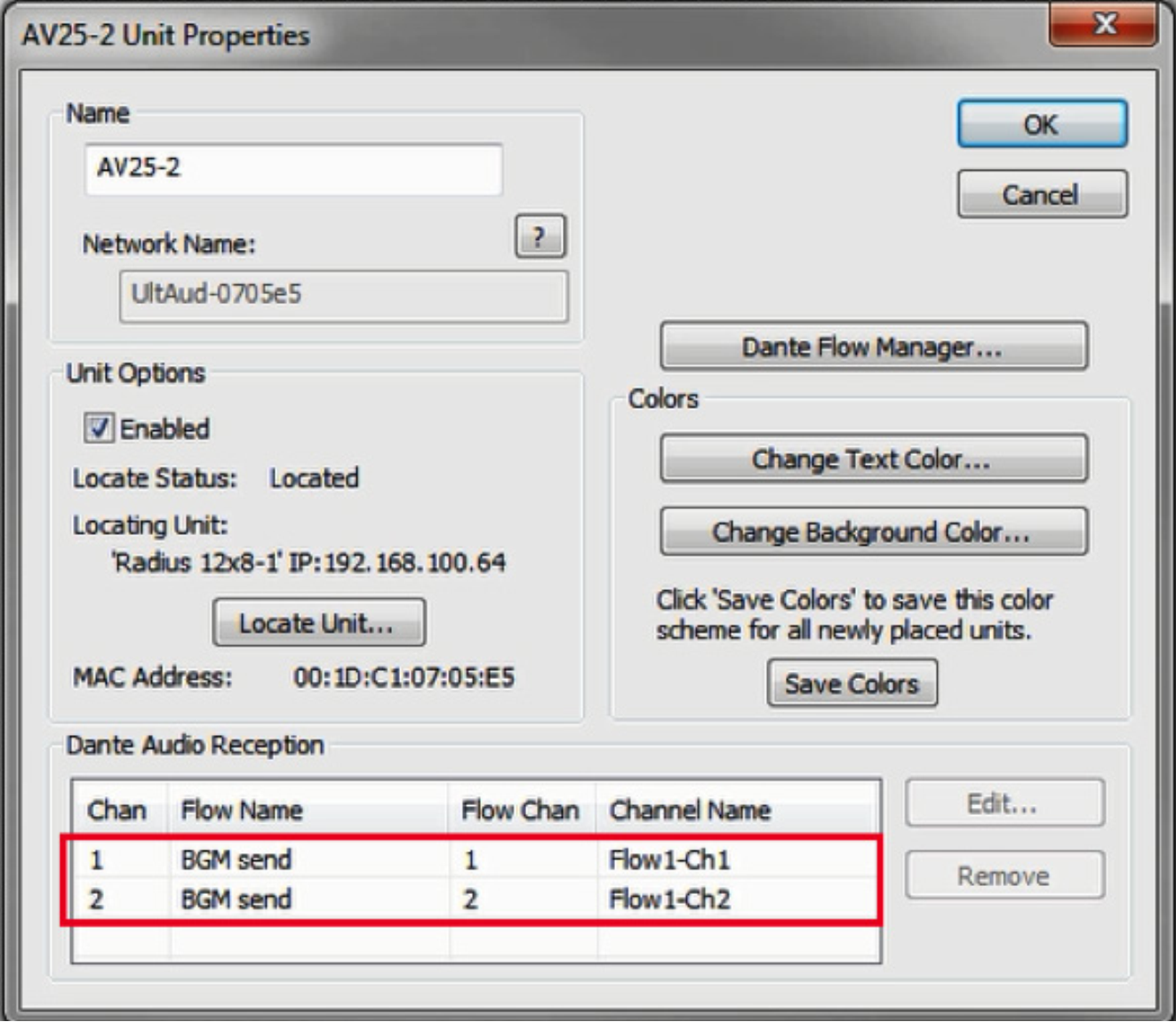
13) Push the site file to Composer. When completed, Dante audio should be passing from the DSP to the Stewart Audio device.
Note: The Stewart Audio Net AV I/O 2×2 has a pair of remote line level inputs. These inputs can be received in a DSP using the following steps.
14) Follow Steps 1 – 5 of this document, then skip to and complete steps 15-18.
15) Enter the design screen of a DSP by double clicking its icon in the Composer site view.
16) From the Toolkit under Dante Transmit and Receive Flows, expand the Receive Flow Modules for Existing Flows. Then drag the auto-generated Receive Flow from the Stewart Audio Net AV I/O 2×2 unit into the design. The default name of the Flow will include the Stewart Audio Dante network name, for example “Untitled Net AV I/O 2×2 Flow #1”. This is where the incoming audio from the Attero Tech will be received.
17) Wire the receive flow into the signal path as desired.

18) Push the site file to Composer. When completed, Dante audio should be passing from the Stewart Audio device to the DSP.
1) Open Composer and create a blank Site File or open an existing one.
Note: Connecting to Dante capable Attero Tech endpoint requires a DSP such as the Edge, Radius NX, or Prism.
2) If starting with a blank Site File, first drag a DSP into the Configuration from the Toolkit.
3) Locate a DSP by clicking the brown box in the lower left hand corner of its unit icon
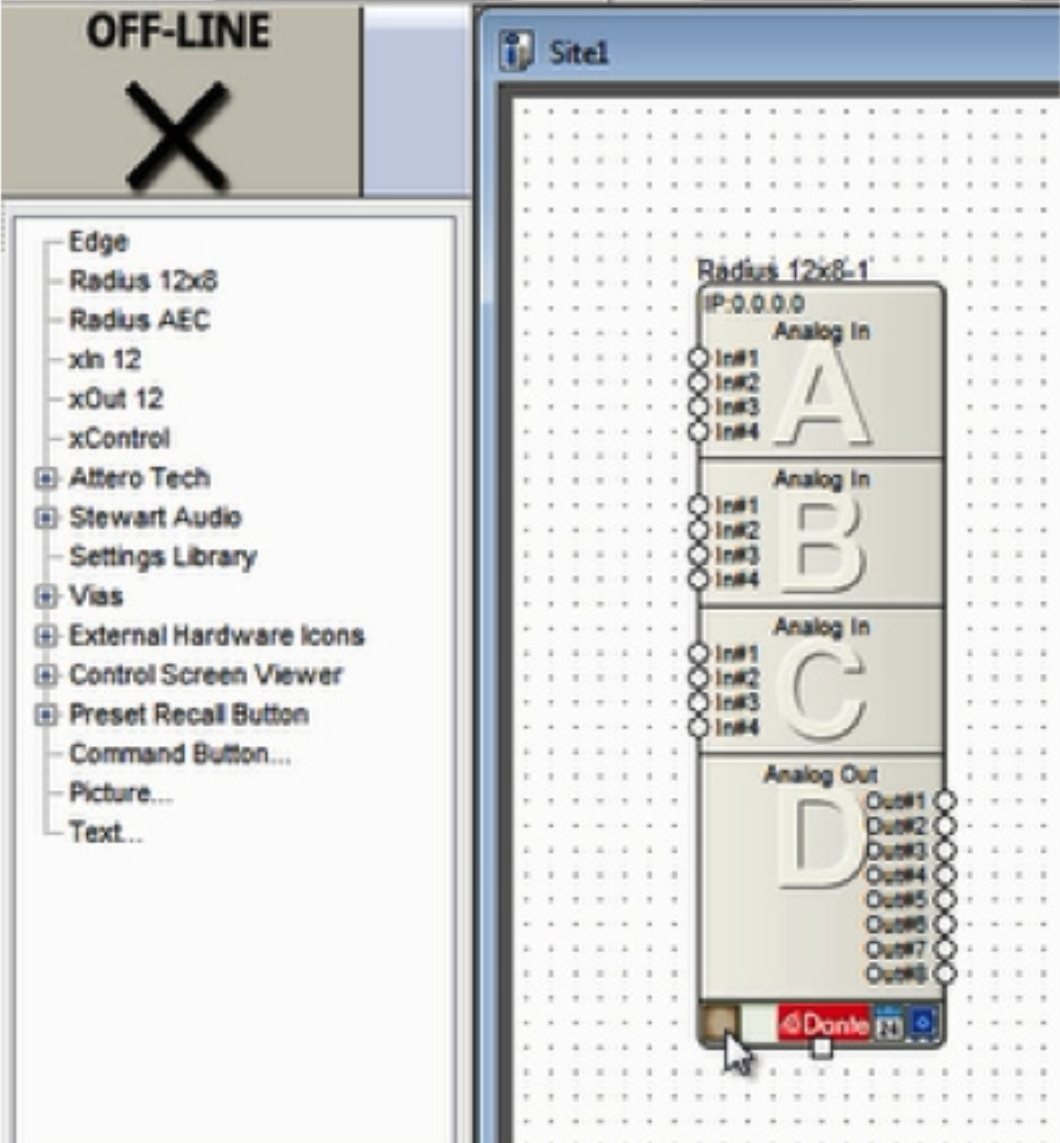
4) Select the DSP in the list of “Available Units on Network” by double-clicking it.
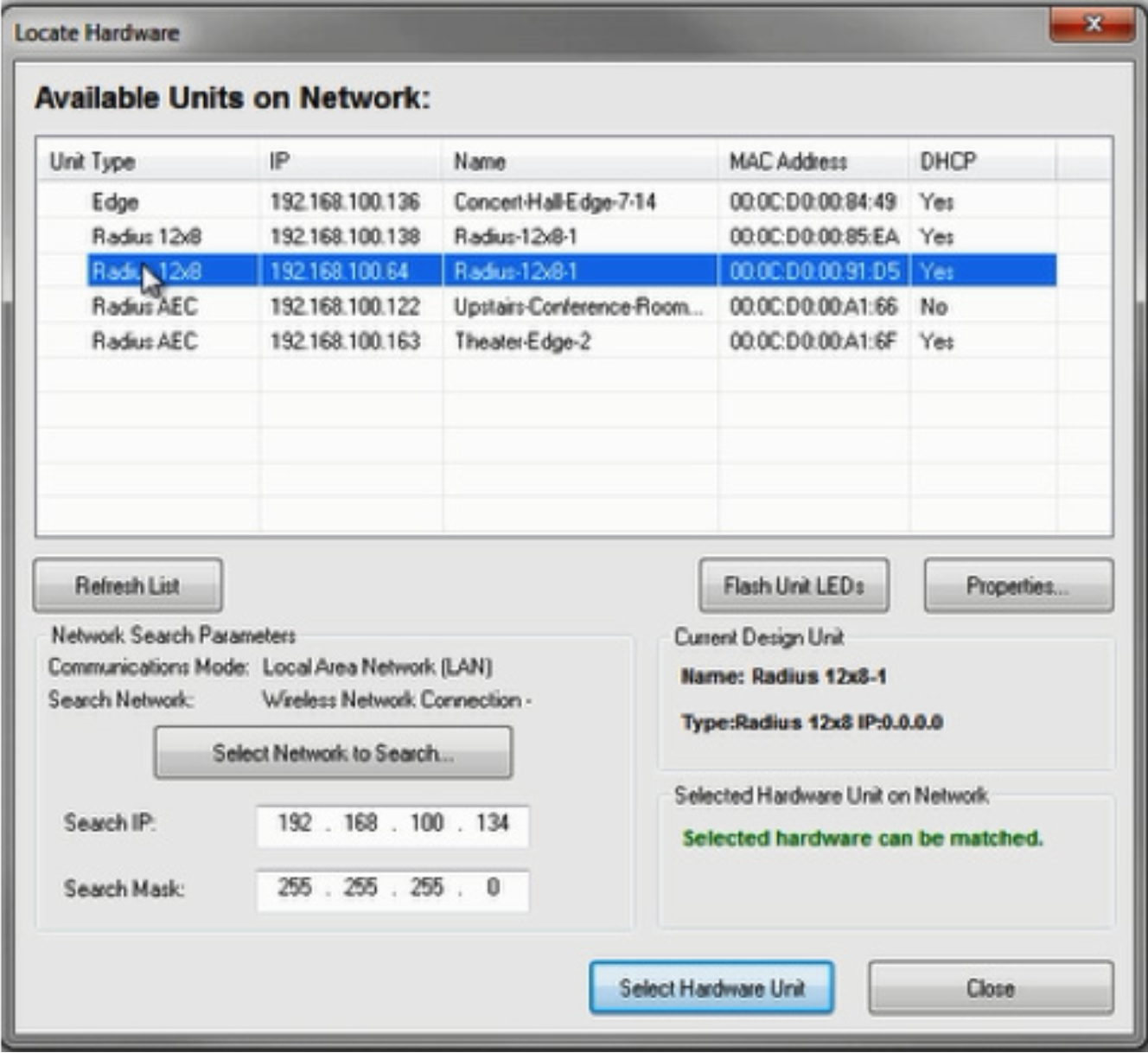
5) A green check indicates the DSP has been located and can now be used to connect to a Dante capable Attero Tech endpoint.
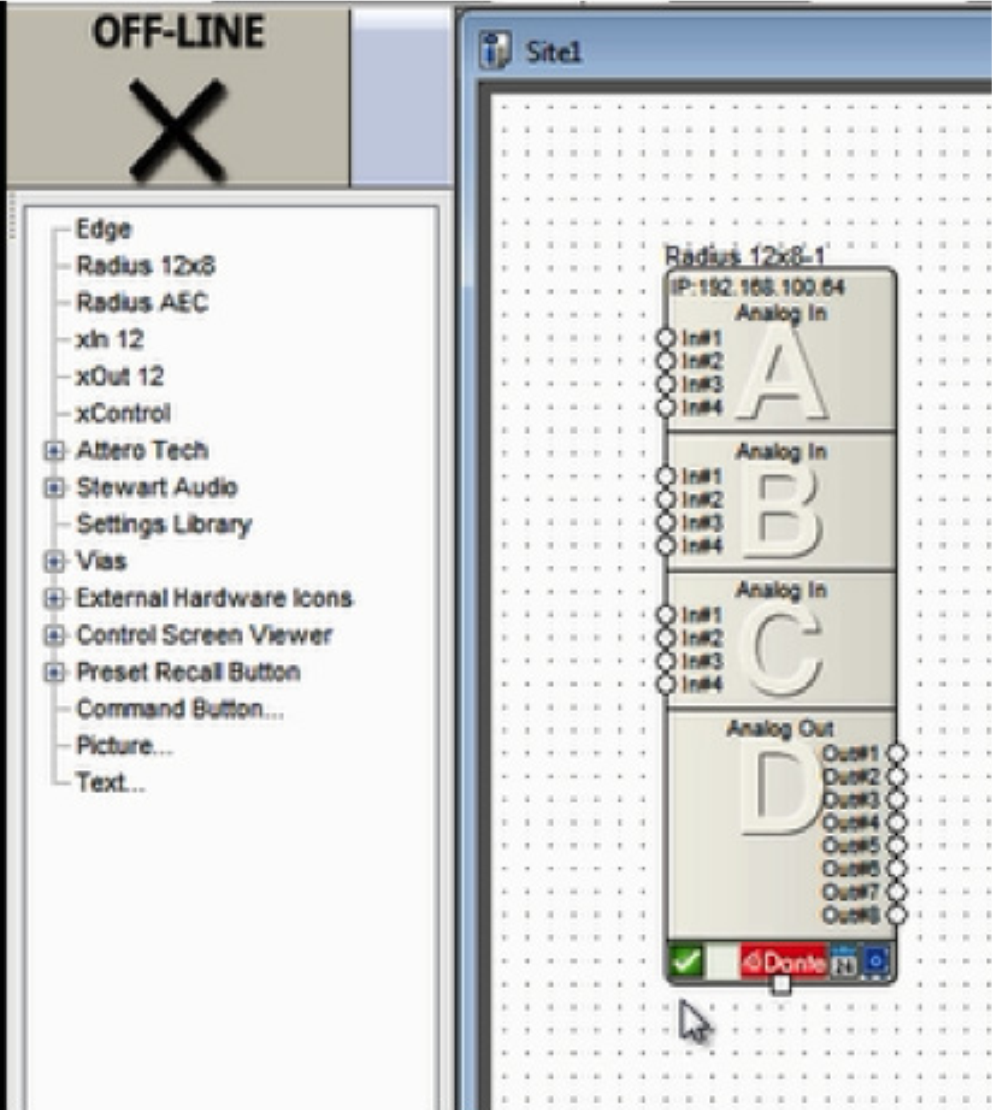
6) Drag a supported Attero Tech device into the Configuration from the Toolkit.
att 1
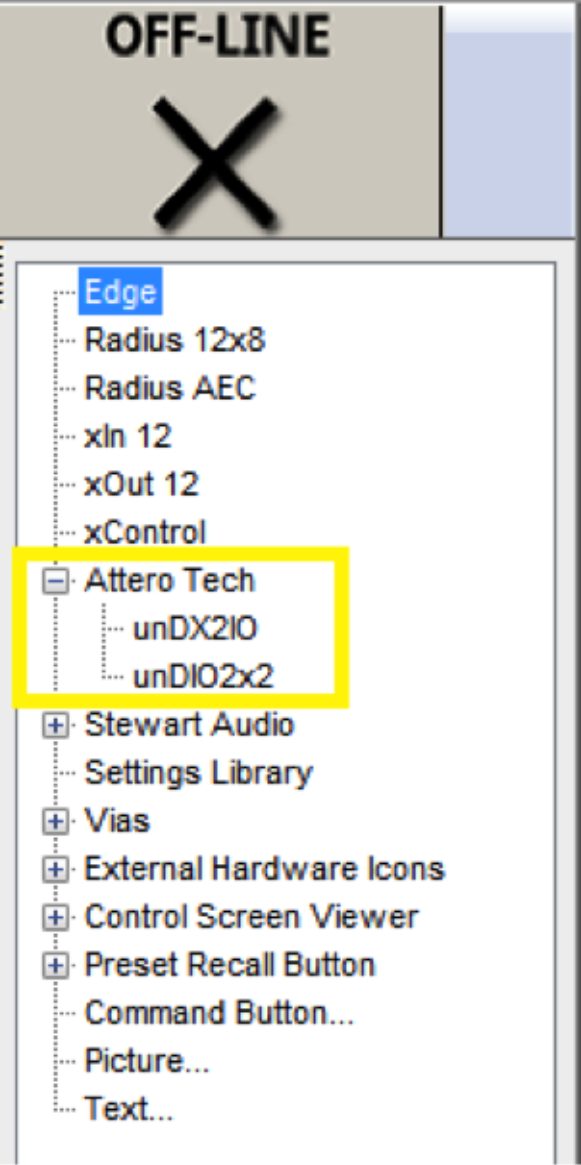
6) Drag a supported Attero Tech device into the Configuration from the Toolkit.
7) Click the brown box in the lower left hand corner of its unit icon to locate it.
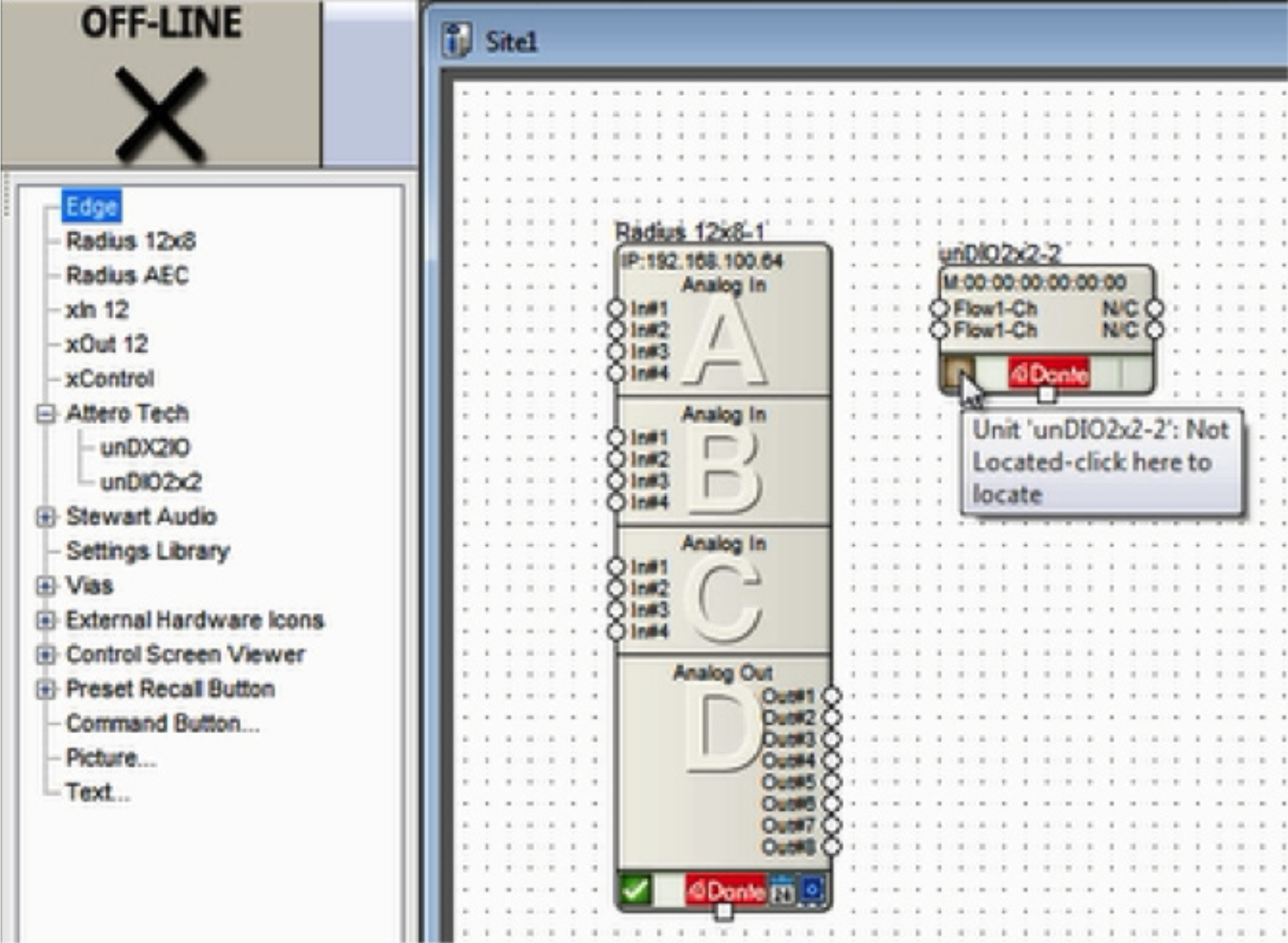
8) Composer will search the currently located DSP’s Dante network for the Attero Tech model in the configuration. Double-click on its Name field to select it.
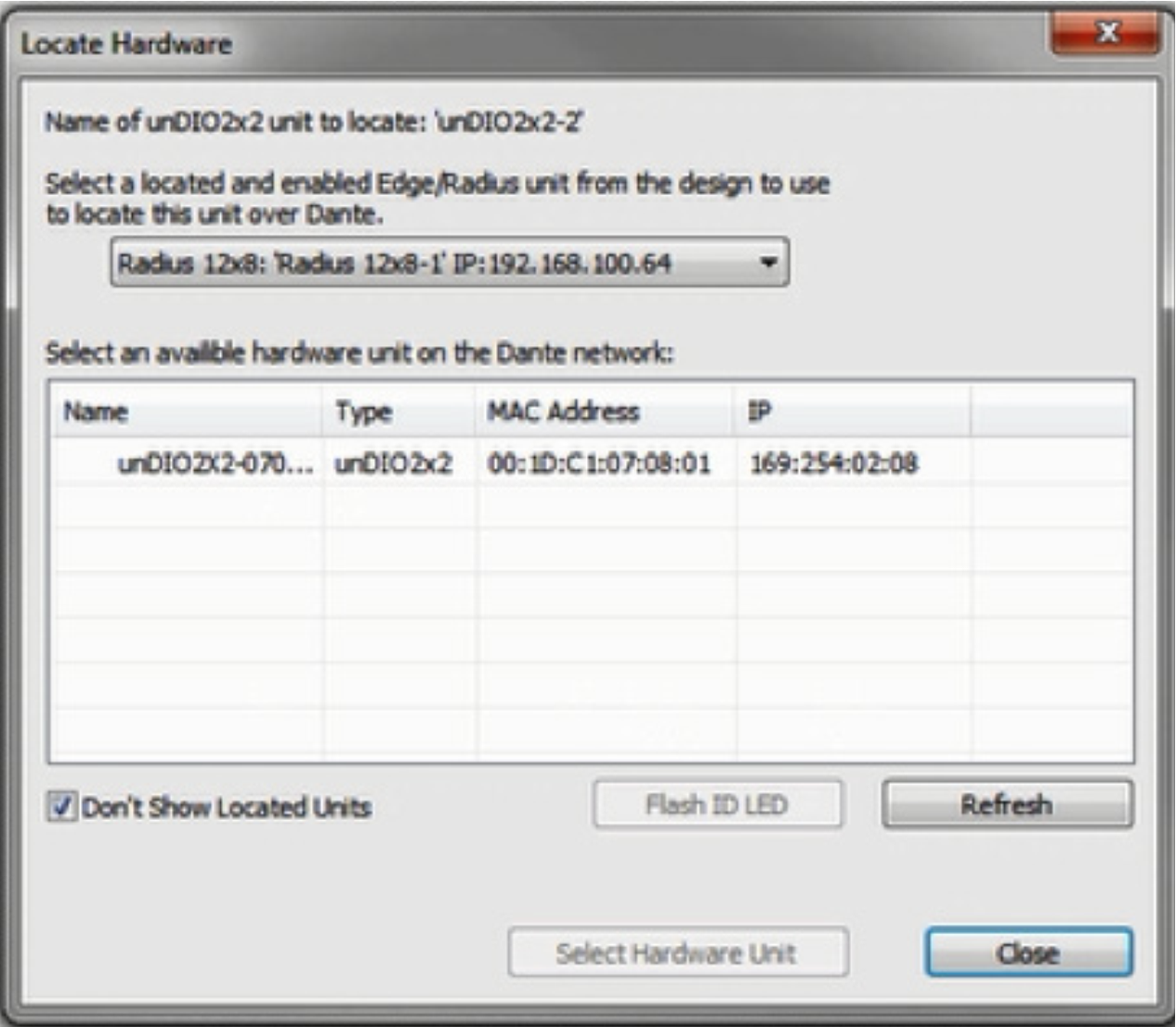
9) A green check will indicate if the unit is connected successfully.
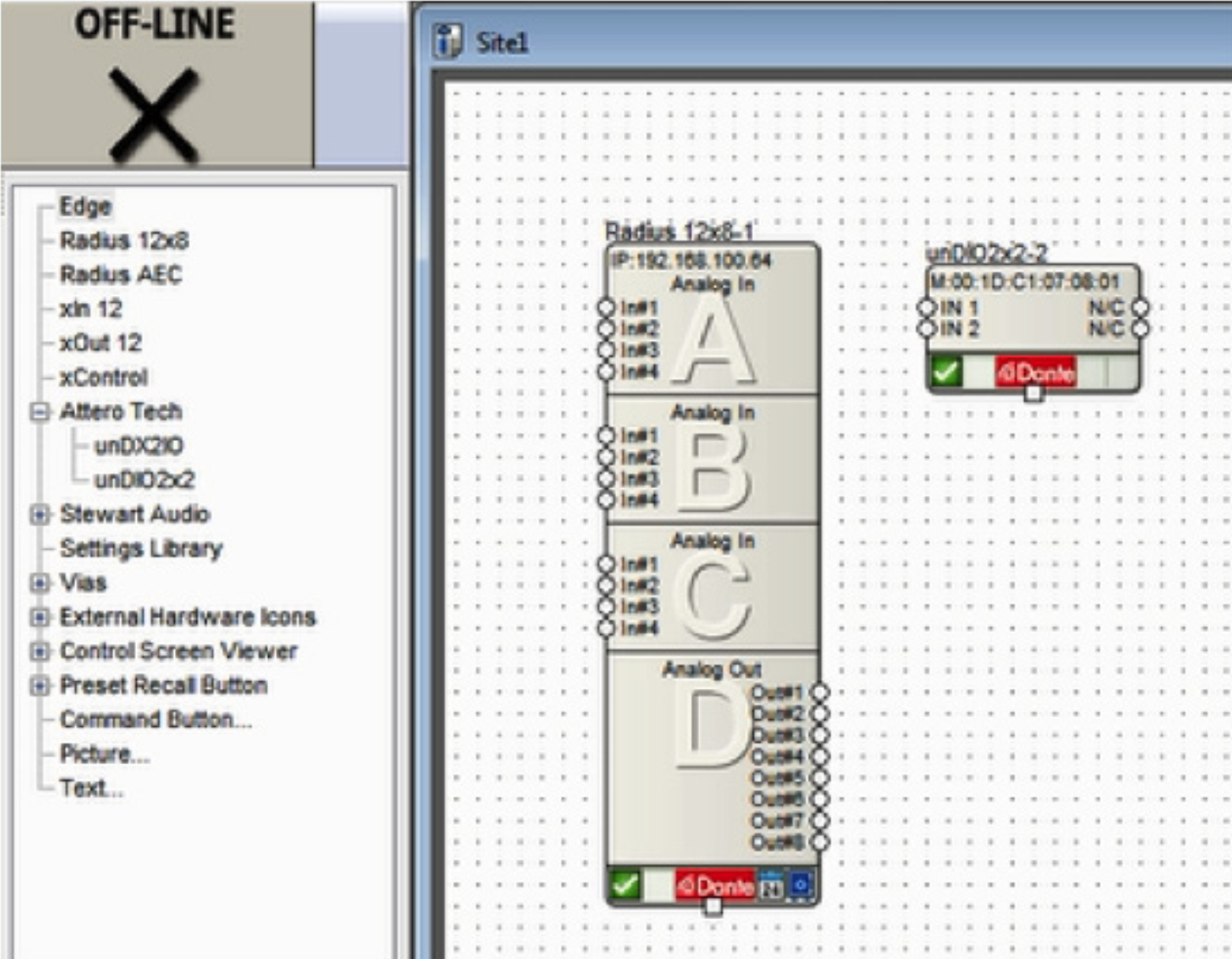
10 ) To receive audio from the Attero Tech endpoint, enter the located DSP’s design by double clicking its unit icon.
11) From the Toolkit under Dante Transmit and Receive Flows, expand the Receive Flow Modules for Existing Flows. Then drag the auto-generated Receive Flow from the Attero Tech unit into the design. The default name of the Flow will include the Attero Tech Dante network name, for example “Untitled unDIO2x2 Flow #1”. This is where the incoming audio from the Attero Tech will be received.
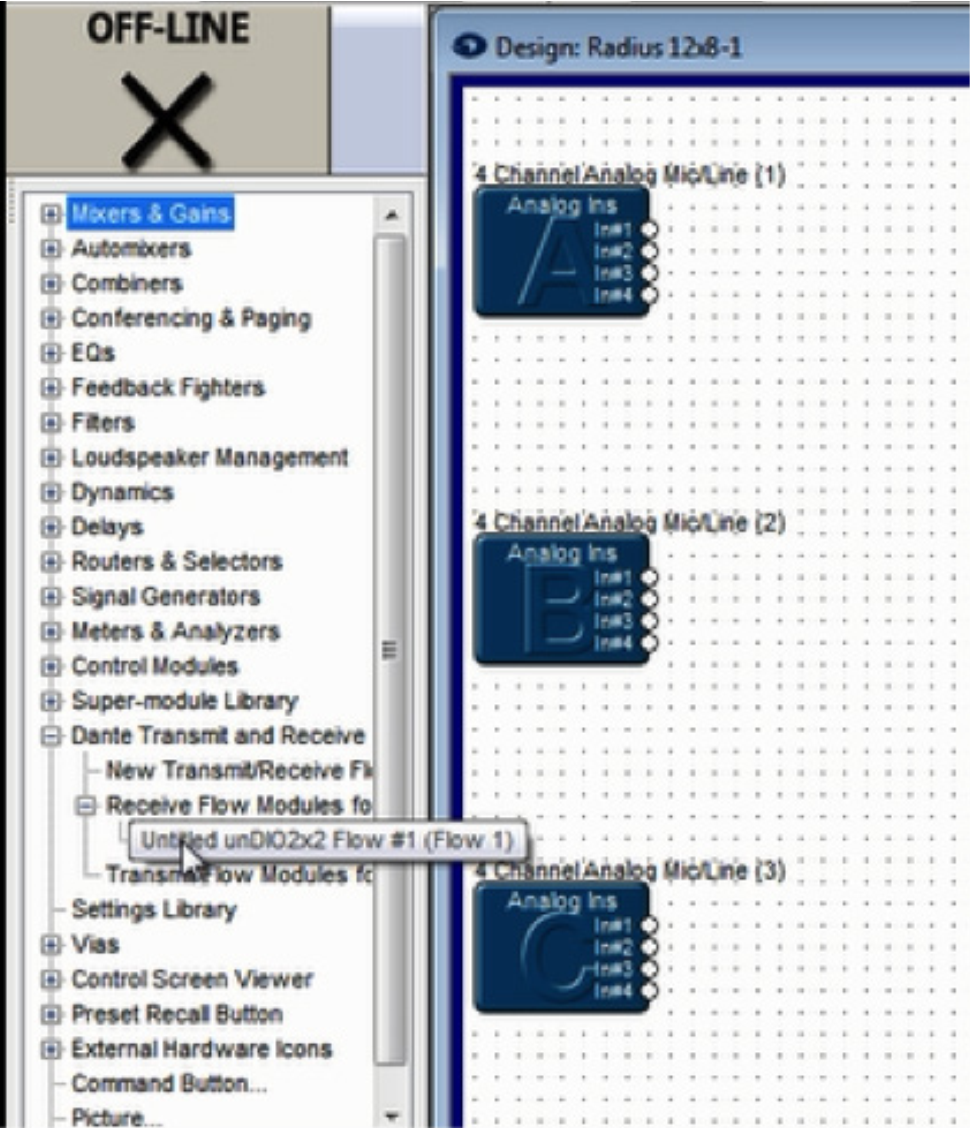
12) Wire the Receive Flow into the audio signal path as desired.
13) To send audio to the Attero Tech endpoint’s outputs be sure a Dante Transmit Flow already exists in the design, or create a new one.
Note: If a Transmit Flow already exists in the design, skip to step 15.
14) To create a new Transmit Flow, from the Toolkit under Dante Transmit and Receive Flows, drag a New Transmit and Receive Flow into the design. In the resulting dialog, name it, set its Channels in Flow to 2, set it to Transmit, label the Channel Names if desired, and click OK.
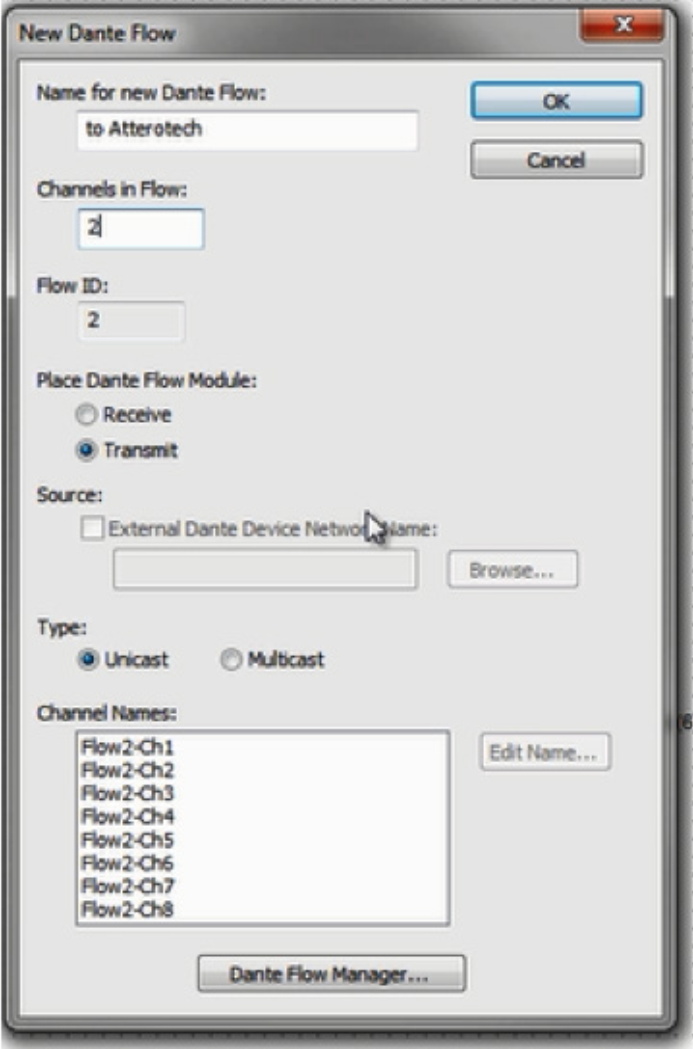
15) Wire the Transmit Flow into the audio signal path as desired.
16) Close the DSPs Design View to return to the Site View.
17) Double-click on the Attero Tech unit to access its Unit Properties dialog.
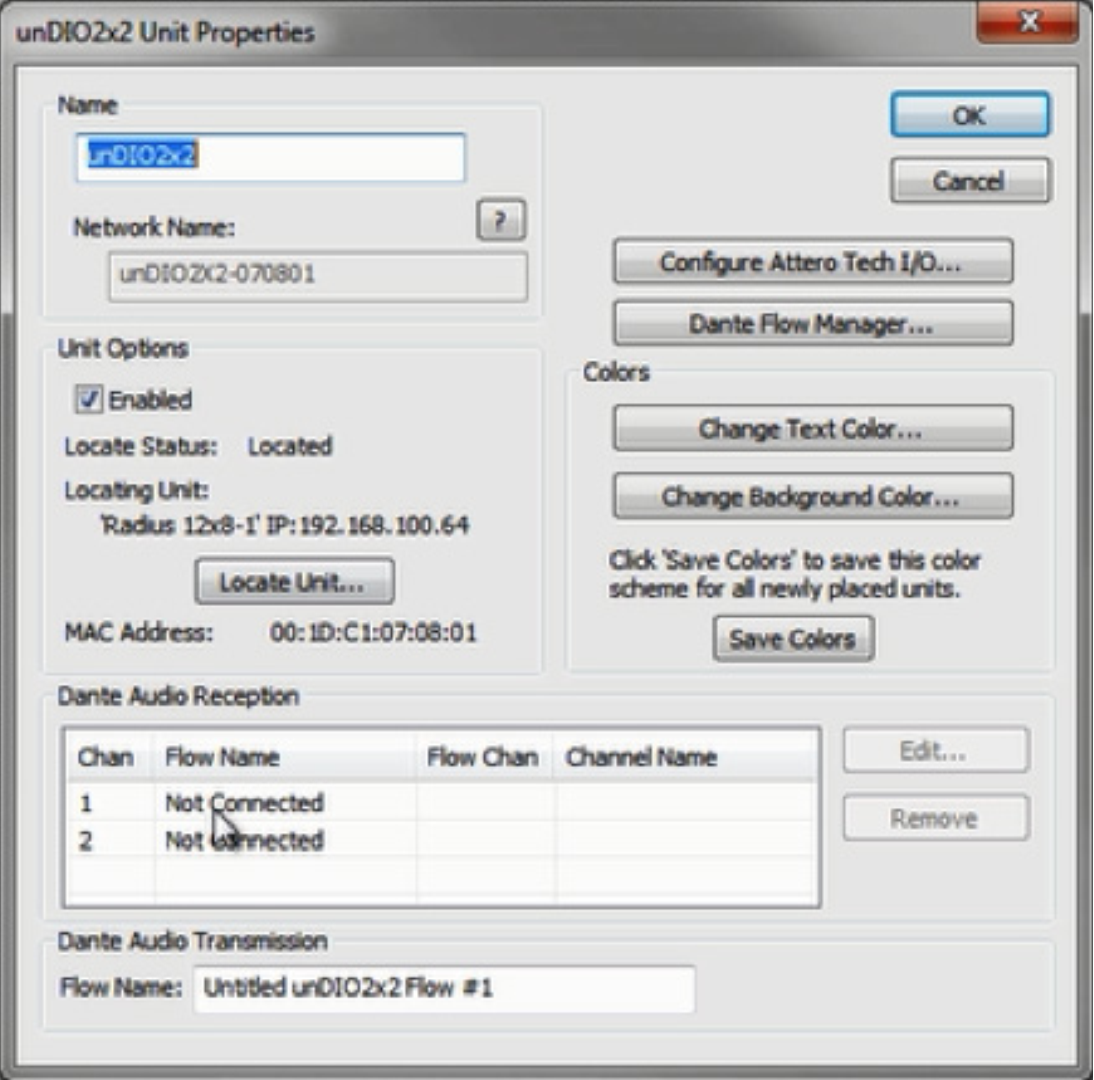
18) Under Dante Channel Reception, double-click on channel 1 or 2. Select the appropriate Dante Flow and the starting channel, typically channel 1, and click OK.
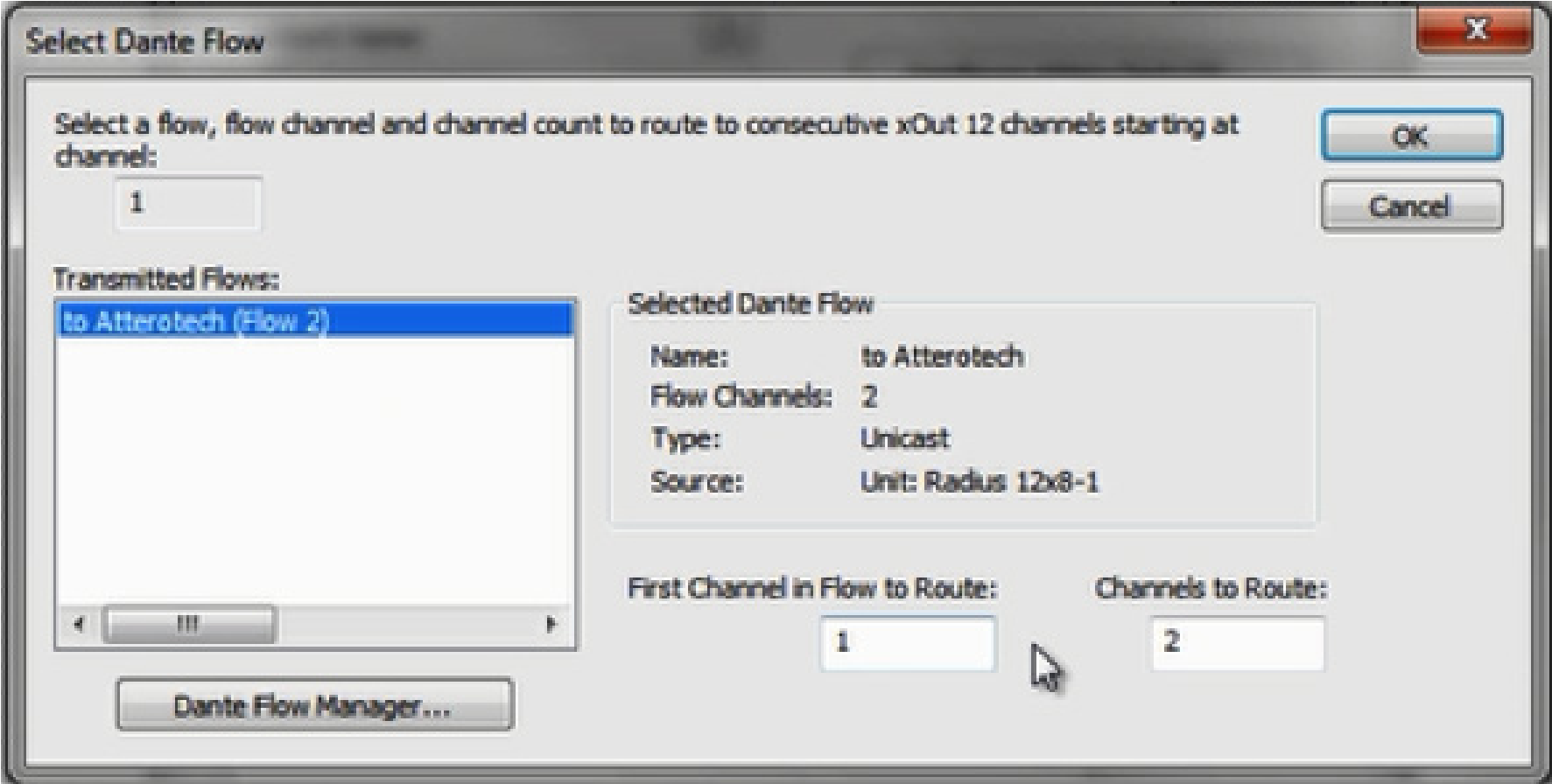
19) The Dante Audio Reception section should now indicate subscriptions to the Transmit Flow’s channels, shown in yellow below:
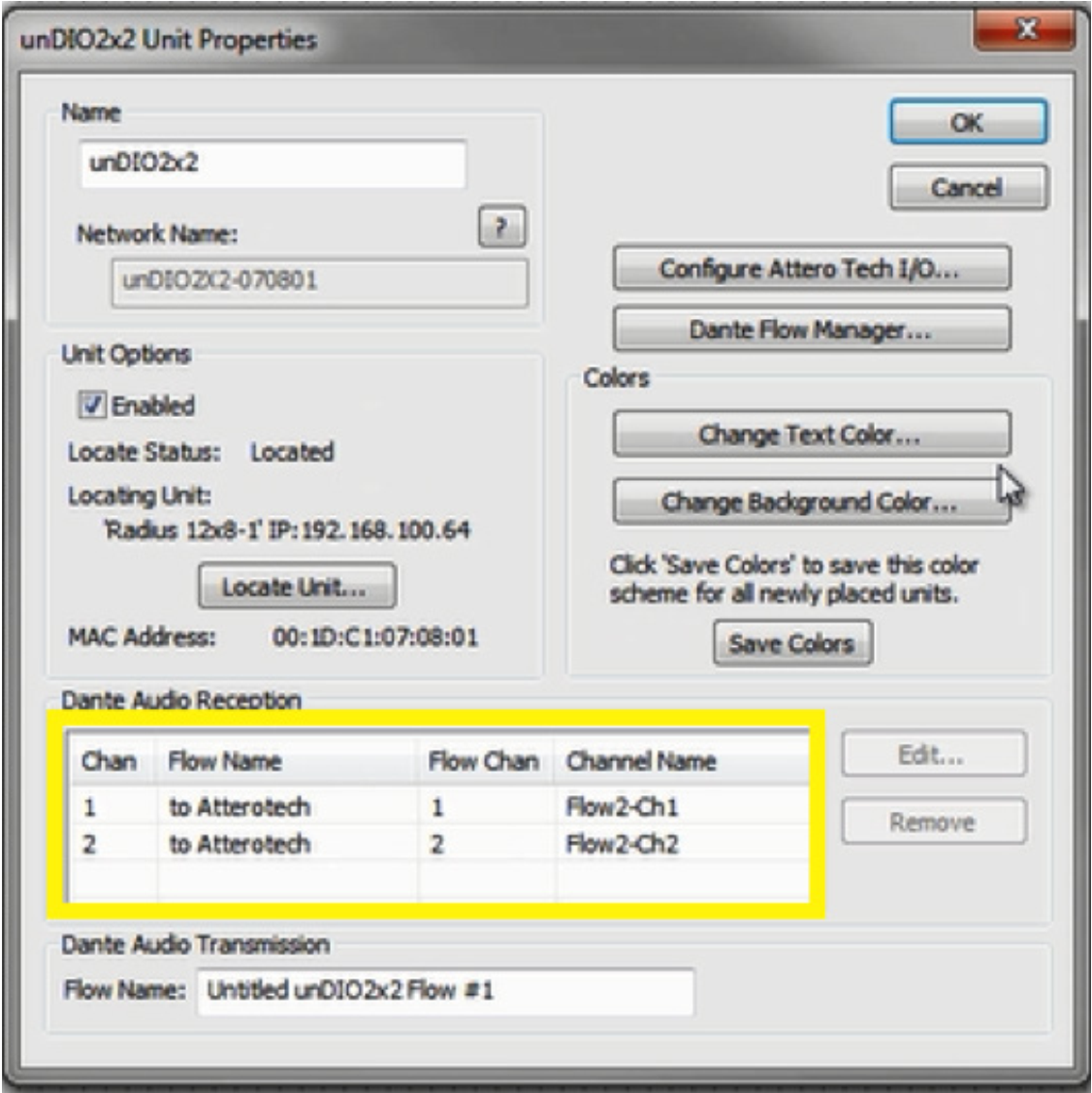
20) Next, click the Configure Attero Tech I/O button and set the inputs and outputs to the desired levels. Be sure the “Set Default Power on Settings” option is checked.
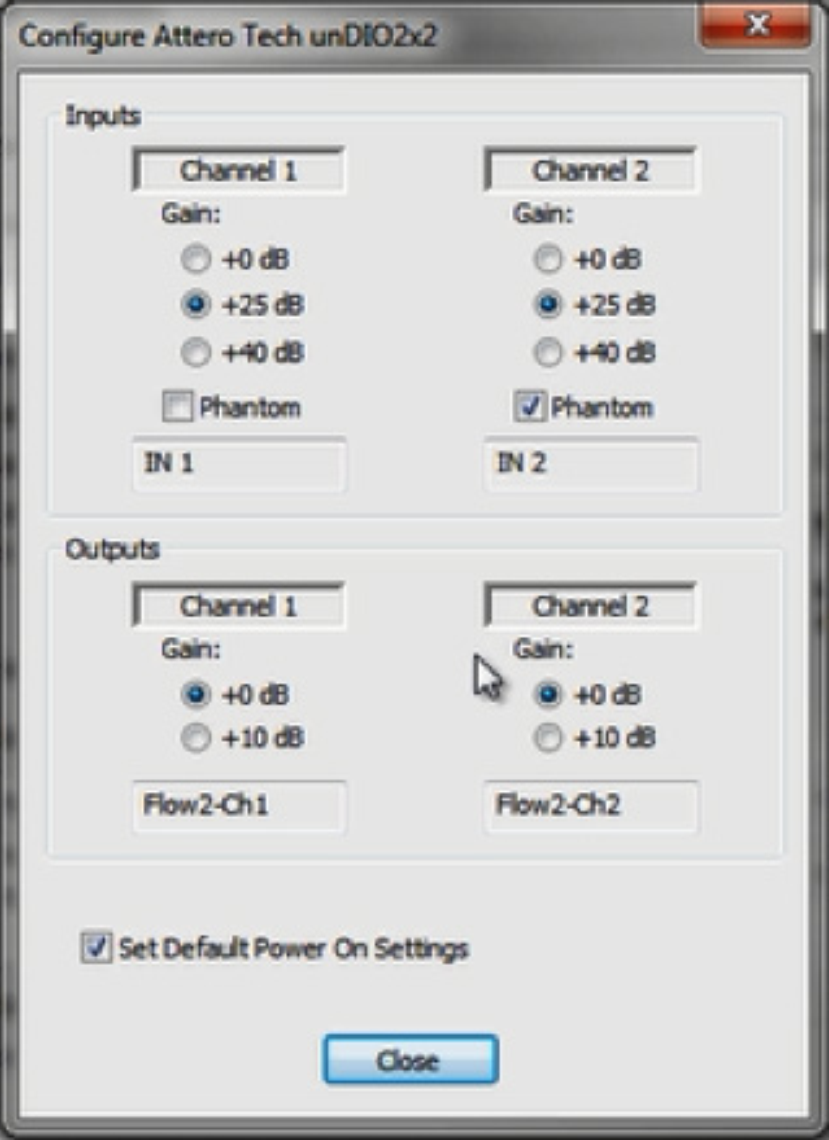
21) Click OK to close the Attero Tech properties screen.
22) Push the Site File. When completed, Dante audio should be passing bi-directionally between the DSP and the Attero Tech endpoint.
Basic Remote Terminal Commands
In the troubleshooting or information gathering process there may be times that certain commands become apparently beneficial to have at the ready. Here is a basic list of commands that can be used in Composer’s Remote Terminal (Tools > Launch Remote Terminal). Remember, the correct unit IP address must be specified in the top left “IP Address” field.
IMPORTANT NOTE: Some of these commands will require Remote Terminal be in Debug Mode (Ctrl+D or Options > Debug Mode). Use these commands exactly as shown and explained below. Remote Terminal sending/receiving false or incorrect command data can produce unintended negative results. Be aware of any currently passing signal that may be affected by any reboots or changes in parameter values as this could transfer to downstream equipment.
| COMMAND | DESCRIPTION |
| BR [<milliseconds>] | Reboots the Audinate Brooklyn card, which controls all Dante operations. If <milliseconds> is specified, it reboots the card immediately then stalls for the specified time. Otherwise, it marks the card as needing to be rebooted and allows the state machine to reboot it when appropriate. |
| CC <controller> <Inc/Dec> <amount> | CHANGE CONTROLLER: Changes the specified (decimal) by (0-65535 or 0-100%). If = 1, then the amount is added to the current value. If = 0, the amount is subtracted. If changing by the amount specified would result in an under- or over-flow, the value is clamped to zero or 65535 respectively. |
| CMV <action>[<format>] <unit>.<module>.<feature>.<enumerator> [<value>] | Changes a module and/or gets its current state. This command is used for fixed modules, e.g. the Super Matrix. <action> can be one of the following: Set, Get, Modify, Toggle, Reset <format> allows specifying the format of <value> and of the returned data. If no option is specified, it uses the native format for that particular control, i.e. dB for gains, 0/1 for Booleans, milliseconds for delay, and percentage for pans. Other options are ‘P’ for percentage 0-100% and ‘L’ for the legacy 0-65535 range. <unit> is the unit enumerator after the dash shown in the Composer above each unit, e.g. “Edge-1” means <unit> = 1. If <unit> is 0, the unit receiving the command is used. <module> specifies which module to control. For the Super Matrix, the module number is always 1. <feature> may be any of the following for the matrix mixer: CPGain Crosspoint Gain CPConnect Crosspoint Connect status CPDelay Crosspoint Delay IMute Input Mute IGain Input Gain ISolo Input Solo IPan Input Pan OMute Output Mute OGain Output Gain OPre Output Pre/Post <enumerator> specifies which crosspoint, input, output, etc. to control. Matrix crosspoints, will be identified with an “IxOy” syntax, e.g. “I3O4” refers to input #3 output #4. For parameters that refer only to an input or output and not a crosspoint, specify just the “I” or “O” part, e.g. “I3” or “O1”. <enumerator> may also be specified as a contiguous range or arbitrary set of values. This format is indicated by enclosing the enumerator in {curly brackets}. For a range, a colon is used to separate the beginning and ends of the range. For example “{I1O1:I3O4}” specifies a 3×4 rectangle of values with upper left of Input #1 Output #1and lower right at Input #3 Output #4. Sets of values are specified using comma-delimited lists. For example “{I1O1,I3O3,I16O12}” specifies 3 different crosspoints at input 1/output 1, input 3/output 3, and input 16/output 12. Sets and ranges may be combined, so several ranges may be set in a single command. <value> is only used for Set and Modify actions. It may be in 1 of 3 different formats described in the <format> field. For percent and native mode, values may be floating-point of any precision. Legacy 16-bit mode uses integers between 0-65535. In native mode, all gains are expressed in dB. Boolean parameters should be either 0 or 1. Delay values are in fractional milliseconds. Only one <Value> may be provided in each command, which will be applied to all parameters specified by the <enumerator>. Basic Examples: CMV Set 0.1.CPGain.I3O6 4.1 – Set the crosspoint gain for input #3 going to output #6 to 4.1 dB. CMV Set 0.1.CPConnect.I13O76 1 – Turns on the crosspoint for input #13 going to output #76. |
| CS <controller> <value> | Sets the specified <controller> to <value> (0-65535 or 0-100%). |
| EH[T] <value> | Turns serial port echo on or off. A <value> of zero value turns echo off. Any non-zero <value> turns it on. The default is 0. This setting is stored in flash. Turn echo off when using an AMX or Crestron control system with Symmetrix to avoid receiving the sent commands. Turn it on when using a terminal program for test and debug so you can see what you are typing. (Some terminal programs allow turning on local echo themselves, in which case you can turn it off in hardware.) Adding the T option changes the setting only temporarily and does not store in flash (e.g. EHT 0). |
| FU [<count> <fast>]] | Flashes the unit’s front panel LEDs <count> times. Used to identify units. If <count> is not specified, it defaults to 8. A <count> of zero stops the flashing immediately. If <fast> is a positive number, it flashes at a higher rate on supported hardware. |
| GC | Returns the currently running configuration number. One, the normal case, indicates the saved (F4 pushed) configuration is running. Zero indicates the active configuration is not the saved configuration (i.e. something else F5 pushed from the host). –1 indicates that nothing has been pushed. |
| GDBR[V] | Returns a detailed printout of all Dante devices discovered on the network, lower level “raw” data. If “V” is included, more verbose information is shown. |
| GPR | Returns the last preset that was recalled (1-1024). Zero indicates that no preset has been loaded. If no configuration is running, the command fails. |
| GPU [<low> [<high>]] | Get a list of controllers enabled for push. All controllers between <low> and <high> inclusive that are enabled for push are printed out in a list. If neither <low> or <high> are specified, the entire range is displayed. If only one parameter is specified, it is treated as <low> and the maximum value for <high> is used, i.e. all controllers greater than or equal to <low> are displayed. Special case: “GPU 0” displays global settings related to push rather than the list. |
| GS[2|3][%] <controller> | Gets the controller value of the specified controller. If “%” is included, the returned value is a percentage between 0-100%. Otherwise it is a value between 0-65535. The [2] option returns the controller number along with the value. The [3] option returns “GS3” then the controller number along with the value. |
| GSB[2|3] <controller> <count> | Gets <count> consecutive controller values starting with the specified controller. If “%” is included, the returned values are percentages between 0-100%. Otherwise they are values between 0-65535. The [2] option returns the controller numbers plus the values. The [3] option returns “GSB3” then the controller numbers along with the values. The <count> parameter is limited to 256. |
| GSYSS <unit>.<resource>.<enum> [.<card>.<channel>] Examples: GSYSS 1.1001.4.0 returns the name of speed dial #5 on unit 1, card A. No <channel> specification is necessary. GSYSS 2.1003.1.3.1 returns the caller ID on unit 2 for line 2 appearance 2 on card D. | Gets the system string resource defined by the 5 parameters listed. Supported values for <resource> are 1000 for speed dial number, 1001 for speed dial name, 1002 for dialed number, and 1003 for caller ID. <unit> is the unit enumerator after the dash shown in the Composer above each unit, e.g. “Edge-1” means <unit> = 1. If <unit> is 0, the unit receiving the command is used. <enum> is zero based, 0-19 for speed dials, 0-1 for VoIP call appearances. <card> is 0-3 for A-D, 0 where not applicable. <channel> is zero based, 0 where not applicable. <card> and <channel> may be omitted. |
| HELP | Returns detailed help on a particular command or a brief description. |
| INFO [<option>] | Displays detailed system information about the unit including firmware version, network settings, temperature, etc.. An <option> may be specified to limit information to a specific type. Examples: INFO CARDS – Get I/O card information INFO DANTE – Get Dante card and network information INFO TIME – Get time/date information INFO POWER – Get power rail information |
| LP[G] <preset> | Load preset #<preset>, a number between 1 and 1000. If “G” for global is specified, the unit that receives the command will distribute it to other units in the system with the same site ID to load the preset globally. |
| PUE [<low> [<high>]] | Enable controllers for push. All matching controllers between <low> and <high> inclusive are enabled for push. The range is additive. If neither <low> nor <high> are specified, the entire range is enabled. If only one parameter is specified, just that single controller is enabled. |
| PUC [<low> [<high>]] | Clears the “changed” state of RS-232 push data. This command would typically be executed with push disabled, and then when it is enabled, would prevent any previous changes from being pushed, starting fresh. <low> optionally sets the lowest controller number to clear and <high> optionally sets the highest controller number to clear. If neither is specified, the entire range will be cleared. You may specify <low> without <high> but not vice versa. If executed on a ring master, this command will be broadcast to all other units. |
| PUD [<low> [<high>]] | Disable controllers for push. All matching controllers between <low> and <high> inclusive are disabled for push. The range is subtractive. If neither <low> nor <high> are specified, the entire range is disabled. If only one parameter is specified, just that single controller is disabled. |
| PUE [<low> [<high>]] | Enable controllers for push. All matching controllers between <low> and <high> inclusive are enabled for push. The range is additive. If neither <low> nor <high> are specified, the entire range is enabled. If only one parameter is specified, just that single controller is enabled. |
| PUI <milliseconds> | Sets the push update interval, that is, how often the master unit polls a single unit for new data to push. This used to be fixed at 100 ms, but now with Ethernet push, this can be faster since we aren’t necessarily limited by the RS-232 baud rate. <milliseconds> sets the update time in milliseconds between 20 and 30,000 (30 seconds). |
| PUR [<low> [<high>]] | Push Refresh PUR [ []] Forces a refresh and push of RS-232 push data. optionally sets the lowest controller number to refresh and optionally sets the highest controller number to refresh. If neither is specified, the entire range will be refreshed. If only one parameter is specified, it will be interpreted as the value and all controllers from this value to 10,000 will be refreshed. To refresh a single controller, specify that for both and . If executed on a ring master, this command will be broadcast to all other units. |
| PUT [<parameters> [<meters>]] | Sets the push threshold, that is, how often much the current value must differ from the previous pushed value in order to push again. The values for meters and all other parameters may be set independently. If specified, <parameters> sets the threshold for parameters other than meters, between 0 and 65,535. If specified, <meters> sets the threshold for meters. If only one parameter is specified, it is used for both. If no parameters are specified, the default of 1 is used for both. A value of zero means that the value will be pushed if there is any change to the underlying DSP parameter, and was the default behavior prior to SND V7.0. |
| R! | Resets the main processor and forces re-initialization of most hardware. |
| R!! | Resets the main processor and forces re-initialization of all hardware including rebooting the Brooklyn card. |
| SB <baud> | Sets the baud rate of the debug serial port (normally the rear serial port) to the value specified by <baud> in bits/second. Valid values for <baud> are 1200, 2400, 4800, 9600, 19200, 31250, 38400, 57600, 115200, and 230400. The default 57600. This setting is stored in flash. A reset is required for this to take effect. |
| SQ[T] <value> | Turns quiet mode on or off. A <value> of zero value turns quiet mode off. Any non-zero <value> turns it on. The default is 1. This setting is stored in flash. When quiet mode is on, abbreviated responses are returned for easy machine parsing. Otherwise, lengthy human-readable responses are returned. Use quiet mode when using an AMX or Crestron control system with SymNet. Turn it off when using a terminal program for test and debug. Adding the T option changes the setting only temporarily and does not store in flash (e.g. SQT 0). |
| SSYSS <unit>.<resource>.<enum> [.<card>.<channel>]=[<value>] Examples: SSYSS 1.1001.2.0.0=Acme Inc. sets the name of speed dial #3 on card A to “Acme Inc.”. SSYSS 3.1000.20.3.0=555-1234 sets the number of speed dial #19 on card D to “555-1234”. | Sets the system string defined by the 5 parameters above to <value>. If <value> is omitted, the string is cleared. <unit> is the unit enumerator after the dash shown in the Composer above each unit, e.g. “Edge-1” means <unit> = 1. If <unit> is 0, the unit receiving the command is used. Supported values for <resource> are 1000 for speed dial number, 1001 for speed dial name, 1004 for VoIP direct dial. <enum> is zero based, 0-19 for speed dials. <card> is 0-3 for A-D, 0 if not applicable. <channel> is zero based, 0 if not applicable. |
| SV [C<card>] <I/O> <level> | Sets the analog volume control of the specified I/O, 1-8 = input, 101-108 = output, 0 = all inputs, 100 = all outputs, 1000 = all inputs and outputs on I/O card <card>. <card> can be 1-4 or A-D. If not given, card A is assumed. For units without separate cards, omit this parameter. |
| V | Returns the current hardware revision and firmware version/build date. |
The Digit Map (also called the Dial Plan) defines a collection of digit pattern templates that are used to match valid dial strings, for example 7-digit or 10-digit dialing, as the user enters digits. Once a pattern has been matched, the call is placed using the digits that have been entered. These patterns are used to make it easy for an end-user to dial the requisite digits including internal extensions, emergency numbers and external numbers and have the system dial automatically once the proper number and type of digits have been entered.
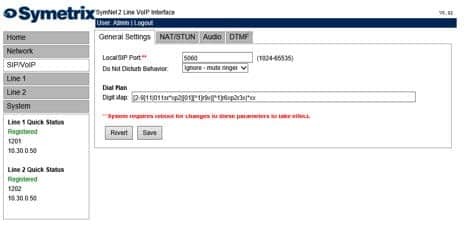
A quick reference can be accessed by placing the pointer of the mouse over the Digit Map field.
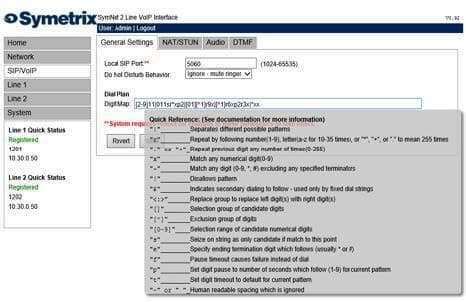
The following table provides a quick summary for all possible Digit Map parameter values.
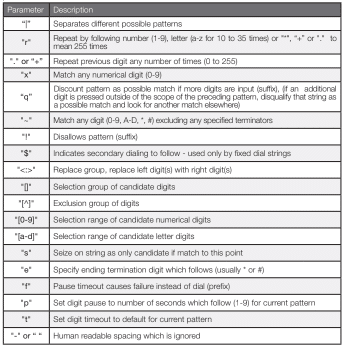
Each of the above parameters, when not used as an informational character, will represent a single digit. This includes if the parameter uses multiple characters for informational reasons.
Below is a detailed view of the default Digit Map:
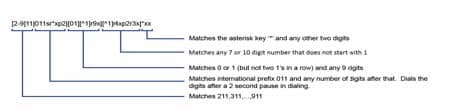
The following examples show how individual patterns are matched:
[3469]11
Allow 311,411, 611 and 911
Each of the items represented in the [] are seen as a single digit. This means “3 or 4 or 6 or 9” plus “11”
1900r7x!
Disallow a 1-900-XXX-XXXX number.
This will tell the system to look at the first four (4) digits of the entered number, and if they match “1900” drop to a failed tone.
976r4!
Disallow a 976-XXXX number from being dialed
This will tell the system to look at the first three digits of the entered number, and if they match “976” drop to a failed tone.
1800r7x
Allow a 1-800-XXX-XXXX number
This will tell the system to look at the first four digits of the entered number, and if they match “1800” dial using 1800 plus the remaining seven digits.
[^1]r6x
Allow a seven digit number not starting with 1, (2XX-XXXX – 9XX-XXXX)
This will tell the system to look at the first digit, if it is a “1” discount the input as a possible match. However if the string starts with any number between “2-9”, then dial using that digit plus the remaining 6 digits.
11[02] Allow 110 and 112
This tells the system to match the digits “11” and either “0” or “2”. For German emergency services, 110 is the Police and 112 is the Fire Brigade.
Some examples for various extensions:
“4xxq” – Matches 3 digit extension beginning with ”4”
“4xxxq” – Matches 4 digit extension beginning with ”4”
“4r4xq” – Matches 5 digit extension beginning with ”4”
“4xxp1xq” – Matches 3 and 4 digit extension beginning with ”4”
“4xxp1xp1xq” – Matches 3, 4, and 5 digit extension beginning with ”4”
The final “q” in the above strings tells the system that if an additional digit is pressed outside of the scope of the preceding pattern, disqualify that string as a possible match and look for another match elsewhere.
1010Se#e*p2r*x
This pattern tells the system to match a “0”, then after pushing a “*” or “#”, allow the user to enter in as many digits as the system can handle, then dial the entire string.
To set up a dial pattern that would allow the user to easily dial between two services, use the <:> symbol. By putting <[89]:> as part of the dial pattern, the system will replace an ”8” or ”9” with a null value, and continue pattern matching as necessary. For example: “<[89]:>r7x”, as long as the first digit is an ”8” or nine ”9”, this pattern will take the set of numbers, remove the first number, and dial out using the remaining seven digits. The user can then put an ”8” as part of the pattern recognition string for one provider, and ”9” as part of the pattern recognition for another provider. This will allow users to easily dial between providers with similar numbers. If one enters two different patterns which could be easily confused, the system will choose the first pattern that is matched. For example, if two patterns, one for eleven digits followed by one for twelve digits, the system will not wait for the twelfth digit, as it will match to the eleven digit pattern first.
The Symetrix ARC-WEB is a web app remote control for the Jupiter family of audio processors. Now you can use your iPad, iPhone or Android device to control volume, mutes, or presets in your Jupiter 4, 8, or 12. This tech tip will walk you through the steps of setting up and using the Symetrix ARC-WEB.
1) Make sure you have the latest version of the Jupiter software available at www.symetrix.co installed on your Windows compatible computer. (ARC-WEB is included in software versions 2.0 and later.)
2) After selecting and configuring the appropriate Jupiter app for your install, launch the External Controller Wizard found in the Tools menu.
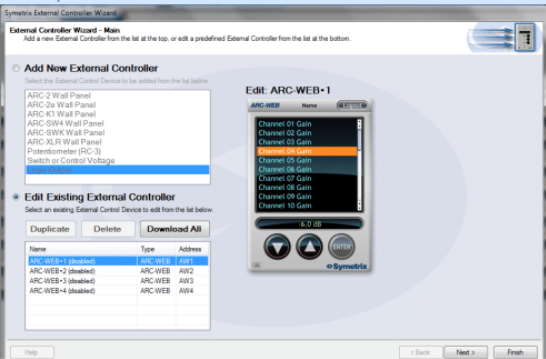
3) Choose Edit Existing External Controller and select one of the four available ARC-WEBs to program.
4) Proceed through the Wizard and follow the instructions to enable, name, and add menus for controls such as volume, mutes and presets. Note, if you are familiar with ARC-2 programming, it is almost identical to programming the ARC-WEB.
5) After you are finished adding up to 24 menus of controls, proceed through the Wizard to configure security if desired. Each ARC-WEB may have a unique username and password.
6) Finally, if the Jupiter software is currently online with the device, the final page of the Wizard will show a button to immediately launch the ARC-WEB in your computer’s Internet browser. (Note, you can repeat steps 2-5 up to four times as four ARC-WEBs are supported per DSP.). To launch ARC-WEB on your iPad, iPhone or Android device simply enter Jupiter’s IP address into the mobile device’s web browser. You can obtain Jupiter’s IP address from the Connection Wizard under the Tools menu, or from the Toolbar if currently online. Make sure Jupiter and your mobile device are both connected to a common Wi-Fi enabled network. Generally, the mobile device will connect to a wireless access point over Wi-Fi and Jupiter will connect to via Ethernet to that wireless access point, or a common switch or router. Internet (WAN) communication is also possible if public access to the Jupiter is enabled by your router or firewall. For information on this, search ‘port forwarding’ in our knowledge base at www. symetrix.co or contact your IT department.
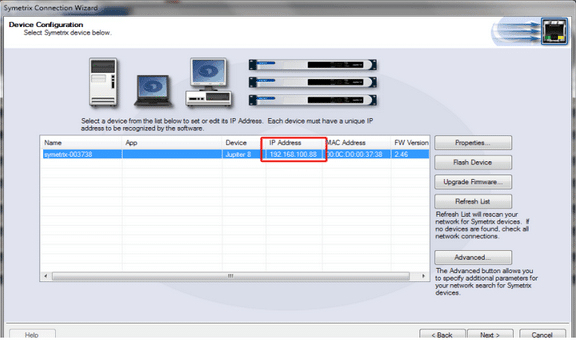
7) Next, we will add an icon to your device’s home screen. This example uses an iPhone. Tap the action button in the bottom middle of the phone’s screen.
8) Then tap ‘Add To Home Screen’.
9) Now give your ARC-WEB a custom name if you wish, then tap the Add button.
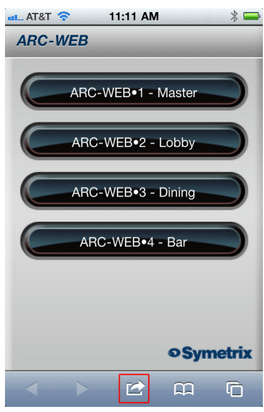
10) Locate and tap the ARC-WEB icon on your home screen and the ARC-WEB app will launch.
11) Then, select one of the four ARC-WEBs..
12) Now, start controlling! Simply select a menu from the drop-down and then use the UP and DOWN buttons to change volume, fire a preset, or turn a mute ‘on’ or ‘off’.
Symetrix provides cutting edge acoustic echo cancellation (AEC) for audio conferencing and video conferencing applications. With only 11ms of latency, the Symetrix AEC algorithm is one of the fastest acoustic echo cancelling algorithms in the conferencing market. Couple the speed of the AEC algorithm
with the pristine, high fidelity, audio Symetrix provides, including Dante digital bussing capabilities, there is little wonder why for many A/V Integrators Symetrix is becoming the preferred DSP system for small to larger conferencing systems.
Symetrix provides AEC and audio conferencing options native to the system; however, when video conferencing is needed, a 3rd party video codec system will be integrated with a Symetrix system. As such, it is important that the correct inputs and settings are used on the Lifesize system to provide the best audio possible during the video conference.
Lifesize 220 Input to Use with Symetrix Output:
All Lifesize 220 models have several inputs; however, when a Lifesize codec is integrated with Symetrix, the Symetrix system will provide the AEC. As such, it is important to use the (No AEC) inputs on the Lifesize codec for receiving the microphone and media sources from device. Using an input on the Lifesize codec with AEC can cause artifacts associated with processing the already “echo free” audio with AEC a second time.
Below is a chart with the Lifesize models and “No AEC” input options. The
mix that has the audio for the far end caller should be connected to one of these No AEC inputs.
From the Lifesize User Guide:
Lifesize 220 Output to Use with Symetrix Input:
The Lifesize codec is providing the audio from the far end to the Symetrix system. This far end audio is used as the reference (REF) as well as being sent to the local speakers. The “Line Out” of the Lifesize codec should be connected to an analog input on the device. When using a Radius AEC, one of the four line inputs should be used. If a Lifesize phone is used in conjunction with the system, the Voice Call Audio Output should be routed to the Lifesize Line Out as well.
Below are pictures of the Lifesize 220 models. The correct Lifesize input to connect to the output which will carry the local audio to the far end is highlighted in red on each model. The correct Lifesize output, also known as the reference or “REF”, to connect to the input is highlighted in blue.
Lifesize Express 220:
Lifesize Team 220:
Lifesize Room 220:
The purpose of this Tech Tip is to explain how to integrate the Earthworks IML & IMBL Microphone and LumiComm Touch Ring with a Symetrix DSP. The Earthworks LumiComm Touch Ring features a dual-color LED light ring and a touch sensor output. The light diffuser houses 10 LEDs providing side illumination (5 Green, 5 Red). The logic controlled LumiComm Touch Ring provides system integrators complete freedom
to assign functions and LED color.
The Earthworks IML & IMBL Microphones and the LumiComm Touch Ring can be supplied with either a 5 pin Phoenix connector or an 8 pin R-J45 connector.
The LumiComm Touch Rings current consumption is 85 mA with 5 LEDs lit and 170 mA with 10 LEDs lit, so an external power supply is needed. A “regulated” power supply from 8-28 VDC can be used. Always check your power supply polarity before connecting your supply to the LumiComm Touch Ring.
The wiring diagram below uses the Earthworks IMBL Phoenix connector in this
example. Each connection between the Phoenix connector and the Symetrix DSP is
explained below.
Pin 1) Ground – This connects to both the ground (-) connection of the external power supply, as well as the ground connection of the External Control Input or the Logic Output used on the Symetrix DSP.
Pin 2) 8-28 VDC power supply – This connects to the (+) connection of the external power supply.
Pin 3) Touch Sensor Output – This connects to the External Control Input used on the Symetrix DSP. In this example, CTRL input 1A is used.
Pin 4) Red LED – This connects to the Logic Output on the Symetrix DSP used to activate the red LED. In this example Logic Output 2 is used.
Pin 5) Green LED – This connects to the Logic Output on the Symetrix DSP used to activate the green LED. In this example Logic Output 1 is used.
Symetrix DSP’s are equipped with 3.3V pull up digital inputs, so a 10K resistor is not necessary as shown in Earthworks documentation.
To create the programming for the LEDs we recommend using our Button Processor Super-module, which is included in Composer software. 1-button, 4-button and 8-button versions are included in Composers Super-module library.
The Button Processor Super-module makes it extremely easy to integrate these microphone’s push-to-talk switches into your DSP. Four different modes are available per mic switch; Push to talk, Push to Mute, Toggle, and Disabled.
- Start by importing a 1-Button Processor Super-module into the design:
- Drag in a 1-Button Momentary module from the toolkit, and wire to the “Button 1” input on the super-module.
- Double-click the 1-Button Momentary module to bring up its GUI. Right-click directly on the “On” button, then click “Set Up to Remote Control” and select the Local Analog Input from the “Remote Control Device” dropdown menu. Then select which switch is being used under the “Select Analog Control” dropdown menu. Switch 1A is used in this example.
- From Control Modules->Control Outputs, drag in the “Local Logic Output #1” module. Wire the On/G output from the Button Processor Super Module into the Local Logic Output 1 module.
- From Control Modules->Control Outputs, drag in the “Local Logic Output #2” module. Wire the Off/R output from the Button Processor Super Module into the Local Logic Output 2 module.
- Navigate to the Mute button for the mic channel you’re planning to control. Right-click it, select “Set Up to Remote Control” and choose “Control Signal Assignment”. Click the “Select” button, and click the plus sign next to “1-Button Processor”. Highlight “1 Off/R”, then click OK.
- Open the Super-module user interface and select the preferred switch mode. In this example the Toggle mode is used. Go online and test the switch while watching the super-module GUI. The Input LED will light when the switch is closed, and the On/Mute LEDs will respond accordingly.
This Tech Tip will explain how to integrate the Clockaudio CH32 illuminated Halo LED touchpad and a cardioid desktop microphone with a Symetrix DSP. It should be noted that any future Clockaudio products utilizing a bi-colored status indicator and switch will be standardized, using the same color code and connection method. At present, this tech tip is valid for the CH32, TS001, SM80S, S80, and CSS Series (CS1S-CS4S).
The integration of Clockaudio conference systems can be performed with any Symetrix DSP that has analog control inputs, however this tech tip uses an Edge specifically in all examples. The CH32 is a translucent white, bi-color Halo Ring which includes a touch pad switch. There are (16) Red and (16) Green LEDs in the ring. The logic outputs on the Edge unit can power single LEDs, but cannot provide
the 60mA @ 12 VDC required to power the entire Halo Ring.
It is necessary to employ an external 12 VDC regulated power supply, in order to operate the CH32.
| Cable Color | Function | RJ45 Pin Number |
| Red | Red LED | 2 |
| Blue | -V Switch | 3 |
| Brown | +V (12 VDC) Switch | 4 |
| Yellow | Switch Logic Control | 5 |
| Green | Green LED | 6 |
The CH32 has a wire pigtail with an RJ45 connector crimped on one end. The product comes with an RJ45 straight-through coupler to facilitate the connection to a permanently installed CAT5/5e/6 cable.
Please be aware that the wiring scheme may vary on your specific model of CH32. Always double check the manufacturer’s documentation for the exact wire coloring of your model CH32.
There are (3) important connections which need to be made between the CH32 and Edge.
1) The Ground, Red LEDs, and Green LEDs wires from the CH32 should be connected to the Edge’s Logic Outputs. For this example, use Logic Output #1 for the Red LEDs and Logic Output #2 for the Green LEDs.
2) The Ground and Switch Control Logic wires should be connected to Edge’s External Control Inputs. For this example, use External Control Input #1 for the Switch Control Logic.
3) Plus, minus, and ground of the audio line from the microphone should be connected to an Analog Mic/Line Input channel on Edge.
The final important connection is to an external power supply. In this example, a 12 VDC external power supply is connected across +V and –V/Ground. When the Green LEDs or the Red LEDs wire is grounded by Edge’s Logic Outputs, the associated set of LEDs light. The Switch Logic Control wire will be open, or closed with respect to ground. The circuit’s state is determined by toggle logic and should be connected to the Edge External Control Input.
It is the integrator’s responsibility to configure (2) functions within the Edge unit:
1) Touching the CH32 triggers a logic function on the Switch Logic Control wire. This contact closure must be connected to an External Control Input on the Edge unit and assigned to a parameter in software such as a Latched Button, then wired into a control process such as a Flip-Flop, in order to trigger a set of presets that mute and un-mute the microphone associated with the CH32.
2) The presets triggered by the contact closure after touching the CH32 should also include a parameter that pulls either the Green LEDs wire or the Red LEDs wire to ground on Edge’s Logic Outputs connectors.
The integrator must decide whether it is desirable for the customer to have Red LEDs lit when the conference microphone is muted, or when it is open and in use.
Then, the presets in the Edge should be configured so the proper wire is pulled to ground according to the lighting scheme the customer wishes to have.
Please refer to the diagram below as an example of wiring a CH32v02 to Edge’s Logic Outputs, External Control Inputs, and Analog Mic/Line Inputs:
NOTE: The coupler that ships with the CH32 has its corresponding pins visually in a crossover pattern if looking down directly at the coupler. The coupler’s pin pattern is directly duplicated on the opposite face. The wiring diagram above displays the colors considering that only pins 2 – 6 are used and assuming that the same colors are continued on the other side of the coupler.
This tech tip will cover a variety of ways in which the “Input Logic Module” from
Control Modules->Control Logics can be used within a Composer system. Input Logic Modules are typically driven by External Control Inputs. As such the following section will cover the basics of Control Input modules.
Input Logic Modules:
The modules have two outputs labeled, True and False. The True output will be 100% when the logic function is True. The False output is always the complement of the True output (negative logic). Any input less than 50% is assumed to be 0, or false. Any input greater than or equal to 50% is assumed to be (1), or True. For each input, there is an enable button. When turned on, the corresponding input will affect the output. When turned off, the input will be ignored.
The Input Logic modules can perform one of (4) different logical operations: And, Or, Xor and On. The And function is True only if all enabled inputs are True. The Or function is True if any one of the enabled inputs is True. The Xor function is True if any odd number (1, 3, 5) of enabled inputs are True. Note: If all inputs are disabled, the Xor and Or functions will be false and And function will be True. The On function is always true regardless of the state of the inputs. (On may be useful to generate a constant 100% control signal). By using the False output, you can create the inverse function, i.e. Nand, Nor, XNor, or Off. Truth tables are show below for the 2- and 4- input versions to illustrate this.
The tables for the large input versions will follow the same logic as shown below.
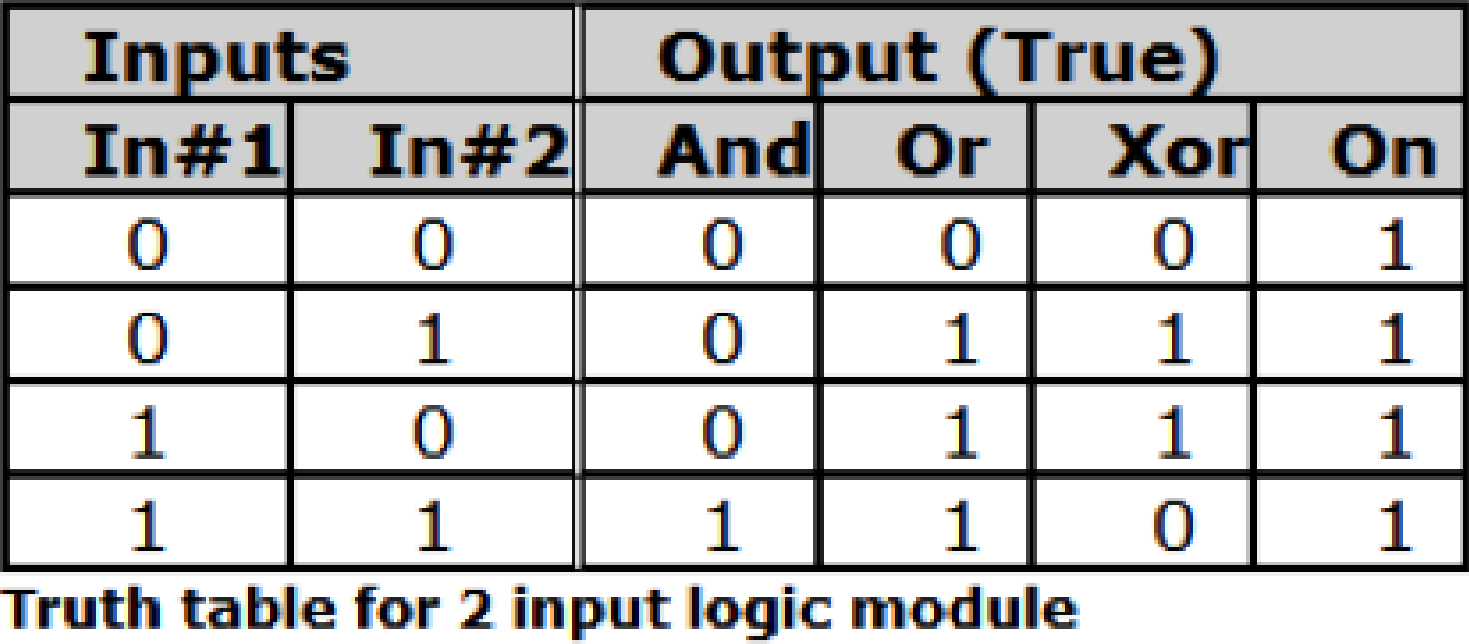
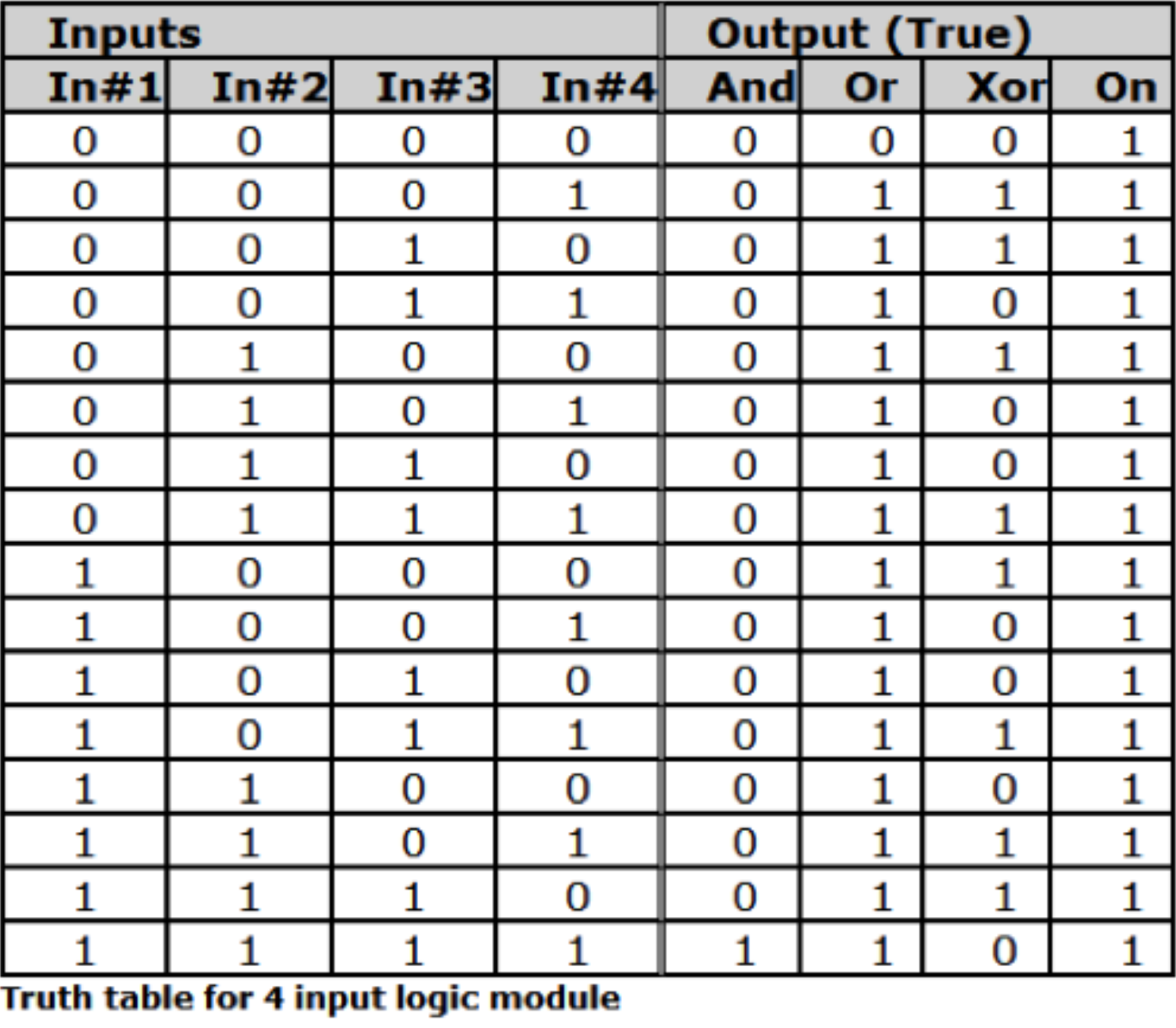
Note: 0 = false or 0%, 1 = True or 100%. If the False output is used substitute 0 for 1 and vice versa for all outputs. The tables assume all inputs are enabled.
Controls:
- Off Level. Sets the control signal level that will be output when the button is off (0-100%). Adjust using the slider or click in the text entry box to specify a numerical value. Typically this valve would be 0%.
- On Level. Sets the control signal level that will be output when the button is on (0-100%). Adjust using the slider or click in the text entry box to specify a numerical value. Typically this value would be 100%.
Note: to make the button act in reverse, set the off level to a value higher than the on level. - On. Manually controls the button state. You can assign this to an external controller to provide an interface from an external controller to a control signal.
A space is provided to name each button. Click in the box adjacent to the On button and enter a name. The name entered will also appear on the modules output label(s).
Note: A button module can also be used to interface to an external on/off type controller (analog input
or RS-232/485). This allows processing and using an analog control or RS-232/485 controller as a
control signal. Assign the On button to an external controller. Then the module output will reflect the
state of the external controller and can be routed, processed, and connected as a control signal.
Example 1: Using “AND” Logic Operation
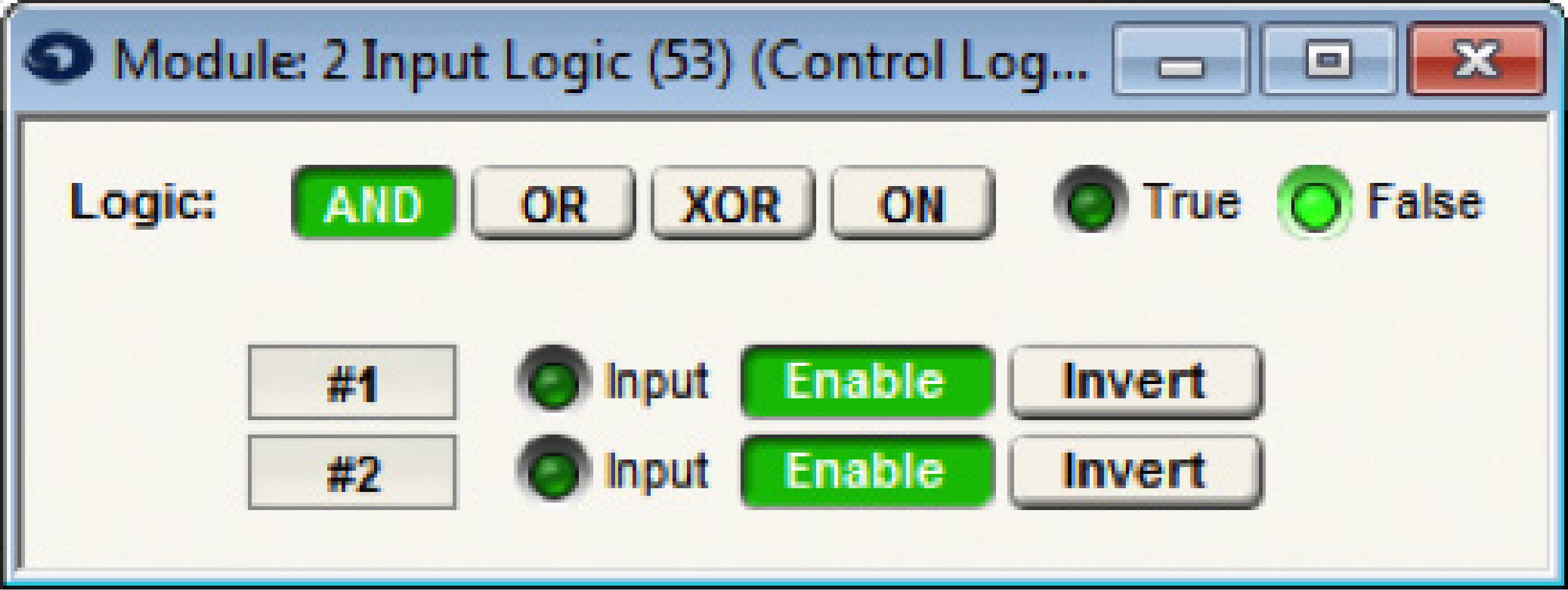
In this example, a Room Combine system with 3 rooms is configured such that, when separate, each room’s head table position is on the north side of the room and speaker delay is configured accordingly (Preset 2).
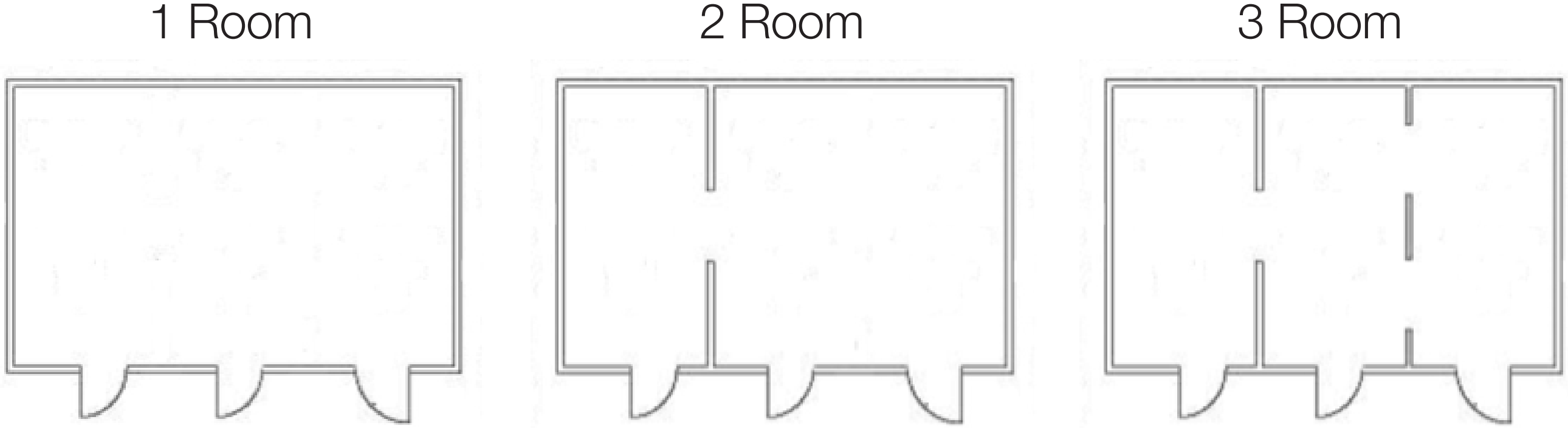
When all three rooms are combined into a single, large partition, the system needs to automatically reconfigure the head table position to the west side of the room and as such, reconfigure the subsequent speaker delays to support this new head table position (Preset 1).
To accomplish this, a 2 Button Latched module is used to mirror the two combine buttons of the room combine module. Notice the control number assignments on the 2 Button Latched Module match the control number assignments of the BGM Automix Combiner, using controllers #17 and #18 respectively. This effectively links the room combiner “Combine” buttons to the 2 button latched “On” buttons.
The 2 Input Logic module monitors the status of the 2 Button Latched, which mirrors the Room Combiner “Combine” buttons, and then triggers the appropriate preset based upon the combine status.
When none of the rooms are combined, both inputs of the 2 Input Logic module will be 0%. This means the output of the 2 Input Logic module will be False and Preset 2 will be triggered.
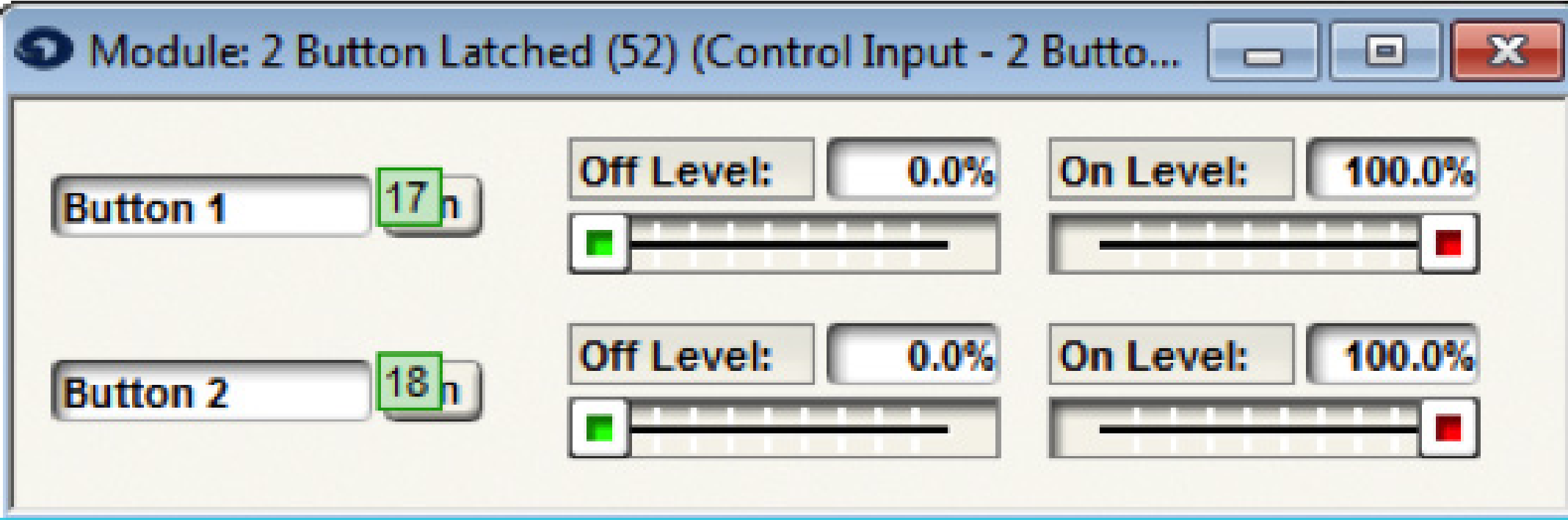
When only one pair of rooms are combined, either 1 & 2, or 2 & 3, the inputs of the 2 Input Logic module will be 0% and 100% respectively. This means the output of the 2 Input Logic module will be False since it is set to ‘AND’ and both inputs must be 100%. As such, Preset 2 will be triggered.
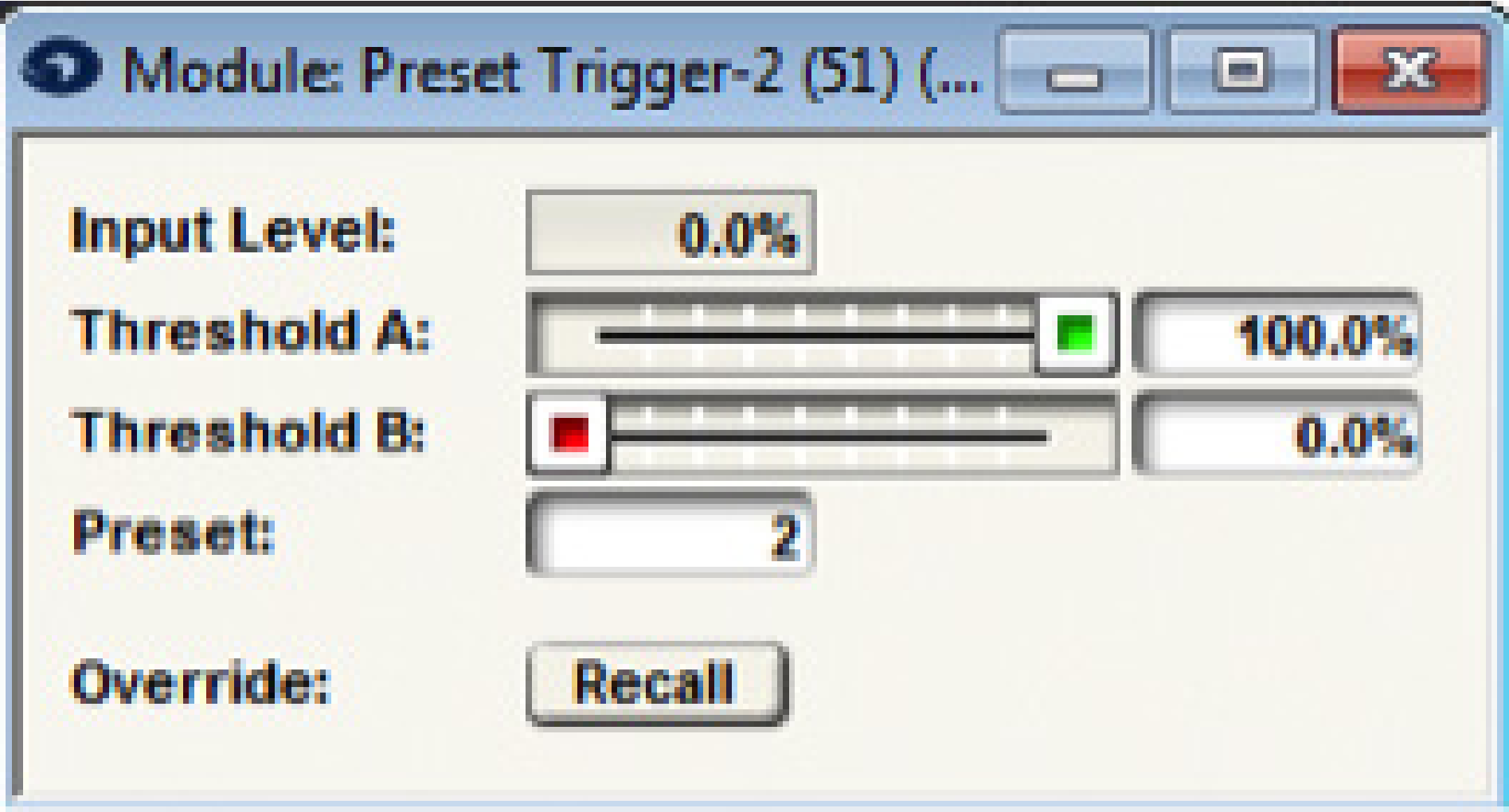
Once all 3 rooms are combined, then both inputs of the 2 Input Logic module will be 100%. Since both are at 100% and the 2 Input Logic module is set to ‘AND’, this means the output of the 2 Input Logic module will be True and Preset 1 will be triggered.
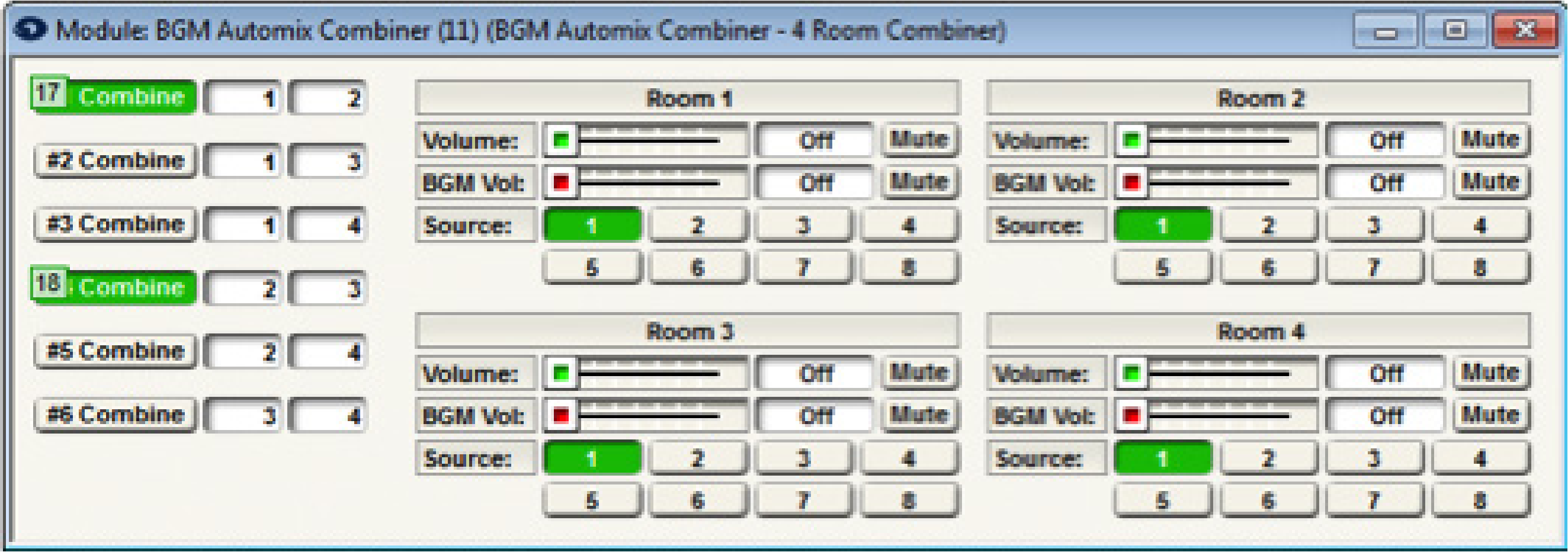
Example 2: Using “OR” Logic Operation
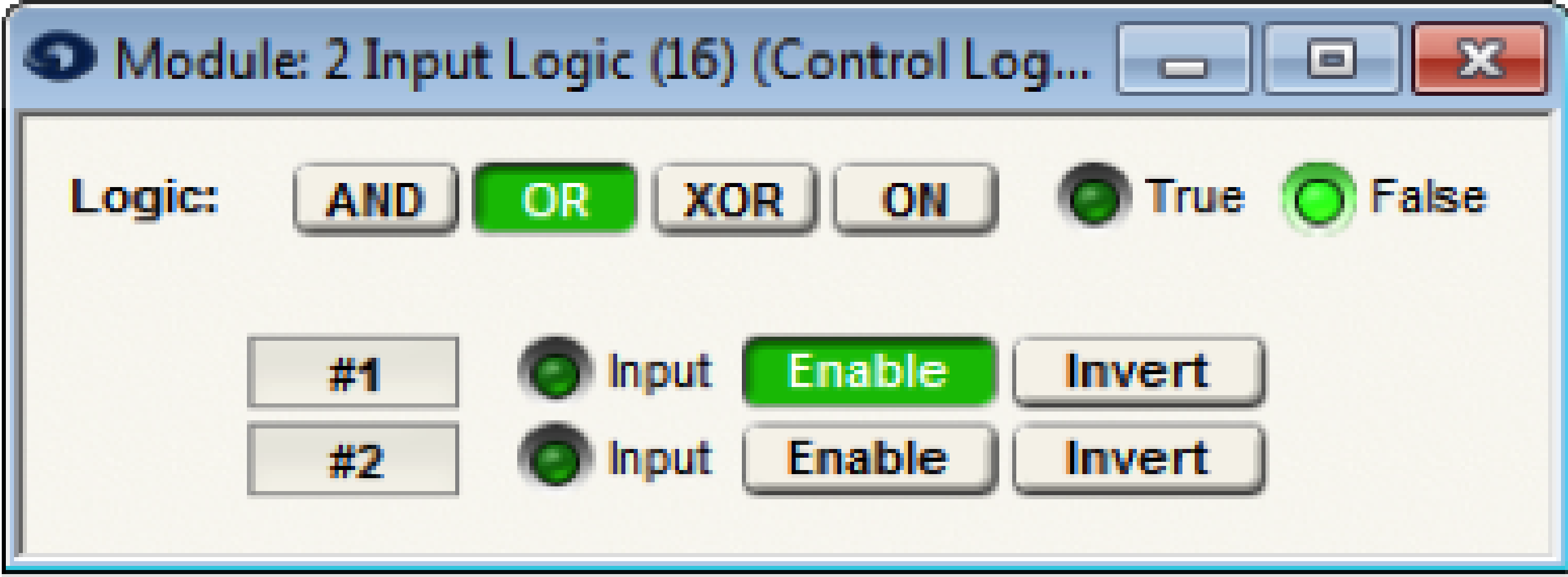
In this example a 2 Input Logic Module set to ‘OR’ provides a Fire Alarm Mute/Unmute all function.
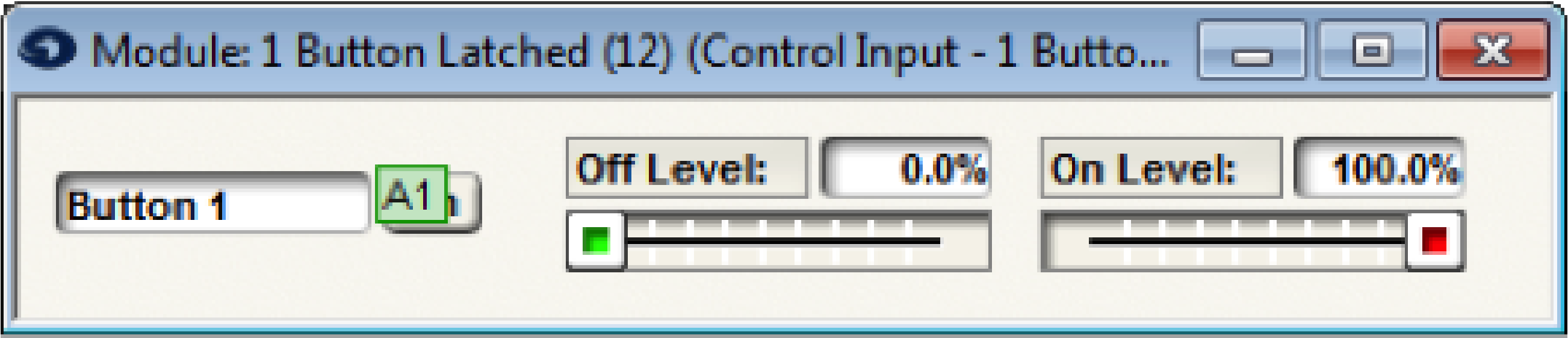
A 1 Button latched feeds a single input of a 2 Input Logic module set to OR.
Preset 1 or Preset 2 will be triggered based upon the output of the 1 Button Latched module.
Typically in an application like this, the 1 Button Latched “On” button will be assigned to an External Control Input that is connected to a fire alarm relay. Once the fire alarm relay is engaged (stays engaged until the relay is reset), the 1 Button Latched “On” button is pressed and will output 100% to the 2 Input Logic module input. The 2 Input Logic module’s output will be True since it is set to OR and Preset 1 will be triggered (i.e. Mute All).
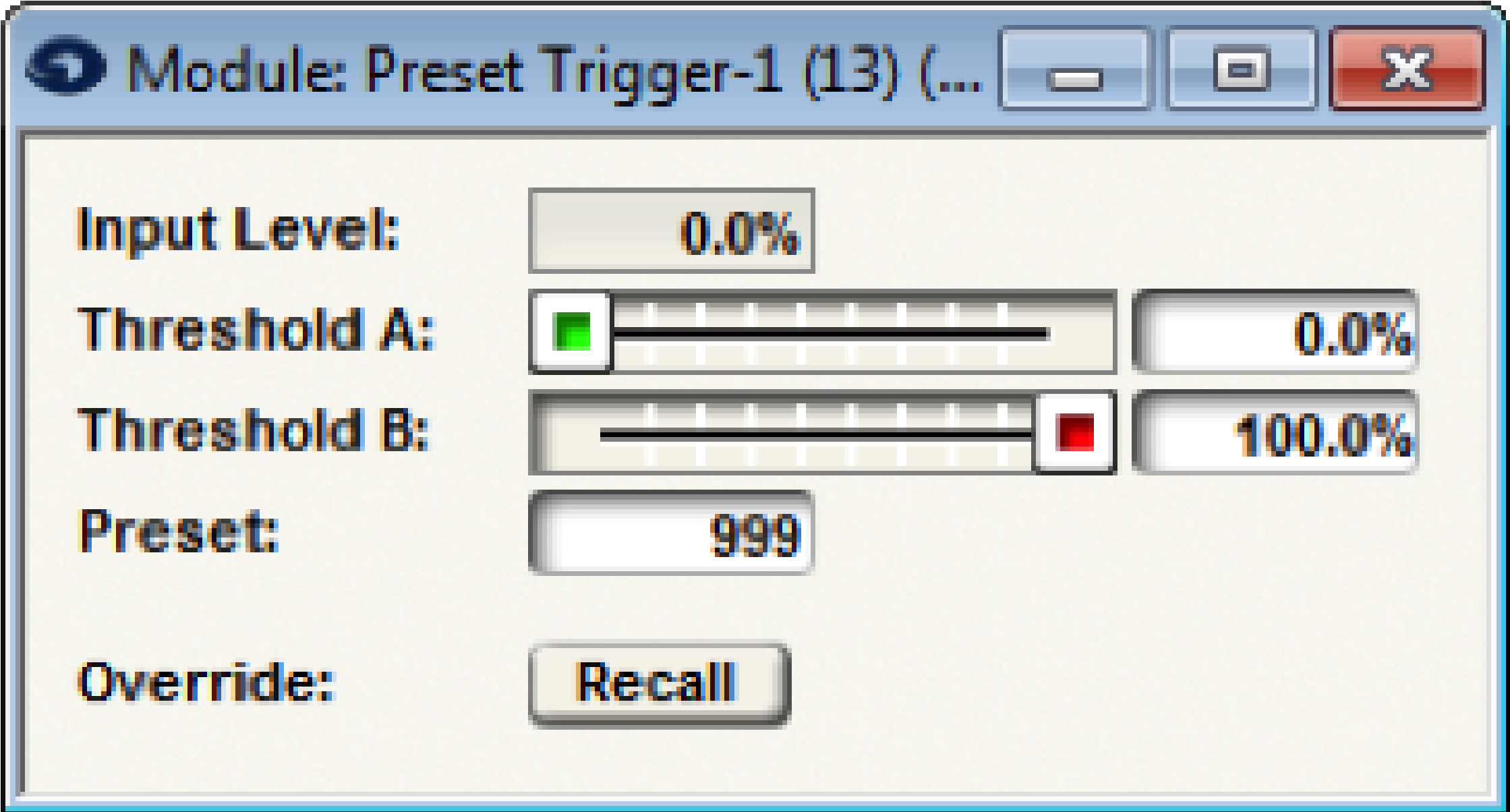
When the fire alarm relay is reset, the 1 Button Latched “On” button will turn off and the output will be 0% to the 2 input Logic module input. The 2 Input Logic module’s output will be False and Preset 2 will be triggered (i.e. Unmute All).
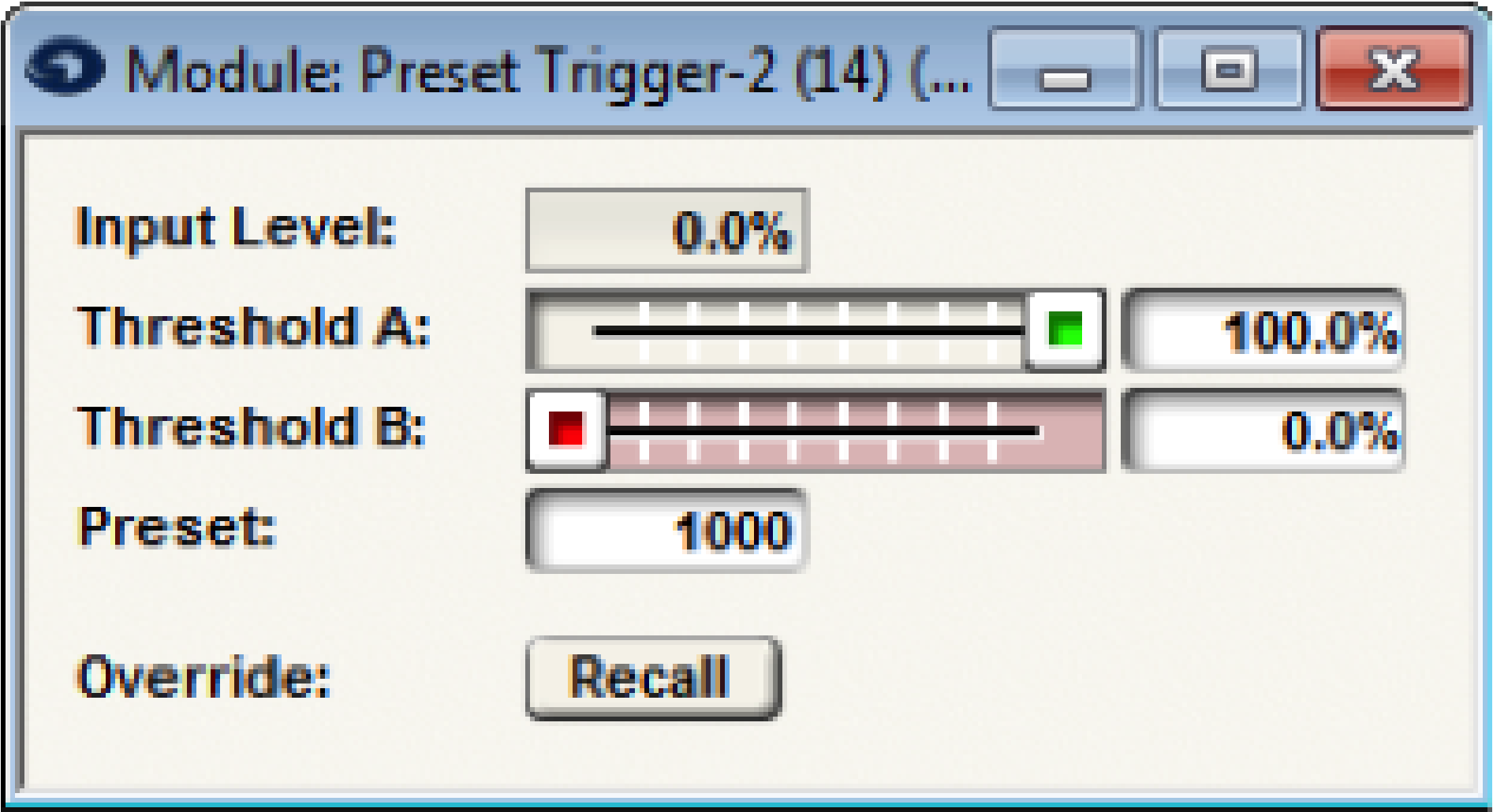
Example 3: Using “XOR” Logic Operation
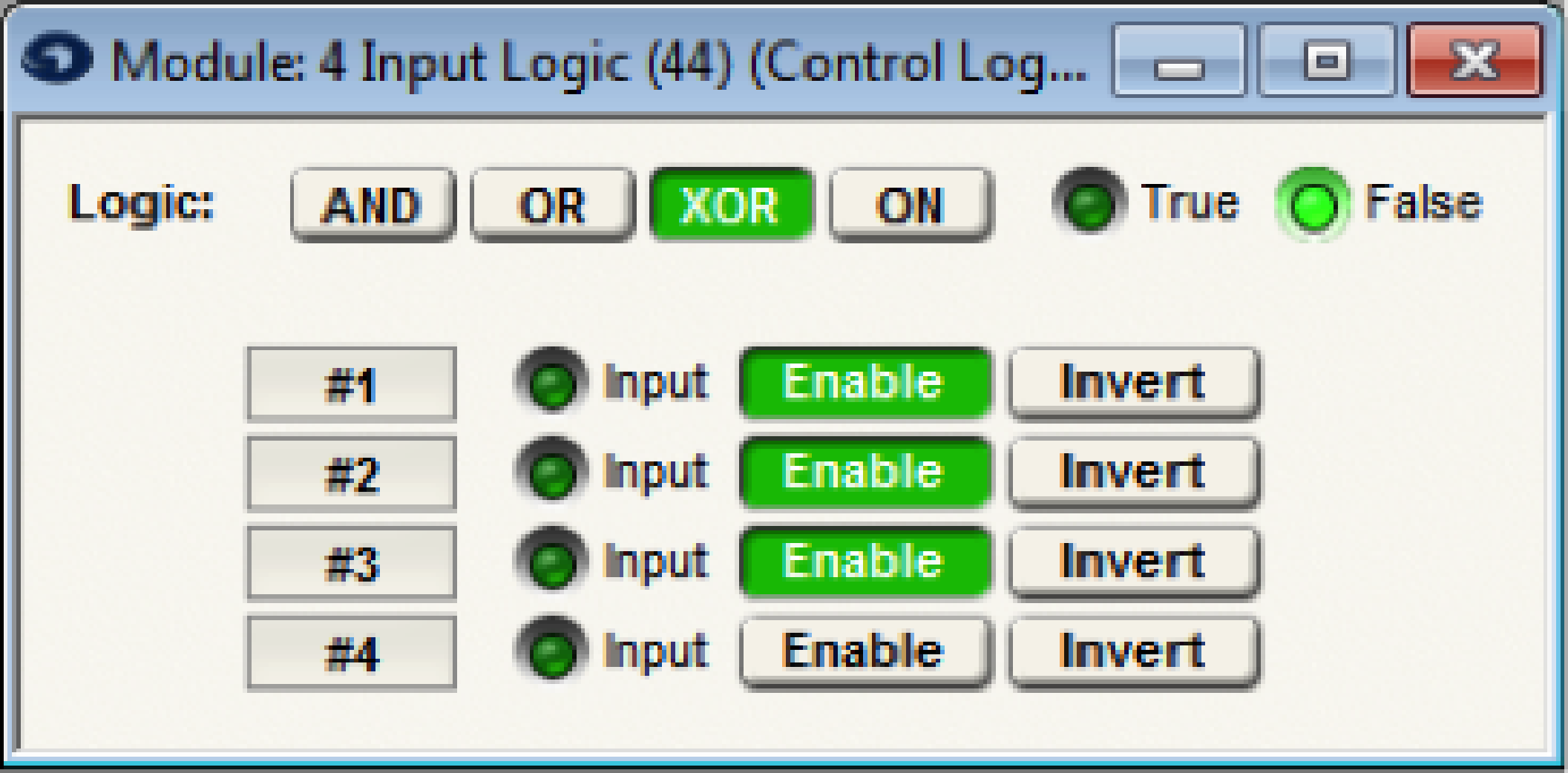
In this example, a conference room has three modes of operation, where two of the modes require a projector screen to be lowered in the conference room. A 4 Radio-Button Module is used to select the conference room mode and trigger the respective preset that configures the audio inputs accordingly, while a 4 Input Logic module set to XOR is used to control the Local Logic Output that raises and lowers the projector screen.
Note: The Xor function is True if any odd number (1or 3) of enabled inputs are True. If all inputs are disabled the Xor functions will be false.
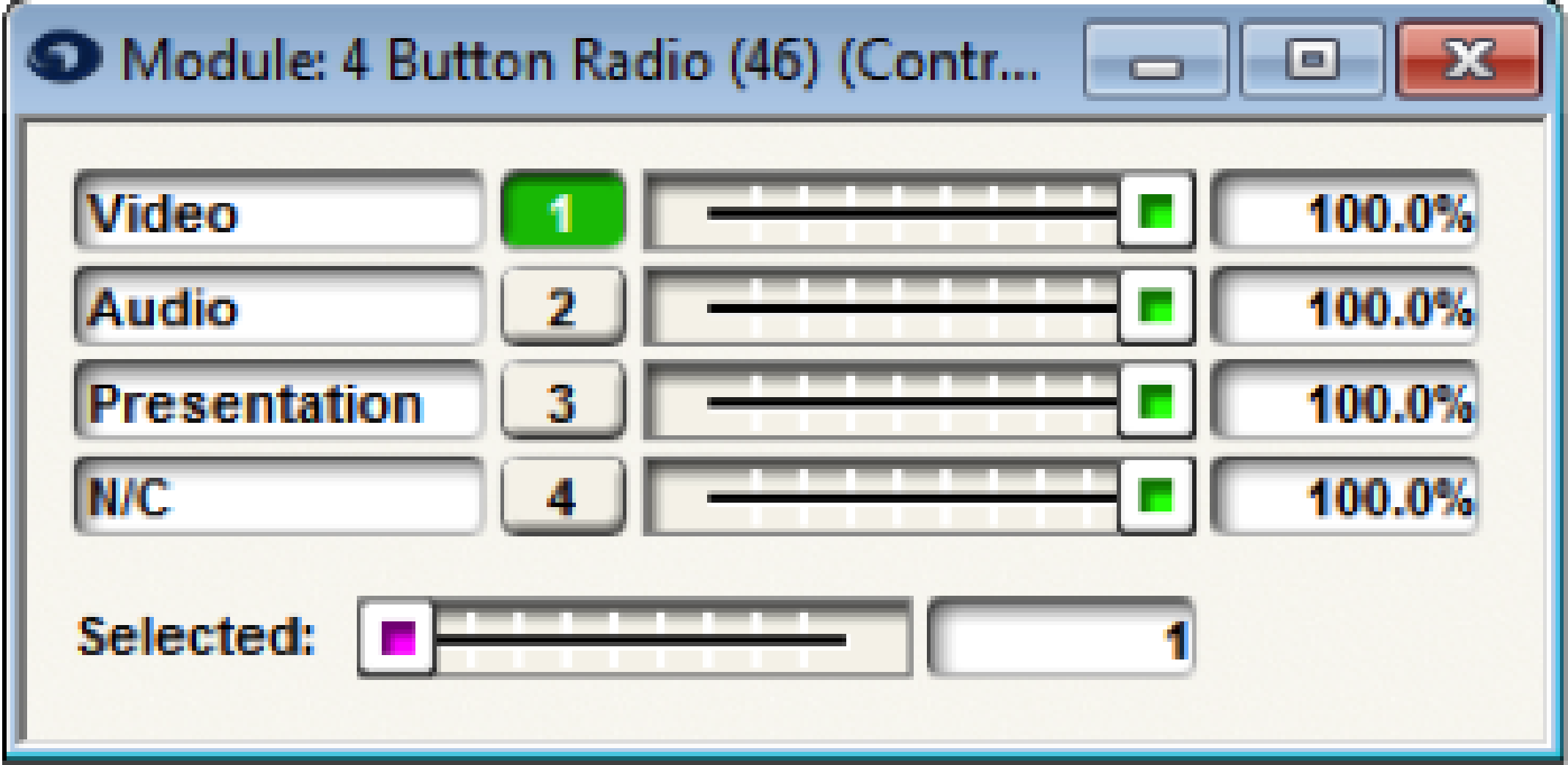
When radio button 1 is selected for Video conference mode, Preset Trigger-1 is activated to configure the audio inputs and the 2 Input Logic module set to XOR will output TRUE triggering the Local Logic Output which will lower a projector screen for the video conference.
When radio button 2 is selected for Audio conference mode, Preset Trigger-2 is activated to configure the audio inputs and the 2 Input Logic module set to XOR will output False so that the projection screen will raise.
When button 3 is selected for Presentation mode, Preset Trigger-3 is activated to configure the audio inputs for the presentation and the 2 Input Logic module set to XOR will output TRUE triggering the Local Logic Output which will lower a projector screen for the presentation/PC VGA output.
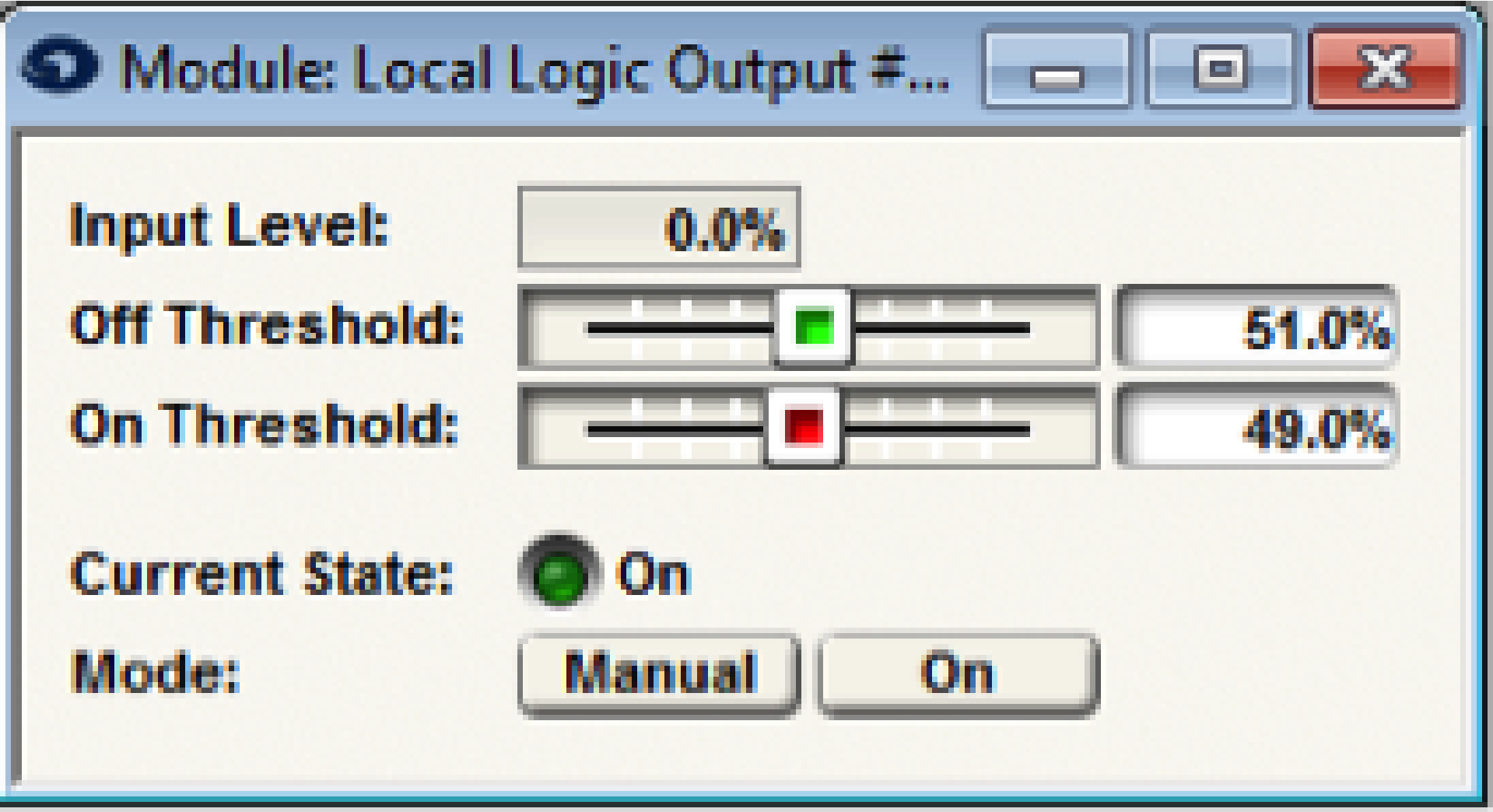
SymVue is our custom control screen software that comes packaged with Composer. Oftentimes, an installer will set up a Windows tablet to execute a SymVue file upon boot up, thus making things simple for the end-user and creating a fully immersive control screen environment. In this type of scenario however, it is best to give the end-user a means to shut down Windows properly, rather than doing a “hard” shutdown of their device at the end of the night.
This can be accomplished by the simple process of creating a .BAT file that resides on the device. This .BAT file can then be executed via a Command Button placed directly on the SymVue control screen.
Create the .BAT file:
- Open the Notepad application on a Windows PC.
- Type in the following command:
c:\windows\system32\shutdown -s -f -t 00
What the parameters mean:
-s: Tells the computer to shutdown
-f: Forces running applications to close.
-t: How long the device waits before shutdown is initiated (in this case, 0 seconds)
- Go the File menu and click Save As. From the “Save as Type” dropdown menu, choose “All Files”. For file name, type in “shutdown.bat”. Make sure to include the .bat file extension.
- Drop the .BAT file into a directory on the tablet or PC that will be running SymVue. Make note of this file path. For example “C:\Users\ndanielson\Desktop\shutdown.bat”.
Create the Command Button:
- In Composer, bring up the control screen to which you want to add a shutdown option. From the Toolkit, double-click or drag in a Command Button.
- The Command Button Properties windows will appear – In the Label field name it “Shutdown”. In the Command field type in the file path from step four above. Again, this needs to be the file path on the device that will be running SymVue.
Other button parameters such as color and size may also be edited in this screen.
- Position the Command Button on the control screen in the choice position. Of course, care must be taken on where to place the command Button, as you don’t want the end user to accidentally trigger the button and shut down their tablet until they actually mean to do it. Therefore, it may be best to create an isolated control page just for the shutdown button.
Use your best judgement.
A Symetrix system’s I/O can be comprised of a combination of hardware, from DSPs such as D100, Edge, Radius NX, or Prism to the I/O expanders such as the xIn12, xOut12, and xControl. Pushing the site file programming from the host PC running Composer Software to the system can take anywhere from a few seconds to a few minutes depending on the amount of hardware that must receive programming.
Often times during commissioning, pushing the file to the system will be performed many times over as changes are made to the signal flow, remote controllers, presets, or parameters, and of which it is desirable to listen to these changes and/or to save these changes permanently in the system. By speeding up the Push process, it is possible to shave many minutes off of the overall commissioning time of the system.
The first thing to note is that all control and routing is truly performed in the DSP units. No processing or control is actually performed in the xIn 12, xOut 12, or the xControl, as once programmed these devices simply send audio or control to the d100, Edge, Radius NX, or Prism.
What this means is that once the xIO have had their programming pushed into them, then changes to the site file signal path, DSP modules, or control will not typically include changes to the xIO devices. As such, disabling them from the Push process will eliminate needlessly reloading the same programming into these devices whose settings/programming is not changing between each subsequent push.
Take this example site file. It includes Edge, Radius NX, xIn 12, xOut 12, and xControl hardware. Before disabling the xIO units from push, first locate all hardware and push the design (F4) to program all hardware, including the xIO devices.
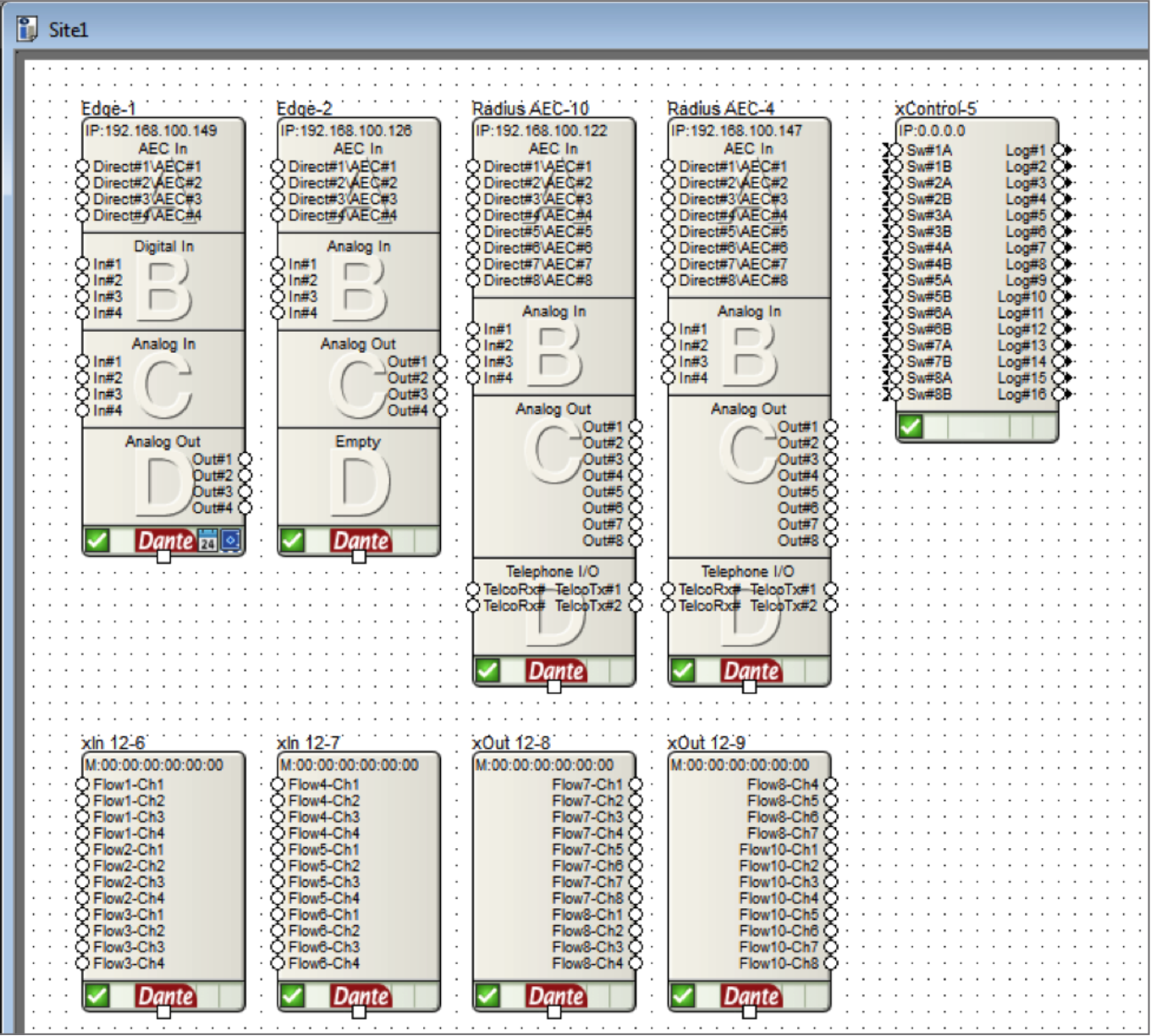
Then right click the xIO hardware and choose “Unit Properties”. When the Unit Properties window pops up, uncheck the enable box (highlighted in red below). Doing this will disable the unit from each subsequent push of the site file. Disabling a unit does not affect the unit’s functionality. To repeat, the
disabled units will continue to operate normally and communicate to the DSP hardware, they will simply be ignored by Composer software during the push process.
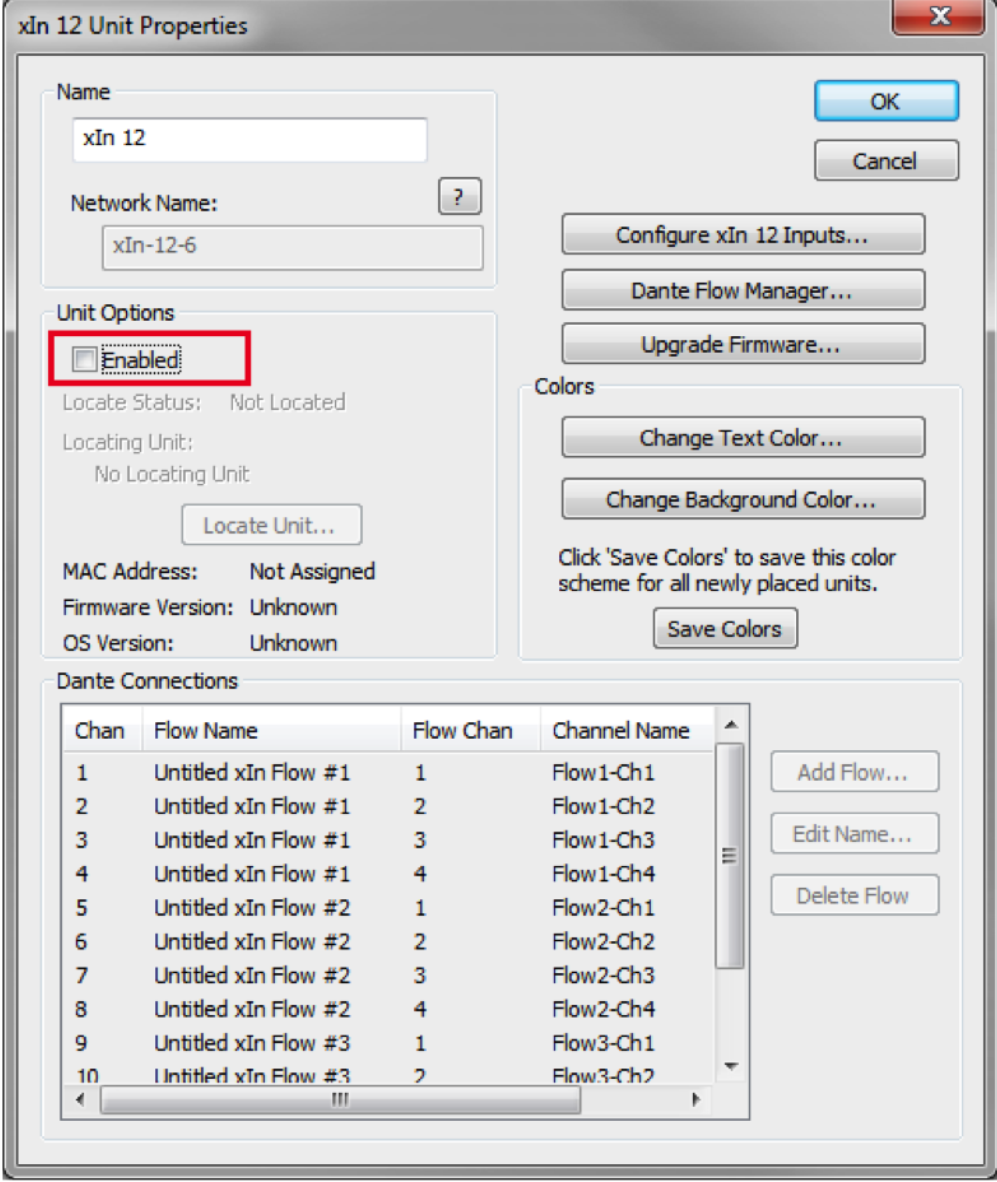
Once all xIO units are disabled, the push process will now update only the programming on the Edge, Radius NX, Prism, and D100. And as this document explains, over the course of the commissioning process, eliminating unnecessary units from being reprogrammed over and over will shave many minutes off the commissioning process.
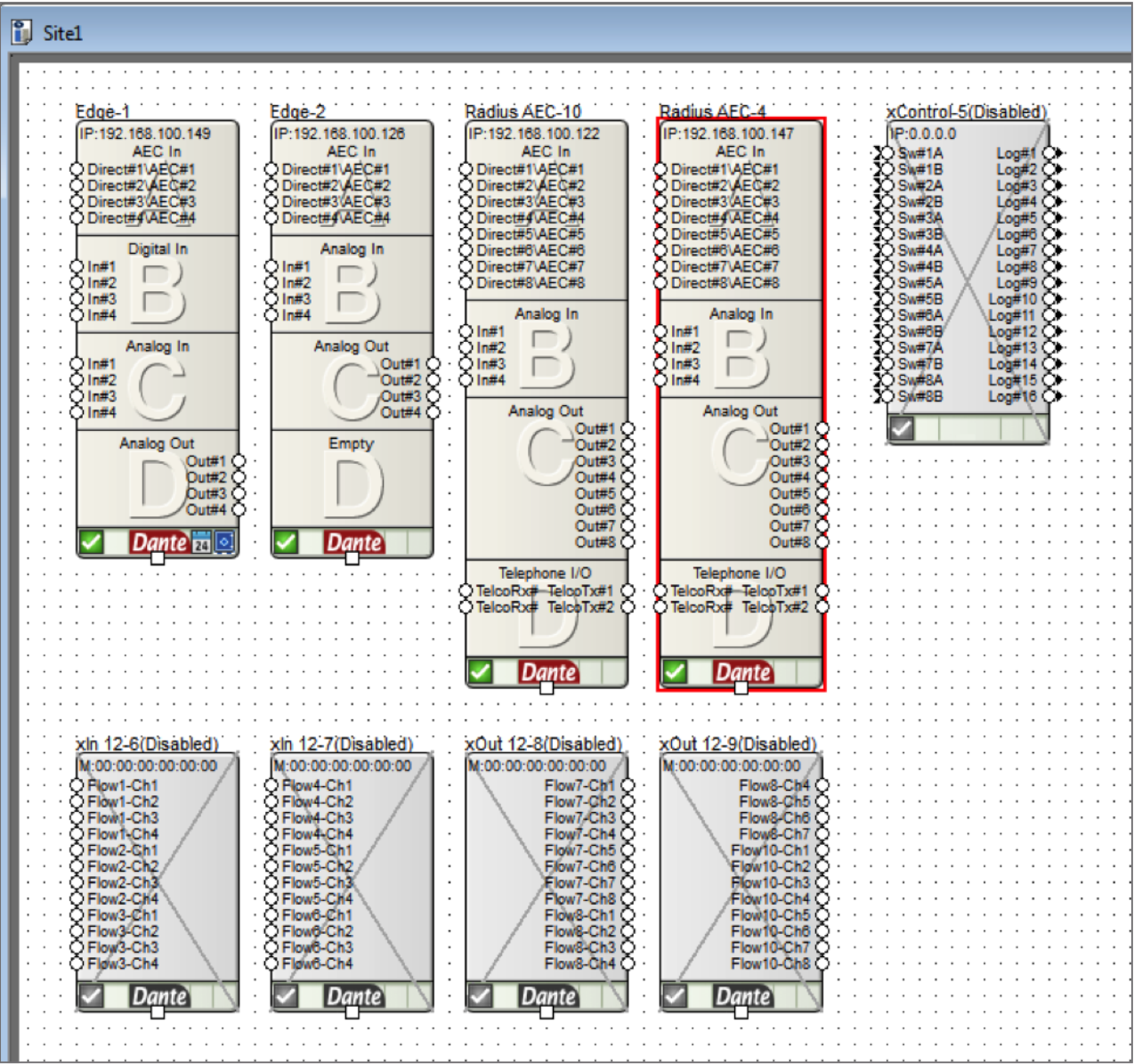
It should also be noted that at any time these disabled xIO units can have their configuration edited by simply checking “enable” in the Unit Properties, making the necessary changes, and pushing the file.
Introduction
This tech-tip describes how to control a Symetrix Radius NX and telephony interface using a Crestron Pro2-style controller. A complete Symetrix Radius configuration file, the Crestron Simpl application file and custom module for dialing the telephony interface, and the Crestron Vision Tools Pro-e touch screen design for an Apple iPad are included and described. Although this example uses network (UDP) control, it can be modified to support serial (RS¬232) control.
This example supports the standard telephony features of dialing, do not disturb, onhook/offhook, redial, and mute control. In addition the telephone line status is displayed including ready, connected, busy, dialing, fault, and ringing. Features not supported in this example are storing or using speed dials, receiving caller id information, audio volume control, and audio meter information.
While this tech-tip is based on the Crestron Pro2 controller and uses the Crestron iPad application as the touch controller, it can be easily customized to support other Crestron controllers and touch screens including the Crestron XPanel PC application generator.
This tech-tip assumes the programmer is familiar with how to use Composer and has some Crestron Control programming experience controlling other products.
Getting Started
This tech tip starts with an overview of the Composer programming for the Radius AEC, continues with the Crestron Simpl program and customer dialer module, and finishes with the touch screen design.
Composer
The first step is to create the Composer site file for your conferencing application. The included file, v1.2 Simple ATI Card Demo.symx, is a working example of a single line analog telephony audio conferencing project with a single Radius AEC and analog telephony interface (ATI) card.
To aid in understanding how to control the ATI, this application focuses on the core telephony functions to create a fully functional dialer with output mute control. This application does not use speed dial functions, and does not control ancillary tone gains.
This Crestron dialer application works by translating key presses on the Crestron touch screen interface to Symetrix API commands and takes the Symetrix command acknowledgments and updates the touch screen as necessary.
Controller Numbers
In order for this Crestron control application to work, the Composer site file must have controller assignments defined for the telephony features as shown in the following figure. In this figure notice that the controller numbers have been assigned to the ATI user interface and range from 121 for the DTMF digit 1 to 145 for the fault indicator. While in your site file these controller numbers can be different from the ones predefined in the demo site file, it is very important that the controller number assignments used in the Composer file match the controller numbers that the Crestron controller will be using. More on this later when the Crestron Simpl program is introduced.
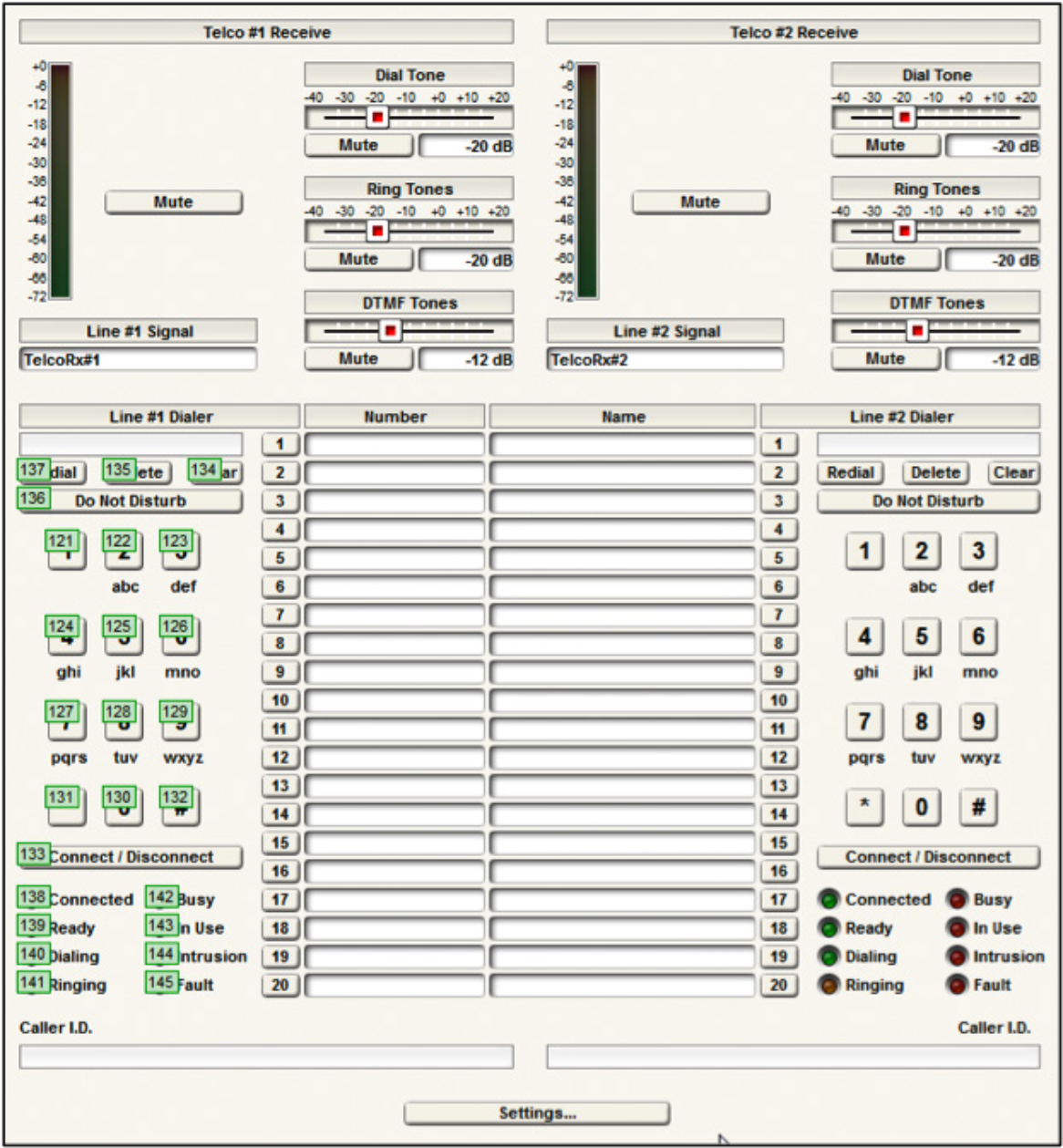
Figure 1. The Composer settings for the Analog Telephony Interface.
In addition, this project has control number 155 assigned to the mute button of the Telephony Output #1 as shown in the following figure. While this controller assignment can be any value between 1 and 10000, it is important that it match the controller number used by the Crestron Simpl module.
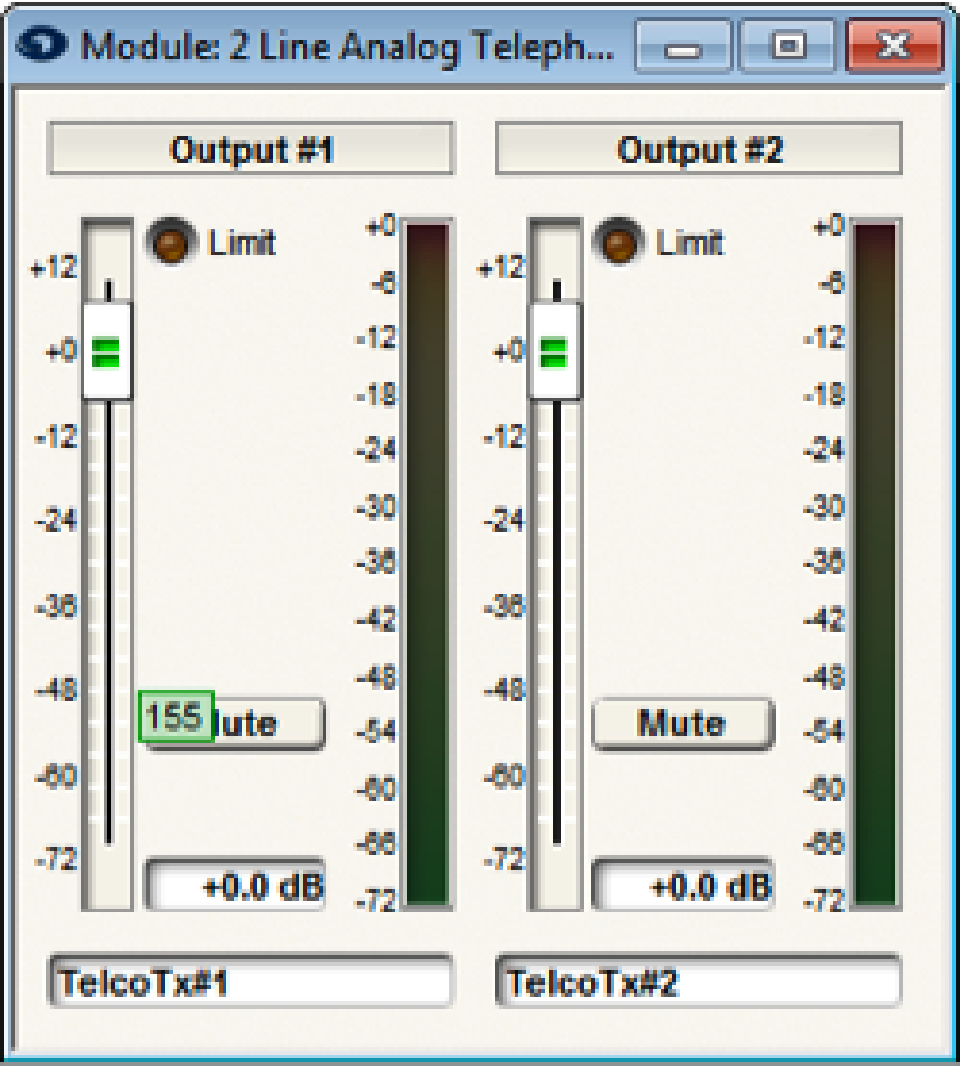
Figure 2. The telephony output signal mute controller.
Quiet Mode
For this demo application, it does not matter whether quiet mode is enabled or not. Symetrix recommends leaving quiet mode in the on state (factory default setting). Turning quiet mode off is only required when there are string commands to be interpreted (speed dial names and digits, and caller id information). In this example, only button pushes, and their respective acknowledgments, are used by the Crestron controller. In more advanced dialing applications that utilize speed dials, retrieve the last digits to have been dialed, or receive caller ID information, quiet mode will need to be disabled to support parsing detailed string acknowledgements returned by the Symetrix processor.
Push Enabling
Once the controller numbers have been defined, it is necessary to ensure the controller numbers in the following table are set to ‘Push’ so that changes in the state of the Symetrix device are automatically sent to the Crestron control system.
To enable Push, within Composer navigate to Tools-> Remote Control Manager,
and select each of the parameters in the following table and select Enable Push.
| Controller | Control Number |
| Connect / Disconnect #1 Button | 133 |
| Line #1 Do Not Disturb | 136 |
| Line #1 Connected LED | 138 |
| Line #1 Ready LED | 139 |
| Line #1 Dialing LED | 140 |
| Line #1 Ringing LED | 141 |
| Line #1 Busy LED | 142 |
| Line #1 In Use LED | 143 |
| Line #1 Intrusion LED | 144 |
| Line #1 Fault LED | 145 |
| Output 1 Mute Button | 155 |
Table 1. The controller number assignments that need to be set to Push Enable.
The resulting settings should match the following figure.
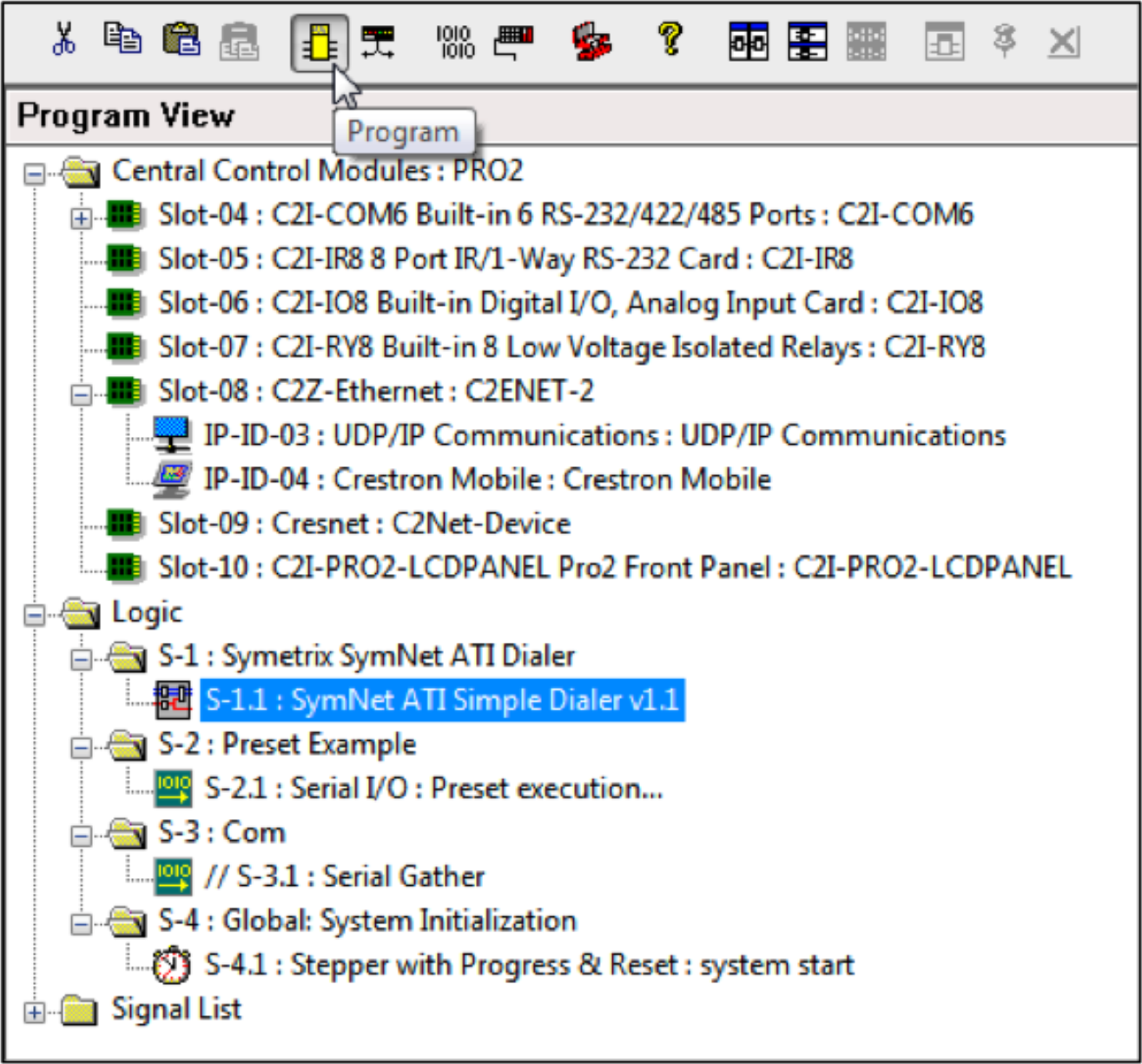
Figure 3. Enabling push for the Symetrix controller parameters.
Once the Composer project is ready, push it to the Symetrix processor and then start with the Crestron Simpl programming outlined below.
Push Interval
The default value of the push interval (100msec) is recommended to ensure timely feedback as the state of the Symetrix processor changes. Changes to the push interval can be made using the PUI API command.
Note:
- This project supports the standard telephony functions including an output mute.
- The controller numbers used in the Composer project must match those used in the Crestron Simpl project.
- Enable push for the Symetrix controller numbers
- This system is compatible with quiet mode (factory default setting) on
Crestron Simpl Project
The example project is designed for a Crestron Pro2 controller using Simpl v4.0.2.20. If using a different Crestron control processor, click the Configure icon in Simpl, select the correct Crestron controller and drag it into the design. Be sure to add UDP communications and the touch screen of choice when
changing control processors to something other than what is used in the demo configuration.
Once completed the configure screen should look similar to the following figure.
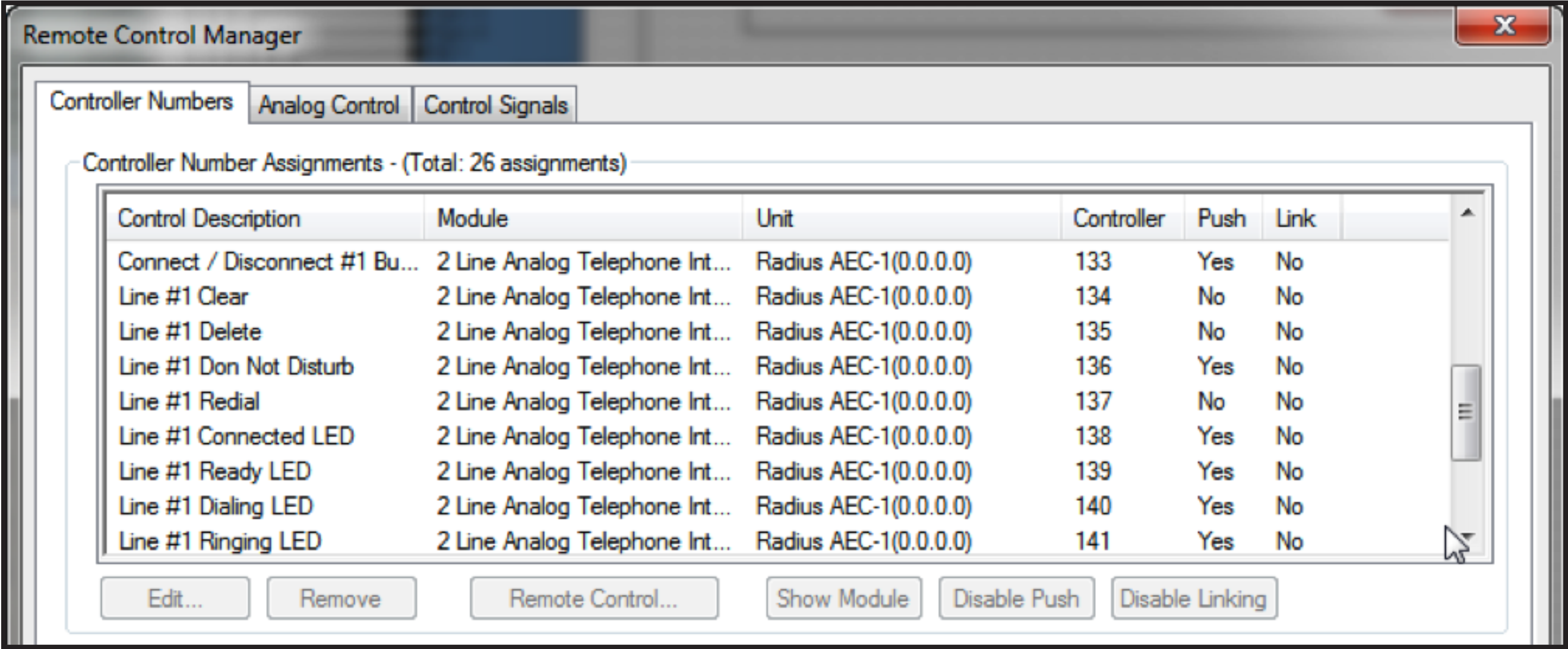
Figure 4. The Crestron control system configure screen.
Next, set the IP address of the Radius AEC that Crestron will be controlling by double clicking on the UPD/IP communication block and selecting IP Net Address. In this example, the Radius AEC has the IP address of 192.168.100.105.
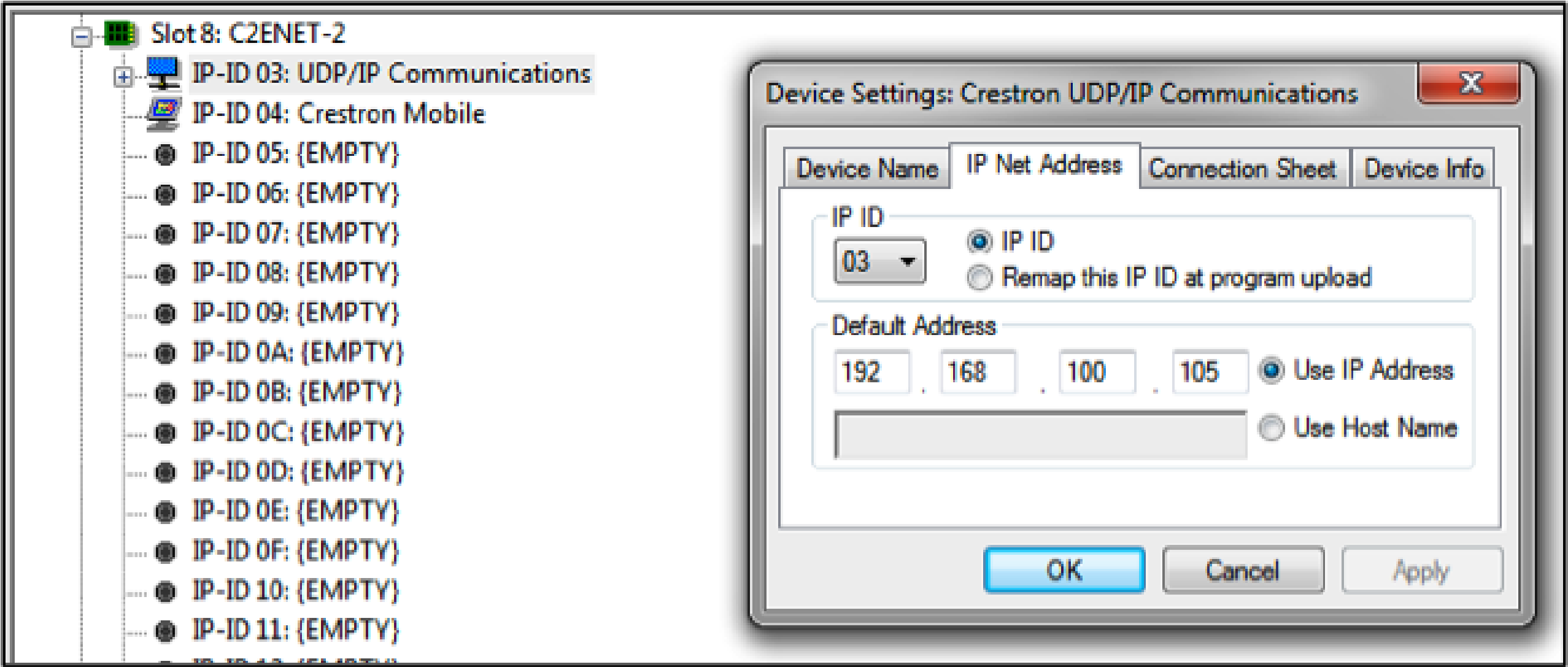
Figure 5. Configuring the IP address for the Symetrix device to be controlled.
When using a control system to control the Radius AEC, it is recommended that the Radius AEC have a static IP address to ensure the control system can always communicate with the device regardless of DHCP server status.
In this example there is also a Crestron Mobile device that is the control module for the Apple iPad controller configured using Crestron’s Vision Tools Pro-e software. Other touch panel devices could also be used. Using an Apple iPad with Vision Tools Pro-e requires installing on the target iPad the Crestron iPad application (currently $99) from the Apple ITunes store. Although the price seems high for this application, it makes the iPad an inexpensive touch screen for the Crestron processor. In the Program mode of Simpl (pressing the Program button on the menu), the Simpl file will look like the figure below.
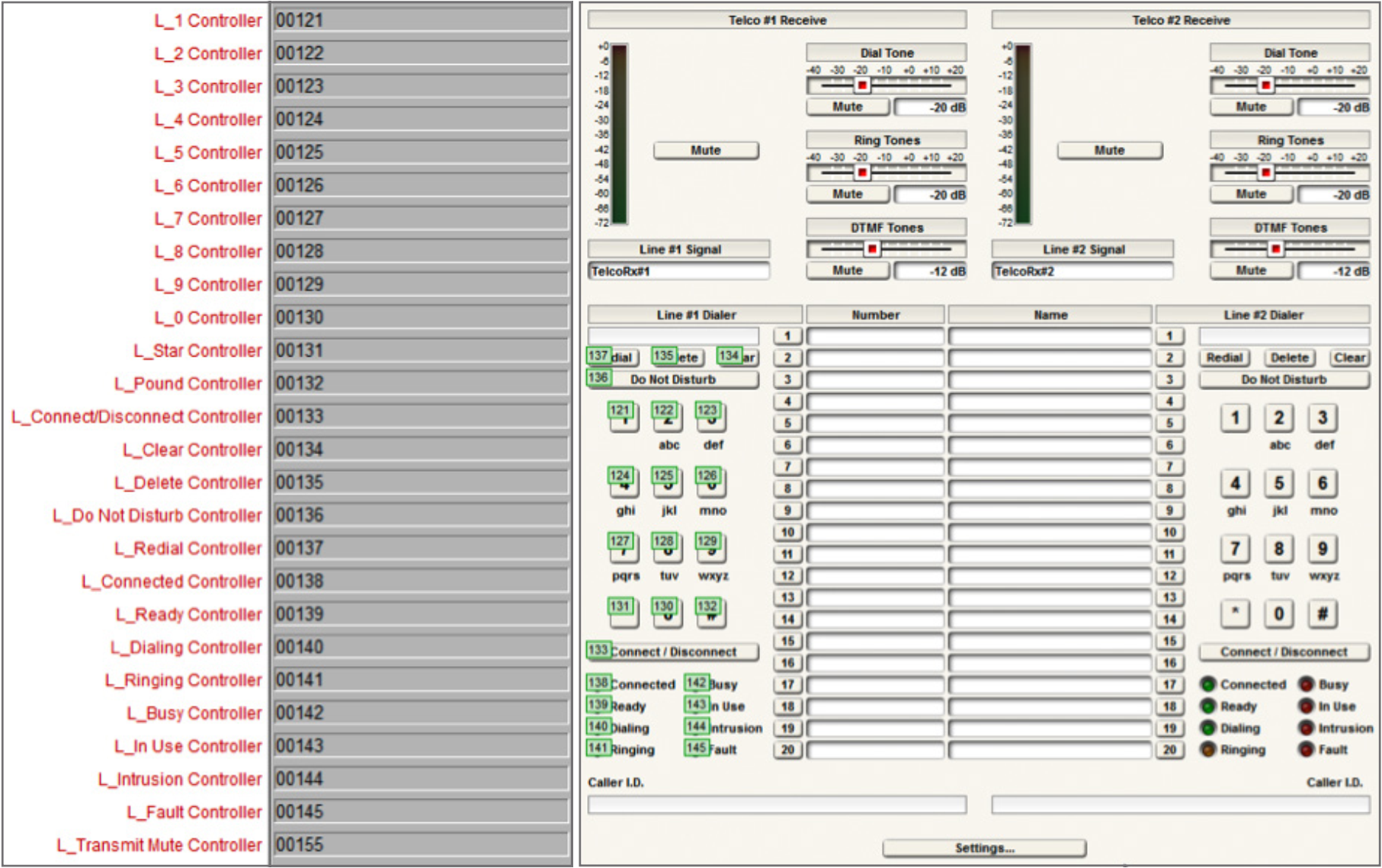
Figure 6. The Crestron control example code.
The main parts of the program are:
- The SymNet ATI Simple Dialer v1.1 is the custom user module described in this tech-tip to control the Radius AEC and ATI card.
- The Preset example shows how a preset may be executed. This code is not used in this application.
- The Com section is there for applications where serial (RS-232) communication is used instead of network (UDP) Control. This section is commented out in the current project. When using serial control instead of network control, it is necessary to configure the serial porton the “Configure” screen in Simpl and uncomment this Com section. Network (UDP) control is recommended.
- The Global System Initialization section is used to start the program.
Simple-Telco-Example.smw
While the simple dialer module supports one phone line, it would be possible to have two of these modules in the Crestron Simpl program to control both analog telephony interfaces on an ATI card. The second phone line would require unique controller numbers and be configured as the single phone line was described previously. The input and output signals of the dialer module are shown in the figure below. The input signals (L1_1_press, etc.) originate from button presses from the Crestron Mobile symbol.
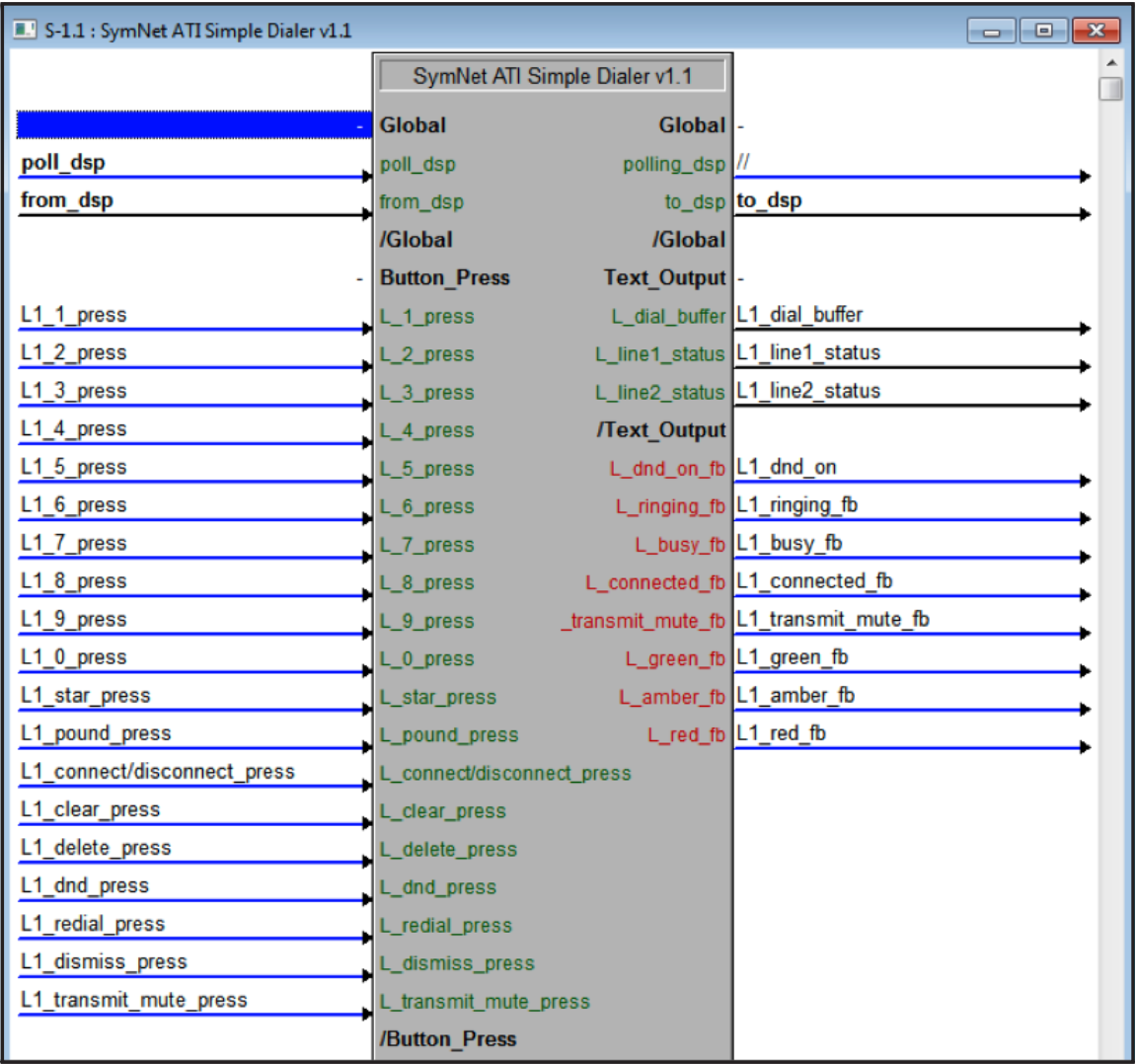
Figure 7. The inputs and outputs of the SymNet ATI Simple Dialer module.
The input and output signals are defined in the following table.
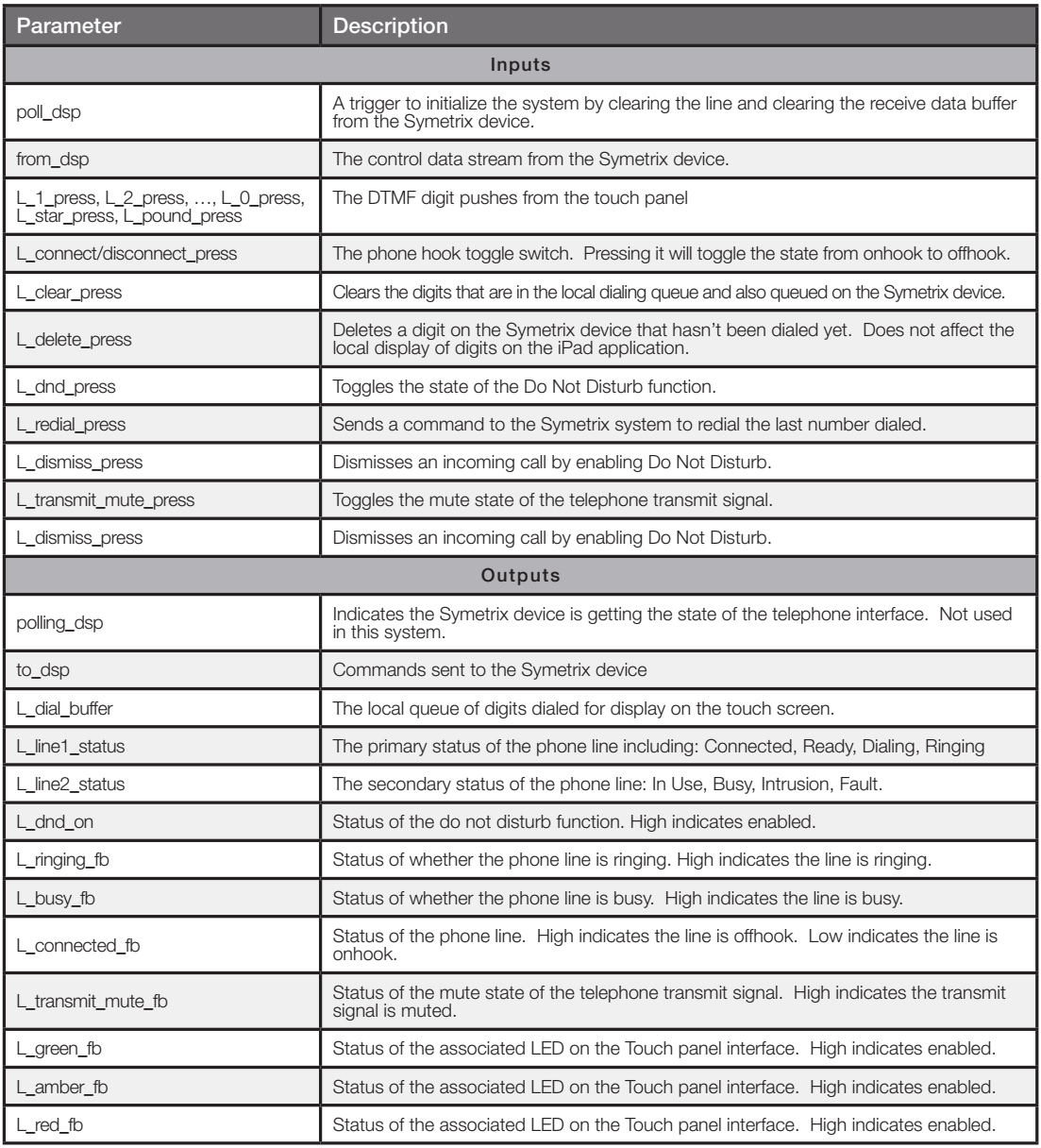
Table 2. The description of the input and output parameters of the ATI Simple Dialer module.
In addition to the parameters defined, there are the arguments that are passed into the dialing module that define the control numbers used by the Crestron program. The arguments are the same control numbers assigned in the Composer site file as shown in the following figure.
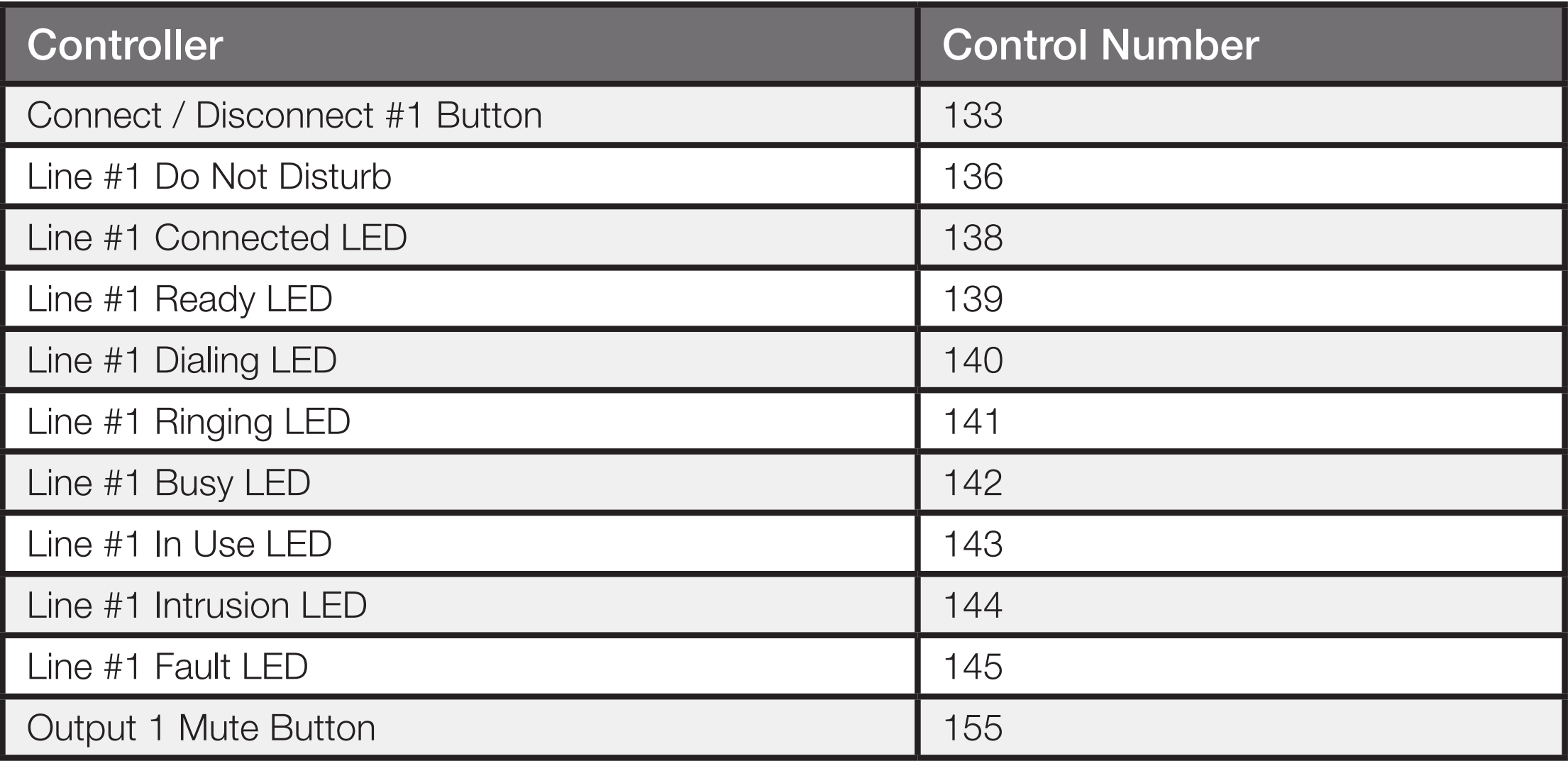
Figure 8. Control numbers for the Simple ATI dialer module (left) and assigned in the Composer project (right). These numbers must match!
The controller numbers should be entered with leading 0’s as shown because the controller numbers will be used to form the API commands that are sent to the Symetrix device and also are used match against the acknowledgments received for the controllers that have values “pushed” back to the control system.
ATI Simple Dialer v1.1 User Module
The ATI Simple Dialer module is defined in the file SymNet ATI Simple Dialer v1.1.umc and appears as shown in the following figure.
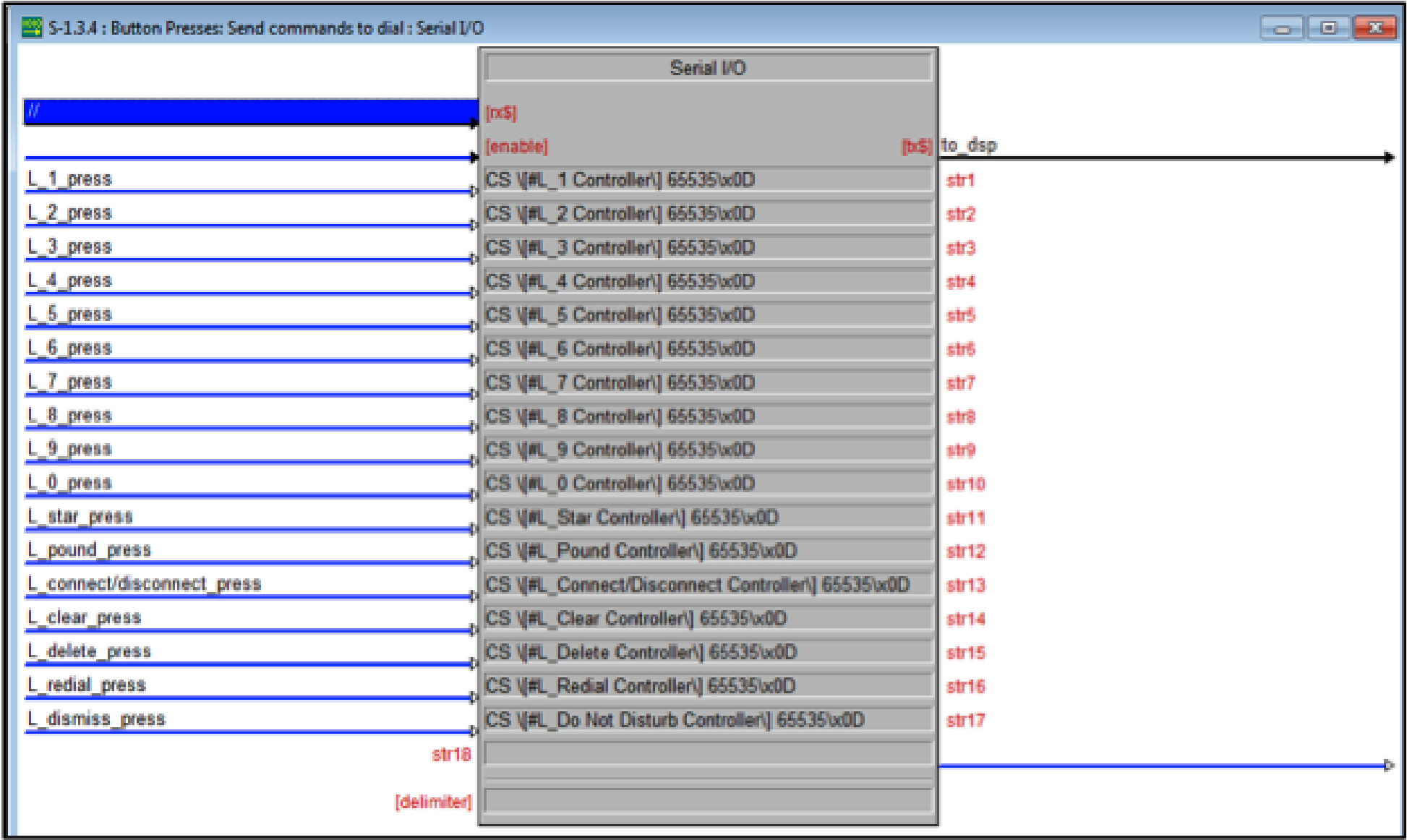
Figure 9. The inside of the Simple Dialer user module.
This module does the work of receiving the control signals and arguments and translating those signals into commands that are sent to the Symetrix device. In addition as acknowledgments are returned from the Symetrix processor, this module updates the user interface to ensure it reflects the state of the Symetrix processor.
To simplify keeping track of the digits that have been dialed, a queue of characters is created locally to store and then send the digits to the touch screen. The digits to be dialed are dialed individually as they are pressed on the touch screen.
The code for the button presses sends the appropriate commands using the assigned controller numbers to the Symetrix device. For example, pressing the 1 key on the touch screen will cause the L_1_press key to go high which in turn will send the command CS 00121 65535\x0D to the Symetrix processor where 00121 is the controller number assignment for the digit 1 that was supplied as an argument to the module. All commands are terminated with a carriage return, hence the \x0D after the command.
Figure 10. The commands that are sent to the Symetrix device.
The acknowledgements from the Symetrix device are monitored to determine the line status and whether the phone is ringing, etc. For example, if the control system receives the acknowledgment: #00141=65535
Then, as shown in the following figure, the Crestron code will parse that information and set the signal L_ringing_on to high to indicate the phone is ringing. This signal is processed and then user interface elements are updated and sent to the touch panel to inform the user that the phone is ringing. Once the line has been answered by sending the command: CS 00133 65535\0xD the Symetrix device will send the pushed acknowledgement: #00138=65535 to indicate the line is connected.
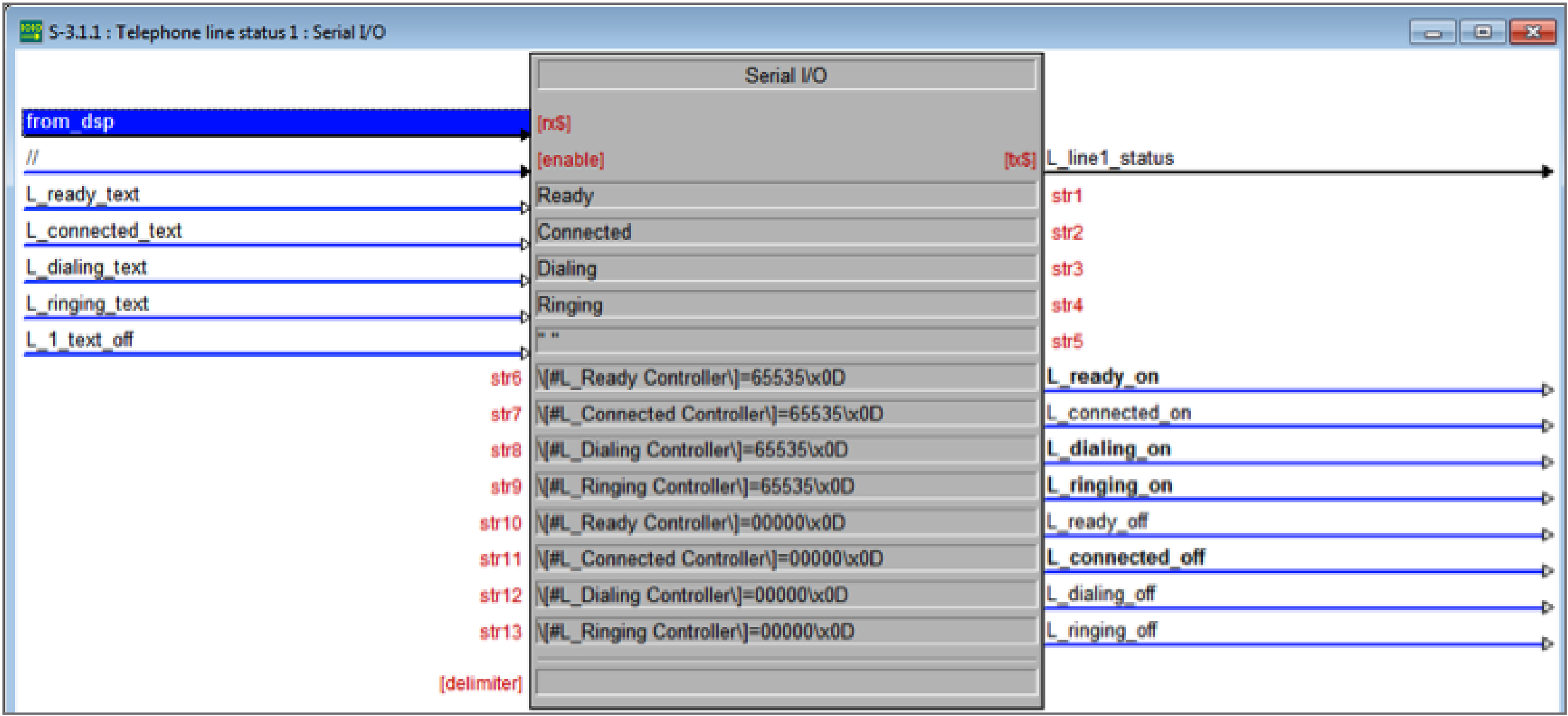
Figure 11. Parsing the acknowledgements is performed by matching particular strings within the data received from the Symetrix device.
The transmit mute state and the do not disturb buttons track their respective state from the Symetrix device. Changes to the mute or do not disturb buttons through some other way will be properly reflected in the user interface.
Note:
- The sample Crestron file and module are designed for one phone line.
- Set a static IP address of the Symetrix device to be controlled so the control system can always find the device.
- Set the IP address of the Symetrix device to be controlled in the UDP control settings.
Touch Screen Design
The Touch screen design was created in Visual Tools Pro-e v5.3.19. This example has two main screens – the dialer screen and the incoming call screen.
The controller numbers on the Crestron Touch Panel GUI match the control numbers on the Crestron Mobile controller in the Simpl program as shown in the following figure. For example the digit 1 on the touch screen has a controller number of 161 which becomes the L1_1_press control signal on the
signal press_161 which in turn is sent to the SymNet Simple ATI Dialer user module to indicate that the digit 1 has been pressed which in turn sends and API command to the Symetrix device to dial the digit 1.
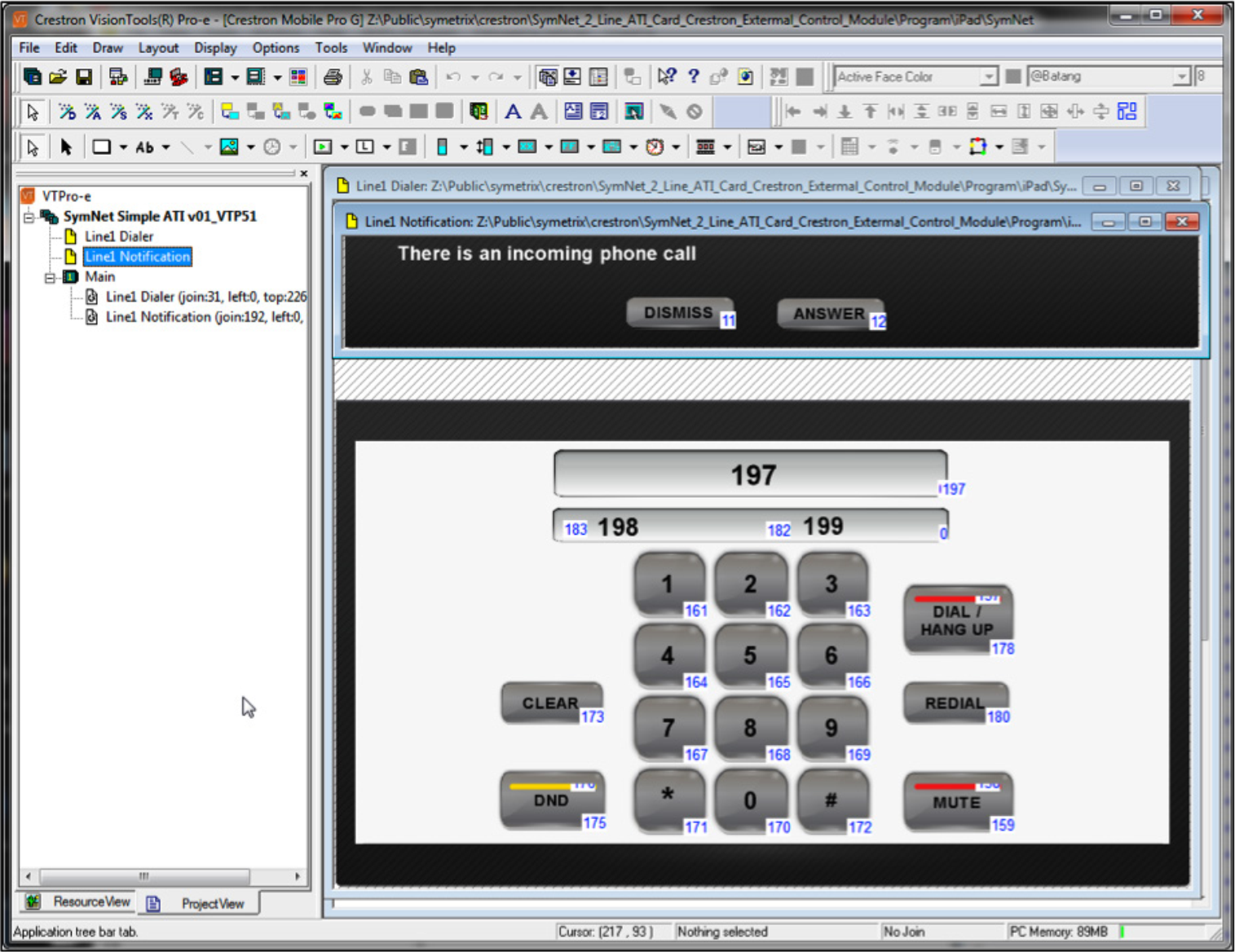
Figure 13. The Crestron Mobile touch screen interface with the corresponding control signals to the Touch Panel design
Compile and upload this program and send it to the IP address of the iPad. See the next section for finding the IP address of the iPad.
Using the Crestron iPad application
Once the Crestron iPad application has been downloaded, launch the application on the iPad. As an alternative to using the Crestron iPad application, both the Vision Tools Pro-e project and the Crestron Simpl application can be modified to support XPanel or other Crestron touch panels.
Before configuring the iPad, note the IP address shown on the bottom of the iPad display as shown in the following figure. This is the address that the Vision Tools Pro-e touch panel design program use for upload of the user interface

Figure 14. iPad IP address at the bottom of the iPad display.
To configure the system, select Add System and enter the fields as shown in the following figure. Select Yes for Use Local File. By default the system will use Port 41790 for Part A and 41791 for Port B. While no password is required by default, a password must be entered. In this example, enter any password. Press save when done.
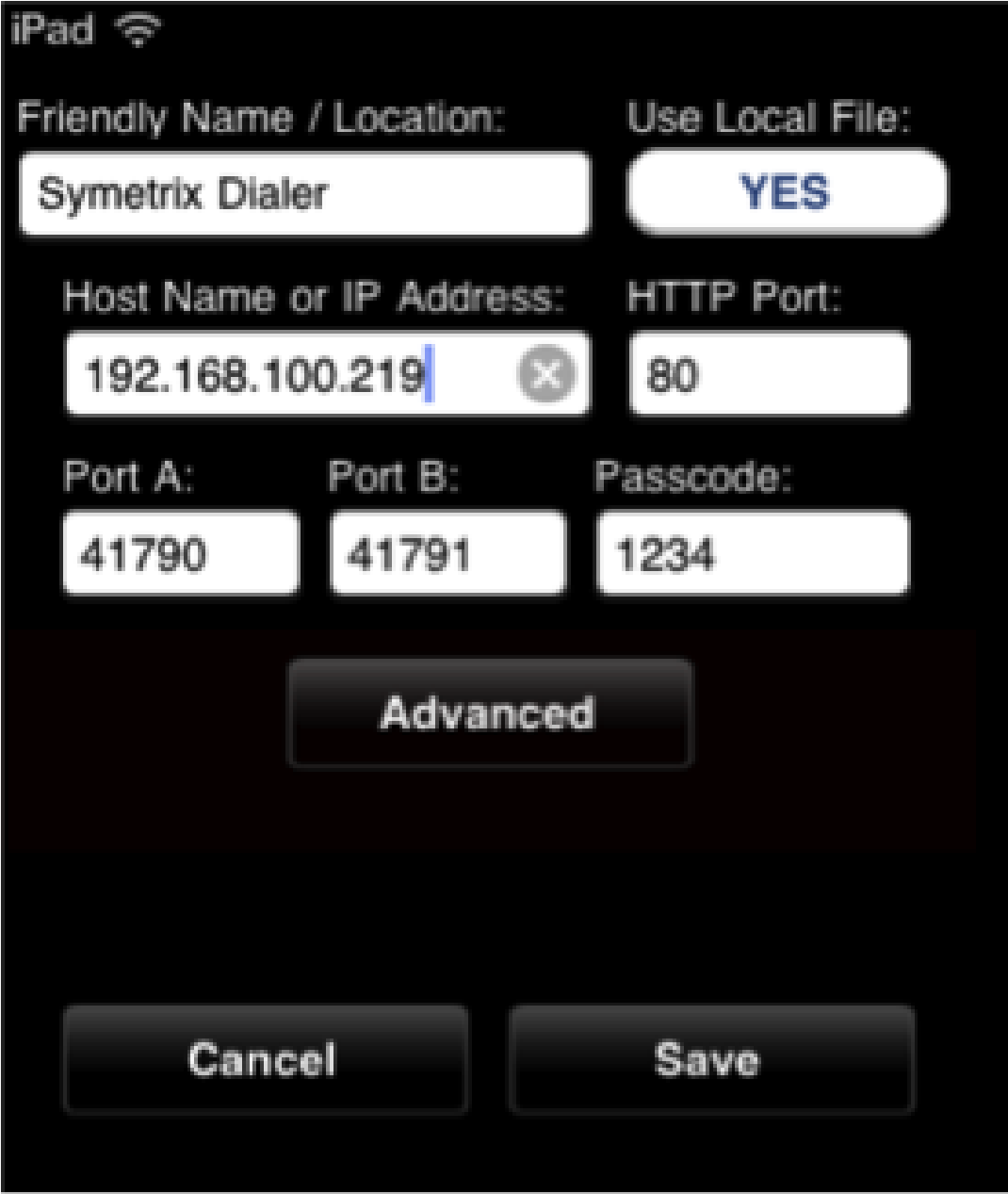
Figure 15. The configuration screen on the Crestron iPad application.
Next select the name of the system just created and press Connect. This should launch a screen like the figure below.
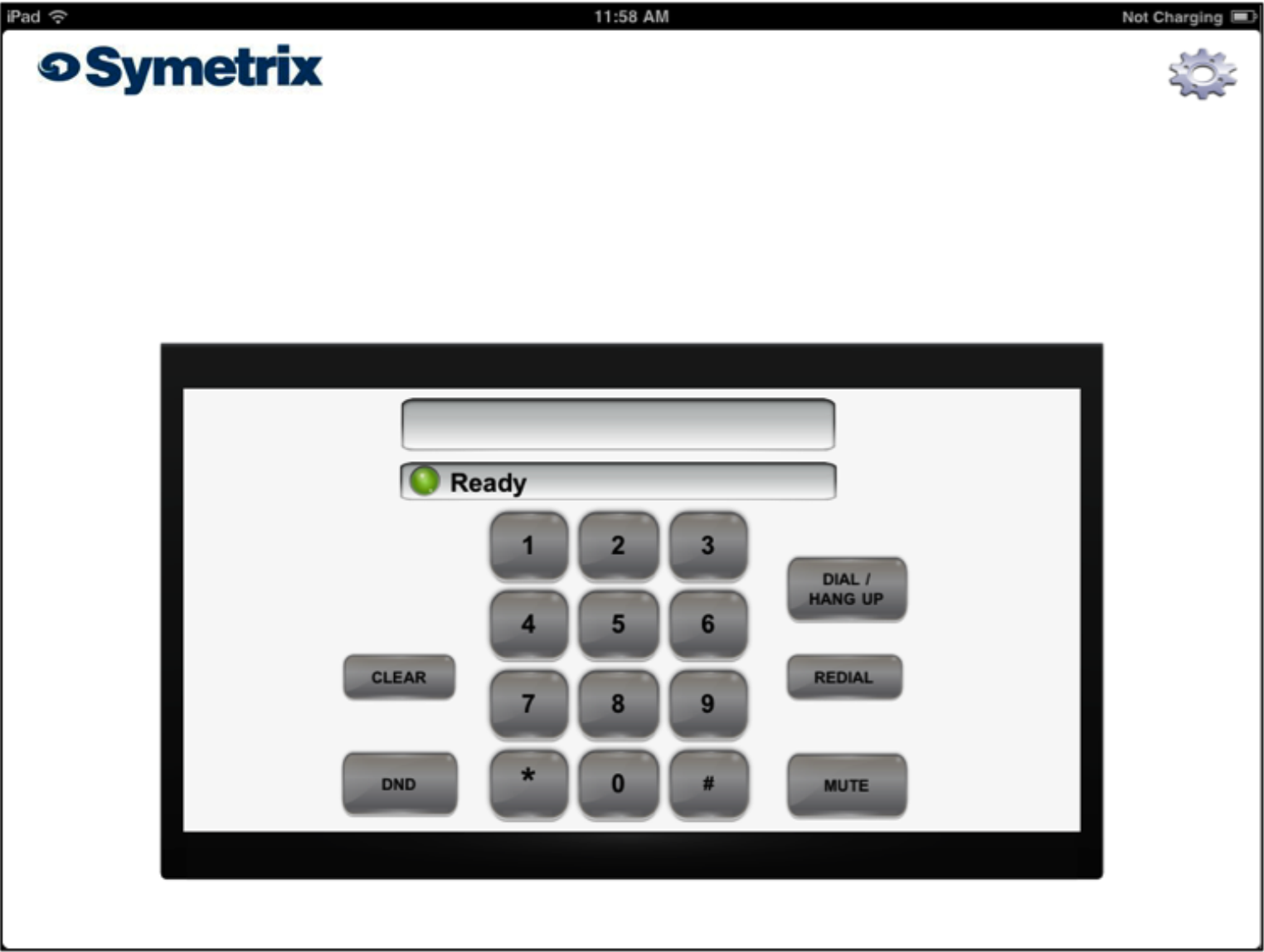
Figure 16. The main user interface of the Crestron iPad application.
When there is an incoming call, the Answer call window appears as shown in the following figure.
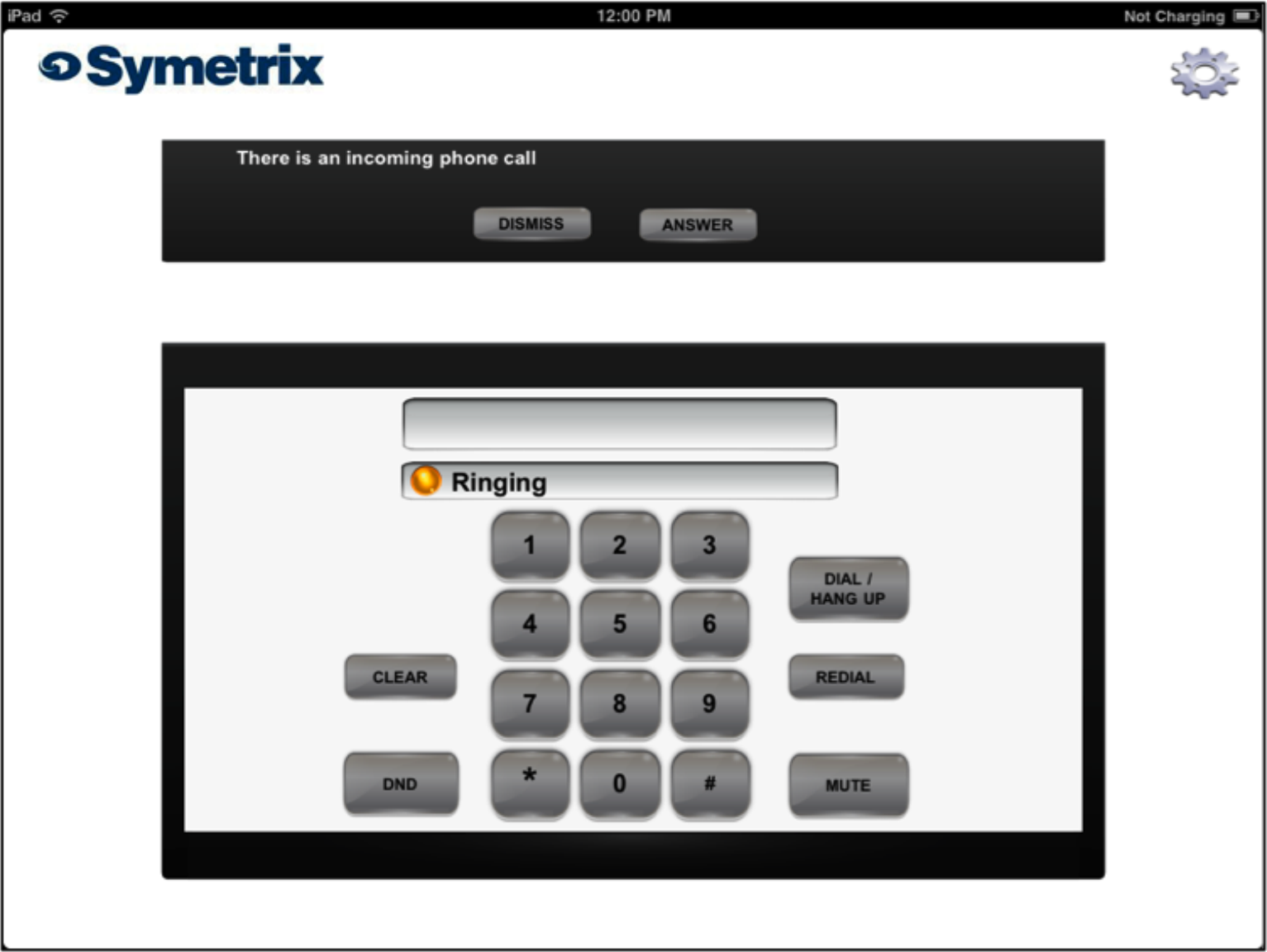
Figure 17. The user interface when there is an incoming telephone call.
To get to the configure screen again within the iPad application, press the gear wheel in the upper right hand corner. While not necessary, to re-initialize the Symetrix Crestron Program, press the Symetrix logo which will set the poll_dsp signal high and cause the ATI dialer to re-query the state of the line, do not
disturb, and transmit mute settings.
Note:
- Download the Crestron app for the Apple iPad (the $99 only hurts for a couple of minutes)
- Configure the iPad for “Use Local file”
- Upload the touch panel files to the Apple iPad
Troubleshooting
If the iPad touch screen does not seem to be working to control the Symetrix device then,
- Check that the IP address of the Symetrix device was entered properly into the UDP control screen in Crestron’s Simpl configuration screen.
- Check that the IP address of the Symetrix device hasn’t changed via the front panel LCD display. Remember to use a Static IP address for the Symetrix device.
- Check that the controller numbers entered into the ATI dialer module match the controller numbers defined in the Symetrix configuration file.
Overview
The Modular ARCs are a series of two base remotes and one expansion device. The Modular ARCs, as their name implies, are expandable within a familiar Decora® form factor. Note that Cooper brand Decora® plates are recommended for use with the Modular ARCs due to their better fit.
The Modular ARC devices
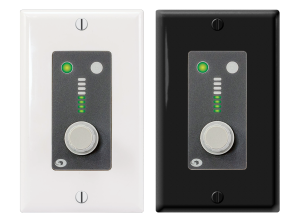
ARC-K1e
The ARC-K1e modular remote control wall panel features a push-button rotary encoder that provides simple control of two parameters in the Symetrix DSP hardware. The 8-segment LED ladder on the ARC-K1e provides instant user feedback, clearly showing relative volume level. Two additional LEDs illuminate to indicate which of the two available controls are active. All control assignments, including parameter limits and firmware version upgrades, are handled by the software included with Symetrix DSP hardware.
A single channel RJ-45 connection provides power and data to the ARC-K1e. ARCK1e has an “idle” mode option for light-sensitive environments like theaters. Hardware lockout pins accommodate an installer supplied key switch. Furnished with a standard white single gang Decora® faceplate and splash resistant overlay. The ARC-K1e fits in standard US wall boxes (sold separately) for in-wall or surface mount applications.
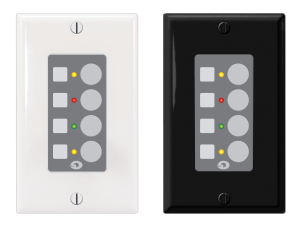
ARC-SW4e
The ARC-SW4e is a modular remote control wall panel with four switches that are programmable as momentary, latched or radio buttons. ARC-SW4e provides simple control over mutes, source selection and preset triggering. Corresponding tricolor LEDs provide user feedback. LEDs may be linked to buttons, or, LEDs and buttons may be programmed independently. Symetrix DSP software performs all control assignments, including button and LED
functionality, parameter limits and firmware version upgrades.
A single channel RJ-45 connection provides power and data to the ARCSW4e. ARC-SW4e has an “idle” mode option for light-sensitive environments like theaters. Hardware lockout pins accommodate an installer supplied key switch.
arc 1
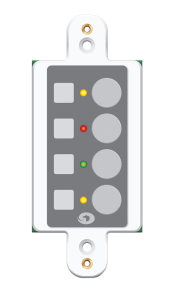
Furnished with a standard white single gang Decora® faceplate and splash resistant overlay. The ARC-SW4e fits in standard US wall boxes (sold separately) for in-wall or surface mount applications.
ARC-EX4e
The ARC-EX4e is identical in form to the ARC-SW4e. Couple the ARC-EX4e with ARC-K1e or ARC-SW4e to expand remote control capabilities. The ARCEX4e cannot be used standalone nor can it be combined with an ARC-2e. Up to four ARC-EX4e may be combined with an ARC-K1e and up to three ARC-EX4e may be combined with an ARC-SW4e. The ARC-EX4e is furnished with a splash resistant overlay and mounts into a Decora® faceplate (sold separately) alongside its Modular ARC host.
| To these base Modular ARC units, one can add a maximum of: | ARC-EX4e |
|---|---|
| ARC-K1e | 4 |
| ARC-SW4e | 3 |
Modular ARC Anatomy
The Modular ARCs, true to their modular construction, utilize an expansion board (which provides the user interface) and a brain board (which provides the system connections, device addressing, processing, etc.). Each Modular ARC has one brain board and an expansion boards attached. The brain board possesses the
host processor, system connection and power jacks, configuration jumpers and device address rotary switches. To quickly identify a brain board, look for the RJ45 jacks. The anatomy of a brain board is outlined below:
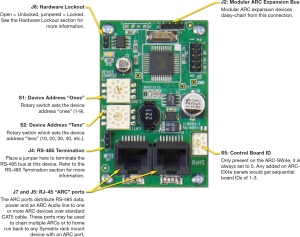
System Connection
ARCs connect to the system via an RS-485 bus. This is typically via a single CAT5 cable that carries both RS-485 data and power. For full information, refer to the ARC Network Design topic in the help file of SymNet Composer and/or SymNet Designer.
RS-485 Termination
The ARC Wall Panels feature an RS-485 termination jumper. Jumper J4 at the bottom left of a Modular ARC’s brain board enables and disables termination. Jumping pins 1 and 2 = terminated. For maximum signal integrity, it is advisable to terminate the last ARC device in the chain if the total length of the chain is over 200 feet.
Note: Never terminate a single RS-485 bus at more than two devices.
Device Addressing
Every RS-485 device connected to the same RS-485 bus must be uniquely identified. The Modular ARCs use two rotary switches (S1 and S2) to designate one of 99 device addresses. S1 determines the device’s ones address and S2 determines the device’s tens address. For example: to set an Modular ARC to device address 24, you would place S1 in the 4 position and S2 in the 2 position. If the remote has had its RS-485 address changed, be sure to power cycle the remote. The recommended way to power cycle the remote is to actually power cycle the DSP, as yanking the ARC cable out may cause voltage spikes and other issues.
Before performing a power cycle, always be sure that the amplifiers hooked up to the units outputs are powered off.
Hardware Lockout
J6 on the Modular ARC provides a hardware lockout feature. Installers may wire a key switch to this jumper to provide a simple means to secure a remote in an installation. This function may be inverted or selectively enabled/disabled from the Remote Control Manager.
Modular ARC Expansion Bus
As detailed previously, J2 allows the daisy-chaining of expansion boards which, together with the brain board, can make up to a 5-gang Modular ARC panel (one knob and up to 16 switches). Each board must have a unique Board ID. This ID is set by S5 on the ARC-EX4e.
The ARC-EX4e’s Board IDs will range from 0 to 3 when connected to an ARCK1e or 1 to 3 when connected to an ARCSW4e. (An ARC-K1e has a board ID of 4 while an ARC-SW4e has a Board ID will of 0 from the factory).
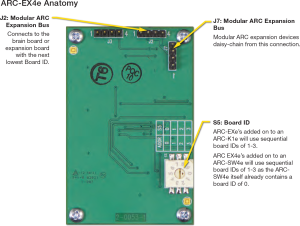
If adding an EX4e to an SW4e, the expansion bus address of the EX4e will be addressed to (1), as the control board underneath the brain board on the SW4e is actually an EX4e and it will be addressed to (0) already. If adding an EX4e to a K1e, address the expansion address of the EX4e to (0), as the control board underneath the brain board on the K1e is a rotary encoder, not another EX4e as it is when expanding an SW4e.
In order to be effective, end user control systems need to be simple and intuitive. Some might even call the previous sentence an understatement.
In the audio world decibel (also known as dB) is the standard measurement of sound level and makes perfect sense when viewed on a fader or volume control on a control system. For the end user, reading a volume control’s current position in dB might be much like reading a foreign language, not making much sense unless they have received formal training on what the dB scale means.
Rather than providing training manuals to explain a dB scaled volume control, it may often times prove much easier to simply provide the volume control to the end user as a percentage, or % value instead.
When using Symetrix hardware this is easily accomplished with some creative programming in Composer. Here are the steps for creating volume menus in an ARC-2e or ARC-WEB that read in percent.
Step 1.
checked
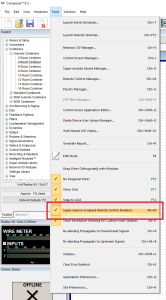
First, be sure “Super-impose Assigned Controller Numbers” is checked under the Tools dropdown in Composer.
Step 2.
Next, assign controller numbers to the volume faders of a Gain, Mixer, Matrix, or Room Combiner in Composer using either:
a. “Auto-assign Next Controller Number” (see Figure 1.1)
b. “Set up to Remote Control… > Generic Controller Numbers
Assignment” (see Figure 1.2) to the dB faders in which the end user
will be given access to control with the ARC-2e or ARC-WEB. Do
not add these assignments to the ARC-2e or ARC-WEB at this time.
figure 1.1
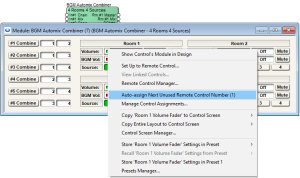
Figure 1.1: Auto-assigning a controller number to a BGM Room Combiner volume fader.
Figure 1.2
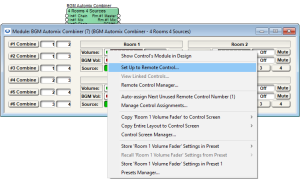
Figure 1.2: Set up to Remote Control… > Generic Controller Numbers Assignment
Step 3.
step 3
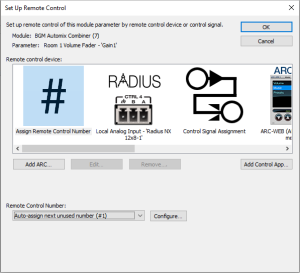
After assigning volume faders a controller number, the assignment should be visible on the module’s user interface.
numbers
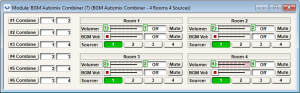
See the green rectangles with control numbers.
Step 4.
Next, from the Composer toolkit, from Control Modules>Control Inputs drag out a “1 Fader” module into the design.
step 4
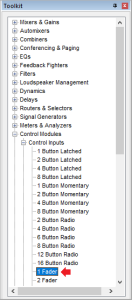
Next, from the Composer toolkit, from Control Modules>Control Inputs drag out a “1 Fader” module into the design.
Step 5.
Next, open the 1 Fader module and assign a controller number to the control fader. Notice the control fader reads in % instead of dB.
step 5
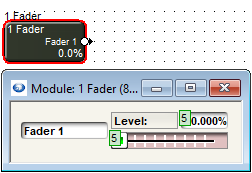
Next, open the 1 Fader module and assign a controller number to the control fader. Notice the control fader reads in % instead of dB.
Step 6.
Now open the Remote Control Manager under the Tools dropdown (or Ctrl+M). Notice the volume fader assignments and the 1 fader assignment in the Control Numbers tab.
step 6
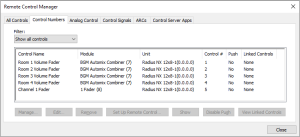
Now open the Remote Control Manager under the Tools dropdown (or Ctrl+M). Notice the volume fader assignments and the 1 fader assignment in the Control Numbers tab.
Step 7.
Click on the 1 Fader control assignment to select it and click Set Up Remote Control…
step 7
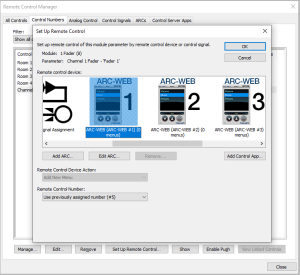
Click on the 1 Fader control assignment to select it and click Set Up Remote Control.
Step 8.
Scroll to select the Remote Control Device of choice, an ARC-WEB or ARC-2e, and then click OK. This will add a 0-100% menu item into the selected remote control device.
Step 9.
Move to the ARCs tab and expand the ARC-WEB or ARC-2e associated with these controls and then double click on the Fader 1 menu, or click to highlight and hit the Edit… button near the bottom of the window to access the Edit ARC Menu.
step 9
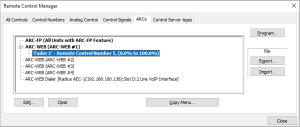
Move to the ARCs tab and expand the ARC-WEB or ARC-2e associated with these controls and then double click on the Fader 1 menu, or click to highlight and hit the Edit… button near the bottom of the window to access the Edit ARC Menu.
Step 10.
Change the Menu Name and Controller Number to the desired dB fader assignment from Step 3. In this example Controller #1 was for Room 1 Volume. Note, the controller number must match the assignment but the Menu Name can be labeled anything. This menu name is what the end user will see on the ARC display.
step 10
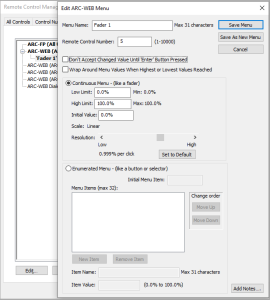
Change the Menu Name and Controller Number to the desired dB fader assignment from Step 3. In this example Controller #1 was for Room 1 Volume. Note, the controller number must match the assignment but the Menu Name can be labeled anything. This menu name is what the end user will see on the ARC display.
Step 11.
step 11
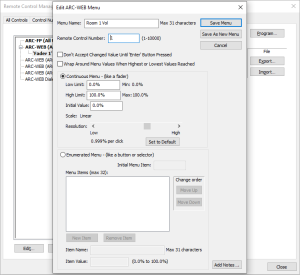
Hit the Save Menu button.
Manager
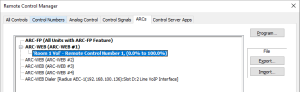
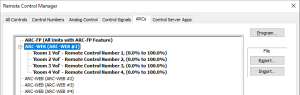
Step 12.
Repeat steps 4-12 for all subsequent volume fader assignments that will read in % value, each BGM Combiner fader having its own 1 Fader control input module.
Step 13.
When completed with the % value ARC programming. Push the site file to the SymNet system and program the RS-485 network.
Step 14.
step 14
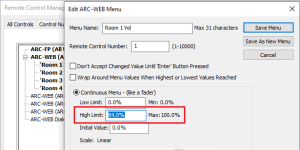
The end user will now see % values for volume controls rather than dB values.
Step 15.
Note: On a -72dB to +12dB volume fader, if it is desired to scale a volume control so that 0dB is the max level an end user can turn up the gain, set the High Limit to 84%.
The Symetrix ARC-PSe provides serial control and power distribution over standard CAT5/6 cable for systems with more than 4 ARCs, or, when any number of ARCs are located long distances from an Integrator Series, Jupiter or SymNet DSP unit. A halfrack form factor conserves rack space, or, if preferred, the ARC-PSe may be surface mounted. All mounting hardware is included. The incoming serial control signal coming from the DSP is received by the ARC-PSe on a RJ-45 input connector, and then power and signal are distributed via 8 RJ-45 output connectors. The use of off-the shelf CAT5/6 cable and RJ-45 connectors reduces installation time and materials costs.
Features
- Distributes power and data to multiple ARC wall panels via eight RJ-45 connectors over long distances.
- Connects directly to any Integrator Series, Jupiter or SymNet DSP unit using standard CAT5/6 cables.
- Supports flexible ‘star’ configuration, ‘daisy-chain’, or a hybrid of the two. Versatile
- Versatile half-rack design. All hardware is included to mount 1 or 2 in a single rack space or to surface mount.
ARC-PSe Hook Up Considerations:
- The ARC-PSe has a total of 1000 mA available and which is shared across all 8 ports.
- Each ARC port on the ARC-PSe can use as much as 500mA.
- When daisy chaining one ARC-PSe to another ARC-PSe it is not necessary to have power on the CAT5/6 cable. In fact, the power is stripped off at the ARC input on the ARC-PSe; however, having power present on the CAT5/6 takes away from the 1000 mA that are shared amongst all 8 ports. As such, it is recommended that the power pins, 7 and 8, be omitted from the CAT5/6 cable, leaving all 1000 mA of power for the other 7 ARC ports.
- The ARC-PSe does not act as a RS-485 repeater. This means no ARC may be farther than 4000 ft / 1219 m from the host DSP no matter what configuration is used.
- The ARC Power Calculator is available to assist with ARC network design and determining distance limitations for star and daisy chain ARC network configurations, including ARC-2e and Mod ARC remotes.
Download the calculator here.
Diagram: ARC-PSe Basic Hook Up (locally)
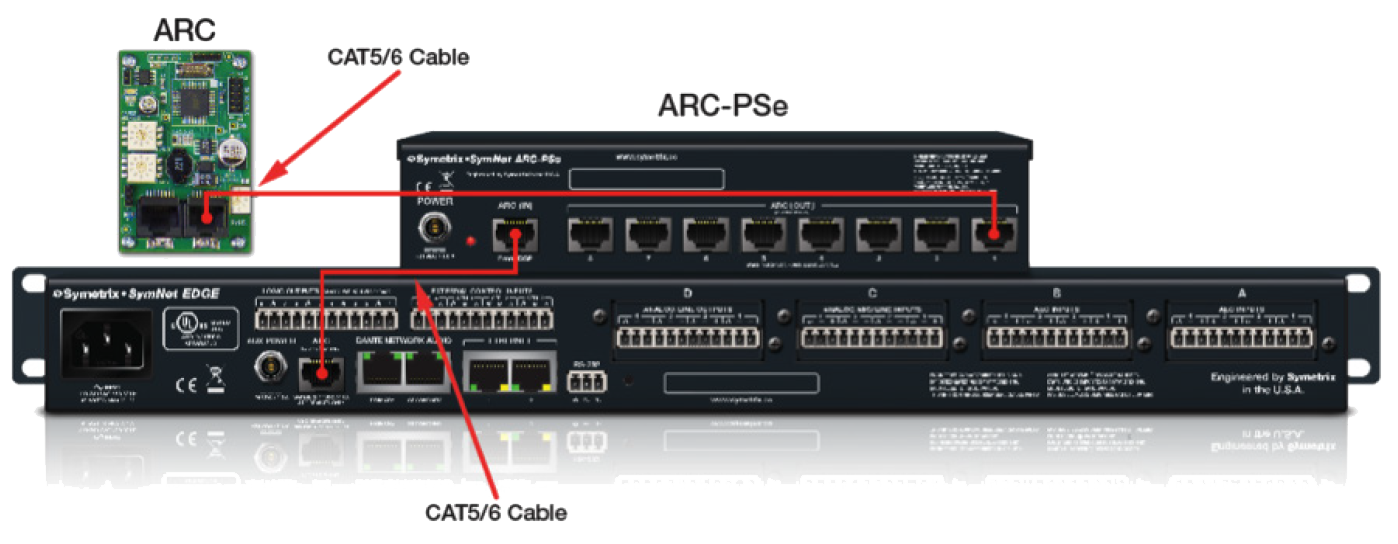
Diagram: Multiple ARC-PSe Connected to One DSP
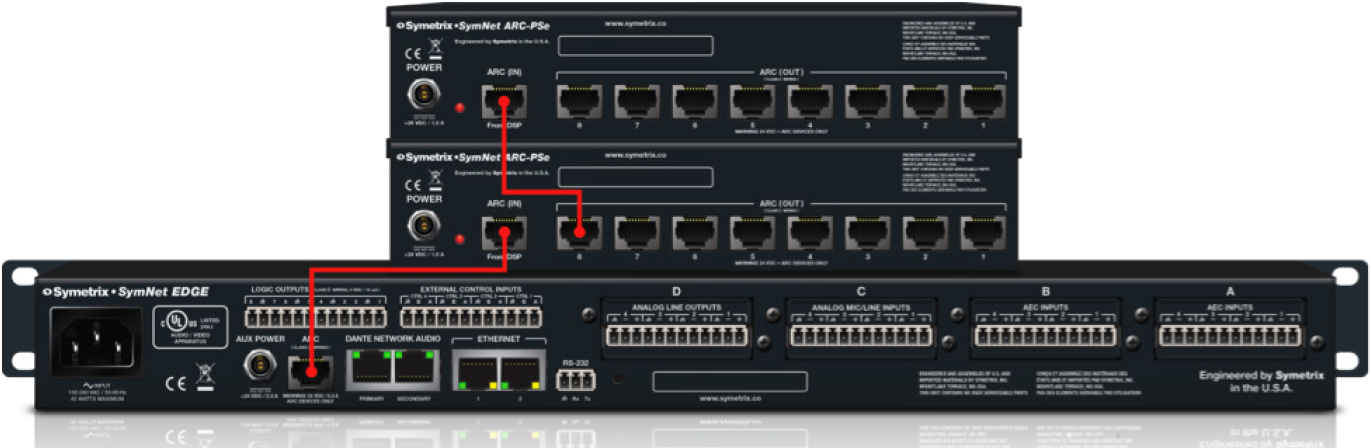
Diagram: ARC-PSe and ARC-2e (remotely), *note cable distances
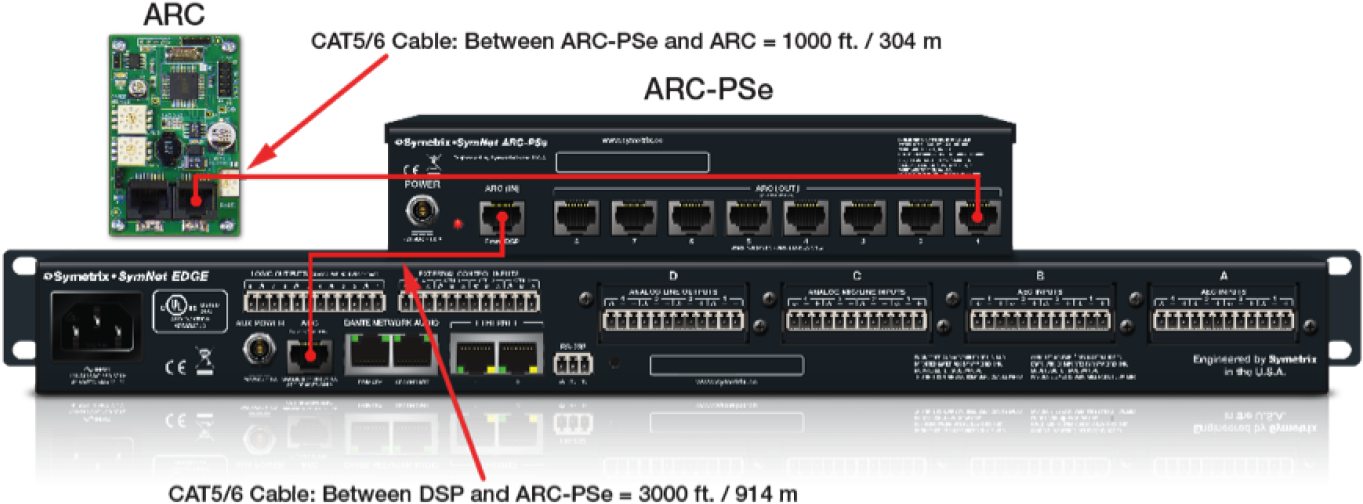
- The total length of CAT5/6 is 4000 feet / 1219 meters from the DSP to the ARC remote, which is the limitation of RS-485 data.
- Power-over-copper cannot travel 4000 feet / 1219 meters down CAT5/6 and power an ARC-2e remote.
- The ARC-PSe is mounted remotely 3000 feet / 914 meters away from the DSP.
- The ARC remote is located 1000 feet / 304 meters from the ARC-PSe.
- This setup provides plenty of power to daisy chain or power additional ARC remotes off the ARC-PSe, all of which are located between 3000-4000 feet / 914-1219 meters from the DSP.
Diagram: ARC-PSe and ARC Networks Located Locally and Remotely
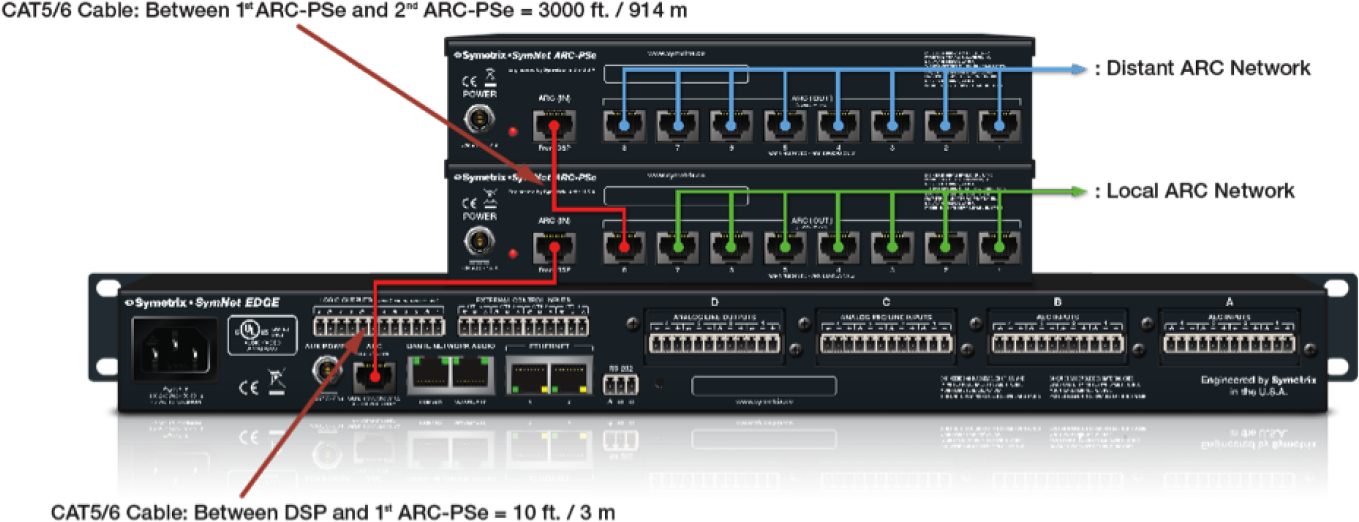
- One ARC-PSe is mounted locally in the rack with the host DSP and local ARC network. The other ARC-PSe is mounted remotely within the proximity of the distant ARC network.
- Power is not needed on the CAT5/5 cable connecting the two ARC-PSe units together. Each ARC-PSe must be powered with the included Mean Well power supply.
- ARC-PSe power is shared across all 8 ARC ports. Looking at the local ARC-PSe and the 3000 ft. / 914 m CAT5/6 cable run to the distant ARC-PSe, in order to have maximum available power for the 7 remaining ARC ports reserved for the “local ARC network”, pins 7 and 8 may be omitted from the CAT5/6 cable connecting the 1st ARC-PSe (local) to the 2nd ARC-PSe (distant).
- Any ARC on the “distant ARC network” may be no more than 990 ft / 301 m from the 2nd ARC=PSe (distant) keeping all ARC remotes located below the 4000 ft / 1219 m limitation of RS-485 data.
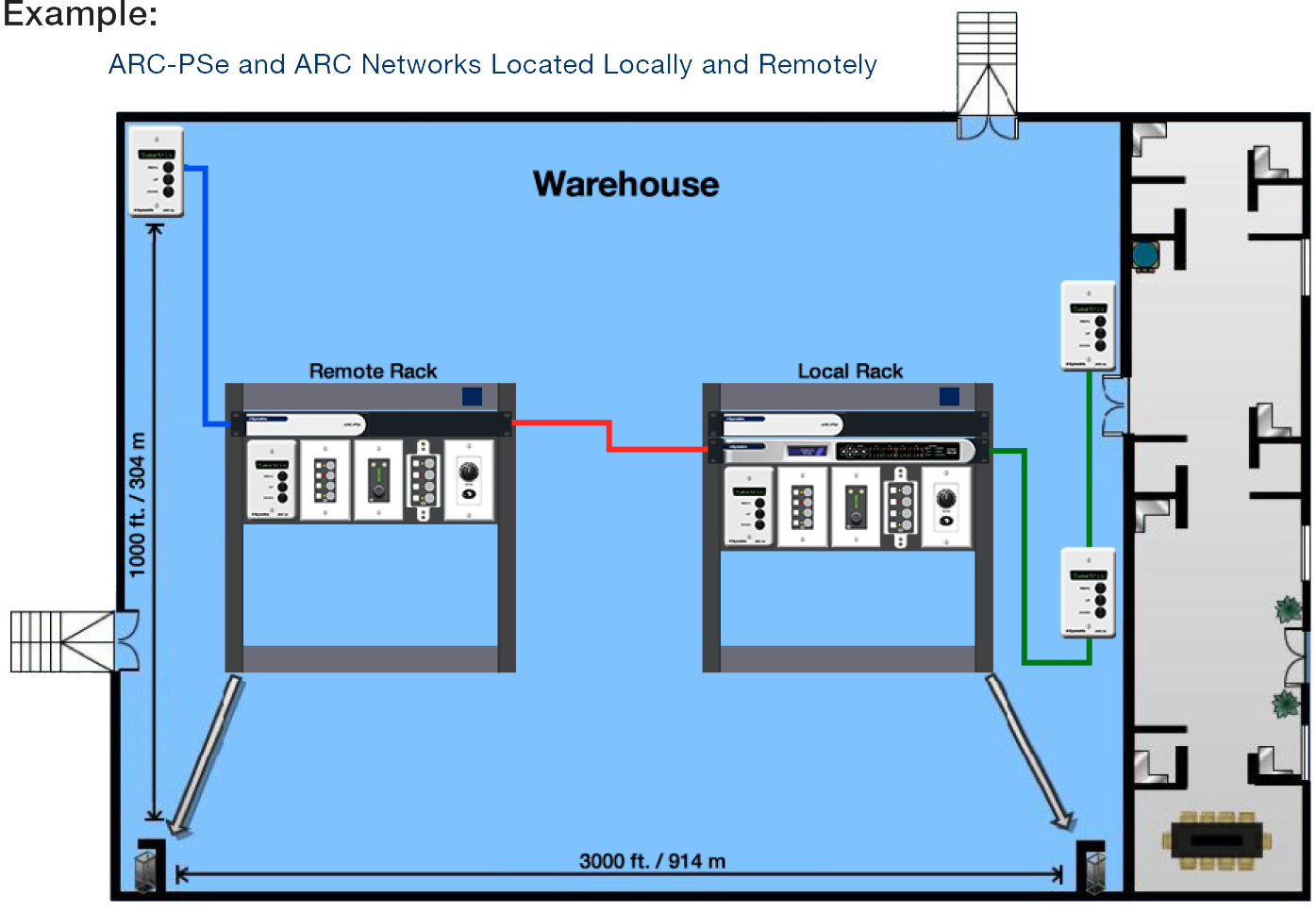
ARC Distance Table
The following table provides at-a-glance cable length limitations based on DC power (the table is not relevant if only RS-485 is distributed) and assumes 24 gauge CAT5/6 cabling. The lengths for multiple ARCs on a single chain assume equal distance for each cable segment between ARCs. This table is intended for quick reference only. For more detailed configuration scenarios, Symetrix has made available a Microsoft Excel spreadsheet to help system designers determine power requirements based upon cable
length, number of ARCs, and the power supply to be used. Minimum distance is based upon the ARC-2e, maximum distance is based upon the ARC-SW4e and/or ARC-K1e.
This spreadsheet can be downloaded from the Symetrix Technical Support pages here.
| ABLE SEGMENT LENGTH LIMITATIONS FOR ARC POWER OVER CAT-5 CABLE | ||||
|---|---|---|---|---|
| ARC TYPE | ||||
| Number of ARC’s on chain | ARC-3 | ARC-2e | ARC-K1e | ARC-SW4e |
| 1 | 3000’ | 3000’ | 3250’ | 3250’ |
| 2 | 1100’ | 1200’ | 3000’ | 3000’ |
| 3 | 550’ | 700’ | 1250’ | 1250’ |
| 4 | 200’ | 250’ | 400’ | 400’ |
Special note: For multiple ARCs on single chain, the listed value is assumed to be the cable length between each device. For example, a value of 600’ means 600’ between the DSP unit and the first ARC, 600’ between the first and second ARCs, etc. The total cable length will be the listed segment length multiplied by the number of ARCs on the chain.
The ARC-3 wall panel delivers powerful capabilities with Dynamic Menus. Dynamic Menus allow you to enable an entire ARC or individual menus in an ARC using Controller Numbers. For example, in a room combining application, you may choose to display a separate set of menus when rooms are combined and another when uncombined. This Tech Tip will describe just a few ways Dynamic Menus can be used. Without a doubt, there are many more applications than we cover here.
In the first example, we will use a simple 4 room combine scenario. A 4 Room Automix Combiner module is used to combine inputs between rooms. A 4 Channel Gain module serves as the volume control for each room.
Each room is equipped with an ARC-3 wall panel. When all 4 rooms are separated, each room’s ARC-3 wall panel should only display the volume control for its room. When room A and B are combined, both rooms’ volume controls should appear on each room’s ARC-3’s. When all 4 rooms are combined, all 4 rooms’ volume controls would be accessible from all 4 ARC-3 wall panels.
ARC 1
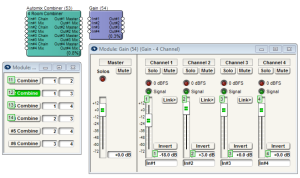
The 4 Combine buttons from the Room Combine module are assigned as menus in the ARC-3 using Controller Numbers 11, 12, 13 and 14. There are 4 gain faders from the Gain Module also added as menus in the ARC-3 using Controller Numbers 1, 2, 3 and 4.
In the ARC-3 for room A, the volume fader 1 is setup as a normal, non-dynamic menu. Volume faders 2, 3, and 4 are setup as Dynamic Menus, so they will not be accessible until room A is combined with the others.
ARC 2
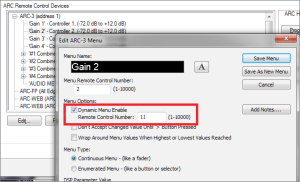
The ARC-3 Dynamic Menu uses the same Controller Numbers as the Combine buttons. The menus enable when the remote control numbers’ values are 65535, and disable when the remote control numbers’ values are 0.
The second example uses the Audio Level Detector module followed by a Threshold Detector module and Output Remote Control Number module to dynamically trigger a menu to appear in the ARC-3 when an audio signal is present. The gain fader is assigned as a menu in the ARC-3 using Controller Number 11. Gains 3 and 4 will have controller number 12 and 13.
ARC 3
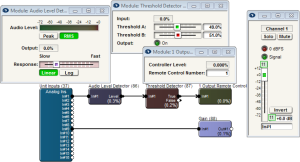
The Dynamic Menu is enabled using Controller Number 1. When audio signal is present at the Audio Level Detector module’s input, it will engage the Output Remote Control Number module turning on Controller Number 1. Set the Audio Level Detector module to RMS, with a slow response to avoid the menu coming and going between songs, for example.
ARC 3
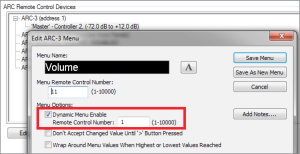
The third example uses the 1 Button Latched module and Output Remote Control Number module to dynamically trigger all menus in the ARC-3 to appear. In this case, the Dynamic Menu is enabled using Controller Number 1 in the Edit ARC-3 Menu dialog, rather than for the individual menus. When the 1 Button Latched module is triggered, it will engage the Output Remote Control Number module turning on Controller Number 1.
ARC 4
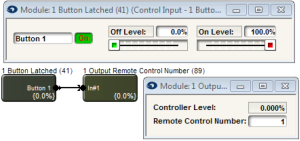
When the 1 Button Latched module is triggered, it will engage the Output Remote Control Number module turning on Controller Number 1.
ARC 5
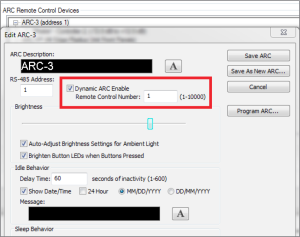
The 1 Button Latched module’s button can be triggered in a variety of ways including the Event Scheduler to recall a preset, a physical latched button connected to an External Control Input on the rear of the DSP, or any other third party control system connected via RS-232, or UDP/IP and TCP/IP over Ethernet.
The ARC-2e is a menu-driven adaptive remote control for Symetrix DSPs. Featuring a more simplified design for enhanced reliability and robustness, the ARC-2e succeeds the ARC, ARC-2, and ARC-2i. This tech tip will review how to properly wire an ARC-2e.
General Wiring Guidelines
Most Symetrix DSPs can wire directly to a ARC-2e using a straight-through CAT5 cable.
Multiple ARCs can be daisy-chained together. Download the ARC Power Calculator at www.symetrix.co to calculate distance limitations.
Wiring to a Symetrix DSP With No ARC Port
If using the ARC-2e with a Symetrix DSP that does not have an ARC port (8×8 DSP, for example), it will be necessary to connect the appropriate pins of the ARC CAT5 cable to the RS-485 port on the DSP and DC power supply.
- Terminate a CAT5 cable on one end with a male RJ-45 (8P8C).
- Strip remaining end and prepare connection to the following pins:
a. RS-485 ground > Pin 3
b. RS-485 data A > Pin 4
c. RS-485 data B > Pin 5
d. DC ground > Pin 6
e. DC + V > Pin 7
f. DC + V > Pin 8 (optional) - Pins 3, 4, 5 will connect to the RS-485 port on the host DSP.
- Pins 6 and 7 will connect to a DC power supply.
- Pins 1 and 2 are not used.
- RJ-45 end of CAT5 plugs into ARC-2e.
Within limitation, any subsequent ARC in the chain will receive data and power via CAT5 from the first ARC-2e.
DC Power Requirements
The ARC DC power requirements vary depending on the voltage supplied and the number of ARCs on the chain. At 15 VDC, one ARC-2e uses approximately 115 mA, while at 6 VDC it uses approximately 300 mA maximum. As the voltage goes from 15 to 6 VDC, the DC power requirement increases accordingly. Visit www.symetrix.co and download ARC Power Calculator for detailed information.
The Symetrix 2 Channel Analog Telephone Interface card (ATI card) provides a simple and intuitive solution for audio conferencing applications. Acting as a built-in telephone hybrid, the ATI card provides the means for a Edge or Radius AEC to interface directly with an analog telephone line from the local
telephone company or an analog port from a digital PBX. The graphic user interface for the ATI card within Composer hosts all user controls for dialing a phone number, speed dialing a number, as well as picking up or disconnecting a phone call. The telephony controls are usually accessed by the end user via a SymVue control system or a 3rd party control system.
Crestron and AMX dialer modules have been created and can be downloaded from the Symetrix website. The downloadable folder for each includes the 3rd party dialer module as well as an example Site File:
https://www.symetrix.co/products/audio-io-and-control-expansion/#2-lineanalog-telephone-interface-card
There are two different methods in which a phone number can be dialed using the 2 Channel ATI card
Dialing a Phone Number One Digit at a Time:
When programming a 3rd party control system to dial the ATI card, each digit of the telephone number can be triggered one digit at a time by assigning a controller number to each of the ATI dialer buttons and then triggering them using the CS command outlined in the 3rd party protocol available here: https://www.symetrix.co/?wpdmdl=8
Controller Set Command = CS <Controller Number> <Controller Position> <CR>
The advantage to this method is that no special module need be created to dial the phone number. Instead, each digit on the dialer is treated the same as controlling any button or Boolean control in SymNet with a 3rd party control system.
This means the same control code that turns on or off a mute button can also be used to dial a number button on the ATI card dialer GUI.
Below is a picture of the ATI card GUI, in Composer, showing the telephone dialer. This picture was taken from the example Site file included with the Crestron and AMX ATI dialer modules. Controller #121 through #133 has been assigned to 1-9,0, *, #, and the connect/disconnect button, respectively.
Best Practice:
In Composer, number the controller numbers on the Dialpad sequentially to make it easier to control
and debug the control strings. Controller numbers can be added by right clicking on the control in Composer and selecting
Edit Remote Control Assignment.
As an example, in order to dial the Symetrix phone number, 1-425-778-7728, the third party control system would send the following commands:
Analog Telephone Interface Dialer
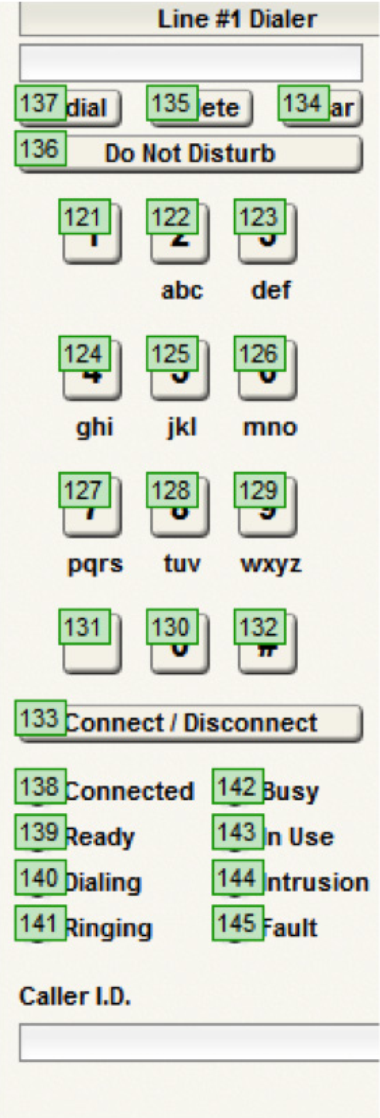
CS 121 65535\r
CS 124 65535\r
CS 122 65535\r
CS 125 65535\r
CS 127 65535\r
CS 127 65535\r
CS 128 65535\r
CS 127 65535\r
CS 127 65535\r
CS 122 65535\r
CS 128 65535\r
After each digit is entered, the Symetrix device will respond with an “ACK” if the command was interpreted correctly or a “NAK” if the controller number does not exist.
After the phone number digits have been entered, the call can be triggered to dial by sending the connect/disconnect button the following command:
CS 133 65535\r
The phone call may be hung up (placed on-hook) by sending the same command again:
CS 133 65535\r
Note: the function of the connect/disconnect button changes depending on if you are connected or
not. Always send 65535 for this value and it will toggle the connect states.
Dial a Phone Number Using a Speed Dial:
Some 3rd party programmers may prefer to create a custom dialing module that sends the entire phone number to the ATI card using a single command string, at which point the phone number can be dialed using a second command that dials the speed dial. The basis of using this two command method is that an ATI card speed dial slot is used as a phone number loading dock, and once the phone number has been loaded into the speed dial location, it can be dialed with a single command.
The ATI card has 20 speed dial locations, so if this method is used one speed dial location must be dedicated to the control system and the end user will 19 remaining speed dial entries.
The command to load the telephone number is the (SSYSS) Set System String command. It is important to note that this command assigns a system string, such as a name or phone number, to one of the speed dial locations and when applicable executing this command will over-write any previous data in the specified speed dial location. Set System String Command =SSYSS <Unit>.<Resource>.<Enum>.<Card>.<Channel>=<Value>
<Unit>=In the site view of the Composer site file, above each unit icon is a number after the dash, e.g. “Edge-1” means =1. (See picture)
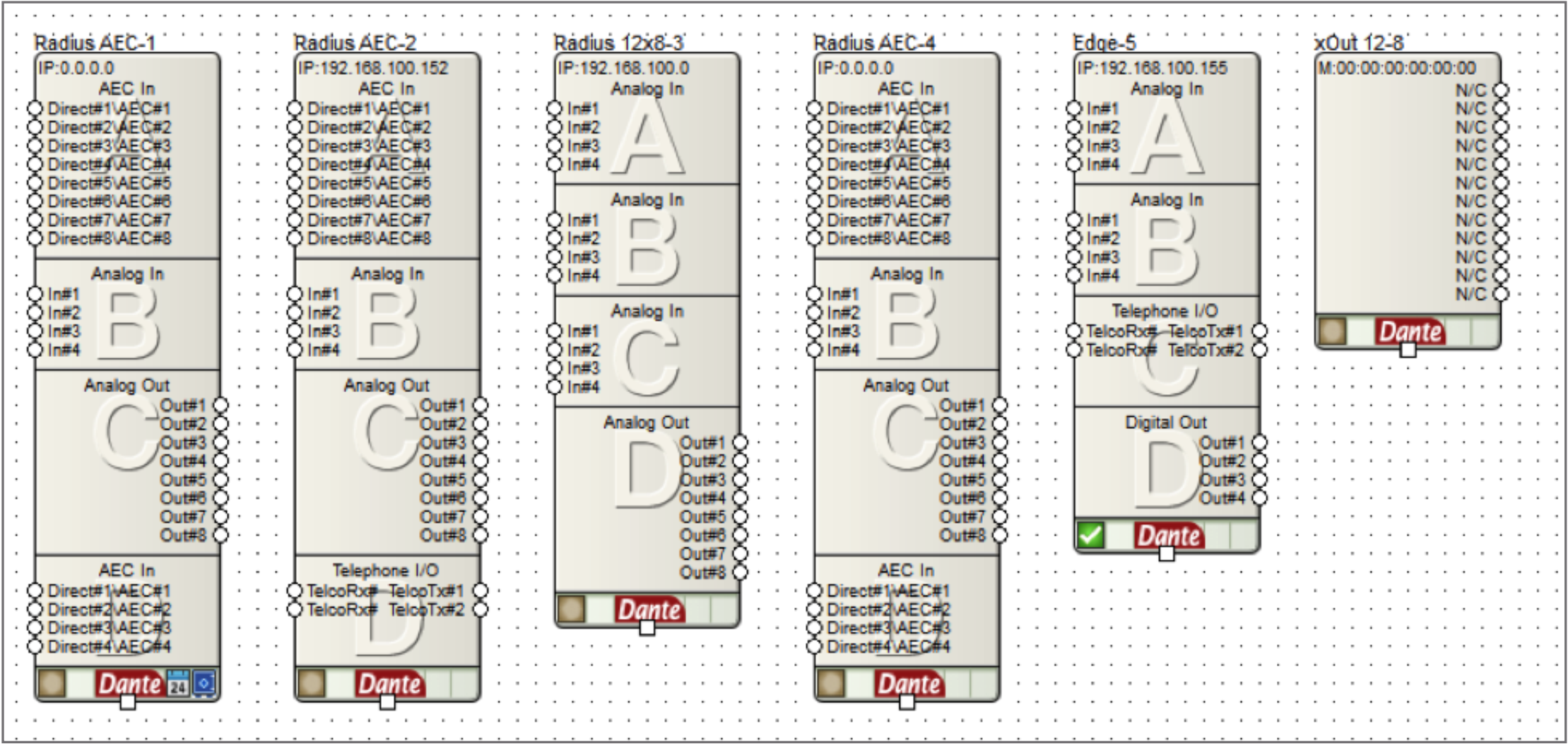
<Resource>= 1000 for speed dial number, 1001 for speed dial name.
Some 3rd party programmers may prefer to create a custom dialing module that sends the entire phone number to the ATI card using a single command string, at which point the phone number can be dialed using a second command that dials the speed dial. The basis of using this two command method is that an ATI card speed dial slot is used as a phone number loading dock, and once the phone number has been loaded into the speed dial location, it can be dialed with a single command.
The ATI card has 20 speed dial locations, so if this method is used one speed dial location must be dedicated to the control system and the end user will 19 remaining speed dial entries.
The command to load the telephone number is the (SSYSS) Set System String command. It is important to note that this command assigns a system string, such as a name or phone number, to one of the speed dial locations and when applicable executing this command will over-write any previous data in the specified speed dial location. Set System String Command =SSYSS <Unit>.<Resource>.<Enum>.<Card>.<Channel>=<Value>
<Unit>=In the site view of the Composer site file, above each unit icon is a number after the dash, e.g. “Edge-1” means =1. (See picture)
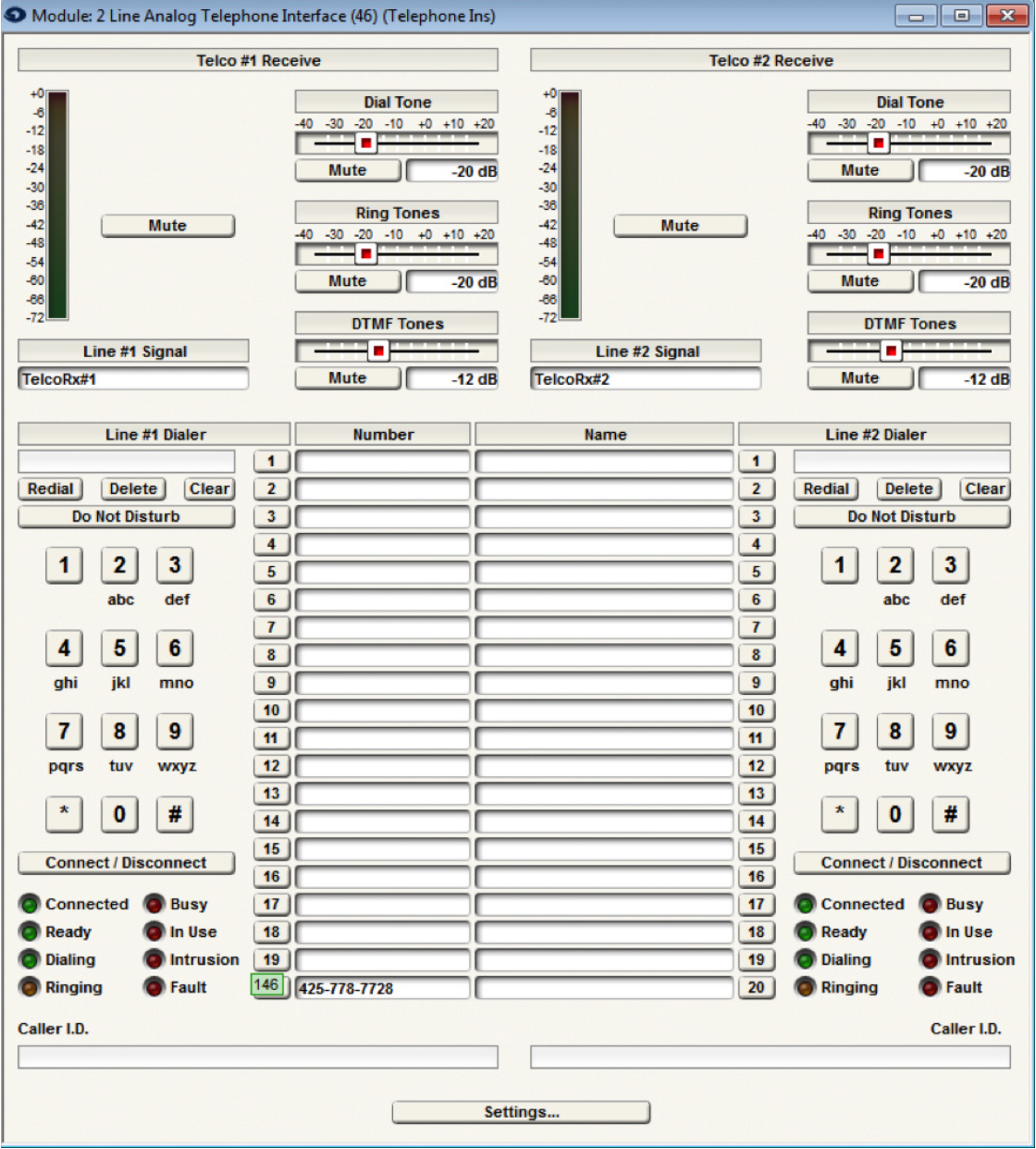
<Resource>= 1000 for speed dial number, 1001 for speed dial name.
<Enum>= 0 based count of 0-19, where 0-19 equals speed dial slots 1-20.
<Card>= 0 based count of 0-3 for card slots A-D. (A-D in Edge frame, D only in Radius AEC).
<Channel>=Not applicable for the SSYSS command since both ATI ch 1 and 2 share all 20 speed dial locations. Use a zero for this portion of the command.
<Value>= the phone number that should be assigned to the speed dial slot defined by <Enum><Card>
Example of SSYSS:
Notice the ATI card, “Telephone I/O”, in both the Radius AEC-2 and the Edge-5. If the intention is to store the Symetrix phone number into speed dial slot 20 on the Edge-5 unit’s ATI card in card slot C, the command would be determined as follows:
<Unit>=5
<Resource>= 1000
<Enum>= 19
<Card>= 2
<Channel>=0
<Value>= 425-778-7728
SSYSS 5.1000.19.2.0=425-778-7728
With Composer online with the hardware, the ATI card GUI would show 425-778-7728 in speed dial entry 20:
Then, once the phone number has been loaded into the speed dial entry, the ATI card can be triggered to dial the number by using the CS command to trigger the speed dial location. In the above example controller number 146 is assigned to speed dial #20 location. As such, CS 146 65535\r would dial speed entry 20
As another example, if the intention is to store the Symetrix phone number into speed dial entry 20 on the Radius AEC’s ATI card in card slot D, the commands would be as follows::
<Unit>= 2 (Device is Radius AEC-2)
<Resource>= 1000 (This is for the speed dial entry)
<Enum>= 19 (This is for speed dial 20)
<Card>= 3 (This is for slot D)
<Channel>= 0 (Channel is 0)
<Value>= 425-778-7728
To set the speed dial:
SSYSS 2.1000.19.3.0=425-778-7728\r
To dial the call:
CS 146 65535\r
In review, this two command method can be used to load a phone number into an ATI card speed dial location using the SSYSS command, and then the phone number can be dialed using a single CS command.
Testing the API commands
To help understand the command API, it can be helpful to manually type in commands to control the system. The easiest way to do this is with the built-in Remote Terminal application.
To send a command, type it into the command window as shown in the following figure and press enter to send the string to the device. The command acknowledgments will appear in the window below.