











-
Type
- Dante
- Networking
- Control
-
System Management
- Composer Management Software
- SymVue Screen Authoring
- AV-Ops Center Remote Monitoring
- ARC-WEB Control Interface Signal Processing
- D100 AVoIP DSP Server
- Radius NX AVoIP DSP
- Prism AVoIP DSP
- Edge AVoIP DSP
- DSP I/O Expansion Cards
- Jupiter DSP
- Zone Mix 761 DSP I/O Connectivity
- xIO Bluetooth Endpoints
- xIO XLR Endpoints
- xIO AVoIP DSP Audio Expanders Control Systems
- T-Series Touchscreen Controllers
- W-Series Controllers
- Control Server
- xControl GPIO Expander
- ARC-Series Controllers
Common Network Troubleshooting
Product:Composer Management Software
Type: Networking
Being able to troubleshoot a Symetrix system is a paramount skill in any technician’s skillset. The common understanding of signal flow is a basic concept, but there are some issues that can come up that signal flow doesn’t address. Here are some common issues and techniques our Support team uses to isolate the problem:
CANNOT LOCATE SYMETRIX DEVICE ON CONTROL (ethernet) NETWORK
Includes all DSPs, W Series remotes, T Series touchscreens, xControl, and Control Server.
Behavior: Unit is not locating in Composer at all or is showing intermittent location status (green check is coming and going).
Subnet/Network Mismatch
Barring advanced network setups that communicate across subnets (not recommended for Symetrix equipment), an extremely simple, but possible answer is simply that your PC is looking at the incorrect network or is not physically connected to the same network as the DSP. First, ensure that your PC is wired either directly to the DSP’s Control (ethernet) port OR into a port in the same VLAN/switch as the DSP. Note: Symetrix DSPs are programmed from the factory to boot in DHCP mode (no static IP is set in the factory) which will then resolve to a 169.254.x.y (Class B) APIPA IP address if no DHCP server is found. If a static IP was previously set on the DSP, it will hold that same IP address on reboot.
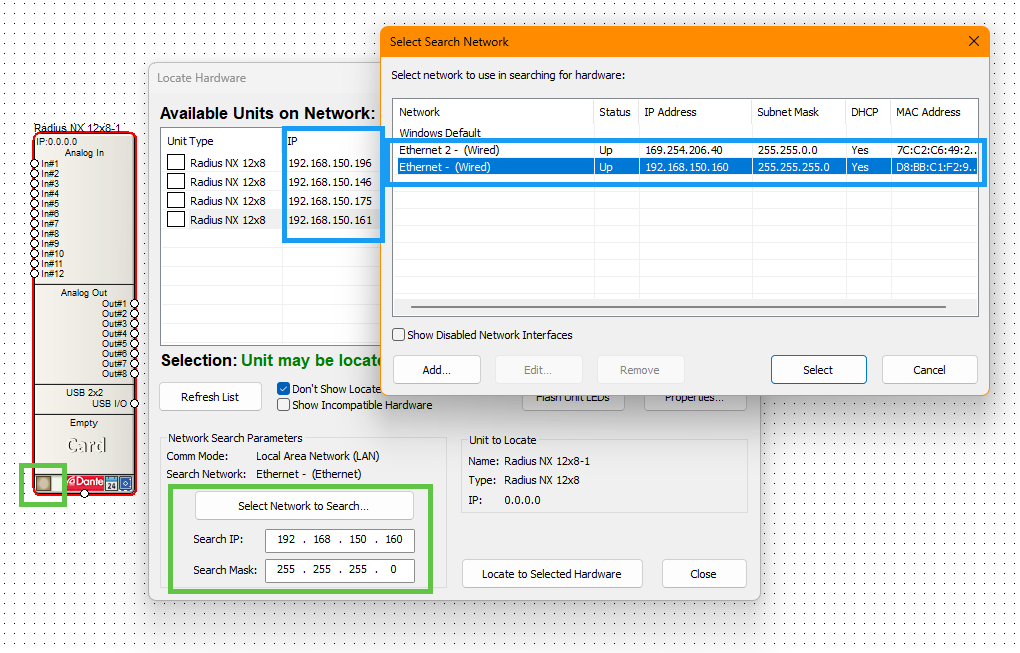
Ensure that you have selected the correct network in Composer and also that your PC is either set into the correct network/subnet (if needing static) or set to DHCP (on the same network as the DSP) and is receiving the same address range as the DSP. The IP Address and Subnet Mask columns in the ”Select Search Network” dialogue show your PC’s current IP address and subnet. A command prompt “ipconfig” will also show your PC’s current network configuration.
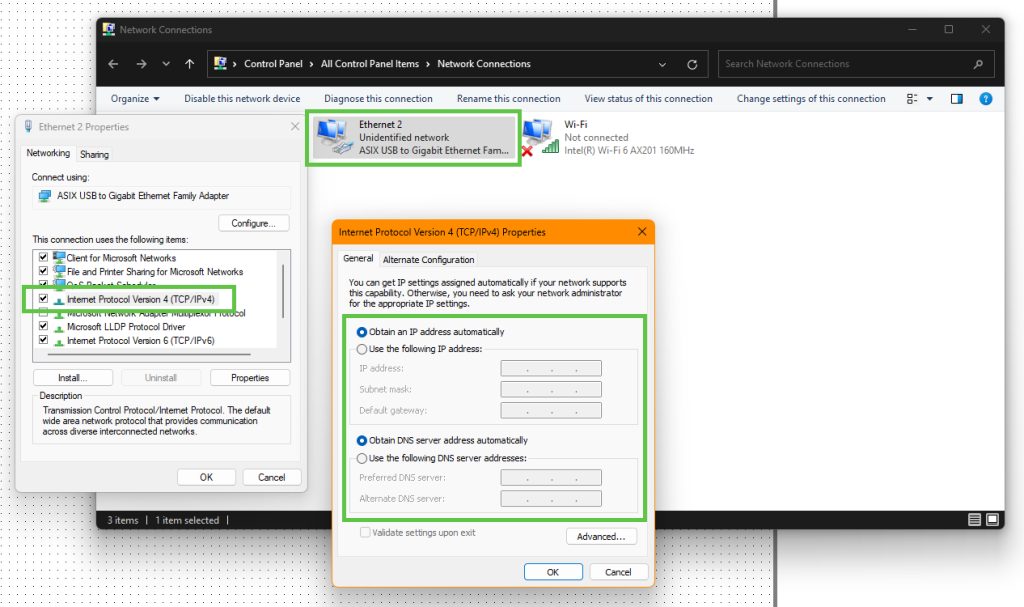
There are different ways to edit your PC’s IP configuration, but one quick way is to click Start and search for ‘ncpa.cpl’. This is a shortcut that will bring you to the Network Connections panel. From here, right click on the wired connection and select Properties. Then open the TCP/IPv4 properties – where your PC’s IP settings can be edited.
An additional step would be to confirm the IP address of the DSP itself. The front of the DSP has a main menu that shows the Dante, Ethernet, and ARC status, along with its Control (ethernet) IP address.

If this menu isn’t currently displaying, push the button to the right of the display to cycle through to the correct menu – you may need to push and hold the button to return to the Dashboard menus.
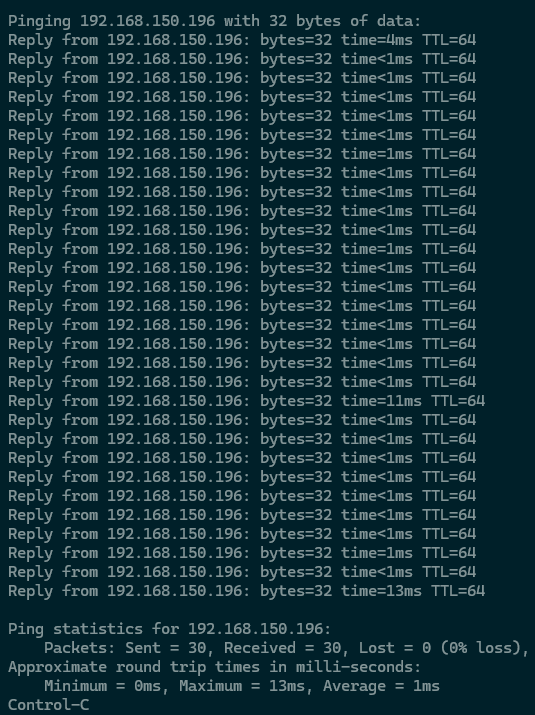
The command prompt “ping” is another simple procedure and can provide important information in a few ways, specifically when “-t” is added to the end of the string; for example, “ping 192.168.150.196 -t”. Note: space between ping and the IP address, and between the IP address and -t.
The “-t” will allow the ping to continue running indefinitely, instead of the default four pings. Press CTRL+C to stop the ping. A constant ping like this can help identify network issues by showing if the return times are longer than this.
In a healthy network, without too many switch hops, we would expect ping times to be majorly equal to or sub 1 ms (=1ms or <1ms), with only very occasional small spikes if any at all, depending on overall network traffic.
common 1
If you are able to see the DSP through a ping, but still not through Composer, please reach out to our Integrator Support team for further assistance.
If a ping is responding with “Destination Host Unreachable” then a device with this IP address is either not on this network or the DSP or your PC could be experiencing a NIC issue.
If a ping is responding intermittently, response times are inconsistent, or overall, not consistently ~1 ms, here are a few scenarios that could be occurring:
- IP conflict: if the unit you’re pinging and some other device have the same IP address and are now fighting for prominence on the network. Unplug the device you intend to ping from the network and send the ping again. If you get a response, there is some other device on the network with that IP. If you don’t get a response there is likely no IP conflict and some other issue is occurring.
- Physical layer issues: if the switch/router, cabling, or ports are faulty they can interrupt network traffic. Try swapping out any of these components (where possible).
- A quick way to test for this would be connecting the PC directly to the DSP/unit in question, if not already – eliminating any greater network as a variable. If pings clear up with a direct connection, there’s more to investigate with the other components.
- Network Configuration; the configuration of a switch or greater network can unintentionally interrupt the traffic flow. Check for incorrect or unnecessary IGMP snooping configuration, port blocking, security/firewall/anti-virus, Green Ethernet is disengaged, use of STP instead of mSTP in VLAN configs, and QoS.
- A quick way to test for this would be connecting the PC directly to the DSP/unit in question, if not already – eliminating any greater network as a variable. If pings clear up with a direct connection, there’s more to investigate with the network configuration. Note: Integrator Support does not preside over on-site network(s) and cannot assist with configuration, which includes advanced networking such as crossing subnets and LANs (which requires Dante Domain Manager).
- NIC in a Bad State; the NIC on either the PC or the DSP can become impaired over time via constant plugging and unplugging to different networks or devices. Rebooting the DSP (waiting about 10 seconds before re-applying power) should clear its NIC while disabling and re-enabling the NIC on the PC should clear it (aside from rebooting the PC altogether).
CANNOT LOCATE DEVICE ON DANTE NETWORK
Includes all Symetrix DSPs, xIO Dante expanders, and third-party Dante devices.
Behavior: Unit is not locating in Composer through DSP or xIO Updater/Configurator or is showing intermittent location status (green check is coming and going).
Subnet/Network Mismatch
Barring advanced network setups that communicate across subnets, the Dante network is fundamentally the same as the Control network with regards to basic communication. All Dante devices must be in the same subnet to communicate with each other.
Composer is intended to configure the Control network and thus unable to look at the Dante network directly in the same way that Dante Controller can. It is normally recommended to allow the Dante network to remain in DHCP mode for the simplest set up and maintenance.
To ensure that devices are on the same network/subnet, check the Device View in Dante Controller for the given unit under the Status tab (your PC must be looking at the Dante network).
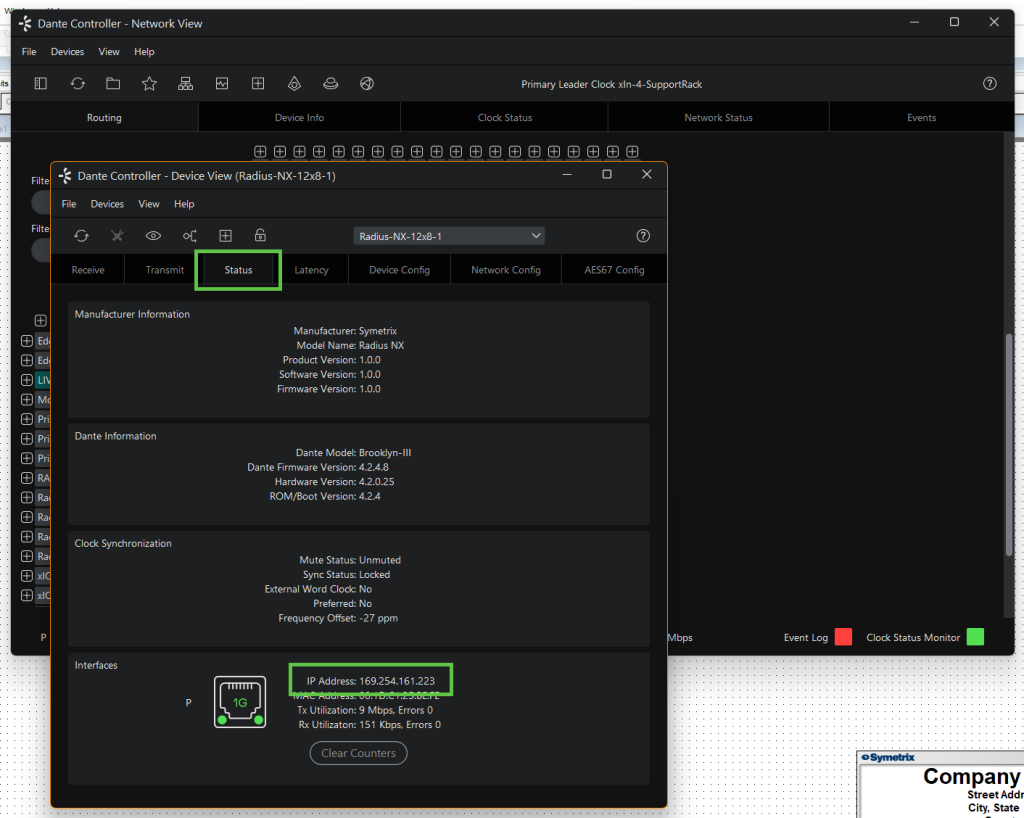
If the Dante network must be set to static IP addresses, do this within the Network Config tab of Device
If network configuration seems correct, the same ping techniques from the Control network can still apply. Much of the case will relate to something not allowing multicast traffic to flow. IGMP and low-quality switches are the largest culprits. Audinate has articles regarding IGMP Snooping that can be of benefit.
https://www.getdante.com/blog/well-intentioned-mishaps-with-igmp-snooping
https://www.getdante.com/support/faq/multiple-leader-clocks
REMOTE TERMINAL COMMANDS
From a Composer perspective, there are some tools available that can help illuminate issues. All of these commands should be done with the intended DSP located and then going to Tools > Launch Remote Terminal, then Options > Debug Mode, and ensure the IP address of said DSP is in the upper left IP address field.
- “INFO…” Remote Terminal Command; this command coupled with a target will return different diagnostics about the DSP:
- INFO CARDS; returns a list of the installed I/O cards in the DSP. This can be used to confirm that the DSP has and is reporting having a Dante card. It will return “Brooklyn…”, “non-Dante Clock Card”, or “none”.
- Brooklyn means the DSP is accurately reporting its Dante card.
- Non-Dante Clock Card means the DSP does not have a Dante card, but has a clock card instead. This could be due to a purchase error and the Symetrix Sales or Integrator Support departments should be contacted.
- None means the DSP is expecting something in that particular card slot but is unable to recognize it. Please contact our Integrator Support team if this is what the DSP reports.
- INFO DANTE
- This will request a report of all Dante information from the DSP including card type, Primary IP address (and secondary if in redundant mode), Dante channel usage, and other diagnostic information.
- “GDBCV” Remote Terminal Command; this command requests the Dante browse information from a located DSP – what it can see on the Dante network.
- Send the command “GDBCV” (no quotes) to the DSP. This will return a report of all Dante devices the unit’s Dante card can see, with a bit of extra information describing the communication quality.
- “ACTIVE” or “ACTIVE K” is healthy network communication, and the unit should be locating in Composer. If this is reported and the unit is still not locating in Composer, please contact our Integrator Support team for further assistance.
- “QUERIED”, “UNQUERIABLE”, and “UNPINGABLE” are potential all signs of network miscommunication – the DSP can see the devices but is unable to gather all required information to make a complete handshake. If devices remain in these states for extended periods of time, double-check network configuration, if using a switch, or consider a more direct connection between the Dante device and the DSP’s Dante port (similar to PC and DSP on the Control network from earlier in his document).
- Restart & Reboot Remote Terminal Commands; these commands offer various ways of restarting either firmware alone or power cycling the unit as a whole along with restarting firmware. Note: these commands should only be used when the conditions are safe and the system is not in a critically active state. It is also highly recommended that amps be turned off before sending these commands, as a pop may occur which some devices may be sensitive to.
- “R!”; this command reboots the main processor, and power cycles the unit, but doesn’t restart the Dante card.
- “R!!”; this command reboots and reinitializes both the main processor and the Dante card, as well as power cycles the unit – this is the same as a manual power cycle by pulling the cable, just can be done from Remote Terminal instead of physically on the unit.
- “BR”; this command restarts the firmware on the Dante card but doesn’t restart the main processor firmware and doesn’t power cycle the unit.
- “R?”; this command restarts the main processor firmware but doesn’t restart the Dante card firmware and doesn’t power cycle the unit.
Restarting the Dante Discovery Service
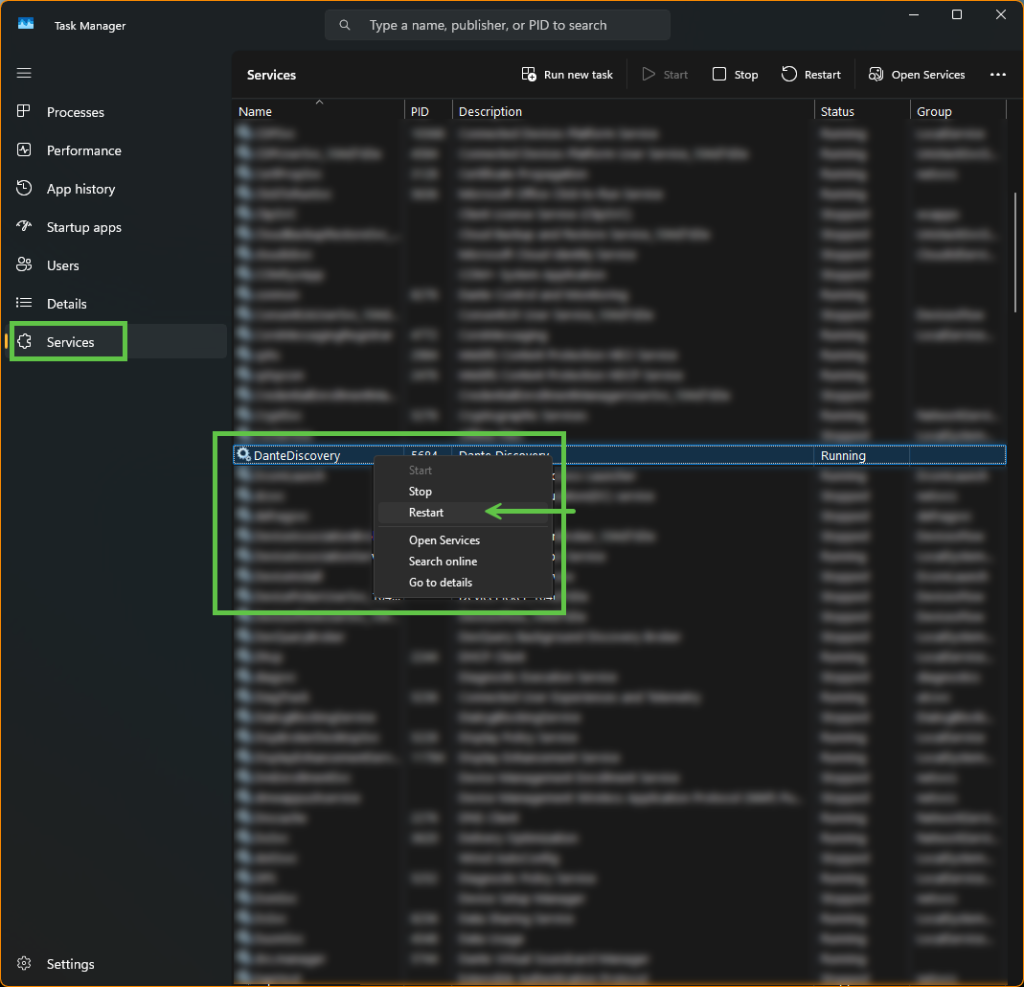
If Dante Controller isn’t discovering any devices the Dante Discovery Service could be in a bad state.
- Close Dante Controller.
- Open Task Manager and navigate to the Services tab.
- Scroll in the window to find the “Dante Discovery” service.
- Right click on this service and select Restart.
- Give the PC some time to restart the service and re-attempt to locate devices in Controller.
DHCP RESET OF DSP NIC
Most of the time it will be easy to find the IP address of a DSP. As was covered earlier in this document, the front display of Symetrix DSPs can be cycled to show both the Control and Dante IP addresses (Dante IP is in the System Pages). For Symetrix xIO devices that don’t have a screen to display their IP it can be difficult to find this, especially if you’re unable to locate the unit on the network.
Every Symetrix device (except for the ARC series) has a factory reset button. Reference to location of these buttons can be found in another Symetrix Tech Tip document Factory and Network Interface Card Resets
If a Symetrix device has previously been set to a static IP address, you can single short press the factory reset button to reset the NIC to DHCP. Once reset and then manually power cycled, the unit should receive a DHCP address if a server is available or resolve back to its 169.254.x.y link local address. Note: BE AWARE, a long press of the reset button will factory reset the unit. This short press should be a “good solid click”, similar to pushing a mechanical elevator button