-
Type
- Dante
- Networking
- Control
-
System Management
- Composer Management Software
- SymVue Screen Authoring
- AV-Ops Center Remote Monitoring
- ARC-WEB Control Interface Signal Processing
- D100 AVoIP DSP Server
- Radius NX AVoIP DSP
- Prism AVoIP DSP
- Edge AVoIP DSP
- DSP I/O Expansion Cards
- Jupiter DSP
- Zone Mix 761 DSP I/O Connectivity
- xIO Bluetooth Endpoints
- xIO XLR Endpoints
- xIO AVoIP DSP Audio Expanders Control Systems
- T-Series Touchscreen Controllers
- W-Series Controllers
- Control Server for Personal Devices
- xControl GPIO Expander
- ARC-Series Controllers
Comparing Symetrix Composer Site Files
Product:Composer Management Software
Comparing Symetrix Composer Site Files
Overview
This walk through explains the step-by-step process to compare Symetrix Composer Site Files using the “Generate Report” feature of Symetrix Composer software.
Comparing two site files is helpful in troubleshooting when changes in a signal path have occurred, comparing current settings with past settings of a system, or determining what is different between two Site Files.
Once a report is generated from Symetrix Composer software and then compared using WinMerge software, the side-by-side text and highlighted changes make it simple to identify the differences between the two Site File settings.
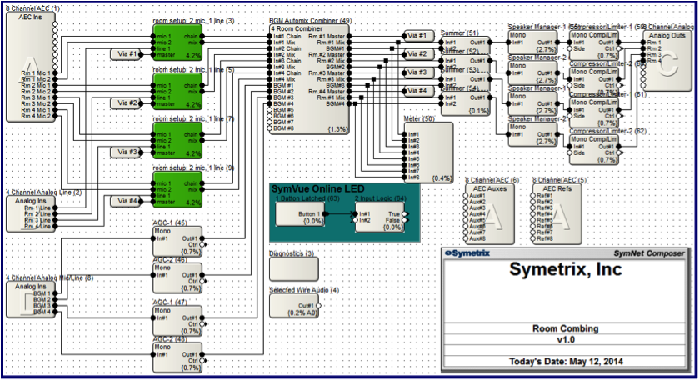
For this example, a sample room combine Site File is used. Changes will be made to the room select, room volume, and BGM volume then compared with the original settings.
Step-by-Step
1. Make sure to have a program to compare the generated reports. Symetrix recommends WinMerge which can be downloaded here: http://winmerge.org/downloads/
2. Create a baseline report from the Site File in Symetrix Composer. To create the report, press “Ctrl-R”. This will open a window to configure the report. There are three main sections: Report Contents, Options, and Output.
Comparing Site Files
Check or uncheck the desired content for the report. Having every box checked will provide the most detailed report. Selecting individual content will generate a more focused report containing only the selected content.
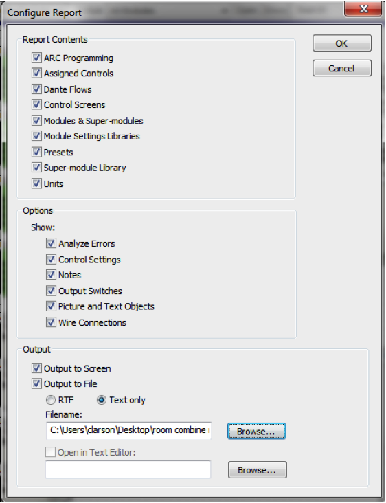
3. Click “Browse” in the Output section then select the filename and location to save the report. In this example the file name will be “room combine report tt”, and will be saved on the Desktop.
4. Make modifications to the Site File (or open a second Symetrix Composer
file) then create a new report. It is not necessary to save the Site File before running the report again. In
this example the new file name will be “room combine report tt new”, and will also be saved on the Desktop.
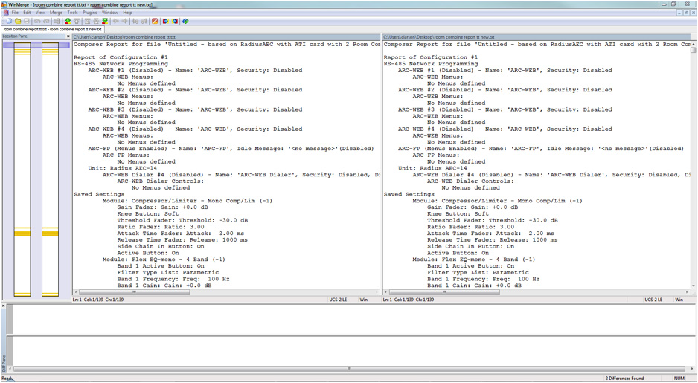
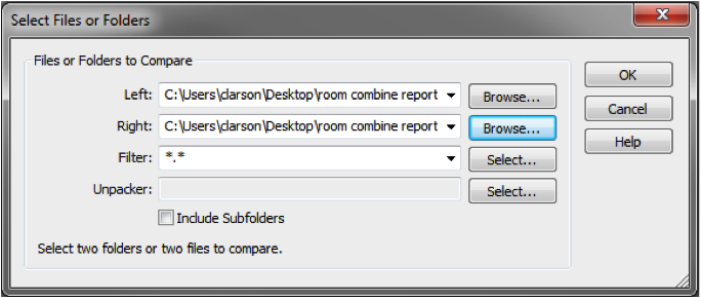
5. Open WinMerge and select the two report files to be compared. Go to File > Open, then choose the first report for Left and the new report for Right. Click OK.
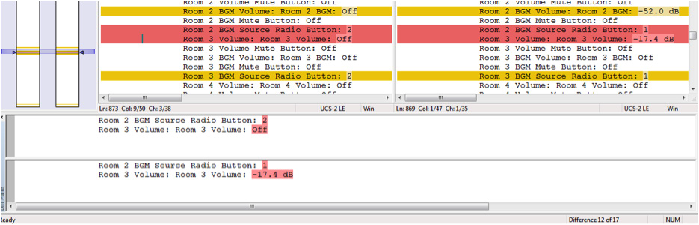
6. Compare the two reports. There are three main sections: Location Pane, Reports, and Diff Pane. The differences between the reports will automatically be highlighted in the Location Pane and also in the reports. Scrolling between the differences is made simple by clicking on the desired section of the Location Pane.
Pressing ALT+Down Arrow will scroll down to the next difference or ALT+Up Arrow will scroll up to the next difference. Double click on any highlighted section of the reports will also select the difference. Once the difference is selected it will show in the Diff Pane.