










-
Type
- Dante
- Networking
- Control
-
System Management
- Composer Management Software
- SymVue Screen Authoring
- AV-Ops Center Remote Monitoring
- ARC-WEB Control Interface Signal Processing
- D100 AVoIP DSP Server
- Radius NX AVoIP DSP
- Prism AVoIP DSP
- Edge AVoIP DSP
- DSP I/O Expansion Cards
- Jupiter DSP
- Zone Mix 761 DSP I/O Connectivity
- xIO Bluetooth Endpoints
- xIO XLR Endpoints
- xIO AVoIP DSP Audio Expanders Control Systems
- T-Series Touchscreen Controllers
- W-Series Controllers
- Control Server for Personal Devices
- xControl GPIO Expander
- ARC-Series Controllers
Dante Controller Troubleshooting and Logging Instructions
Manufacturer: Audinate
Type: Dante
Type: Networking
Dante Controller is a free software application that enables you to route audio and configure devices on a Dante network. With automatic device discovery, one-click signal routing and user-editable device and channel labels, setting up a Dante network couldn’t be easier.
Dante Controller is much more than just a configuration and routing matrix. It provides essential device status information and powerful real-time network monitoring, including device-level latency and clock stability stats, multicast bandwidth usage, and customized event logging, enabling you to quickly identify and resolve any potential network issues.
If a Composer-based Dante system is experiencing audio drop outs, appears to have disappearing units, or any other Dante audio related anomaly, using Dante Controller to gather info about the problem, network conditions, and logging of the Dante clock and network is the single most helpful tool in determining the cause and solving the issue.
In most cases, by providing Symetrix Technical Support with screen shots of the Dante Controller tabs at the time of a failure, as well as an exported log file, Symetrix support can narrow down the problem by themselves and when necessary enlist the help of Audinate engineers.
As such, it is imperative that Dante Controller be installed on a field tech’s computer. Be sure to install the latest version of Dante Controller found on Audinate’s website here:
https://www.audinate.com/products/software/dante-controller
As new releases of Dante Controller become available, Symetrix recommends upgrading to them. All methods for gathering info and logging info should be applicable regardless of the software version above Dante Controller 3.5.3.1.
How to Prepare Dante Controller to Log Events and Clock
Dante Controller is easily setup for logging of events such as warning, errors, and information. In fact, much of this is done automatically when Dante Controller is simply opened and allowed to run on the same network as the Dante hardware. A LAN port on the computer running Dante Controller must be used to connect to the Dante network due to the fact that wireless network connections are not supported.
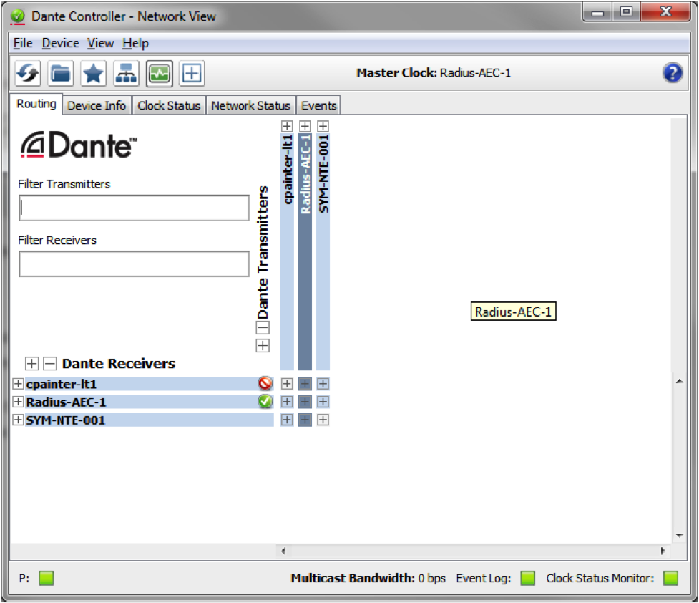
Once Dante Controller is opened, it will show the Dante hardware routing matrix and will indicate subscriptions between units on the network using green checks. If icons other than green checks are showing at the cross-points, then the icons should be investigated as they typically indicate a problem with the Dante network or device.
DC 1
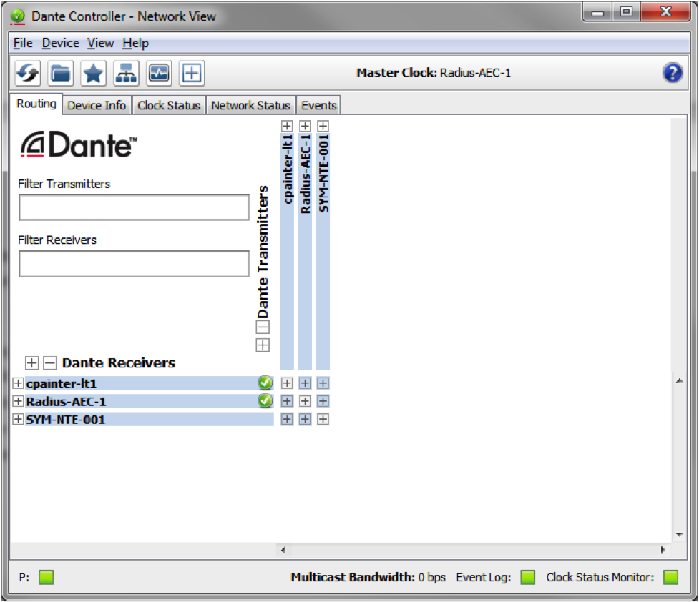
However a mouse over the cross-point should cause a tooltip window to open with a message about the error or subscription status.
DC 2

In order to turn on Clock Monitoring, engage the quick button icon at the top of the software that looks like a heart monitor. Here is the actual icon for reference:
DC 3

Once Clock Monitoring is engaged the button should indicate it is active with a green heart monitor icon:
DC 4
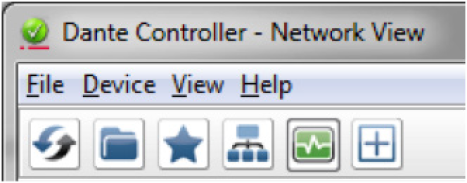
When clock monitoring is enabled the top tool icons will look like this:
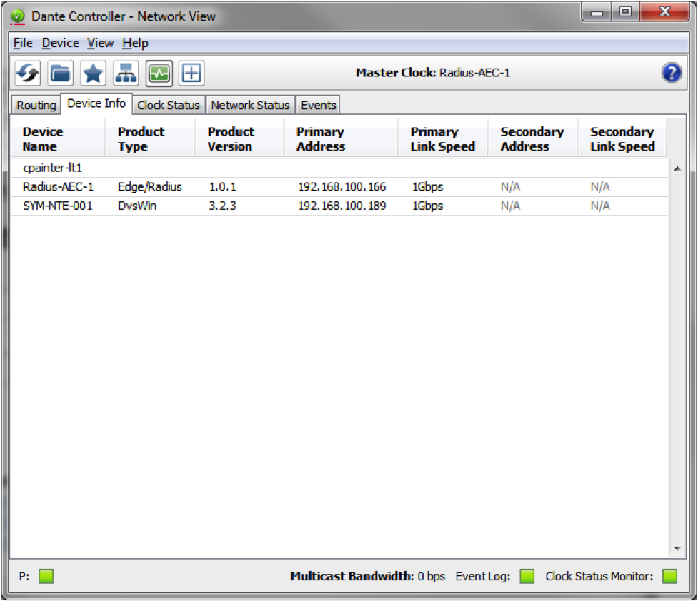
Now Dante Controller is ready to wait for the problem or audio anomaly to happen. Once the problem has resurfaced, open Dante Controller. Take screen shots of all of the 4 following tabs and email them to Symetrix support a support@symetrix.co.
Use “Alt + Prt Scr” keys to take a screen shot of the Dante Controller software. The following 4 tabs should be sent to Symetrix:
1. Routing Tab
2. Device Info Tab
3. Clock Status Tab
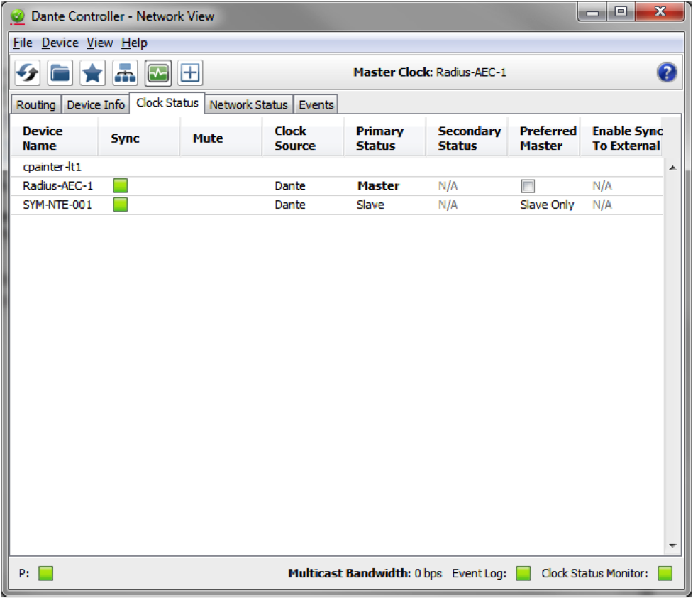
4. Network Status Tab
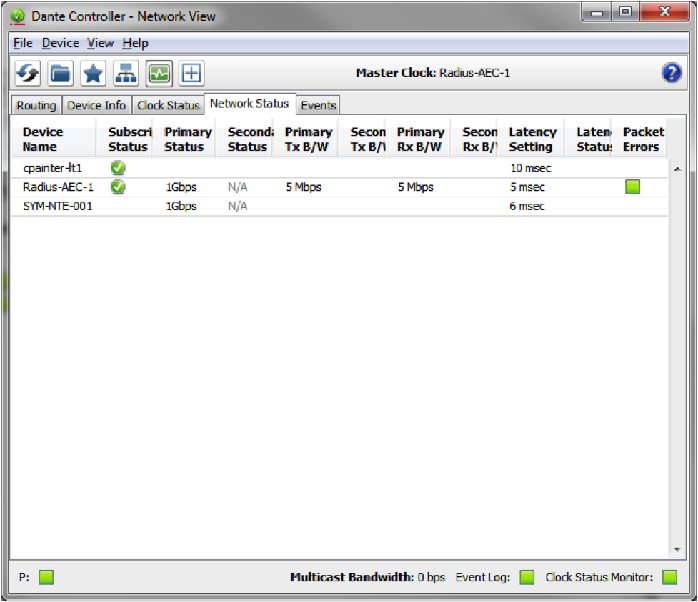
Lastly, Symetrix will require a copy of the log file. Open the Events tab.
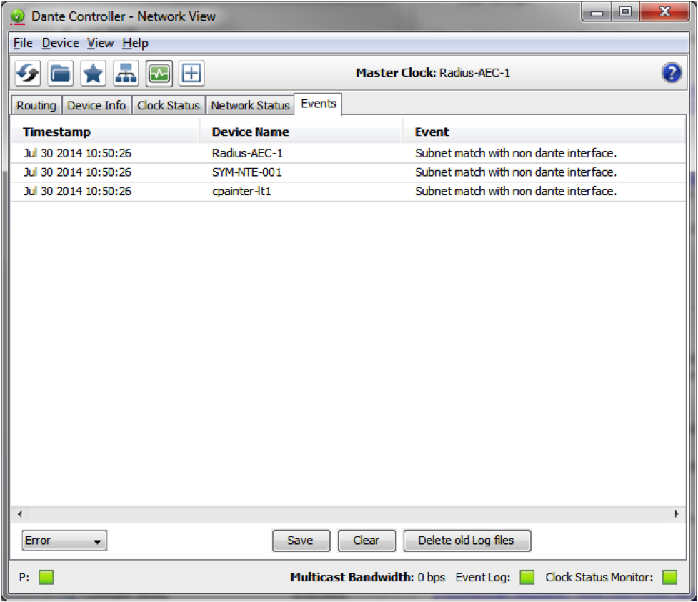
Hit the “Save” button at the bottom of the window and save the file to the computer’s desktop.
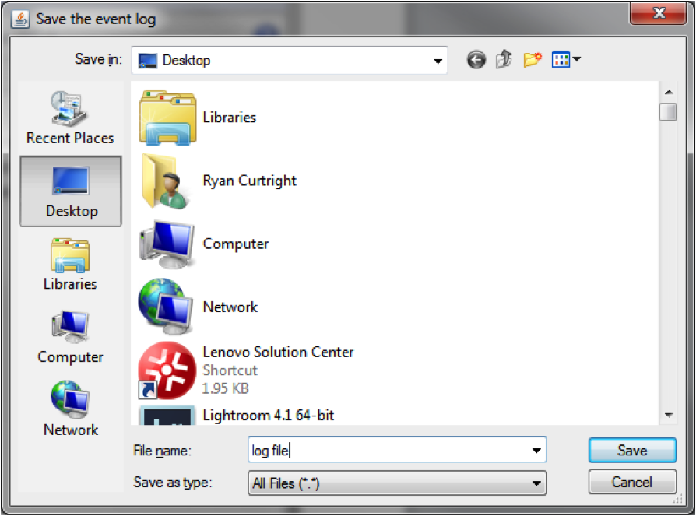
Attach the log file and all four screen shots to an email. Send them to support@symetrix.co for an evaluation of the Dante network, current state of hardware, and the log file information.