











-
Type
- Dante
- Networking
- Control
-
System Management
- Composer Management Software
- SymVue Screen Authoring
- AV-Ops Center Remote Monitoring
- ARC-WEB Control Interface Signal Processing
- D100 AVoIP DSP Server
- Radius NX AVoIP DSP
- Prism AVoIP DSP
- Edge AVoIP DSP
- DSP I/O Expansion Cards
- Jupiter DSP
- Zone Mix 761 DSP I/O Connectivity
- xIO Bluetooth Endpoints
- xIO XLR Endpoints
- xIO AVoIP DSP Audio Expanders Control Systems
- T-Series Touchscreen Controllers
- W-Series Controllers
- Control Server
- xControl GPIO Expander
- ARC-Series Controllers
Dante Redundancy
Product:Composer Management Software
Type: Dante
Type: Networking
This Tech Tip explains the purpose for Dante redundancy. This Tech Tip also provides step-by-step instructions to properly change a Composer-based system from “Switched mode” to “Redundant mode,” or, from “Redundant mode” to “Switched mode.”
Dante offers a full-time redundancy option with permanent primary and secondary audio transmission. Redundancy requires a second network, either using a second physical switch (recommended) or via a VLAN isolating the network traffic.
Audio data is transmitted on both the primary and secondary networks simultaneously. In the event of a failure on one network, audio will still continue to be transmitted via the other network.
All Symetrix Dante devices ship with Dante in the default “Switched mode.” This allows units to be daisy chained, eliminating the need for third-party networking hardware. When in “Switched mode” if the Dante hardware is setup physically in a redundant network configuration, traffic from the Primary Dante port will flow out the Secondary Dante port, and the Dante traffic from the Secondary Dante port will flow out the Primary Dante port. This creates a data feedback loop on the Dante network that will crash the Dante cards in the Symetrix units. Symetrix units with only Dante connections, such as the xIn 12 and the xOut 12, may become unresponsive until they are power cycled and the redundant Dante network switch is turned off or the redundant ports are unplugged from the secondary Dante network.
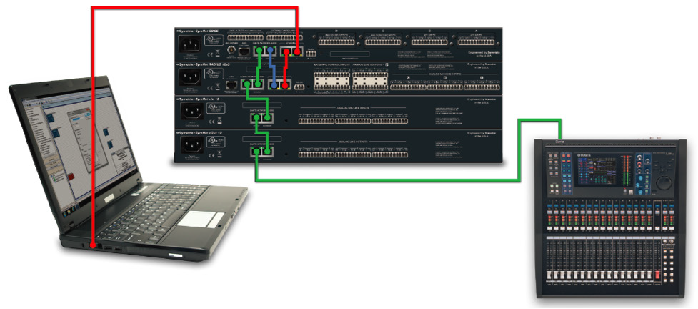
The diagram below illustrates Dante setup physically in a redundant network configuration.
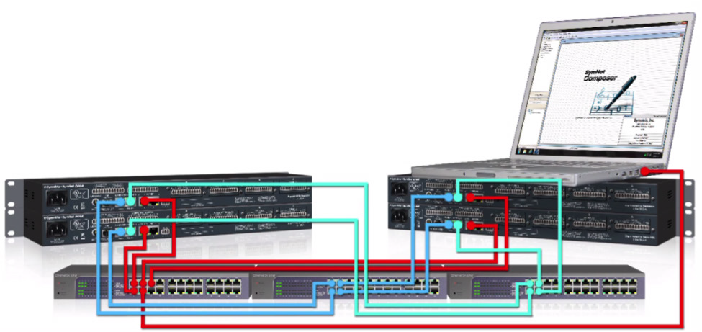
The red wires are for Ethernet/Control. The blue wires are for Primary Dante. The green wires are for Secondary Dante. Notice that each set of wires has its own network switch.
Changing from Switched Mode to Redundant Mode
To switch the Symetrix system to run Dante in “Redundant mode” when already in the default “Switched mode,” use the procedure below.
1 Cable the Dante network as if it were in “Switched mode,” not “Redundant mode.” In other words, if using an external switch or a direct connection between two units, make connections only to the primary jack. If more than two devices are used without an external switch, daisy chain from one unit’s primary to the next unit’s secondary. Do not complete the loop from the last unit back to the first unit.
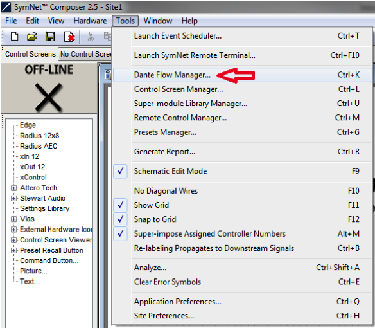
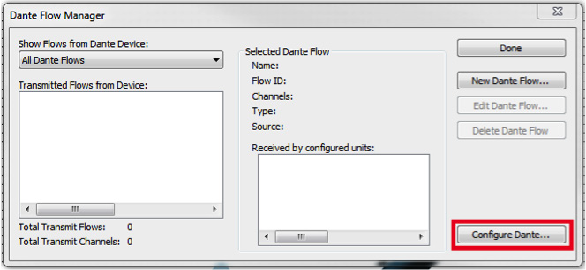
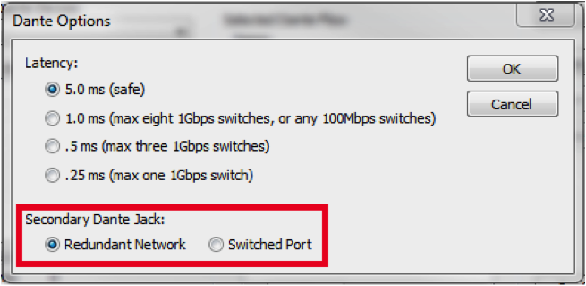
2. In Composer, go to Tools > Dante Flow Manager > Configure Dante. Select “Redundant Network.”
- Push the file and go on-line with the units. This will take slightly longer than usual as the Dante units change their mode.
- Power down the units.
- Cable the Dante network as appropriate for “Redundant mode.” Connect the primary and secondary the separate switches like the above diagram shows.
- Power on the units.
- Push the file and go on-line.
Note: Dante devices that do not support redundancy must be connected to the primary network only.
Changing Redundant Mode to Switched Mode
To switch a Composer-based system to run Dante in “Switched mode” when already in “Redundant mode,” use the procedure below.
- Power down the secondary Dante network.
- In Composer, go to Tools > Dante Flow Manager (or Tools > Network I/O Manager > Configure Dante. Select “Switched Port”.
- Push the file and go on-line with the units. This will take slightly longer than usual as the Dante units change their mode.
- Power down the units.
- Cable the Dante network as appropriate for “Switched mode.”
- Power on the units.
- Push the file and go on-line.