










-
Type
- Dante
- Networking
- Control
-
System Management
- Composer Management Software
- SymVue Screen Authoring
- AV-Ops Center Remote Monitoring
- ARC-WEB Control Interface Signal Processing
- D100 AVoIP DSP Server
- Radius NX AVoIP DSP
- Prism AVoIP DSP
- Edge AVoIP DSP
- DSP I/O Expansion Cards
- Jupiter DSP
- Zone Mix 761 DSP I/O Connectivity
- xIO Bluetooth Endpoints
- xIO XLR Endpoints
- xIO AVoIP DSP Audio Expanders Control Systems
- T-Series Touchscreen Controllers
- W-Series Controllers
- Control Server for Personal Devices
- xControl GPIO Expander
- ARC-Series Controllers
How to change the IP address on Edge DSP from the front panel
Product:Edge AVoIP DSP
Type: Networking
While all Symetrix open-architecture DSPs can display their IP address on the front screen, not all of them allow that IP address to be edited right from the front panel. This guide will quickly explain how to do this.
Hold the Menu/Enter button and enter the system pages. Then, using the left and right arrow keys, scroll to the page displaying the DHCP status.
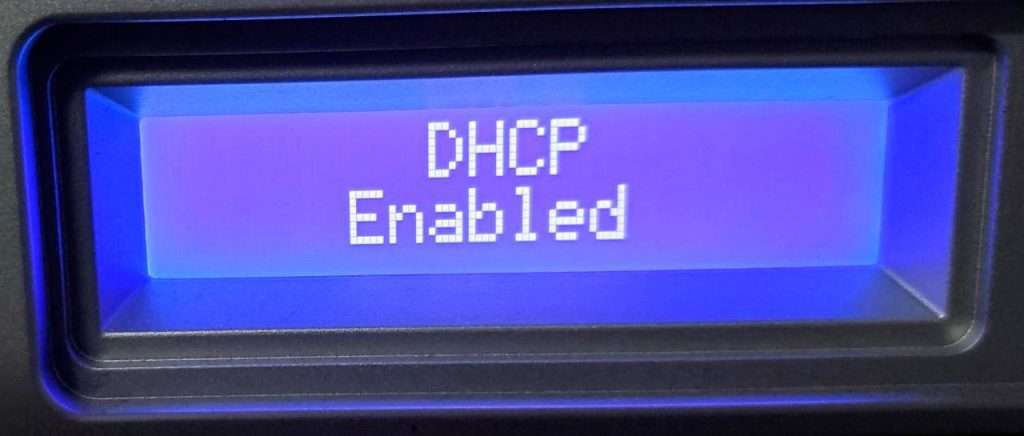
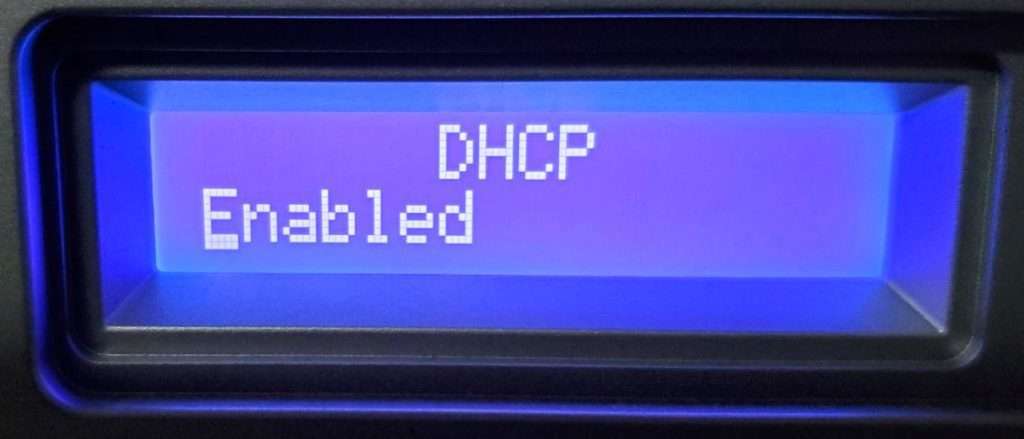
Click the Menu/Enter button, which will enable editing mode of this page, noted by the status moving to the left justification and the underscored character.
Click the Up or Down arrows to change this status to Disabled.
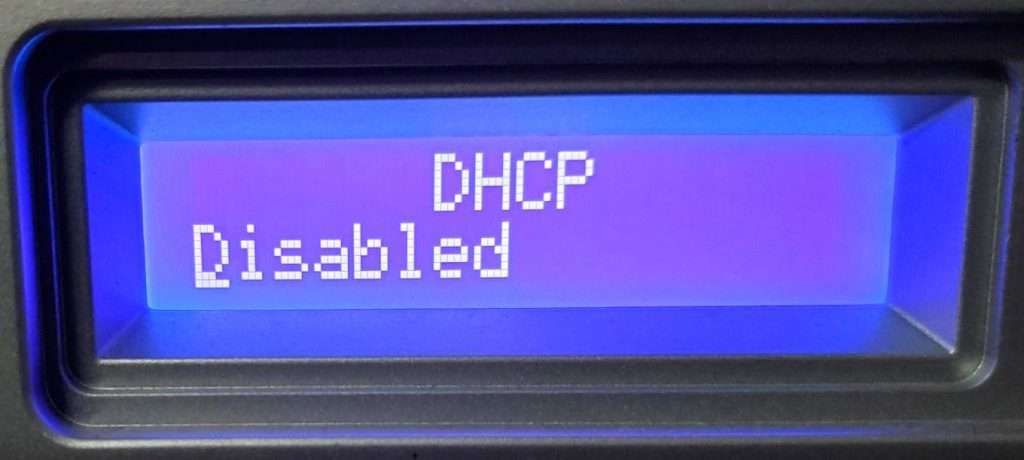
Then click the Menu/Enter button again to confirm the change.
Next, scroll to the page showing the unit’s Control IP address.
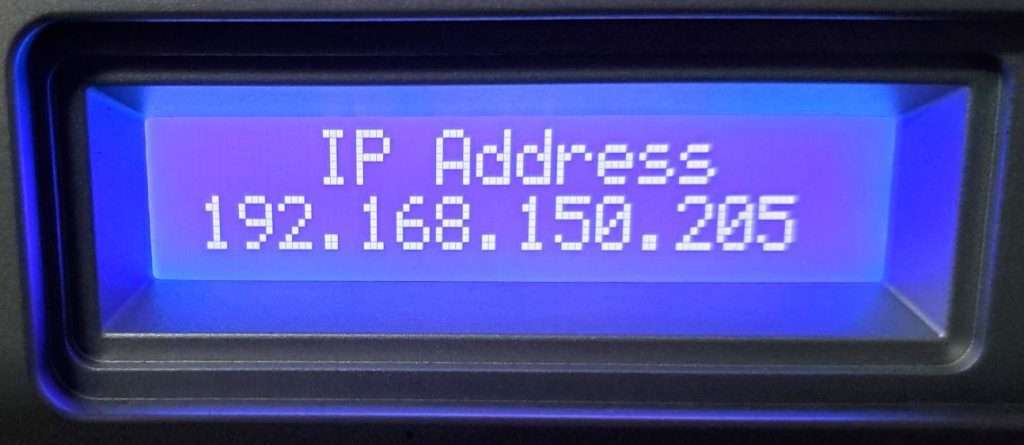
Click the Menu/Enter button to enter edit mode, noted by the underscored character.
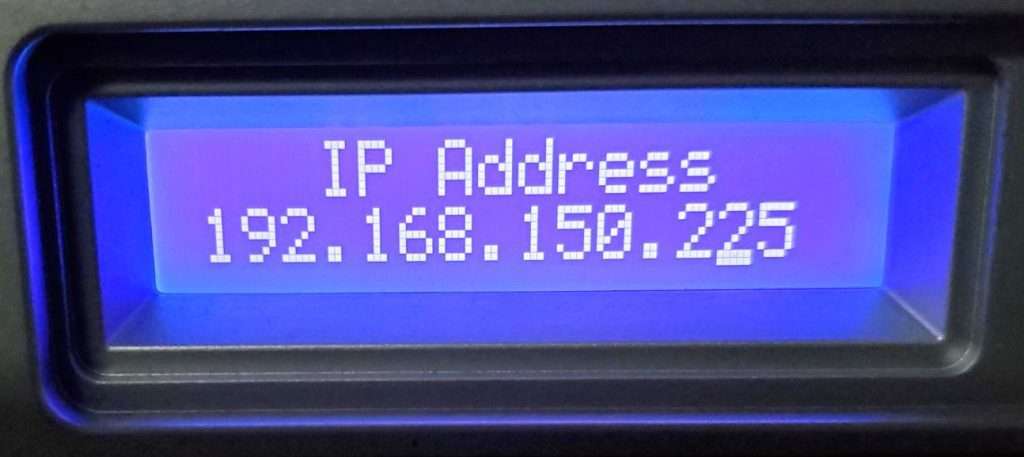
Move the edit cursor/underscore to the desired character and use the up and down arrow keys to edit. Click the Enter/Menu button again to confirm this change.