-
Type
- Dante
- Networking
- Control
-
System Management
- Composer Management Software
- SymVue Screen Authoring
- AV-Ops Center Remote Monitoring
- ARC-WEB Control Interface Signal Processing
- D100 AVoIP DSP Server
- Radius NX AVoIP DSP
- Prism AVoIP DSP
- Edge AVoIP DSP
- DSP I/O Expansion Cards
- Jupiter DSP
- Zone Mix 761 DSP I/O Connectivity
- xIO Bluetooth Endpoints
- xIO XLR Endpoints
- xIO AVoIP DSP Audio Expanders Control Systems
- T-Series Touchscreen Controllers
- W-Series Controllers
- Control Server for Personal Devices
- xControl GPIO Expander
- ARC-Series Controllers
Launch and Control 3rd Party Applications from Composer
Product:Composer Management Software
Product:SymVue Screen Authoring
Type: Control
Command Buttons in Composer can be used to launch 3rd party applications. The purpose of this Tech Tip is to illustrate how to set up the Control Screen Command Buttons to launch and control parameters in these applications. By making use of a script language named AutoIt and an associated script editor
named SciTE, functions such as mouse clicks, cursor movement and key strokes in 3rd party applications can be executed by Command Buttons. The 3rd party application could be virtually any Windows program. Windows Sound Recorder is being controlled by Composer in the following example:
- First, set up a Control Screen in Composer.
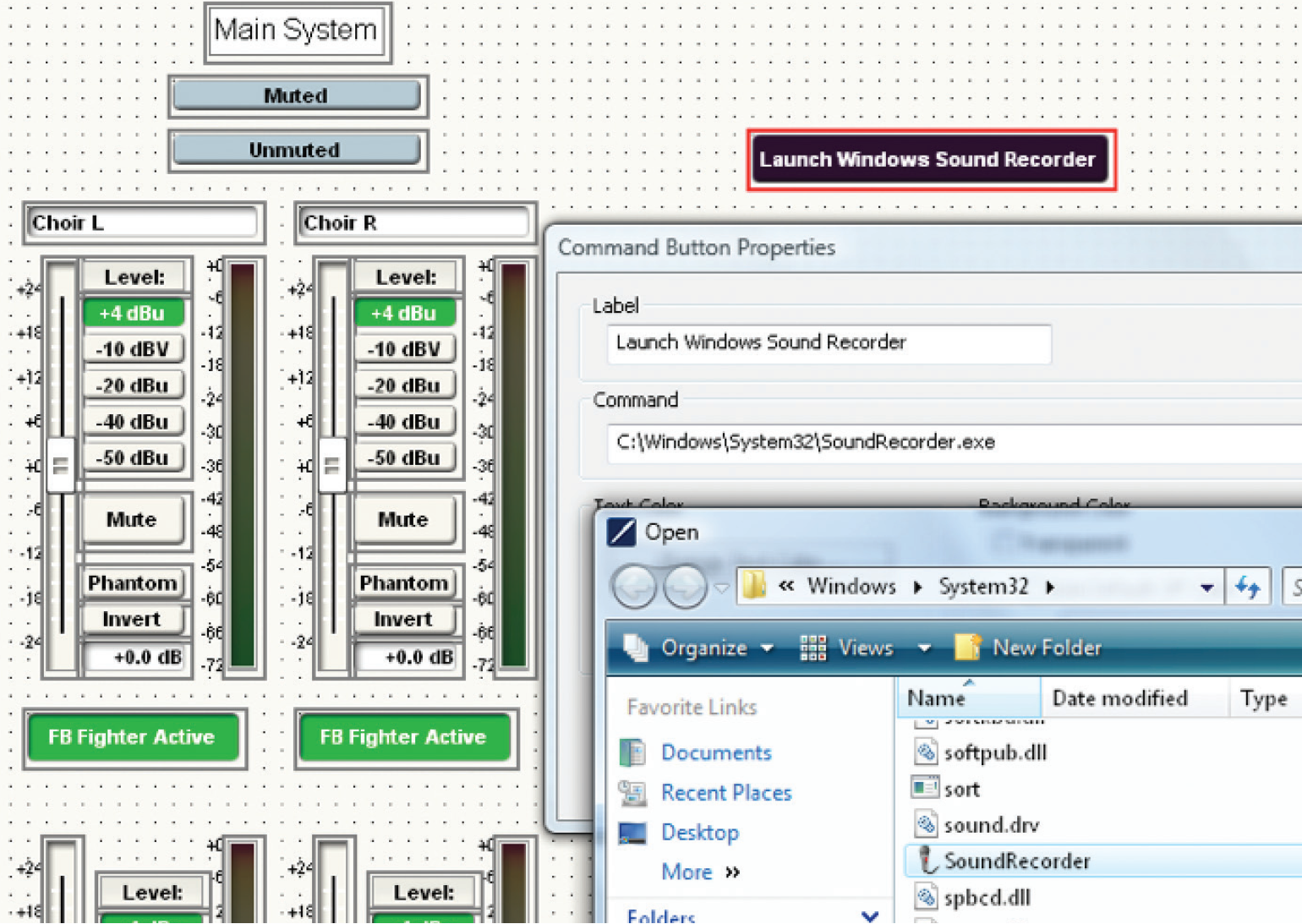
- Place a Command Button on the Control Screen. The “Command Button Properties” automatically opens after placement, in order to label the button. Choose “Browse” in order to direct the command button to the location where the desired program’s executable lives.
C:\Windows\System32\SoundRecorder.exe
By using the recommended script editor, SciTE, AutoIt is able to produce an .exe file which can execute a mouse click among many other functions. If one associates a Command Button with the executable file created in SciTE, the user can control the 3rd party application with the Command Buttons
- AutoIt and the recommended script Editor SciTE can be downloaded
from the following links:
http://www.autoitscript.com/site/autoit/downloads/
http://www.autoitscript.com/site/autoit-script-editor/downloads/ - Start SciTE from your Start Menu/All Programs/AutoItv3/SciTE Script Editor. Check the AutoIt Help File for the language’s syntax rules. Check the SciTE Help File for tips regarding the editor’s capabilities.
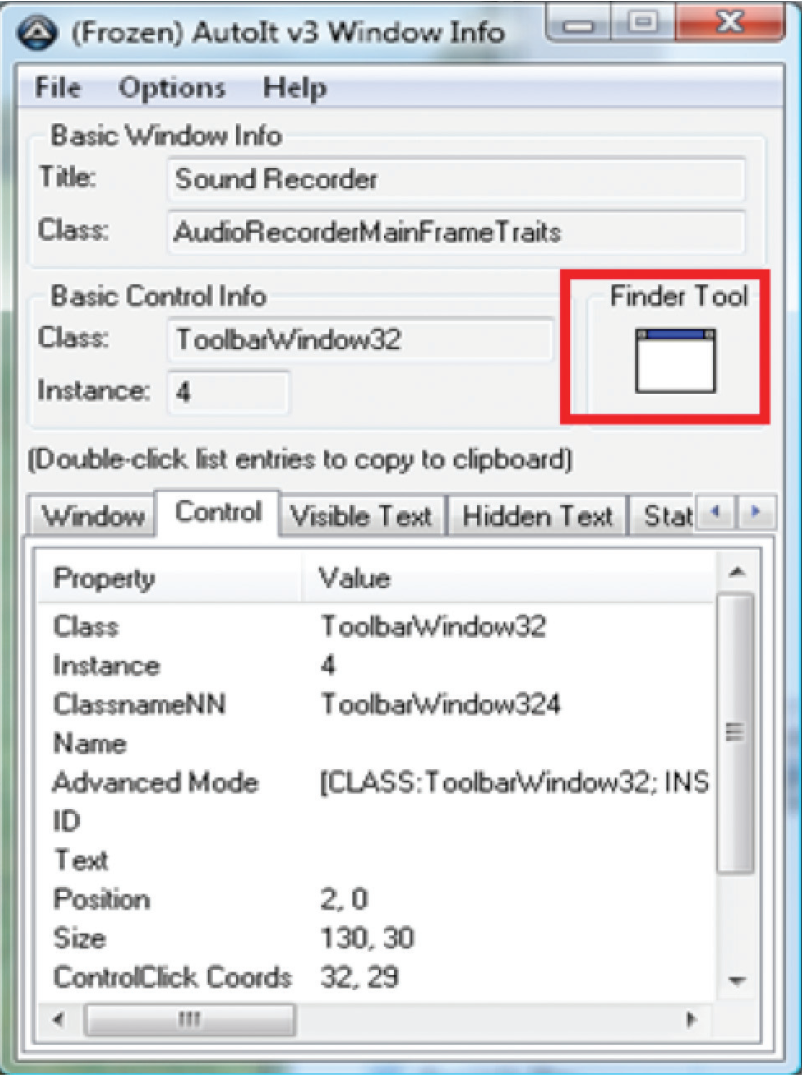
Open the program named AutoIt Window Info. Click and drag the order, or any button parameter in your chosen application. Make a note of the information on the line labeled “Advanced Mode,” which can be found on the Control tab.
- The first line of code entered into the SciTE editor in this example is an optional title line: Opt(“WinTitleMatchMode”, 2)
- The information required in order to activate the “Start Recording” Button can be gathered from the “Advanced Mode” line of the Control tab in the program AutoIt Windows Info, after the Finder Tool’s target has been dropped on the parameter to be controlled.
Below is the line of code to be entered into the script editor to activate the record button with a function:
ControlClick (“Sound Recorder”, “”, “[CLASS:ToolbarWindow32; INSTANCE:2]”)
ControlClick is an AutoIt script command to execute a mouse click.
http://www.autoitscript.com/autoit3/docs/functions/ControlClick.htm
- Convert the .au3 script document which you created in SciTE into an executable in the same directory by hitting F7 while the SciTE file is open. An .exe with an identical file name will be created in the existing directory, next to the .au3 file.
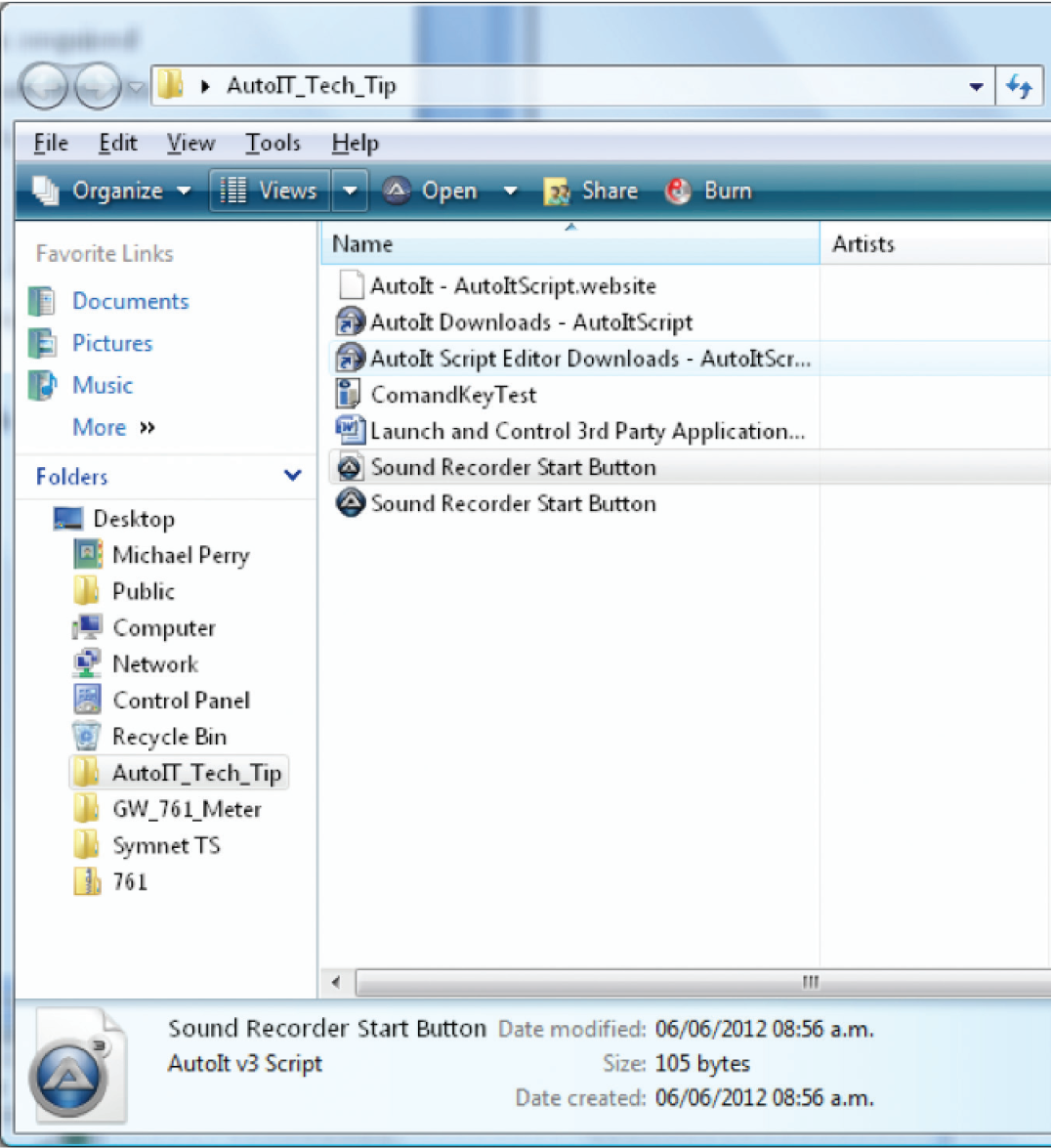
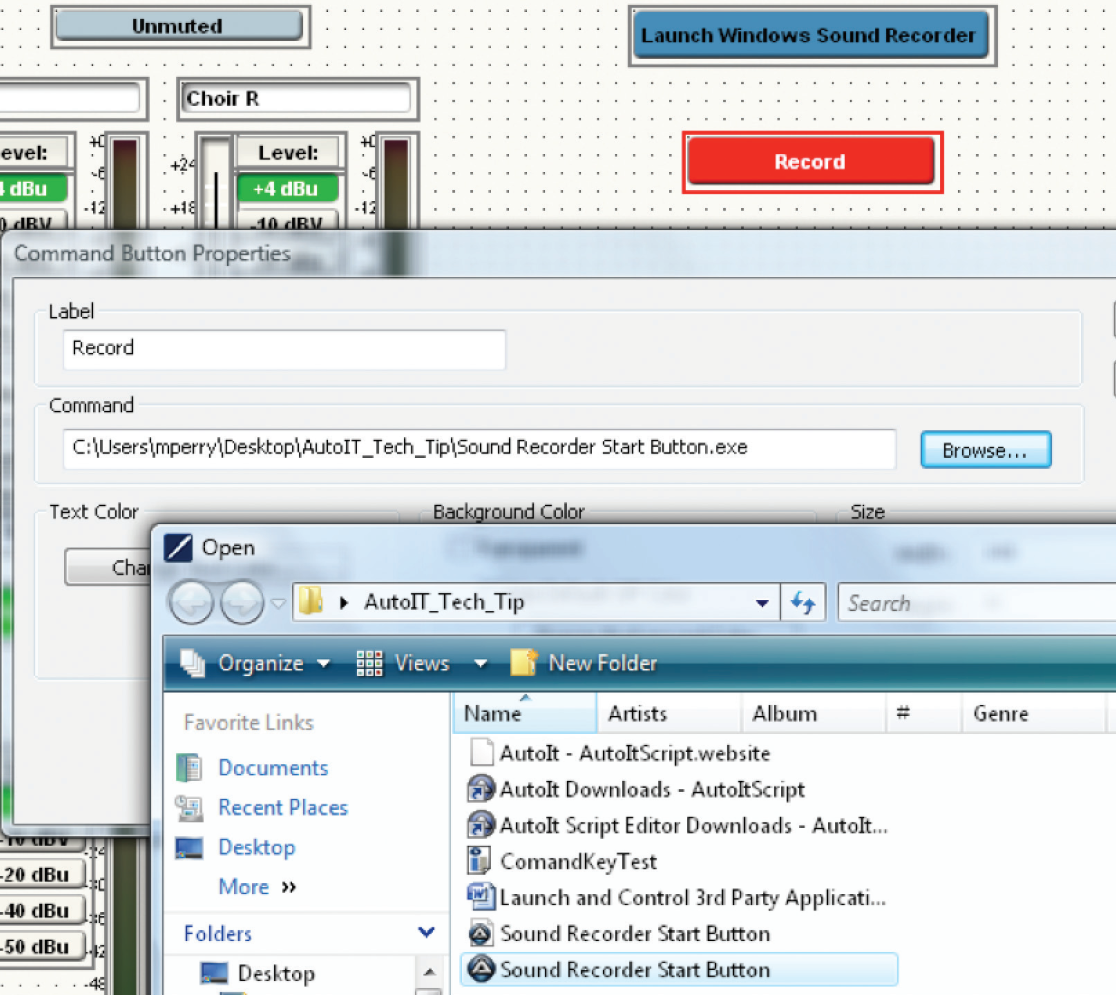
- Create another Command Button on your control screen in Composer which will be the “Start Recording” button execution.
- Right click on this new Command Button and choose “Command Button Properties”. Direct the browser for this button to the AutoIt executable file which you just created in SciTE.
- Once this is complete, save the Composer file. You may also export the control screen to SymVue at this time.
When the “Launch Windows Sound Recorder” button is clicked, it will initiate the Sound Recorder. When the “Record” button is activated, Windows Sound Recorder will begin recording.