










-
Type
- Dante
- Networking
- Control
-
System Management
- Composer Management Software
- SymVue Screen Authoring
- AV-Ops Center Remote Monitoring
- ARC-WEB Control Interface Signal Processing
- D100 AVoIP DSP Server
- Radius NX AVoIP DSP
- Prism AVoIP DSP
- Edge AVoIP DSP
- DSP I/O Expansion Cards
- Jupiter DSP
- Zone Mix 761 DSP I/O Connectivity
- xIO Bluetooth Endpoints
- xIO XLR Endpoints
- xIO AVoIP DSP Audio Expanders Control Systems
- T-Series Touchscreen Controllers
- W-Series Controllers
- Control Server for Personal Devices
- xControl GPIO Expander
- ARC-Series Controllers
SymVue Control Screen Setup and Export
Product:Composer Management Software
Product:SymVue Screen Authoring
Product:T-Series Touchscreen Controllers
Product:Control Server for Personal Devices
Type: Control
SymVue Control Screens are a powerful and flexible option for system control. This Tech Tip explains how to export a control screen to a T-5 touchscreen, Control Server, and Windows PC.
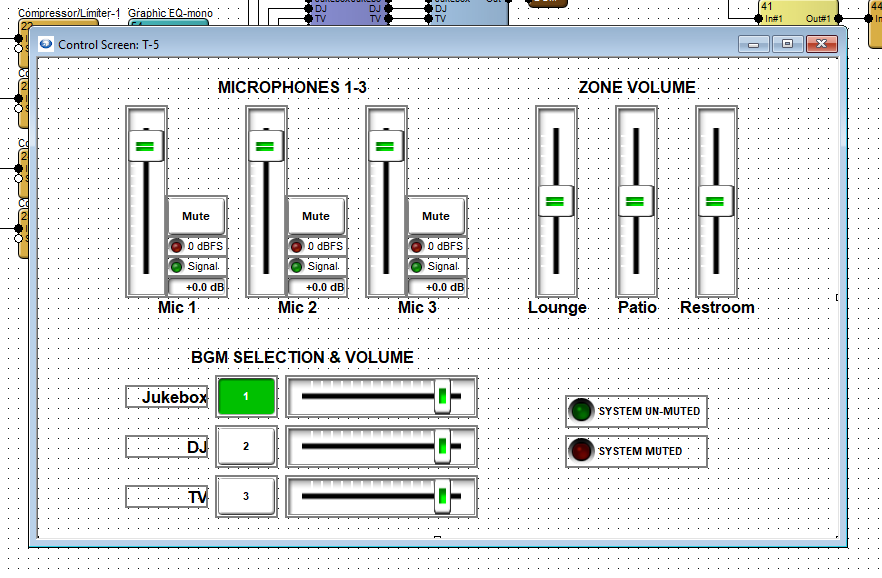
This example is for a three-zone venue with six inputs. User controls should include microphone level control, background music selection and level control, zone volume control, and an indicator if the emergency system mute is engaged.
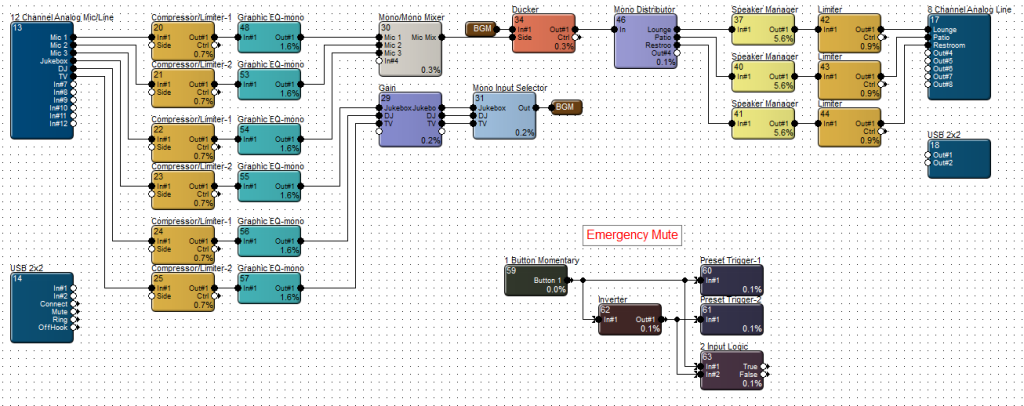
In this example, we will only need to create two control screens; one for the T-5 touchscreen and one that can be used for both Control Server and Windows PC. Once both control screens have been populated with controls and designed according to the available space, open the touchscreen control screen.
T-Series Export:
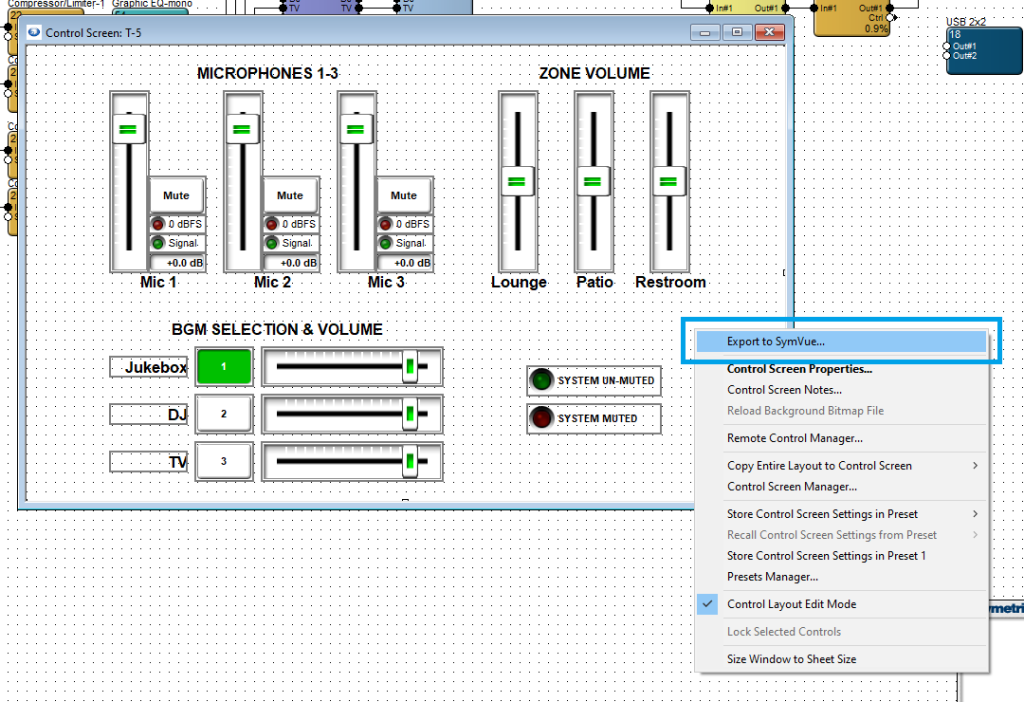
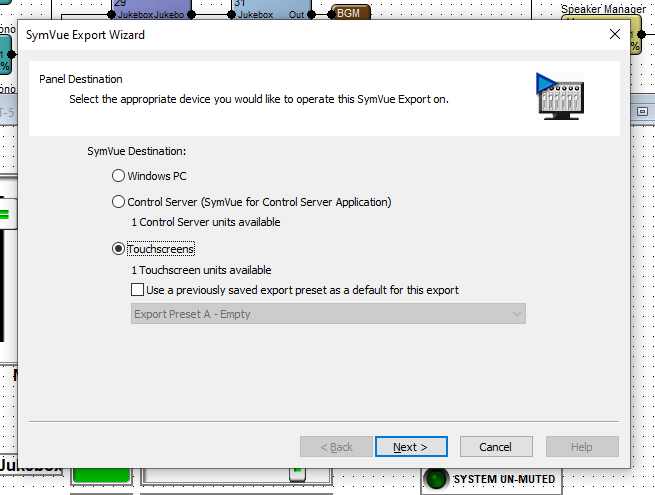
Right click in the background area and select Export to SymVue. Then select Touchscreens and click Next.
If there are more than one control screen intended for this configuration, this Panel Selection dialogue will allow you to select which screens should be included and referenced by this screen. When preferred selections are made (or if no other control screens are included), click Next.
Note: the “Home” control screen of a configuration is the one that is first exported through right-click > Export to SymVue.
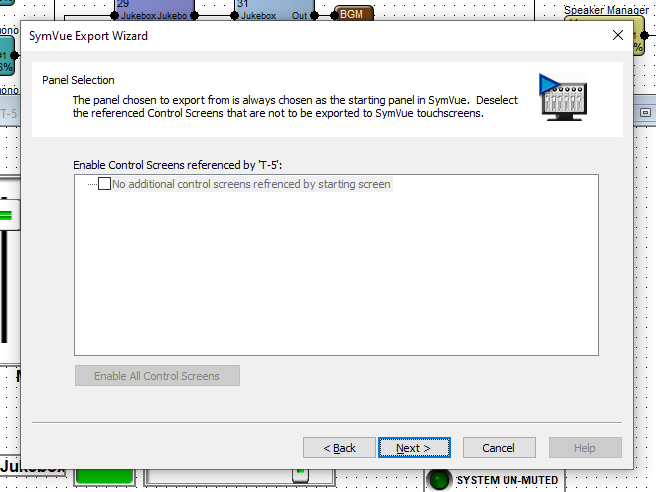
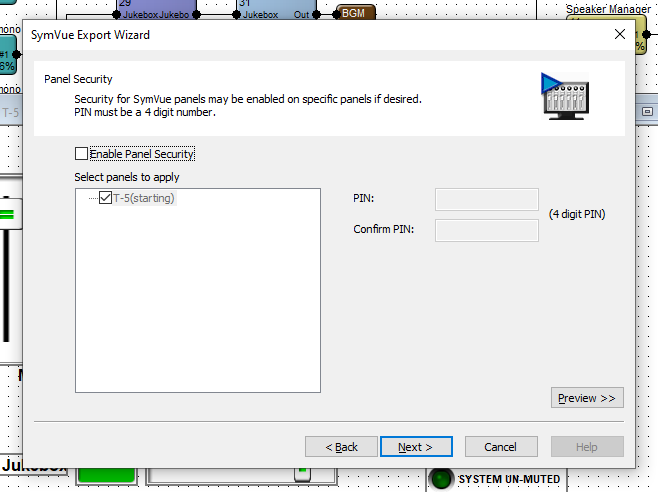
Panel Security allows you to set a PIN code for the desired control screens. This PIN will be used for all selected control screens. Control screens in a given configuration may not have varying PINs.
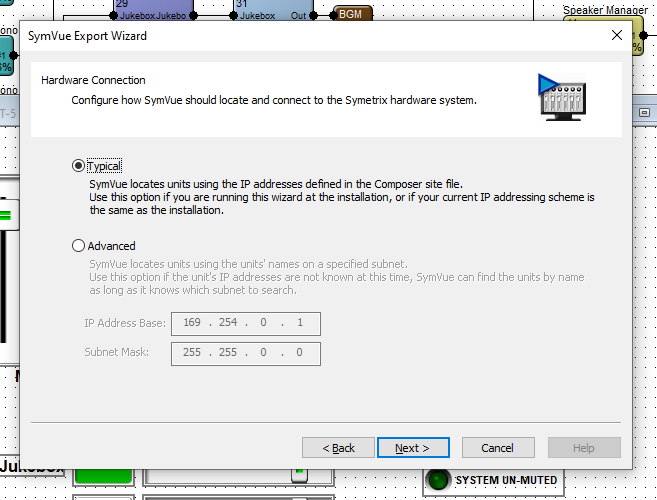
Hardware Connection allows for two options of locating the T-5 touchscreen. Select which is most appropriate for the installation – in the vast majority of cases, Typical is the appropriate selection.
Export Options is the last step. Export to Touchscreens should automatically be checked. The drop down provides options to export this configuration to a specific T-5 or a group of touchscreens.
Note: We strongly suggest selecting “Go Online with Composer site file” to avoid control subscription errors which can be caused by the touchscreen and Composer/DSP not sync’ing parameters.
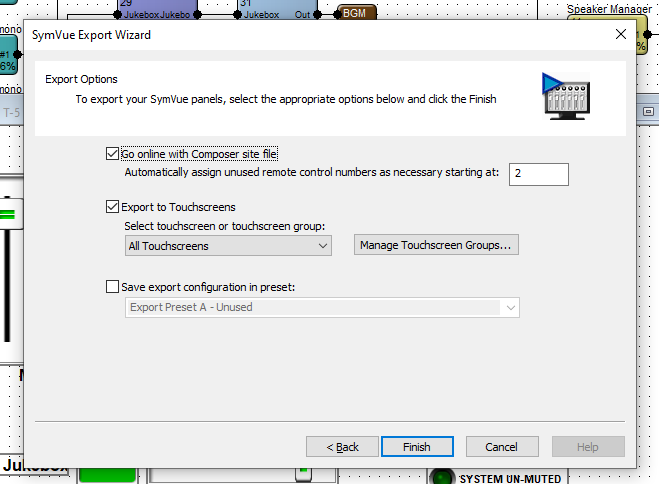
When ready, click Finish. This will export the configuration to the T-5 and push/update the archive on the DSP and go online.
Control Server / Windows PC Export:
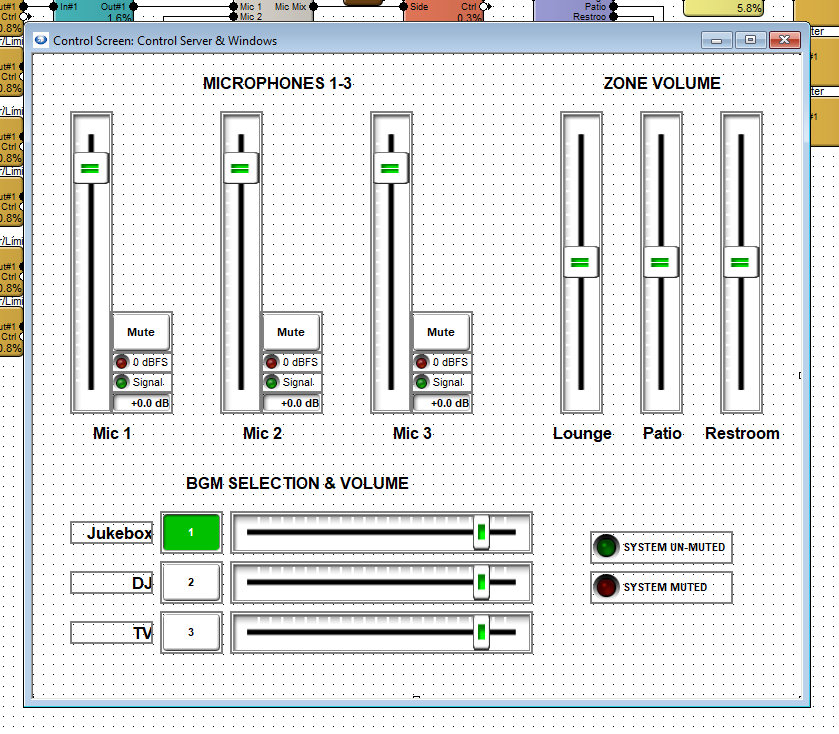
Open the control screen for Control Server and Windows PC. Repeat the steps for T-5 touchscreen, making the appropriate selections for either.
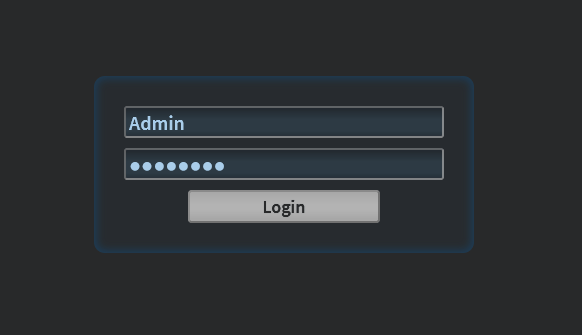
Once the configuration has been exported to Control Server, open up the Control Server’s WEB GUI and log into the Admin account.
Double-click on the Control Server or right-click > open in Site View.
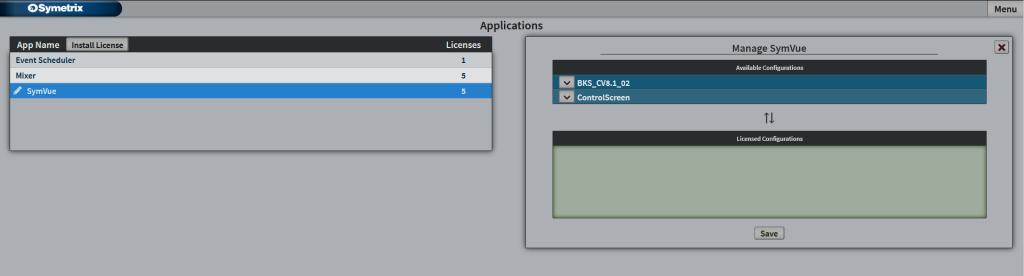
Once viewing the Status page, in the top right corner, go to Menu > Management > Applications and select SymVue from the App list. This will expand the available configurations list.
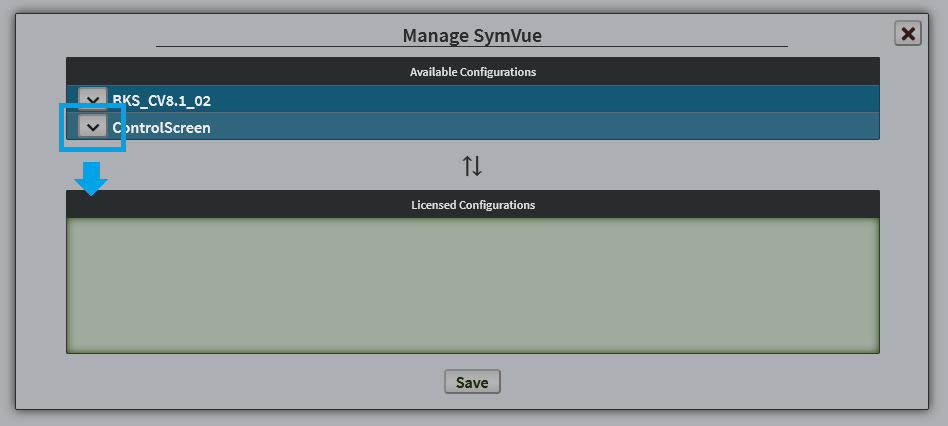
Click the down Arrow (or click and drag) on your control screen – this example “ControlScreen” – and click Save.
Then go to Menu > Management > Users. If you haven’t created a user account for the Control Server, you can do so here. Click on the user that will be accessing the exported configuration.
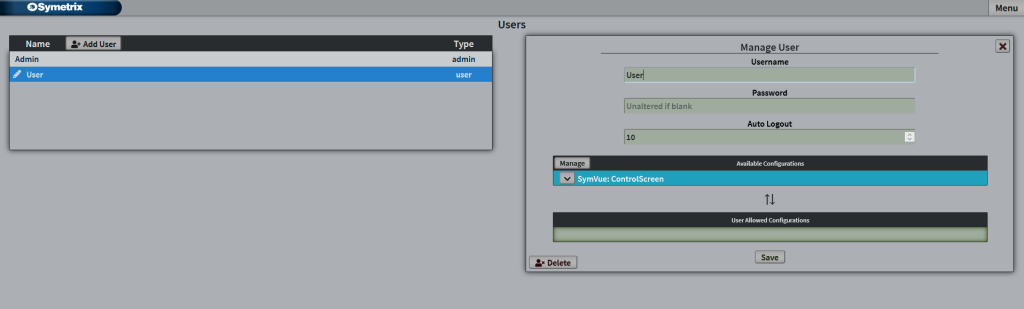
Click on the down arrow for the configuration that this user will access to place it into the User Allows Configurations and click Save.
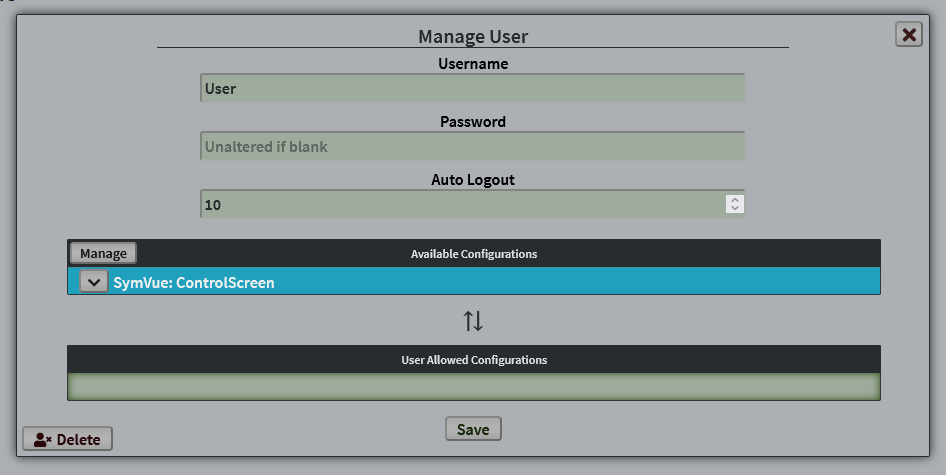
This user now has access to this control screen.
Additional note; Configurations, Licenses, and Applications:
A configuration is any number of single control screens grouped/exported together that act as one “set” of pages or screens. You can have any number of available configurations (sets of control screens) loaded into the Control Server. The number of licensesavailable determines how many of those configurations are allowed to be available to users. You can have any number of users with varying access to any number of the available licensed configurations. Every Control Server comes with 5 licenses, but more can be purchased if necessary.
These control screens are used through the SymVue Application, which is the same medium we use for our export to touchscreen or Windows PC. The Event Scheduler and Mixer apps you may see in Control Server or on export are not related to these control screen configurations.