-
Type
- Dante
- Networking
- Control
-
System Management
- Composer Management Software
- SymVue Screen Authoring
- AV-Ops Center Remote Monitoring
- ARC-WEB Control Interface Signal Processing
- D100 AVoIP DSP Server
- Radius NX AVoIP DSP
- Prism AVoIP DSP
- Edge AVoIP DSP
- DSP I/O Expansion Cards
- Jupiter DSP
- Zone Mix 761 DSP I/O Connectivity
- xIO Bluetooth Endpoints
- xIO XLR Endpoints
- xIO AVoIP DSP Audio Expanders Control Systems
- T-Series Touchscreen Controllers
- W-Series Controllers
- Control Server for Personal Devices
- xControl GPIO Expander
- ARC-Series Controllers
Using Dante’s Device Lock Feature with Symetrix Dante-enabled Hardware
Product:Composer Management Software
Type: Dante
Type: Control
The purpose of this Tech Tip is to provide instructions on using Dante’s Device Lock feature with Symetrix Dante-enabled hardware in Composer 6.0 or later. Device Lock allows you to lock and unlock supported Dante devices using a 4-digit PIN (Personal Identification Number) in Dante Controller. Audinate’s Dante Controller software must be used to lock and unlock Symetrix Dante-enabled hardware. They CANNOT be locked or unlocked using Composer. When a device is locked, audio will continue to flow according to its existing subscriptions, and it may be monitored, but it cannot be controlled or configured. Its subscriptions and configuration settings become read-only.
Dante Controller: https://audinate.com/products/software/dante-controller
Lock Status Indication
Symetrix Composer
In Composer, Site View will show the lock state of all Dante equipped units via the Dante Logo at the bottom center of the unit’s icon. That icon will be one of three
colors indicating ‘Dante Locked’, ‘Dante Unlocked’, and ‘Dante Lock Feature Unavailable’.
lock 1

Locked: Yellow
lock 2

Unlocked: Green
lock 3

Feature Unavailable: Red
Dante Controller
There are multiple locations within Dante Controller where the lock status of a device may be found.
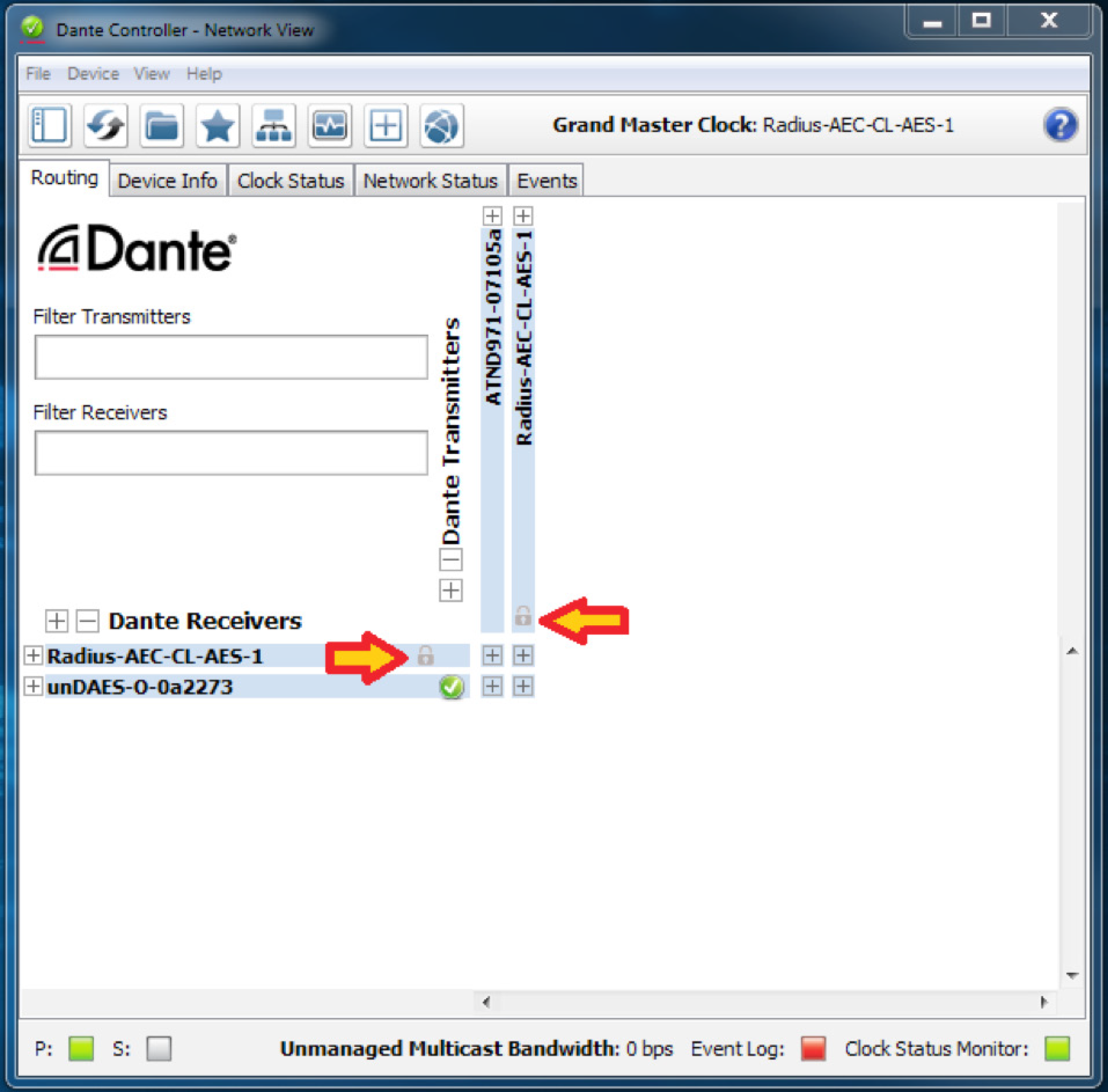
• A small gray lock icon against the device name in the Network View > Routing tab.
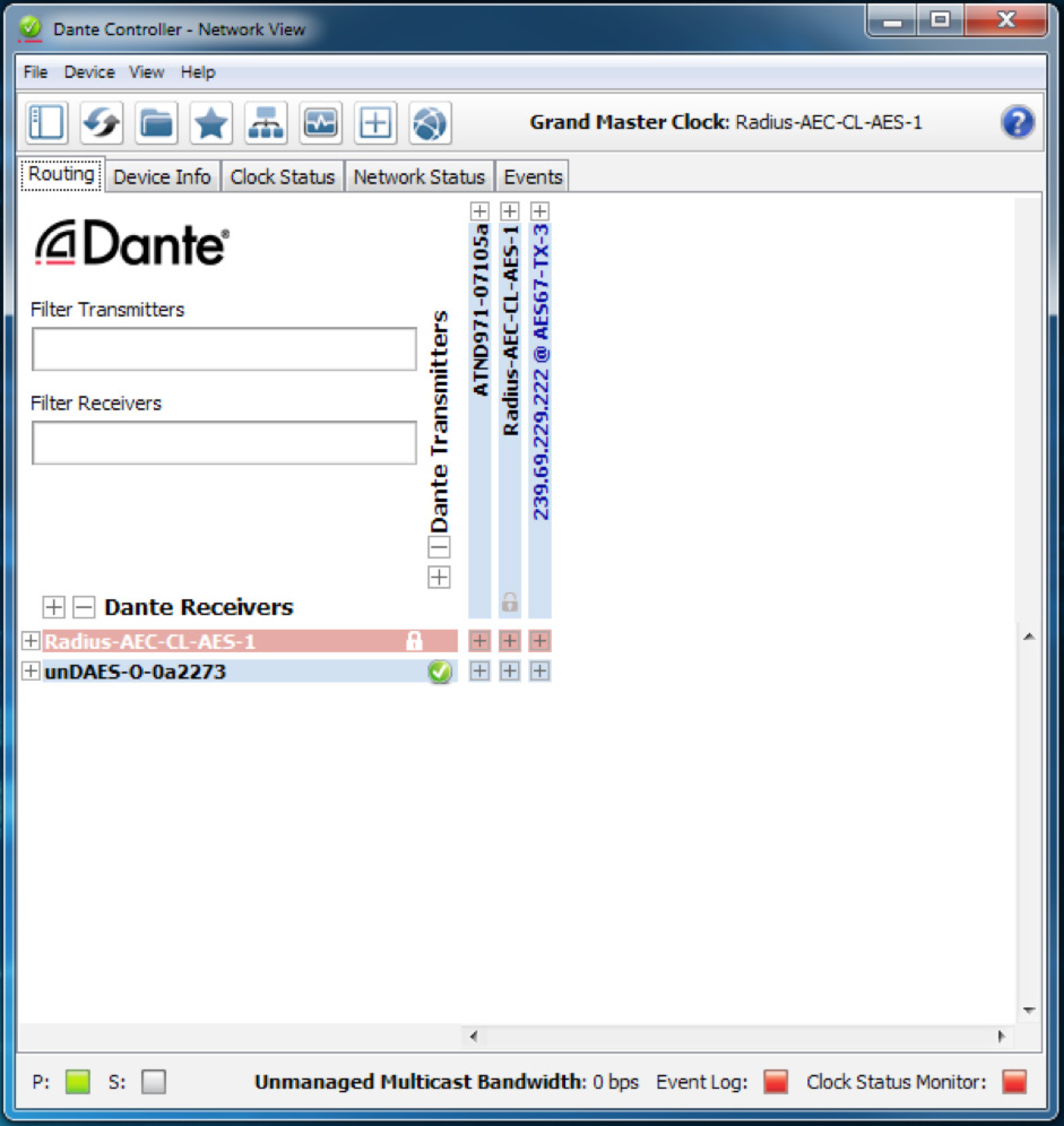
• Red background when the device is hovered over in the Network View > Routing tab.
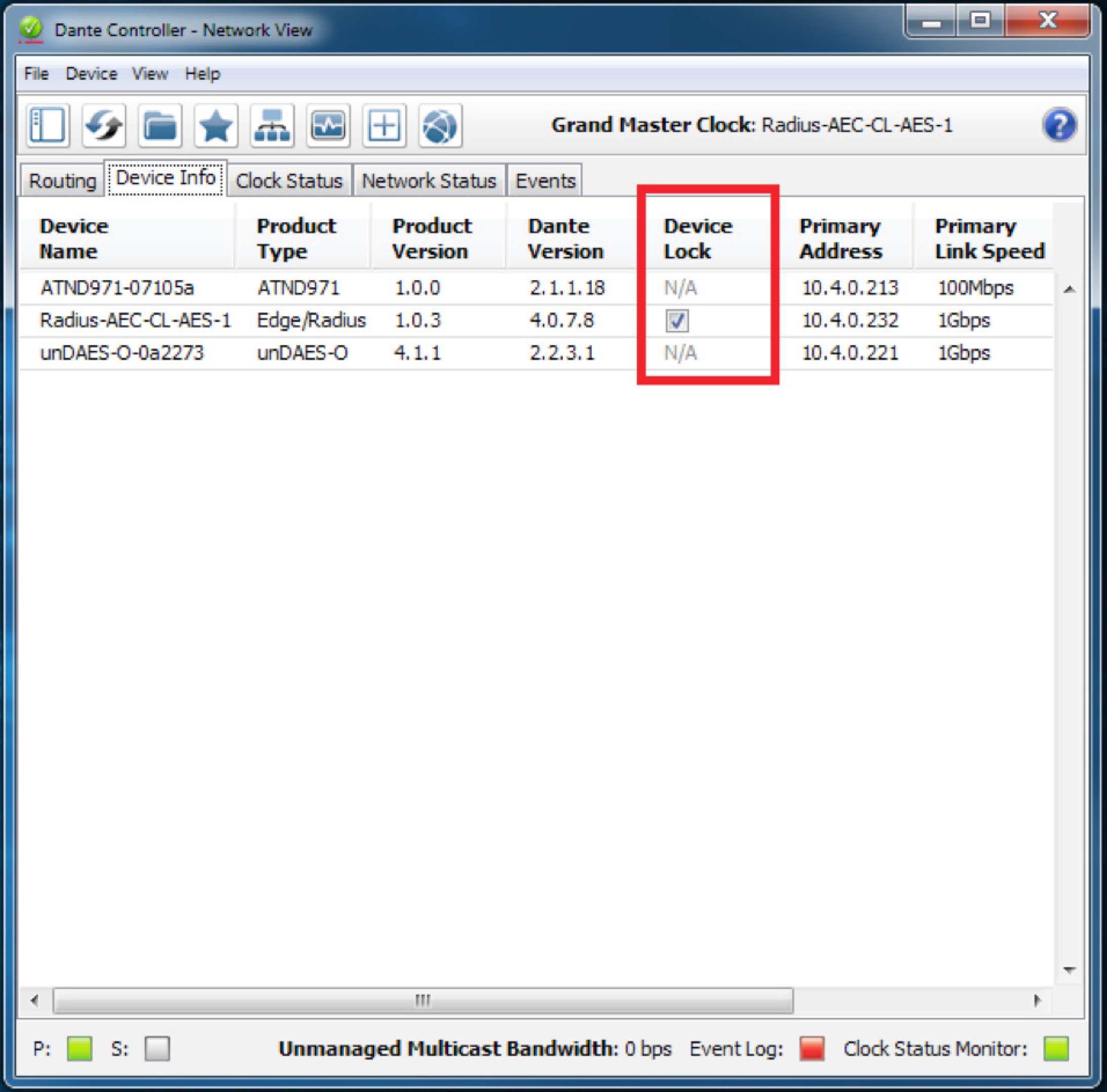
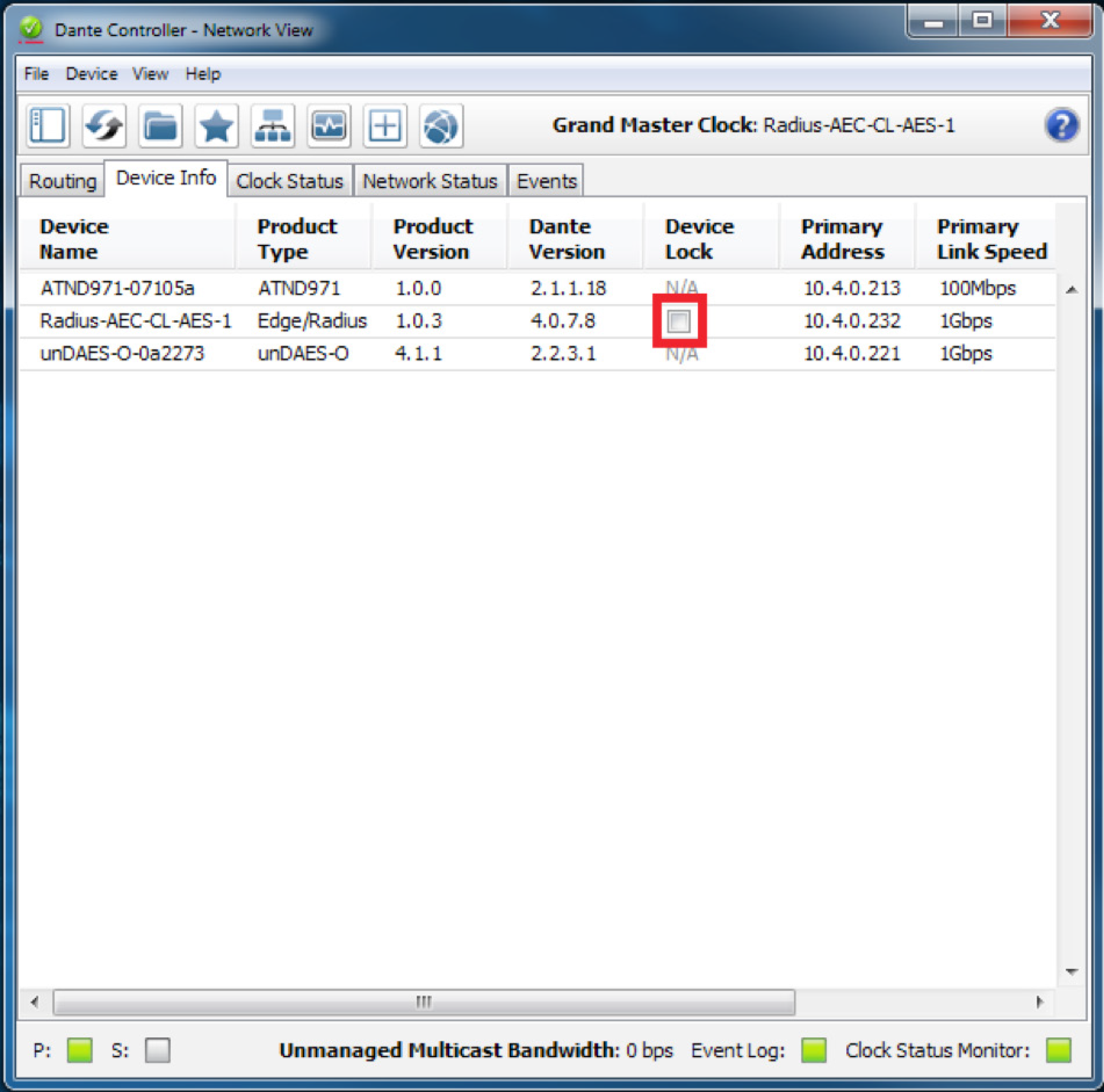
• A check in the Device Lock column in the Network View > Device Info tab.
• A red lock icon in the Device View toolbar.
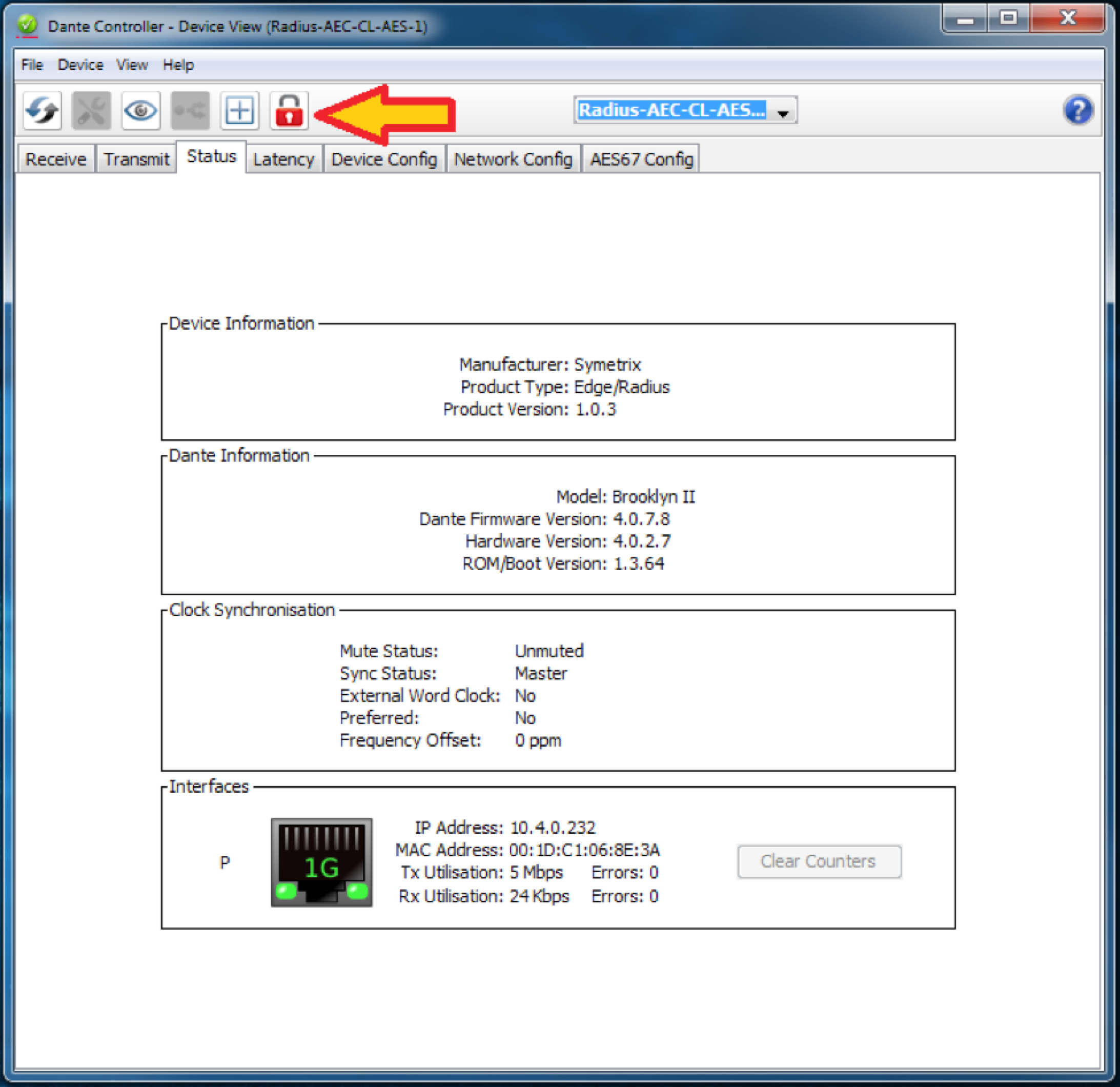
Lock Symetrix Dante-enabled Hardware
There are two different locations (Network View and Device View) to lock a Dante device in Dante Controller.
Network View
1. Open Dante Controller.
Note: Dante Controller opens to the Routing tab of the Network View page.

2. Click on the Device Info tab.
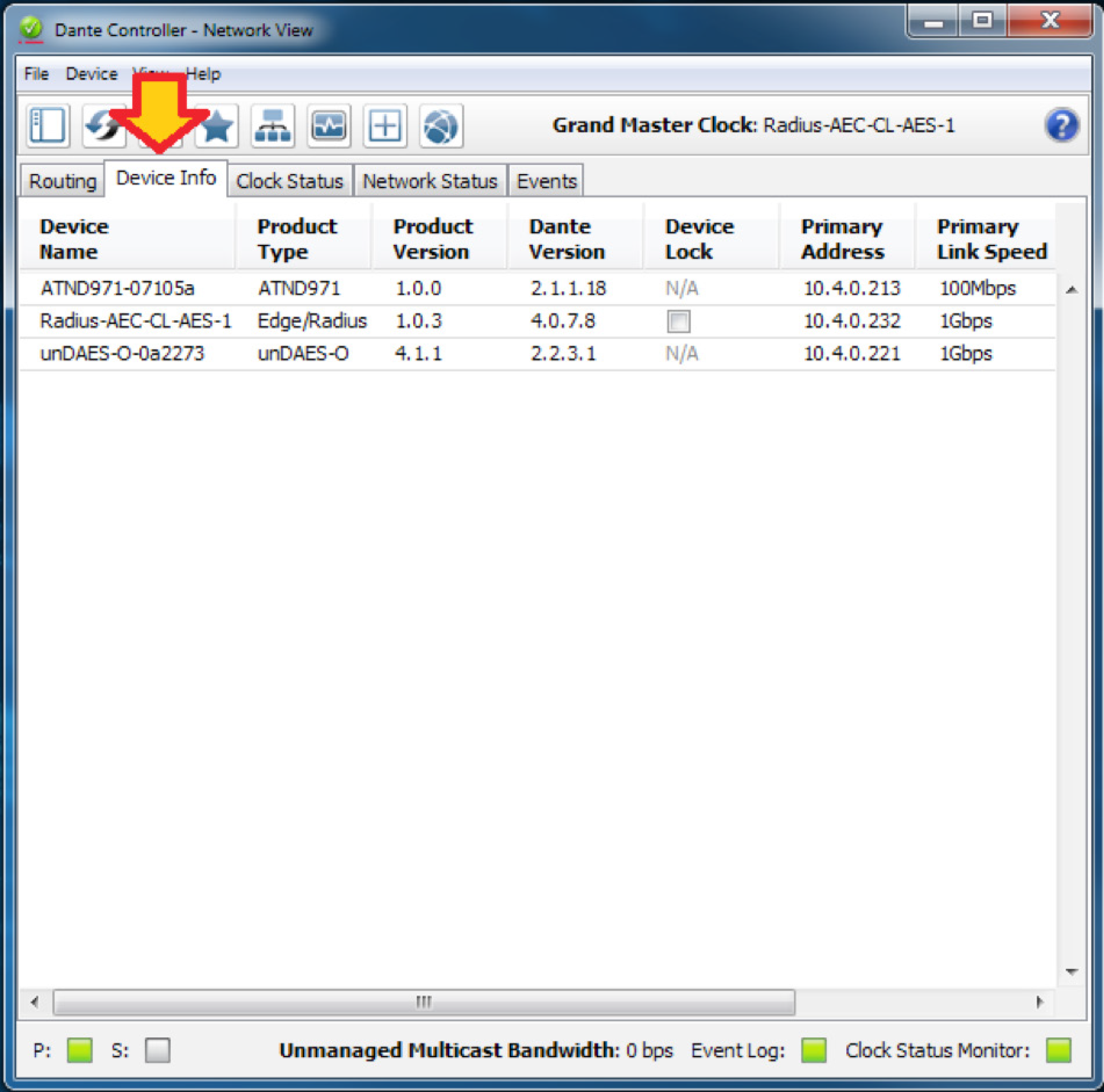
3. Click the box in the Device Lock column.
4. Enter and confirm a 4-digit PIN.
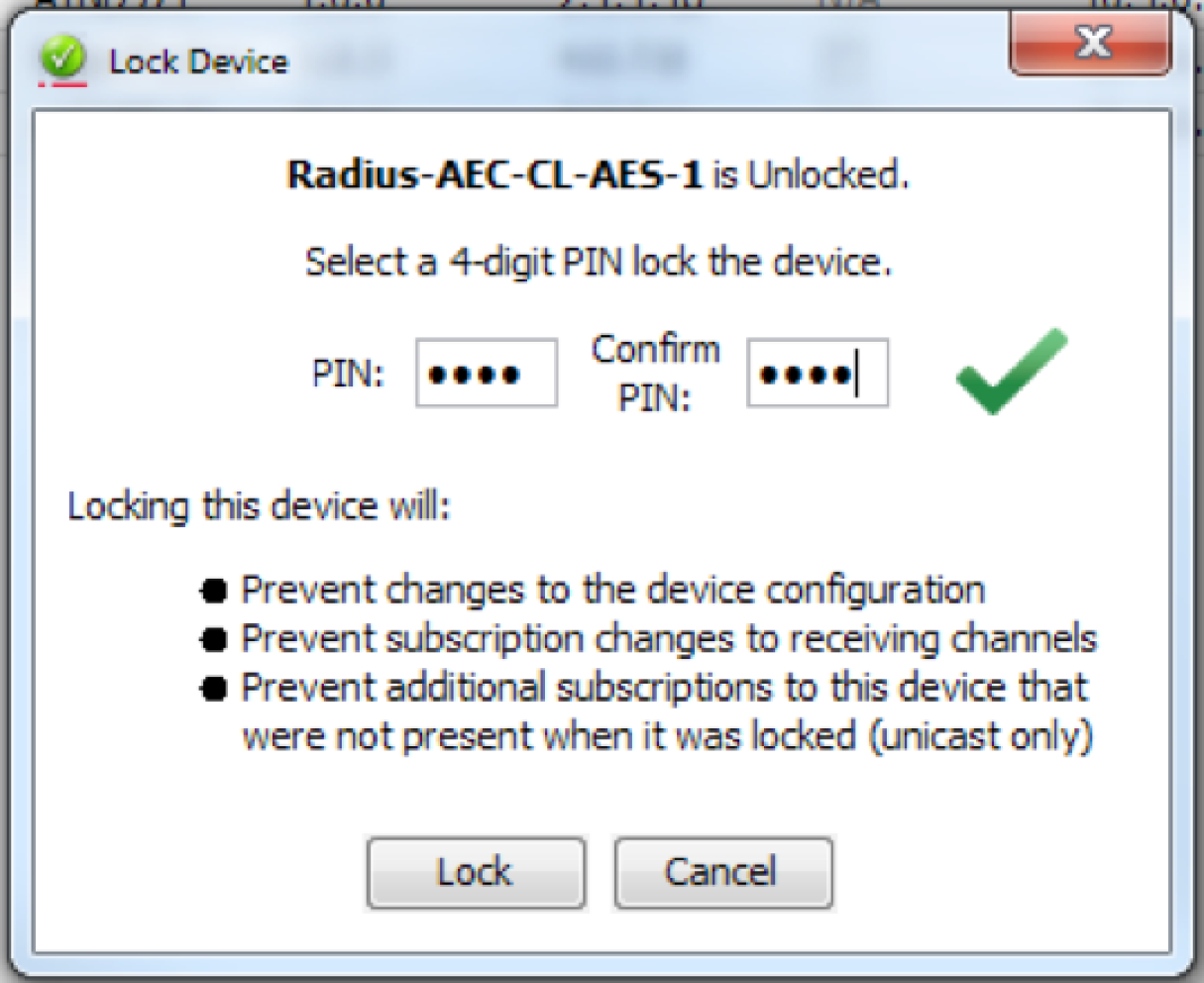
5. Click the “Lock” button. The check appears in the box to confirm the device in now locked.

Device View
1. Open Dante Controller.
Note: Dante Controller opens to the Routing tab of the Network View page.
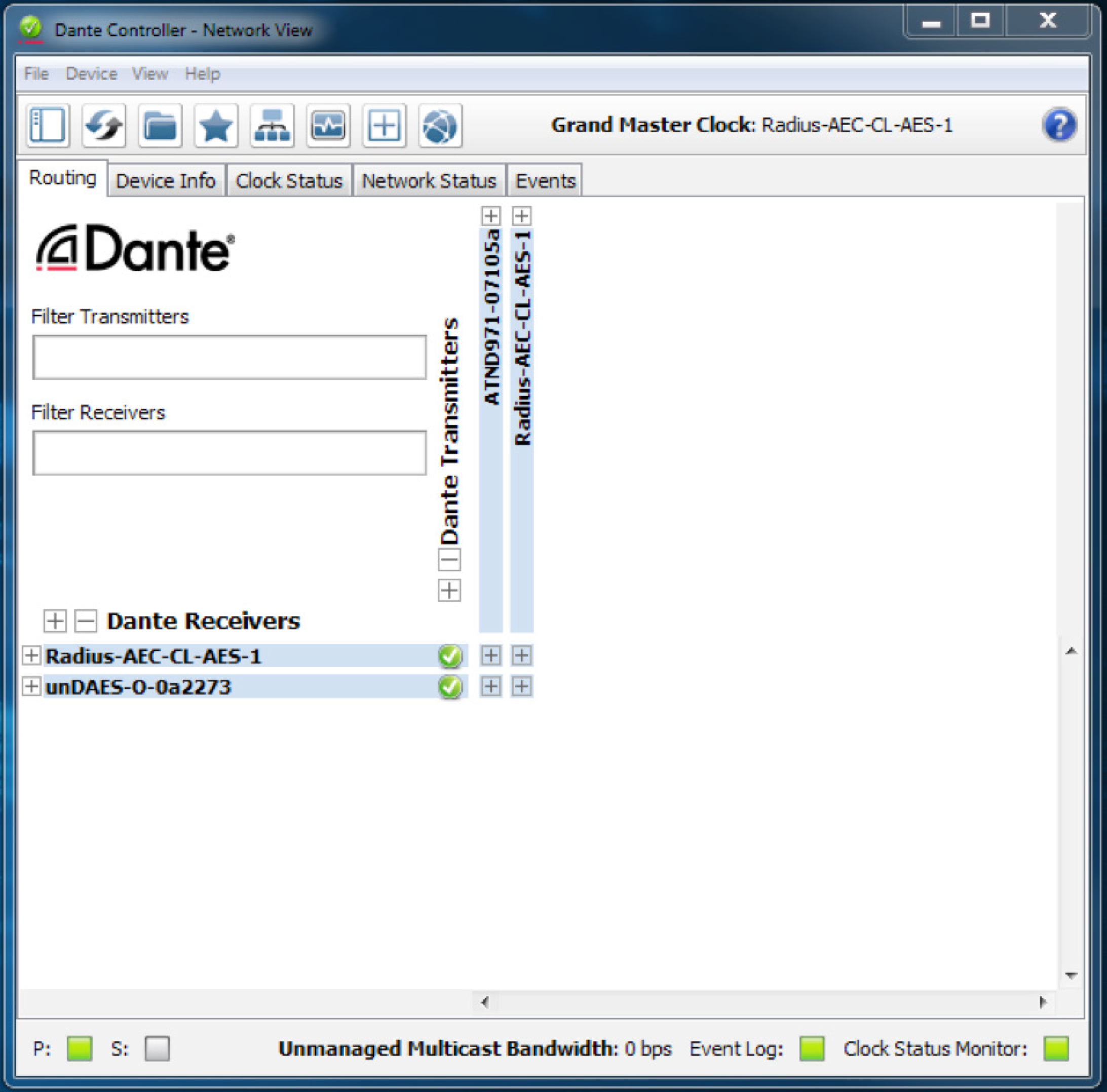
2. Double-click the device name of the device to be locked

3. Click the lock icon.
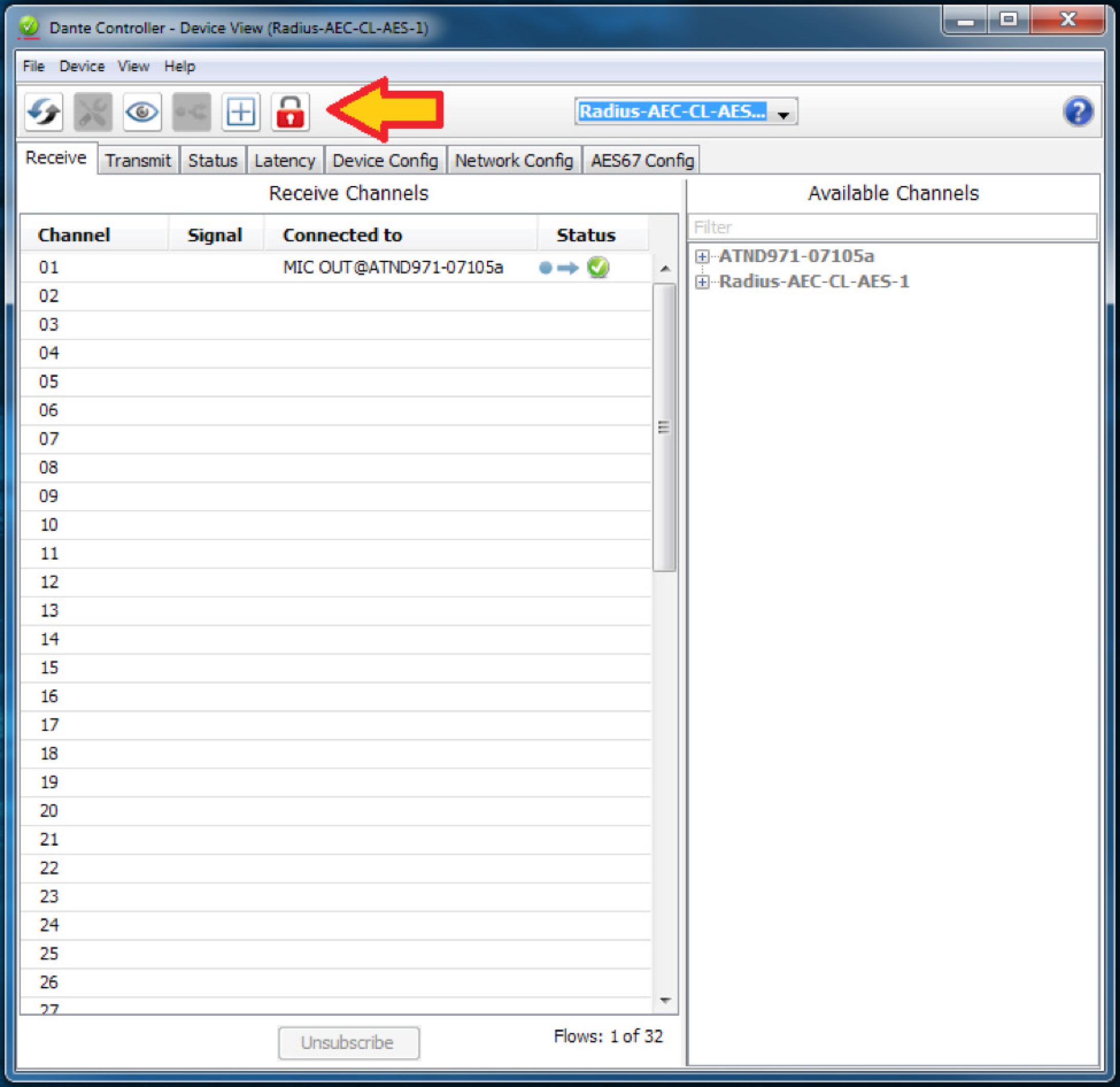
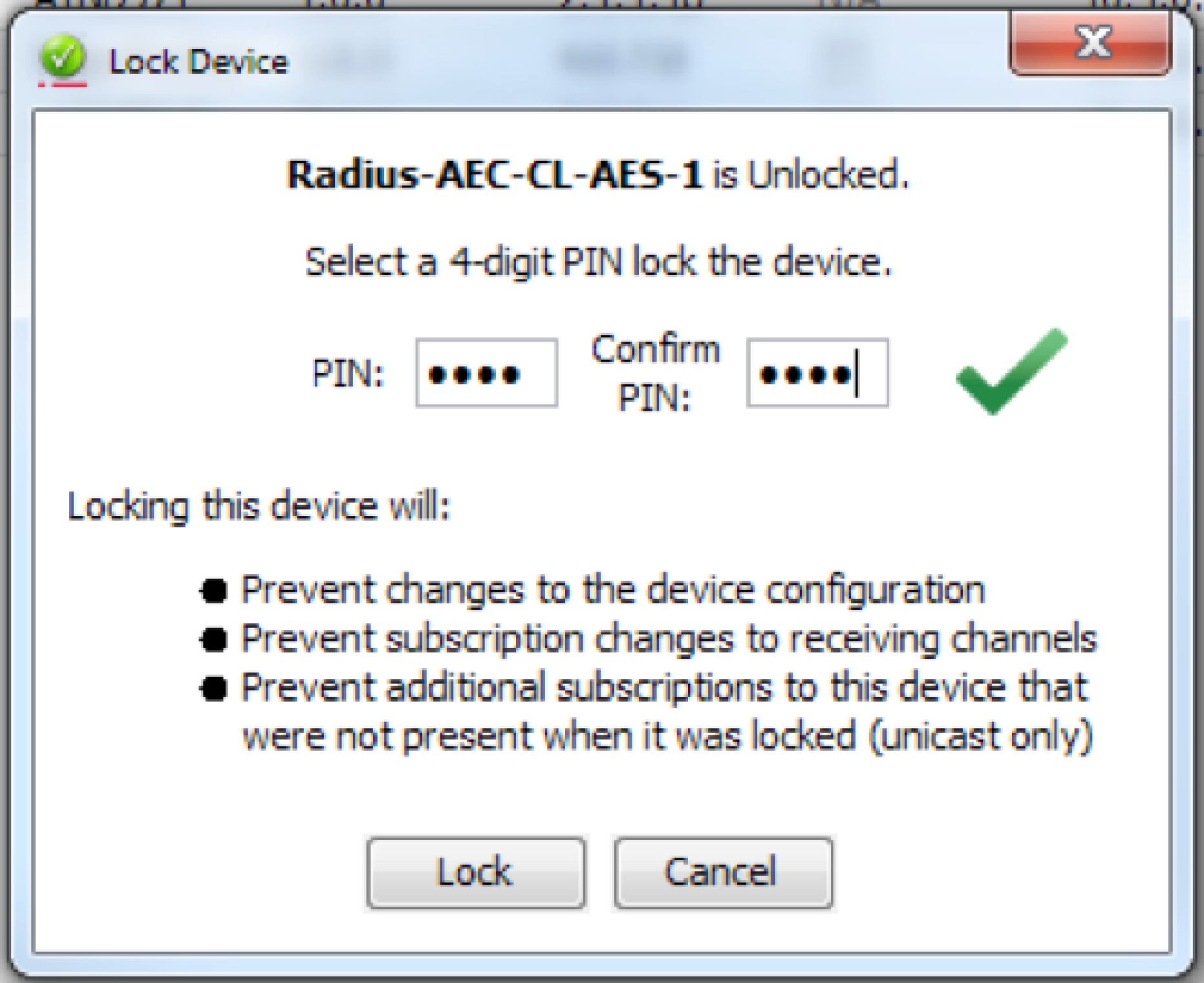
4. Enter and confirm a 4-digit PIN, then click the “Lock” button.
5. The lock icon will turn red to indicate the device is locked.

Unlock Symetrix Dante-enabled Hardware
There are two different locations (Network View and Device View) to unlock a device in Dante Controller.
Network View
1. Open Dante Controller.
Note: Dante Controller opens to the Routing tab of the Network View page.
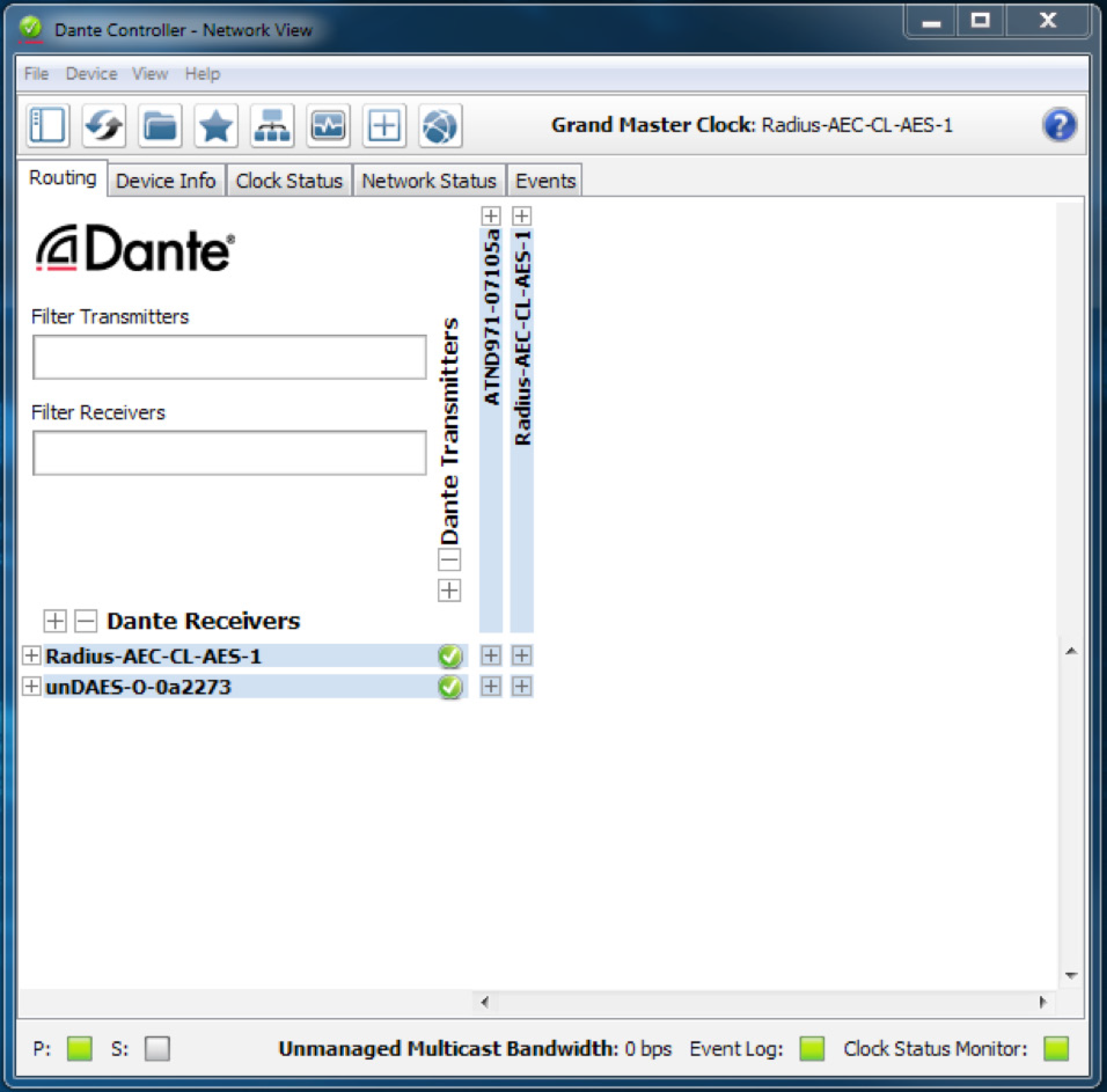
2. Click on the Device Info tab.

3. Click the check box in the Device Lock column.

4. Enter the 4-digit PIN, then click the “Unlock” button.
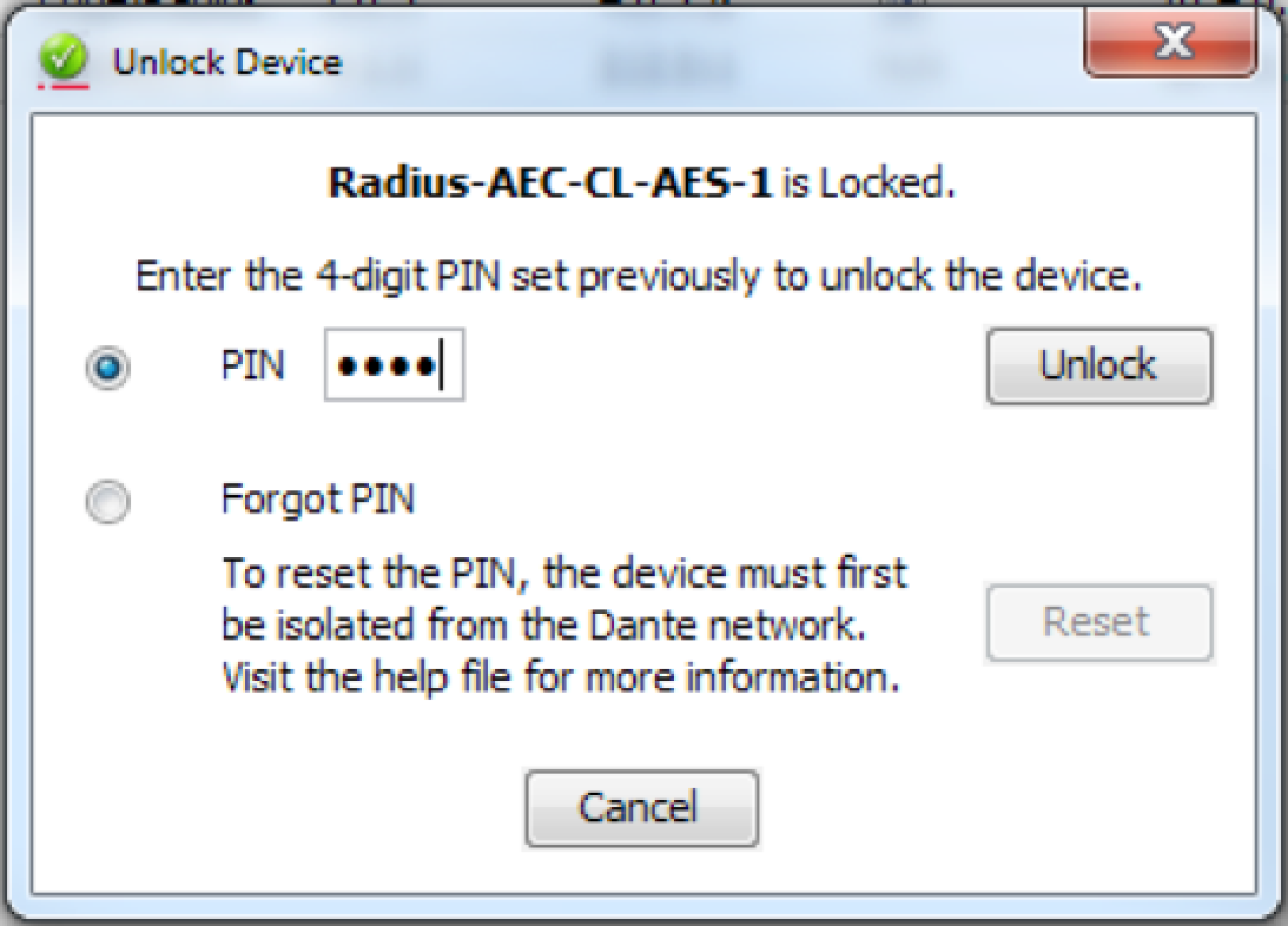
5. The check has been removed from the box to confirm the device in now unlocked.

Device View
1. Open Dante Controller.
Note: Dante Controller opens to the Routing tab of the Network View page.
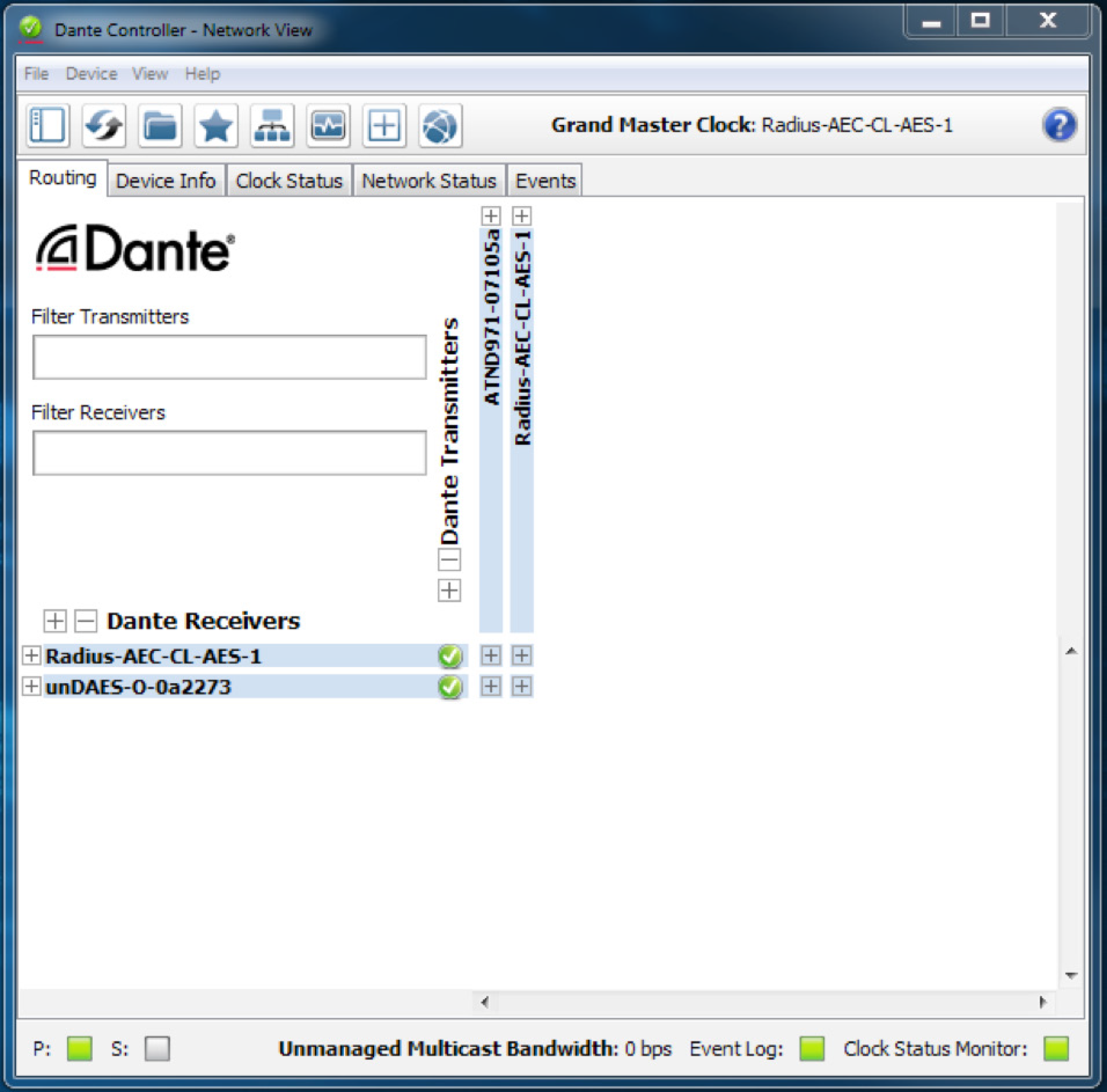
2. Double-click the device name of the device to be unlocked.
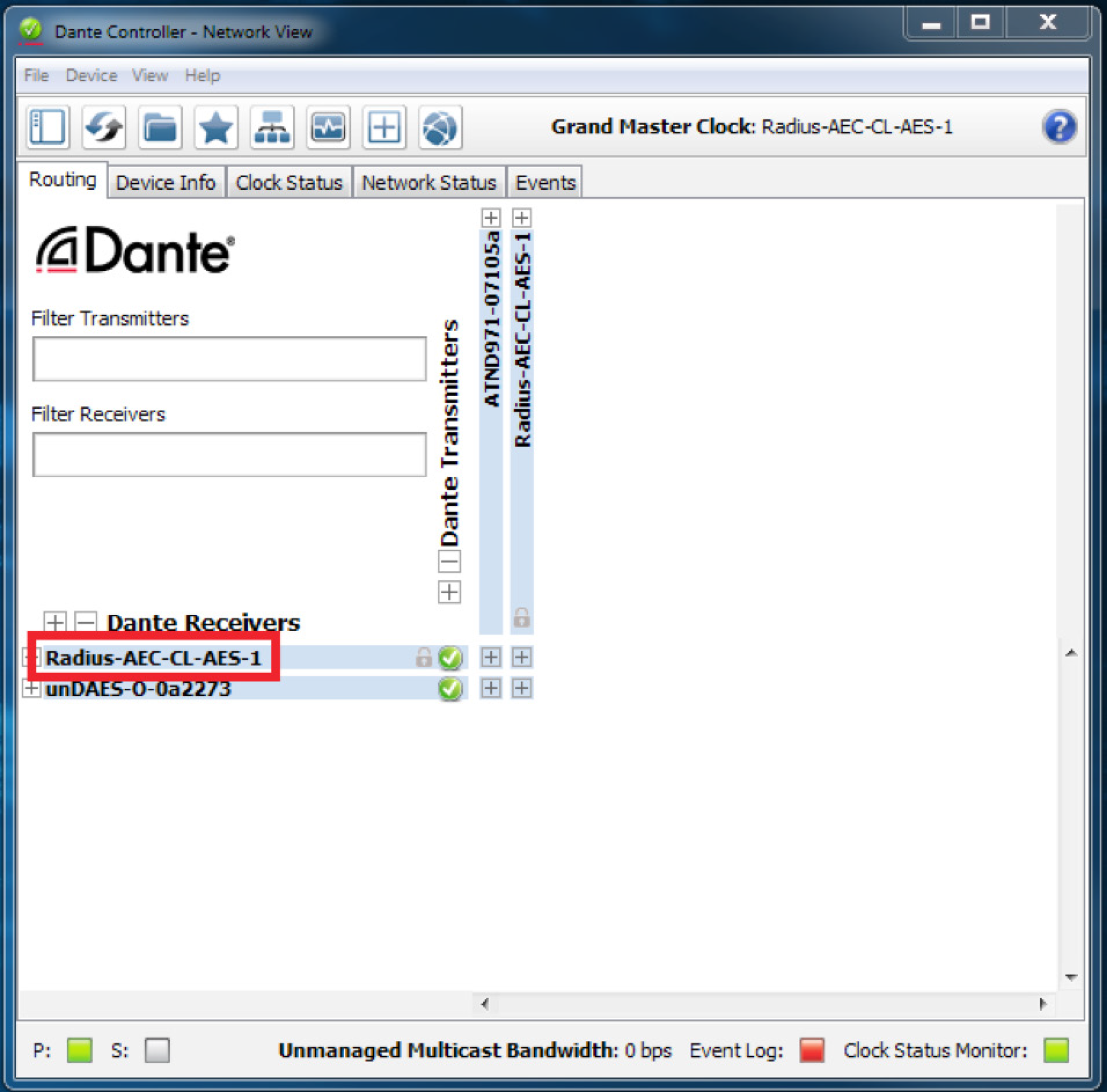
3. Click the lock icon.

4. Enter the 4-digit PIN, then click the “Unlock” button.

5. The lock icon is no longer red, indicating that the device is unlocked.
Forgot PIN
A forgotten PIN may be reset in order to access a locked device. The instructions must be followed very carefully, or the process will fail.
1. Isolate the device from the rest of the Dante network.
2. Disconnect and reconnect the device.
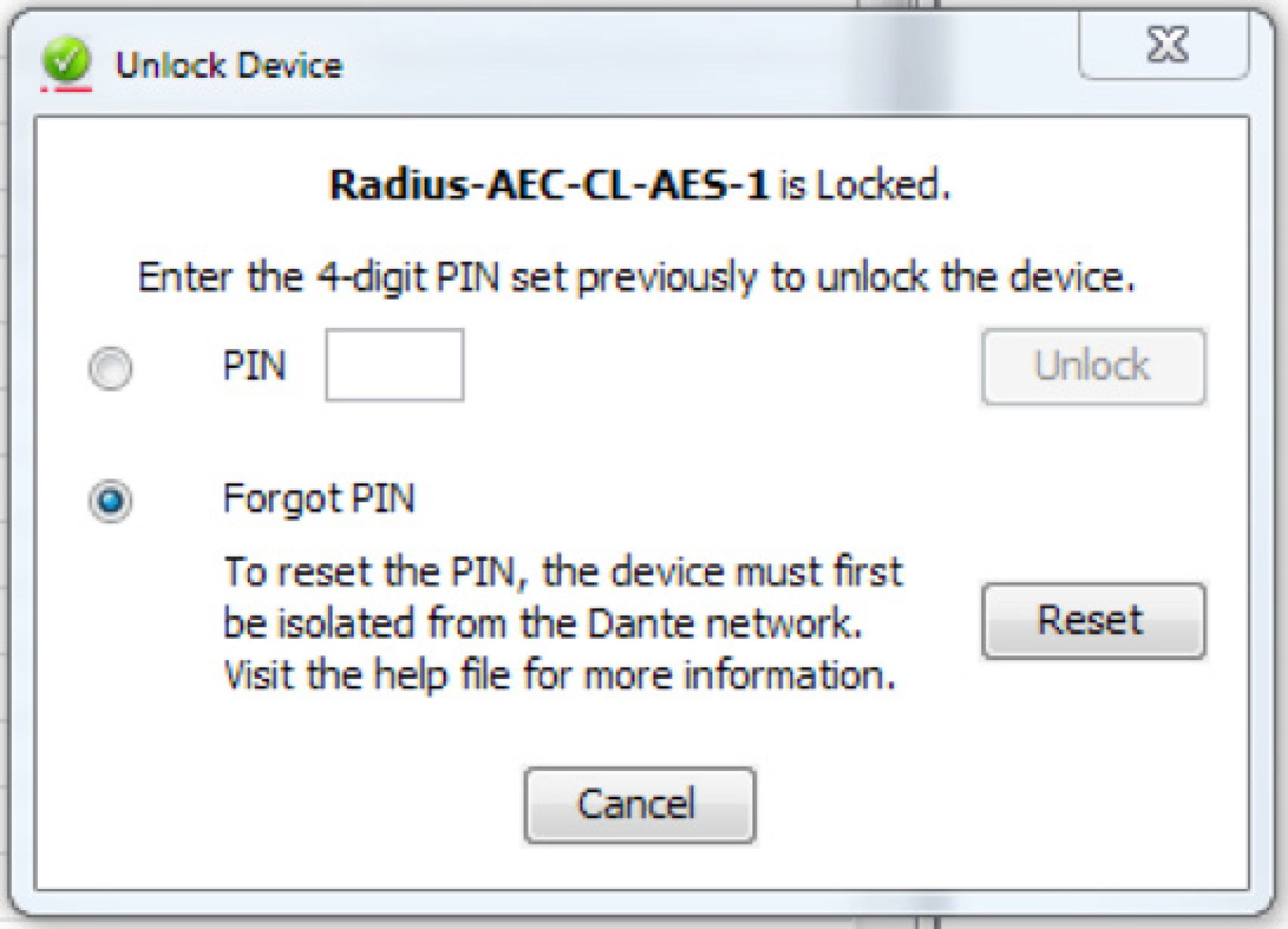
3. Wait for at least 2 minutes, then open the Unlock Device window.
4. Use the ‘Forgot PIN’ option in the Unlock Device window.