










-
Type
- Dante
- Networking
- Control
-
System Management
- Composer Management Software
- SymVue Screen Authoring
- AV-Ops Center Remote Monitoring
- ARC-WEB Control Interface Signal Processing
- D100 AVoIP DSP Server
- Radius NX AVoIP DSP
- Prism AVoIP DSP
- Edge AVoIP DSP
- DSP I/O Expansion Cards
- Jupiter DSP
- Zone Mix 761 DSP I/O Connectivity
- xIO Bluetooth Endpoints
- xIO XLR Endpoints
- xIO AVoIP DSP Audio Expanders Control Systems
- T-Series Touchscreen Controllers
- W-Series Controllers
- Control Server for Personal Devices
- xControl GPIO Expander
- ARC-Series Controllers
xControl Flexible External Control Expansion
Product:xControl GPIO Expander
Product:Composer Management Software
Type: Networking
Type: Control
Introduction
The Symetrix xControl serves a similar purpose for Edge, Radius NX, and Prism as the Control I/O did for legacy SymNet SymLink and Express Cobra hardware. Its primary purpose is to bring the overall cost of logic I/O heavy systems down.
xControl Rear Panel
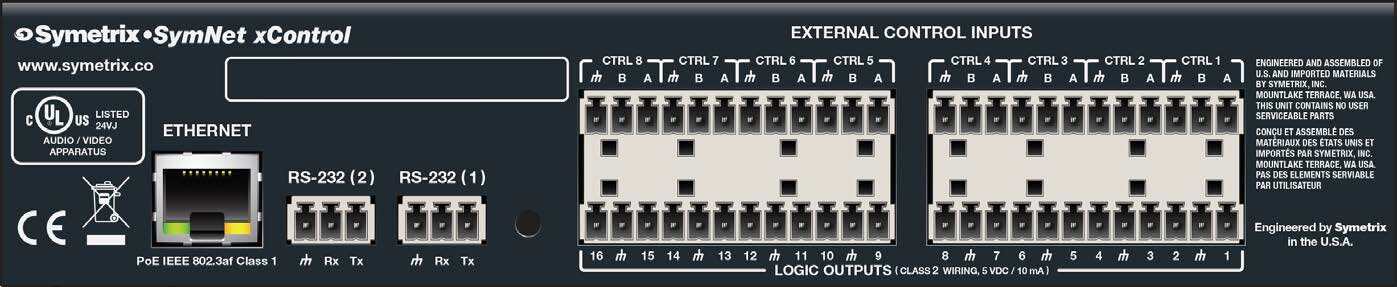
- Ethernet: 10/100 Base-T Ethernet port for network connection to the system over IP. Features auto-crossover sensing for direct device-to-device connections. Accepts PoE IEEE 802.3af Class 1.
- RS-232: Two serial communications interface for sending strings to 3rd party devices or accepting 3rd party control commands. Port Settings: 57.6 kbaud (default), 8 data bits, 1 stop bit, no parity, no flow control.
- External Control Inputs: Eight (8) analog control inputs. Each analog control input can be configured to support 1 potentiometer or 2 closures (+3.3 VDC reference voltage supplied).
- Logic Outputs: Sixteen (16) logic outputs with eight (8) paired common ground pins. Logic Outputs go low (0V) when active, and are internally pulled high (5V) when inactive and can drive external LED indicators directly.
Examples of Common Use Cases
Conferencing Push To Talk and LED Muted/Active Indications
In conferencing applications the logic outputs are typically used to either light LEDs directly or interface with something expecting a control voltage that controls the LEDs itself. Typically, they are following mutes somewhere in the Symetrix design which are linked to push-to-talk (push-to-unmute) logic.
External Relay Trigger
External relays are often driven by logic outputs for the purpose of controlling a power sequencer or controlling a “conference in session” lamp/sign.
Camera Control
Logic outputs are sometimes use to interface with the GPIO inputs of a camera PTZ control unit which essentially expects contact closures to trigger it to preset camera positions. These may be driven in our system by presets, the Gating Automixer channel “ON” LEDs, or the PTT logic detailed above. Most often this type of setup is used during video conferencing or in court room applications.
Projector Control
The dual RS-232 ports on the xControl can be configured to send any custom RS-232 string in ASCII or Binary allowing Symetrix to control 3rd party hardware. Often times a projector is used in a conference room or class room application, and must work in tandem with the audio system. Using an ARC remote or SymVue control screen as the user interface, when prompted by the host DSP the xControl can send 3rd party protocol commands to a projector, controlling common parameters such as On/Off and the selected input source.
Powering and Hookup to the Network
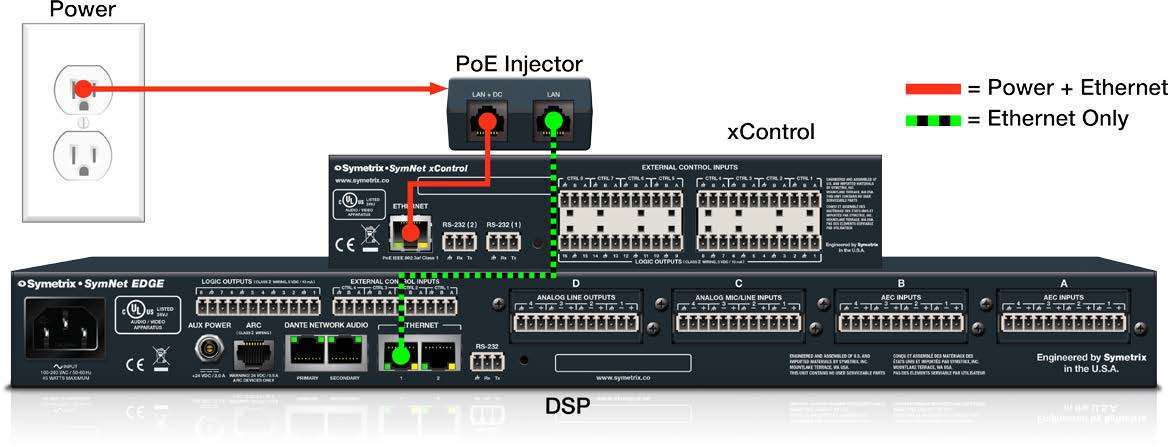
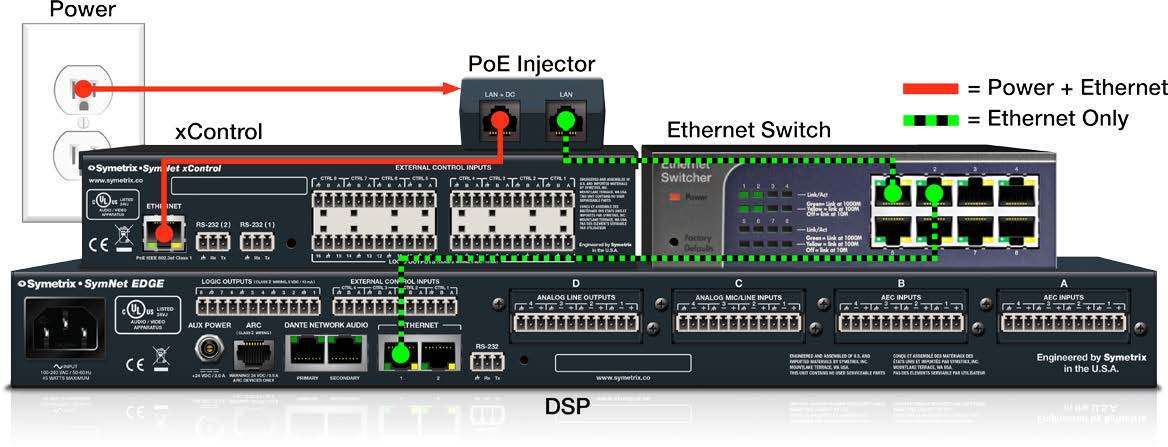
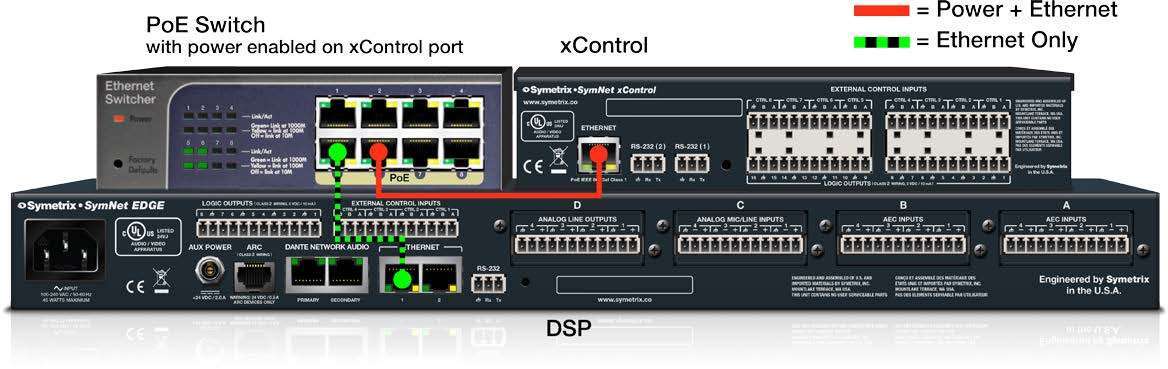
Warning: The xControl is a true PoE (power over Ethernet) device and must be connected to the host DSP through the data network. It is not an ARC network device. Do not under any circumstance plug the xControl Ethernet port into the ARC port on a Edge, Prism, Radius NX, or ARC-PSe. The ARC DC voltage may damage the xControl, which may cause a failure not covered under the manufacturer’s warranty.
Configuring IP Parameters
x 1

Locating Hardware
x 2

OR
x 3
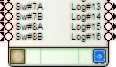
OR
Discovery of, and connection to, xControl hardware is done with the Locate Hardware dialog found under the Hardware menu or by clicking the Connection Status box in the bottom left corner of the xControl icon.
- IP Configuration with Composer
- The Locate Hardware dialog will scan the network and list available units with DHCP IP addresses.
- Select the xControl unit to assign a static IP address and click the Properties button.
- To assign the xControl a static IP address, select “Use the following IP address” and enter the appropriate IP Address, Subnet mask and Gateway.
- Click OK when finished.
- Next, back in the locate hardware dialog, ensure the xControl device is highlighted and click “Select Hardware Unit” to connect the selected xControl on the network to the xControl in the Composer Site File.
- Close the Locate Hardware dialog.