


-
Type
- Dante
- Networking
- Control
-
System Management
- Composer Management Software
- SymVue Screen Authoring
- AV-Ops Center Remote Monitoring
- ARC-WEB Control Interface Signal Processing
- D100 AVoIP DSP Server
- Radius NX AVoIP DSP
- Prism AVoIP DSP
- Edge AVoIP DSP
- DSP I/O Expansion Cards
- Jupiter DSP
- Zone Mix 761 DSP I/O Connectivity
- xIO Bluetooth Endpoints
- xIO XLR Endpoints
- xIO AVoIP DSP Audio Expanders Control Systems
- T-Series Touchscreen Controllers
- W-Series Controllers
- Control Server
- xControl GPIO Expander
- ARC-Series Controllers
Adding Third-Party Dante Devices to the User Library
Product:Composer Management Software
Type: Dante
This Tech Tip is to provide instruction on how to add third-party Dante devices to the User Library of Composer. Symetrix Composer contains a list of supported third-party Dante devices. When these supported devices are added to a site file, Composer can create transmit/receive subscriptions as well as provide control for some devices.
The User Library is located in the Third-party Dante Devices section of the Toolkit in Device View. Any third-party Dante device can be added to the User Library. Once a device is added to the User Library, Composer will treat it as a supported third party Dante device. There are two methods to add a third-party Dante device to the User Library:
- Browse Dante Network
- Import XML File
Browse Dante Network
Add 1
Here are the instructions to add a third-party Dante device to the User Library by browsing the Dante network: (This example uses a Radius AEC and a Windows PC running Dante Via)
- From the Toolkit, add a Radius AEC to the Site View page.
- Next from the Toolkit, expand Third-party Dante Devices.
- Expand the User Library and add a New Dante Device to the Site View page.

Add 2
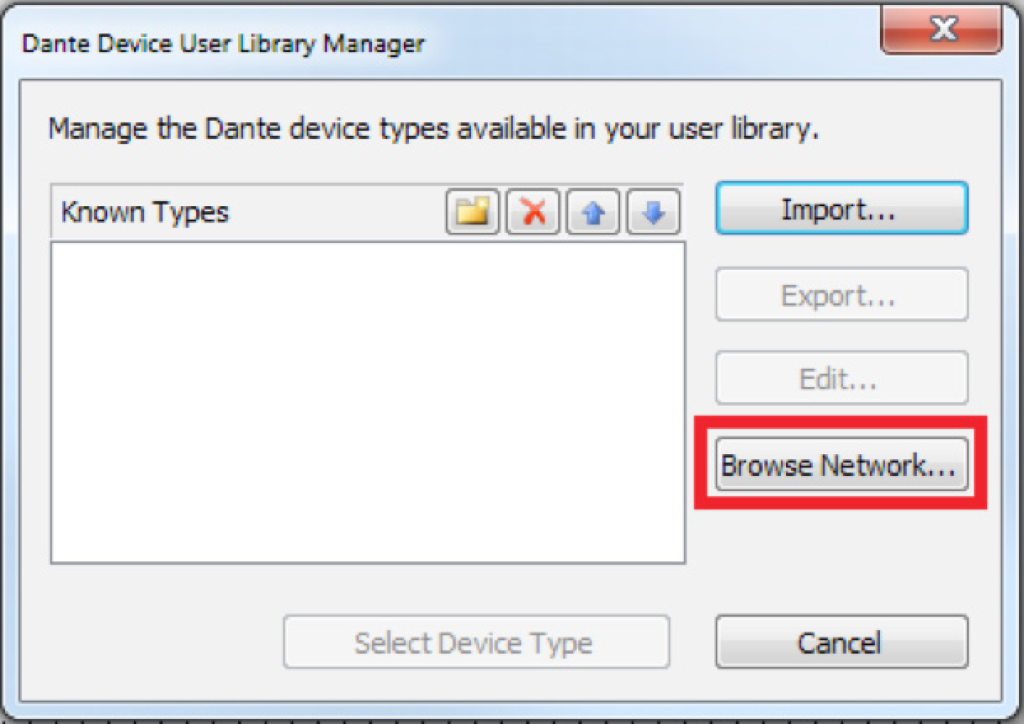
The Dante Device User Library Manager window will open.
4. Click the “Browse Network” button.
Add 3
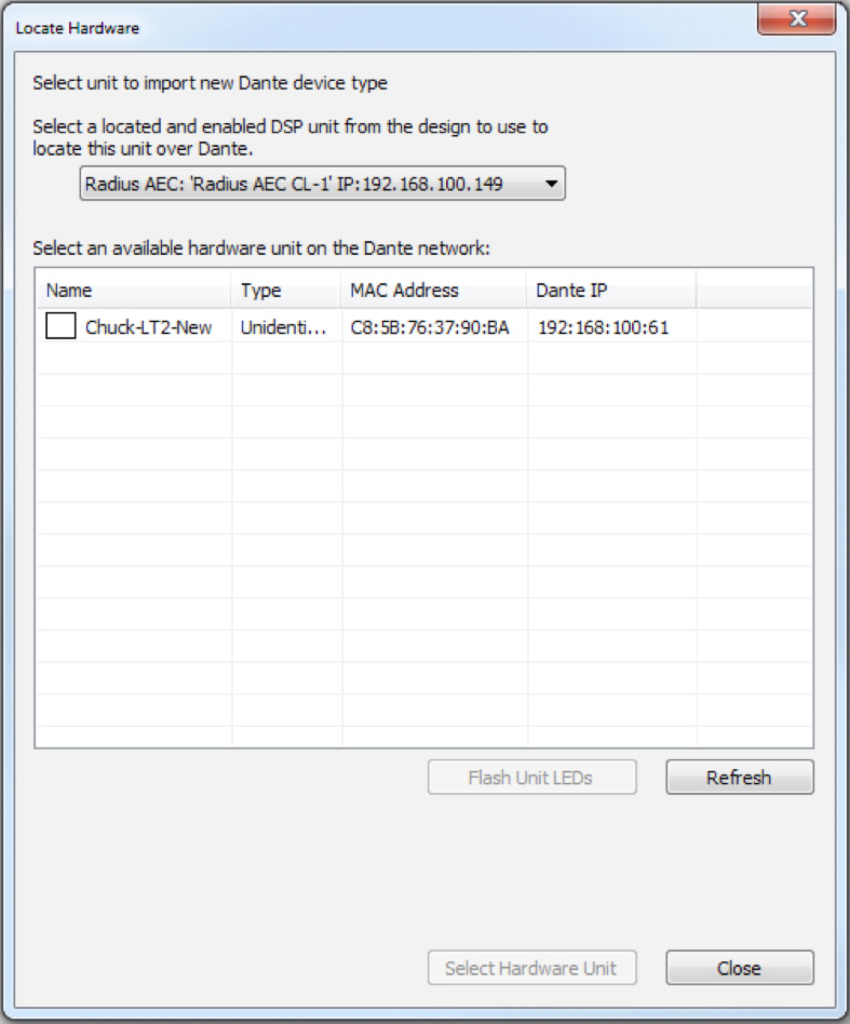
5. The Locate Hardware window will open and display all available Dante devices on that network.
Add 4
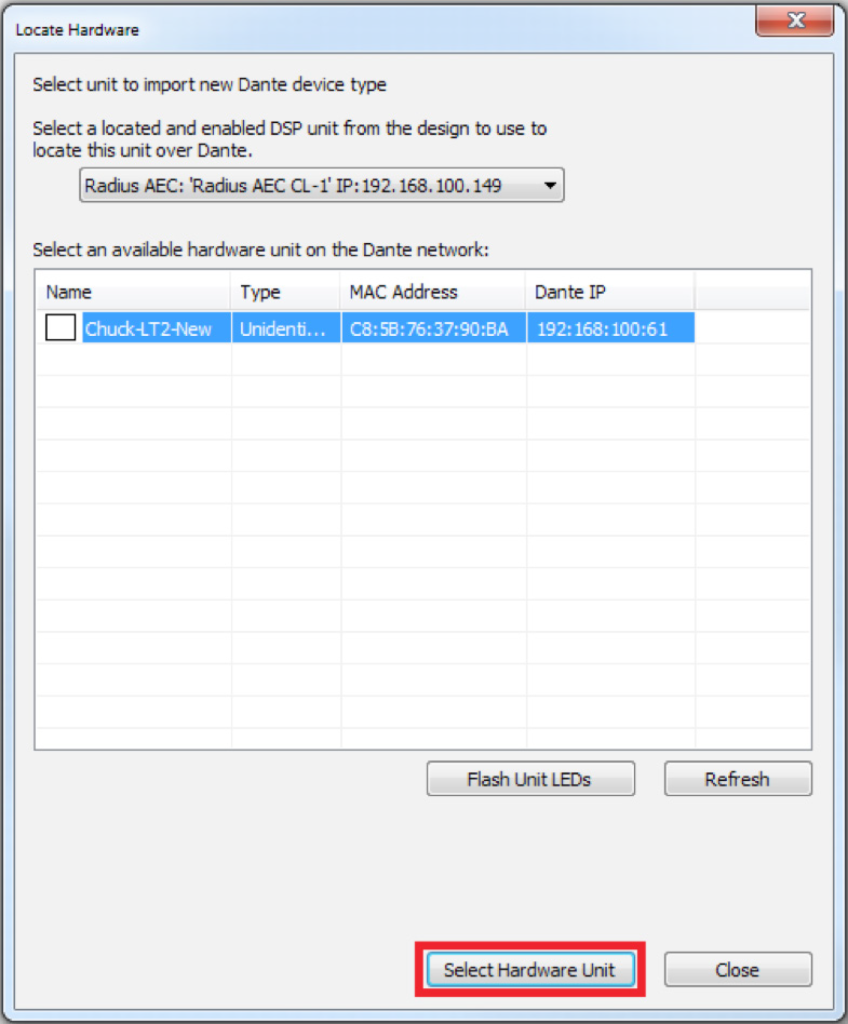
6. Select the desired Dante device, then click the “Select Hardware Unit” button.
Add 5
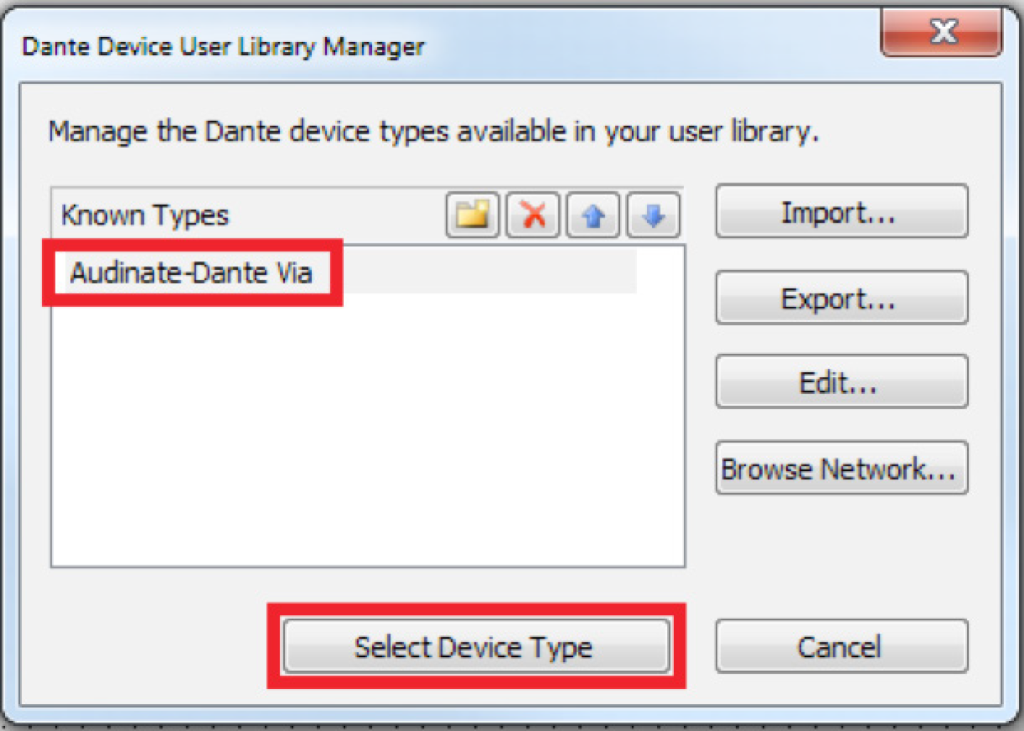
7. The Dante Device User Library Manager will now list that Dante device. Select the desired Dante device and click the “Select Device Type” button. This will add the device to the site view page.
Add 6
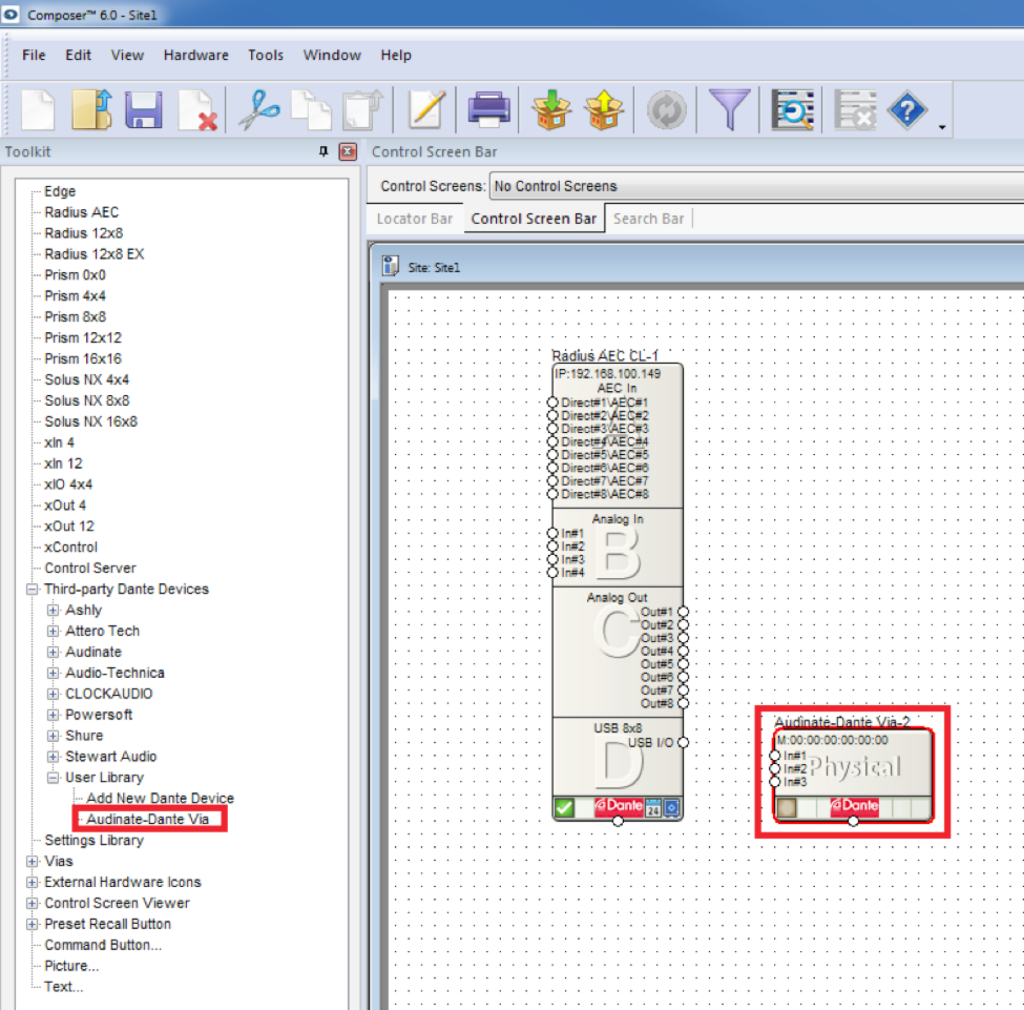
8. Once added to the library, these devices are available to add to any site file. Open the Design View page by double-clicking the Radius AEC.
Add 7
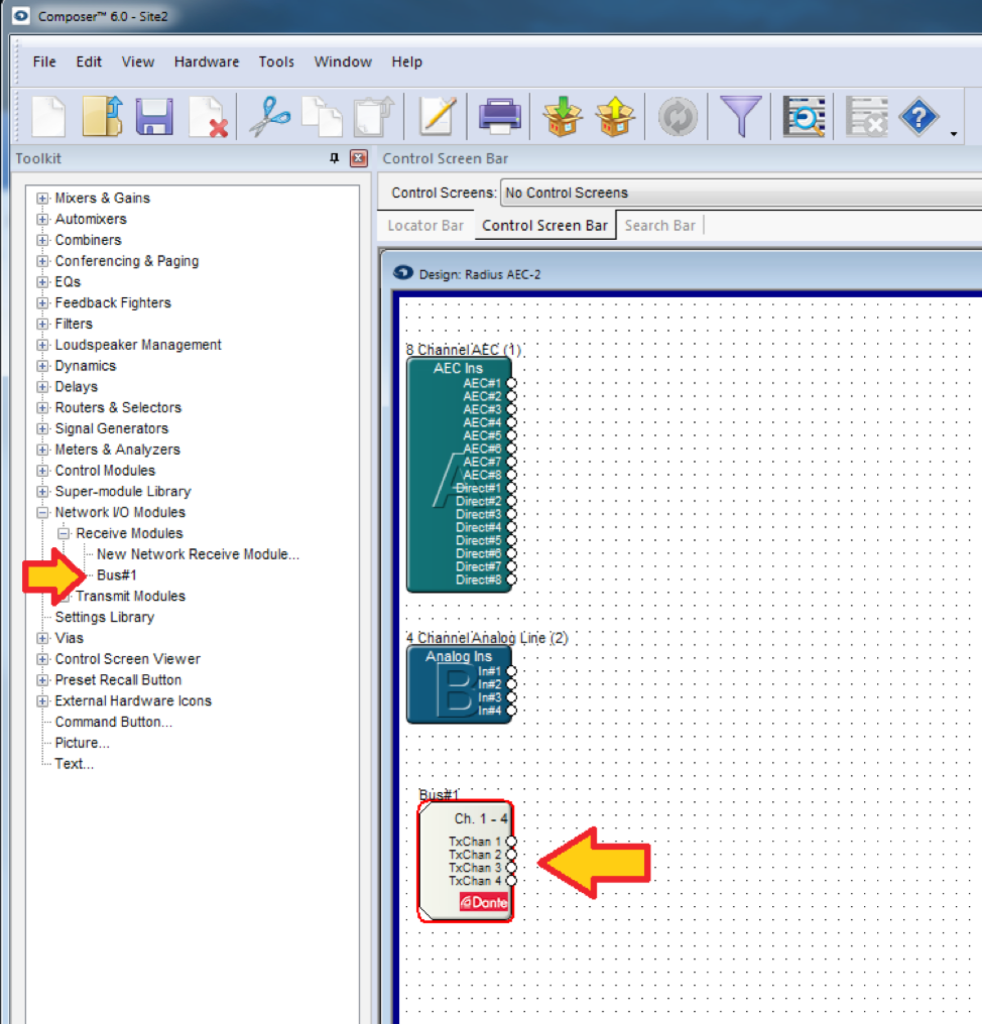
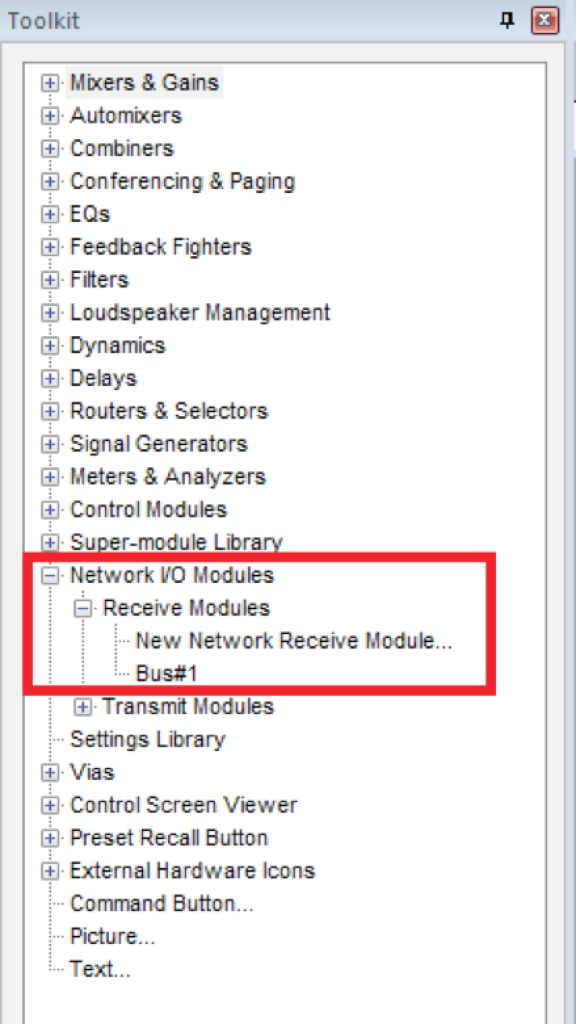
9. From the Toolkit, expand Network I/O Modules, then expand Receive Modules.
Add 8
10. Bus#1 is automatically created and available. Add Bus#1 to the Design View page.*
11. Push the site file and Composer will make the Dante subscriptions for these channels.

Import XML File
Here are the instructions to add a third-party Dante device to the User Library by importing an XML file: (This example uses a Radius AEC and a RDL DD-BN31 wall-mounted Dante interface)
- From the Toolkit, expand Third-party Dante Devices.
- Expand the User Library and add a New Dante Device to the Site View page.
The Dante Device User Library Manager window will open.
Add 9
Here are the instructions to add a third-party Dante device to the User Library by importing an XML file: (This example uses a Radius AEC and a RDL DD-BN31 wall-mounted Dante interface)
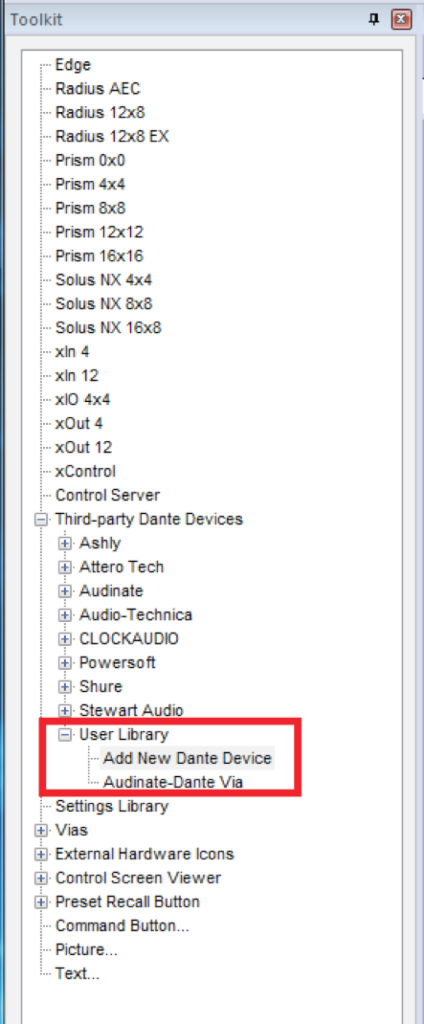
- From the Toolkit, expand Third-party Dante Devices.
- Expand the User Library and add a New Dante Device to the Site View page.
The Dante Device User Library Manager window will open.
Add 10
3. Click the “Import” button.

Add 11
4. Navigate to the XML file to be imported.
5. Select the XML file, click “Open.”
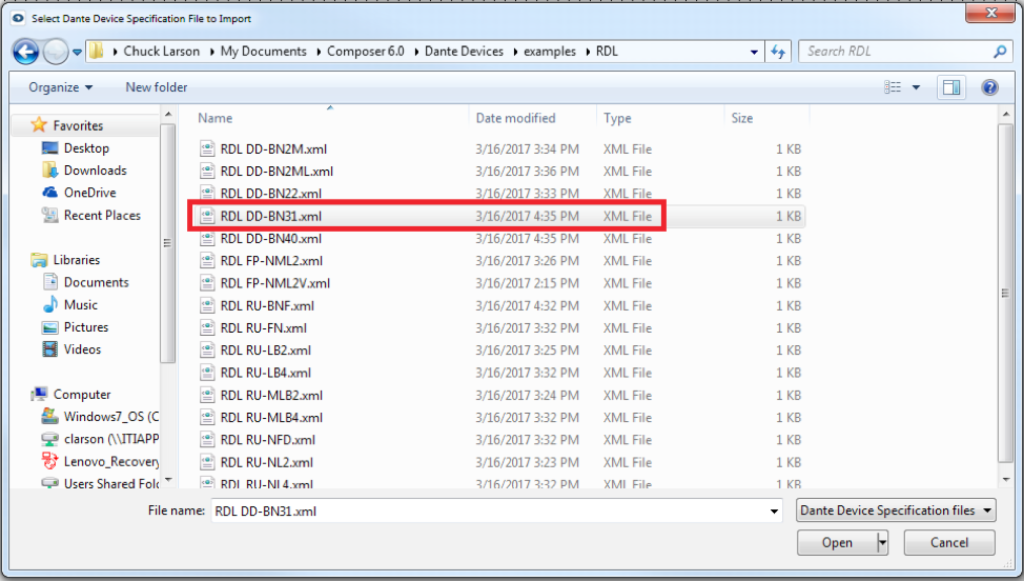
Add 12
6. Click OK when the Select Dante Device Specification File to Import window opens, confirming the file has been imported.
The RDL DD-BN31 device is now available from the User Library.
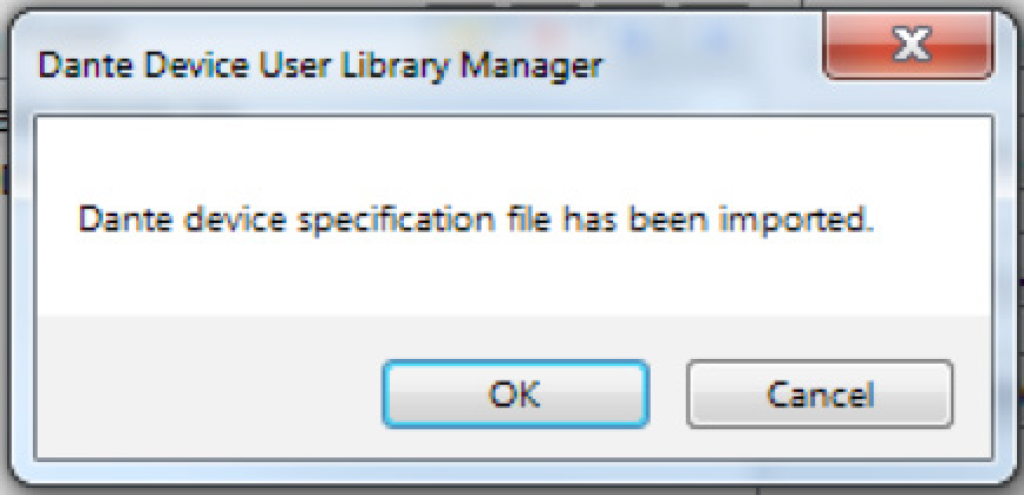
Add 13
7. Select the device from the list of Known Types; click the “Select Device Type” button.
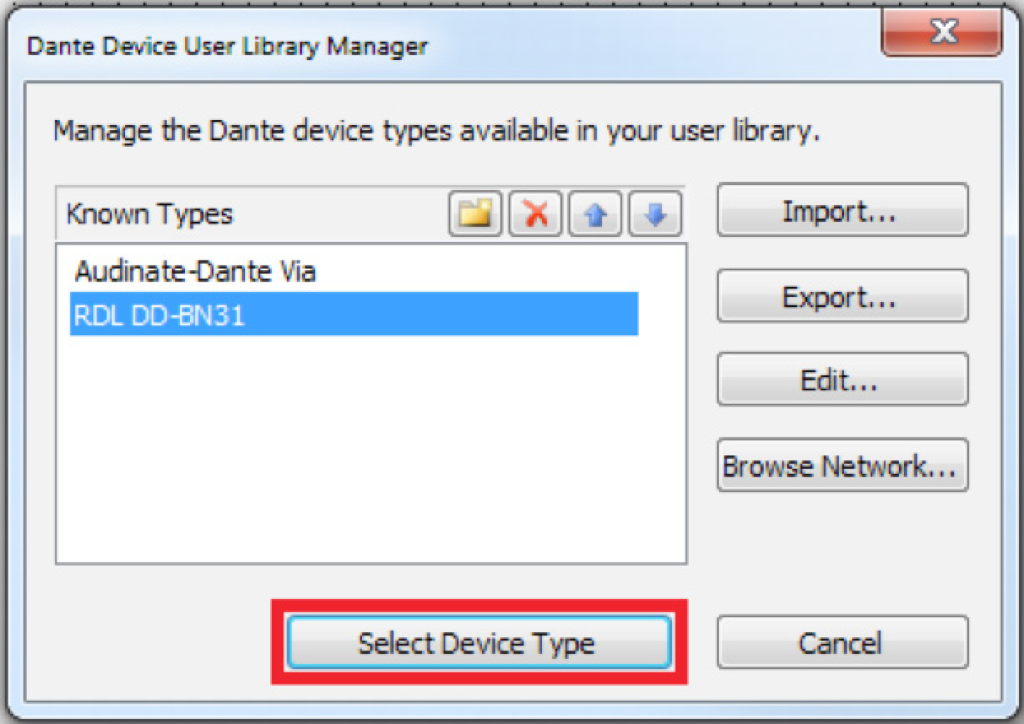
Ad 14
The RDL DD-BN31 will be added to the site file and is now available from the Toolkit.

Add 15
8. From the Toolkit, add a Radius AEC to the Site View page.
9. Open the Design View page by double-clicking the Radius AEC.
10. From the Toolkit, expand Network I/O Modules, then expand Receive Modules.
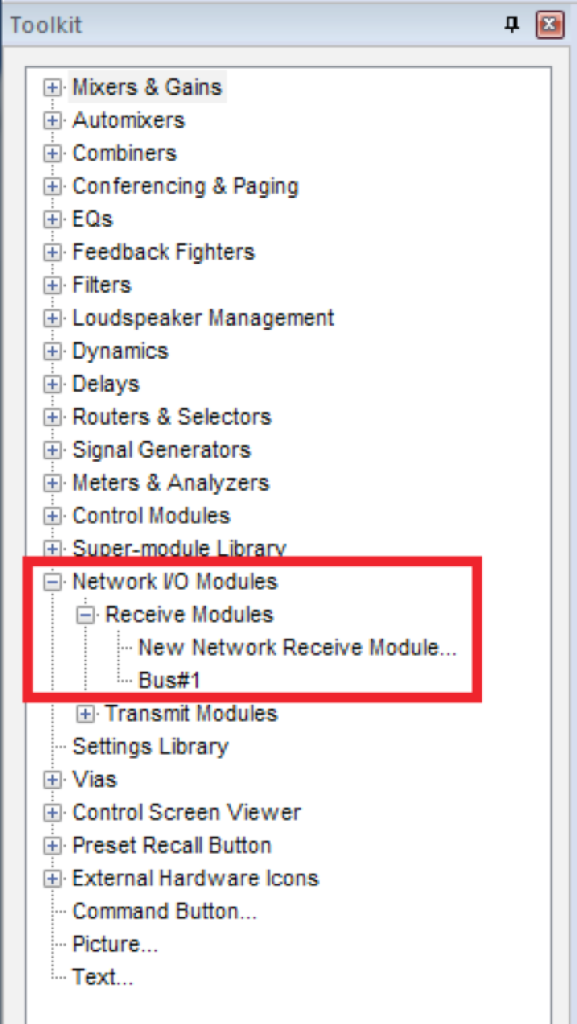
Add 15
11. Bus#1 is automatically created and available. Add Bus#1 to the Design View page.*
12. Push the site file and Composer will make the Dante subscriptions for these channels.
*Whenever a Symetrix Dante-enabled Analog I/O Expander, third-party Dante device, or transmit bus are added to a site file, a receive bus is automatically created, and available from the Toolkit.