











-
Type
- Dante
- Networking
- Control
-
System Management
- Composer Management Software
- SymVue Screen Authoring
- AV-Ops Center Remote Monitoring
- ARC-WEB Control Interface Signal Processing
- D100 AVoIP DSP Server
- Radius NX AVoIP DSP
- Prism AVoIP DSP
- Edge AVoIP DSP
- DSP I/O Expansion Cards
- Jupiter DSP
- Zone Mix 761 DSP I/O Connectivity
- xIO Bluetooth Endpoints
- xIO XLR Endpoints
- xIO AVoIP DSP Audio Expanders Control Systems
- T-Series Touchscreen Controllers
- W-Series Controllers
- Control Server
- xControl GPIO Expander
- ARC-Series Controllers
Device Location Troubleshooting
Product:Composer Management Software
Type: Networking
Network troubleshooting is an important tool to any technician's skillset. Incorporating basic signal flow into this troubleshooting can decrease time wasted and get the system running quickly. This guide addressed the the most common culprits of location issues on both Control and Dante networks, and relates most notably to the Composer platform of hardware however many of the investigatory techniques can be used for Jupiter and Zone Mix 761.
These are the same techniques our Support and Applications staff use to troubleshoot real systems. Remote Terminal Commands (near bottom of the page) can offer very useful diagnostics about the system.
Dante location information further down page.
CANNOT LOCATE CONTROL DEVICE
Behavior: Unit is not locating in Composer or is showing intermittent location status (green check is coming and going).
Includes: DSPs, W Series remotes, T Series touchscreens, xControl, and Control Server.
INITIAL CHECKS and CONSIDERATIONS
- Is the unit cabled and powered on/fully booted?
- Is the switch turned on and fully booted?
- Are any RJ45 connections loose or undone?
- Is the unit cabled to the correct network switch - if using switches?
- Is the cable being used a known working cable?
- Does it work with another device that is know to be working and locating on the network?
- Is the correct PoE rating being sent to a unit that requires PoE? Note: Control units like Prism 4x4 that require PoE on the control/ethernet port may behave erratically if PoE is also sent to the Dante port. Ensure no power is sent to the Dante port.
- Some units receiving incorrect PoE will not fully booth and as such will not locate on the network.
- Are both network port LEDs (on device and switch) illuminating and showing activity?
- You will expect to see solid amber and blinking green for good connectivity and traffic.
- Does the switch have an management on it such as VLANs?
- This may impede communication depending on how ports are configured.
- If there is trunking between switches is there provable healthy traffic going between them?
- Sometimes very large campus networks will have fiber optic between buildings which can be very sensitive to kinks or abrasions and disrupt traffic.
- Is there any subnet "jumping" happening?
- Symetrix devices are meant to all be on the same subnet for optimal connectivity and communication.
SUBNET/NETWORK MISMATCH
Checking a Device or PC's IP address:
Barring advanced network setups that communicate across subnets (not recommended for Symetrix equipment), an extremely simple, but possible answer is simply that your PC is looking at the incorrect network or is not physically connected to the same network as the device, or vice versa, where the device is accidentally in another subnet. First, ensure that your PC is wired either directly to the device's Control (ethernet) port OR into a port in the same VLAN/switch as the DSP.
Note: Symetrix devices are programmed from the factory to boot in for DHCP mode (no static IP is set in the factory) which will then resolve to a 169.254.x.y (Class B) APIPA IP address if no DHCP server is found. If a static IP was previously set on the DSP, it will hold that same IP address on reboot unless reset manually.
Network Selection
Ensure that you have selected the correct network in Composer and also that your PC is either configured into the correct network/subnet (if static) or set to DHCP (on the same network as the device) and is receiving the same address range.
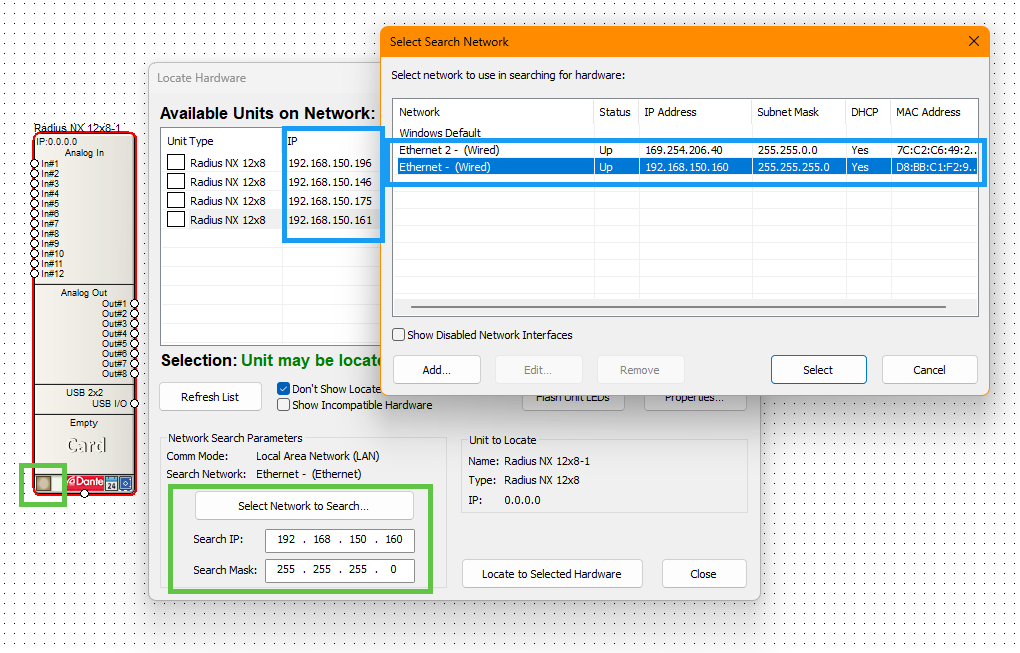
The IP Address and Subnet Mask columns in the ”Select Search Network” dialogue (above) show your PC’s current IP address and subnet. A command prompt “ipconfig” will also show your PC’s current network configuration.
There are different ways to edit your PC’s IP configuration, but one quick way is to click Start and search for "ncpa.cpl". This is a shortcut that will bring you to the Network Connections panel. From here, right click on the applicable wired connection and select Properties. Then open the TCP/IPv4 properties – where your PC’s IP settings can be edited. Select "Use the following IP address" and fill in information that matches the subnet of the device.
Static Addressing your PC
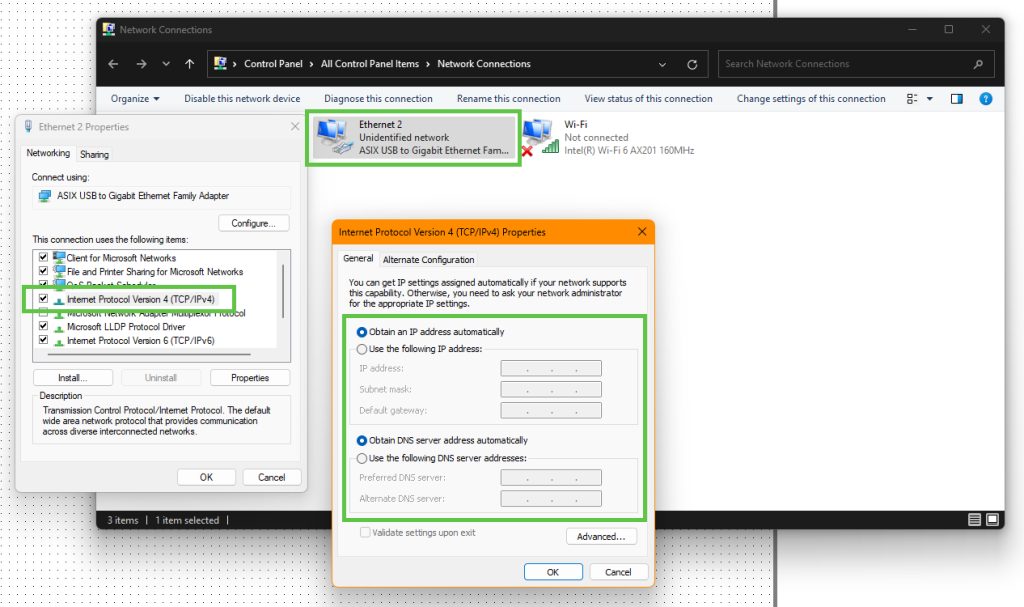
Note: the PC's static IP address cannot match the device or any other device on the network. This will cause an IP conflict and prevent proper communication.
An additional step would be to confirm the IP address of the device itself. The front of the DSP has a main menu that shows the Dante, Ethernet, and ARC status, along with its Control (ethernet) IP address.

If this menu isn’t currently displaying, push the button to the right of the display to cycle through to the correct menu – you may need to push and hold the button to return to the Dashboard menus.
- Non-Composer DSPs like Jupiter, Zone Mix, or some Cognio don't have a screen. Third-party software that can scan for IP addresses can be used to help.
- T-Series and W-Series remotes will only display their IP address if they are not programmed.
- The DHCP reset procedure at the bottom of this article can assist with this situation.
Command Prompt "PING":
The command prompt “ping” is another simple procedure and can provide important information in a few ways, specifically when “-t” is added to the end of the string; for example, “ping 192.168.150.196 -t”.
Note: space between ping and the IP address, and between the IP address and -t.
The “-t” will allow the ping to continue running indefinitely, instead of the default four pings. Press CTRL+C to stop the ping. A constant ping like this can help identify network issues by showing return times over a span of time.
Ping Device IP
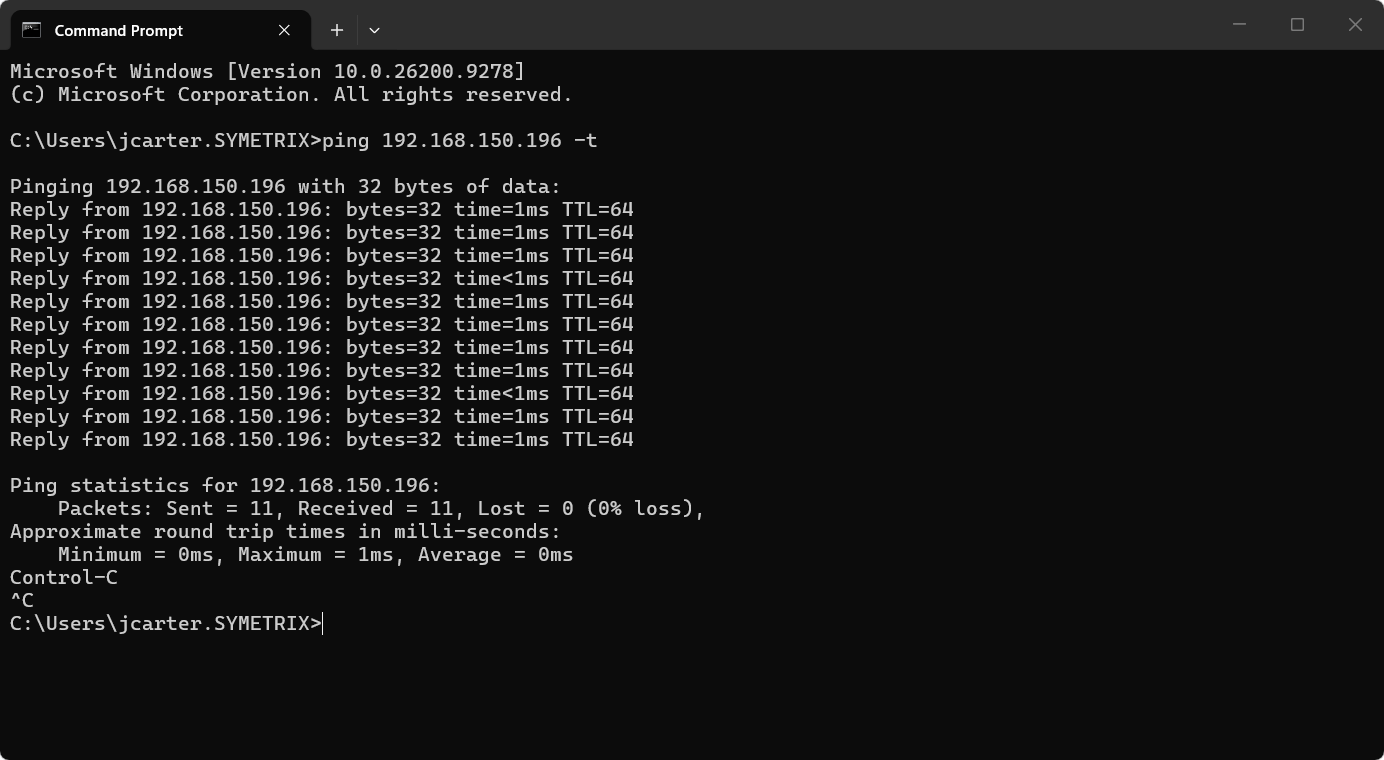
In a healthy network, without too many switch hops, we would expect ping times to be majorly equal to or sub 1 ms (=1ms or <1ms), with only very occasional small spikes, if any at all.
Destination Host Unreachable: A router on the network is explicitly telling your computer that it has no active route to the destination IP address, or local ARP resolution failed.
- Common causes: The local device is on a different subnet, the IP address doesn't exist on the local network, or a gateway router is missing a route to that destination. The failure point is on the network path to the device (routing/configuration issue).
Request Timed Out: Your computer sent the ping echo packet out onto the network, but it never received an echo reply back within the allotted time (usually 4 seconds).
- Common causes: The target device is powered off, disconnected, configured with a local firewall that blocks ICMP (ping) traffic, or asymmetrical routing is dropping the return path. The failure point is at the target device itself or immediately in front of it (the cable or port).
If a ping is responding intermittently or overall not consistently ~1 ms, here are a few scenarios that could be occurring:
- IP conflict: if the unit you’re pinging and some other device have the same IP address and are now fighting for prominence on the network. Unplug the device you intend to ping from the network and send the ping again. If you get a response, there is some other device on the network with that same IP. If you don’t get a response there is likely no IP conflict and some other issue is occurring.
- Physical layer issues: if the switch/router, cabling, or ports are faulty they can interrupt network traffic. Try swapping out any of these components (where possible) one at a time and seeing where communication returns.
- A quick way to test for this would be connecting the PC directly to the device in question, if not already – eliminating any greater network as a variable. If pings clear up with a direct connection, there’s more to investigate with the other components or the network.
- Network Configuration: the configuration of a switch or greater network can unintentionally interrupt the traffic flow. Check for incorrect or unnecessary IGMP snooping configuration (in most cases IGMP snooping is unnecessary), port blocking, security/firewall/anti-virus, Green Ethernet is disengaged, use of STP instead of mSTP in VLAN configs, and QoS is configured properly.
- A quick way to test for this would be connecting the PC directly to the DSP/unit in question, if not already – eliminating any greater network as a variable. If pings clear up with a direct connection, there’s more to investigate with the network configuration. Note: Integrator Support does not preside over on-site network(s) and cannot assist with configuration, which includes advanced networking such as crossing subnets and LANs (which requires Dante Domain Manager).
- NIC in a Bad State: the NIC on either the PC or the DSP can become impaired over time via constant plugging and unplugging to different networks or devices. Rebooting the DSP (waiting about 10 seconds before re-applying power) should clear its NIC while disabling and re-enabling the NIC on the PC should clear it (aside from rebooting the PC altogether).
CANNOT LOCATE DANTE DEVICE
Behavior: Unit is not locating in Composer through DSP or xIO Updater/Configurator or is showing intermittent location status (green check is coming and going).
Includes: Symetrix DSPs, xIO Dante expanders, and third-party Dante devices.
SUBNET/NETWORK MISMATCH
Barring advanced network setups that communicate across subnets, the Dante network is fundamentally the same as the Control network with regards to basic communication. All Dante devices must be in the same subnet to communicate with each other.
Composer is intended to communication via the Control network and thus unable to look at the Dante network directly in the same way that Dante Controller can. It is normally recommended to allow the Dante network to remain in DHCP mode for the simplest set up and maintenance. If any static IP addresses are in play, double-check for IP conflicts, improper VLAN configuration, improper trunk configuration (if using multiple switches), and so on.
To ensure that devices are on the same network/subnet, check the Device View in Dante Controller for the given unit under the Status tab (your PC must be looking at the Dante network).
Device View
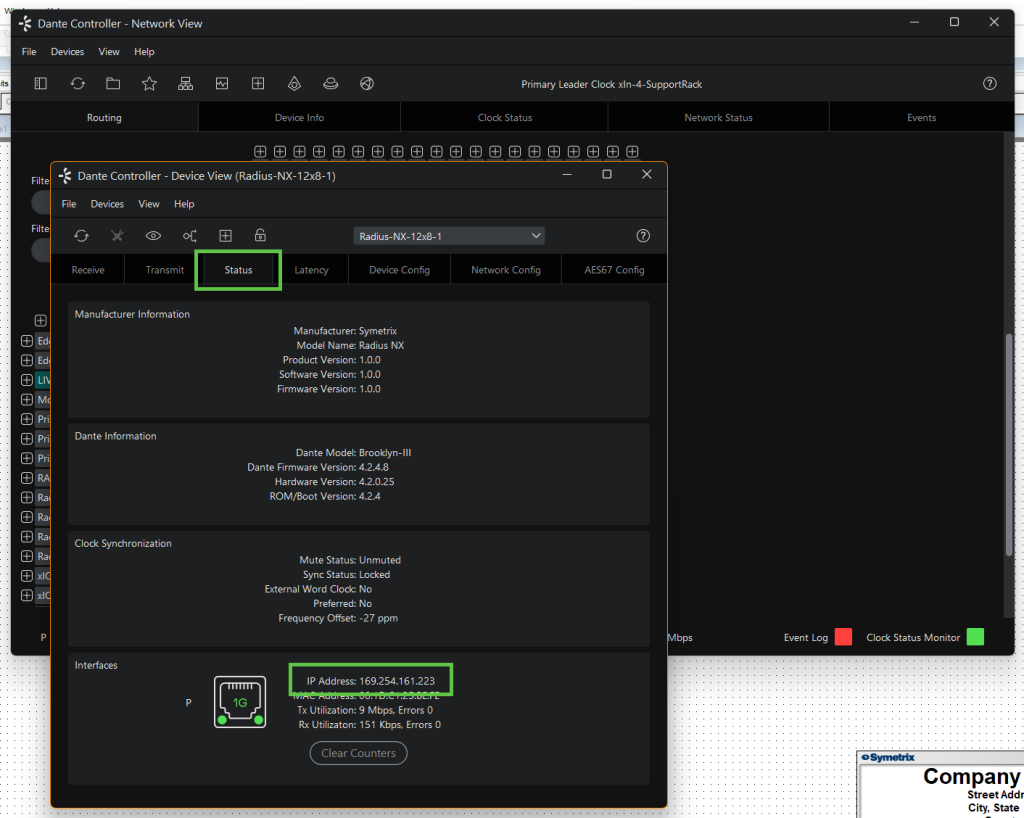
If the Dante network must be set to static IP addresses, do this within the Network Config tab of Device View.
Device Info
Looking at the Device Info tab in Dante Controller will easily show a subnet mismatch. Any device that is in a different subnet will show in red text in the Device Name column.
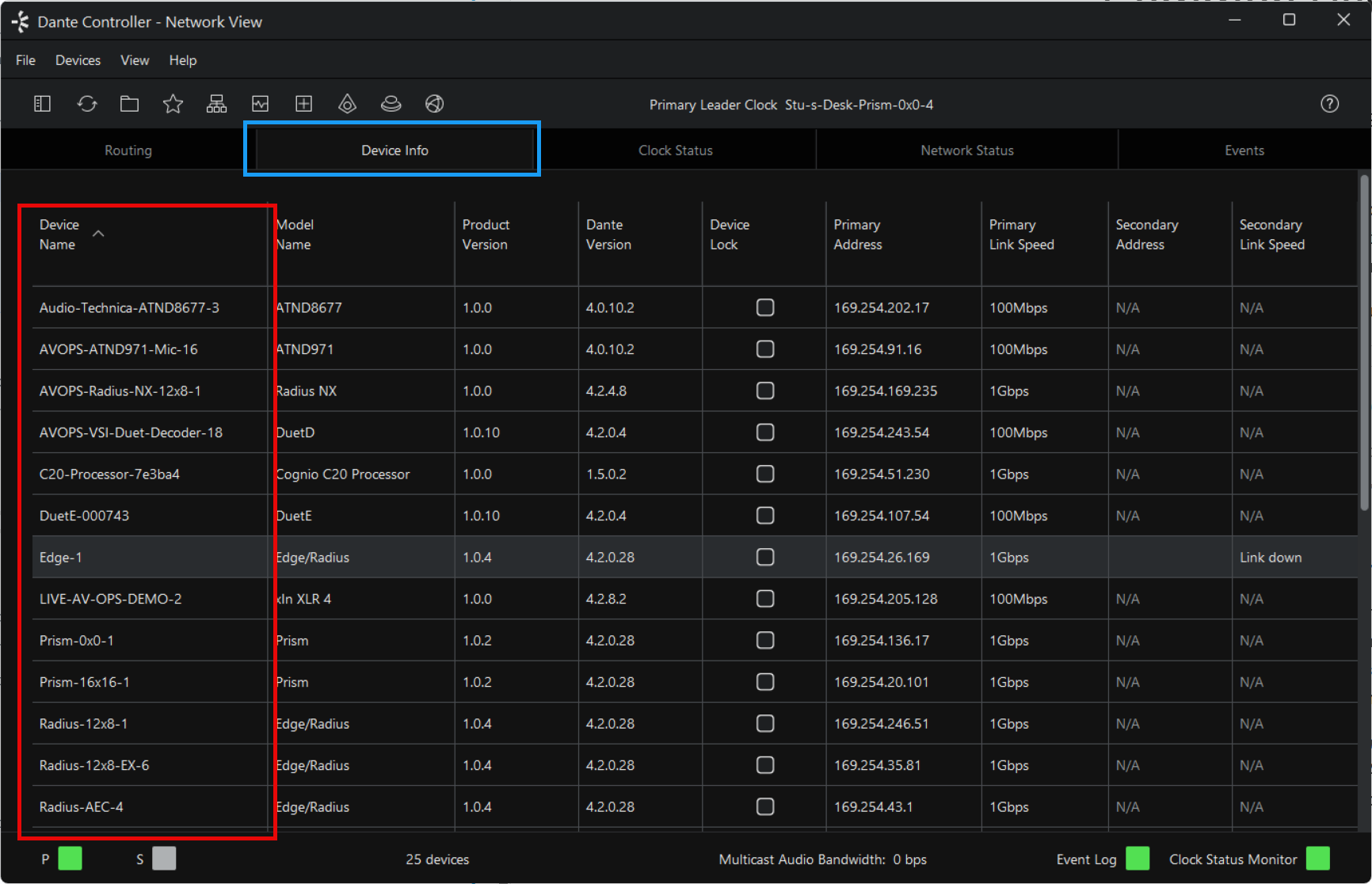
If network configuration seems correct, the same ping techniques from the Control network can still apply, just cabling your PC to the Dante network instead. IGMP snooping and low-quality switches are the largest culprits. Audinate has articles regarding IGMP Snooping that can be of benefit.
https://www.getdante.com/blog/well-intentioned-mishaps-with-igmp-snooping
https://www.getdante.com/support/faq/multiple-leader-clocks
REMOTE TERMINAL COMMANDS
From a Composer perspective, there are some tools available that can help illuminate issues. All of these commands should be done with the intended DSP located and then going to Tools > Launch Remote Terminal, then Options > Debug Mode, and ensure the IP address of said DSP is in the upper left IP address field.
“INFO…” Remote Terminal Command; this command coupled with a target will return different diagnostics about the DSP:
INFO CARDS
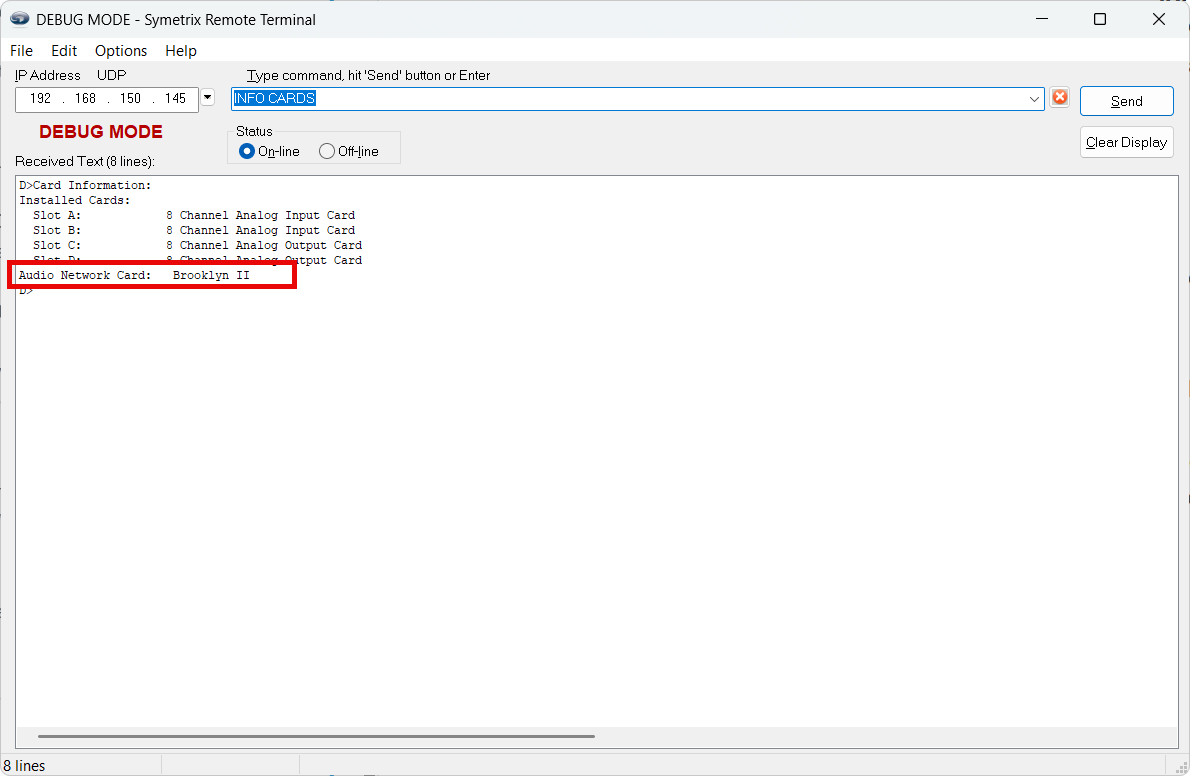
- INFO CARDS; returns a list of the installed I/O cards in the DSP. This can be used to confirm that the DSP has and is reporting having a Dante card. It will return “Brooklyn…”, “non-Dante Clock Card”, or “none”.
- Brooklyn means the DSP is accurately reporting its Dante card.
- Non-Dante Clock Card means the DSP does not have a Dante card, but has a clock card instead. This could be due to a purchase error and the Symetrix Sales or Integrator Support departments should be contacted.
- None means the DSP is expecting something in that particular card slot but is unable to recognize it. Please contact our Integrator Support team if this is what the DSP reports.
INFO DANTE
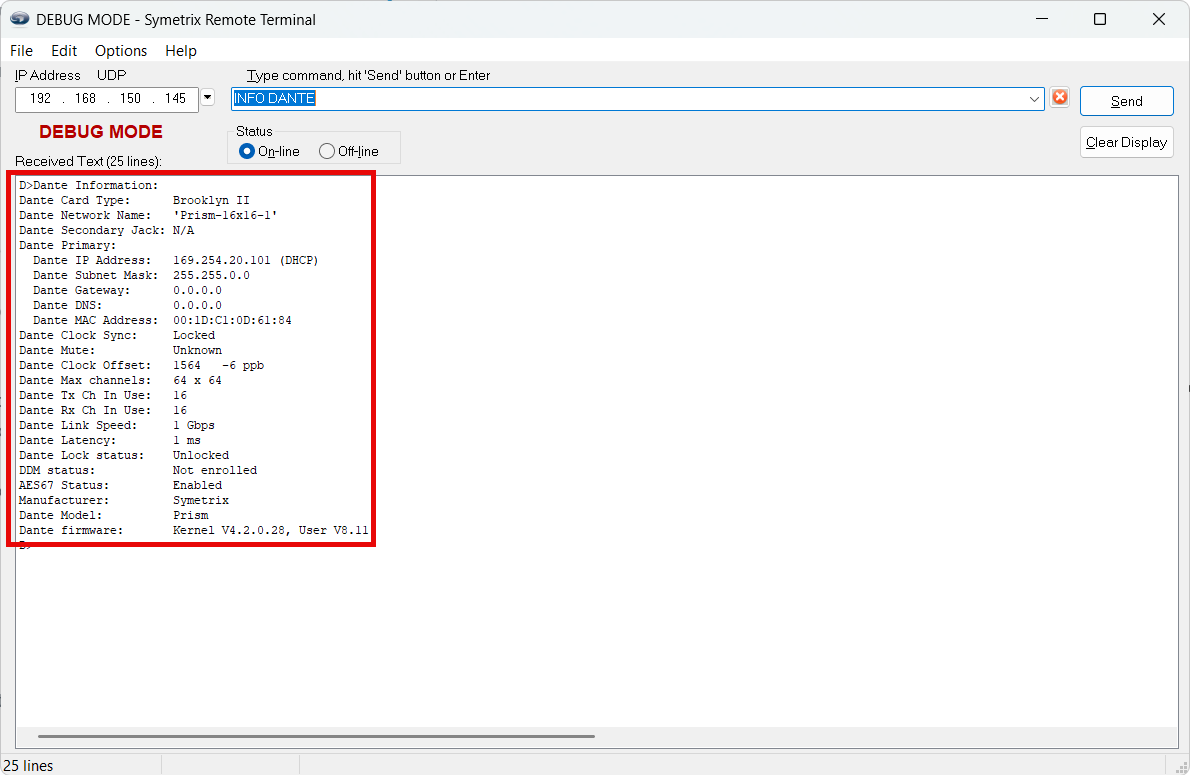
- INFO DANTE
- This will request a report of all Dante information from the DSP including card type, Primary IP address (and secondary if in redundant mode), Dante channel usage, and other diagnostic information.
GDBCV
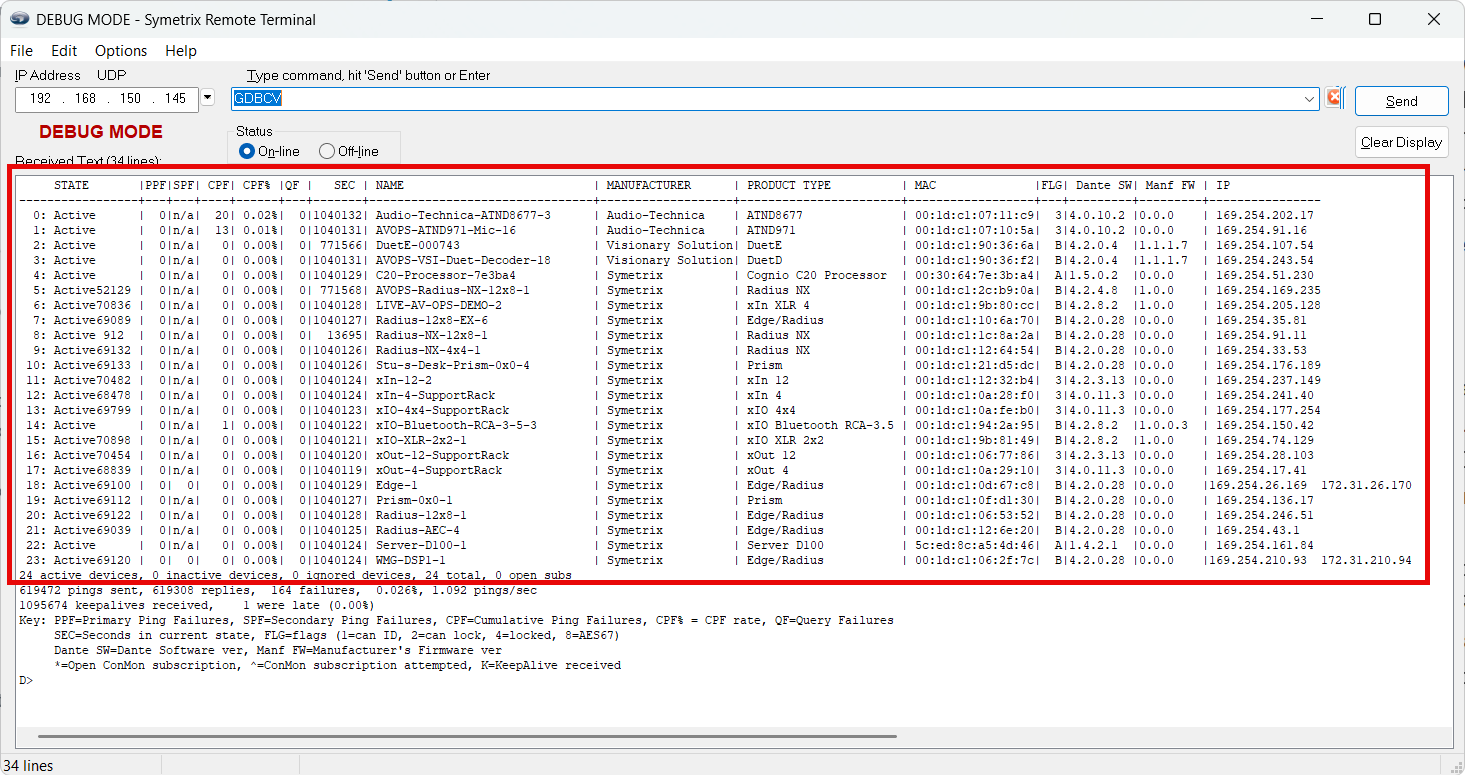
- “GDBCV” Remote Terminal Command; this command requests the Dante browse information from a located DSP – what it can see on the Dante network.
- Send the command “GDBCV” (no quotes) to the DSP. This will return a report of all Dante devices the unit’s Dante card can see, with a bit of extra information describing the communication quality.
- “ACTIVE” or “ACTIVE K” is healthy network communication, and the unit should be locating in Composer. If this is reported and the unit is still not locating in Composer, please contact our Integrator Support team for further assistance.
- “QUERIED”, “UNQUERIABLE”, and “UNPINGABLE” are potential all signs of network miscommunication – the DSP can see the devices but is unable to gather all required information to make a complete handshake. If devices remain in these states for extended periods of time, double-check network configuration, if using a switch, or consider a more direct connection between the Dante device and the DSP’s Dante port (similar to PC and DSP on the Control network from earlier in his document).
- Send the command “GDBCV” (no quotes) to the DSP. This will return a report of all Dante devices the unit’s Dante card can see, with a bit of extra information describing the communication quality.
Restart & Reboot Remote Terminal Commands; these commands offer various ways of restarting either firmware alone or power cycling the unit as a whole along with restarting firmware.
Note: these commands should only be used when the conditions are safe and the system is not in a critically active state. It is also highly recommended that amps be turned off before sending these commands, as a pop may occur which some devices may be sensitive to.
- “R!”; this command reboots the main processor, and power cycles the unit, but doesn’t restart the Dante card.
- “R!!”; this command reboots and reinitializes both the main processor and the Dante card, as well as power cycles the unit – this is the same as a manual power cycle by pulling the cable, just can be done from Remote Terminal instead of physically on the unit.
- “BR”; this command restarts the firmware on the Dante card but doesn’t restart the main processor firmware and doesn’t power cycle the unit.
- “R?”; this command restarts the main processor firmware but doesn’t restart the Dante card firmware and doesn’t power cycle the unit.
Restarting Dante Discovery Service
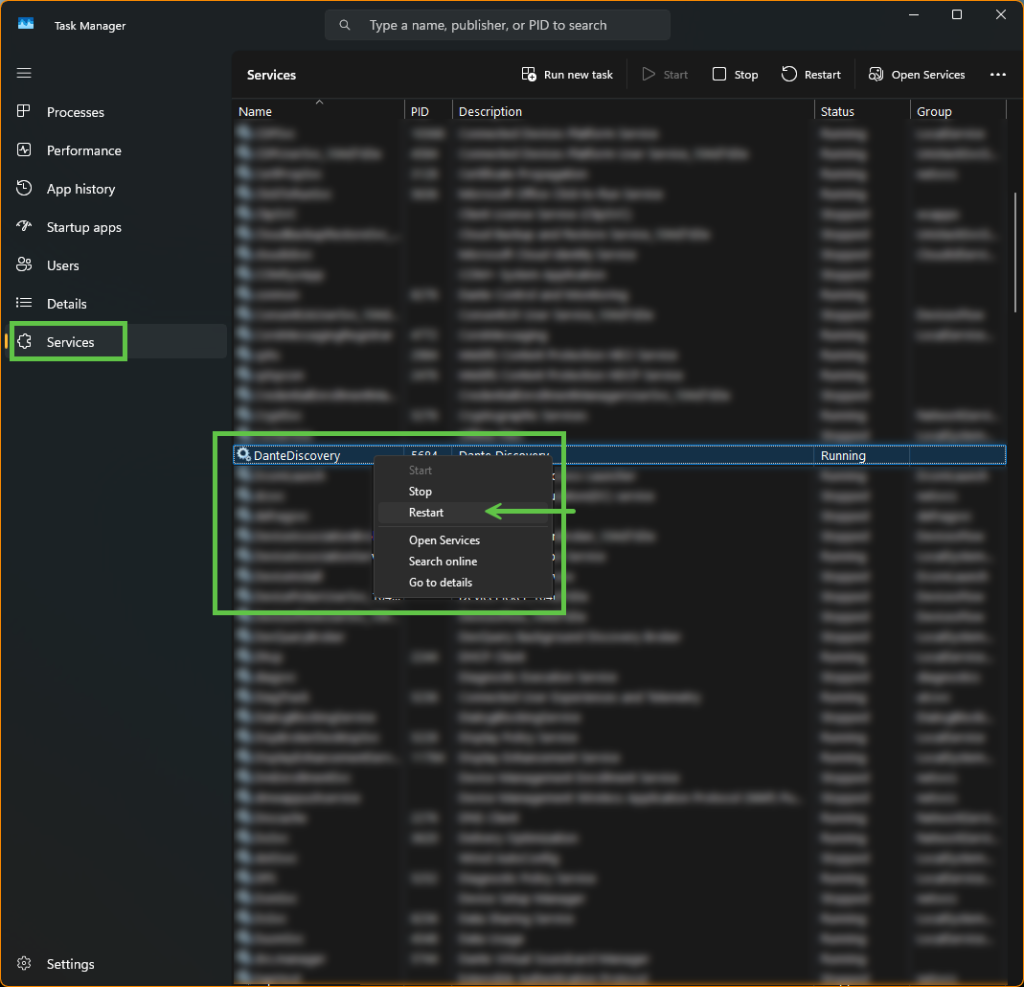
If Dante Controller isn’t discovering any devices the Dante Discovery Service could be in a bad state.
- Close Dante Controller.
- Open Task Manager and navigate to the Services tab.
- Scroll in the window to find the “Dante Discovery” service.
- Right click on this service and select Restart.
- Give the PC some time to restart the service and re-attempt to locate devices in Controller.
DHCP RESET OF DSP NIC
Most of the time it will be easy to find the IP address of a DSP. As was covered earlier in this document, the front display of Symetrix DSPs can be cycled to show both the Control and Dante IP addresses (Dante IP is in the System Pages). For Symetrix xIO devices that don’t have a screen to display their IP it can be difficult to find this, especially if you’re unable to locate the unit on the network.
Every Symetrix device (except for the ARC series) has a factory reset button. Reference to location of these buttons can be found in another Symetrix Tech Tip document.
If a Symetrix device has previously been set to a static IP address, you can single short press the factory reset button to reset the NIC to DHCP. Once reset and then manually power cycled, the unit should receive a DHCP address if a server is available or resolve back to its 169.254.x.y link local address.
Note: BE AWARE, a long press of the reset button will factory reset the unit. This short press should be a “good solid click”, similar to pushing a mechanical elevator button