











-
Type
- Dante
- Networking
- Control
-
System Management
- Composer Management Software
- SymVue Screen Authoring
- AV-Ops Center Remote Monitoring
- ARC-WEB Control Interface Signal Processing
- D100 AVoIP DSP Server
- Radius NX AVoIP DSP
- Prism AVoIP DSP
- Edge AVoIP DSP
- DSP I/O Expansion Cards
- Jupiter DSP
- Zone Mix 761 DSP I/O Connectivity
- xIO Bluetooth Endpoints
- xIO XLR Endpoints
- xIO AVoIP DSP Audio Expanders Control Systems
- T-Series Touchscreen Controllers
- W-Series Controllers
- Control Server
- xControl GPIO Expander
- ARC-Series Controllers
-
Type
- Dante
- Networking
- Control
-
System Management
- Composer Management Software
- SymVue Screen Authoring
- AV-Ops Center Remote Monitoring
- ARC-WEB Control Interface Signal Processing
- D100 AVoIP DSP Server
- Radius NX AVoIP DSP
- Prism AVoIP DSP
- Edge AVoIP DSP
- DSP I/O Expansion Cards
- Jupiter DSP
- Zone Mix 761 DSP I/O Connectivity
- xIO Bluetooth Endpoints
- xIO XLR Endpoints
- xIO AVoIP DSP Audio Expanders Control Systems
- T-Series Touchscreen Controllers
- W-Series Controllers
- Control Server
- xControl GPIO Expander
- ARC-Series Controllers
Prism AVoIP DSP Tech Tips
This tech tip will explain how to properly integrate the External Control Inputs of Symetrix DSP units (Radius NX, Prism, Edge, xControl, Jupiter, Zone Mix 761). Both the physical hardware connections and programming setup will be covered.
Each External Control Input, also known as an Analog Control Input or GPIO, can be configured in one of two modes; as a dual switch closure or a potentiometer.
Dual Switch Closure mode is most commonly used with PTT/PTM (Push To Talk/Push To Mute) buttons on microphones, for an Emergency System/fire alarm relay connection that will mute or override the audio system, and for Room Combining that use switches on moveable wall partitions. The potentiometer mode is typically used to create an inexpensive, volume control for an input, source, zone, or output.
Zone Mix 761
Note: The Jupiter or the Zone Mix 761 supports a combination of up to 2 potentiometers or 4 switch closures.
Radius NX/Prism/Edge, xControl
Note: Edge, Prism, Radius NX, supports a combination of up to 4 potentiometers or 8 switch closures. xControl supports a combination of up to 8 potentiometers or 16 contact closures.
Using standard shielded twisted pair terminated with a terminal block on one end, External Control Inputs may be freely assigned to parameters in the Symetrix DSP hardware. The operational mode (switch closure vs. potentiometer) must first be configured while on-line or off-line using the Configure External Control Inputs dialog. While on-line with the DSP using the Symetrix software, a potentiometer can be calibrated for maximum travel or scaled as described later in this document.
Typical Control Switch Wiring
Note: +V(OUT)=A, INPUT=B
Typical Control Potentiometer Wiring
Configuring External Control Inputs in a Jupiter or Zone Mix 761:
Example 1: Switch Closure
This example will step through the setup of an Emergency System fire alarm mute in the Zone Mix 761 where the fire alarm relay connects to External Control Input 1A. The process is virtually identical for the Jupiter software/hardware.
First, make the physical connections using the above picture as a guide. Then, once the Zone Mix 761 software is online with the hardware, launch the External Controller Wizard. It should be noted that configuring the External Control Inputs on a Jupiter or Zone Mix 761 is straight forward since the External Controller Wizard simplifies the process.
Choose Add New External Controller, select Switch or Control Voltage and then click Next.
Now give the switch a descriptive name based on where in the venue it is located or based on what function it will provide. For example, the name could be as simple as “Switch” or as descriptive as “Fire Alarm relay”. Select the “Emergency” option for the Switch Function and click Next.
On the next page choose the desired function that will trigger based on the state of the input connection provided by the emergency fire alarm system. The two options are: Mute All Outputs or Route Input 3 to Specified Outputs at a Pre-Determined Volume Level. Select the appropriate function and click Next.
For an Emergency Fire Alarm Mute select the “Mute All Outputs” option and click Next.
On the next page, remember to select the correct physical External Control Input that the emergency system relay will connect to. This example uses Switch Closure 1A.
Once the correct input is selected, click Next.
Now, select the emergency route logic based upon how the Emergency relay functions. For reference, the software presents a few practical examples: Normally Open/Active Low and Normally Closed/Active High. Click Finish to close the External Controller Wizard or Next to return to the first page and setup another ARC remote.
Example 2: Potentiometer
This example will step through the setup of a potentiometer in the Zone Mix 761 where the RC-3 connects to the External Control Input 1. The process is virtually identical for the Jupiter software/hardware. Once connected, you can launch the External Controller Wizard and add it to your configuration.
Choose Add New External Controller, select Potentiometer (RC-3) and then click Next.
The RC-3 can control any of the twelve input volumes, the two program volumes per zone, the six zone volumes, the six output volumes, or sets of linked volumes. The particular gain stage the RC-3 will control is selected with the Parameter drop-down menu.
It may be a good idea to give the RC-3 a descriptive name based on where in the venue it is located or based on what function it will provide, especially if both External Control Inputs have a potentiometer or RC-3 connected. Click Next when done.
Select the appropriate External Control Input and click Next.
On the calibrate page, the range of the controller fader can be restricted or scaled by typing the value in Upper and Lower Limits. When finished, click Next.
In this step, calibrate the potentiometer to the 761’s External Control Input to ensure the full travel of the pot is utilized. The Zone Mix 761 software must be on-line for the calibration function to work. Rotate the pot fully counterclockwise (CCW) and click the Set Minimum Position button. Now, rotate the pot fully clockwise (CW) and click the Set Maximum Position button. Once completed, click Next and the software will return to the External Controller Wizard’s opening screen. Continue to add controllers or edit existing
ones if needed. If finished, click the Finish button to exit the External Controller Wizard.
Configuring External Control Inputs in Radius/Prism/Edge, or xControl:
Example 1: Switch Closure
This example will step through the setup of an Emergency System fire alarm
mute for a system using Composer software, where the fire alarm relay output connects to External Control Input 1A on an xControl. The process is identical for setup and assigning External Control Inputs on an Edge, Radius or Radius AEC.
After making the physical connections, while in Schematic Edit Mode, configure the External Control Inputs by right-clicking on the unit in Design View and select “Configure External Control Inputs…”:
Remember to select “Dual Switch Closure for the input the Fire Alarm relay connects to.
Now that the External Control Inputs are configured, here is one example of control logic programming for an emergency mute/unmute function in Composer 2.0 software.
Note: Alternative logic programming examples are located at the end of this section.
Double click the “1 Button Latched” module to open its user interface. Then assign the selected Analog Control Input to the “On’ button by right-clicking directly on the “On” button and selecting “Set Up Remote Control.”
Click the drop down arrow under Remote control device and select “Remote Analog Input – ‘xControl’” to assign an External Control Input from the xControl. For assigning an External Control Input from an Edge or Radius choose the “Local Analog Input –“Radius12x8-9” or whatever “Remote Analog Input” is appropriate.
Click the drop down arrow under Select Analog Control and choose the switch input that matches the physical wiring on the External Control Input. This example uses Switch 1A. Select OK when finished.
Once the External Control Input is assigned to a fader or button an A1 “Highlighted Assigned Control Indicator” appears super imposed on the “On” button.
Note 1: Alt+M or Tools->Super Impose Assigned Controllers must be checked.
Note 2: If the system mute performance is inverted set the Off Level to 100% and On Level to 0.0%.
Double click the “2 Input Logic” module and select “OR”. When the button is triggered, it will set the output signal to True or False when the button is On or Off, respectively.
Double click the “Preset Trigger 1” module and assign Preset #999. Composer 2.0 automatically creates Preset#999 to mute the hardware without affecting the individual output mute states. This will mute all hardware when the latched button is triggered by the fire alarm relay.
Double click the “Preset Trigger 2” module and assign Preset #1000. Composer 2.0 automatically creates Preset#1000 to unmute the hardware without affecting the individual output mutes states. This will unmute all hardware when the fire alarm relay is reset.
Note: In the Preset Manager for Composer 2.0 Preset #999 and #1000 are pre-configured for the emergency mute/unmute function, equivalent to the F2 button in Composer. 999 = Mute All Hardware. #1000 = Unmute All Hardware.
Alternative Methods:
In this example an “Inverter” module is used in place of the “2 Input Logic” module and will perform the same function as the “False” output of the 2 Input Logic (11) module from the previous example.
Here, a Super Module from Tools->Super-Module Library Manager is used for the Emergency System Mute.
Once completed, Push the file to the system.
Example 2: Potentiometer
This example will step through the setup of a potentiometer in the system using Composer 2.0 software, where the RC-3 connects to the External Control Input 1on an xControl. The process is identical for setup and assigning External Control Inputs on an Edge, Prism, or Radius.
Note: In potentiometer mode, A is the +V output and B is the voltage input.
After making the physical connection, configure the External Control Inputs by right-clicking on the unit in Design View and select “Configure External Control Inputs…”:
To configure the input for use with a potentiometer, select the appropriate input tab, and then select the “Pot – Connect a variable voltage input (0-5V)” radio button. Select “OK” when finished.
Pot Calibration:
Note: SymNet Composer must be connected to the DSP hardware with the input configured as a “Pot” in order to calibrate the input. The potentiometer must be physically wired to the External Control Input as well.
Calibrating the External Control Input determines the way the 0-5V potentiometer affects Composer parameters. There are two separate areas that can be altered:
- Compensation for pots that don’t get all the way down to 0V or all the way up to 5V. This could happen because of characteristics of the pot itself, or resistance in the connection between the pot and the unit, especially with long wire runs. This is referred to as Calibrating Pot
Range below. - Limiting the range of parameters controlled by an analog input. This is referred to as Calibrating Control Range or scaling the range.
This setting should match the control input of the pot being calibrated. If a pot is connected and the settings are correct, turning the pot should move the small indicator along the Current input position line. The value of the pot (0-255) is also updated to show the current level generated by the pot. Zero represents GND or 0V, 255 represents 5V, and the range is linear.
Calibrating Pot Range:
To compensate for a pot that does not cause its assigned fader in software to travel the entire range when the physical pot is turned to is lowest and highest position, make sure the pot is connected to the one of the 8 External Control Inputs and the correct input tab is selected in the Config External Control Inputs Window of Composer 2.0. Turn the pot to its minimum value (usually all the way counterclockwise). Click the “Set Minimum Position” button. Next, turn the pot to its maximum value (usually all the way clockwise). Click the “Set Maximum Position” button.
Note: These settings can be used to compensate for a reverse-wired pot. To reset the calibration, click the Reset Min/Max Positions and they will be returned to their defaults.
Calibrating Control Range:
It may be desirable to limit the end user range of a potentiometer connected to an External Control Input and its effect on a gain stage. For example, if a pot is controlling a volume fader, it may be preferred to limit the fader range the end user can access from -30dB to 0dB rather than the full -72dB to +12dB range allowed in the software.
To limit the upper range of a control, enter a value less than 100% for the maximum level. To limit the lower range of a control, enter a value greater than 0% for the minimum level. When set to 100% and 0%, the control is allowed to travel the entire range shown in the Composer GUI. Other values reduce this range accordingly. Some experimentation may be required to find the percentage values that limit a range appropriate the current application. As an example, for a fader with ranges -72db to +12db, 84% is equal to 0dB.
Important Notes:
By setting the minimum value to a number larger than the maximum value, it is possible to reverse the operation of the pot or compensate for a reverse-wired pot. To reset the calibration, enter 100% for the maximum level and 0% for the minimum level.
If it is desired to reset all analog calibration data for a unit, use the Erase Memory command found under Hardware->Upgrade Firmware. Select only Analog Calibration Settings and hit ERASE.
All settings made using this dialog box are stored in the hardware, not in the site file. Changes made take effect immediately without the need to download the entire site.
Assigning a Parameter:
Right-click directly on the parameter and select “Set Up Remote Control.”
Click the drop down arrow under Remote control device and select “Remote Analog Input – ‘xControl’” to assign an External Control Input from the xControl. For assigning an External Control Input from an Edge or Radius choose the “Local Analog Input –“Radius12x8-9” or whatever “Remote Analog Input” is
appropriate.
Click the drop down arrow under Select Analog Control and choose the pot that matches the physical wiring on the External Control Input. Select OK when finished.
Once the External Control Input is assigned to a fader a P1 “Highlighted Assigned Control Indicator” appears super imposed on the GUI. Note: Alt+M or Tools->Super Impose Assigned Controllers must be checked.
Once completed, Push the file to the system.
Applies to Radius NX, Edge, Prism xControl, Jupiter, and Zone Mix 761
This tech tip will explain how to properly integrate the Logic Outputs of the above DSP units into your installation. Typically these outputs would be utilized in a couple of ways – driving LEDs in order to give visual feedback to an end user, or controlling an external relay for switching other equipment, such as a projector screen or rack of other equipment. In order to do this is as seamlessly as possible, it is first necessary to know some basic facts.
First, each of these logic outputs is the open collector of a switching transistor that has its emitter tied to ground. What does this mean to you? These are not dry contacts that are simply open or closed. When the transistor is inactive, 5V is present at the logic output. When the transistor is activated, the 5V is shunted to ground through the transistor’s emitter, which results in 0V at the logic output.
Here are the specs for the logic outputs that we’ll be referring to in this tech tip:
- The logic output is pulled high (5V) when inactive.
- The logic output goes low (0V) when active.
- The maximum logic output source current is 10mA.
- The maximum external power supply voltage is 24 VDC.
- The maximum external power supply current sinking is 50mA.
How to Drive an LED
With a max output current of 10mA, it is possible to drive an LED directly from the logic output without needing a current-limiting resistor (there is an internal 500 ohm resistor). This of course depends on the forward voltage and forward current of the LED you choose (check the datasheet for your LED). In this case, simply connect as below:
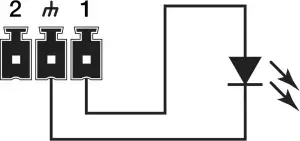
If you have an LED that requires a higher voltage/current demand, an external power supply will be needed. As stated above, the max external power supply voltage is 24 VDC with 50 mA sinking current. Hook it up as below:
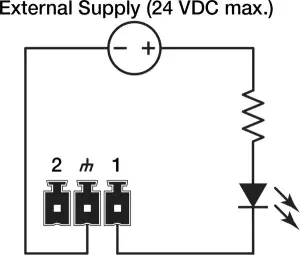
You can calculate the resistor’s value by using Ohm’s law:
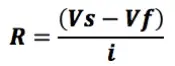
Vs = Supply Voltage
Vf = LED forward voltage drop
I = LED forward current (in Amps)
Round up your value to the nearest standard resistor value.
Note: Various styles of LEDs (from standard through-hole to panel-mounted) in a seemingly endless variety of values are readily available. The best approach would be to identify your needs in terms of LED type, then use the extensive search functions of sites like Digikey.com or Mouser.com to see what is available.
Driving Relays
There are two types of relays we’ll work with to control external devices, the most common being a non latching mechanical relay. Taking into consideration the 10 mA output current of the logic outputs, this type of relay will typically need to have its coil driven by an external power supply. As noted earlier, the external supply should not exceed 24 VDC, while the relay coil current should not exceed 50 mA. A relay such as the Omron G5LE-1A4 DC12 should do nicely.
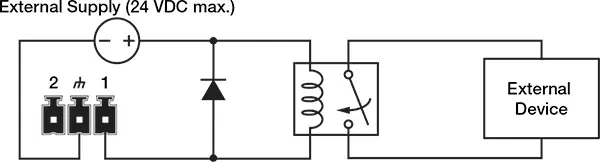
Take note of the flyback diode placed in parallel across the relay coil. This provides a path for discharge current to flow when the coil is switched off. Without this diode, there is the risk of damaging or destroying the internal transistor of the Symetrix device. Think of a flyback diode as the cheapest equipment insurance policy you’ll find anywhere. Use a 1N4004 or equivalent.
Another relay option would be to use a Solid State Relay (SSR), which typically has a lower current requirement for activation. Most installers use mechanical relays, but some of the advantages of SSRs are worth noting:
- Low turn-on requirements. There is no inductive coil to drive in an SSR. Instead there is an internal LED that toggles the relay, which typically requires very little current to turn on. If you choose one that requires less than 10 mA to activate, there is no need for the external power supply that you might need to power a mechanical relay coil.
- No mechanical wear-and-tear, arcing, or contact bouncing.
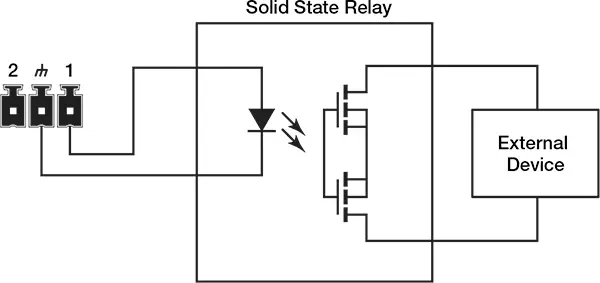
For a general use SSR, try a Panasonic AQV252G (max load voltage 60 VDC/VAC, max current of 2.5 A).
Triggering the Logic Outputs in SymNet Composer (Radius, Edge and xControl)
As a basic example, we’ll set up a logic output to be toggled on and off by an external device such as a Crestron or AMX controller.
1 In Composer’s Design View, drag in a single Latched Button from the Toolkit.
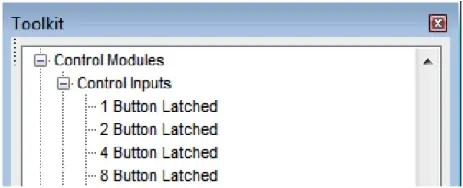
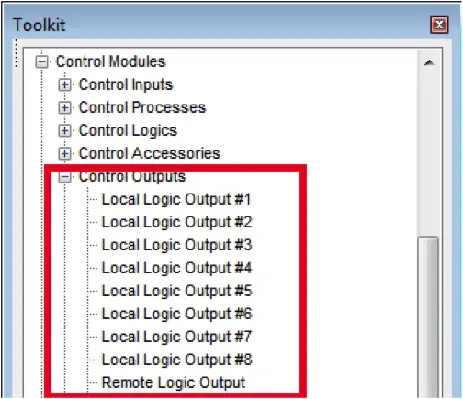
2. Drag in a “Local Logic Output #1” Module from the Toolkit. To use an xControl’s logic outputs, select the “Remote Logic Output” module instead.
3. Wire the output of the latched button module to the input of the logic output module.
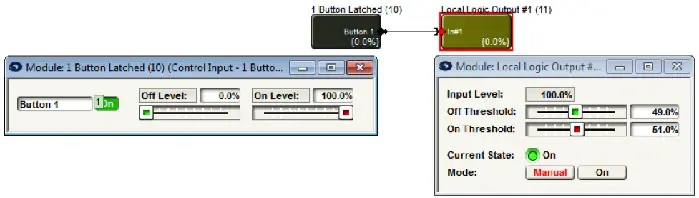
4. Right-click the “On” Button in the latched button module and click “Set Up to Remote Control.”
5. Select “Generic Controller Number Assignment” from the drop-down menu. Either keep the “Auto-assign controller number” checkbox selected, or un-check to type in your own controller number. Click OK, then push the site file to hardware.
6. You will now be able to control the button with your external controller.
- To enable the button, send this command to the DSP: CS <CONTROLLER NUMBER> 65535 <CR>
- To disable the button: CS <CONTROLLER NUMBER> 0 <CR>
Be sure to download the Composer Control Protocol from our website for full command details.
Triggering Logic Outputs for Jupiter and Zone Mix 761
Use the “External Controller Wizard” in the software to walk through programming your logic outputs.
- Setting up analog volume knobs and switches.
- LED clipping indicators for visual feedback.
- Triggering a power sequencer at 6AM every day.
These are just a few of the many things that can be accomplished with Symetrix hardware. All of our DSP units provide some degree of General-Purpose Input/Output (GPIO) via the External Control Inputs and Logic Outputs.
This document provides a side-by-side comparison of the GPIO counts for each piece of current Symetrix hardware, so you can spec the right gear for the job. Keep in mind that each individual External Control Input can either be configured to use a 10K potentiometer as its input, or two switches.
| Hardware | External Control Inputs | Logic Outputs |
| D100 | 0 | 0 |
| Edge | 8 switches / 4 pots | 8 |
| Radius NX 12×8 | 8 switches / 4 pots | 8 |
| Radius NX 4×4 | 4 switches / 2 pots | 4 |
| Prism | ||
| xControl | 16 switches / 8 pots | 16 |
| Jupiter | 4 switches / 2 pots | 4 |
| Zone Mix 761 | 4 switches / 2 pots | 4 |
For full details and walkthroughs on integrating GPIO, see the below Tech Tips:
video
The purpose of this Tech Tip is to provide information and instruction on using AES67 with Symetrix Dante-enabled DSPs. The AES67 standard provides interoperability between different forms of AoIP (Audio over IP). AES67 is not a networking solution in and of itself, but rather a group of interoperability specifications for connecting media streams. AES67 is supported by various IP-based audio networking systems such as Dante, Ravenna, Livewire and Q-LAN.
Because Dante supports AES67, this allows Symetrix Dante-enabled DSPs to receive and transmit audio with other IP-based audio networking systems, Q-LAN as an example. When using Symetrix Dante enabled DSPs with AES67, there a few key points to keep in mind:
- Symetrix Dante-enabled DSPs are compatible with AES67, but are not AES67 specific hardware.
- AES67 stream assignments are handled by the receiving device
- AES67 streams will only appear as a transmitter in Dante Controller.
- AES67 transmit streams from a Symetrix Dante-enabled DSP will NOT be assignable in Dante controller.
- Here is a link to set up AES67 receive flows with Q-SYS
- AES67 is capable of unicast and multicast communication, however Dante’s implementation of AES67 currently only supports multicast.
- When two Dante-enabled devices are passing audio between each other they will always use Dante for the communication, regardless of AES67 streams.
- Audinate’s Ultimo chipset does not currently support AES67
- Here is a link to the AES67 standard
AES67 Receive Stream
Here are the instructions for creating AES67 receive buses, using the generic Network Receive Modules (This example uses a Radius AEC and QSC Q-SYS Core 250i)
aes 1
1. From the Toolkit, add a Radius AEC to the Site View page.
aes 2
2. Open the Design View page by double-clicking the Radius AEC.
aes 3
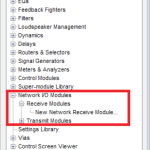
3. From the Toolkit, expand Network I/O Modules, then expand Receive Modules.
aes 4
4. Double-click or drag in a New Network Receive Module.
aes 5
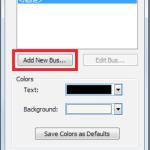
5. The Network Receive Module Properties window will open automatically. Click the button to “Add New Bus.”
aes 6
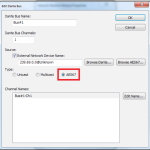
6. Change the type to AES67.
aes 7
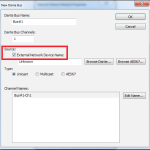
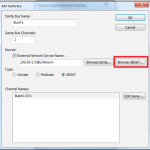
7. Click the “Browse AES67” button.
aes 8
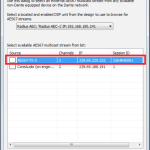
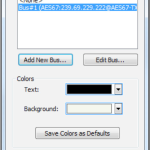
8. Select the desired AES67 multicast stream from the list.
aes 9
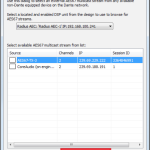
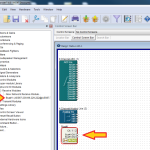
9. Click the “Select AES67 Stream” button.
aes 10
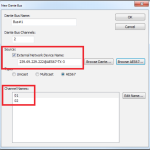
10. The New Bus window is now updated with the AES67 stream information (device network name and channel names).
11. The new AES67 receive bus is available in the Network Receive module Properties window.
12. Click Ok. The new receive bus has now been created.13. Push the site file and Composer will make the AES67 to Dante subscriptions.
13. Push the site file and Composer will make the AES67 to Dante subscriptions.
AES67 Transmit Stream
Here are the steps to create AES67 transmit streams:
aes 11
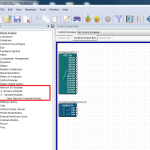
1. Open the site file to the Design View page.
aes 12
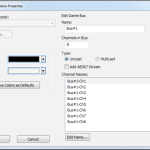
2. From the Toolkit, expand Network I/O Modules, then expand Transmit Modules.
aes 13
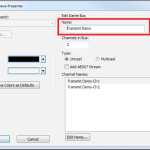
3. Add a New Network Transmit Module. The Network Transmit Module Properties window will open.
aes 14
4. Edit the name of the transmit bus. Note: Naming of transmit buses is very important for organization.
aes 15
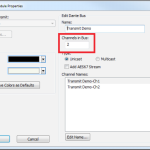
5. Select the number of channels in the transmit stream.
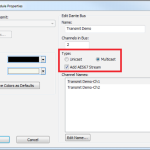
aes 16
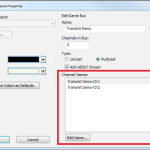
6. Select the transmit bus type.
7. Name the individual transmit channels.
8. Click OK and the transmit bus will be added to the site file.
6. Select the transmit bus type.
7. Name the individual transmit channels.
8. Click OK and the transmit bus will be added to the site file.
This is a general-purpose step-by-step guide for connecting to Symetrix digital signal processors and related hardware with a PC.
Please note that Symetrix only recommends using Windows 10 and above. Other operating systems are not officially supported at this time.
See the bottom of this article for information on unsupported equipment and software.
Step 1 – Install the right software for the device
Symetrix design software is used to connect to Symetrix devices and is available to download, install, and run for free. The required software will depend on the devices that needs to be accessed:
COMPOSER PLATFORM:
Software can be downloaded here under the Composer tab.
- D100
- Radius and Radius NX series
- Prism series
- Edge
- Solus NX (note "NX", original Solus are not supported).
- T-Series touch panels
- W-Series wall remotes
- Control Server
- xControl
- xIO Bluetooth
- xIO XLR
- xIn / xOut 4 and 12
- xIO 4x4
- xIO Stage 4x4
Important: To avoid errors when going online with the hardware, please download the version of Composer that matches the DSP’s firmware revision number as closely as possible. This number can be found by cycling through the system pages on the front LCD panel of the DSP.
FIXED ARCHITECTURE PLATFORMS:
Software for Symetrix’s current Integrator Series (closed-architecture) DSPs can be downloaded here under the Jupiter and Zone Mix tabs. These include:
- Jupiter
- Zone Mix 761
Step 2 – Make sure the PC is on the right network
Once the correct software has been downloaded, the next step is to connect the PC to the device’s control network. If a DSP is Dante-enabled, make sure not to confuse the Dante port for the "control"/"ethernet" port. Configuration of these devices through the Symetrix software is always done through the control port.
By default, Symetrix devices are programmed to resolve an IP address automatically, either from a DHCP server or link-local (169.254.x.x) if there is no DHCP server found. Any devices with a front display will indicate their IP address on the front LCD panel. Some devices (T-Series and W-Series) may not show this information if they have been programmed. Cycling through the system pages on the front display of a Composer-based DSP will also display the subnet mask. If a device has previously been configured with a static IP address, it can be reset to DHCP by briefly pressing the device’s reset button, which is usually recessed in the housing on the back of the device.
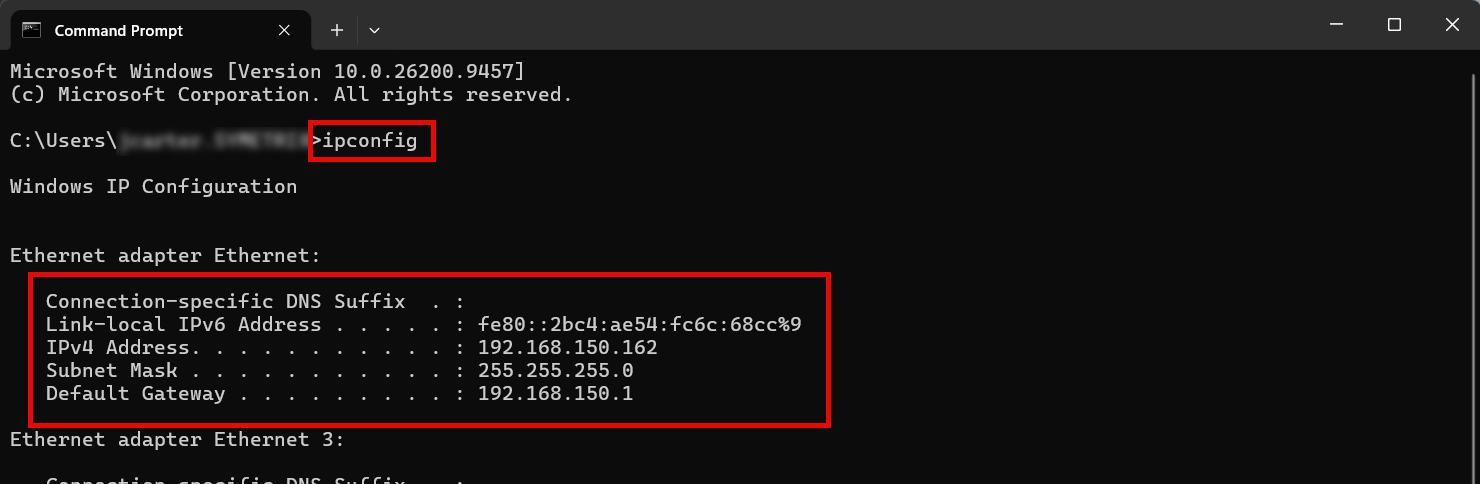
Check your PC's network configuration by opening the Windows Command Prompt and entering "ipconfig". The relevant adapter's information will be shown along with any others available.
Important: Ensure that both the IP address scheme and subnet mask of the PC match that of the DSP. If setting the PC to a static IP address, it must be a different/unused IP address on the network. If connected directly to a DSP that has a known static IP address, setting the PC to any available IP address will work. If connected directly to a DSP that does not have a static IP address, the PC does not need to have a static link local IP address.
Step 3 – Locate the Symetrix hardware on the network and Pull
Once the PC is on the correct network, open the appropriate Symetrix software. The next steps will depend on the software being used.
COMPOSER:
Composer platform devices will show their location status via an indicator on the hardware module itself.
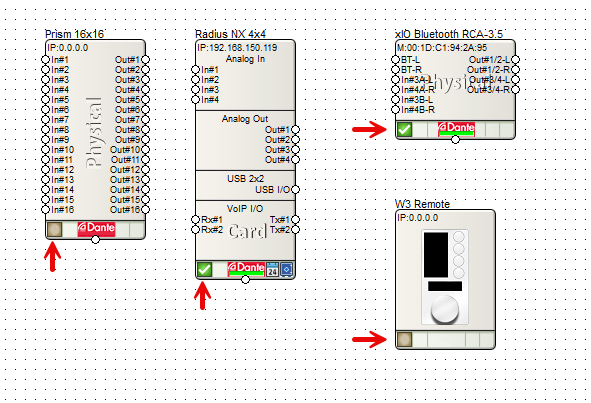
- Devices are located when there is a green check-mark in the location status indicator box.
- If this is empty, the device is not located.
- If the check-mark is yellow, the device is located and its outputs may be muted for some reason.
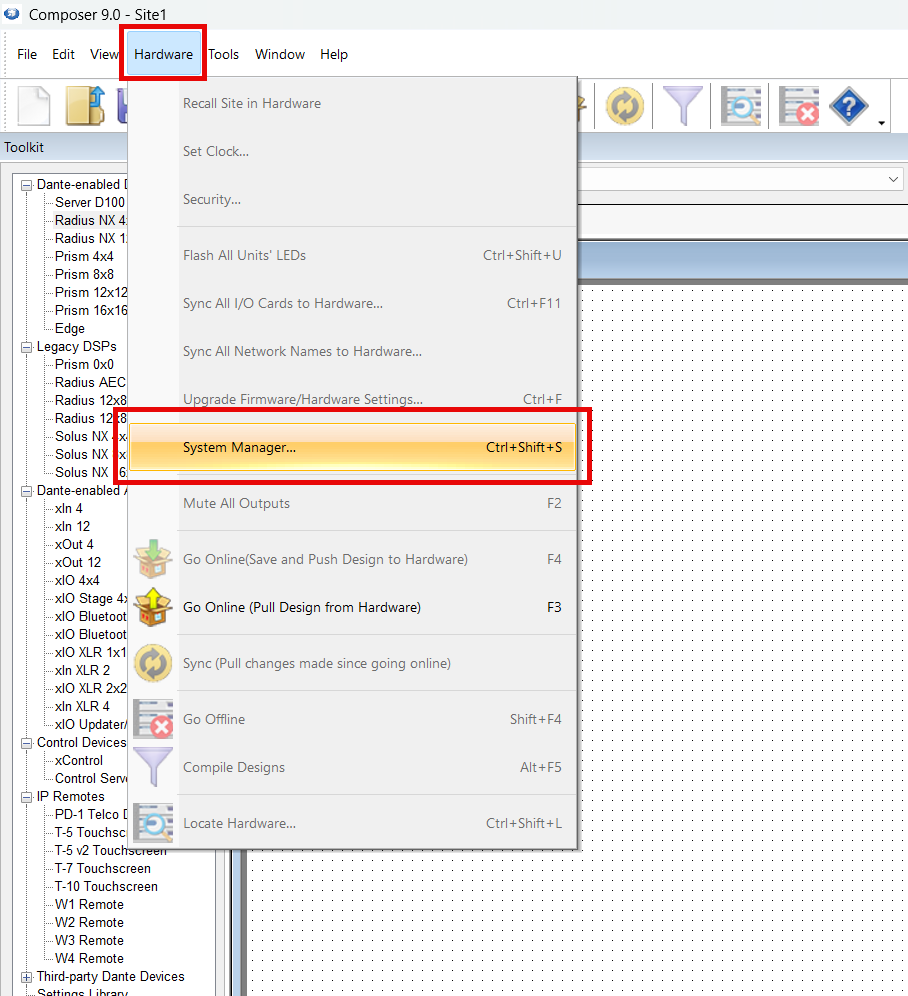
Go to Hardware > System Manager from a blank/new Composer site file to search the network for available hardware.
In the Hardware or Control Network tab (depending on the version of Composer) find the appropriate DSP, highlight it, and select Go Online (Pull from Unit).
Note: ensure Composer is using the correct NIC to search the network.
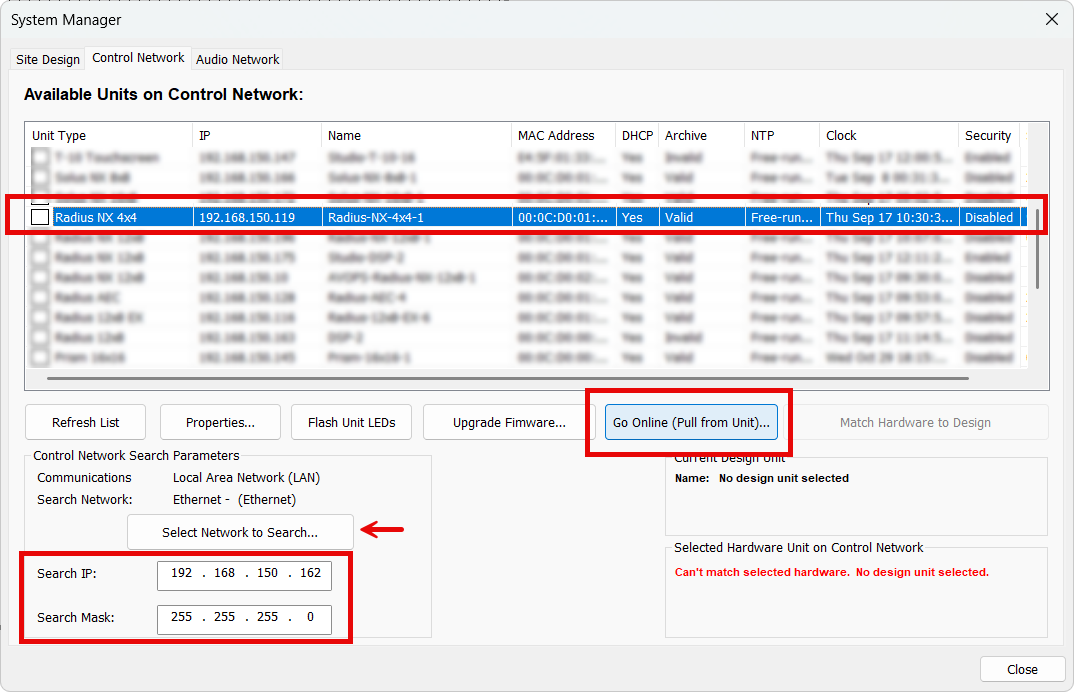
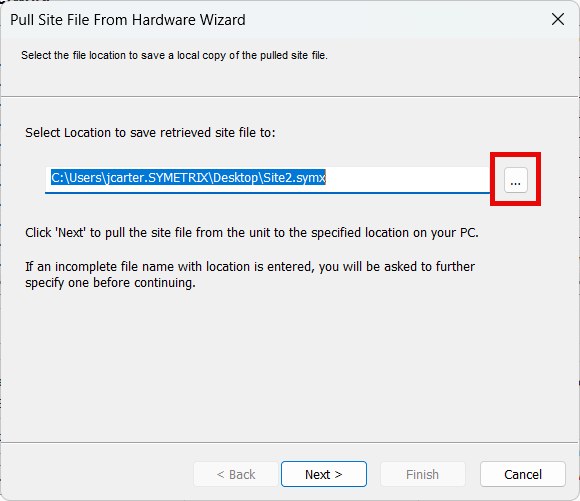
Confirm the file name and save location for the site file - Desktop is a good location, but anywhere that OneDrive or other cloud services don't access is recommended for later permissions and access reasons.
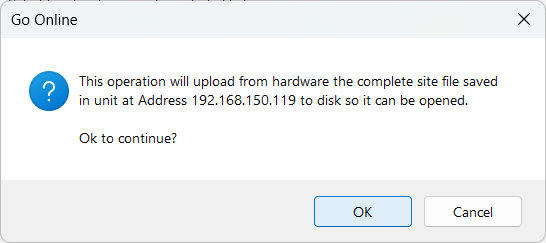
Confirm the prompt that the site file will be pulled from the unit at the given IP address.
In the large majority of cases, synchronizing the site file on pull is the advisable option. This will pull the current running configuration of all volumes, mutes, routing, etc. - what's running live right now.
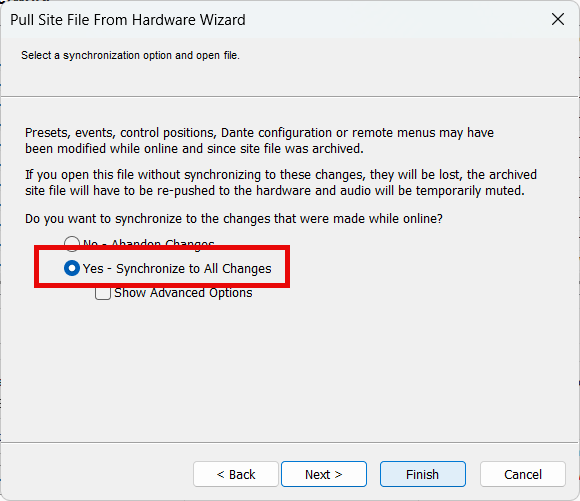
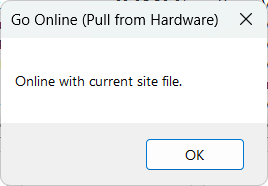
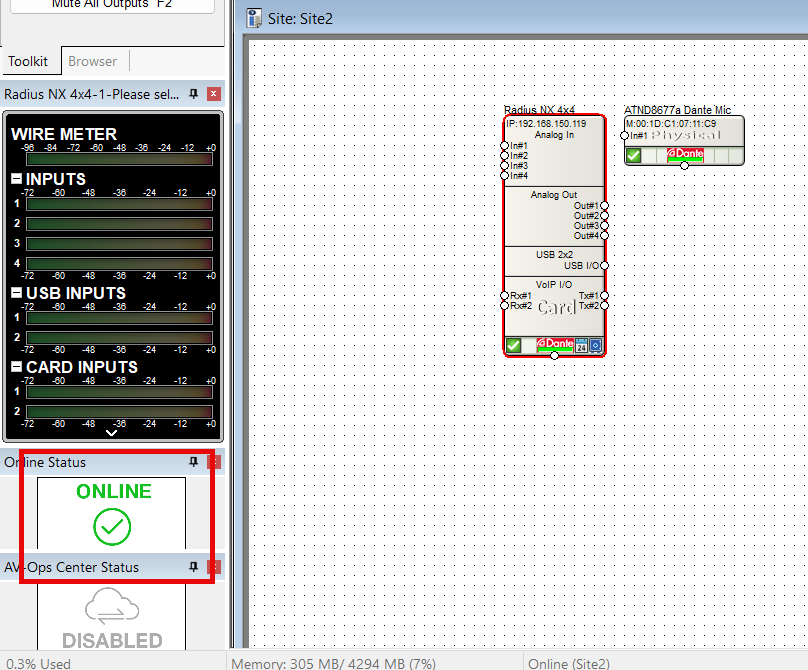
On completion, Composer will notify of Online status with both a dialog and the Online status indicator in the left panel.
FIXED ARCHITECTURE PLATFORMS:
Fixed architecture platforms (Jupiter and Zone Mix 761) will use their own software respectively and have a Connection Wizard to complete location and go online.
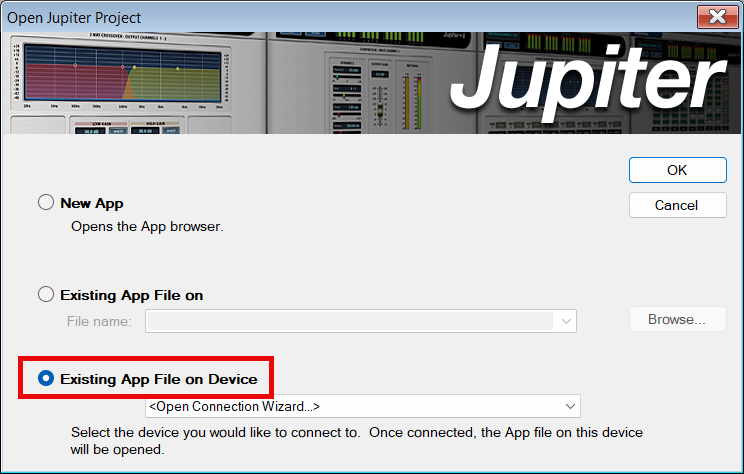
When initially opening the software and connecting to a device select Existing App File on Device to initiate the Pulling process of location and going online.
Depending on the connection, select either Direct or Indirect.
- Use Direct if connecting the PC directly cabled to the DSP.
- Use Indirect if using a switch or small network of switches.
- Network is the least common choice and is usually meant for larger networks that involve routing/gateway or subnet jumps (unrecommended).
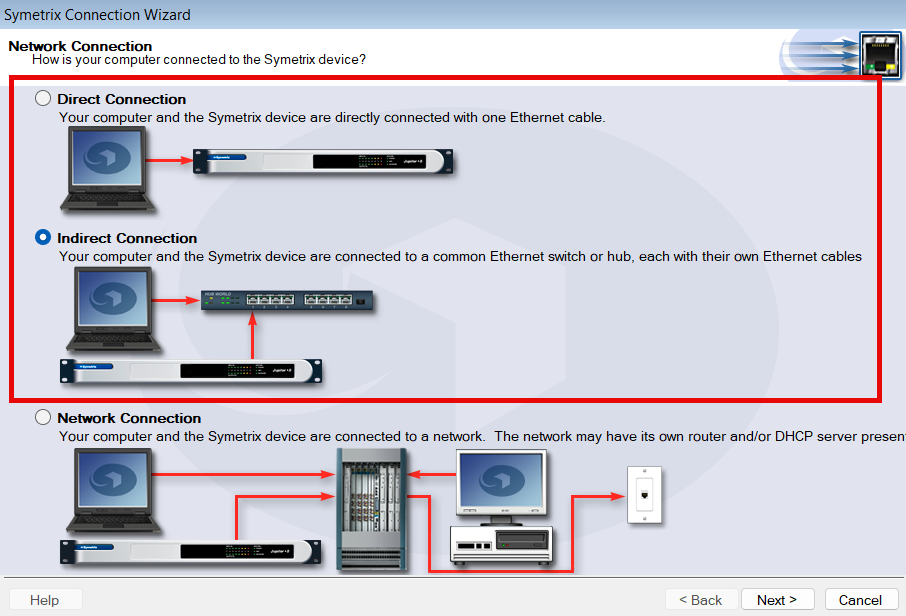
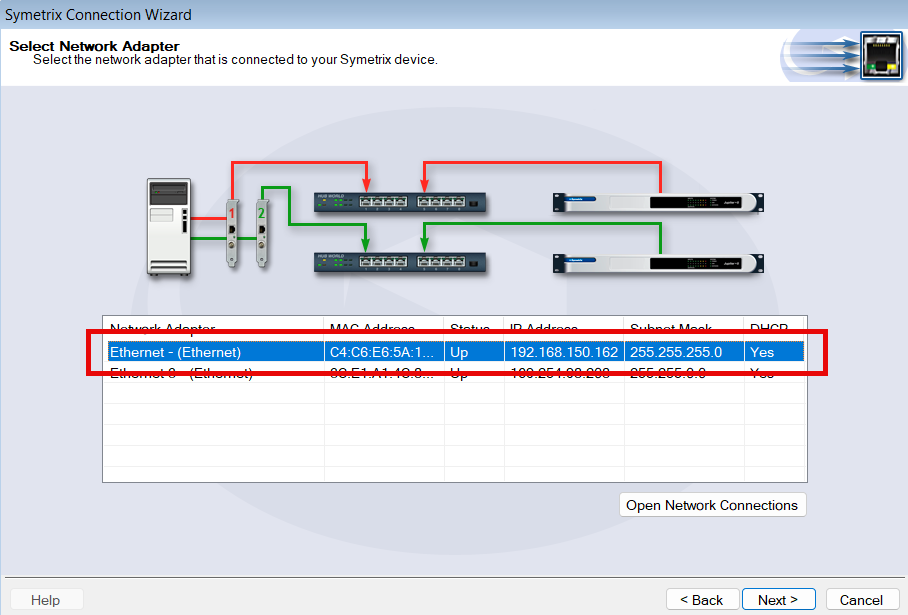
Select the appropriate PC NIC for the connection, if there are multiple available. Wifi should never be used to connect to Symetrix DSPs - always cable to the network or the DSP directly.
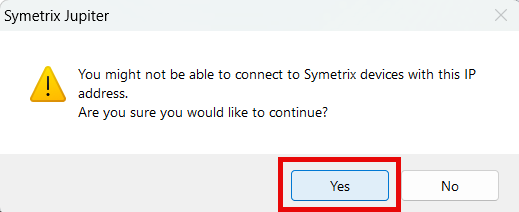
Once a network is selected, the software may warn that it may not be able to connect. This is fairly common and can be clicked Yes through to continue.
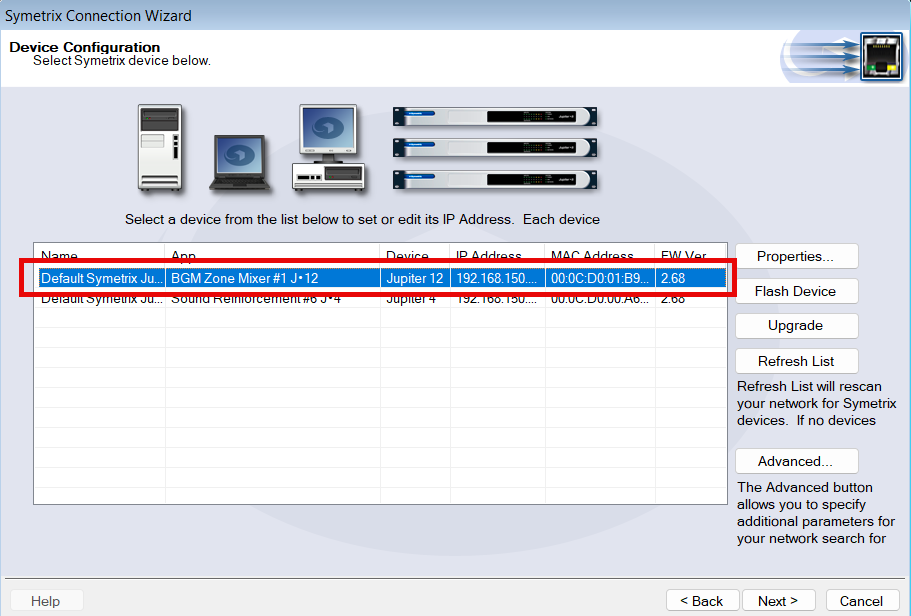
If the PC/software can see the given DSPs on the network, they will be shown here. Select the appropriate one and click Next.
Finalize the Go Online process and the software will attempt to pull the programming and go live.
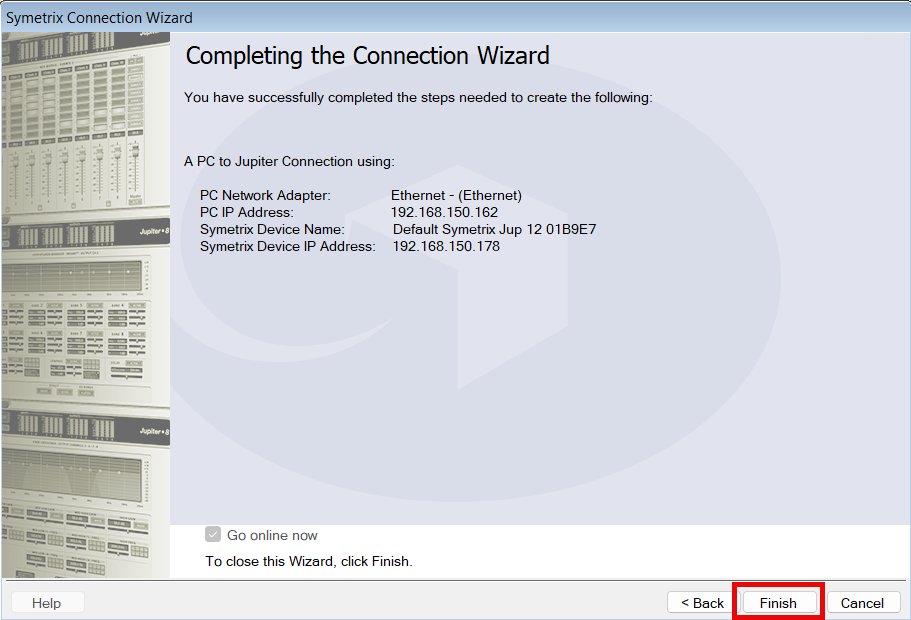
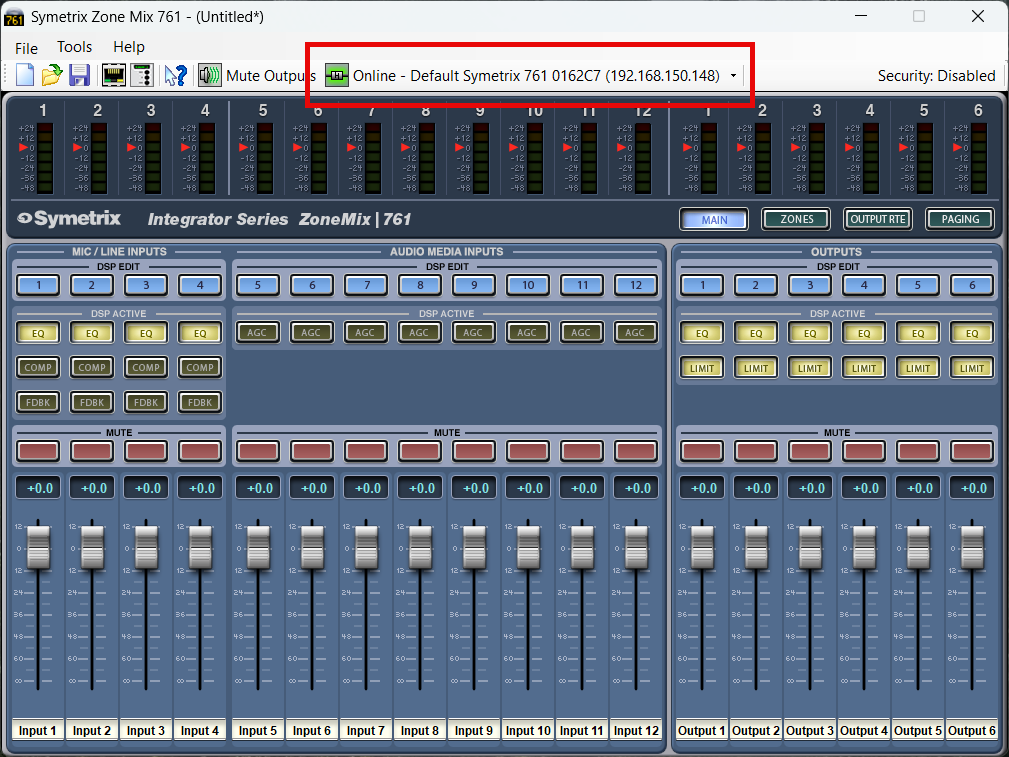
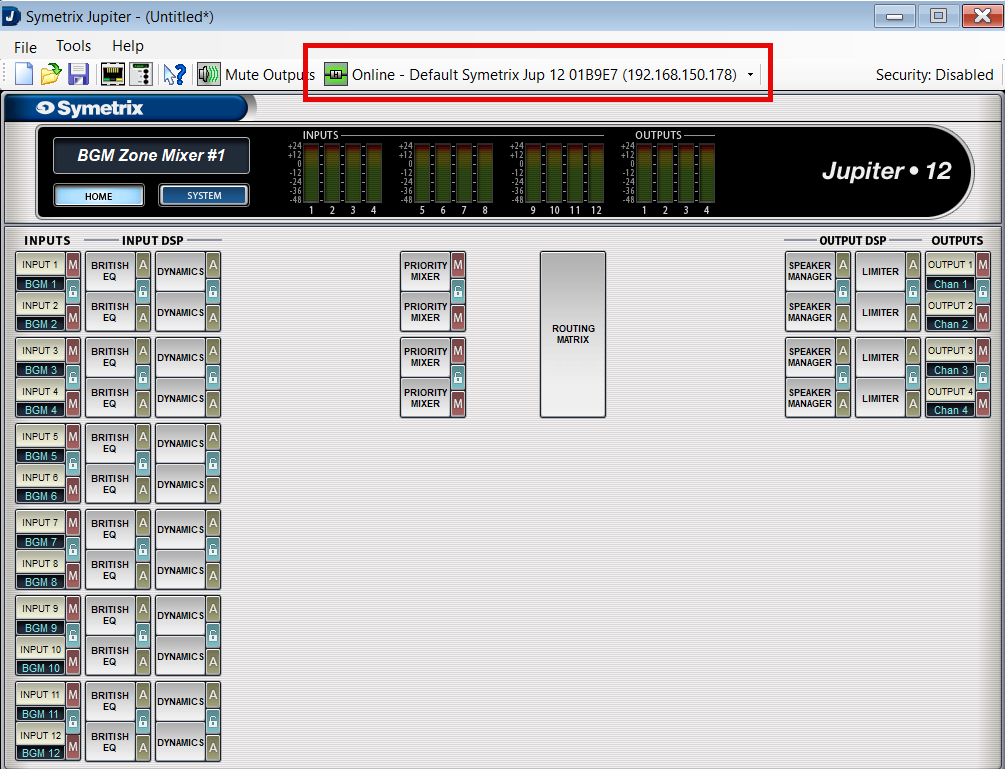
Depending on the software, the main GUI will appear and the "Online" indicator will be present.
Troubleshooting
If you have followed the above steps and are having difficulty locating any devices on the network, we have a location troubleshooting guide available here.
If you are able to locate devices, but are receiving warnings from the software about failures to go online:
- Disable Windows Defender Firewall and any third-party antivirus/firewall programs that may be blocking network traffic.
- Double check that the device firmware versions for all devices in the site file match the version of Composer being used (the first two numbers are most important).
- Power cycle both the PC and the device(s).
- If the device is connected to the PC through a network switch, try connecting directly instead.
- If a (Composer) device cannot be located and is not currently needed in the site file, right click it and select ‘Disable Unit’, then Push online (this will cut audio for the duration of the Push).
- If a specific error code is being presented, please contact Technical Support at support@symetrix.co.
UNSUPPORTED EQUIPMENT
As of January 2024, Symetrix no longer supports the Designer platform, nor any equipment/software released before the Composer platform. This includes, but is not limited to:
Designer platform:
- 8x8 DSP
- BreakIn & BreakOut 12
- CobraLink
- Control I/O
- Express series
- Solus series (not NX)
- ARC-2, ARC-SW4, ARC-K1, ARC-SWK, ARC-Mic/XLR (Note these units do not have "e" at the end while current ARC remotes do.)
Legacy platforms:
- 200 series
- 300 series
- 400 series
- 500 series
- 600 series
- Lucid
- AirTools
- Deuce
- AutoMix Matrix
- Zone Mix 760
- Zone Mix 780
Please contact Technical Support for an archived copy of the Designer software. Other resources may be found online via search engine, message board, or others. We also have a couple of authorized third-party service centers familiar with our legacy equipment and may be able to provide further assistance. Please reach out to:
Condor Electronics
10007 Aurora Ave N
Seattle WA 98133
Phone: 206-633-5190
Email: info@condor-electronics.com
Advanced Musical Electronics
8665 Venice Blvd.
West Los Angeles, CA 90034
Phone: 310-559-3157
E-mail: mail@advancedmusical.com
Any resources, materials, costs, or support for discontinued Symetrix equipment are set solely by these service centers and are not dictated by Symetrix. Symetrix highly recommends upgrading installations with unsupported our outdated equipment to current technology. Please talk to your Regional Sales Manager or Dealer, or locate one through our website per your region here.
The purpose of this tech tip is to provide information when troubleshooting Dante connection and subscription problems between two PHY Dante devices.
Symptom:
The system works correctly when it is initially connected and installed. Subsequently, the system suffers frequent dropouts of random Dante channels. The dropouts manifest as a couple of seconds of silence. When the devices are connected via a switch, the system functions normally without dropouts.
What is a PHY Dante Device?
A Dante device that does not have an internal switch. The Ethernet jack is connected directly to the Dante PHY (Ethernet physical transceiver), as opposed to through a switch. This includes many Ultimo-based devices on the market as well as the specific Symetrix hardware listed below.
Affected Symetrix Hardware:
- Prism (4×4, 8×8, 12×12, and 16×16)
- xIn 4
- xOut 4
- xIO 4×4
Dante devices on the market with two Dante ports (Primary and Secondary) have internal switches and will not be affected. This includes Symetrix Radius and Edge DSPs.
Why do you get dropouts when two PHY devices are direct connected?
When a PHY device is directly connected to another PHY device, audio glitches occur due to PTP (Precision Time Protocol – the Dante clock protocol) sync loss. If both devices use PHY-based Ethernet, there will be insufficient delay on the transmitted packet to properly calculate the 1588 time. Adding a switch, creates sufficient packet delay to allow the calculation to be significant. This is a fundamental operational/mathematics issue. It is not something that can be adjusted. As such, it cannot be accounted for or fixed by firmware.
Dante networks require a switch to be compliant. Typically, there are one or more Brooklyn II-based products in a system which include an internal switch, particularly if they support daisy-chaining or redundancy. However, if the Brooklyn II-based product is only using PHY-based Ethernet, it is subject to this limitation.
Solution:
For this situation, the only resolution is a switch. A PoE injector is a pass through device and will not resolve the problem. When connecting Symetrix hardware with single Dante ports to each other, an external switch will always be needed. Example: Prism 4×4 to xIn 4. When connecting Symetrix hardware with a single Dante port to a device with dual Dante ports an external switch is not needed. Example: Radius 12×8 EX to xIn 4.
This tech tip will walk through the necessary steps required to receive audio in an Edge, Prism, or Radius NX DSP from the Dante Virtual Soundcard running on a PC or MAC laptop.
The Dante Virtual Soundcard software allows a PC or Mac to connect to a Dante audio network. Dante Virtual Soundcard uses the Ethernet port on the computer to communicate with a network of other Dante enabled devices. No special hardware is required other than installing Dante Virtual Soundcard on a conventional PC or laptop. Audio applications use the Dante Virtual Soundcard as they would any standard ASIO or Core Audio sound card. Sending audio from your laptop to the DSP using Dante has many benefits including but not limited to: testing the Dante network, sending test tones or pink noise to the DSP outputs, and tuning the speakers with known audio content. Another application might be to play recorded content in an audio installation, such as intermission messages or sound effect playback in theaters. There are certainly many other useful applications so be creative.
What you will need:
- Composer
- Edge, Prism, or Radius NX
- Dante Controller (www.audinate.com)
- Dante Virtual Soundcard (DVSC) (www.audinate.com)
- An ASIO capable program such as Cubase, Logic, Sound Forge, Winamp
In this example Winamp will be utilized as it is a free download available on the web. From the Winamp website the ASIO Output Plugin will also need to be downloaded.
1) Open Winamp and go to Options->Preferences (Ctrl + P).
2) Next, click on Output section of “Plug-ins” and choose the “ASIO Output Plugin [out_asio.dll]” to select the ASIO driver for Winamp.
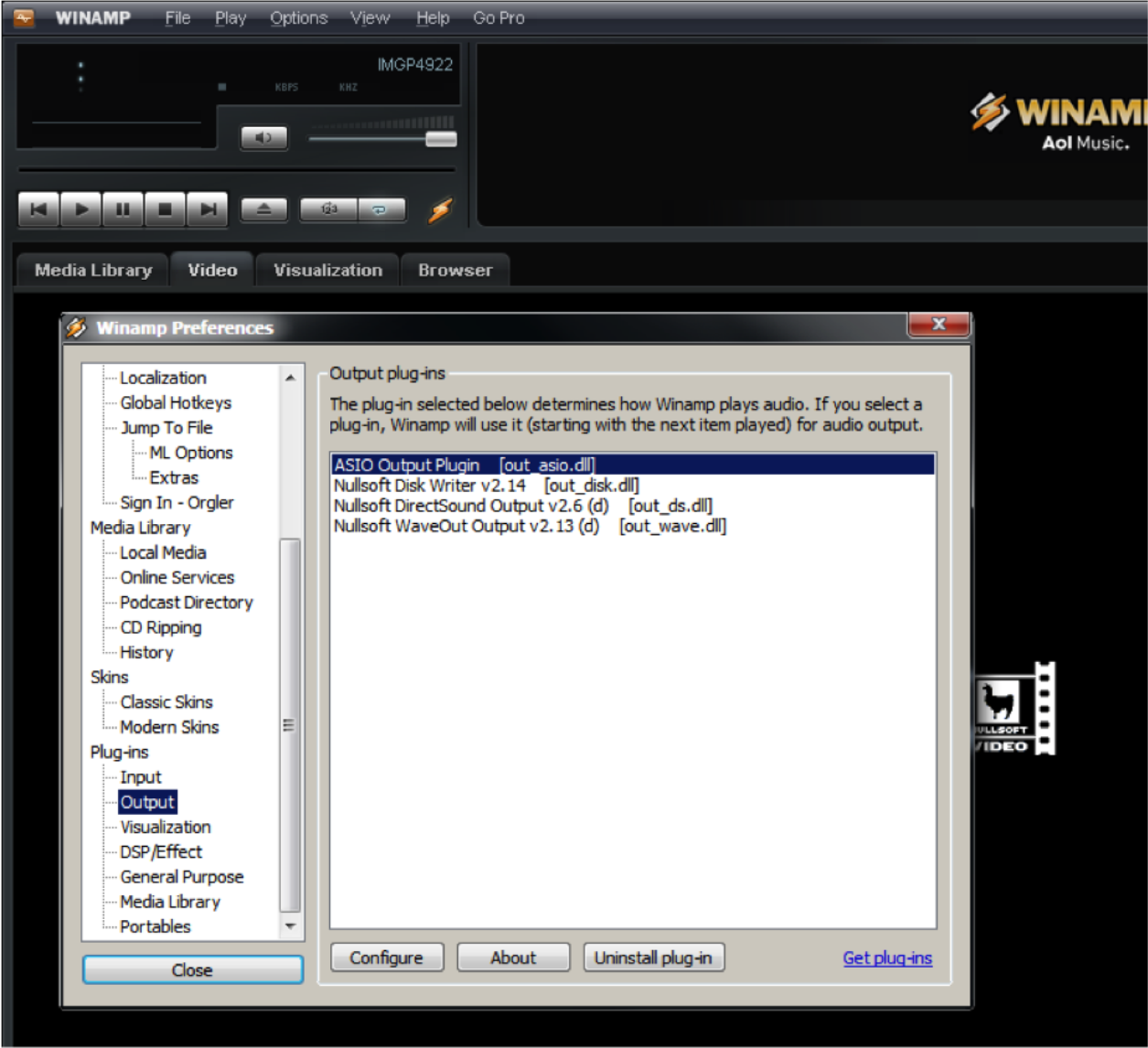
3) The Config ASIO dialog will pop up, and the Dante Virtual Soundcard will need to be selected.
ra 1
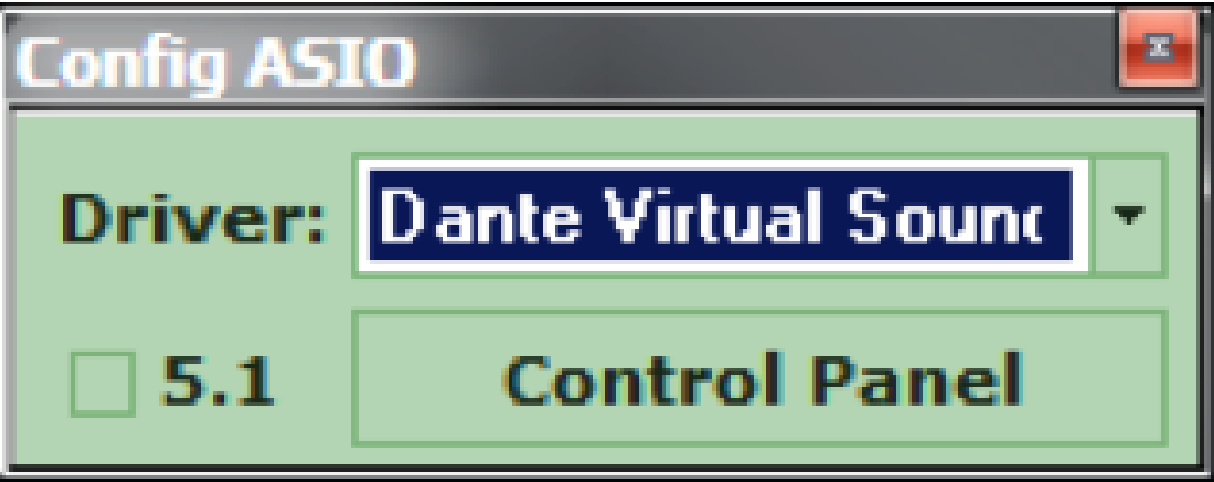
3) The Config ASIO dialog will pop up, and the Dante Virtual Soundcard will need to be selected.
4) Launch the Dante Virtual Soundcard by clicking the Control Panel button.
5) Turn on the Dante Virtual Soundcard by clicking the Power button. It will turn green when active.
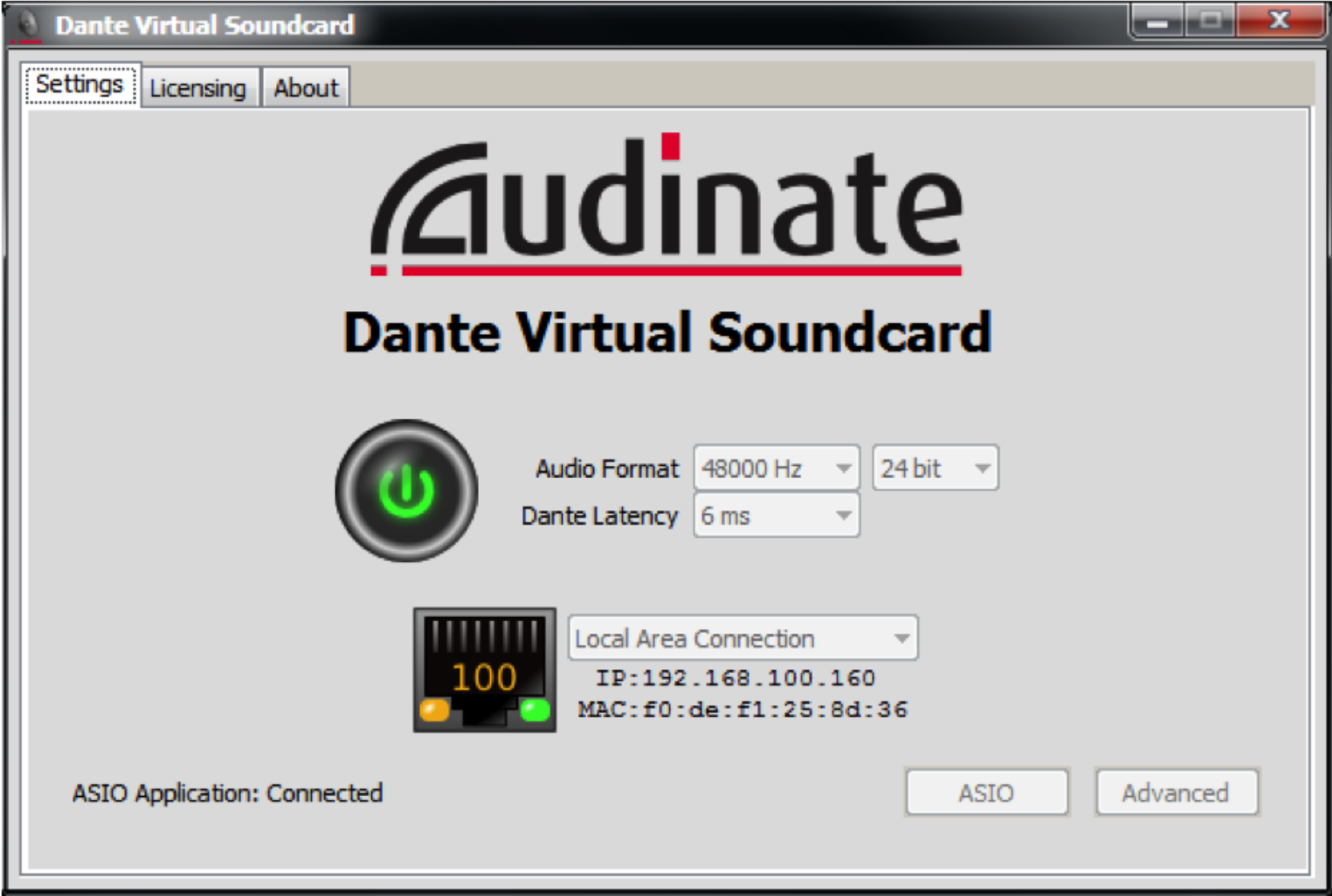
6) Open Dante Controller located at Start->All Programs->Audinate->Dante C controller.
7) The Dante Device Network Name of the PC or MAC running the Dante Virtual Soundcard (DVSC) should be visible on the Routing page. In this example the name of the Dante network device is rcurtright-lap1. Write this name down for a later step.
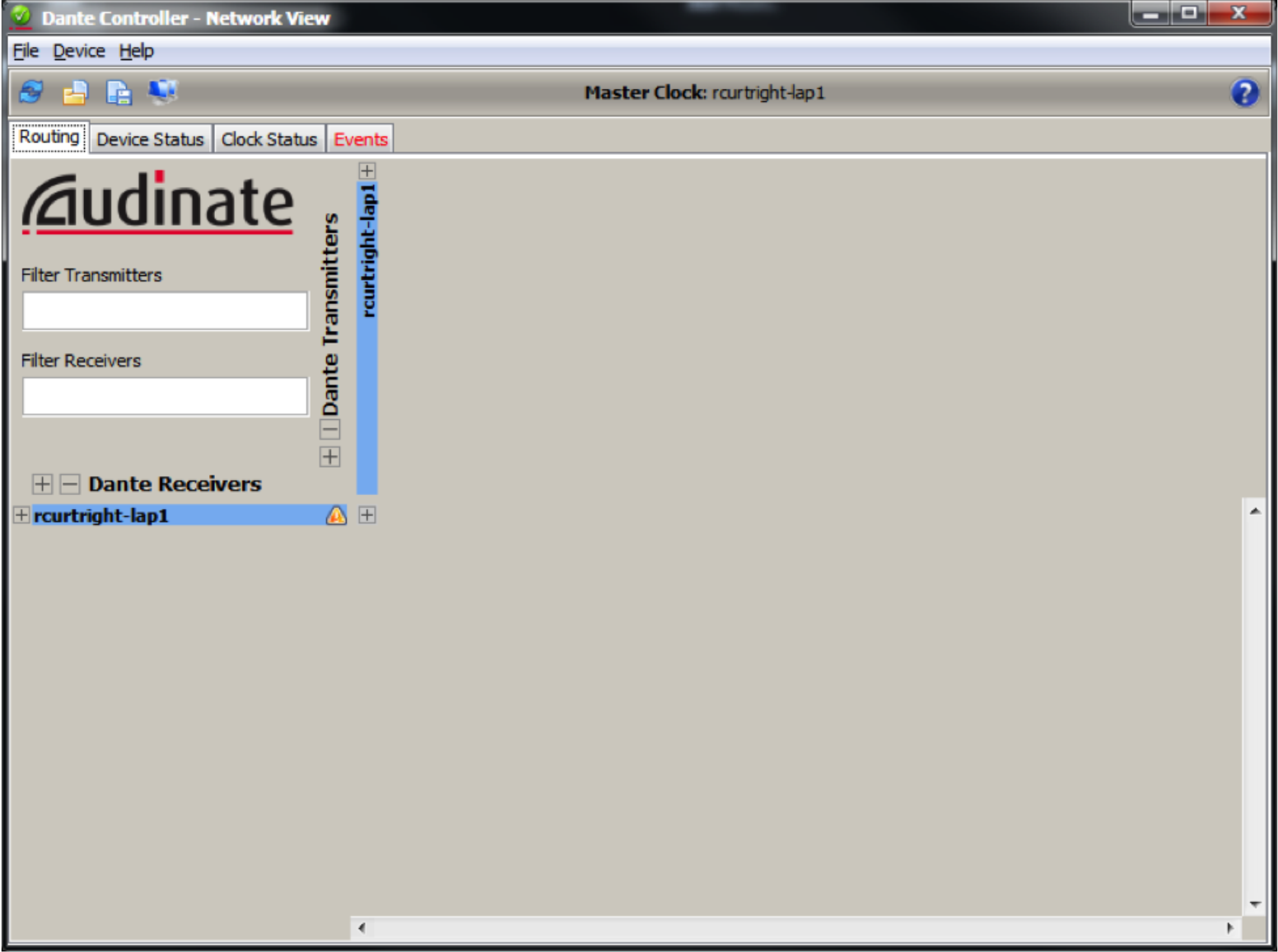
8) Next, click on the Device Status tab, and then double click on the device name. In this case it is rcurtright-lap1. This will launch the Dante Controller Device View.
9) Click on the Transmit tab and then label all channels which you would like to receive in the Edge or Radius.
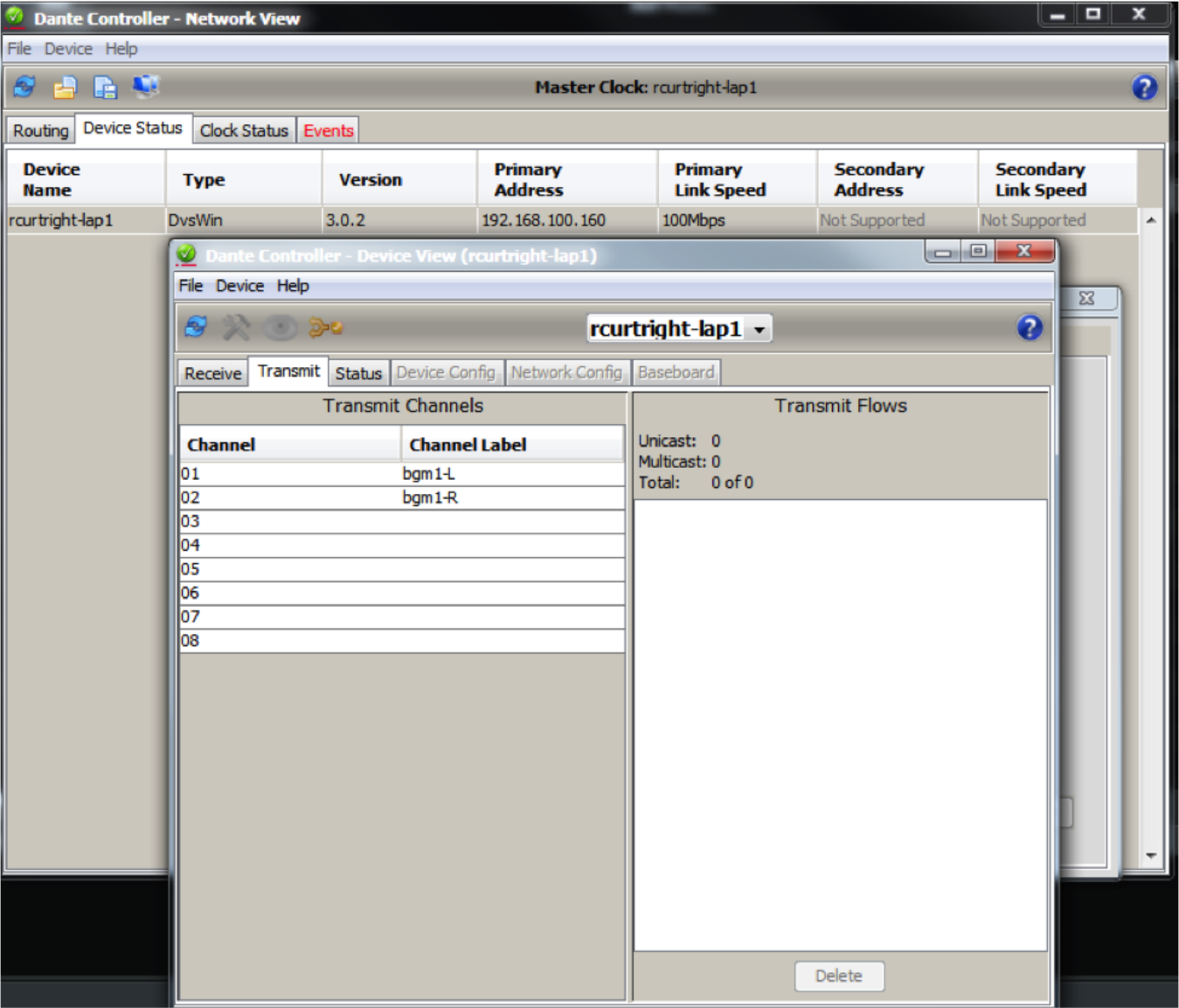
Since Winamp is being used, only 2 channels are needed to carry a stereo signal which has been named bgm1-L and bgm1-R in this example.
10) Now, on the Routing tab, expand the device in the upper area of Dante Transmitters and confirm that the two named channels are now listed.
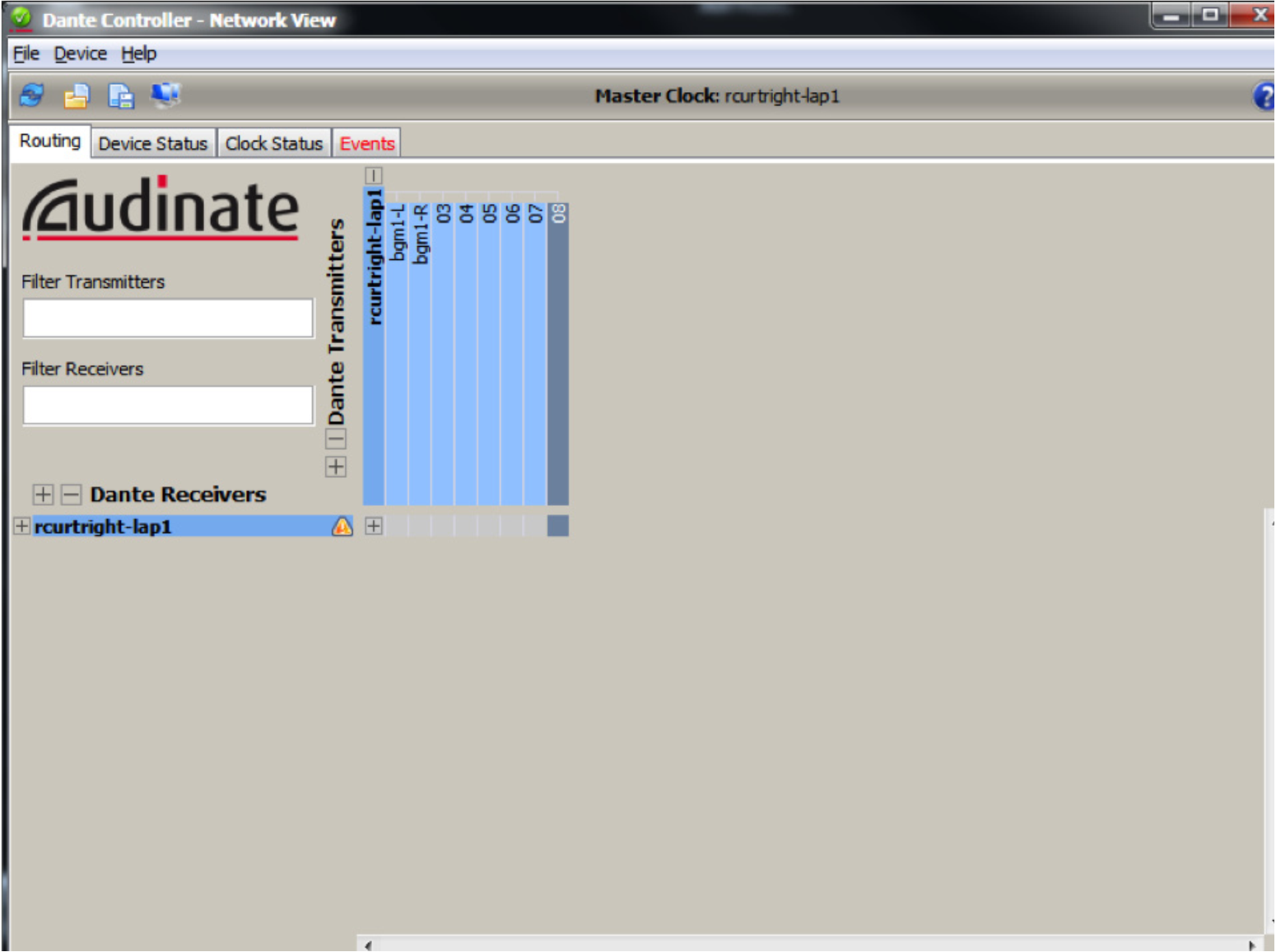
11) Next, open Composer, locate hardware (Ctrl+Shift+L), and then enter the design view by double clicking on the Edge or Radius DSP icon.
12) In the Toolkit expand “Dante Transmit and Receive Flows” and drag a New Transmit/Receive Flow into the design.
13) A new Dante flow will be created and Dante Flow Module Properties will pop-up.
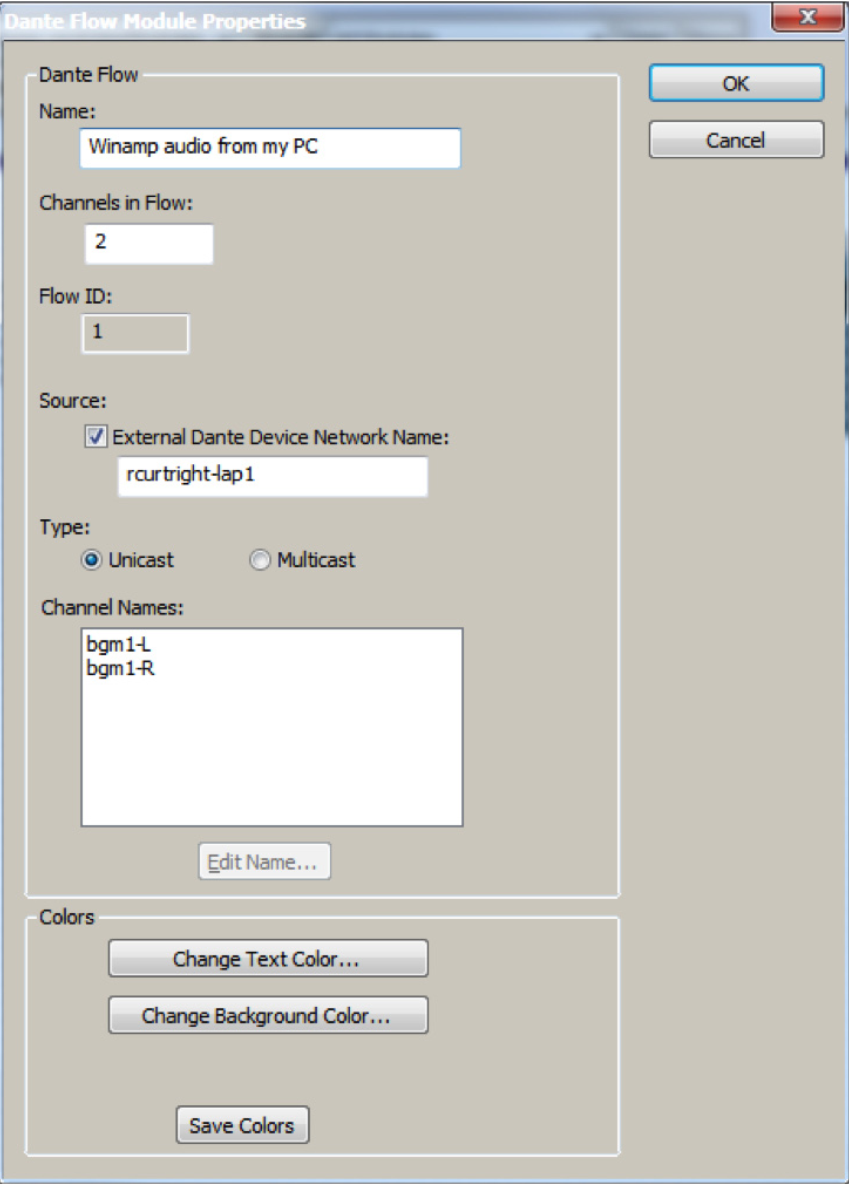
- Name for new Dante Flow: can be anything and is only for organization in C composer.
- Channels in Flow: can be 1-8 channels, although this examples uses 2 for stereo content from Winamp.
- Place Dante Flow Module: set to receive.
- Source: check the box for External Dante Device Network Name and enter the network device name from step 7. It must be typed exactly as displayed including any special characters or spaces in the name.
- Type: unicast.
- Channel names: name both channels with exactly the same names given in step 9 using Dante Controller.
14)Wire the Dante modules outputs into any module input or analog output. In this example Dante is wired into a stereo matrix mixer.
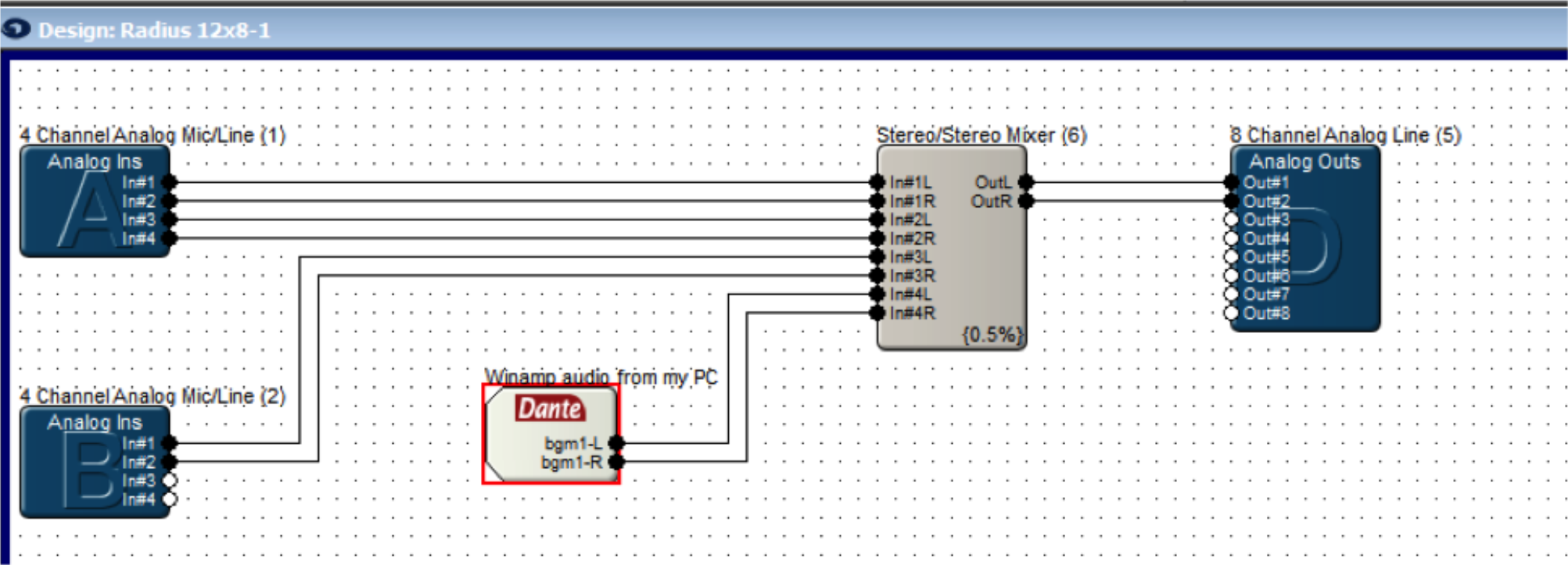
15) Push the site file to hardware.
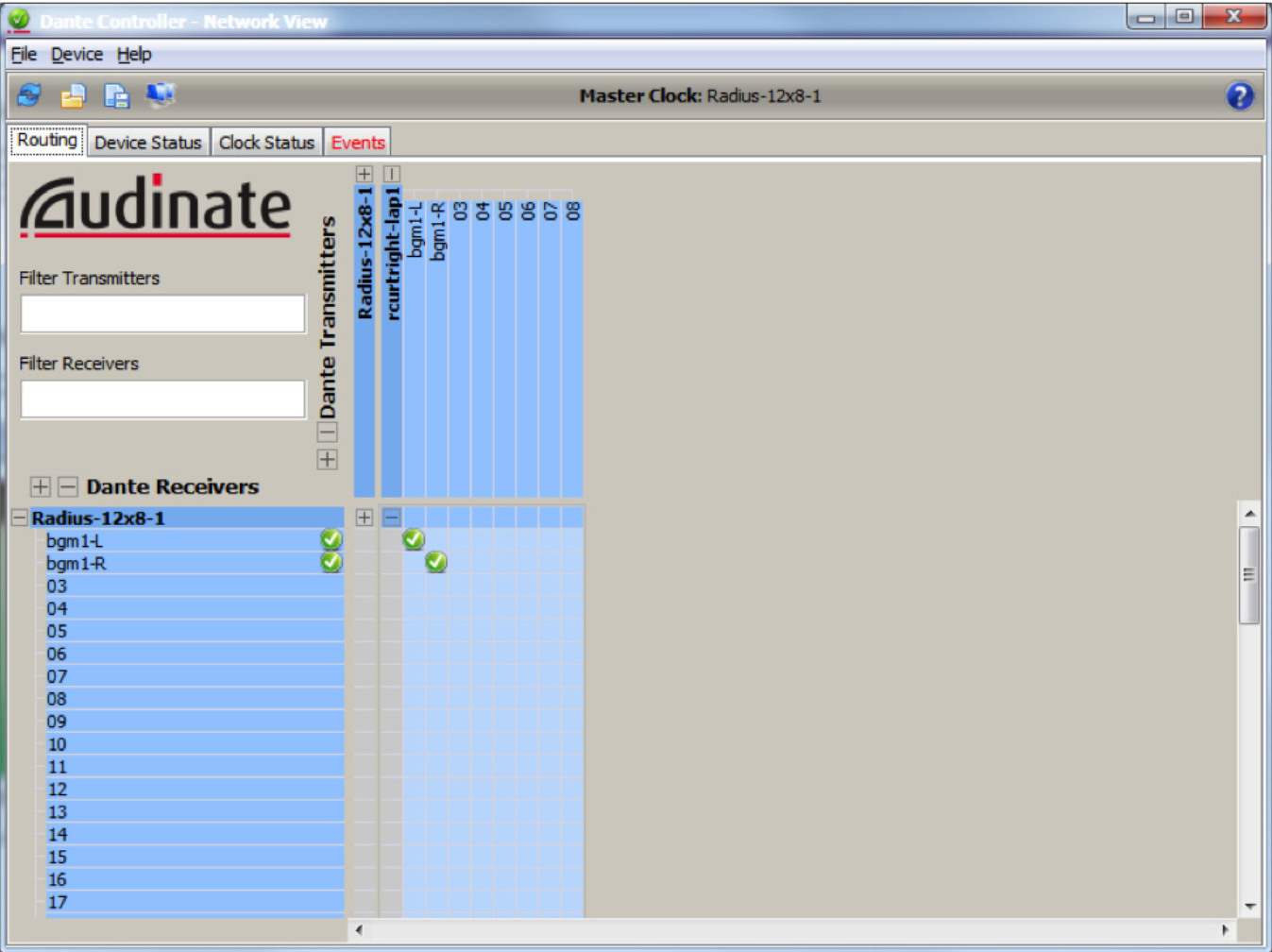
16) In Dante Controller on the Routing Tab with Dante Receives and Dante Transmitters expanded the Edge, Prism, or Radius NX DSP should now show a connection between the DVSC channels.
17) In Composer opening the GUI for the Dante Flow should show audio on the meters, as long as a song is currently playing in Winamp.
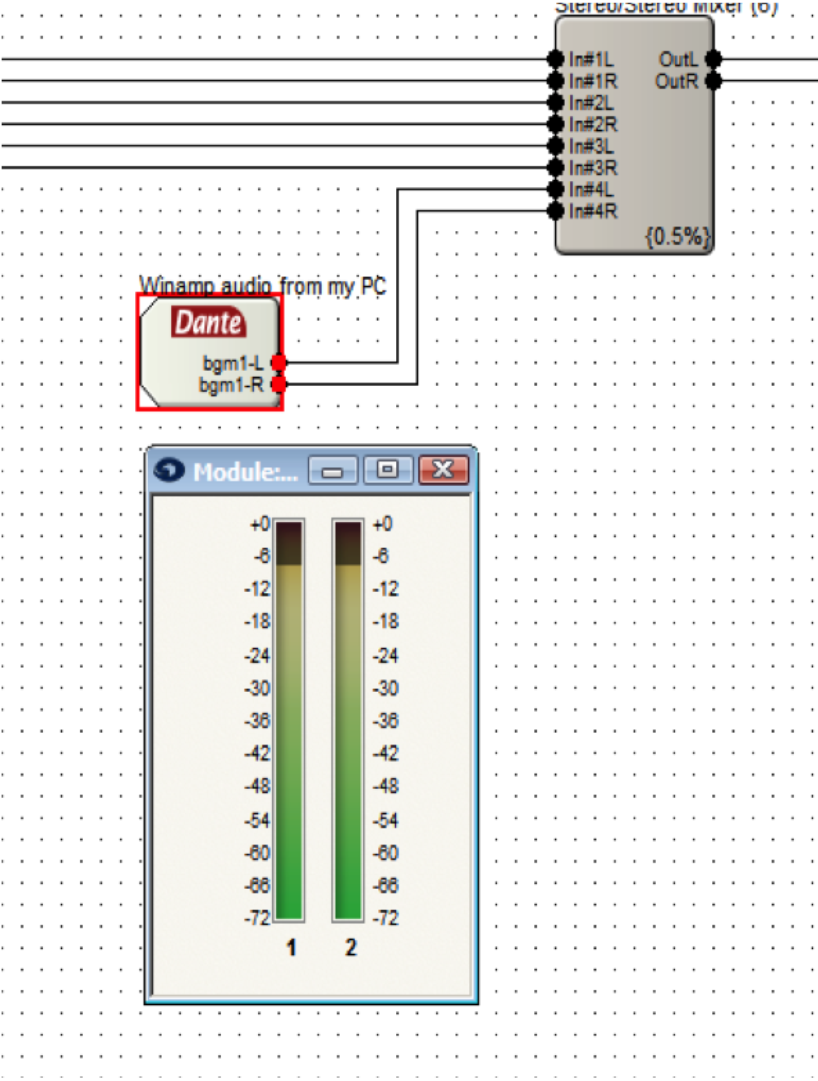
Note: setting Winamp to repeat a song or to playlist is suggested for continuous audio.
Note: Dante network audio is 24bit / 48khz audio. This means that playing a mp3 in Winamp which is 16bit / 44.1khz audio will cause it to be pitch shifted due to the 44.1khz audio being played at 48khz by the device. For true testing purposes use software that can play 24bit / 48khz audio, a common example being Sound Forge.
Symetrix provides cutting edge acoustic echo cancellation (AEC) for audio conferencing and video conferencing applications. With only 11ms of latency, the Symetrix AEC algorithm is one of the fastest acoustic echo cancelling algorithms in the conferencing market. Couple the speed of the AEC algorithm
with the pristine, high fidelity, audio Symetrix provides, including Dante digital bussing capabilities, there is little wonder why for many A/V Integrators Symetrix is becoming the preferred DSP system for small to larger conferencing systems.
Symetrix provides AEC and audio conferencing options native to the system; however, when video conferencing is needed, a 3rd party video codec system will be integrated with a Symetrix system. As such, it is important that the correct inputs and settings are used on the Lifesize system to provide the best audio possible during the video conference.
Lifesize 220 Input to Use with Symetrix Output:
All Lifesize 220 models have several inputs; however, when a Lifesize codec is integrated with Symetrix, the Symetrix system will provide the AEC. As such, it is important to use the (No AEC) inputs on the Lifesize codec for receiving the microphone and media sources from device. Using an input on the Lifesize codec with AEC can cause artifacts associated with processing the already “echo free” audio with AEC a second time.
Below is a chart with the Lifesize models and “No AEC” input options. The
mix that has the audio for the far end caller should be connected to one of these No AEC inputs.
From the Lifesize User Guide:
Lifesize 220 Output to Use with Symetrix Input:
The Lifesize codec is providing the audio from the far end to the Symetrix system. This far end audio is used as the reference (REF) as well as being sent to the local speakers. The “Line Out” of the Lifesize codec should be connected to an analog input on the device. When using a Radius AEC, one of the four line inputs should be used. If a Lifesize phone is used in conjunction with the system, the Voice Call Audio Output should be routed to the Lifesize Line Out as well.
Below are pictures of the Lifesize 220 models. The correct Lifesize input to connect to the output which will carry the local audio to the far end is highlighted in red on each model. The correct Lifesize output, also known as the reference or “REF”, to connect to the input is highlighted in blue.
Lifesize Express 220:
Lifesize Team 220:
Lifesize Room 220:
The purpose of this Tech Tip is to explain how to integrate the Earthworks IML & IMBL Microphone and LumiComm Touch Ring with a Symetrix DSP. The Earthworks LumiComm Touch Ring features a dual-color LED light ring and a touch sensor output. The light diffuser houses 10 LEDs providing side illumination (5 Green, 5 Red). The logic controlled LumiComm Touch Ring provides system integrators complete freedom
to assign functions and LED color.
The Earthworks IML & IMBL Microphones and the LumiComm Touch Ring can be supplied with either a 5 pin Phoenix connector or an 8 pin R-J45 connector.
The LumiComm Touch Rings current consumption is 85 mA with 5 LEDs lit and 170 mA with 10 LEDs lit, so an external power supply is needed. A “regulated” power supply from 8-28 VDC can be used. Always check your power supply polarity before connecting your supply to the LumiComm Touch Ring.
The wiring diagram below uses the Earthworks IMBL Phoenix connector in this
example. Each connection between the Phoenix connector and the Symetrix DSP is
explained below.
Pin 1) Ground – This connects to both the ground (-) connection of the external power supply, as well as the ground connection of the External Control Input or the Logic Output used on the Symetrix DSP.
Pin 2) 8-28 VDC power supply – This connects to the (+) connection of the external power supply.
Pin 3) Touch Sensor Output – This connects to the External Control Input used on the Symetrix DSP. In this example, CTRL input 1A is used.
Pin 4) Red LED – This connects to the Logic Output on the Symetrix DSP used to activate the red LED. In this example Logic Output 2 is used.
Pin 5) Green LED – This connects to the Logic Output on the Symetrix DSP used to activate the green LED. In this example Logic Output 1 is used.
Symetrix DSP’s are equipped with 3.3V pull up digital inputs, so a 10K resistor is not necessary as shown in Earthworks documentation.
To create the programming for the LEDs we recommend using our Button Processor Super-module, which is included in Composer software. 1-button, 4-button and 8-button versions are included in Composers Super-module library.
The Button Processor Super-module makes it extremely easy to integrate these microphone’s push-to-talk switches into your DSP. Four different modes are available per mic switch; Push to talk, Push to Mute, Toggle, and Disabled.
- Start by importing a 1-Button Processor Super-module into the design:
- Drag in a 1-Button Momentary module from the toolkit, and wire to the “Button 1” input on the super-module.
- Double-click the 1-Button Momentary module to bring up its GUI. Right-click directly on the “On” button, then click “Set Up to Remote Control” and select the Local Analog Input from the “Remote Control Device” dropdown menu. Then select which switch is being used under the “Select Analog Control” dropdown menu. Switch 1A is used in this example.
- From Control Modules->Control Outputs, drag in the “Local Logic Output #1” module. Wire the On/G output from the Button Processor Super Module into the Local Logic Output 1 module.
- From Control Modules->Control Outputs, drag in the “Local Logic Output #2” module. Wire the Off/R output from the Button Processor Super Module into the Local Logic Output 2 module.
- Navigate to the Mute button for the mic channel you’re planning to control. Right-click it, select “Set Up to Remote Control” and choose “Control Signal Assignment”. Click the “Select” button, and click the plus sign next to “1-Button Processor”. Highlight “1 Off/R”, then click OK.
- Open the Super-module user interface and select the preferred switch mode. In this example the Toggle mode is used. Go online and test the switch while watching the super-module GUI. The Input LED will light when the switch is closed, and the On/Mute LEDs will respond accordingly.
This Tech Tip will explain how to integrate the Clockaudio CH32 illuminated Halo LED touchpad and a cardioid desktop microphone with a Symetrix DSP. It should be noted that any future Clockaudio products utilizing a bi-colored status indicator and switch will be standardized, using the same color code and connection method. At present, this tech tip is valid for the CH32, TS001, SM80S, S80, and CSS Series (CS1S-CS4S).
The integration of Clockaudio conference systems can be performed with any Symetrix DSP that has analog control inputs, however this tech tip uses an Edge specifically in all examples. The CH32 is a translucent white, bi-color Halo Ring which includes a touch pad switch. There are (16) Red and (16) Green LEDs in the ring. The logic outputs on the Edge unit can power single LEDs, but cannot provide
the 60mA @ 12 VDC required to power the entire Halo Ring.
It is necessary to employ an external 12 VDC regulated power supply, in order to operate the CH32.
| Cable Color | Function | RJ45 Pin Number |
| Red | Red LED | 2 |
| Blue | -V Switch | 3 |
| Brown | +V (12 VDC) Switch | 4 |
| Yellow | Switch Logic Control | 5 |
| Green | Green LED | 6 |
The CH32 has a wire pigtail with an RJ45 connector crimped on one end. The product comes with an RJ45 straight-through coupler to facilitate the connection to a permanently installed CAT5/5e/6 cable.
Please be aware that the wiring scheme may vary on your specific model of CH32. Always double check the manufacturer’s documentation for the exact wire coloring of your model CH32.
There are (3) important connections which need to be made between the CH32 and Edge.
1) The Ground, Red LEDs, and Green LEDs wires from the CH32 should be connected to the Edge’s Logic Outputs. For this example, use Logic Output #1 for the Red LEDs and Logic Output #2 for the Green LEDs.
2) The Ground and Switch Control Logic wires should be connected to Edge’s External Control Inputs. For this example, use External Control Input #1 for the Switch Control Logic.
3) Plus, minus, and ground of the audio line from the microphone should be connected to an Analog Mic/Line Input channel on Edge.
The final important connection is to an external power supply. In this example, a 12 VDC external power supply is connected across +V and –V/Ground. When the Green LEDs or the Red LEDs wire is grounded by Edge’s Logic Outputs, the associated set of LEDs light. The Switch Logic Control wire will be open, or closed with respect to ground. The circuit’s state is determined by toggle logic and should be connected to the Edge External Control Input.
It is the integrator’s responsibility to configure (2) functions within the Edge unit:
1) Touching the CH32 triggers a logic function on the Switch Logic Control wire. This contact closure must be connected to an External Control Input on the Edge unit and assigned to a parameter in software such as a Latched Button, then wired into a control process such as a Flip-Flop, in order to trigger a set of presets that mute and un-mute the microphone associated with the CH32.
2) The presets triggered by the contact closure after touching the CH32 should also include a parameter that pulls either the Green LEDs wire or the Red LEDs wire to ground on Edge’s Logic Outputs connectors.
The integrator must decide whether it is desirable for the customer to have Red LEDs lit when the conference microphone is muted, or when it is open and in use.
Then, the presets in the Edge should be configured so the proper wire is pulled to ground according to the lighting scheme the customer wishes to have.
Please refer to the diagram below as an example of wiring a CH32v02 to Edge’s Logic Outputs, External Control Inputs, and Analog Mic/Line Inputs:
NOTE: The coupler that ships with the CH32 has its corresponding pins visually in a crossover pattern if looking down directly at the coupler. The coupler’s pin pattern is directly duplicated on the opposite face. The wiring diagram above displays the colors considering that only pins 2 – 6 are used and assuming that the same colors are continued on the other side of the coupler.
A Symetrix system’s I/O can be comprised of a combination of hardware, from DSPs such as D100, Edge, Radius NX, or Prism to the I/O expanders such as the xIn12, xOut12, and xControl. Pushing the site file programming from the host PC running Composer Software to the system can take anywhere from a few seconds to a few minutes depending on the amount of hardware that must receive programming.
Often times during commissioning, pushing the file to the system will be performed many times over as changes are made to the signal flow, remote controllers, presets, or parameters, and of which it is desirable to listen to these changes and/or to save these changes permanently in the system. By speeding up the Push process, it is possible to shave many minutes off of the overall commissioning time of the system.
The first thing to note is that all control and routing is truly performed in the DSP units. No processing or control is actually performed in the xIn 12, xOut 12, or the xControl, as once programmed these devices simply send audio or control to the d100, Edge, Radius NX, or Prism.
What this means is that once the xIO have had their programming pushed into them, then changes to the site file signal path, DSP modules, or control will not typically include changes to the xIO devices. As such, disabling them from the Push process will eliminate needlessly reloading the same programming into these devices whose settings/programming is not changing between each subsequent push.
Take this example site file. It includes Edge, Radius NX, xIn 12, xOut 12, and xControl hardware. Before disabling the xIO units from push, first locate all hardware and push the design (F4) to program all hardware, including the xIO devices.
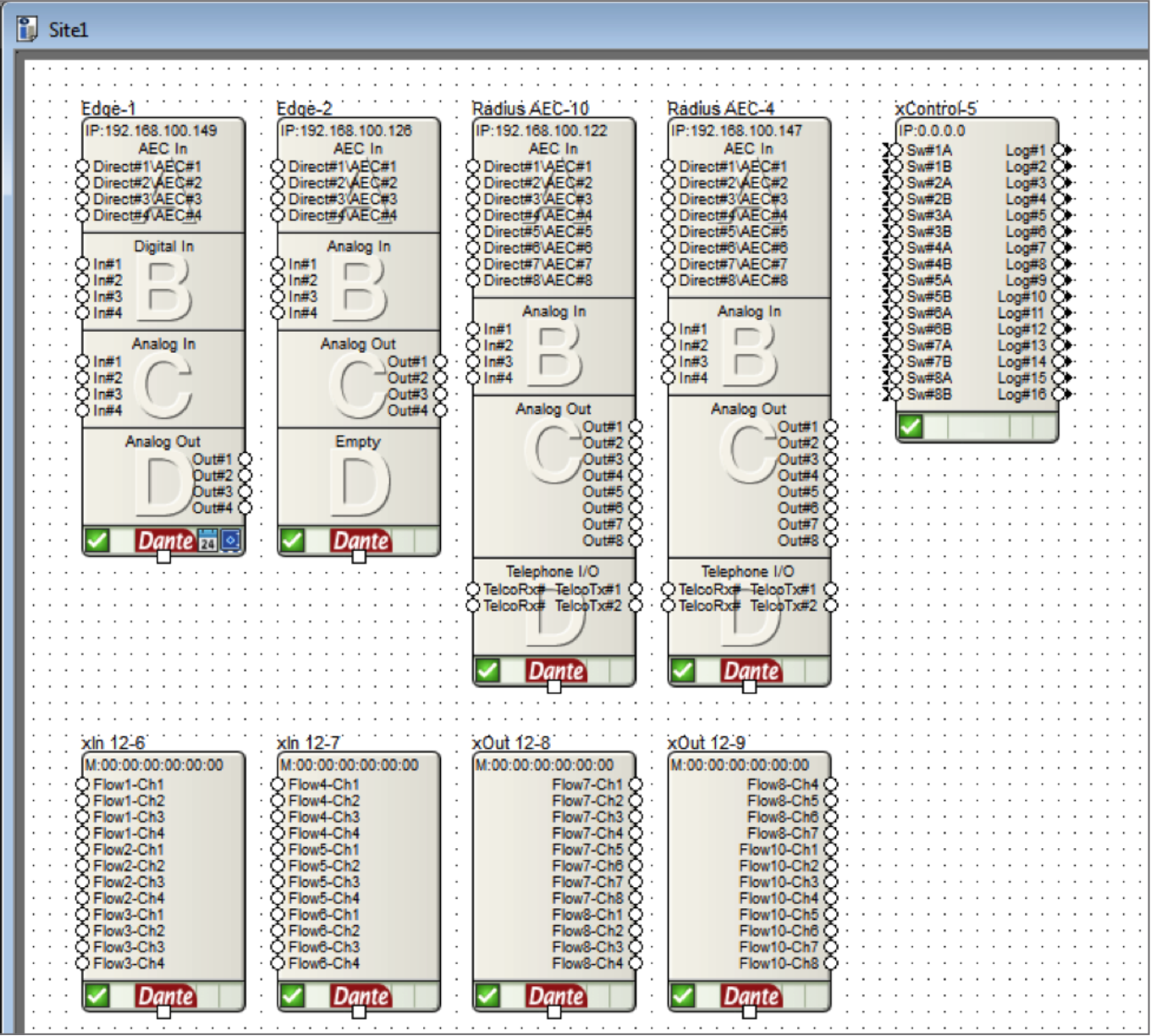
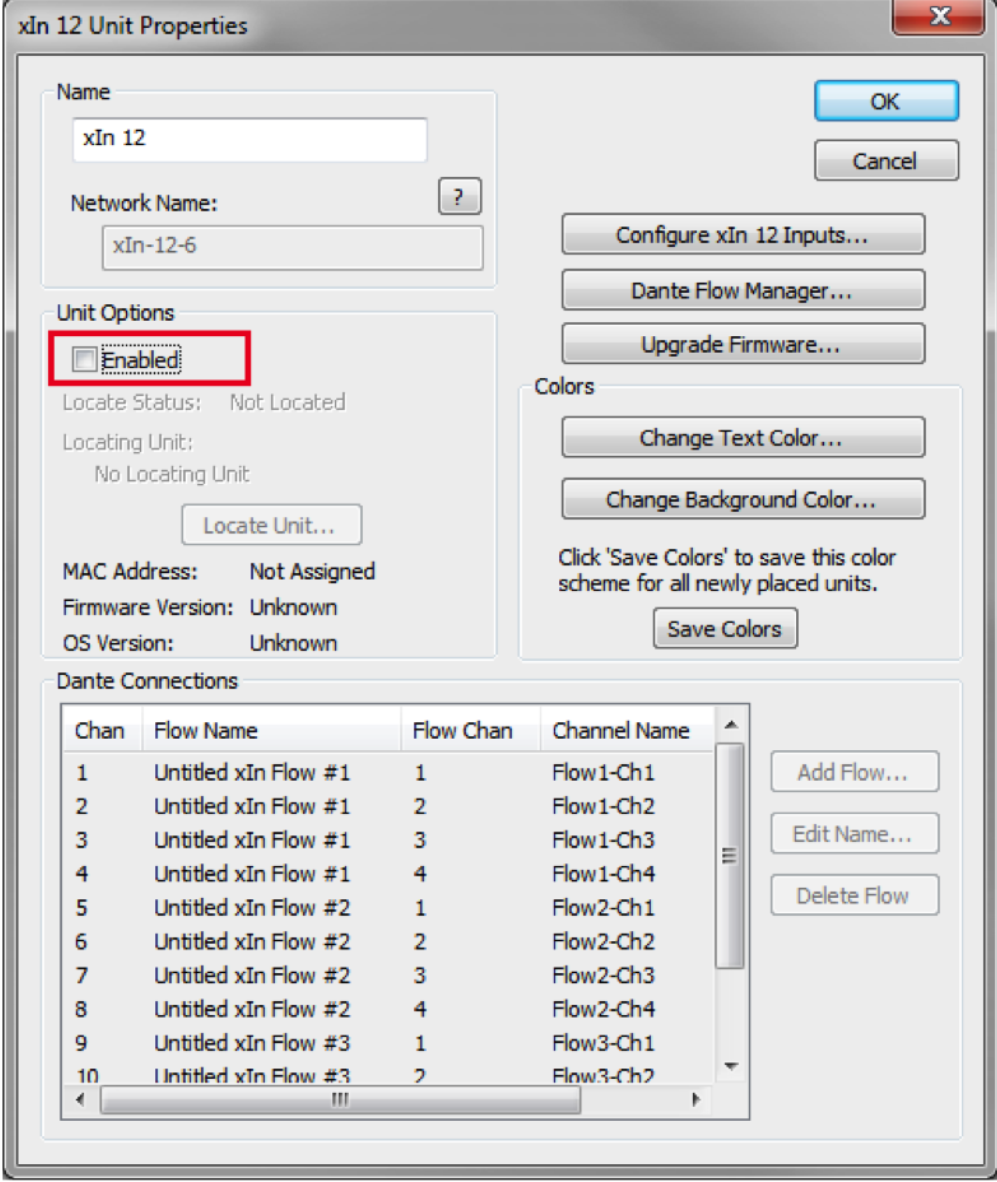
Then right click the xIO hardware and choose “Unit Properties”. When the Unit Properties window pops up, uncheck the enable box (highlighted in red below). Doing this will disable the unit from each subsequent push of the site file. Disabling a unit does not affect the unit’s functionality. To repeat, the
disabled units will continue to operate normally and communicate to the DSP hardware, they will simply be ignored by Composer software during the push process.
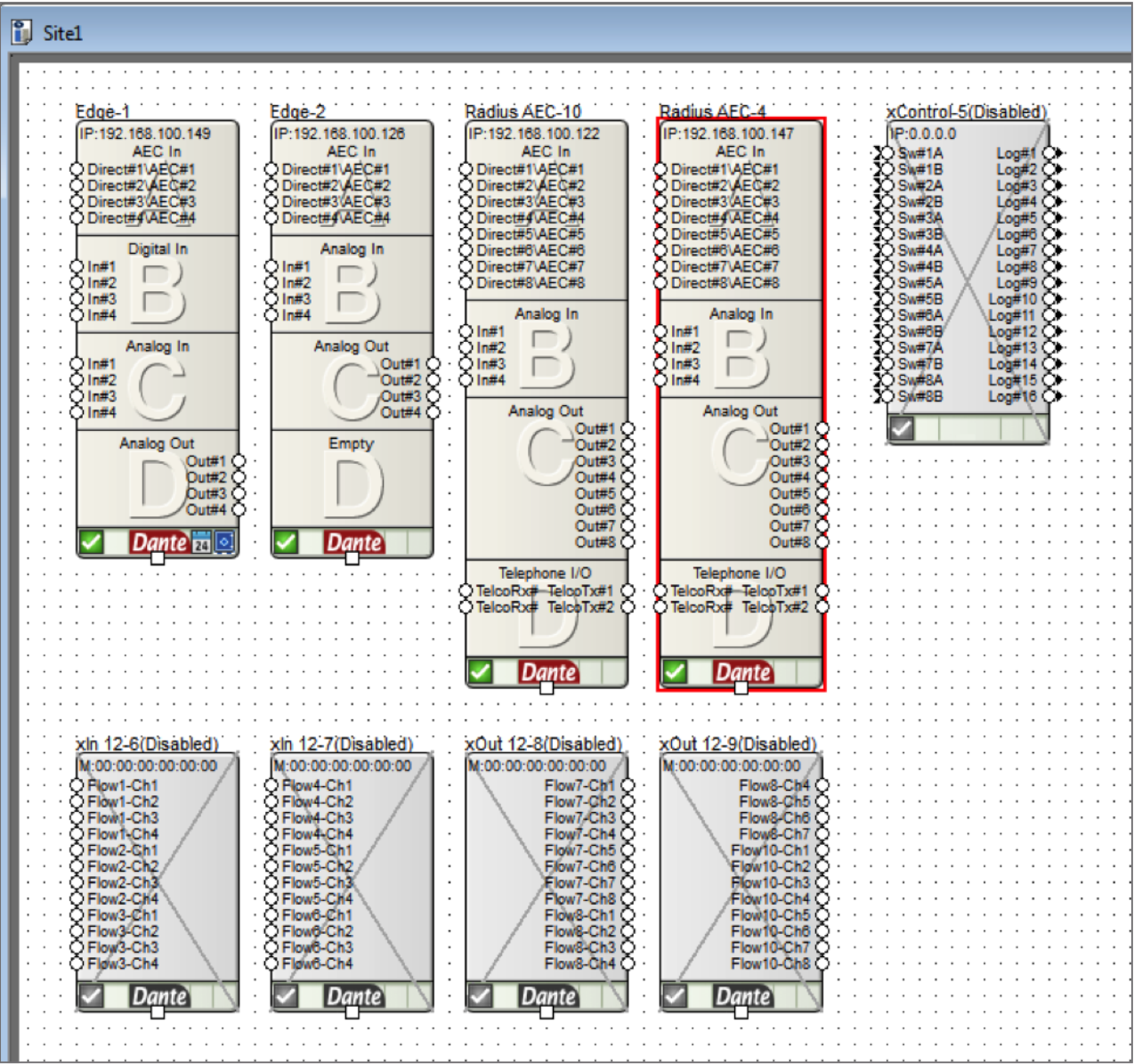
Once all xIO units are disabled, the push process will now update only the programming on the Edge, Radius NX, Prism, and D100. And as this document explains, over the course of the commissioning process, eliminating unnecessary units from being reprogrammed over and over will shave many minutes off the commissioning process.
It should also be noted that at any time these disabled xIO units can have their configuration edited by simply checking “enable” in the Unit Properties, making the necessary changes, and pushing the file.
Symetrix DSP units are equipped with analog control inputs. These inputs can be utilized in various ways to provide control or trigger events.
Common uses include:
1. Emergency muting via fire alarm relay.
2. Volume control via 10k pot.
3. Source select or preset recall via multi-position switch.
Option number 3 can present a problem called “contact bounce”.
Contact bounce (also called chatter) is a common problem with mechanical switches and relays. Switch and relay contacts are usually made of springy metals that are forced into contact by an actuator. When the contacts strike together, their momentum and elasticity act together to cause bounce. The result is a rapidly pulsed electric current instead of a clean transition from zero to full current. The effect is usually not important in power circuits, but causes problems in some analog and logic circuits that respond fast enough to misinterpret the on-off pulses as a data stream.
On a SymNet DSP the scenario might be as follows: A multi-position switch is connected to an analog control input across V+ and IN with a resistor inline with the IN. This allows the switch to have 3 states rather than just 2. In software this analog control signal is assigned to a control fader that outputs to three range detectors that are set to the three levels that the switch outputs. The output of the range detector could be assigned to a control directly or used to trigger presets. The following configuration would be the logical solution.
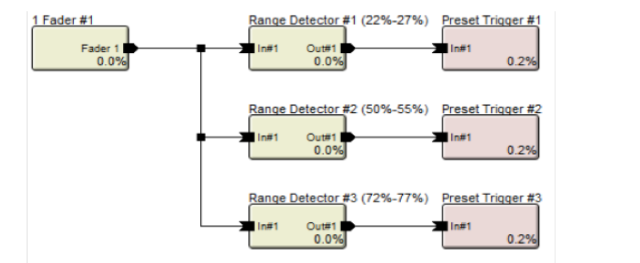
The problem occurs when making a selection on the multi-position switch, for a brief moment the voltage may bounce to 0% or 100%, causing the other presets in between the desired setting and the bounce to trigger unexpectedly.
NOTE: Whether the bounce will go to 0% or 100% may vary from one model of switch to another.To fix this problem we need to add a time delay so that the contact bounce has settled before the contact input is used. Here is the configuration with the added time delay and logic.
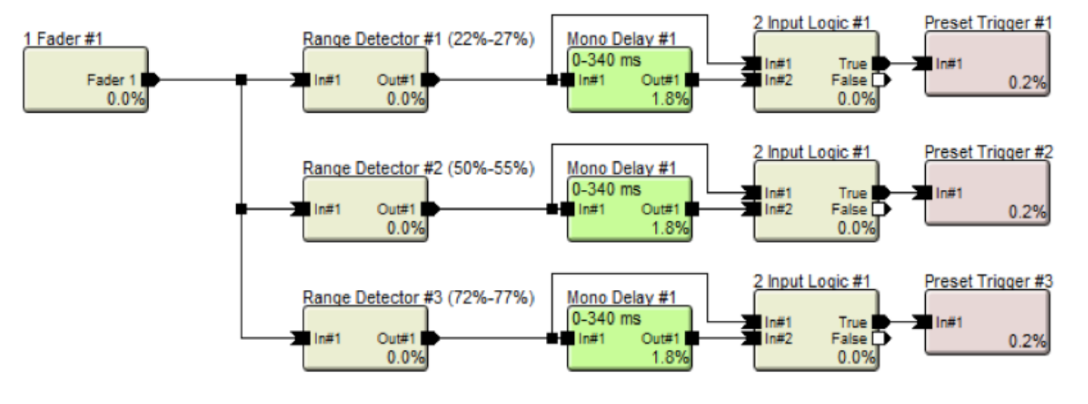
The delay time sets how long the control signal must be settled and consistent before triggering the preset. A default setting of 100 ms is suggested. As long as the switch bounce settles before 100 ms, the bounce will not register and trigger unintended presets.
NOTE: The 2 input logic module must be set to “AND”. This is a solution where control and audio modules are mixed on purpose. Ignore any warnings from the analyzer which may indicate this configuration